UPDF
UPDF
 UPDF for Windows
 UPDF for Mac
 UPDF for iPhone/iPad
 UPDF for Android
 UPDF AI Online
 UPDF Sign
 Edit PDF
 Annotate PDF
 Create PDF
 PDF Form
 Edit links
 Convert PDF
 OCR
OCR PDF to Word
 PDF to Image
 PDF to Excel
 Organize PDF
 Merge PDF
 Split PDF
 Crop PDF
 Rotate PDF
 Protect PDF
 Sign PDF
 Redact PDF
 Sanitize PDF
 Remove Security
 Read PDF
 UPDF Cloud
 Compress PDF
 Print PDF
 Batch Process
 About UPDF AI
 UPDF AI Solutions
 AI User Guide
 FAQ about UPDF AI
 Summarize PDF
 Translate PDF
 Chat with PDF
 Chat with AI
 Chat with image
 PDF to Mind Map
 Explain PDF
 Scholar Research
 Paper Search
 AI Proofreader
 AI Writer
 AI Homework Helper
 AI Quiz Generator
 AI Math Solver
 PDF to Word
 PDF to Excel
 PDF to PowerPoint
 Enterprise Solution
 Enterprise Sign
 Enterprise AI
 Enterprise Plan
 Enterprise User Guide
 Enterprise Webinar
 Banking
 Healthcare
 Insurance
 Legal
Legal Manufacturing
 Government
 Education Solution
 Customer Stories
 User Guide
 UPDF Tricks
 FAQs
FAQs UPDF Reviews
 Download Center
 Blog
Blog Newsroom
 Tech Spec
 Updates
 UPDF vs. Adobe Acrobat
 UPDF vs. Foxit
 UPDF vs. PDF Expert



Do you want to save your old Polaroid photos on your computer or phone? If yes, I would recommend using a Polaroid picture scanner. With a Polaroid scanner, you can easily turn your physical photos into digital files, keep them safe, and share them with friends and family.
However, many people don’t know how to scan a Polaroid properly, but don’t worry—this guide will show you the best way to scan Polaroids on PC and mobile using a simple third-party tool like UPDF. This article will also introduce how to scan Polaroid pictures using INSTAX UP! and the Polaroid app. Keep reading to learn how to use these tools, and don’t forget to click the download button below to get the latest version of UPDF.
Windows • macOS • iOS • Android 100% secure
Part 1. The Best Way to Scan Polaroid Pictures on PC & Mobile– UPDF Guide
UPDF is an all-in-one PDF editor that can easily scan Polaroids or other documents to PDF on both your PC and mobile devices. You can also use this tool to convert your scans to other formats like JPG or PNG in just a few clicks.
Moreover, it lets you sync your files across devices with UPDF Cloud, and mobile users can integrate it with Dropbox to save and sync scans automatically. After scanning your files, you can share them via email, link, or QR code. UPDF covers nearly all the essential functions you’d expect from Acrobat Pro, but at a more affordable and cost-effective price.
Under the UPDF free version, all features are available with trial watermarks added. Below, I have mentioned how to use this tool to scan Polaroid pictures on both PC and mobile.
• PC - Scan a Polaroid on a Printer
To scan your Polaroid Pictures on PC using UPDF, you can follow the steps below.
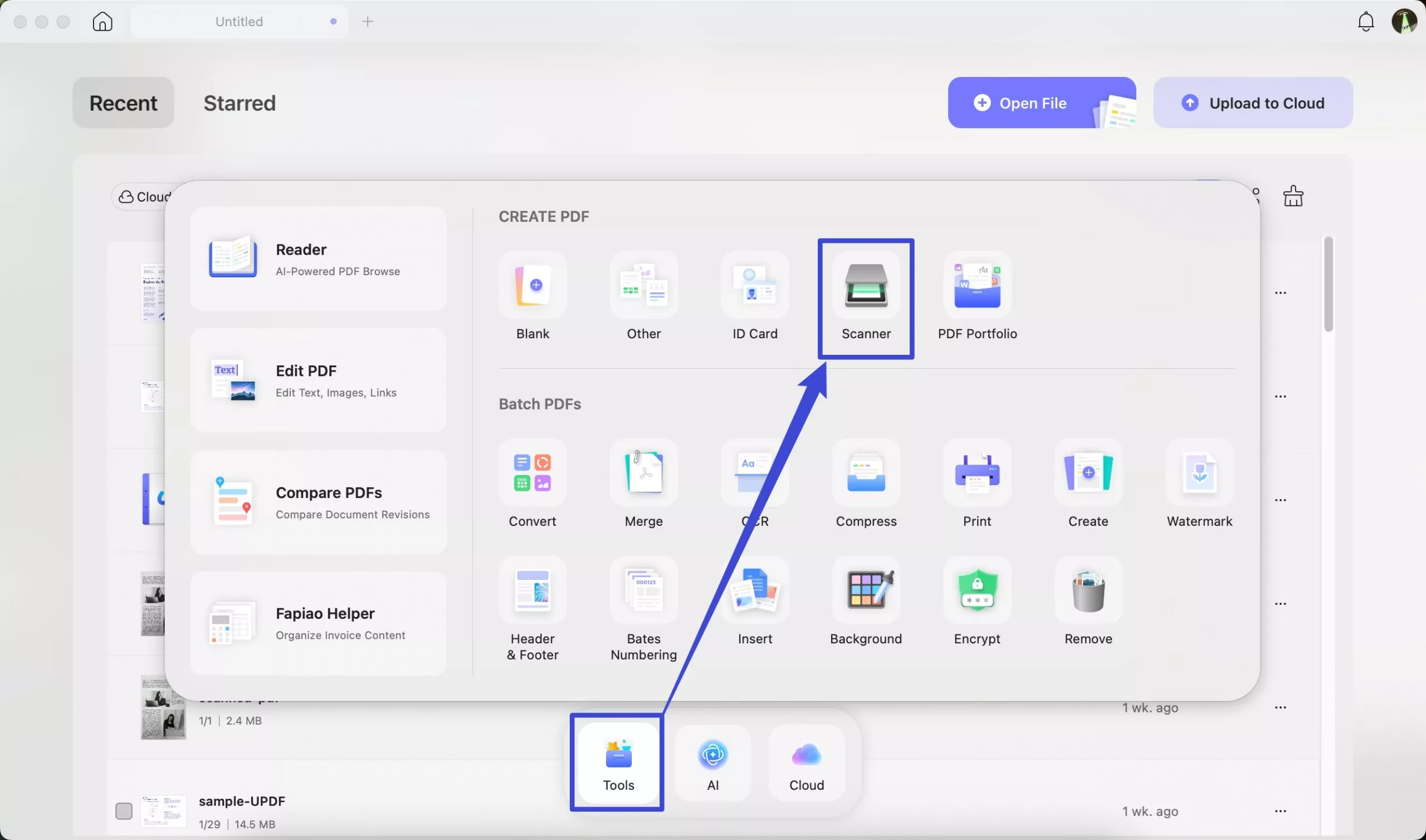
1. Open UPDF tool and click the “Tools” option. Now, choose “Scanner” to begin the process.
Windows • macOS • iOS • Android 100% secure
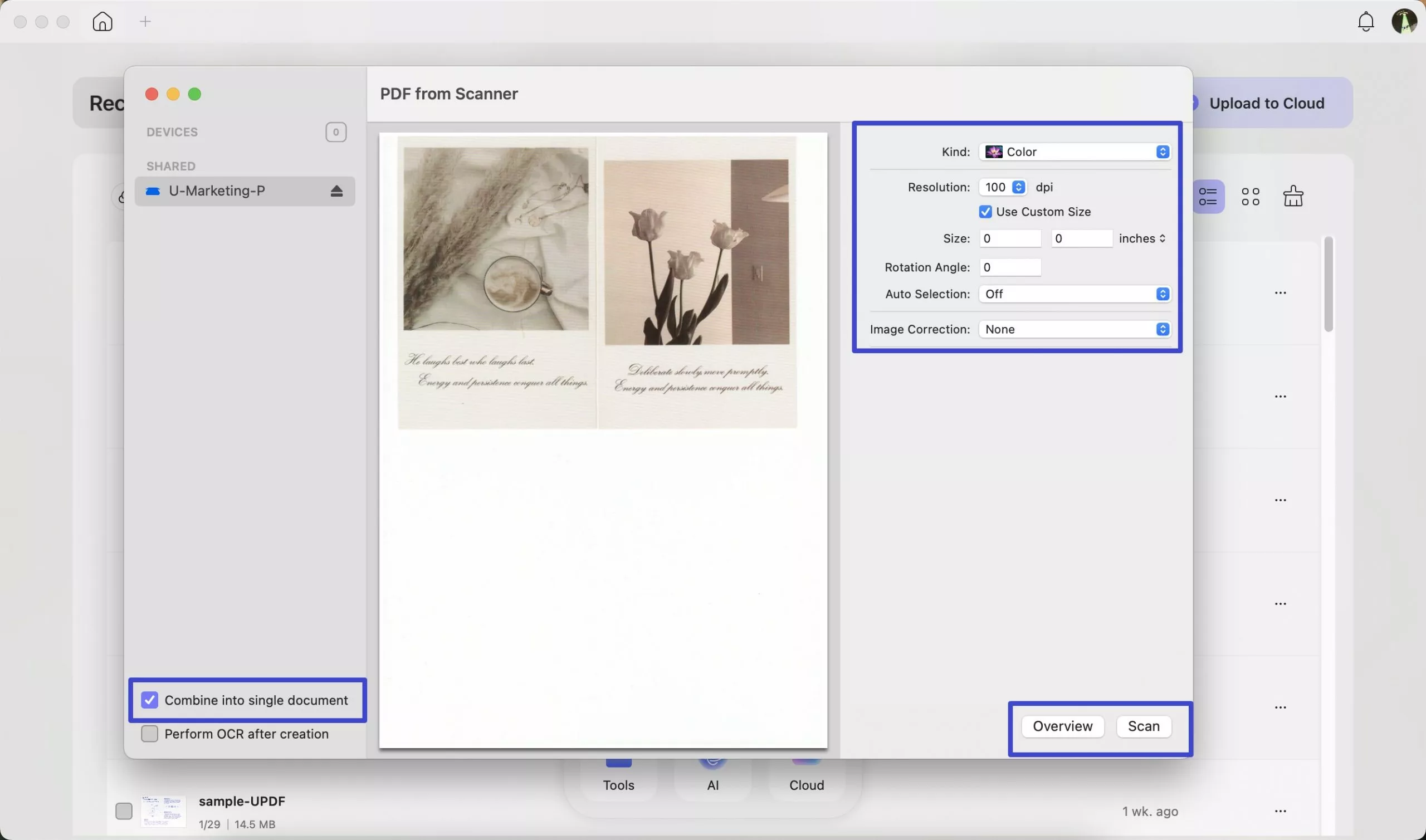
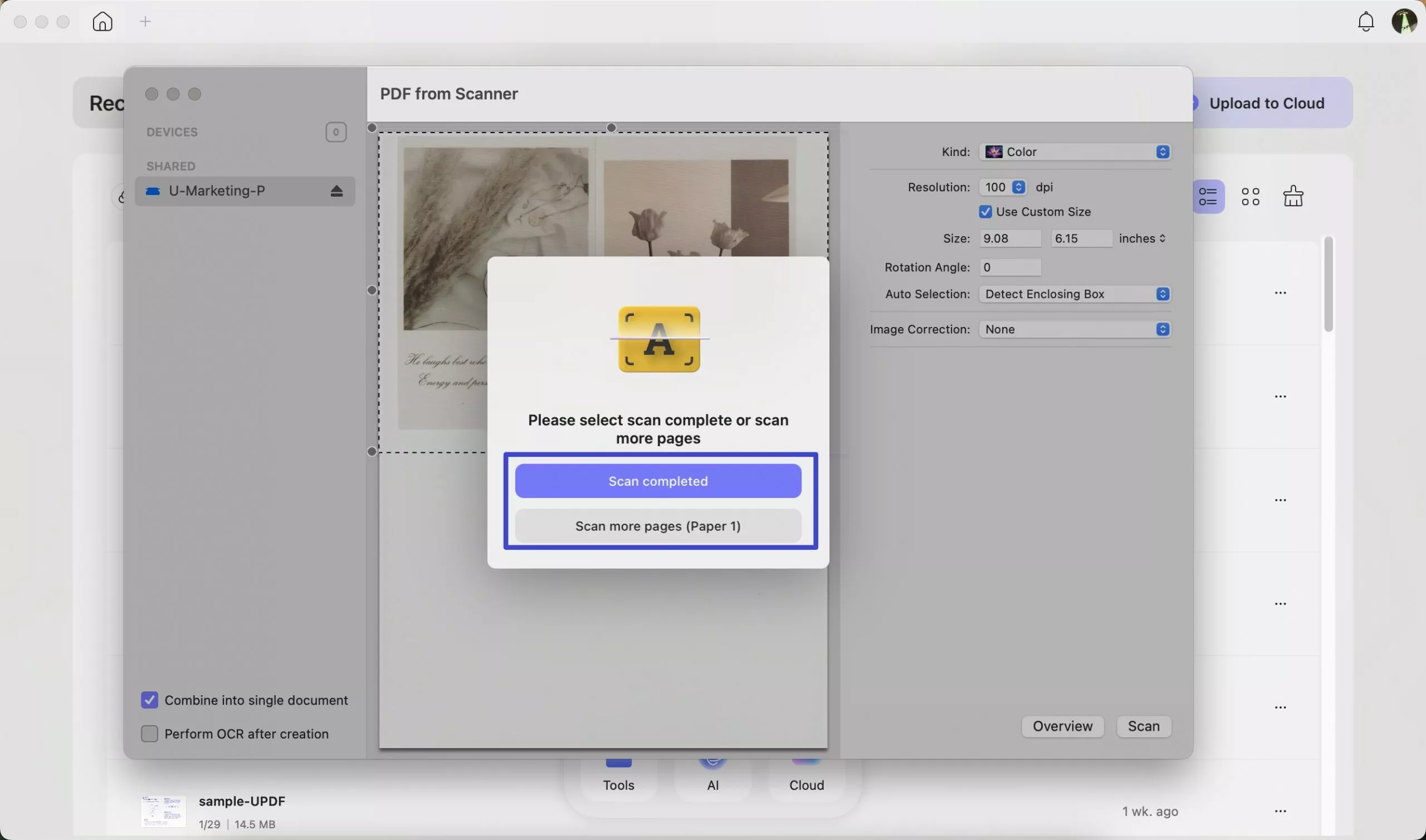
2. Now, customize picture settings, such as set resolution, size, and more. Once done, click the “Overview” button to check the settings. After that, click “Scan” to start the process. You can also select the “Combine into a single document” option for the best results.
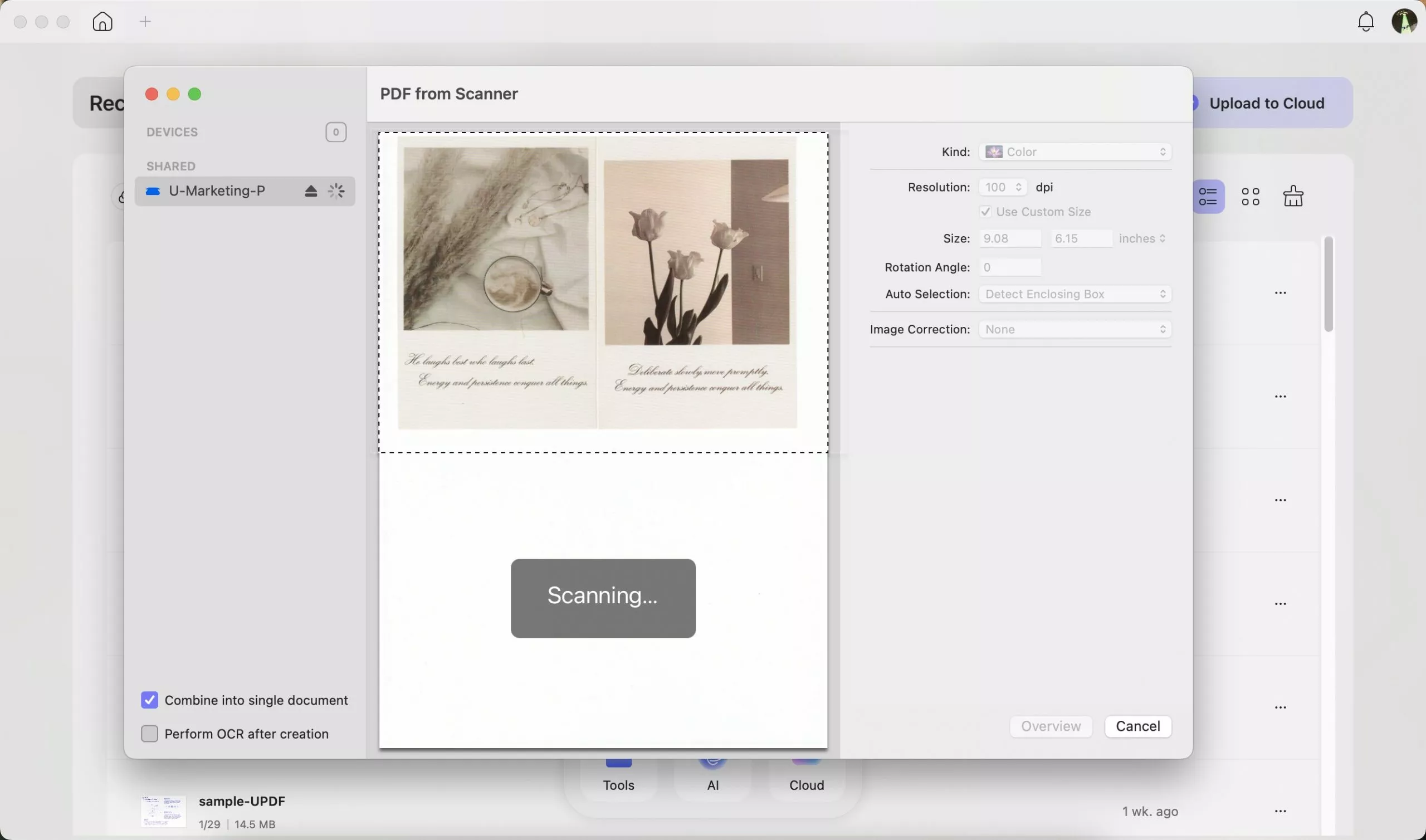
3. Click the options from the “Auto Selection” section to customize and choose the scanning area. Now, wait until the scanning is completed.
4. Within a few minutes, you will see the “Scan Completed” message on your screen. Click it to continue, or choose “Scan More Pages” to scan additional pages.
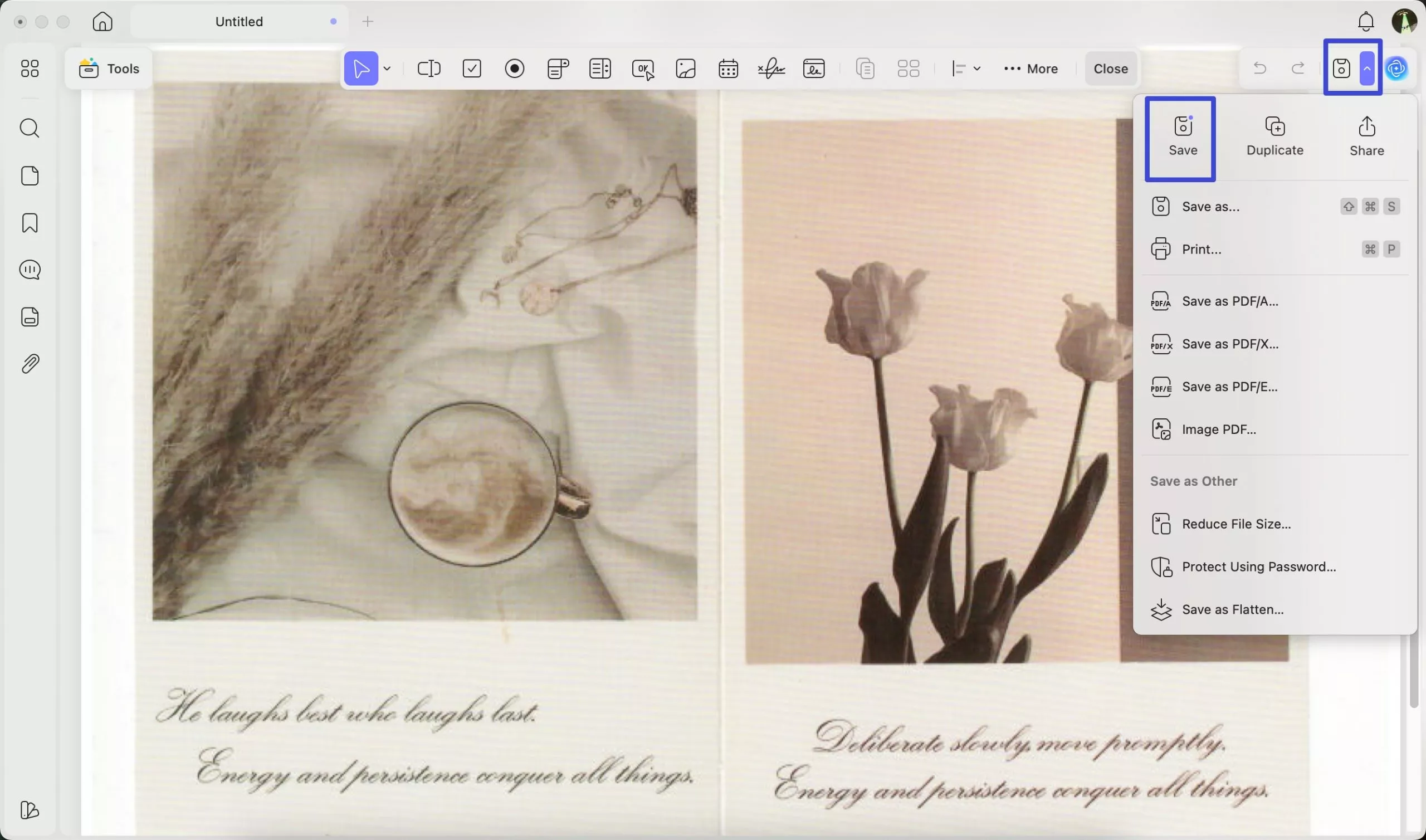
5. After choosing “Scan Completed” view the result and click the “Save” button to save it as PDF file.
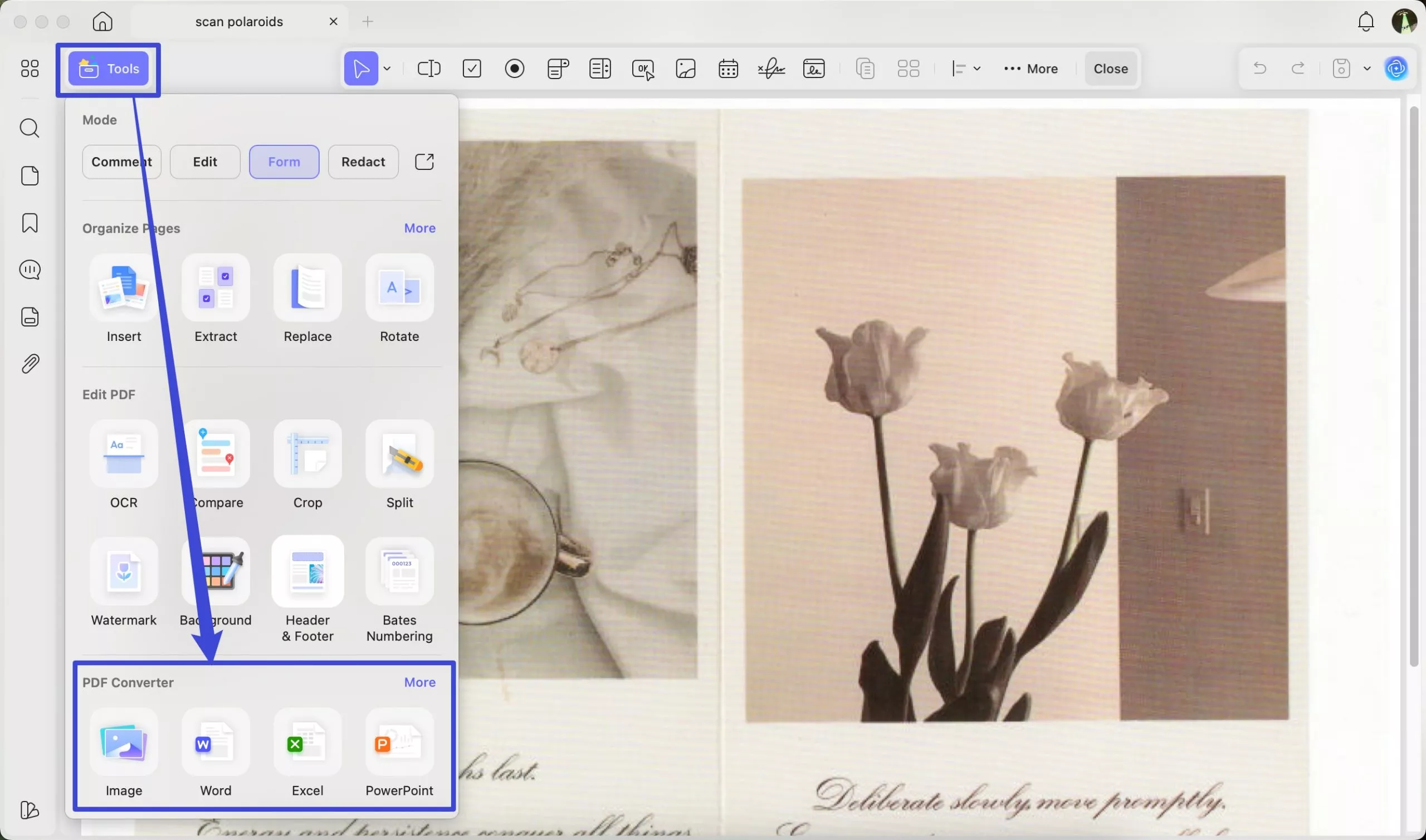
Tip: You can also convert your scanned documents into other formats, such as Image, Word, Excel, and more. Click “Tools” and under PDF Converter, select the desired format.
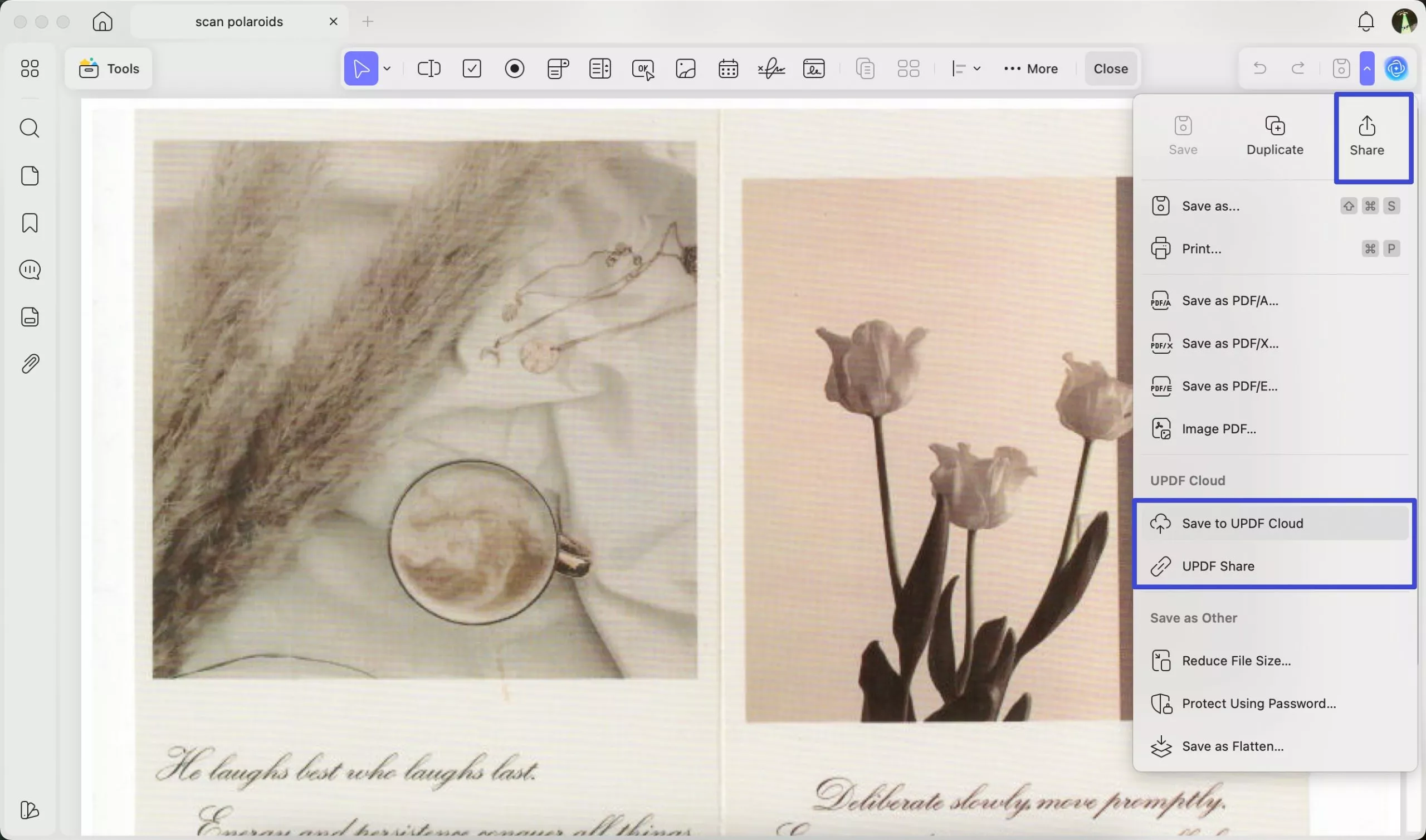
Tip: You can also sync your scanned documents to UPDF Cloud and share them directly via email, by creating shareable links or QR codes, as shown in the image below
• Mobile
Download UPDF app on your mobile devices from the App Store or Google Play. Once you have downloaded the app, follow the steps below to scan Polaroids on your mobile devices.
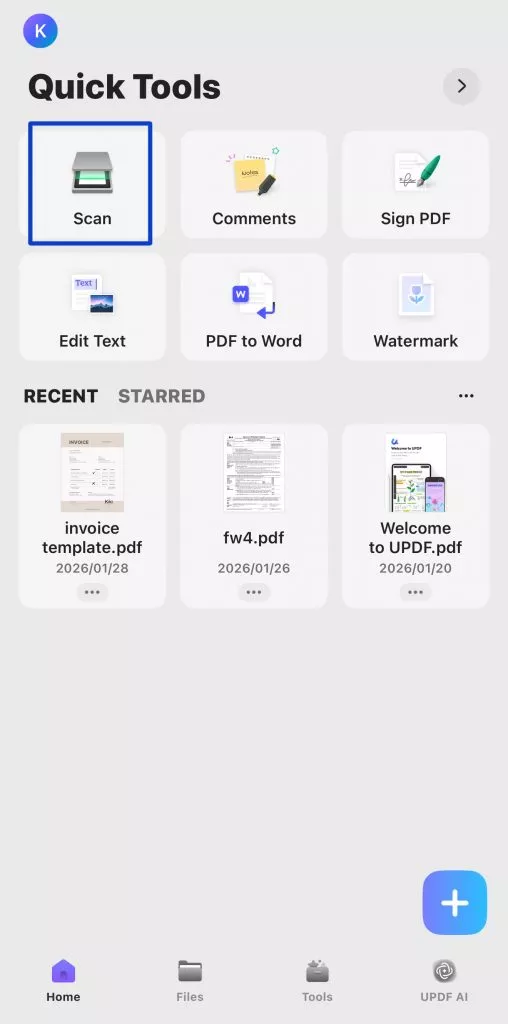
1. Launch your UPDF mobile app and click the “Scan” button.
Windows • macOS • iOS • Android 100% secure
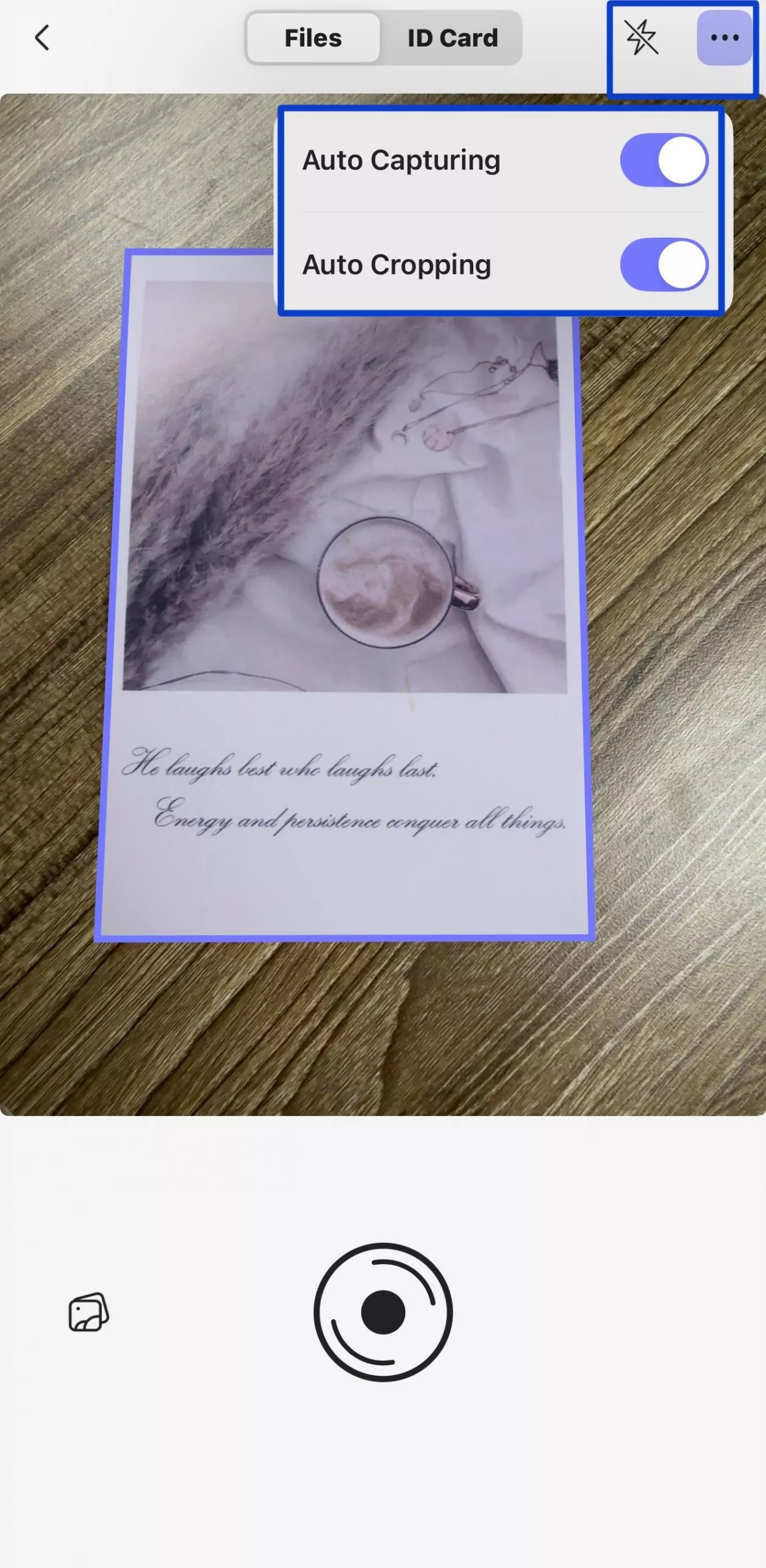
2. Upon accessing the camera screen, tap on the “File” option and hit the “Three-Dots” icon to enable the “Auto-Capturing” and “Auto-Cropping” modes. You can also enable the flashlight based on the lighting.
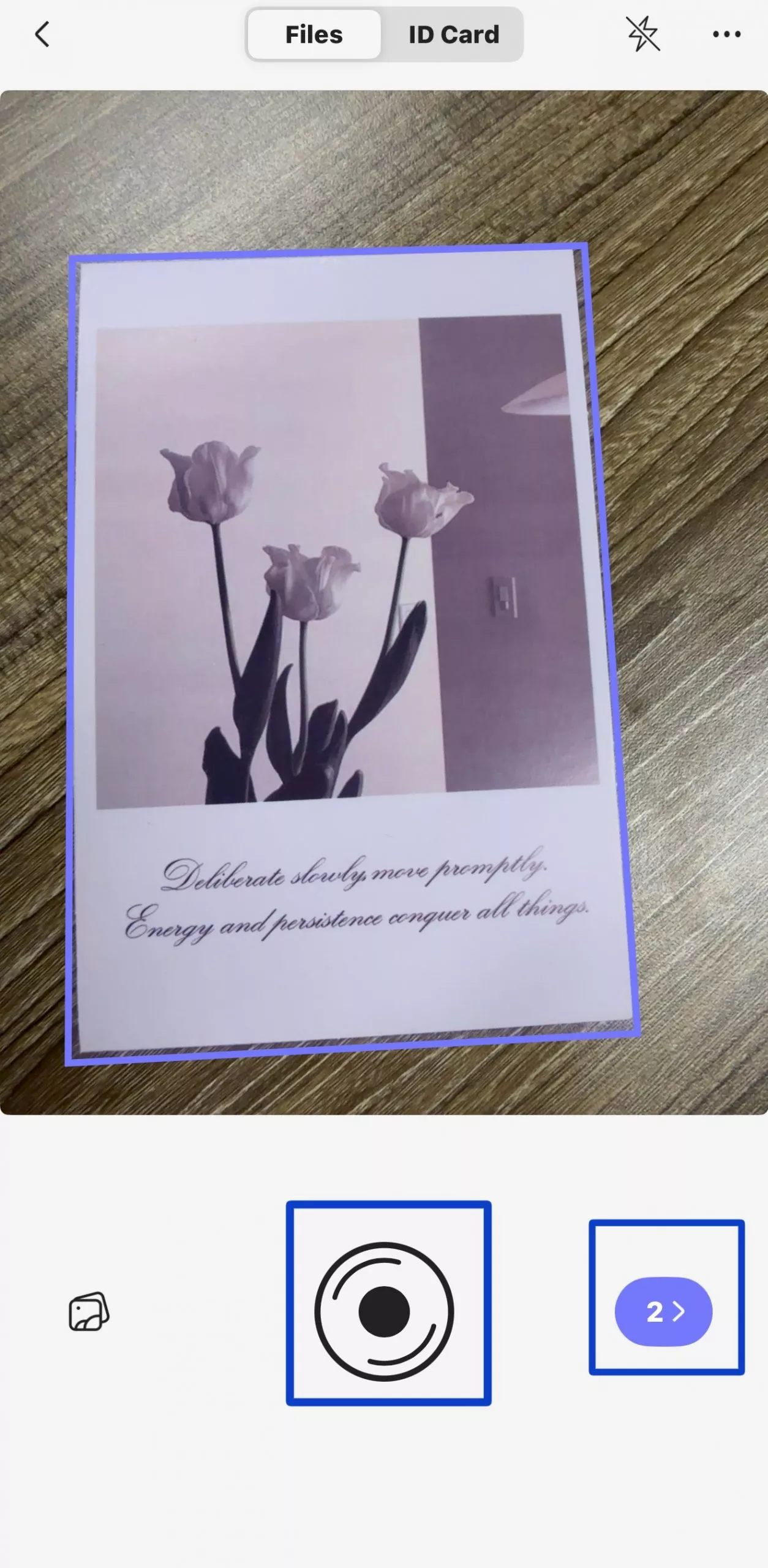
3. Now, to capture multiple images, keep tapping the “Capture” button. When finished, tap the “>” icon to go to the “Adjust & Edit” screen.
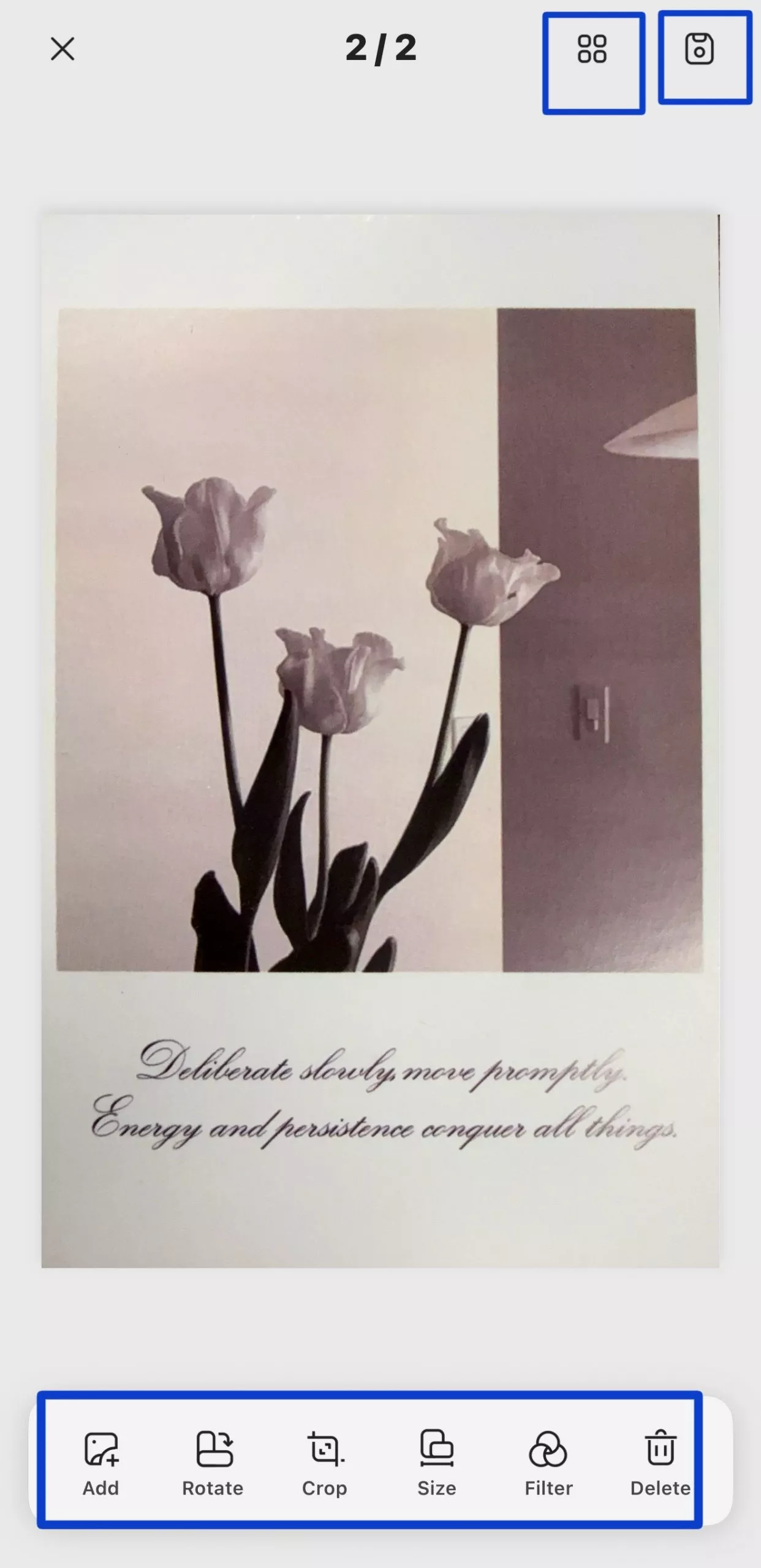
4. On the screen, you will see the following options, arranged from top to bottom and left to right:
- Organize— Organize images in one place
- Save Button— Save your scan image
- Add – Insert another image
- Rotate – Turn the image clockwise
- Crop – Trim or adjust the edges
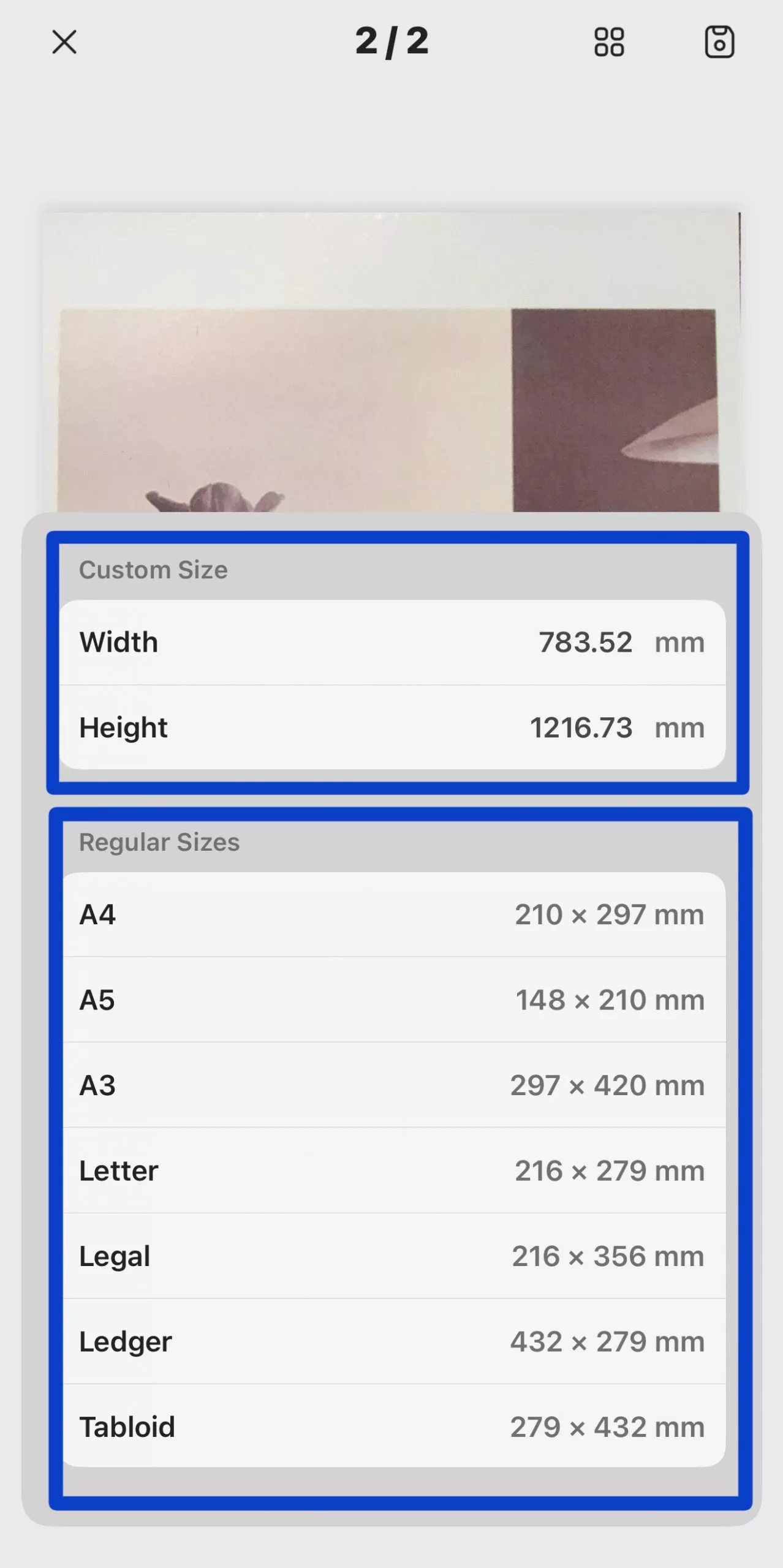
- Size – Resize the page dimensions
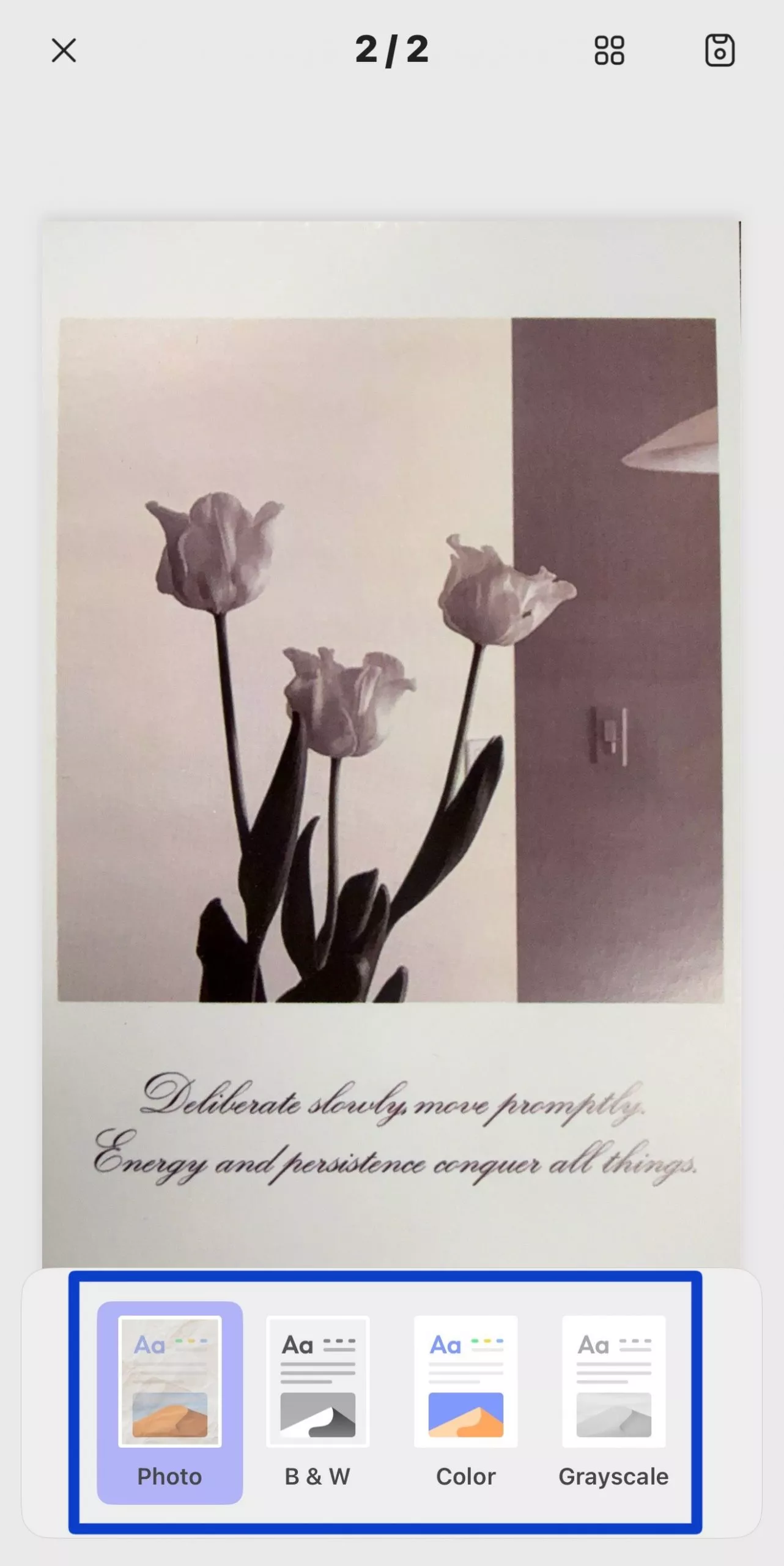
- Filter – Apply visual effects
- Delete – Remove image
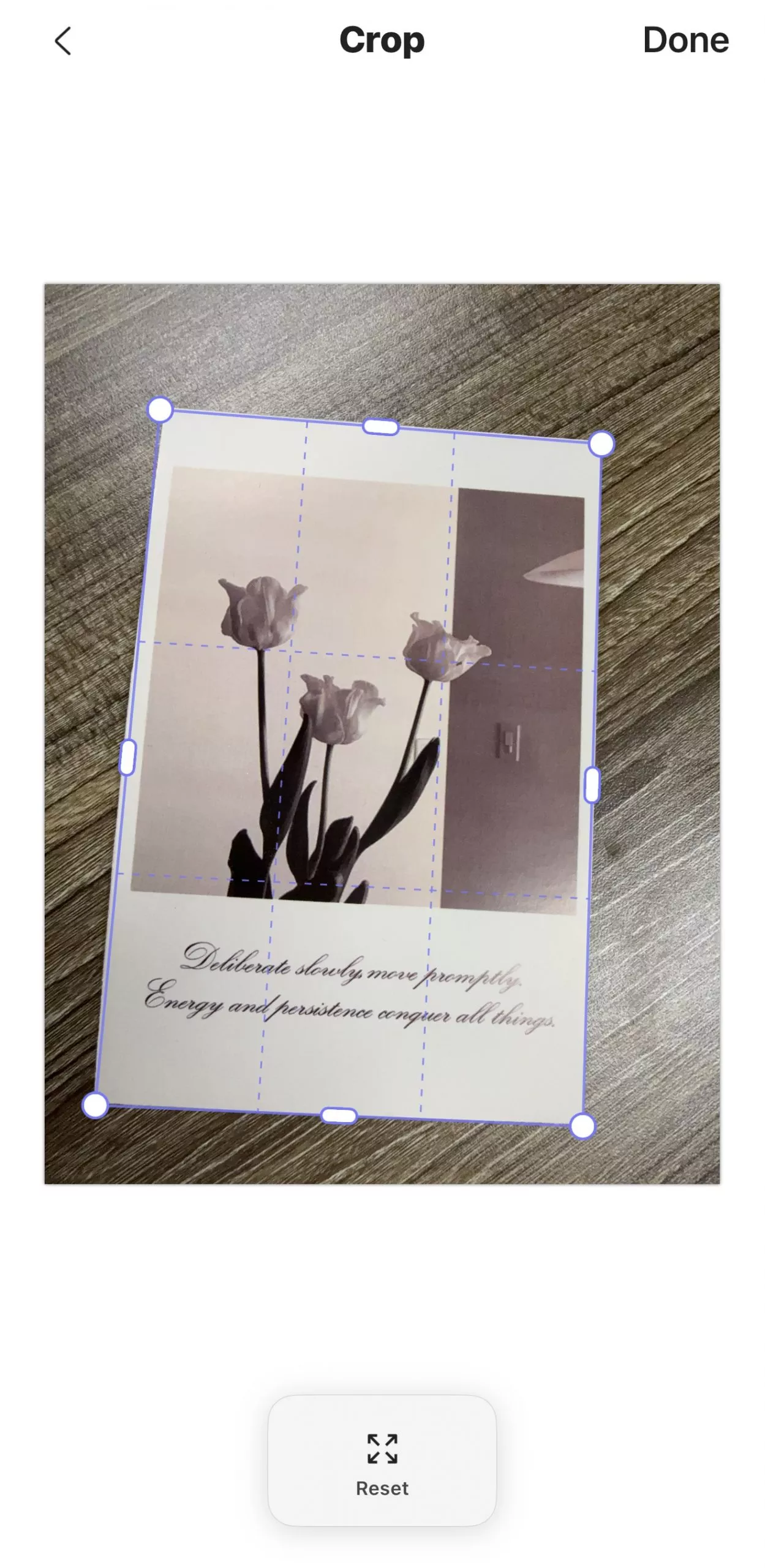
5. Next, to crop the image, click “Crop” and choose the area which you want to trim.
6. To adjust the image size, click “Size” and adjust width, height and other settings as shown in the image below.
7. You can also apply visual effects by choosing the “Filter” option.
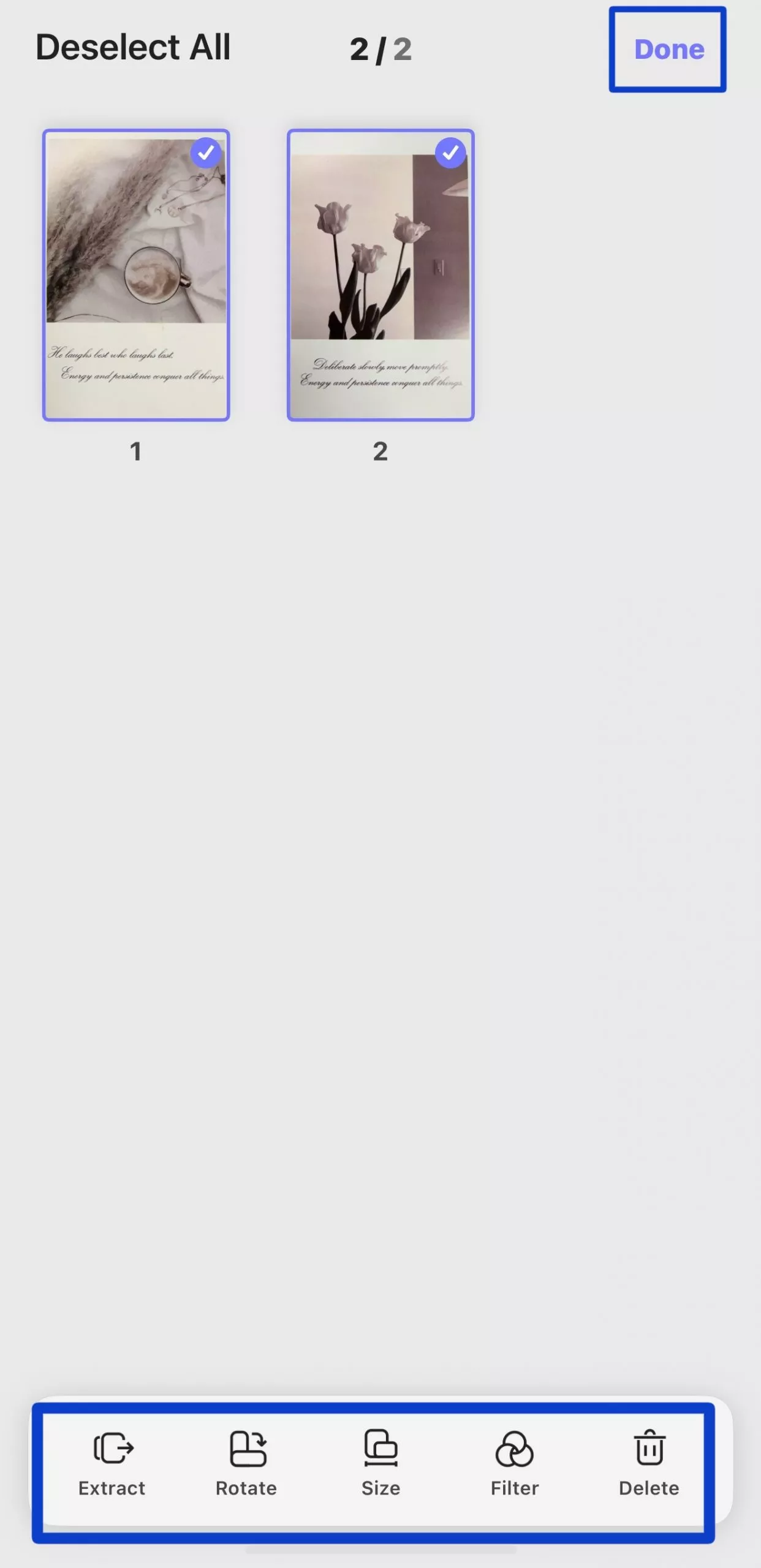
8. After applying all the changes to your Polaroid Pictures, click the “Organize” button and click the checkmark (✓) icon in the top right to select your images that you want to use.
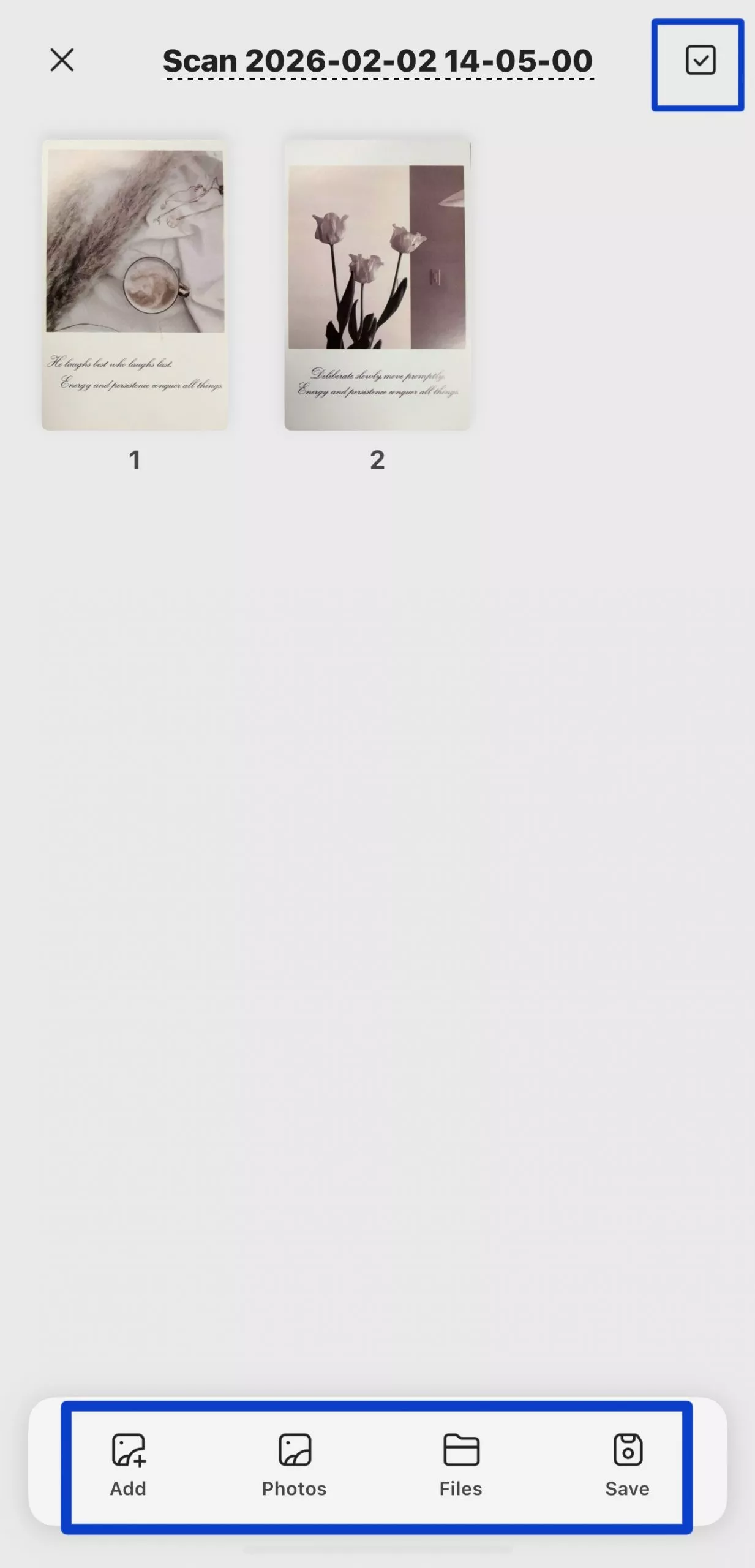
9. Then, you can extract, rotate, adjust the size, apply a filter, or delete the images. Once you have finished, click the “Done” option.
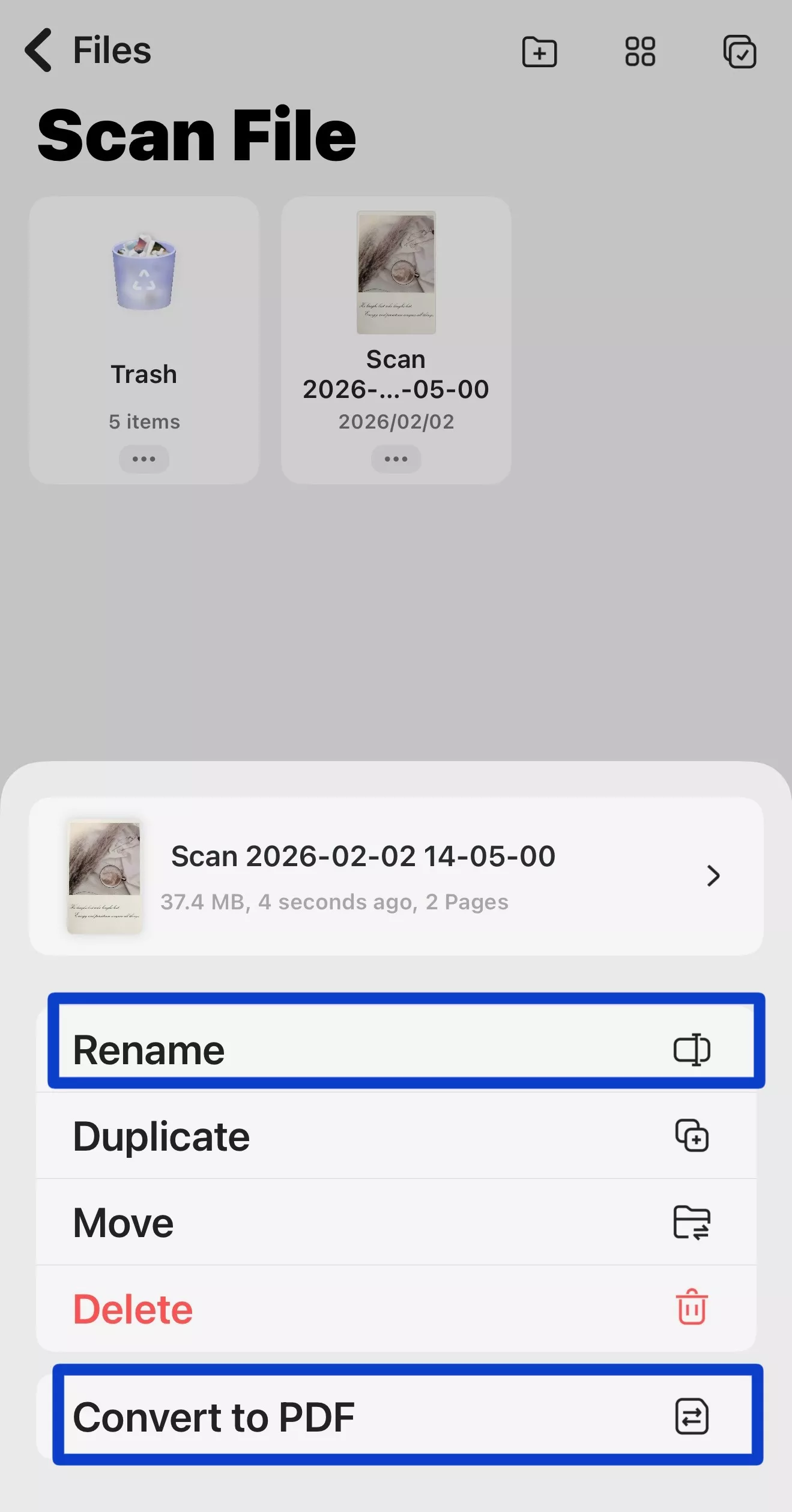
10. After saving your scanned image, click “Rename” to change its name, or select “Convert to PDF” to convert it to PDF.
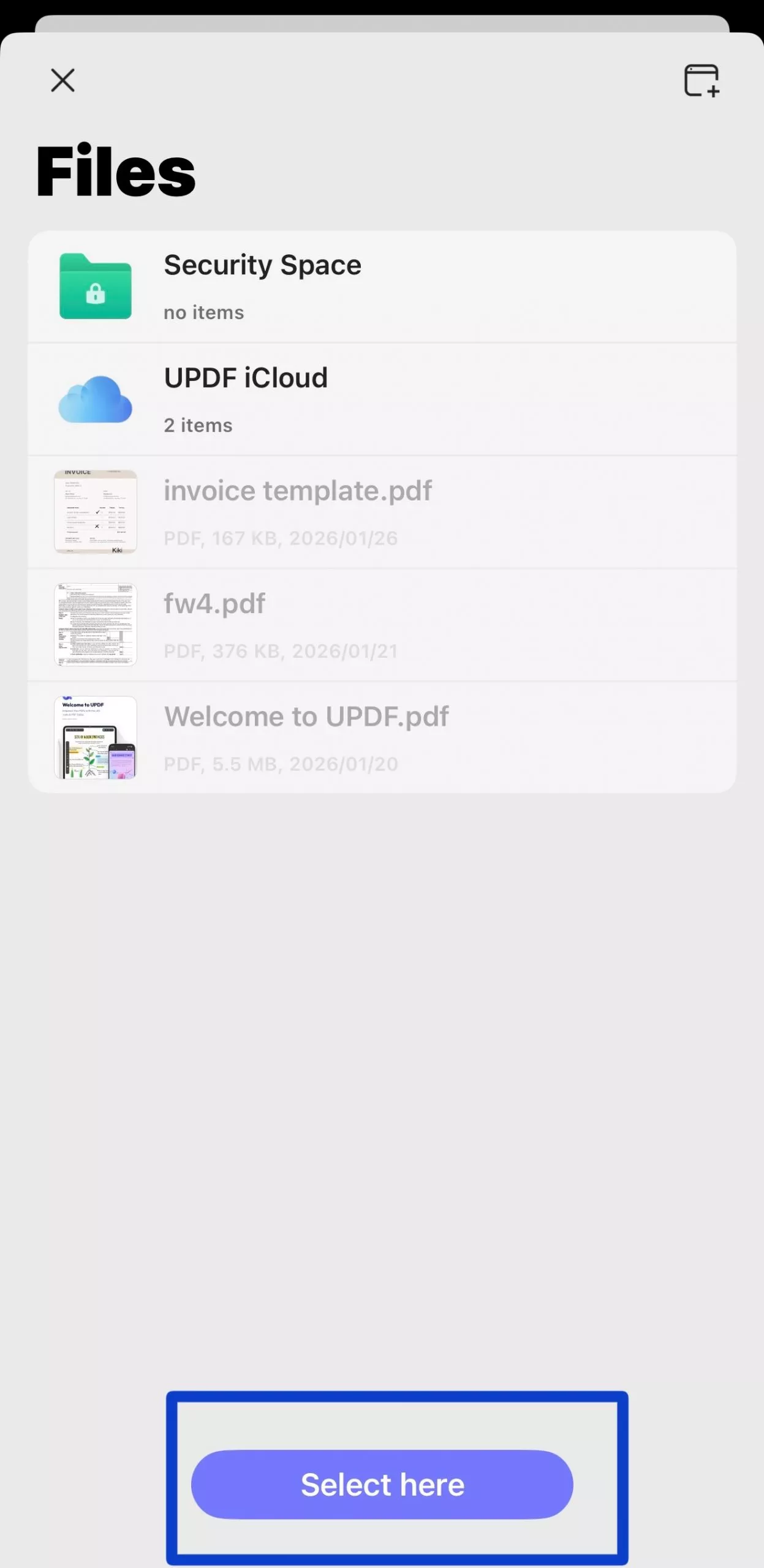
11. After clicking the “Convert to PDF” option, you will be redirected to a new screen where you need to choose the “Select Here” option.
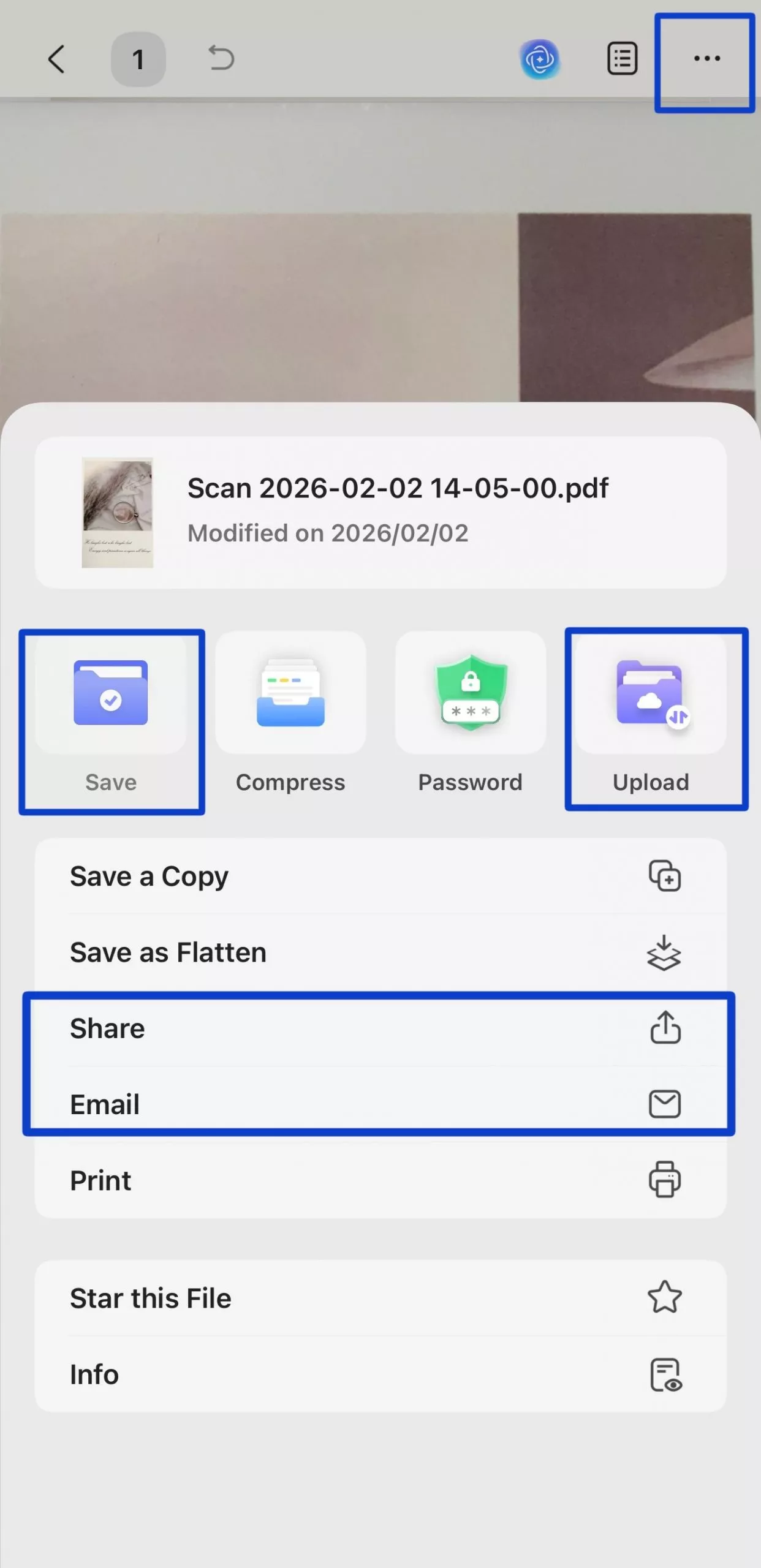
12. After converting to a new format, click the three-dot menu to Save or Upload your scanned document. You can also Share or Email it.
Windows • macOS • iOS • Android 100% secure
Part 2. How To Scan a Polaroid Using INSTAX UP!
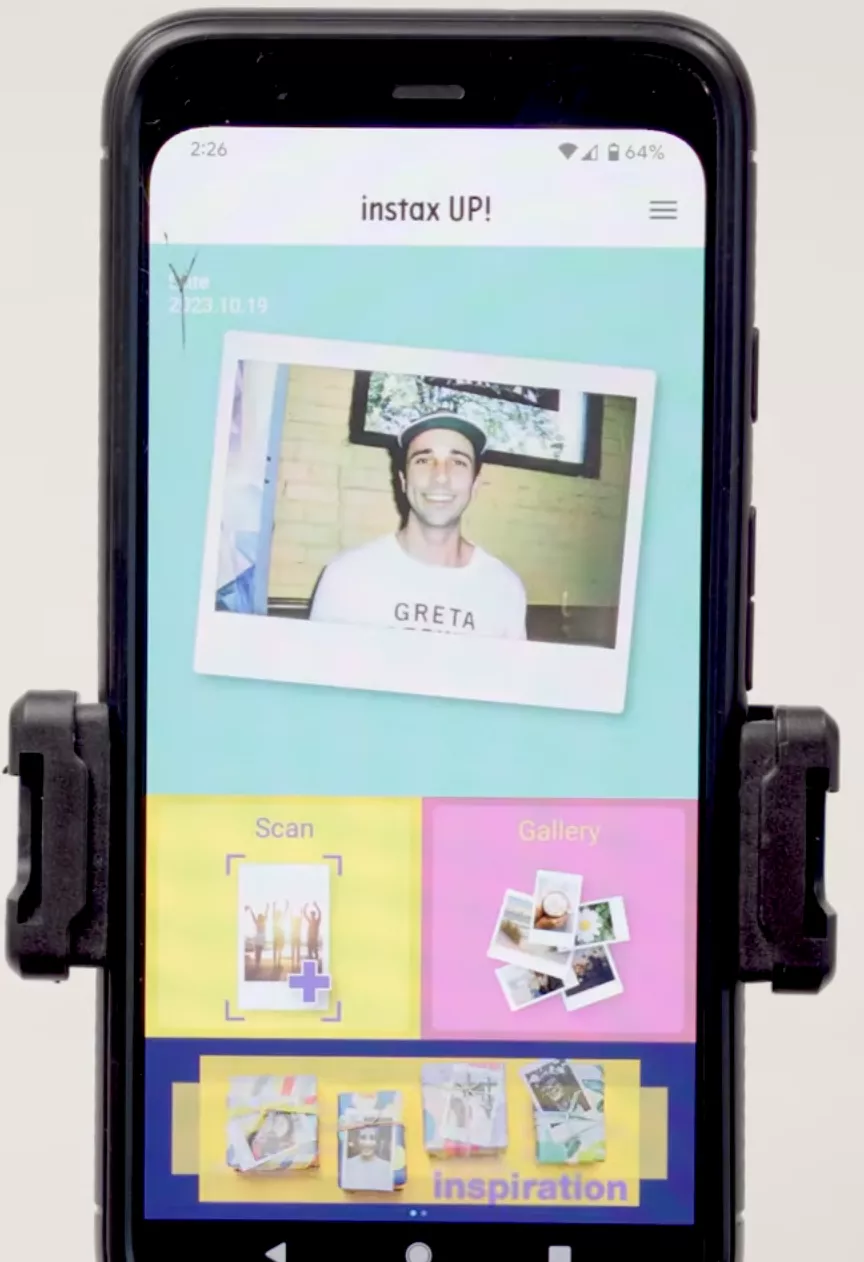
INSTAX UP! is a free smartphone app that allows you to scan and save film photos digitally. However, you can also use this app to scan Polaroids. The app is available on both Android and iPhone devices, so you can easily download it from Google Play or App Store. Once you have downloaded the app, follow the steps to scan a Polaroid using INSTAX UP!
1. Launch the app and click the “Scan” button to start the process.
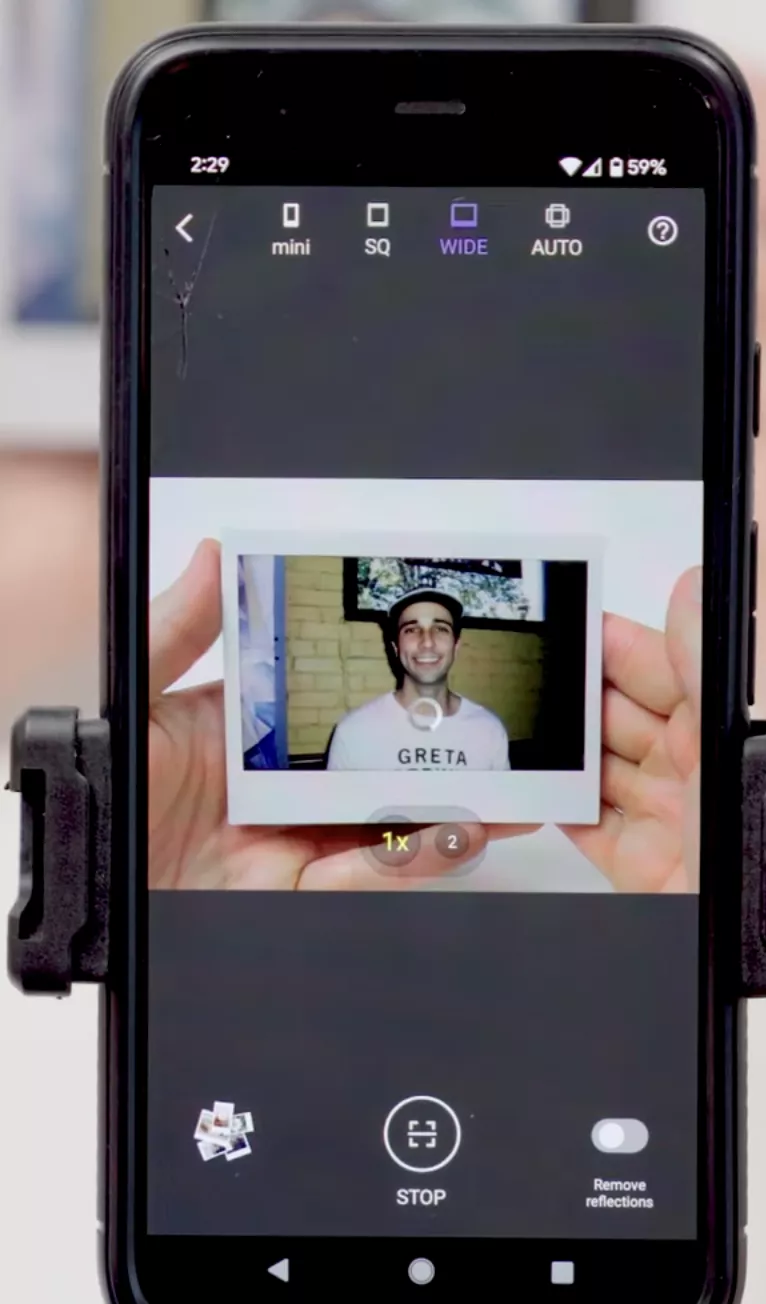
2. Next, choose the scan mode and place your Polaroid image under good lighting, and hold your phone over it so the app can capture the whole frame.
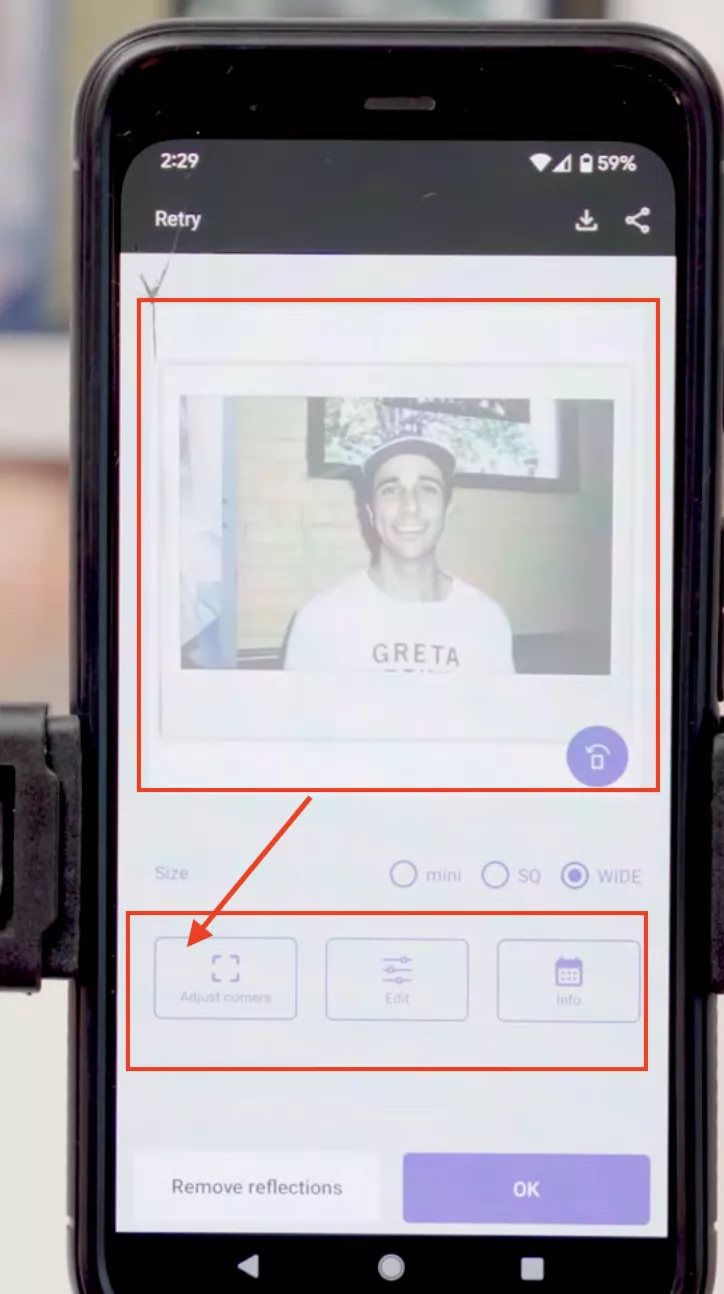
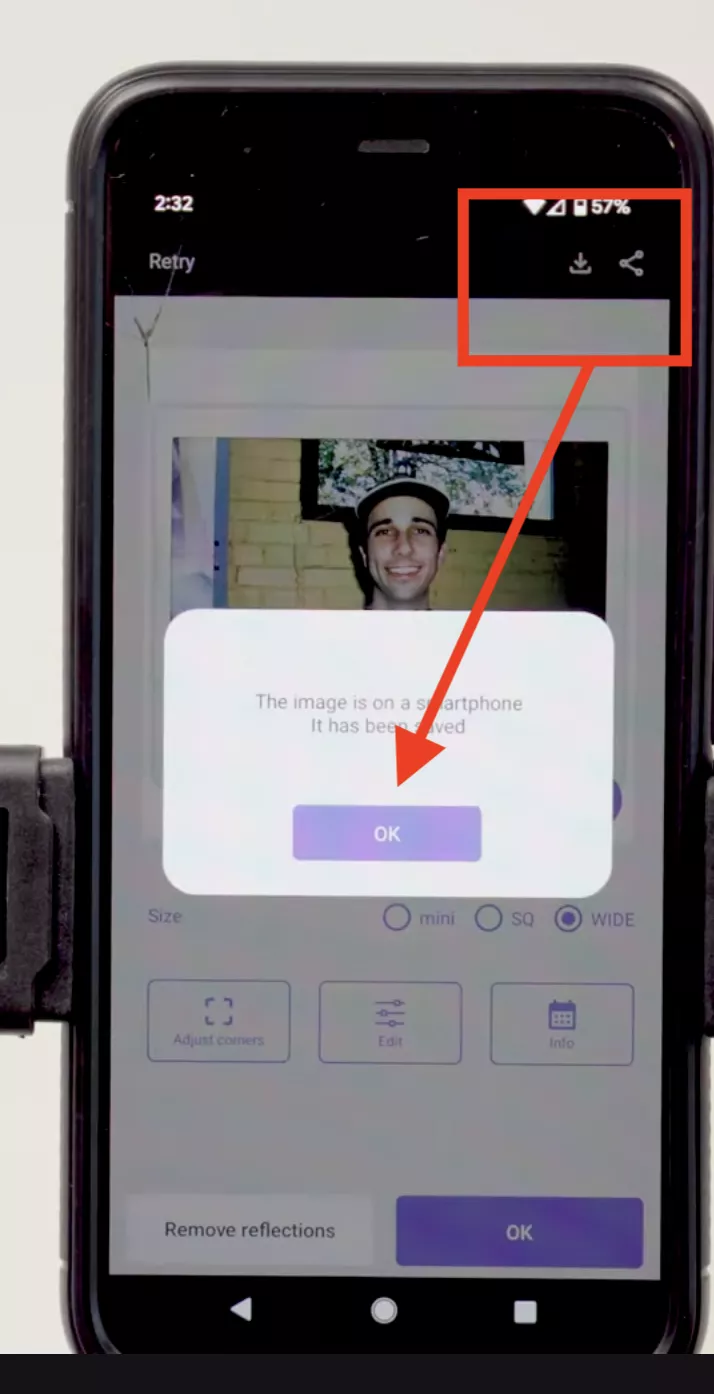
3. Once your image is scanned, it will go into a preview mode with some options like adjust corners, edit, and info. However, the app will automatically adjust the corners for you as shown in the image below.
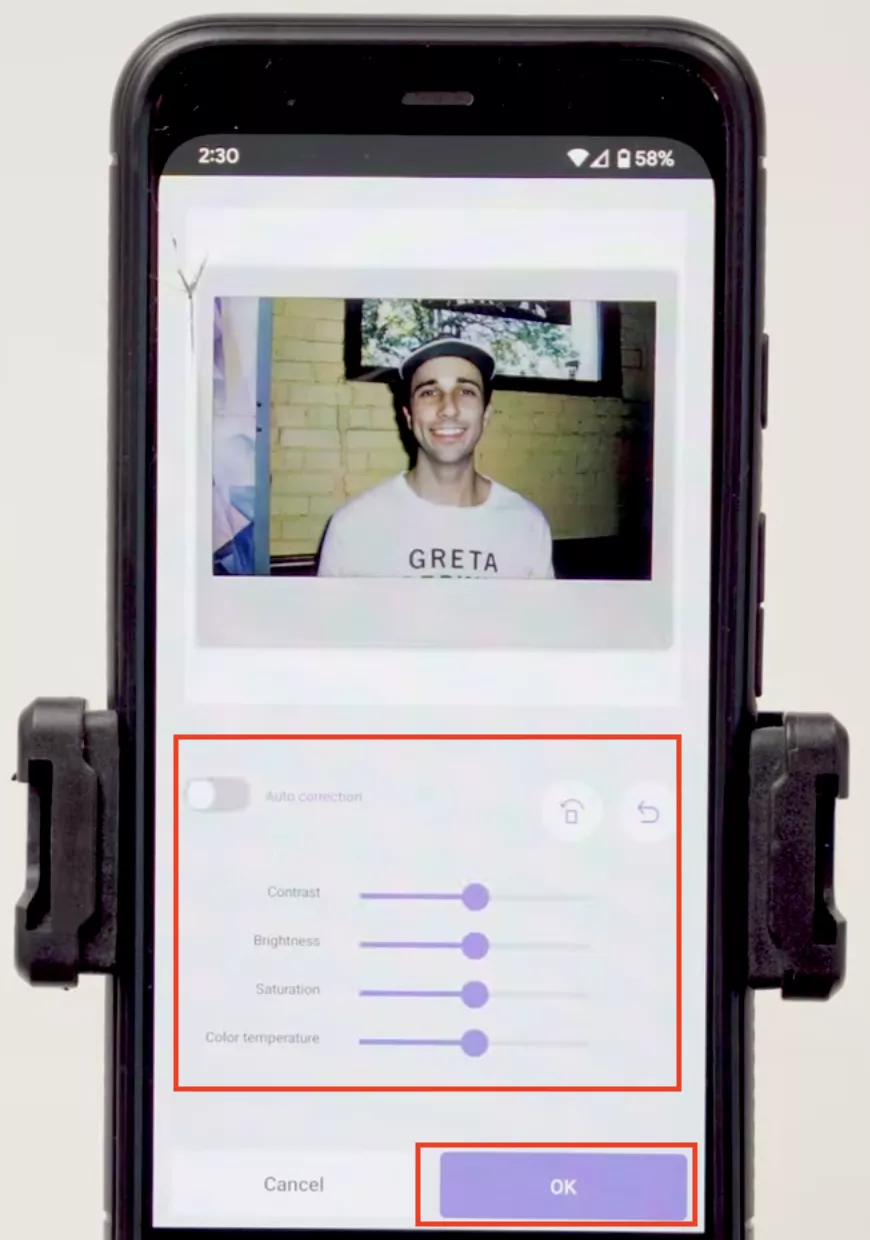
4. Also, you can click the edit button to edit your image, such as adjust brightness, color temperature, contrast, and more. Once you are done with the settings, click the “OK” button.
5. Now, click the “Download” icon to save the Polaroid image in your gallery.
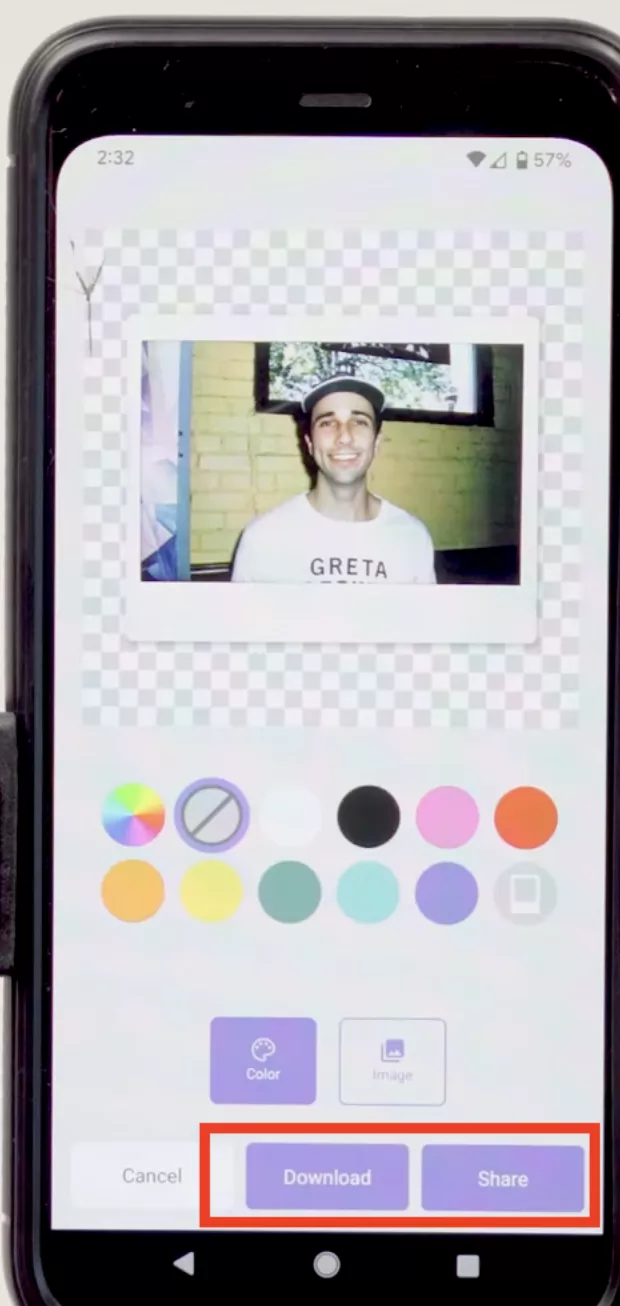
6. Next, click the “Share” option to share your scanned image. You will also get other options, like changing the background. You can choose different colors or add your own pic as a background.
Part 3. How To Scan a Polaroid Using Polaroid
Polaroid app is the official smartphone application by Polaroid. With this app, you can easily improve your instant photography experience and use a built-in scanner to scan your Polaroid photos right from your phone. You can easily get this app from App Store or Google Play. Below, I have discussed how to scan a Polaroid using a Polaroid app.
1. Download the app on your mobile and launch it. Now, click the “Scan” button.

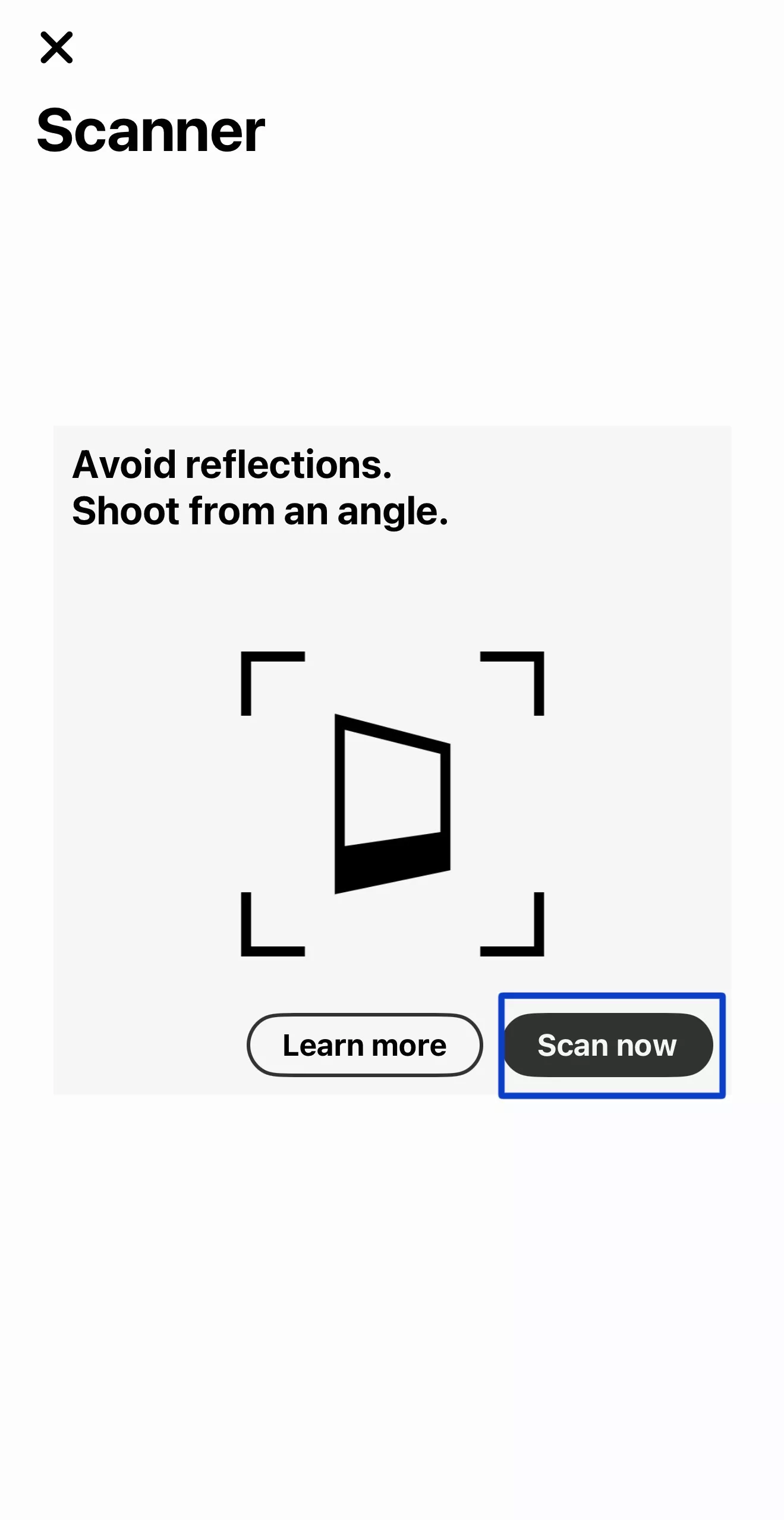
2. Click the “Scan Now” button to start the scanning process.
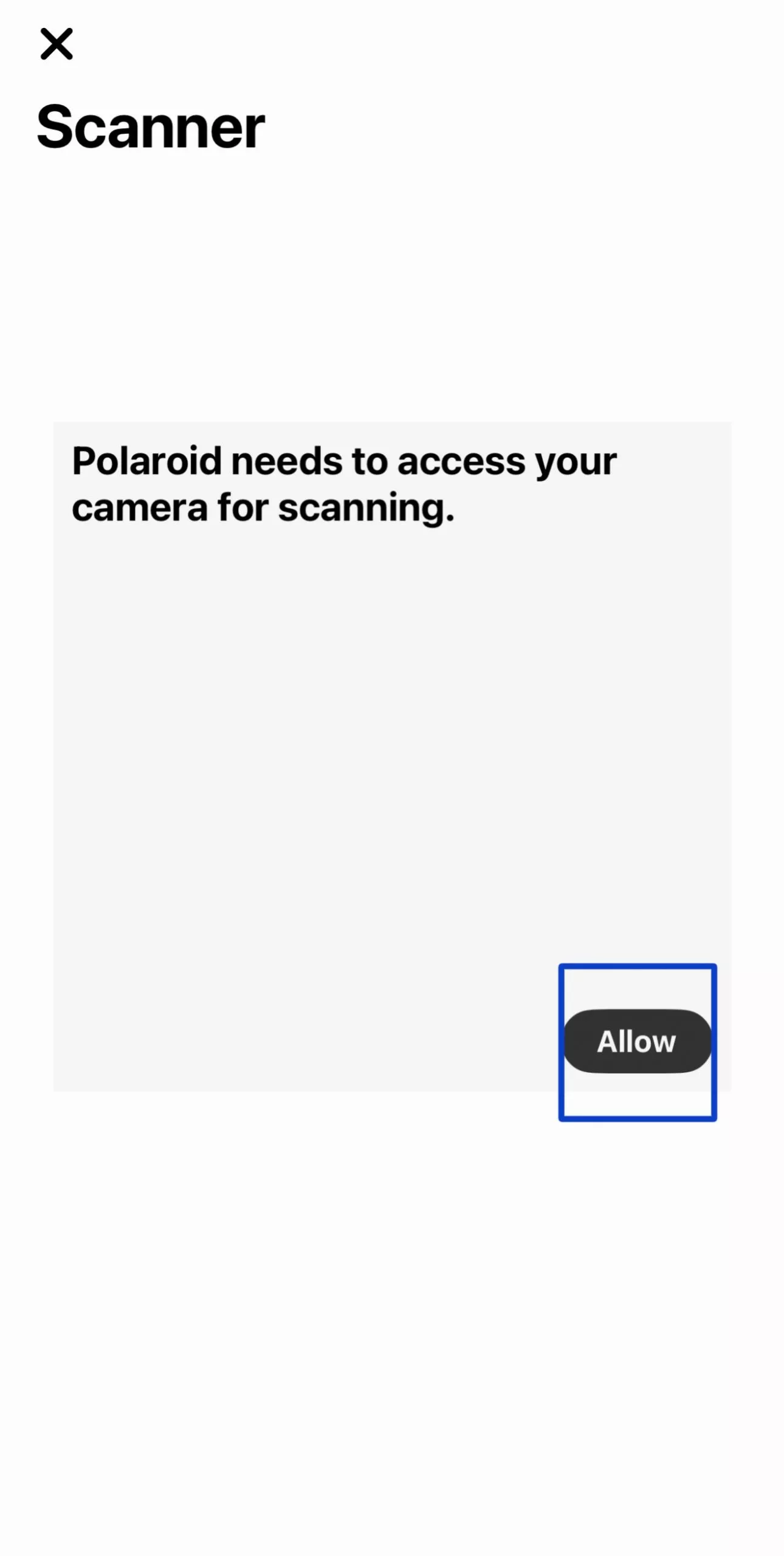
3. Next, click the “Allow” button to give camera and storage permissions.
4. Now, place your Polaroid on a flat surface and press the hold button. The app will automatically detect the edges and capture the photo.
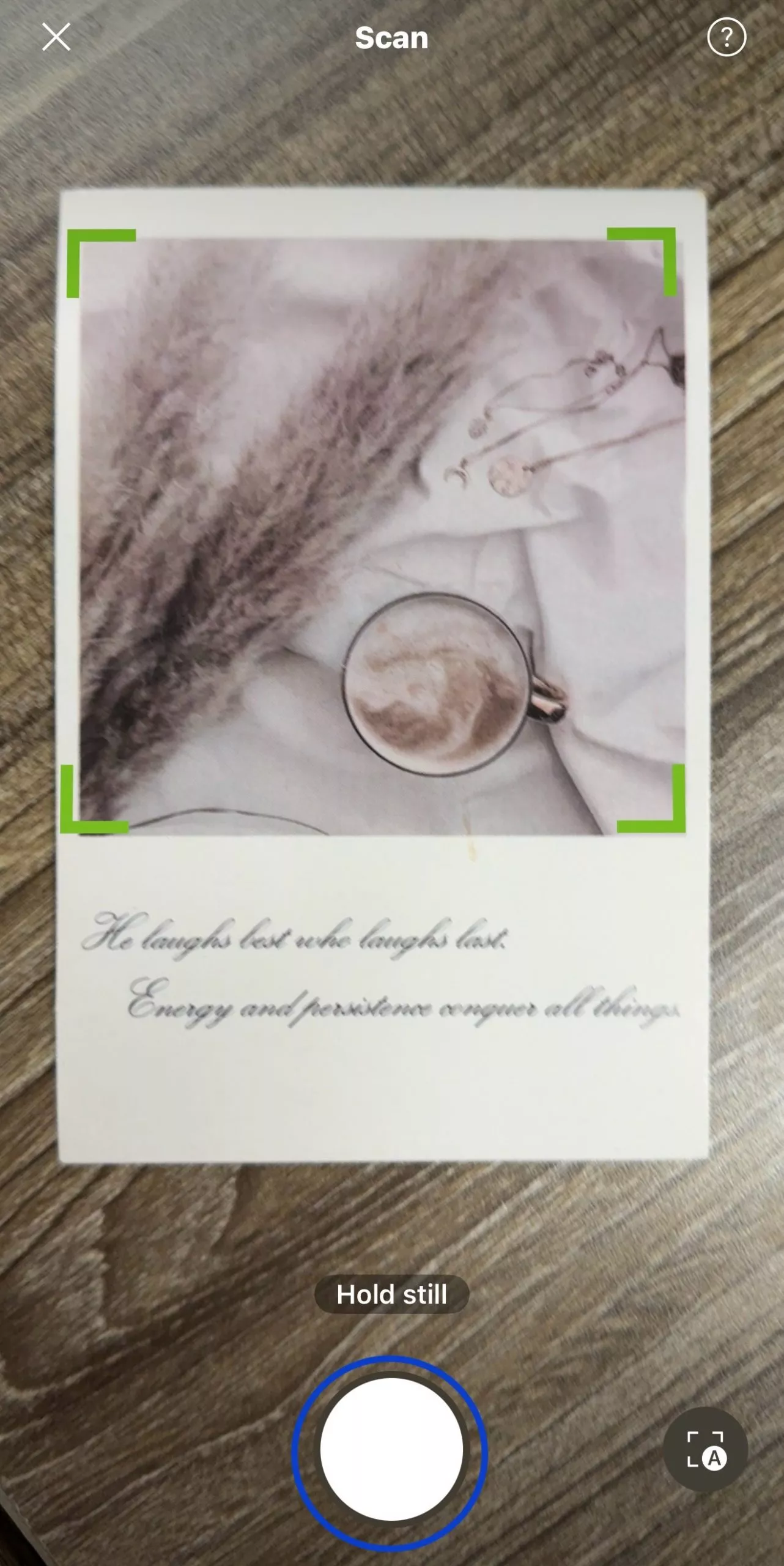
5. Once scanning is done, click the “Save to Album” button to save your image. You can also use the Crop icon to adjust framing, the Magic Wand to enhance the image, and click the “Share” button to send your photo.
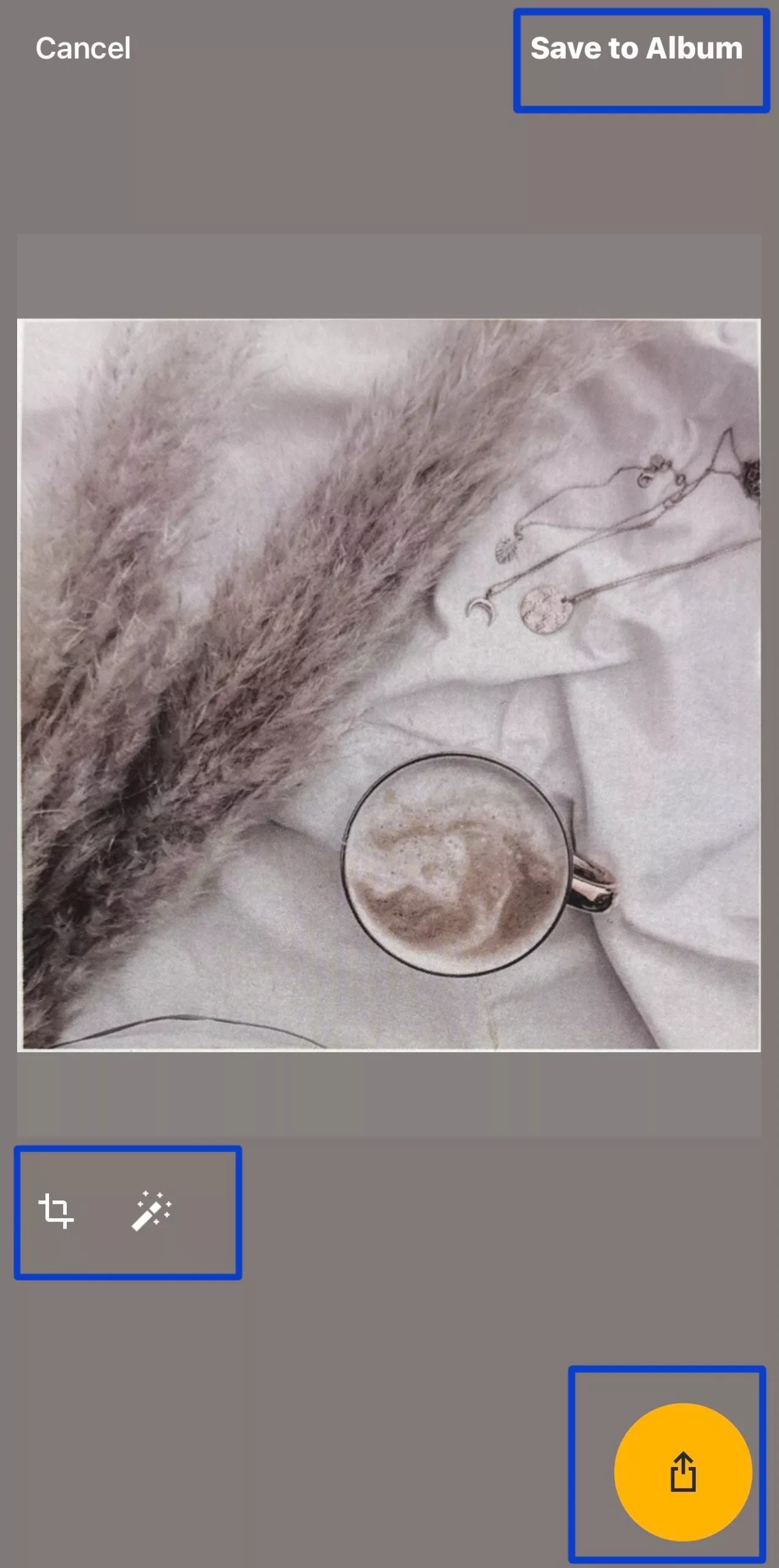
6. To save your image, click “Allow” to give access to your phone.

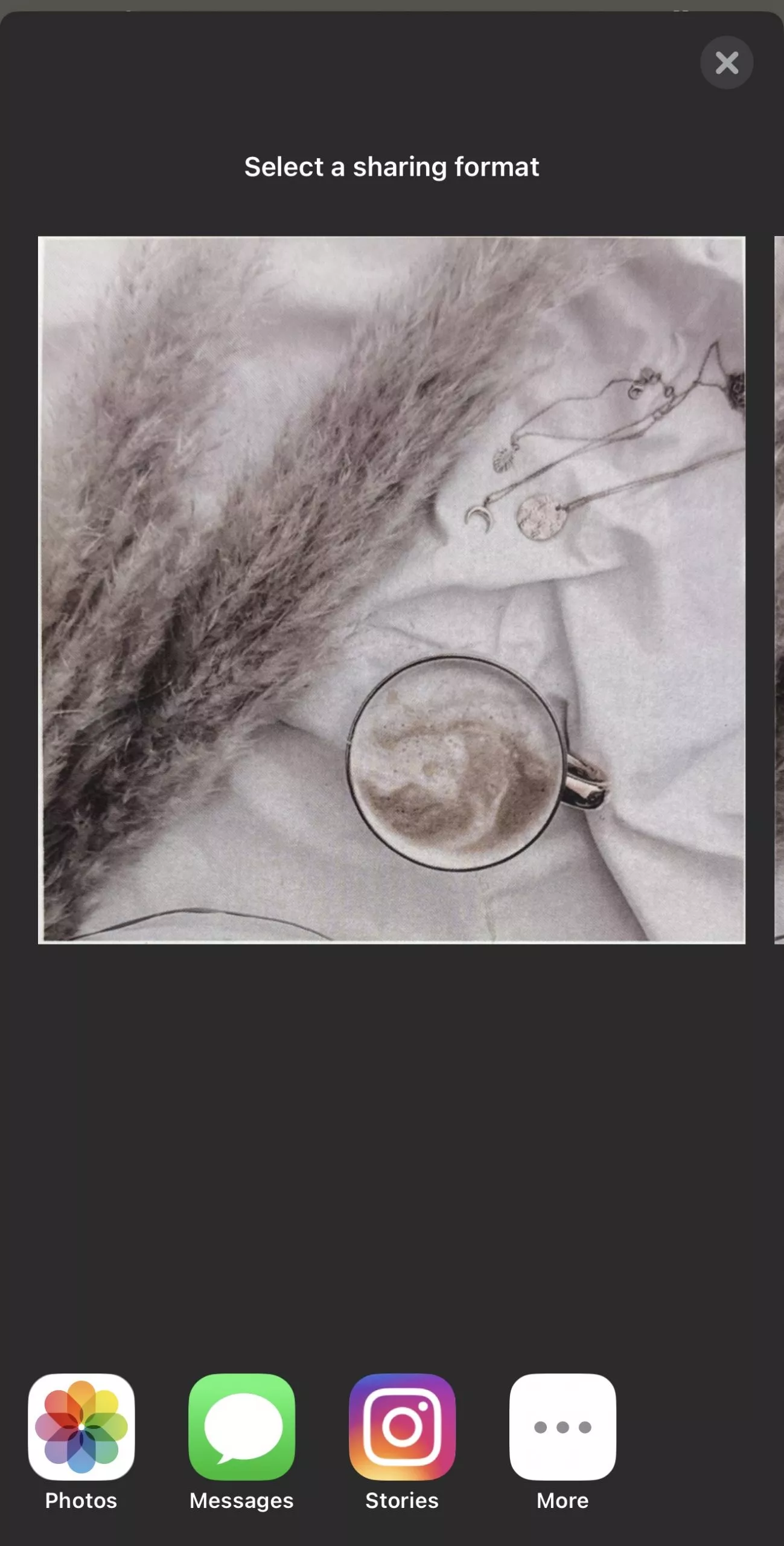
7. After giving permission to save a photo, select a sharing format and you are done.
Part 4. FAQs
Q1. How to Connect Polaroid Pop to Phone?
To connect Polaroid Pop to your Phone, follow the below steps.
• Turn on your WiFi settings and choose your Polaroid POP camera network.
• Now, type the password: “1234567890”.
• Once connected to the POP Wi-Fi, return to the Polaroid POP app.
• Now, you can print and manage photos. Make sure the auto-connect feature is turned off.
Q2. How to Scan Polaroids on iPhone Notes?
To scan Polaroids on iPhone Notes, you can try the following steps.
• Open the Notes app and click the “Attachments” button.
• Then, click “Scan Documents”
• Next, position the camera to capture Polaroids on your screen. After getting the full image, the app will automatically scan the photo.
• After scanning is completed, tap “Save” to finish.
• The scanned Polaroid is now saved inside the note. Now, you can share or export it from there.
Q3. How to Connect Polaroid Now to Bluetooth?
• To connect Polaroid Now to Bluetooth, first download the Polaroid app from Google Play or App Store.
• Now, turn on Bluetooth and Polaroid Now+ camera.
• Next, launch the Polaroid app and click the “Now+” option. You will get a permission prompt on your screen, so click “OK” to grant permission.
• Once you see a blue light on the camera, it means you are successfully connected.
Conclusion
Scanning your Polaroid photos is not easier if you don’t know the right techniques and apps. However, by following the above methods, you can quickly scan your Polaroid photo and preserve your memories digitally. Among these best ways to scan polaroids, I would recommend using UPDF because it is easy to use and offers a wide range of additional features, including organizing, editing PDF, and converting images to PDF.
Windows • macOS • iOS • Android 100% secure





 Enrica Taylor
 Enola Davis