 UPDF
UPDF
 UPDF for Windows
 UPDF for Mac
 UPDF for iPhone/iPad
 UPDF for Android
 UPDF AI Online
 UPDF Sign
 Edit PDF
 Annotate PDF
 Create PDF
 PDF Form
 Edit links
 Convert PDF
 OCR
OCR PDF to Word
 PDF to Image
 PDF to Excel
 Organize PDF
 Merge PDF
 Split PDF
 Crop PDF
 Rotate PDF
 Protect PDF
 Sign PDF
 Redact PDF
 Sanitize PDF
 Remove Security
 Read PDF
 UPDF Cloud
 Compress PDF
 Print PDF
 Batch Process
 About UPDF AI
 UPDF AI Solutions
 AI User Guide
 FAQ about UPDF AI
 Summarize PDF
 Translate PDF
 Chat with PDF
 Chat with AI
 Chat with image
 PDF to Mind Map
 Explain PDF
 PDF AI Tools
 Image AI Tools
 AI Chat Tools
 AI Writing Tools
 AI Study Tools
 AI Working Tools
 Other AI Tools
 PDF to Word
 PDF to Excel
 PDF to PowerPoint
 Enterprise Solution
 Enterprise Sign
 Enterprise AI
 Enterprise Plan
 Enterprise User Guide
 Enterprise Webinar
 Banking
 Healthcare
 Insurance
 Legal
Legal Manufacturing
 Government
 Education Solution
 Customer Stories
 User Guide
 UPDF Tricks
 FAQs
FAQs UPDF Reviews
 Download Center
 Blog
Blog Newsroom
 Tech Spec
 Updates
 UPDF vs. Adobe Acrobat
 UPDF vs. Foxit
 UPDF vs. PDF Expert

I remember the moment clearly: the thesis was finished, the formatting looked perfect, and I was ready to submit, until I realized the page numbers started on the title page. If you have ever written a thesis, book, or business report, you’ve probably faced the same problem. The cover page and table of contents usually shouldn’t display numbers, which is why many people search for how to number pages in word starting on page 3.
This formatting rule is actually a standard in professional documents. The first page is typically a cover page, the second may contain a preface or table of contents, and the main content begins afterward. That’s where the challenge appears: how to start page number on page 3 word without affecting the earlier pages. Word can certainly do this, but its section break system often feels confusing for many users.
In this guide, I’ll show you exactly how to number pages in word starting on page 3 step by step so your document follows professional formatting standards. I’ll also share a smarter workflow using UPDF. While Word is the industry standard, its section break logic can be unintuitive. For effortless, stable page numbering and professional headers or footers, UPDF works as a modern companion.
Windows • macOS • iOS • Android 100% secure
Part 1. Step-by-Step Guide: Starting Page Numbers on Page 3 in Microsoft Word
Once I understood the logic behind section breaks, learning how to number pages in word starting on page 3 became much easier. The idea is to separate the first two pages from the rest of the document so Word treats them as different sections. Here’s the exact process I follow.
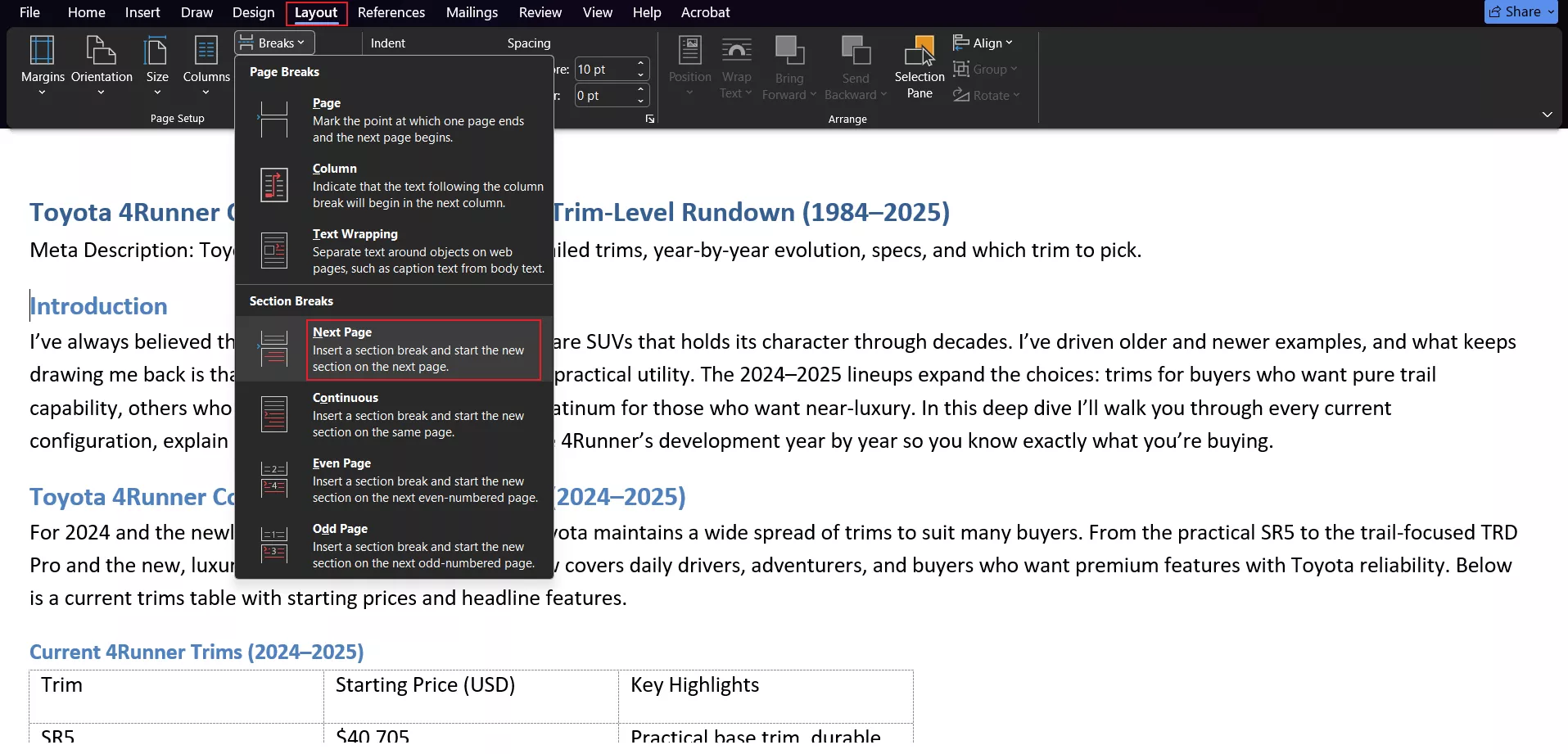
Step 1: Insert Section Break
First, place the cursor at the end of page 2. Then go to Layout → Breaks → Next Page.
This inserts a section break that separates the first two pages from the rest of the document.
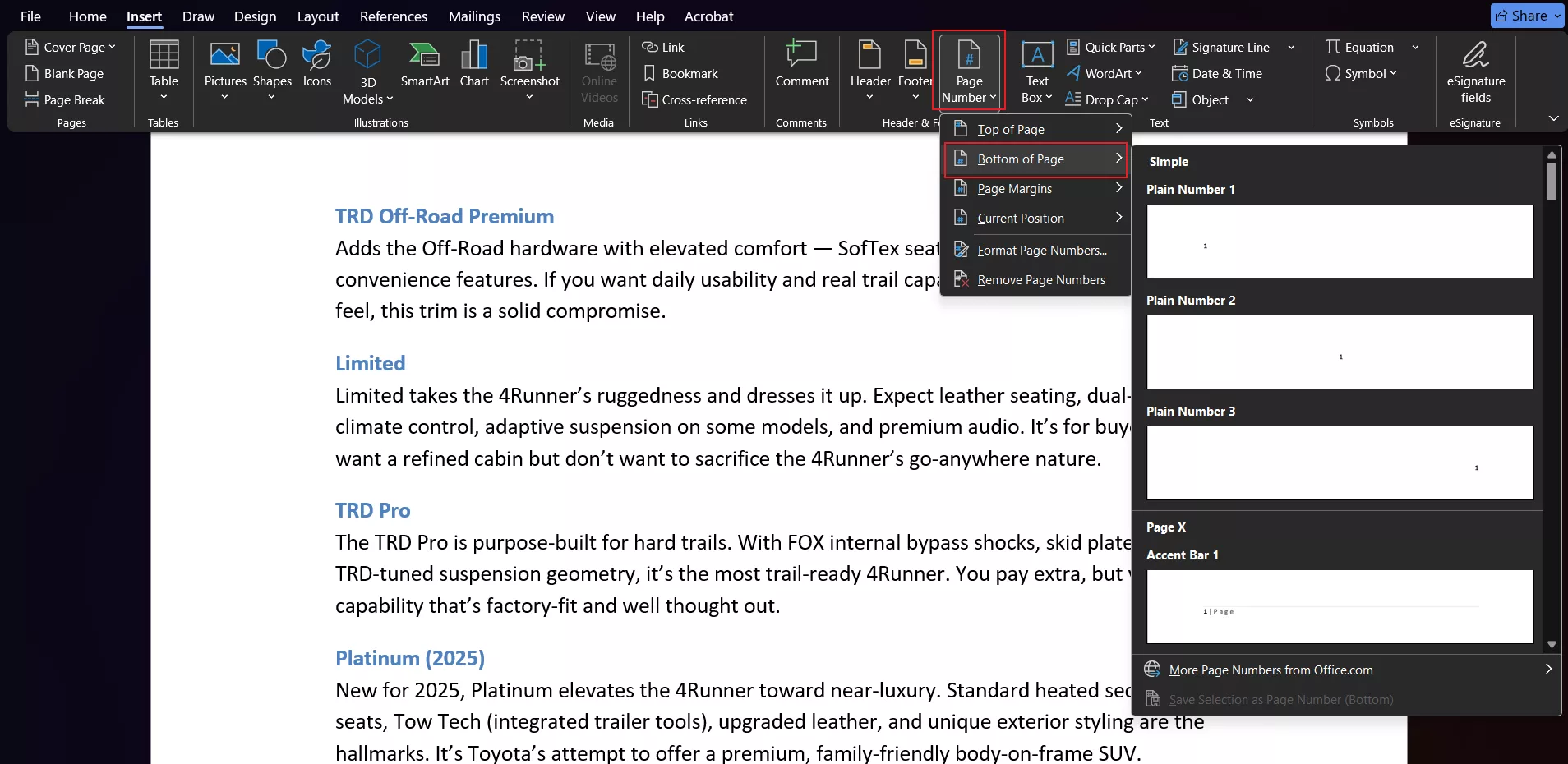
Step 2: Insert and Format Page Numbers
Next, move to page 3, then open Insert → Page Number and choose where you want the number to appear (top or bottom of the page). Word will automatically insert page numbers for the new section.
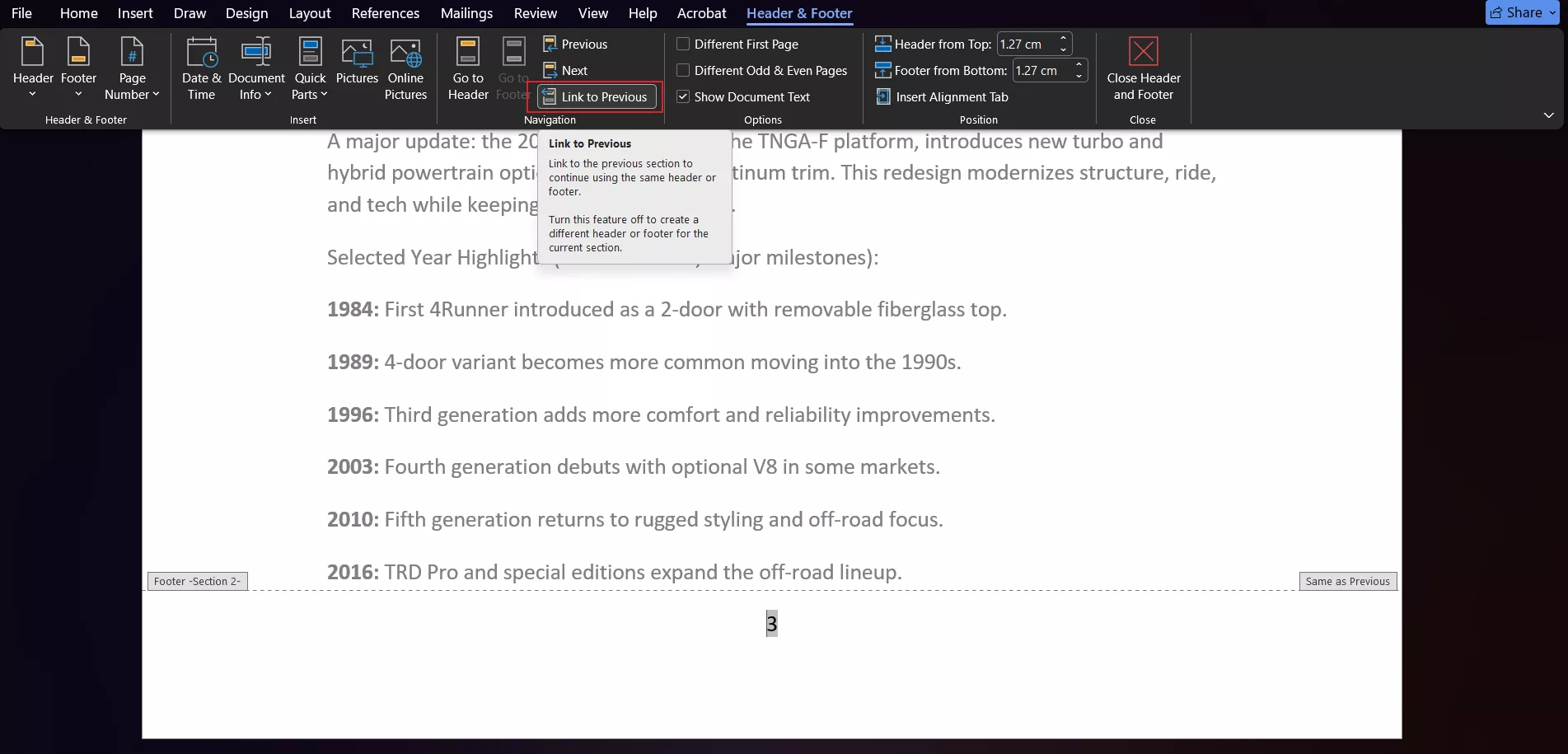
Step 3: Turn Off “Link to Previous”
By default, Word links the header or footer to the previous section. Double-click the header or footer area on page 3 and click Link to Previous to disable it.
This step ensures that page numbers on page 3 remain independent from the first two pages.
Step 4: Remove Unwanted Numbers
If page numbers appear on pages 1 or 2, simply delete them from the header or footer. Because the sections are now separated, removing them won’t affect page 3.
Step 5: Double-Check the Result
Finally, scroll through the document to confirm the numbering begins correctly. Page 3 should now display the first page number, while the cover and table of contents remain clean.
Part 2. Why Word’s Formatting Often “Breaks”
Even after learning how to start page number on page 3 word, many users notice that Word’s formatting can suddenly behave unpredictably. This usually happens because Word relies heavily on dynamic layouts and section breaks, which can easily shift when the document changes.
1: The Fragility of Layouts
One of the biggest challenges is how sensitive Word documents are to small edits. For example, adding a new image, inserting a paragraph, or adjusting spacing can push a section break to a different position. When that happens, the page numbering setup may shift as well.
I’ve seen situations where page numbers suddenly start appearing on the wrong page or disappear entirely because the section structure changed slightly. Since Word constantly recalculates the layout as content moves, maintaining stable formatting can become tricky—especially in longer documents like theses or reports.
2: The Formatting Nightmare
Another issue appears when documents are shared. A .docx file opened in a different version of Word or on another computer can sometimes display “ghost” page numbers or corrupted headers and footers. This happens because Word’s formatting rules may interpret layout settings differently depending on the system.
3: The Shift to Fixed Layouts
That’s why many professionals eventually convert their final document into a PDF. Unlike Word files, PDFs lock the layout exactly as designed.
Once exported, the page numbers, headers, and formatting remain stable across devices, ensuring the document looks consistent when shared or printed.
Part 3. The UPDF Edge: A Faster Way to Handle Page Numbering
After struggling with section breaks and formatting issues in Word, I discovered that sometimes it’s simply faster to finish the document and handle page numbering afterward. Instead of fighting with Word’s layout logic, I export the file to PDF and apply page numbers there.
This approach works well because PDFs preserve the exact layout of the document, no shifting text, broken headers, or misplaced section breaks.
The PDF Advantage
One advantage of working with PDFs is stability. Once the document is exported, the layout becomes fixed. That means the title page, table of contents, and main content will stay exactly where they belong.
If you need to adjust numbering—such as when fixing how to start page number on page 3 word, editing the PDF can often be faster than reworking section breaks in Word.
Convert Word to PDF Easily
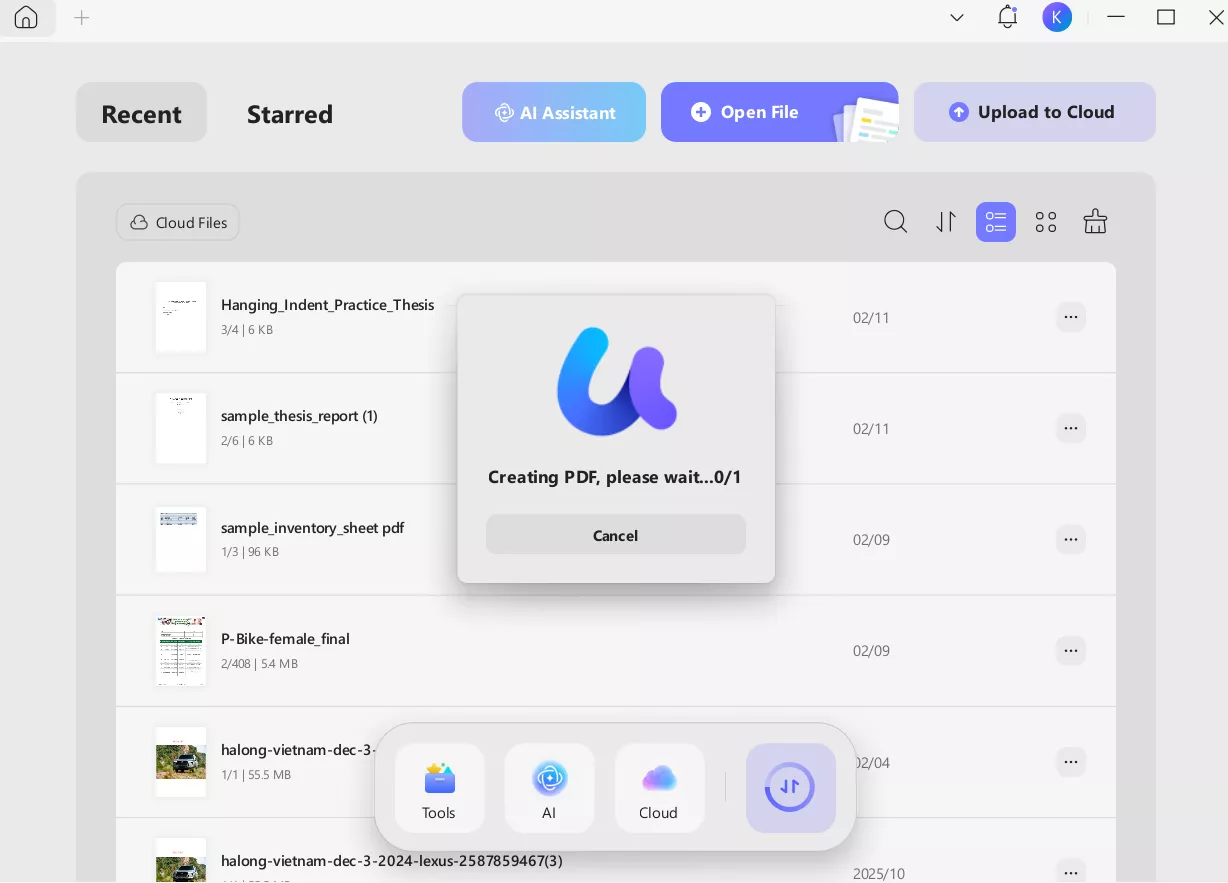
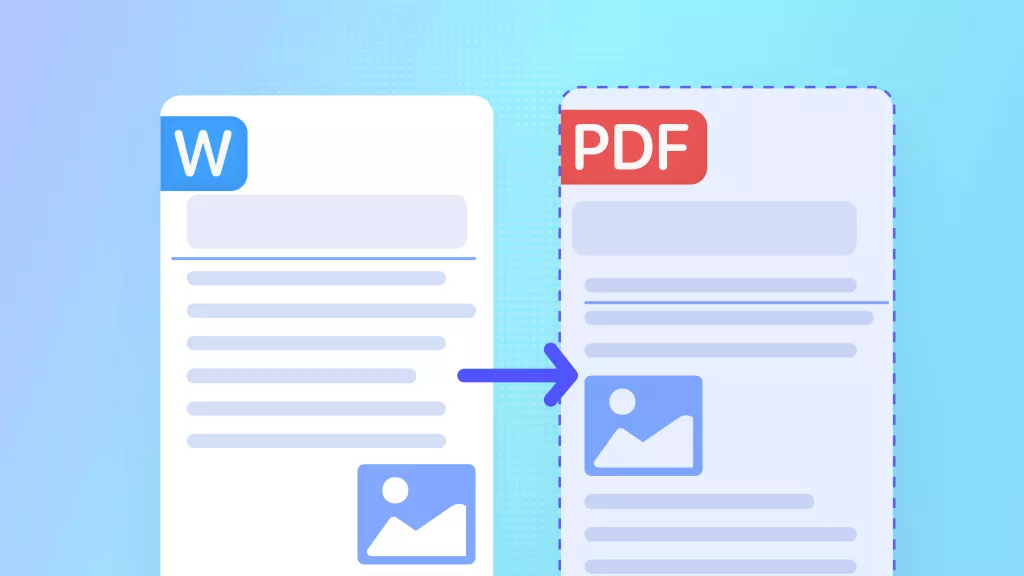
With UPDF, converting a document is extremely simple. I usually drag and drop the Word file into UPDF, and the software automatically converts it into a PDF while preserving the formatting. Tables, fonts, and spacing remain consistent, so the document looks exactly the same as the original.
Windows • macOS • iOS • Android 100% secure
- Intuitive Header and Footer Tools
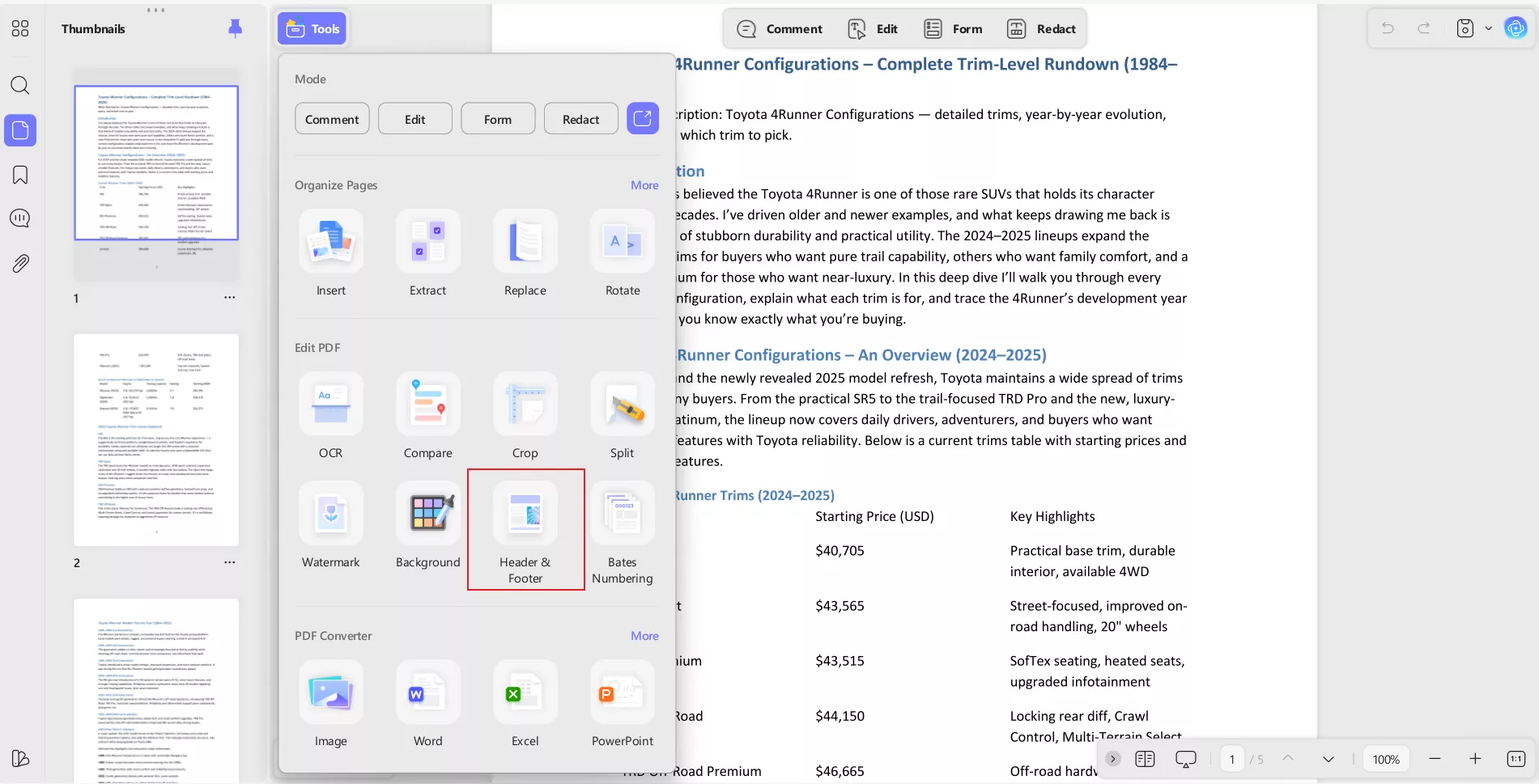
Once the file is open in UPDF, I can easily add page numbers using the Header & Footer feature. Unlike Word, where options are hidden across multiple menus, UPDF places these controls in one clear interface. I simply open the header/footer tool and insert the page number where I want it to appear.
- No Section Break Required
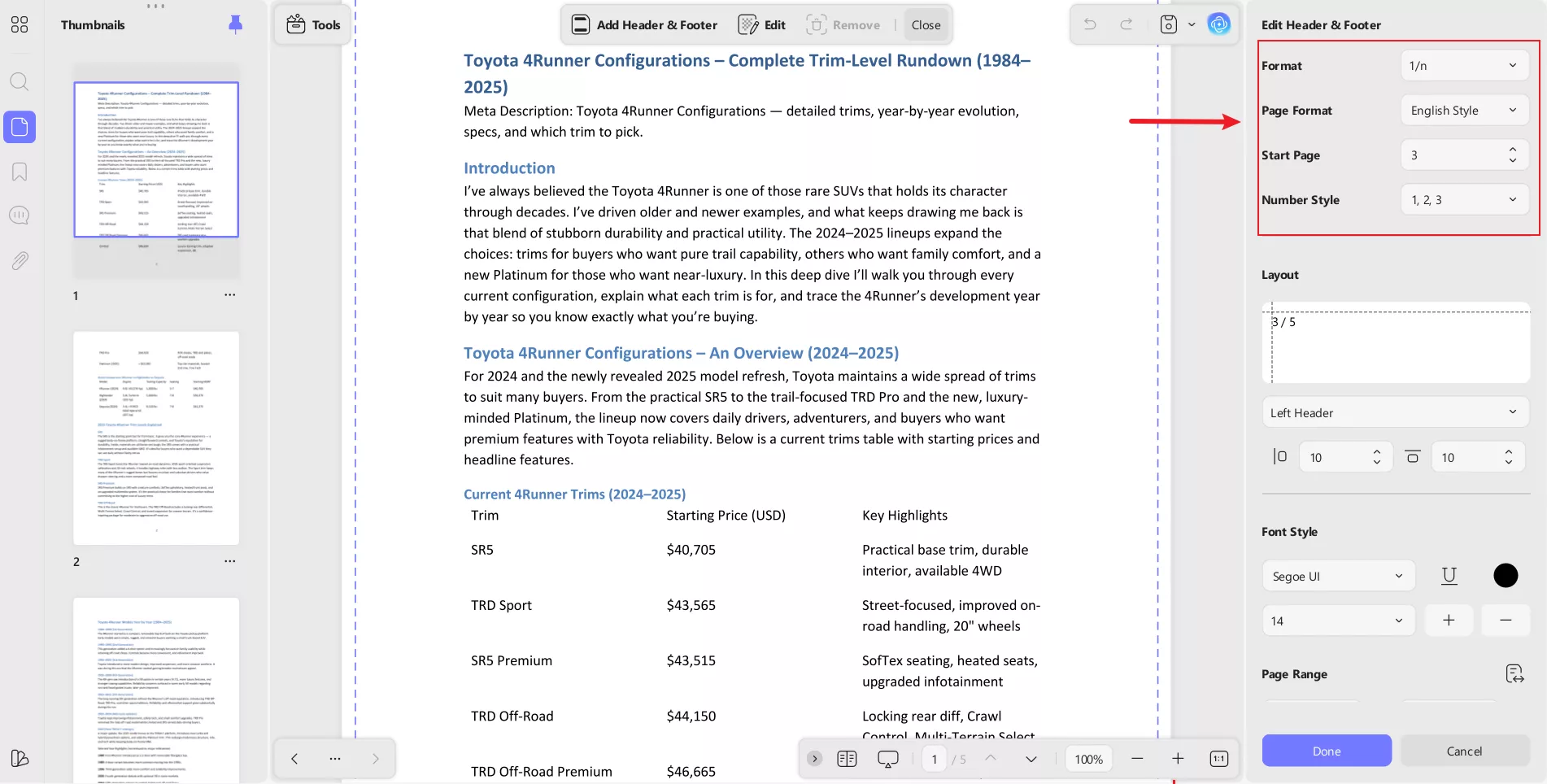
The best part is that UPDF doesn’t require section breaks. Instead of separating the document into multiple sections, I simply define the page range and choose the starting number. This makes it much easier to control numbering, especially when figuring out how to number pages in word starting on page 3.
- Customize Page Number Styles
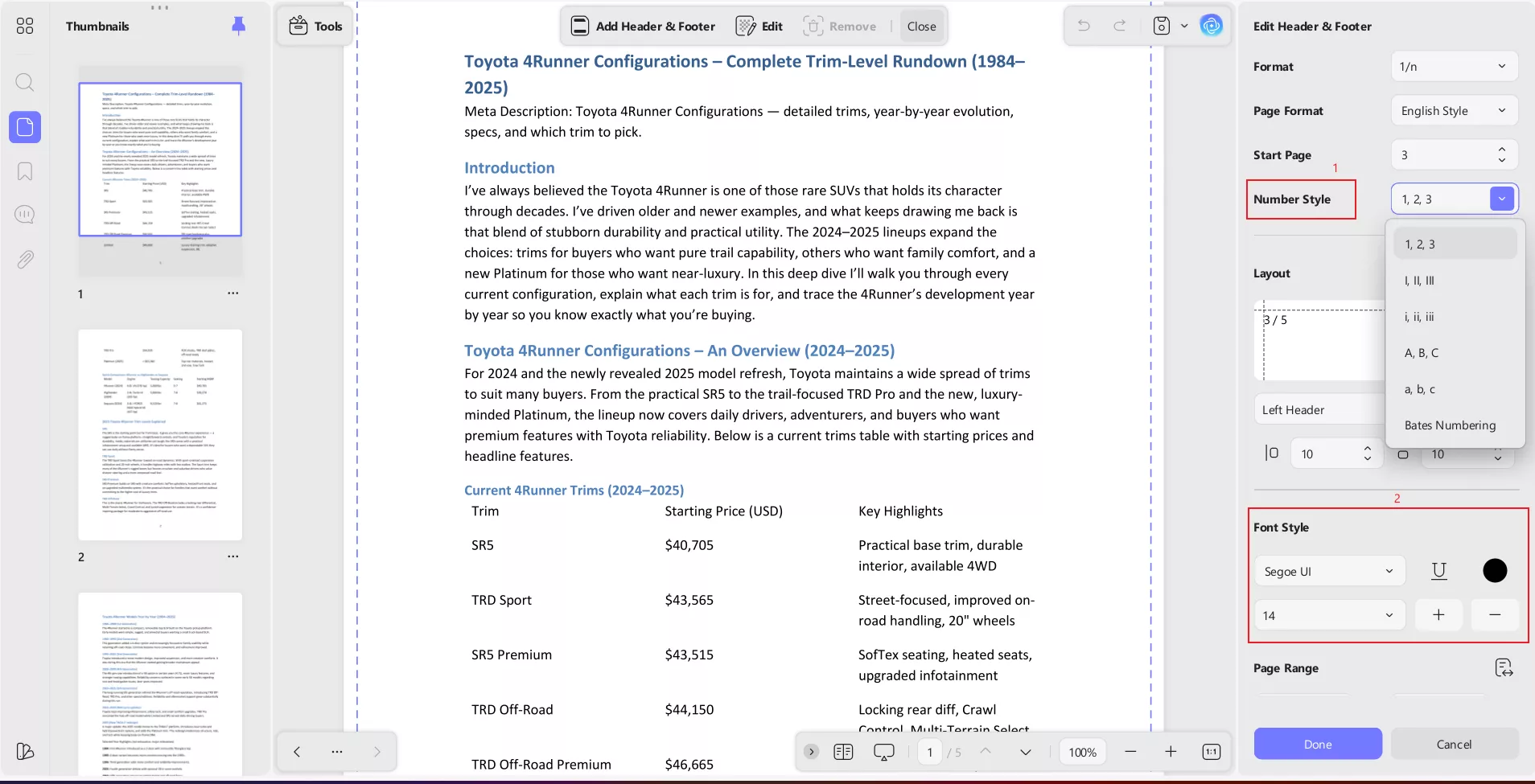
UPDF also provides several customization options. I can change the number format, adjust alignment, modify the font style, or place the number in different positions on the page. These settings help ensure the document matches professional formatting requirements.
Batch Header & Footer for Multiple Files
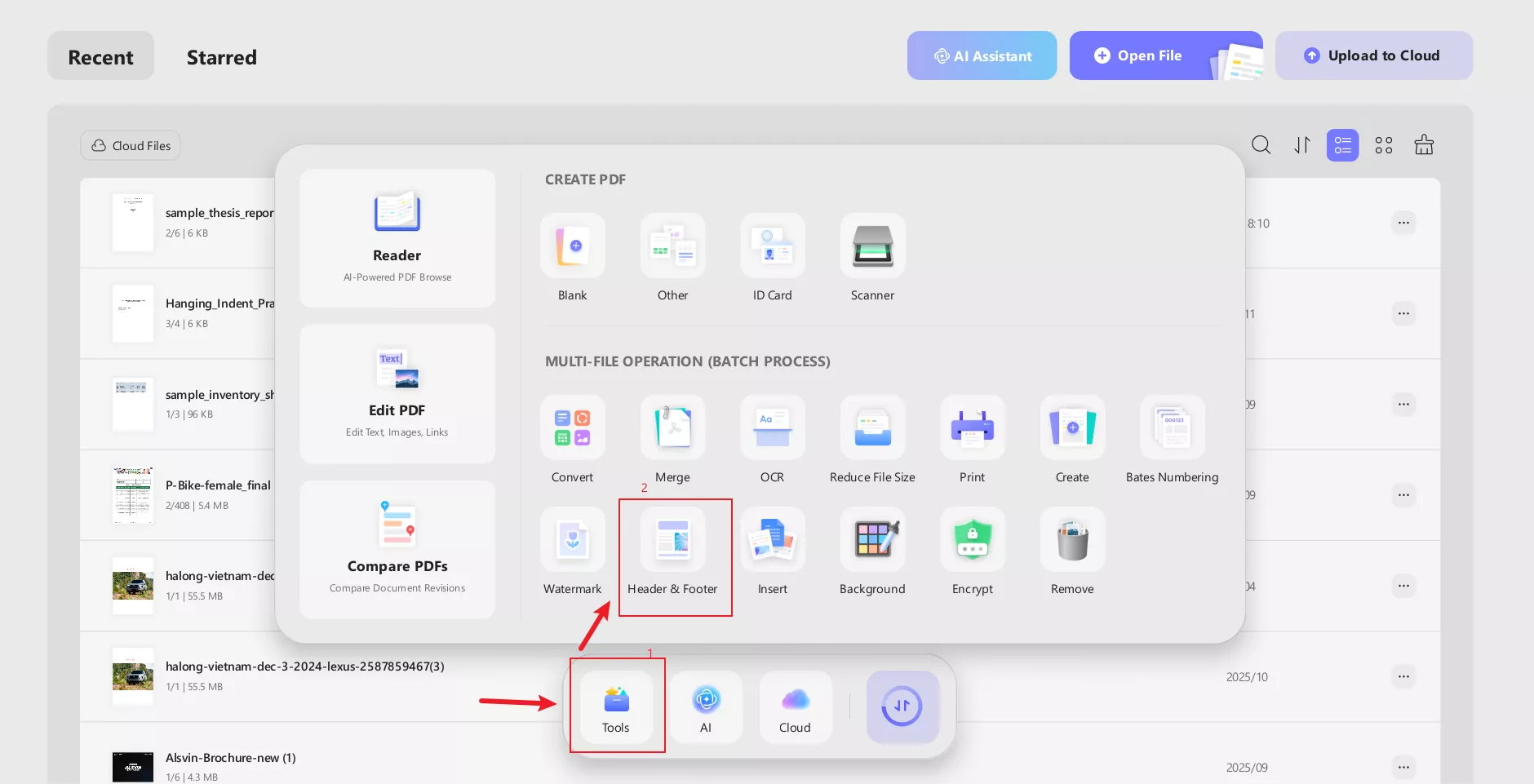
Another powerful feature is Batch Header & Footer. If I’m working with multiple documents—such as chapters of a book or several reports. I can apply page numbers to all of them at once. This saves a lot of time compared to editing each file individually.
Windows • macOS • iOS • Android 100% secure
Batch Bates Numbering for Large Projects
For more complex workflows, UPDF also supports Batch Bates Numbering. This is especially useful for legal documents, book chapters, or large document collections that require consistent numbering across multiple files.
If you would like to see the entire process in action, a quick video walkthrough can make things even clearer. The following tutorial demonstrates the exact steps and shows how everything works inside the software. Watch the full video tutorial below:
This short guide will walk you through the process step by step so you can follow along easily. UPDF offers a free version that allows users to explore its features, though a small watermark may appear during the trial. If you want an easier and more stable way to manage page numbers and document formatting, I recommend downloading UPDF and trying it yourself.
Windows • macOS • iOS • Android 100% secure
Conclusion
Learning how to number pages in word starting on page 3 is an important skill when formatting professional documents like theses, reports, or books. While Word provides the tools to handle this task, its section break system can sometimes make the process more complicated than expected.






 Enola Davis
 Engelbert White
 Delia Meyer
