UPDF
UPDF
 UPDF for Windows
 UPDF for Mac
 UPDF for iPhone/iPad
 UPDF for Android
 UPDF AI Online
 UPDF Sign
 Edit PDF
 Annotate PDF
 Create PDF
 PDF Form
 Edit links
 Convert PDF
 OCR
OCR PDF to Word
 PDF to Image
 PDF to Excel
 Organize PDF
 Merge PDF
 Split PDF
 Crop PDF
 Rotate PDF
 Protect PDF
 Sign PDF
 Redact PDF
 Sanitize PDF
 Remove Security
 Read PDF
 UPDF Cloud
 Compress PDF
 Print PDF
 Batch Process
 About UPDF AI
 UPDF AI Solutions
 AI User Guide
 FAQ about UPDF AI
 Summarize PDF
 Translate PDF
 Chat with PDF
 Chat with AI
 Chat with image
 PDF to Mind Map
 Explain PDF
 PDF AI Tools
 Image AI Tools
 AI Chat Tools
 AI Writing Tools
 AI Study Tools
 AI Working Tools
 Other AI Tools
 AI Bookmark Generation
 AI Bookmark Summary
 AI Watermark Generation
 AI Background Generation
 AI Sticker Generation
 AI Stamp Generation
 AI Editing Suite
 UPDF Copilot
 AI Page Management
 AI Semantic Search
 PDF to Word
 PDF to Excel
 PDF to PowerPoint
 Enterprise Solution
 Enterprise Sign
 Enterprise AI
 Enterprise Plan
 Enterprise User Guide
 Enterprise Webinar
 Banking
 Healthcare
 Insurance
 Legal
Legal Manufacturing
 Government
 Education Solution
 Customer Stories
 User Guide
 UPDF Tricks
 FAQs
FAQs UPDF Reviews
 Download Center
 Blog
Blog Newsroom
 Tech Spec
 Updates
 UPDF vs. Adobe Acrobat
 UPDF vs. Foxit
 UPDF vs. PDF Expert

Easily Find Related Words with AI Semantic Search
Finding specific words or phrases in a PDF is pretty easy as long as you use the exact keywords. However, if you're looking for contextually relevant information, you will have to use multiple variations of the words to really find all the information you need. This can be a time-consuming and overwhelming task.
UPDF's AI Semantic Search tool solves this problem. It understands the meaning of the query instead of focusing only on exact words. So, unlike keyword search, which matches exact words, semantic search helps you identify contextually related terms. As a result, you can find relevant information more easily and accurately.
This guide explains the key steps for using this feature in UPDF.
Part 1. How to Use AI Semantic Search in UPDF
AI Semantic Search in UPDF lets you search PDF files using synonyms instead of exact words. Once you enter a word or phrase, the AI scans the document and finds related terms based on their context. Then, the results are displayed in a list with all matched content highlighted. Moreover, you can use built-in tools to quickly replace, delete, or redact the identified terms as needed.
Let’s look at the steps to use AI Semantic Search.
Step 1. Access the AI Search Tool
Open your desired PDF document in UPDF. Then, click the “Search” tool from the left sidebar.
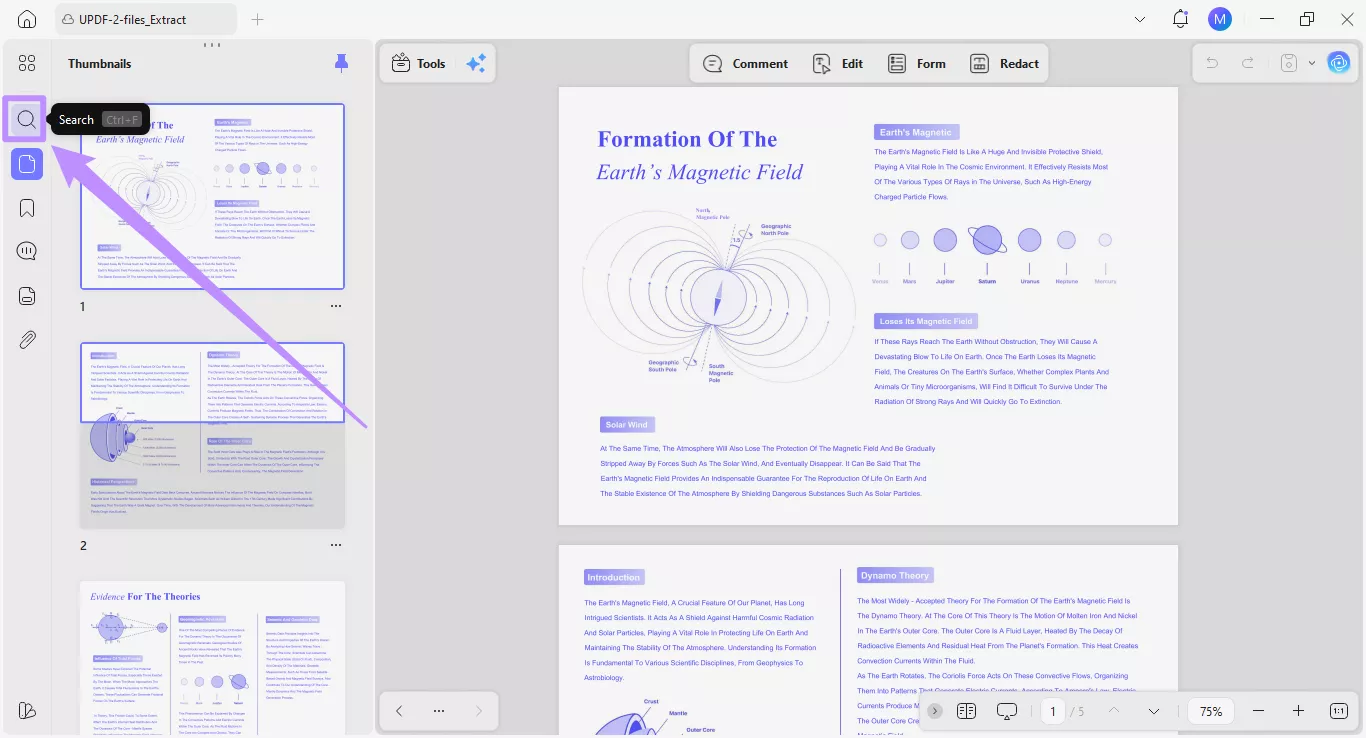
The Search panel will open, showing many options to find text in the PDF. From here, select the “AI Search” icon at the top of the panel.
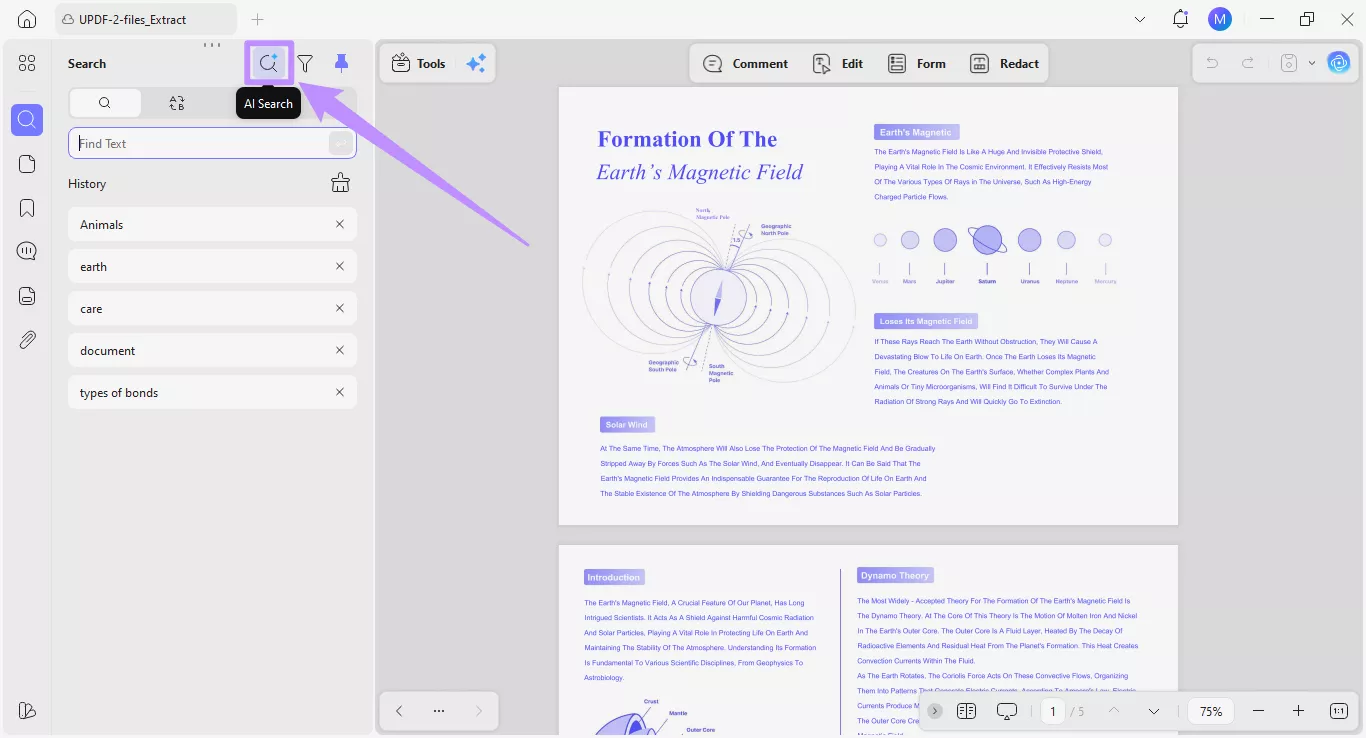
Step 2. Type Your Semantic Search Query
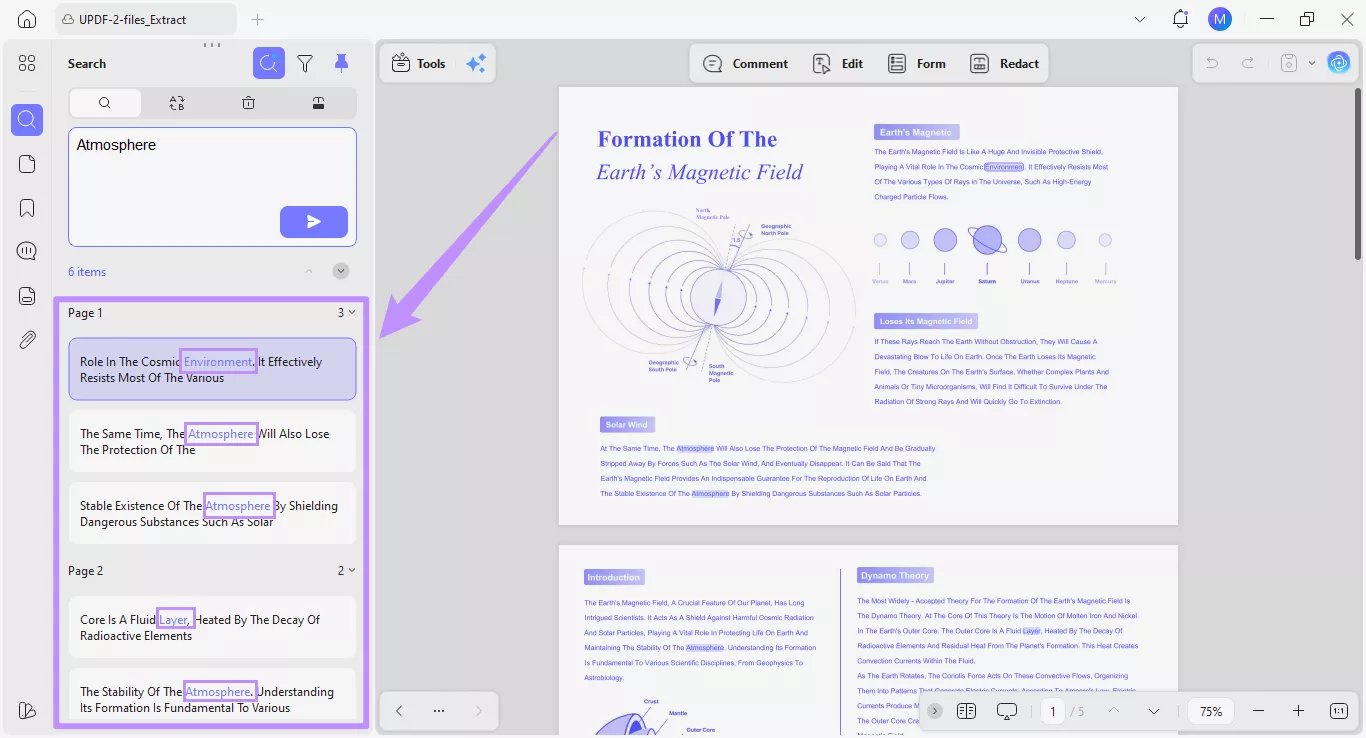
A text field will appear for AI Semantic Search. From here, type in any contextually related words or phrases you want to find in your PDF. For example, you can type “Atmosphere” and click the “Send” button.
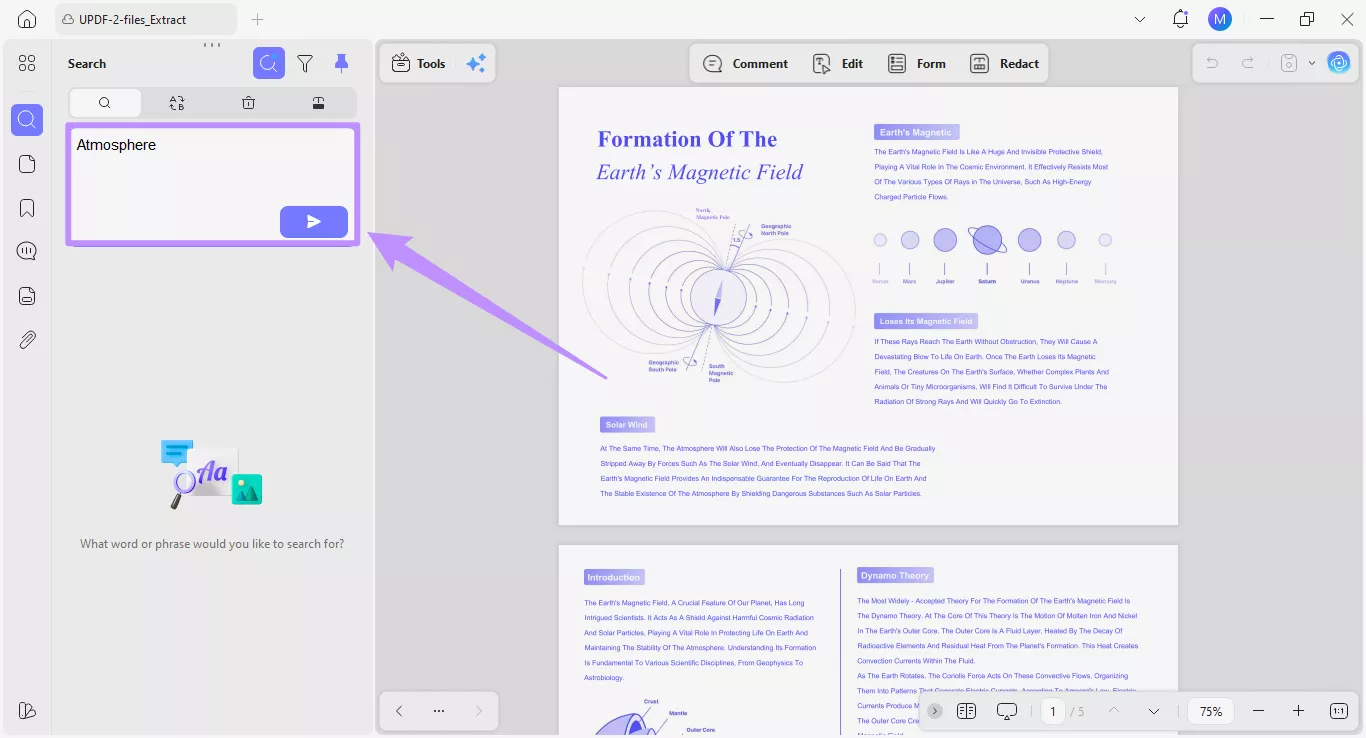
Step 3. View the Search Results
The AI will analyze the entire document to find the exact matches and semantic synonyms for your query. Once done, you can view the results in a neat list under the text box. It will display all semantically relevant words highlighted in blue.
Step 4. Navigate Through Results
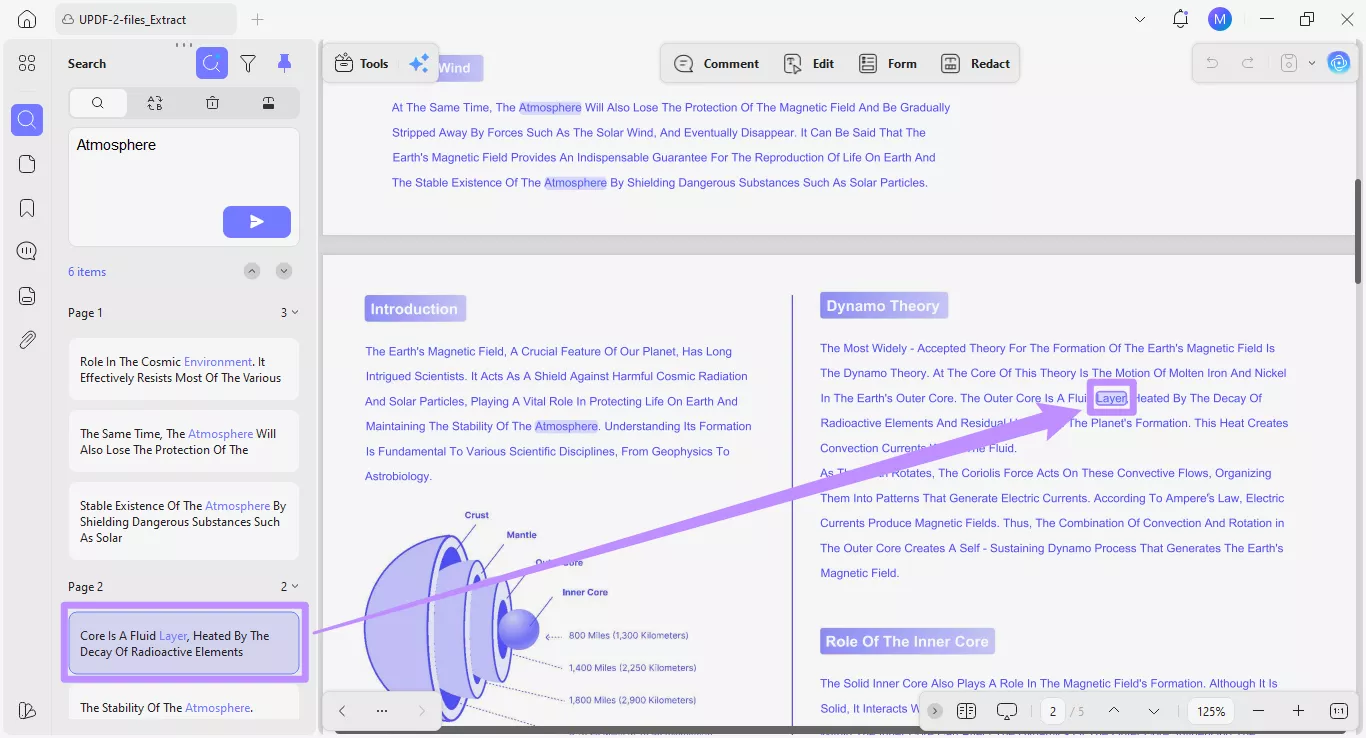
You can click each identified result to jump to the specific page containing the matched words. This way, you can preview the results and understand exactly where in the PDF they appear.
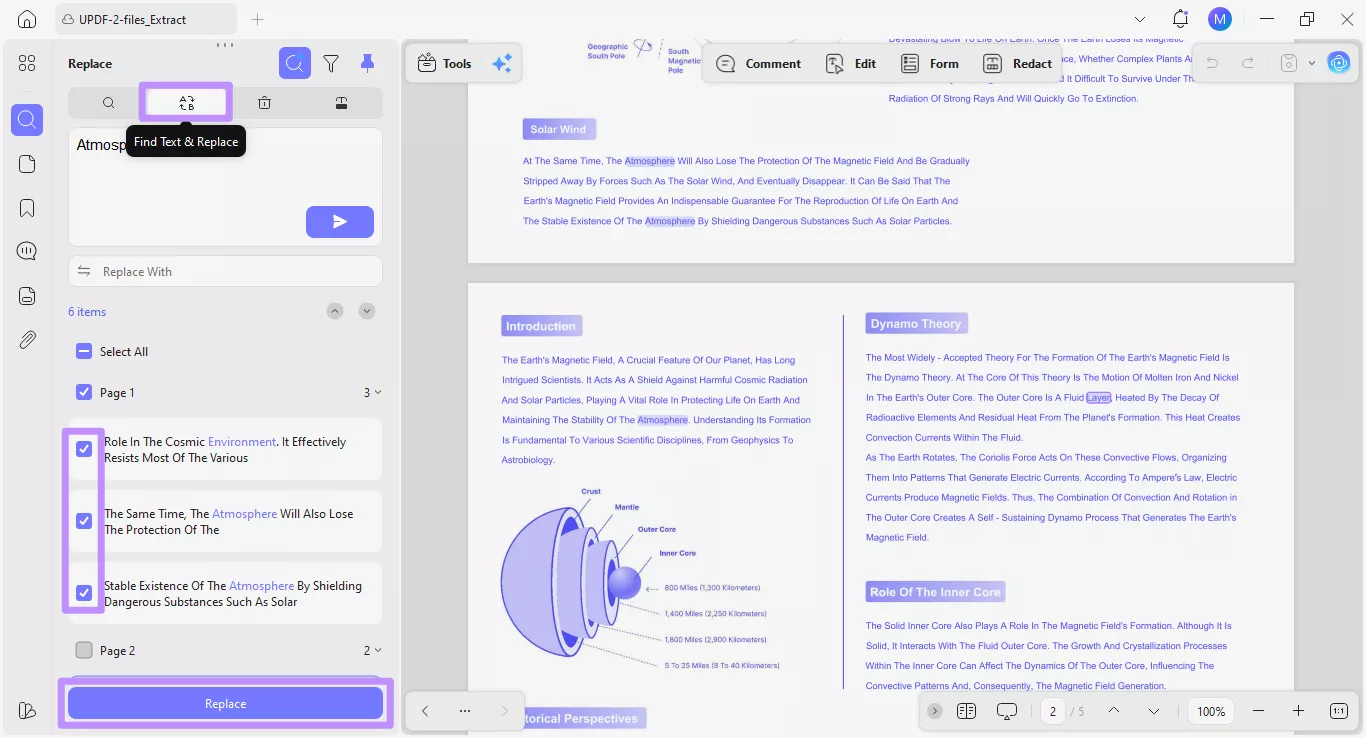
Step 5. Edit Search Results
You can also replace, delete, and redact the identified search terms using options in the top toolbar.
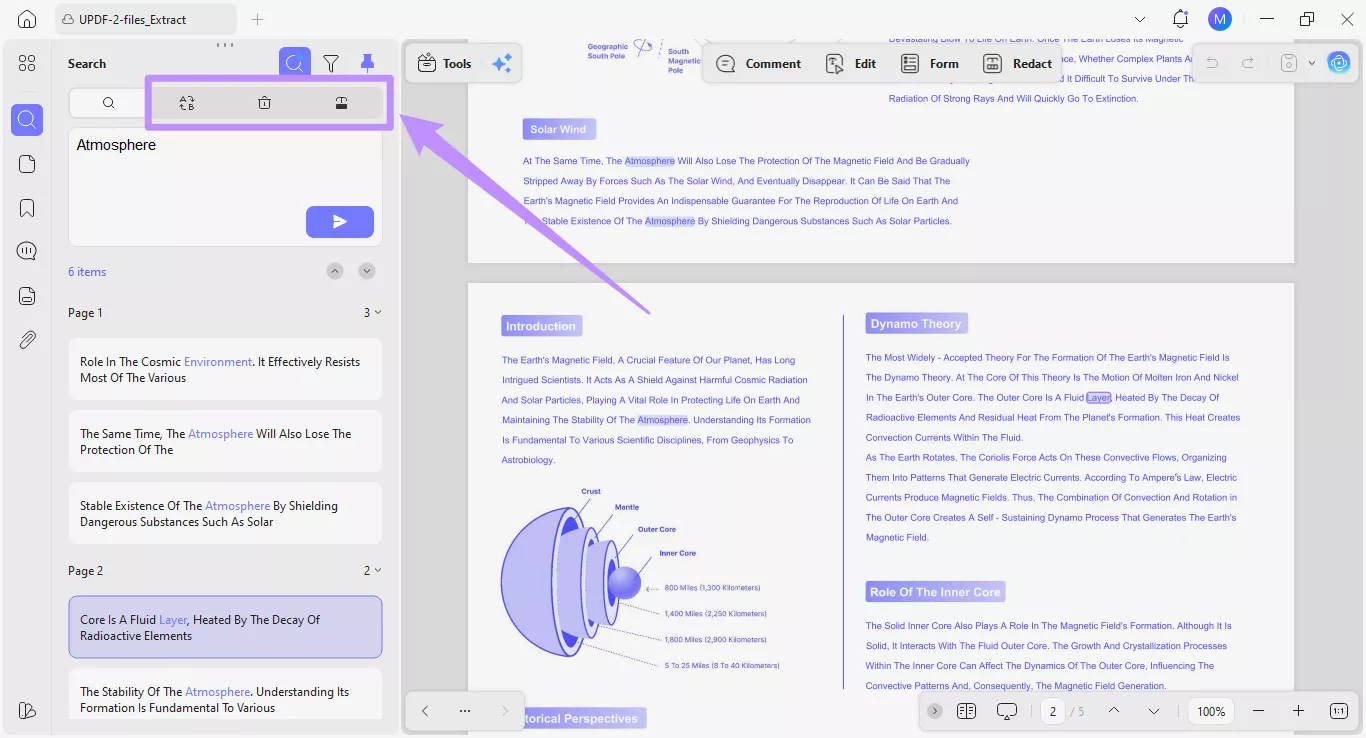
For example, click the “Find Text & Replace” option and type the replacement text in the Replace With text field. Then, select the identified search results you want to replace and click the “Replace” button to complete the action.