 UPDF
UPDF
 UPDF for Windows
 UPDF for Mac
 UPDF for iPhone/iPad
 UPDF for Android
 UPDF AI Online
 UPDF Sign
 Edit PDF
 Annotate PDF
 Create PDF
 PDF Form
 Edit links
 Convert PDF
 OCR
OCR PDF to Word
 PDF to Image
 PDF to Excel
 Organize PDF
 Merge PDF
 Split PDF
 Crop PDF
 Rotate PDF
 Protect PDF
 Sign PDF
 Redact PDF
 Sanitize PDF
 Remove Security
 Read PDF
 UPDF Cloud
 Compress PDF
 Print PDF
 Batch Process
 About UPDF AI
 UPDF AI Solutions
 AI User Guide
 FAQ about UPDF AI
 Summarize PDF
 Translate PDF
 Chat with PDF
 Chat with AI
 Chat with image
 PDF to Mind Map
 Explain PDF
 PDF AI Tools
 Image AI Tools
 AI Chat Tools
 AI Writing Tools
 AI Study Tools
 AI Working Tools
 Other AI Tools
 AI Bookmark Generation
 AI Bookmark Summary
 AI Watermark Generation
 AI Background Generation
 AI Sticker Generation
 AI Stamp Generation
 AI Editing Suite
 UPDF Copilot
 AI Page Management
 AI Semantic Search
 PDF to Word
 PDF to Excel
 PDF to PowerPoint
 Enterprise Solution
 Enterprise Sign
 Enterprise AI
 Enterprise Plan
 Enterprise User Guide
 Enterprise Webinar
 Banking
 Healthcare
 Insurance
 Legal
Legal Manufacturing
 Government
 Education Solution
 Customer Stories
 User Guide
 UPDF Tricks
 FAQs
FAQs UPDF Reviews
 Download Center
 Blog
Blog Newsroom
 Tech Spec
 Updates
 UPDF vs. Adobe Acrobat
 UPDF vs. Foxit
 UPDF vs. PDF Expert

Paper Search
Searching for academic papers often takes longer than expected. You jump between sites, skim through long texts, and still aren't sure what's actually useful. That's where UPDF AI's Paper Search comes in. It's built to help you find the right papers faster, without all the back-and-forth.
In this guide, we'll walk you through each part of Paper Search. We will explore what it does, how to use it, and how it can make research a whole lot simpler.
1. Open UPDF AI Paper Search Tool
2. Select the Mode for Searching Papers
3. Search Papers in DeepThink Mode
4. Search Papers in Keyword Mode
Add Filters and Interact With the Search Results
Explore Paper Connection With the Relation Graph
Select Multiple Papers and Take Action Instantly
Translate Paper Summaries in One Click
5. Dive Deeper With Citing Papers and References
6. Tips for Getting the Most Out of Paper Search
Getting started takes seconds. Here's how it works:
1. Open UPDF AI Paper Search Tool
- Open your browser and visit UPDF AI's official website.
- Here, log in with your UPDF account, or if you don't have one, you can register easily.
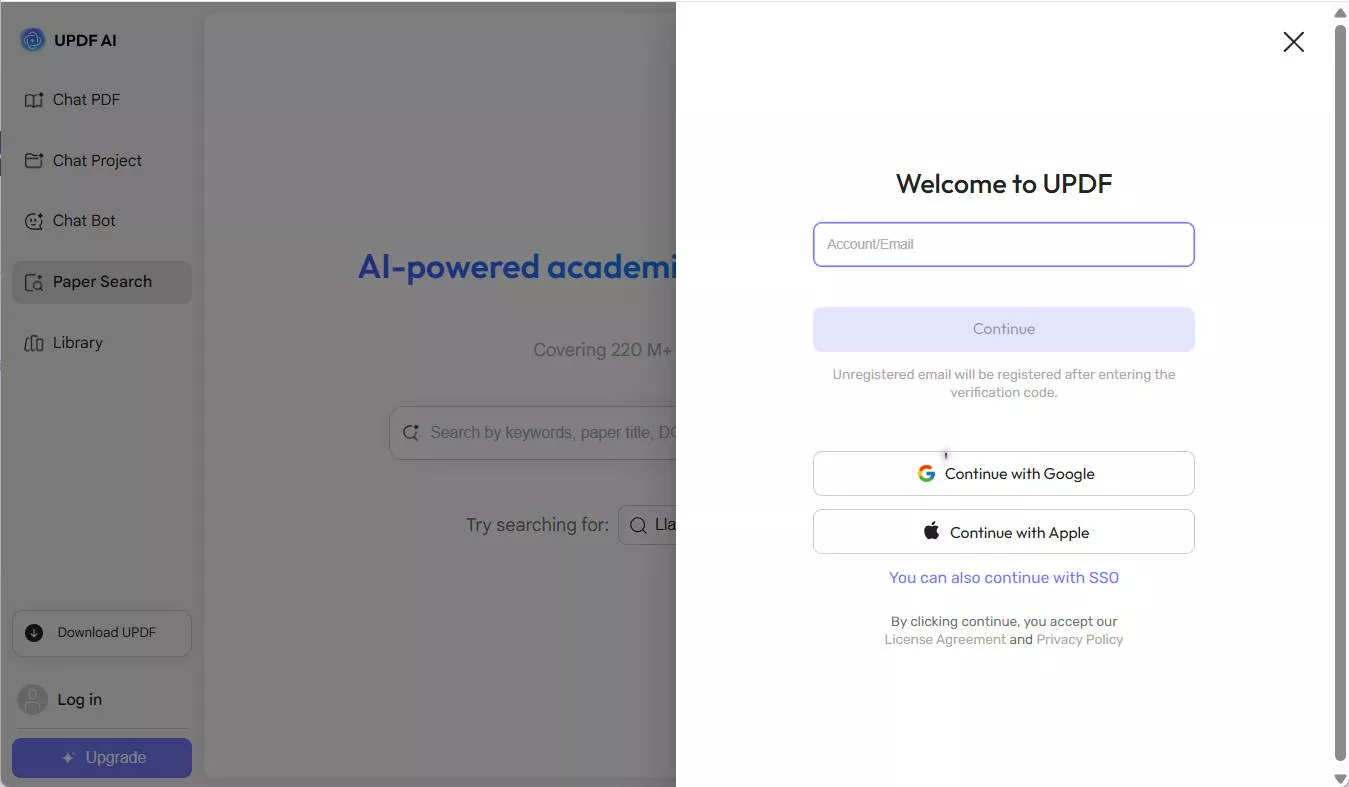
2. Select the Mode for Searching Papers
- After you log in, please select the "Paper Search" option from the left sidebar. Below the input, you will see two options:
- DeepThink - You can ask research questions directly and UPDF AI will interprets your question, analyzes relevant research papers, and returns summarized, citation-backed answers.
- Keyword – a traditional search mode where you input specific terms to find papers.

2. Please select one of the options to start your paper search; otherwise, UPDF AI will default to DeepThink mode.
3. Search Papers in DeepThink Mode
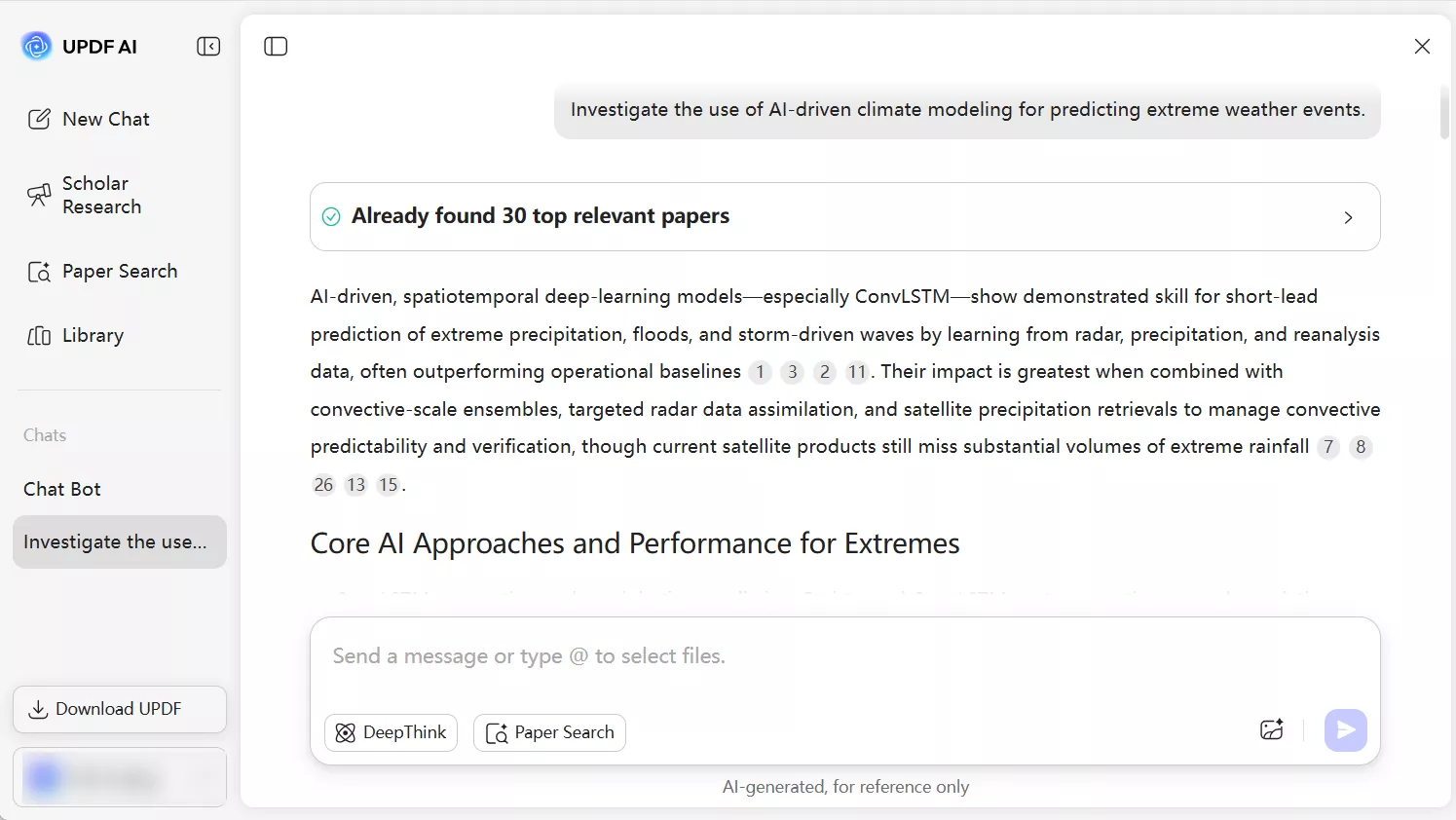
- In DeepThink mode, enter your research question and press Enter.
- UPDF AI will then analyze your research question, identify the research direction, find the most relevant papers, and provide you with citation-backed answers.
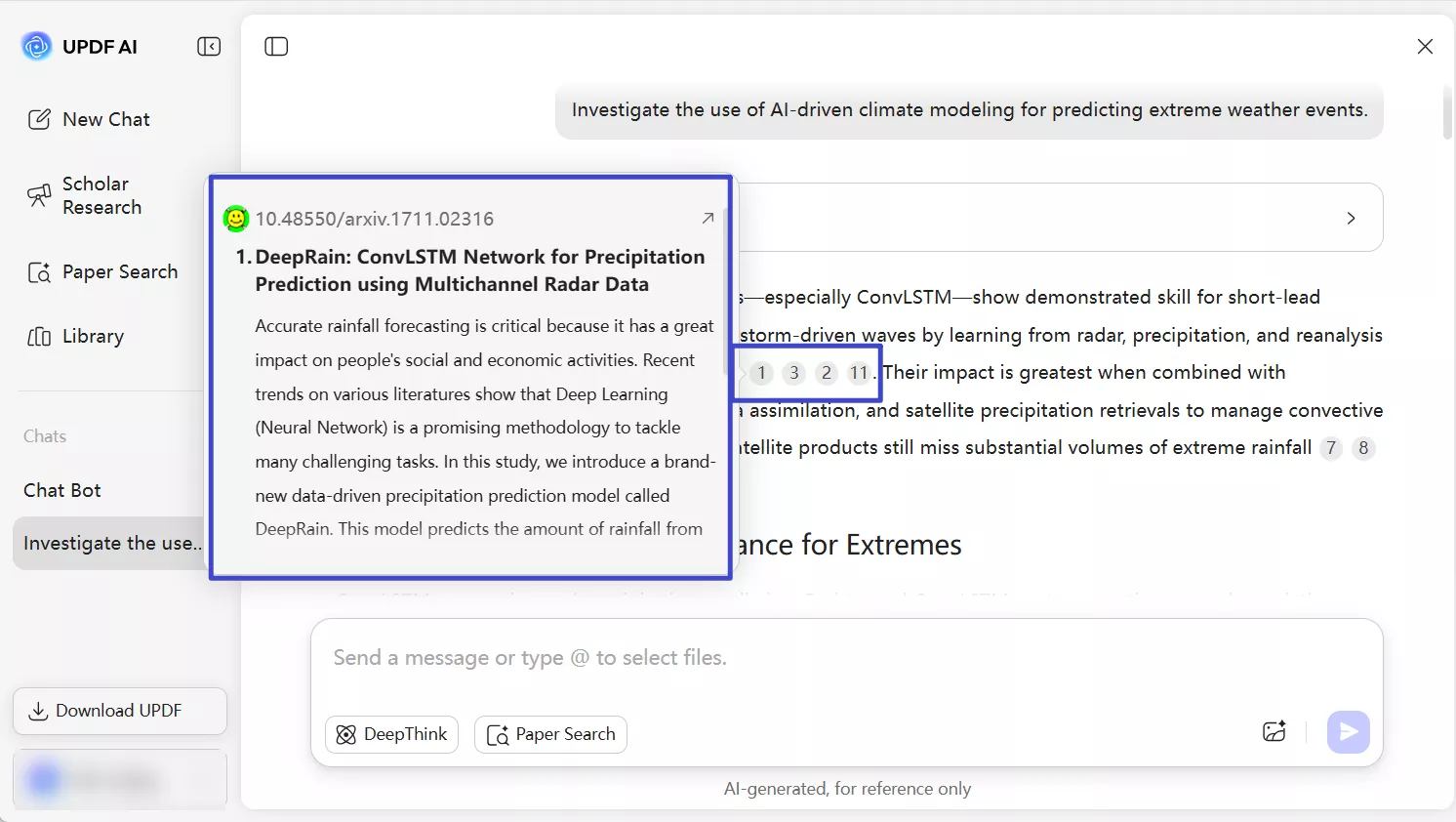
3. If you hover your mouse over the number representing a paper cited by UPDF AI, a pop-up window will appear showing the paper’s abstract along with its DOI. You can scroll within this window to view the full abstract.
4. If you want to see more details about a paper, click the number representing the paper cited by UPDF AI or directly click the pop-up window. UPDF AI will then open a new window showing additional information, such as the authors, the journal it was published in, the number of citations, and more.

5. UPDF AI also allows you to:
- Chat PDF – interact with the current research paper, ask questions about its content, and get AI-powered responses.
- Add to Library – Lets you save the research paper to your personal library on UPDF AI for easy access later.
- Add to Chat – Enables you to share the PDF in your current or previous chat so you can discuss or analyze it with AI.
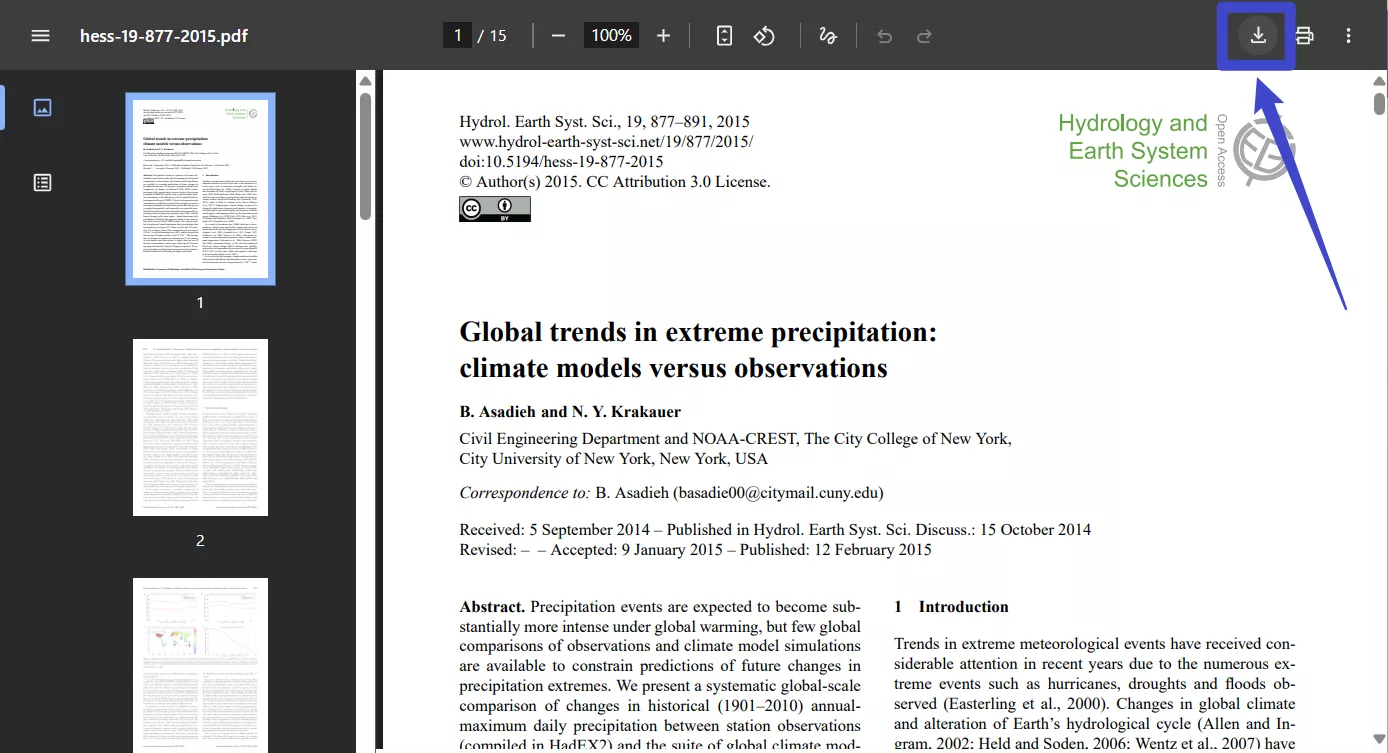
- Download PDF – Allows you to download the PDF file to your device for offline access. When you click this option, UPDF AI will open the PDF version of the paper on the webpage. Please click the download button in the top-right corner to save it to your device.
Note
6. On this page, you can also directly enter other keywords, paper titles, or a DOI or PMID to switch to the traditional mode and search for other papers. If you enter an exact DOI or PMID, UPDF AI will display the detailed information for that specific paper.

4. Search Papers in Keyword Mode
Now let’s talk about the Keyword mode for paper search, which is the traditional paper-search method. When you enter the UPDF AI Paper Search main interface and select Keyword mode below the input area, you will see the interface shown below.
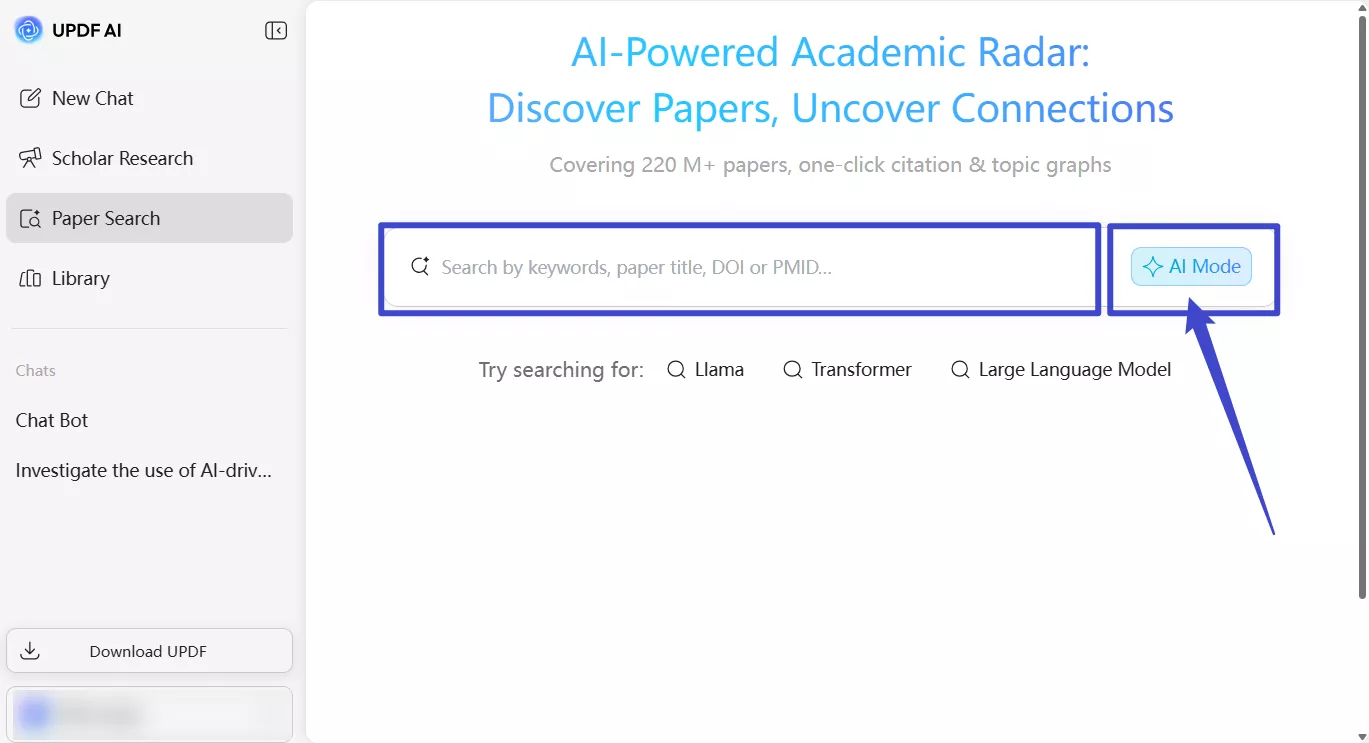
- Now, type the topic or keyword that you want to search for and click Enter. UPDF AI will do a quick research and offer plenty of results in just a few seconds. If you want to switch back to DeepThink mode, simply click the AI Mode option on this new interface.
• Add Filters and Interact With the Search Results
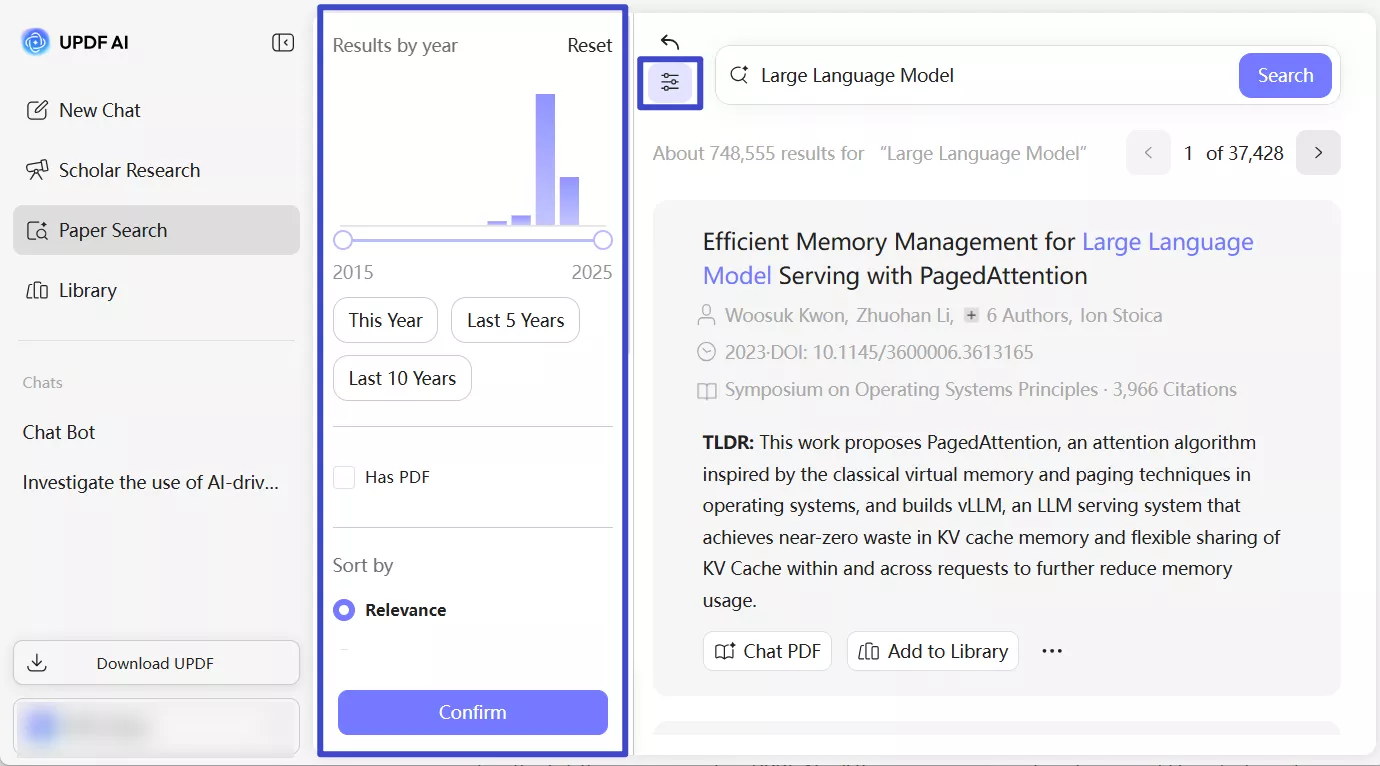
Finding the right paper gets easier with UPDF AI Paper Search's built-in filters. You can filter your search results to find papers that match your needs. Once the results load, you can interact with each paper directly from the list. Here is how:
- Click the "Filter" icon, and narrow down results by publication year using an interactive timeline slider. Or you can use quick buttons like This Year, Last 5 Years, and Last 10 Years.
- You can also choose to view only papers that include downloadable PDFs.
- If you want more precise results, select the relevant options from "Sort by" and "Fields of Study."
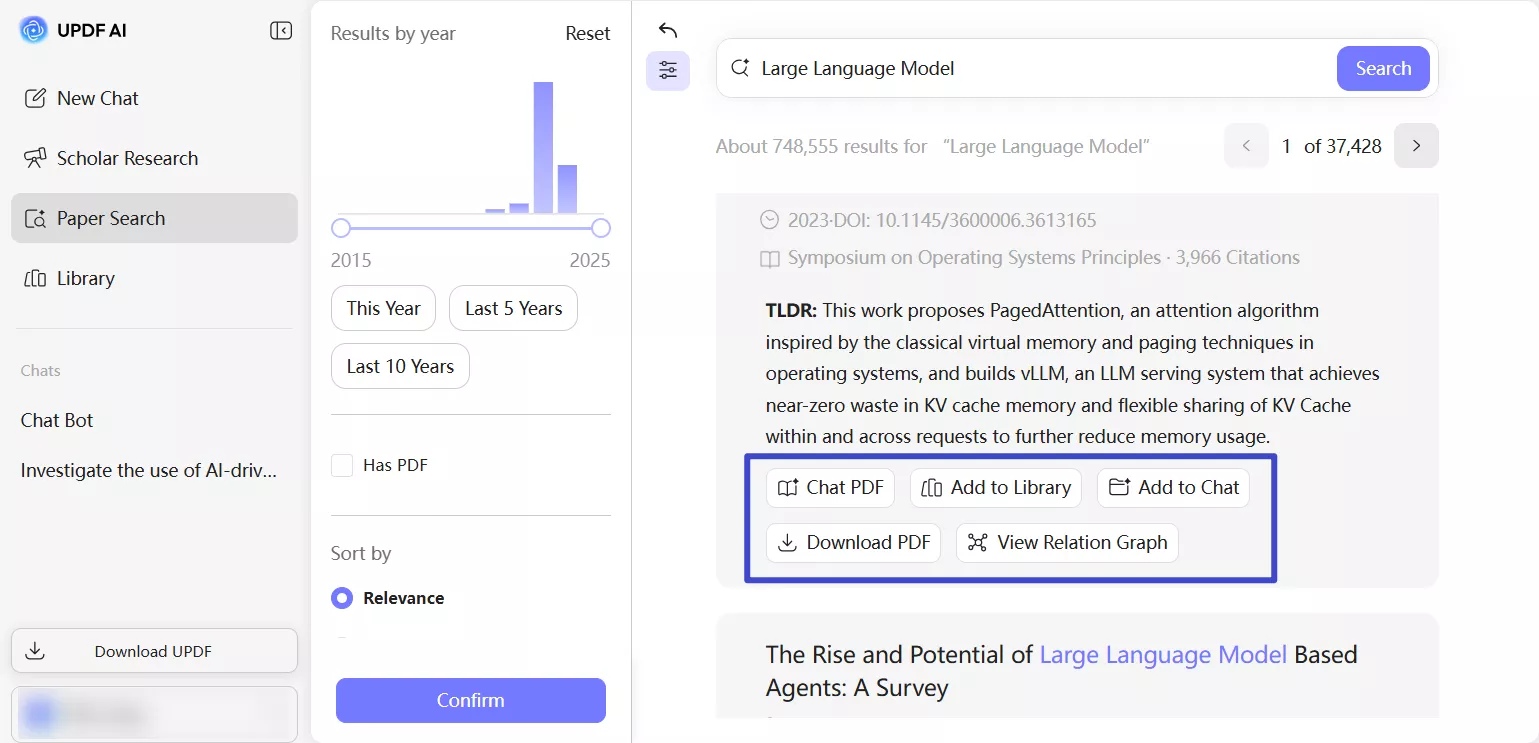
- You can also interact with the search results. Here is what you can do:
- Chat PDF: Open a PDF chatbot for the selected paper and ask anything you want.
- Add to Library: Save the paper to your personal UPDF library for future reference.
- Add to Chat: Share the PDF in your current or previous chat so you can discuss or analyze it with AI.
- Download PDF: Download the full paper instantly (if a PDF is available).
- View Relation Graph: Explore how the paper connects to others through citations and shared topics.
• Explore Paper Connection With the Relation Graph
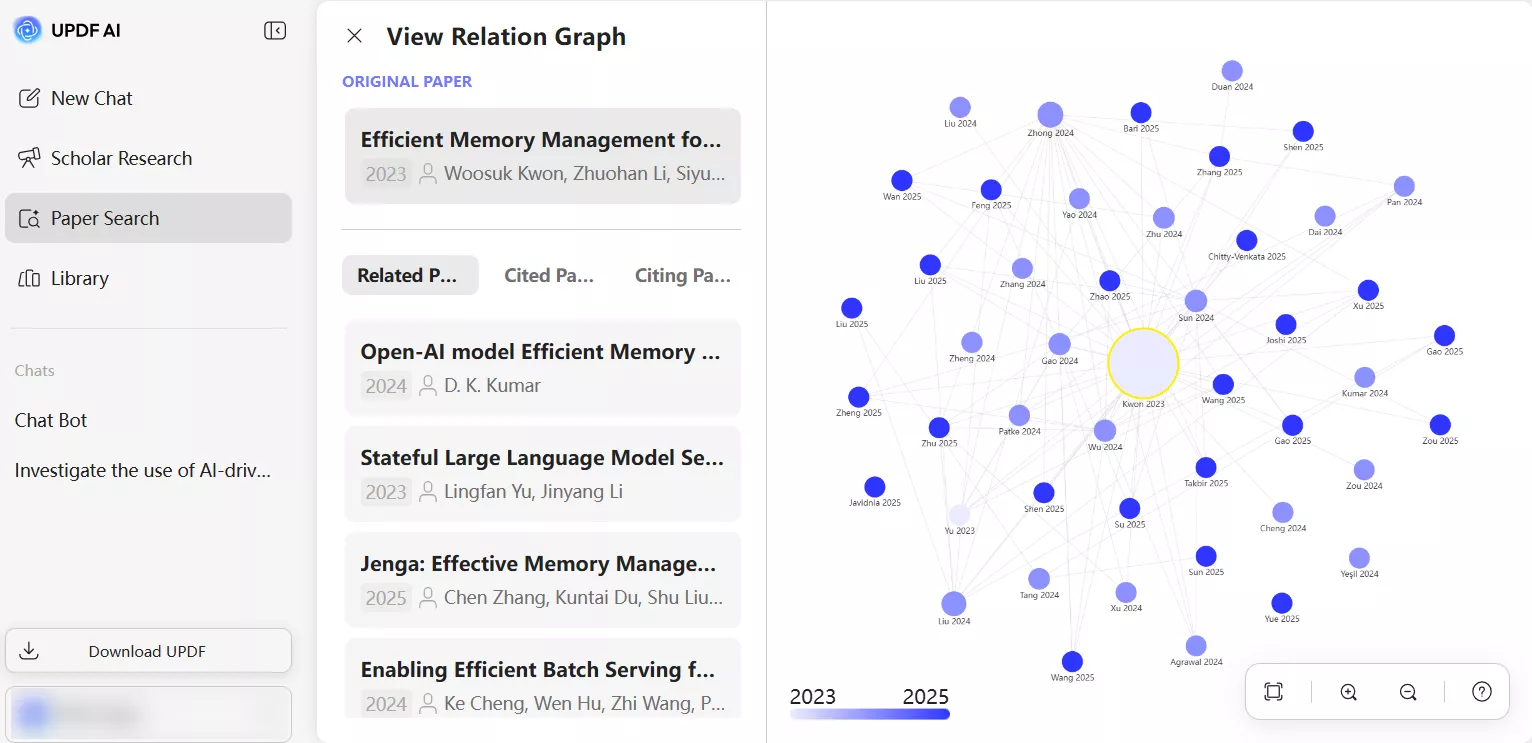
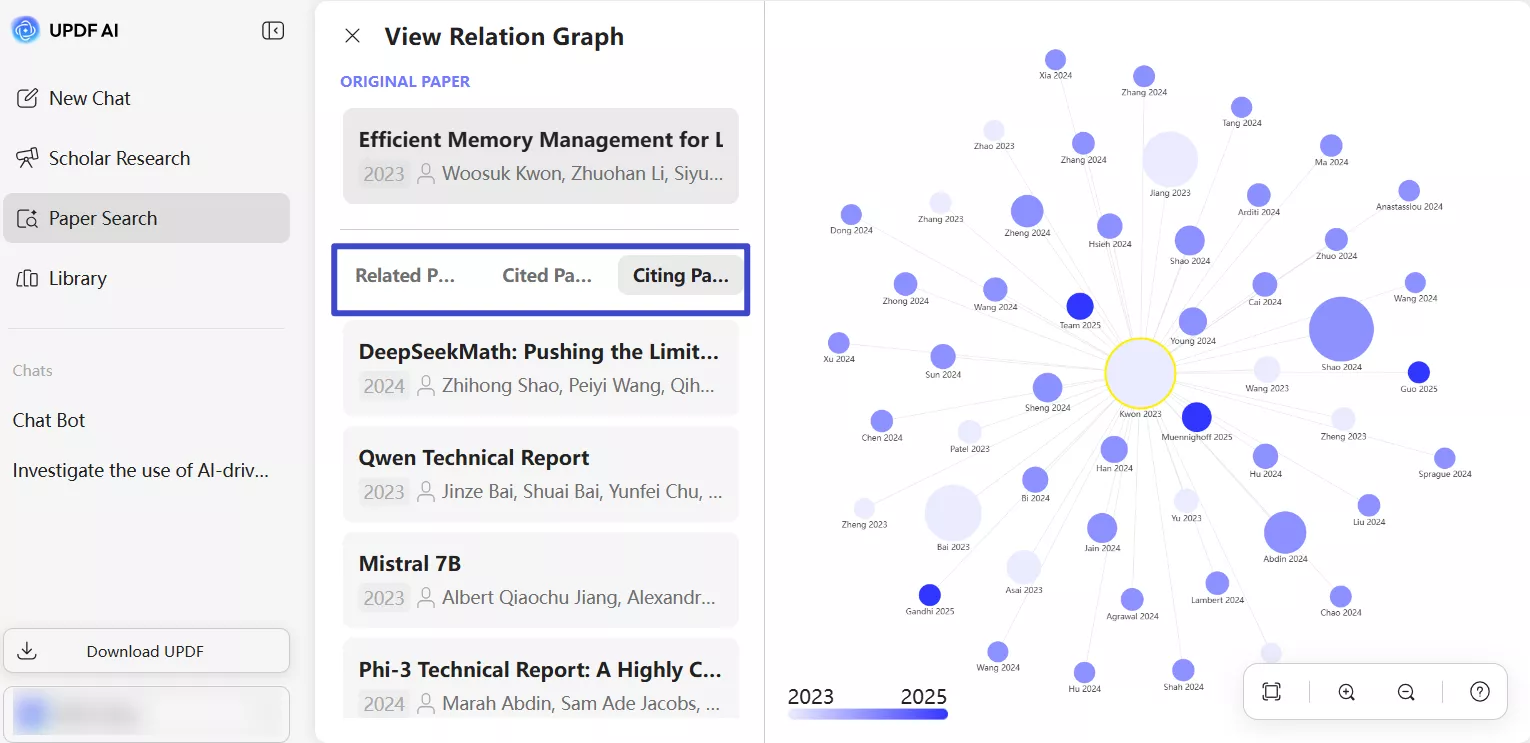
The Relation Graph gives you a great way to see how one research paper connects to others. When you open it, you'll see a lively network of circles. Each circle stands for a paper, and lines show how they're all linked by citations or similar topics. It also shows similar papers, referenced works, and citing papers in tabs.
The graph also uses color shading to show age. Darker nodes represent newer papers, while lighter ones indicate older publications.
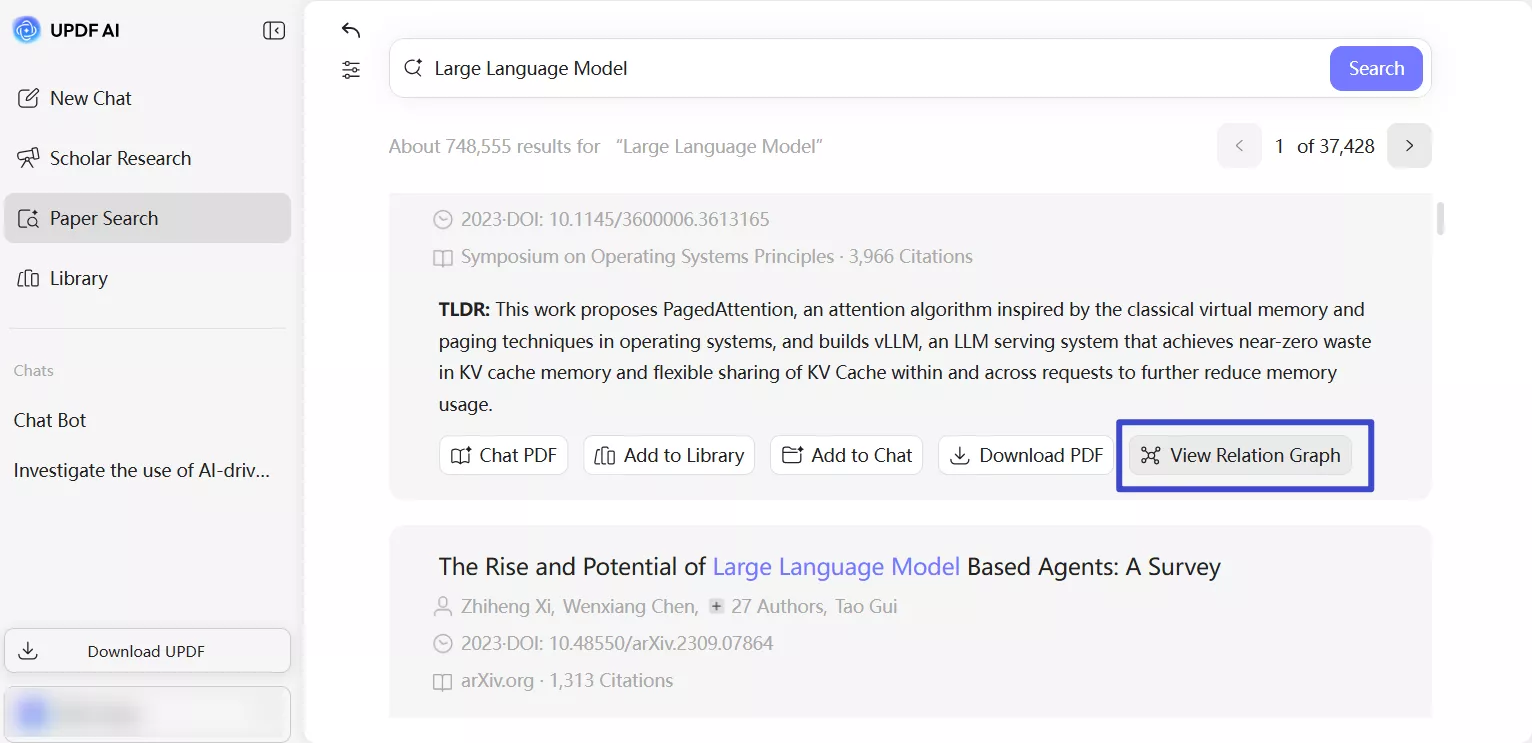
- In the search results, click the "View Relation Graph" button next to the paper you want to explore.
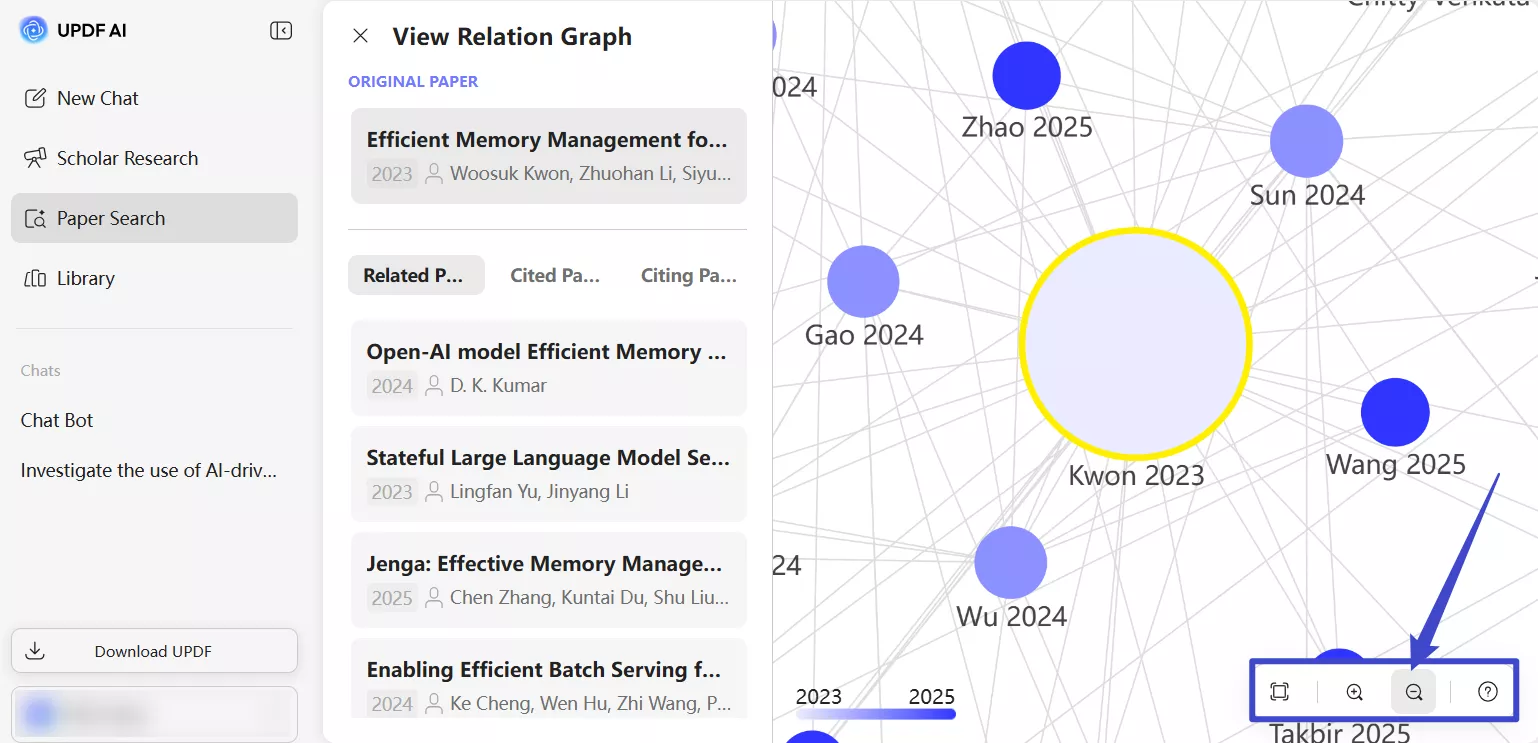
- Once the graph is opened, you can hover or click nodes to explore connected papers in more detail.
- Here, you can switch between different tabs to view the same papers, references, or citing works.
- You can use these buttons to zoom and pan to explore the full network of citations and topics.
• Select Multiple Papers and Take Action Instantly
You can select multiple papers from the search results at once. This lets you apply actions like saving, downloading, or copying links. All in one go, without opening each paper separately.
- Check the box next to any paper result, and a floating action bar appears at the bottom of the screen.
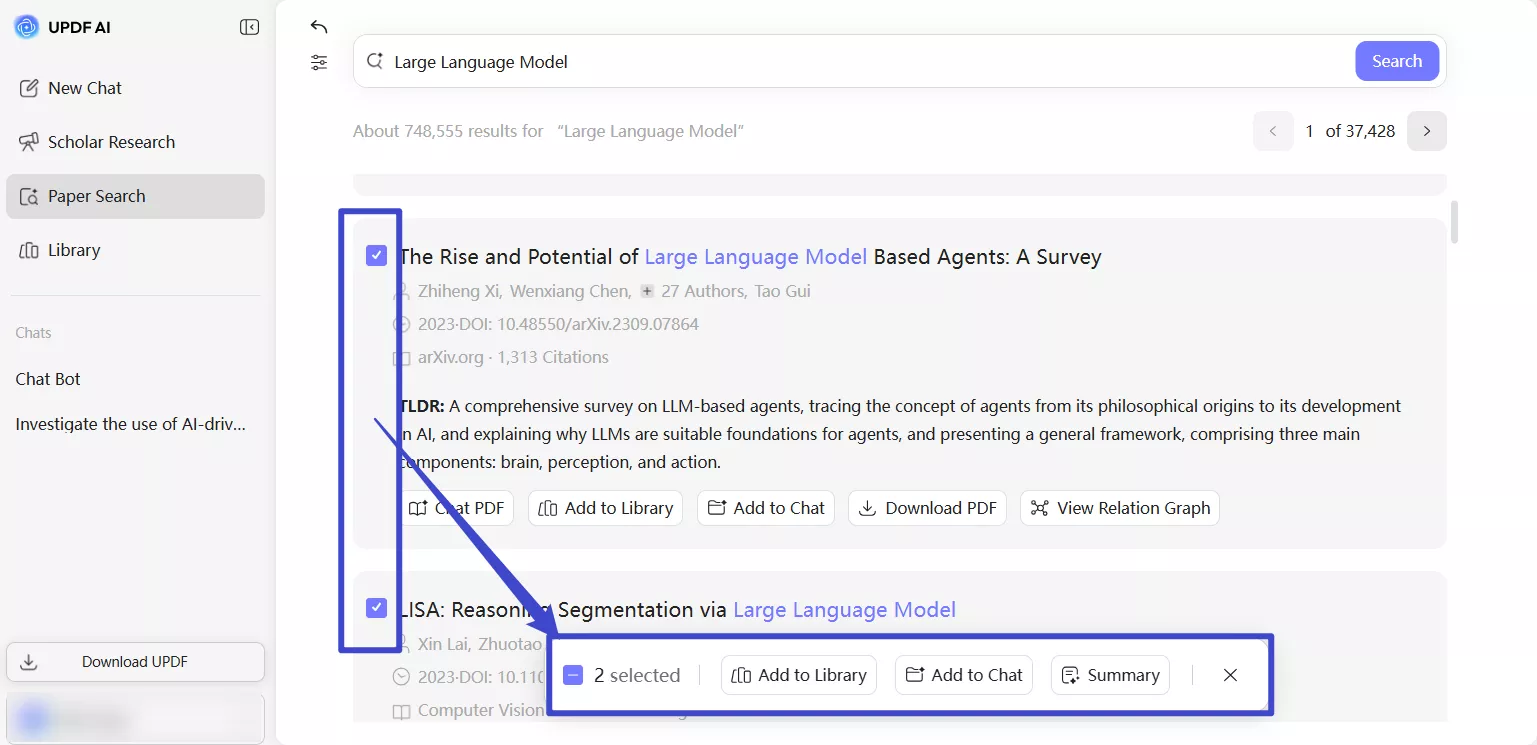
- This bar gives you the power to manage multiple papers at once.
Here is what you can do:
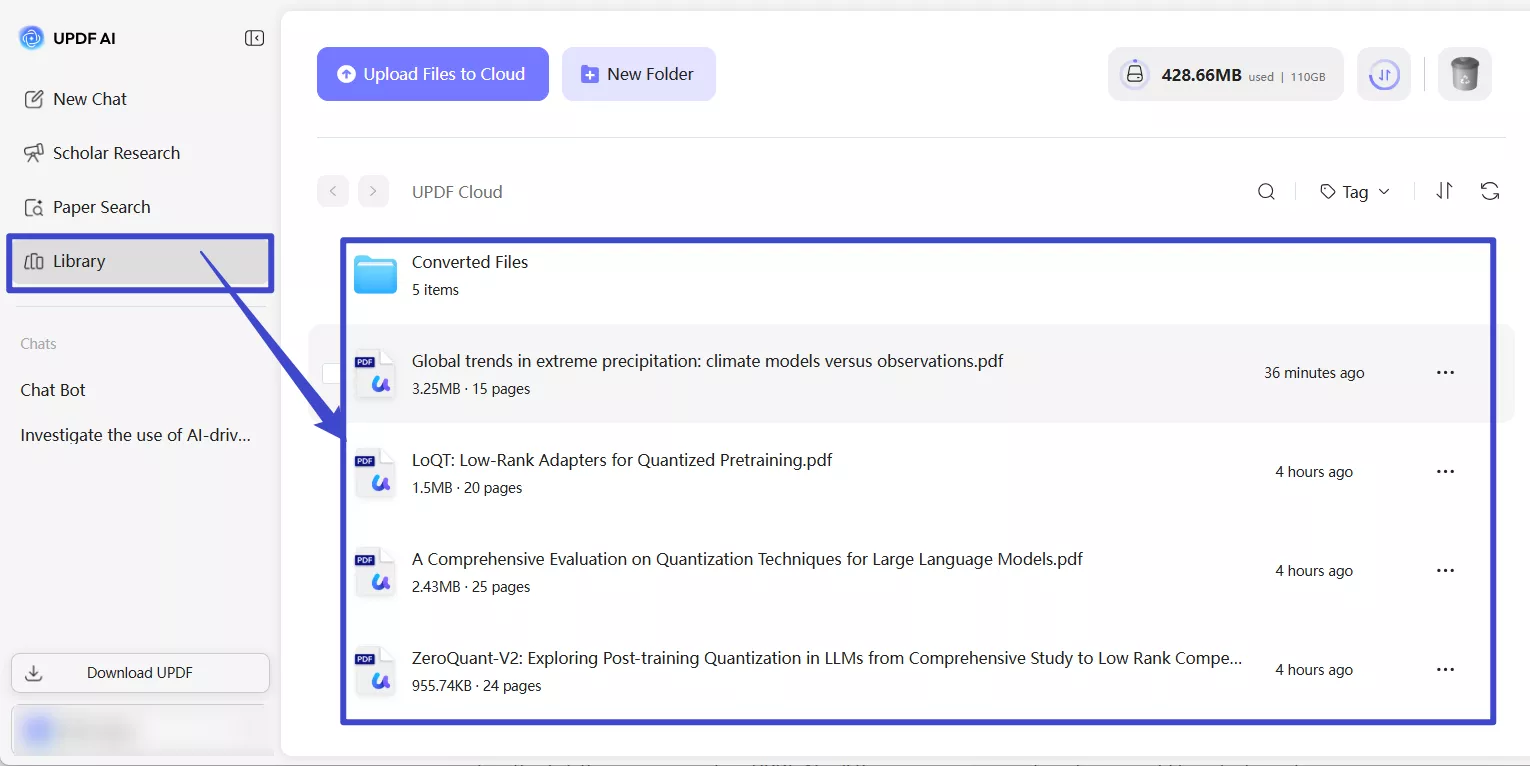
- Add to Library: Save all selected papers to your UPDF library in one click. Click "Add to Library," and you will see a new window. Select the folder where you want to add the file and click "Add Here." You can also create a new folder by clicking the "Create" button at the top of the window.

You can click the "Library" button in the left panel and access your saved search papers.
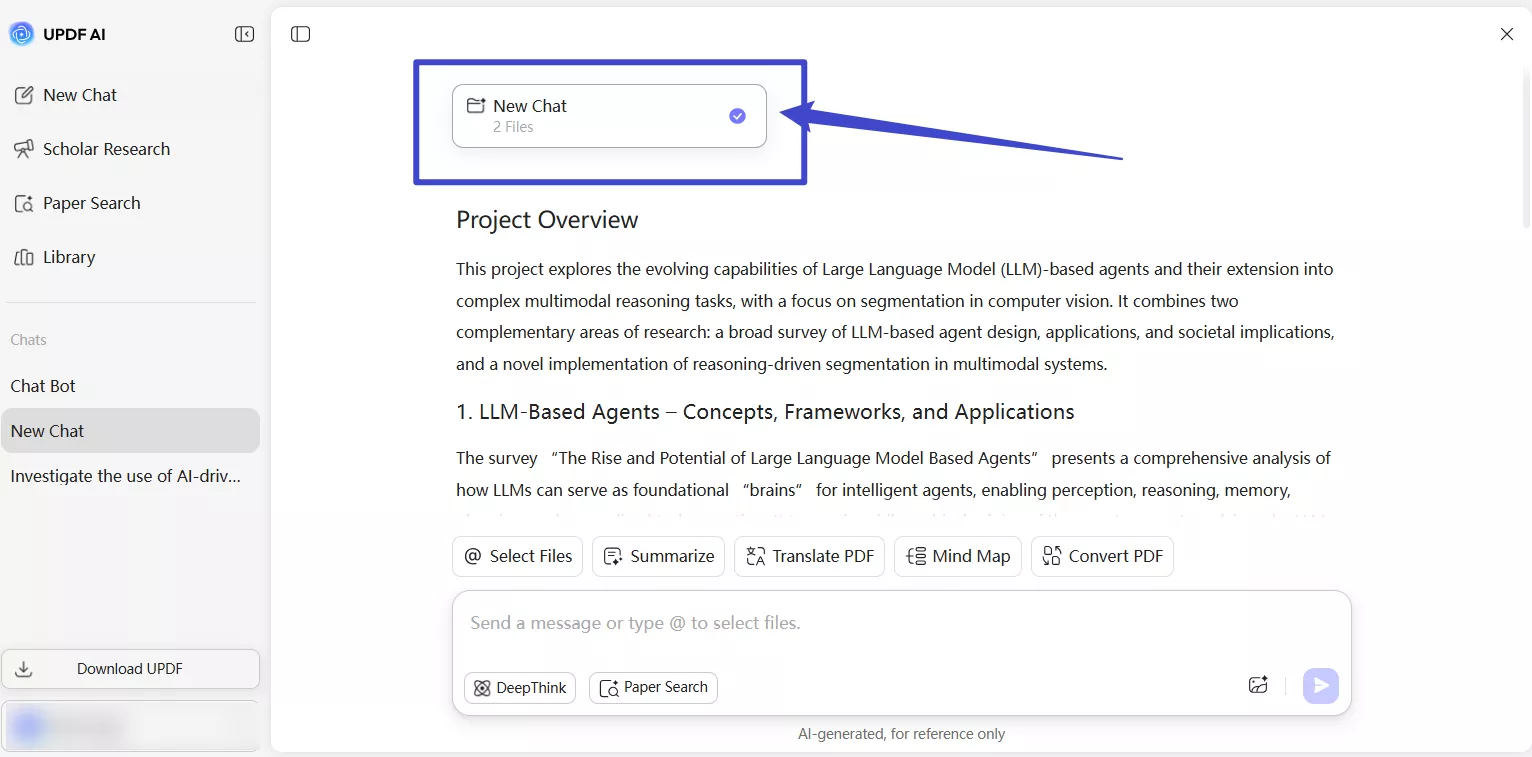
- Add to Chat: Click "Add to Project," and a window will pop up. Select the chat history to which you want to add the search paper and click "Add to." You can also click the "Create" button to create a new chat.

Then, go to the "Chats" section in the left panel and click the chat you want to access. Now you can interact with the research papers you just added.
• Translate Paper Summaries in One Click
Need to read research in your preferred language? UPDF AI Paper Search makes it easy. You can quickly translate paper summaries into any language you want. Just one click and the summary appears in the language you've selected, no need to switch tools.
- Click your profile name at the bottom left of the screen and select "Response Language." Then, select the language you want to translate the content.
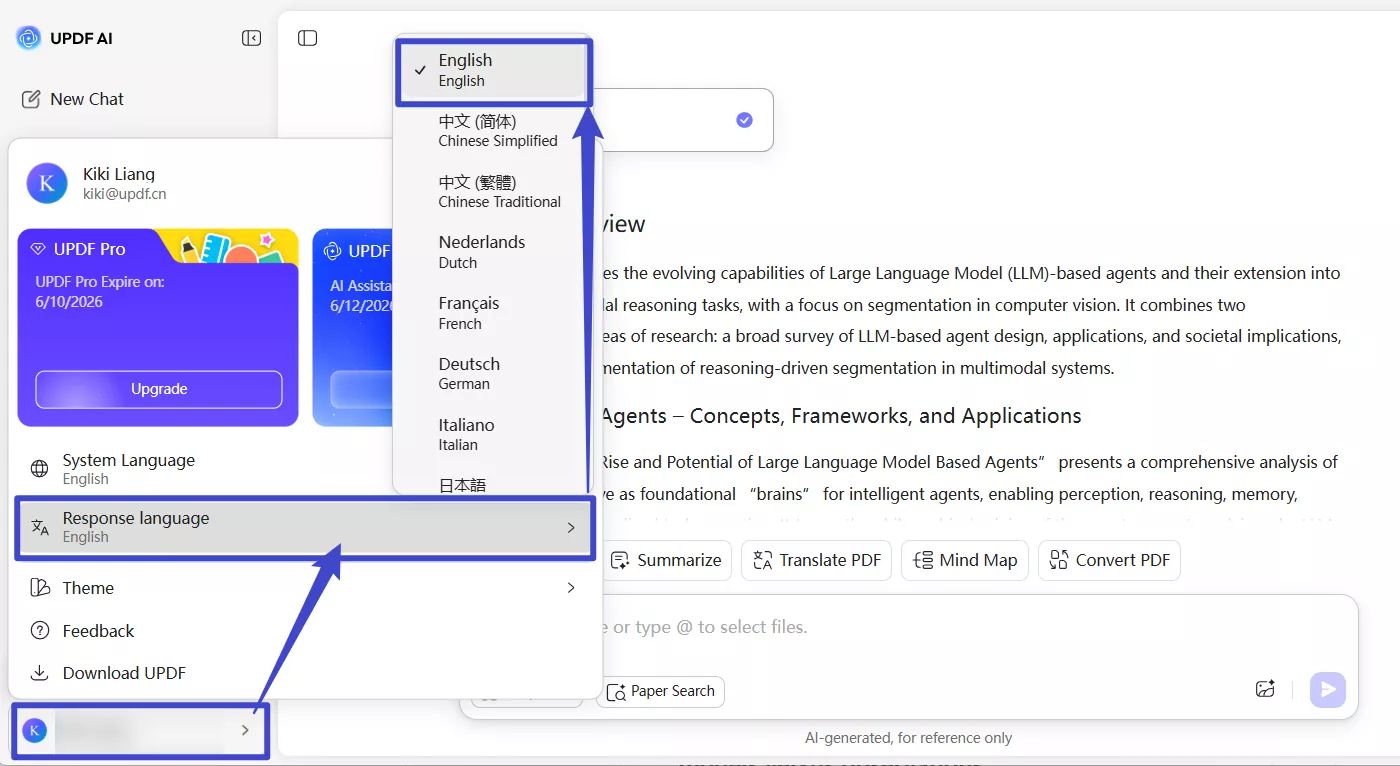
- Once you choose a language, a "Translation" icon will appear in the top-right corner of the TLDR whenever you open a paper. If you click this icon, UPDF will convert the summary of the paper right away into the language you chose.

5. Dive Deeper With Citing Papers and References
When you're reading a paper you found, just scroll down a bit. You'll see two buttons: Citing Papers and References.
- Citing Papers shows you newer studies that have mentioned or used the one you're currently reading. This is a great way to see how the paper has made an impact and what new ideas have come from it over time.
- Cited Papers are the opposite! This shows you all the older papers and sources that the paper you're reading used. It's like seeing the building blocks that were used in making the current study.

6. Tips for Getting the Most Out of Paper Search
Here are some tips that you can follow to get the most out of the Paper Research feature:
- Try using different keywords or phrases.
- Apply filters to narrow down the results for accurate and quick research.
- Use the AI summaries to check if a paper is worth reading in full.
- Explore the Relation Graph to discover papers linked by topic or citations.
- Save useful papers to your library or a project folder so they're easy to find later.
- Translate paper summaries if needed, perfect for reading in your preferred language.
- Use the citation tool to copy references without doing the formatting yourself.