 UPDF
UPDF
 UPDF for Windows
 UPDF for Mac
 UPDF for iPhone/iPad
 UPDF for Android
 UPDF AI Online
 UPDF Sign
 Edit PDF
 Annotate PDF
 Create PDF
 PDF Form
 Edit links
 Convert PDF
 OCR
OCR PDF to Word
 PDF to Image
 PDF to Excel
 Organize PDF
 Merge PDF
 Split PDF
 Crop PDF
 Rotate PDF
 Protect PDF
 Sign PDF
 Redact PDF
 Sanitize PDF
 Remove Security
 Read PDF
 UPDF Cloud
 Compress PDF
 Print PDF
 Batch Process
 About UPDF AI
 UPDF AI Solutions
 AI User Guide
 FAQ about UPDF AI
 Summarize PDF
 Translate PDF
 Chat with PDF
 Chat with AI
 Chat with image
 PDF to Mind Map
 Explain PDF
 PDF AI Tools
 Image AI Tools
 AI Chat Tools
 AI Writing Tools
 AI Study Tools
 AI Working Tools
 Other AI Tools
 AI Bookmark Generation
 AI Bookmark Summary
 AI Watermark Generation
 AI Background Generation
 AI Sticker Generation
 AI Stamp Generation
 AI Editing Suite
 UPDF Copilot
 AI Page Management
 AI Semantic Search
 PDF to Word
 PDF to Excel
 PDF to PowerPoint
 Enterprise Solution
 Enterprise Sign
 Enterprise AI
 Enterprise Plan
 Enterprise User Guide
 Enterprise Webinar
 Banking
 Healthcare
 Insurance
 Legal
Legal Manufacturing
 Government
 Education Solution
 Customer Stories
 User Guide
 UPDF Tricks
 FAQs
FAQs UPDF Reviews
 Download Center
 Blog
Blog Newsroom
 Tech Spec
 Updates
 UPDF vs. Adobe Acrobat
 UPDF vs. Foxit
 UPDF vs. PDF Expert

AI-Generate Stamps for PDF
When it comes to professional PDFs, stamps are a useful way to indicate their status and streamline the review process. However, finding the right stamp for each document isn’t easy. You may spend hours searching online for a copyright-free design that also matches your preferred aesthetic.
Plus, if you want to design your own, you’ll need knowledge of advanced editing techniques and software like Photoshop. That's why, for many people, designing stamps that are practical and visually appealing can be quite challenging. UPDF simplifies this process by helping you AI-generate stamps with its built-in AI tool.
Follow the guide below to learn how it works.
Part 1. How to AI-Generate Stamps for PDF
UPDF allows you to generate AI stamps using a simple text prompt. You can either write the prompt manually or use smart preset options for a faster workflow.
Here are the steps.
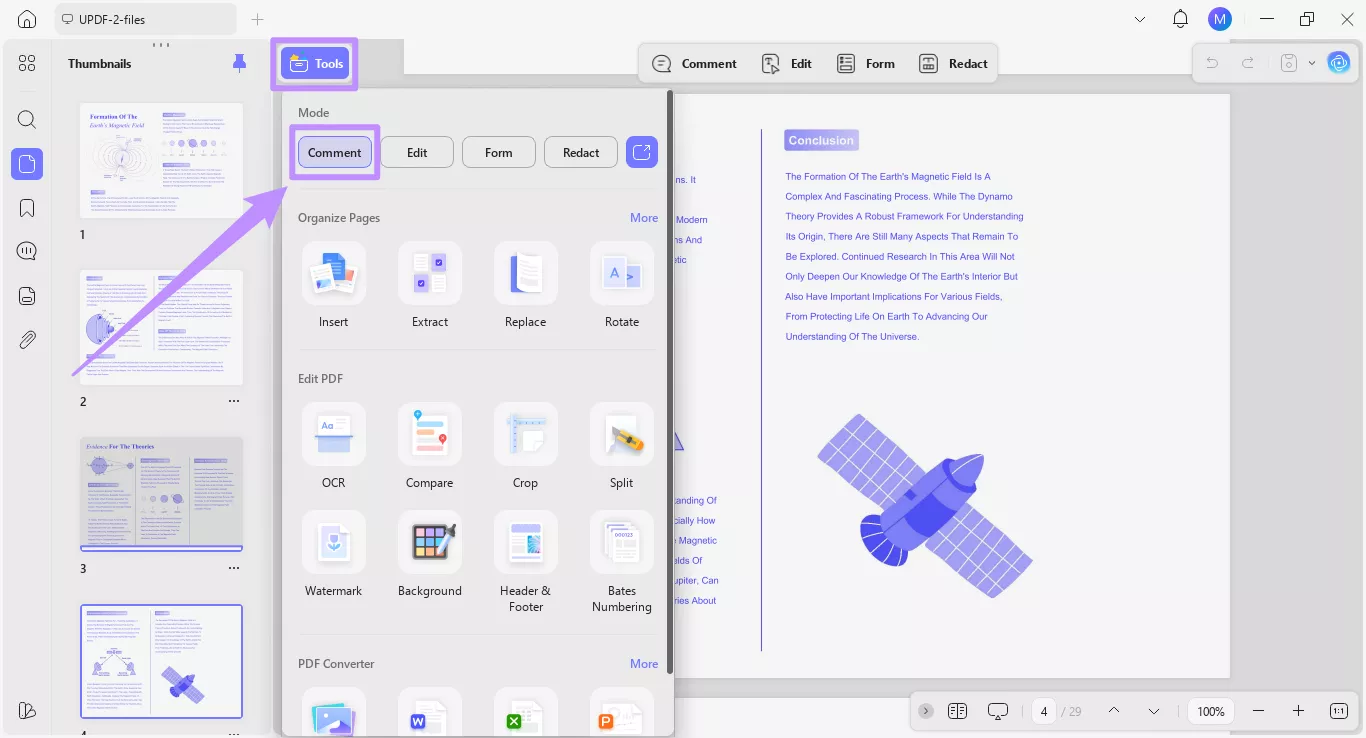
Step 1. Open the PDF you want to stamp in UPDF. By default, you will be in the comment mode. If not, click “Tools” from the top left and select the “Comment” mode.
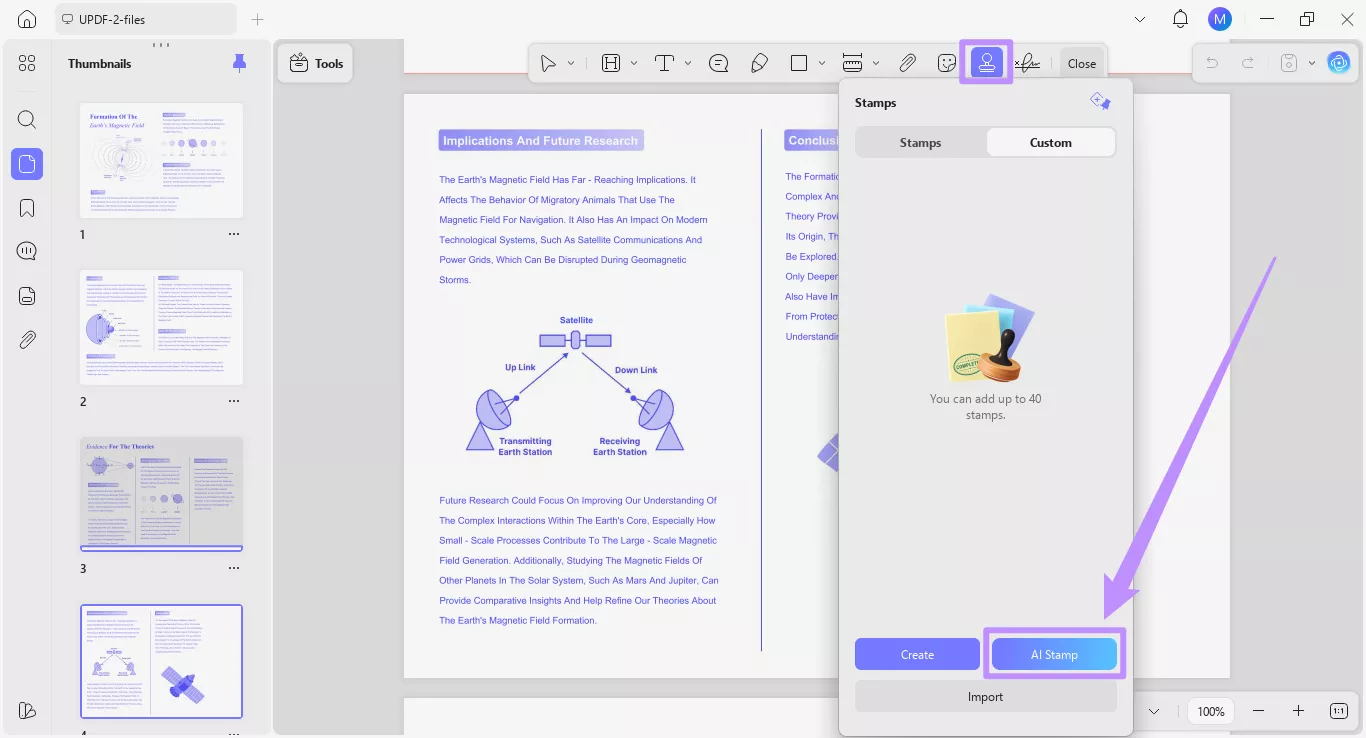
Step 2. Select the “Stamps” tool from the top toolbar. Then, select the “Custom” tab and click on the “AI Stamp” button near the bottom.
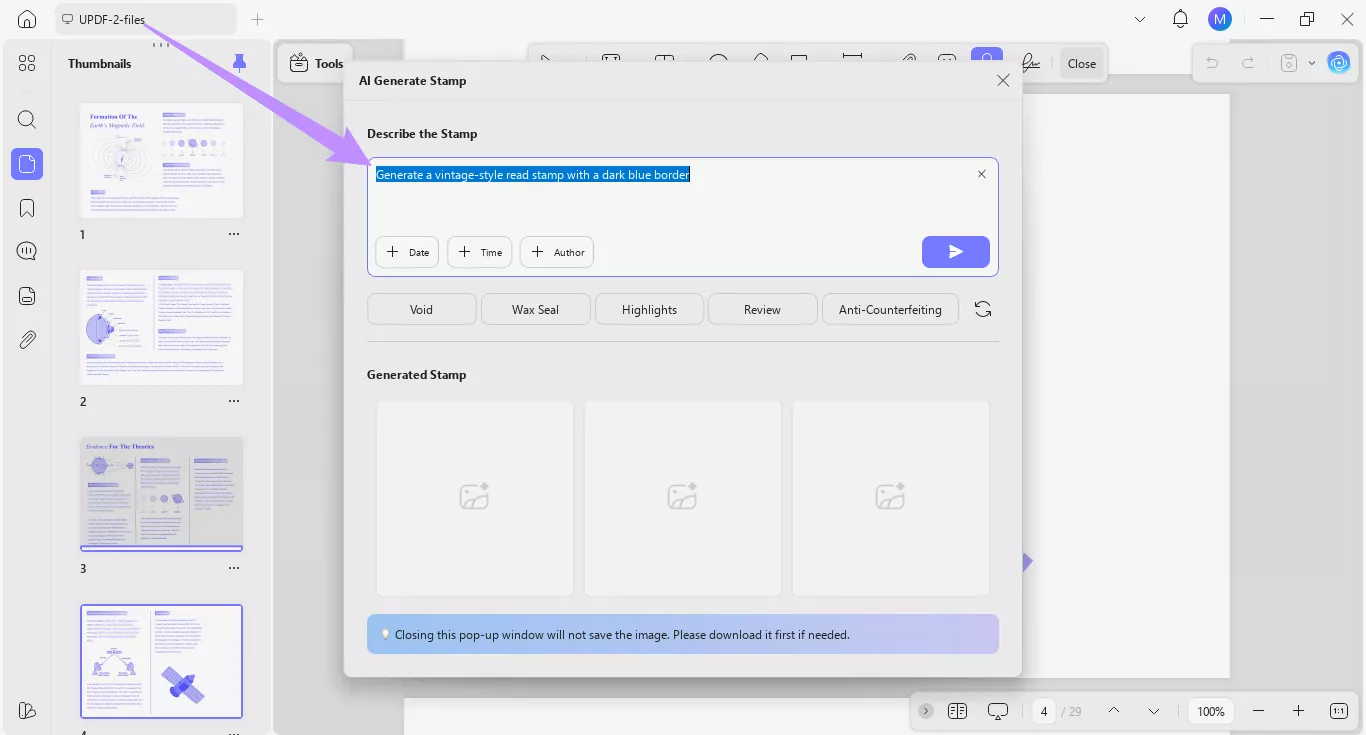
A new window for the AI Generate Stamp tool will open. From here, you can use AI to create stamps in two ways.
Method 1. Generate Stamps with a Personalized Prompt
If you have a clear idea of what type of stamp you need, UPDF lets you describe the stamp label and style, in detail, using a text prompt. You can also add the current date or time, and the author's name, along with the stamp.
Here’s how it works.
Step 1. Click the text field under “Describe the Stamp” and write a description of the stamp label, style, and colors.
- For example, you can type, “Generate a vintage-style read stamp with a dark blue border.”
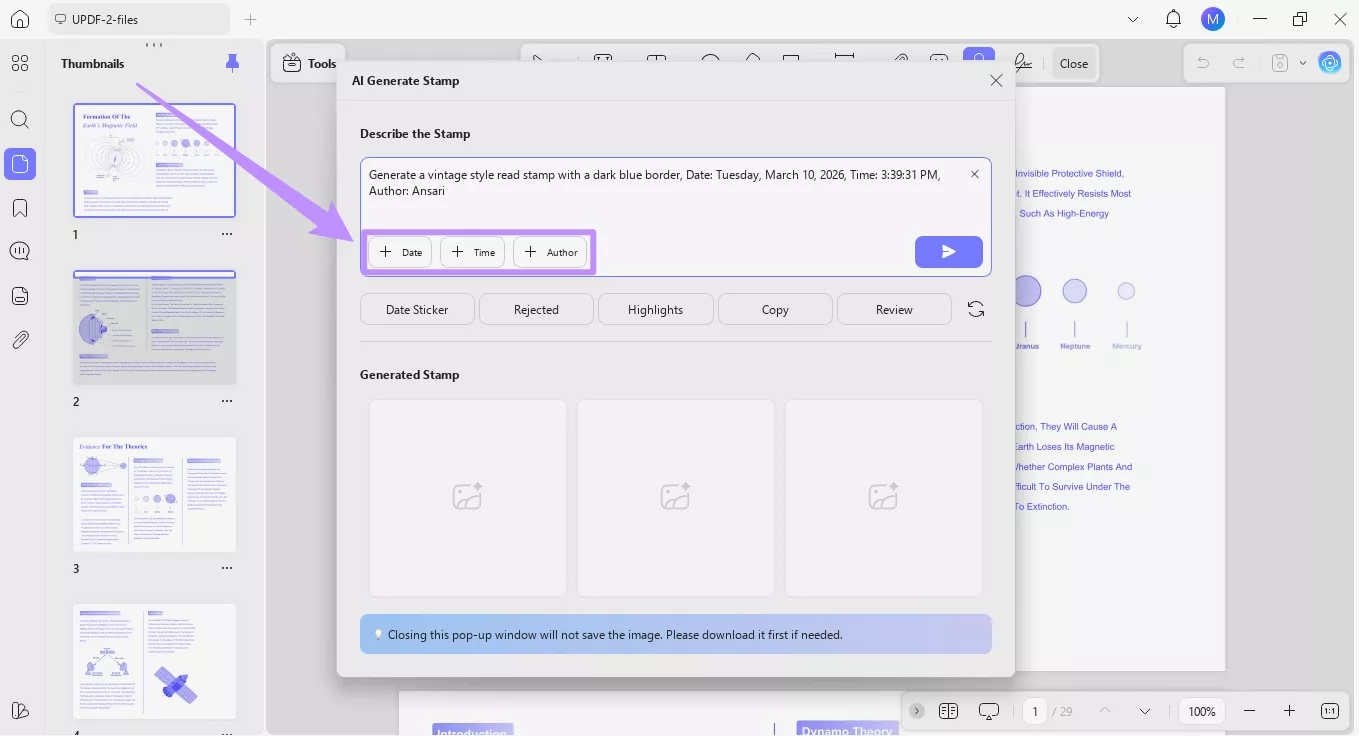
Step 2. You can also quickly insert additional information into the stamp using the options below the prompt box. These include the following.
- Date: Click the “+” button for date to add the current day, date, and year.
- Time: Click the “+” button for time to quickly insert current timestamp
- Author: Click the “+” button for the author to add the author name of your device.
Step 3. Once you're done customizing your prompt, click the “Send” button.
UPDF AI will create three high-resolution (1024 × 1024) PNG stamps with transparent backgrounds based on your prompt. You can find them under the “Generated Stamp” section.
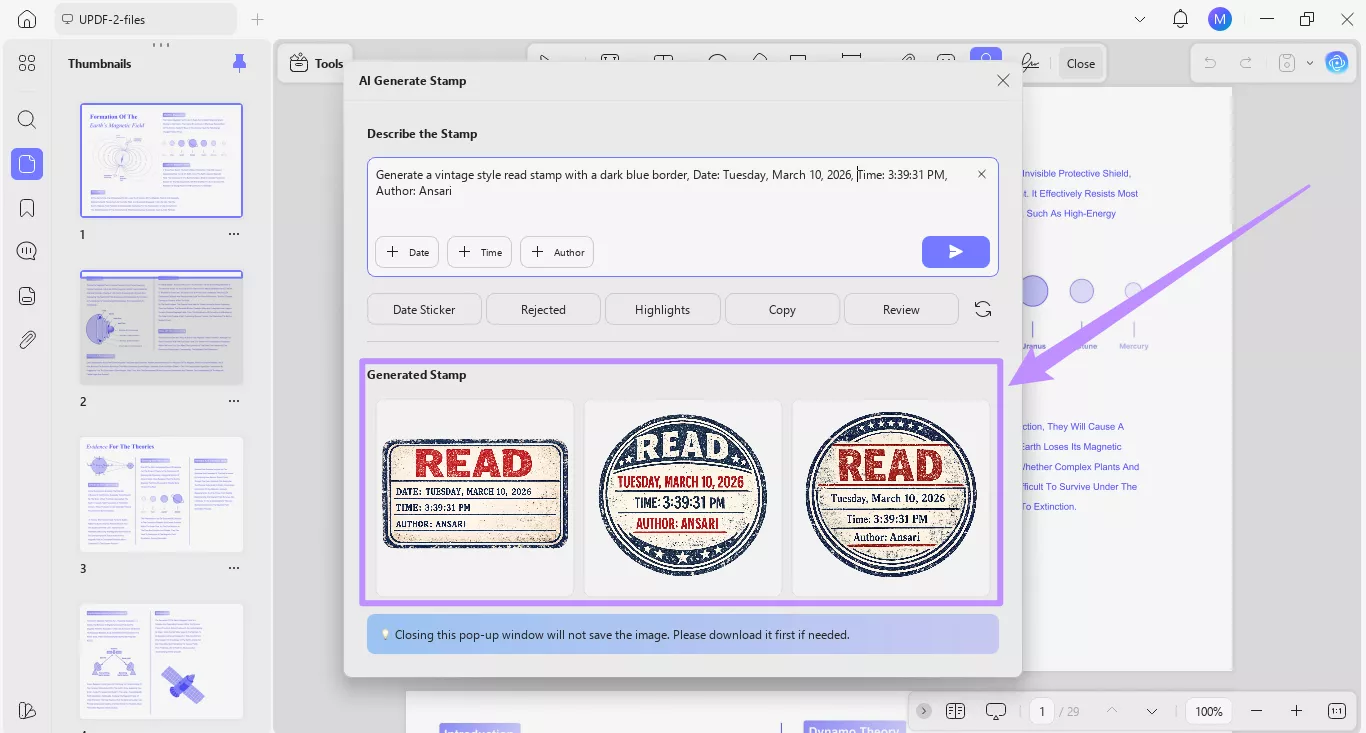
Note:
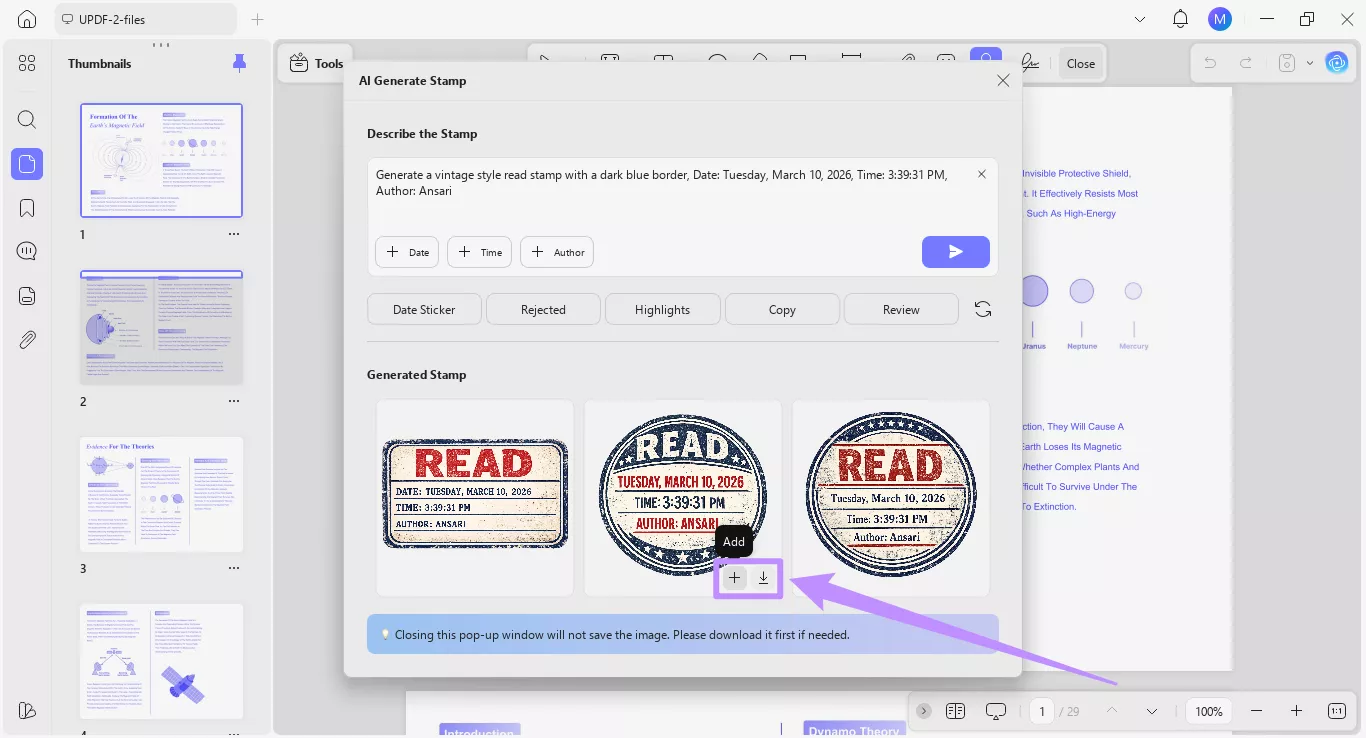
Step 4. Finally, hover over the the stamp you like and click the “Download” button to save it as a PNG file on your device. Alternatively, click the “+” button to add the stamp directly to your PDF.
Method 2. Use Preset Smart Prompts
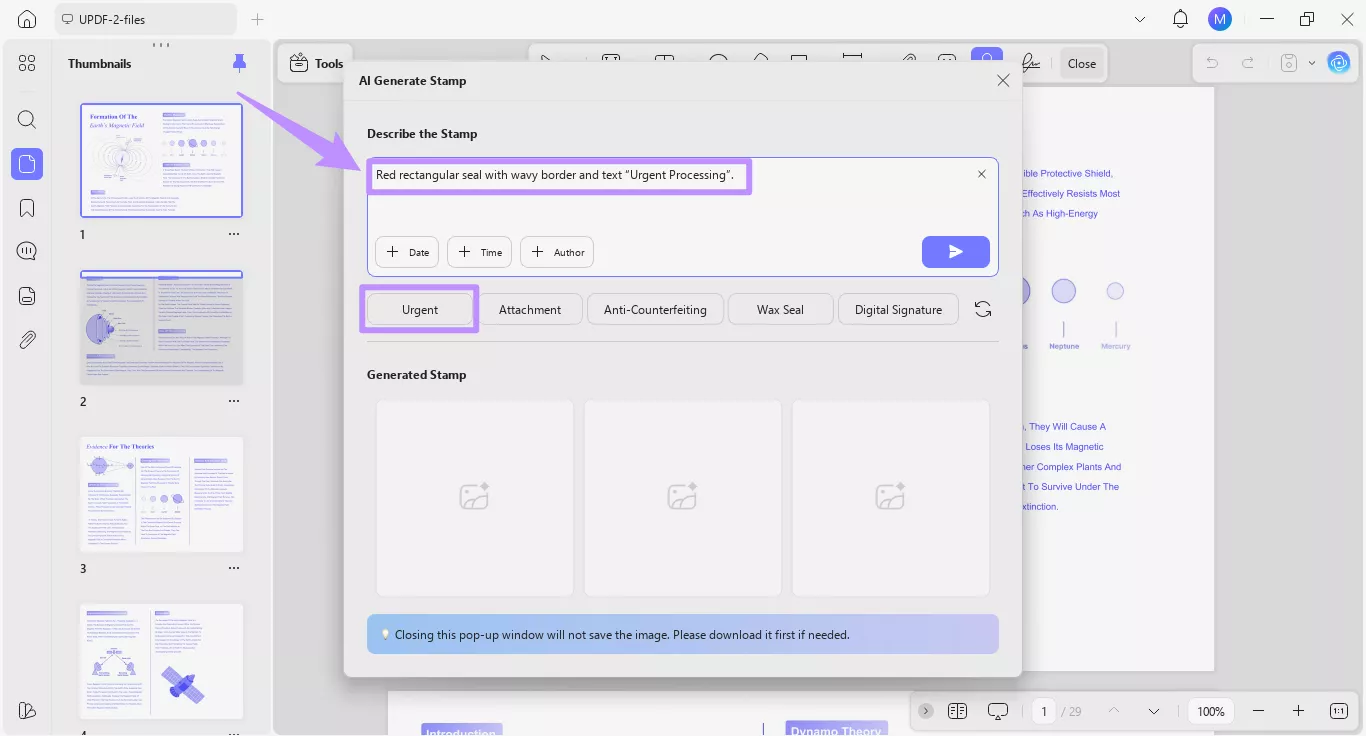
Apart from manually writing a stamp description, UPDF also allows you to generate stamps using preset prompt options. Depending on the stamp preset you choose, the AI automatically adds a prompt description to generate the relevant stamp. So, you don't have to brainstorm and write it on your own.
Here’s what you need to do.
Step 1. Click any preset option below the prompt box. The corresponding prompt will automatically appear in the text field. For example, if you click “Urgent,” it will add a description to generate an “Urgent Processing” stamp.
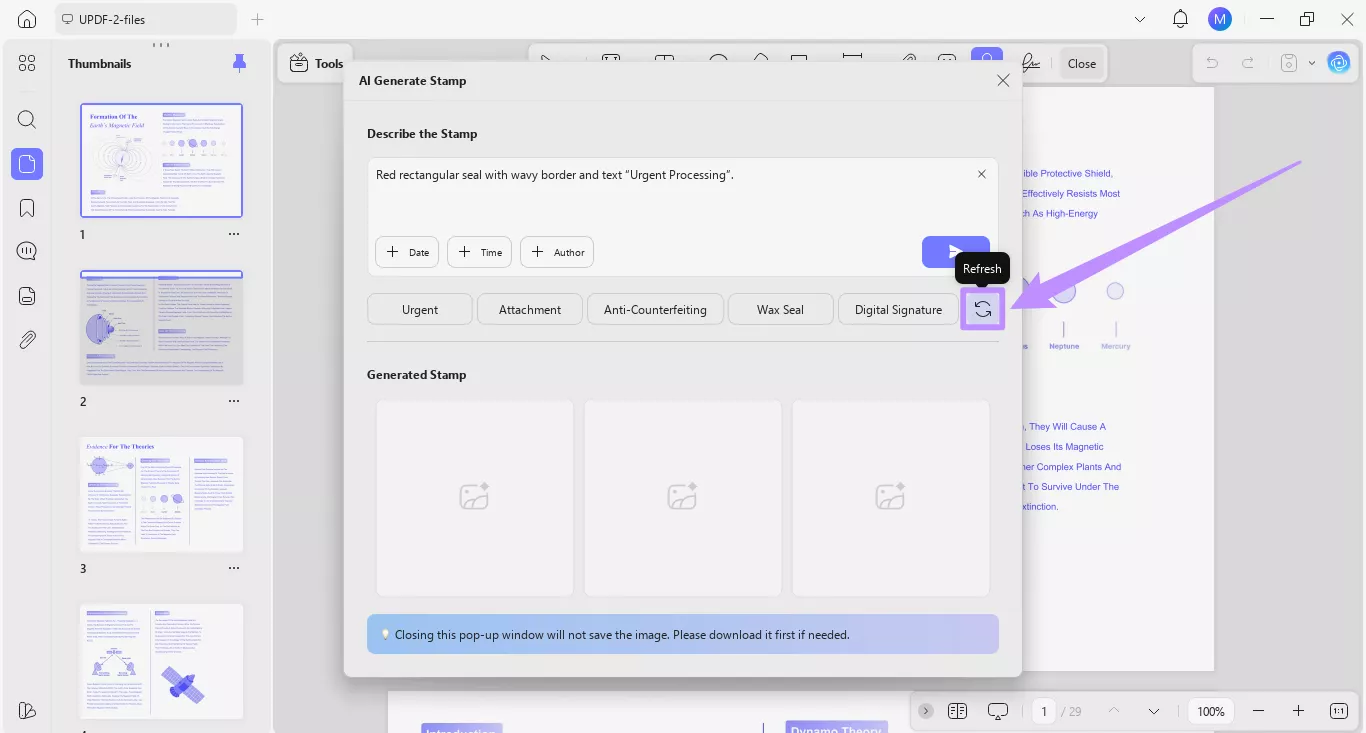
Step 2. If you cannot find the preset you're looking for, click the “Refresh” button to load more preset options.
Step 3. Finally, click the “Send” button. The AI will generate three PNG stamp images. You can select the one you like and download it or add it to your PDF.
Part 2. Managing AI-Generated Stamps
After generating stamps with AI, UPDF allows you to resize and customize their appearance. Moreover, the stamps you use are saved automatically, so you can access them later to reuse in other documents if needed.
Here are the steps for managing AI-generated stamps.
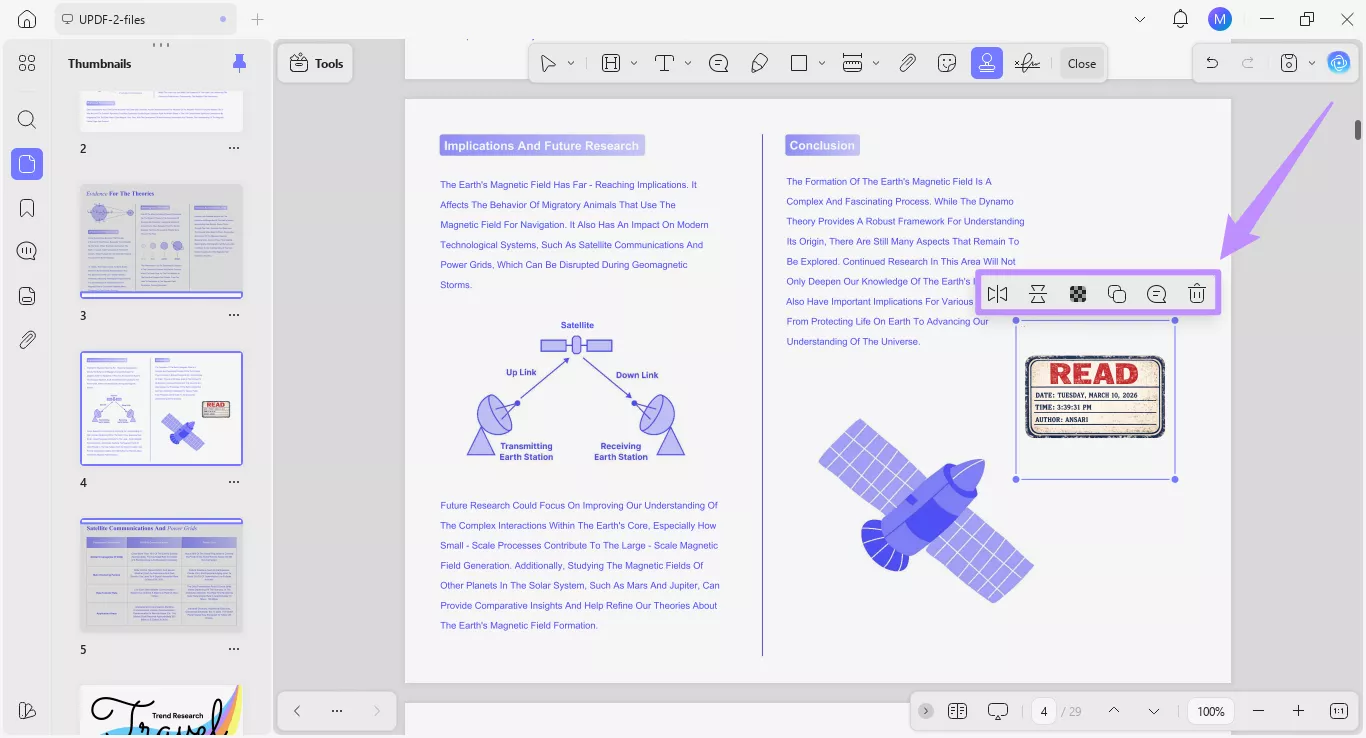
Step 1. Once you've added a stamp to a page, you can drag its borders to resize it. You can also use the options in the floating toolbar to flip the stamp horizontally or vertically, adjust opacity, copy, add a note or delete it.
Step 2. If you want to use the stamp again on other documents, select “Stamps” from the top toolbar and go to “Custom.” The AI-generated stamps you've previously used will appear here.

Step 3. To reuse a stamp, click on it and then place it in your document. Alternatively, if you no longer need the stamp, you can click the “Delete” button to remove it.
