UPDF
UPDF
 UPDF for Windows
 UPDF for Mac
 UPDF for iPhone/iPad
 UPDF for Android
 UPDF AI Online
 UPDF Sign
 Edit PDF
 Annotate PDF
 Create PDF
 PDF Form
 Edit links
 Convert PDF
 OCR
OCR PDF to Word
 PDF to Image
 PDF to Excel
 Organize PDF
 Merge PDF
 Split PDF
 Crop PDF
 Rotate PDF
 Protect PDF
 Sign PDF
 Redact PDF
 Sanitize PDF
 Remove Security
 Read PDF
 UPDF Cloud
 Compress PDF
 Print PDF
 Batch Process
 About UPDF AI
 UPDF AI Solutions
 AI User Guide
 FAQ about UPDF AI
 Summarize PDF
 Translate PDF
 Chat with PDF
 Chat with AI
 Chat with image
 PDF to Mind Map
 Explain PDF
 PDF AI Tools
 Image AI Tools
 AI Chat Tools
 AI Writing Tools
 AI Study Tools
 AI Working Tools
 Other AI Tools
 AI Bookmark Generation
 AI Bookmark Summary
 AI Watermark Generation
 AI Background Generation
 AI Sticker Generation
 AI Stamp Generation
 AI Editing Suite
 UPDF Copilot
 AI Page Management
 AI Semantic Search
 PDF to Word
 PDF to Excel
 PDF to PowerPoint
 Enterprise Solution
 Enterprise Sign
 Enterprise AI
 Enterprise Plan
 Enterprise User Guide
 Enterprise Webinar
 Banking
 Healthcare
 Insurance
 Legal
Legal Manufacturing
 Government
 Education Solution
 Customer Stories
 User Guide
 UPDF Tricks
 FAQs
FAQs UPDF Reviews
 Download Center
 Blog
Blog Newsroom
 Tech Spec
 Updates
 UPDF vs. Adobe Acrobat
 UPDF vs. Foxit
 UPDF vs. PDF Expert

The MBE is often described as the toughest six hours of a law student's journey to becoming an attorney. Success isn't just about how much law you memorize, as you need to optimize practice and build a system that supports consistent progress.
Many students ask, "Is 70% on MBE good?" The answer is yes, as a consistent 70% raw score is generally considered a strong "Green Zone" for most jurisdictions. In 2026, smart preparation for the MBE exam means combining tools for both practice and organization.
In this regard, Gemini can help simulate interactive drilling with realistic MBE practice questions. And UPDF provides a structured tool to manage outlines, annotate cases, and organize your PDF library. So, download UPDF to start building a more organized and efficient bar prep system today.
Windows • macOS • iOS • Android 100% secure
Part 1. Interactive Drilling: Using Gemini as Your Bar Tutor
While preparing for the Bar Exam, you require more than passive reading. During your MBE practice question solving, you need focused practice that sharpens analytical thinking. This is where Gemini can function like your personal tutor, helping you test your understanding in real time.
Instead of simply reviewing outlines, you actively engage with realistic exam-style scenarios. It will actually mirror how legal issues appear on actual MBE questions.
How To Use Gemini To Simulate MBE Vignettes?
Gemini can generate scenario-based questions that resemble real Multistate Bar Examination (MBE) problems. By prompting this tool to create structured legal hypotheticals, you can practice applying rules rather than memorizing them.
The key is to request multiple-choice answers and explanations so you train your reasoning skills under exam-like conditions. To practice MBE questions in Gemini, follow these steps:
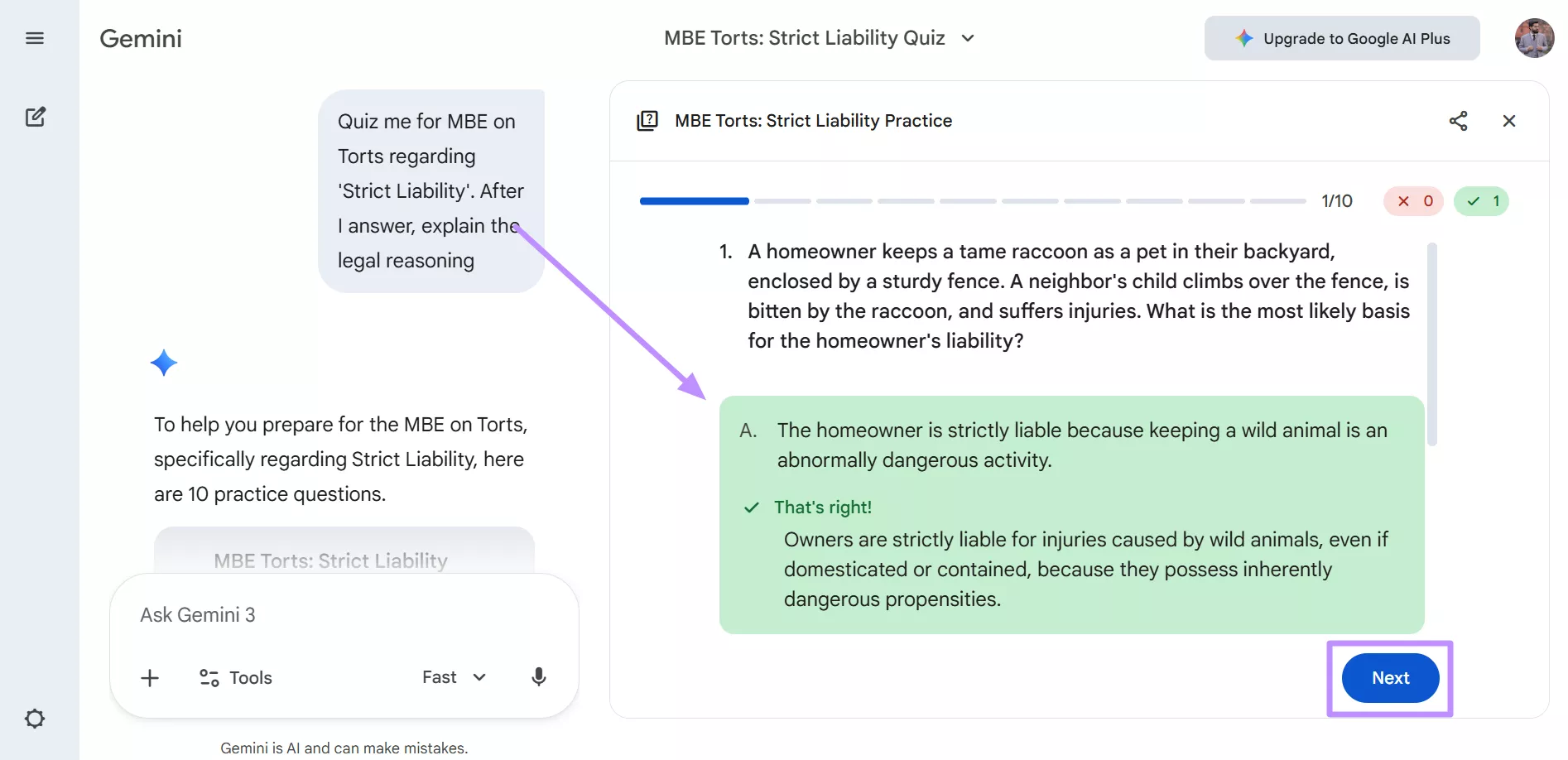
Step 1. After opening Gemini in your desired browser, type your desired prompt and hit the Submit icon to generate MBE practice questions.
Example Prompt:
"Quiz me for MBE on Torts regarding the Strict Liability topic. After I answer the question, explain the legal reasoning."
Step 2. Gemini will generate fully interactive MBE practice questions that you can work through just like an exam scenario. Select your answer and move forward by pressing Next. After you respond, Gemini provides immediate explanations and feedback.
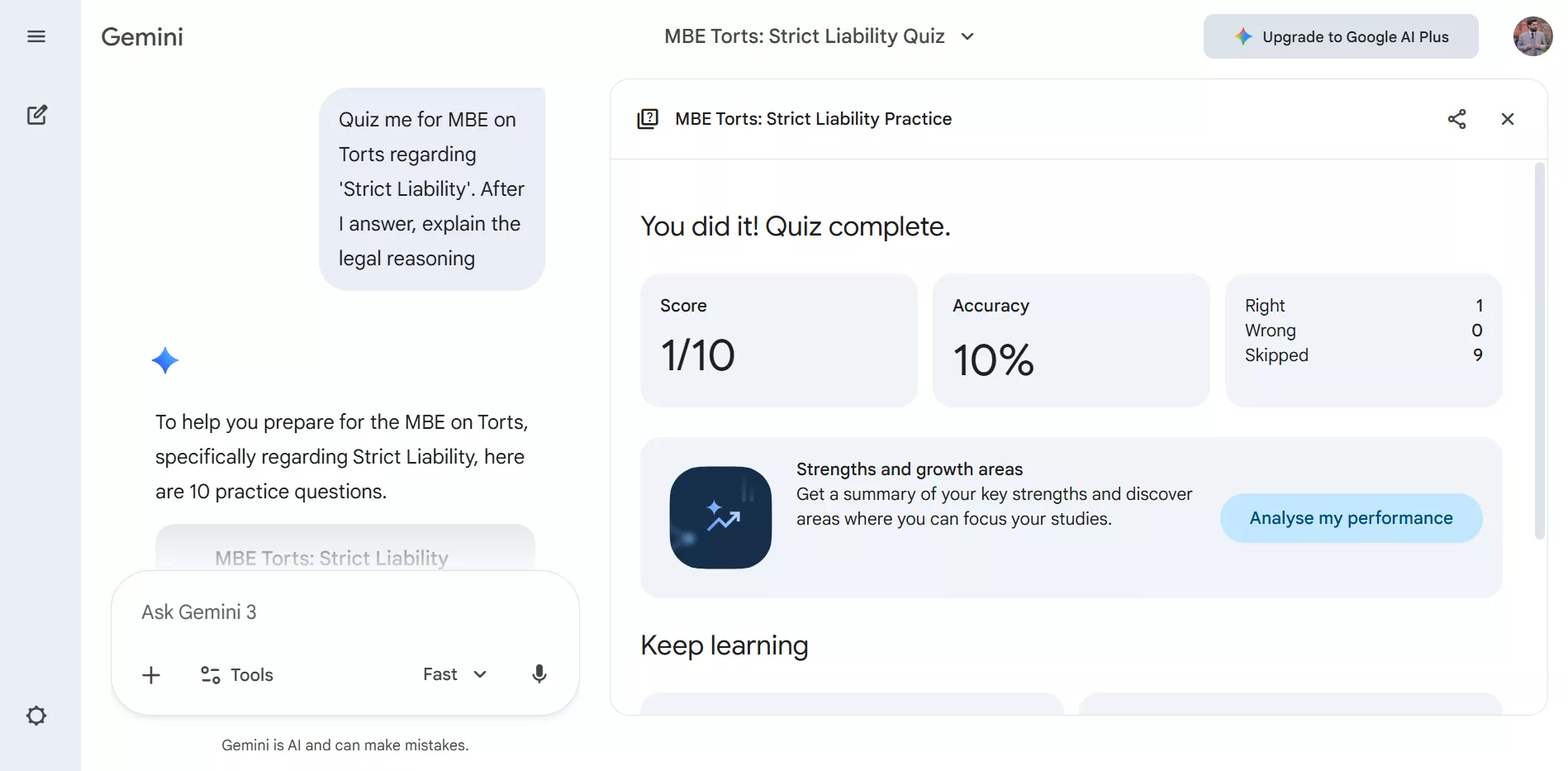
Step 3. After completing the practice set, Gemini provides a detailed performance summary highlighting how you did overall. You can review your results directly within the practice session to identify strengths and spot recurring mistakes.
Breaking Down the Distractors with Gemini
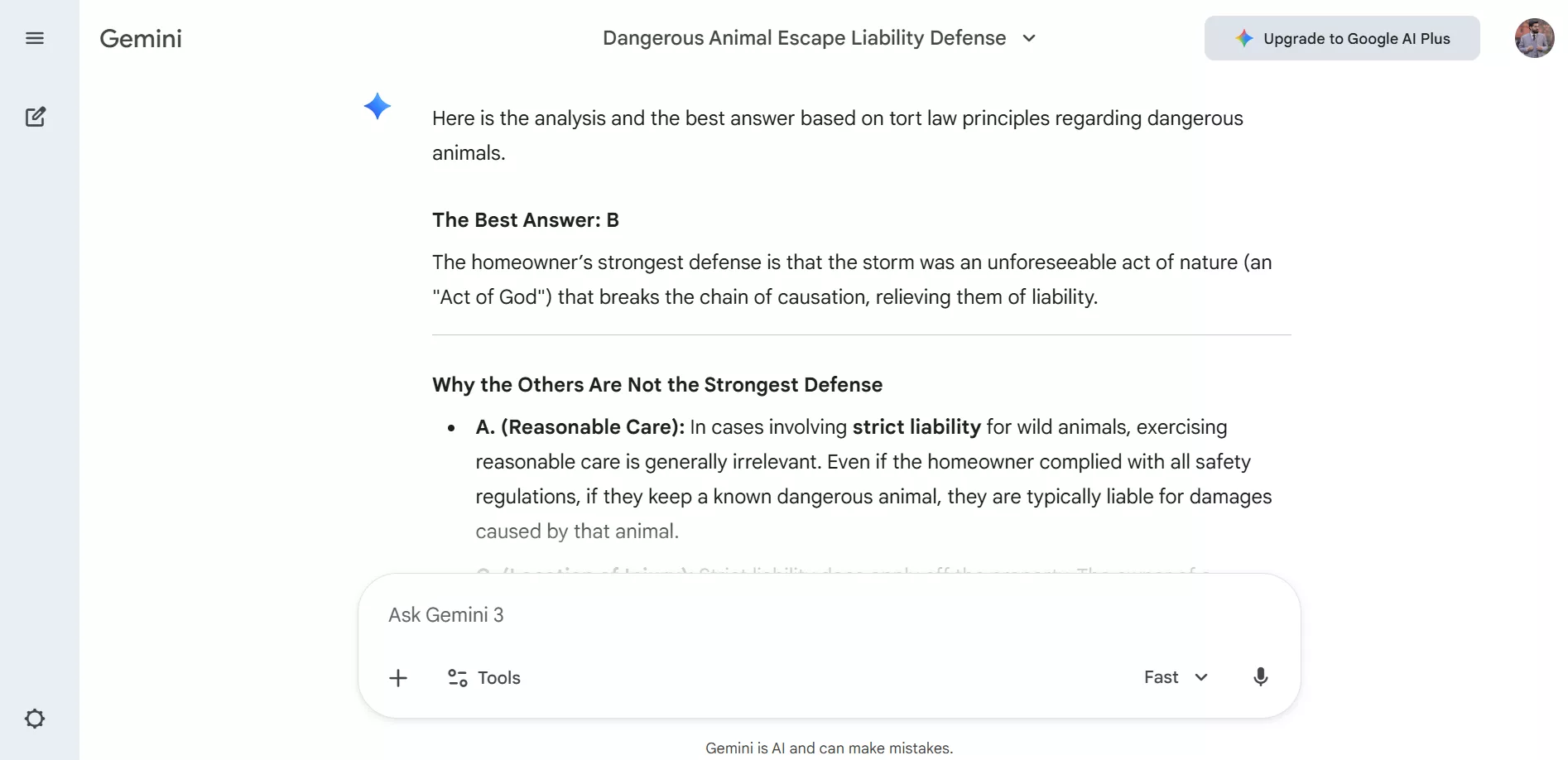
While solving MBE exams, students find it pretty hard to understand why a tempting option is wrong, even when it sounds legally accurate. Gemini can compare answer choices and highlight small distinctions.
By asking for side-by-side explanations, you train yourself to recognize traps and eliminate distractors quickly. You can simply ask Gemini for a comparison between the "correct" and "best" answer to pick the right one.
While Gemini helps you refine your reasoning, your growing collection of MBE practice questions and answers PDF also needs a structure. Instead of juggling scattered files across devices, using a professional tool like UPDF keeps everything organized and easy to review whenever you sit down for focused study sessions.
Part 2. Knowledge Architecture: Organizing Legal Outlines with UPDF
Bar preparation can quickly turn into a document overload, as you may need to manage over 2000 pages of Barbri, Themis, or PDF Outlines. Between commercial outlines and hundreds of MBE practice questions, your study materials can become scattered.
Without a structured system, you waste time searching for rules instead of reviewing them. UPDF helps you organize, annotate, and manage your growing library so your study process stays focused. Explore the following UPDF features for improved preparations.
Windows • macOS • iOS • Android 100% secure
1. Bates Numbering and Indexing
This feature within UPDF allows you to label pages consistently across multiple documents. It becomes extremely useful when managing large collections of MBE questions and outlines. Instead of scrolling endlessly, you can quickly reference specific sections during revision or discussions.
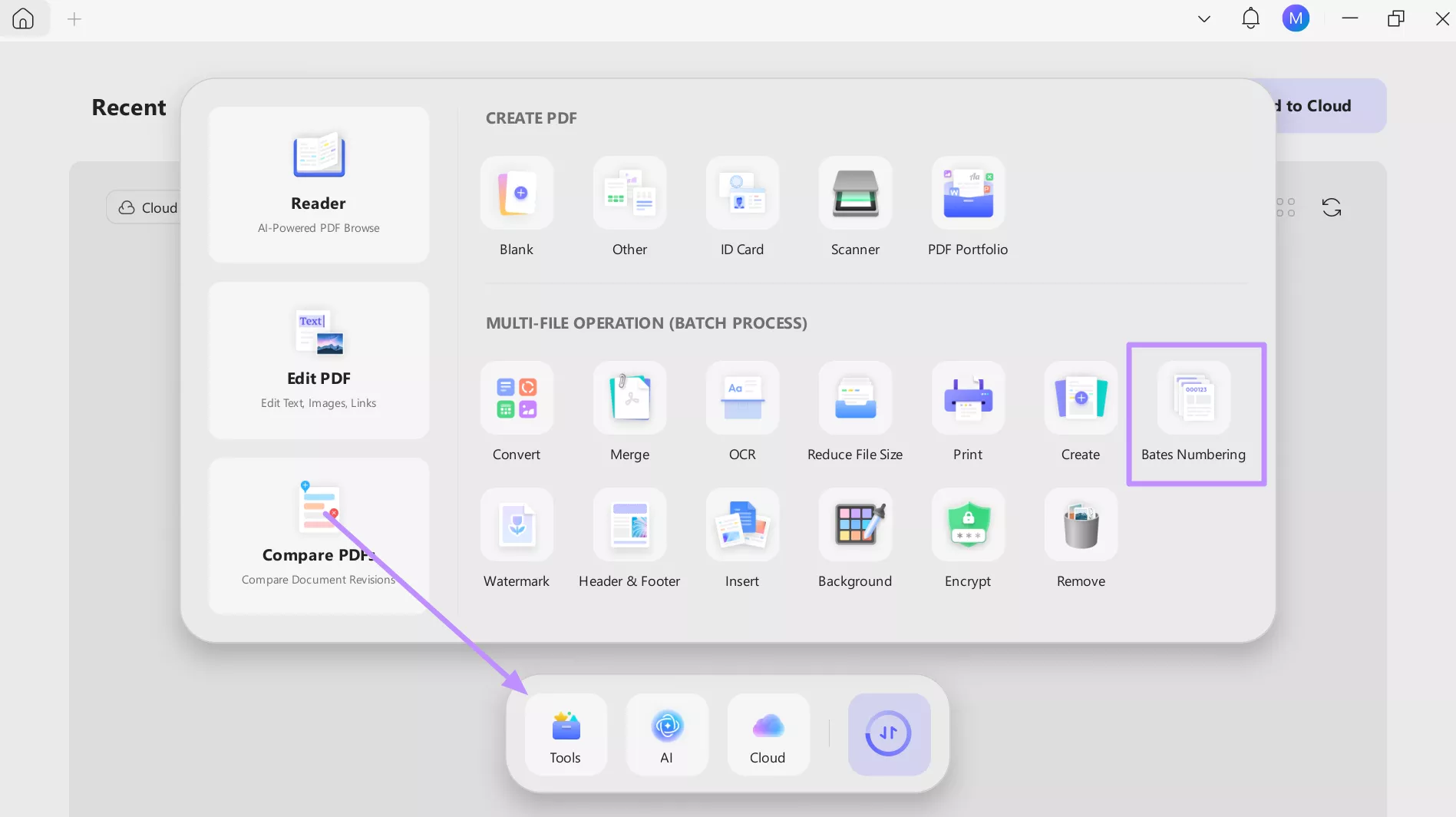
Combined with indexing, it creates a logical structure that makes cross-referencing rules and practice questions much faster. Follow these steps to add Bates numbering to your PDFs: Step 1. Upon launching UPDF, tap on the Tools button to access a new pop-up window. From here, access the Bates Numbering feature from the Batch Process section.
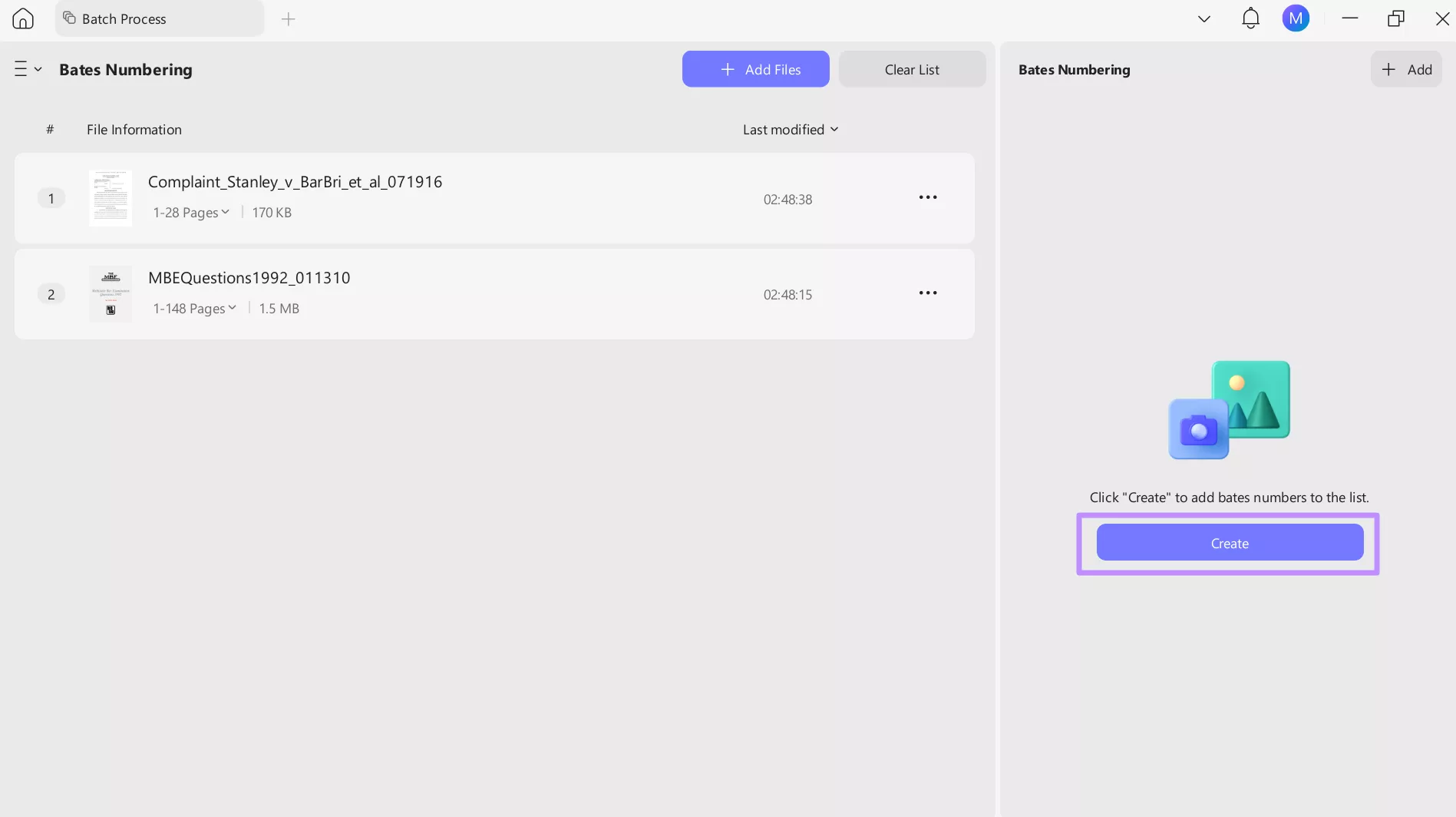
Step 2. Now, hit the + Add Files button to import all your MBE practice questions and answers free PDFs. Once uploaded, hit the Create button to proceed.
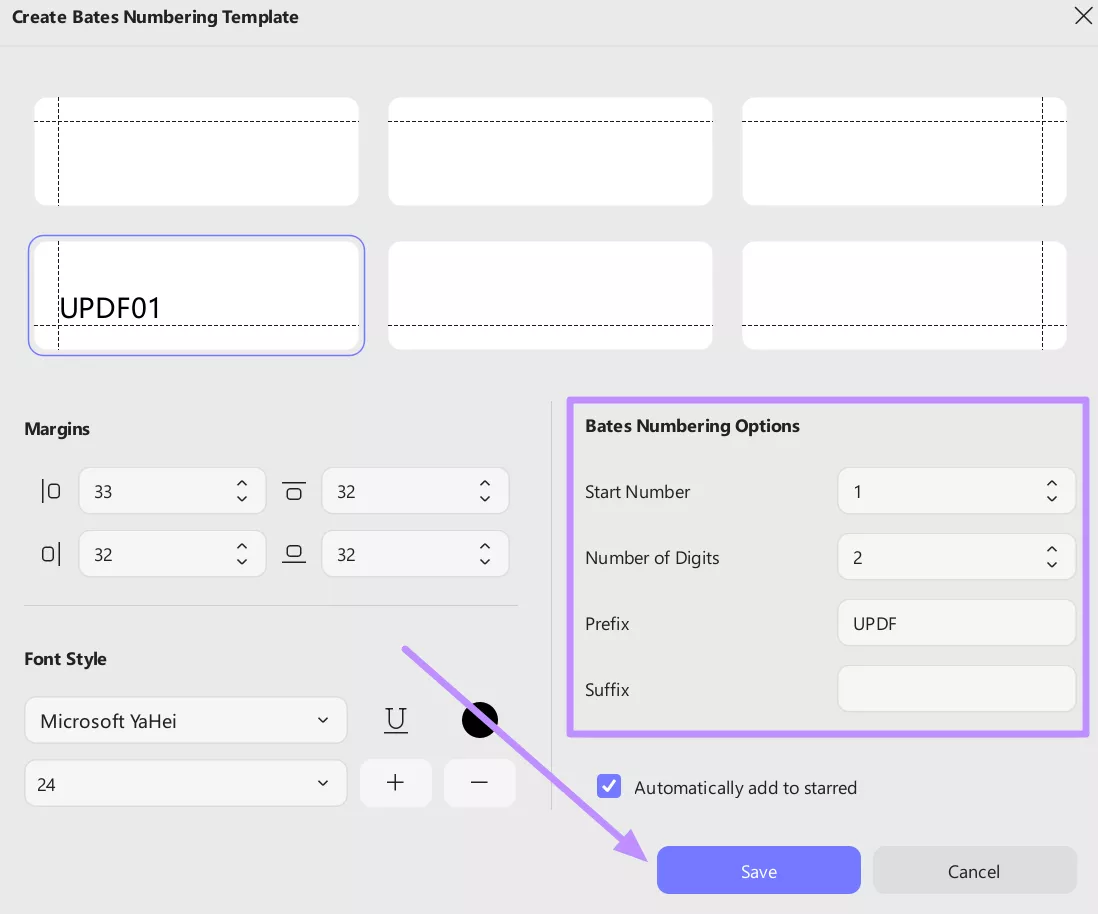
Step 3. Within the Create Bates Numbering Template window, adjust the margins and Bates numbering options. Now, pick the desired font style and color before tapping Save.
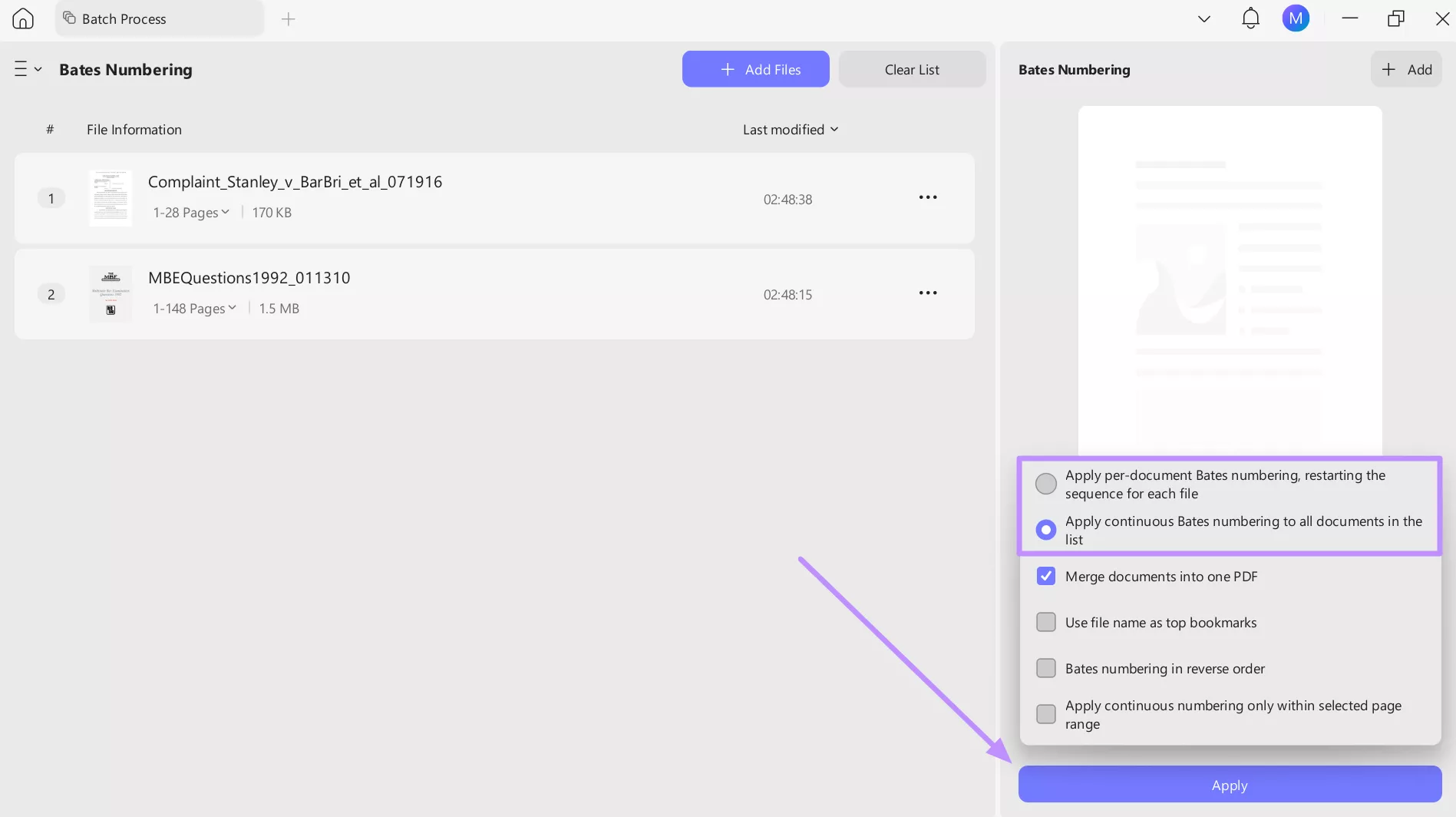
Step 4. After accessing the small pop-up menu, choose the desired Bates numbering option and hit the Apply button.
2. Precision Annotation
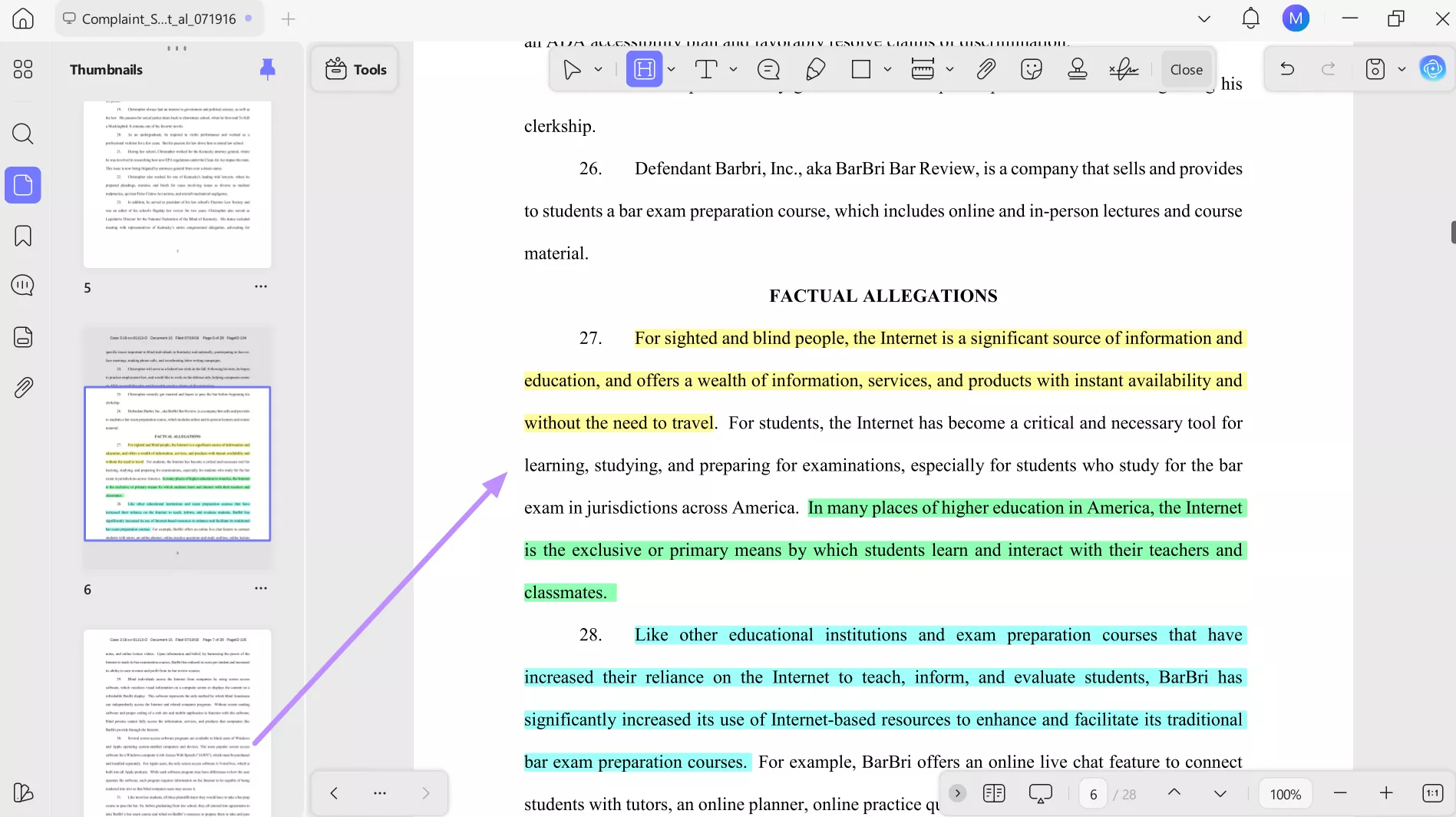
While preparing for exams, annotation tools help transform passive reading into active learning. With UPDF's highlighters and notes, you can assign specific colors to legal elements. For example, green for offers, blue for acceptance, or yellow for defenses.
This visual organization helps you recognize patterns quickly and improves memory retention. To revisit complex topics during rapid review sessions, take guidance from these detailed steps:
Step 1. Start the process by launching UPDF and tapping the Open File button to import your MBE study material.
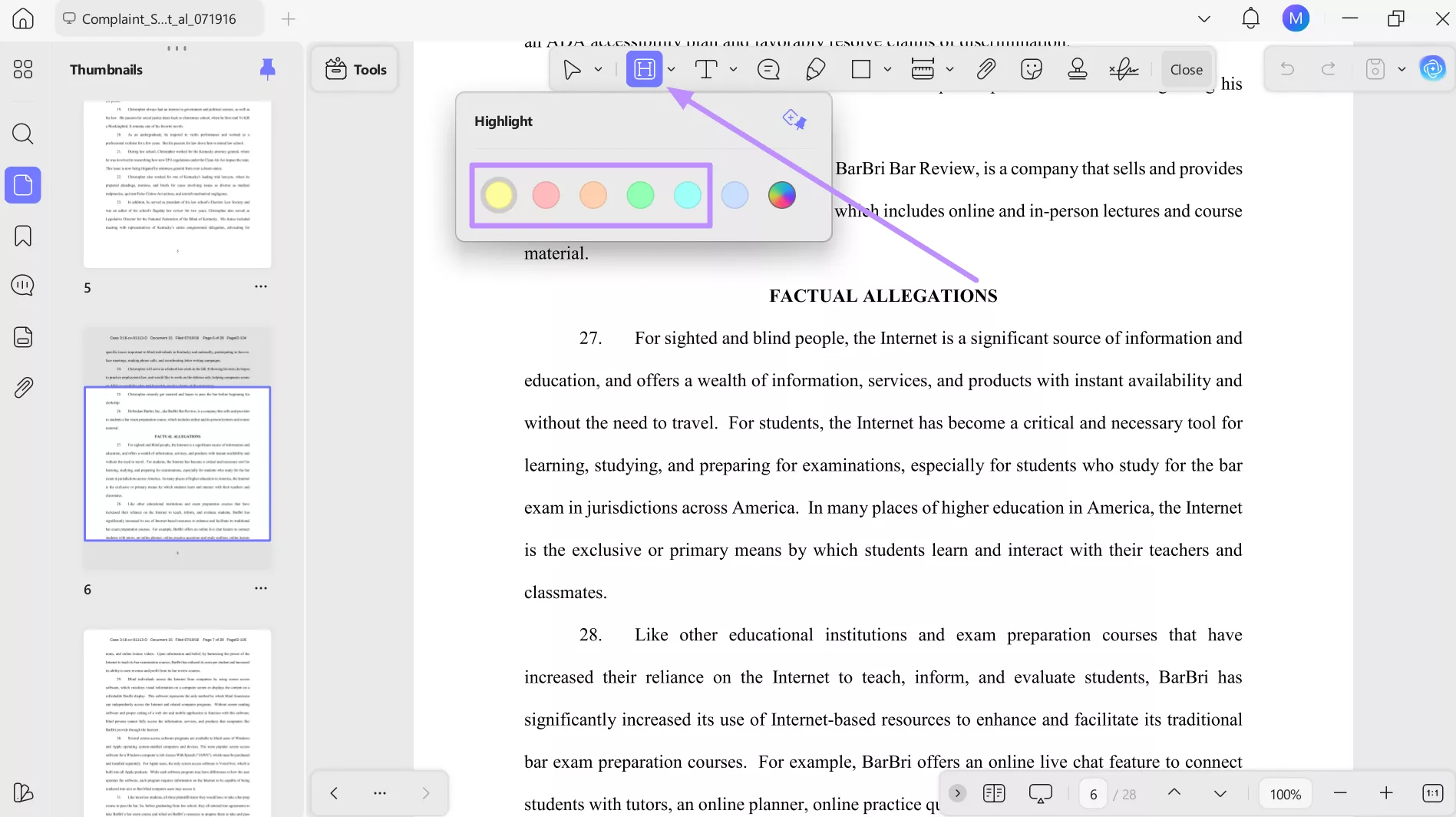
Step 2. Upon importing the file, tap on the Downward icon beside the Highlighter tool. Now, pick the desired color according to the content you want to highlight.
Step 3. Now, highlight the content with the selected color by dragging over the text. Similarly, pick other coloring options to assign specific colors to other legal elements.
3. UPDF AI for Long Case Summaries
Long constitutional law cases and complex judicial opinions can slow down your study flow. UPDF AI on desktop helps by converting lengthy text into concise bullet points that highlight key holdings and legal principles.
Instead of rereading entire judgments, you get a clear overview that helps you grasp essential ideas faster. With these steps, generate summaries of MBE study material:
Windows • macOS • iOS • Android 100% secure
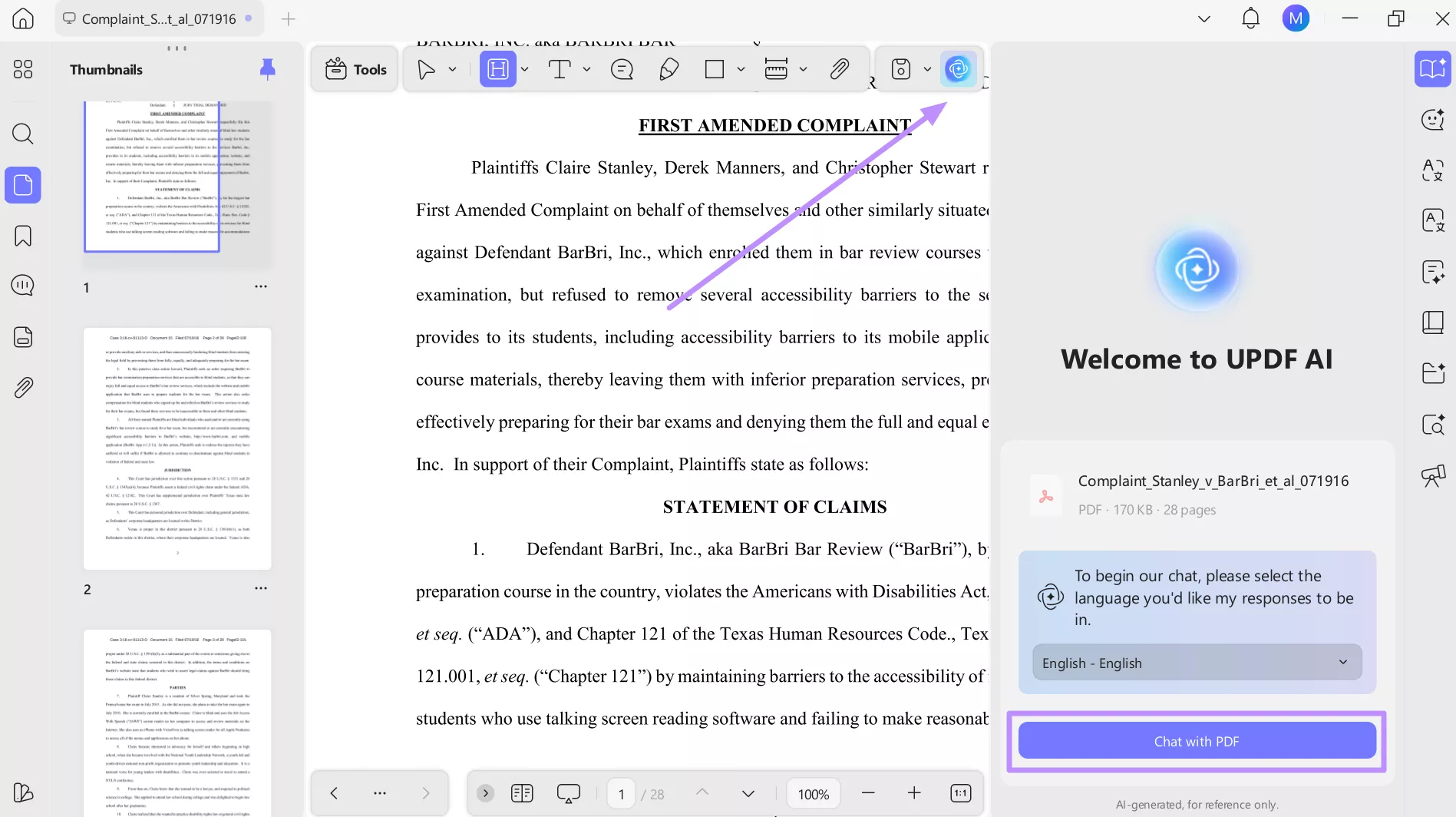
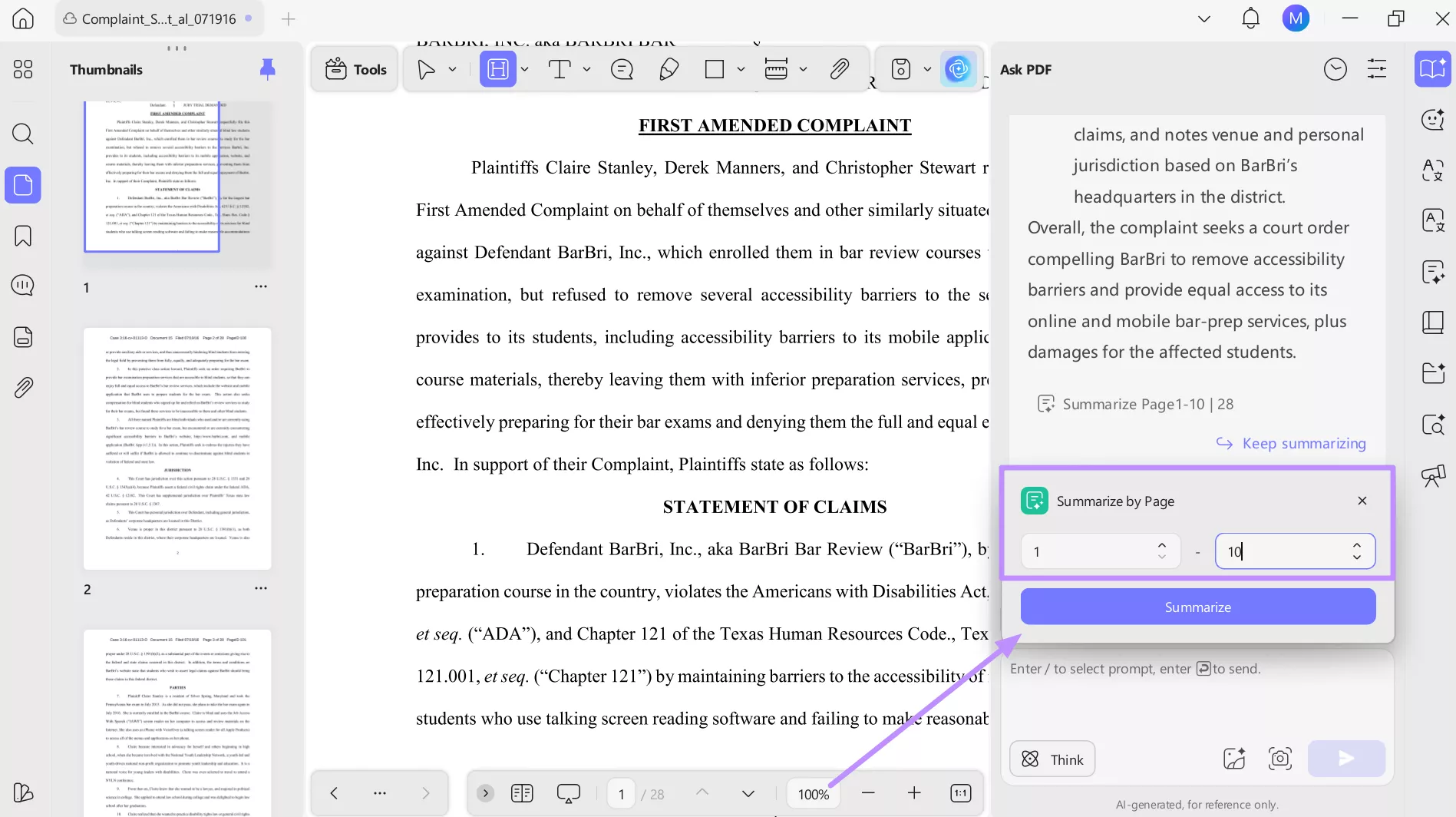
Step 1. After importing the file, click the UPDF AI icon located in the top-right corner of the interface. Then, select the Chat with PDF option to interact directly with your legal outlines or MBE study materials.
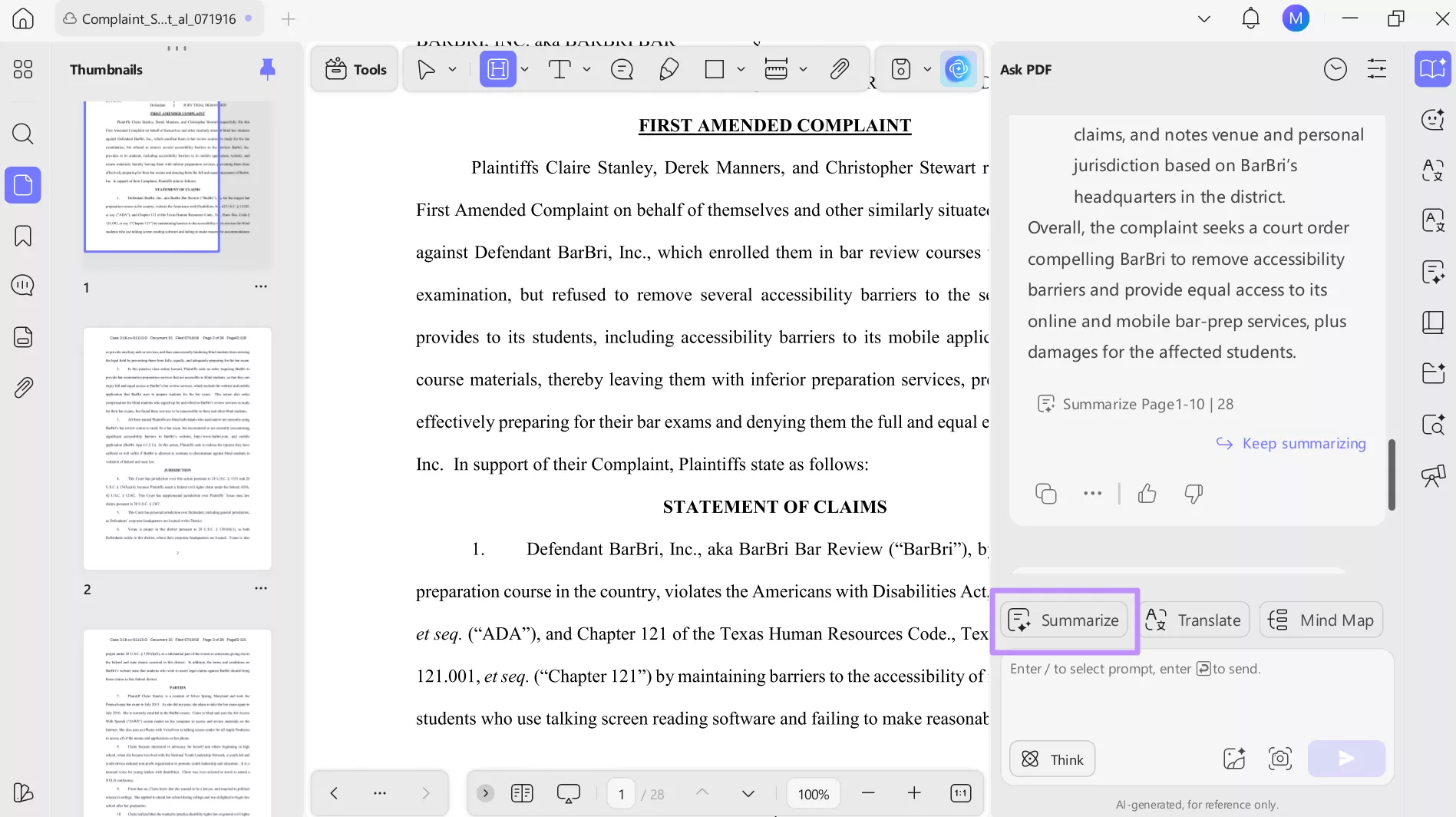
Step 2. UPDF AI will generate an automatic summary of lengthy legal content in clear bullet points. Now, click Summarize to create customized summaries fit for faster review.
Step 3. Finally, pick the specific page range you want to summarize. Then, press the Summarize button to receive focused output covering only the selected sections of your MBE materials.
4. OCR for Scanned Cases
Many law students rely on older scanned materials or photocopied casebooks that are difficult to search digitally. With the OCR feature in UPDF, you can convert scanned PDFs into editable and searchable text.
This saves time when reviewing legal rules and makes older resources as usable as modern digital documents. Follow these steps to perform the OCR conversion on your MBE files:
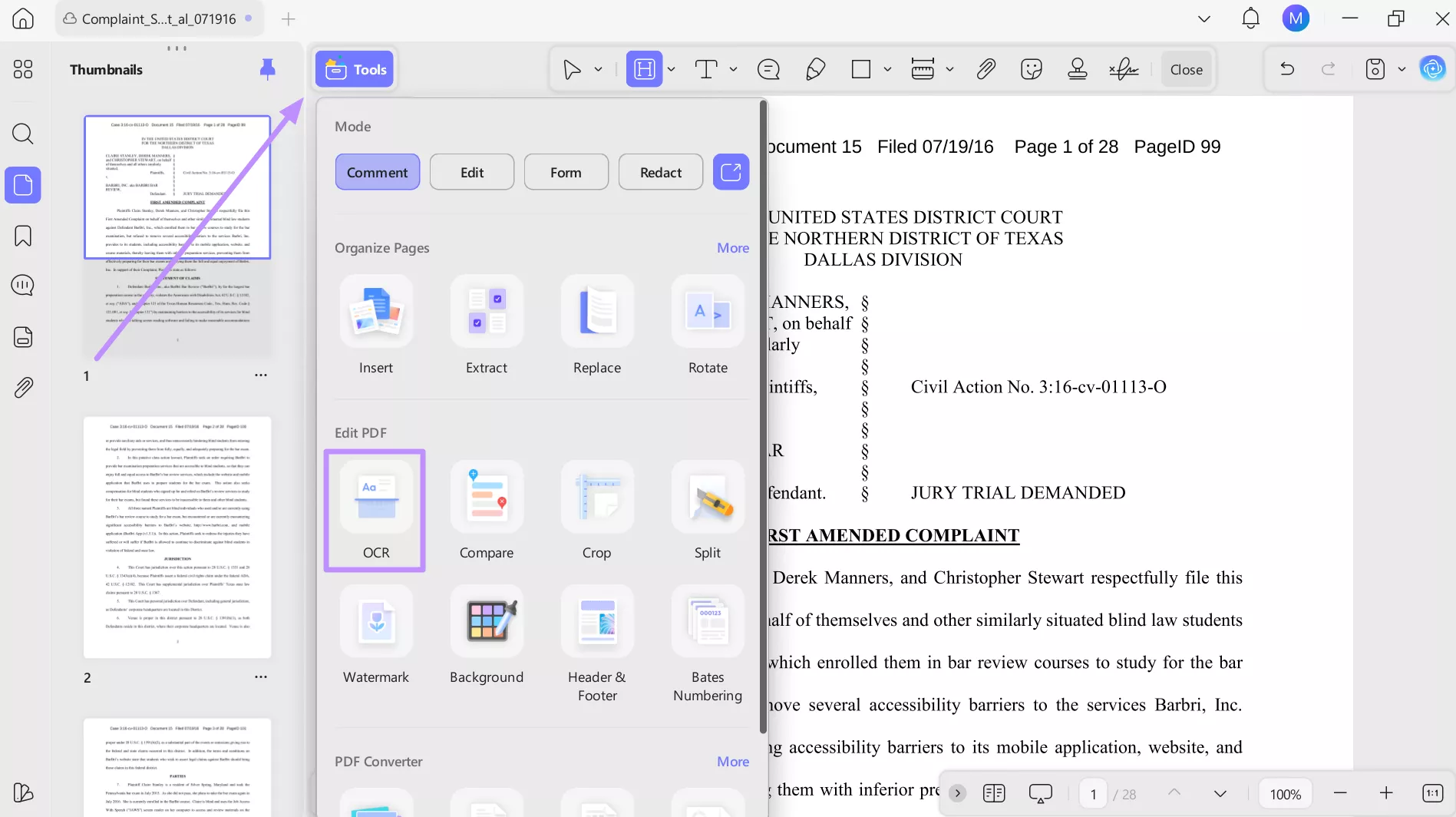
Step 1. Once you import the scanned case files, tap on the Tools button on the top right and click the OCR feature.
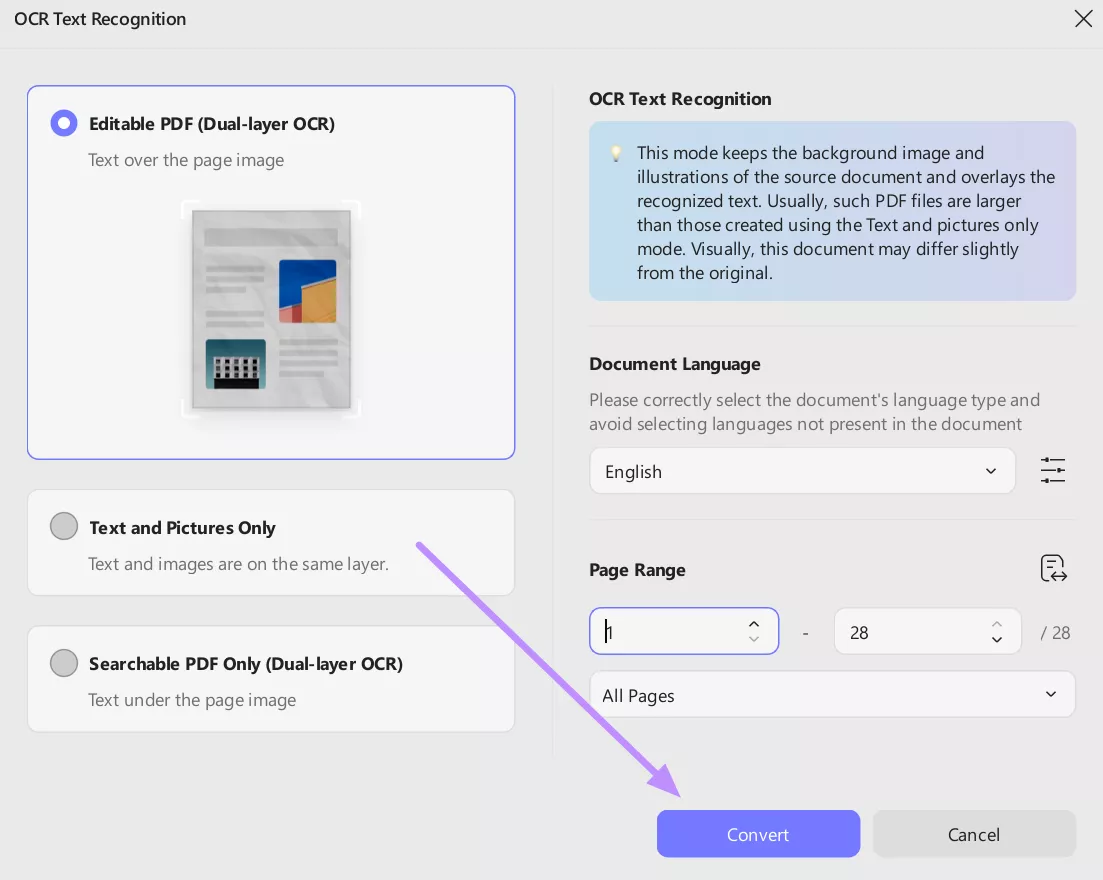
Step 2. After reaching the OCR Text Recognition screen, select the document language and page range before hitting the Convert button for conversion.
Beyond Studying (Legal Professional Tools)
UPDF remains useful even after you pass the Bar. Legal professionals can use Fill & Sign for electronic signatures on retainers, contracts, and forms. Apart from that, its redaction tools help protect sensitive client information during document sharing. All in all, UPDF becomes a practical, everyday tool for managing professional legal paperwork securely.
If you want to improve your Bar prep, download UPDF and take control of your MBE practice questions and other study PDFs. If you want to learn more about UPDF, watch this video to learn about its effectiveness in managing legal documents.
Windows • macOS • iOS • Android 100% secure
Part 3. Strategy: Mastering the MBE Test
Success on the MBE is not just about knowing the law, as you also need to learn pacing exams and build a structured review system. Before learning about the pacing, you should know about "How many MBE questions are in 1 hour?"
Since the MBE typically gives you 3 hours to complete 100 questions, you should aim for roughly 33 to 34 questions per hour. This pacing keeps you on track while leaving time to revisit difficult questions at the end of each block.
To improve your workflow, download high-quality MBE practice questions and answers in PDF format and then follow these steps on UPDF.
Step 1. Upon downloading the MBE practice questions PDF, open it in UPDF and begin working through questions using the highlighter feature.
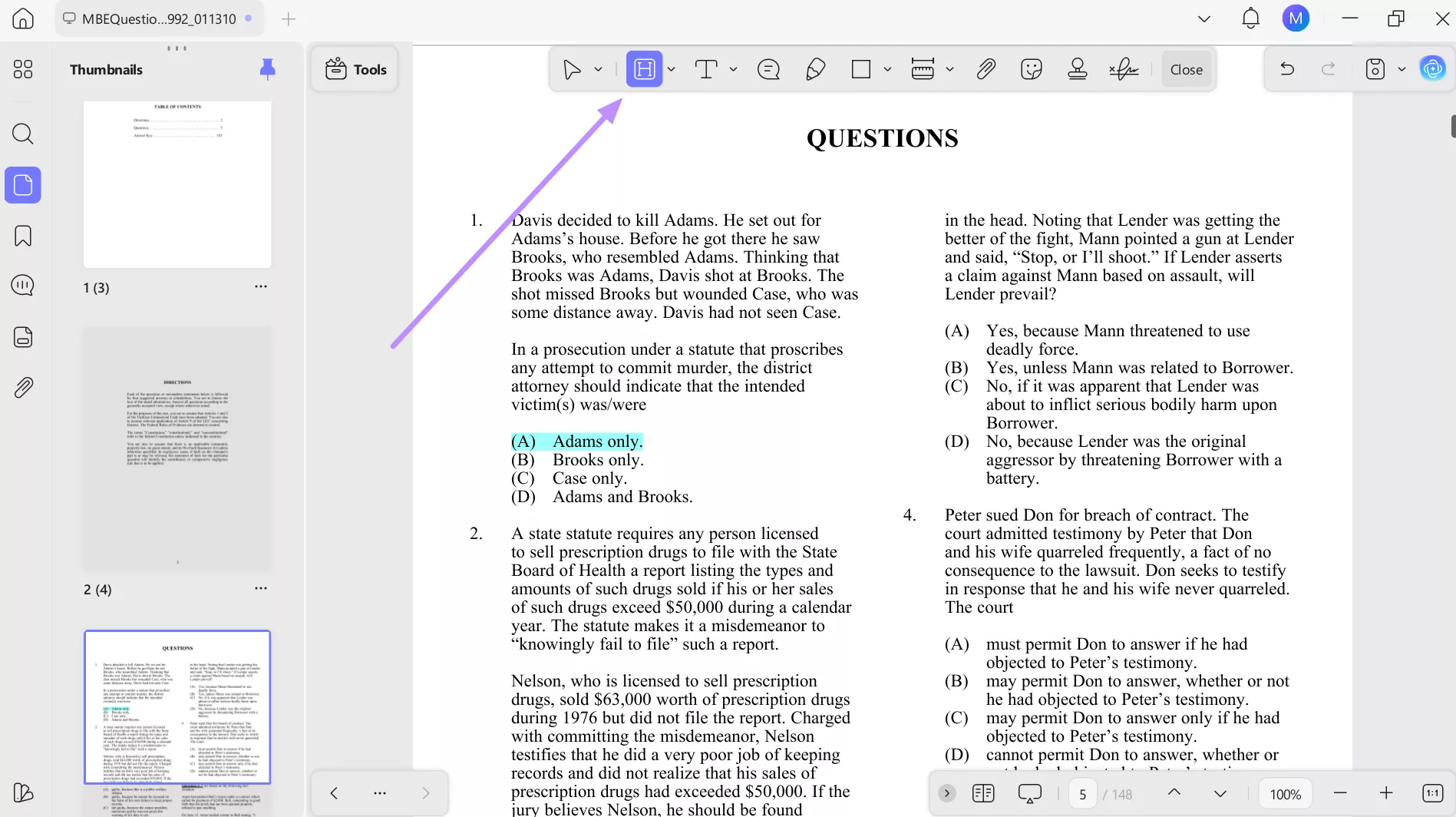
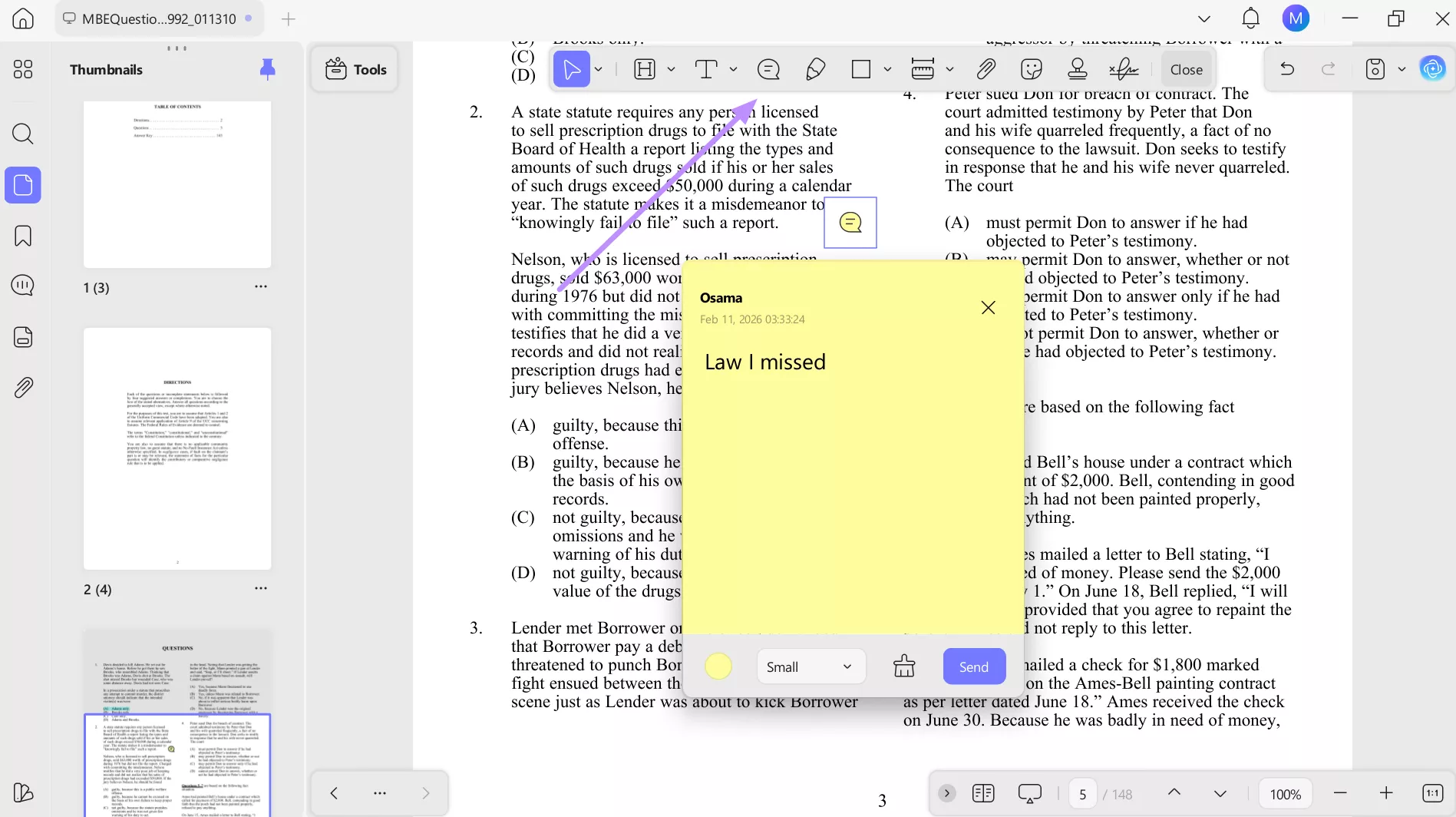
Step 2. After reviewing an incorrect answer, select the Sticky Notes tool from the floating toolbar and write down the "Law I Missed" directly on the page.
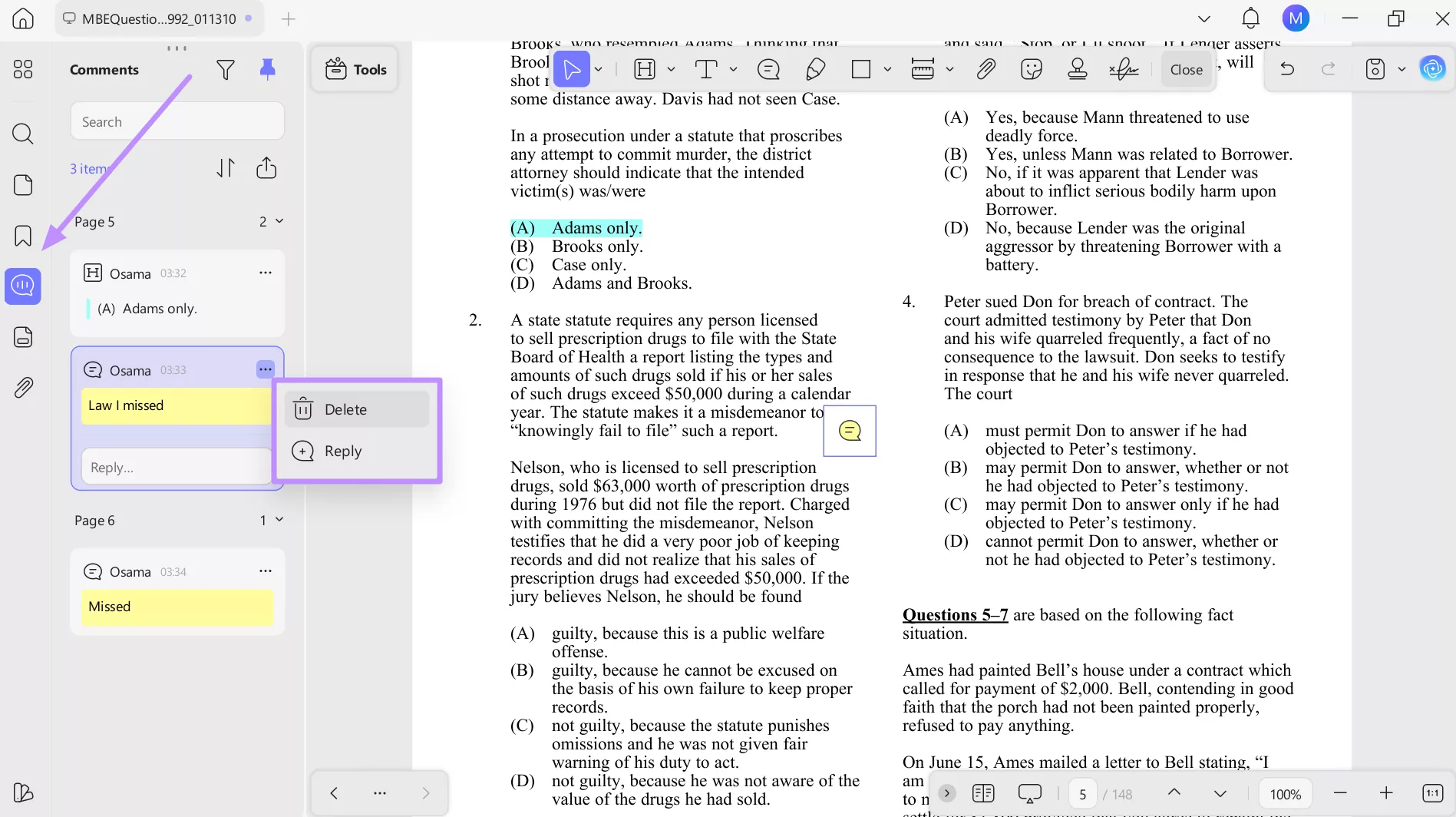
Step 3. While reviewing the answers, open the Comment list panel to view all notes in one place. From here, you can organize or delete sticky notes as your review progresses.
Part 4. Subject Deep-Dive & FAQ
Q1. What is the hardest MBE subject?
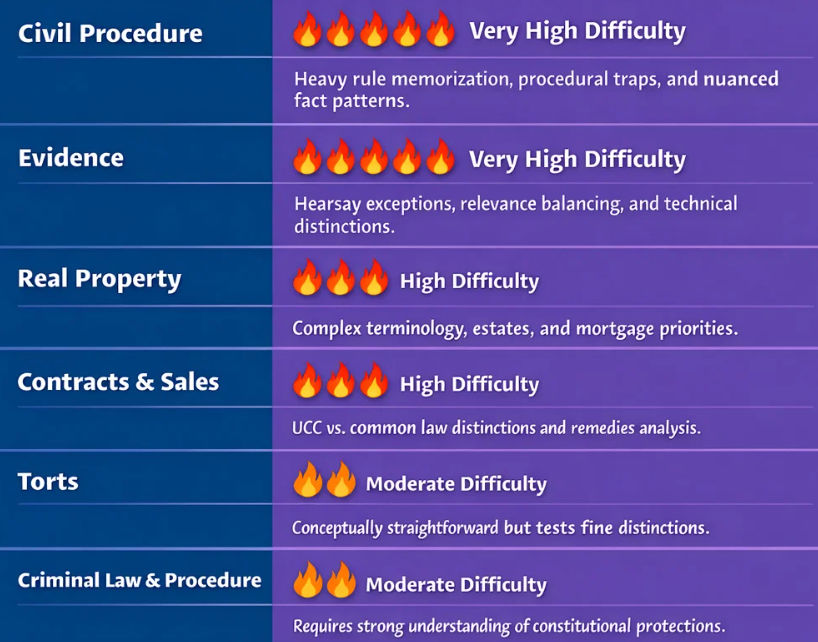
The answer varies depending on your background, but many students find Civil Procedure and Evidence particularly challenging. Civil Procedure involves technical timelines, jurisdictional rules, and procedural nuances that are easy to confuse under time pressure.
On the other hand, Evidence tests layered exceptions and policy-based reasoning. Real Property is also commonly cited as difficult due to dense terminology and abstract concepts like future interests. Explore this difficulty heatmap for the MBE subjects:
Q2. What should I be getting on while practicing MBE?
Early in bar preparation, scores around 55 to 60% are normal while you build familiarity with the question style. As your preparation progresses, most bar experts recommend aiming for 65 to 70% or higher in timed practice sets to stay competitive for passing. Instead of focusing only on scores, track accuracy by subject and review why wrong answers happened.
Conclusion
To master MBE, you require a clear strategy, consistent review, and the right tools to support your workflow. By combining interactive practice with Gemini and structured document management through UPDF, you can turn study materials into an organized system.
Overall, UPDF simplifies PDF management, so you spend less time searching and more time improving. If you want a more efficient way to manage your study PDFs, download UPDF now and purchase its premium version.
Windows • macOS • iOS • Android 100% secure








 Delia Meyer

 Enrica Taylor