UPDF
UPDF
 UPDF for Windows
 UPDF for Mac
 UPDF for iPhone/iPad
 UPDF for Android
 UPDF AI Online
 UPDF Sign
 Edit PDF
 Annotate PDF
 Create PDF
 PDF Form
 Edit links
 Convert PDF
 OCR
OCR PDF to Word
 PDF to Image
 PDF to Excel
 Organize PDF
 Merge PDF
 Split PDF
 Crop PDF
 Rotate PDF
 Protect PDF
 Sign PDF
 Redact PDF
 Sanitize PDF
 Remove Security
 Read PDF
 UPDF Cloud
 Compress PDF
 Print PDF
 Batch Process
 About UPDF AI
 UPDF AI Solutions
 AI User Guide
 FAQ about UPDF AI
 Summarize PDF
 Translate PDF
 Chat with PDF
 Chat with AI
 Chat with image
 PDF to Mind Map
 Explain PDF
 PDF AI Tools
 Image AI Tools
 AI Chat Tools
 AI Writing Tools
 AI Study Tools
 AI Working Tools
 Other AI Tools
 AI Bookmark Generation
 AI Bookmark Summary
 AI Watermark Generation
 AI Background Generation
 AI Sticker Generation
 AI Stamp Generation
 AI Editing Suite
 UPDF Copilot
 AI Page Management
 AI Semantic Search
 PDF to Word
 PDF to Excel
 PDF to PowerPoint
 Enterprise Solution
 Enterprise Sign
 Enterprise AI
 Enterprise Plan
 Enterprise User Guide
 Enterprise Webinar
 Banking
 Healthcare
 Insurance
 Legal
Legal Manufacturing
 Government
 Education Solution
 Customer Stories
 User Guide
 UPDF Tricks
 FAQs
FAQs UPDF Reviews
 Download Center
 Blog
Blog Newsroom
 Tech Spec
 Updates
 UPDF vs. Adobe Acrobat
 UPDF vs. Foxit
 UPDF vs. PDF Expert

A good PDF editor is all about a rich feature set and reliable performance. And if you've been looking for one, you must have come across popular names like Master PDF Editor and UPDF. Both tools offer some great features. But how do you decide which tool works better for you?
I'm here to make this easier! This guide shares a rundown of UPDF vs Master PDF Editor. I will compare their features, pricing, limitations, and more. Just make sure to read till the end. So, you can learn everything you need to pick the best tool for your needs.
UPDF vs Master PDF Editor: Quick Comparison Table
Before getting into the details, check out the following comparison table to understand the key differences between UPDF and Master PDF Editor.
| Category | Feature | Master PDF Editor | UPDF |
| Pricing | Individual Pricing | Starting at US$79.95/ one time | US$39.99 / YearUS$69.99 / Perpetual View individual pricing >> |
| Business / Enterprise | Limited (For 10 to 35 products: USD $69.95/user) | (with admin console)US$79.00 / Year/userUS$129.00 / Perpetual/user View enterprise pricing >> | |
| Supported Platforms | Windows, Mac, and Linux | Windows, Mac, iOS, and Android | |
| Read PDF | Open and read PDFs | ||
| Add and manage bookmarks | |||
| Search text in PDFs | Limited | Yes (Advanced search with redact, replace, and remove options) | |
| Display a PDF as a slideshow | |||
| Annotate PDF | Highlight, Strikethrough, Underline | ||
| Squiggly line | |||
| Text Comment, Text Box, Text Callout, Sticky Note | |||
| Shapes, Pencils, Stamps, and Signatures | |||
| Manage the annotation list | |||
| Stickers | |||
| Edit PDF | Add text to PDFs | ||
| Edit existing text in PDFs | (may change original font and style) | (retains original font and style) | |
| Add, delete, extract, rotate, crop, and replace images | |||
| Add and edit links | |||
| Edit watermarks, background, header & footer | |||
| Add rich text by dragging and dropping | |||
| OCR | OCR PDF | ||
| Supported Modes | Searchable and Editable | Searchable, Editable, Text and Pictures only | |
| Convert PDF | Supported formats | TXT, CSV, Excel, Word, PDF/A, and images (PNG, JPEG, TIFF, BMP) | Word, Excel, PPT, Text, RTF, HTML, XML, PDF/A, and Images (PNG, JPEG, TIFF, BMP, GIF) |
| Organize PDF | Split, Merge, Insert, Delete, Move, Replace, Rotate | ||
| Crop pages | |||
| Encrypt and Share | Protect PDFs with Password, Redaction, and Digital Certificate | ||
| PDF Sanitization | |||
| Send a PDF by Email as an attachment | |||
| Share PDF via a link | |||
| Create PDF | From a blank PDF | ||
| From other file formats | |||
| AI Assistant | Summarize/translate/explain PDF, chat, create mindmaps, analyze images, paper search, scholar research | ||
| Cloud storage | Built-in cloud storage |
Overview of Both Tools
In this UPDF vs Master PDF Editor review, each tool has its own strengths and ideal audience. Let's get to know these tools with a quick overview.
1. UPDF
UPDF is an AI-powered PDF Editor by Superace Software. It offers a comprehensive set of tools to seamlessly edit, organize, convert, and manage all elements of your PDF documents.
Its most distinct features include a built-in UPDF AI to analyze, summarize, and translate PDFs, among many other functions. Moreover, it's available across Windows, Mac, iOS, and Android (users can also access its AI through web browsers). With its integrated cloud storage - UPDF Cloud, you can access your documents seamlessly across all devices.
These characteristics make UPDF the ideal PDF editor for modern users who want to complete their PDF tasks faster and work more productively. It's an excellent choice for students, academics, and teams working in competitive environments.
UPDF has now been upgraded to version 2.0—the next-level PDF editor. Watch the video below to learn more. Or click the button to give it a try for free.
Windows • macOS • iOS • Android 100% secure
2. Master PDF Editor
Master PDF Editor is a complete PDF toolkit developed by Code Industry. It offers all the essential tools for editing, annotating, converting, and managing PDFs.
Master PDF Editor excels in fast PDF editing. It also offers advanced features like digital certificates, OCR, and JavaScript support for interactive forms.
With these functions, Master PDF Editor is a great choice for handling complex documents. This is because simple tools like editing links require multiple steps, which makes it suitable for more tech-savvy users than beginners.
Real-World Use Scenarios (UPDF vs Master PDF Editor)
To understand their core difference more easily, let's review how UPDF and Master PDF Editor handle common PDF tasks.
1. Opening and Navigating PDFs
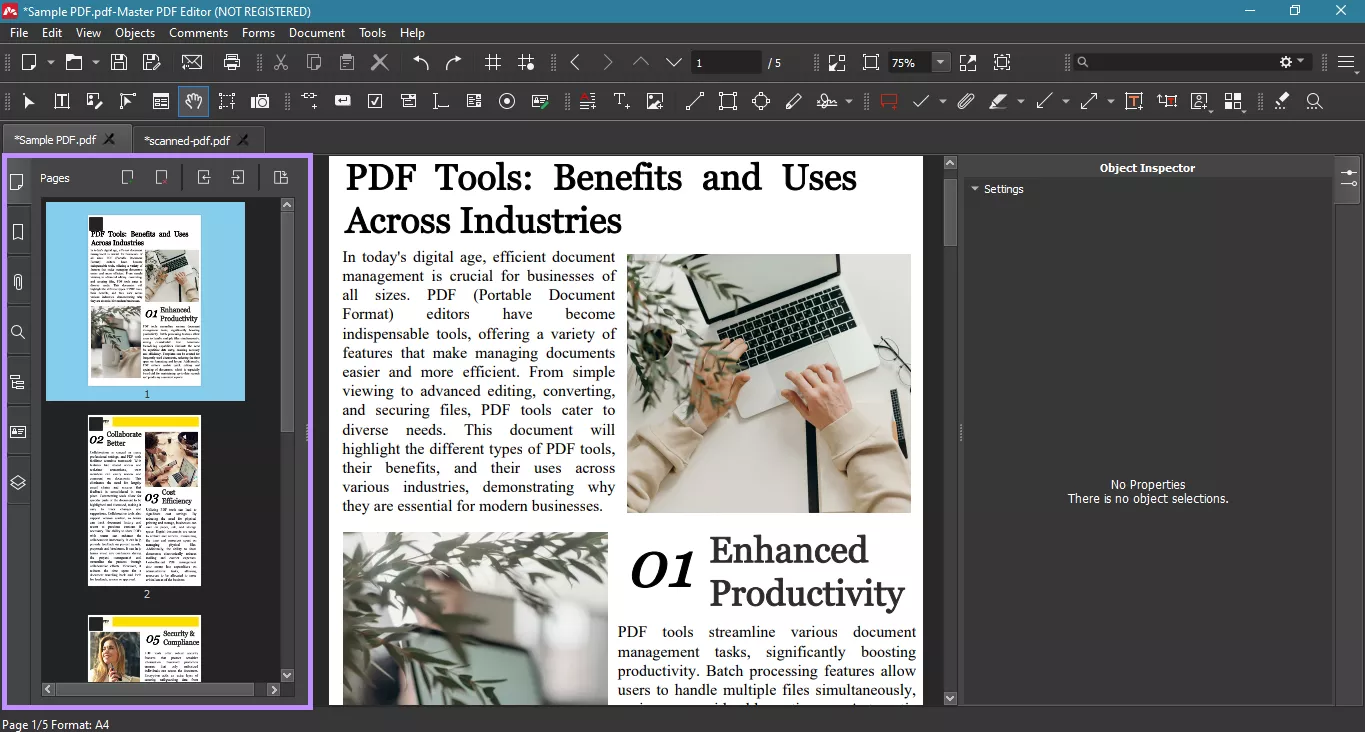
Master PDF Editor lets you import your desired PDF using the "Open Document" option on the Home screen. Once opened, you can navigate the PDF using thumbnails on the left sidebar. You can also view bookmarks, attached files, and search the PDF text.
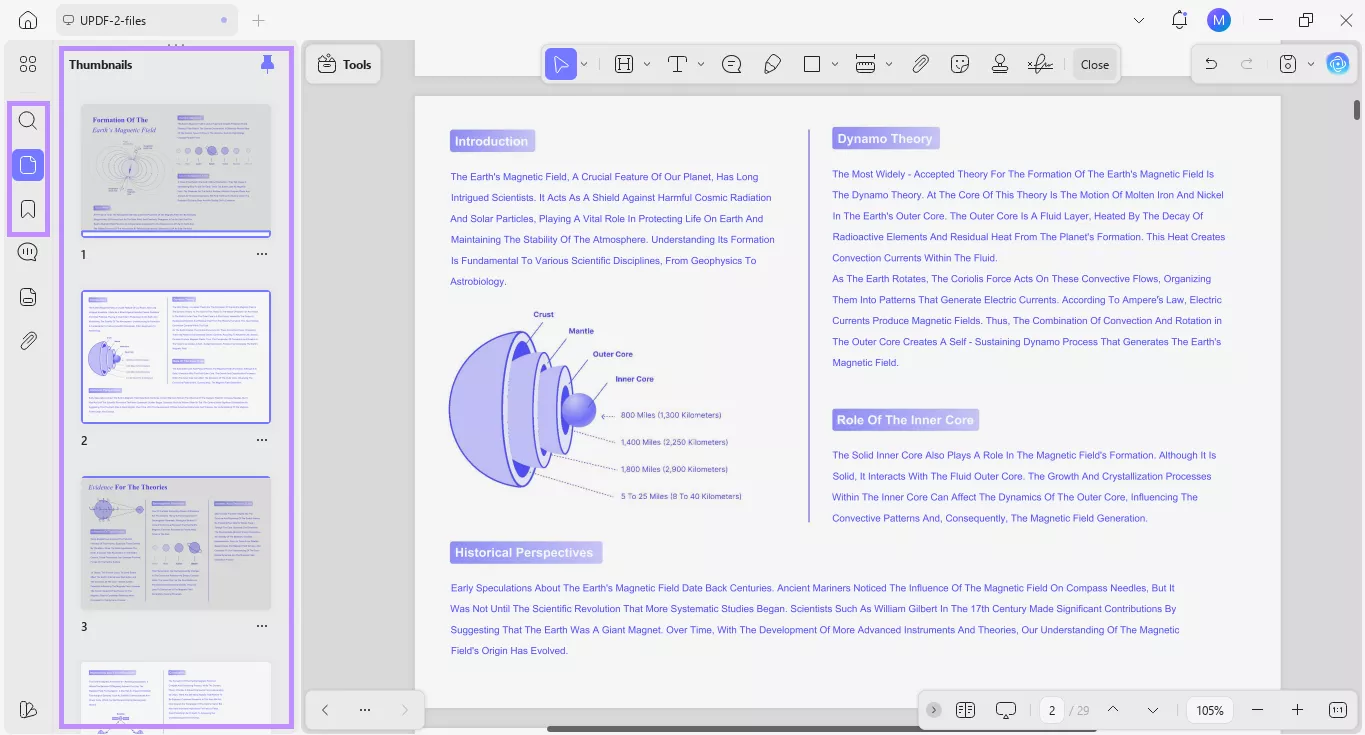
UPDF also lets you import PDFs using the "Open File" option on the Home interface. Then, you can easily navigate the PDF using thumbnails and bookmarks. You can also jump to a specific text section using the "Search" tool. Moreover, it lets you directly replace, delete, and redact PDF text you search.
2. Editing Text and Images
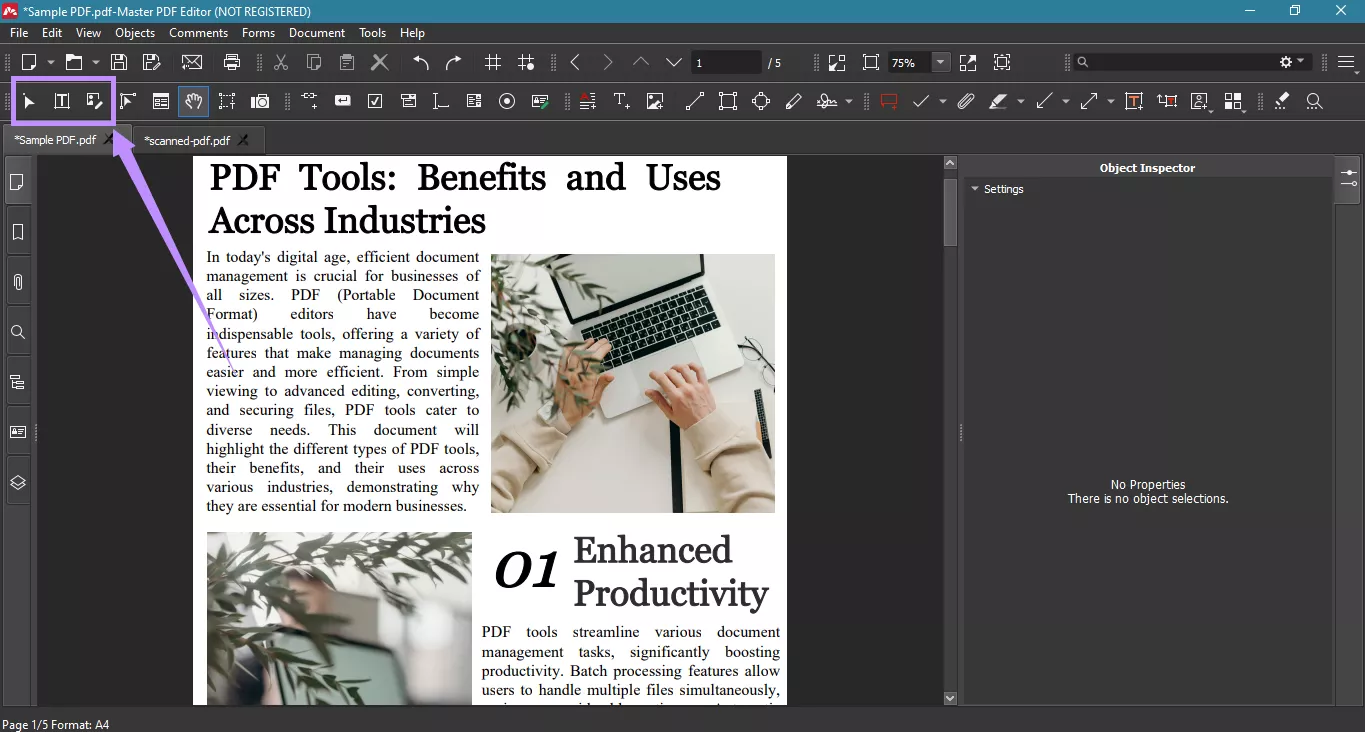
In Master PDF Editor, the editing function is distributed across various tools. The "Edit Document" option lets you edit images and individual letters in text. To edit entire text boxes, you can use the "Edit Text Objects" tool. Similarly, the "Edit Images" tool lets you focus on image editing.
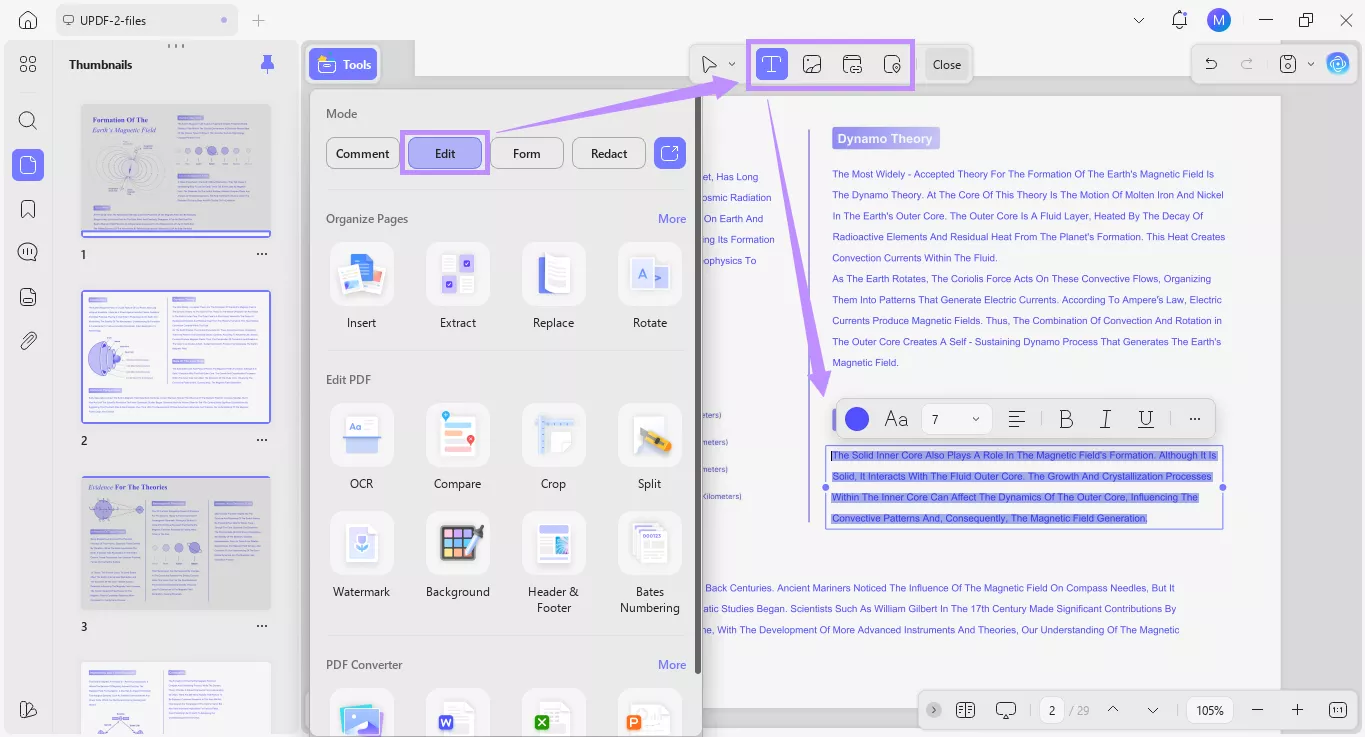
On the other hand, UPDF lets you edit text and images using one organized "Edit" mode. It organizes all editing tools in the top toolbar. These allow you to quickly edit and add text, images, and links to the PDF without searching through an exhaustive range of features, like in Master PDF Editor.
Windows • macOS • iOS • Android 100% secure
3. Annotating and Marking Up Documents
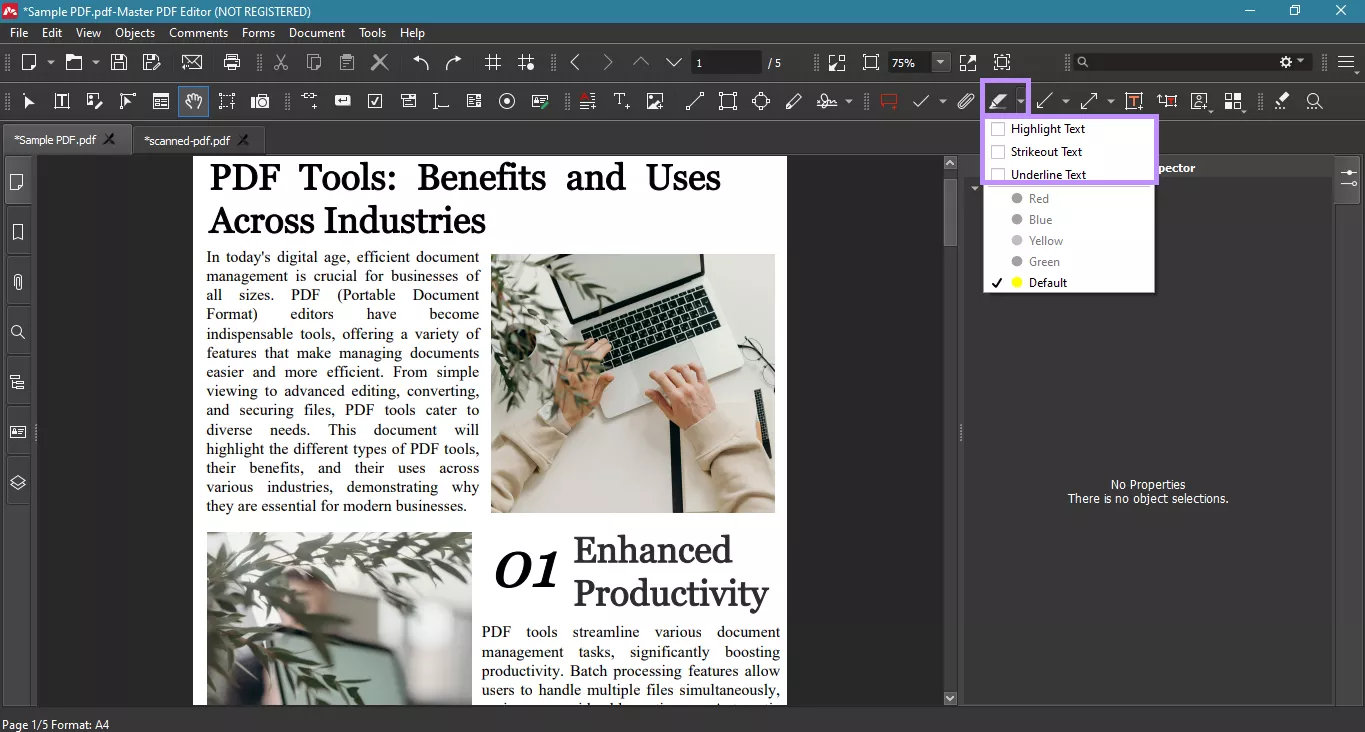
Master PDF Editor offers only 3 annotation tools: highlight, underline, and strikethrough. The markup tools include simple shapes like lines, arrows, clouds, polygons, and ellipses.
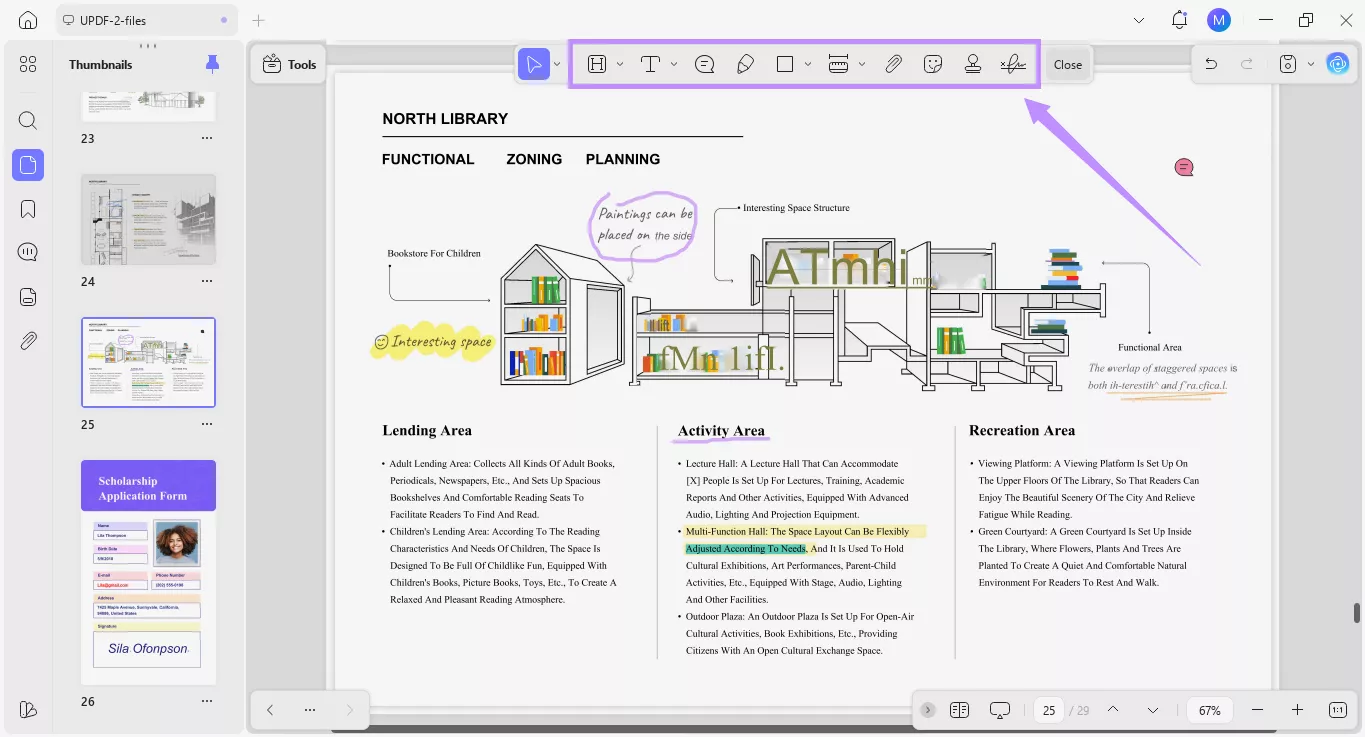
In contrast, UPDF offers 6 annotation tools, including highlight, underline, strikethrough, squiggly lines, direct comments to insert or replace text, and hundreds of beautifully designed stickers. Moreover, you can access all tools in a dedicated "Comment" mode.
4. OCR and Converting Scanned PDFs
Master PDF Editor offers two OCR modes that make scanned PDFs searchable or editable. The advanced settings allow you to adjust the minimal confidence level for a better output. However, you have to manually install the relevant languages before running OCR.
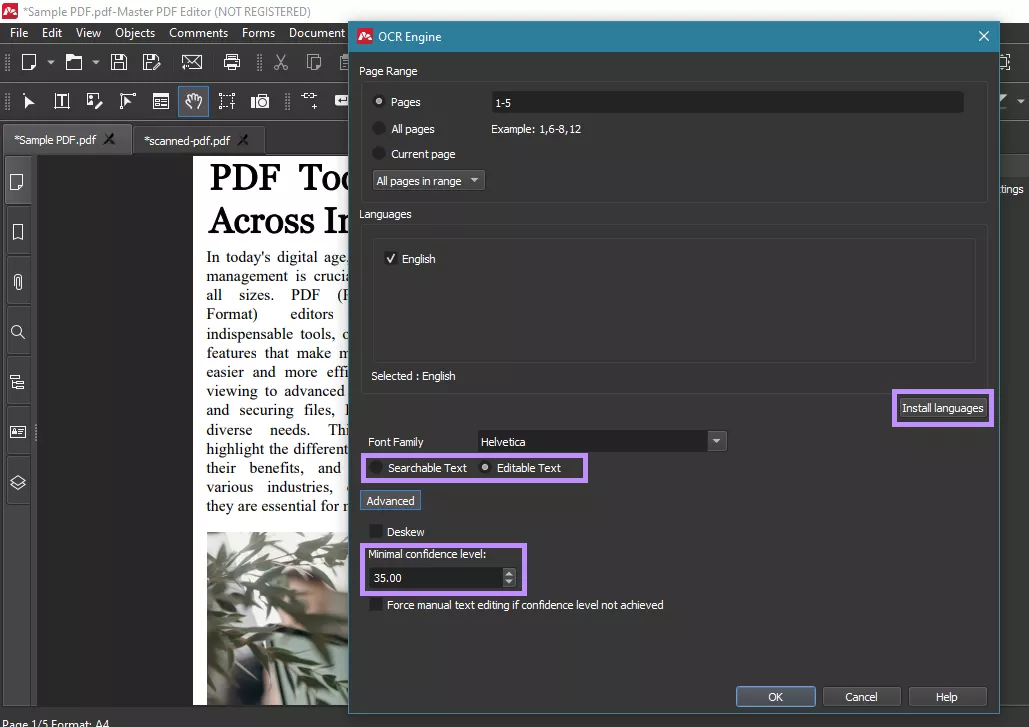
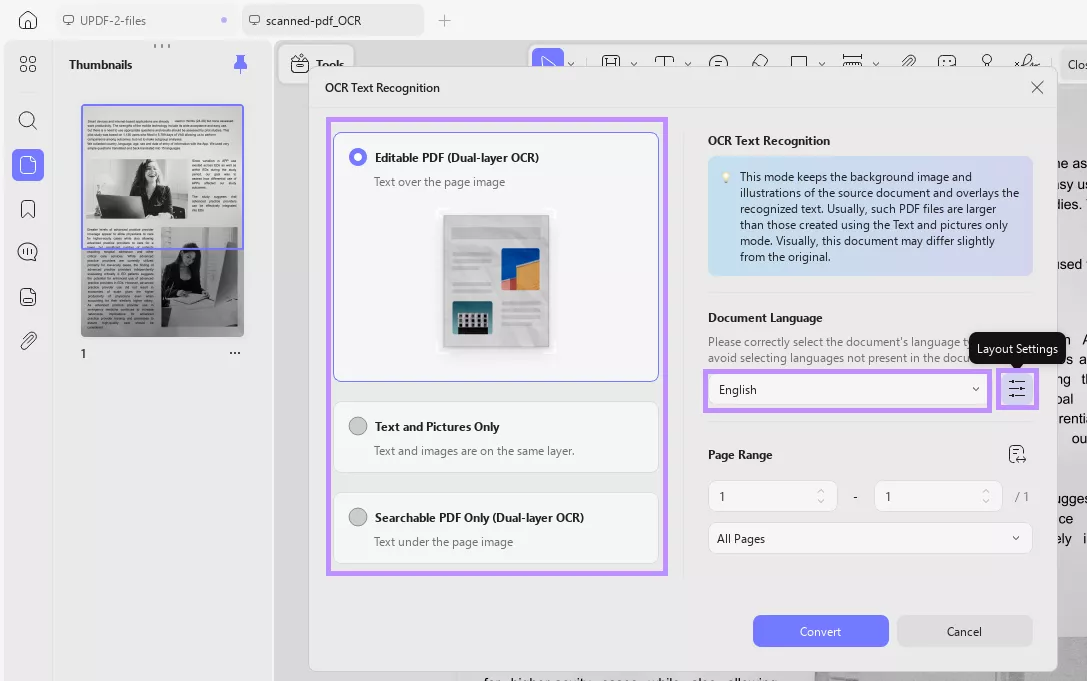
In comparison, UPDF does not require you to install languages. It also offers 3 OCR modes: searchable, editable, and text and pictures only. Moreover, its advanced layout settings let you precisely control image quality, resolution, and compression level. Master PDF Editor does not support these features for OCR.
5. AI-Assisted Workflows
AI integration in a PDF editor can help teams speed up their workflows and stay productive. Master PDF Editor lacks this crucial feature. Meanwhile, UPDF's built-in AI assistant can help you quickly summarize, translate, explain, and even chat with PDFs. You can also generate mindmaps of technical processes, chat with images, analyze complex reports, and more.
Watch the video below to learn more about UPDF AI. Or ask up to 100 questions for free by clicking the button below.
6. Daily Productivity
In your daily routine, Master PDF Editor can help you review PDFs quickly. You can add signatures and notes, create interactive forms, and more. Comparatively, UPDF offers an AI-driven solution to speed up your PDF workflows. It can help students and researchers understand complex data faster, analyze trends, find research papers, conduct literature reviews, and more.
UPDF vs Master PDF Editor: Free Version Comparison
Master PDF Editor offers a free demo version to try all the features without any limitations. The only drawback is a watermark on the edited files.
On the other hand, UPDF lets you test all features for free with some limitations. You also need to create an account to register with the platform. Some free features and limitations include the following:
- Viewing: Open and read PDFs for free.
- Conversion: Limited to 2 conversions per day.
- OCR: Process up to 5 PDFs.
- Batch Processing: Handle 2 files at a time.
- Templates: Create unlimited watermark, header, footer, and background templates.
- Cloud Storage: 1 GB free space; max 100MB per file.
- AI Features: Upload 5 PDFs (max 10MB, 100 pages each) and ask up to 100 questions to: Chat with PDFs and images; convert PDFs to mind maps; discuss general topics.
- Sharing: Cannot password-protect or set expiration dates on shared PDFs.
- Comparison: Cannot view detailed differences when comparing two PDFs.
- Watermark: Free version adds watermarks when saving documents.
Pricing Review and Enterprise Plans
If you want to avoid the limitations of the free version, you can upgrade to the pro version with individual or enterprise plans as needed. Let's compare UPDF vs Master PDF Editor pricing plans:
Master PDF Pricing:
Master PDF Editor is available with one-time payment options. For the enterprise, the exact price depends on the quantity of products, as the group orders are discounted.
- 1 to 9: USD $79.95 each
- 10 to 35: USD $69.95 each
- 36 to 99: USD $64.95 each
- 100 to 500: USD $59.95 each
UPDF Pricing:
In contrast, UPDF offers subscription-based yearly and perpetual plans for both individual and enterprise use, as shown below:
Individual Plans:
- US$39.99 / Year
- US$69.99 / Perpetual
Enterprise Plans:
- US$79.00 / Year per user
- US$129.00 / Perpetual per user
User Ratings and Market Feedback
The best way to know about a tool is to read what the community has to say. Below, I've listed the ratings for Master PDF Editor and UPDF so you can decide which one is more reliable.
Master PDF Editor Ratings:
- 4.3/5.0 based on 7 votes on Software Informer.
- 3.4/5.0 based on 73 votes on Softpedia.
- 3.0/5.0 based on 10 votes on Amazon.
UPDF Ratings:
- 4.5/5.0 based on 374 reviews on G2.
- 4.6/5.0 based on 177 reviews on AppSumo.
- 4.6/5.0 based on 16 reviews on Capterra.
Which One Should You Choose?
Master PDF Editor is good for simpler PDF editing. But its interface can feel overwhelming at first for beginners. On the other hand, UPDF is the best Master PDF alternative for handling personal and professional documents. It offers a rich set of tools, all of which are easy to use and navigate.
The interface is minimal and has a more organized layout. Moreover, built-in AI can help you analyze complex documents and search for information without needing to switch to another platform. Overall, it's a tool designed to make your PDF tasks more manageable and less stressful.
Also Read: Foxit vs. Adobe Acrobat vs.UPDF: An Honest Comparison >>
Conclusion
To sum up this UPDF vs Master PDF Editor rundown, both tools have their unique strengths. Master PDF Editor is great for general PDF editing and free PDF tools. On the other hand, UPDF is an all-in-one solution to edit, organize, and manage PDF files effortlessly. At the same time, it is fast and lightweight to use. Moreover, you can get started with a free trial. So, don't miss out. Download and try UPDF today!
Windows • macOS • iOS • Android 100% secure
Note: The information on this page is based on UPDF writers' testing and publicly available product details at the time of writing. Features and pricing may change over time. If you notice any inaccuracies, please contact us at [email protected]

 Lizzy Lozano