UPDF
UPDF
 UPDF for Windows
 UPDF for Mac
 UPDF for iPhone/iPad
 UPDF for Android
 UPDF AI Online
 UPDF Sign
 Edit PDF
 Annotate PDF
 Create PDF
 PDF Form
 Edit links
 Convert PDF
 OCR
OCR PDF to Word
 PDF to Image
 PDF to Excel
 Organize PDF
 Merge PDF
 Split PDF
 Crop PDF
 Rotate PDF
 Protect PDF
 Sign PDF
 Redact PDF
 Sanitize PDF
 Remove Security
 Read PDF
 UPDF Cloud
 Compress PDF
 Print PDF
 Batch Process
 About UPDF AI
 UPDF AI Solutions
 AI User Guide
 FAQ about UPDF AI
 Summarize PDF
 Translate PDF
 Chat with PDF
 Chat with AI
 Chat with image
 PDF to Mind Map
 Explain PDF
 PDF AI Tools
 Image AI Tools
 AI Chat Tools
 AI Writing Tools
 AI Study Tools
 AI Working Tools
 Other AI Tools
 PDF to Word
 PDF to Excel
 PDF to PowerPoint
 Enterprise Solution
 Enterprise Sign
 Enterprise AI
 Enterprise Plan
 Enterprise User Guide
 Enterprise Webinar
 Banking
 Healthcare
 Insurance
 Legal
Legal Manufacturing
 Government
 Education Solution
 Customer Stories
 User Guide
 UPDF Tricks
 FAQs
FAQs UPDF Reviews
 Download Center
 Blog
Blog Newsroom
 Tech Spec
 Updates
 UPDF vs. Adobe Acrobat
 UPDF vs. Foxit
 UPDF vs. PDF Expert

Convert PDF to Word/Excel/PPT
UPDF AI Online has revolutionized how users manage their documents by introducing a smart "PDF to other formats" feature. For people who use UPDF AI to go through their important documents, this method serves them in obtaining their files in the desired format. You can access this feature directly through UPDF AI Online, no installation required, making it ideal for quick and convenient use anywhere. The UPDF desktop version (Windows/Mac) also includes the same powerful conversion capabilities, ensuring flexibility and performance across all platforms.
How to Convert PDF to Other Formats (Word/Excel/PPT) Using UPDF AI Online
Before you begin converting, UPDF AI Online offers a seamless and guided workflow that makes transforming your PDFs into fully editable formats effortless.
Option 1. Convert PDF to Other Formats in the "Chat" Section
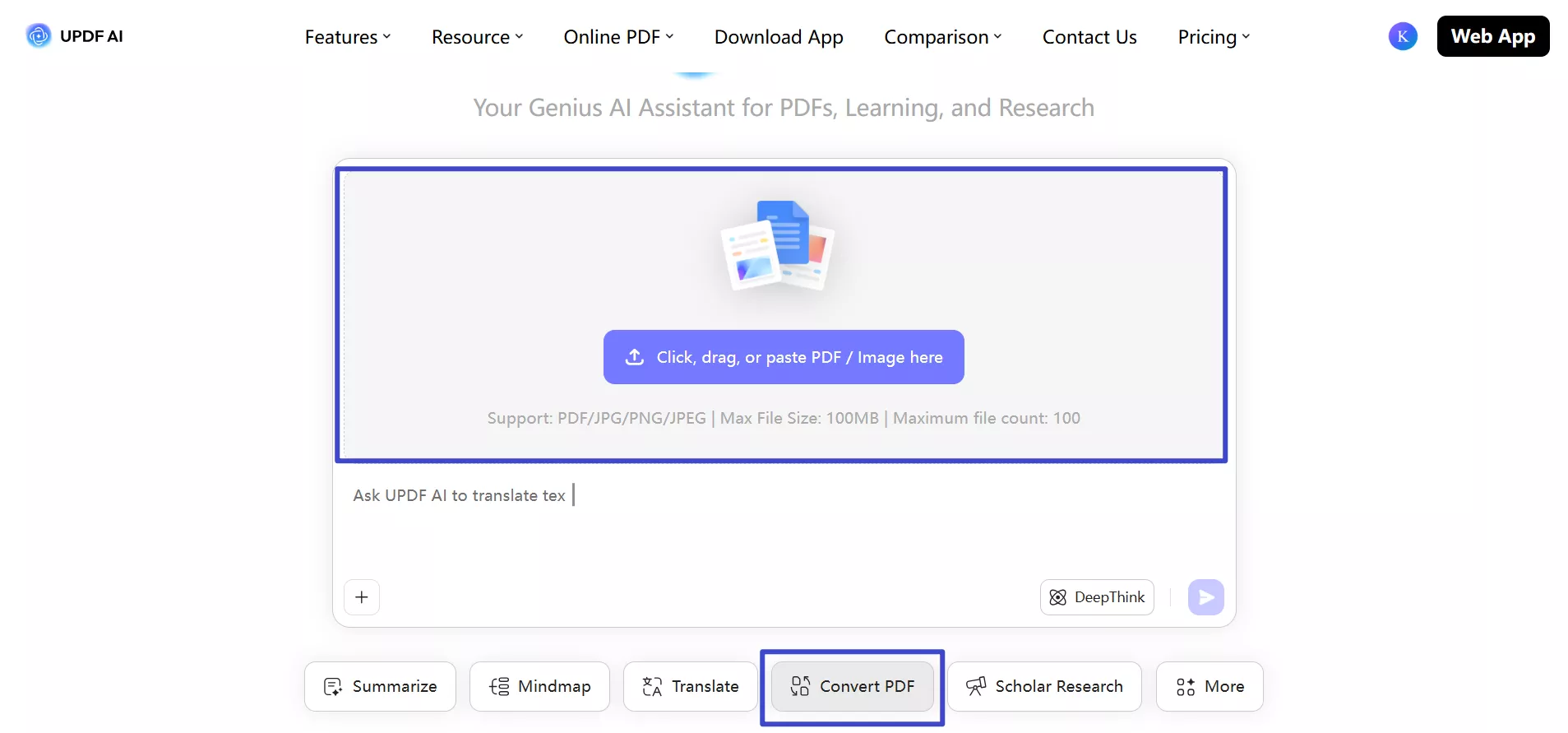
Step 1. To begin, go to https://ai.updf.com/ or click the button below to open UPDF AI's Chat PDF interface. Once there, click "Convert" PDF and tap the “Click, drag, or paste PDF / Image here” button to import your PDF document.
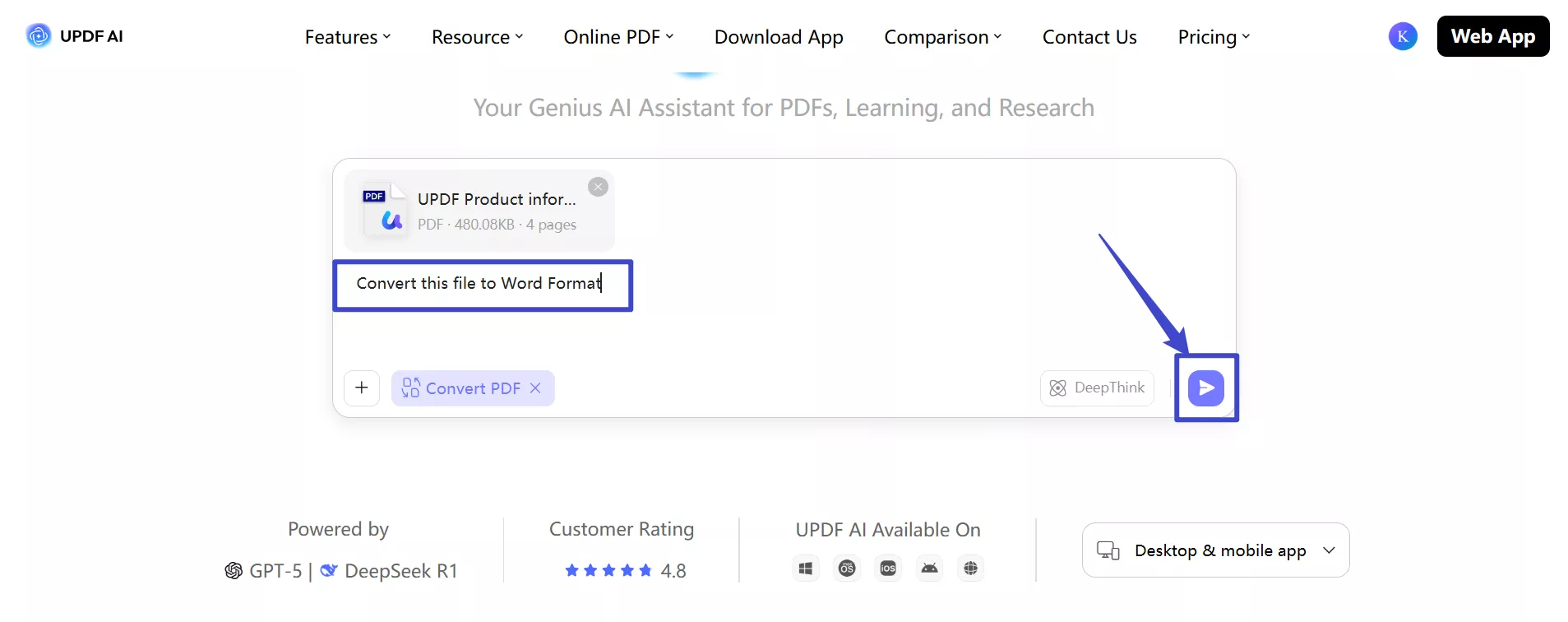
Step 2. Once the PDF is uploaded, simply write “Convert this file to Word/PPT/Excel format” prompt and hit the “Send” icon.
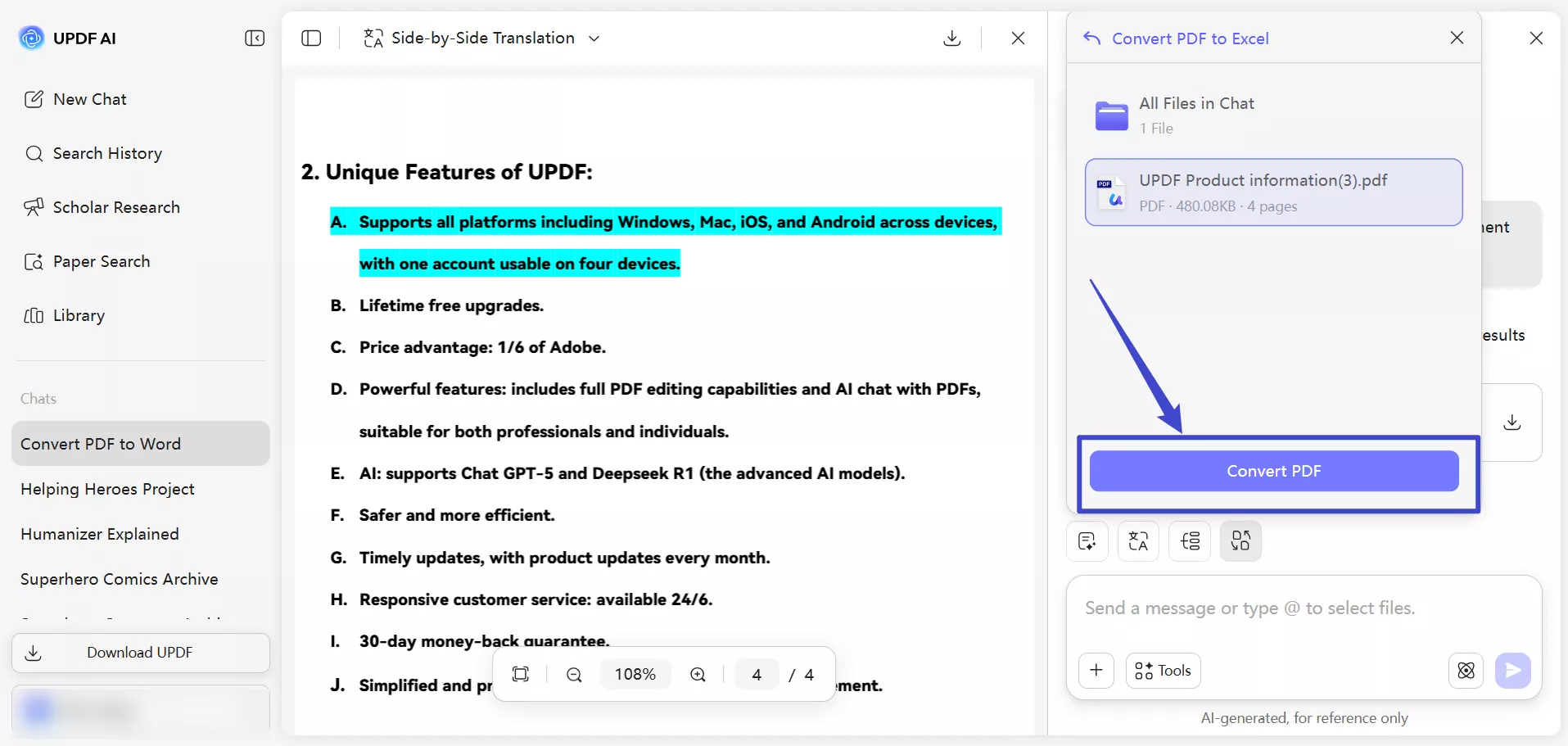
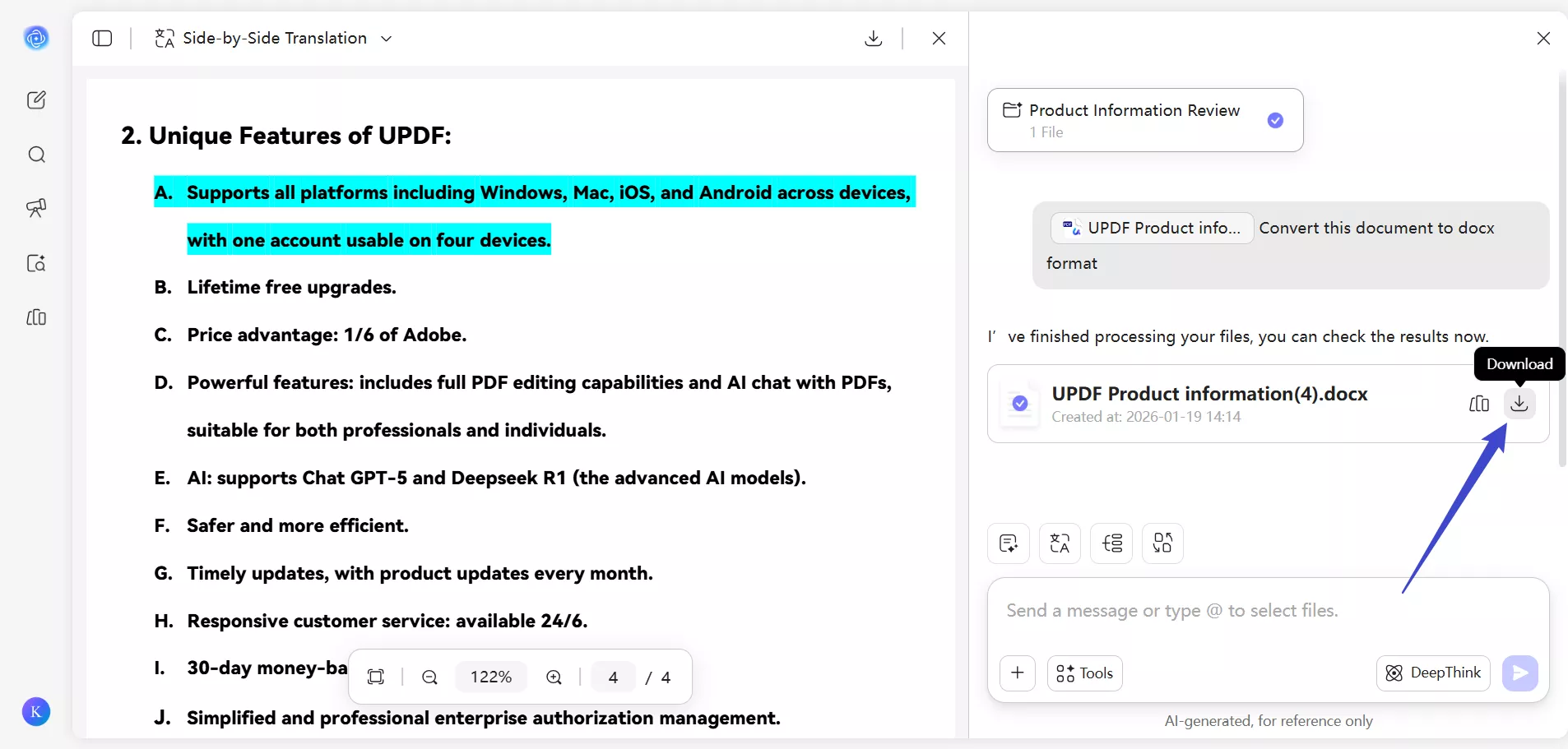
Step 3. Now, UPDF AI will give you the converted file which you can save by tapping the “Download” icon. Using the “Convert PDF” icon, convert the uploaded file into other desired file formats as well. For this, pick the desired conversion format, such as PDF to Excel.
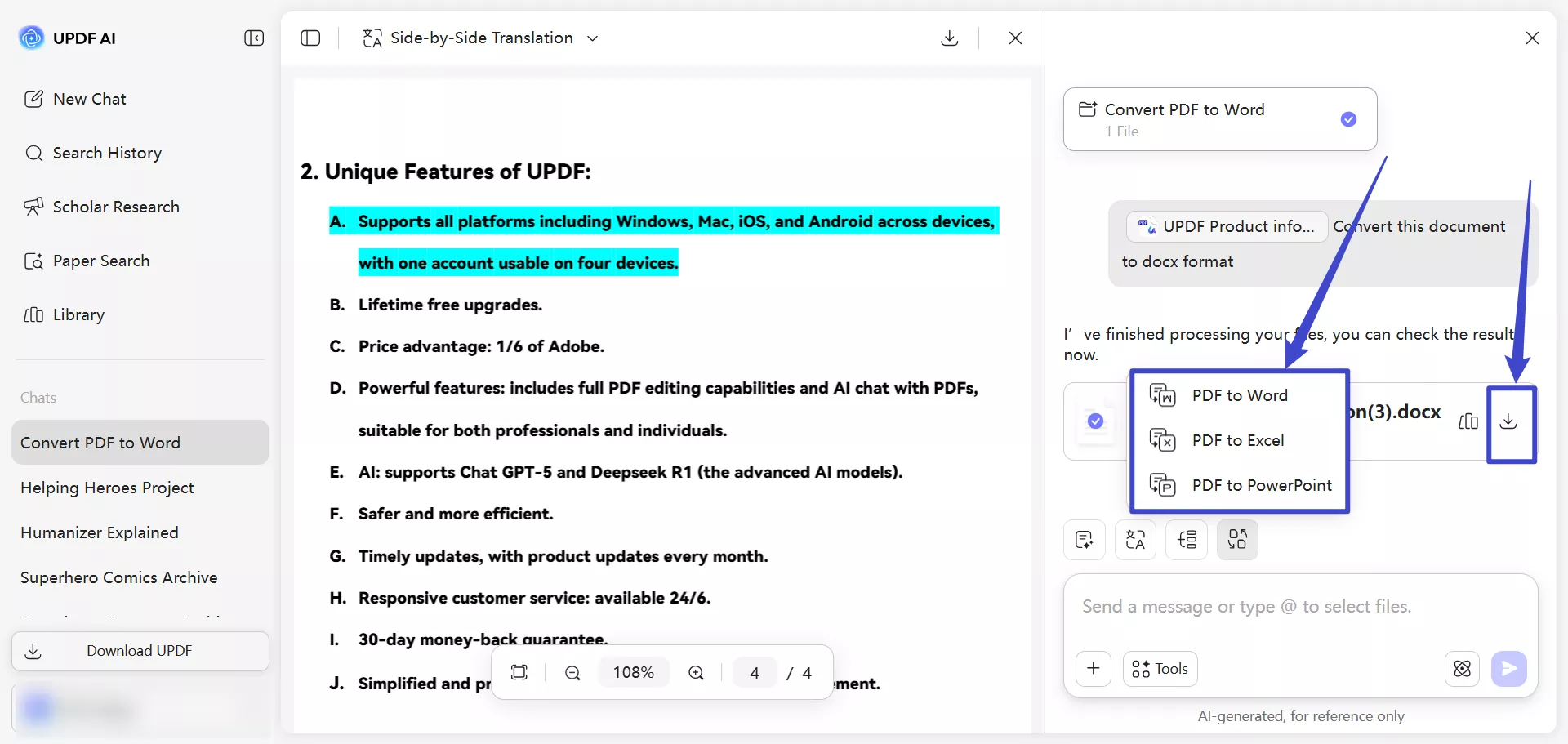
Step 4. Afterwards, you just have to select the uploaded file and hit the Convert PDF button to get the converted document.
Note
Option 2. Convert PDF to Other Formats Using Online PDF Conversion Tool
UPDF AI now gives you the option to simply upload the PDF files for conversion into any of your desired formats. You can use its Online PDF converter to transform your files into Word, Excel, and Powerpoint documents. To do so:
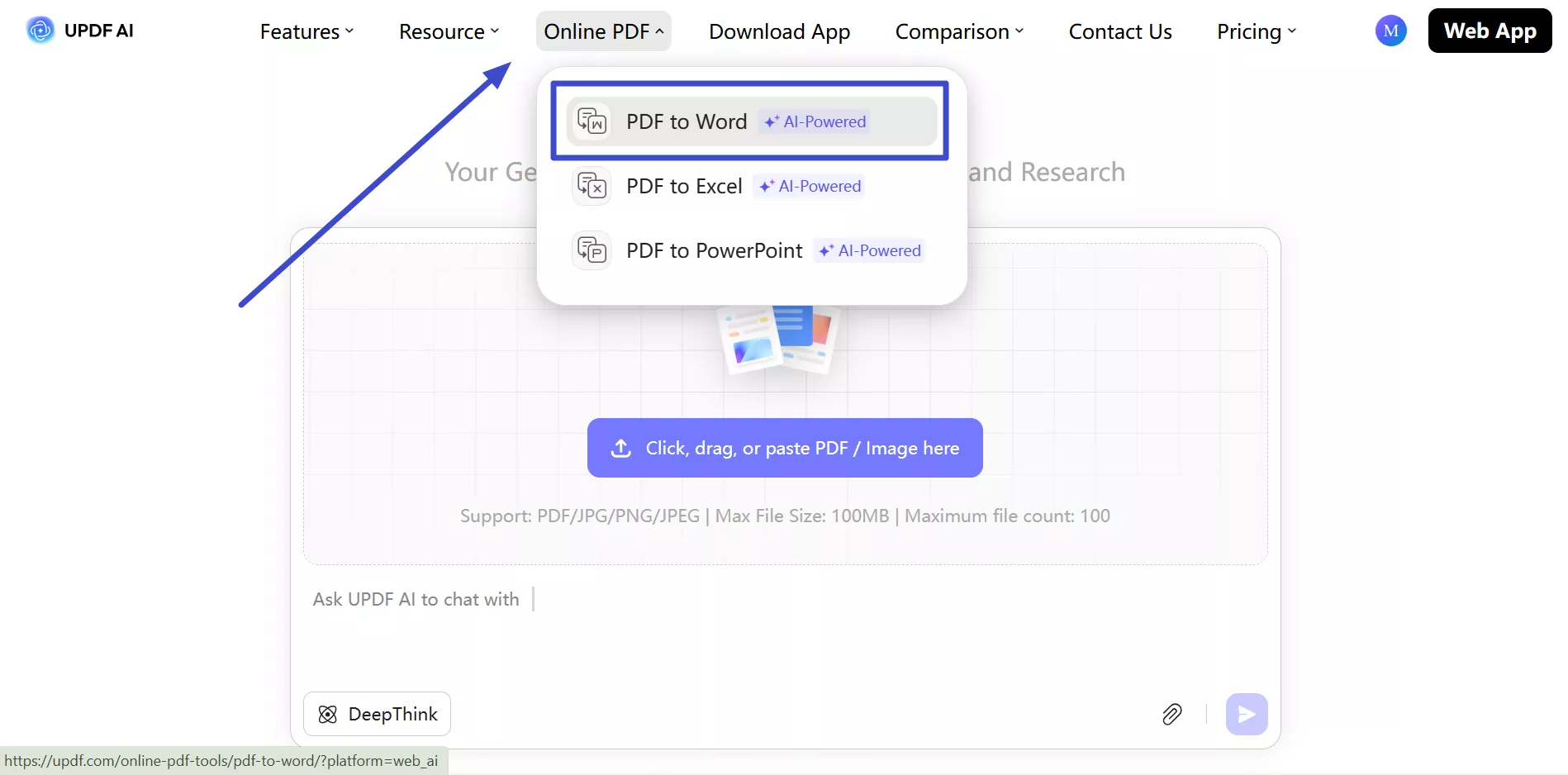
Step 1. After accessing the UPDF AI Online homepage, tap on the Online PDF tab to access a new menu. From here, access the “PDF to Word” or other conversion options to proceed.
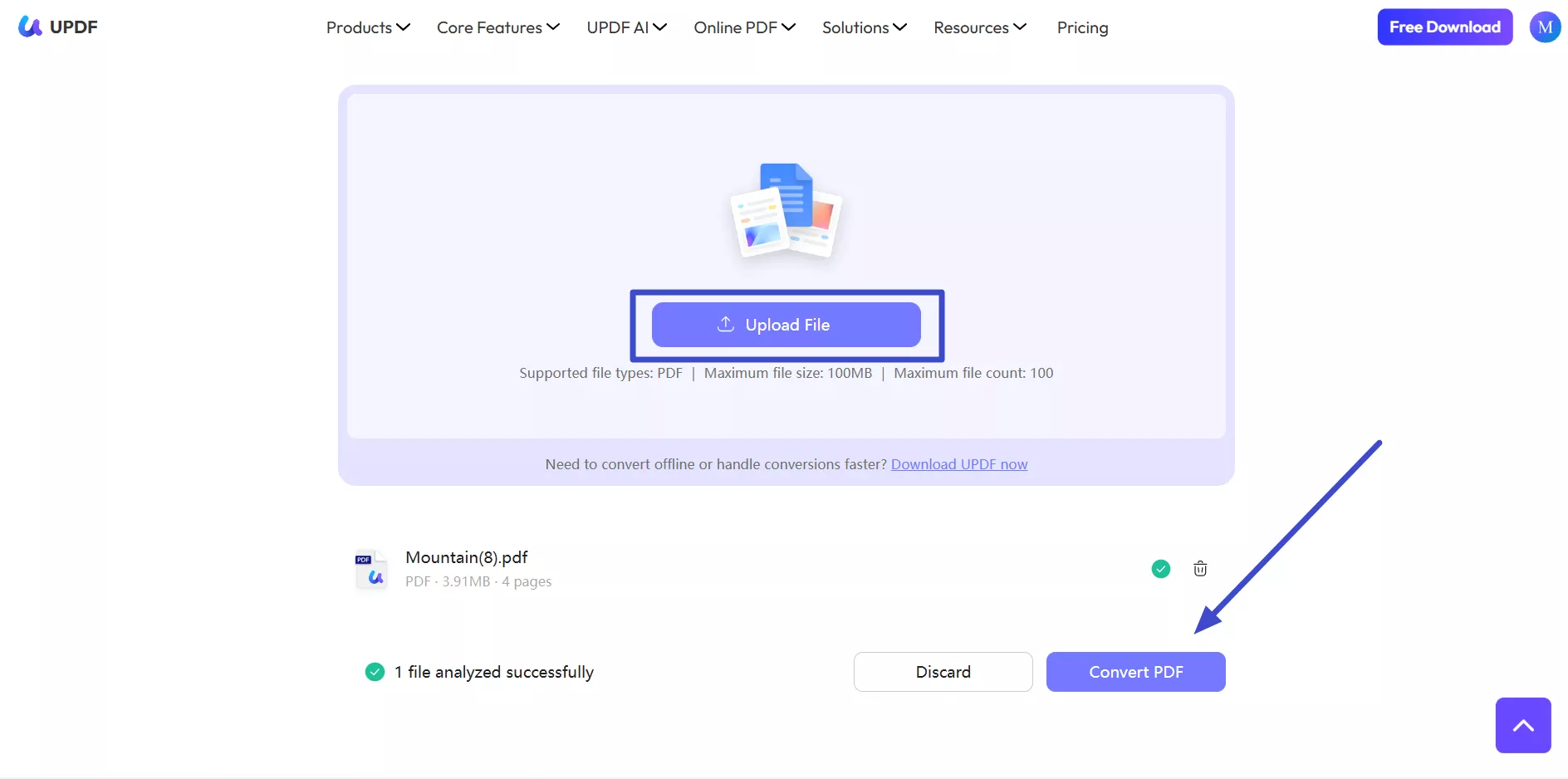
Step 2. On the next screen, tap on the “Upload File” button to import your PDF file. Once a file is uploaded, press the “Convert PDF” button to carry out this conversion.
Step 3. Now, UPDF AI online will convert your PDF file to Word and give you a downloadable file. Simply hit the “Download” icon to finish this task.
Option 3. Convert Multiple PDF to Other Formats Using the Chat Mode
You can also use this feature to convert multiple PDFs to other formats in one workflow. Upload several files, choose the target format, and let the AI handle conversion while preserving structure and readability. It simplifies batch processing and reduces manual steps across online use.
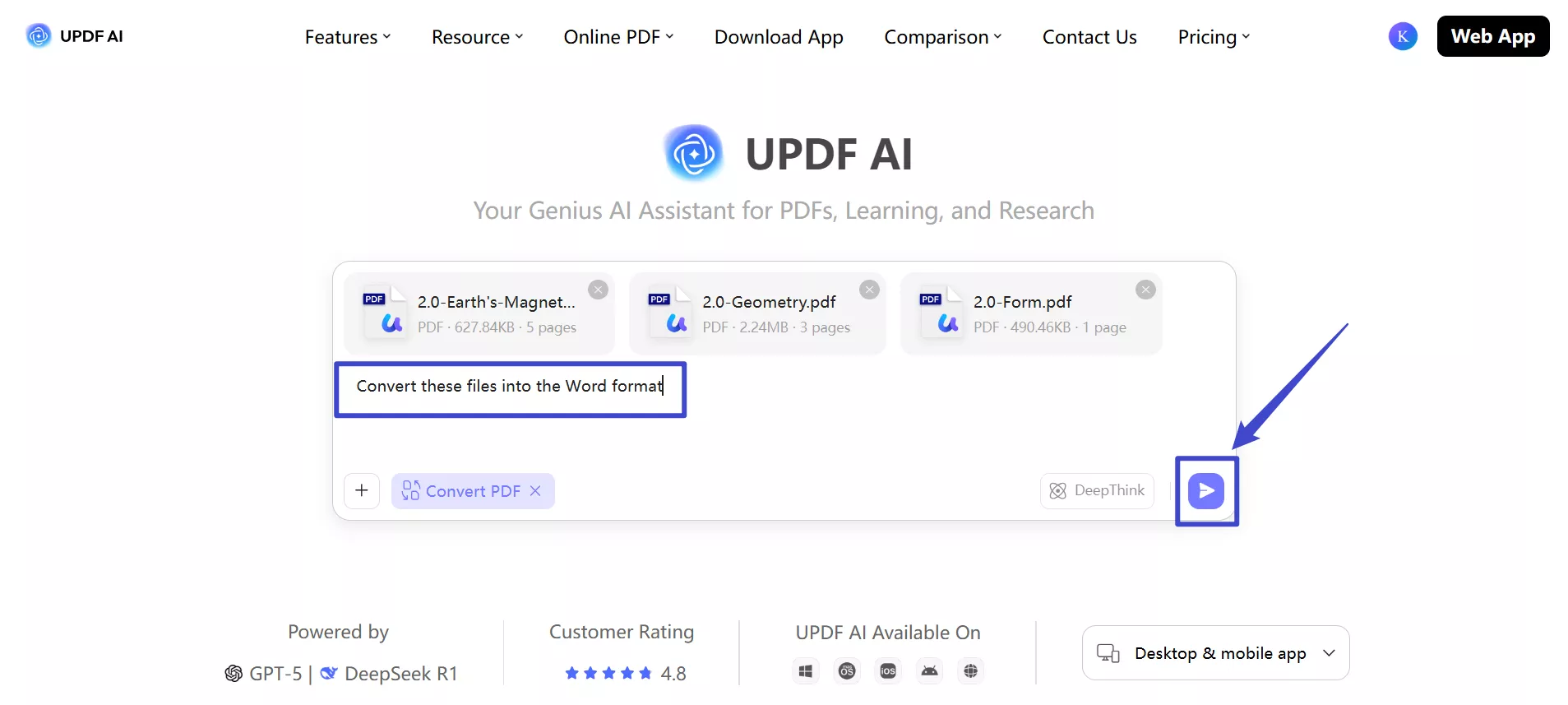
Step 1. Start by launching UPDF AI Online in your browser. Click the "Convert PDF" button and tap the “Click, drag, or paste PDF / Image here” button to import multiple files into the platform.
Step 2. Once PDFs are uploaded, type the prompts, such as "Convert these files into the Word format". Now, tap the Send icon to get the results.
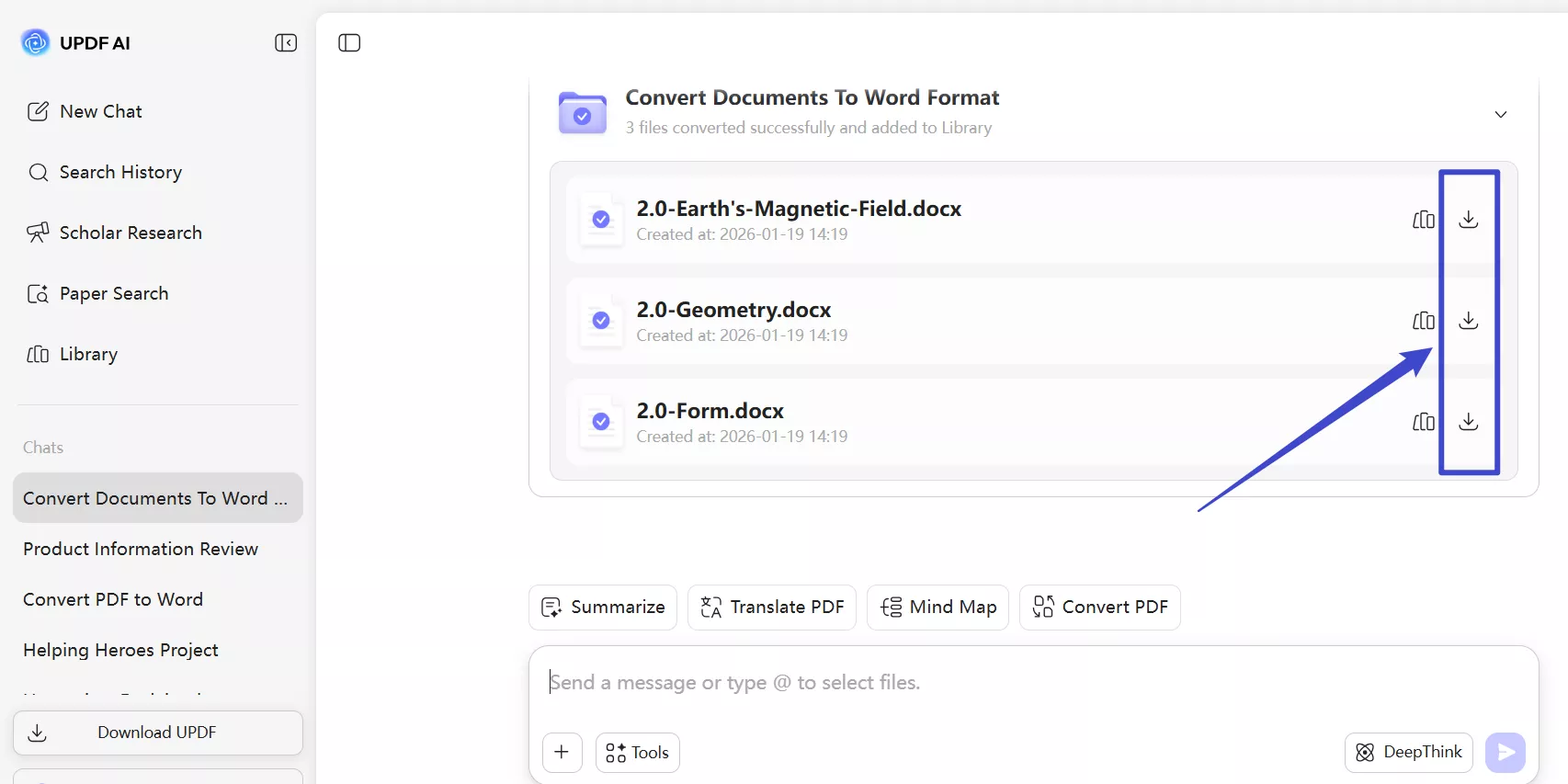
Step 3. Now, UPDF AI will give you the converted file for download. Simply tap the Download icon or hit the Library option to access all the converted PDF documents.
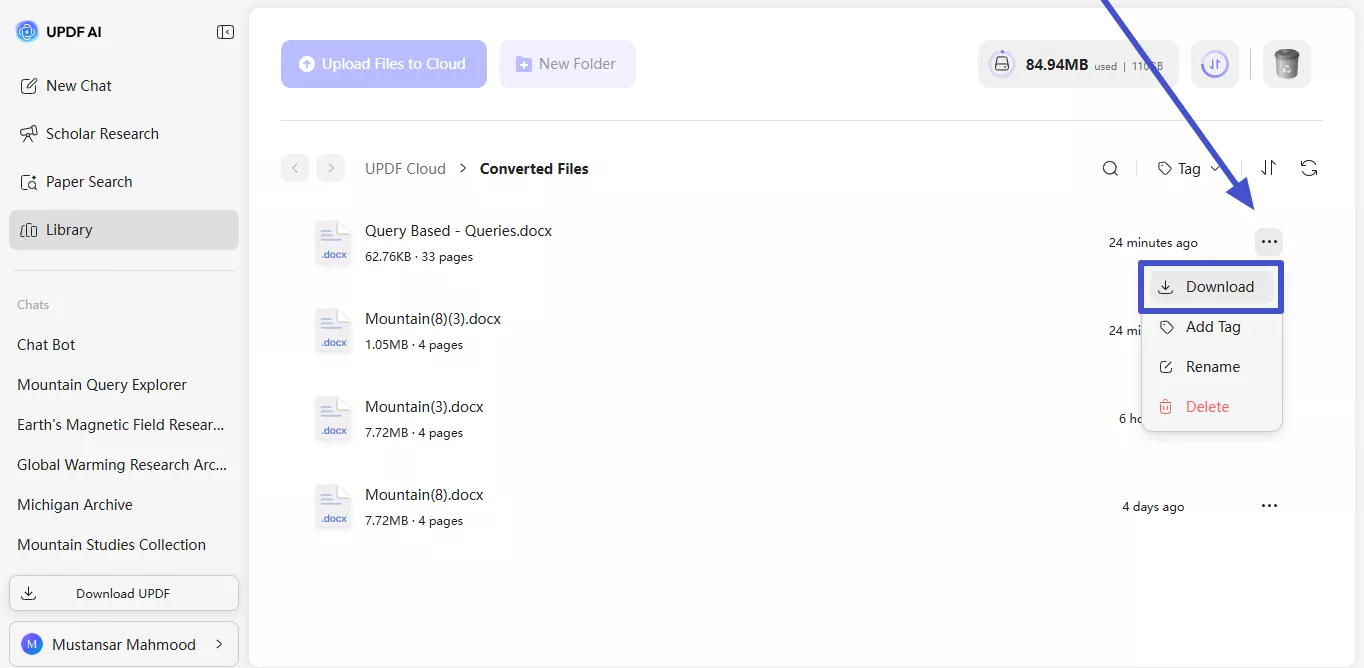
Step 4. Within the Converted Files Library, locate the files you want to download.
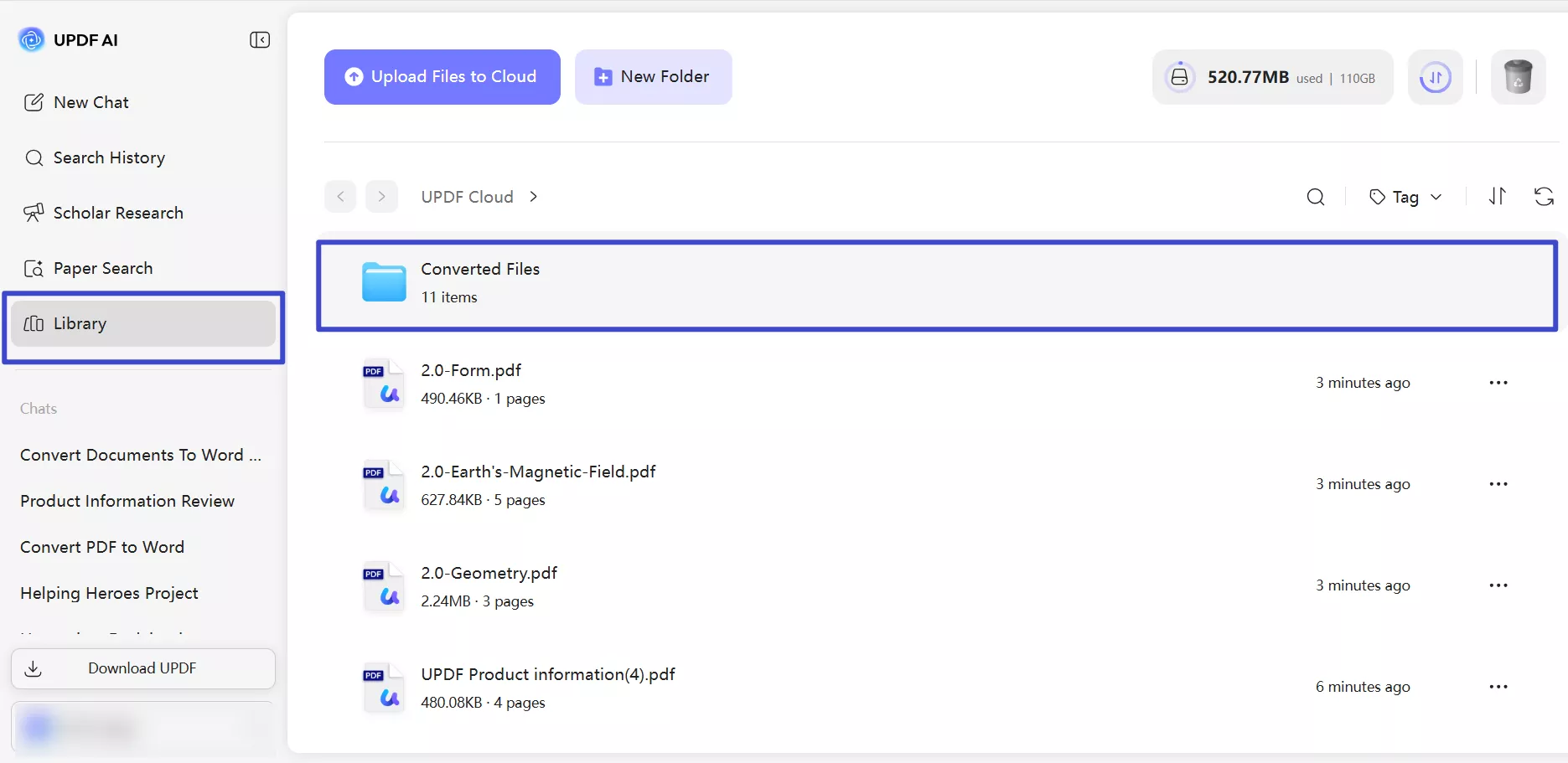
Step 5. Now, hit the Three Dots icon and tap Download to save this converted file.