UPDF
UPDF
 UPDF for Windows
 UPDF for Mac
 UPDF for iPhone/iPad
 UPDF for Android
 UPDF AI Online
 UPDF Sign
 Edit PDF
 Annotate PDF
 Create PDF
 PDF Form
 Edit links
 Convert PDF
 OCR
OCR PDF to Word
 PDF to Image
 PDF to Excel
 Organize PDF
 Merge PDF
 Split PDF
 Crop PDF
 Rotate PDF
 Protect PDF
 Sign PDF
 Redact PDF
 Sanitize PDF
 Remove Security
 Read PDF
 UPDF Cloud
 Compress PDF
 Print PDF
 Batch Process
 About UPDF AI
 UPDF AI Solutions
 AI User Guide
 FAQ about UPDF AI
 Summarize PDF
 Translate PDF
 Chat with PDF
 Chat with AI
 Chat with image
 PDF to Mind Map
 Explain PDF
 PDF AI Tools
 Image AI Tools
 AI Chat Tools
 AI Writing Tools
 AI Study Tools
 AI Working Tools
 Other AI Tools
 PDF to Word
 PDF to Excel
 PDF to PowerPoint
 Enterprise Solution
 Enterprise Sign
 Enterprise AI
 Enterprise Plan
 Enterprise User Guide
 Enterprise Webinar
 Banking
 Healthcare
 Insurance
 Legal
Legal Manufacturing
 Government
 Education Solution
 Customer Stories
 User Guide
 UPDF Tricks
 FAQs
FAQs UPDF Reviews
 Download Center
 Blog
Blog Newsroom
 Tech Spec
 Updates
 UPDF vs. Adobe Acrobat
 UPDF vs. Foxit
 UPDF vs. PDF Expert

When I began working with long PDF files, I spent hours scrolling to locate a particular part and chapters. These files were crucial for my research and projects yet navigating them without bookmarks felt frustrating and slow. This is where I started exploring smart tools that could organize my PDFs automatically and save precious time.
In this article, I'll explain how Bookmark AI transformed my PDF workflow and made navigation feel completely effortless. I'll also share how I integrated UPDF into my daily routine to generate bookmarks automatically and organize documents efficiently.
Windows • macOS • iOS • Android 100% secure
Part 1. Why I Finally Swapped Manual Bookmarking for AI Efficiency
Working with long PDFs used to feel exhausting and frustrating when every bookmark had to be added manually. Now, I will share how this struggle finally pushed me to use a smarter AI Bookmark Manager.
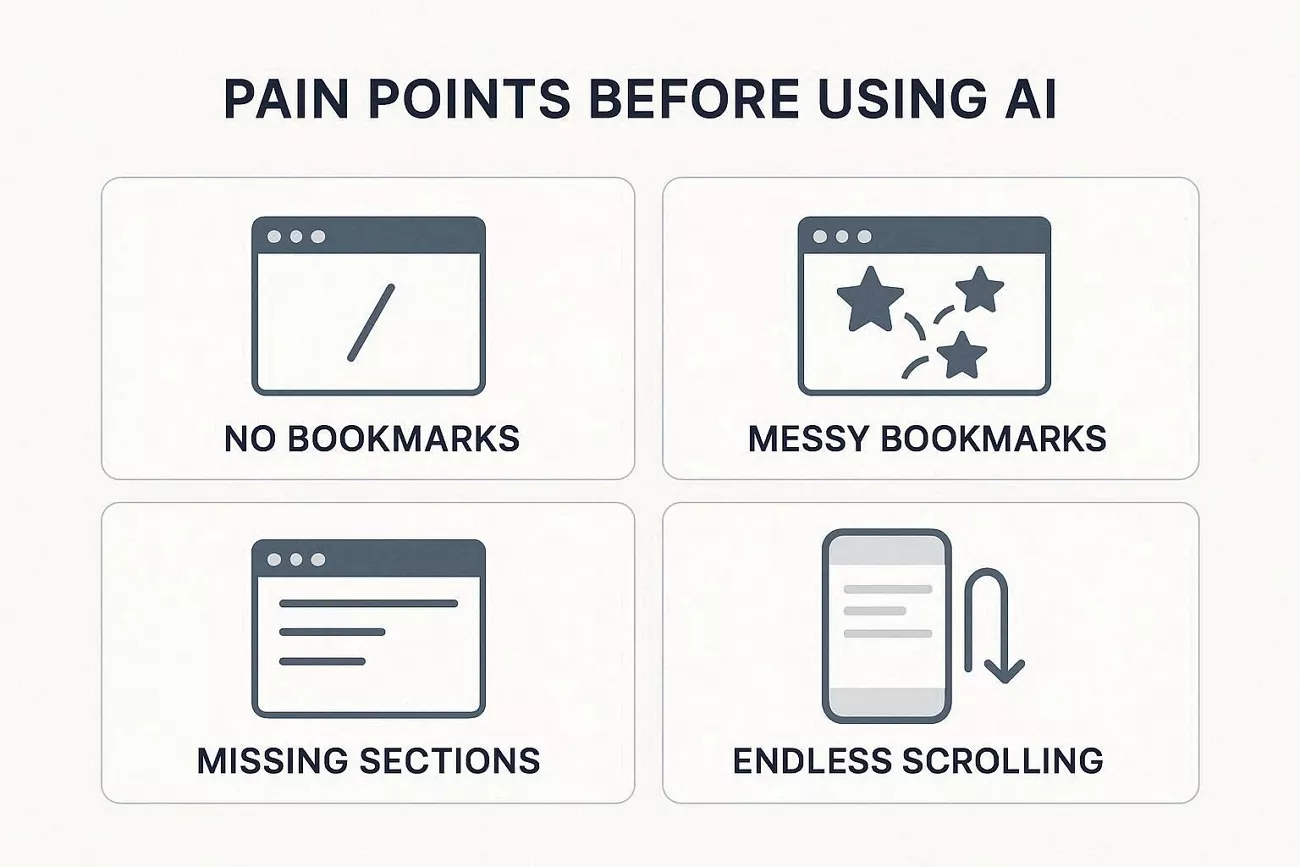
Pain Points Before I Used AI
To explain my experience clearly, I have organized my main struggles into a few simple pain points.
- When a document had no bookmarks, adding them one by one became slow and very boring.
- Some PDFs had random bookmarks everywhere and fixing that chaos always took far too much time.
- Many documents only marked a few sections, so I kept missing important pages during my reading.
- Without a clear structure, I scrolled endlessly and wasted energy searching for the right section quickly.
How an AI Bookmark Generator Helps
Having discussed the pain points, let me share how an AI bookmark generator changed my workflow.
- Quick Bookmark Creation: The tool scans the document and creates matching bookmarks for important sections.
- Bookmark Cleanup: It examines existing bookmarks, reorganizes their structure, and replaces messy entries with a logical order.
- Completing Gaps: Pages missing bookmarks are detected, and the generator inserts accurate bookmarks to cover everything.
Smart Features That Make Bookmarking Easier
After sharing the basics, let me now invite you to look closely at how Bookmark AI works:
- Intelligent Structure Detection: The tool scans the document, detects sections and sub-sections, and builds a clear, layered outline.
- Hyperlinked Table of Contents: It turns this outline into a clickable table of contents, letting you jump instantly between sections.
- Contextual Awareness: The system reads context to distinguish real headings from simple bold text or styled list items.
Part 2. Automatically Bookmark Unformatted PDFs with UPDF
Many long, unformatted PDFs in my work made navigation frustrating. This is where UPDF comes in to turn a messy document into something structured. With its AI PDF bookmark feature, titles and sections are detected automatically, so I do not waste time adding bookmarks manually. UPDF also lets me generate bookmarks for free with 100 AI credits, only using credits on pages where titles are detected.
Once the structure is in place, UPDF makes moving through the document feel controlled. UPDF also provides AI summaries for each section, so I understand what every bookmarked part covers. On top of that, I can rename and delete bookmarks anytime, so the outline always matches how I use the document.
Windows • macOS • iOS • Android 100% secure
How I Use UPDF to Auto‑Generate Bookmarks
To understand how UPDF automatically creates AI bookmarks in practice, simply follow the steps shown below:
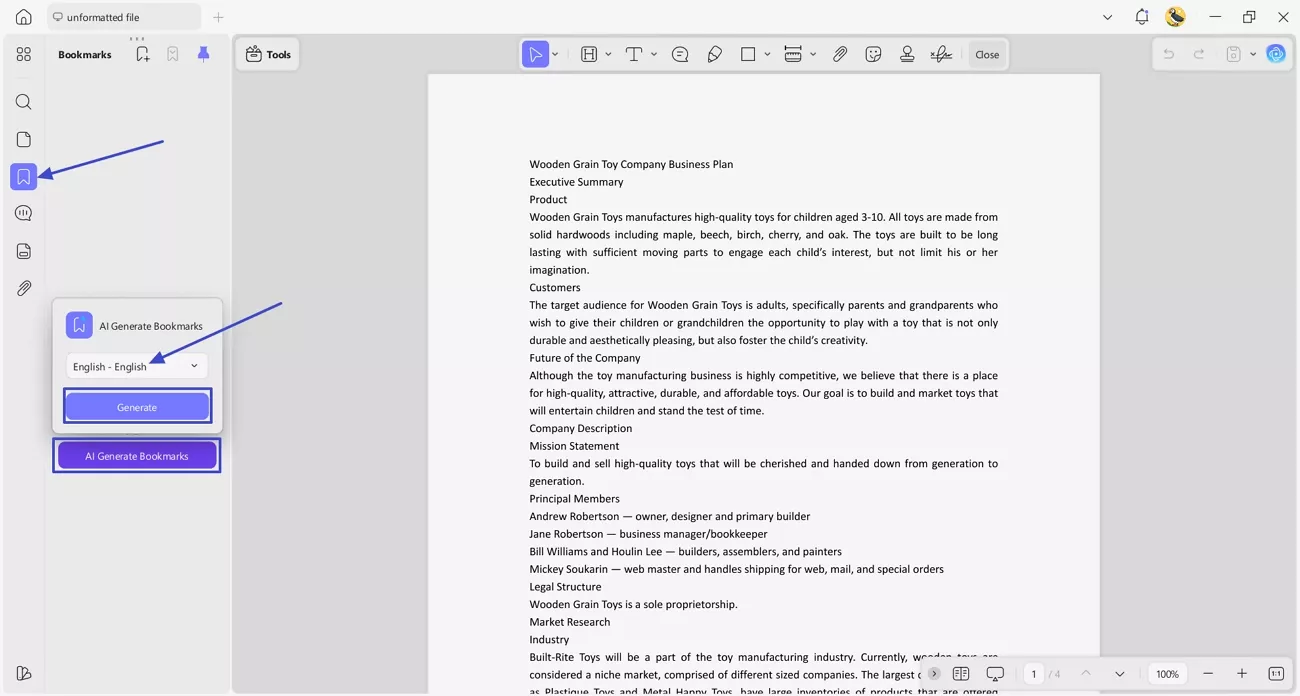
Step 1. Import PDF and Generate AI-Based Bookmarks
Once you import your PDF into UPDF, press the “Bookmarks” option in the left side panel. Afterwards, press the “AI Generate Bookmarks” button. Next, choose the languages and click the “Generate” button to auto-generate bookmarks.
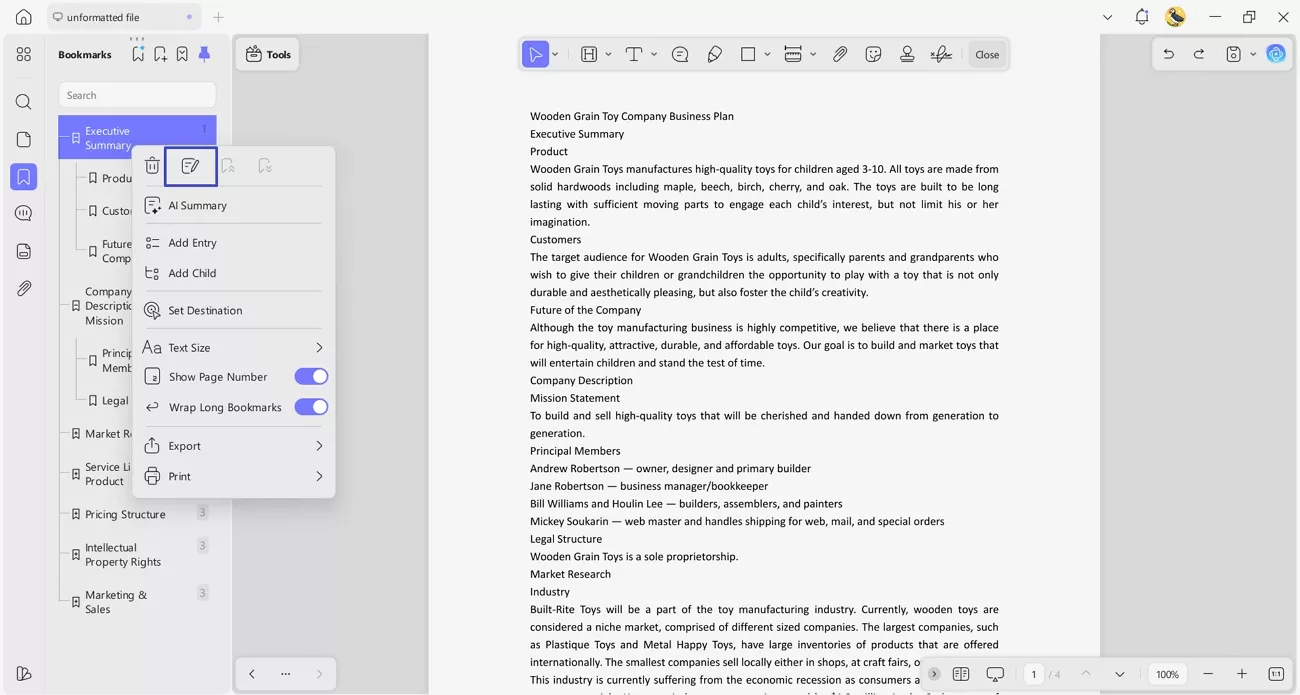
Step 2. Edit or Move Generated Bookmarks
After the bookmarks are generated, you can jump directly to the specific section without endless scrolling. Next, right-click the bookmark and press the “Rename” option to rename the bookmark. You can also promote or demote bookmarks by simply moving them.
Comparing Generated Bookmarks with Original Table of Contents
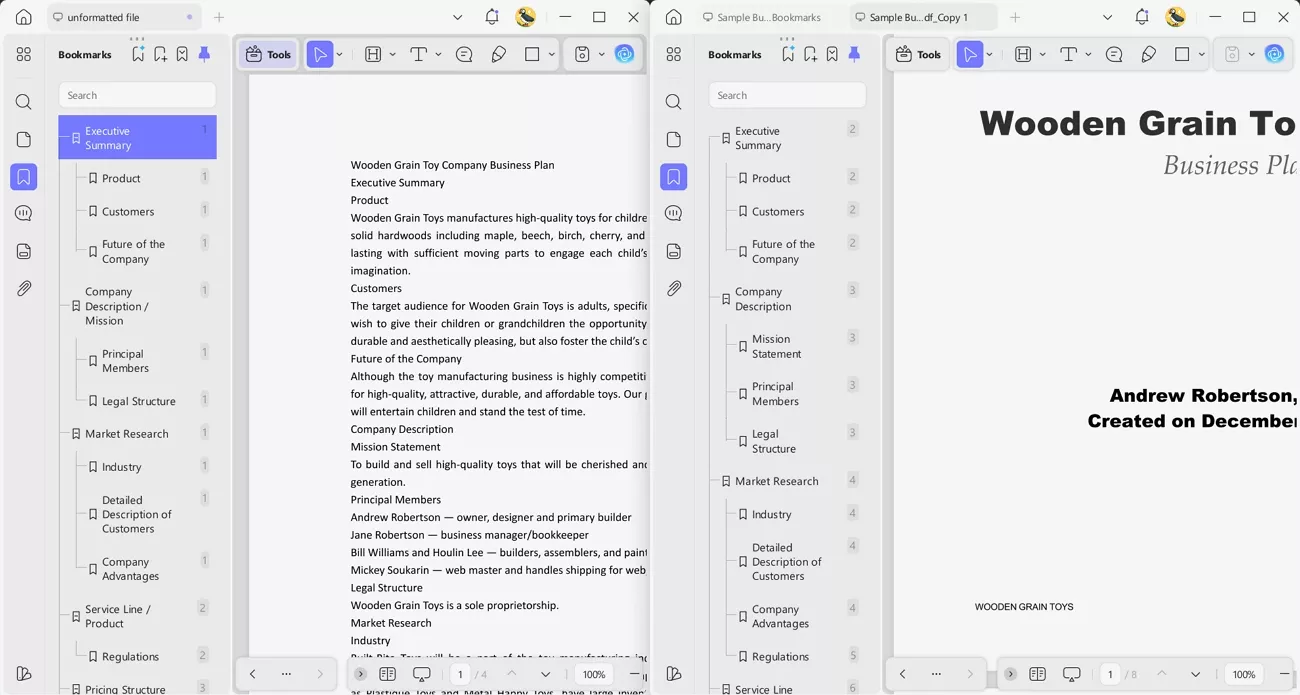
For this test, I copied an unformatted document from a detailed business plan template into UPDF. After running the auto bookmark feature, a complete outline appeared on the left side of my screen. I then opened the original business plan table of contents and placed it next to the UPDF outline.
Additionally, UPDF did more than just detect big headings and also picked up many smaller sub-sections inside each chapter. It even recognized nested hierarchies, placing sub-sections under the right parent section instead of mixing them together.
Windows • macOS • iOS • Android 100% secure
Other Highlights I Noticed in UPDF
After seeing how well the auto bookmarks worked, everything about my reading flow started to feel smoother. Now, let me share some bookmark AI highlights that stood out during daily document work.
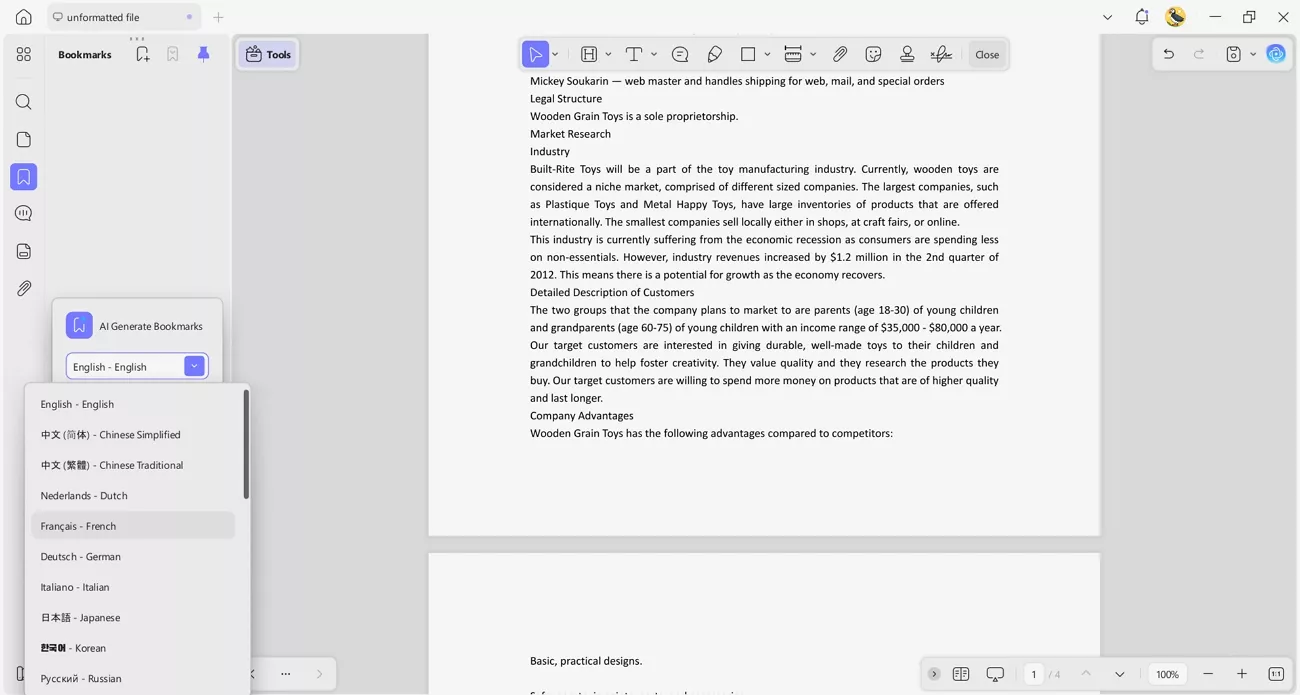
1. Language Support and Translation: UPDF supports 26 languages and lets me translate bookmark titles into another language instantly. This helps me switch document languages quickly and makes navigation easier when sharing files with international teammates.
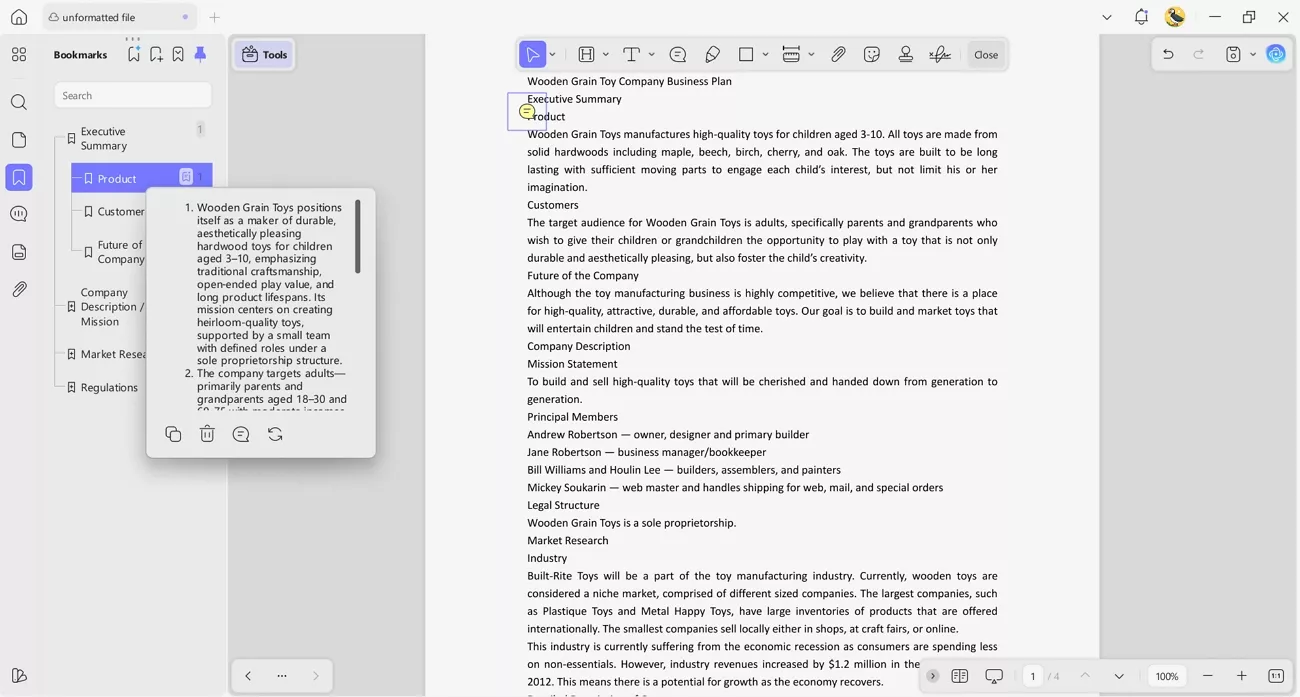
2. AI Summaries as Notes: UPDF can generate a short summary with three key points for each chapter or major section. I save these summaries as notes, so I remember the main ideas without rereading long pages every time.
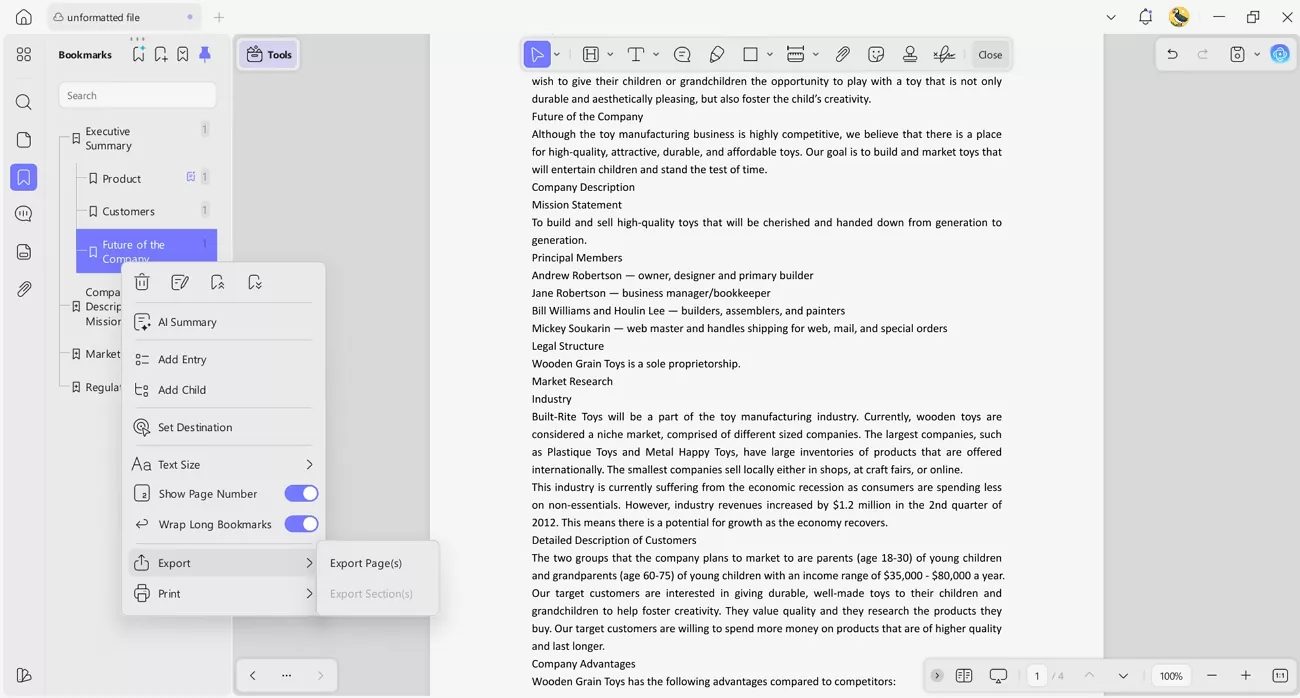
3. Export Pages via Bookmarks: UPDF allows exporting only the pages linked to specific bookmarks instead of downloading the full document. This is helpful when I need to send one chapter, keeping my shared files focused and much smaller.
Windows • macOS • iOS • Android 100% secure
Part 3. Exploring Alternatives: The Foxit Method for Automated Navigation
After working with UPDF for automatic bookmarks, curiosity pushed me to explore another option for PDF navigation. I decided to test Foxit PDF Editor because it also offers tools to organize and move through long documents. It seemed like a good choice for comparing automated navigation features with the tools I already used. Now, follow the steps below to see how Foxit handles automated bookmarking and navigation:
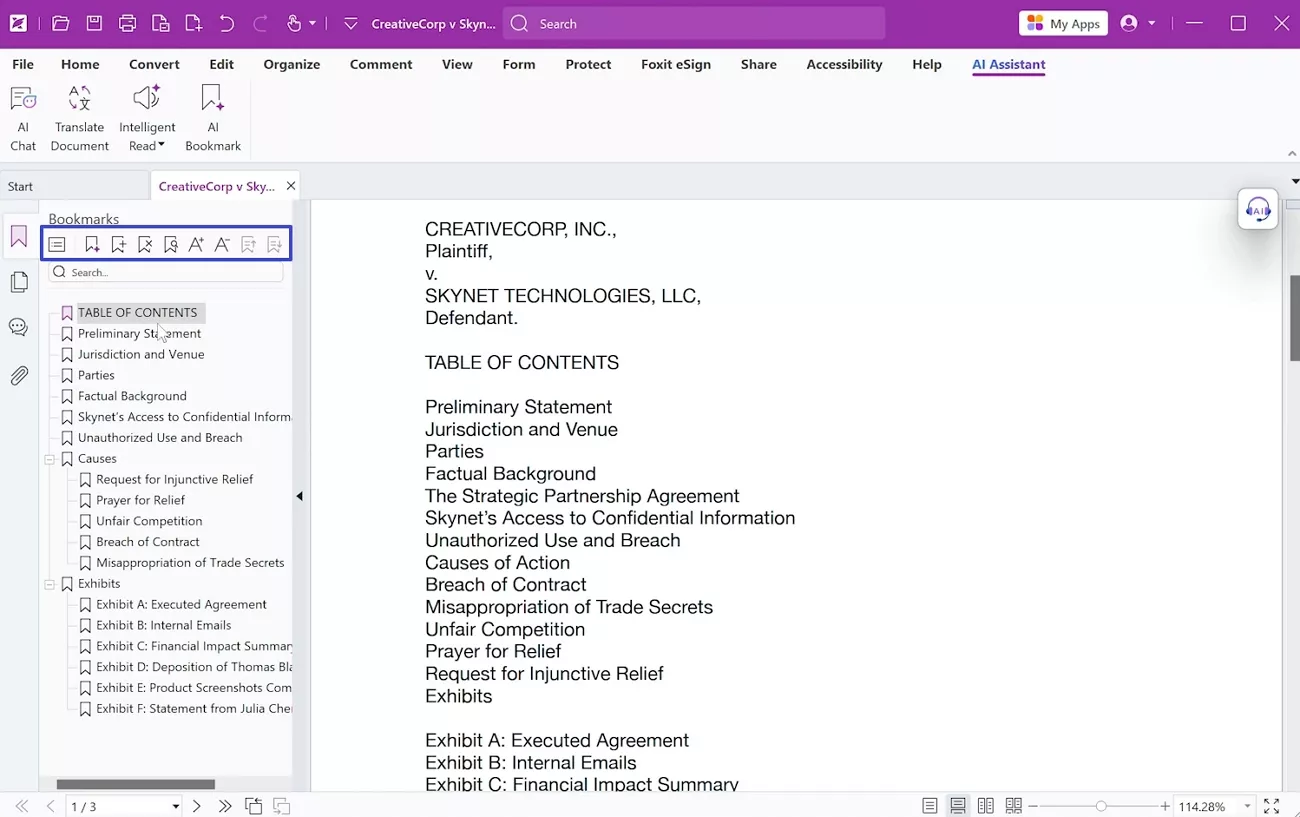
Step 1. Once you open the PDF, press the “AI Assistant” tab at the top and click the “AI Bookmark” option. This way, the tool will automatically scan the document to generate a clean set of bookmarks.
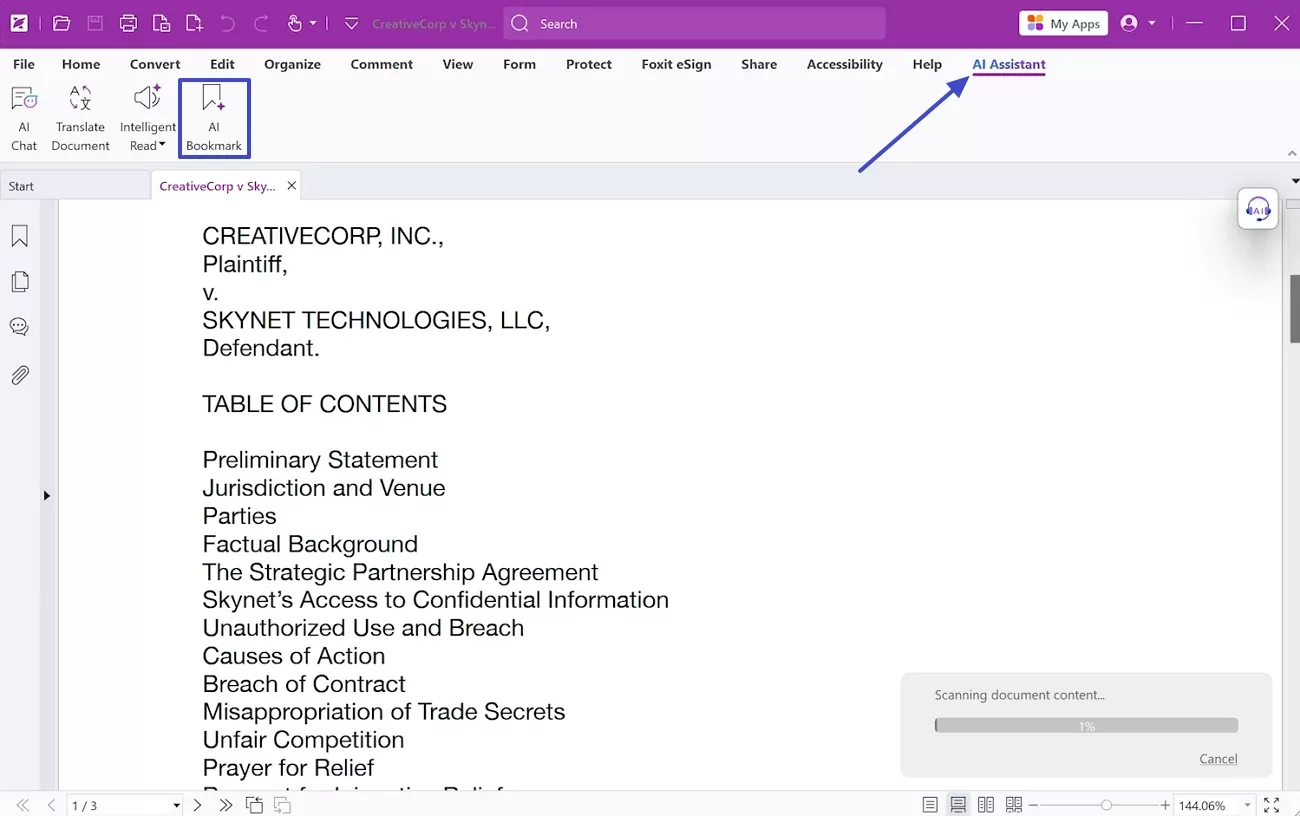
Step 2. After the bookmarks are generated, use the controls above to edit, delete, or move bookmarks.
UPDF vs Foxit PDF Editor Pricing
From my experience, let’s see the differences side by side before deciding which tool to use.
| Plan | Price | Features |
| UPDF AI + UPDF Pro | $118.99/year | PDF editing, unlimited use of AI features |
| AI Assistant + Foxit PDF Editor+ | $209.98/year | Offers a broad set of advanced PDF features, 2000 credits per month with full access to AI assistant |
Considering both price and what I actually use every day, UPDF feels like the better fit. Foxit PDF Editor seems more suitable for larger teams or companies that need advanced business tools. For my personal and small project work, the lower yearly cost of UPDF Pro and AI makes more sense. That is why I still recommend downloading UPDF first if you want strong features without a heavy price.
Windows • macOS • iOS • Android 100% secure
Part 4. FAQs
Q1. Can AI bookmarking work on scanned PDF documents?
Yes, AI bookmarking can work on scanned PDFs, but only after converting them into searchable text with OCR. In UPDF, I open the scanned file, run OCR from the recognize text option, then generate bookmarks like any AI bookmark manager.
Q2. Is there a way to generate AI PDF bookmarks for free?
There is rarely a truly free way to generate AI PDF bookmarks because the processing behind them is resource-intensive. UPDF helps a lot here by giving me 100 free AI credits so I can start bookmarking without paying.
Q3. Does an AI-generated bookmark permanently change my PDF file?
An AI-generated bookmark does not automatically change your PDF permanently the moment it is created on screen. The file is only permanently updated when I choose to save it, which stores the bookmarks inside the PDF metadata.
Conclusion
In closing, this article shared how bookmark AI tools turned my messy PDFs into structured, easy-to-navigate documents. UPDF stood out by combining automatic bookmarks, summaries, language support, and flexible export in one place. For my everyday reading, editing, and organizing, it simply fits better than the alternatives. If you want smoother navigation and less scrolling, I genuinely recommend giving UPDF a try.
Windows • macOS • iOS • Android 100% secure







 Enrica Taylor