 UPDF
UPDF
 UPDF for Windows
 UPDF for Mac
 UPDF for iPhone/iPad
 UPDF for Android
 UPDF AI Online
 UPDF Sign
 Edit PDF
 Annotate PDF
 Create PDF
 PDF Form
 Edit links
 Convert PDF
 OCR
OCR PDF to Word
 PDF to Image
 PDF to Excel
 Organize PDF
 Merge PDF
 Split PDF
 Crop PDF
 Rotate PDF
 Protect PDF
 Sign PDF
 Redact PDF
 Sanitize PDF
 Remove Security
 Read PDF
 UPDF Cloud
 Compress PDF
 Print PDF
 Batch Process
 About UPDF AI
 UPDF AI Solutions
 AI User Guide
 FAQ about UPDF AI
 Summarize PDF
 Translate PDF
 Chat with PDF
 Chat with AI
 Chat with image
 PDF to Mind Map
 Explain PDF
 PDF AI Tools
 Image AI Tools
 AI Chat Tools
 AI Writing Tools
 AI Study Tools
 AI Working Tools
 Other AI Tools
 AI Bookmark Generation
 AI Bookmark Summary
 AI Watermark Generation
 AI Background Generation
 AI Sticker Generation
 AI Stamp Generation
 AI Editing Suite
 UPDF Copilot
 AI Page Management
 AI Semantic Search
 PDF to Word
 PDF to Excel
 PDF to PowerPoint
 Enterprise Solution
 Enterprise Sign
 Enterprise AI
 Enterprise Plan
 Enterprise User Guide
 Enterprise Webinar
 Banking
 Healthcare
 Insurance
 Legal
Legal Manufacturing
 Government
 Education Solution
 Customer Stories
 User Guide
 UPDF Tricks
 FAQs
FAQs UPDF Reviews
 Download Center
 Blog
Blog Newsroom
 Tech Spec
 Updates
 UPDF vs. Adobe Acrobat
 UPDF vs. Foxit
 UPDF vs. PDF Expert

AnyFlip is a popular platform for publishing and viewing interactive flipbooks — digital magazines, brochures, course materials, presentations, and more. While the platform is excellent for online reading, it does not always provide a built-in option to save content for offline access, which leaves many users searching for alternatives.
This guide covers three practical methods to save AnyFlip flipbook content for offline viewing, all of which we have personally tested. We also cover how to read, annotate, and get more value from your saved content using UPDF — an AI-powered PDF reader with smart features purpose-built for this kind of workflow.
Windows • macOS • iOS • Android 100% secure
⚠️ Legal reminder:
Part 1. Why Use Anyflip Downloaders?
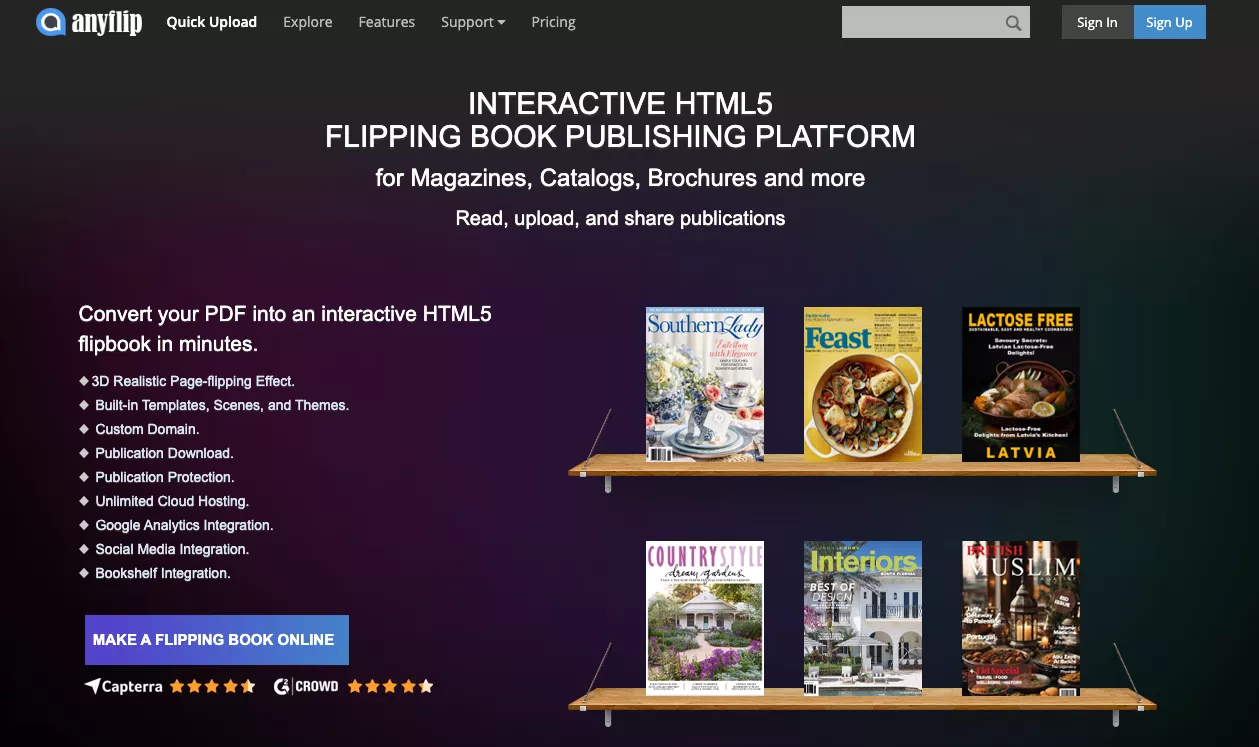
AnyFlip's built-in "Add to my favourites" feature only bookmarks publications for future online viewing — it does not save the content to your device for true offline access. This is why many users look for alternative ways to capture flipbook content.
The most common legitimate use cases include:
- Your own content: You published a flipbook on AnyFlip and want a local offline copy.
- Authorized materials: The publisher has explicitly granted offline access (e.g., a course provider sharing study materials) but the platform's download button is unavailable or broken.
- Low-connectivity environments: You need to access materials in locations with unreliable internet — on a flight, in a remote area, or during travel.
- Personal offline library: You want to organize authorized publications in one place for easier future reference.
With that in mind, below are three tools that are commonly used to save AnyFlip content for personal, non-commercial use, where permission is granted.
Part 2. 3 Ways to Save AnyFlip Content for Offline Viewing
All three methods below have been personally tested. They rely on system-level tools (screenshots, GIF capture, and screen recording) rather than third-party downloaders that may be unreliable or raise additional security concerns. Each method produces a different output format — images, GIF, or video — so choose the one that best fits your intended use.
| Method | Output Format | Best For |
| Snipping / Screenshot Tool | Individual images → PDF | Page-by-page capture; highest image quality |
| LICEcap | Animated GIF | Quick, lightweight flipbook playback preview |
| Screen Recorder | MP4 video | Full-motion capture; easiest to share |
1. Snipping Tool on Windows or Screenshot Tool on Mac
Both Windows and Mac include a built-in screenshot tool — no additional software needed. The workflow is straightforward: capture each page of the flipbook as an image, then use UPDF to combine all screenshots into a single, organized PDF file.
This method produces the highest image quality of the three options and gives you a proper PDF you can annotate and read in any PDF viewer.
Windows • macOS • iOS • Android 100% secure
Steps to Download Flip Files with the Snipping Tool
Step 1: Take screenshots of each flipbook page:
- Mac: Press Command + Shift + 4, then drag to select the page area.
- Windows: Press Windows + Shift + S to open the Snipping Tool, then drag to select the page area.

Step 2: Save all screenshots to a folder on your device.
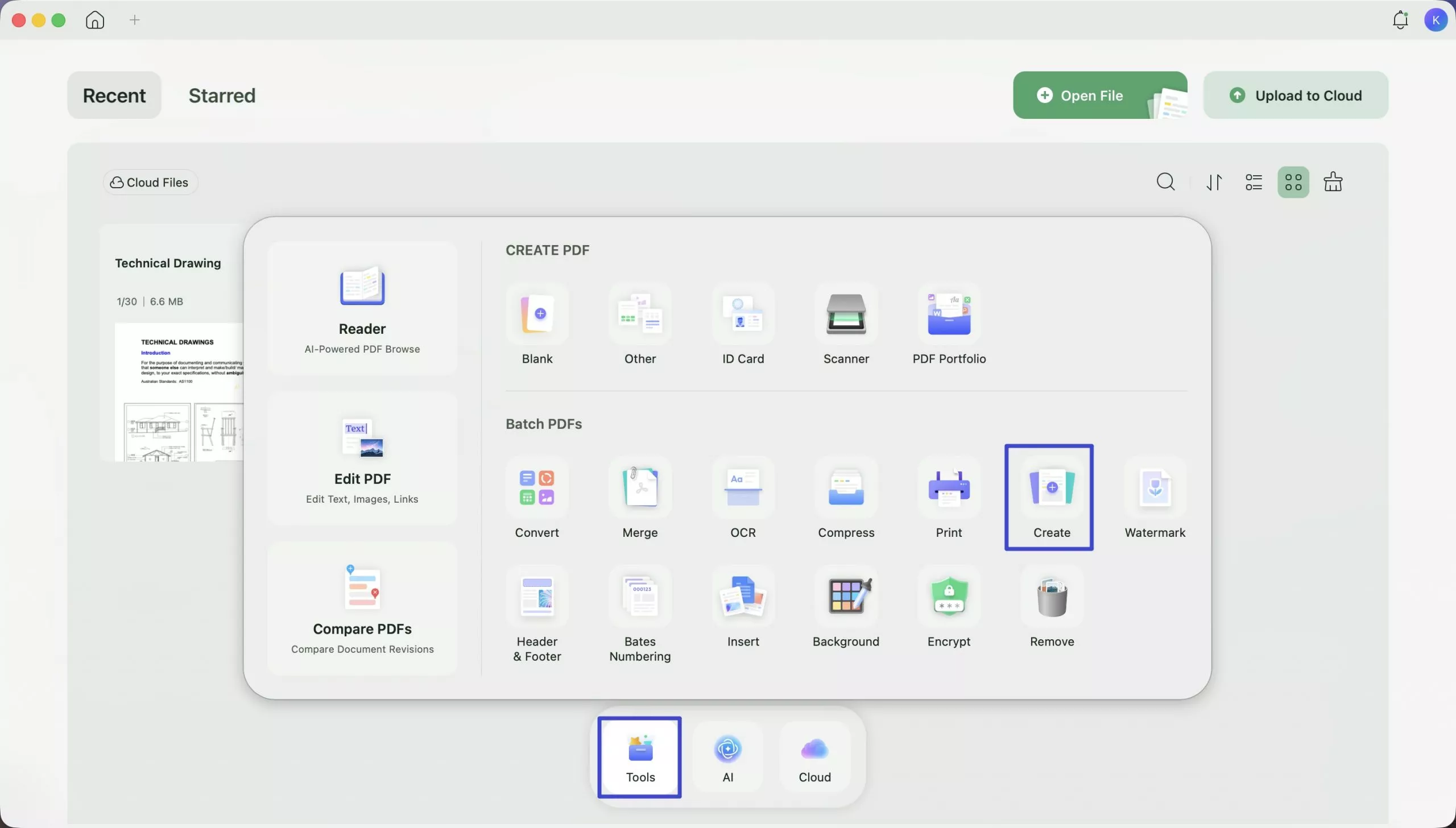
Step 3: Launch UPDF and click on “Tools” on the bottom.
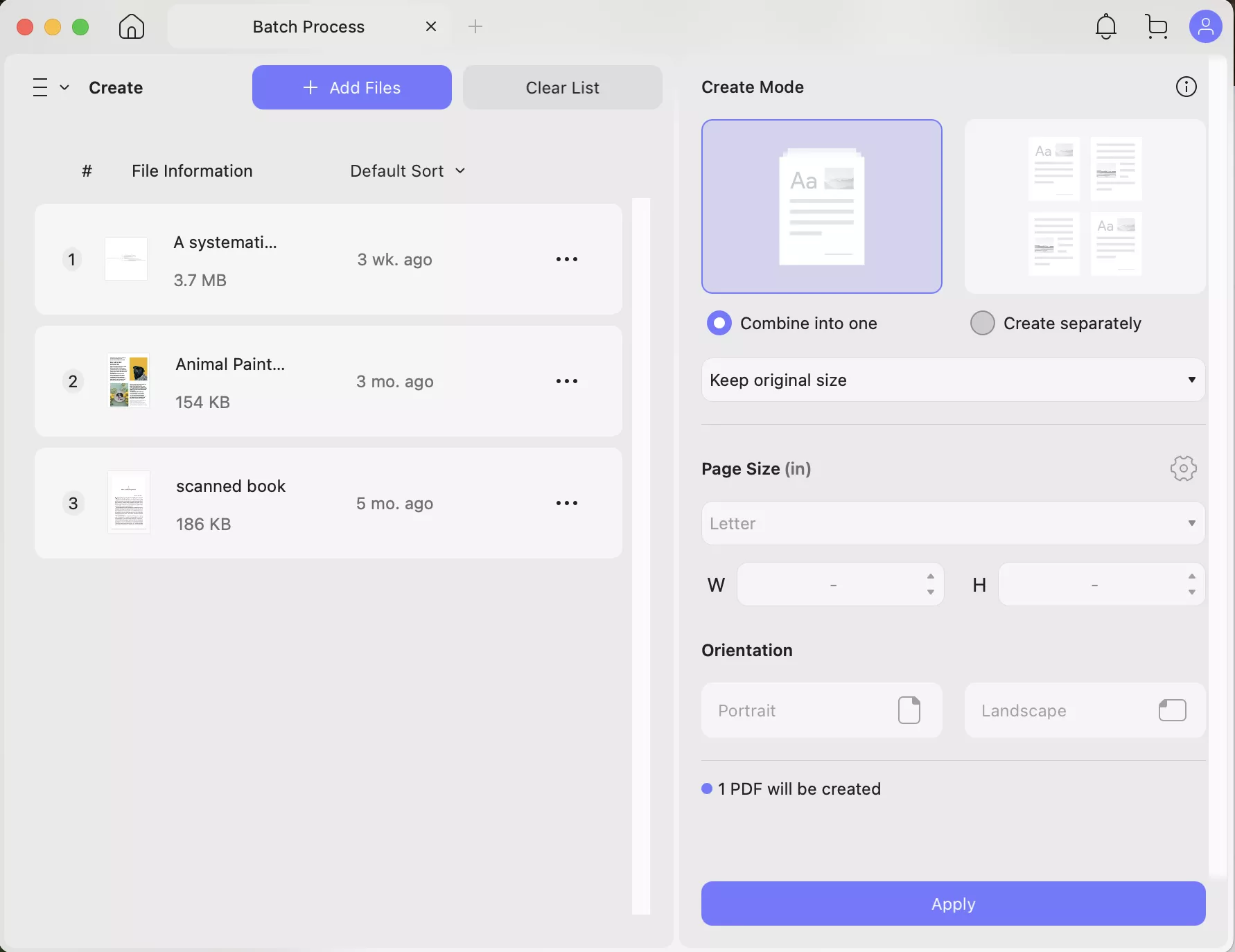
Step 4: Select “Create” under the "Batch PDFs" category. Now add all the images you want to add to the PDF.
Step 5: Click on “Apply” at the bottom right corner. UPDF will combine all images into a single, properly ordered PDF file.
2. LICEcap
LICEcap is a free, lightweight screen capture tool that records a selected area of your screen and saves it as an animated GIF. It is one of the simplest options for capturing AnyFlip flipbook content — no account, no browser extension, and no complex setup required.
Note that the output is a GIF file, not a PDF. GIFs animate automatically but cannot be annotated or searched. If you need a readable, annotatable document, use Method 1 (screenshots + UPDF) instead.
Steps to Use LICEcap
Step 1: Download and install LICEcap from cockos.com/licecap. Launch LICEcap, then open your AnyFlip flipbook in a browser tab. Position the LICEcap recording frame over the flipbook viewing area.
Step 2: When you are ready, click on the “Record” button at the bottom right corner.

Step 3: Now select a destination folder to save the file and name your GIF. Then click “Save.”
Step 4: Once recording begins, manually navigate through each page of the flipbook at a steady pace — flip slowly enough that each page is clearly captured in the GIF.

Step 5: Finally, click “Stop” when you have flipped all the pages.

3. Screen-recorder
If you prefer a video format, an online screen recorder is the most flexible option — it captures the flipbook exactly as it appears, including any animations or interactive elements. Screen-Recorder.com is a browser-based tool that requires no installation and records directly from a browser tab.
The output is an MP4 video file. Like the GIF method, video files cannot be annotated or text-searched. For a proper PDF workflow, use Method 1 instead.
Steps to Use Screen-Recorder
Step 1: launch your browser and open a flip file in AnyFlip on this browser.
Step 2: Open Screen-Recorder online in a separate tab and click “Start Recording.” Select the AnyFlip Tab and click “Share.”

Step 3: Click the red “Start Recording” button and return to the Anyflip tab. Flip the file pages so that every page is included in the video.

Step 4: Click on “Stop Recording” and then click on “Done Recording.”

Step 5: Click on the red Download button to get this video.

With the methods introduced above, you can save or record authorized flipbook content from AnyFlip for offline viewing. However, if you may download a PDF from AnyFlip, let’s move one step forward. After you download a PDF from AnyFlip, you may want to read and take notes on it. Let’s show you how to do it.
Part 3. How to Read, Annotate, and Get More From Your AnyFlip PDFs?
Once you have captured your AnyFlip content as a PDF (using Method 1), UPDF gives you the most capable environment for reading and working with it. However, because Method 1 involves merging screenshots, your newly created PDF is initially image-based. This is where UPDF truly shines, offering powerful text recognition to make your file fully interactive, alongside a comfortable reading experience, a full annotation toolkit, and a suite of advanced AI agents that make working with long or complex documents significantly faster.
Windows • macOS • iOS • Android 100% secure
OCR for Screenshot-Based PDFs
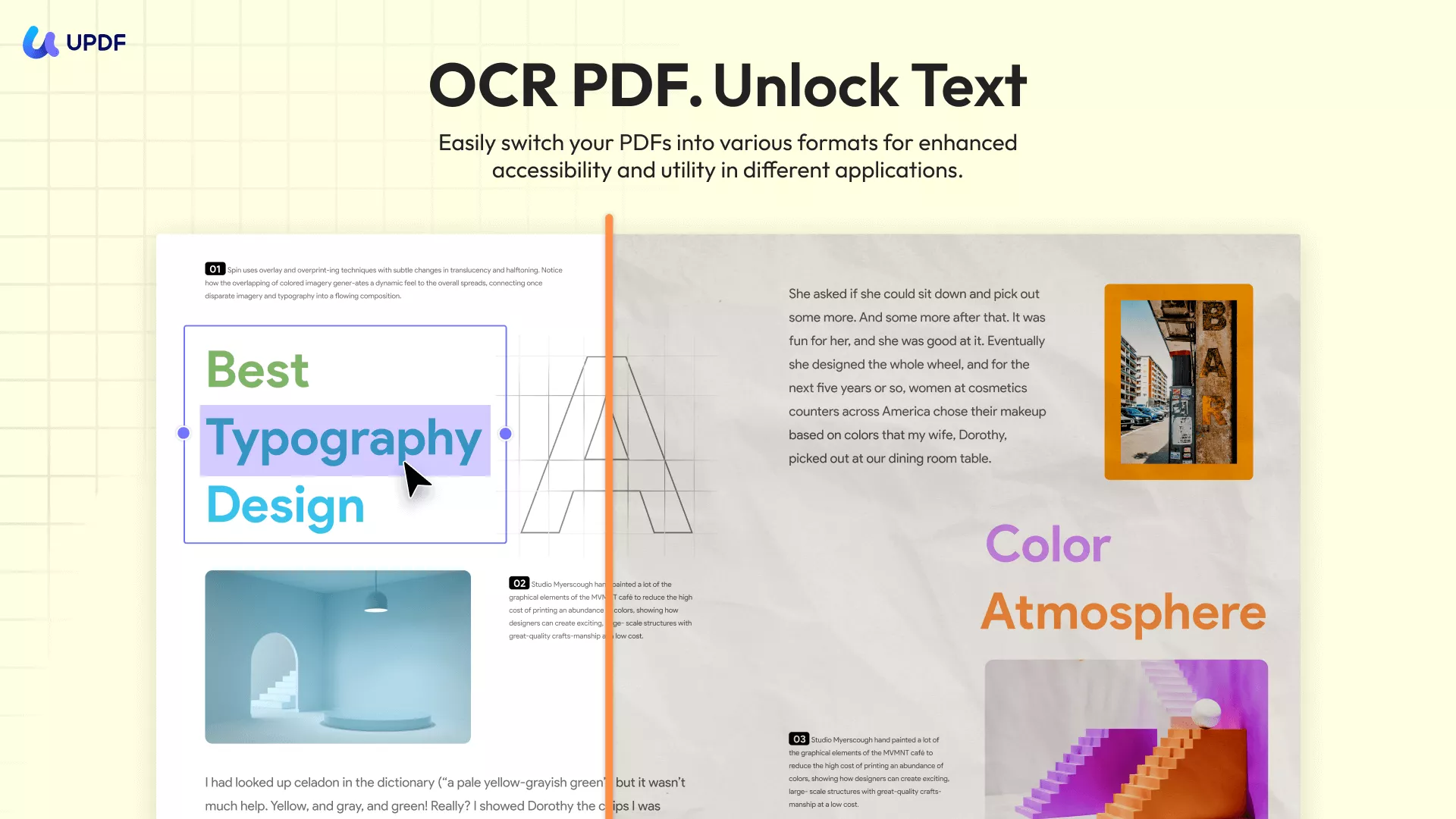
- Since your captured AnyFlip document consists of screenshot images rather than a text-based PDF, you initially cannot highlight, search, or copy text from it. UPDF's advanced OCR engine (supporting 38 languages) solves this by converting these image-only pages into fully searchable, editable text documents in seconds. This essential step unlocks all of UPDF's reading, annotation, and AI capabilities for your downloaded flipbook.
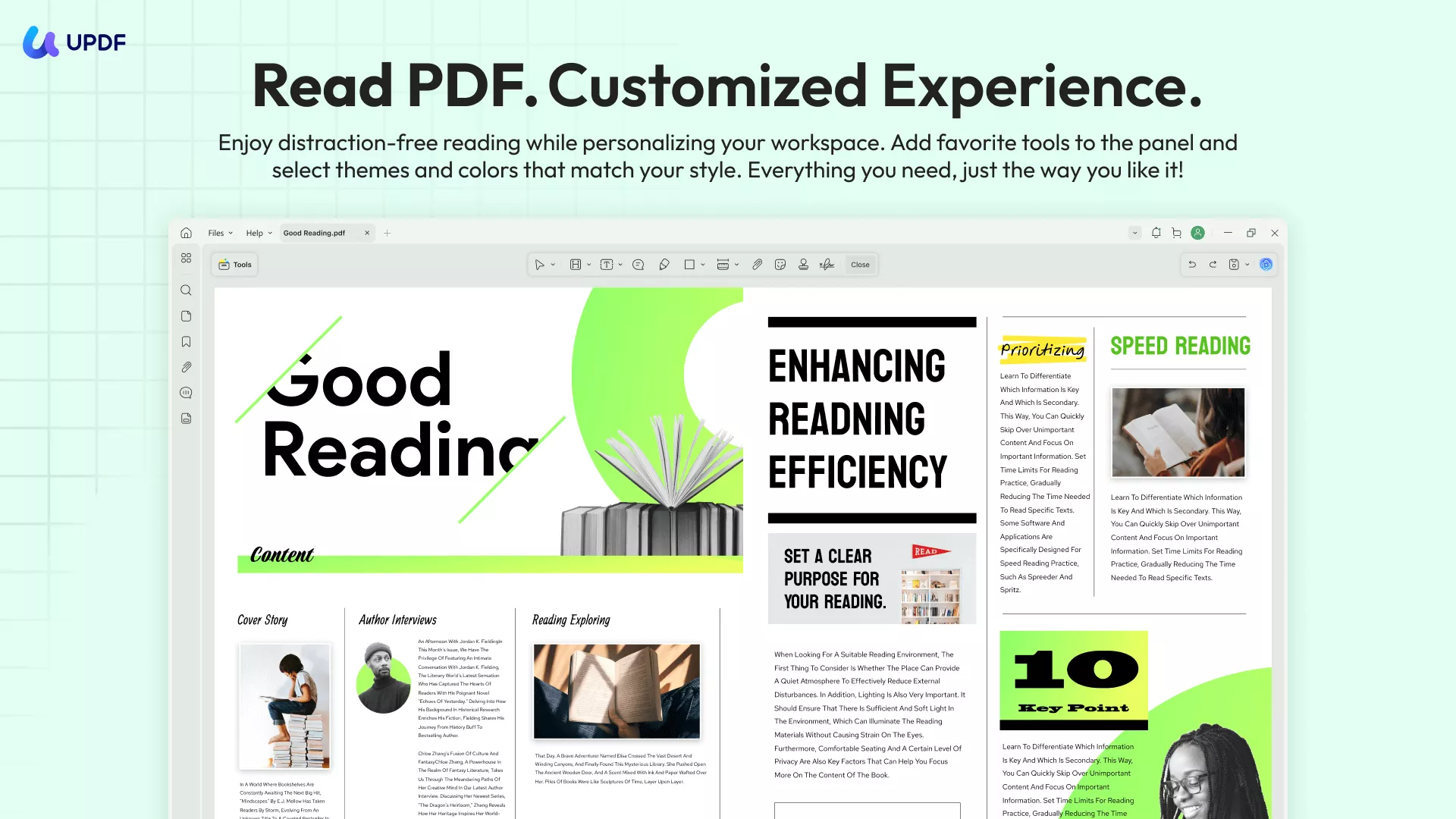
Reading and Viewing:
UPDF offers multiple display modes—single-page, two-page, two-page scrolling, and slideshow—making it equally suited to reading a long business report, a digital magazine, or multi-chapter course material captured from AnyFlip. Light and dark themes protect your eyes during extended reading sessions.
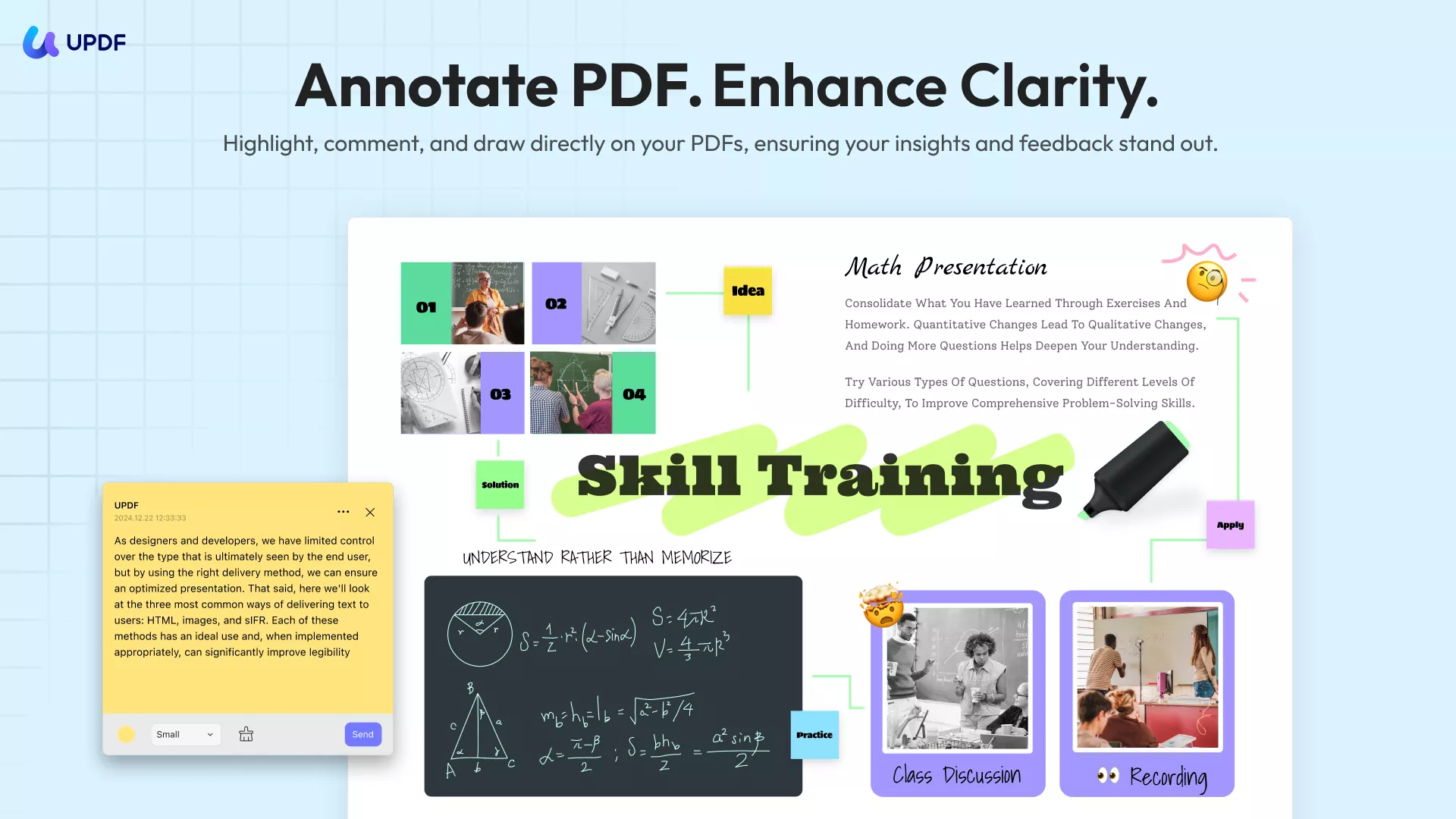
Annotation Tools:
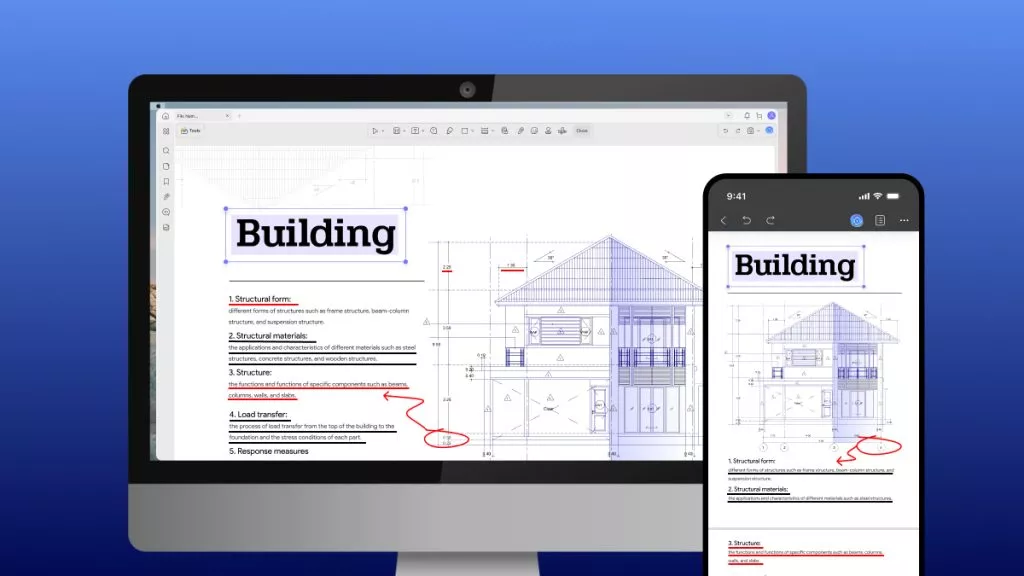
Now that your text is fully selectable via OCR, you can easily highlight text, underline key passages, strikethrough outdated content, add sticky notes with your thoughts, draw with the pencil tool, and attach stickers or stamps to flag important sections. All annotations are saved inside the PDF and sync across devices via UPDF Cloud.
AI-Powered Features:
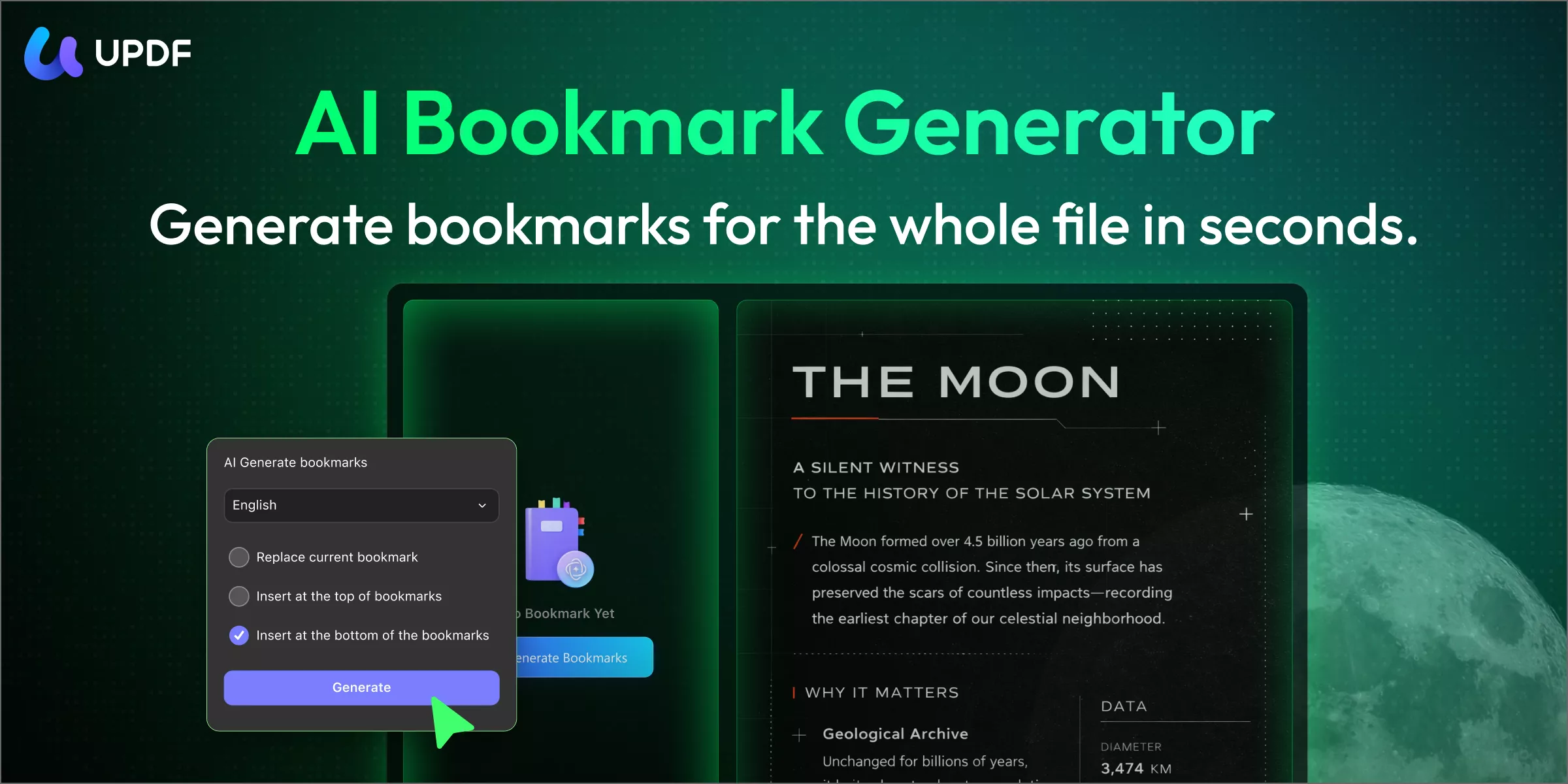
- AI Bookmark Generator: When you create a PDF from AnyFlip screenshots using UPDF's Batch Process, the resulting document has no built-in bookmarks or table of contents. The AI Bookmark Generator automatically analyzes the document structure and creates a complete, hierarchical bookmark tree in one click—making even a 200-page flipbook-turned-PDF instantly navigable by chapter or section.
- AI Bookmark Summarizer: Once bookmarks are generated, this agent produces a concise summary for each bookmarked section—ideal for quickly previewing what a chapter or section covers before committing to a full read.
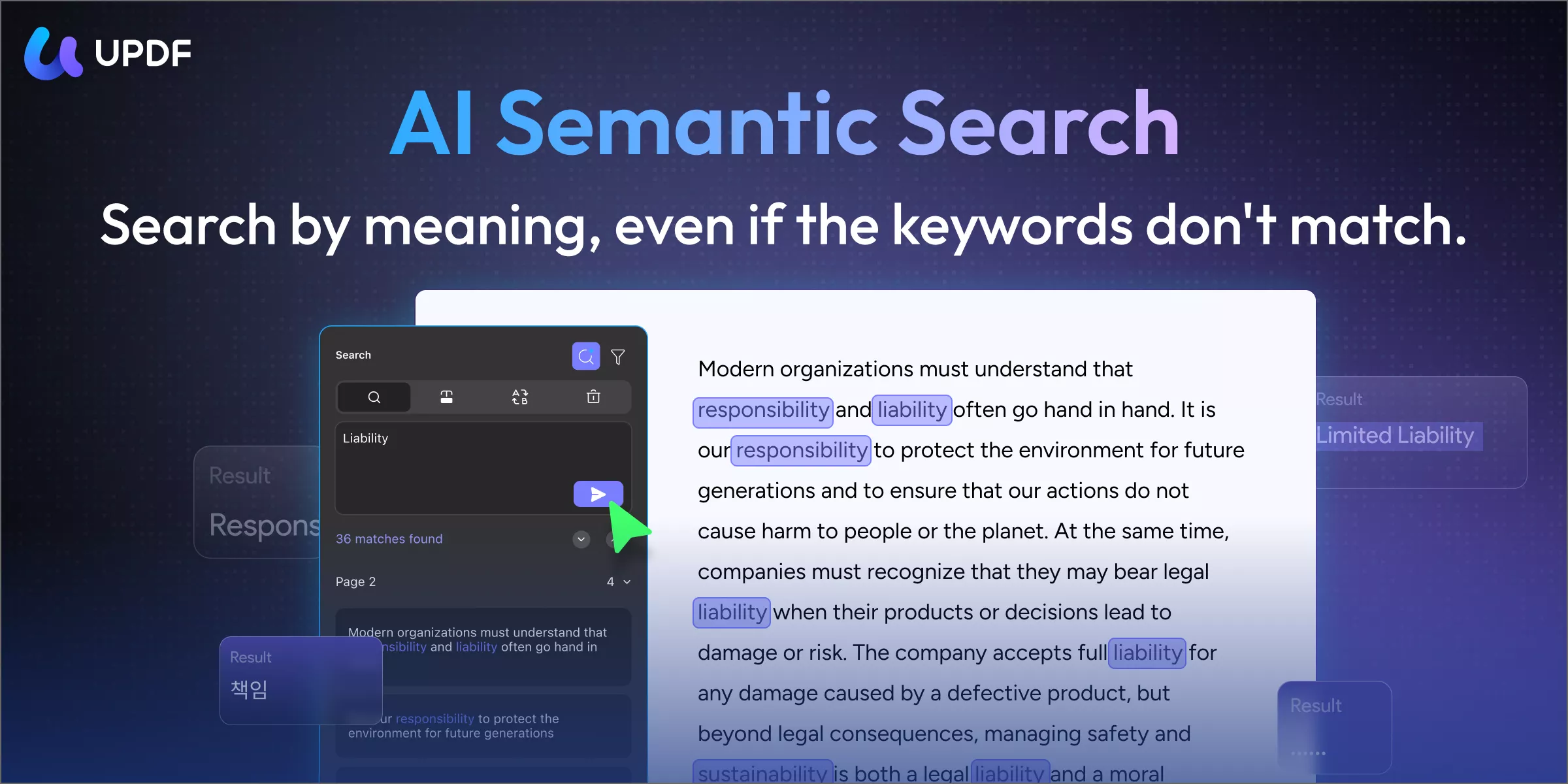
- AI Semantic Search: Unlike standard search that requires an exact character match, UPDF’s Semantic Search understands the intent behind your query. It can identify synonyms and linguistically related terms, allowing you to find the right information even if you use slightly different wording than what is written in the document.
- Summarize & Translate: Paste or select any section of the OCR-processed PDF and ask UPDF AI to summarize the main points or translate it into another language—directly inside the document, without switching to a separate app.
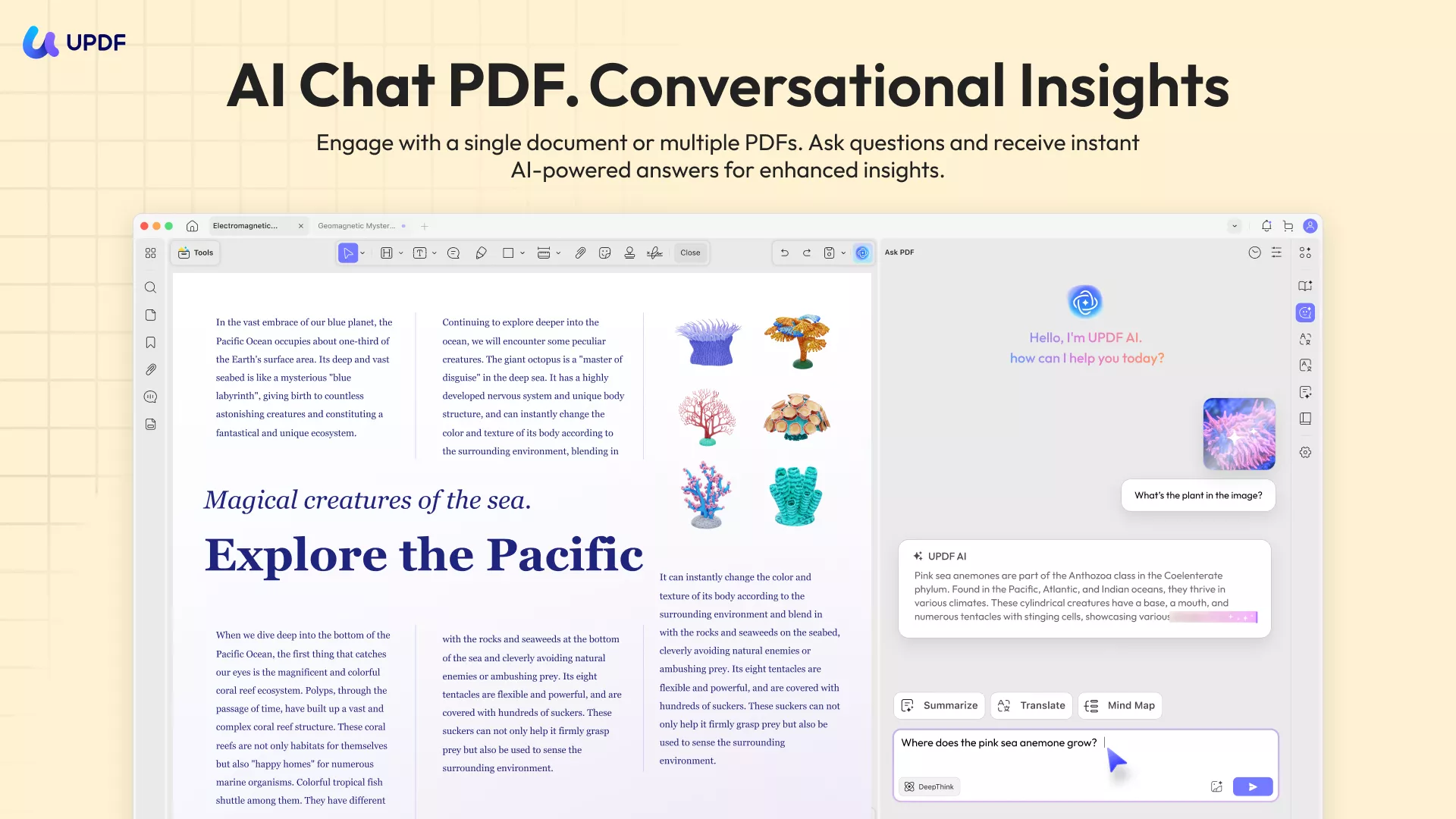
- Chat with PDF: Ask the document direct questions in plain language ("What are the key specifications in section 3?" or "Summarize the pricing table on page 12") and get instant, context-aware answers based on the newly recognized text.
Windows • macOS • iOS • Android 100% secure
Steps to Take Notes on Downloaded AnyFlip PDF
✨ Step 1: Open your AnyFlip PDF in UPDF. Drag and drop your file into the interface, or go to Open File.
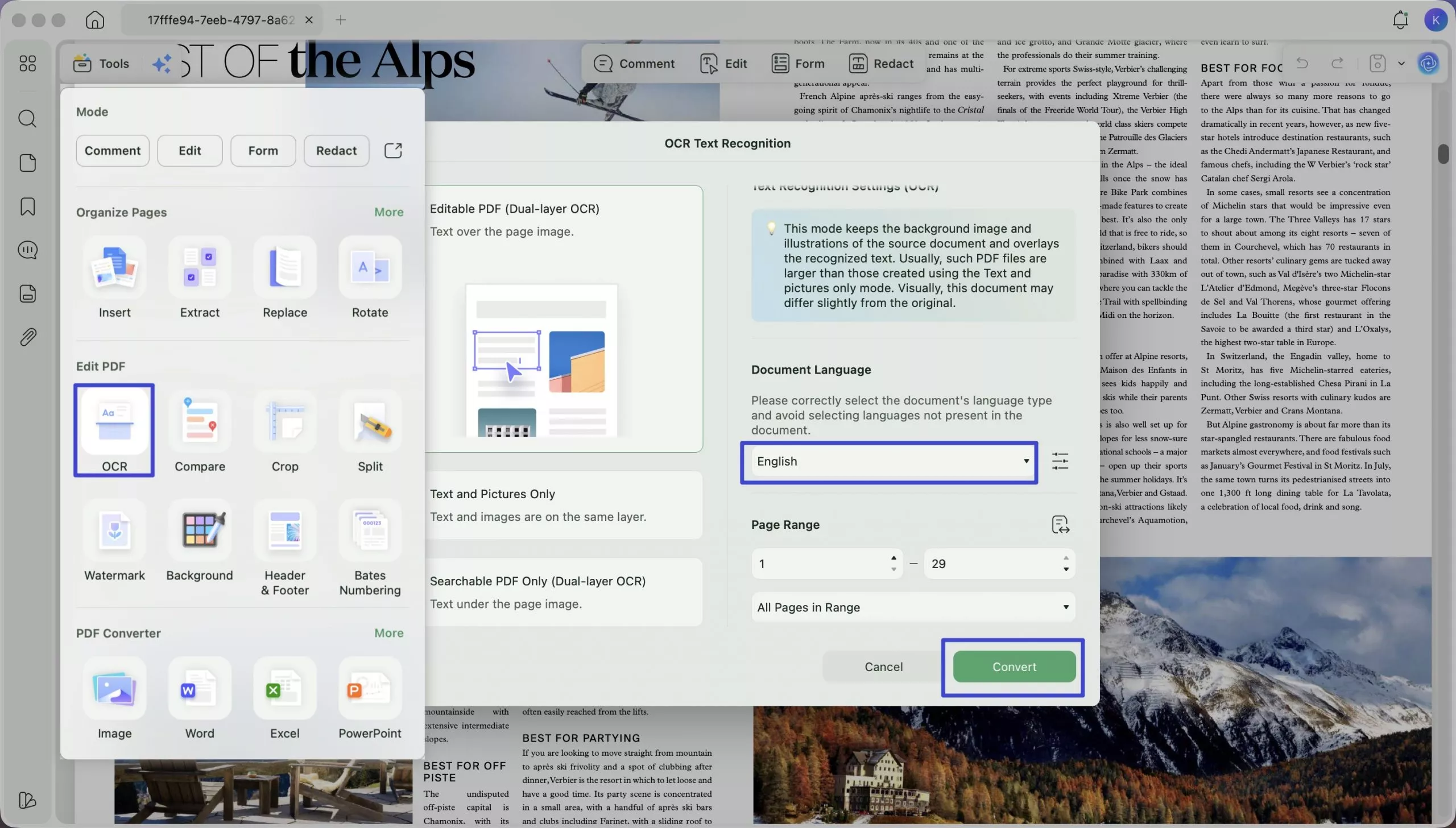
✨ Step 2: Because your AnyFlip capture is image-based, click the OCR icon from the Tools menu. Select your document language and click Convert to transform the screenshots into a fully interactive, searchable, and editable PDF.
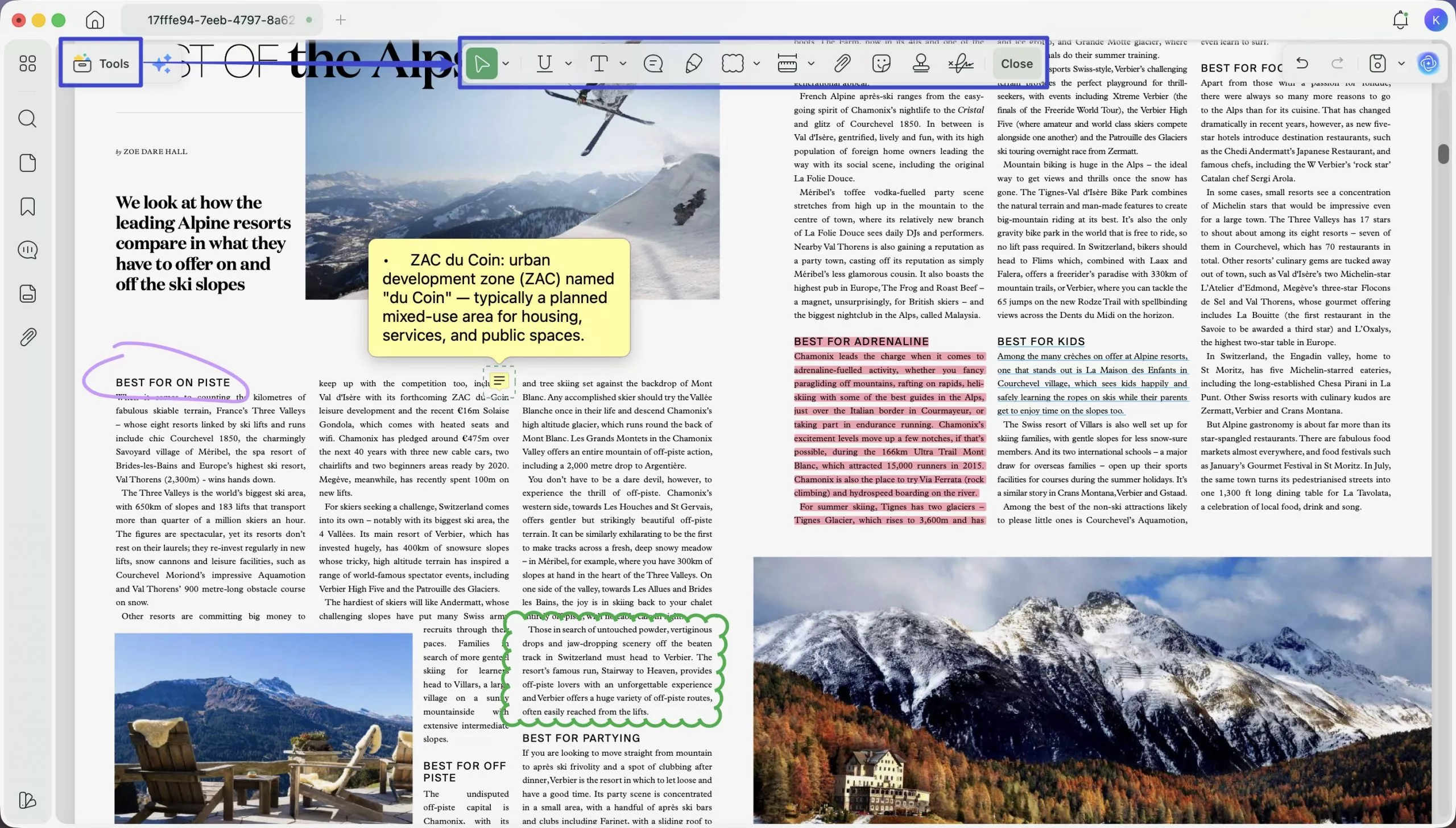
✨ Step 3: Access Annotation Tools. Once the OCR process is complete, click Comment from Tools to open the full annotation toolbar at the top of the screen. You can click the Sticky Note icon, select a color, and click anywhere on the page to place it. You can also use other tools like Highlight, Underline, Pencil, or Shapes to mark key information directly on the newly recognized text.
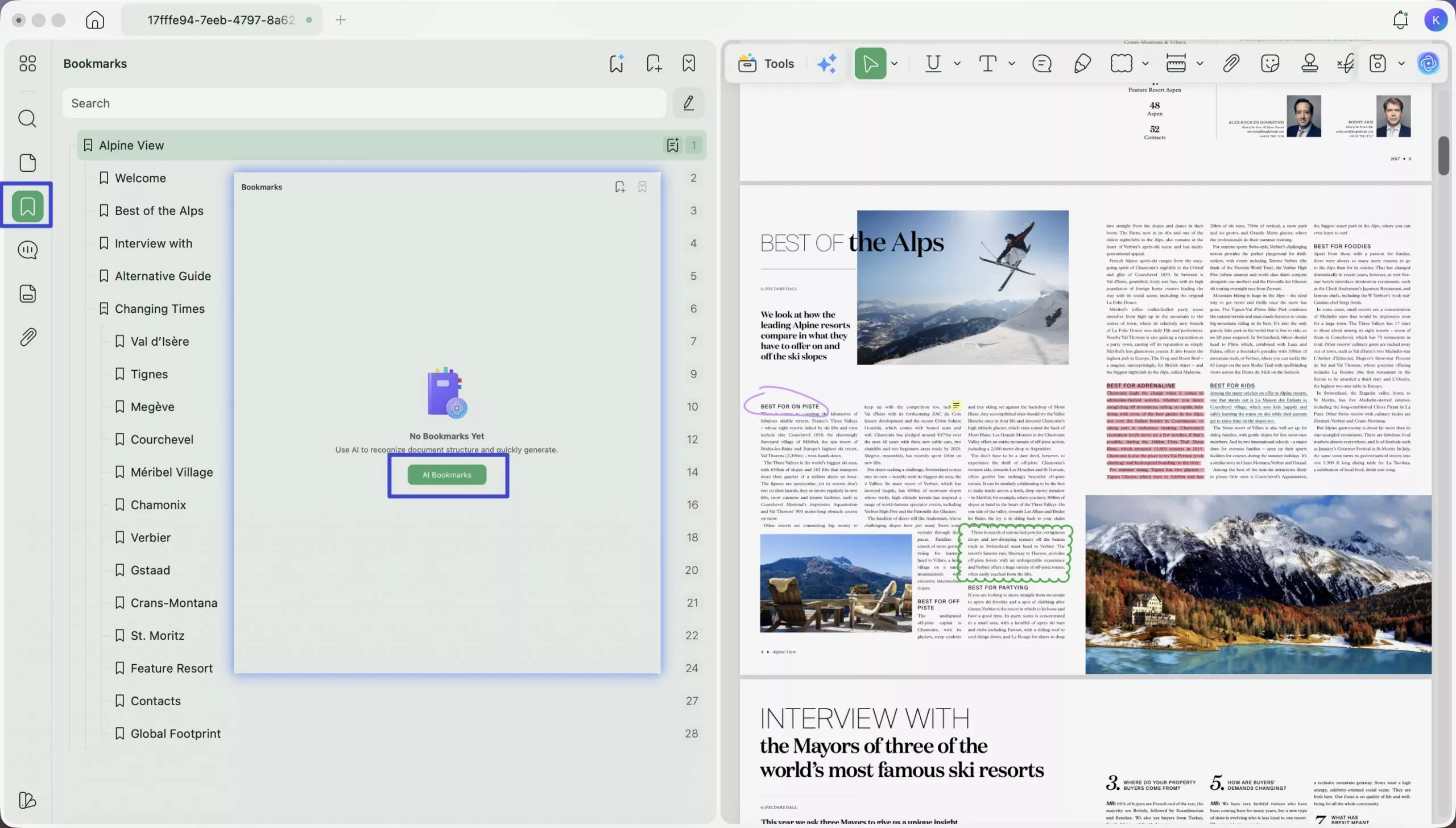
✨ Step 4: Navigate with AI Bookmarks. To organize your document, click the Bookmarks icon in the left panel and select AI Bookmark. UPDF will analyze the document structure and automatically build a hierarchical navigation tree, making long flipbooks instantly accessible.
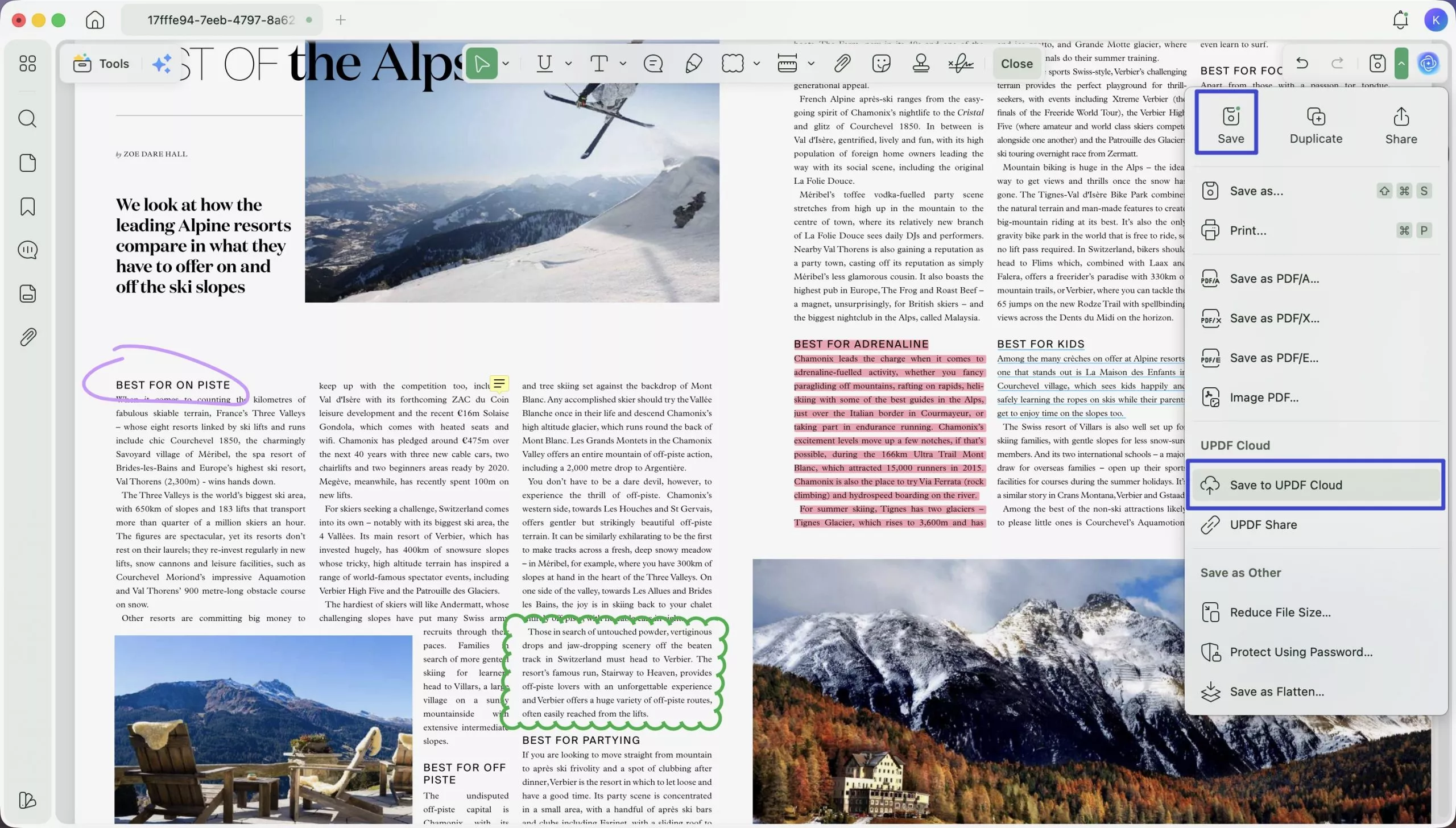
Step 6: Sync and Save. Save your document via Save, or upload it to UPDF Cloud. This ensures your annotations, OCR-processed text, and AI-generated bookmarks are synced and accessible across Windows, Mac, iOS, and Android.
Download UPDF via the button below to start reading and reviewing PDFs more efficiently. To learn more, you can also watch the video tutorial or read our detailed UPDF review.
Windows • macOS • iOS • Android 100% secure
Final Words
AnyFlip is home to a wide range of useful digital publications — from corporate brochures and course materials to magazines and interactive reports. When online access is inconvenient and you have the right to view a flipbook offline, the three methods in this guide give you practical ways to save that content.
For the best reading experience with your saved content, open your PDF in UPDF and transform it into a fully navigable, intelligently searchable document.
Windows • macOS • iOS • Android 100% secure






 Enola Miller
 Enya Moore
 Engelbert White
