 UPDF
UPDF
 UPDF for Windows
 UPDF for Mac
 UPDF for iPhone/iPad
 UPDF for Android
 UPDF AI Online
 UPDF Sign
 Edit PDF
 Annotate PDF
 Create PDF
 PDF Form
 Edit links
 Convert PDF
 OCR
OCR PDF to Word
 PDF to Image
 PDF to Excel
 Organize PDF
 Merge PDF
 Split PDF
 Crop PDF
 Rotate PDF
 Protect PDF
 Sign PDF
 Redact PDF
 Sanitize PDF
 Remove Security
 Read PDF
 UPDF Cloud
 Compress PDF
 Print PDF
 Batch Process
 About UPDF AI
 UPDF AI Solutions
 AI User Guide
 FAQ about UPDF AI
 Summarize PDF
 Translate PDF
 Chat with PDF
 Chat with AI
 Chat with image
 PDF to Mind Map
 Explain PDF
 PDF AI Tools
 Image AI Tools
 AI Chat Tools
 AI Writing Tools
 AI Study Tools
 AI Working Tools
 Other AI Tools
 PDF to Word
 PDF to Excel
 PDF to PowerPoint
 Enterprise Solution
 Enterprise Sign
 Enterprise AI
 Enterprise Plan
 Enterprise User Guide
 Enterprise Webinar
 Banking
 Healthcare
 Insurance
 Legal
Legal Manufacturing
 Government
 Education Solution
 Customer Stories
 User Guide
 UPDF Tricks
 FAQs
FAQs UPDF Reviews
 Download Center
 Blog
Blog Newsroom
 Tech Spec
 Updates
 UPDF vs. Adobe Acrobat
 UPDF vs. Foxit
 UPDF vs. PDF Expert

A legal memo is an essential internal document for analyzing legal questions and guiding strategy. However, handling sensitive case files requires more than just a template—it demands ironclad security. UPDF provides an enterprise-grade secure environment to ensure your research and client data remain confidential.
Before diving into the format, explore how top firms maximize productivity while maintaining data integrity in our PDF Efficiency Report.
Streamline your legal workflow and secure your documents with the industry's leading PDF editor.
Windows • macOS • iOS • Android 100% secure
Part 1. What is the Official Format of a Legal Memo?
A professional legal memo uses a structured layout to ensure clarity and quick information retrieval. While specific firm styles may vary, most follow this standard framework:
Core Components
- Heading: Includes the Date, To, From, and Re (Subject/Matter). It establishes the context and identifies the parties involved.
- Question Presented: A concise question that defines the specific legal issue at hand.
- Brief Answer: A direct "Yes" or "No" followed by a short summary of the predicted legal outcome.
- Statement of Facts: An objective account of the relevant facts. It avoids legal arguments and focuses strictly on information that impacts the analysis.
- Discussion / Analysis: The heart of the memo. It explores statutes and case law, applying them to the facts using logical reasoning.
- Conclusion: Summarizes the final position and reinforces the reasoning without introducing new arguments.
- Recommendations: Provides actionable next steps or strategic advice based on the legal findings.
- Authorities: A list of cited cases, statutes, and regulations to ensure transparency and accuracy.
Four Common Memo Types
| Type | Primary Purpose | Best For... |
| Informational | Fact-sharing & updates | Summarizing new regulations or case updates. |
| Analytical | In-depth legal evaluation | Examining strengths/weaknesses of a case. |
| Recommendation | Strategic guidance | Advising a specific course of action or client strategy. |
| Operational | Internal procedures | Outlining firm policies or compliance workflows. |
Part 2. What is the IRAC Format for Legal Memos?
The IRAC (Issue, Rule, Application, Conclusion) method is the industry standard for organizing legal analysis. It ensures your reasoning is logical, transparent, and easy for senior partners to follow.
2.1 The IRAC Breakdown
Here is an explanation of the IRAC framework components:
- Issue: Define the specific legal question. Keep it narrow and focused on the core dispute.
- Rule: State the relevant statutes, regulations, or case law. This sets the legal standard.
- Application: The most critical section. Connect the Rule to your specific Facts. Compare precedents and evaluate arguments.
- Conclusion: Provide a clear, definitive answer based on the preceding analysis.
2.2 Accelerating IRAC with UPDF
With the following instructions, you can use UPDF to optimize legal memo writing:
1. Instant "Rule" Extraction via UPDF AI
When writing in a legal memo format, it takes too much time to identify the correct legal rule from lengthy court opinions. Many judgments can exceed 50 pages, making it difficult to quickly locate the key legal principle.
UPDF's AI assistant can simplify this process by allowing you to upload a court opinion and ask the tool to summarize or extract the relevant legal rules directly. Instead of reading every page line by line, follow these steps to summarize long court opinions:
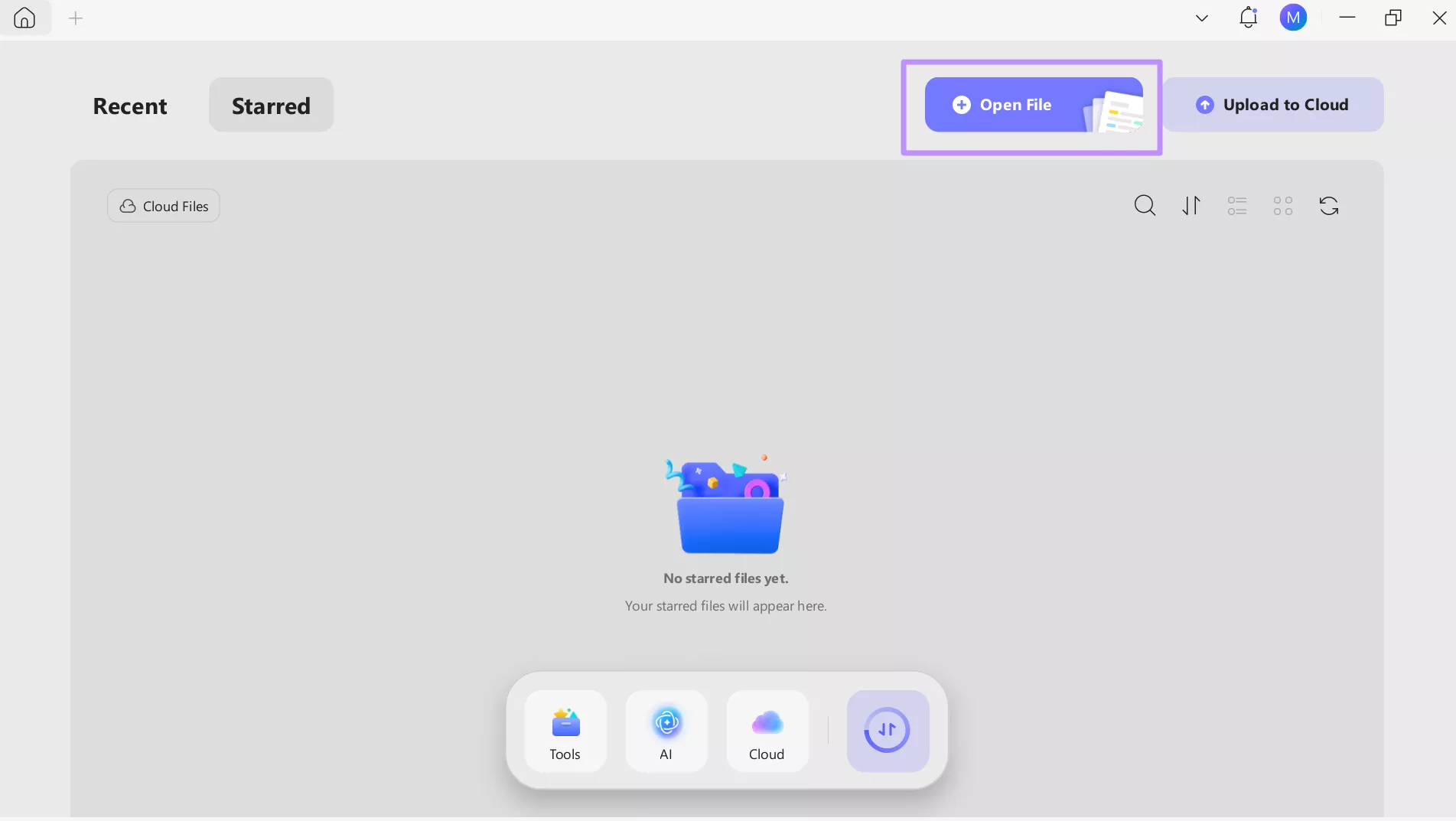
Step 1. Start the process by downloading and launching UPDF on your device. Now, tap the Open File button to import the court opinion.
Windows • macOS • iOS • Android 100% secure
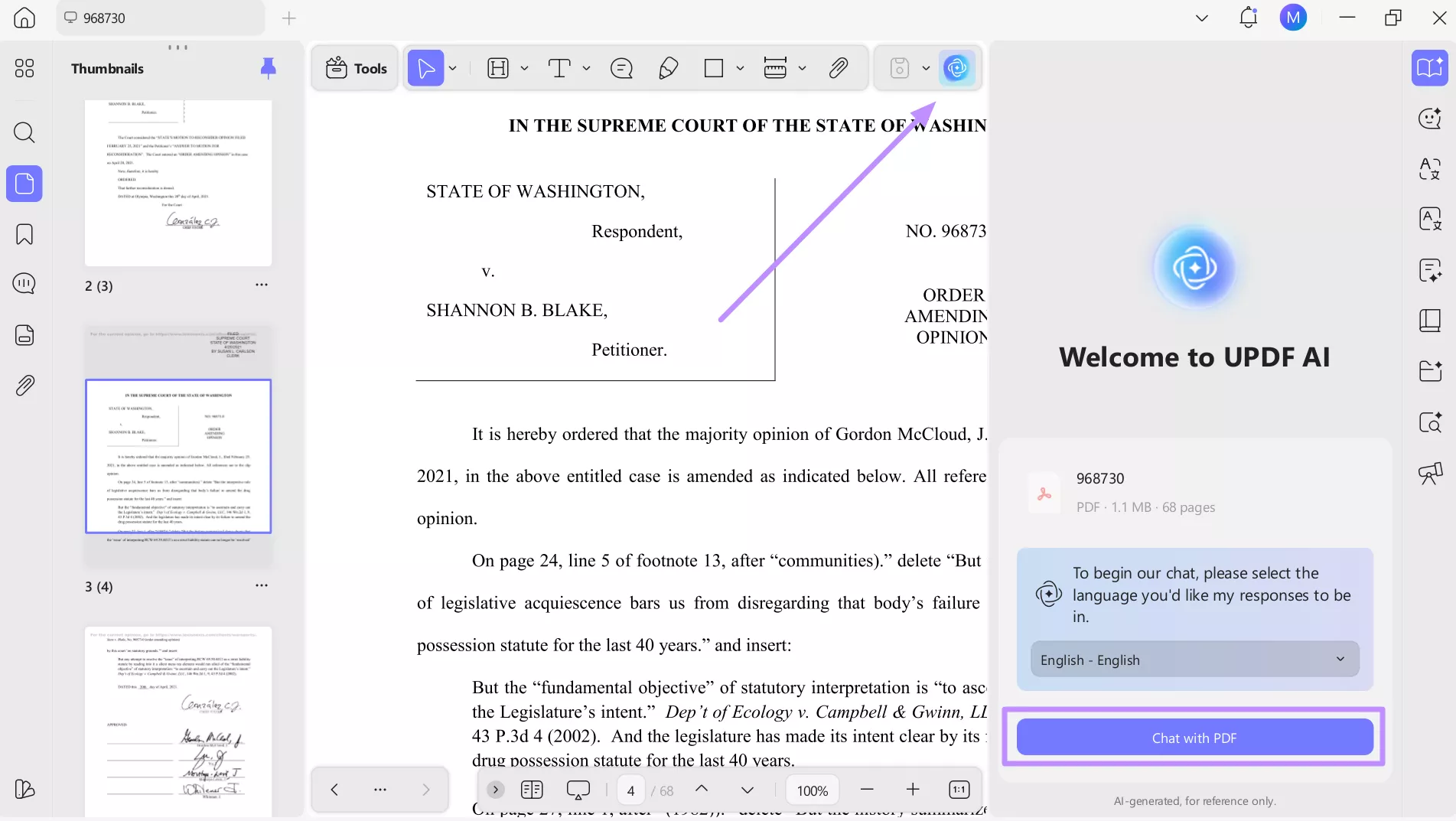
Step 2. Moving forward, tap on the UPDF AI icon on the top-right of your screen. Then, press the Chat with PDF button to let this tool generate an automatic summary for you.
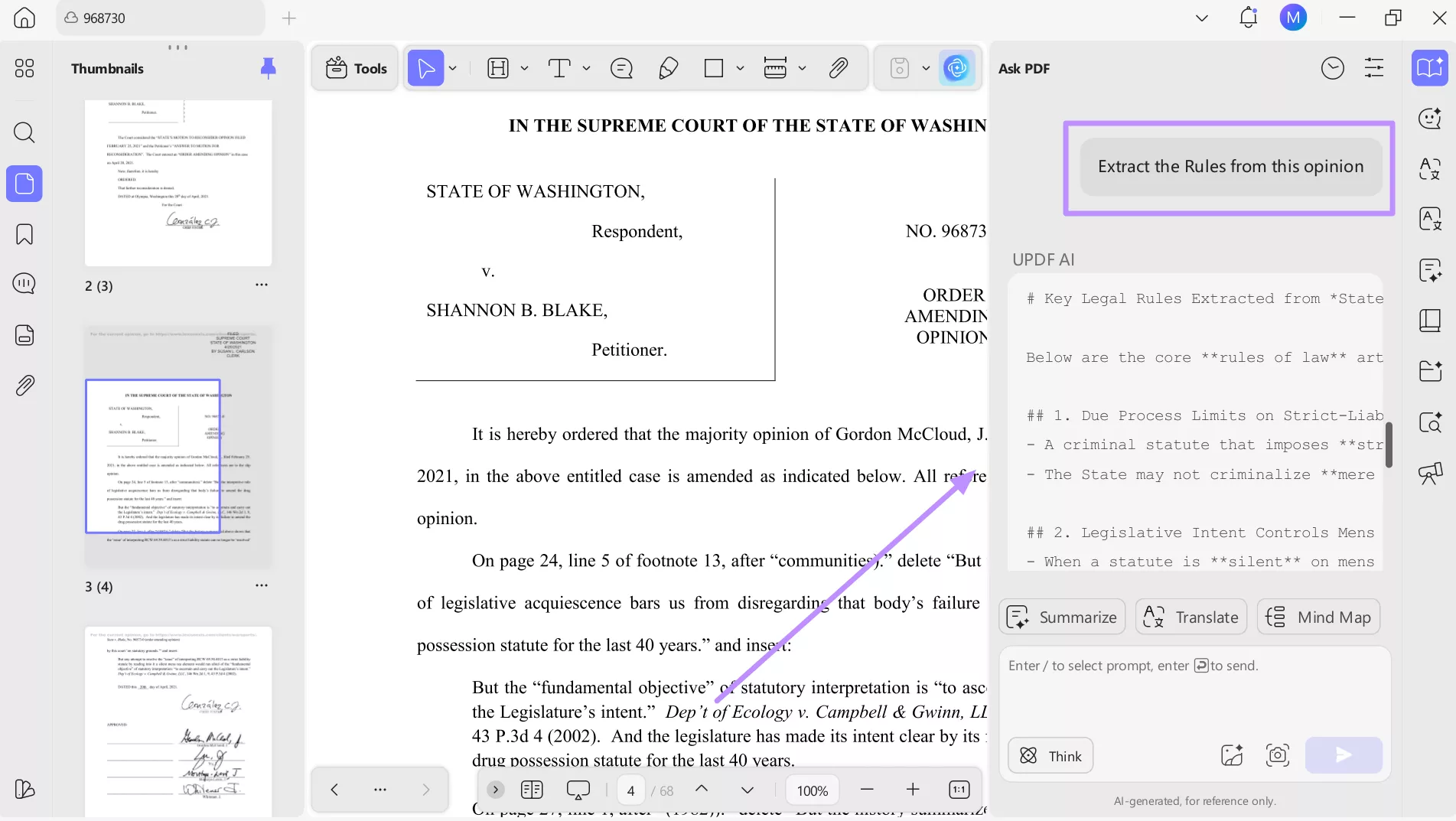
Step 3. Finally, prompt UPDF AI to extract the Rules from the uploaded opinion PDF. Next, tap on the Send icon to get all the rules cited within the opinion file.
2. Seamless "Application" via Split-Screen
While working on the Application part of a legal memo, you need to switch between your case law and your writing document. With the UPDF split-screen feature, you can remove that back-and-forth by viewing both at the same time. Follow these steps to do so:
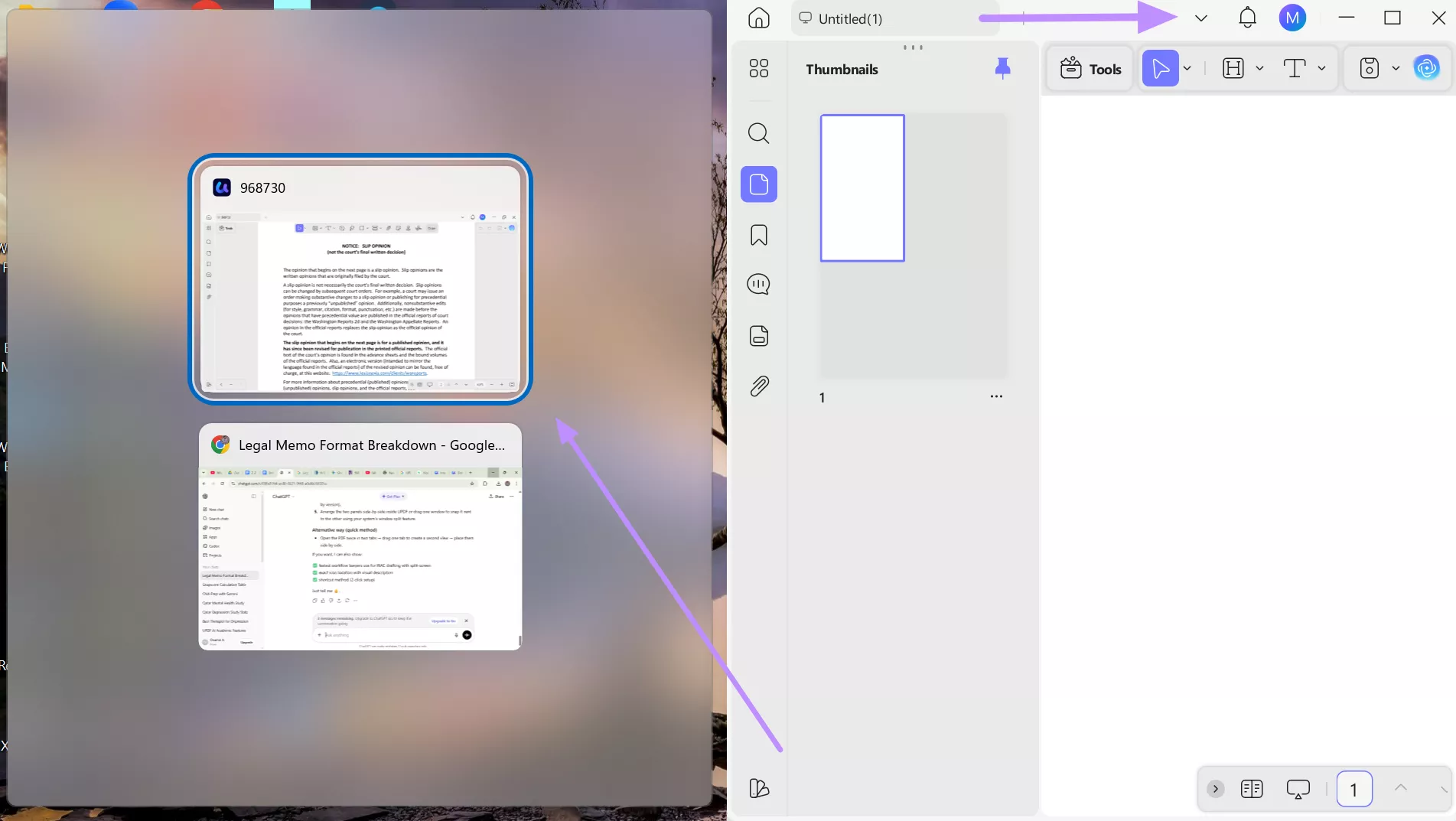
Step 1. After opening the opinion PDF and blank file on UPDF, long-tap one tab and drag it to the side of your screen. Now, pick the second tab in which the opinion file is opened.
Step 2. Once both these files are opened side by side, tap the Tools button within the blank PDF to create the Application section. Now, tap Edit to get the desired tools for editing.
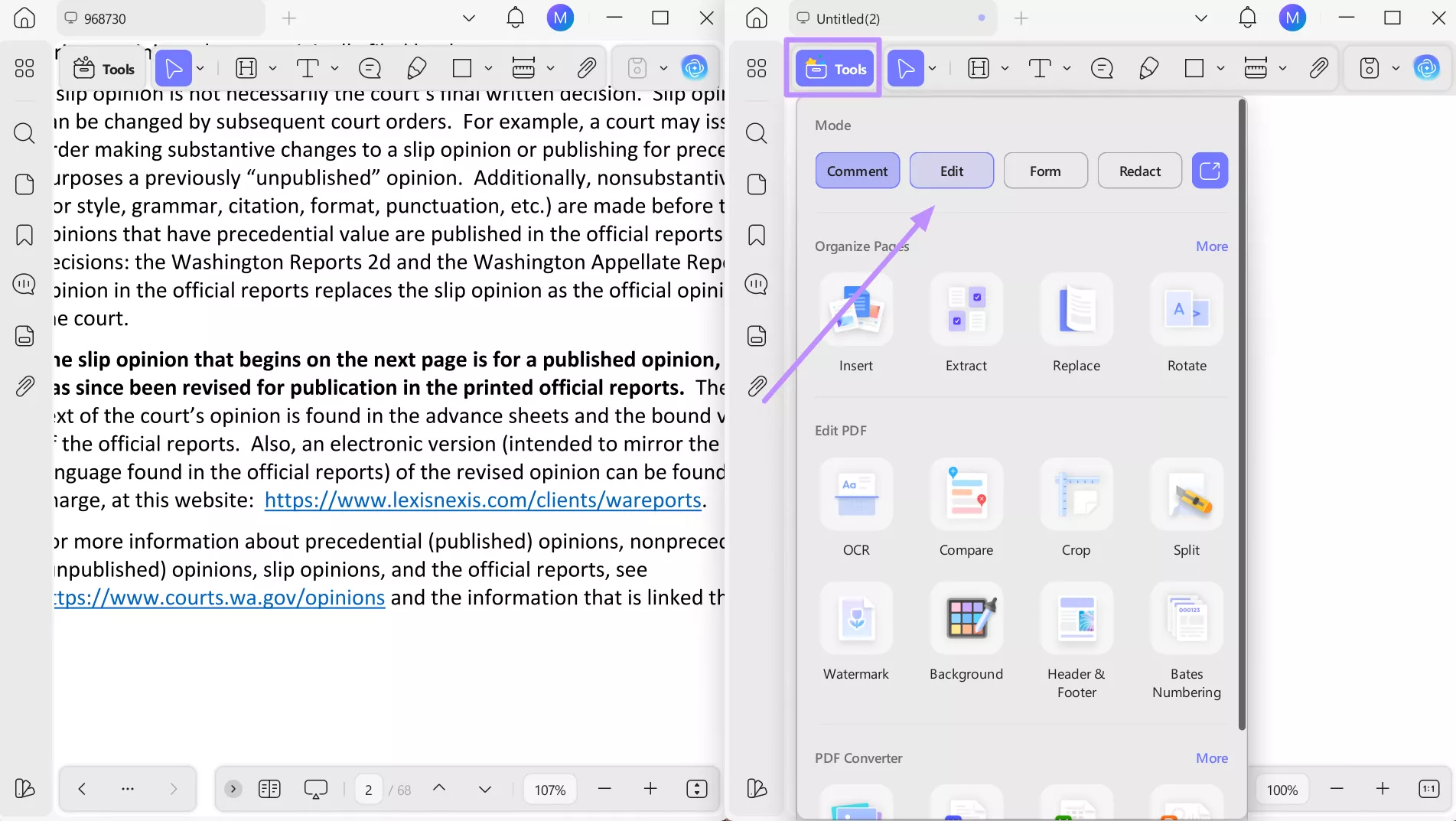
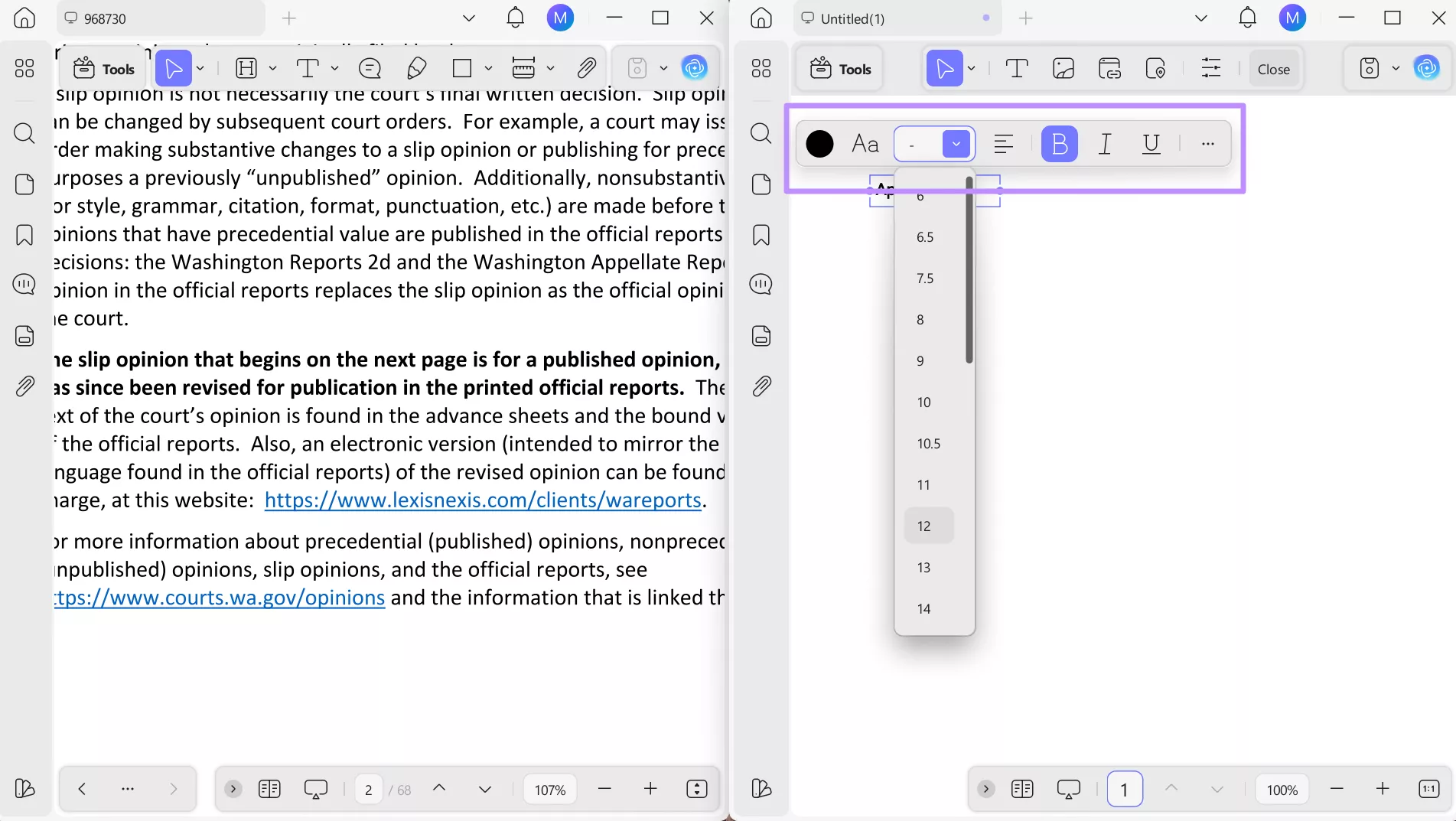
Step 3. Now, keep the judgment visible for quick reference, highlighting key facts, reasoning, and relevant passages. Within the second panel, use UPDF's editing features to write the Application section of your legal memo.
Part 3. Pro-Tips for Drafting a Legal Memo Sample
Once you understand the structure and IRAC framework, the next step is improving your workflow. Many professionals save time by starting with a legal memo format sample instead of building everything from scratch.
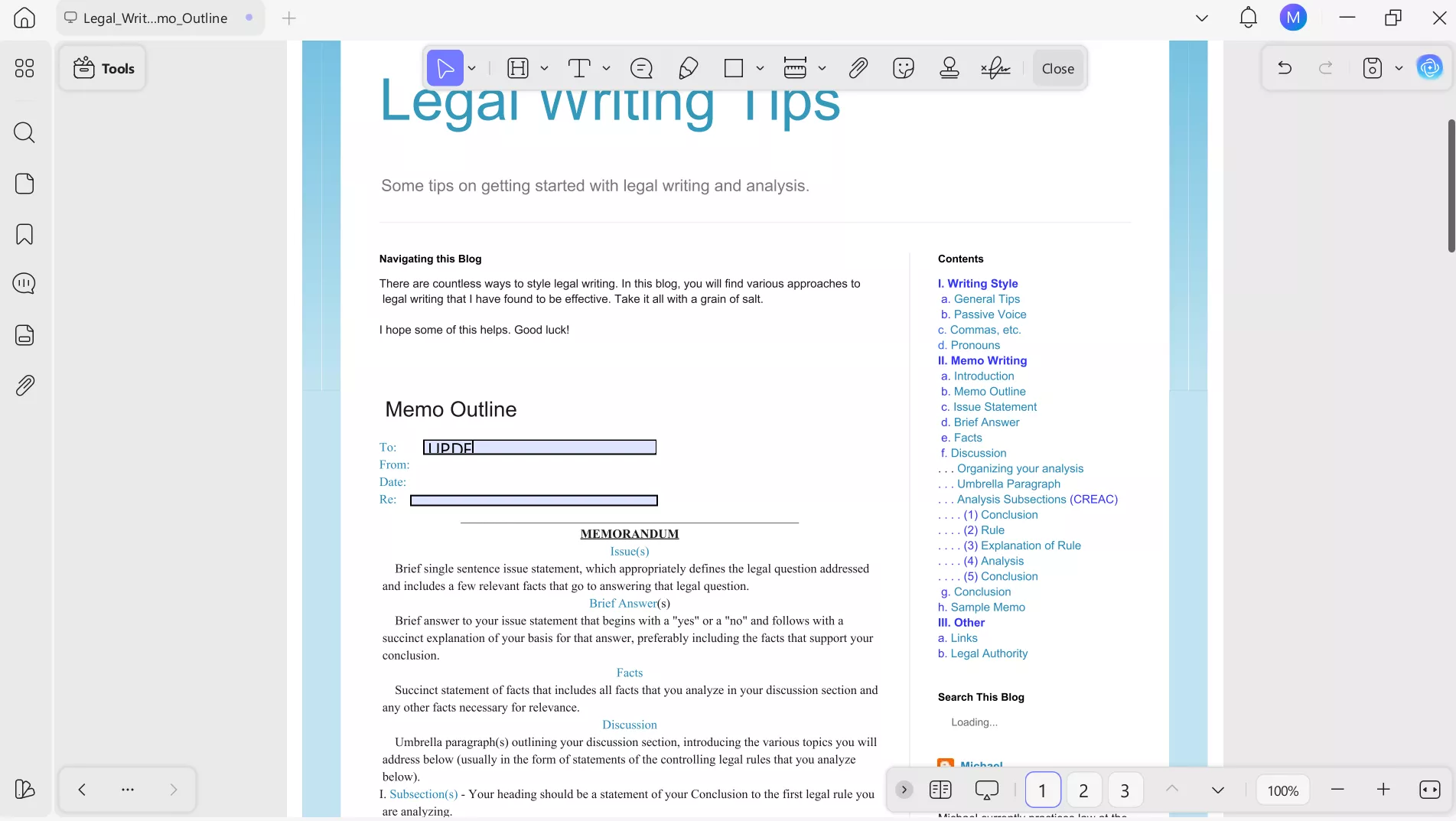
1. Edit and Fill Template
Using UPDF, you can use the editing features to modify headings and the layout of the template. Moreover, you can also apply the Fill & Sign feature for reusable fields. Using this, add signature blocks, client details, or standard memo fields you use regularly.
Windows • macOS • iOS • Android 100% secure
2. Precision Annotation
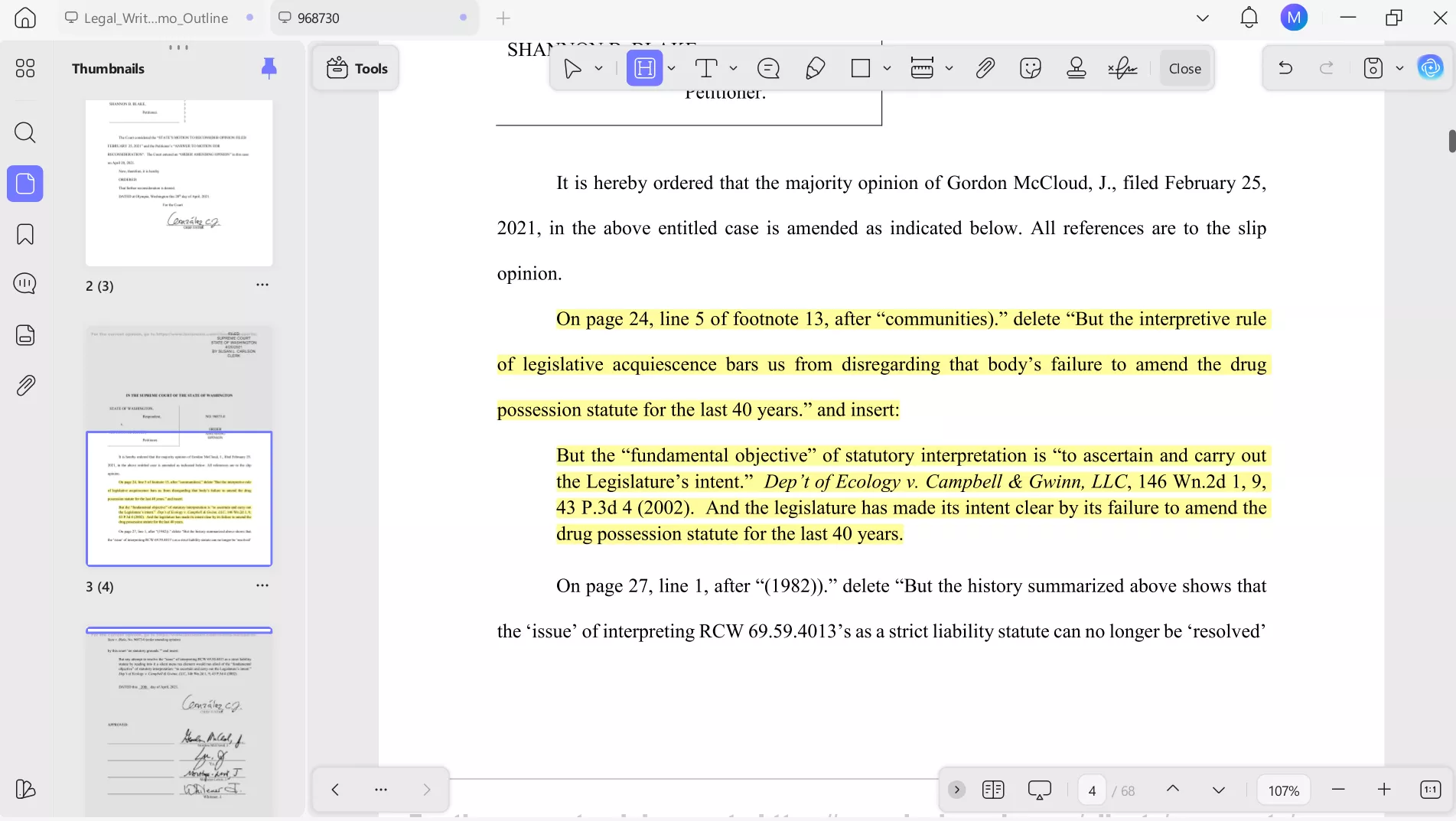
UPDF's annotation tools make research easier by allowing you to highlight important case holdings and add notes directly inside PDFs. This keeps key precedents visible and organized while drafting your memo.
3. Organizing Exhibits
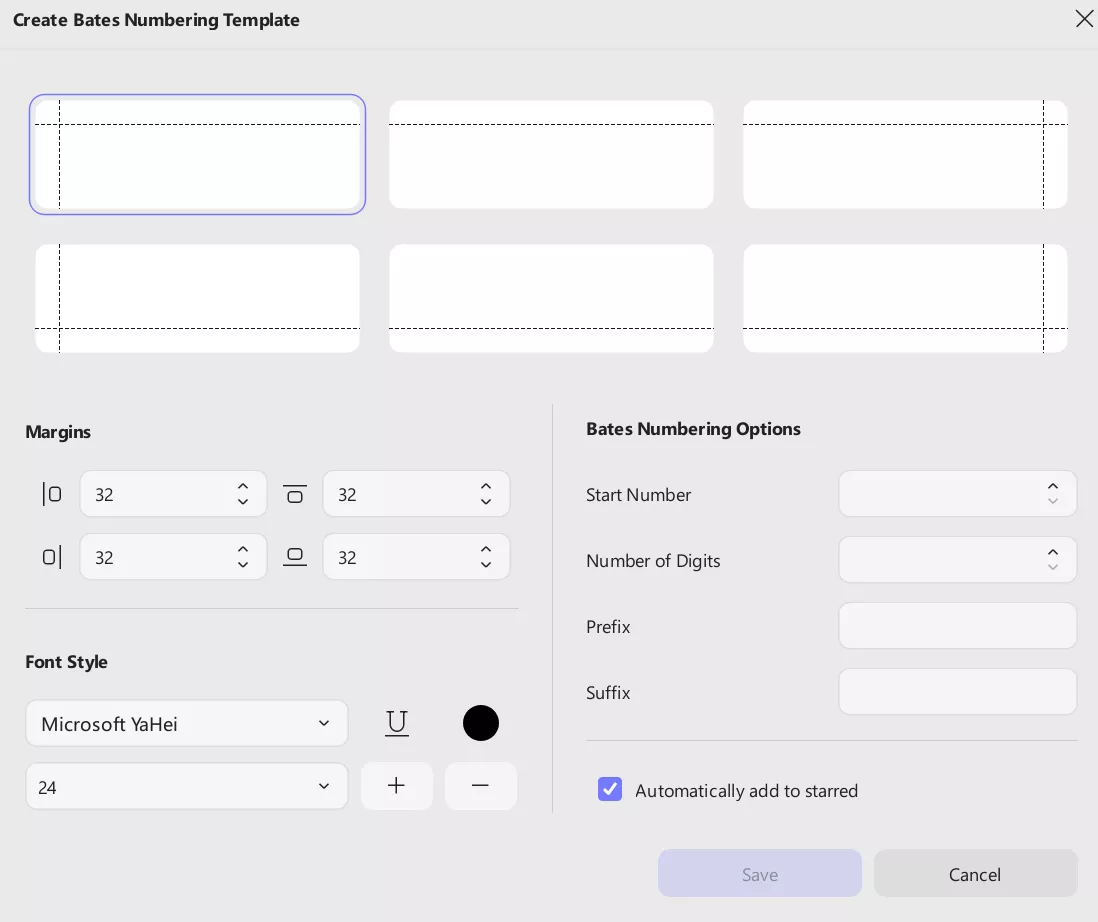
Using Bates numbering or page organization tools in UPDF helps manage supporting documents efficiently. You can label evidence clearly and maintain consistent numbering so exhibits remain easy to reference within your legal memo.
4. Hyperlinking
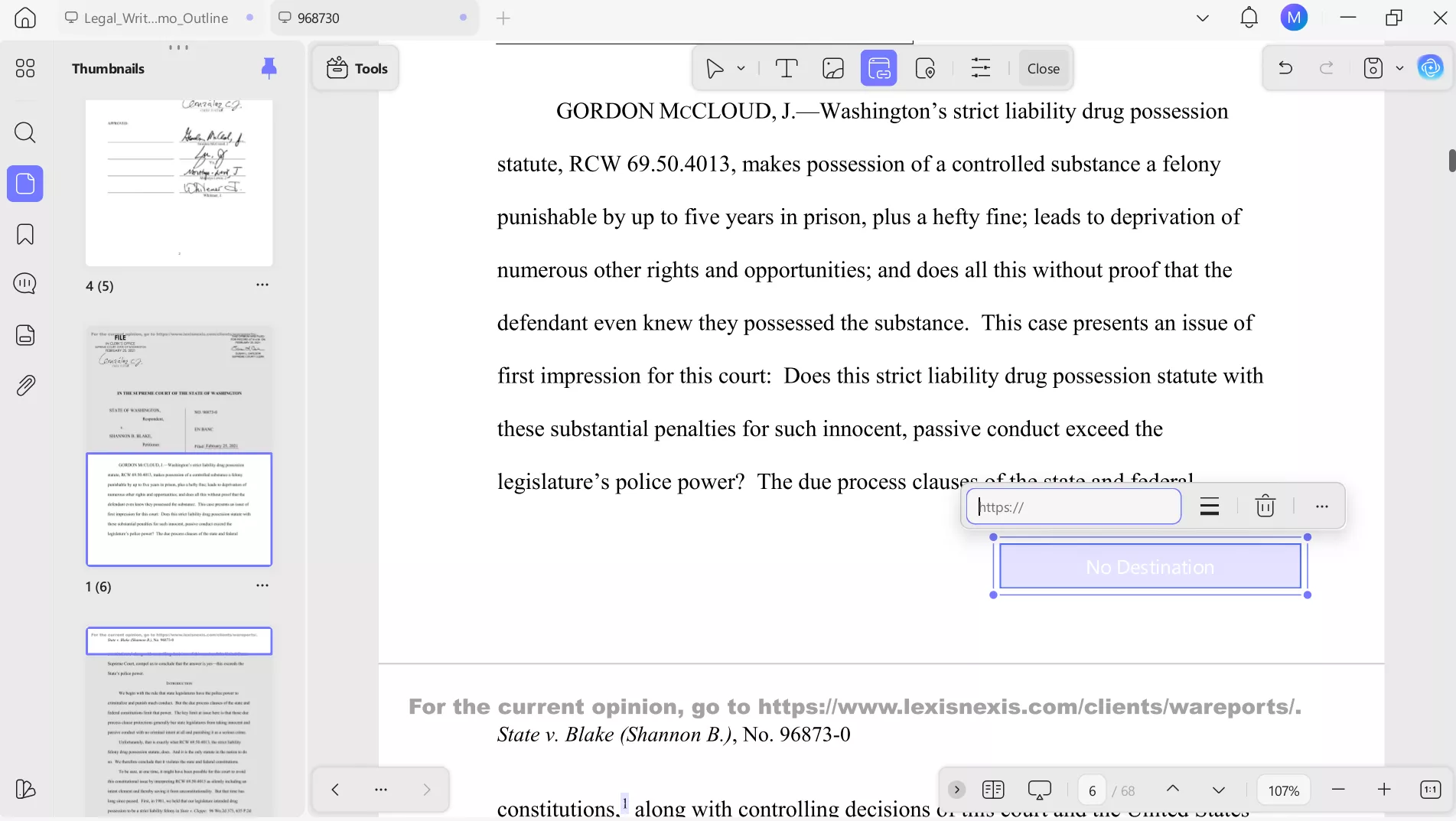
UPDF helps you add internal hyperlinks inside your PDF that let readers jump directly to cited cases or supporting sections. This improves navigation, especially for senior partners reviewing lengthy memos, and creates a more professional document.
Want to make sure your legal writing meets professional standards? Download UPDF now to edit and refine your legal memos today.
Part 4. Final Review & Professionalism
After completing the drafting and analysis, the final stage focuses on presentation and professionalism. Taking time to refine the layout and secure confidential details makes sure that your legal memo is ready for review or distribution.
1. The Finishing Touches
Before sharing your memo, review the formatting carefully. Legal documents usually follow consistent margins and clear spacing to maintain a professional appearance. Check alignment and heading hierarchy so the document looks easy to navigate.
Using UPDF's editing tools, you can quickly adjust layout issues and ensure your memo maintains a clean structure from beginning to end. Follow these steps for formatting:
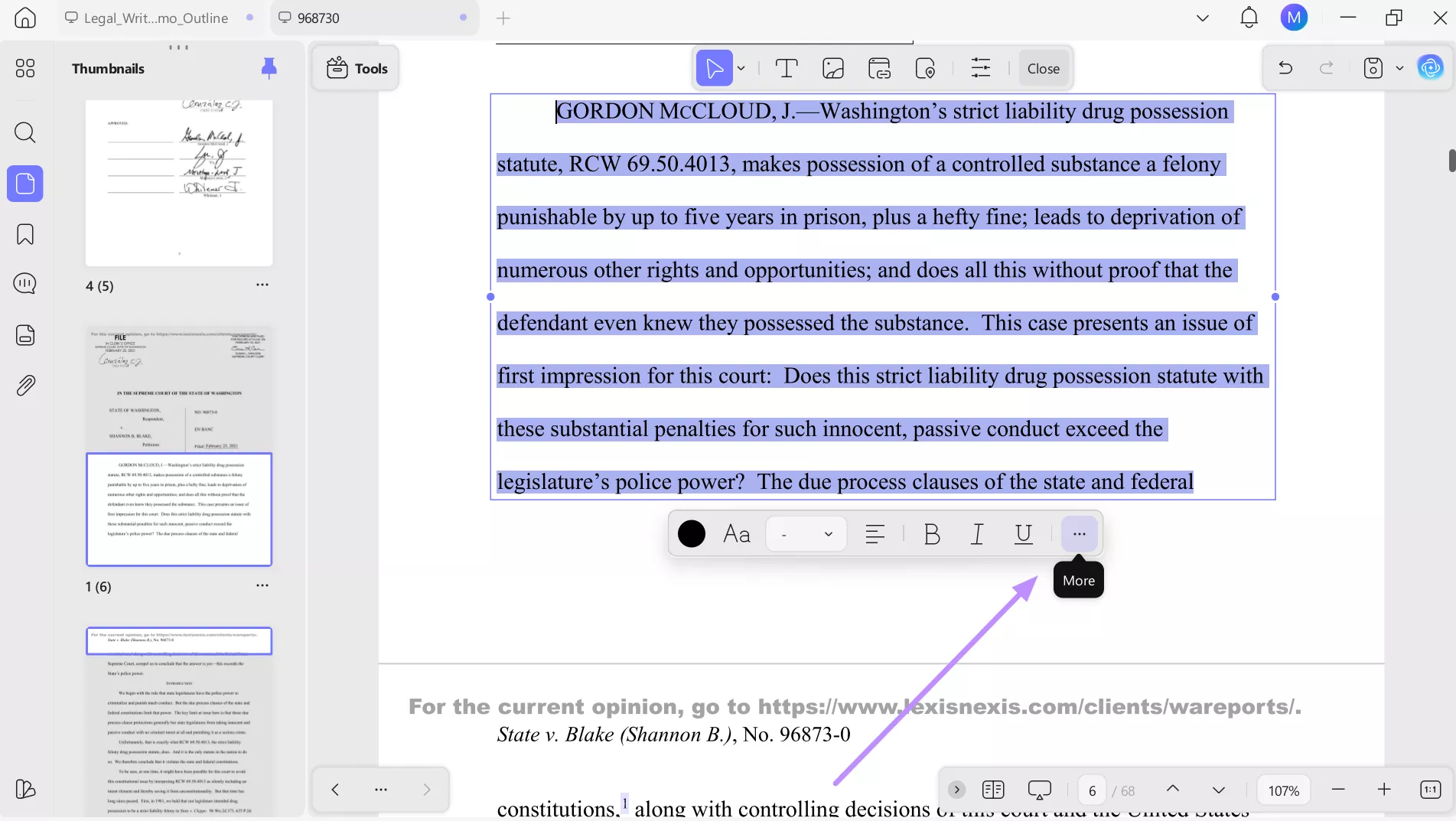
Step 1. Begin by uploading a PDF and entering the Edit PDF mode within UPDF. Then, select the text within the legal memo you want to edit and hit the More icon.
Windows • macOS • iOS • Android 100% secure
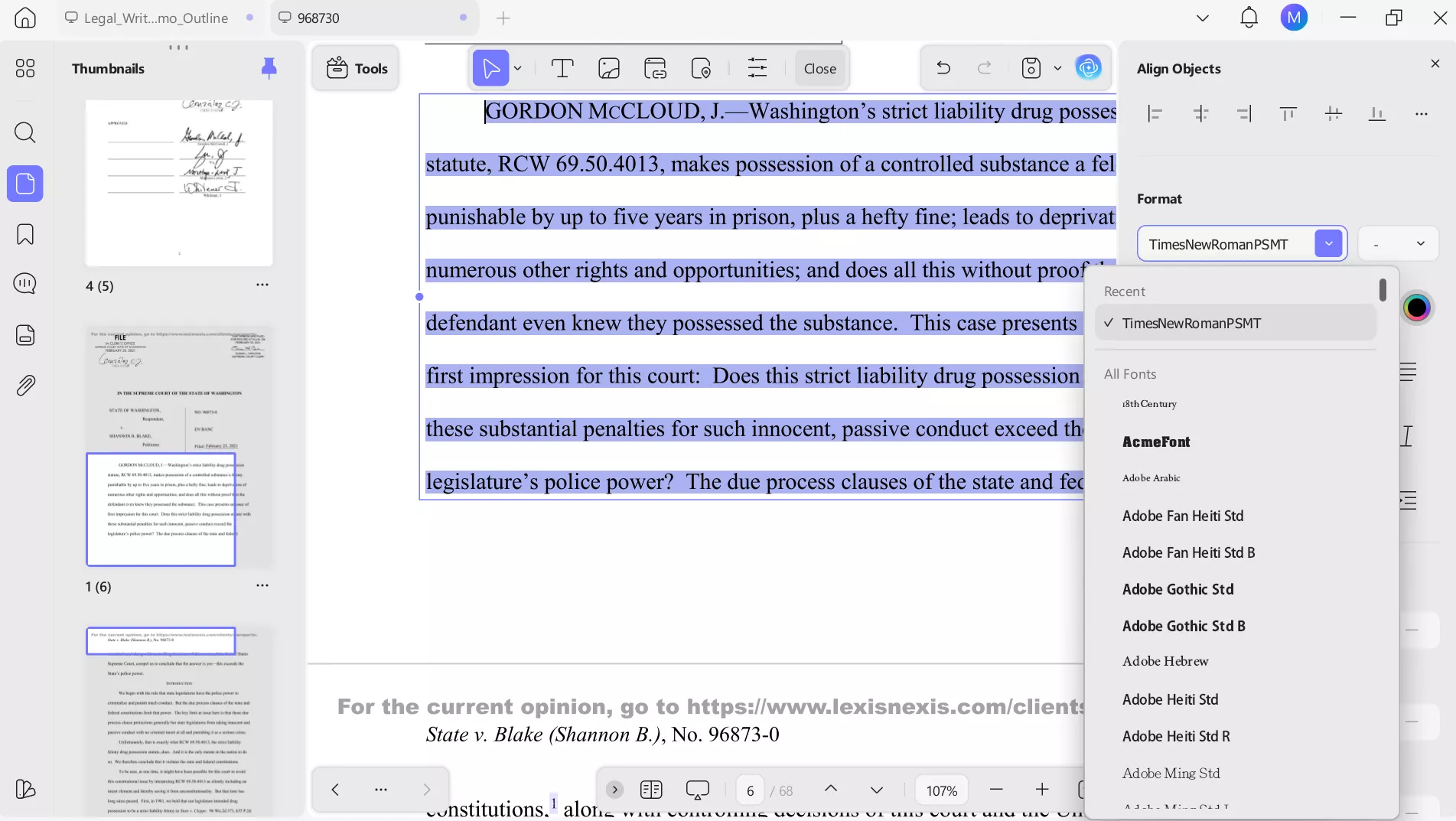
Step 2. From the side window, align the text and pick the desired font style and size to apply the finishing touches.
2. Redaction and Security
Legal memos often contain confidential client details, case strategies, or sensitive facts. Before sharing a memo sample with external reviewers, you should remove or permanently hide private information.
UPDF's Redaction tool helps ensure that sensitive content cannot be recovered or viewed later. To redact sensitive data using UPDF, follow these steps:
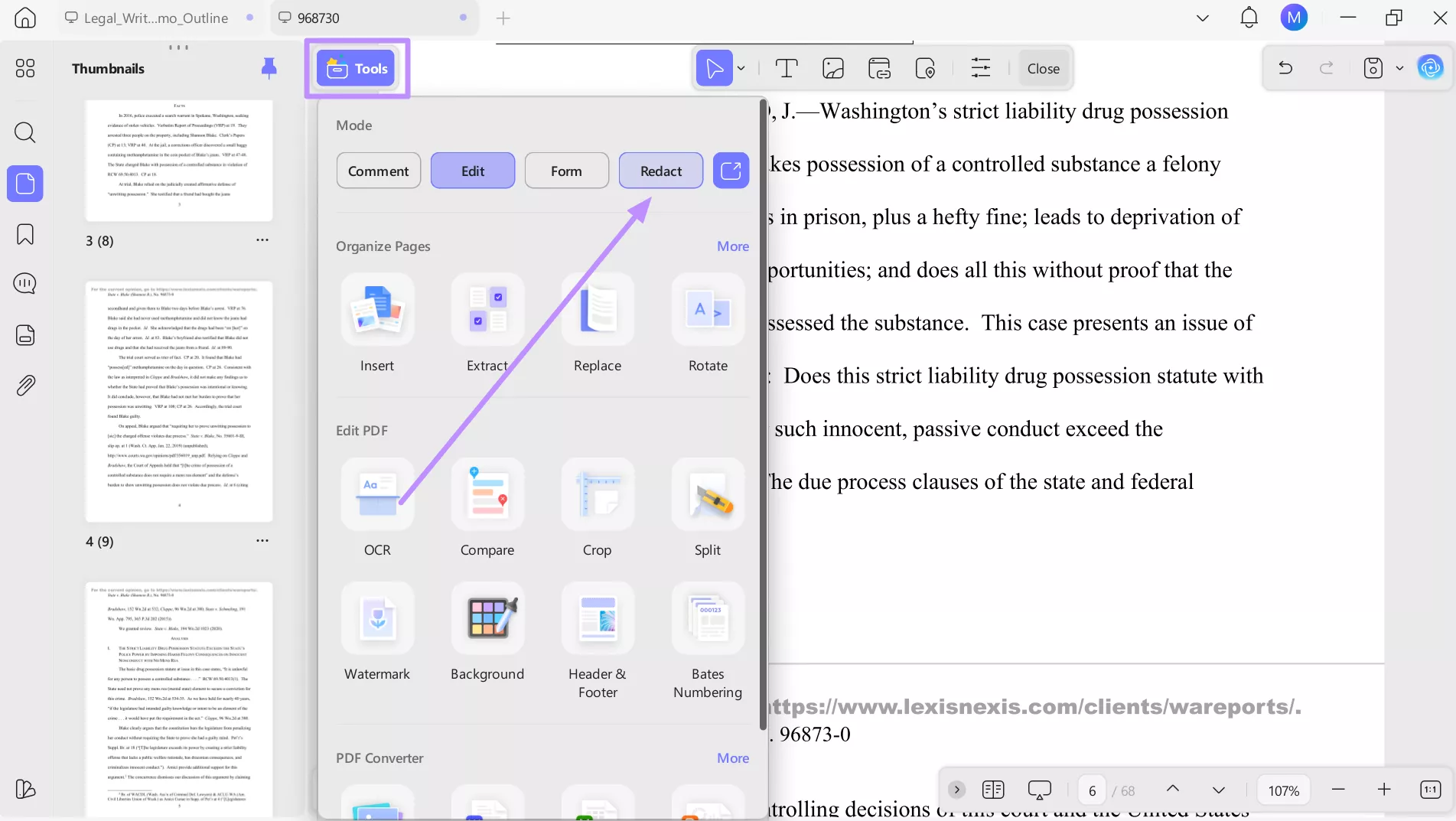
Step 1. After importing the legal memo, enter the Tools menu and tap on the Redact feature to reveal its options.
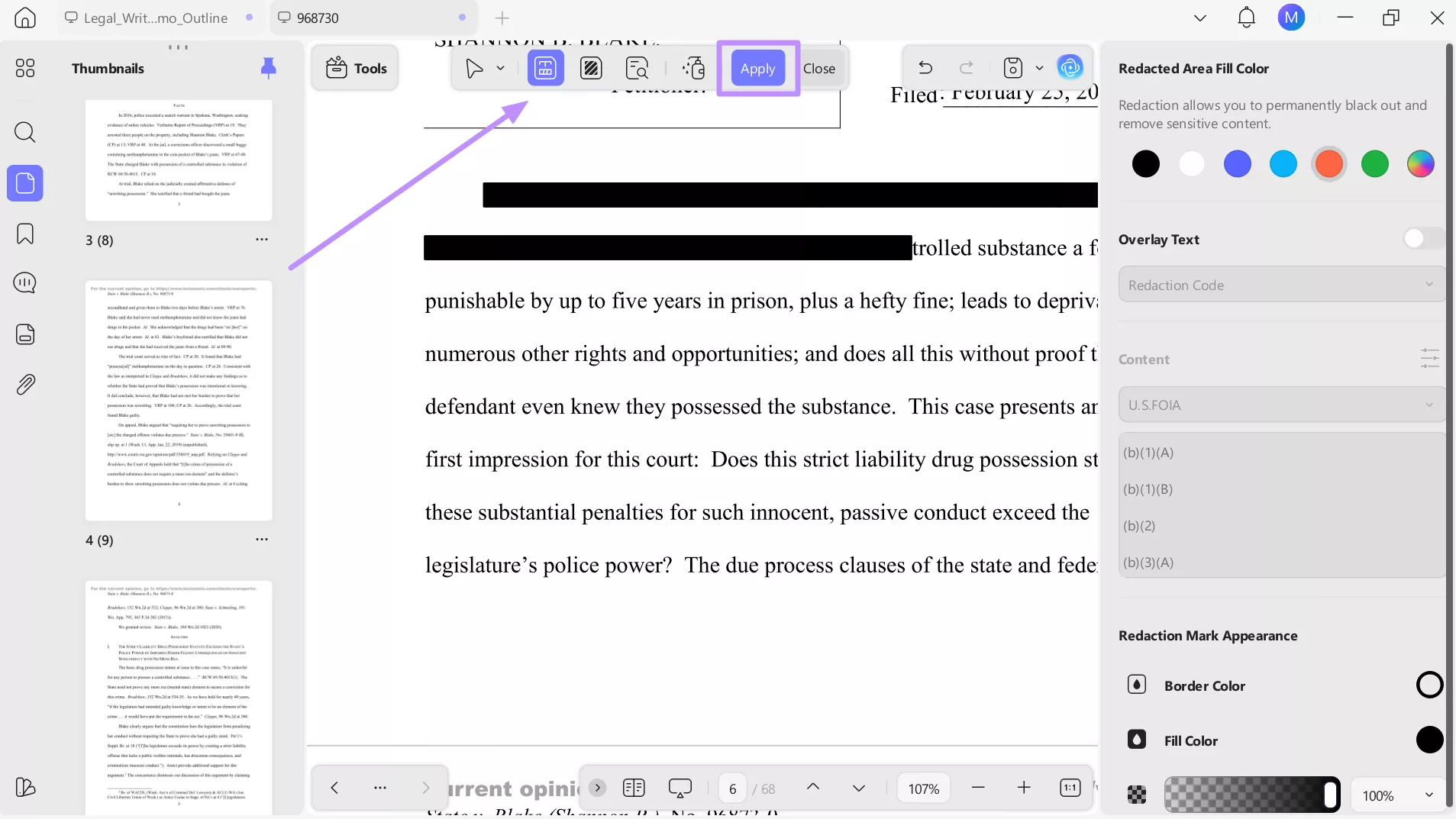
Step 2. Moving forward, tap on the Redact icon and select the information you want to hide before hitting the Apply button. Within this feature, you can customize the fill color and opacity while redacting text.
3. Convert to a Flattened PDF
Before sending your memo to a client or senior partner, converting it into a finalized and secure PDF prevents accidental edits. This conversion will also preserve formatting across devices, as annotations and layout remain locked in place. To perform this conversion, simply follow these steps:
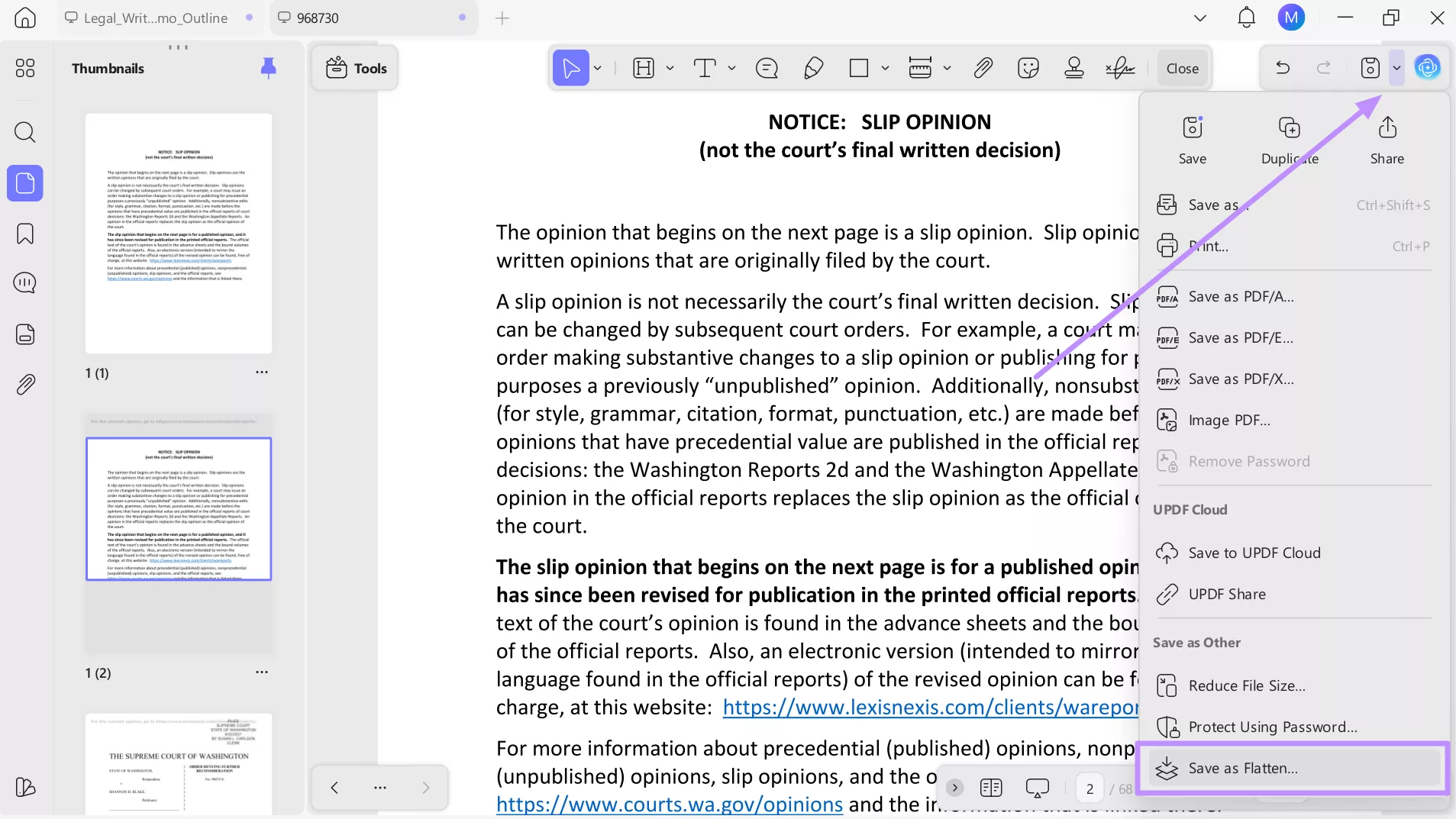
Step 1. Upon applying all the edits to your legal memo format sample, tap the Downward icon beside the Save button. Now, hit the Save as Flatten… option to proceed.
Windows • macOS • iOS • Android 100% secure
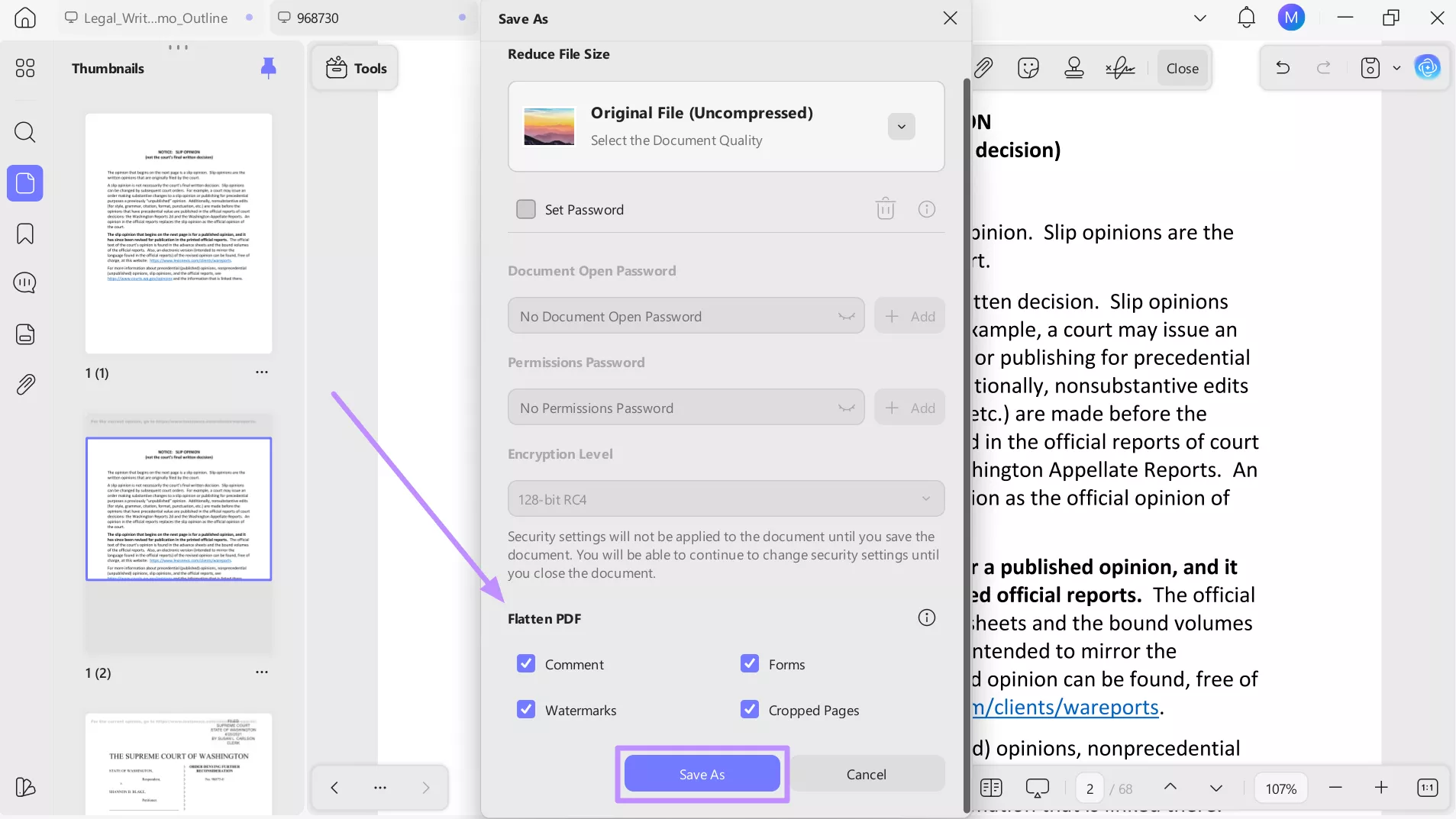
Step 2. Now, check the elements you want to flatten, including comments and forms, under the Flatten PDF section. Finally, hit the Save As button to save your legal memo.
Conclusion
Apart from understanding the law, legal memo writing also depends on a clear structure and professional presentation. Using the right tools can make this process faster and more organized, especially when working with large volumes of research material.
UPDF supports every stage of memo preparation, from reviewing case PDFs and highlighting key precedents. You can also use this tool for editing and finalizing your document for sharing.
When looking to refine your legal writing process and manage research effectively, UPDF is worth exploring as part of your daily toolkit.








 Engelbert White


