 UPDF
UPDF
 UPDF for Windows
 UPDF for Mac
 UPDF for iPhone/iPad
 UPDF for Android
 Nomostar
 UPDF AI Online
 UPDF Sign
 IvyCraft
 Edit PDF
 Annotate PDF
 Create PDF
 PDF Form
 Edit links
 Convert PDF
 OCR
OCR PDF to Word
 PDF to Image
 PDF to Excel
 Organize PDF
 Merge PDF
 Split PDF
 Crop PDF
 Rotate PDF
 Protect PDF
 Sign PDF
 Redact PDF
 Sanitize PDF
 Remove Security
 Read PDF
 UPDF Cloud
 Compress PDF
 Print PDF
 Batch Process
 About UPDF AI
 UPDF AI Solutions
 AI User Guide
 FAQ about UPDF AI
 Summarize PDF
 Translate PDF
 Chat with PDF
 Chat with AI
 Chat with image
 PDF to Mind Map
 Explain PDF
 PDF AI Tools
 Image AI Tools
 AI Chat Tools
 AI Writing Tools
 AI Study Tools
 AI Working Tools
 Other AI Tools
 AI Bookmark Generation
 AI Bookmark Summary
 AI Watermark Generation
 AI Background Generation
 AI Sticker Generation
 AI Stamp Generation
 AI Editing Suite
 UPDF Copilot
 AI Page Management
 AI Semantic Search
 PDF to Word
 PDF to Excel
 PDF to PowerPoint
 Enterprise Solution
 Enterprise Sign
 Enterprise AI
 Enterprise Plan
 Enterprise User Guide
 Enterprise Webinar
 IT
IT Education
 Construction
 Financial Service
 Healthcare
 Insurance
 Legal
Legal Manufacturing
 Government
 Researchers & PhDs
 Solopreneurs & Freelancers
 Lawyers & Legal Professionals
 Real Estate Agents & Brokers
 Education Solution
 Customer Stories
 User Guide
 UPDF Tricks
 FAQs
FAQs UPDF Reviews
 Download Center
 Blog
Blog Newsroom
 Tech Spec
 Updates
 UPDF vs. Adobe Acrobat
 UPDF vs. Foxit
 UPDF vs. PDF Expert

Many people still picture tax season as stacks of paper and long hours at the table. Modern digital tools scan documents and keep your tax files neatly organized from the beginning. With the right setup, you can turn a messy pile of forms into a clear tax overview.
This is where a digital helper like UPDF comes in for handling your tax PDFs. It lets you store, search, and review key numbers without jumping between different files and folders. Let's explore how AI tax returns can make this stressful season feel far more manageable.
- Turn scattered tax PDFs into one organized digital space you can easily search.
- Quickly spot income and expense details instead of reading every page line by line.
- Reduce typing mistakes by reusing the same information across different tax forms.
- Keep statements together to prevent important details from disappearing during tax preparation.
- Prepare cleaner documents to make it easier for your accountant to review everything.
Windows • macOS • iOS • Android 100% secure
Part 1. Can AI Do My Tax Returns? Understanding the 2026 Landscape
Many people now ask if AI can fully complete and submit their taxes without human help. In most places, AI tools still cannot legally sign and officially file tax returns representing you. You remain the person responsible for checking numbers and approving the final return before submission. With this limitation, AI systems can read documents and prepare figures much faster than manual work.
They help you understand complex rules, suggest possible deductions, and highlight areas that may need extra review later. When used correctly, AI income tax return preparation becomes less stressful because you spend more time reviewing and less time typing.
Key Ways AI Helps
After seeing the bigger picture of AI and taxes, let's break down its most useful actions.
- Fast Receipt Reading: Messy paper and image receipts turn into clear expense data without you typing each amount.
- Law Update Summaries: New tax rule changes for 2026 appear as readable notes instead of long documents.
- Smart Form Suggestions: Common fields on tax forms fill faster because repeated details carry over from earlier entries automatically.
- Consistent Data Use: Names and ID numbers stay the same across forms to reduce mismatched information and confusion.
- Focused Error Checking: Strange amounts and missing values stand out early to give you time to correct problems before filing.
People dealing with many client returns often search for an easier system to control their documents. UPDF offers a Pro PDF Workflow that shows how AI and PDF tools work together for high-volume tasks. For readers wondering "Can AI do my tax returns at scale?", read this official Pro PDF Workflow guide.
Part 2. Why UPDF is the Best AI Assistant for Tax Documents?
Handling tax PDFs with UPDF feels more organized, faster to review, and easier to manage each season. Its AI features help you read forms, collect key numbers, and prepare documents with fewer mistakes. Now, we will look at real tax scenarios where UPDF saves time and reduces stress for filers:
Scenario 1: Extracting Data From Forms
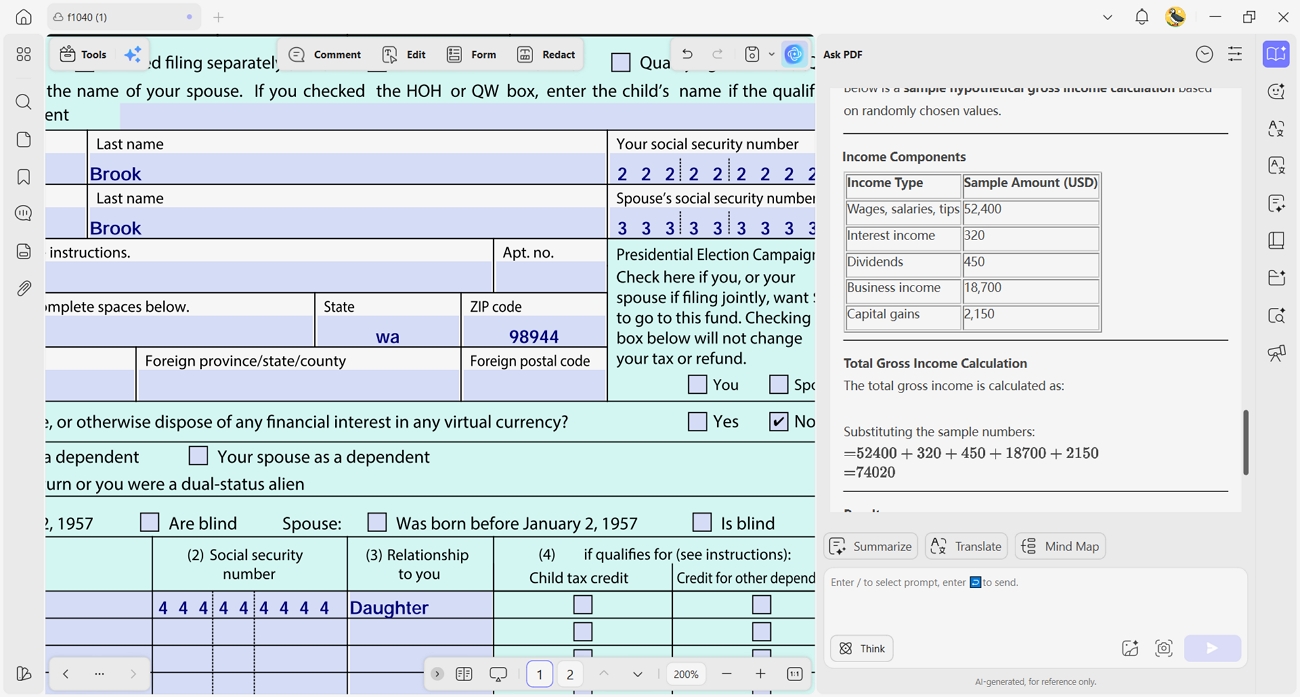
During tax season, many filers end up with multiple 1099 PDFs from different banks, clients, and platforms. UPDF AI lets you use "Ask PDF" to quickly find your total gross income across those scattered forms. This makes preparing an AI income tax return easier since key numbers appear in one place instead of many files.
Windows • macOS • iOS • Android 100% secure
Scenario 2: Intelligent Form Filling
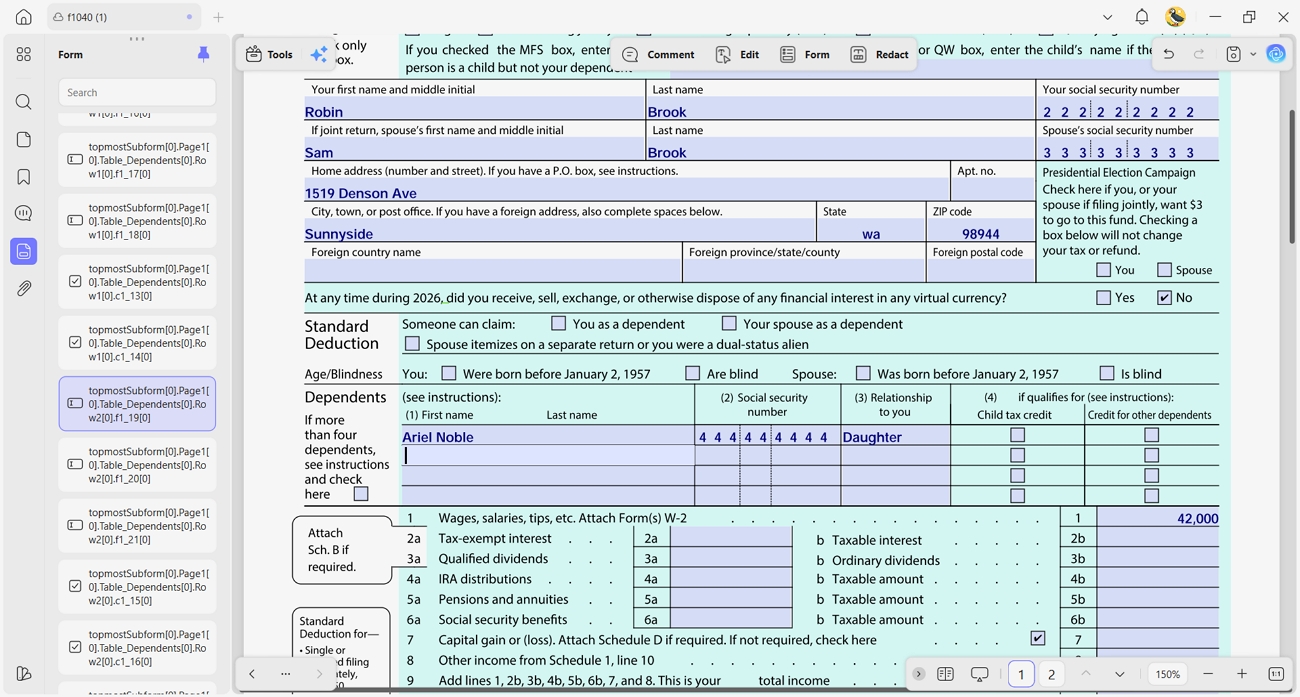
Official tax forms often repeat the same details, like your name, address, and identification numbers. UPDF recognizes form fields and helps you reuse existing information, which reduces repeated typing and small mistakes. With fewer manual errors, your completed forms look cleaner and may raise fewer questions during review.
Scenario 3: OCR For Paper Receipts
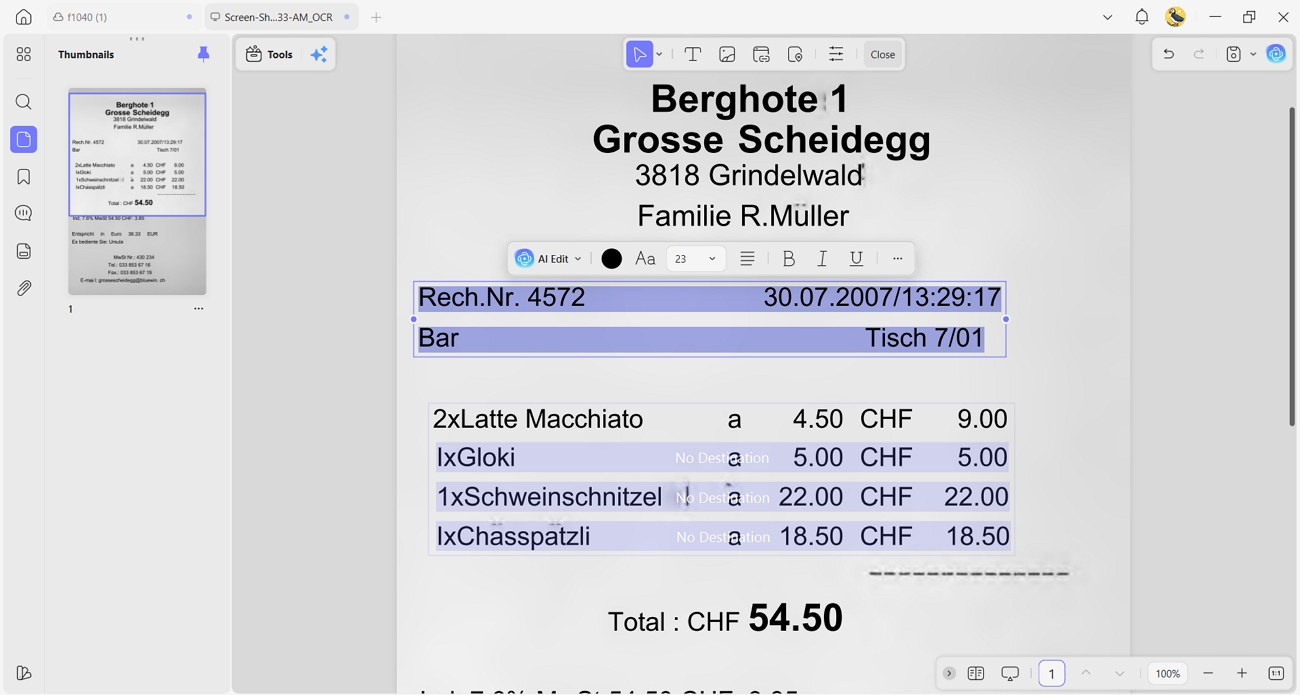
Many expenses still live on paper receipts from stores, service providers, or travel bookings. With OCR in UPDF, scanned receipts become searchable, editable text that you can filter and total. This organized record of expenses makes it simpler to track deductions and support your claims if anyone asks for proof.
Where UPDF v2.5 Shines
The latest UPDF v2.5 adds powerful document automation to turn repeat tax tasks into quick, guided steps instead of manual work. Its AI Agents can extract totals, match fields, and organize information while you focus on checking final details.
Moreover, the official UPDF AI Agents video review shows these agents pulling key numbers from PDFs, perfect for tax preparation. With these smarter tools, handling complex tax PDFs feels less manual, more accurate, and easier to repeat every year.
Why Experts Recommend UPDF
In a recent review of Adobe Acrobat alternatives, Nicholas Rossis highlighted UPDF as a standout choice. He praised its speed and strong feature set compared to more expensive legacy tools.
Part 3. Security & ROI: The Enterprise vs. Individual Choice
Tax data includes income, identity details, and deductions, which makes strong protection essential for every filer today. UPDF's ISO 27001 certification shows its security follows strict international rules for keeping your information safe. This certification means independent experts have checked how UPDF protects data, from storage to access controls and internal processes.
Local processing options keep many files on your own device instead of always sending everything to remote servers. Keeping documents local reduces exposure risks and helps sensitive tax PDFs stay under your direct control during AI tax returns. UPDF also offers different pricing plans, giving both individual filers and teams flexible options to match their tax workflow needs.
Choosing The Right UPDF Plan
Now, let's see how different users can match their tax workflow to the right UPDF plan:
For Individuals And Freelancers
Solo filers and freelancers often need a simple setup that keeps yearly tax documents organized without ongoing subscription stress. A lifetime-style option suits them well, supporting repeat tax seasons with one tool they can rely on every year.
For Accounting Teams And Firms
Tax firms and small businesses usually coordinate many returns, with several people working on shared client documents at once. An enterprise-style plan starting from $79/year with centralized controls helps manage multiple licenses, keep access organized, and support a full tax prep team.
Go for an Enterprise Plan Now >>

The PDF Efficiency Report helps you see how much time UPDF can save on everyday document work. After checking those time savings, you can explore the pricing page to compare different plan options. From there, it becomes easier to choose a UPDF plan that matches your tax workload and budget.
Part 4. Step-by-Step: Preparing Your AI Income Tax Return with UPDF
UPDF guides you through organizing tax PDFs, reviewing key numbers, and keeping everything in one place. It also helps users who ask, "Can AI do my tax returns?" by supporting them at each major stage. So, follow the steps below to turn scattered tax documents into a clear, ready-to-file return:
Step 1. Import Tax PDF into UPDF
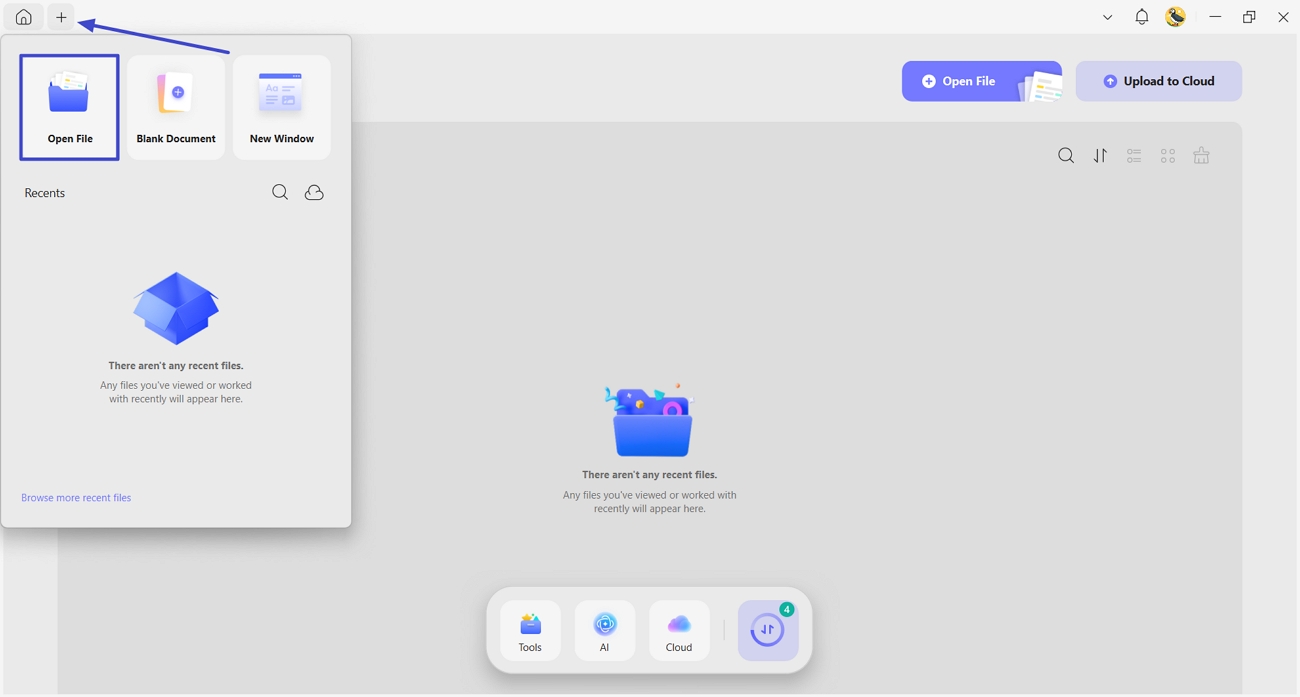
Once you open UPDF, press the "+" icon and click the "Open File" option to import the PDF file.
Step 2. Summarize Total Expenses
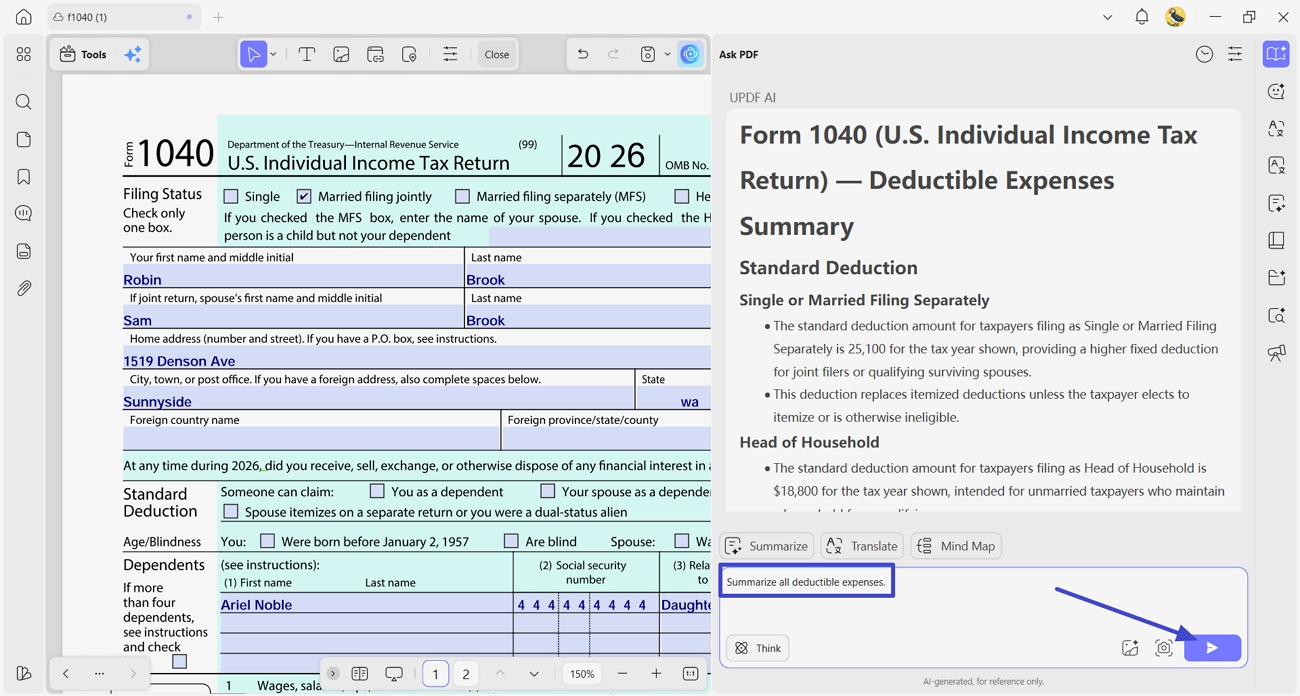
After importing the PDF, click the "UPDF AI" icon in the top right corner and press the "Ask PDF" option. In the chat box, enter the prompt "Summarize all deductible expenses" and click the "Send" button. UPDF AI will calculate and provide a summary of your spending.
Step 3. Fill Official Returns
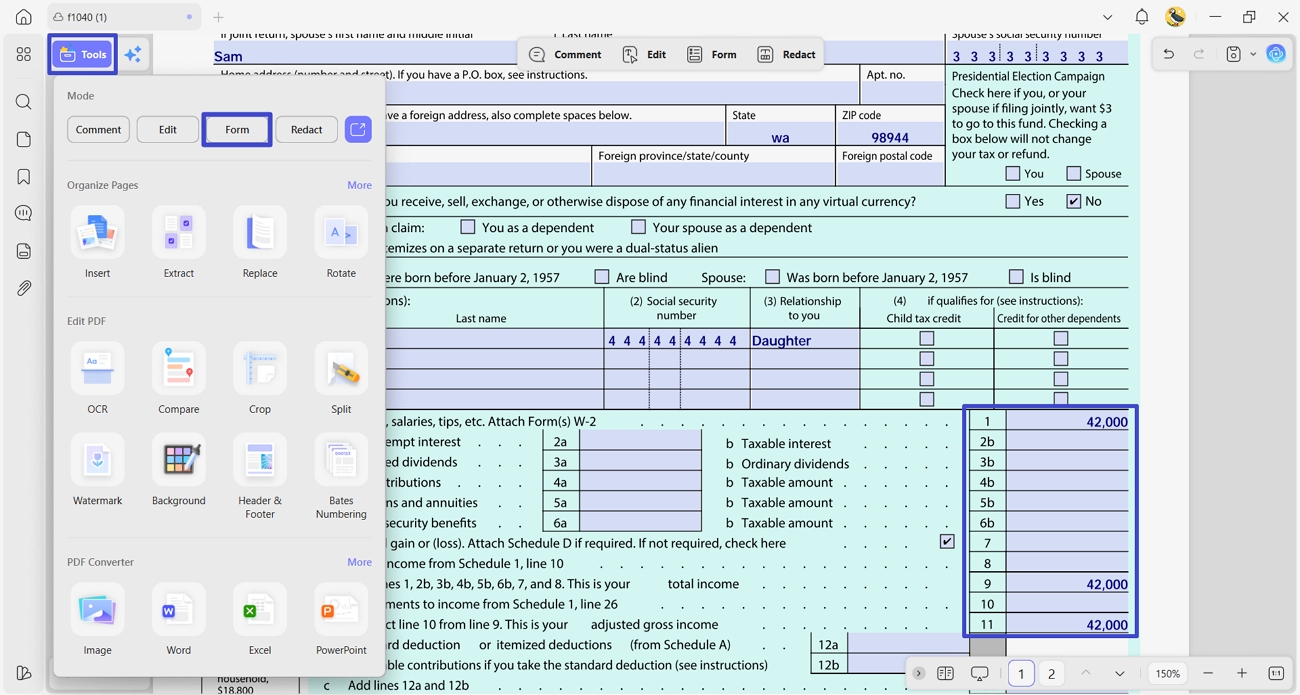
Next, enter the remaining amounts in the fillable sections. If the PDF doesn't have any fillable fields, click the "Tools" option and press the "Forms" tool to create and fill text fields.
Step 4. Secure Your Tax Return Before Sharing
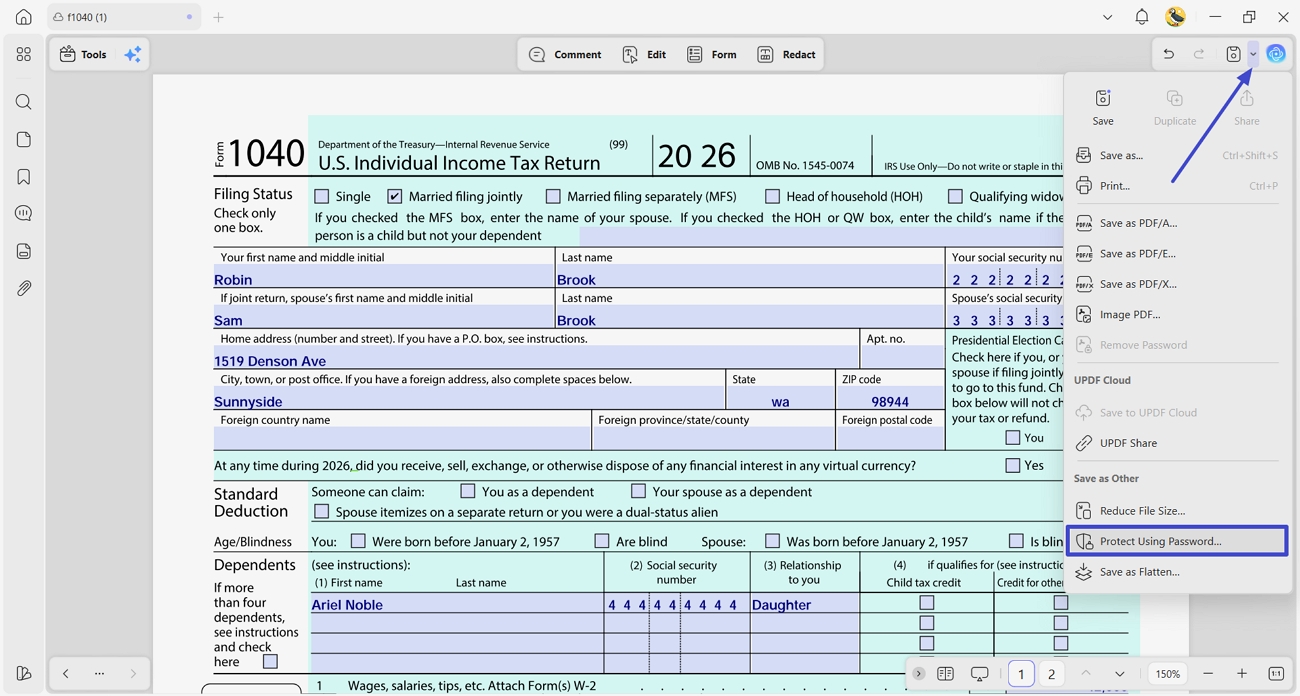
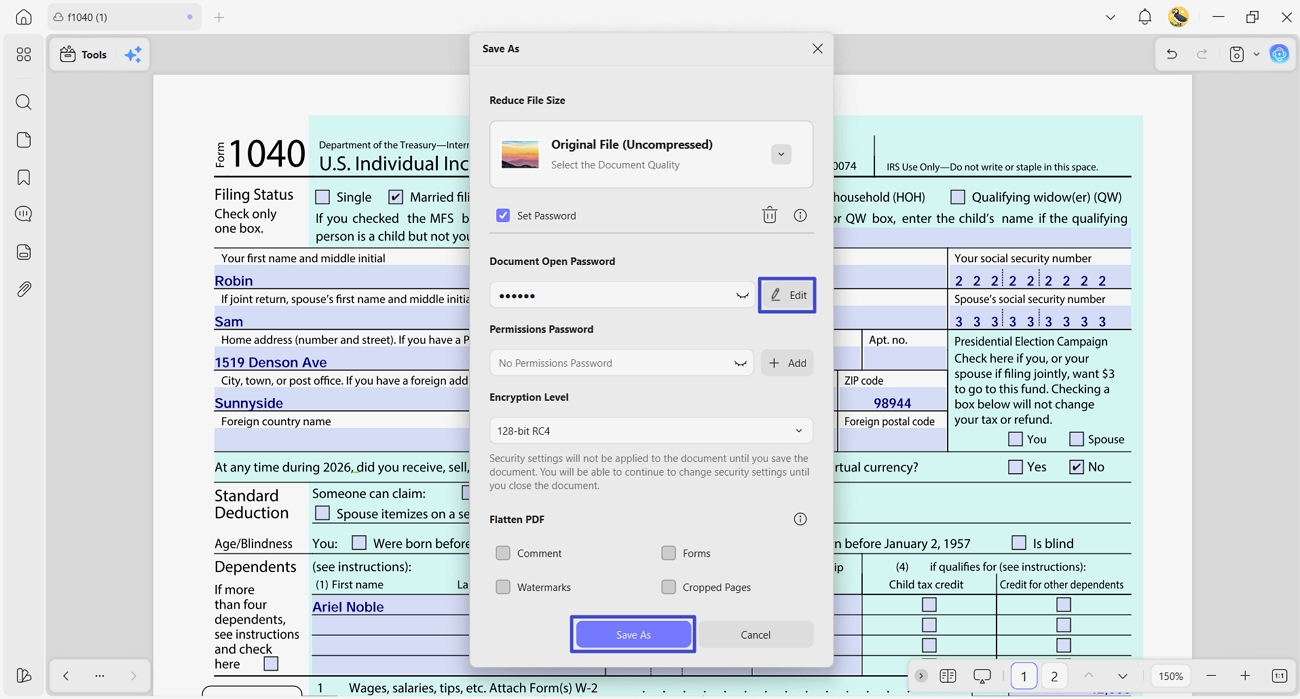
Afterward, access the saving options and click the "Protect Using Password" option to secure the PDF.
Step 5. Set a Password and Share
Now, set up a document open password and press the "Save As" button to save a new PDF with a password. You can share that PDF with a password with CPA.
FAQ
Is AI tax prep safe?
Yes, AI tax prep can be safe when tools use encryption and strong data protection. Always review the AI income tax return yourself or with a professional before filing.
Can UPDF AI read handwritten receipts?
Yes, you can use UPDF AI to extract text from clear handwritten receipts. If handwriting is messy or faint, UPDF AI might not capture everything correctly.
Can you file taxes on SSI disability?
You can sometimes file taxes while on SSI disability, depending on other income amounts. Check IRS rules or ask a tax professional to see if you need to file.
Is AI going to replace tax preparers?
AI will likely handle routine tasks, but complex tax situations still need human judgment. Many tax preparers will use AI tools, but will not be fully replaced by them.
Who signs the final return for a deceased person?
Usually, the deceased person's executor or personal representative signs the final tax return. If there is no executor, a family member may sign following the IRS instructions.
Conclusion
To conclude, AI tax returns help you organize documents, reduce errors, and feel calmer each season. You saw how UPDF and its AI tools speed up reading, filling, and checking tax PDFs. For flexible, AI-powered PDF and tax document work across all your devices, we recommend using UPDF for organizing and securing every return.
Windows • macOS • iOS • Android 100% secure







 Delia Meyer
 Enrica Taylor
 Engelbert White