UPDF
UPDF
 UPDF for Windows
 UPDF for Mac
 UPDF for iPhone/iPad
 UPDF for Android
 Nomostar
 UPDF AI Online
 UPDF Sign
 IvyCraft
 Edit PDF
 Annotate PDF
 Create PDF
 PDF Form
 Edit links
 Convert PDF
 OCR
OCR PDF to Word
 PDF to Image
 PDF to Excel
 Organize PDF
 Merge PDF
 Split PDF
 Crop PDF
 Rotate PDF
 Protect PDF
 Sign PDF
 Redact PDF
 Sanitize PDF
 Remove Security
 Read PDF
 UPDF Cloud
 Compress PDF
 Print PDF
 Batch Process
 About UPDF AI
 UPDF AI Solutions
 AI User Guide
 FAQ about UPDF AI
 Summarize PDF
 Translate PDF
 Chat with PDF
 Chat with AI
 Chat with image
 PDF to Mind Map
 Explain PDF
 PDF AI Tools
 Image AI Tools
 AI Chat Tools
 AI Writing Tools
 AI Study Tools
 AI Working Tools
 Other AI Tools
 AI Bookmark Generation
 AI Bookmark Summary
 AI Watermark Generation
 AI Background Generation
 AI Sticker Generation
 AI Stamp Generation
 AI Editing Suite
 UPDF Copilot
 AI Page Management
 AI Semantic Search
 PDF to Word
 PDF to Excel
 PDF to PowerPoint
 Enterprise Solution
 Enterprise Sign
 Enterprise AI
 Enterprise Plan
 Enterprise User Guide
 Enterprise Webinar
 IT
IT Education
 Construction
 Financial Service
 Healthcare
 Insurance
 Legal
Legal Manufacturing
 Government
 Researchers & PhDs
 Solopreneurs & Freelancers
 Lawyers & Legal Professionals
 Real Estate Agents & Brokers
 Education Solution
 Customer Stories
 User Guide
 UPDF Tricks
 FAQs
FAQs UPDF Reviews
 Download Center
 Blog
Blog Newsroom
 Tech Spec
 Updates
 UPDF vs. Adobe Acrobat
 UPDF vs. Foxit
 UPDF vs. PDF Expert

Most law students understand what a case brief is. But many struggle to write one quickly, especially under time pressure.
A case brief is a short and organized summary of a court opinion. It includes the key facts, legal issue, governing rule, court's reasoning, and final holding. When done correctly, it sharpens your legal thinking and prepares you for anything from cold calls to client meetings.
This article explains how to brief a case effectively and save time by using an AI-driven tool like UPDF. As a complete PDF solution with a built-in AI, it helps you condense a raw court opinion into a case brief instantly. Download it now to get started.
Windows • macOS • iOS • Android 100% secure
Part 1. The Anatomy of a Perfect Case Brief
Every strong case brief follows a clear structure. Some professors prefer IRAC, while some law firms use FIRAC. Both methods follow the same basic idea of breaking down a long and complex court opinion into its most important legal parts.
To help you get started, here's a step-by-step guide to the FIRAC method.
Facts: Focus Only on What Matters
In my experience, the Facts section is where most students waste too much time. They try to retell the entire story, including every detail and every step of the procedure. Instead, you should focus on including only the facts that directly affect the court's decision.
These would include:
- Who are the main parties
- Which court is making the decision
- What happened in the lower court
- Two or three key facts that are essential to the outcome
If a fact is not discussed in the court's reasoning, it does not belong in your brief.
Issue: State the Legal Question Clearly
The Issue should be written as a clear and specific question and not as something ambiguous. When writing it, you need to explain the exact legal question the court is answering.
For example, a good issue might ask whether a specific law applies to a certain situation. If you cannot express the issue in one or two sentences, it appears as if you do not fully understand the case yourself.
Rule: Identify the Controlling Law
For each issue, identify the legal rule the court uses to make its decision. This rule may come from a statute, a constitutional provision, a past court decision (precedent), or a general legal principle.
When writing the rule, keep it general. Do not limit it to the specific facts of the current case. This will help you apply the same rule to other cases later.
Analysis: Explain the Court's Reasoning
The Analysis section is the most important part of the brief. This is where you explain how the court applied the rule to the facts. It's important that you do not just state the outcome, but instead, explain the reasoning step by step:
- Show how each key fact relates to the rule
- Explain why the court reached its decision
- If there is a dissenting opinion, briefly explain the main disagreement
Conclusion: State the Holding Clearly
Finish with the court's final decision, also called the holding. Write it as one clear sentence that answers the legal question. Keep in mind that you do not repeat the reasoning here. The conclusion should be simple and direct, so you can quickly understand what the case stands for.
Part 2. The Modern Workflow: How to Write a Case Brief in Half the Time
The traditional approach to briefing a case includes hours of manually reading a static PDF and highlighting important details physically. It's a slow and mentally exhausting process. But there is a much better way.
UPDF allows you to analyze court opinions and extract key insights quickly with its built-in AI assistant. As a PDF editor designed for more productive PDF workflows, it also offers comprehensive tools to read, organize, and manage complex legal documents. It's available on Windows, Mac, iOS, and Android with cloud storage to help you sync files and access them anywhere.
So, if you want to learn how to write a case brief faster, download and install UPDF on your computer. Then, use the following steps to get started.
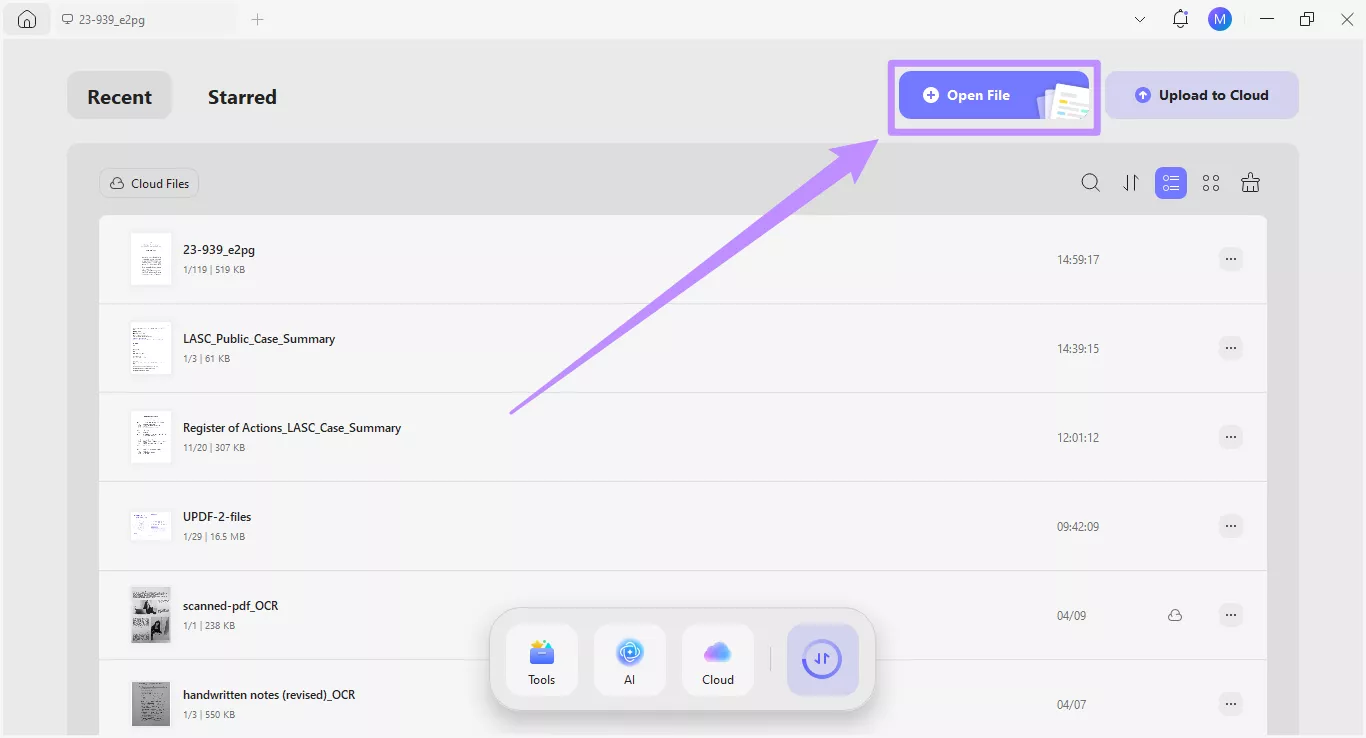
Step 1. Import the Court Opinion
Launch UPDF and click "Open File" from the home screen. Then import a raw court opinion in the PDF format.
Windows • macOS • iOS • Android 100% secure
Step 2. Extract Key Details with UPDF AI
Once your document opens, click the "UPDF AI" section on the top right to access the AI assistant. Then, click the "Chat with PDF" button to upload the file to UPDF AI.
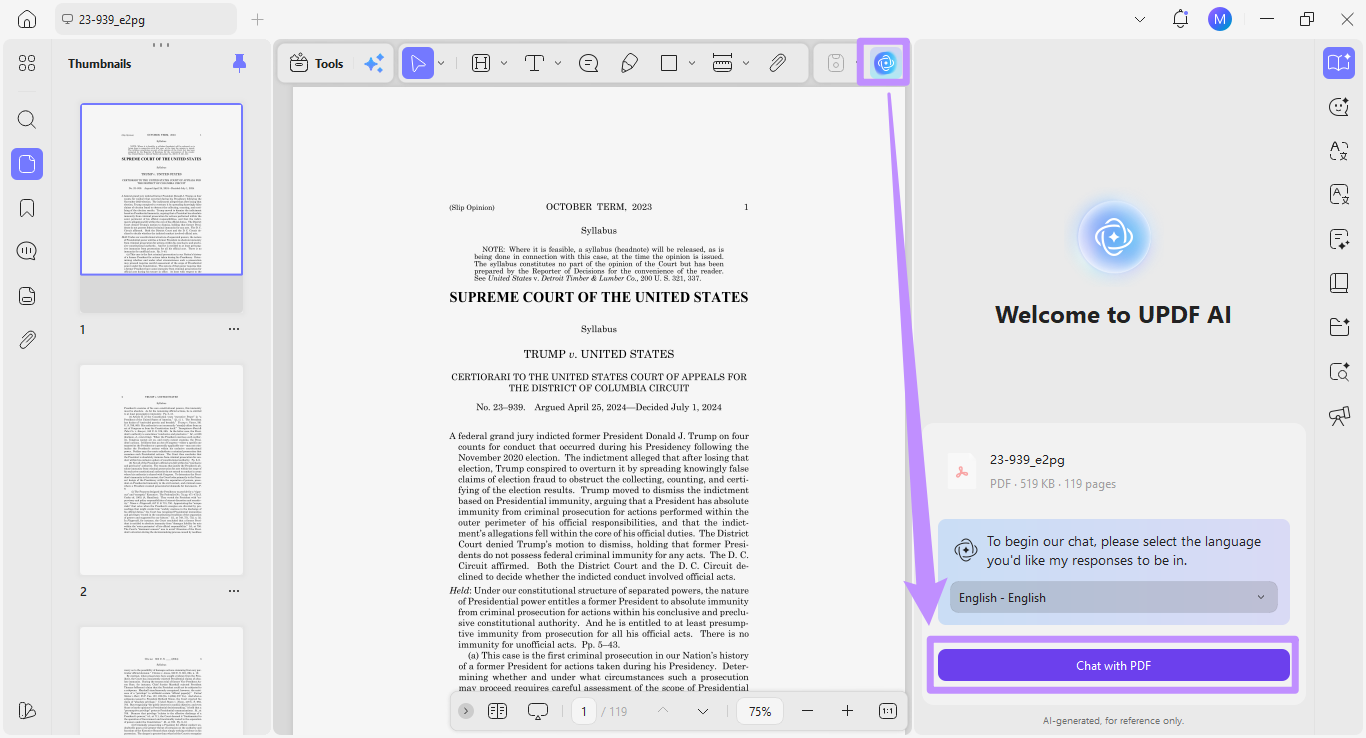
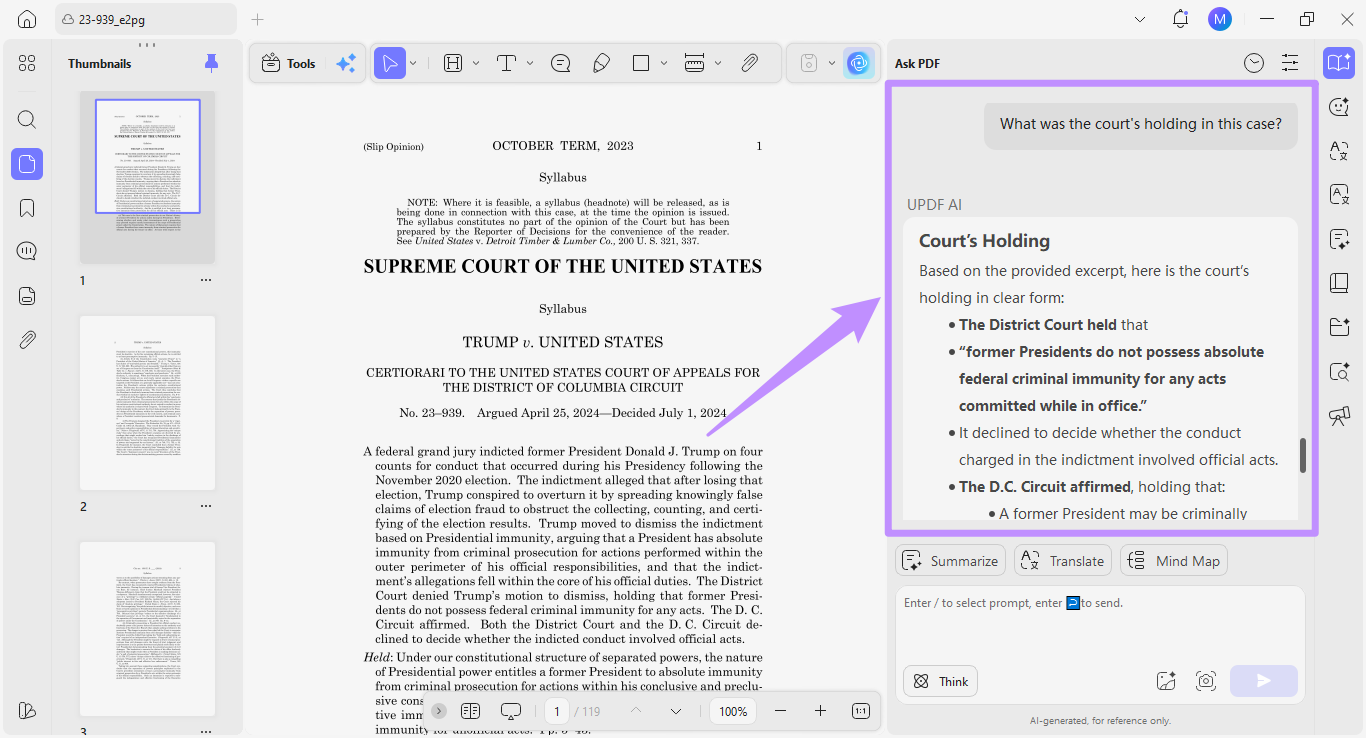
Now, write any question in the text box and click the "Send" button. For example, you can ask UPDF AI, "What was the court's holding in this case?"
The AI will scan your document and provide a precise answer instantly. This way, you don't have to spend time reading hundreds of pages to find the case Holding.
Step 3: Cross-Reference with Split-Screen View
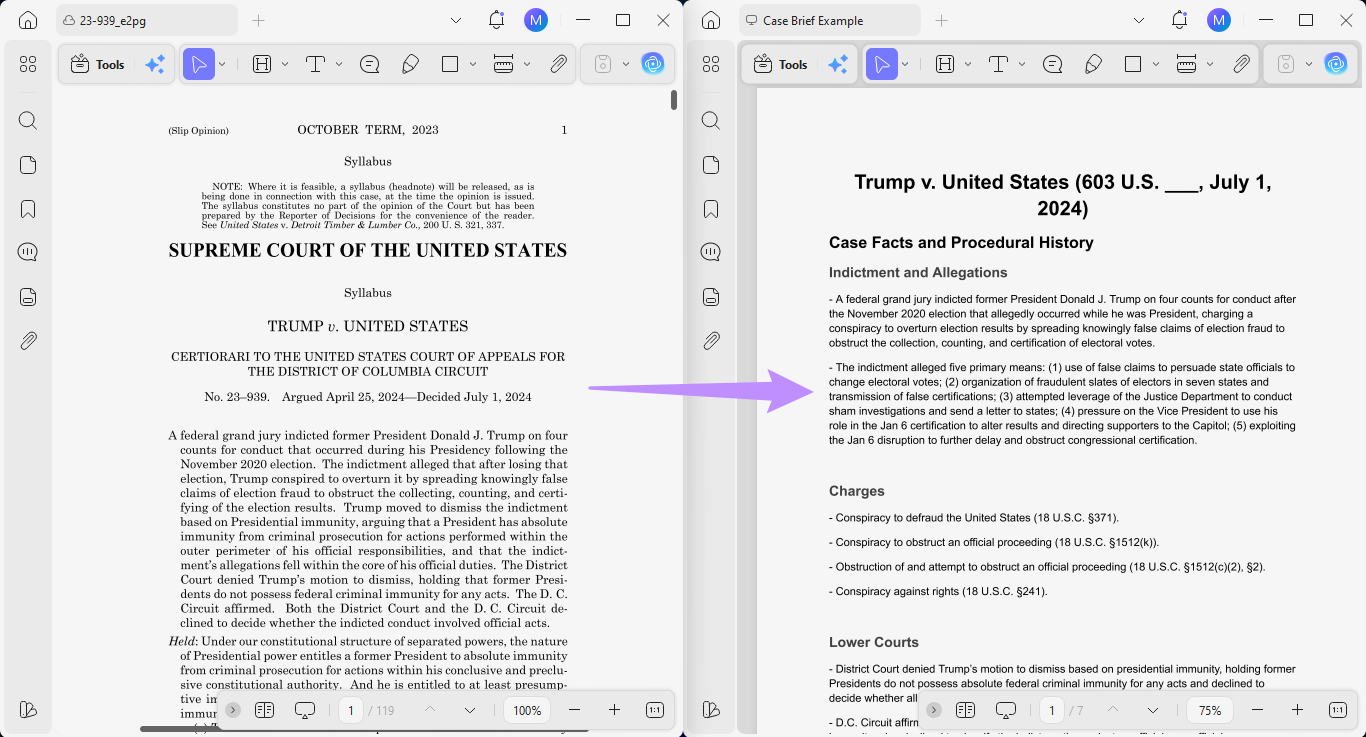
Once you have your AI extracted notes, you can write the actual brief based on the FIRAC or IRAC method. After that, you can use UPDF's split page view feature to cross-check information from the brief with the original court opinion.
To do this, open two PDFs in separate tabs. Then, click and drag one PDF so it moves out of the window. Then click and drag this window to the edge of the first window until it fits the split page view.
Step 4: Annotate and Color-Code Information
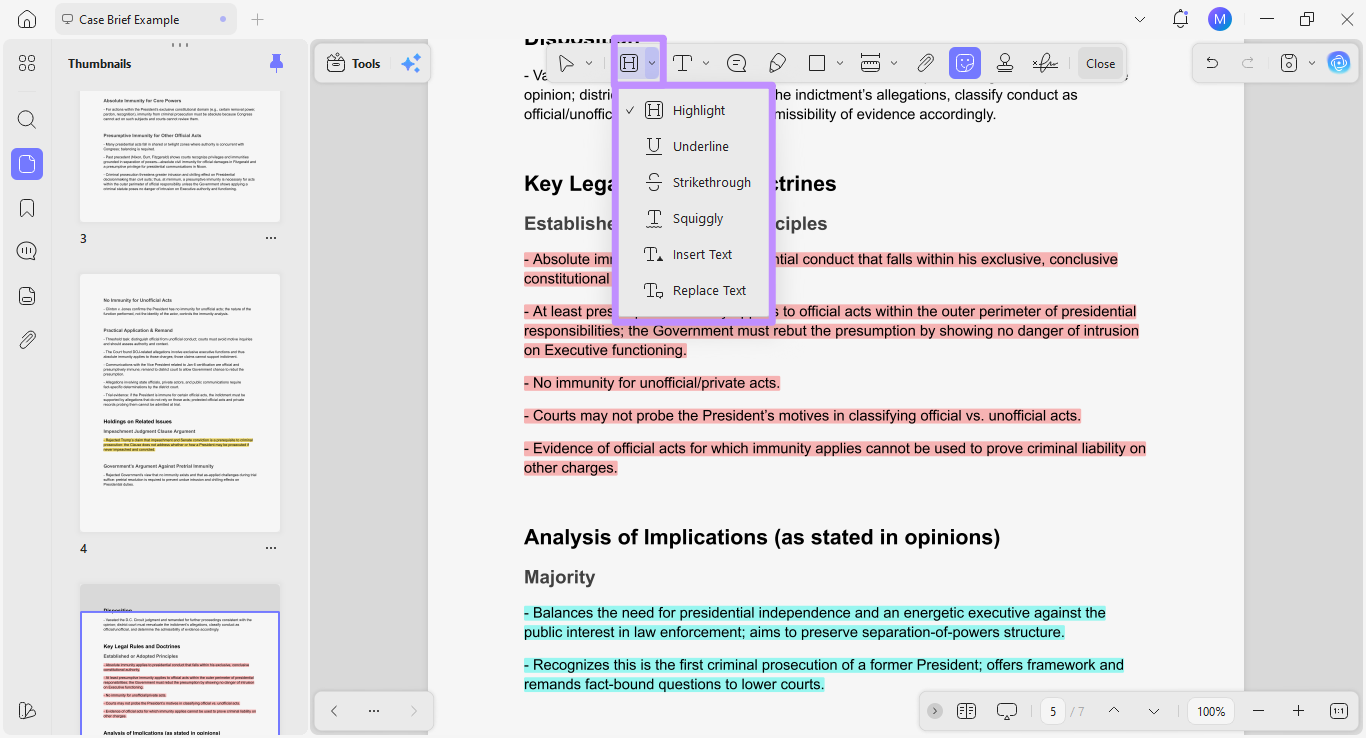
As you review your case brief, you can use UPDF's annotation tools to highlight important details. Unlike paper documents, you can navigate your PDF with digital highlights.
You can also differentiate between important details by assigning different highlight colors to Rules, Facts, and Dicta. This way, when you revisit the case later, your color system will show you exactly what matters.
UPDF offers many markup tools such as highlight, underline, strikethrough, squiggly line, stickers, and more. You can also add comments with sticky notes, text boxes, and callouts.
Upgrade Your Workflow with UPDF AI Agents
The latest UPDF 2.5 update introduces AI Agents—specialized tools designed to handle complex legal tasks for you. Instead of manual analysis, let these agents act as your "digital legal clerks":
- AI Bookmark Agent: Automatically creates structured bookmarks based on the case’s logical flow, letting you jump to the Facts or Ruling instantly.
- UPDF Copilot: Don't waste time looking for tools. Simply tell the Copilot to "Redact this page" or "Summarize the dissent," and it will execute the task for you.
- More: UPDF also offers other 7 AI agents, including bookmark summary, AI page management, AI watermark generator, etc.
Limited Time Offer: Get $10 OFF UPDF 2.5!
Ready to master the FIRAC method in record time? Experience the power of 10+ AI Agents and take the stress out of case briefing.
For a limited time, we are offering an exclusive $10 discount on our latest version. Secure your digital legal toolkit today and work smarter, not harder.
Claim Your $10 Discount – Upgrade to UPDF 2.5 Now >>
Part 3. Why Accuracy & Security Matter in Case Briefing
Now that you know how to write a case brief with AI, you must wonder, "What if the tool gets it wrong?" This is a reasonable concern in a field like law, where a single misrepresented fact can affect an entire argument.
But with UPDF AI, you don't have to worry about these issues. Here's why.
Direct Citation from the Document
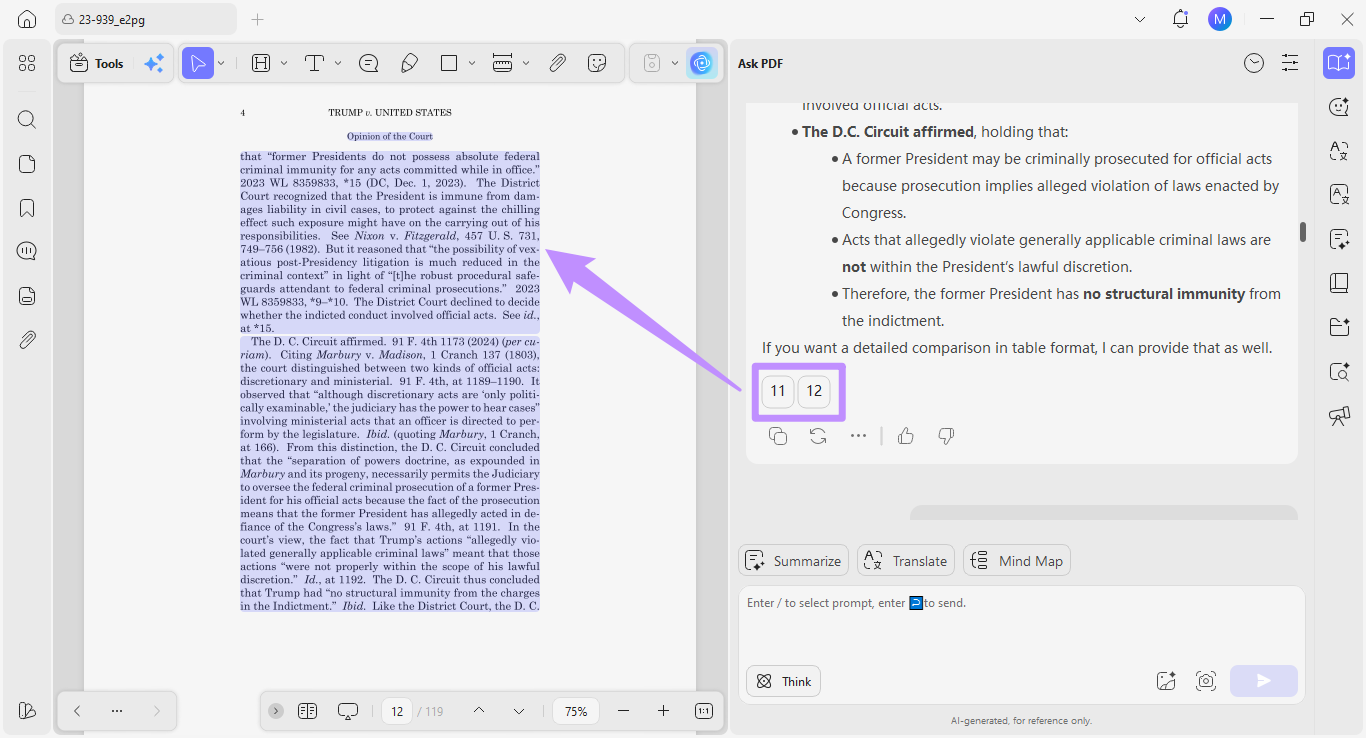
The most common criticism of AI tools is hallucination. Or the fact that they can provide confident-sounding answers that aren't grounded in the actual source. UPDF AI prevents this problem by retrieving answers directly from within the document itself. It also provides exact links to the pages from where the information was extracted.
Your Client's Data Stays Protected
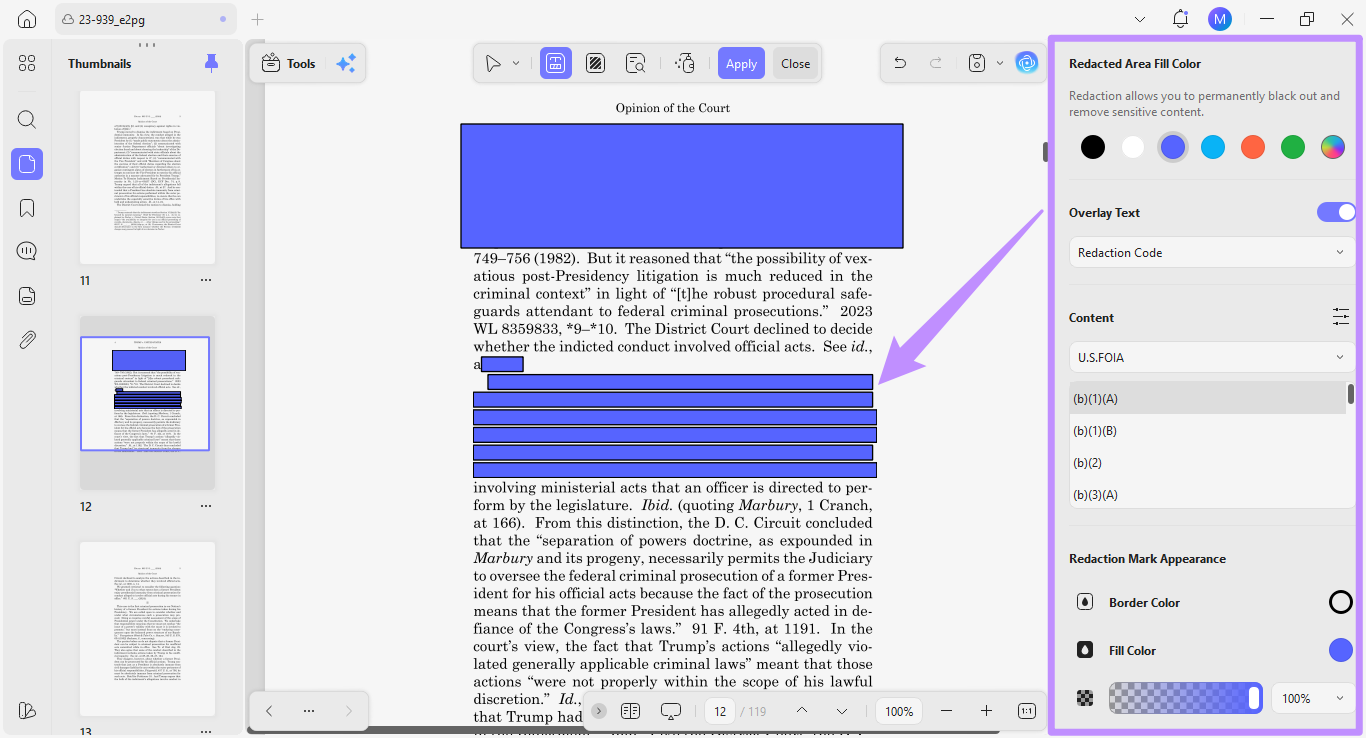
Court opinions can include sensitive information, such as sealed settlement amounts, confidential business data, or names and details of protected individuals. Before sharing a legal brief with a client or colleague, you need to remove this information.
UPDF includes PDF redaction tools that let you permanently delete selected text or entire pages from a document so the information cannot be recovered.
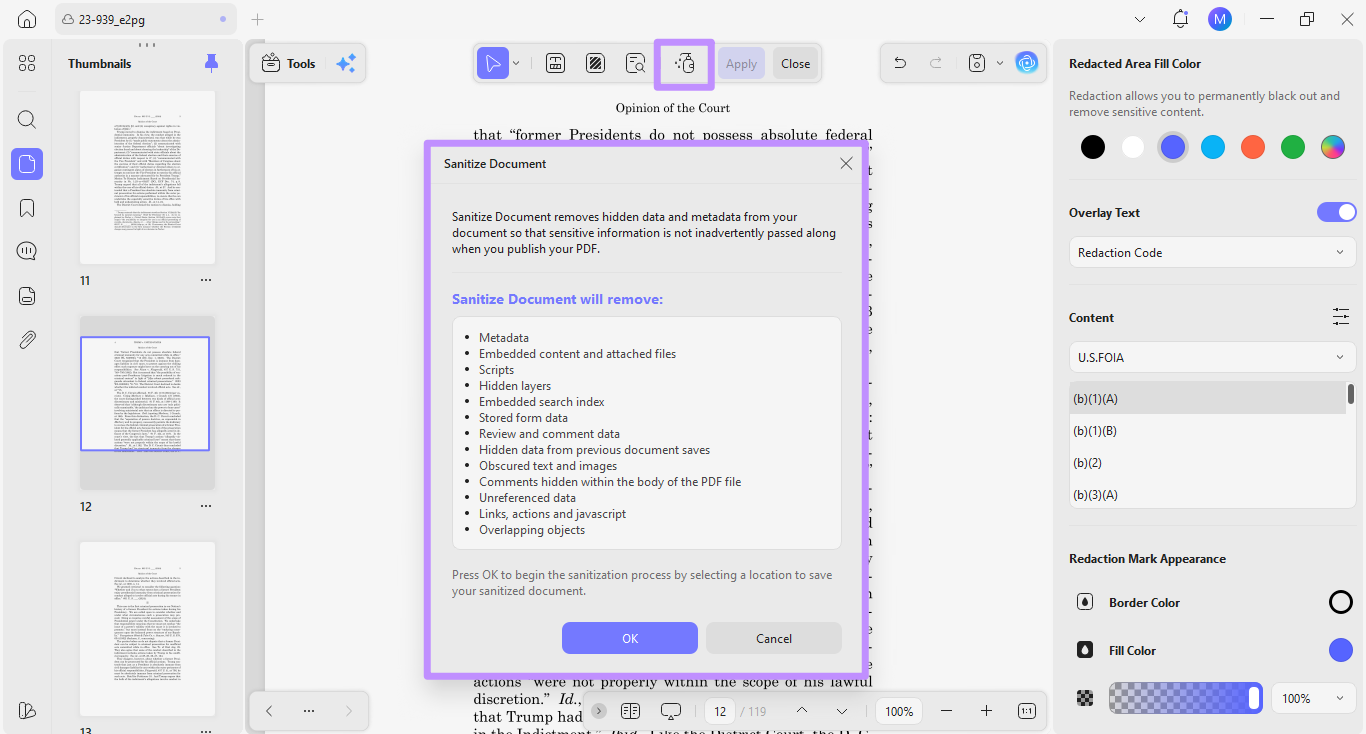
It also offers a PDF sanitization feature that removes hidden data, such as metadata, from the file. This helps ensure that no confidential information is shared by mistake.
In addition, UPDF is certified under ISO 27001. This is an international standard for information security management, and shows the company's commitment to strict practices to protect data.
Windows • macOS • iOS • Android 100% secure
FAQs
Q1. Is it better to write a long or short case brief?
A short case brief is always better as it is meant to be a concise summary of one page or less. The goal is to capture only what is legally significant, such as the key facts, issue, rule, analysis, and holding. A brief that runs longer than one page can imply that you have not yet identified what truly matters in the case.
Q2. How to write a case brief that is exam-ready?
To write an exam-ready case brief, focus your analysis on explaining why the court reached its decision and not just the final outcome. Also, make sure to paraphrase in your own words to show that you really understand the reasoning. Your goal should be a brief that you can review in about 60 seconds and then apply to new fact patterns during an exam.
Conclusion
That's all about my rundown of how to brief a case. You can use both IRAC and the FIRAC method. Just make sure that you understand the reasoning and convey it effectively through a clear and concise summary.
If you want to work faster, UPDF and its built-in AI assistant can help you analyze raw court opinions and extract key takeaways. As a complete PDF toolkit, UPDF also helps you annotate, redact, and protect sensitive case data – all within one app. So, don't miss out. Download UPDF today to handle your legal tasks much faster.
Windows • macOS • iOS • Android 100% secure








 Engelbert White