UPDF
UPDF
 UPDF for Windows
 UPDF for Mac
 UPDF for iPhone/iPad
 UPDF for Android
 UPDF AI Online
 UPDF Sign
 Edit PDF
 Annotate PDF
 Create PDF
 PDF Form
 Edit links
 Convert PDF
 OCR
OCR PDF to Word
 PDF to Image
 PDF to Excel
 Organize PDF
 Merge PDF
 Split PDF
 Crop PDF
 Rotate PDF
 Protect PDF
 Sign PDF
 Redact PDF
 Sanitize PDF
 Remove Security
 Read PDF
 UPDF Cloud
 Compress PDF
 Print PDF
 Batch Process
 About UPDF AI
 UPDF AI Solutions
 AI User Guide
 FAQ about UPDF AI
 Summarize PDF
 Translate PDF
 Chat with PDF
 Chat with AI
 Chat with image
 PDF to Mind Map
 Explain PDF
 PDF AI Tools
 Image AI Tools
 AI Chat Tools
 AI Writing Tools
 AI Study Tools
 AI Working Tools
 Other AI Tools
 PDF to Word
 PDF to Excel
 PDF to PowerPoint
 Enterprise Solution
 Enterprise Sign
 Enterprise AI
 Enterprise Plan
 Enterprise User Guide
 Enterprise Webinar
 Banking
 Healthcare
 Insurance
 Legal
Legal Manufacturing
 Government
 Education Solution
 Customer Stories
 User Guide
 UPDF Tricks
 FAQs
FAQs UPDF Reviews
 Download Center
 Blog
Blog Newsroom
 Tech Spec
 Updates
 UPDF vs. Adobe Acrobat
 UPDF vs. Foxit
 UPDF vs. PDF Expert

The right PDF tool can help you handle documents faster and stay productive. But with so many options available, how do you find one that meets your needs and budget? Comparing PDF editors can simplify this process.
UPDF and Infix PDF Editor are two popular options you can use. To help you choose the right one, I will compare their features, pricing, free versions, and more in this UPDF vs Infix PDF Editor rundown.
Each tool has its own unique strengths. But UPDF offers a more user-friendly solution with its modern design and rich features. It's also free to try. Download and get started now!
Windows • macOS • iOS • Android 100% secure
UPDF vs Infix PDF Editor: Quick Comparison Table
Before getting into the details, check out this side-by-side comparison of UPDF and Infix PDF Editor to understand their key differences.
| Category | Pricing and Features | Infix PDF Editor | UPDF |
| Pricing | Individual | Monthly: $9.99/moPerpetual: $99/lifetime | US$39.99 / YearUS$69.99 / Perpetual |
| Enterprise | No latest information available. Likely $1,995 / year for up to 250 users (based on earlier data) | US$79.00 / Year/user,US$129.00 / Perpetual/user | |
| Supported Platforms | Windows, Mac, Linux | Windows, Mac, iOS, and Android | |
| Read PDF | Open and read PDFs | ||
| Add and manage bookmarks, Search text | |||
| Display a PDF as a slideshow | |||
| Annotate PDF | Highlight, Strikethrough, Underline, Text Comment, Text Box, Sticky Note, Shapes, Pencils, Stamps, and Signatures | ||
| Squiggly line | |||
| Text Callout | |||
| Manage the Annotation List | |||
| Stickers | |||
| Edit PDF | Add and Edit Text, Images, Links, and Watermarks | ||
| Add and Edit PDF Background | |||
| Add Header & Footer to multiple pages | (only page numbers via text boxes) | ||
| Add Rich Rext by Dragging and Dropping | (Mac only) | ||
| OCR | OCR PDF | ||
| Convert to Searchable PDF | |||
| Convert to Editable PDF | (with only editable text, no pictures) | (includes text, pictures, and page background) | |
| Convert to Text and Pictures Only PDF | |||
| Convert PDF | Supported formats | Word, Text, HTML, Open eBook, Epub, RTF, and images (JPEG, PNG, TIFF, BMP) | Word, Excel, PPT, Text, RTF, HTML, XML, PDF/A, PDF/E, PDF/X, and Images (PNG, JPEG, TIFF, BMP, GIF) |
| Organize PDF | Merge, Insert, Delete, Move, Replace, Rotate, Extract, Crop | ||
| Split PDF | |||
| Split Pages | |||
| Encrypt PDF | Protect PDFs with Password, Redaction, and Digital Certificate | ||
| Share PDF | Send a PDF by Email as an attachment | ||
| Share PDF via a link | |||
| Create PDF | From a blank PDF | ||
| From other file formats | (only via Infix PDF Printer within native applications) | ||
| PDF Forms | Create and fill Forms | ||
| AI Assistant | Summarize, explain, translate, chat, create mindmaps, analyze images, paper search, scholar research, etc. | ||
| PDF Translation | Translate entire PDF | (third-party website, and legacy methods) | (using built-in AI assistant) |
| Translate Pages | (one at a time) | (any page range) | |
| Translate sections directly | |||
| Cloud storage | Built-in cloud storage |
UPDF vs Infix PDF Editor: Product Overview
Both UPDF and Infix are excellent PDF editors with plenty of features. To give you a general idea about what makes them distinct, here's an overview of two tools.
1. UPDF Overview
UPDF is an AI-powered PDF editor by Superace Software. It offers a complete suite of tools for editing, organizing, converting, protecting, and batch-processing PDF documents. One of UPDF's core strengths is its seamlessly integrated AI assistant, which lets you interact directly with PDFs through features such as summarization, translation, chatting, explanation, and more.
Beyond its powerful functionality, UPDF features a modern, minimalist interface that is easy to navigate. It is available on Windows, Mac, iOS, and Android, allowing users to work across multiple devices. In addition, UPDF includes built-in cloud storage, enabling seamless file syncing and access from anywhere.
UPDF offers a free trial, and users can get started for free on Windows, Mac, iOS, and Android devices.
Windows • macOS • iOS • Android 100% secure
Below is an introduction video showcasing UPDF's 2.0 version, released in 2025:
2. Infix Overview
Infix PDF Editor is a PDF editing software originally developed by Iceni Technology. But after their acquisition by Apryse, Infix is available through Apryse official website. The tool offers a comprehensive set of features to view, edit, and organize PDF documents. It also allows you to translate PDFs to a range of languages to improve accessibility.
The main strength of Infix lies in its familiar word-processor style interface. The tool also includes several document operations for professional workflows. You can split, secure PDFs, track changes, and more.
Given the versatility of its features and simple interface, Infix targets both casual and professional audiences. It's available on all major desktop platforms, including Windows, Mac, and Linux.
Features & User Experience
To understand exactly how the tools work and their unique advantages, I've spent some time with both. Below, I will share my experience using some of their core features.
1. Editing Text and Layout
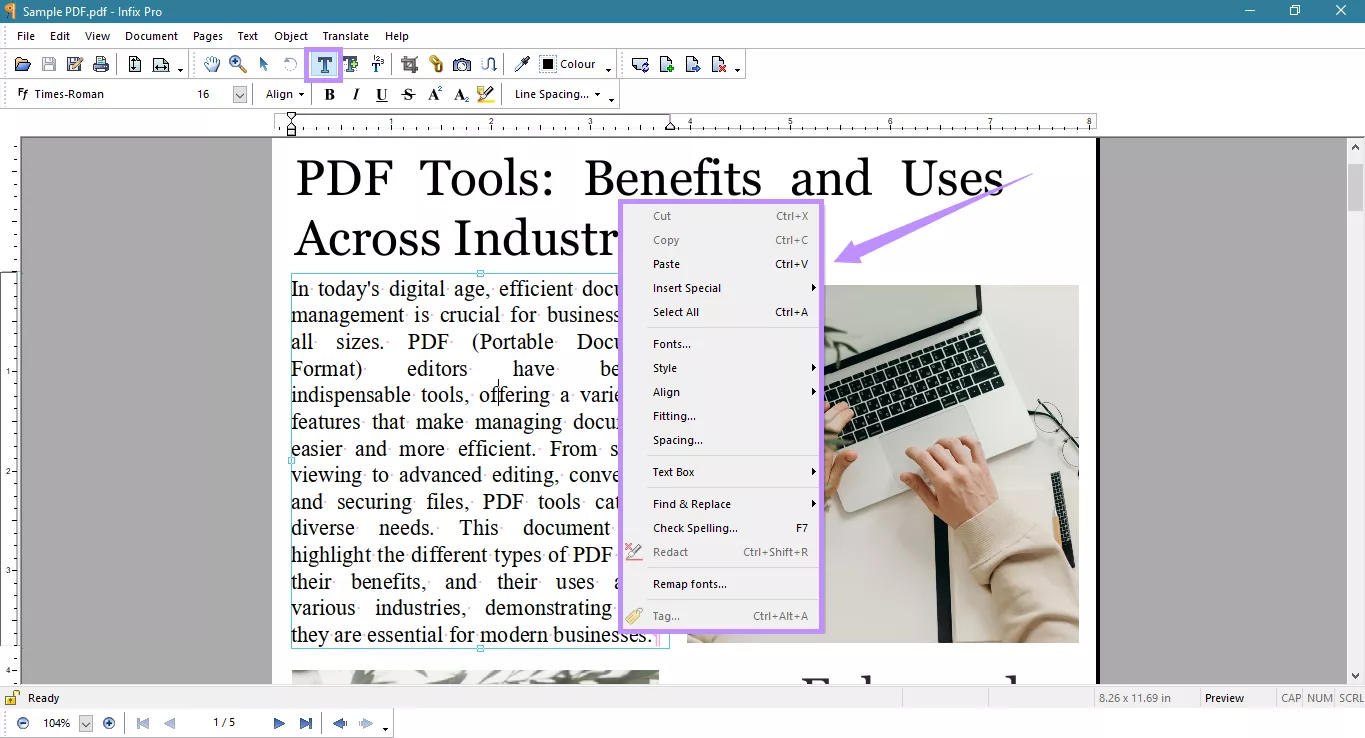
To edit text in Infix, you can simply click on text while using the Text Edit Tool. It is easily accessible from the top toolbar. Moreover, it allows you to add or delete text, adjust font, style, alignments, and spacing from the right-click menu.
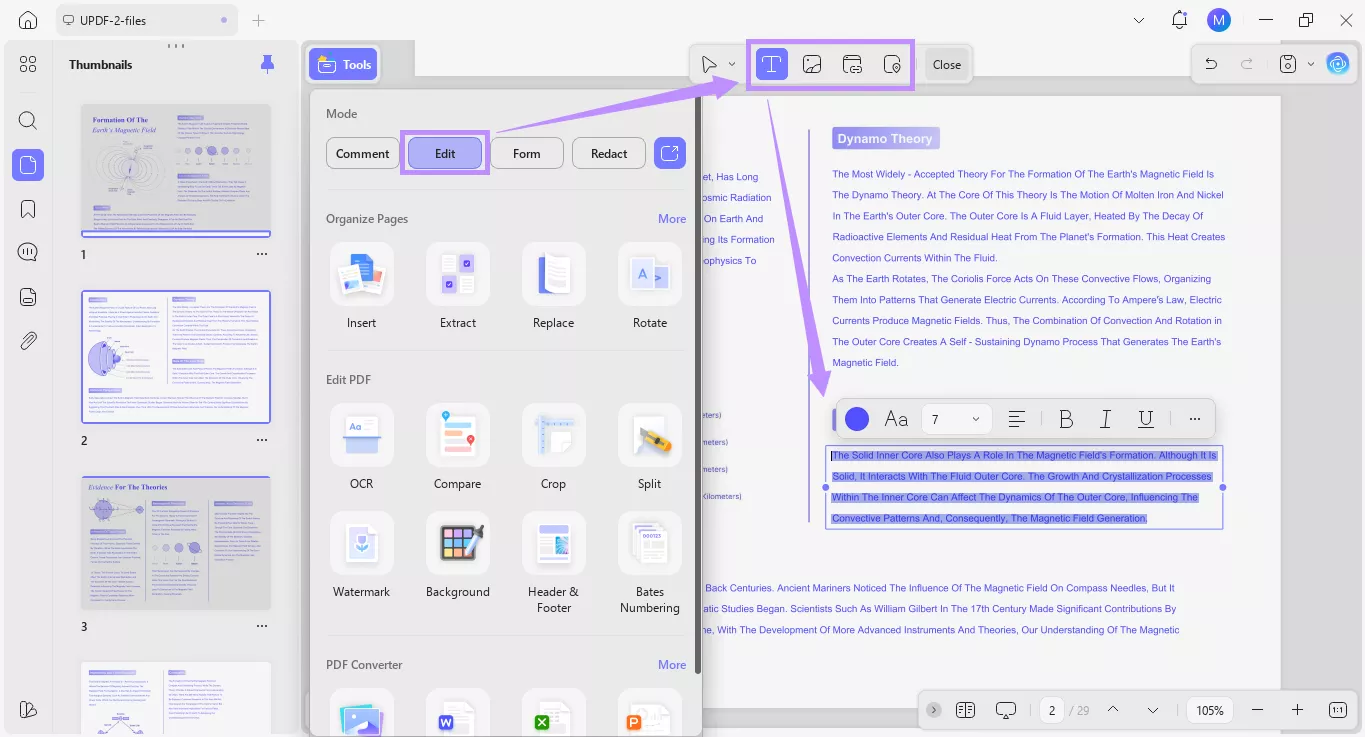
In UPDF, you can edit text using a dedicated "Edit" mode. When editing text, you can directly select all essential editing tools from a floating toolbar. For advanced settings, the expanded editing panel lets you format text in detail with options to apply superscripts and subscripts, change paragraph spacing, and more.
The Takeaway:
2. Annotation and Markup Experience
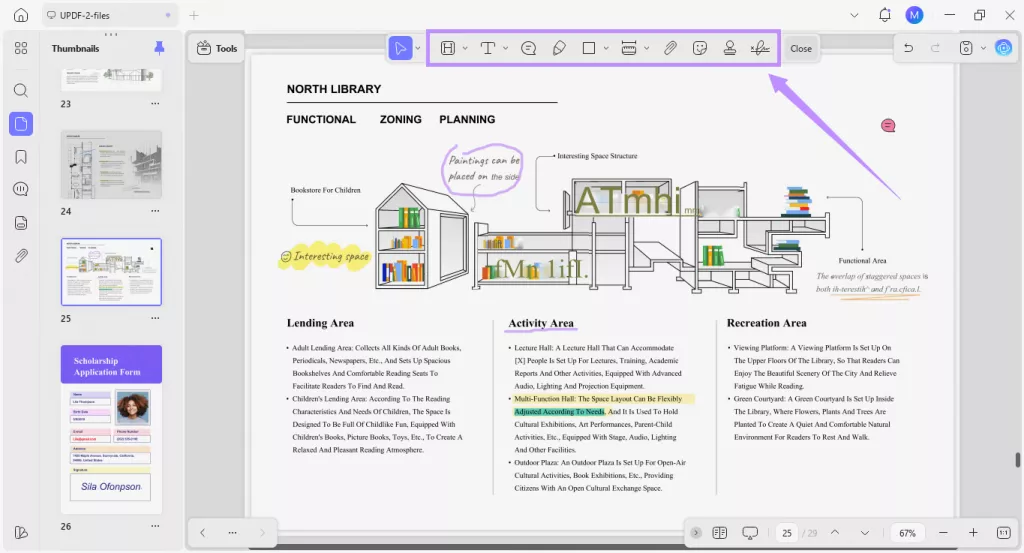
To evaluate how they handle annotations, I opened and annotated an academic paper in both programs. Infix allows you to markup your file in editing mode. You can underline, strike through, or highlight text. Moreover, you can add sticky notes, graphical notes, stamps, and text boxes for comments.On the other hand, UPDF makes things much simpler. You can annotate text directly from the floating toolbar in reading mode. It allows you to add highlights, underlines, strikethroughs, squiggly lines, sticky notes, and more. It also offers advanced annotation tools such as stamps, stickers, and signatures, under a separate "Comment" mode.
The Takeaway:
3. OCR and Scanned PDFs
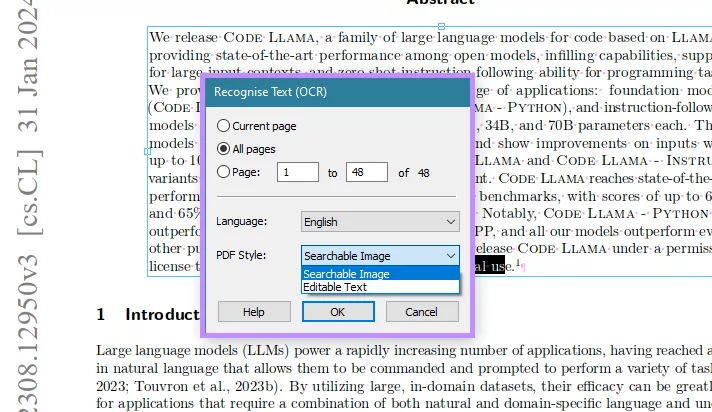
Infix offers two OCR modes: searchable image or editable text. The editable format only includes text. It removes all images from the document. In addition, if the OCR results in inaccuracies, you can use the OCR Corrections option to fine-tune the document.
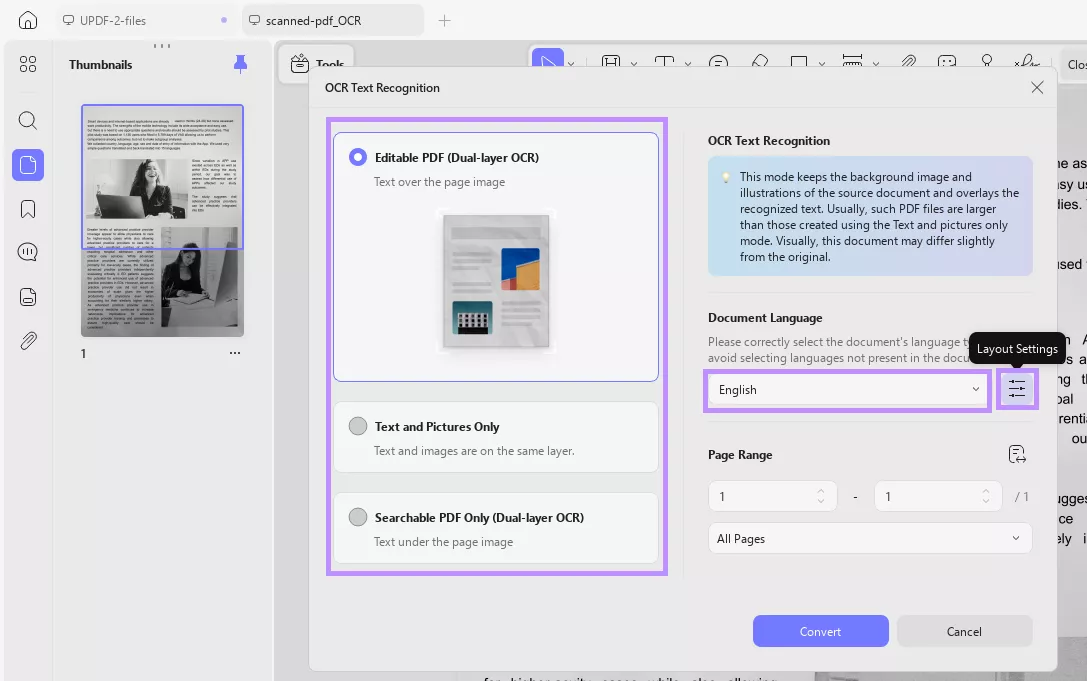
Compared to Infix, UPDF offers three OCR modes: searchable only; editable with pictures, text, and background in place; and editable with only text, pictures, and a neutral white background. It also offers advanced layout settings to control output file size and image resolution. You can also choose whether to keep background colors, headers, footers, etc.
Windows • macOS • iOS • Android 100% secure
The Takeaway:
4. Smart & AI-Assisted Capabilities
Artificial intelligence has taken over professional workflows. Therefore, an AI-driven PDF editor is the need of every modern user. However, Infix lacks this important feature.
Meanwhile, UPDF includes a seamlessly built-in AI assistant. It allows you to chat with PDFs and images, summarize, explain, and translate documents, analyze data charts, find academic papers, and more.
The Takeaway:

Free Version: What Users Can Actually Do
Both UPDF and Infix PDF Editor allow you to test their tools free of cost, with some limitations.
Infix PDF Editor Free Trial
Infix allows you to try all of its features for free. These include full editing, page organization, creating PDFs, and more. The only drawback is the addition of the demo version watermark on the saved file.
UPDF Free Trial
UPDF offers a free trial with limitations on the use of some features. However, there is no time limit. You can try all features for free without the trial running out. Just make sure to register and log in to your account when using it.
Some free limitations include the following:
- Conversion: 2 conversions per day.
- OCR: Processing of up to 5 PDFs.
- AI Assistant: Upload 5 PDFs (max 10MB, 100 pages each) and ask up to 100 questions.
- Batch Processing: 2 files at a time.
- Comparison: Cannot see detailed differences when comparing PDFs.
- Cloud Storage: 1 GB space; 100MB size per file.
- Sharing: Cannot password-protect or apply expiration dates on PDFs.
- Watermark: UPDF watermark on saved documents.
Enterprise & Team Use
Both UPDF and Infix PDF Editor offer enterprise plans for teams. Let's look at their pricing and benefits.
Infix Enterprise Plan:
After the acquisition of Iceni Technology by Apryse, the official pricing of Infix has been removed from the company's website. According to previously available online information, Infix enterprise plan offers real-time license monitoring for organizations and teams. The pricing used to be as follows:
- Pricing: $1,995 / year for 250 users.
UPDF Enterprise Plan:
UPDF Enterprise offers admin-level controls using a central dashboard. This allows teams to manage members, authorize or deauthorize licenses from one place. Additionally, it supports flexible deployment with annual and perpetual plans.
- Annual Pricing: US$79.00 / year/user
- Perpetual Pricing: US$129.00 / lifetime/user
Watch the video below to learn more about UPDF Enterprise:
User Reviews & Ratings
Moving on with UPDF vs Infix comparison, let's see what users are saying about these.
Infix PDF Editor
Infix PDF Editor has not been widely rated on online review platforms. Therefore, it's difficult to find real user reviews and feedback. Here are the ratings on a few sites:
- 4.7/5.0 based on 11 votes on Software Informer.
- 3.3/5.0 based on 13 votes on Softonic.
Here's one user review I managed to find:
Review 1: "Completed a 2 page edit, then went to save and it prompted for me to purchase. Once i clicked to ignore, app closed/crashed and i lost all my edits." as read on Softonic.
UPDF
UPDF is widely rated across trusted platforms like G2, Capterra, and TrustRadius. Here are its ratings on these sites:
Let's look at what the users are saying:
Review 1: "... I use the tool every day, for my work it is essential and meets all the needs.." as read on G2.
Review 2: "Everything else works great, but UPDF doesn't provide an option to display PDFs with right-to-left (RTL) page binding..." as read on TrustRadius
Conclusion
To sum up this UPDF vs Infix PDF Editor comparison, Infix stands out due to its word-processor-like PDF editing workflow. This makes it quite simple to use. Meanwhile, UPDF remains noticeable with its rich feature set, AI integration, cloud storage, and modern design. It is developed for effortless document management and productive workflows. Try it yourself. Download and get started now!
Windows • macOS • iOS • Android 100% secure
Note: The information on this page is based on UPDF writers' testing and the product information available online at the time of writing. The exact details can change over time. If you notice any inaccurate information, please contact us at [email protected].


 Enola Miller