 UPDF
UPDF
 UPDF for Windows
 UPDF for Mac
 UPDF for iPhone/iPad
 UPDF for Android
 UPDF AI Online
 UPDF Sign
 Edit PDF
 Annotate PDF
 Create PDF
 PDF Form
 Edit links
 Convert PDF
 OCR
OCR PDF to Word
 PDF to Image
 PDF to Excel
 Organize PDF
 Merge PDF
 Split PDF
 Crop PDF
 Rotate PDF
 Protect PDF
 Sign PDF
 Redact PDF
 Sanitize PDF
 Remove Security
 Read PDF
 UPDF Cloud
 Compress PDF
 Print PDF
 Batch Process
 About UPDF AI
 UPDF AI Solutions
 AI User Guide
 FAQ about UPDF AI
 Summarize PDF
 Translate PDF
 Chat with PDF
 Chat with AI
 Chat with image
 PDF to Mind Map
 Explain PDF
 Scholar Research
 Paper Search
 AI Proofreader
 AI Writer
 AI Homework Helper
 AI Quiz Generator
 AI Math Solver
 PDF to Word
 PDF to Excel
 PDF to PowerPoint
 Enterprise Solution
 Enterprise Sign
 Enterprise AI
 Enterprise Plan
 Enterprise User Guide
 Enterprise Webinar
 Banking
 Healthcare
 Insurance
 Legal
Legal Manufacturing
 Government
 Education Solution
 Customer Stories
 User Guide
 UPDF Tricks
 FAQs
FAQs UPDF Reviews
 Download Center
 Blog
Blog Newsroom
 Tech Spec
 Updates
 UPDF vs. Adobe Acrobat
 UPDF vs. Foxit
 UPDF vs. PDF Expert


UPDF AI Explain Feature
There are times when you come across complex documents or information that are difficult to understand. Whether it is technical reports, legal contracts, or research papers, manually analyzing them can be time-consuming. Fortunately, AI-powered tools make this process easier by effectively summarizing, analyzing, and explaining document content.
This guide explores UPDF AI Assistant, a powerful tool available on Windows, Mac, mobile, and even as a web version. If you need to grasp the core idea of any document quickly, UPDF AI provides an efficient and intelligent solution. In the following sections, we will take a closer look at its Explain feature and how it can simplify working with complex PDFs.
- 1. Explain PDFs on Windows/Mac Computers
- 2. Explain PDFs on iOS/Android Smartphones
- 3. Explain PDFs in Web Browser
Part 1. Explain PDFs with UPDF AI Assistant on Windows/Mac Computers
When talking about the Explain feature of UPDF, users get multiple ways to gain insights from their documents. While reading a PDF, if you find any difficult term or concept, you can select that content and use the Explain feature to get a breakdown of the information. Additionally, users get the ability to copy and paste their desired content to an AI assistant for explanation.
If you want to change the format or adjust the level of detail, you can prompt the AI to customize the response according to your needs. Read the following section to learn about the two methods of how UPDF's AI generates explanations:
Method 1. Select to Explain
Using this feature of UPDF AI makes understanding PDFs simple and efficient. Readers can get clear explanations of complex terms directly from the document by selecting and choosing the Explain feature. Here's how you can use UPDF AI to explain PDF content while reading:
Here's how you can use UPDF AI to explain PDF content quickly and easily:
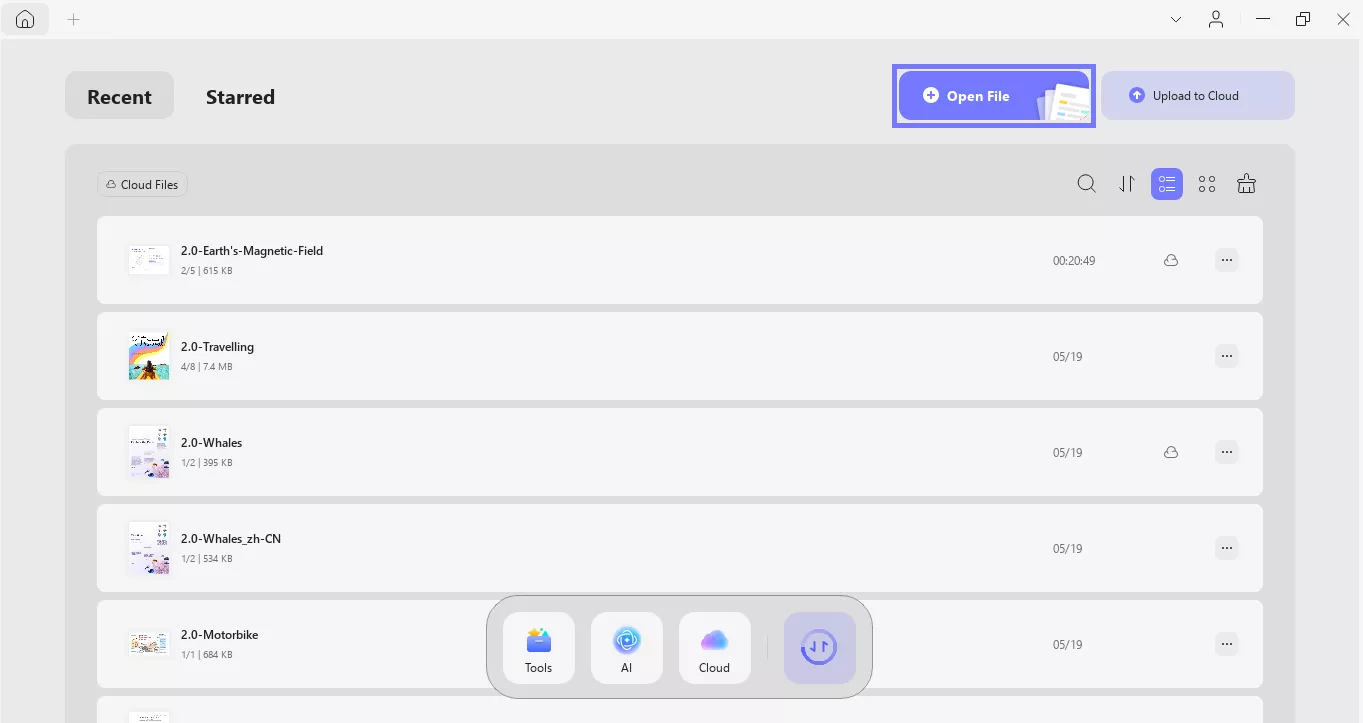
Step 1. To begin, download and launch UPDF on your desktop. Within its main interface, tap on the Open File button to import the PDF you want UPDF AI to explain.
Windows • macOS • iOS • Android 100% secure
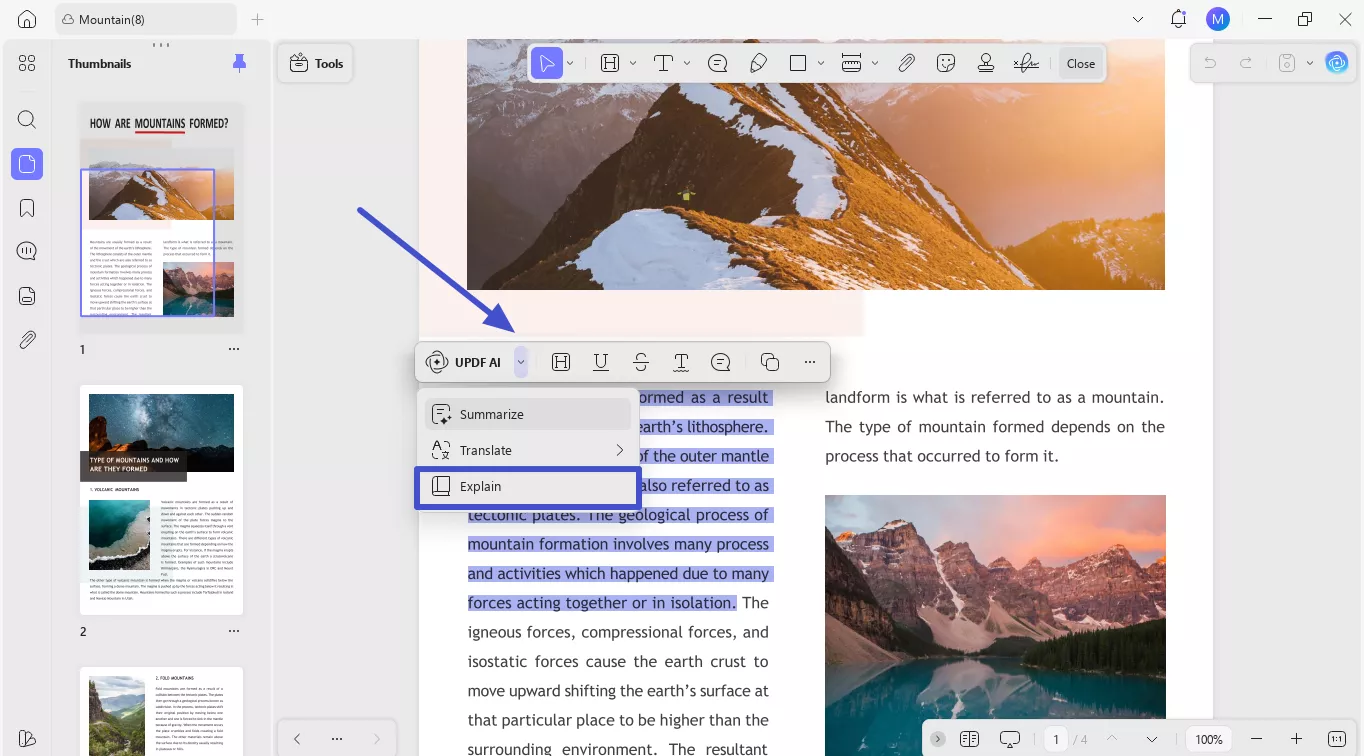
Step 2. Moving forward, select the text or phrase you want to explain. Now, hit the Downward icon on the floating bar and choose the Explain option from the dropdown menu.
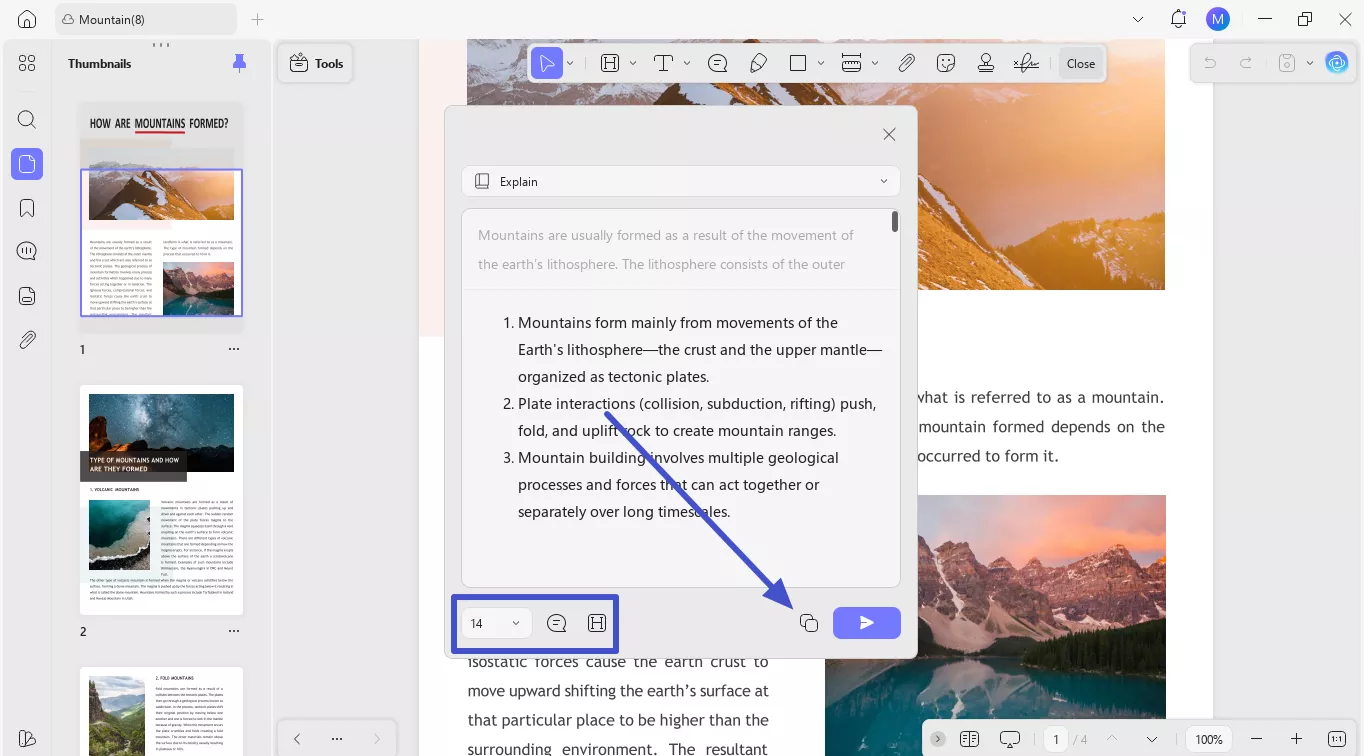
Step 3. Once the explanation is generated, simply hit the Copy icon to paste it somewhere else. Moreover, you can even use the Notes and Highlight feature to incorporate this explanation into your PDF.
Method 2. Copy & Paste to Explain
Another effective method to explain terms in a PDF is by using the copy-and-paste method with UPDF AI. This approach is great for those who prefer typing out the terms they want clarified. By following these few simple steps, you can quickly get explanations hassle-free:
Here's how to do it:
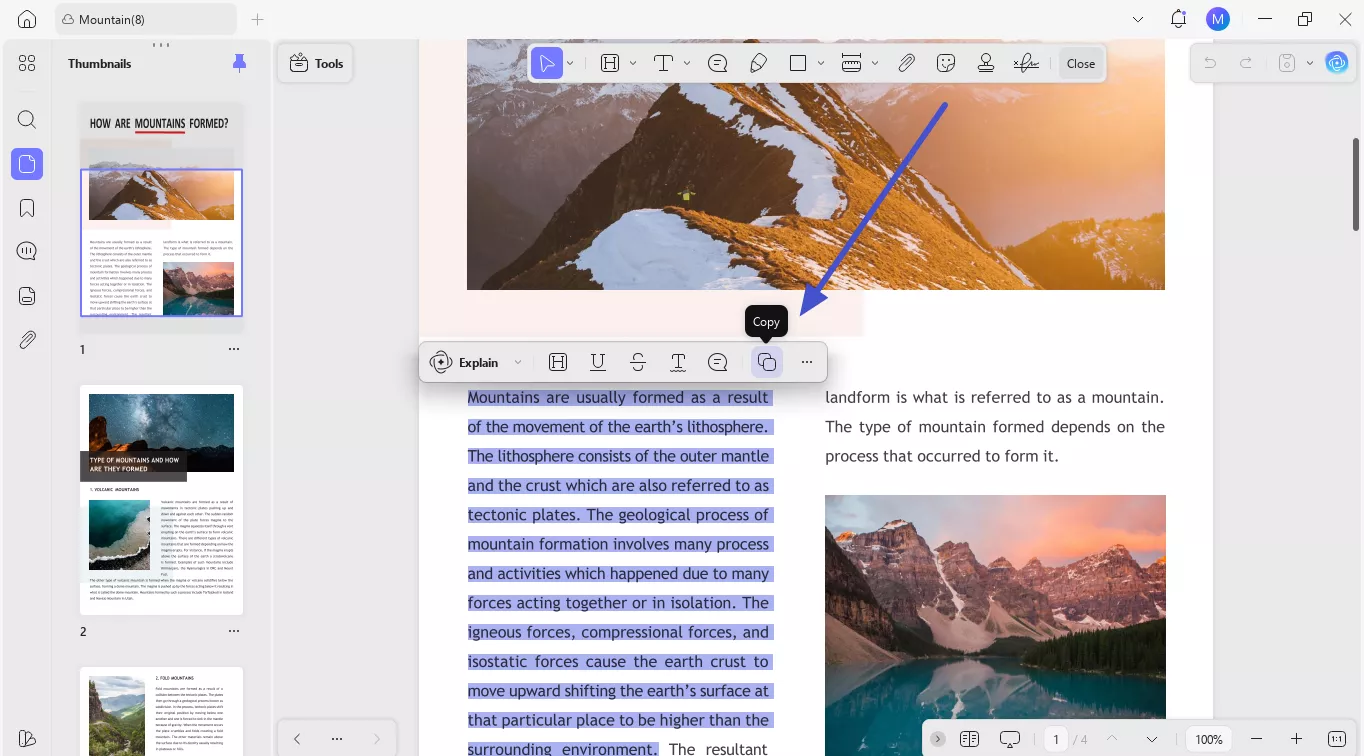
Step 1. Upon importing the PDF to UPDF, select the text you want to explain and hit the Copy icon on the floating toolbox.
Step 2. After copying text, hit the UPDF AI icon on the top right of your screen. Now, access the Explain feature within this side window. Finally, paste the copied text and hit the Send icon to get the explanation.
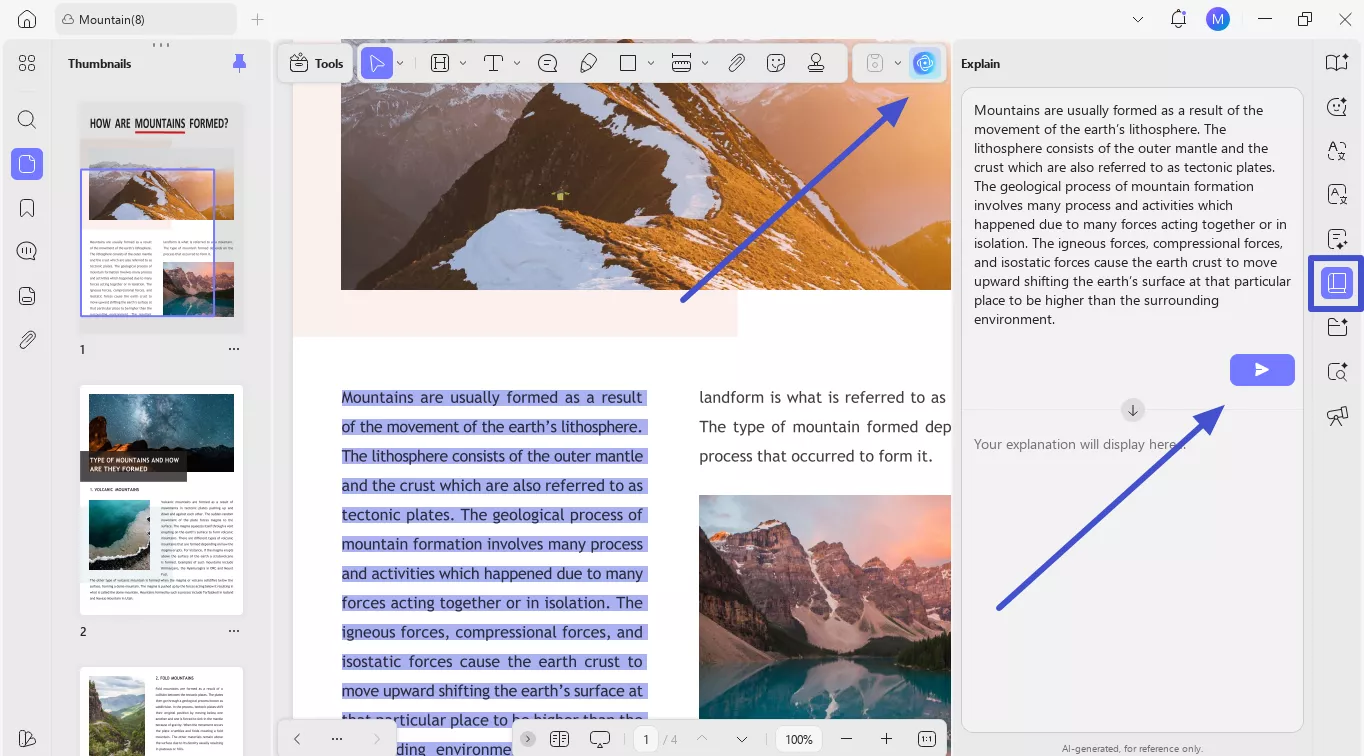
Step 3. Once UPDF AI generates an explanation, tap the Copy icon to paste this explanation anywhere you want.
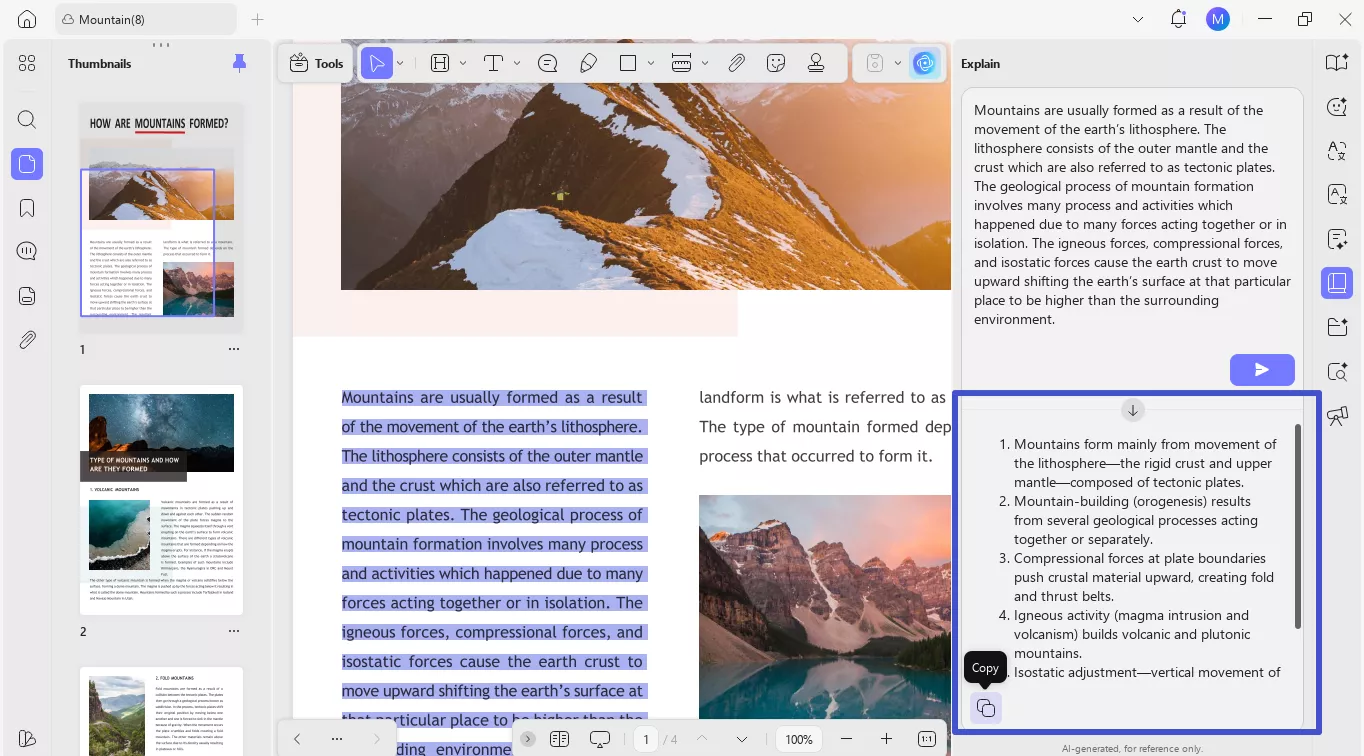
This method is simple and easy to explain PDF's terms and phrases. You can also use it to get an explanation of paragraphs and other content.
Method 3. Take Screenshot / Upload Images to Explain
In addition to working with full documents, UPDF AI also lets you interact directly with visual content. With screenshot capture and image upload support, you can instantly explain, analyze, and extract meaning from diagrams, handwritten notes, charts, and other images.
To explain the screenshot with UPDF, follow these steps:
Step 1. Start by importing your desired PDF and accessing the UPDF AI window from the top right of your screen. Now, enter the Chat mode within UPDF AI and tap on the Snapshot icon.
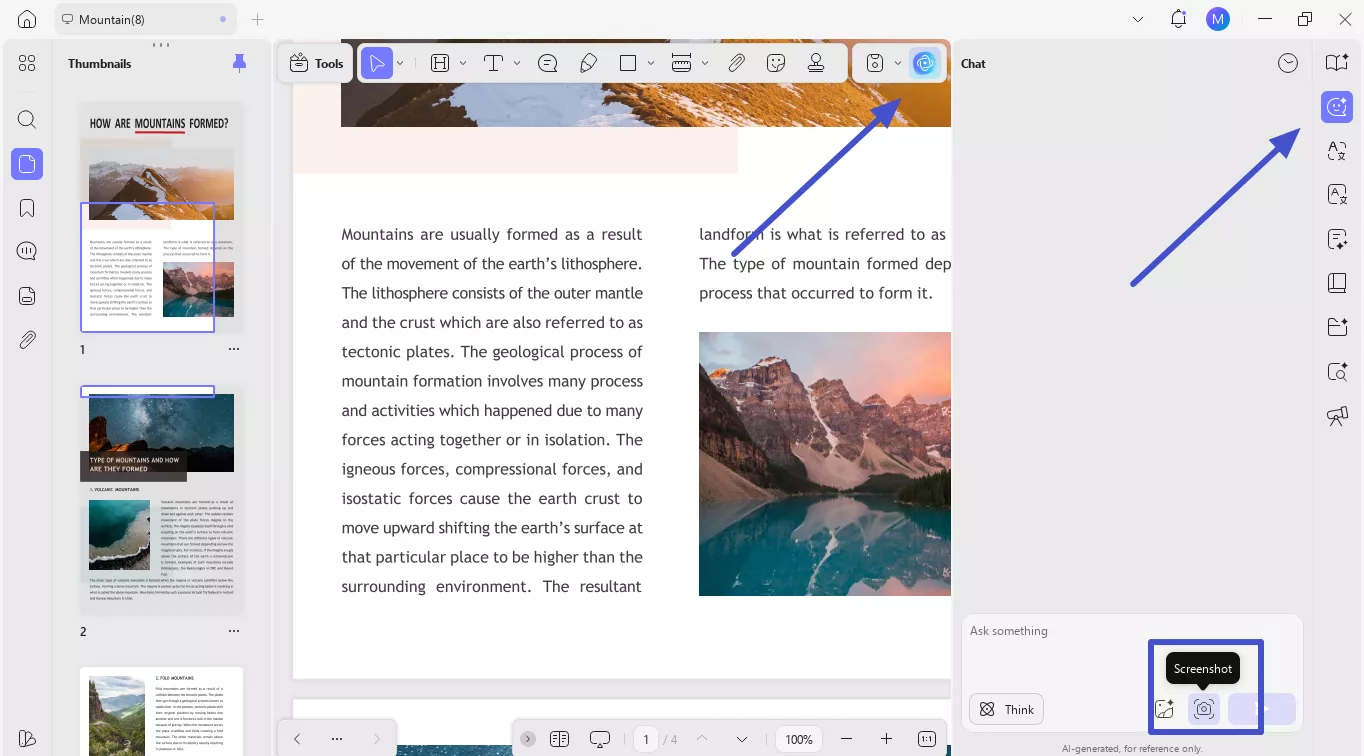
Step 2. Now, proceed to take the screenshot by drawing a box around the text you want to explain.
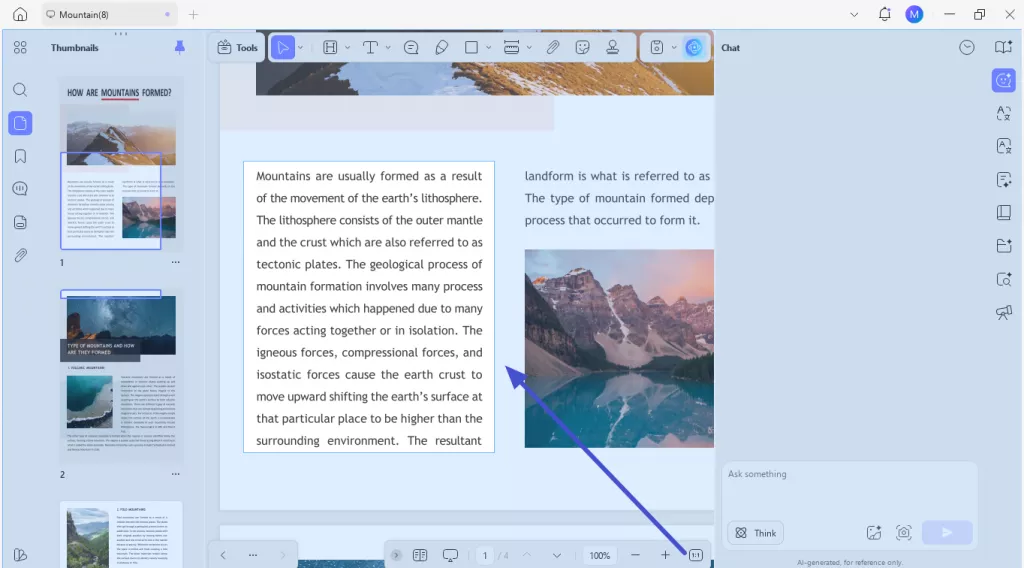
Step 3. Once you take the screenshot, type the prompt to tell AI to explain the content within the snapshot. Then, hit the Send icon to get the results.
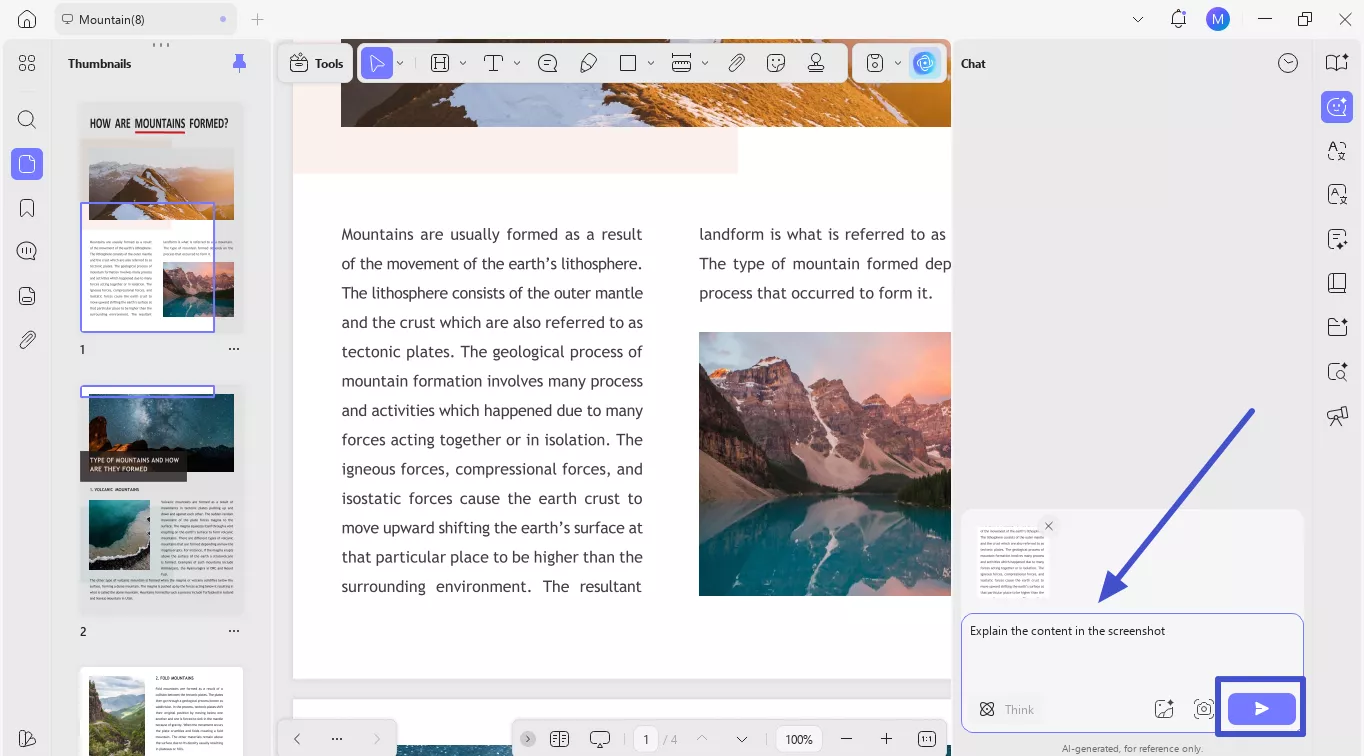
Step 4. After UPDF AI generates the explanation, you can simply copy the content. You even get the option to regenerate or rate the explanation.
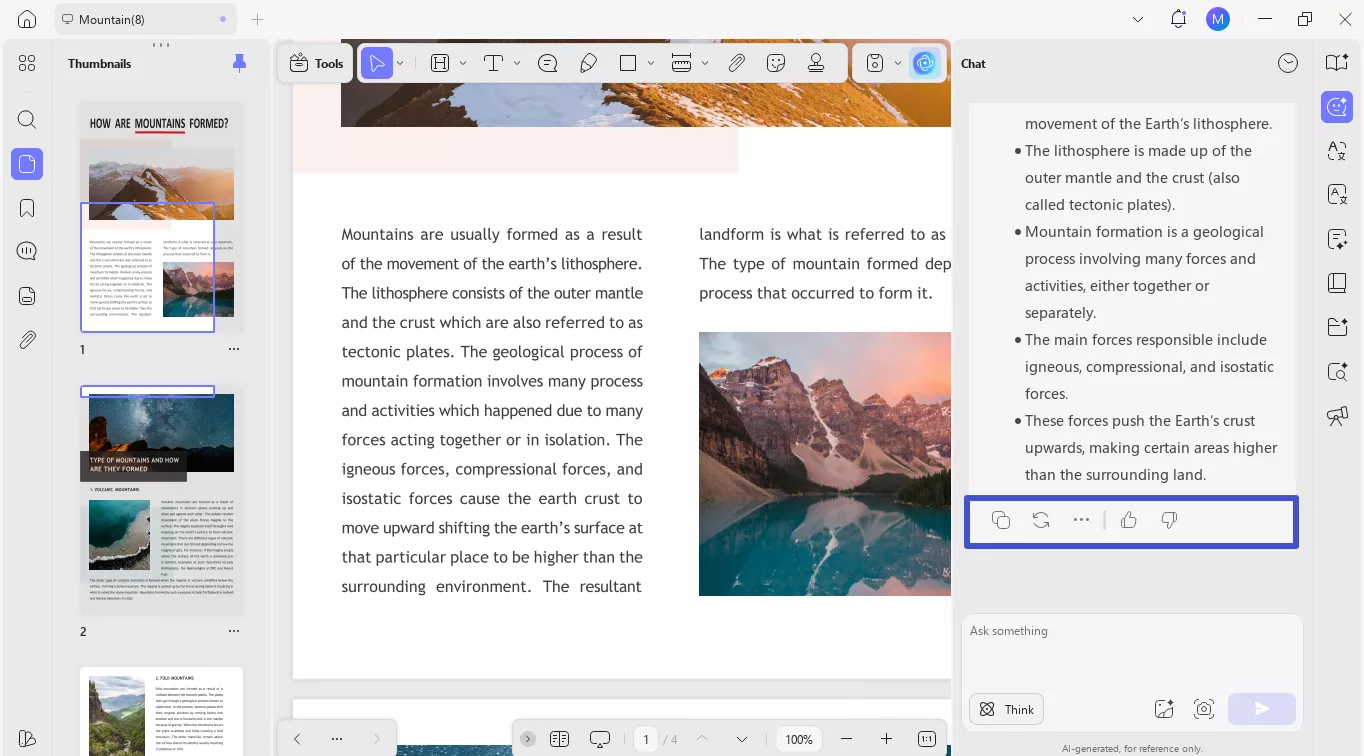
Method 4. Ask UPDF AI to Explain Within the Chat Mode
Within the Chat Mode, you can move beyond simple questions and ask for clear explanations. UPDF AI analyzes the content in context, understands structure and intent, and then explains concepts or data in plain language.
Follow these instructions to explain the content within the Chat mode:
Step 1. Upon uploading the PDF, tap on the UPDF AI icon on the top right of your screen. From the new side window, access the Chat mode and type the prompt to explain your desired term or phrase. Proceed to hit the Send icon to get the detailed explanation.
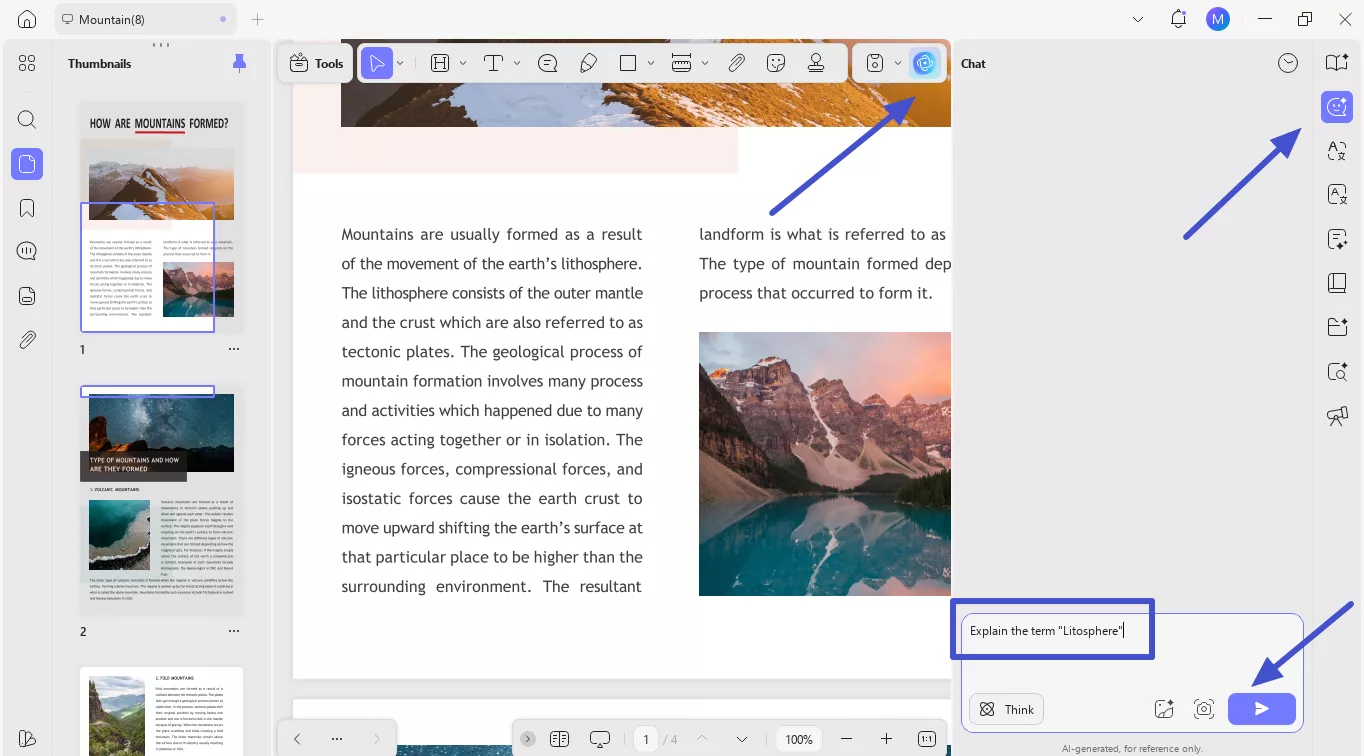
Step 2. Once UPDF AI delivers the explanation, copy the text for your notes or documents. If needed, you can regenerate the response or rate the explanation to help improve the results.
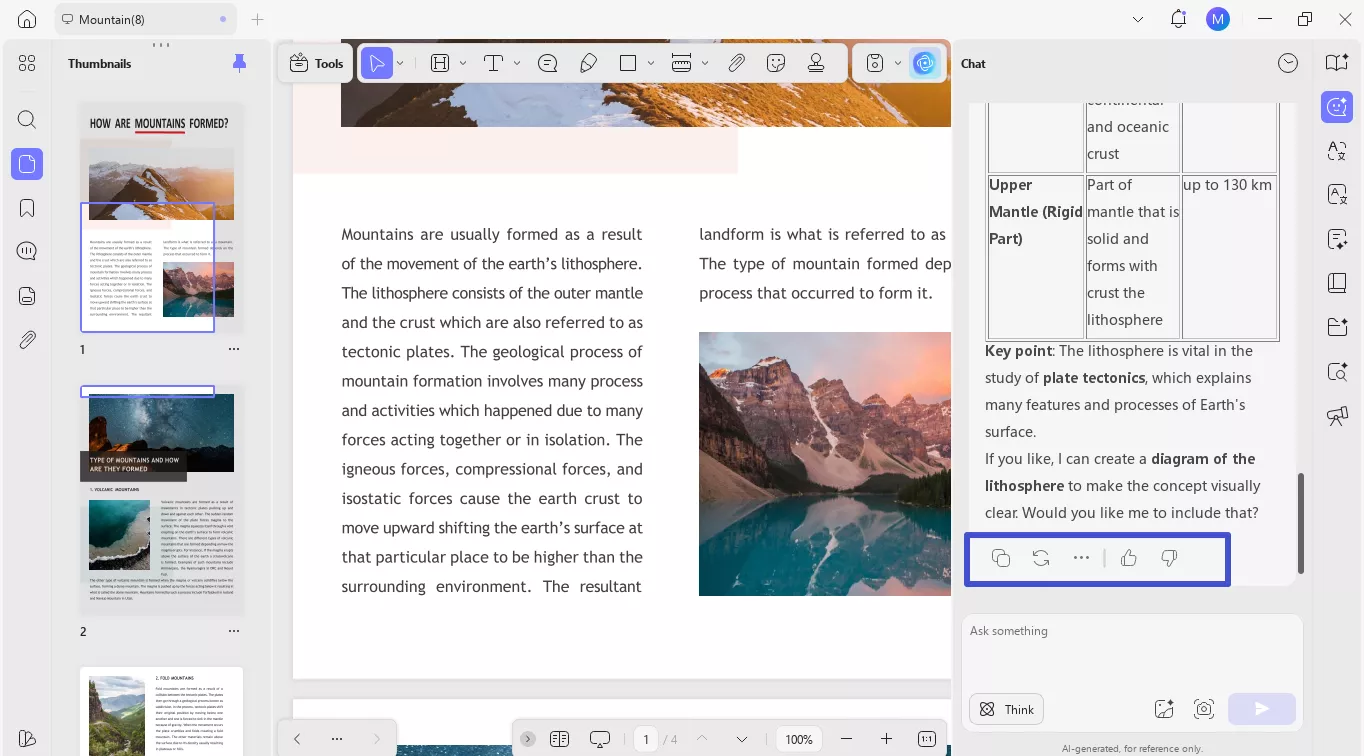
Part 2. Explain PDFs with UPDF AI Assistant on iOS/Android Smartphones
In addition to the desktop version, UPDF's AI assistant is also integrated into UPDF iOS and Android apps. The mobile version retains the same powerful features as the desktop version, ensuring seamless document comprehension anytime, anywhere. UPDF app includes an explain feature to let users get clarifications on any complex terms or phrases while reading.
Users simply need to select the content and utilize the UPDF AI explain feature to receive instant insights. After getting an explanation, you get the option to copy and regenerate it as well.
Method 1. Explain While Reading
While going through your UPDF, you can simply select the content and use the AI explain feature to generate quick clarification. This makes it easier for users to understand complex terms without leaving the document. Perform these steps to explain content while reading using the UPDF app:
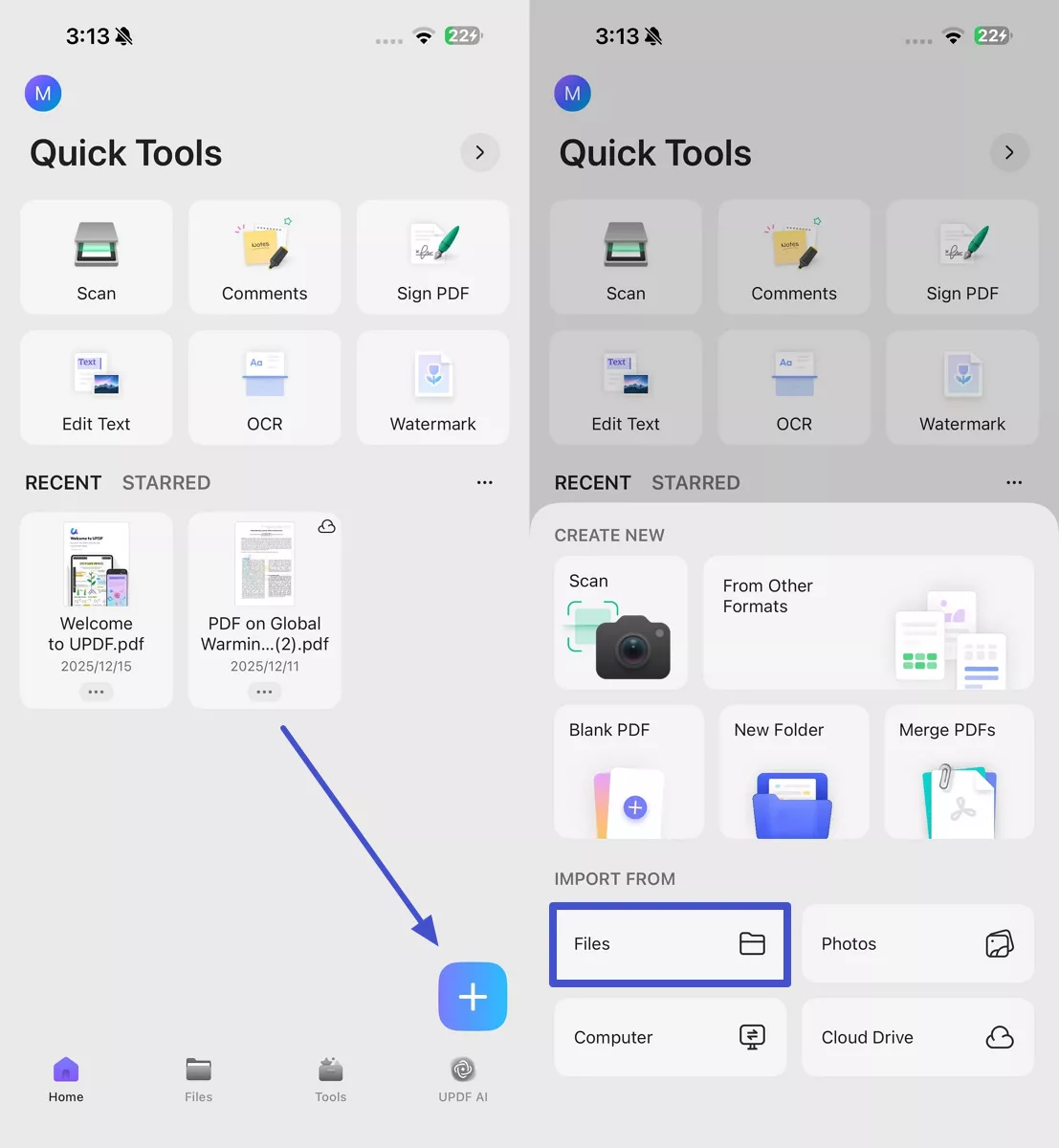
Step 1. Launch UPDF and Open the Document
To begin, launch the UPDF application on your mobile and tap the Plus icon on the main interface. Now, tap the Files or Cloud Drive option to import your desired file.
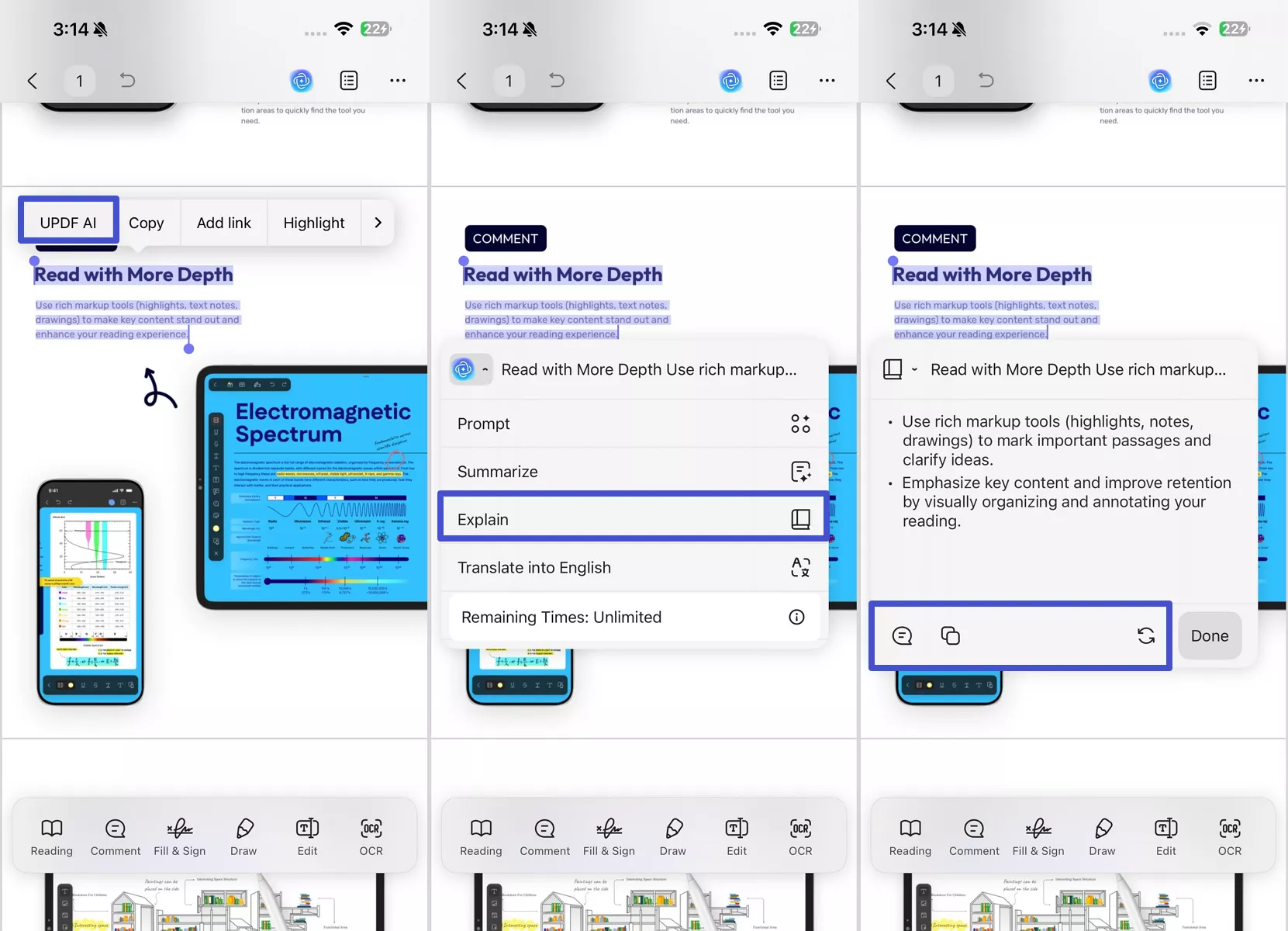
Step 2. Select Content and Explain with UPDF AI
Moving forward, select the text you want to explain and tap on the UPDF AI option within the floating toolbar. Now, pick the Explain option to let this tool generate the results. Once it generates the explanation, simply tap the Copy or the Note icon to integrate the explanation into your PDF.
Method 2. Use Copy & Paste For Explanation
For users who prefer a more customized response, this method allows them to copy specific content and paste it into the UPDF AI chat mode for explanation. This approach is useful for obtaining a more detailed or tailored clarification, which is explained as follows:
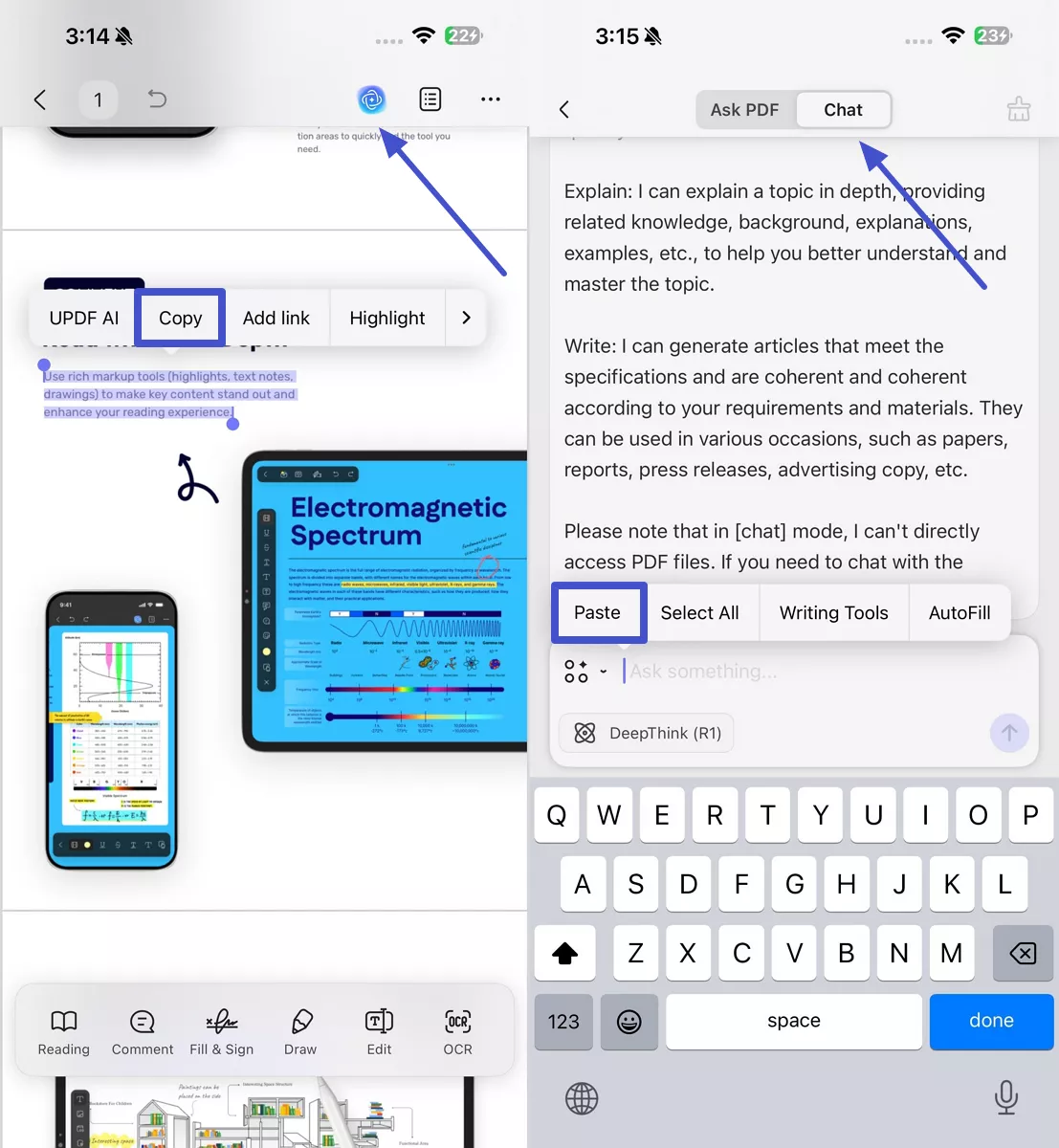
Step 1. Copy Content and Open AI Chat
To begin, open your PDF and highlight the text you want to understand. From the pop-up menu, choose Copy and then tap on the UPDF AI icon present on the top of your screen. Now, access the Chat mode and then Paste the content within the text box.
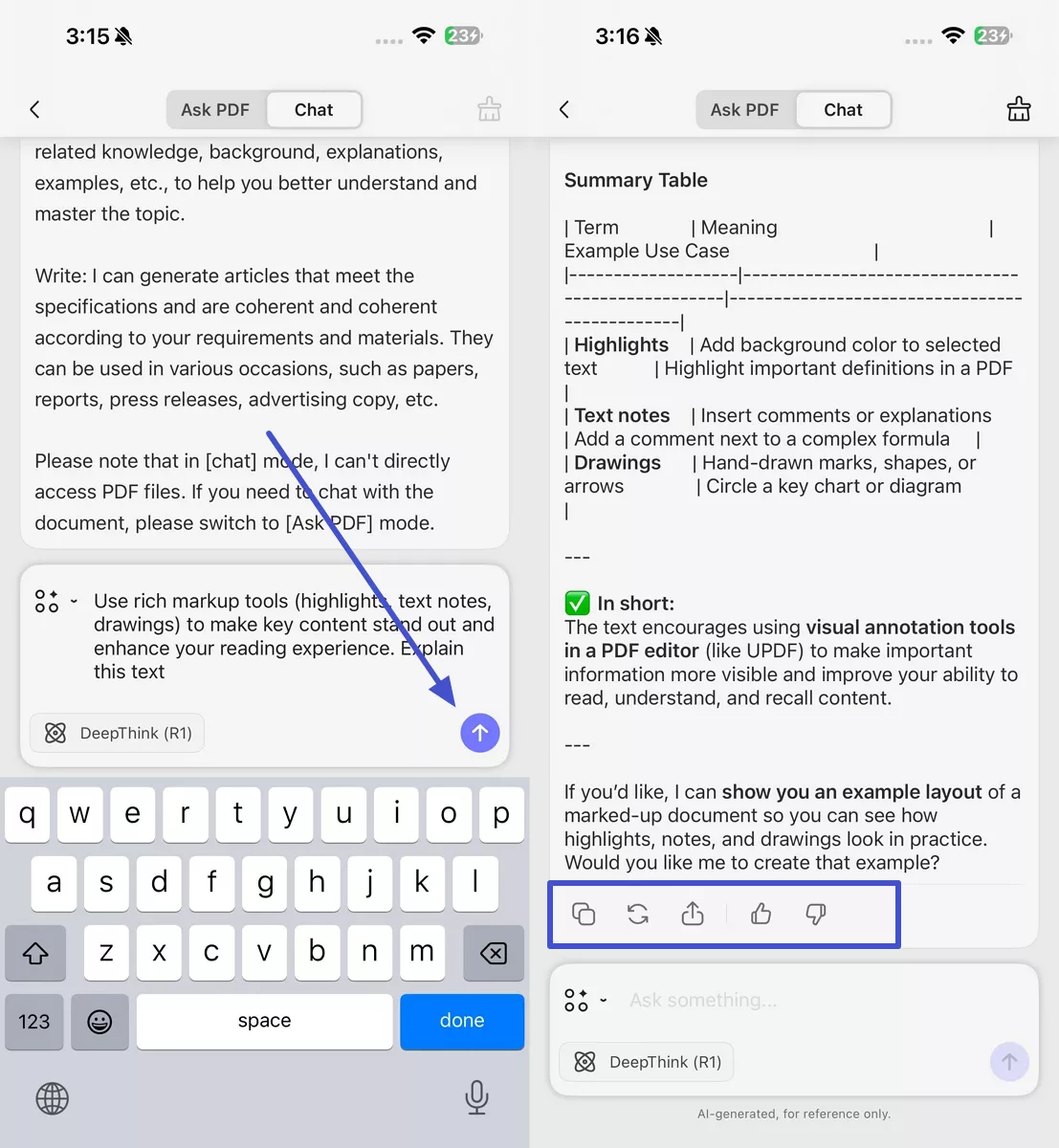
Step 2. Prompt UPDF AI to Explain
After pasting the content, prompt AI to explain the text and hit the Send icon. You can even select the Explain built-in prompt to get the job done. Once you get the explanation, Regenerate or Copy the content.
Part 3. Explain PDFs in Web Browser Using UPDF AI Online
For users who wish to access AI-powered explanations without downloading any software, UPDF AI Online provides a seamless solution. When you upload the document to this platform, AI automatically provides a brief explanation, giving you key insights. Along with that, it also provides 3 recommended questions to let you deepen your understanding of the topic.
Other than that, if you can't understand certain content or lines, you can paste them into the chatbot and prompt the AI to generate explanations. You can even prompt AI to give explanations to suit your needs, such as providing a simplified answer, a detailed breakdown, or an example-based explanation. Follow the guide below to get a better understanding of the ways UPDF AI uses GPT-5 to allow you to chat with PDF:
Scenario 1: Explain From a Document
If you are having queries from a PDF document you have in your device, you can easily upload it across the AI platform and get the desired explanation.
Step 1. Access UPDF AI Online and Upload a PDF
Start by launching UPDF AI Online in your browser and tap the “Click, drag, or paste PDF / Image here” button to import your document into the platform.
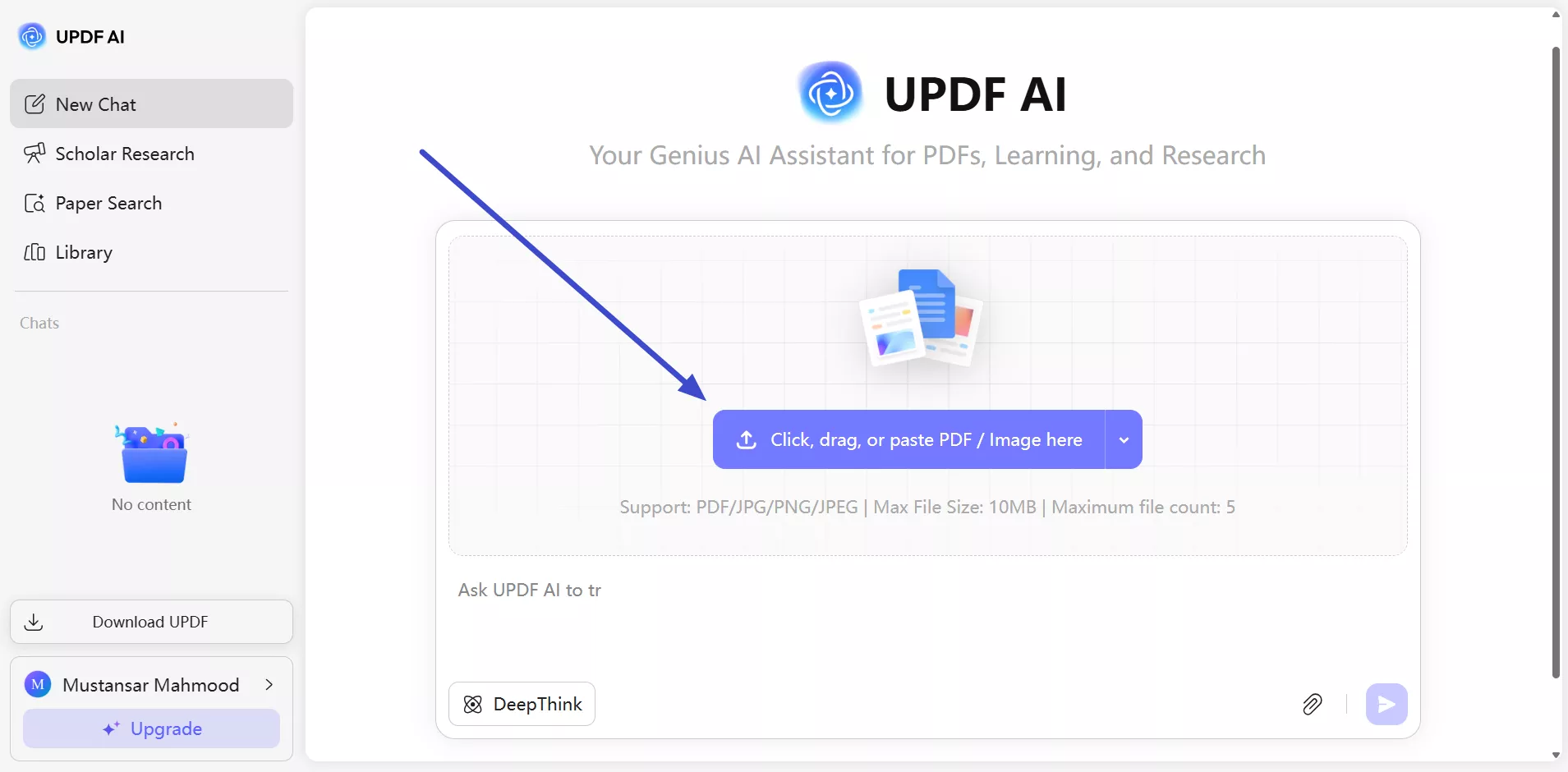
After doing so, tap on your added document under the "Files" section to open it within the AI interface. Next, hit the "Get Started" button to enable the AI assistant panel on the right side.
Step 2. Type in Explain Prompt and Review Results
After the PDF is uploaded, enter the prompt, “Explain this PDF in detail” in the text field and press Send. UPDF AI will produce the output, which you can then either copy or regenerate as needed.
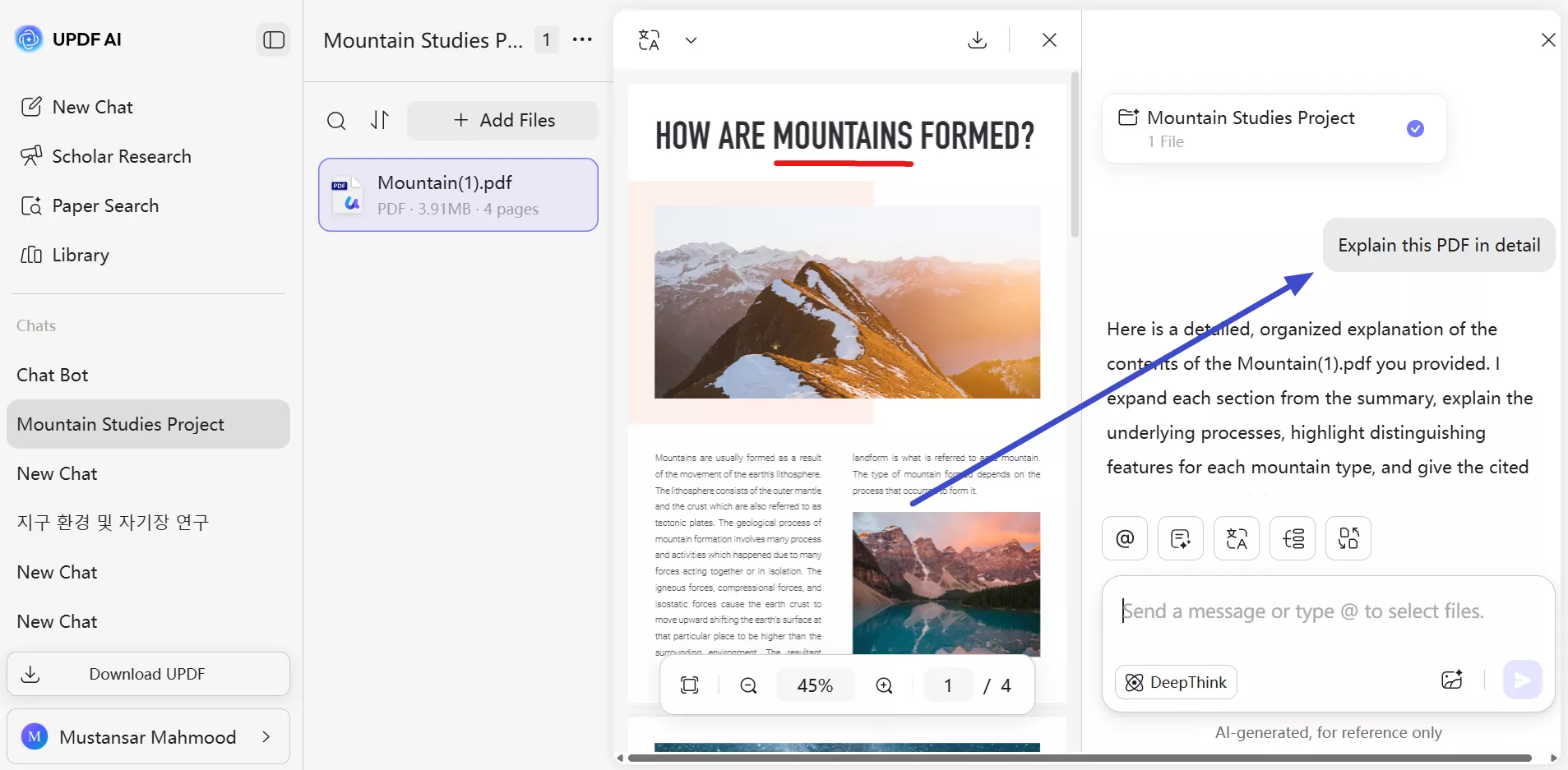
Step 3. Regenerate the Results or Copy
Review the explanation, and if you find it satisfying, click the "Copy" button to save it to your clipboard.
Scenario 2: Explain with UPDF AI Bot
Besides chatting with your uploaded PDFs, UPDF lets you have a general conversation with the UPDF Chat Bot. This also allows you to copy any text from another platform or document and input it across UPDF AI for detailed explanation. Walk through the steps below to get a better understanding of the process:
Step 1. Locate Chat Bot and Type in the Prompt
From the main UPDF AI interface, go to the “Chat Bot” tab in the left sidebar and select “Explain.” Next, enter your prompt in the text box and click “Send” to generate the output.
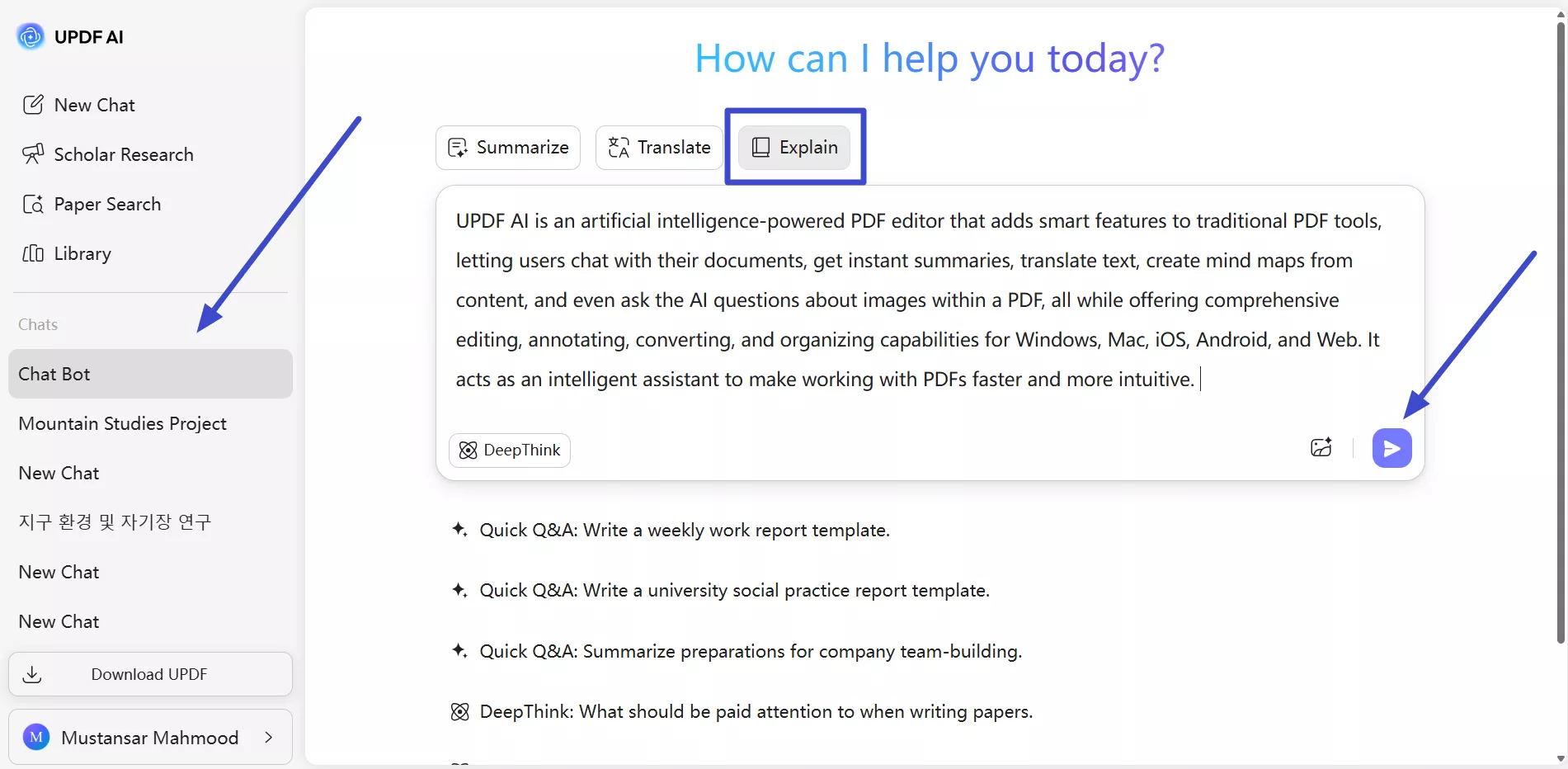
Users can even add the screenshots to let UPDF AI explain the content for them. For this, simply tap the Image icon in the text box. Then, prompt AI to explain the content of the image and hit the Send icon.
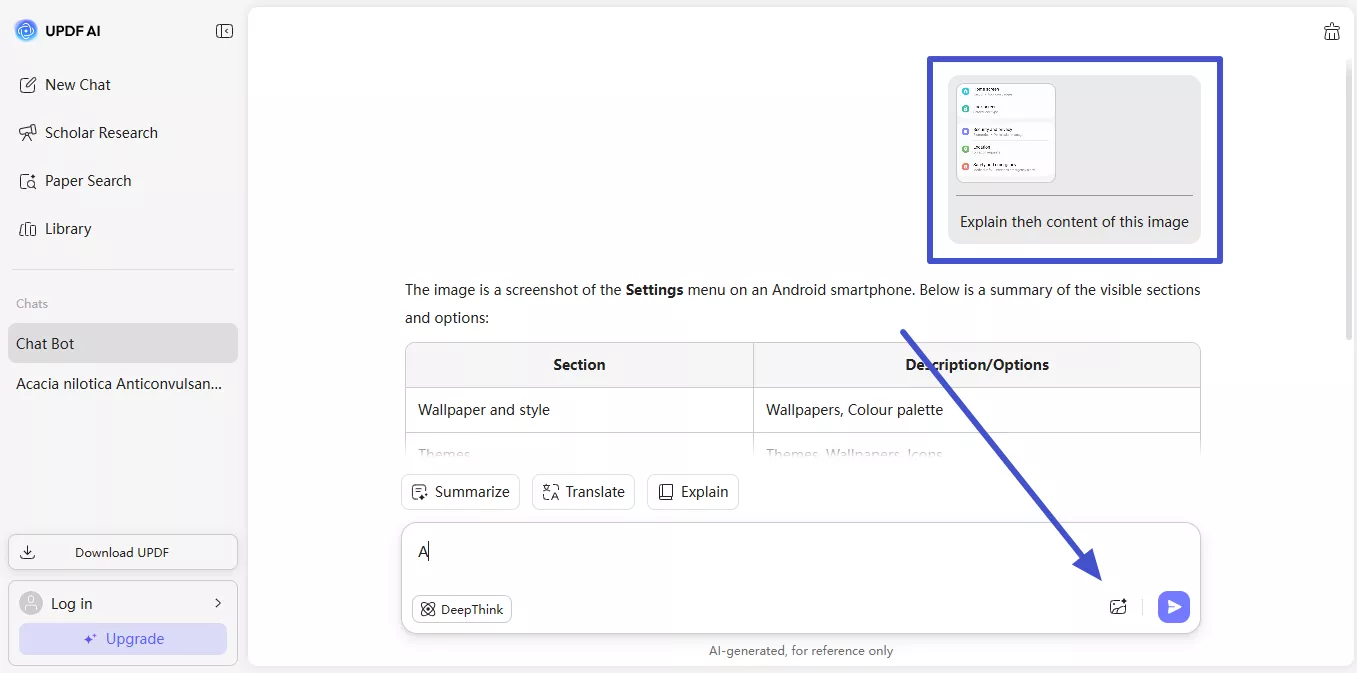
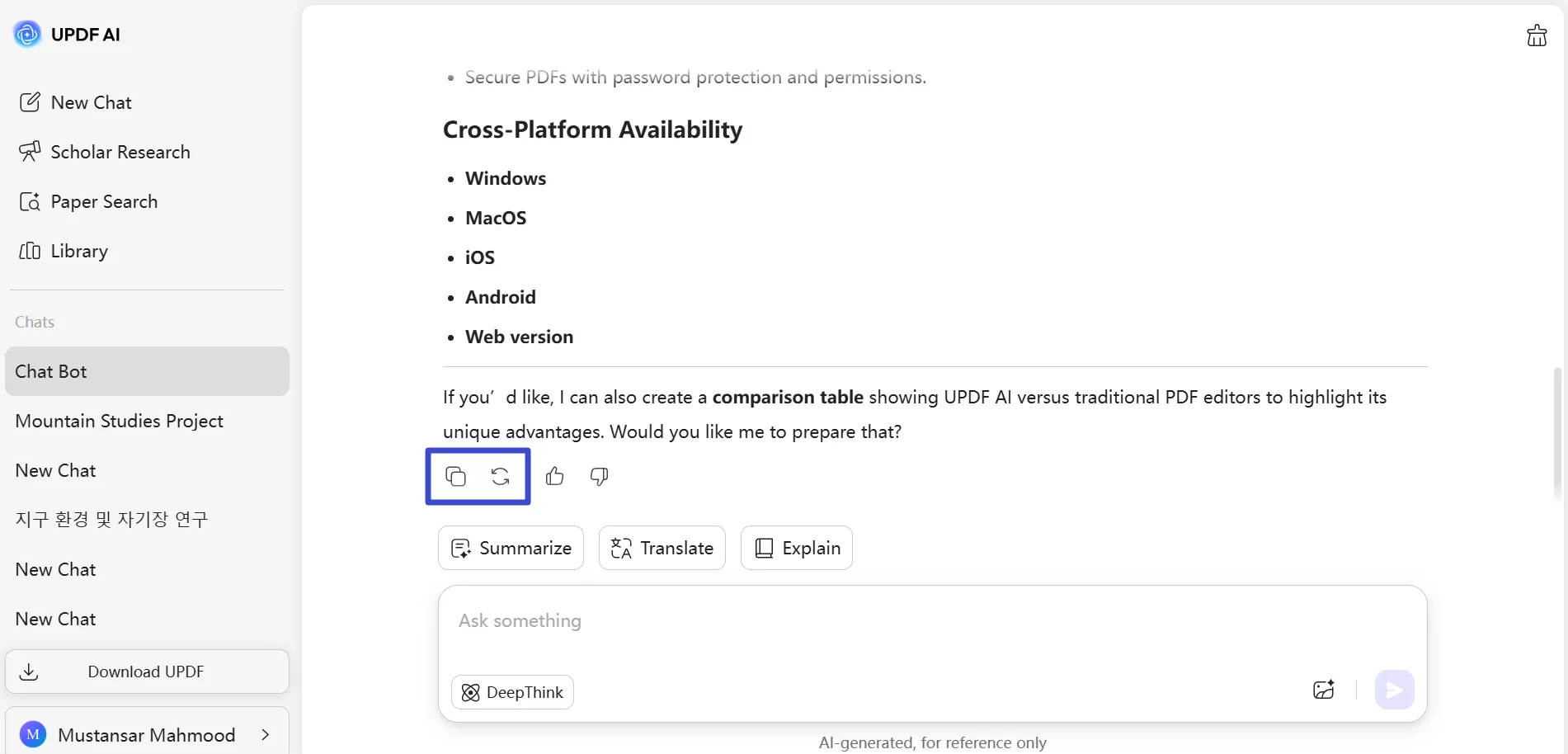
Step 2. Copy or Regenerate the Results of UPDF AI Chat Bot
After the results are generated, you can review them and hit the “Copy” or “Regenerate” button based on your preferences.
Conclusion
In conclusion, knowing how to explain PDF content is a valuable skill. By using tools like UPDF, you can simplify complex terms and make PDFs easier to understand. Whether you choose to select terms directly or use the copy-and-paste method, UPDF provides a user-friendly experience.
Moreover, UPDF's cross-platform compatibility makes it ideal for students, professionals, and anyone who regularly works with PDFs. If you want to explain PDF documents without any hassle, download UPDF now. With its powerful features, you'll be equipped to tackle any PDF challenge that comes your way.