 UPDF
UPDF
 UPDF for Windows
 UPDF for Mac
 UPDF for iPhone/iPad
 UPDF for Android
 UPDF AI Online
 UPDF Sign
 Edit PDF
 Annotate PDF
 Create PDF
 PDF Form
 Edit links
 Convert PDF
 OCR
OCR PDF to Word
 PDF to Image
 PDF to Excel
 Organize PDF
 Merge PDF
 Split PDF
 Crop PDF
 Rotate PDF
 Protect PDF
 Sign PDF
 Redact PDF
 Sanitize PDF
 Remove Security
 Read PDF
 UPDF Cloud
 Compress PDF
 Print PDF
 Batch Process
 About UPDF AI
 UPDF AI Solutions
 AI User Guide
 FAQ about UPDF AI
 Summarize PDF
 Translate PDF
 Chat with PDF
 Chat with AI
 Chat with image
 PDF to Mind Map
 Explain PDF
 Scholar Research
 Paper Search
 AI Proofreader
 AI Writer
 AI Homework Helper
 AI Quiz Generator
 AI Math Solver
 PDF to Word
 PDF to Excel
 PDF to PowerPoint
 Enterprise Solution
 Enterprise Sign
 Enterprise AI
 Enterprise Plan
 Enterprise User Guide
 Enterprise Webinar
 Banking
 Healthcare
 Insurance
 Legal
Legal Manufacturing
 Government
 Education Solution
 Customer Stories
 User Guide
 UPDF Tricks
 FAQs
FAQs UPDF Reviews
 Download Center
 Blog
Blog Newsroom
 Tech Spec
 Updates
 UPDF vs. Adobe Acrobat
 UPDF vs. Foxit
 UPDF vs. PDF Expert


Chat with Image
UPDF AI Online Assistant allows you to chat with an image. This online tool lets you extract text from an image, generate content based on the image, identify image details, solve image-related questions, translate text in the image, and more—all with ease, just like using a chatbot. No need to worry about the cost—the first 100 prompts are free, and the paid version is affordable.
With a subscription, you can also download the UPDF desktop and mobile app, which lets you chat with PDFs, boosting your work efficiency. You can try using this online tool right now by using this link.
Windows • macOS • iOS • Android 100% secure
Part 1. How to Extract Text from Image by AI Chatting with Image
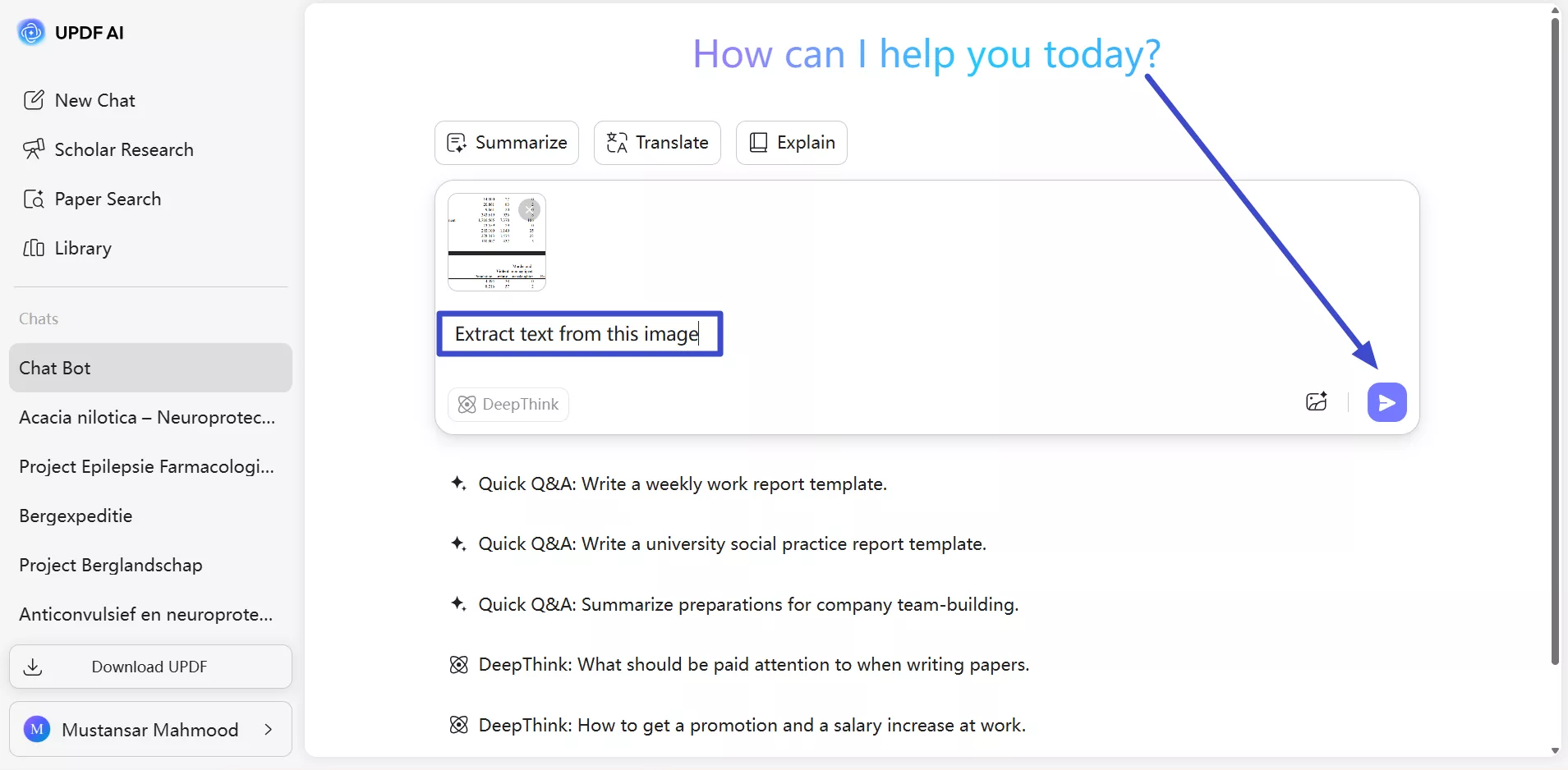
Sometimes you take an image of a receipt or an excerpt from a book or screenshot an image with an important message, but you have to use a special software with optical character recognition (OCR) feature to extract text from the image. But now, you can extract text from any image file using UPDF's AI Online Assistant. To do so, follow these simple steps.
For Web: After you access the main interface of UPDF AI, navigate into the “Chat Bot” interface from the left panel. Click on the “Image” icon in the text box to add a picture with text. Upon doing so, you need to type in a “Prompt” and ask the AI assistant to extract the text from the image.
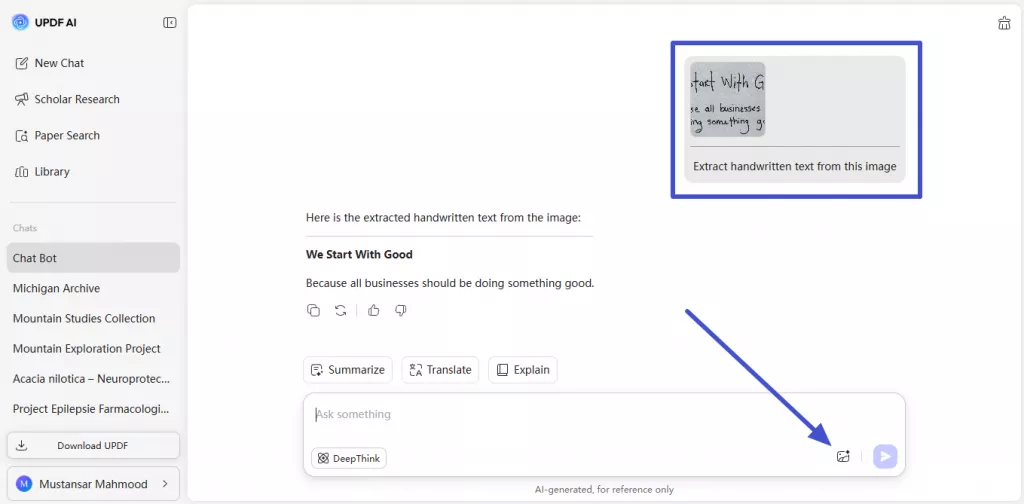
You even get the chance to extract handwritten text by uploading the images to the UPDF AI. No matter if you use the online or desktop version, you can simply upload the image and ask AI to extract the text.
For Web: After entering the UPDF AI interface, access the Chat Bot screen and tap the Image icon to upload an image containing handwritten text. Now, simply prompt AI to extract the handwritten text and hit the Send icon to get the results.
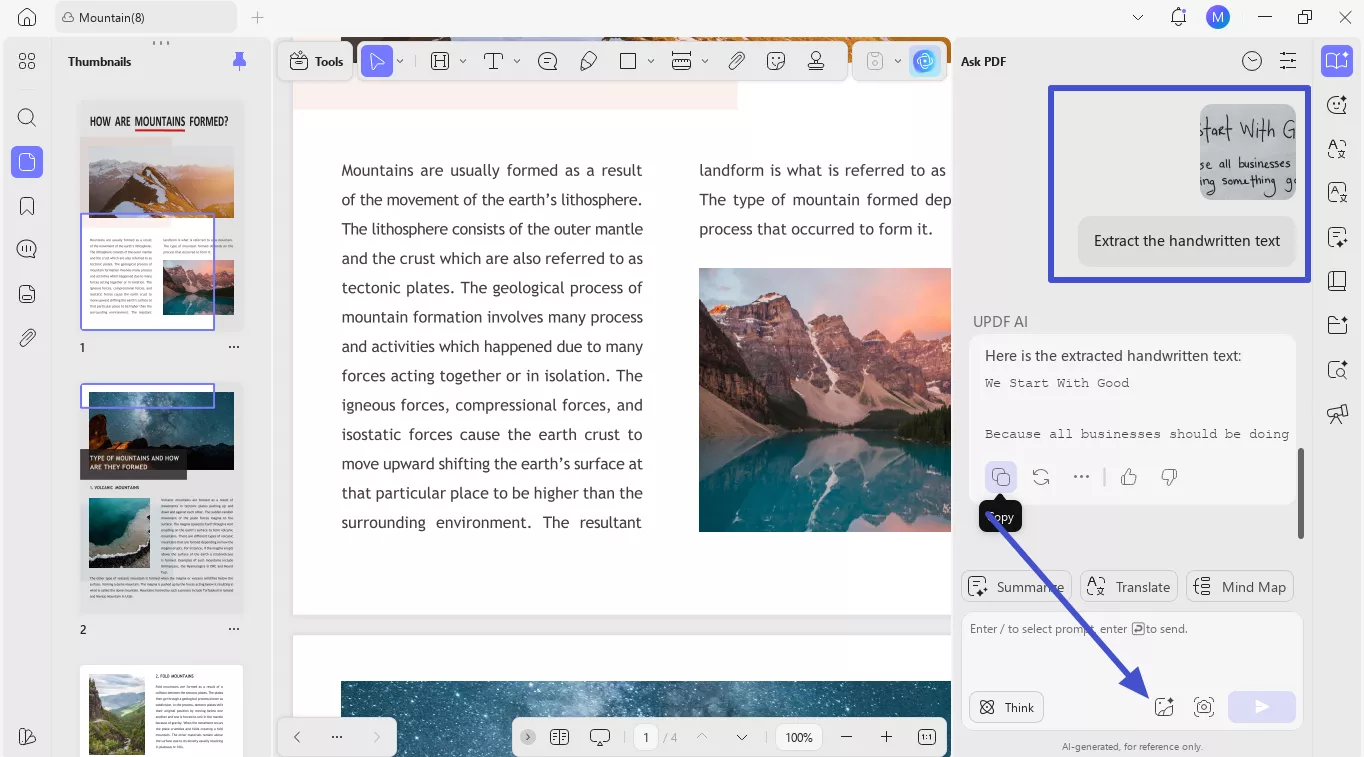
For Desktop: After importing your PDF, access the UPDF AI window from the top right of your screen. Now, hit the Get Started button to get an instant summary and then tap the Image icon to upload the picture with the handwritten text. Now, give the prompt to extract the handwritten text and hit the Send icon to get the copiable text.
(Note: You can open any PDF file. You just need to access the chat feature in UPDF AI.)
Part 2. How to Generate Content by Chatting with Image
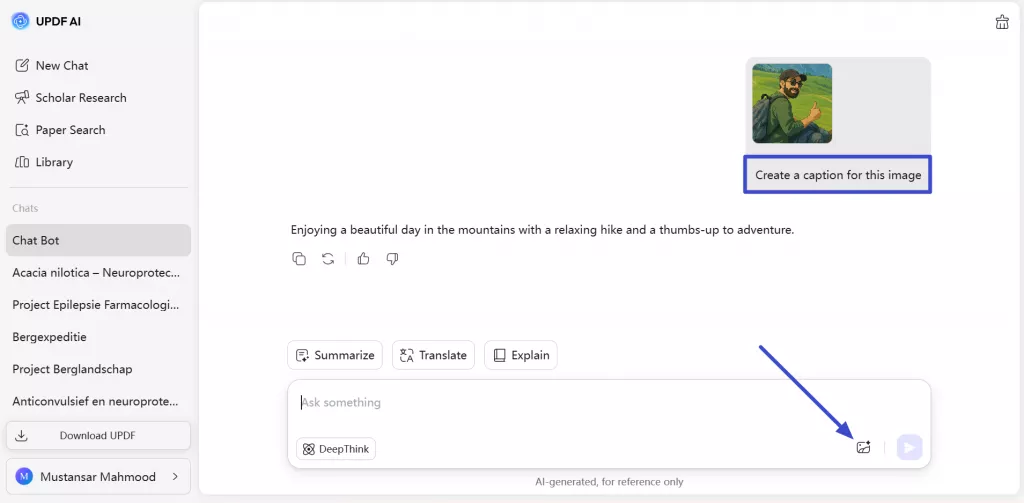
If you are running out of content ideas, you can use UPDF's AI Online Assistant to generate the content based on the image. You can even specify the number of ideas UPDF's AI Online Assistant should generate for you so that you have a choice. Just follow these simple steps to generate content using this online app.
For Web: To let UPDF AI create content from an image, begin by uploading the image using the “Image” icon. Enter your text prompt (you can ask to write captions for an image) to start the chat, and the AI will produce a response. You can copy the output if it meets your needs, or request a regeneration if you want a different result.
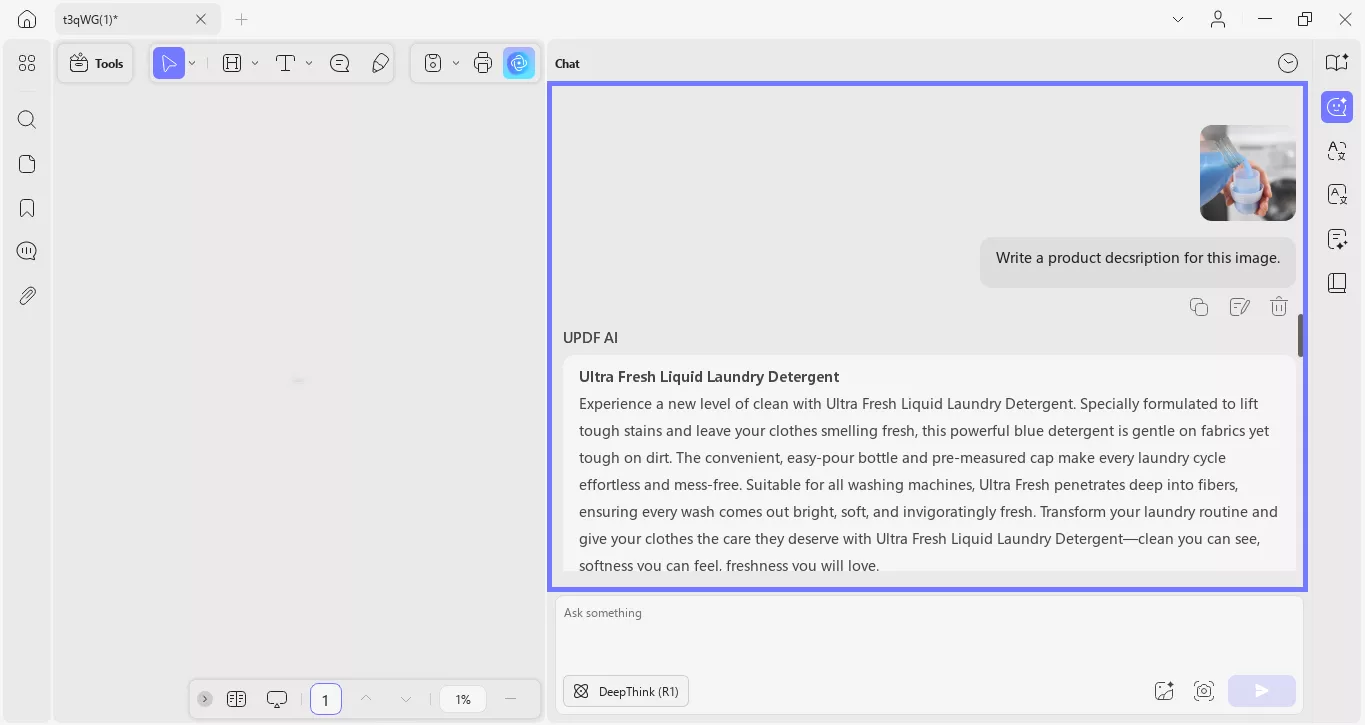
For Desktop: In the "Chat" feature, upload any image and enter the relevant prompt. For example, you can command: "Write a product description for this image." UPDF will generate the content for you. If you like, you can "Copy" it. Otherwise, you can click "Regenerate" to generate another.
Part 3. How to Identify and Suggest by Chatting with Image
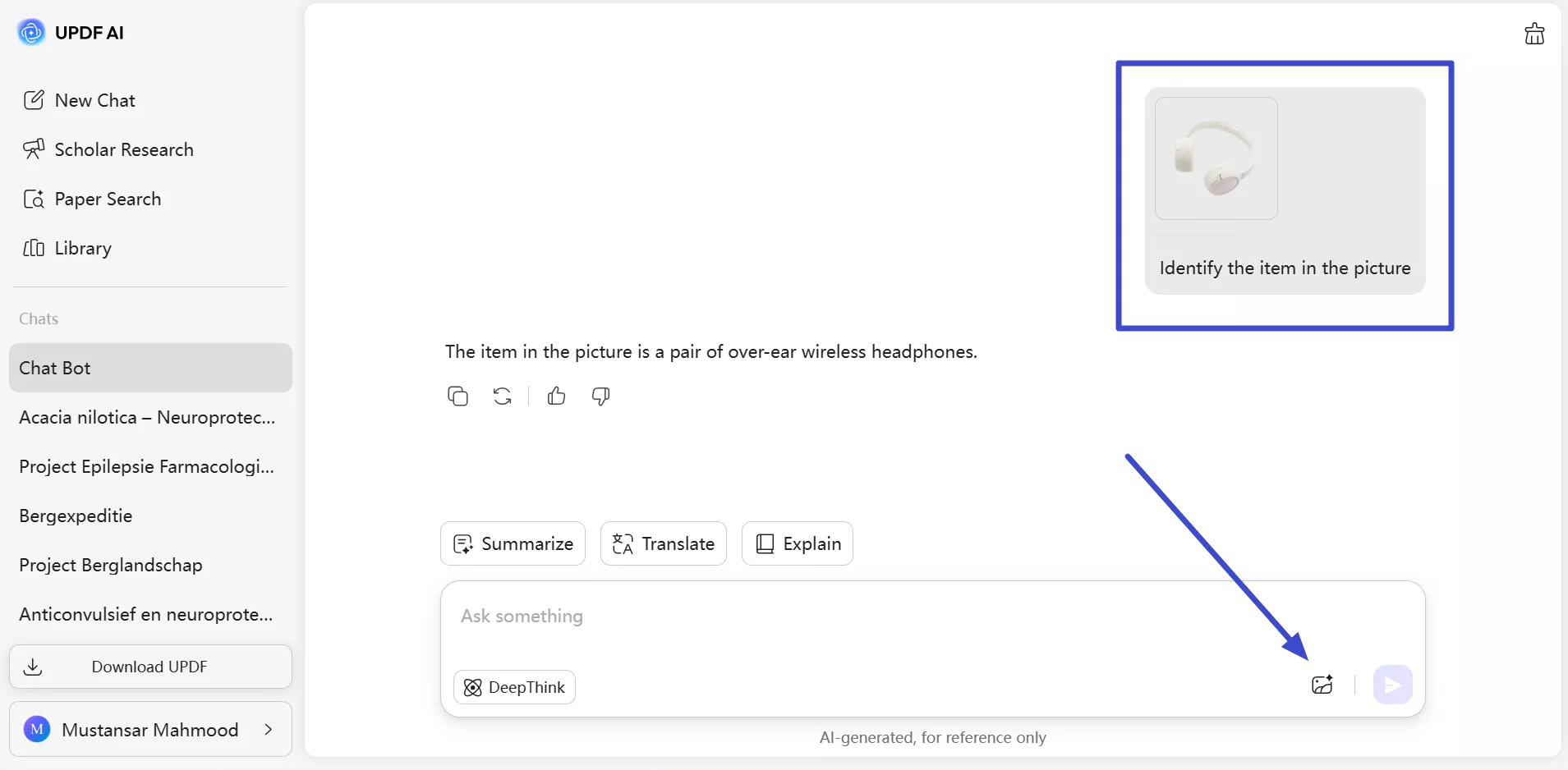
You may have an image that you want to identify. You can use UPDF's AI Online Assistant to identify the image and also ask for suggestions on how to take an image like this. To do any of these follow these steps.
For Web: To converse with the UPDF AI assistant and identify and chat about an image, you must access the “New Chat” section. Afterwards, tap the “Image” icon to import the picture and type the prompt to tell AI to identify the person or thing in the image. You can further continue the conversation based on the responses and your curiosity.
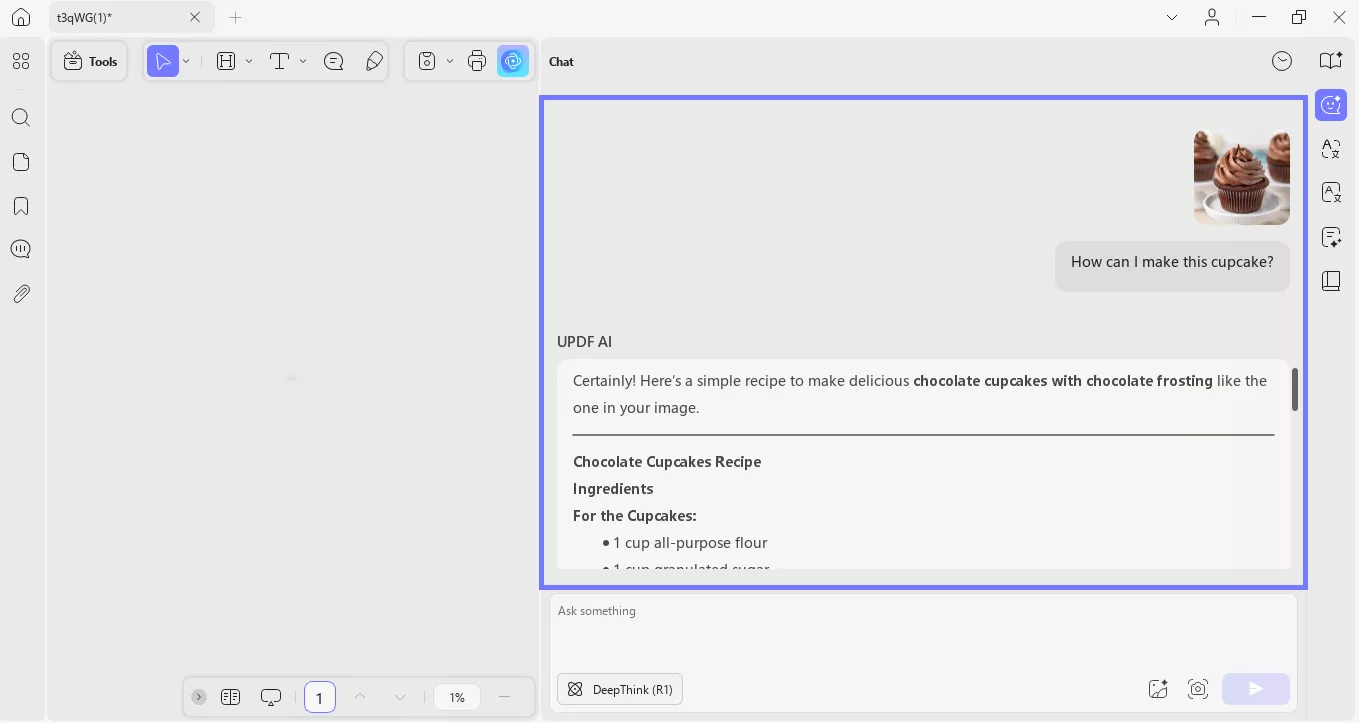
For Desktop: Go to the "Chat" feature in "AI." Upload the image by clicking the "Image" icon in the prompt box. Enter any command and talk with the UPDF AI about the image. For example: "how can I make this cupcake?"
Part 4. How to Study by Chatting with Image
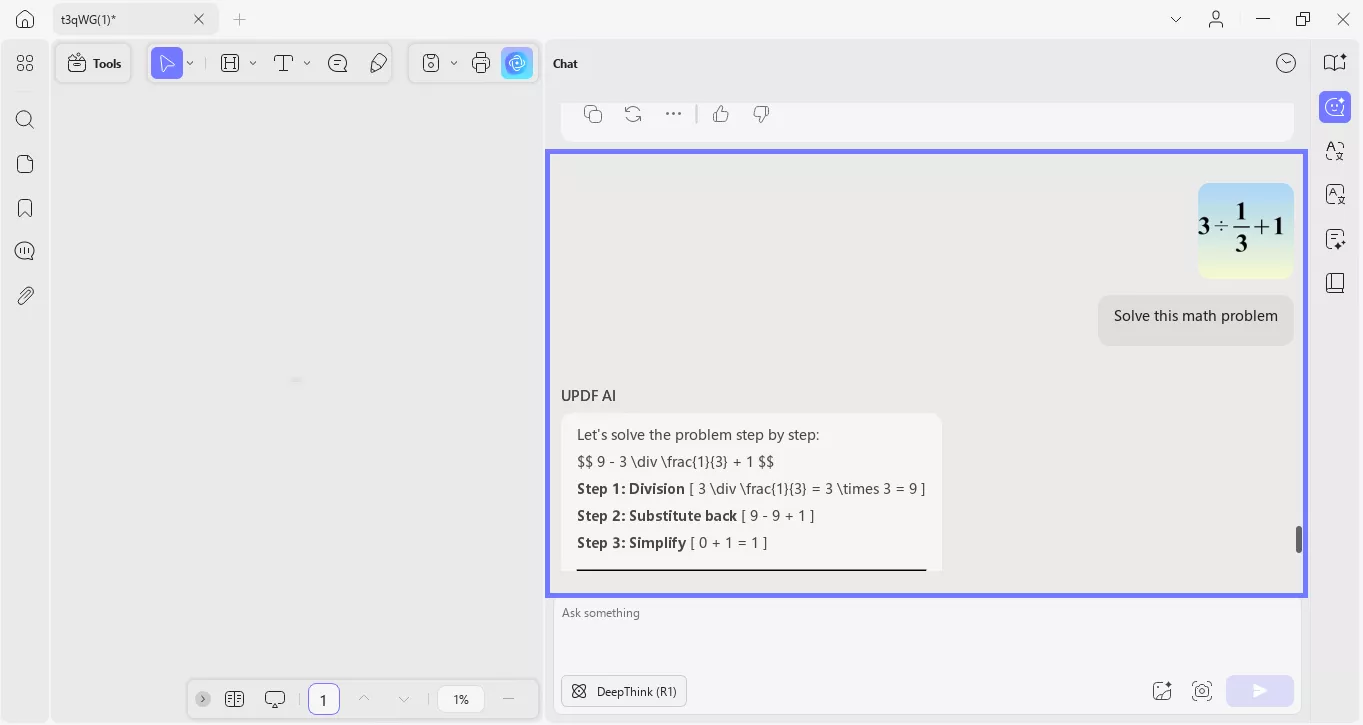
UPDF's AI Online Assistant can help you with your studies. Let's say you have a math problem to solve; you don't just need the answer but also want to know the method. The UPDF's AI Online Assistant will not just give you the answer but also provide you with the method in detail. Follow these steps to do something like that.
For Web: UPDF AI not only lets you chat with it but also learn something from the conversation. Click on the “Image” icon and upload a math problem, and type in a prompt command for the AI tool to provide instructions as well. You can copy or regenerate the results based on your likeness of the response generated.
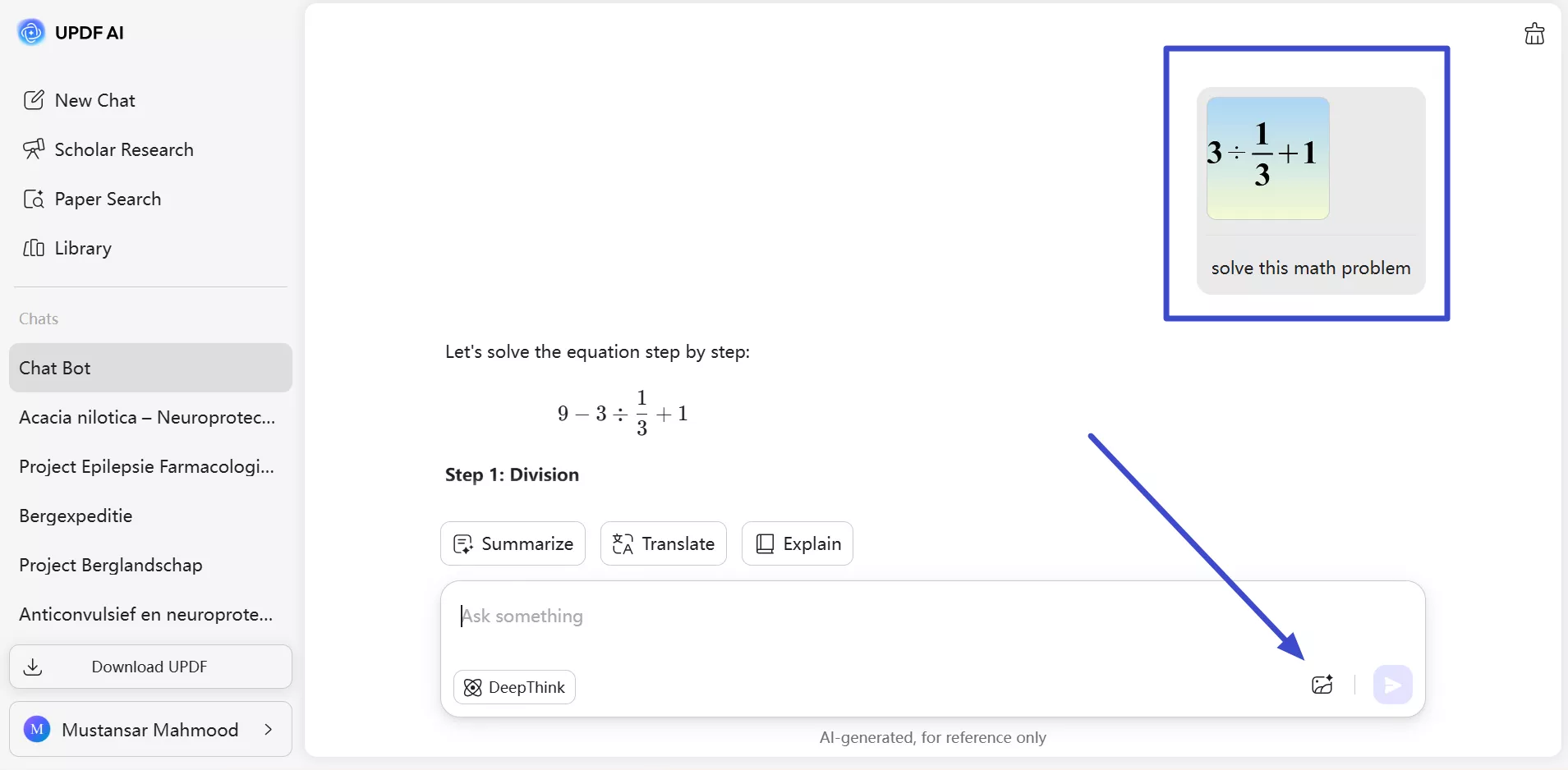
For Desktop: Upload the math problem image just like we did in the above steps. Enter a command and ask the UPDF to solve it, such as “Solve this math problem.”
Part 5. How to Translate the Image to Desired Language by Chatting with Image
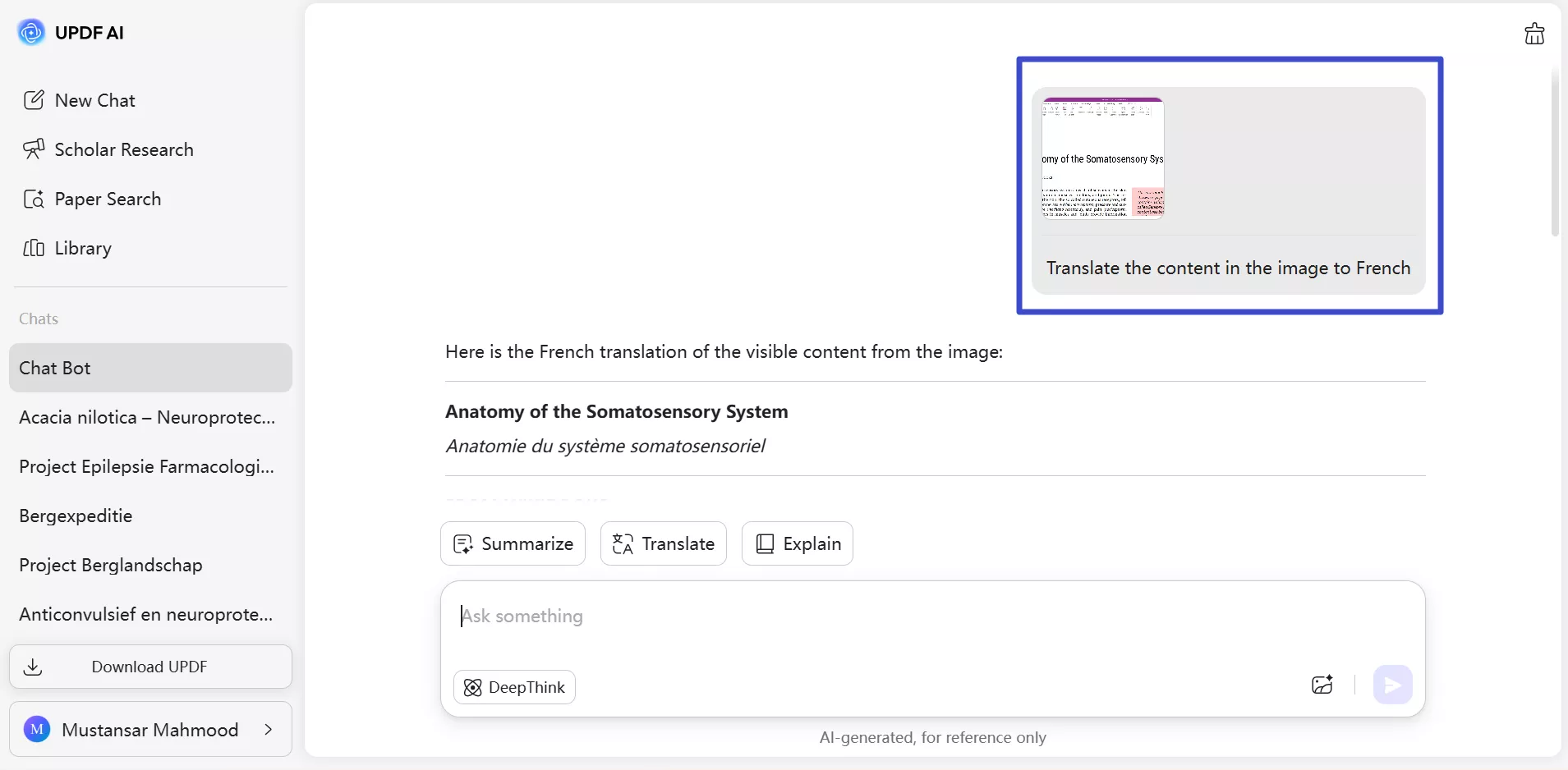
If you want to translate text in the image file, UPDF's AI Online assistant can definitely help you with that. May it be a foreign product description, menu items, or a set of instructions written in a language you don't know. Just follow these steps to translate the text.
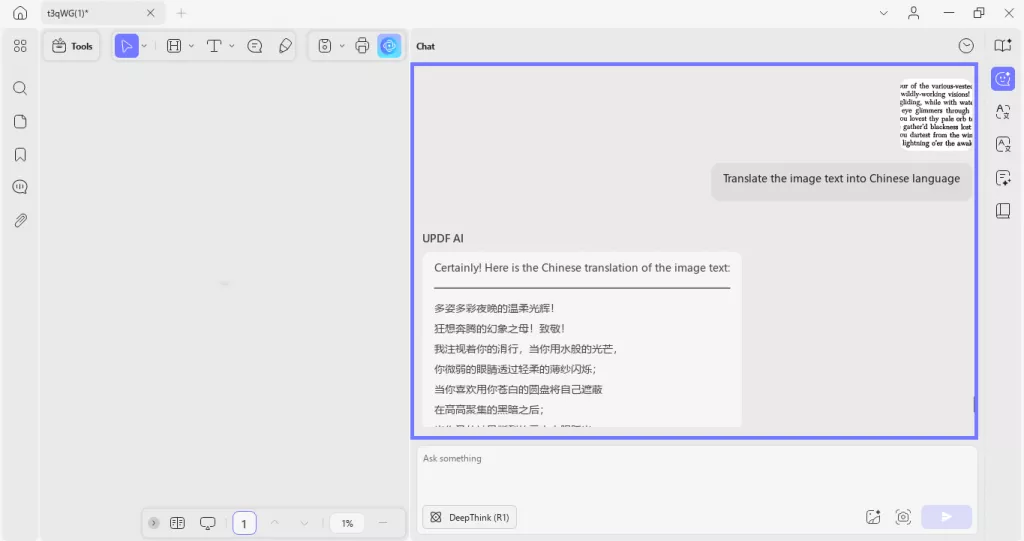
For Web: After accessing the “Chat Bot” screen, upload the image into the text box and enter a prompt instructing the tool to translate the content within the image. Once the translation is generated, you can easily copy the results to your clipboard for future use.
For Desktop: Upload any image containing text and ask the UPDF AI to translate the text into any desired language. For example, "Traslate the image text into Chinese language."
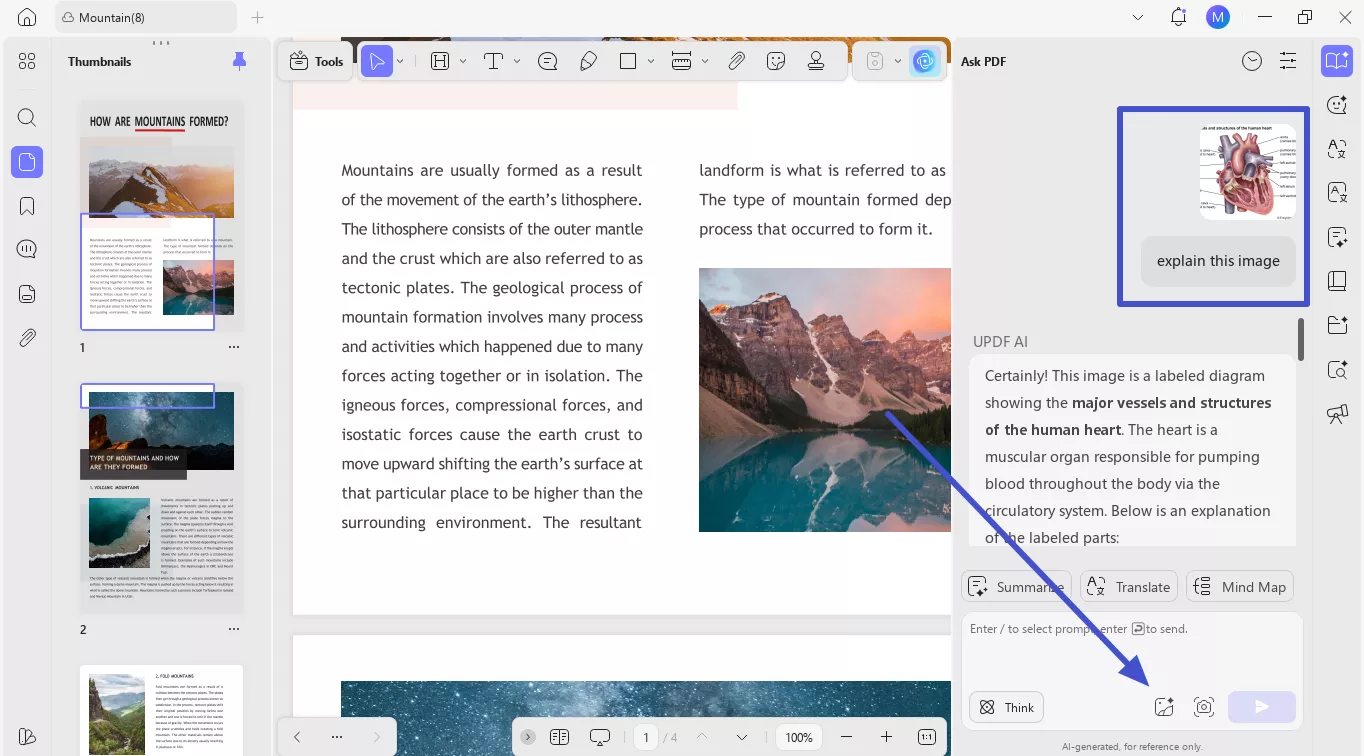
Part 6. How to Explain Diagrams by Chatting with Image?
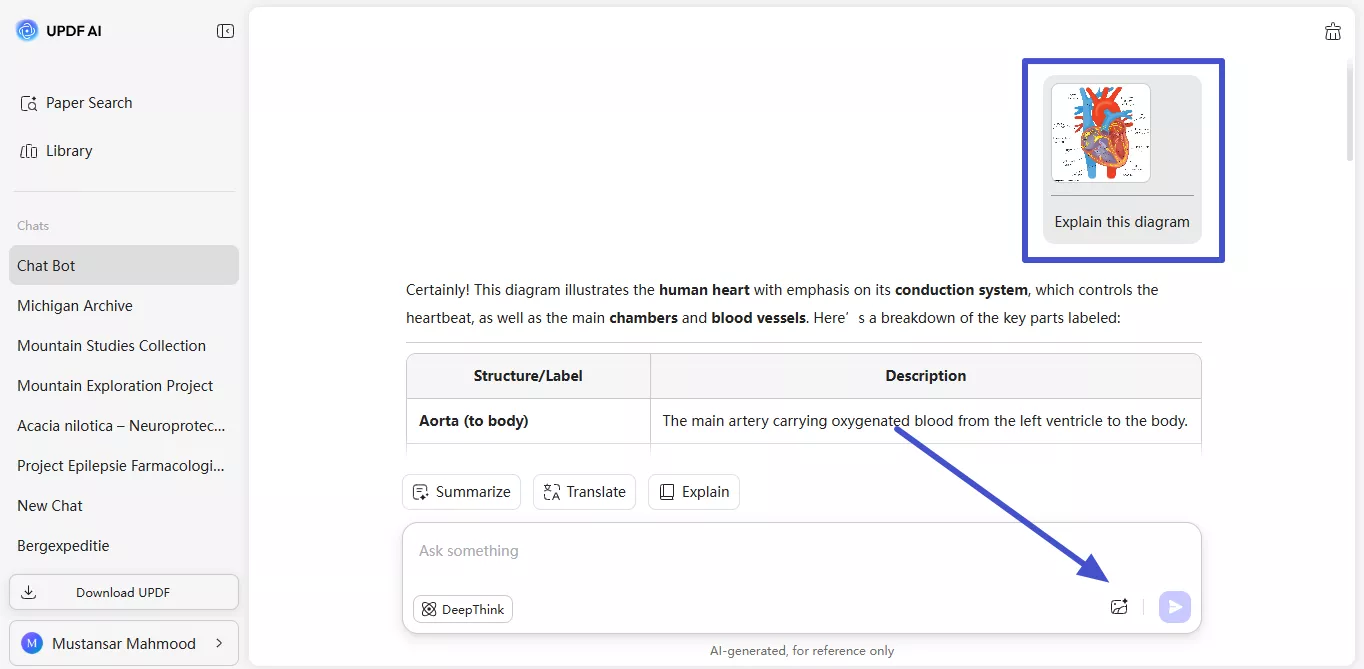
UPDF AI can now explain diagrams on both PC and online platforms. Users can upload PDFs with charts, graphs, or schematics, and the AI interprets their structure, data, and meaning. Using this feature, students and researchers can get explanations for complex scientific diagrams. Marketers can use this feature to explain analytic and financial charts.
For Web: Upon accessing the Chat Bot screen, tap the Image icon to import the diagram on UPDF AI. Now, write a prompt to tell AI to explain the content of the diagram. After you hit the Send icon, UPDF AI will create a detailed explanation of the image. If you don’t like the explanation, this tool even lets you regenerate the text.
For Desktop: Once your PDF is loaded on the interface, open the UPDF AI panel from the top-right corner. Then, click the Get Started button for an instant summary and select the Image icon to upload the diagram to this tool. Now, enter your prompt to explain the diagram content and press the Send icon to receive the copyable output.
Final Words
Until a few years back it was considered dramatic to even think about chatting with an image. Now with UPDF's AI Online Assistant, you can actually chat with an image. Visit UPDF AI right now and enjoy all the great features and see what all you can accomplish and enjoy.