UPDF
UPDF
 UPDF für Windows
 UPDF für Mac
 UPDF für iPhone/iPad
 UPDF für Android
 UPDF AI Online
 UPDF Sign
 PDF bearbeiten
 PDF kommentieren
 PDF erstellen
 PDF-Formular
 Links bearbeiten
 PDF konvertieren
 OCR
OCR PDF in Word
 PDF in Bild
 PDF in Excel
 PDF organisieren
 PDFs zusammenführen
 PDF teilen
 PDF zuschneiden
 PDF drehen
 PDF schützen
 PDF signieren
 PDF schwärzen
 PDF bereinigen
 Sicherheit entfernen
 PDF lesen
 UPDF Cloud
 PDF komprimieren
 PDF drucken
 Stapelverarbeitung
 Über UPDF AI
 UPDF AI Lösungen
 KI-Benutzerhandbuch
 FAQ zu UPDF AI
 PDF zusammenfassen
 PDF übersetzen
 Chatten mit PDF
 Chatten mit AI
 Chatten mit Bild
 PDF zu Mindmap
 PDF erklären
 PDF-KI-Tools
 Bild-KI-Tools
 KI-Chat-Tools
 KI-Schreibtools
 KI-Lerntools
 KI-Arbeitstools
 Weitere KI-Tools
 KI-Lesezeichen-Generierung
 KI-Lesezeichen-Zusammenfassung
 KI-Wasserzeichen-Generierung
 KI-Hintergrund-Generierung
 KI-Sticker-Generierung
 KI-Stempel-Generierung
 KI-Schreibtools
 UPDF Copilot
 KI-Seitenverwaltung
 KI-Semantische Suche
 PDF in Word
 PDF in Excel
 PDF in PowerPoint
 Unternehmenslösung
 Unternehmen Sign
 Unternehmen AI
 Unternehmensplan
 Benutzerhandbuch für Unternehmen
 Unternehmens-Webinar
 Bankwesen
 Gesundheitswesen
 Versicherung
 Rechtlich
 Fertigung
 Regierung
 Bildungsbereich-Lösung
 Kundengeschichten
 Tutorials
 UPDF Tipps
 FAQs
FAQs UPDF Bewertungen
 Downloadcenter
 Blog
Blog Newsroom
 Technische Daten
 Updates
 UPDF vs. Adobe Acrobat
 UPDF vs. Foxit
 UPDF vs. PDF Expert

Ein Rechtsgutachten ist ein zentrales internes Dokument zur Analyse rechtlicher Fragestellungen und zur strategischen Orientierung. Der Umgang mit sensiblen Fallakten erfordert jedoch mehr als nur eine Vorlage – entscheidend ist ein Höchstmaß an Sicherheit. UPDF bietet eine unternehmensgerechte, sichere Umgebung, damit Ihre Recherchen und Mandantendaten vertraulich bleiben.
Bevor Sie sich mit dem Format befassen, erfahren Sie in unserem PDF-Effizienzbericht, wie führende Kanzleien ihre Produktivität steigern und gleichzeitig die Datenintegrität wahren.
Optimieren Sie Ihren juristischen Workflow und sichern Sie Ihre Dokumente mit einem der führenden PDF-Editoren der Branche.
Windows • macOS • iOS • Android 100% sicher
Teil 1. Was ist das offizielle Format eines Rechtsgutachtens?
Ein professionelles Rechtsgutachten folgt einer klar strukturierten Gliederung, um Verständlichkeit und schnellen Zugriff auf Informationen zu gewährleisten. Obwohl sich Kanzleistile unterscheiden können, orientieren sich die meisten an diesem Standardaufbau:
Kernbestandteile
- Kopfzeile: Enthält Datum, An, Von und Betreff. Sie schafft den Kontext und benennt die beteiligten Parteien.
- Rechtsfrage: Eine prägnante Fragestellung, die das konkrete rechtliche Problem definiert.
- Kurze Antwort: Ein klares „Ja“ oder „Nein“, gefolgt von einer kurzen Einschätzung des voraussichtlichen rechtlichen Ergebnisses.
- Sachverhalt: Eine objektive Darstellung der relevanten Fakten ohne rechtliche Wertung, mit Fokus auf analyserelevante Informationen.
- Analyse / Würdigung: Der zentrale Teil des Rechtsgutachtens. Hier werden Gesetze und Rechtsprechung auf den Sachverhalt angewendet und logisch begründet.
- Schlussfolgerung: Fasst das Ergebnis zusammen und bekräftigt die Argumentation, ohne neue Aspekte einzuführen.
- Empfehlungen: Liefert konkrete nächste Schritte oder strategische Hinweise auf Basis der rechtlichen Bewertung.
- Quellen / Nachweise: Auflistung zitierter Entscheidungen, Gesetze und Vorschriften zur Sicherstellung von Transparenz und Nachvollziehbarkeit.
Vier gängige Memo-Arten
| Typ | Hauptzweck | Ideal für... |
| Informations | Faktenaustausch und Aktualisierungen | Zusammenfassung neuer Vorschriften oder Fallaktualisierungen. |
| Analytisch | Ausführliche rechtliche Bewertung | Stärken und Schwächen eines Falles untersuchen. |
| Empfehlung | Strategische Ausrichtung | Beratung hinsichtlich einer konkreten Vorgehensweise oder Strategie des Kunden. |
| Operativ | Interne Verfahren | Beschreibung von Unternehmensrichtlinien oder Compliance-Workflows. |
Teil 2. Was ist das IRAC-Format für Rechtsgutachten?
Die IRAC-Methode (Issue, Rule, Application, Conclusion) ist der Branchenstandard zur Strukturierung juristischer Analysen. Sie stellt sicher, dass Ihre Argumentation logisch, transparent und für Vorgesetzte leicht nachvollziehbar ist.
2.1 Aufbau der IRAC-Methode
Hier die Bestandteile des IRAC-Schemas im Rechtsgutachten:
- Issue (Rechtsfrage): Definiert die konkrete rechtliche Fragestellung. Präzise und auf den Kernkonflikt fokussiert.
- Rule (Rechtsnorm): Nennt die einschlägigen Gesetze, Vorschriften oder Rechtsprechung und legt den rechtlichen Maßstab fest.
- Application (Anwendung): Der wichtigste Teil. Verknüpft die Rechtsnorm mit dem konkreten Sachverhalt, vergleicht Präzedenzfälle und bewertet Argumente.
- Conclusion (Ergebnis): Liefert eine klare, eindeutige Antwort auf Basis der vorangegangenen Analyse.
2.2 IRAC mit UPDF beschleunigen
Mit den folgenden Schritten können Sie UPDF nutzen, um die Erstellung von Rechtsgutachten effizienter zu gestalten:
1. Sofortige „Rule“-Extraktion mit UPDF AI
Beim Verfassen eines Rechtsgutachtens ist es oft zeitaufwendig, die passende Rechtsnorm aus umfangreichen Urteilen zu identifizieren. Viele Entscheidungen umfassen über 50 Seiten, was das schnelle Auffinden der zentralen Rechtsgrundsätze erschwert.
Der KI-Assistent von UPDF vereinfacht diesen Prozess: Laden Sie ein Urteil hoch und lassen Sie sich die relevanten Rechtsnormen direkt zusammenfassen oder extrahieren. Anstatt jede Seite einzeln zu lesen, gehen Sie wie folgt vor:
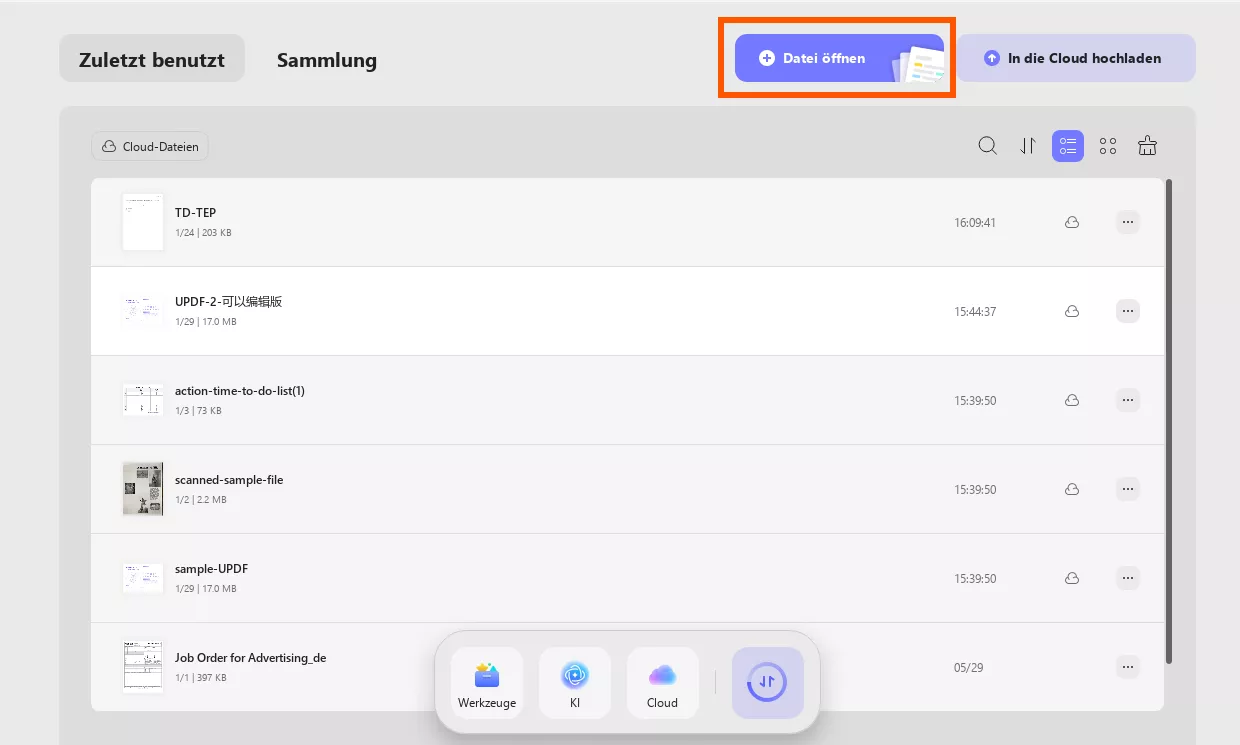
Schritt 1. Laden Sie UPDF herunter und starten Sie die Anwendung auf Ihrem Gerät. Klicken Sie anschließend auf Datei öffnen, um das Urteil zu importieren.
Windows • macOS • iOS • Android 100% sicher
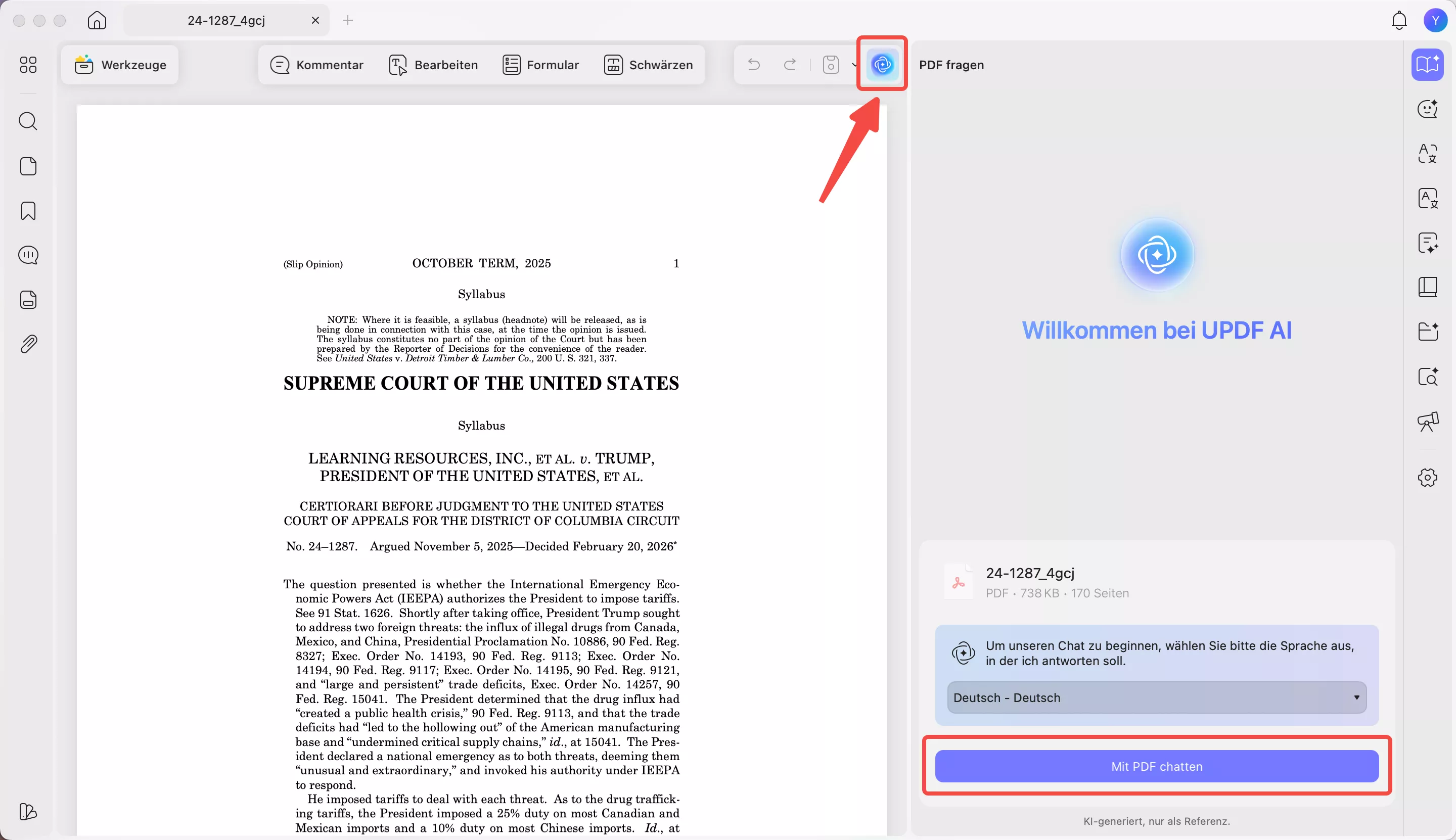
Schritt 2. Tippen Sie nun auf das UPDF AI-Symbol oben rechts auf Ihrem Bildschirm. Drücken Sie anschließend die Schaltfläche „Mit PDF chatten“, damit dieses Tool automatisch eine Zusammenfassung für Sie erstellt.
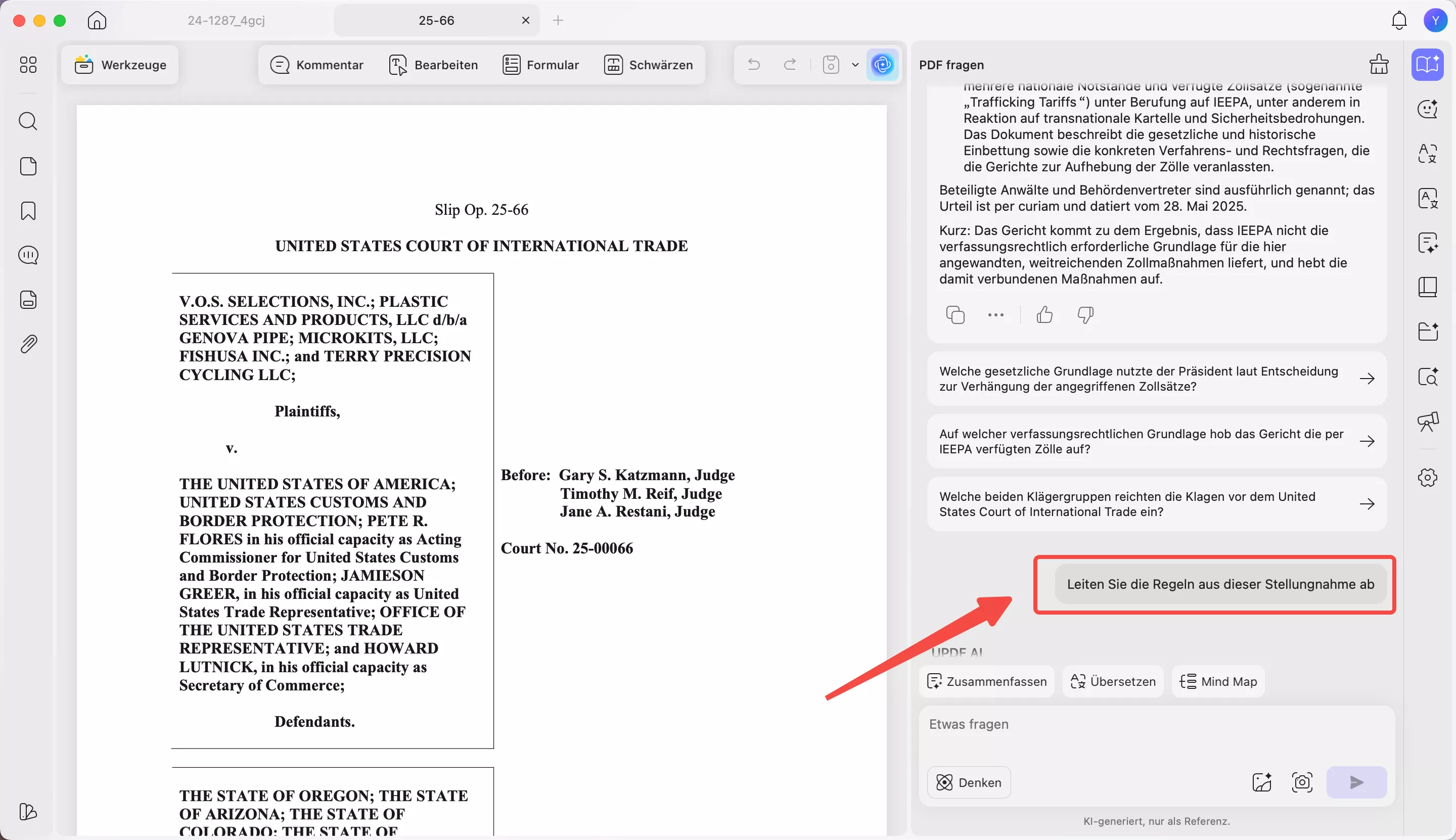
Schritt 3. Fordern Sie UPDF AI auf, die Regeln aus der hochgeladenen PDF-Datei des Gutachtens zu extrahieren. Tippen Sie anschließend auf das Senden-Symbol, um alle im Gutachten zitierten Regeln zu erhalten.
2. Nahtlose „Application“ im Split-Screen
Beim Ausarbeiten der Anwendung im Rechtsgutachten müssen Sie häufig zwischen Rechtsprechung und Ihrem Dokument wechseln. Mit der Split-Screen-Funktion von UPDF entfällt dieses Hin und Her, da Sie beides gleichzeitig anzeigen können. Gehen Sie wie folgt vor:
Schritt 1. Öffnen Sie die Entscheidungs-PDF und ein leeres Dokument in UPDF. Halten Sie anschließend einen Tab gedrückt und ziehen Sie ihn an den Rand des Bildschirms. Wählen Sie dann den zweiten Tab aus, in dem die Entscheidungsdatei geöffnet ist.
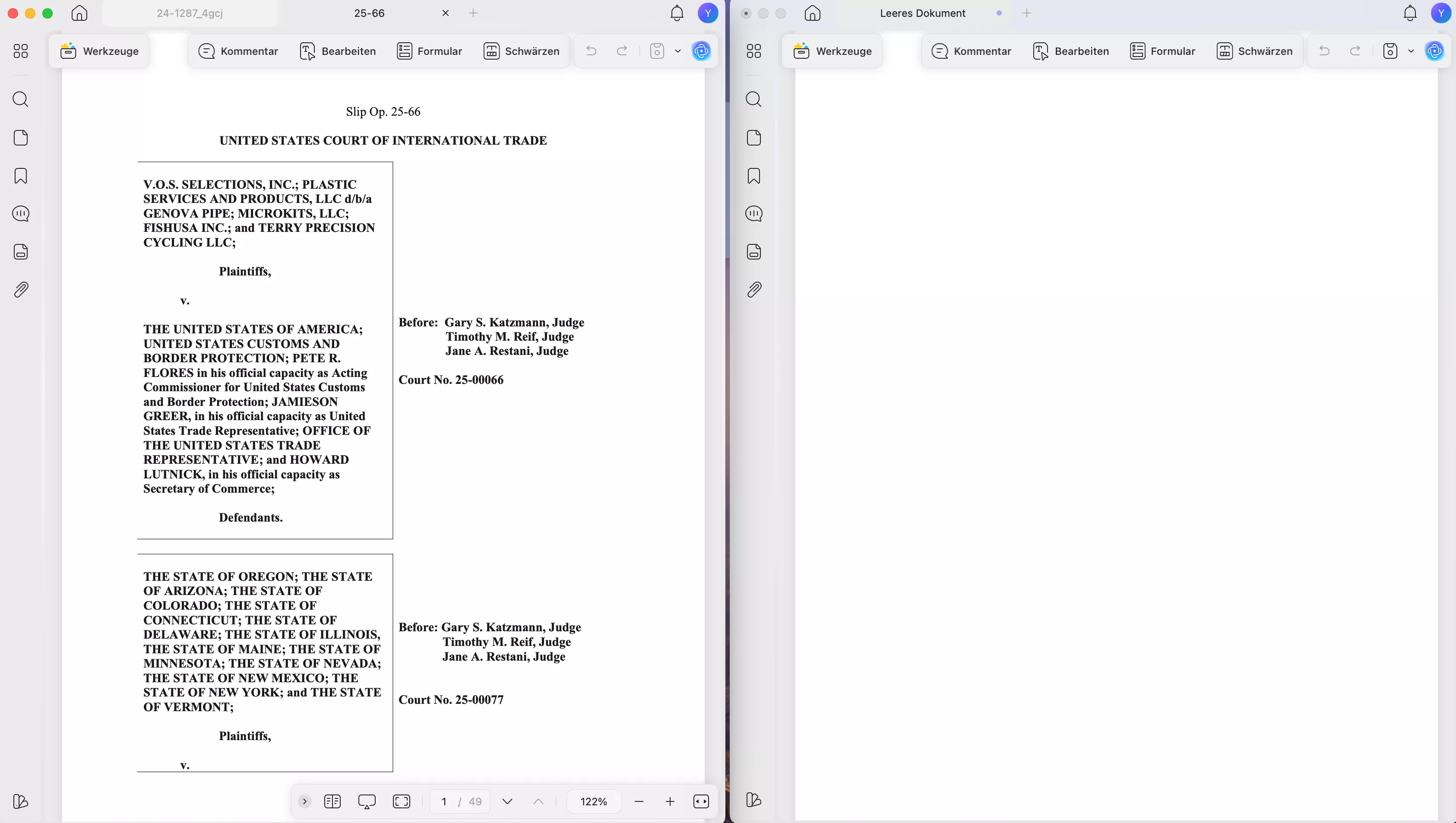
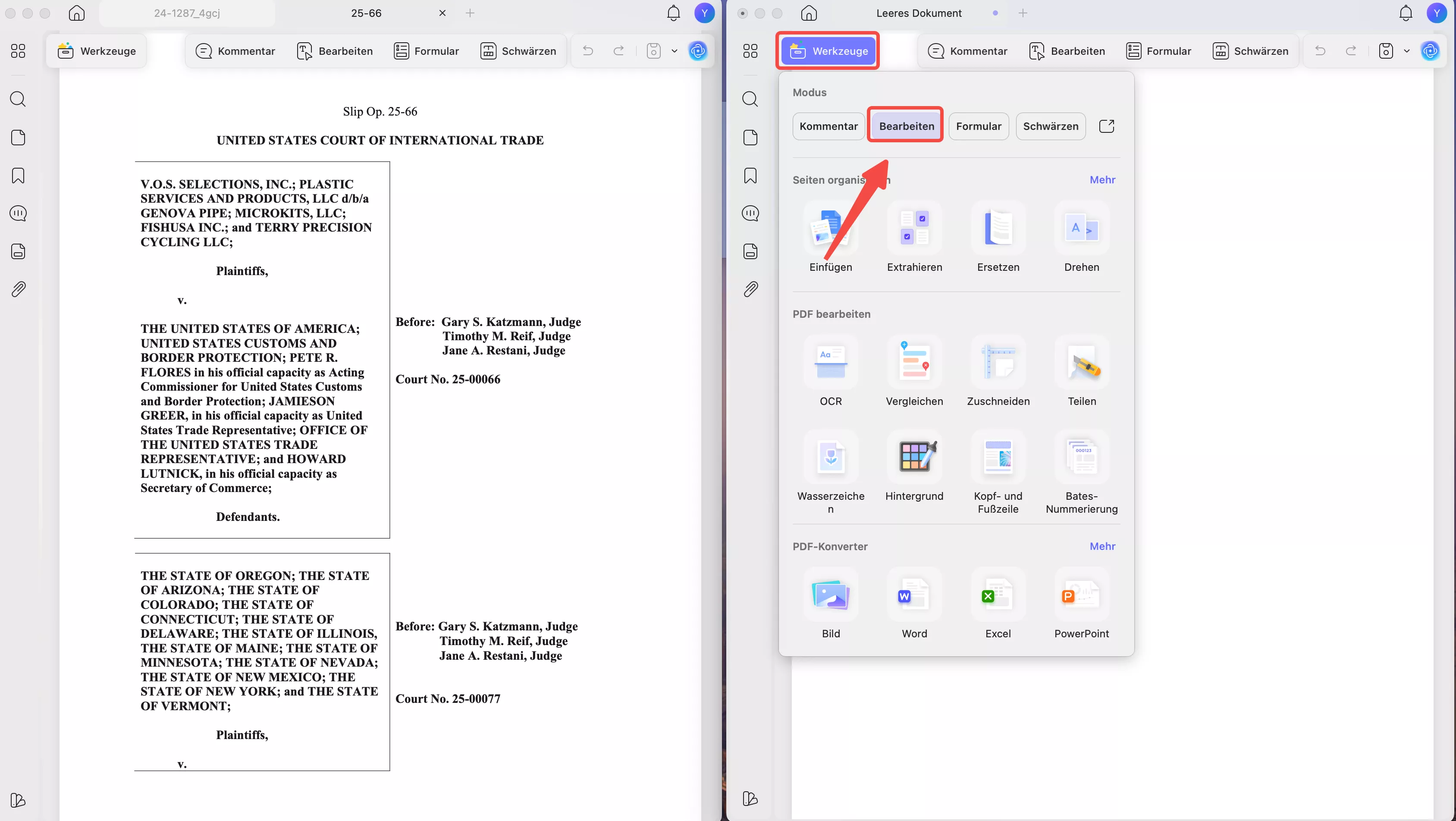
Schritt 2. Sobald beide Dateien nebeneinander geöffnet sind, tippen Sie in der leeren PDF-Datei auf die Schaltfläche „Werkzeuge“, um den Anwendungsbereich zu erstellen. Tippen Sie anschließend auf „Bearbeiten“, um die gewünschten Bearbeitungswerkzeuge aufzurufen.
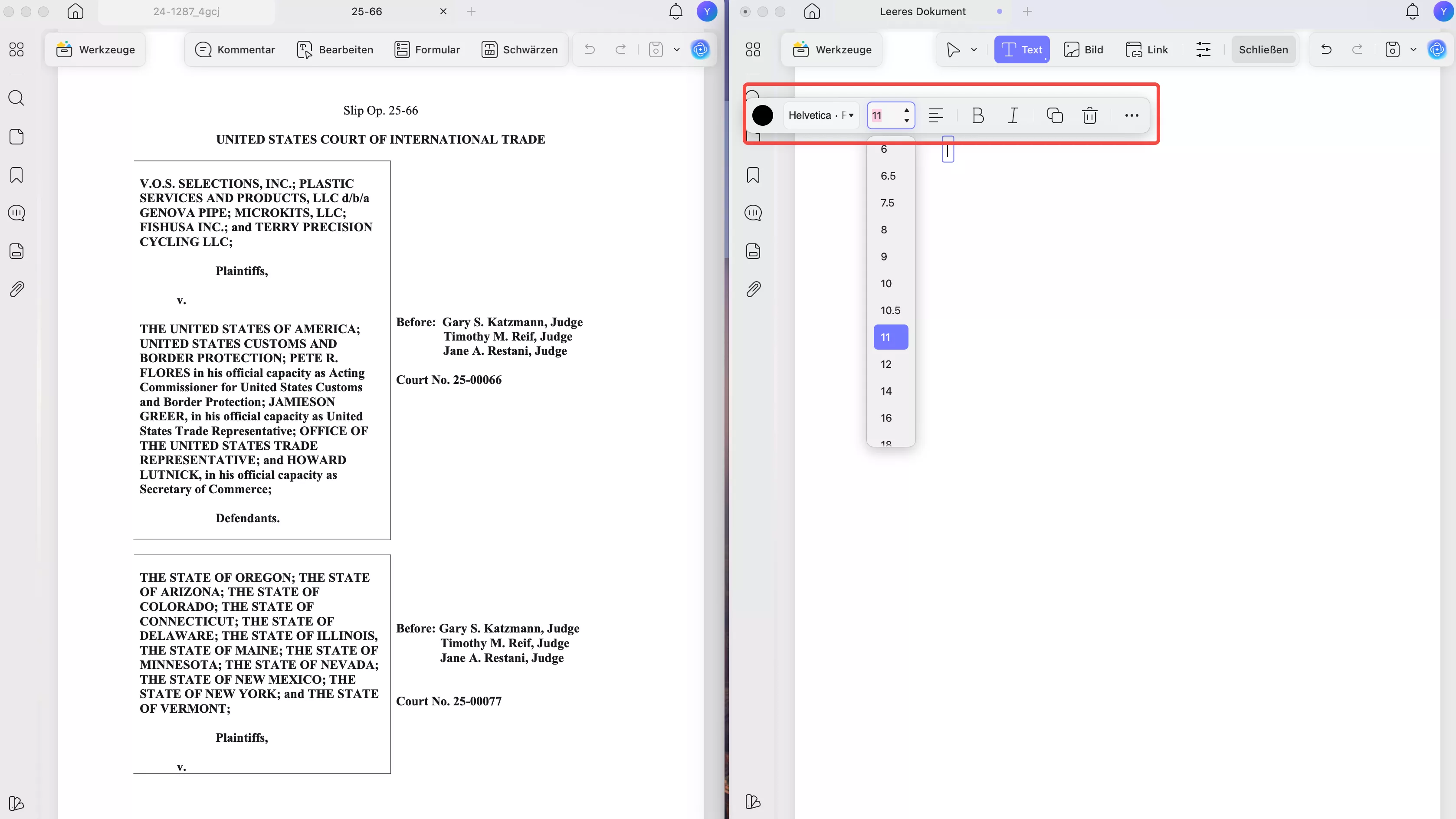
Schritt 3. Lassen Sie das Urteil nun für einen schnellen Zugriff sichtbar und heben Sie wichtige Fakten, Begründungen und relevante Passagen hervor. Nutzen Sie im zweiten Bereich die Bearbeitungsfunktionen von UPDF, um den Anwendungsteil Ihres Rechtsgutachtens zu verfassen.
Teil 3. Profi-Tipps für die Erstellung eines Rechtsgutachtens
Sobald Sie die Struktur und das IRAC-Schema verstanden haben, geht es im nächsten Schritt darum, Ihren Workflow zu optimieren. Viele Fachleute sparen Zeit, indem sie mit einer Rechtsgutachten-Vorlage arbeiten, anstatt alles von Grund auf neu zu erstellen.
1. Vorlage bearbeiten und ausfüllen
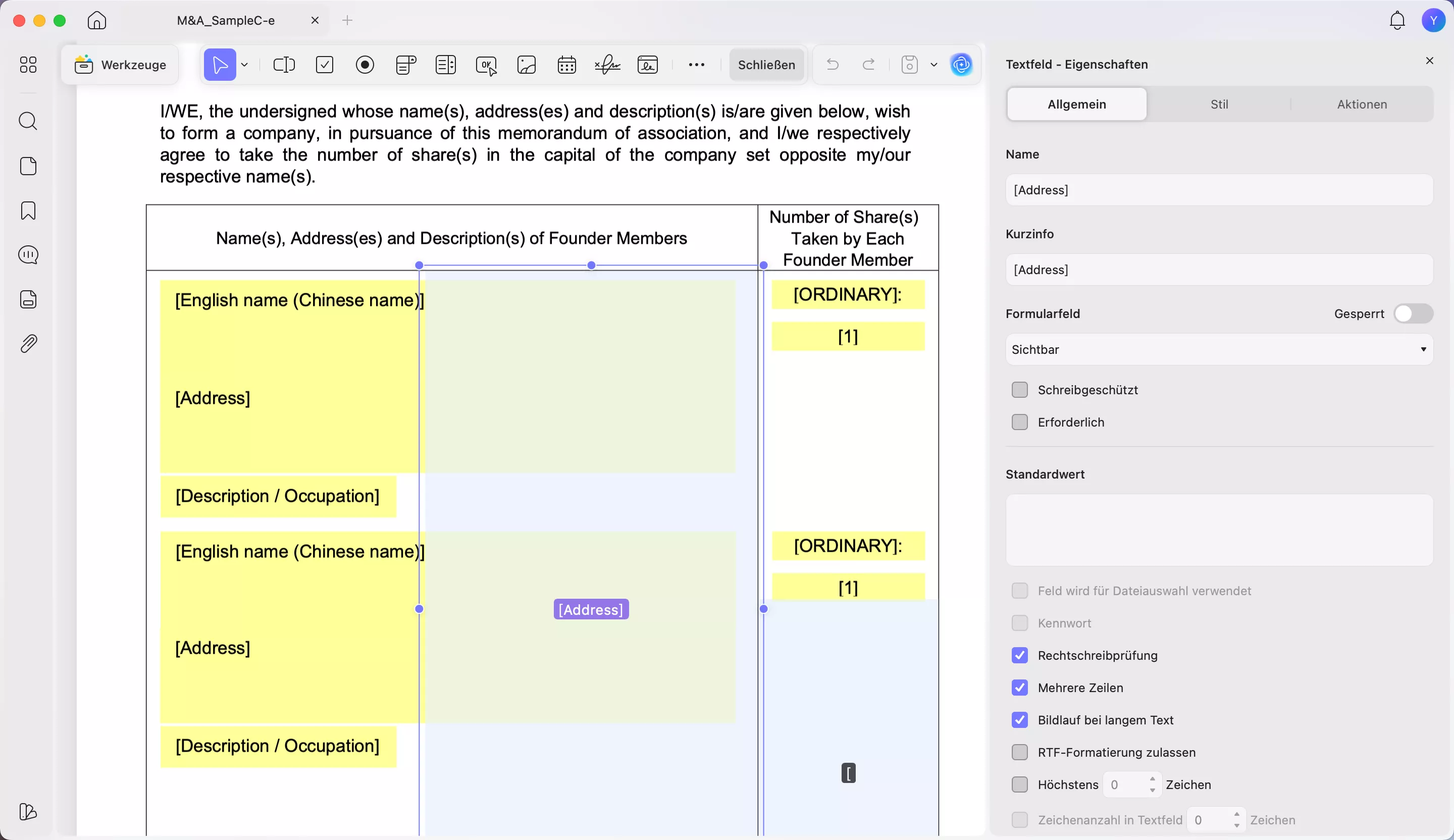
Mit UPDF können Sie die Bearbeitungsfunktionen nutzen, um Überschriften und das Layout der Vorlage anzupassen. Darüber hinaus können Sie die Funktion „Ausfüllen & Unterschreiben“ für wiederverwendbare Felder verwenden. Fügen Sie damit
Unterschriftenblöcke, Kundendaten oder regelmäßig genutzte Standard-Memofelder hinzu.
Windows • macOS • iOS • Android 100% sicher
2. Präzise Annotation
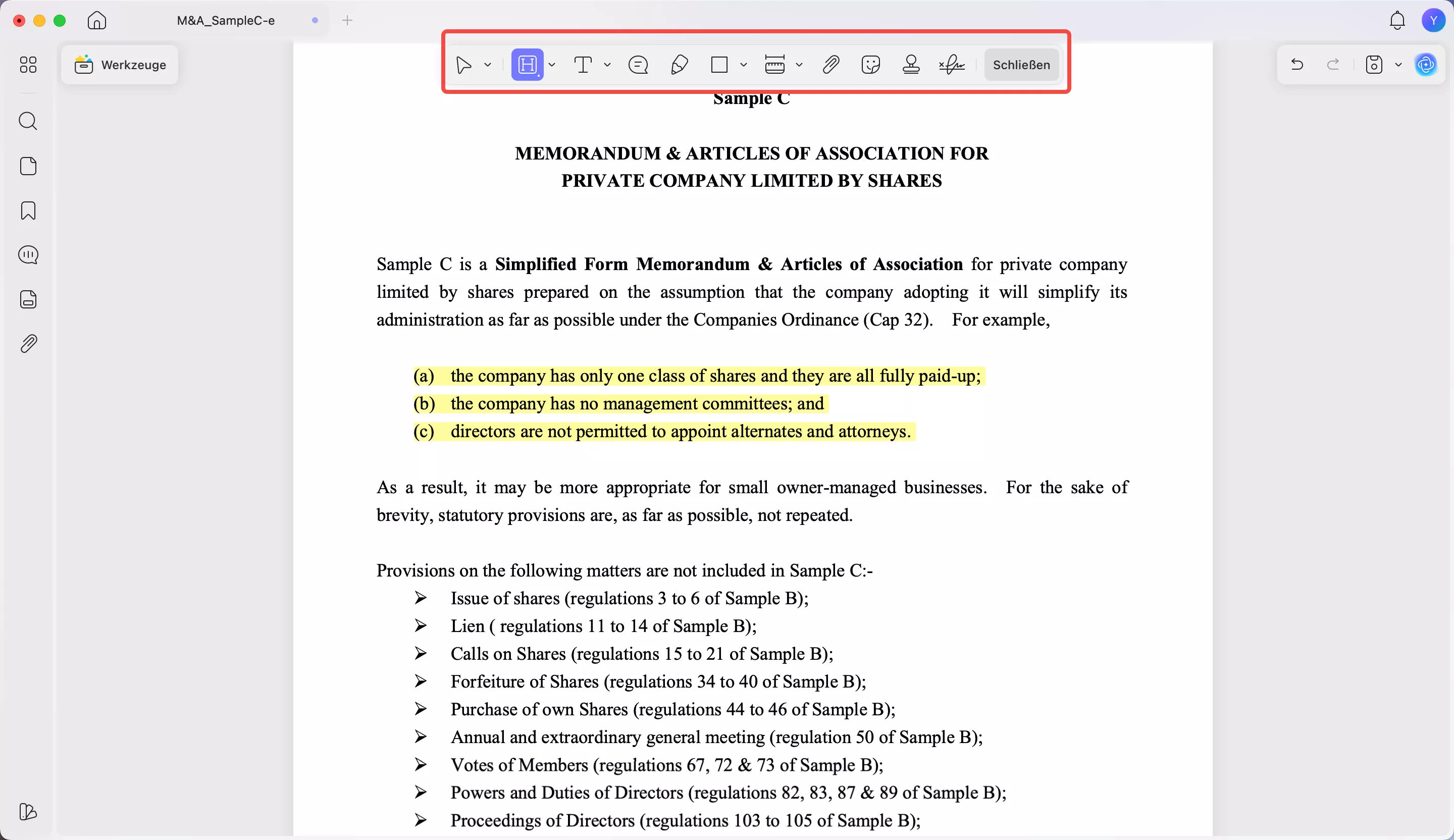
Die Anmerkungswerkzeuge von UPDF erleichtern die Recherche, indem sie es Ihnen ermöglichen, wichtige Präzedenzfälle hervorzuheben und direkt in PDFs Notizen hinzuzufügen. So bleiben wichtige Präzedenzfälle beim Verfassen Ihres Memos sichtbar und übersichtlich.
3. Organisation der Ausstellungsstücke
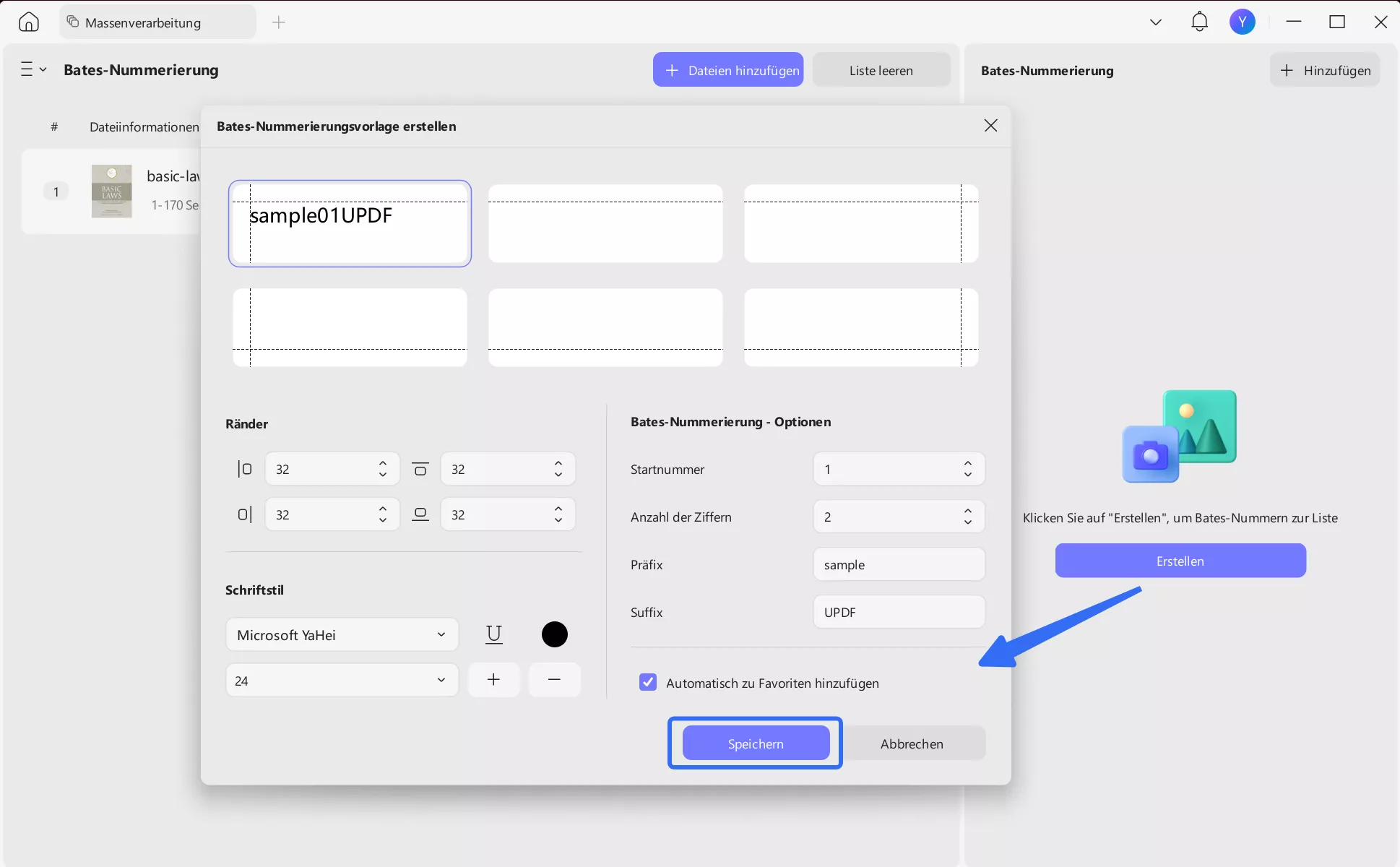
Die Verwendung der Bates-Nummerierung oder der Seitenorganisationsfunktionen in UPDF hilft Ihnen, Belegdokumente effizient zu verwalten. Sie können Beweismittel klar kennzeichnen und eine einheitliche Nummerierung beibehalten, sodass die Anlagen in Ihrem Rechtsgutachten leicht wiederzufinden sind.
4. Hyperlinks
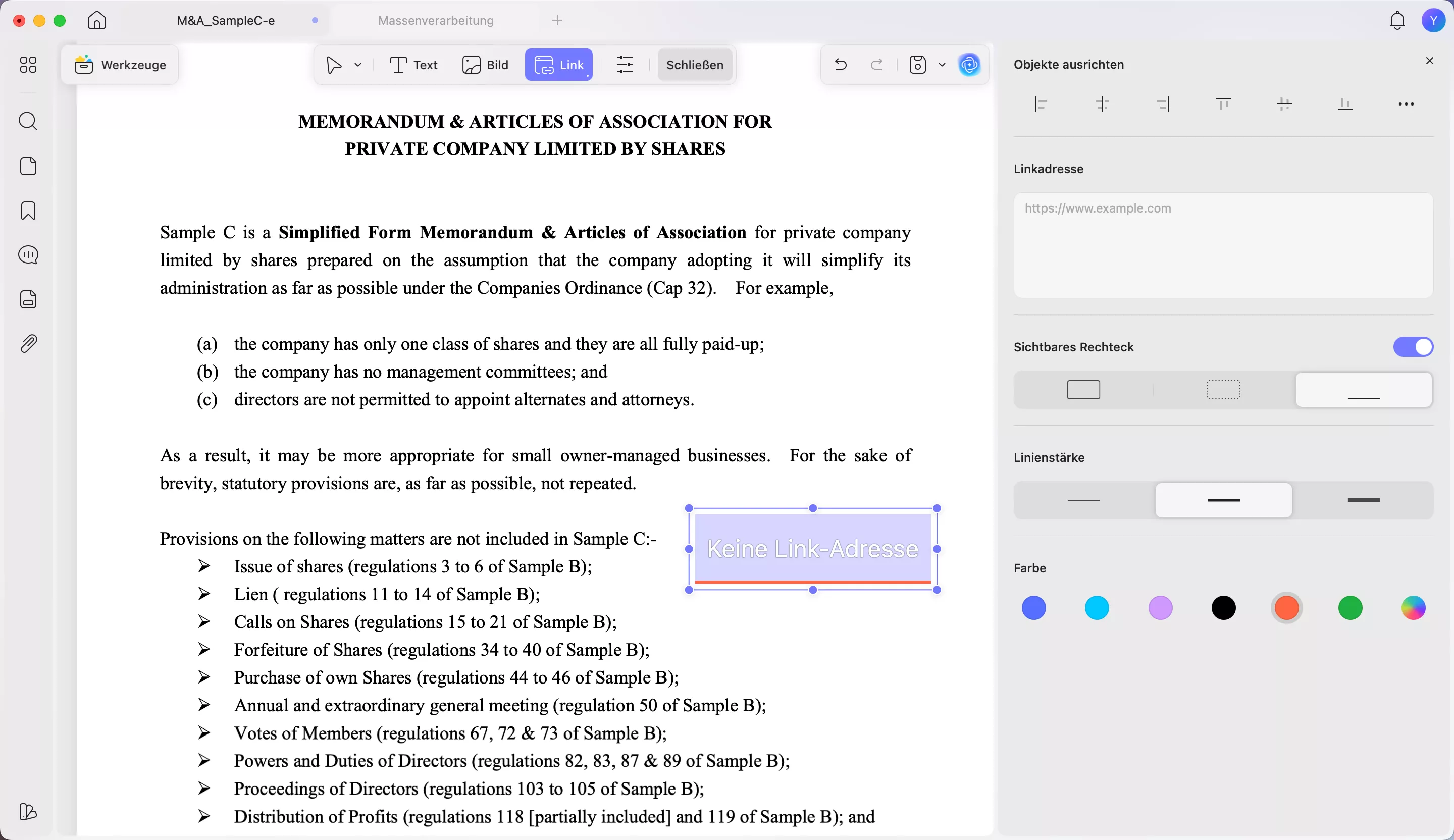
UPDF ermöglicht es Ihnen, interne Hyperlinks in Ihre PDF-Dateien einzufügen, mit denen Leser direkt zu zitierten Fällen oder relevanten Abschnitten springen können. Dies verbessert die Navigation, insbesondere für erfahrene Partner, die umfangreiche Dokumente prüfen, und sorgt für ein professionelleres Erscheinungsbild.
Möchten Sie sicherstellen, dass Ihre juristischen Texte professionellen Standards entsprechen? Laden Sie UPDF jetzt herunter, um Ihre juristischen Gutachten noch heute zu bearbeiten und zu optimieren.
Teil 4. Abschließende Überprüfung & Professionalität
Nach Abschluss der Entwurfs- und Analysephase konzentriert sich die letzte Phase auf die Präsentation und Professionalität. Indem Sie sich Zeit nehmen, das Layout zu optimieren und vertrauliche Details zu schützen, stellen Sie sicher, dass Ihr Rechtsgutachten zur Prüfung oder Weiterleitung bereit ist.
1. Der letzte Schliff
Bevor Sie Ihr Memo weiterleiten, überprüfen Sie die Formatierung sorgfältig. Juristische Dokumente verwenden üblicherweise einheitliche Seitenränder und einen ausreichenden Zeilenabstand, um ein professionelles Erscheinungsbild zu gewährleisten. Achten Sie auf die Ausrichtung und die Überschriftenhierarchie, damit das Dokument übersichtlich und leicht zu navigieren ist.
Mithilfe der Bearbeitungswerkzeuge von UPDF können Sie Layoutprobleme schnell beheben und sicherstellen, dass Ihr Memo von Anfang bis Ende eine klare Struktur beibehält. Gehen Sie zur Formatierung wie folgt vor:
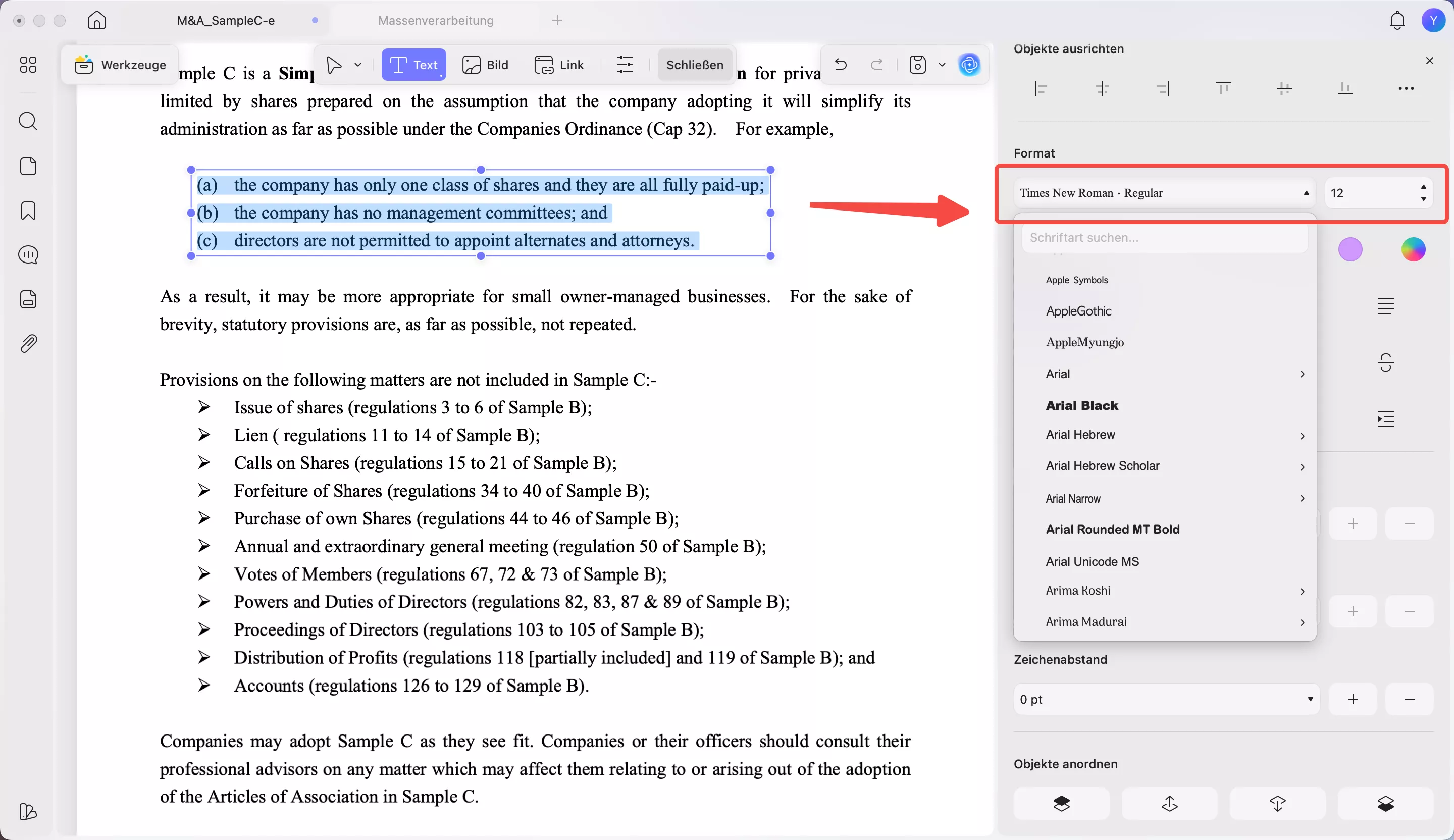
Schritt 1. Laden Sie zunächst eine PDF-Datei hoch und wechseln Sie in UPDF in den PDF-Bearbeitungsmodus. Markieren Sie anschließend den Text im Rechtsdokument, den Sie bearbeiten möchten, und klicken Sie auf „...“.
Windows • macOS • iOS • Android 100% sicher
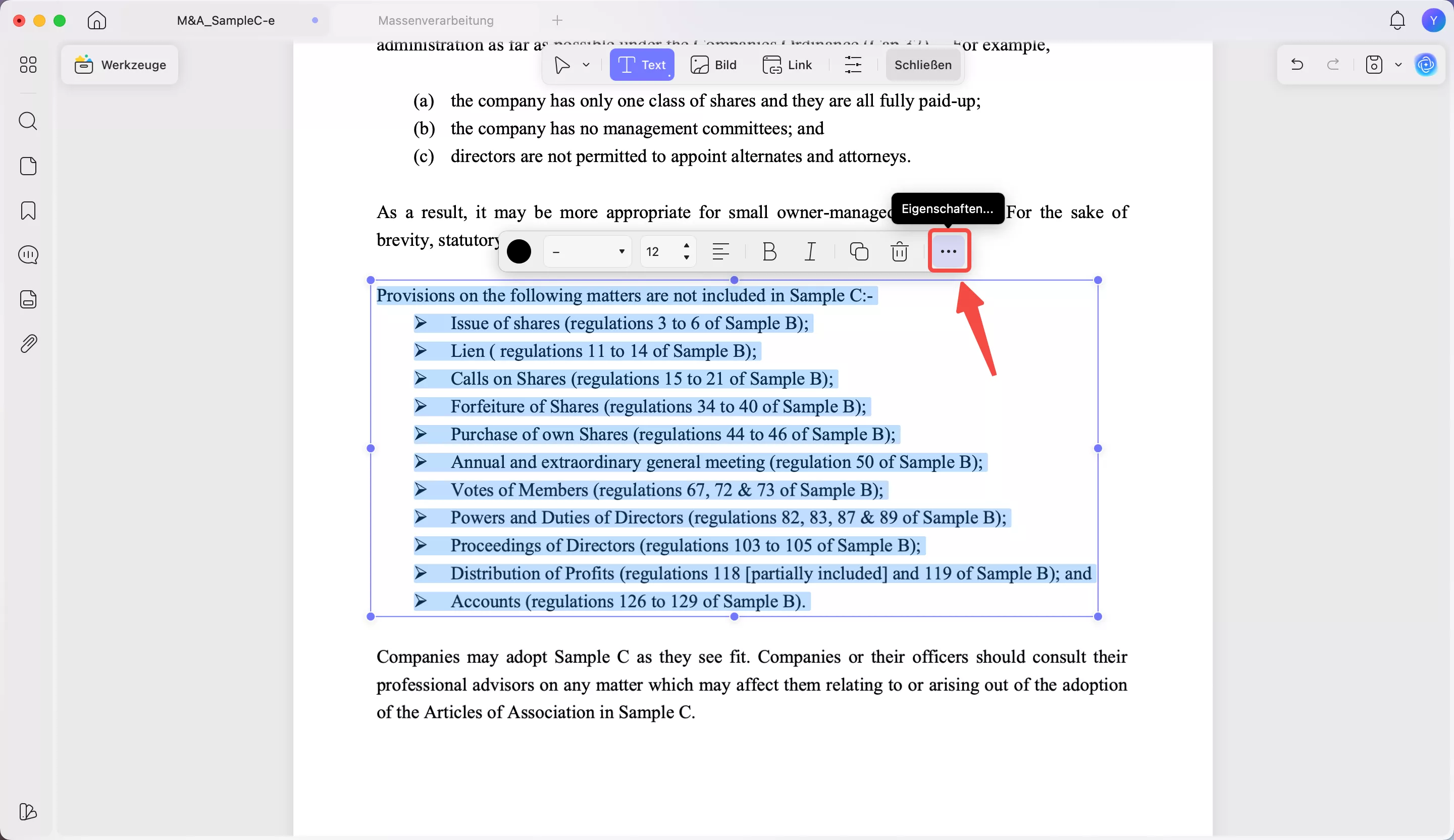
Schritt 2. Richten Sie im Seitenfenster den Text aus und wählen Sie die gewünschte Schriftart und -größe, um den letzten Schliff vorzunehmen.
2. Schwärzung und Sicherheit
Rechtsgutachten enthalten häufig vertrauliche Mandantendaten, Fallstrategien oder sensible Fakten. Bevor Sie ein Gutachtenmuster an externe Prüfer weitergeben, sollten Sie private Informationen entfernen oder dauerhaft unkenntlich machen.
Das Schwärzungswerkzeug von UPDF trägt dazu bei, dass sensible Inhalte nicht wiederhergestellt oder später eingesehen werden können. Um sensible Daten mit UPDF zu schwärzen, gehen Sie wie folgt vor:
Schritt 1. Nach dem Import des Rechtsgutachtens öffnen Sie das Menü „Werkzeuge“ und tippen auf die Funktion „Schwärzen“, um deren Optionen anzuzeigen.
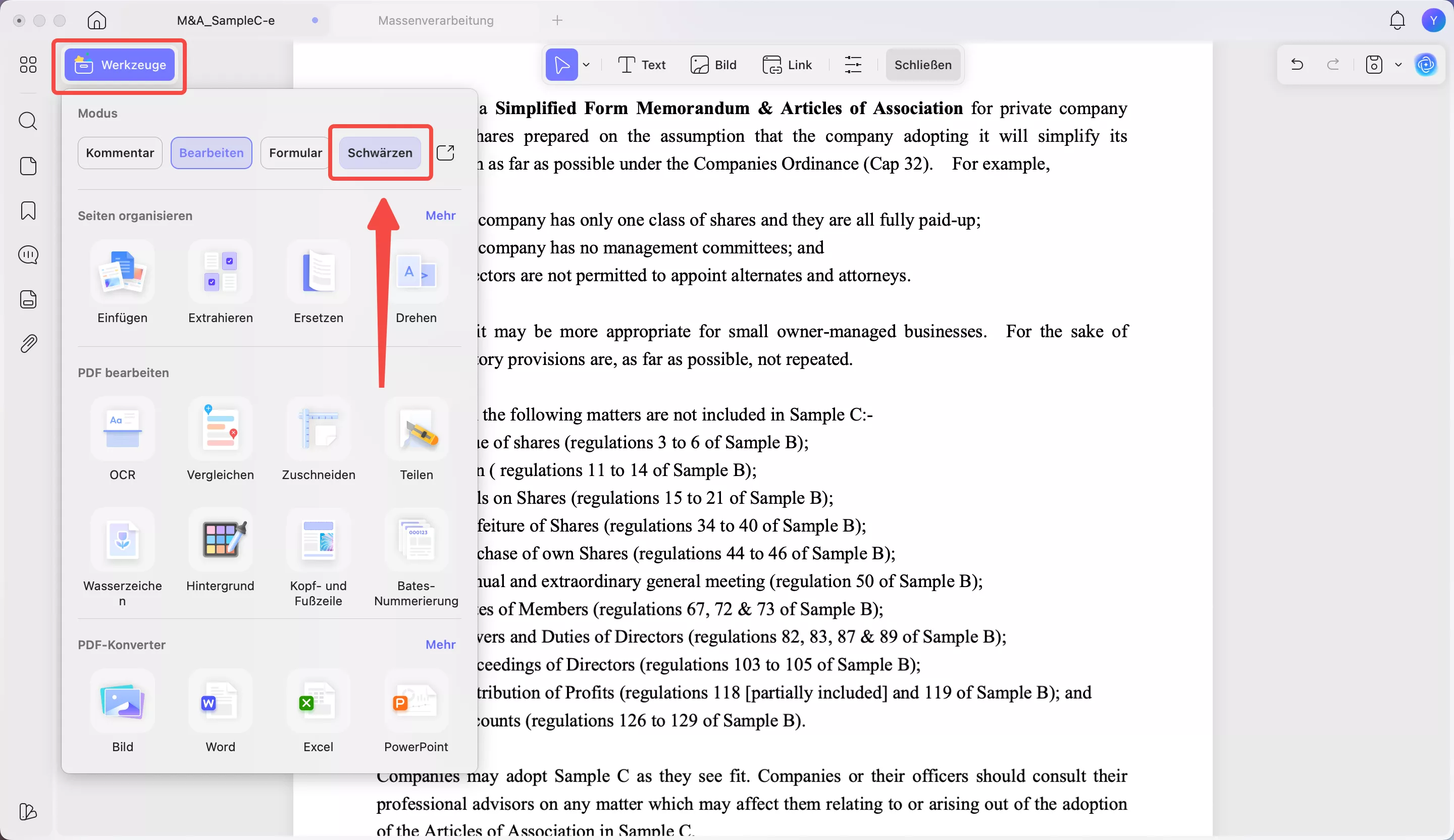
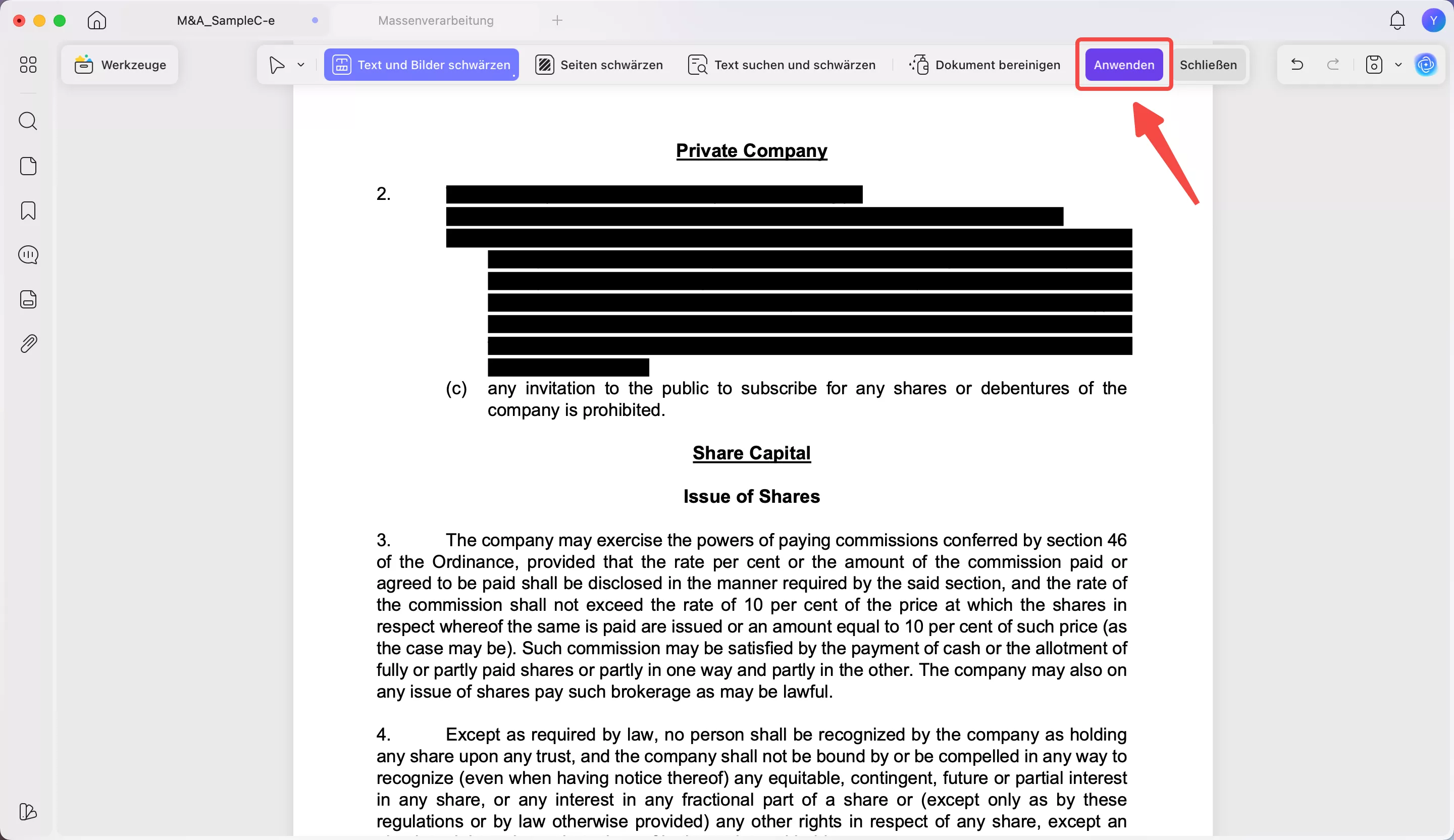
Schritt 2. Tippen Sie anschließend auf das Symbol „Schwärzen“ und wählen Sie die Informationen aus, die Sie ausblenden möchten, bevor Sie auf „Anwenden“ tippen. Innerhalb dieser Funktion können Sie die Füllfarbe und Deckkraft beim Schwärzen von Text anpassen.
3. In ein flaches PDF konvertieren
Bevor Sie Ihr Memo an einen Kunden oder Seniorpartner senden, verhindern Sie durch die Konvertierung in ein finales und sicheres PDF versehentliche Änderungen. Die Formatierung bleibt dabei geräteübergreifend erhalten, da Anmerkungen und Layout fixiert bleiben. Gehen Sie für diese Konvertierung einfach wie folgt vor:
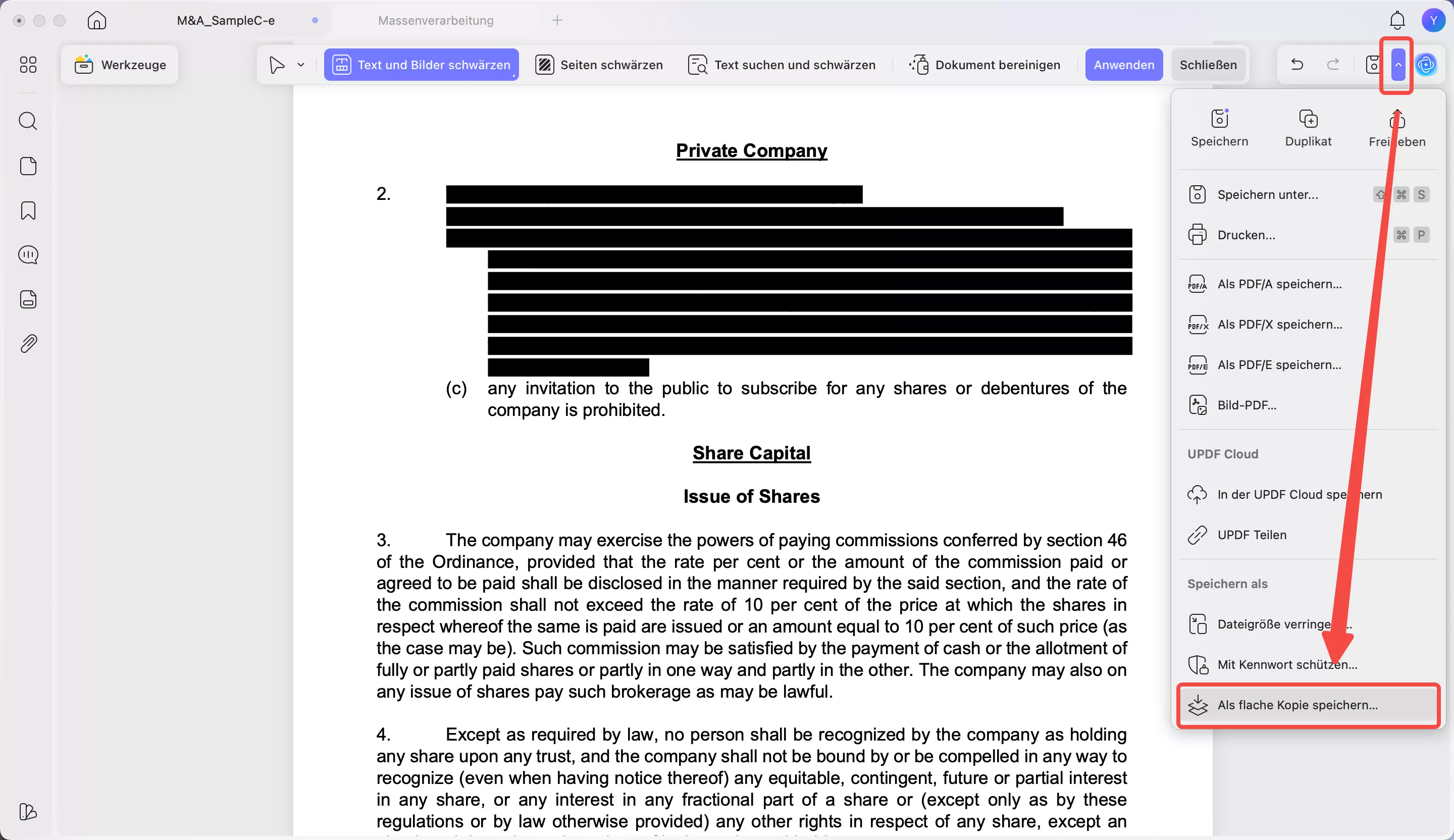
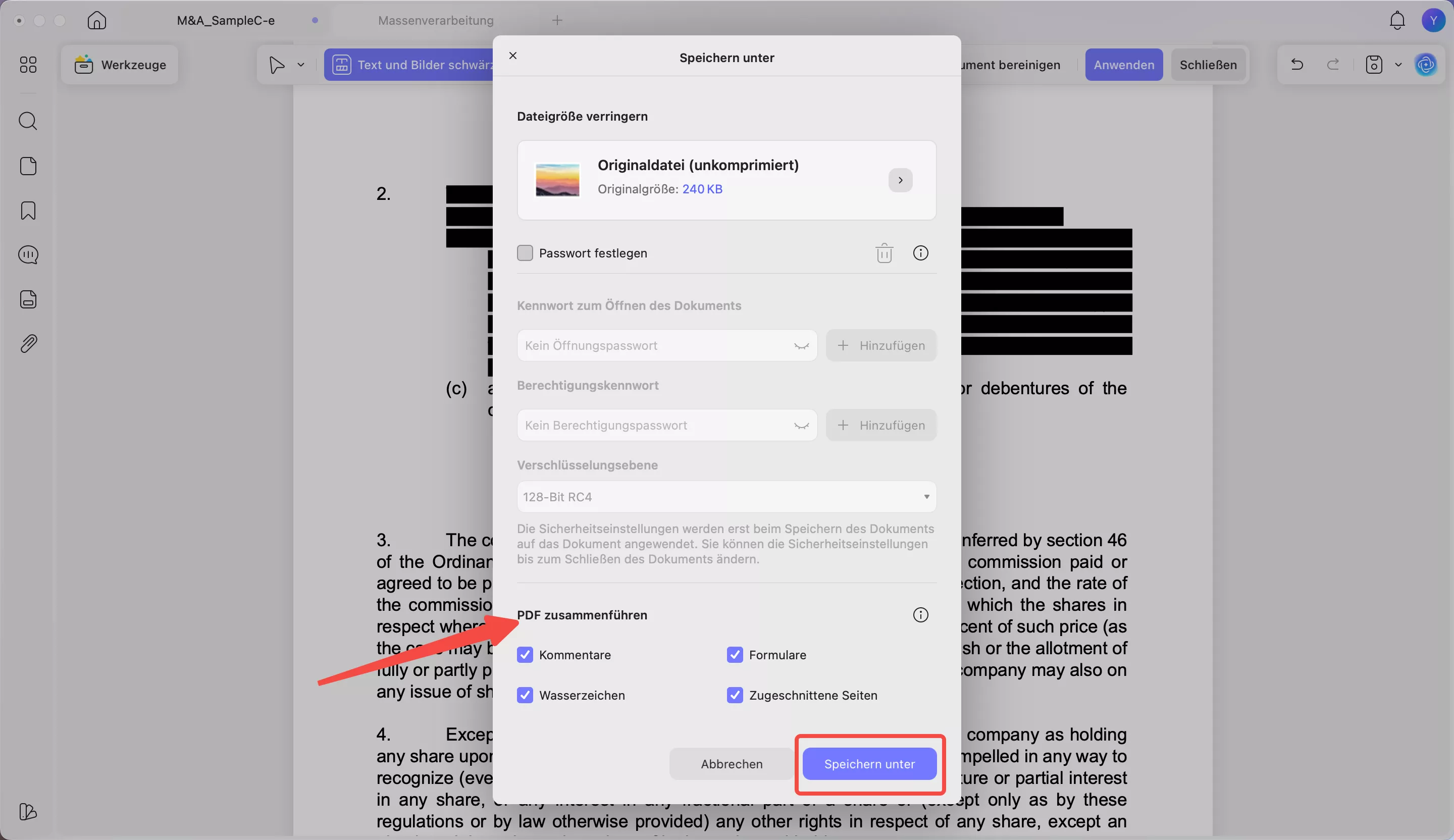
Schritt 1. Nachdem Sie alle Änderungen an Ihrer Vorlage für ein Rechtsgutachten vorgenommen haben, tippen Sie auf das Abwärtssymbol neben der Schaltfläche „Speichern“. Wählen Sie anschließend „Als flache Kopie speichern“, um fortzufahren.
Windows • macOS • iOS • Android 100% sicher
Schritt 2. Wählen Sie nun im Abschnitt „PDF zusammenführen“ die Elemente aus, die Sie reduzieren möchten, einschließlich Kommentare und Formulare . Klicken Sie abschließend auf „Speichern unter“, um Ihr Rechtsdokument zu speichern.
Fazit
Neben dem juristischen Verständnis hängt die Erstellung eines Rechtsgutachtens auch von einer klaren Struktur und einer professionellen Darstellung ab. Die richtigen Tools können diesen Prozess deutlich beschleunigen und besser organisieren – insbesondere bei umfangreichem Recherchematerial.
UPDF unterstützt jede Phase der Gutachtenerstellung – von der Durchsicht von Fall-PDFs bis zum Hervorheben wichtiger Präzedenzfälle. Zudem können Sie das Tool zur Bearbeitung und finalen Ausarbeitung Ihres Dokuments nutzen.
Wenn Sie Ihren juristischen Schreibprozess optimieren und Ihre Recherche effizient verwalten möchten, lohnt es sich, UPDF als festen Bestandteil Ihres Workflows einzusetzen.
Windows • macOS • iOS • Android 100% sicher