 UPDF
UPDF
 UPDF for Windows
 UPDF for Mac
 UPDF for iPhone/iPad
 UPDF for Android
 UPDF AI Online
 UPDF Sign
 Edit PDF
 Annotate PDF
 Create PDF
 PDF Form
 Edit links
 Convert PDF
 OCR
OCR PDF to Word
 PDF to Image
 PDF to Excel
 Organize PDF
 Merge PDF
 Split PDF
 Crop PDF
 Rotate PDF
 Protect PDF
 Sign PDF
 Redact PDF
 Sanitize PDF
 Remove Security
 Read PDF
 UPDF Cloud
 Compress PDF
 Print PDF
 Batch Process
 About UPDF AI
 UPDF AI Solutions
 AI User Guide
 FAQ about UPDF AI
 Summarize PDF
 Translate PDF
 Chat with PDF
 Chat with AI
 Chat with image
 PDF to Mind Map
 Explain PDF
 Scholar Research
 Paper Search
 AI Proofreader
 AI Writer
 AI Homework Helper
 AI Quiz Generator
 AI Math Solver
 PDF to Word
 PDF to Excel
 PDF to PowerPoint
 Enterprise Solution
 Enterprise Sign
 Enterprise AI
 Enterprise Plan
 Enterprise User Guide
 Enterprise Webinar
 Banking
 Healthcare
 Insurance
 Legal
Legal Manufacturing
 Government
 Education Solution
 Customer Stories
 User Guide
 UPDF Tricks
 FAQs
FAQs UPDF Reviews
 Download Center
 Blog
Blog Newsroom
 Tech Spec
 Updates
 UPDF vs. Adobe Acrobat
 UPDF vs. Foxit
 UPDF vs. PDF Expert


Writing a grant proposal is challenging enough without worrying about formatting rules. Many strong applications are rejected because they do not follow the required structure and submission guidelines. Without clear direction, applicants spend hours adjusting margins and fixing a budget format for a grant proposal instead of refining their project ideas.
In this article, we will explore how using a grant proposal format sample helps you avoid common formatting mistakes. With the right approach, you can understand the proper format of grant proposal sections and build a compliant structure. We will also explain how UPDF and its AI features can help you analyze winning samples. To understand why mastering grant formatting matters, look at the reasons below:
- Reduces the risk of rejection during administrative review.
- Ensures your proposal follows a clear and professional structure.
- Saves time by reusing verified templates rather than creating a blank one.
Before you start drafting the proposal, download UPDF and give its AI assistant a try for getting a deeper understanding of the available samples.
Windows • macOS • iOS • Android 100% secure
Part 1. Authoritative Sources: Where the "Winners" Get Their Samples
Successful grant writers study real examples from trusted institutions to understand what makes the format of grant proposal effective. Now we will explore where you can find the most reliable grant proposal format samples.
1. NIH (NIAID): Sample Applications "All About Grants"
The NIH's NIAID section works like a secret vault of real funded applications. It offers complete R01, R21, and other sample packages that show structure, tone, and reviewer-focused language. These examples help you understand how different grant components are formatted and lets you model your goals.
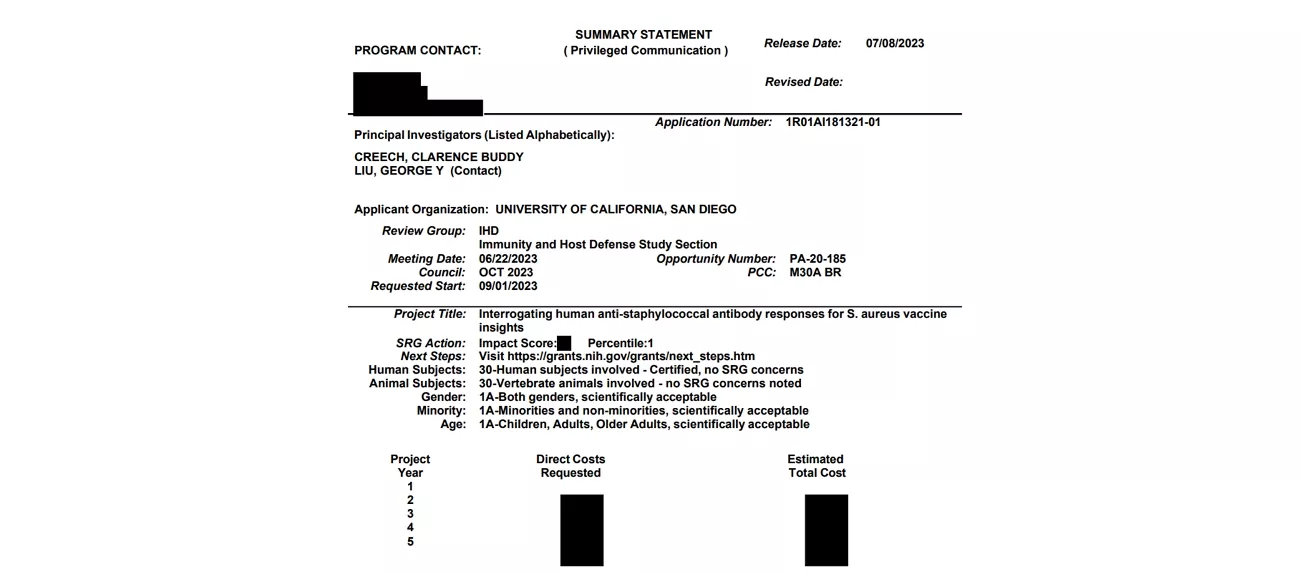
Why You Can Trust This Source
- You see how funded teams organize aims, strategy, and budgets in realistic grant scenarios.
- Reviewers' expectations for structure become clearer to avoid format errors during administrative checks.
- Proven layout patterns guide how you present information while you keep every idea original.
2. National Science Foundation (NSF)
This source explains how strong research proposals should describe their goals and societal benefits logically. Using NSF materials, you can better understand what funders expect from a well-structured, compliant application document.
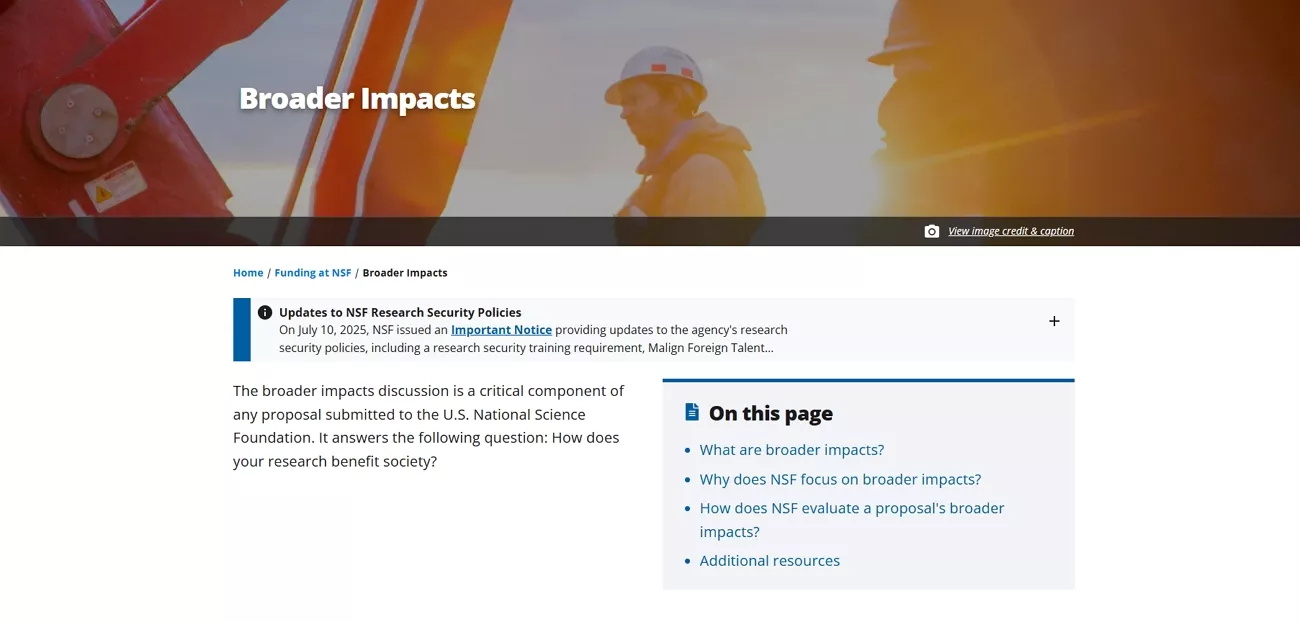
Why You Can Trust This Source
- A United States government agency that funds competitive, peer-reviewed scientific and educational research.
- Its proposal guidance is written for applicants and reviewers, so it reflects real evaluation standards and expectations.
- Information is updated when policies change to help you follow current rules rather than outdated informal advice.
3. Candid
Candid's sample documents library gives you real nonprofit examples to study instead of guessing alone. You can review different grant proposal format sample files, including budgets, letters, and full proposals with funder feedback.
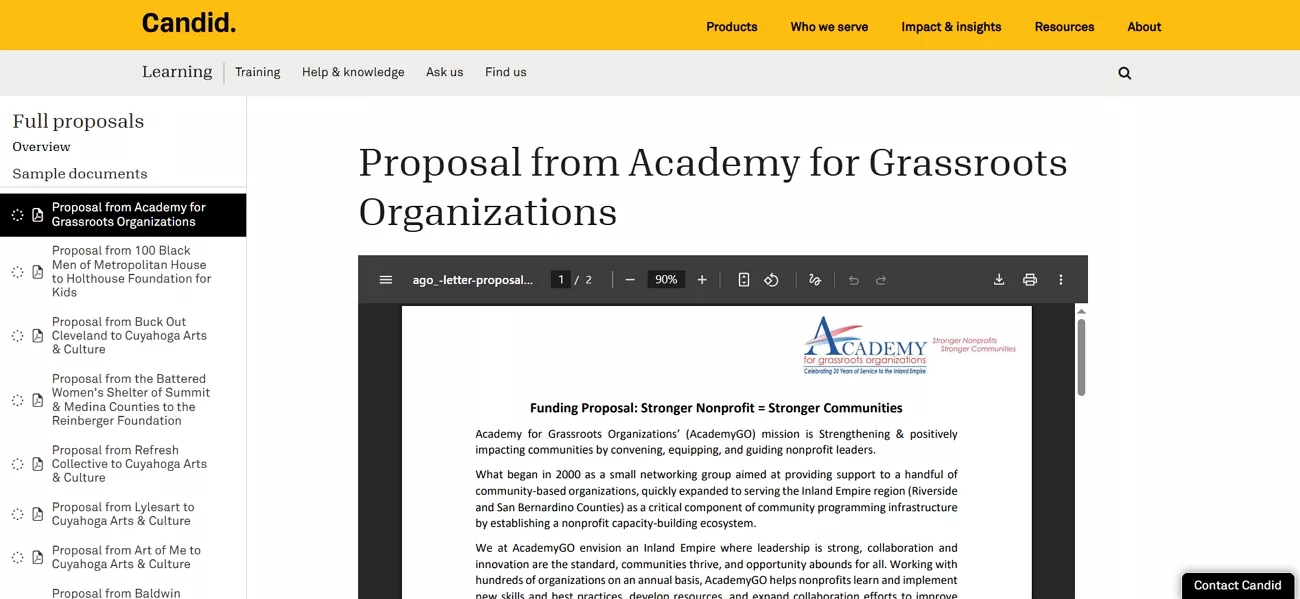
Why You Can Trust This Source
- Operated by a long-established organization dedicated to supporting nonprofits and philanthropy.
- Collections include real funded documents, not generic templates and theoretical examples.
- Each resource is curated to help organizations present a convincing case to potential funders.
Deep Pain Point Fix: Layout That Reviewers Can Skim
Part 2. Deconstructing the Format: The "Reverse Engineering" Workflow
Many users look for ways to turn static grant proposal PDFs into useful guides for drafting their own proposals. This is where UPDF helps you break down grant proposal PDFs, edit sections, and add annotations to understand the structure. With the UPDF's split-screen view, you can check your draft with a budget format for grant proposal samples to catch missing elements.
Moreover, UPDF AI can analyze tone and suggest improvements to objectives and narrative for a more persuasive proposal. For teams and organizations, UPDF's enterprise plan provides advanced features to manage multiple proposals securely.
How To Turn a Static PDF Sample Into a Living Guide
A sample PDF is no longer something you read once and ignore. Let's see how you can break it into pieces, study how each part works, and turn it into a reusable reference you can consult during every draft.
Extract The Logic
When your goal is to understand how a sample is written, you focus on tone, word choice, and objective phrasing. Follow the steps below to turn that example into a clear writing model you can reuse:
Step 1. Open a Grant Proposal Draft in UPDF
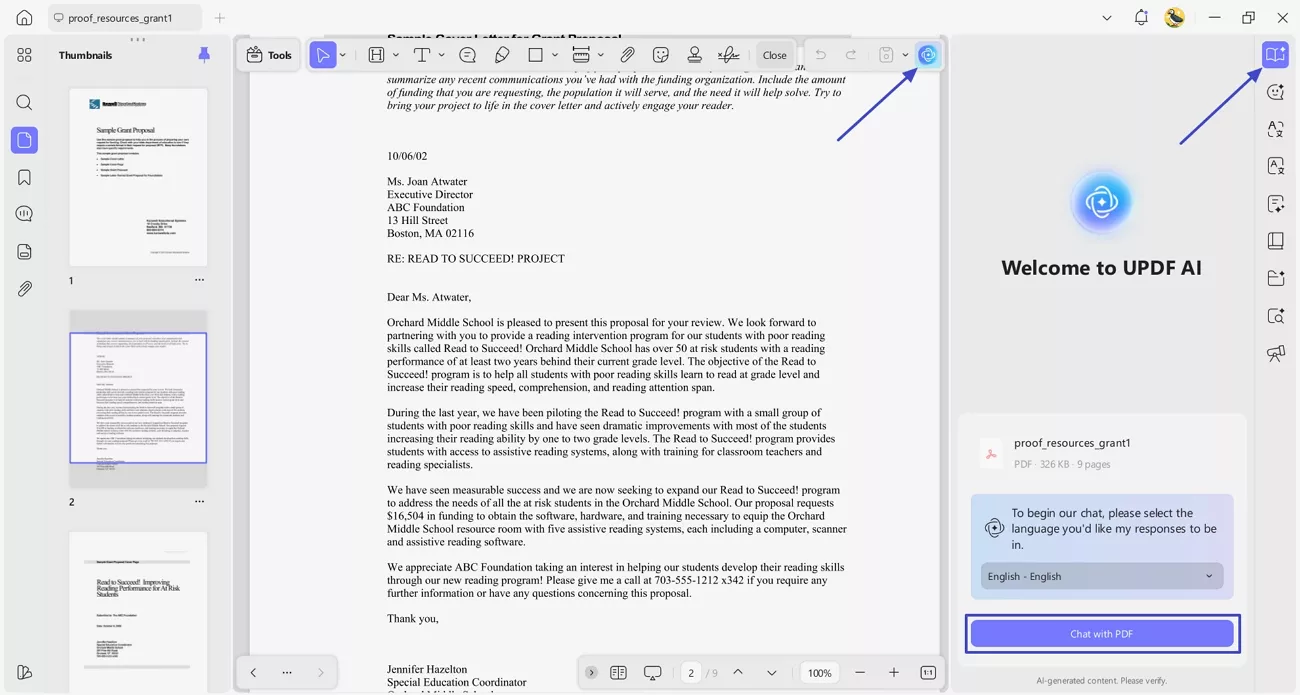
On the main interface, press the "+" icon in the top left corner and press the "Open File" button to import the sample PDF into UPDF.
Windows • macOS • iOS • Android 100% secure
Step 2. Access UPDF AI Chat With PDF
Once imported, press the "UPDF AI" icon in the right corner and click the "Ask PDF" option in the panel. Next, click the "Chat with PDF" button to get an automated summary of your PDF.
Step 3. Ask UPDF AI to Analyze The Tone
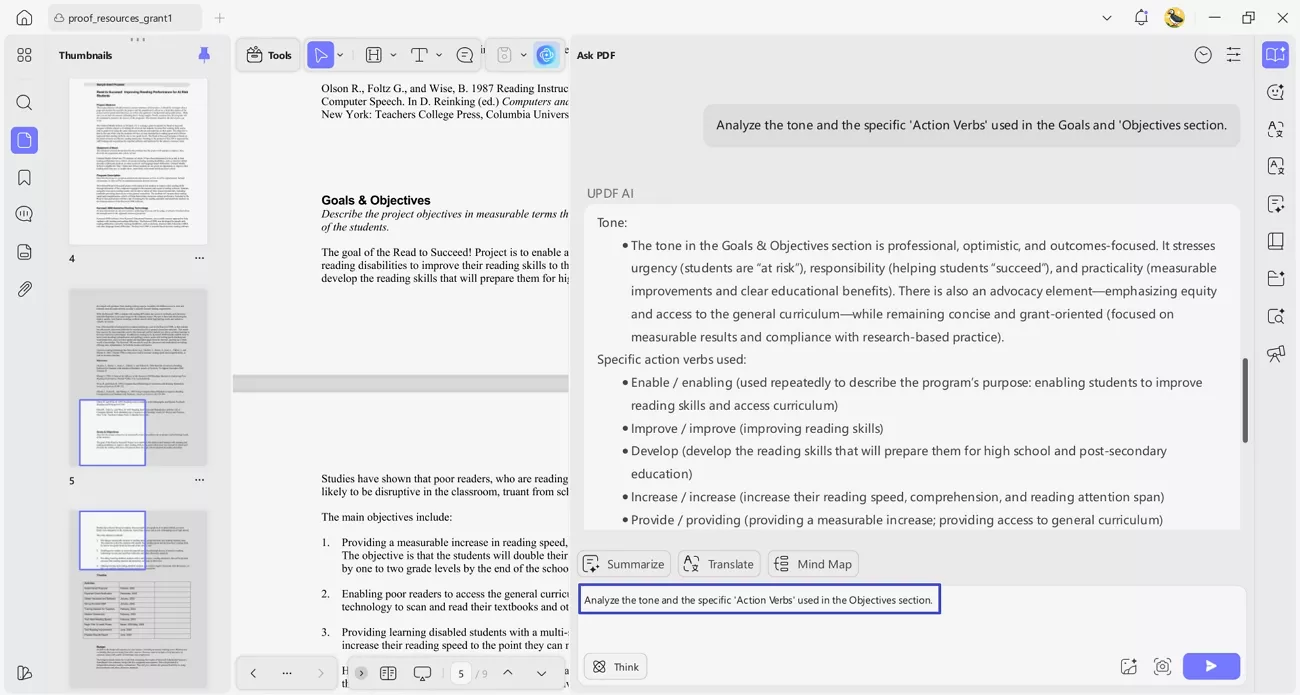
Next, in the chat section, ask UPDF AI to "Analyze the tone and the specific 'Action Verbs' used in the Objectives or Goals and Objectives section." This way, the AI will analyze the tone and action verbs usage in your proposal.
Compare Budgets
A careful budget comparison is important because a weak and incomplete budget can sink an otherwise strong proposal. It helps you spot missing costs and vague justifications, so you can correct them before reviewers ever see your application. Now, go through the steps below to see how you can do this in UPDF:
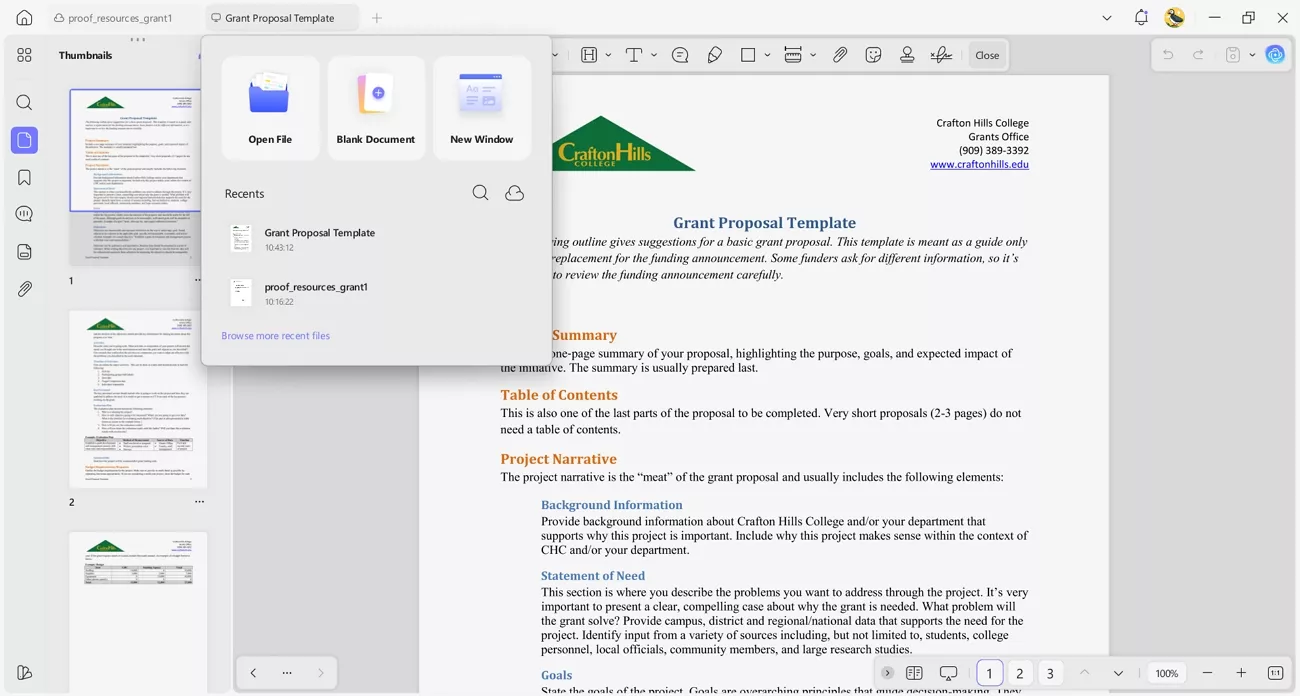
Step 1. Open Budget Format for Grant Proposal SampleAlongside your own draft, open a budget format for a grant proposal sample PDF in UPDF.
Windows • macOS • iOS • Android 100% secure
Step 2. Switch to Split Screen View
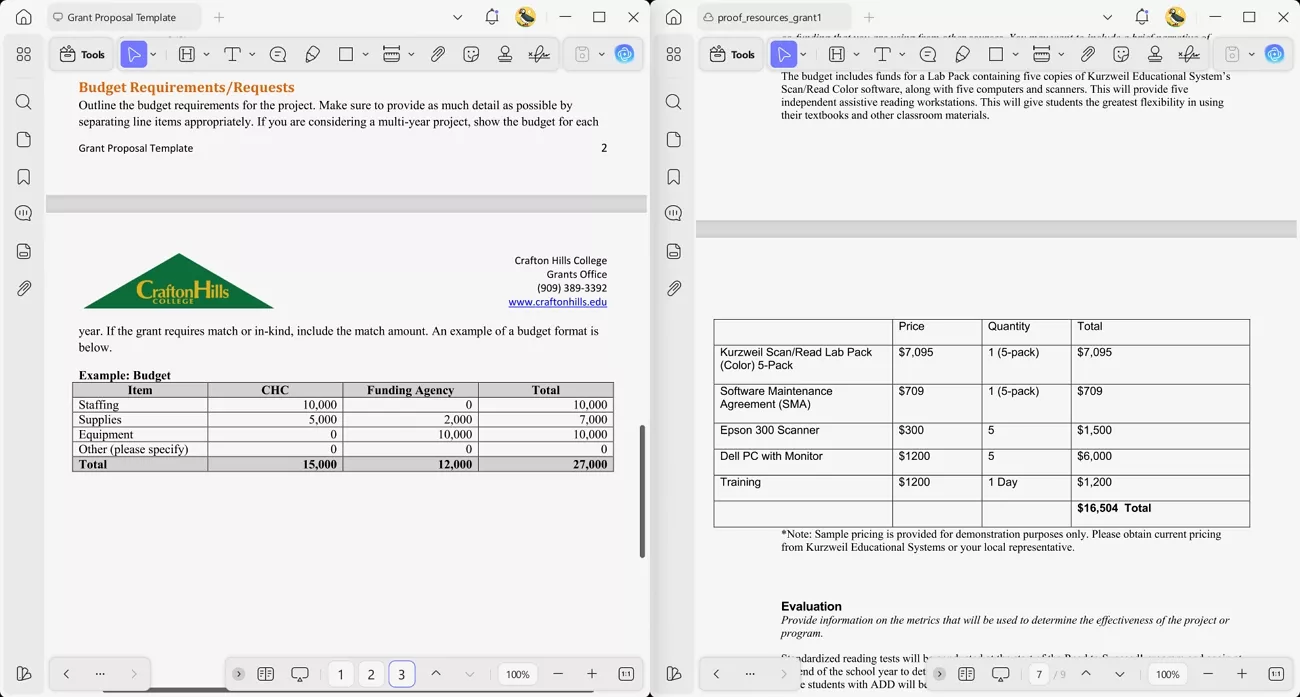
Next, separate both PDFs into different windows and open them in a split-screen view. Now, you can compare the sample's budget justification with your own draft to verify that no hidden costs are missing.
Annotate The "Why"
Understanding the "why" behind strong sentences helps you move beyond copying and instead apply the same logic in your own proposal. Now, follow the steps below to see how you can do this:
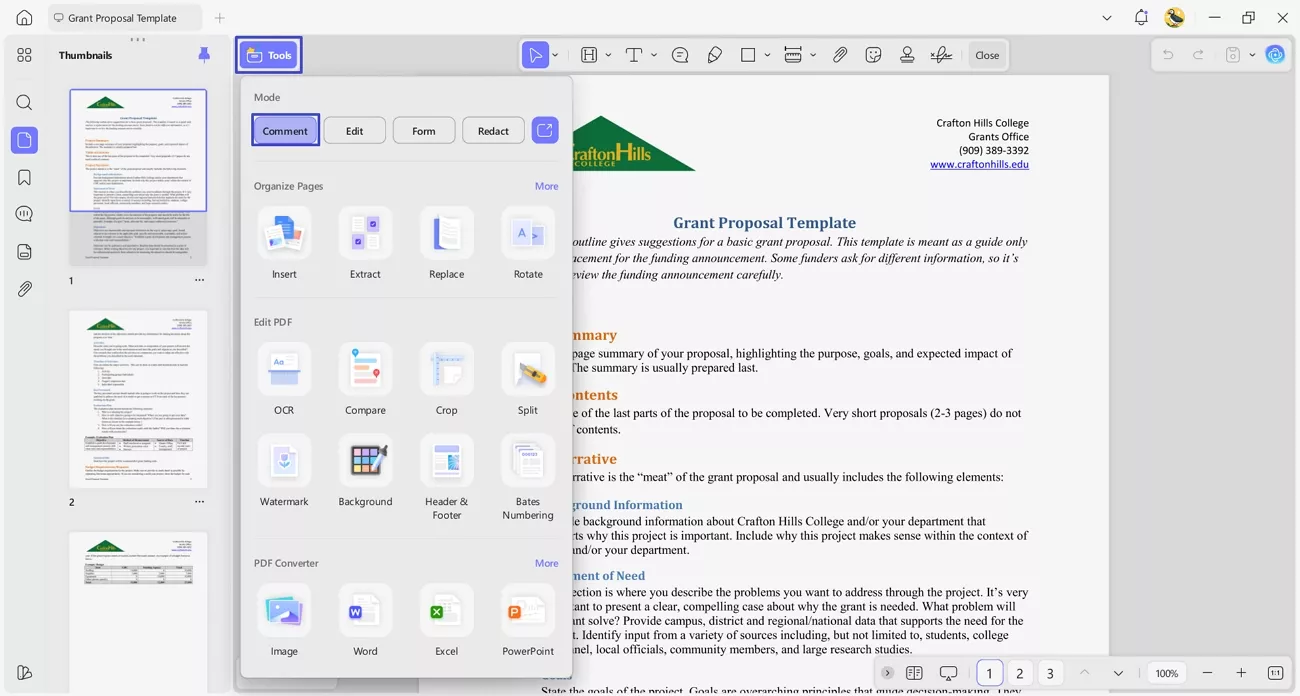
Step 1. Access The Comment Tool in UPDF
First, press the "Tools" option in the left corner and press the "Comment" option to access the annotation tools.
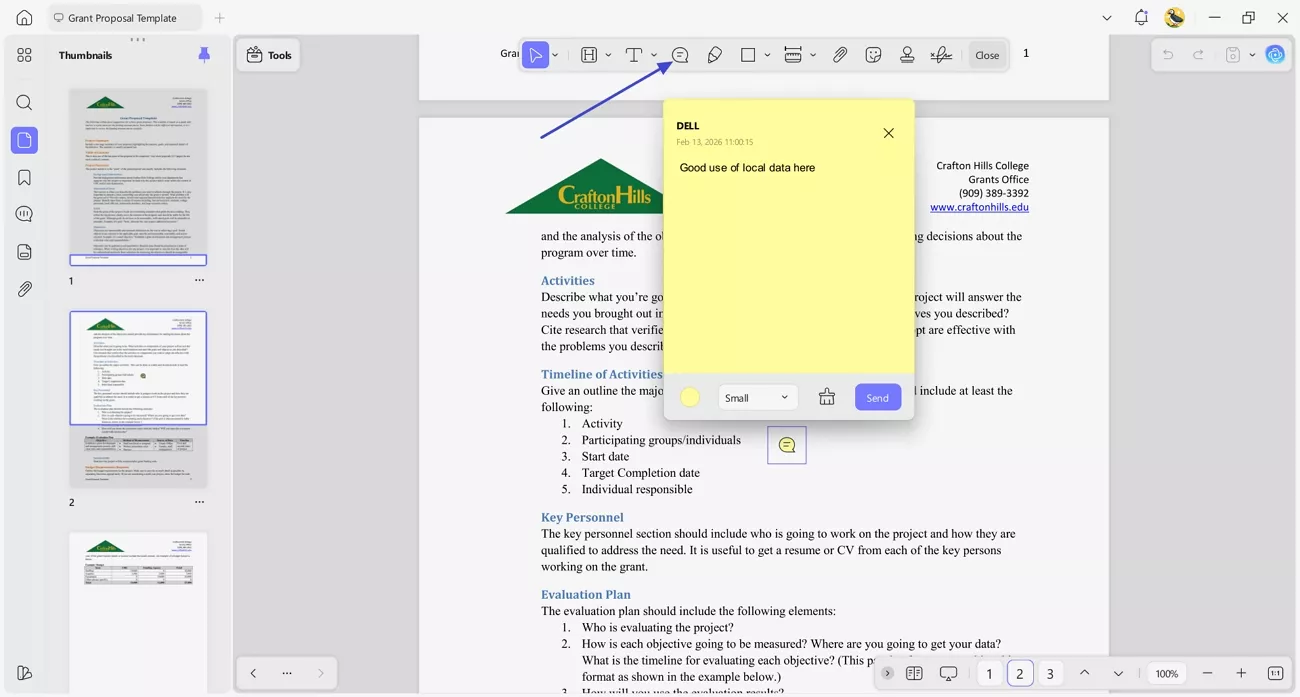
Step 2. Mark Specific Paragraphs As Persuasive
Next, press the "Sticky Note" icon in the upper bar and mark a specific paragraph with a particular note explaining why you liked that. These notes serve as a reference while drafting your own proposal.
Part 3. Solving the "Formatting Nightmare": From Sample to Submission
Formatting a grant proposal can be overwhelming when strict page limits and multi-document requirements cause mistakes. Now we will explore the pain points applicants face with the format of grant proposal files and how UPDF can solve them.
Deep Pain Point: The "12-Page Limit" Struggle
Many grant proposals exceed strict page limits, which causes sections like the Research Strategy to be rejected. A half page over the 12-page limit can make your proposal appear non-compliant and reduce funding chances. To counter this problem with UPDF, follow the steps below:
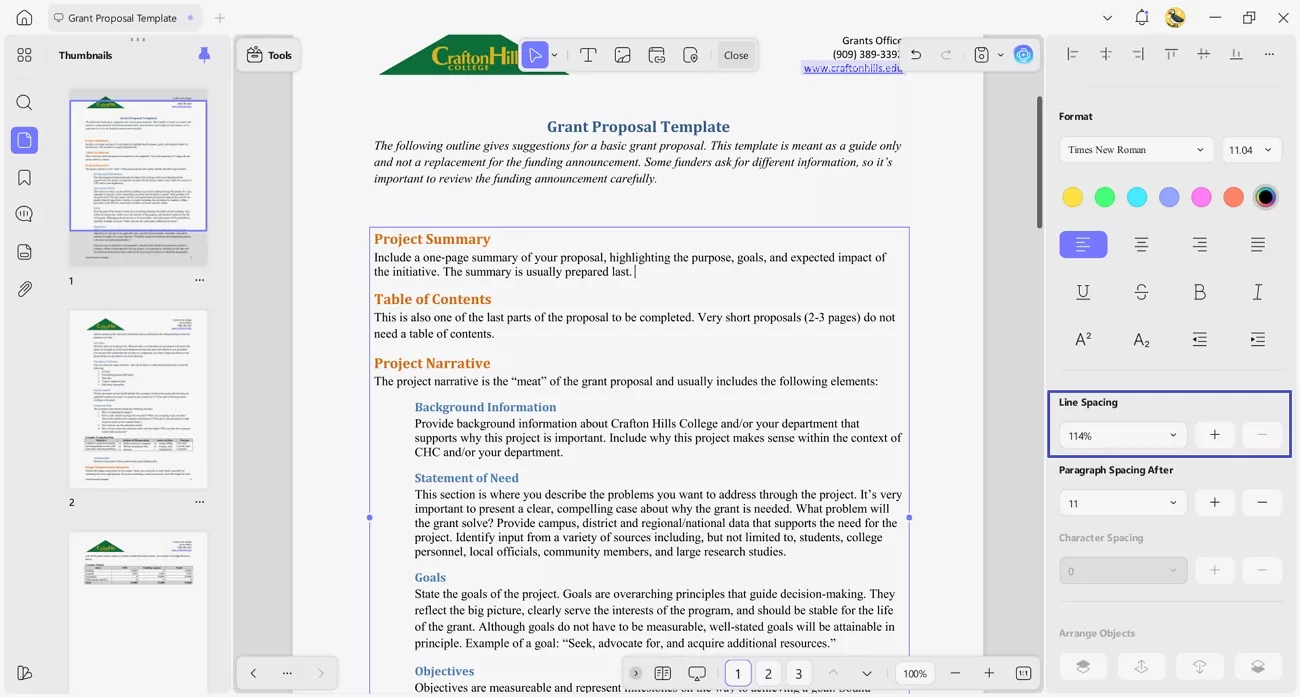
Step 1. Adjust Line Spacing
First, access the "Edit" tool in the "Tools" section and select the text that takes too much space.
Windows • macOS • iOS • Android 100% secure
Next, adjust the line spacing from the right side panel to make the draft fit on a maximum of 12 pages.
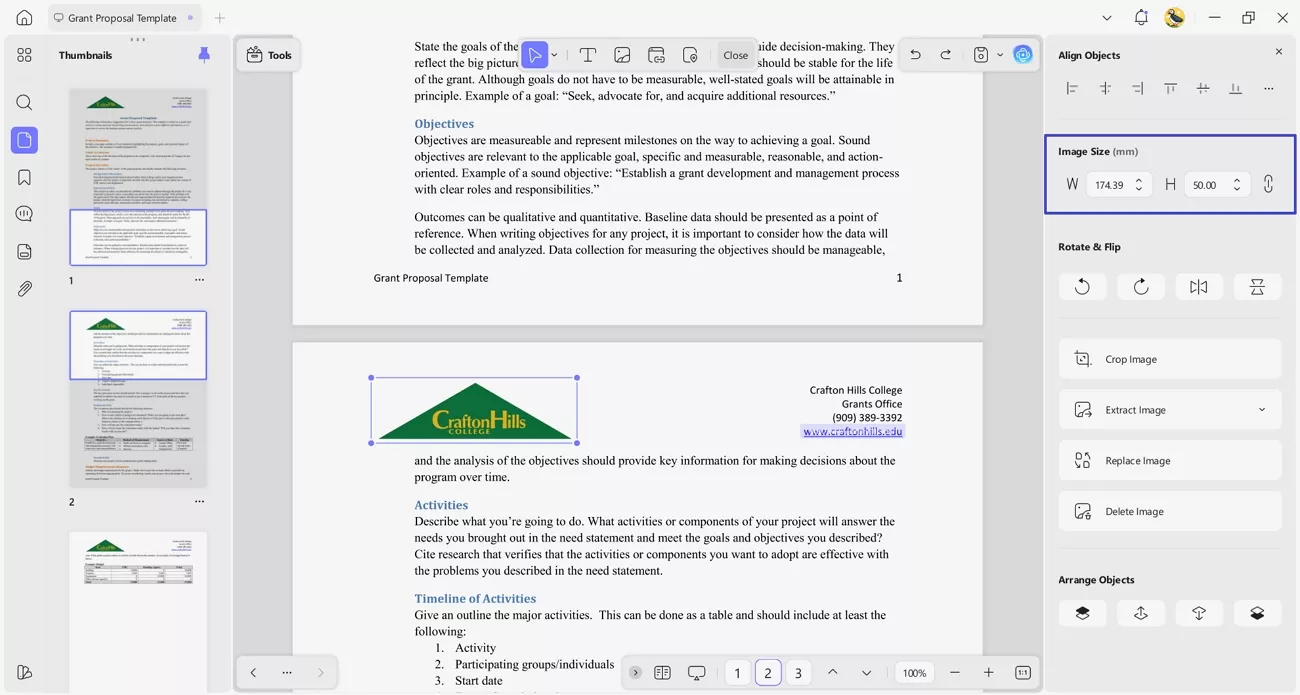
Step 2. Resize the Images
Afterwards, select the image and adjust the width and height from the "Image Size" section.
Deep Pain Point: The "Multi-Document" Mess
Sometimes, a grant application can include 20 or more separate PDF files, such as Biosketch and Equipment documents. This file setup creates challenges and can cause errors in pagination and missing sections. Go through the steps below to solve this mess with UPDF:
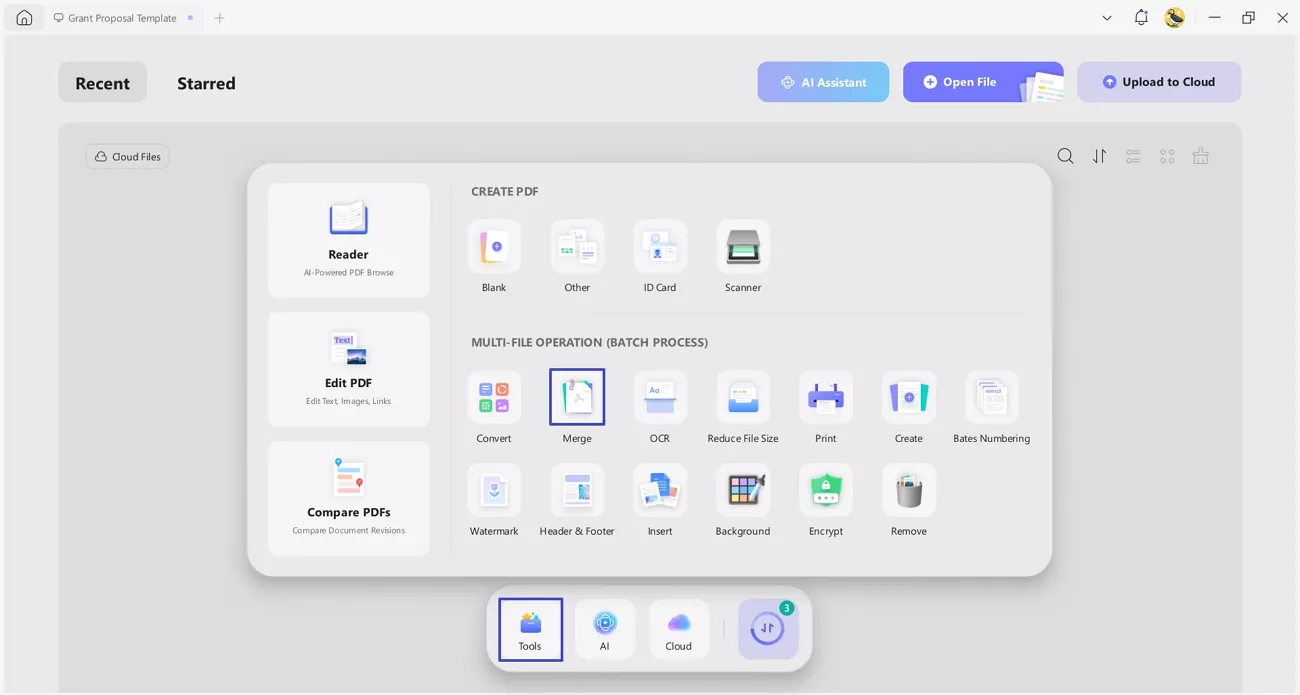
Step 1. Access The Merge Tool
On the main interface, press the "Tools" option and click the "Merge" tool under the "Batch Process" section.
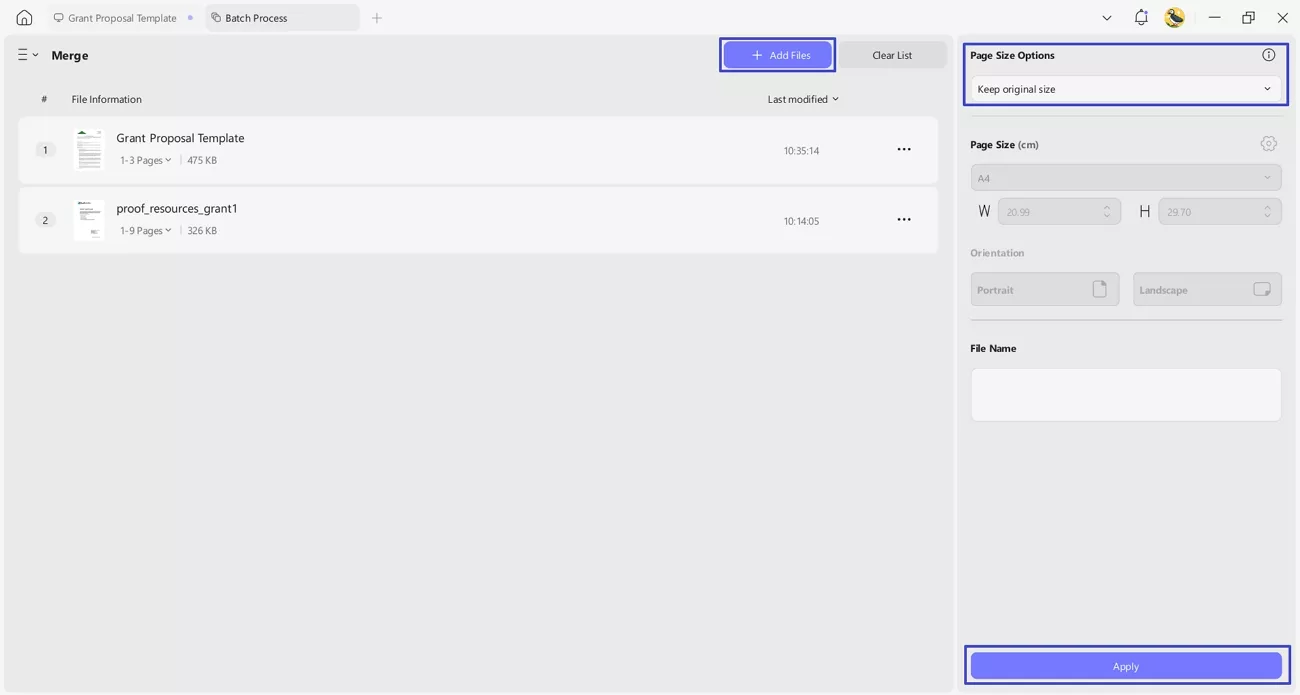
Step 2. Merge All Grant Application Documents
Next, press the "Add Files" option to add the documents involved in the grant application. Choose an appropriate page sizing option and press the "Apply" button. Afterwards, select the location for the new PDF to save the merged document.
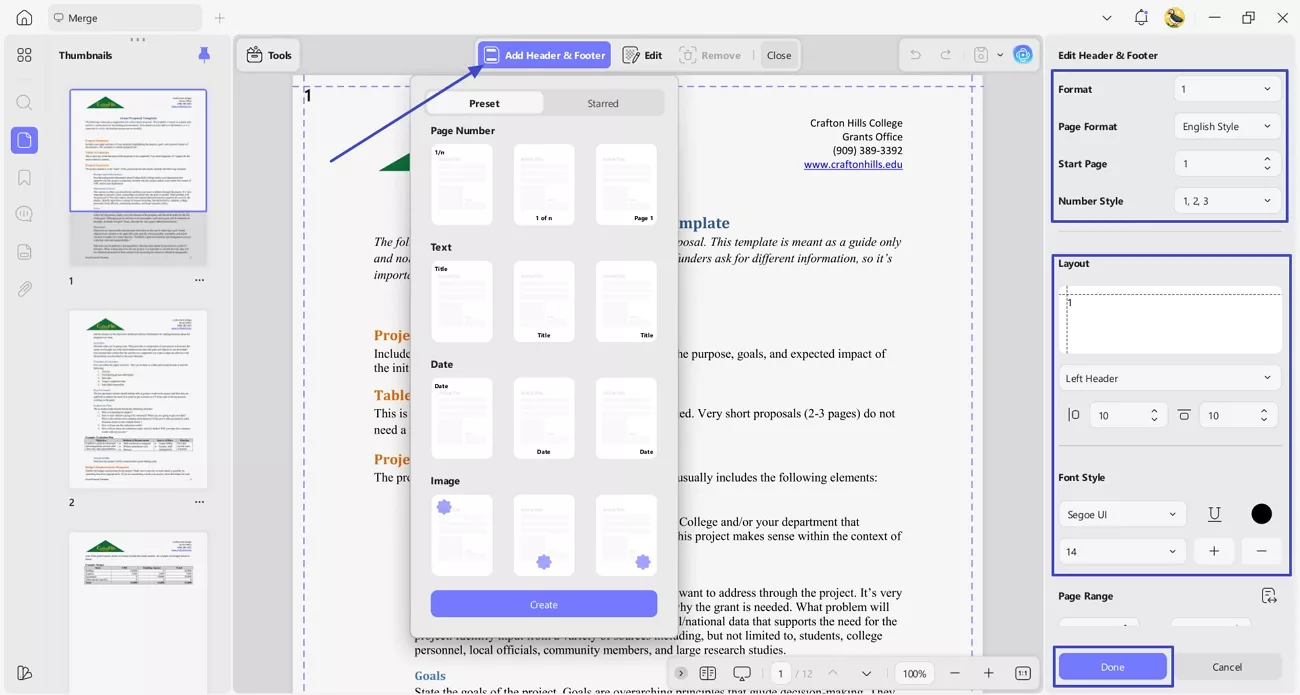
Step 3. Select The Header & Footer Tool
Once done, access the "Header & Footer" tool from the "Tools" section and press the "Add Header & Footer" option. Choose the type and adjust the "Format," "Page Format," and "Layout" from the right side panel. Next, choose the font style and press the "Done" button.
The Final Audit
Before submitting your grant proposal, it is important to perform a final audit to ensure compliance. Use UPDF to check that your PDF follows a grant proposal format sample and is flattened and searchable for NIH or NSF. This final step guarantees that all formatting is correct and your proposal can be reviewed without technical issues.
Part 4. FAQ: Critical Compliance Questions
Q1. What is the standard font/margin for a grant proposal?
The standard fonts for a grant proposal are Arial or Georgia, set at 11 point for readability. Margins should be at least 0.5 inches on all sides to ensure compliance and a professional, clean appearance.
Q2. How do I format a multi-year budget?
A multi-year budget should clearly show expenses for each year using a Year 1 through Year 5 escalation. Following a proper budget format for grant proposal templates demonstrates that all increases are justified and that reviewers understand projected costs.
Q3. Can I use color and images in the format?
You can use color and images only if they stay print-friendly and do not affect black-and-white readability. Additionally, charts and diagrams should be included to improve clarity and keep the proposal's professional structure intact.
Conclusion
In conclusion, using a grant proposal format sample helps applicants create professional and compliant proposals without wasting time on formatting errors. Many users struggle with strict page limits, multi-document organization, and unclear budgets, which can lead to rejected applications. To counter these issues, we recommend using UPDF with its enterprise plan to analyze, edit, and organize complex grant proposal samples for specific tasks.
Windows • macOS • iOS • Android 100% secure




 Engelbert White
 Enrica Taylor

 Delia Meyer
