 UPDF
UPDF
 UPDF for Windows
 UPDF for Mac
 UPDF for iPhone/iPad
 UPDF for Android
 UPDF AI Online
 UPDF Sign
 Edit PDF
 Annotate PDF
 Create PDF
 PDF Form
 Edit links
 Convert PDF
 OCR
OCR PDF to Word
 PDF to Image
 PDF to Excel
 Organize PDF
 Merge PDF
 Split PDF
 Crop PDF
 Rotate PDF
 Protect PDF
 Sign PDF
 Redact PDF
 Sanitize PDF
 Remove Security
 Read PDF
 UPDF Cloud
 Compress PDF
 Print PDF
 Batch Process
 About UPDF AI
 UPDF AI Solutions
 AI User Guide
 FAQ about UPDF AI
 Summarize PDF
 Translate PDF
 Chat with PDF
 Chat with AI
 Chat with image
 PDF to Mind Map
 Explain PDF
 PDF AI Tools
 Image AI Tools
 AI Chat Tools
 AI Writing Tools
 AI Study Tools
 AI Working Tools
 Other AI Tools
 AI Bookmark Generation
 AI Bookmark Summary
 AI Watermark Generation
 AI Background Generation
 AI Sticker Generation
 AI Stamp Generation
 AI Editing Suite
 UPDF Copilot
 AI Page Management
 AI Semantic Search
 PDF to Word
 PDF to Excel
 PDF to PowerPoint
 Enterprise Solution
 Enterprise Sign
 Enterprise AI
 Enterprise Plan
 Enterprise User Guide
 Enterprise Webinar
 Banking
 Healthcare
 Insurance
 Legal
Legal Manufacturing
 Government
 Education Solution
 Customer Stories
 User Guide
 UPDF Tricks
 FAQs
FAQs UPDF Reviews
 Download Center
 Blog
Blog Newsroom
 Tech Spec
 Updates
 UPDF vs. Adobe Acrobat
 UPDF vs. Foxit
 UPDF vs. PDF Expert

The first time I handled a large PDF project, keeping everything organized under pressure felt overwhelming. I switched between different editors, lost comments and versions, and wasted hours rebuilding the same changes repeatedly. That experience pushed me to search for tools to stabilize my workflow without complicating steps.
I first turned to OnlyOffice PDF Editor , appreciating how it extends an open-source office suite with editing. For AI-powered summarizing, intelligent analysis, and automated PDF actions, I began relying on UPDF. This guide compares UPDF vs OnlyOffice PDF Editor and shows how you can effectively use both together.
Windows • macOS • iOS • Android 100% secure
Part 1. Quick Overview: What Each Tool Is Built For?
When I compare PDF solutions, I start by understanding what each tool is designed to do. Now, I will introduce both tools to see how their core purposes differ.
What is UPDF?
While exploring better ways to handle complex PDFs for daily work, I found UPDF, which completely changed my routine. I use it to edit text and adjust images directly inside PDFs to save myself from countless revisions. Its annotation tools let me highlight and mark-up pages clearly, keeping my feedback organized.
Windows • macOS • iOS • Android 100% secure
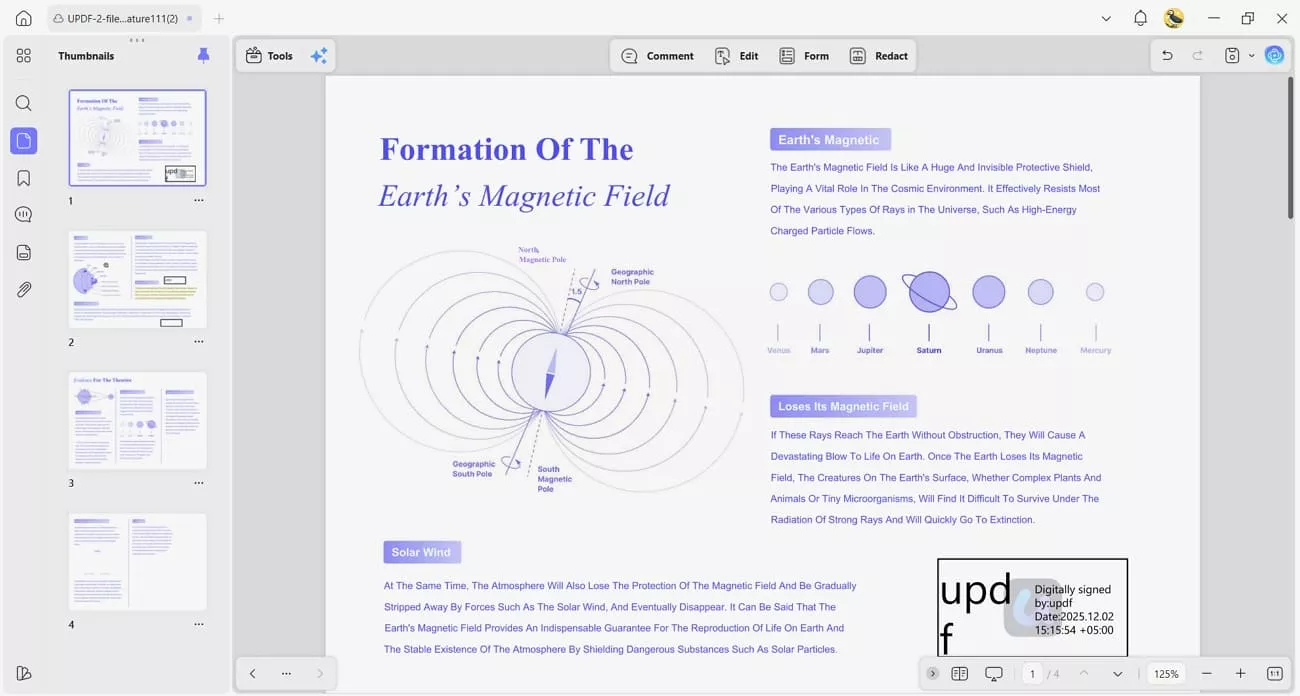
When my documents get long and messy, I rely on UPDF to rearrange pages and merge files for a structured PDF. On top of that, its AI helps translate PDFs into 26 languages and generate AI bookmarks. It also helps me turn scanned documents into editable text through OCR and convert PDFs into Word and other formats.
What is OnlyOffice PDF Editor?
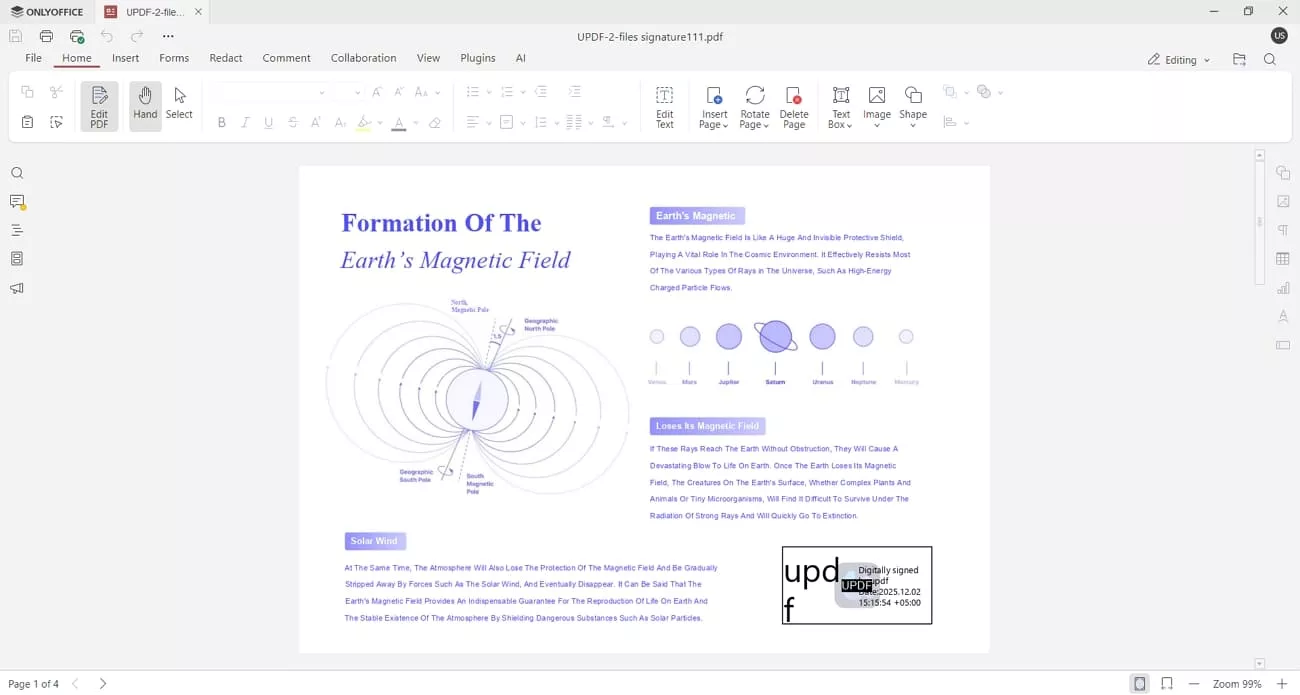
After exploring the OnlyOffice PDF editor, I discovered advanced PDF controls presented through a clean interface. This PDF editor converts PDFs into DOCX files and vice versa. Moreover, its AI assistant helps me by summarizing long documents, translating content, and extracting text from scanned PDF pages. These features make my everyday PDF work easier to manage across different projects.
UPDF vs OnlyOffice PDF Editor: Core Positioning
I find it easier to understand both tools when I see their core roles side by side. Next, I will compare them in a simple table, so their differences are immediately clear:
| Aspect | UPDF | OnlyOffice PDF Editor |
| Primary Focus | PDF-first, AI-native | Office suite with integrated PDF module |
| AI Integration | Built-in AI agents, no extra setup | Plugin-based AI, user API configuration |
| Platforms | Windows, macOS, iOS, Android, Web | Windows, macOS, Linux, Web |
| Pricing Plans | Free tier; Pro starting from $49.99/year, 4 devices | Free desktop; Cloud costs $30/user/month |
| Best For | Individuals and professionals needing deep PDF + AI | Teams needing an office suite plus basic PDF editing |
Part 2. AI Capabilities — The Biggest Gap
In my experience, OnlyOffice connects AI through add-on plugins that support providers like ChatGPT and Gemini. As these plugins are external, I have to create and configure my own API keys manually. With these assistants enabled, I still do not get any PDF-specific AI agents tailored to document structure. After comparing UPDF vs OnlyOffice PDF Editor, I will show what this editor delivers:
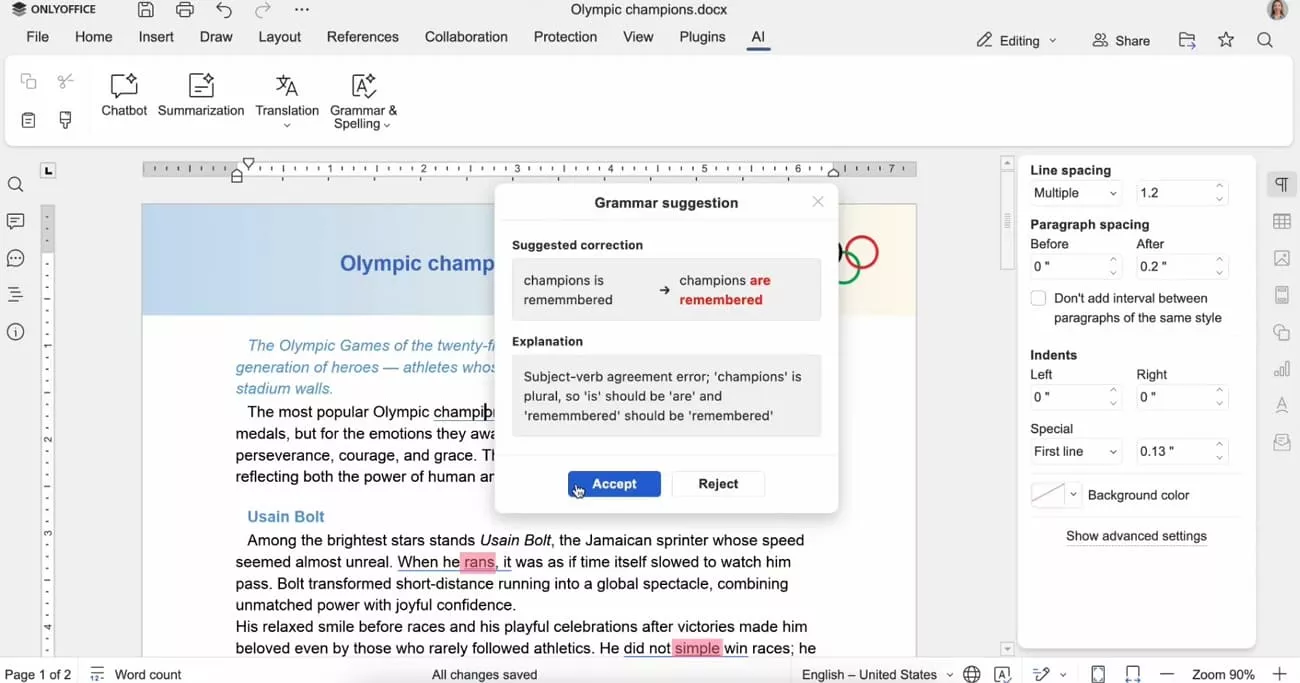
1. Text generation helps me draft and rewrite passages inside documents without leaving the PDF Editor.
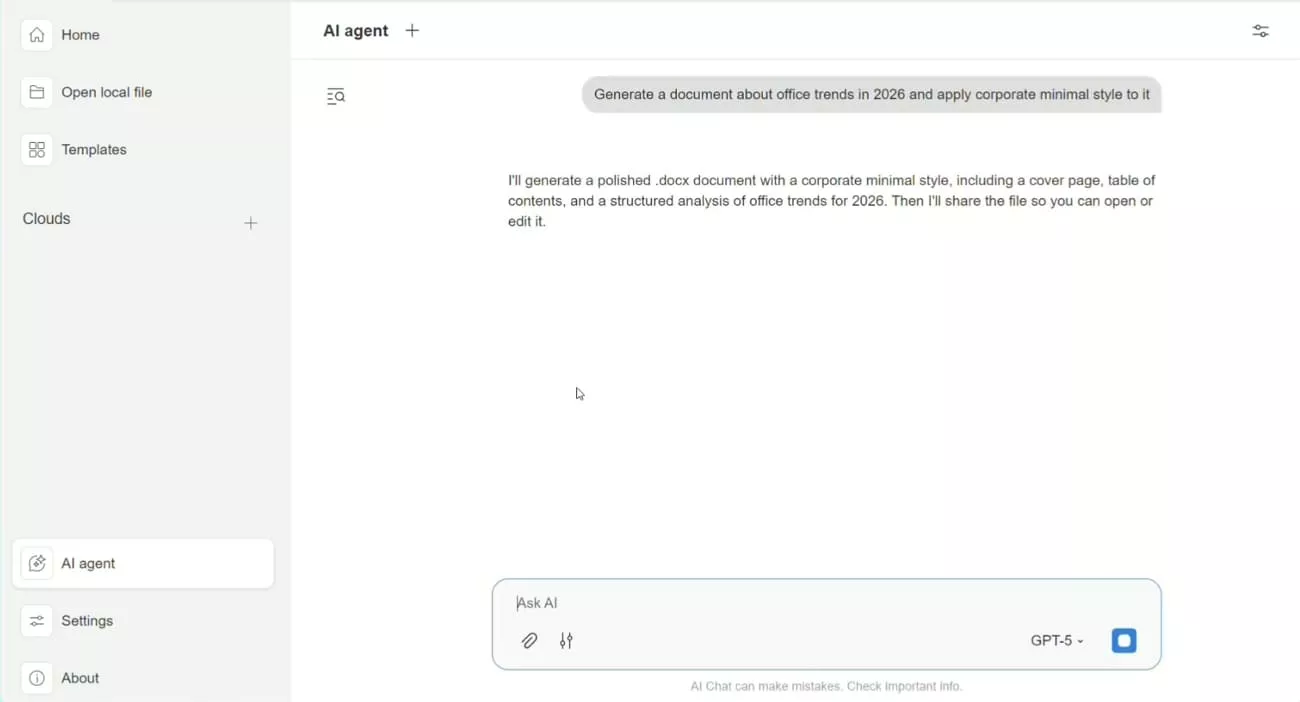
2. Grammar checking reviews my written content and improves clarity before I finalize any shared document.
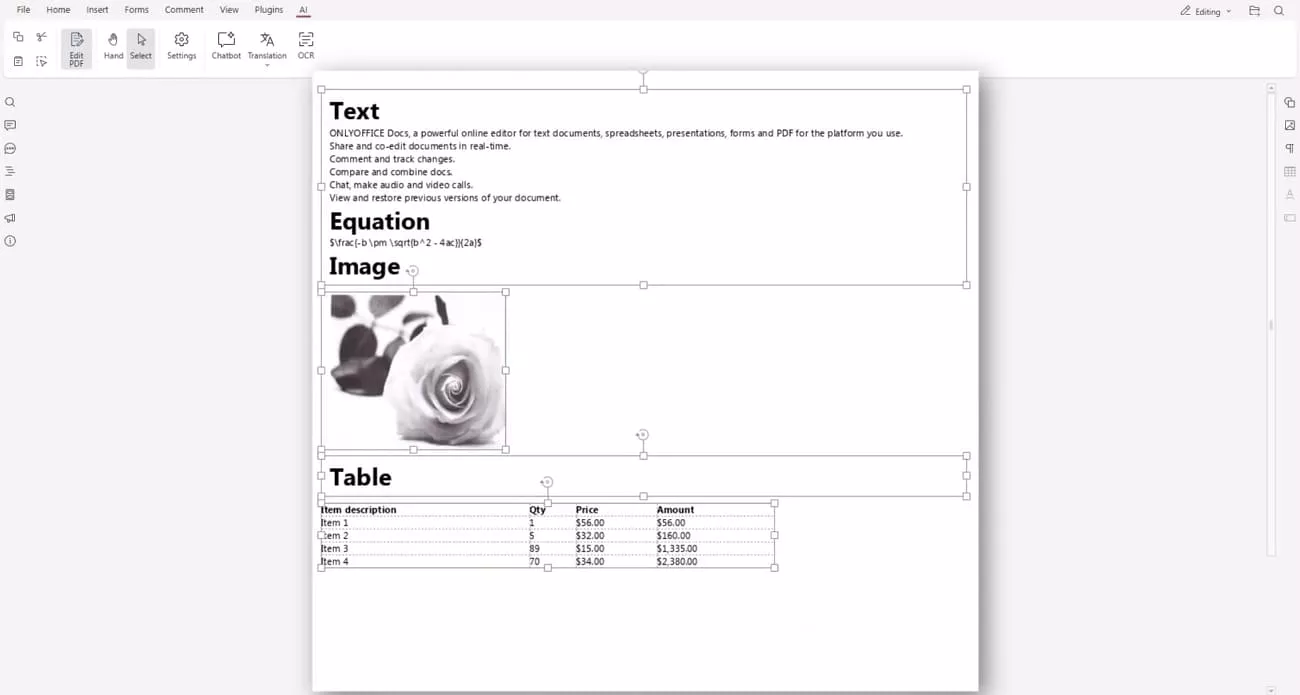
3. OCR lets me convert scanned PDFs into selectable text to make old image-based files searchable.
What UPDF Offers
Once I upgraded to the newly released UPDF V2.5, I discovered ten UPDF AI agents that transformed workflows. Now, I’ll walk you through these focused helpers and how they simplify complex PDF tasks for me.
Windows • macOS • iOS • Android 100% secure
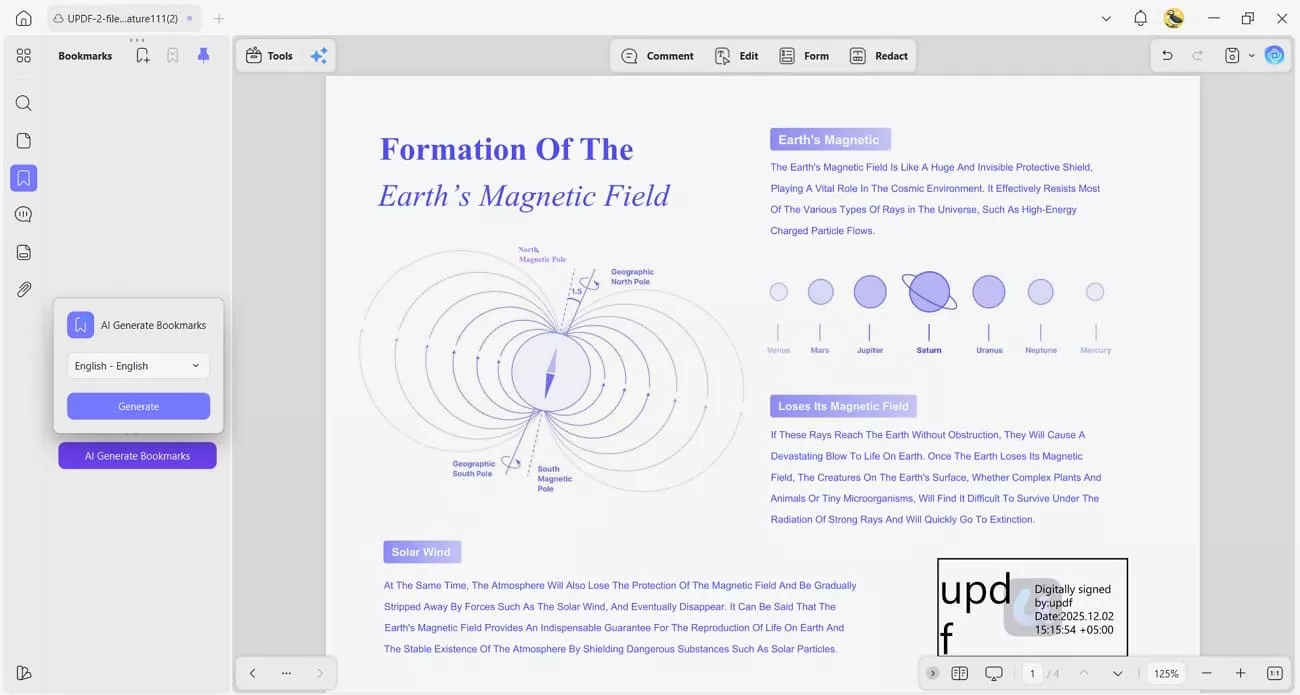
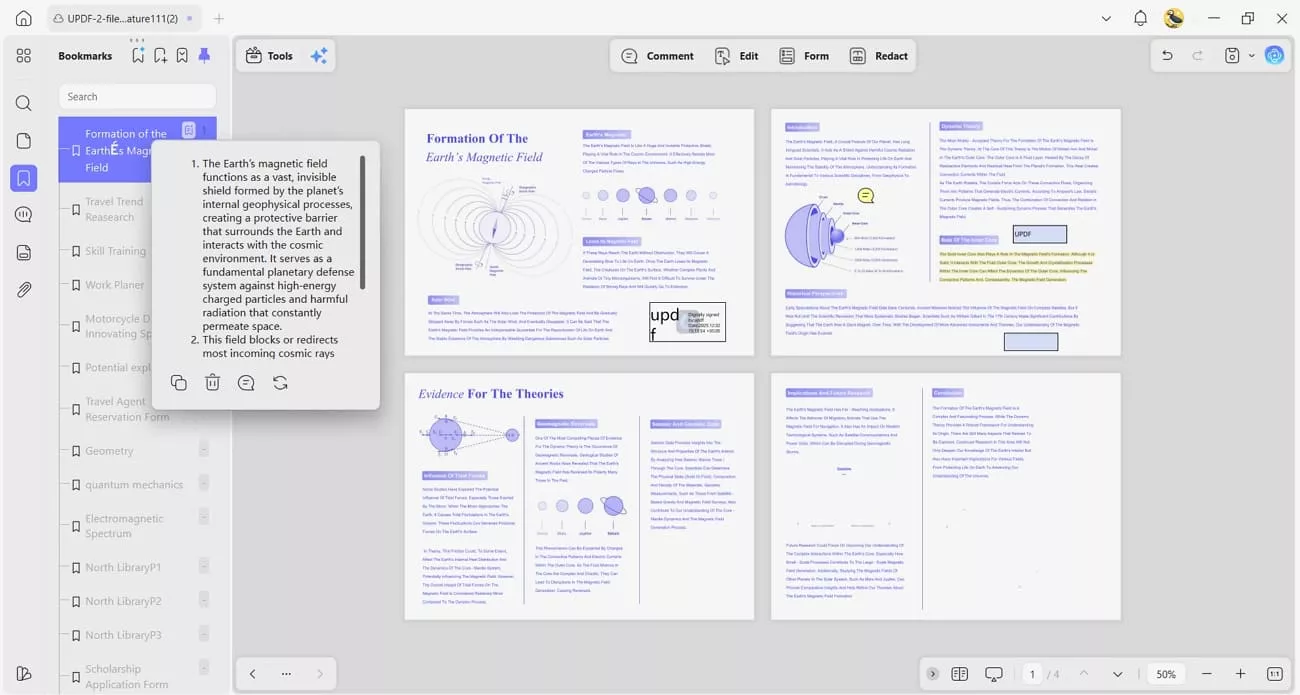
1. AI Bookmark Agent: This agent builds smart bookmarks from document structure, helping me move between key sections instantly.
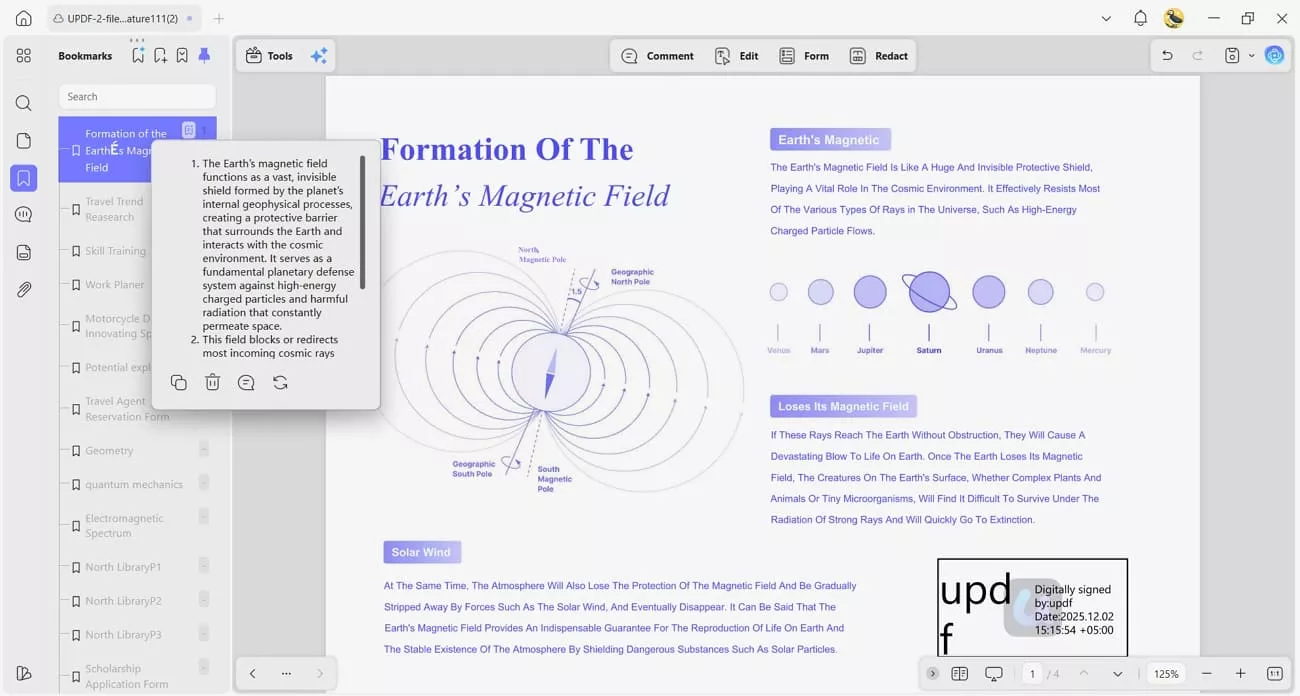
2. Bookmark Summary Agent: It generates short summaries for bookmarked parts, helping me understand long technical PDFs quickly.
3. Semantic Search Agent: It finds content by meaning instead of keywords, which helps when I forget exact terms.
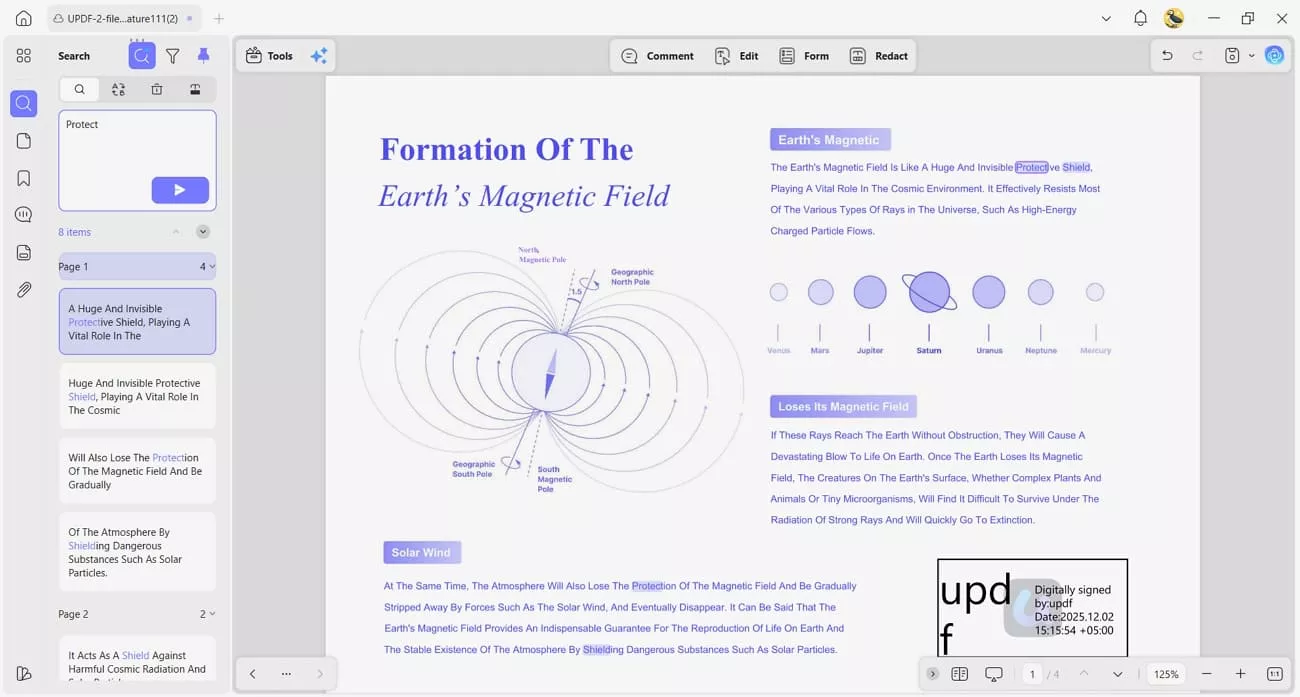
4. UPDF Copilot Agent: This assistant lets me type simple instructions, then automatically triggers the right PDF tools.
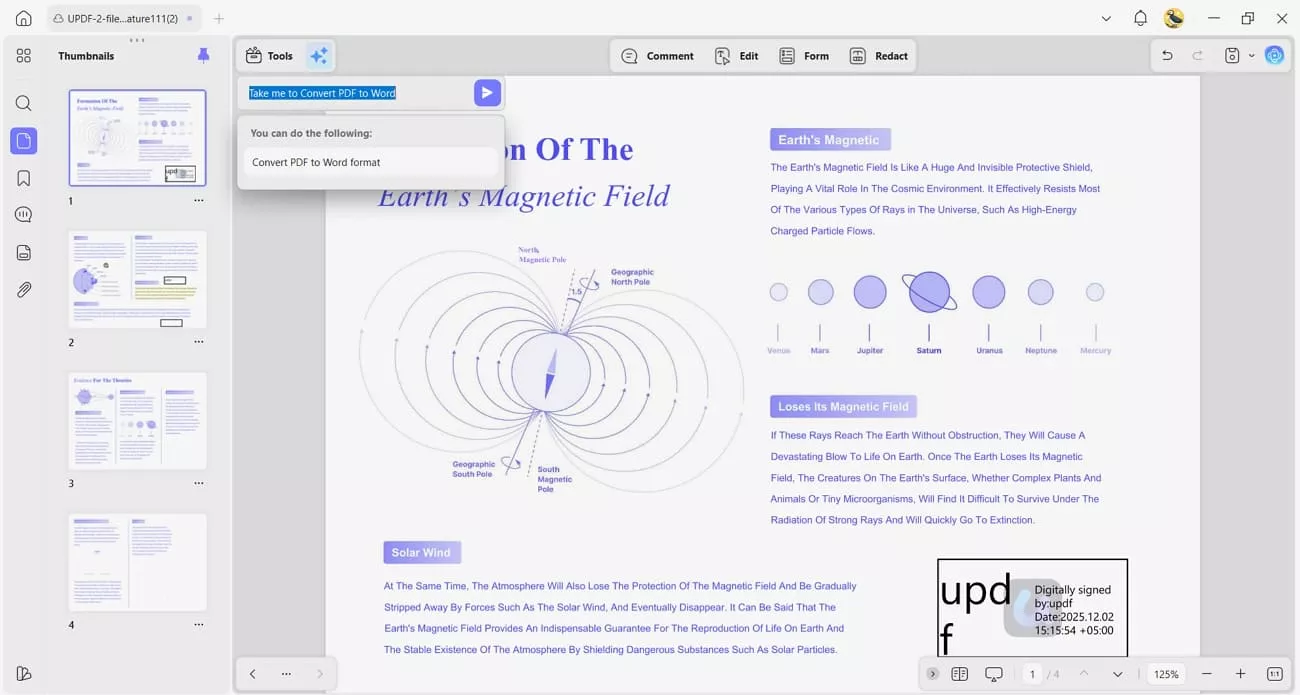
5. AI Page Management Agent: It detects blank or rotated pages and lets me fix structural issues in seconds.
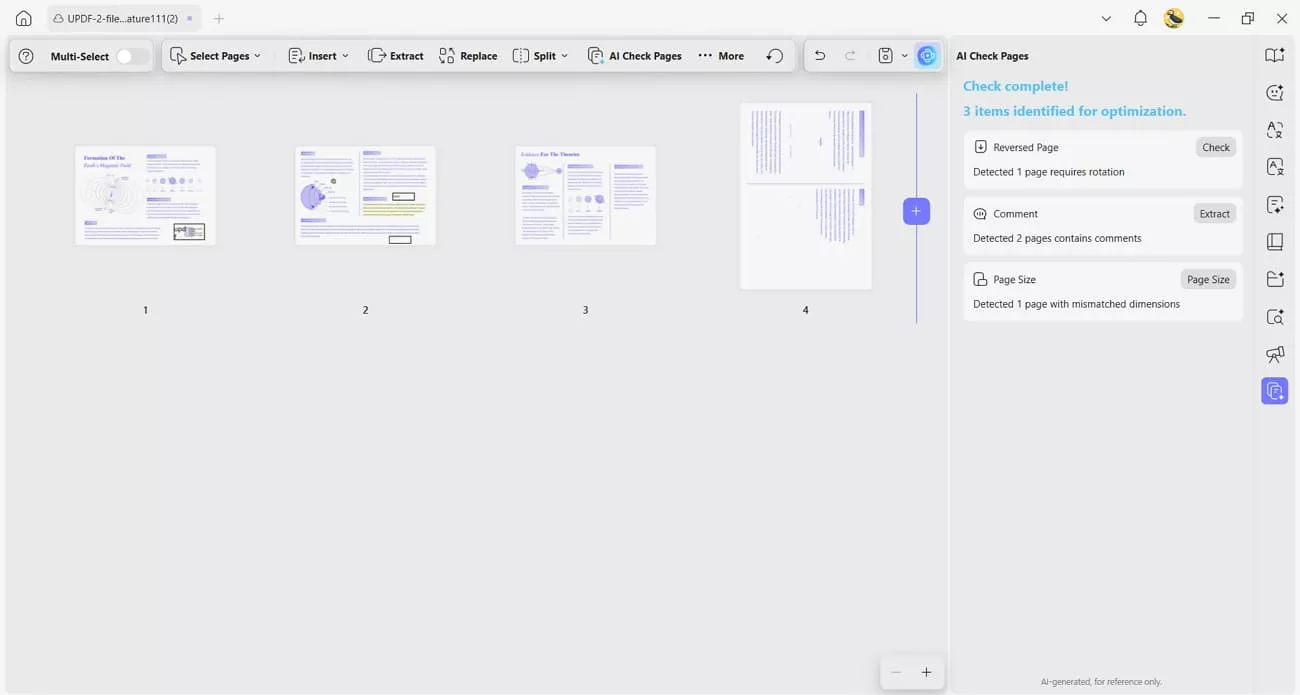
6. AI Watermark Agent: It lets me describe a watermark in natural language and then applies 20 refreshable styles across pages.
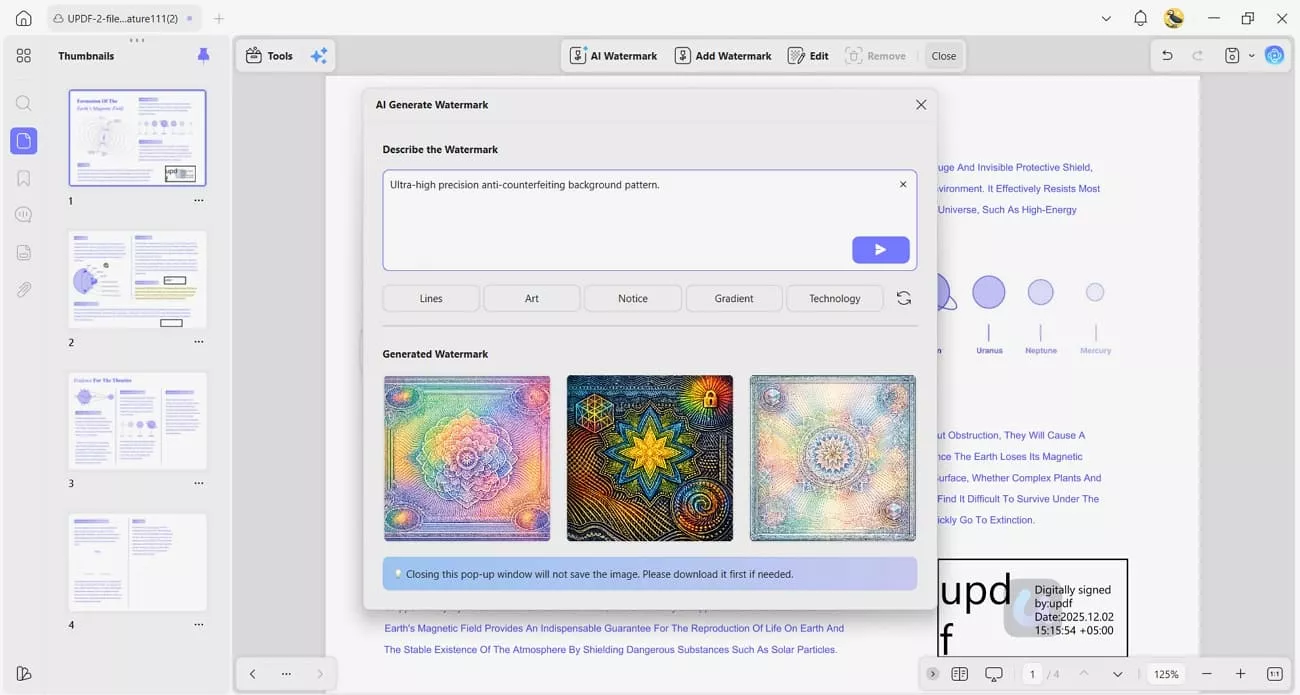
7. AI Background Agent: I can adjust and replace distracting backgrounds to make dense PDF reports easier to read.
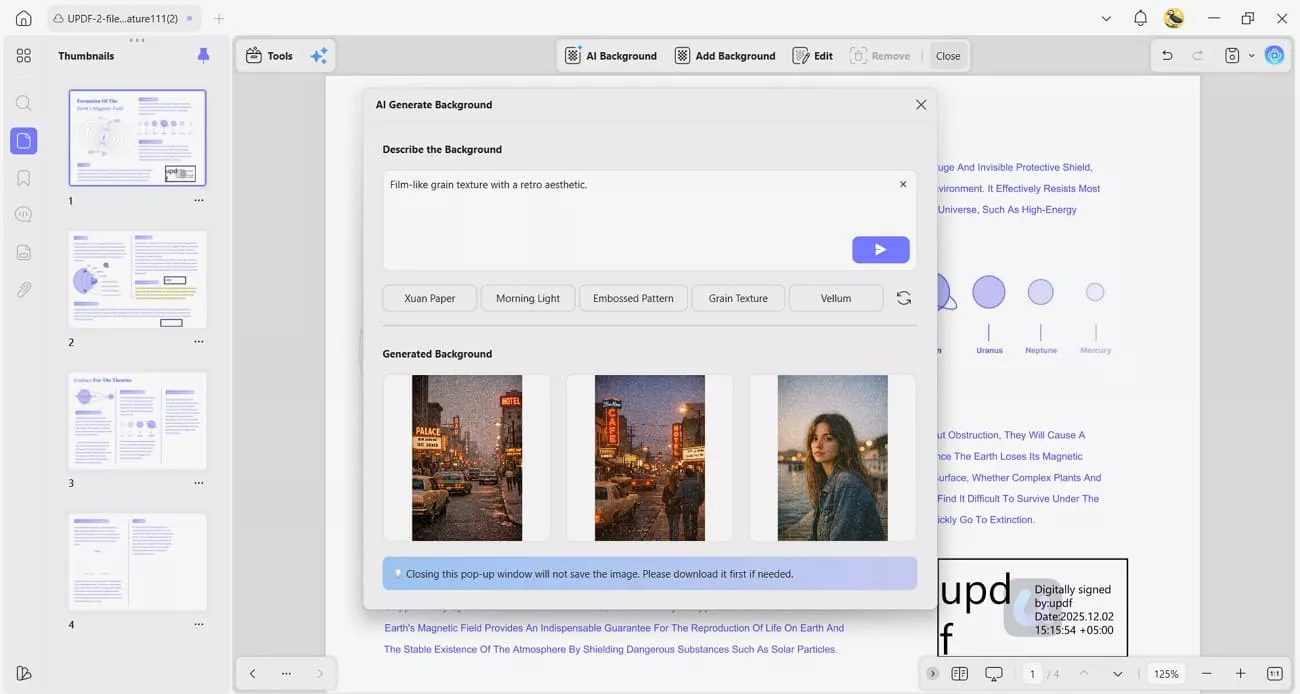
8. AI Sticker Agent: This agent creates and adds visual AI stickers that help me mark questions and follow-up tasks inside PDFs.
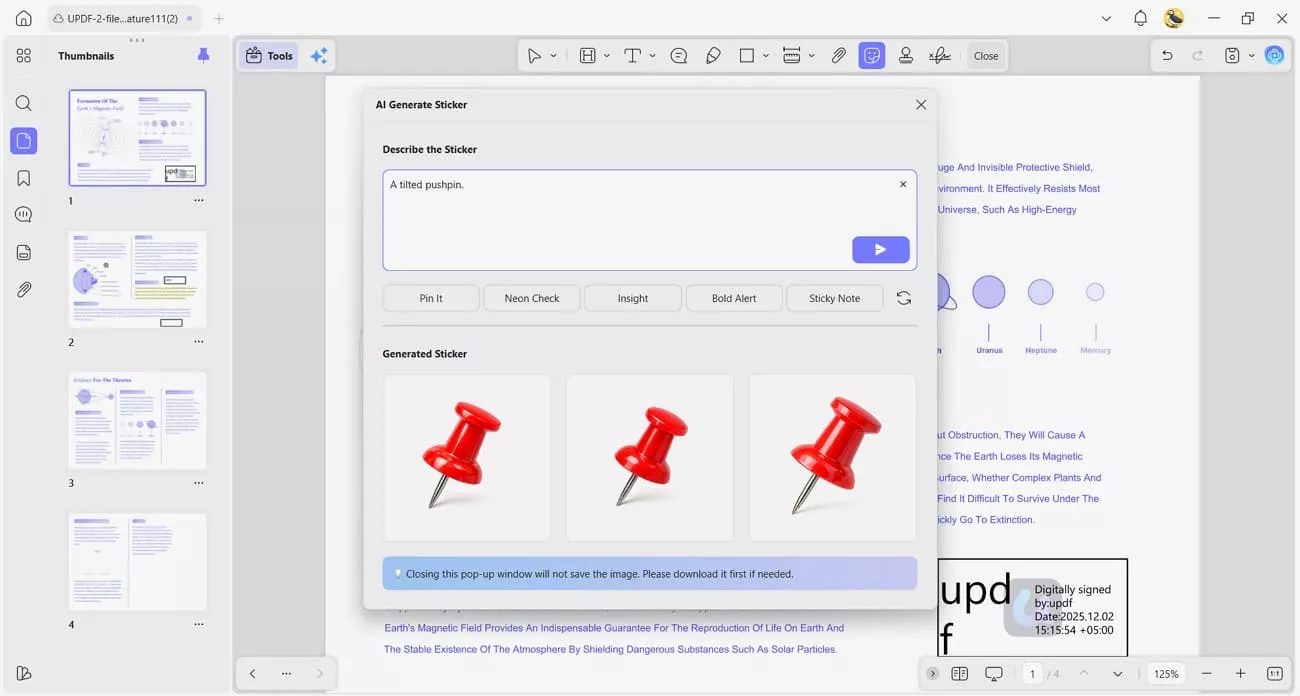
9. AI Stamp Agent: UPDF AI also applies approval or draft AI stamps across pages, which keeps document status visible during reviews.
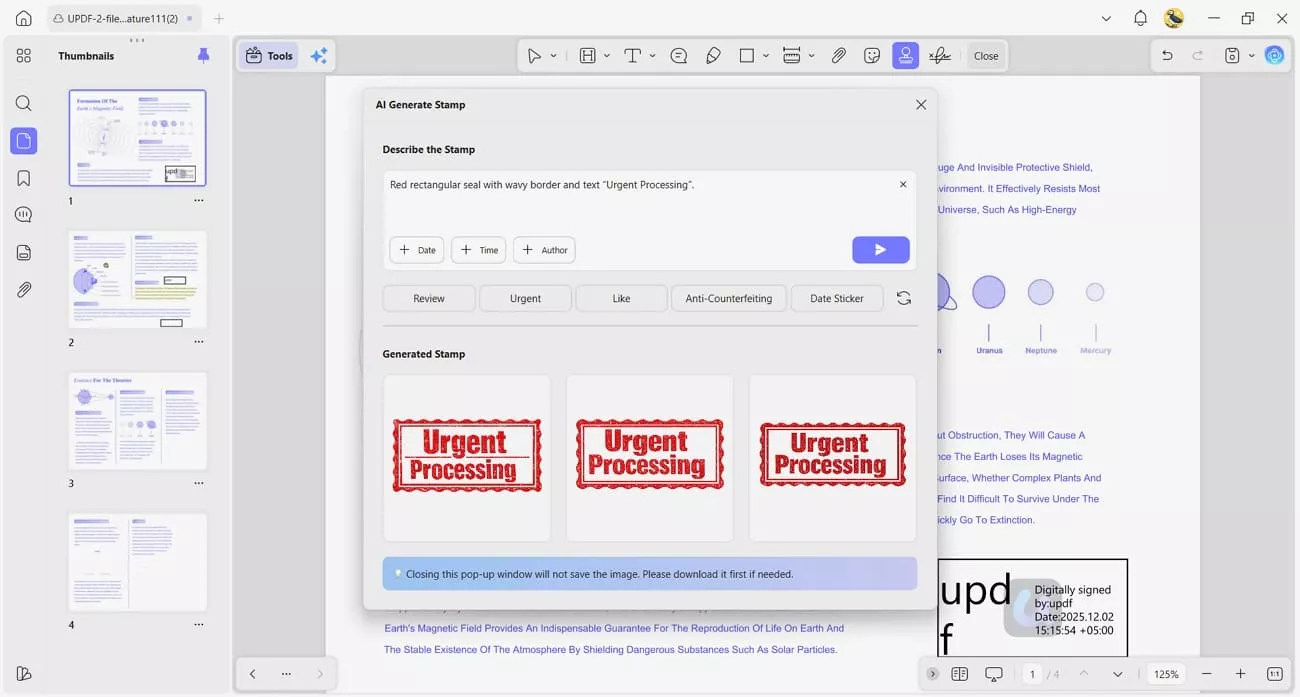
10. AI Editing Agent: It lets me generate content, polish my wording, and expand ideas directly inside the PDF.
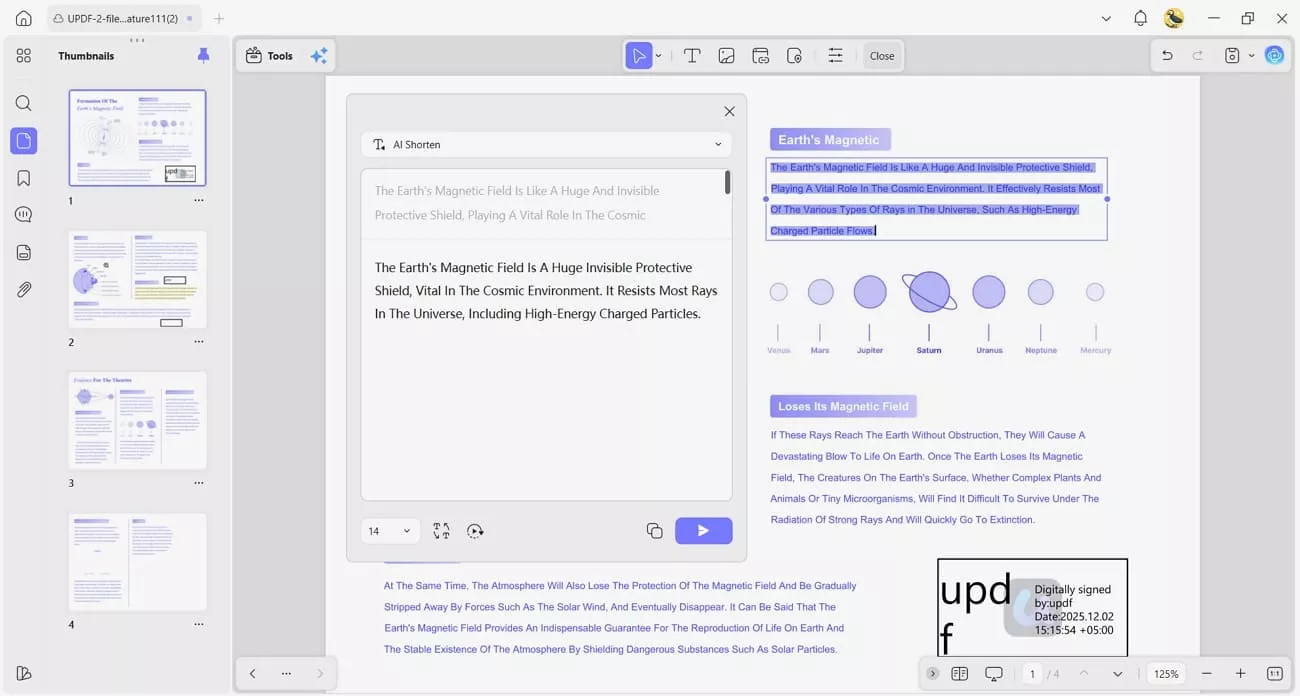
Windows • macOS • iOS • Android 100% secure
Part 3. PDF Editing & Annotation
Now, let me share what I can practically do inside OnlyOffice PDF Editor:
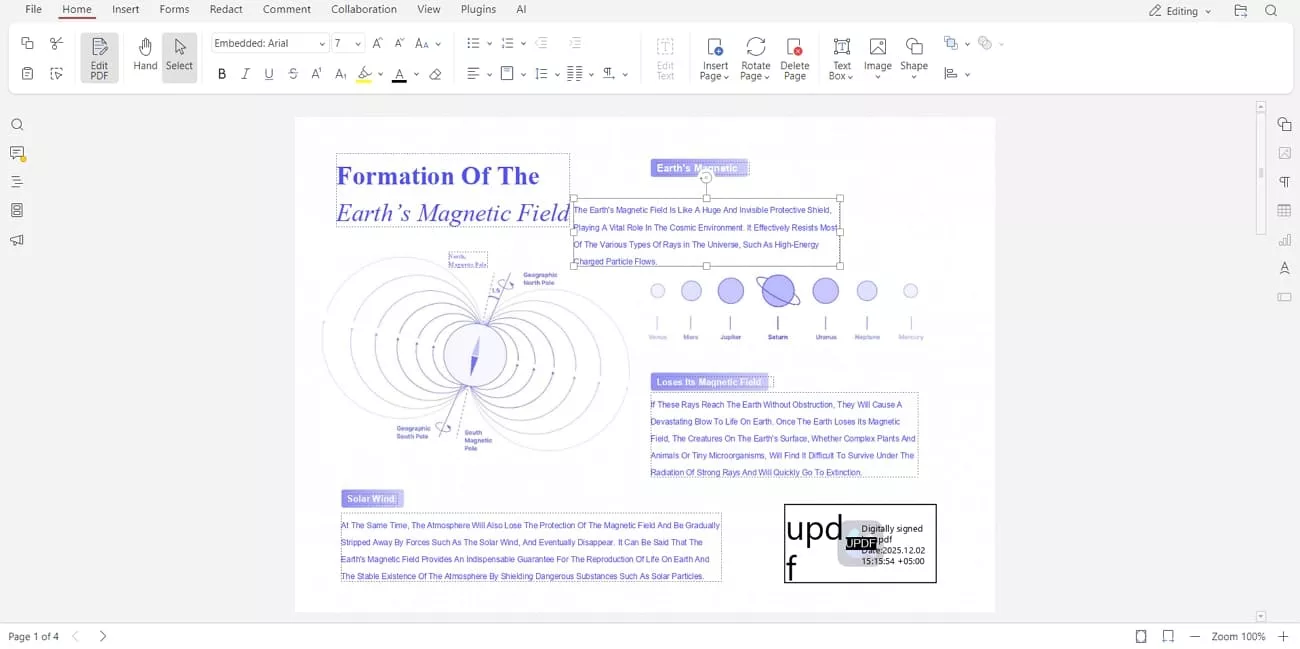
1. Supports text editing using movable text blocks that I can drag and reposition within pages.
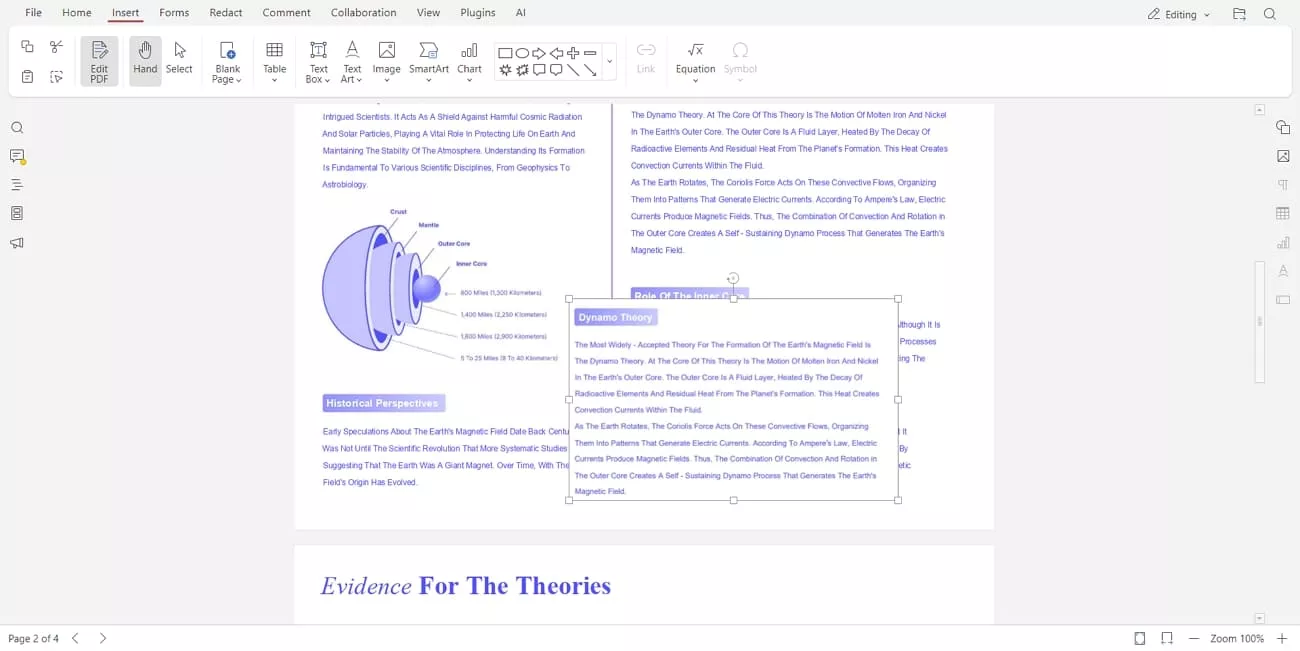
2. Lets me insert images directly into the PDF document when needed.
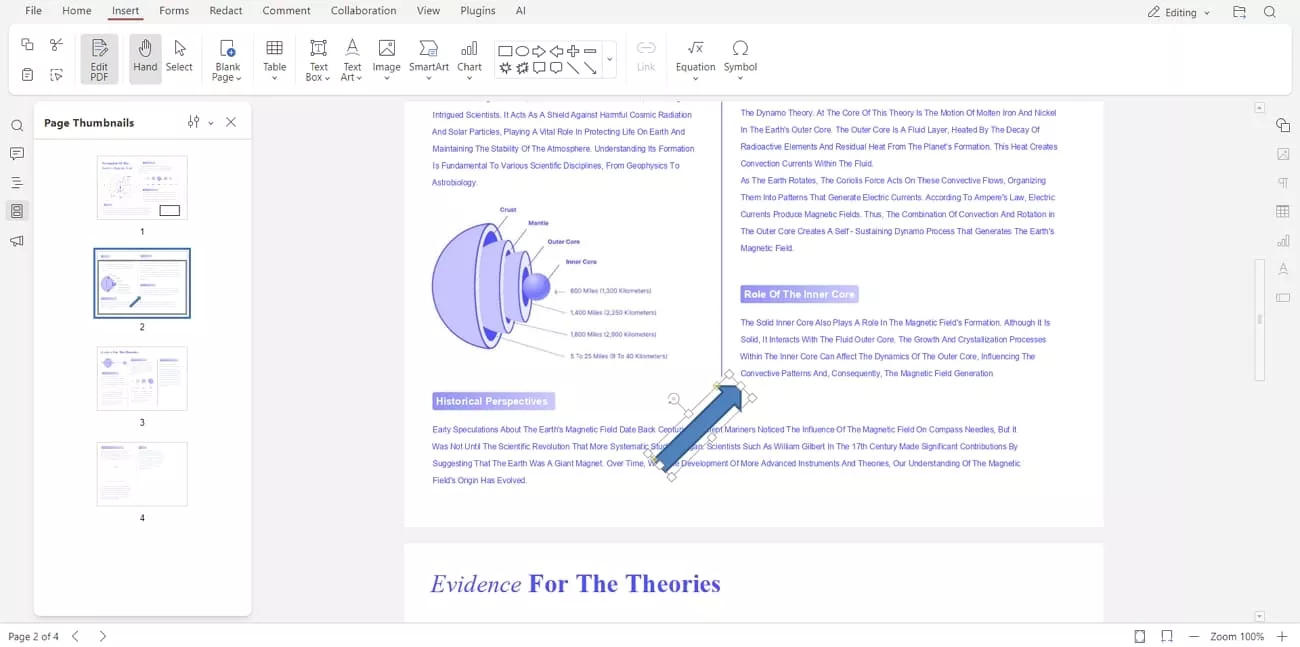
3. Provides annotation tools, including rectangles, circles, and arrows for clear visual markup on specific content.
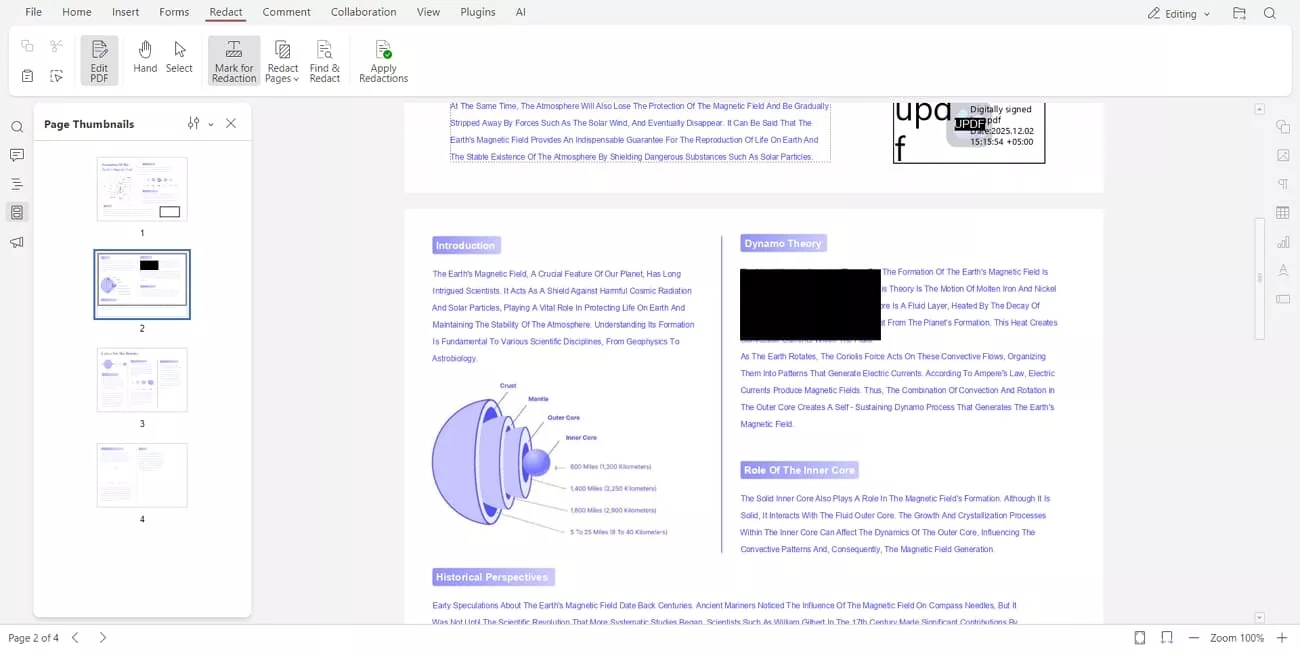
4. Includes a redact function that permanently removes selected text or elements from sensitive PDF areas.
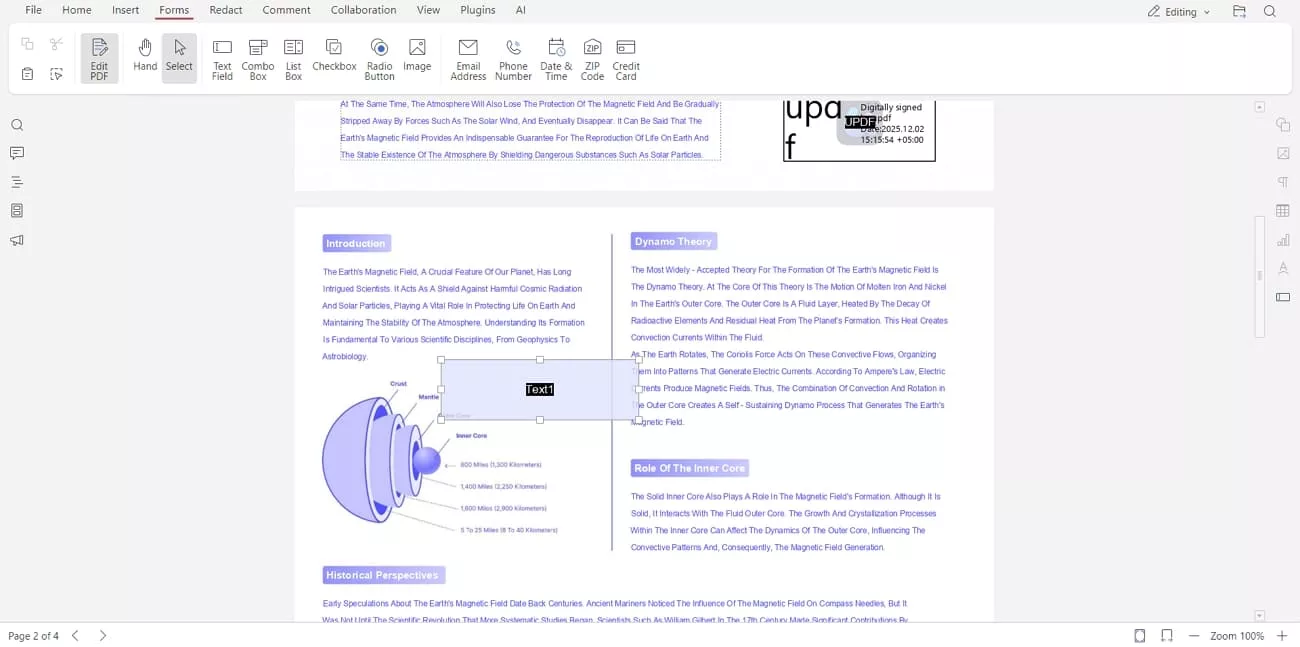
5. Create interactive forms and fill existing form fields directly within the PDF.
Advantages of UPDF Over OnlyOffice
Next, I will explore how UPDF extends beyond basic editing and annotation features found in OnlyOffice:
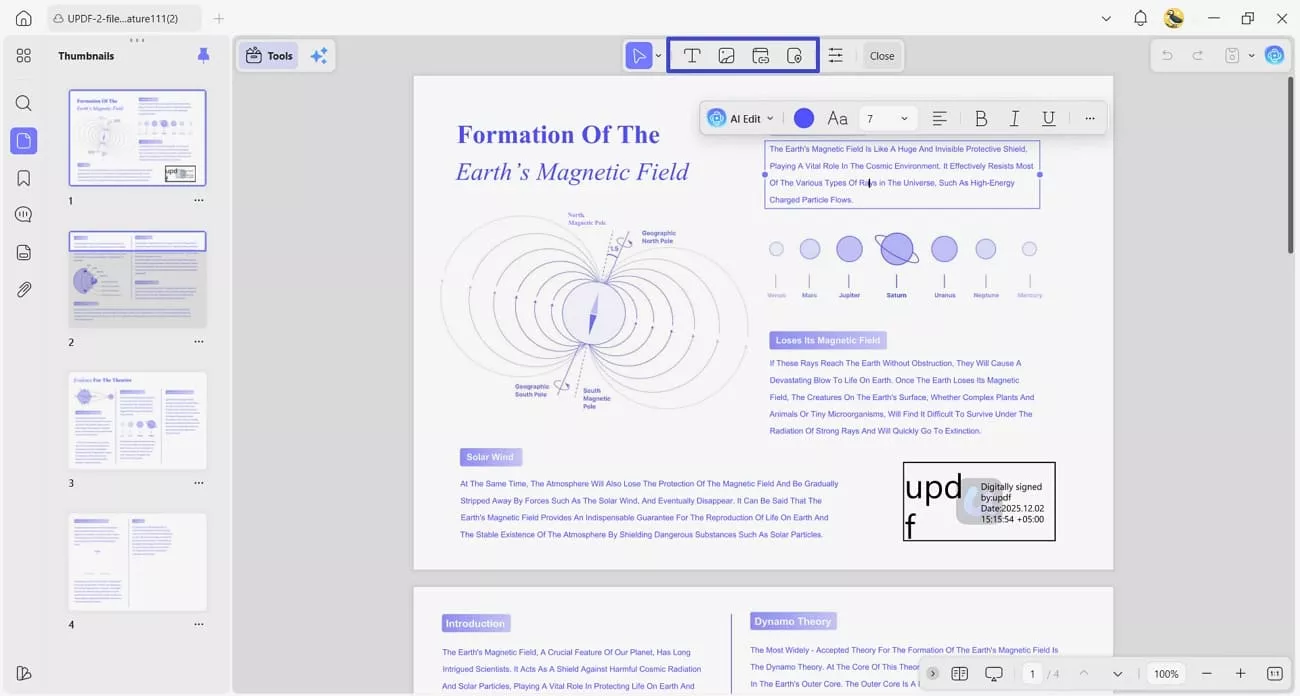
1. Full Text/Image/Link Editing: UPDF lets me edit text, images, and links directly while preserving the document's overall formatting.
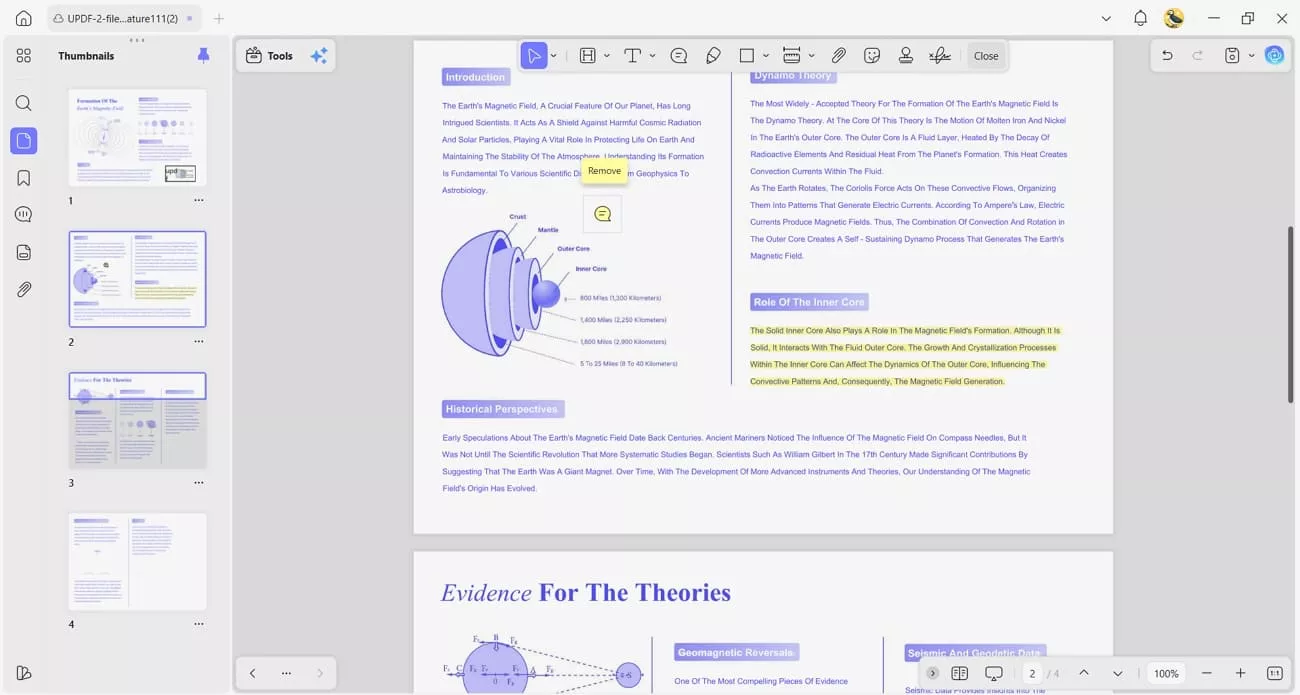
2. Richer Annotation System: Beyond basics, it includes diverse highlights, comments, and drawing tools that support precise markup.
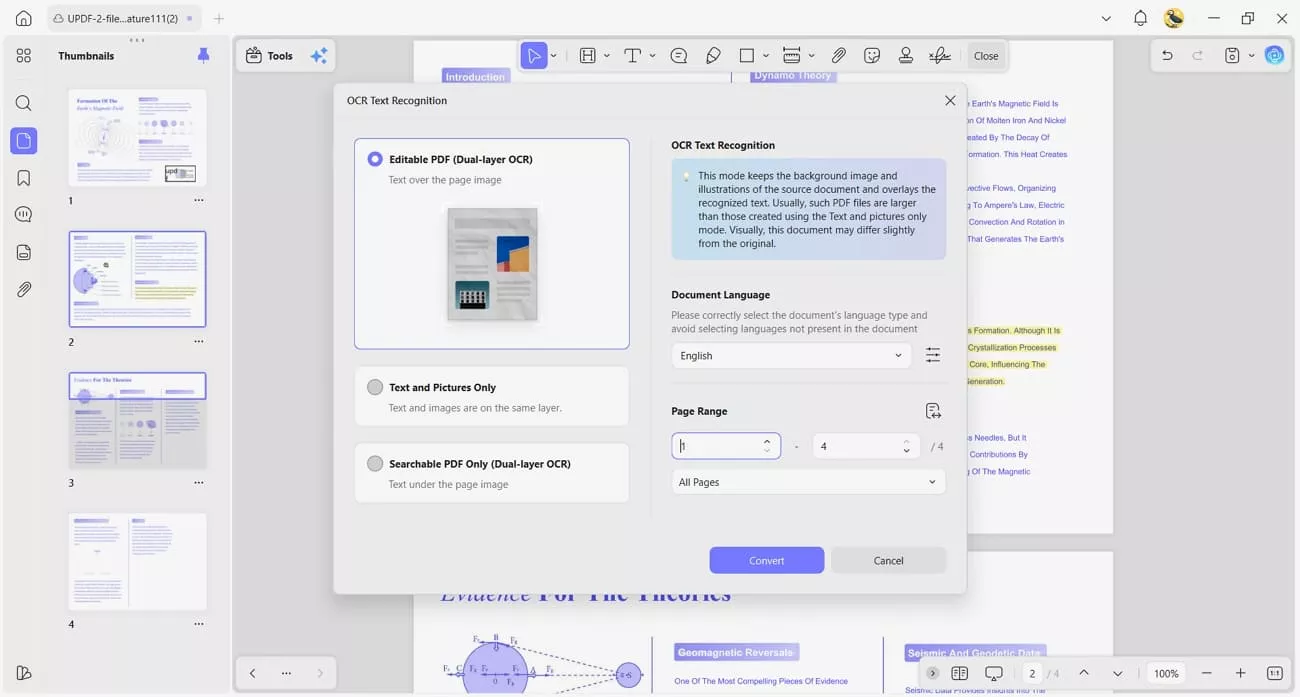
3. OCR PDF: Scanned PDFs become editable text in thirty-eight languages, and this works without any additional plugins.
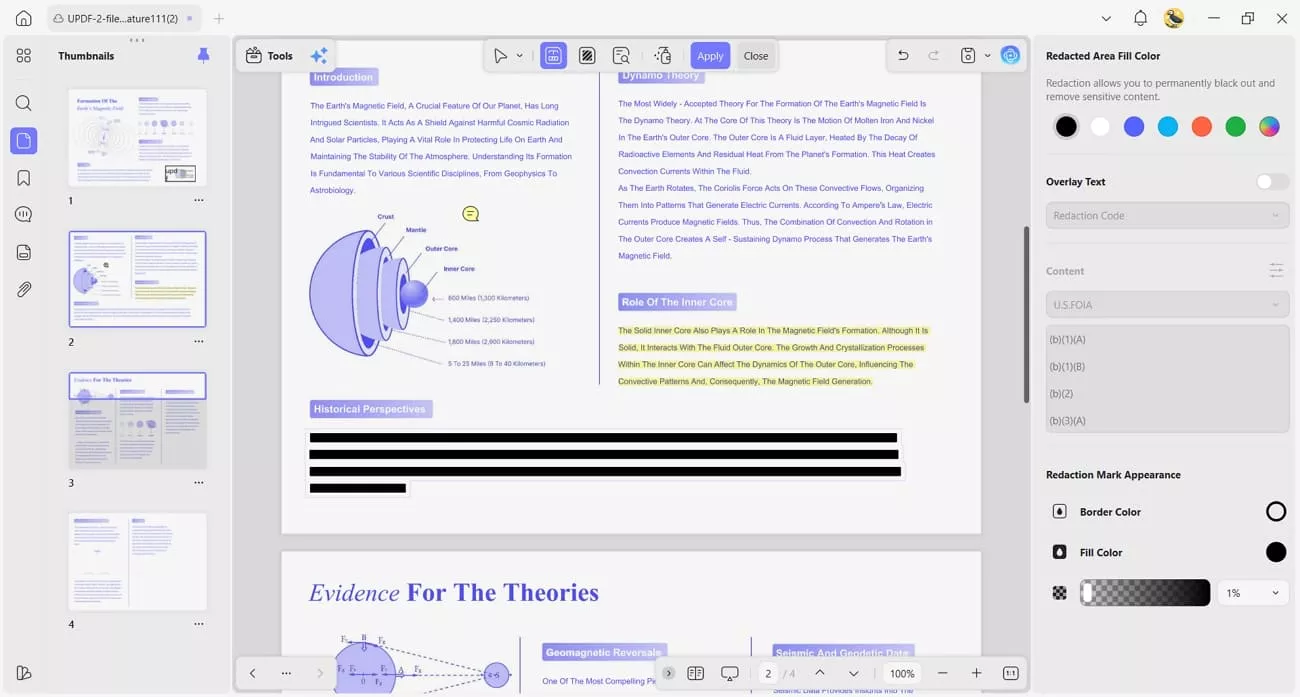
4. Redact PDF: Sensitive text or elements can be permanently removed, preventing recovery and effectively protecting confidential information.
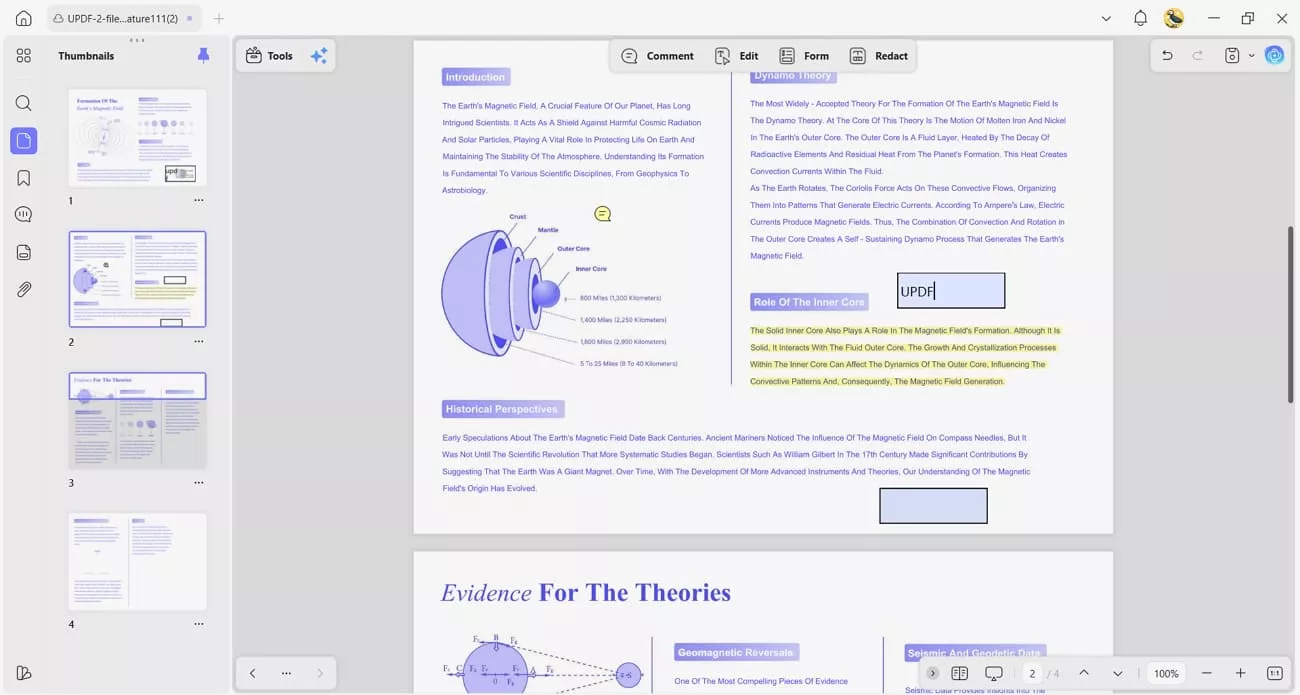
5. Fillable Forms: I design interactive forms with fields, then complete or collect responses directly inside the same PDF.
Windows • macOS • iOS • Android 100% secure
Part 4. Reading & Navigation Experience
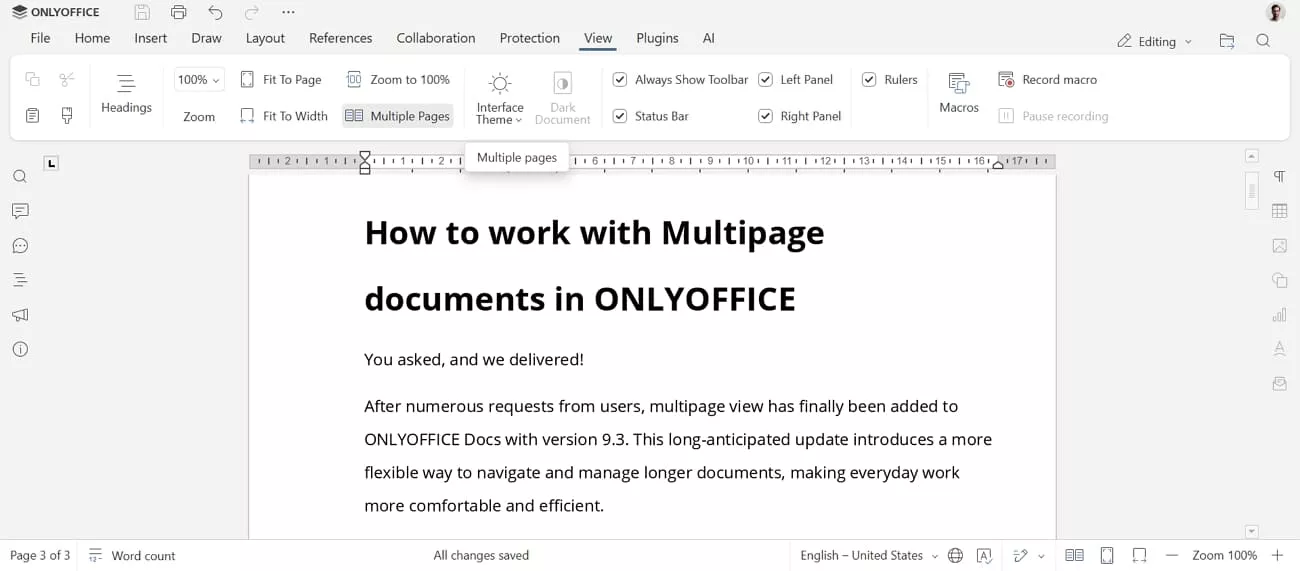
While comparing UPDF vs OnlyOffice PDF Editor, I opened version 9.3 for testing. I immediately noticed the new Multipage View, which clearly displays several PDF pages side by side. This layout helps me scan long documents visually, but the overall reading controls still feel quite basic. Moreover, I also found that there is no dedicated reading mode focused on comfort or distraction-free viewing yet.
On the other hand, UPDF gives me a comfortable way to read PDFs. Let me share the options that make long documents easier to handle.
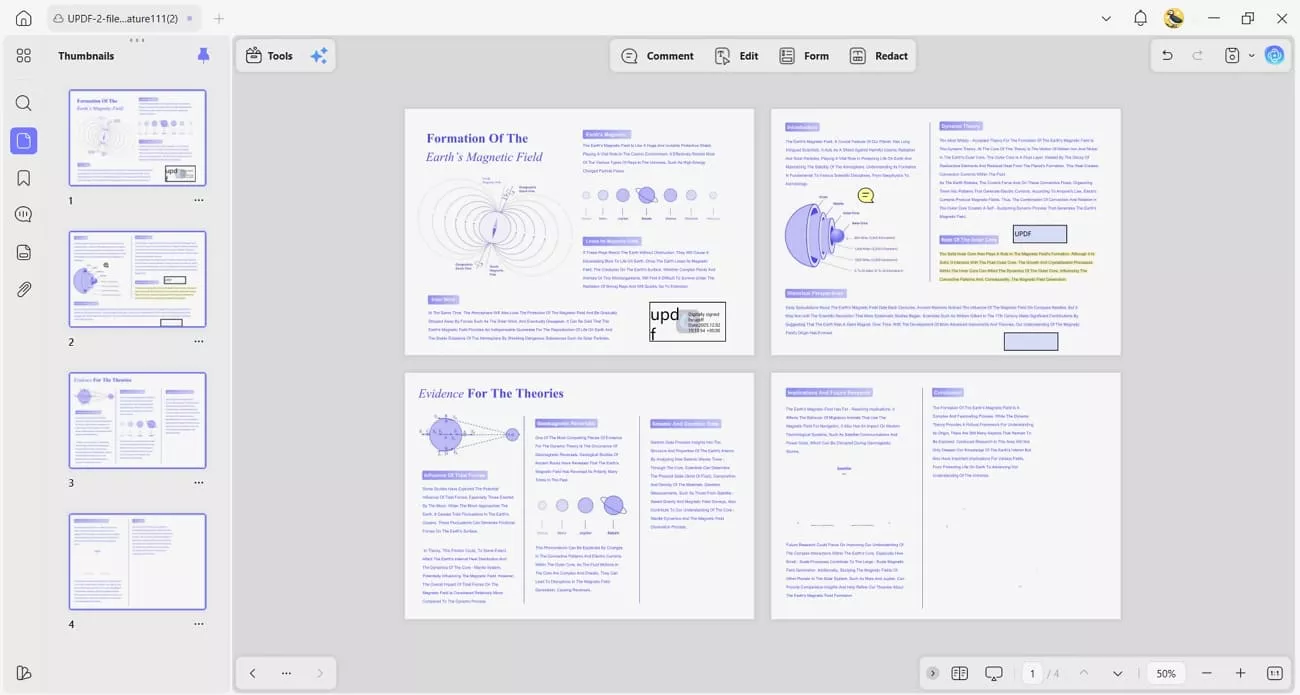
1. Reading Modes: Offers Double Page and Continuous Scroll for different reading preferences and tasks.
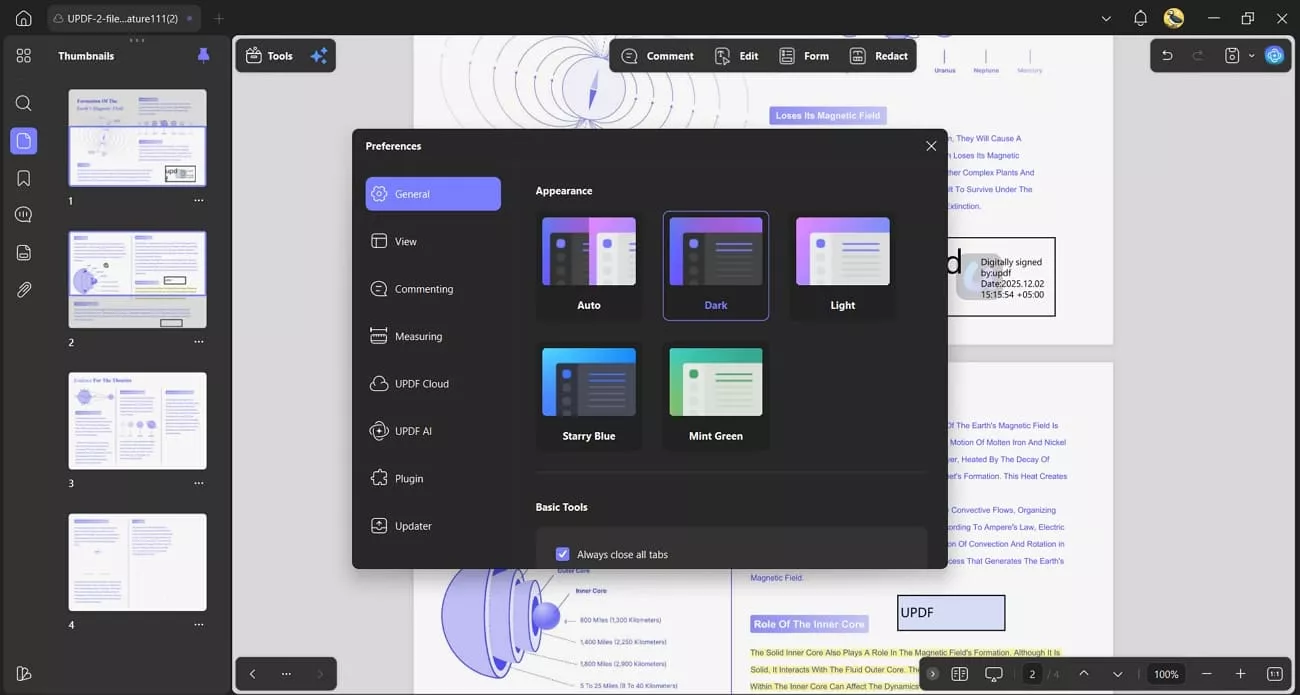
2. Comfort Modes: Includes Dark Mode and Eye Protection Mode to reduce eye strain during long reading sessions.
3. AI Bookmarking: The AI Bookmark Agent builds navigation structures, and the Bookmark Summary Agent provides overviews of lengthy sections.
Windows • macOS • iOS • Android 100% secure
Part 5. Pricing & Value
When I looked at OnlyOffice PDF Editor for PDF work, I saw that the desktop version is free for personal use. For team projects and company deployments, I need their Business Cloud solution, priced at $30/admin/month. Its AI features are not fully included because I must buy and connect my own external AI API keys.
On the other hand, UPDF offers a free version that supports basic editing, annotation, and reading, with watermarks. In this free version, I also received 100 AI uses that felt like a Pro experience. Its AI tools did not require any API keys, which made getting started much simpler for me. Now, explore its pricing plans to opt for a better option from UPDF vs OnlyOffice PDF Editor:
| Plan | Price |
| UPDF Pro (Annual) | $49.99/year |
| UPDF Pro (Lifetime) | $79.99/lifetime |
| AI Assistant | $79/year |
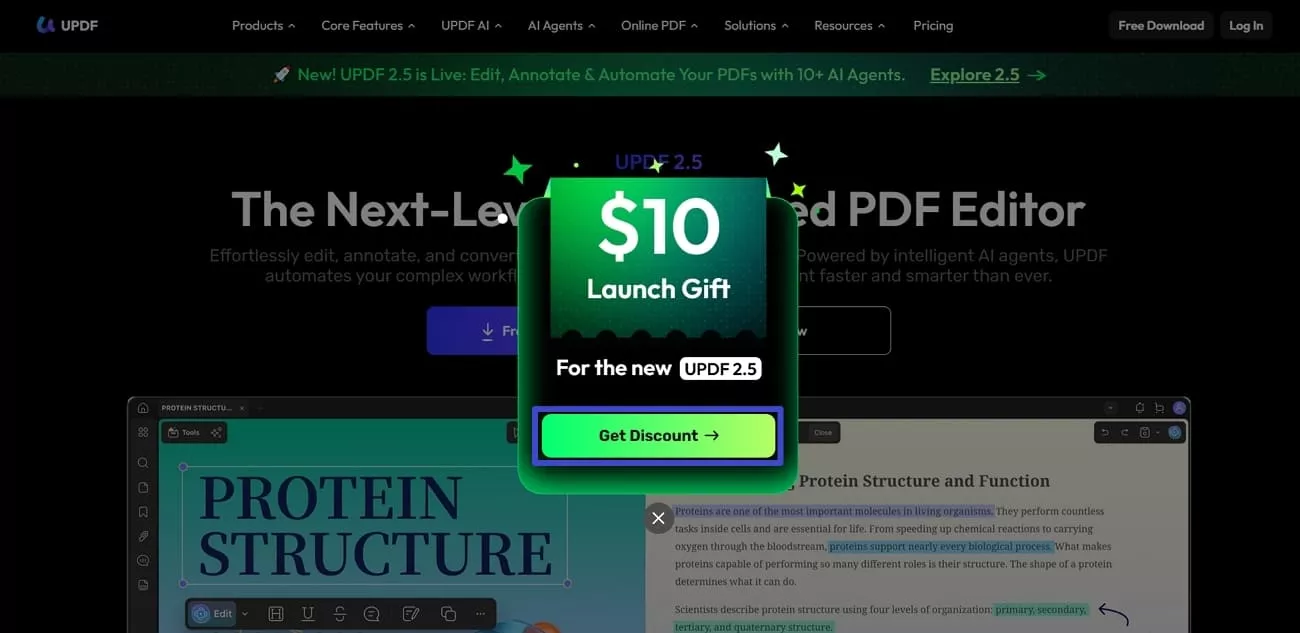
You can also get a limited-time $10 launch gift when upgrading to UPDF V2.5.
Part 6. Who Should Choose Which?
When I reached the point of choosing between these two, I realized they suit very different priorities. Now, I will show you who benefits more from OnlyOffice PDF Editor and who is better off with UPDF.
Choose OnlyOffice
This suite gives me a reliable office-focused workspace that covers documents and slides. You should go for OnlyOffice if:
- You need a free, open-source office suite with built-in but basic PDF editing.
- Your team relies on Linux as a core platform for daily work.
- Strong collaboration across documents more than advanced PDF automation.
Choose UPDF
From my experience, UPDF shines when everything you do runs through PDFs rather than office files. You should go for UPDF if:
- PDF is your primary workflow, not a side feature alongside other office file.
- You want AI that works immediately without connecting external API keys.
- You prefer one tool that edits, annotates, and automates PDF tasks across all your devices.
Windows • macOS • iOS • Android 100% secure
Conclusion
This guide compared UPDF vs OnlyOffice PDF Editor to show how each tool fits different PDF workflows. OnlyOffice suits teams that treat PDFs as part of a larger office setup, while UPDF focuses on smarter, AI-powered document handling across devices. For flexible, AI-first PDF productivity in 2026, I personally recommend UPDF.
Windows • macOS • iOS • Android 100% secure

 Enrica Taylor
 Enola Miller
- mike_rumble