 UPDF
UPDF
 UPDF for Windows
 UPDF for Mac
 UPDF for iPhone/iPad
 UPDF for Android
 UPDF AI Online
 UPDF Sign
 Edit PDF
 Annotate PDF
 Create PDF
 PDF Form
 Edit links
 Convert PDF
 OCR
OCR PDF to Word
 PDF to Image
 PDF to Excel
 Organize PDF
 Merge PDF
 Split PDF
 Crop PDF
 Rotate PDF
 Protect PDF
 Sign PDF
 Redact PDF
 Sanitize PDF
 Remove Security
 Read PDF
 UPDF Cloud
 Compress PDF
 Print PDF
 Batch Process
 About UPDF AI
 UPDF AI Solutions
 AI User Guide
 FAQ about UPDF AI
 Summarize PDF
 Translate PDF
 Chat with PDF
 Chat with AI
 Chat with image
 PDF to Mind Map
 Explain PDF
 PDF AI Tools
 Image AI Tools
 AI Chat Tools
 AI Writing Tools
 AI Study Tools
 AI Working Tools
 Other AI Tools
 AI Bookmark Generation
 AI Bookmark Summary
 AI Watermark Generation
 AI Background Generation
 AI Sticker Generation
 AI Stamp Generation
 AI Editing Suite
 UPDF Copilot
 AI Page Management
 AI Semantic Search
 PDF to Word
 PDF to Excel
 PDF to PowerPoint
 Enterprise Solution
 Enterprise Sign
 Enterprise AI
 Enterprise Plan
 Enterprise User Guide
 Enterprise Webinar
 Banking
 Healthcare
 Insurance
 Legal
Legal Manufacturing
 Government
 Education Solution
 Customer Stories
 User Guide
 UPDF Tricks
 FAQs
FAQs UPDF Reviews
 Download Center
 Blog
Blog Newsroom
 Tech Spec
 Updates
 UPDF vs. Adobe Acrobat
 UPDF vs. Foxit
 UPDF vs. PDF Expert

The USMLE Step 1 has entered the Pass/Fail pattern recently, yet the pressure remains as intense as ever. While you no longer chase a three-digit score, the exam still demands mastery of foundational medical science. Overall, USMLE Step 1 is one of the most challenging tests for medical students worldwide.
This exam tests not just memorization but your ability to apply concepts across pathology, pharmacology, and physiology under timed conditions. Success now depends on strategy as much as knowledge. That's where the "Double-Threat" study method comes in.
Students can use Gemini to generate interactive USMLE Step 1 practice questions. In contrast, UPDF becomes your knowledge hub with its organization and editing features.
To upgrade your USMLE prep, download UPDF for free and start building your study hub today.
Windows • macOS • iOS • Android 100% secure
Part 1. The Interactive Phase: Custom Mock Tests with Gemini
After finishing multiple UWorld blocks, you may notice certain weak areas still appearing repeatedly in your performance reports. Instead of randomly doing more questions, you may want focused practice that tests your reasoning in real time.
This is where interactive AI-based drills with Gemini become helpful. They allow you to simulate exam-style thinking while receiving instant explanations and feedback.
The Strategy: Using Gemini for Interactive Drills
Gemini can function as an interactive practice partner by generating customized clinical scenarios or exam-style questions based on your prompt. Unlike traditional question banks, it responds to your answers immediately.
Such USMLE Step 1 practice questions improve clinical decision-making. Follow the steps given below to generate practice questions and solve them:
Step 1. After opening Gemini in your desired browser, type your desired prompt and hit the Submit icon to generate USMLE-style practice questions.
Example Prompt:
"Quiz me with clinical vignette-style questions one at a time. Provide 5 answer choices. Wait for my answer before giving explanations, and include reasoning after each question."
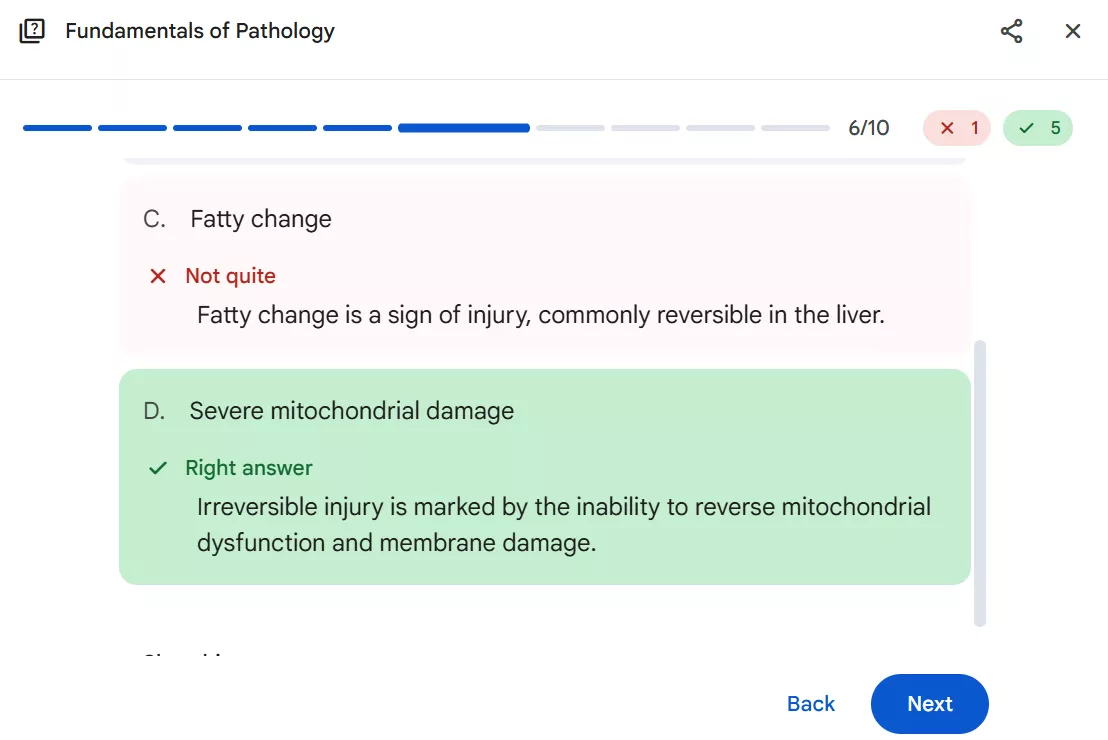
Step 2. Gemini will generate fully interactive clinical questions that mimic exam scenarios. Select your answer and continue the session by clicking Next. Gemini then provides quick explanations to improve your learning.
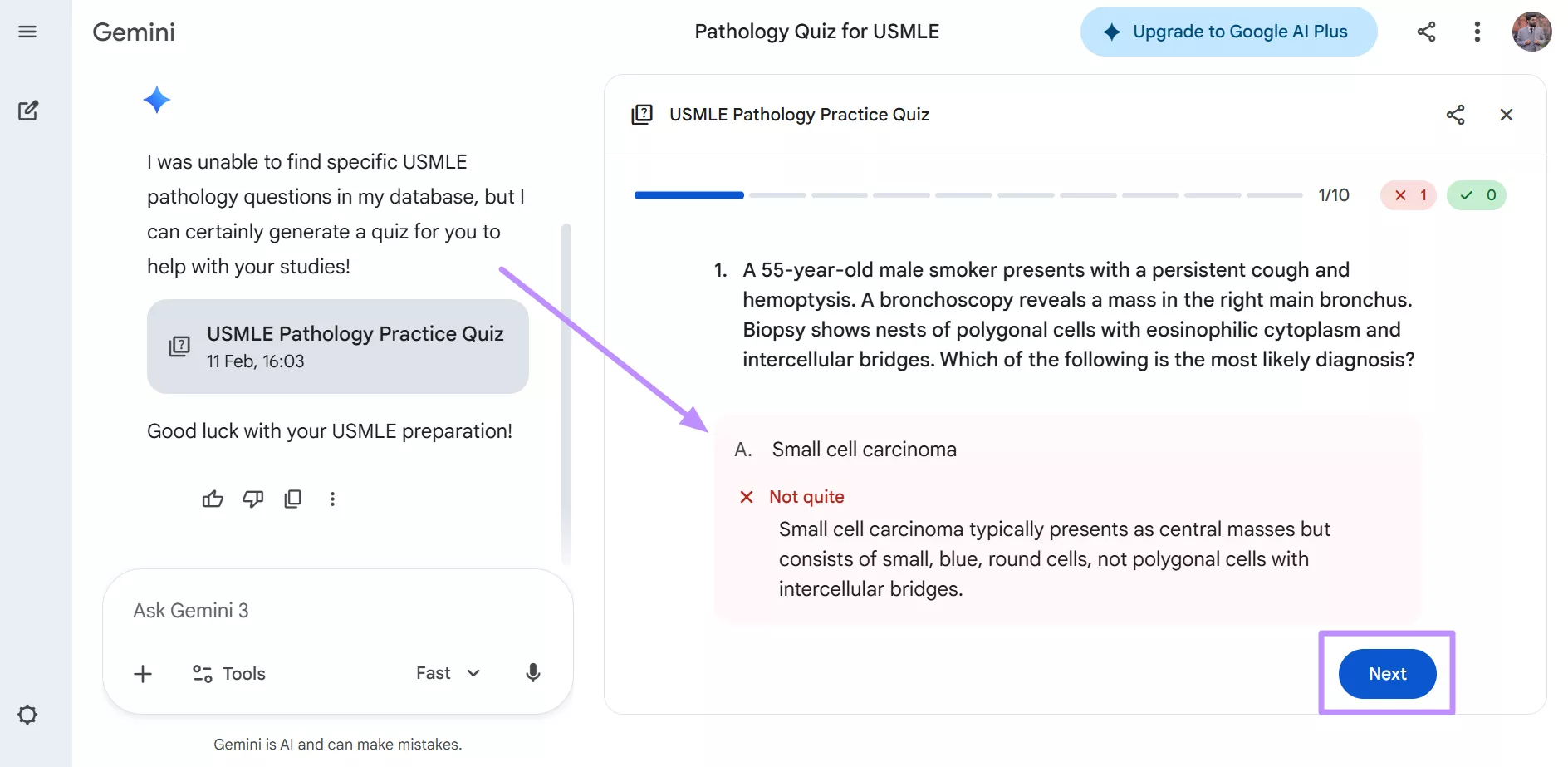
Gemini also has the ability to analyze your responses instantly and explain the logic behind each option. Instead of simply marking answers right or wrong, it walks through differential diagnoses and clinical reasoning pathways. This real-time feedback helps learners understand "why" an answer is correct or incorrect.
While the UPDF AI assistant can also generate practice questions from your existing PDFs, those questions are typically static. As questions are based on fixed document content, UPDF is better suited for deep review sessions and structured revision.
Windows • macOS • iOS • Android 100% secure
Part 2. The Organization Phase: Building Your Medical Hub with UPDF
You have to deal with thousands of pages spread across lecture slides, PDFs, and handwritten notes during preparation of USMLE Step 1. Finding one diagram or drug table feels like searching through chaos.
Instead of juggling scattered resources, your goal should be to create a single structured medical hub. That's where UPDF's focused organization features come in.
1. Advanced Annotation Features
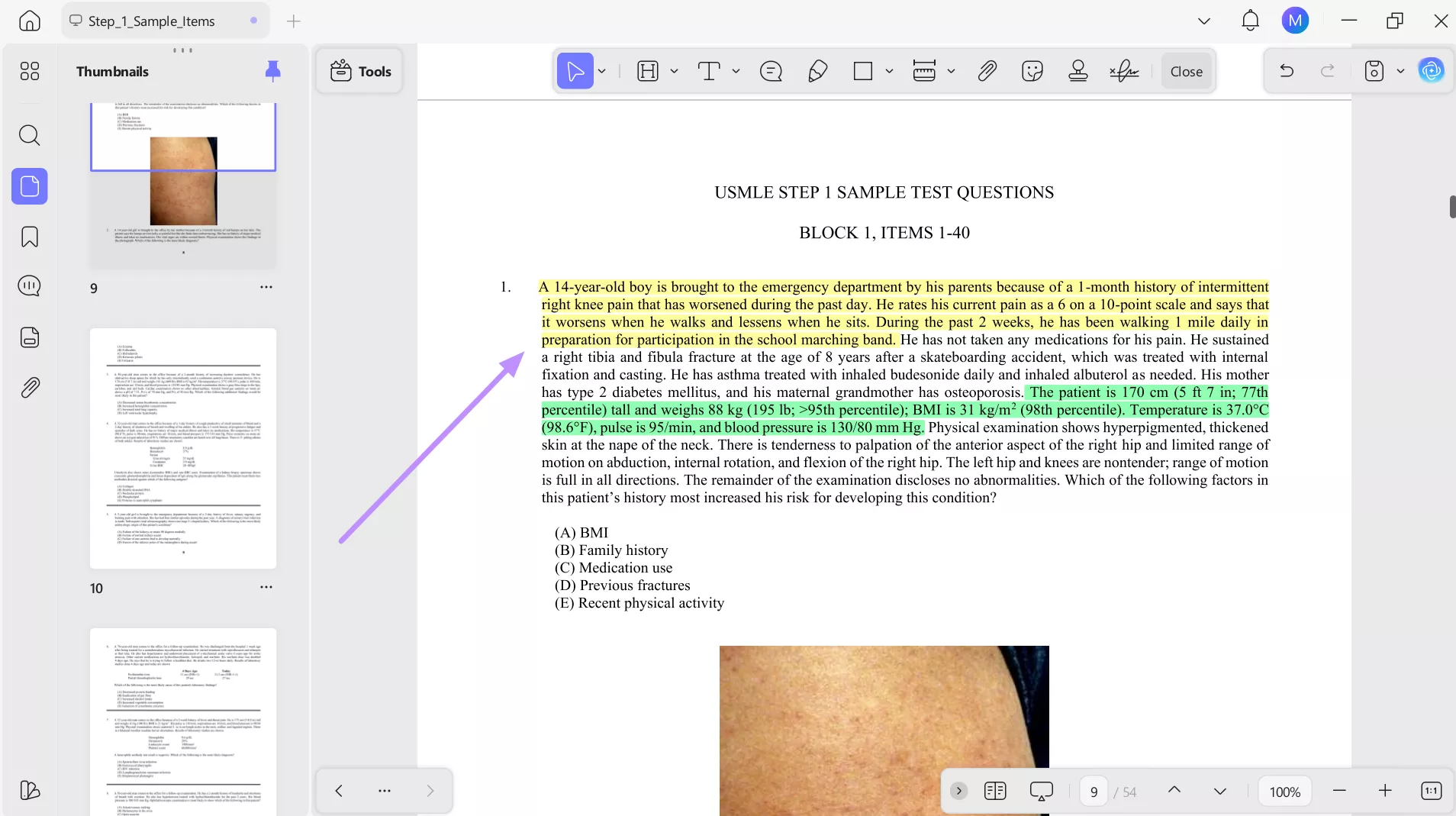
Students can use the Highlighter and Sticker tools within UPDF to build a clear visual coding system. Learners can assign colors based on categories they revise often using the Highlighter tool. For example, assign blue for histology features, red for drug side effects, and green for clinical correlations.
With stickers, you can mark important topics before exams. Over time, this system turns dense textbooks into quick-scan review sheets. Take guidance from the steps below to annotate your USMLE notebooks.
Step 1. Open UPDF and tap the Open File button to import your USMLE study materials in PDF format.
Step 2. After importing the file, tap on the Highlighter feature to access a new menu. Now, pick a color according to your choice.
Step 3. Moving forward, highlight important information by dragging over the text with your selected color. You can use different colors to categorize pathologies, mechanisms, and exam pearls for faster review later.
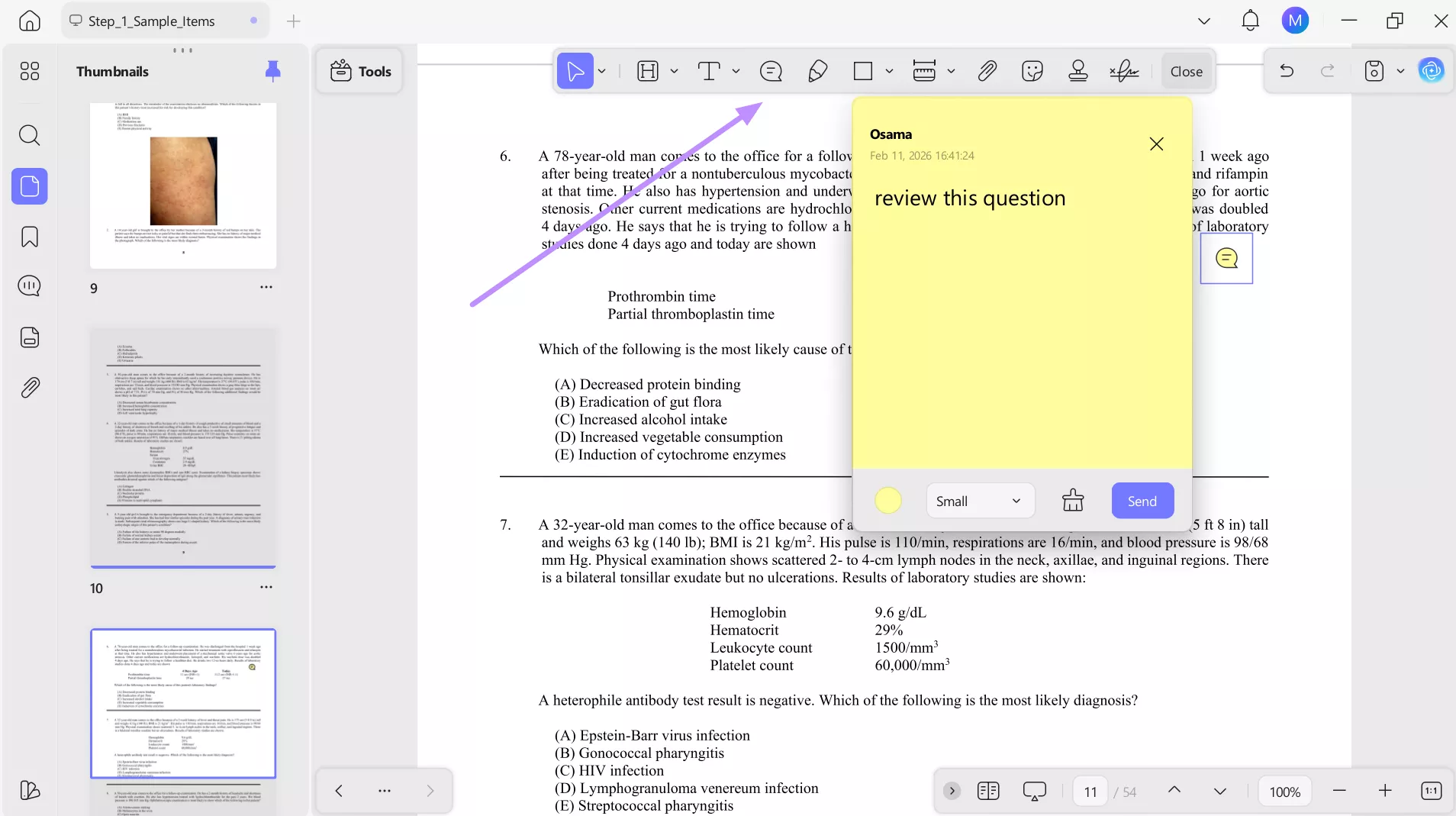
Step 4. Then, hit the Sticky Notes icon within the floating toolbar. At last, type in the review reminder and save this note for future reference.
2. Visual Knowledge Synthesis
Instead of keeping histology slides or radiology images in separate folders, you can insert them directly into your PDF pages. Learners can also add images next to the descriptions using the editing features in UPDF.
This keeps visual learning tied to context, which improves memory retention. By merging diagrams and text into one file, you create a reference that mirrors how clinical reasoning actually works. Follow these steps to add links and images to your PDF:
Step 1. Upon importing your USMLE PDF resource, tap the Tools button at the top left of the screen. From the Mode section, select Edit to begin modifying your study document.
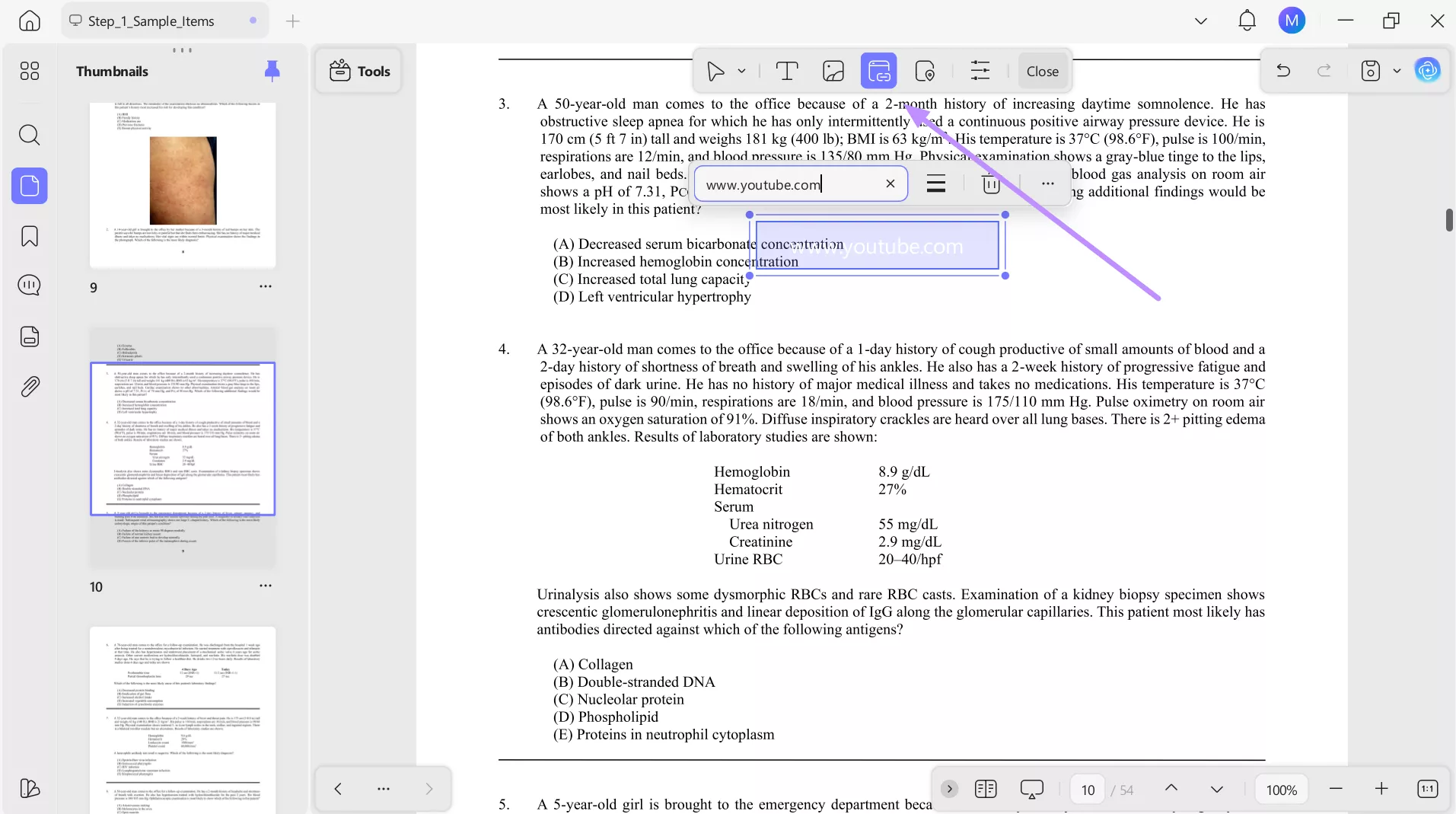
Step 2. Moving forward, click the Insert & Edit Link icon from the floating toolbar. Now, tap near the section where you want additional learning support and paste a relevant video or reference link into the provided field.
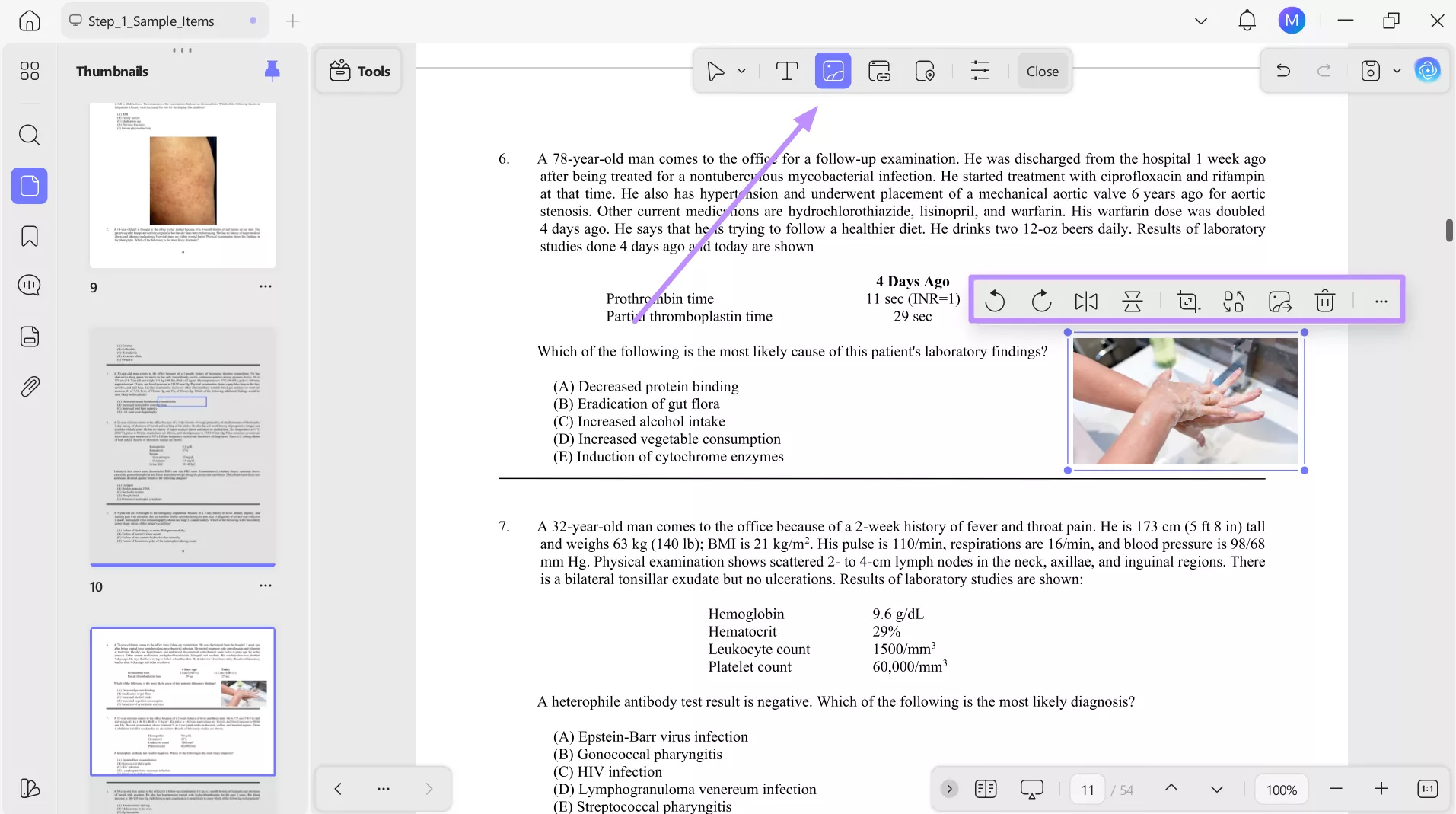
Step 3. You can also add visual aids by selecting the Insert & Edit Image icon. Next, tap anywhere on your study page to insert diagrams or clinical charts, then adjust by rotating, cropping, or replacing as needed.
3. UPDF AI Summarization
Long pharmacology chapters can be difficult to read. To make reading easier, you can use UPDF AI on a desktop to summarize large sections into concise bullet-point notes. Students can convert 50-page readings into one-page outlines highlighting mechanisms and clinical uses.
These summaries work well for rapid review sessions and spaced repetition. Follow these steps to summarize content with UPDF AI:
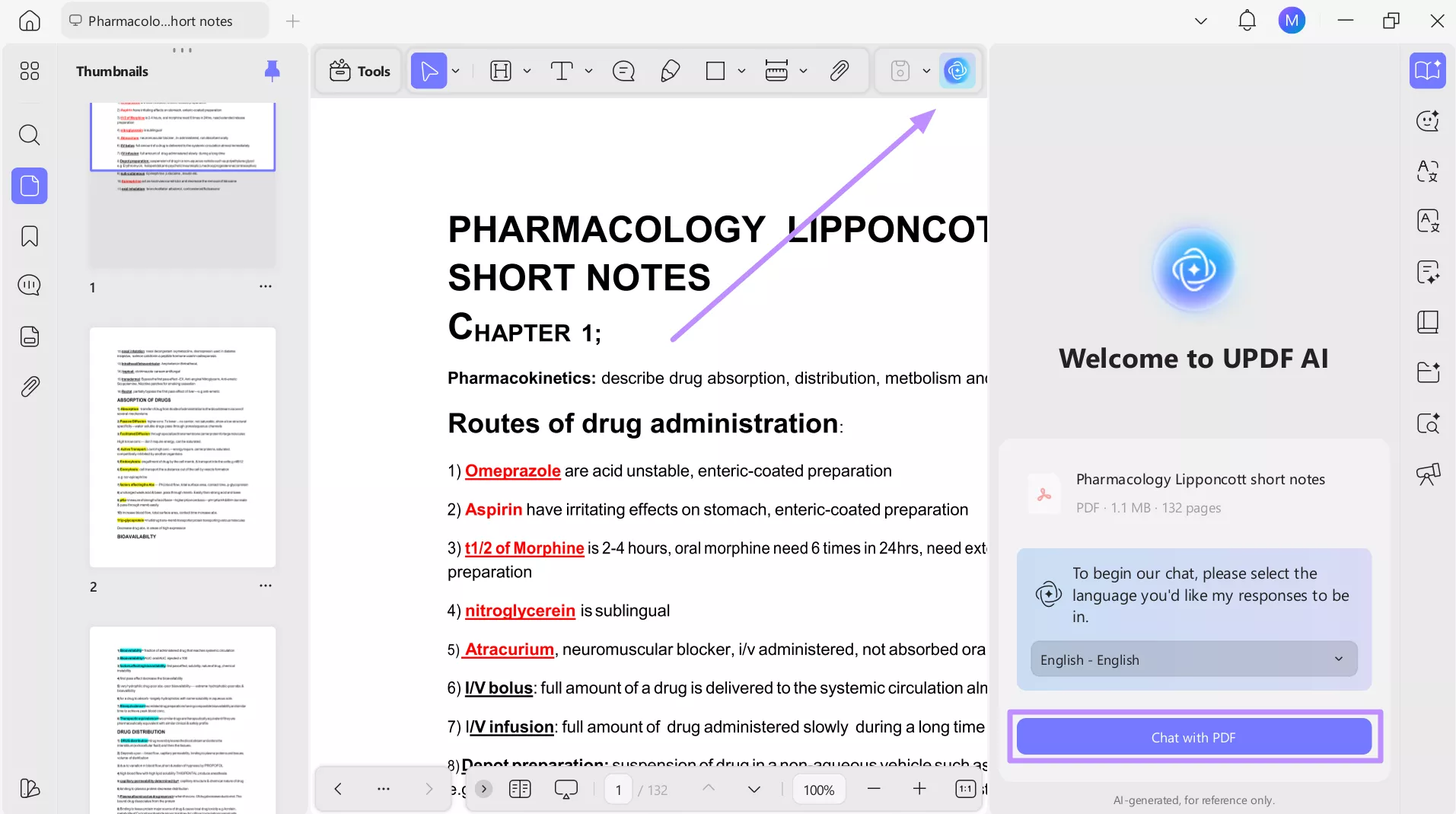
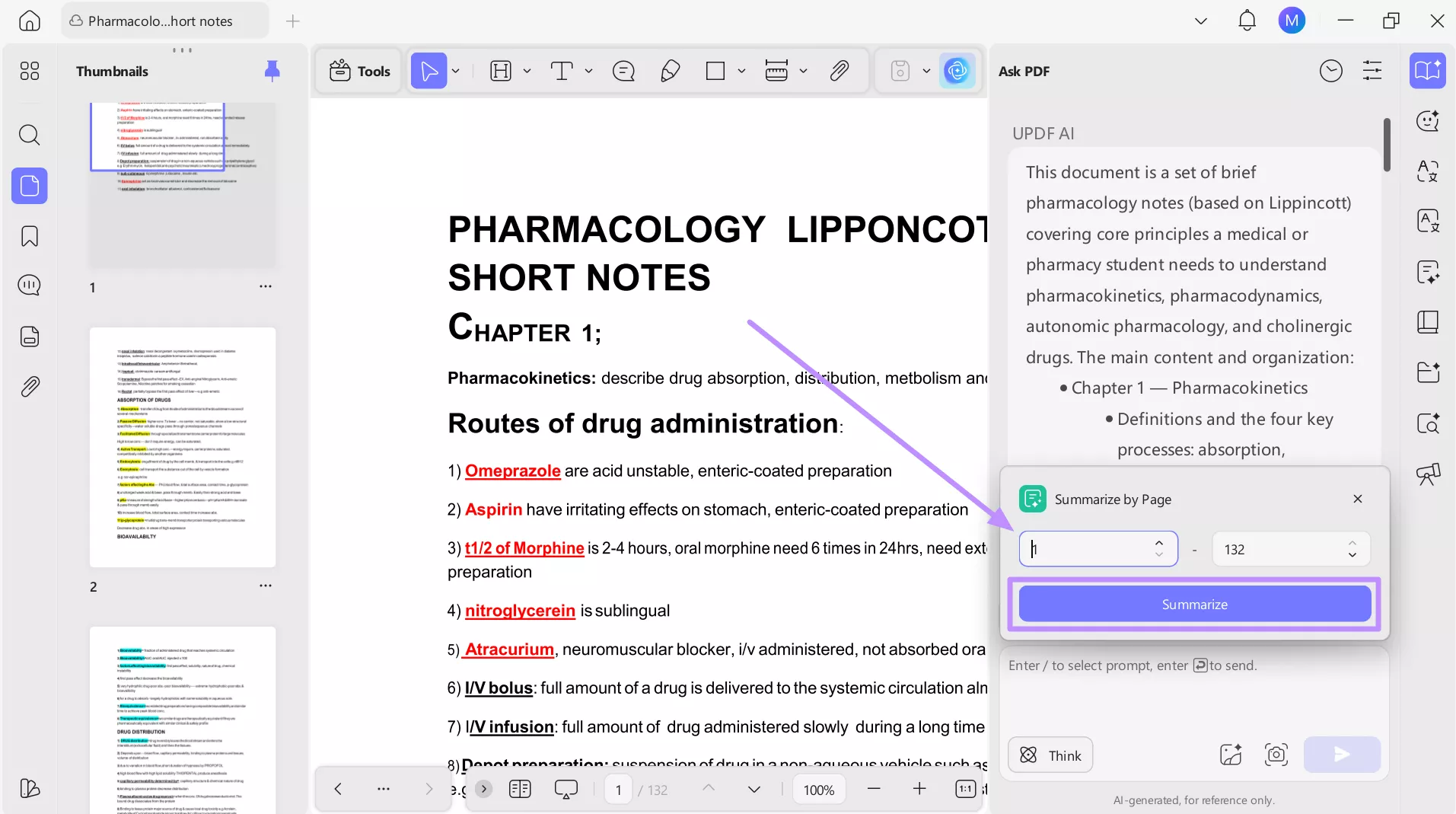
Step 1. After opening your USMLE study file, click the UPDF AI icon at the top-right corner of the screen. Now, select Chat with PDF to interact directly with your medical notes, textbooks, or question explanations.
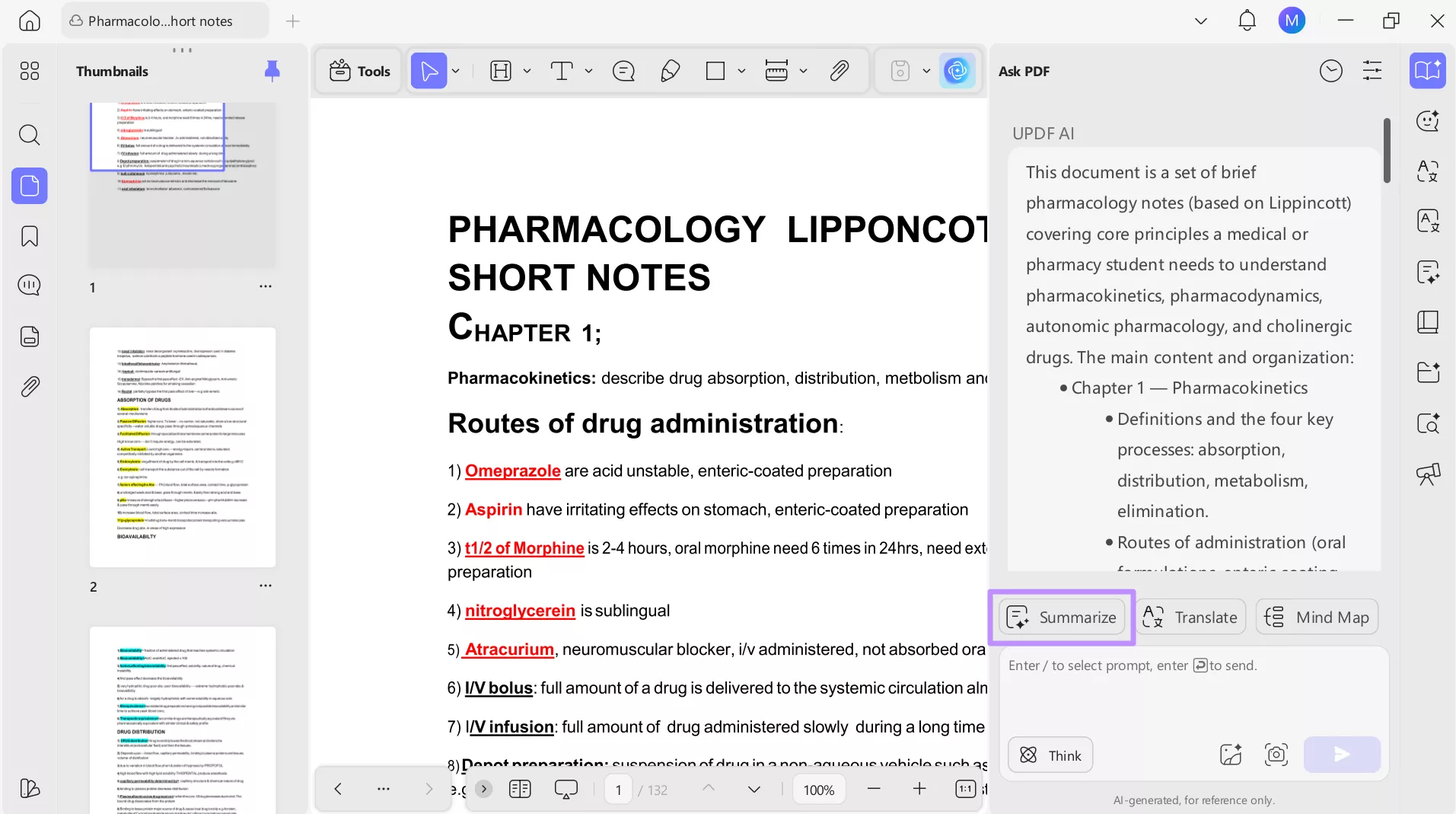
Step 2. UPDF AI can automatically break down long medical content into clear bullet points. Then, choose the Summarize option to generate concise summaries that make reviewing faster and easier.
Step 3. Finally, select the exact page range or chapter you want to focus on. Afterwards, press Summarize to receive targeted key points covering only the chosen sections of your USMLE material.
4. OCR Paper Notes
UPDF's OCR lets you convert handwritten sketches or old classroom notes into editable text format. Using this feature, you can scan physical papers and convert them into searchable PDFs so you can highlight and edit them like normal files.
This prevents important insights from getting lost in notebooks and allows you to search for keywords. It's especially useful for diagrams or charts you created during lectures. Follow the steps given below for easy OCR conversion.
Windows • macOS • iOS • Android 100% secure
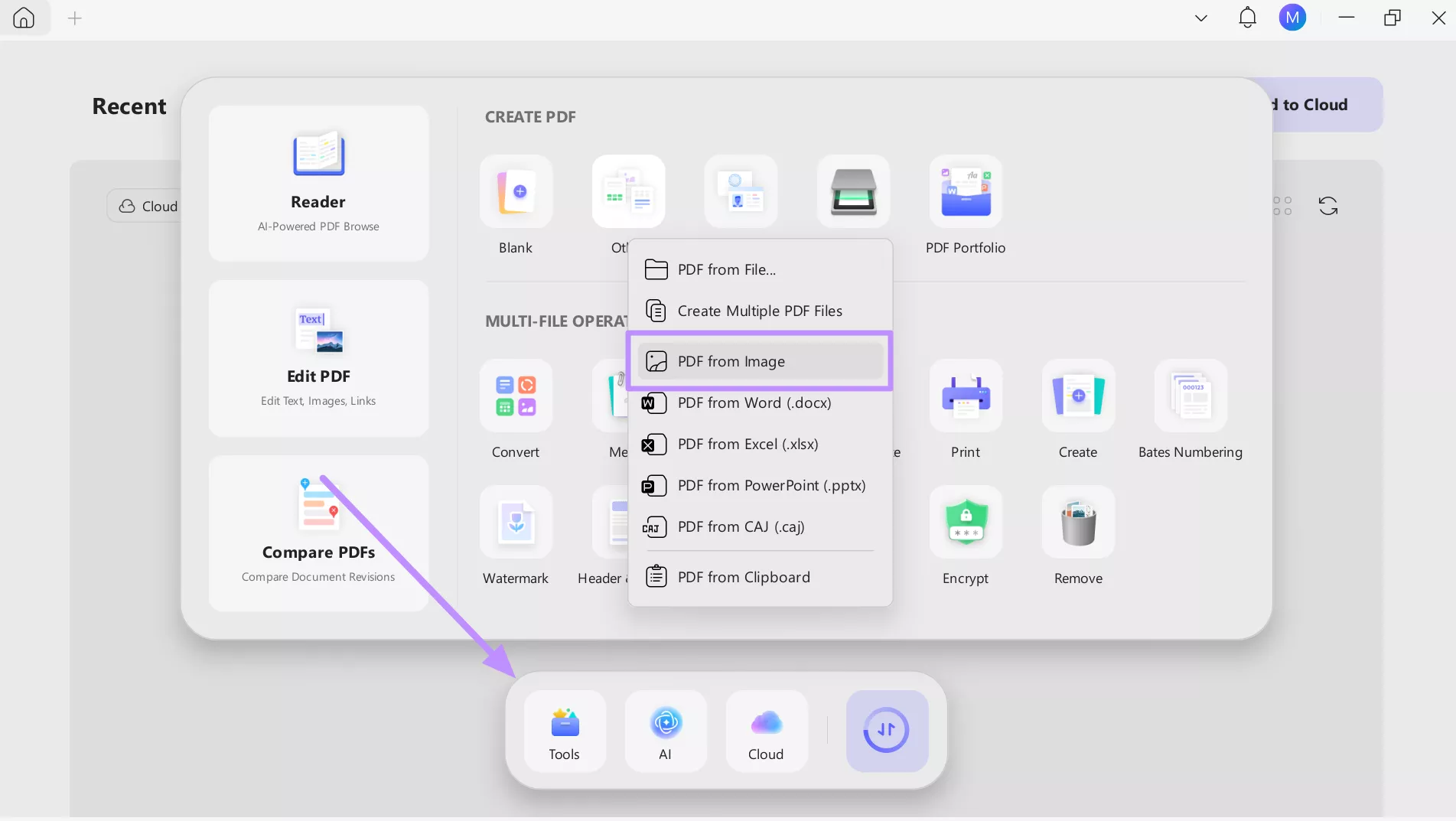
Step 1. Once you launch UPDF, hit the Tools option from the bottom toolbar. Within the new screen, press Others and then click the PDF from Image option.
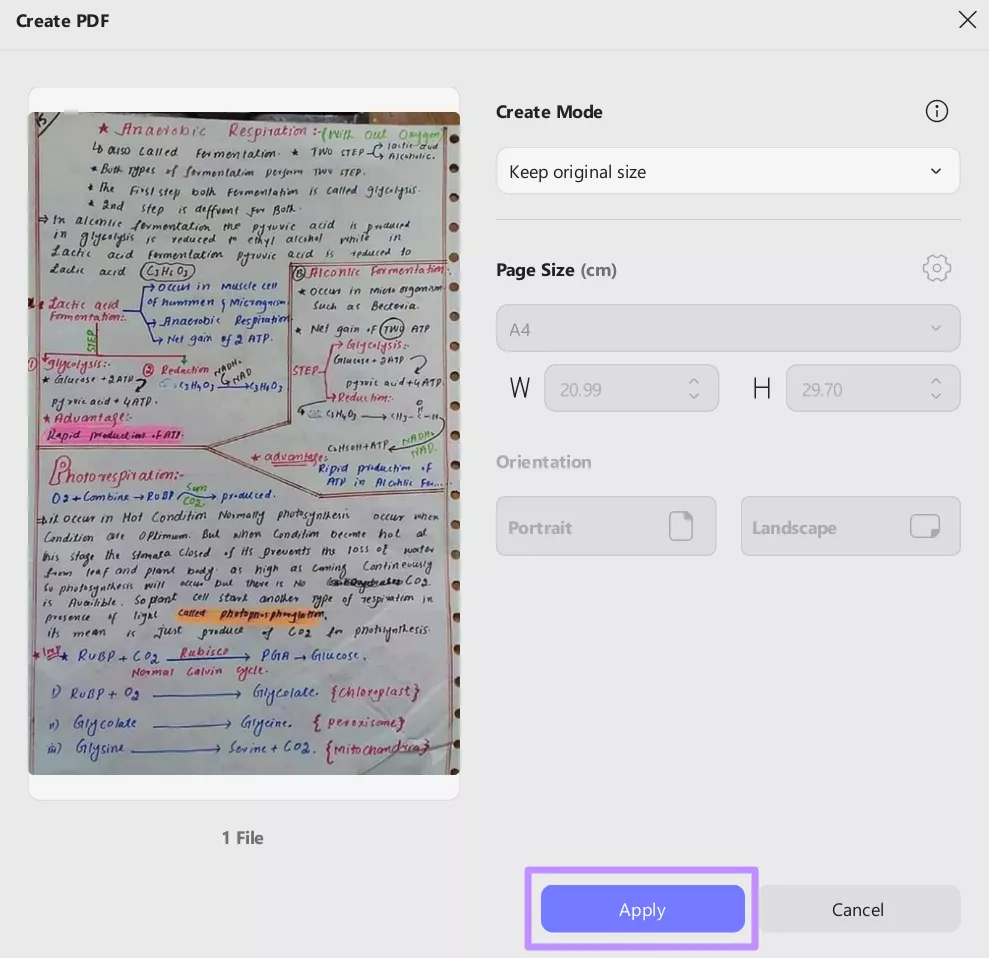
Step 2. Moving forward, click on the Select Files button to import the handwritten notes. Now, manage the page size and Apply to create a PDF from notes or images.
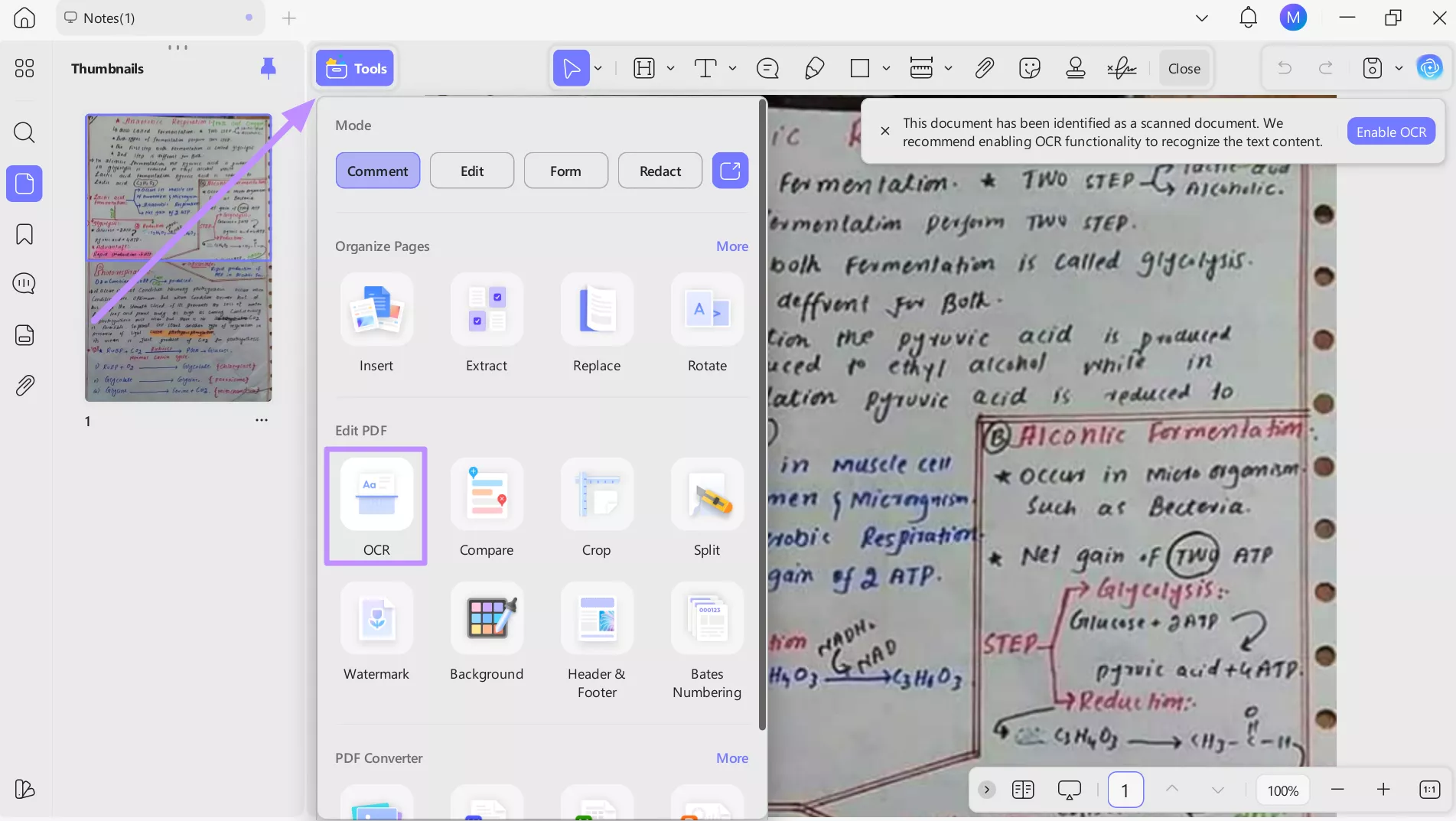
Step 3. After importing your scanned USMLE notes, tap the Tools button at the top right and select the OCR feature to begin text recognition.
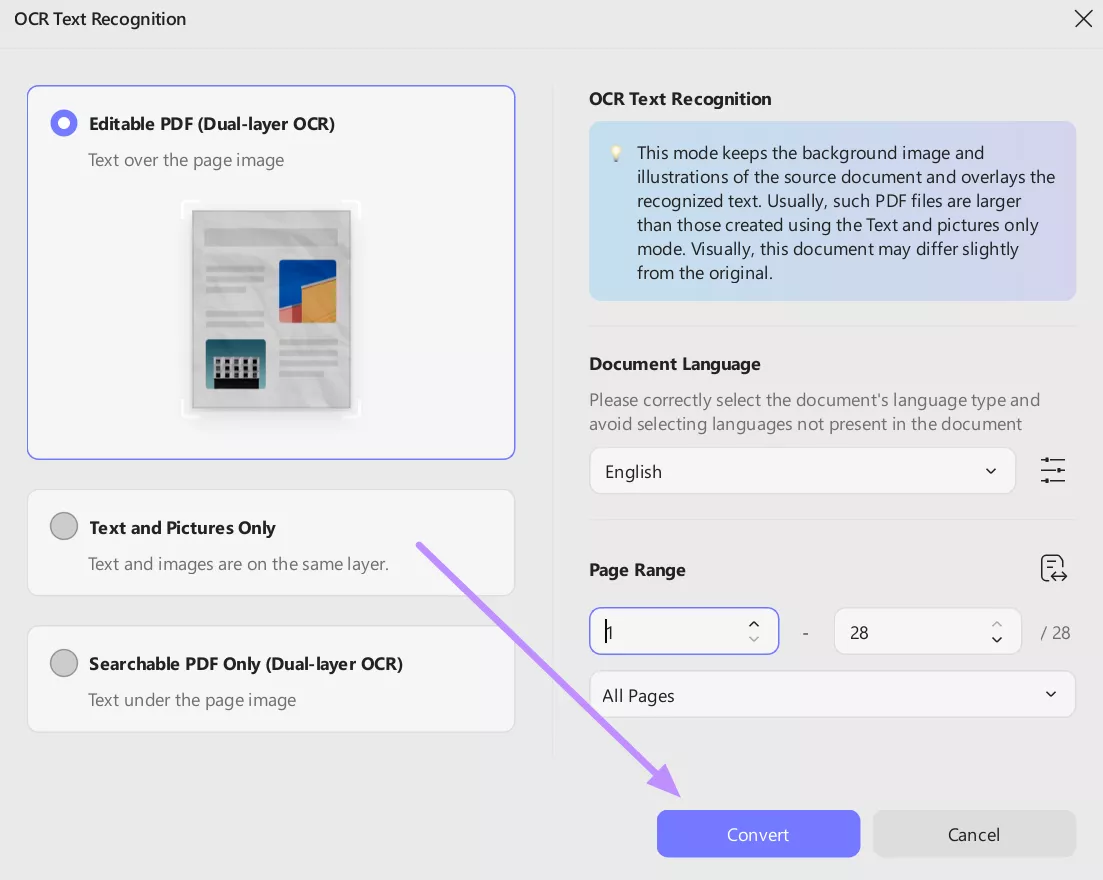
Step 4. On the OCR Text Recognition screen, choose the correct document language and specify the page range you want to convert. Then, click Convert to transform your scanned files into searchable and editable PDFs.
To better manage your USMLE Step 1 practice questions, download UPDF for free. With this PDF management tool, keep your entire study system in one place so revision feels less overwhelming.
Part 3. Building Your "Mistake Vault" (The Synergy)
USMLE Step 1 practice questions are only effective if you actively learn from your mistakes and avoid repeating them. By pairing Gemini's detailed answer explanations with UPDF, you can build a personal "Mistake Vault."
Instead of letting incorrect answers get lost in chat history, you transform them into a structured review system. Follow these detailed instructions to create a USMLE preparation study bank.
Step 1. Use Gemini to quiz yourself on USMLE topics, focusing on weak areas like pharmacology side effects or tricky clinical reasoning questions. Answer honestly, just as you would on exam day.
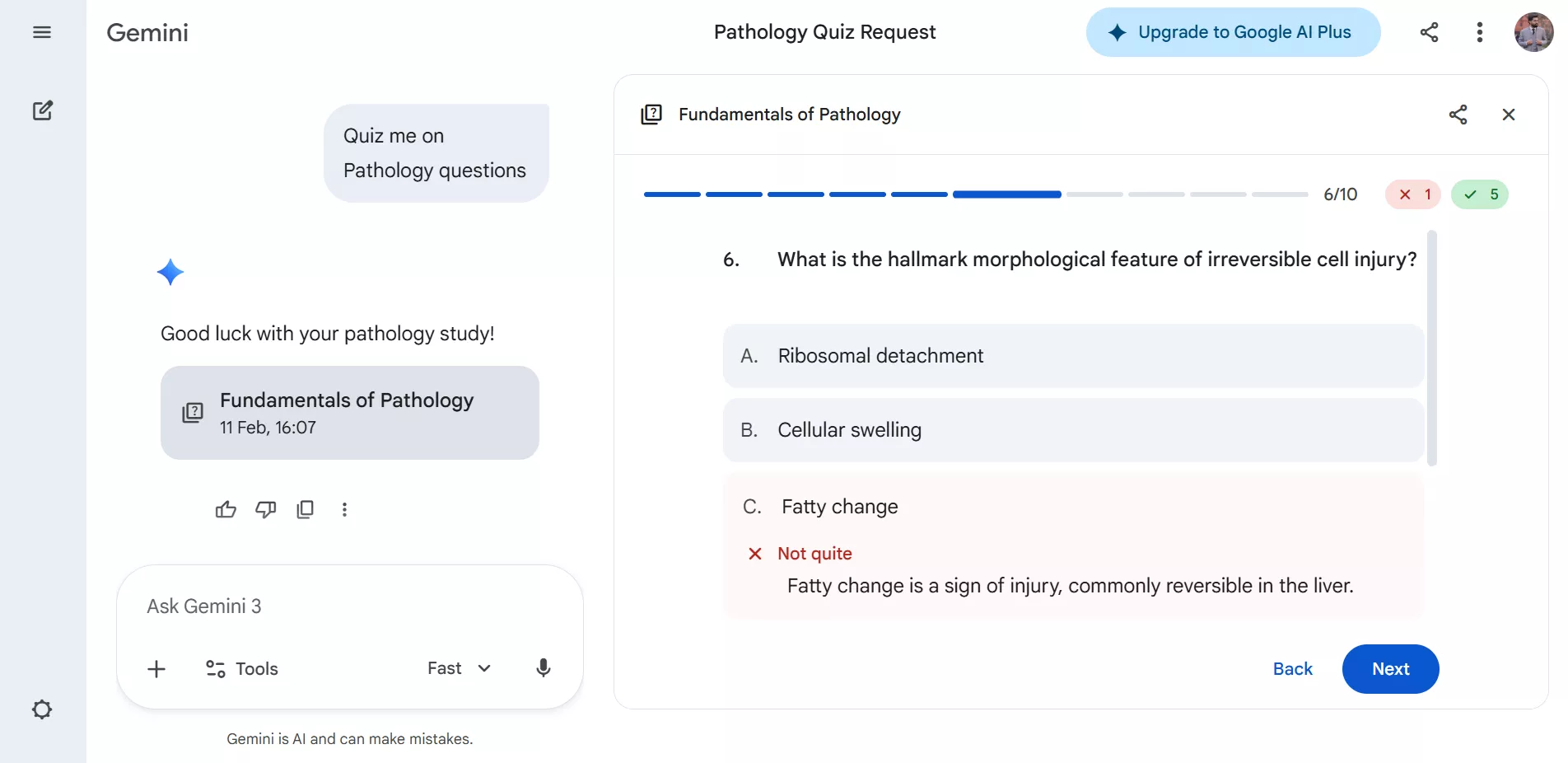
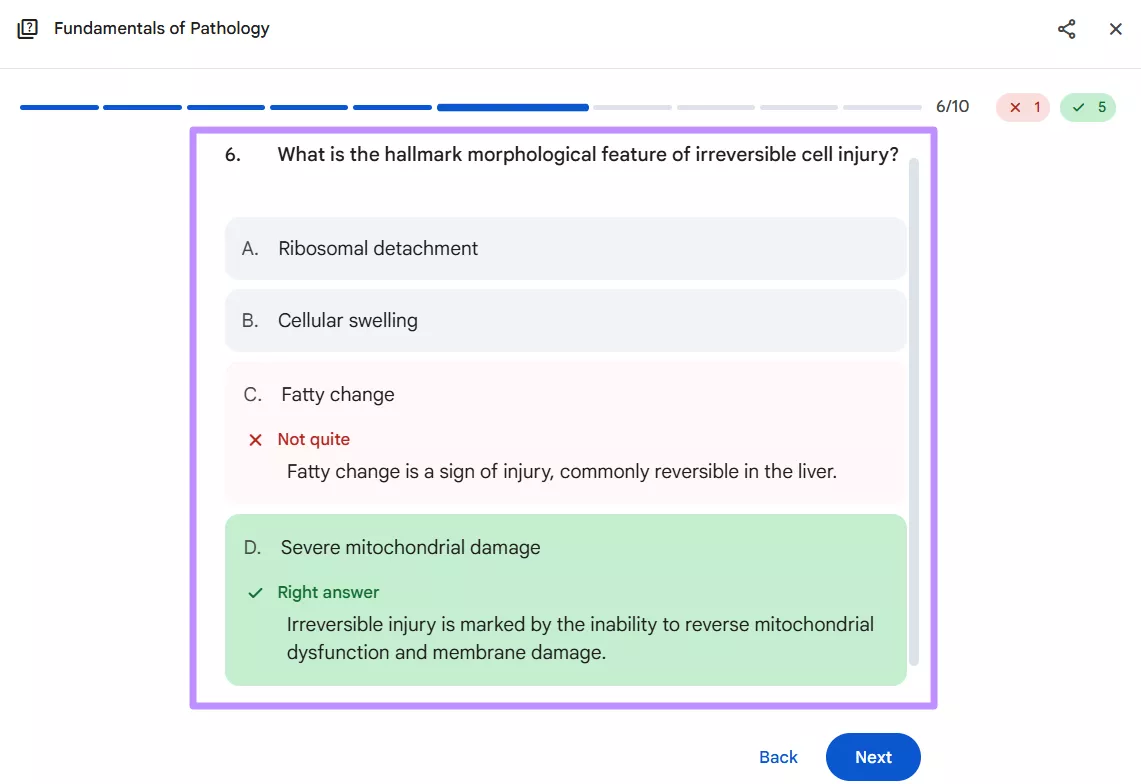
Step 2. Whenever Gemini explains why an answer is correct or incorrect, take a screenshot. You need to do this for detailed reasoning or high-yield facts that are easy to forget.
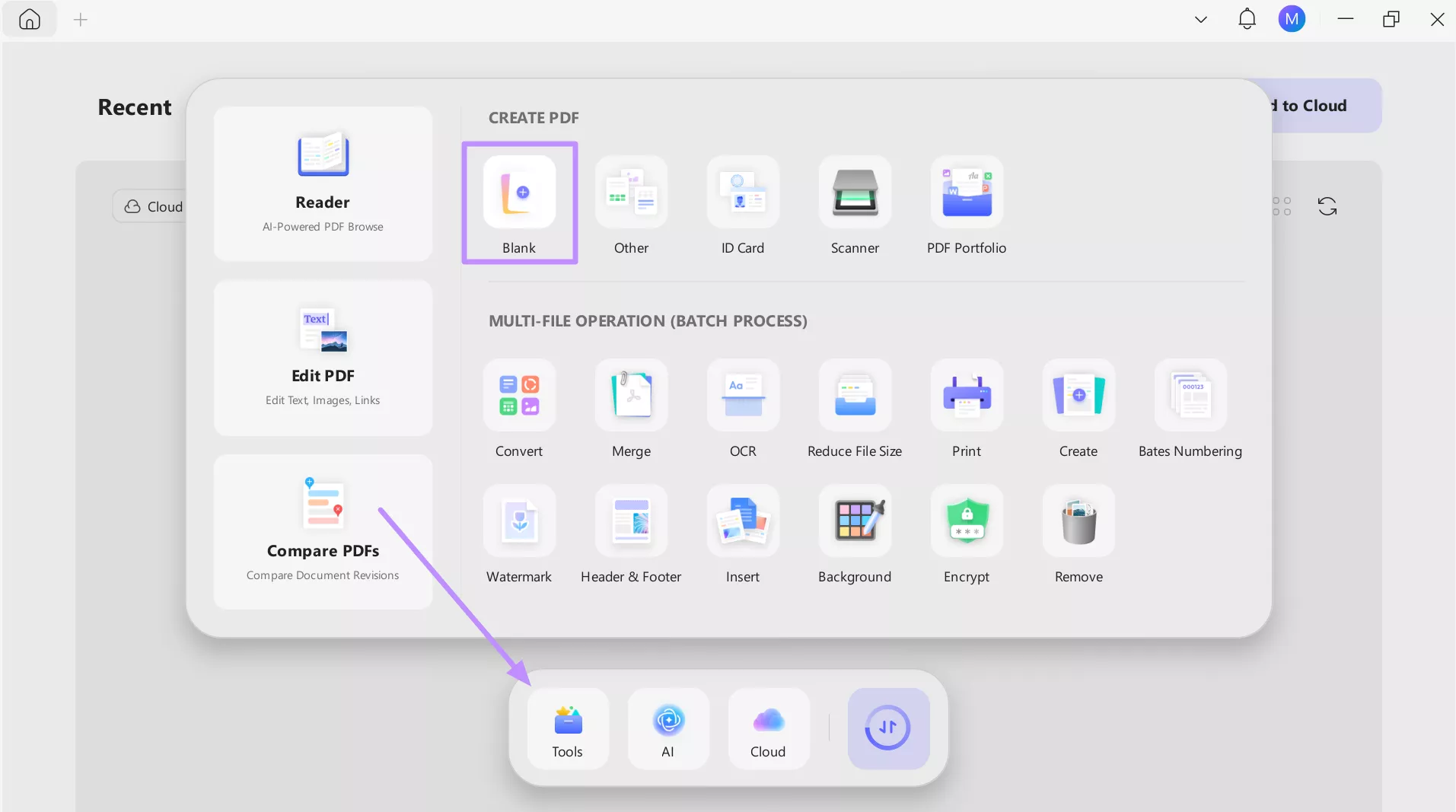
Step 3. Now, open UPDF and go to the Tools menu before selecting Blank under the Create PDF section. This will serve as your "Mistake Vault," a central place to organize all screenshots and notes.
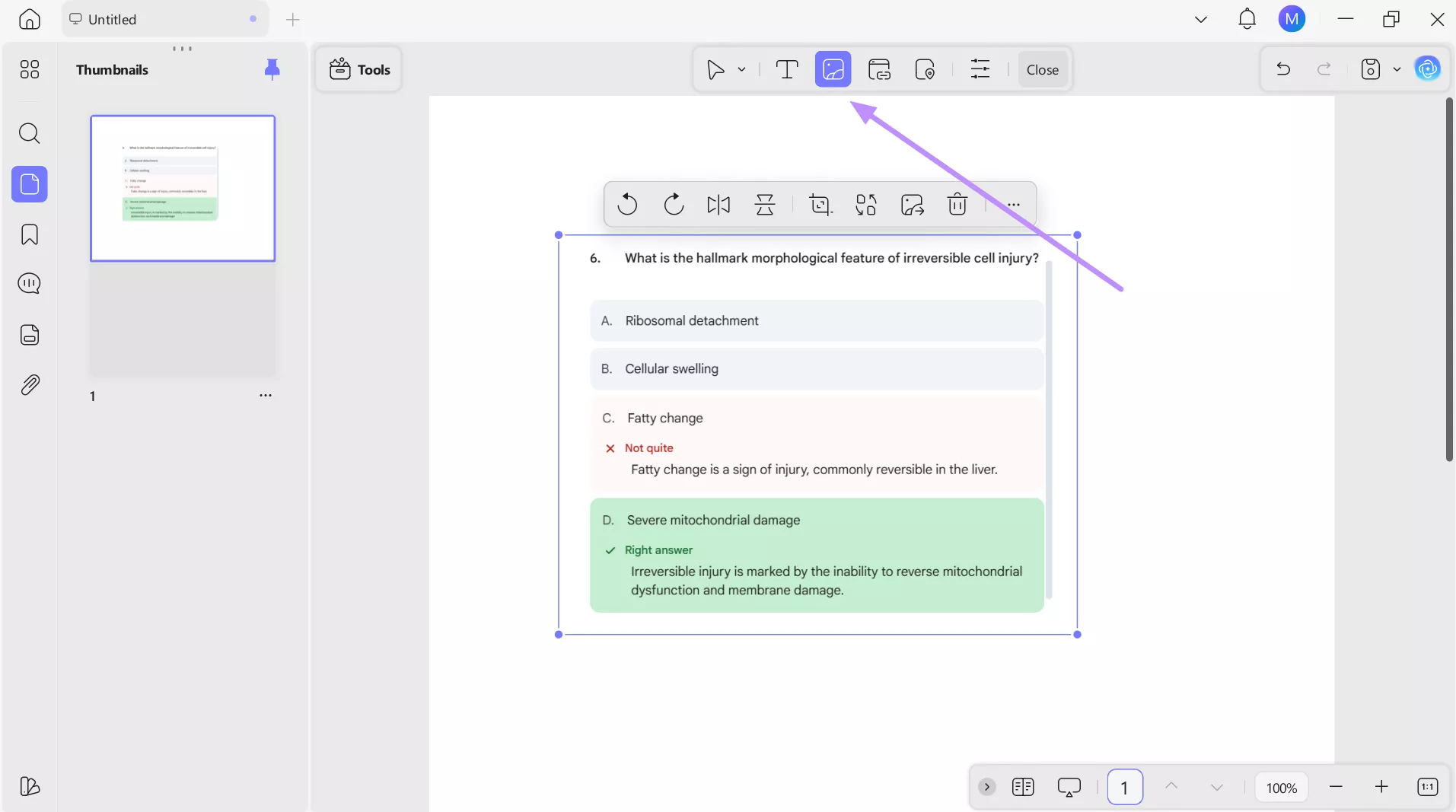
Step 4. Moving forward, switch to the Edit screen and click Insert & Edit Image to add your screenshots. Resize or crop them as needed to optimize clarity and layout.
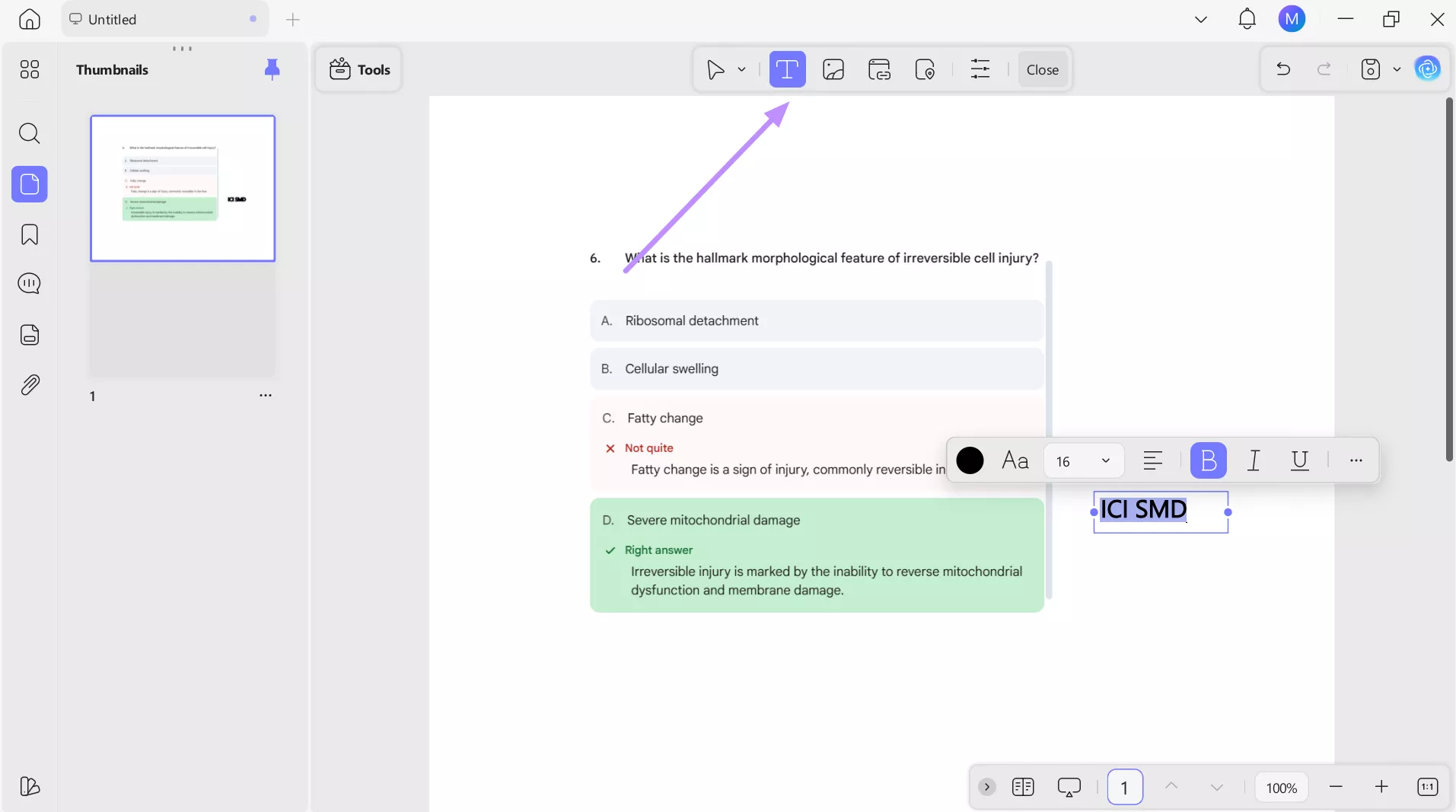
Step 5. Now, use the Insert & Edit Text tool to add your own quick notes next to each explanation.
USMLE Step 1 FAQ: Quick Stats & Strategies
Q1. Is Step 1 always 280 questions?
No that's not true. USMLE Step 1 isn't fixed at exactly 280 questions. It consists of approximately 7 blocks with 40 questions each that totals around 280 MCQs. Each block is timed for 60 minutes, and questions cover basic sciences and clinical applications essential for later USMLE steps and clinical rotations.
Q2. What is 75% on Step 1?
A 75% on Step 1 generally reflects above-average performance. This often translates to a score around 245 to 250, depending on the exam's difficulty curve. While Step 1 is now pass/fail, this percentage indicates strong comprehension of core basic sciences.
Q3. Is 4 months enough for USMLE Step 1?
Yes, 4 months can be sufficient if you have a solid foundation in basic sciences and commit to structured daily study. Using resources like UWorld and active review techniques can make this period highly effective. Consistency and building a "mistake vault" for weak areas are key to maximizing this timeline.
Conclusion
USMLE Step 1 preparation is not a tough task. By using a combination of Gemini and UPDF, you create a high-yield workflow that turns mistakes into lasting knowledge.
This "Double-Threat" approach maximizes retention and makes your study time far more effective. For any medical student aiming to master Step 1 efficiently, UPDF is a perfect tool to organize, annotate, and review smarter.
Windows • macOS • iOS • Android 100% secure







 Delia Meyer

 Enola Miller
 Engelbert White
 Enrica Taylor