UPDF
UPDF
 UPDF for Windows
 UPDF for Mac
 UPDF for iPhone/iPad
 UPDF for Android
 UPDF AI Online
 UPDF Sign
 Edit PDF
 Annotate PDF
 Create PDF
 PDF Form
 Edit links
 Convert PDF
 OCR
OCR PDF to Word
 PDF to Image
 PDF to Excel
 Organize PDF
 Merge PDF
 Split PDF
 Crop PDF
 Rotate PDF
 Protect PDF
 Sign PDF
 Redact PDF
 Sanitize PDF
 Remove Security
 Read PDF
 UPDF Cloud
 Compress PDF
 Print PDF
 Batch Process
 About UPDF AI
 UPDF AI Solutions
 AI User Guide
 FAQ about UPDF AI
 Summarize PDF
 Translate PDF
 Chat with PDF
 Chat with AI
 Chat with image
 PDF to Mind Map
 Explain PDF
 PDF AI Tools
 Image AI Tools
 AI Chat Tools
 AI Writing Tools
 AI Study Tools
 AI Working Tools
 Other AI Tools
 AI Bookmark Generation
 AI Bookmark Summary
 AI Watermark Generation
 AI Background Generation
 AI Sticker Generation
 AI Stamp Generation
 AI Editing Suite
 UPDF Copilot
 AI Page Management
 AI Semantic Search
 PDF to Word
 PDF to Excel
 PDF to PowerPoint
 Enterprise Solution
 Enterprise Sign
 Enterprise AI
 Enterprise Plan
 Enterprise User Guide
 Enterprise Webinar
 Banking
 Healthcare
 Insurance
 Legal
Legal Manufacturing
 Government
 Education Solution
 Customer Stories
 User Guide
 UPDF Tricks
 FAQs
FAQs UPDF Reviews
 Download Center
 Blog
Blog Newsroom
 Tech Spec
 Updates
 UPDF vs. Adobe Acrobat
 UPDF vs. Foxit
 UPDF vs. PDF Expert

Generic AI chat tools often gave me messy results that never fit real classroom workflows. Other teachers suggested MagicSchool AI as a platform built for schools, saving planning hours. Despite that promise, most of my daily frustration actually came from handling endless PDFs. Those files included research articles, scanned tests, worksheets, and policy documents needing attention.
That problem led me to discover UPDF AI, which works directly with documents. This article compares UPDF AI vs MAGiCSCHOOL AI using real daily classroom experience. Read to the end to learn how to use MagicSchool AI and why documents matter.
Part 1. What is MagicSchool AI
When people ask, “what is MagicSchool AI?”, I describe it as an education-focused AI platform built for schools. It works directly inside a web browser and also functions as a Chrome extension. MagicSchool AI avoids open chat replies and instead uses structured, task-based teaching tools. Each tool targets lessons, assessments, or classroom communication with guided inputs. Thus, this design reduces guesswork and helps teachers complete planning tasks faster every day.
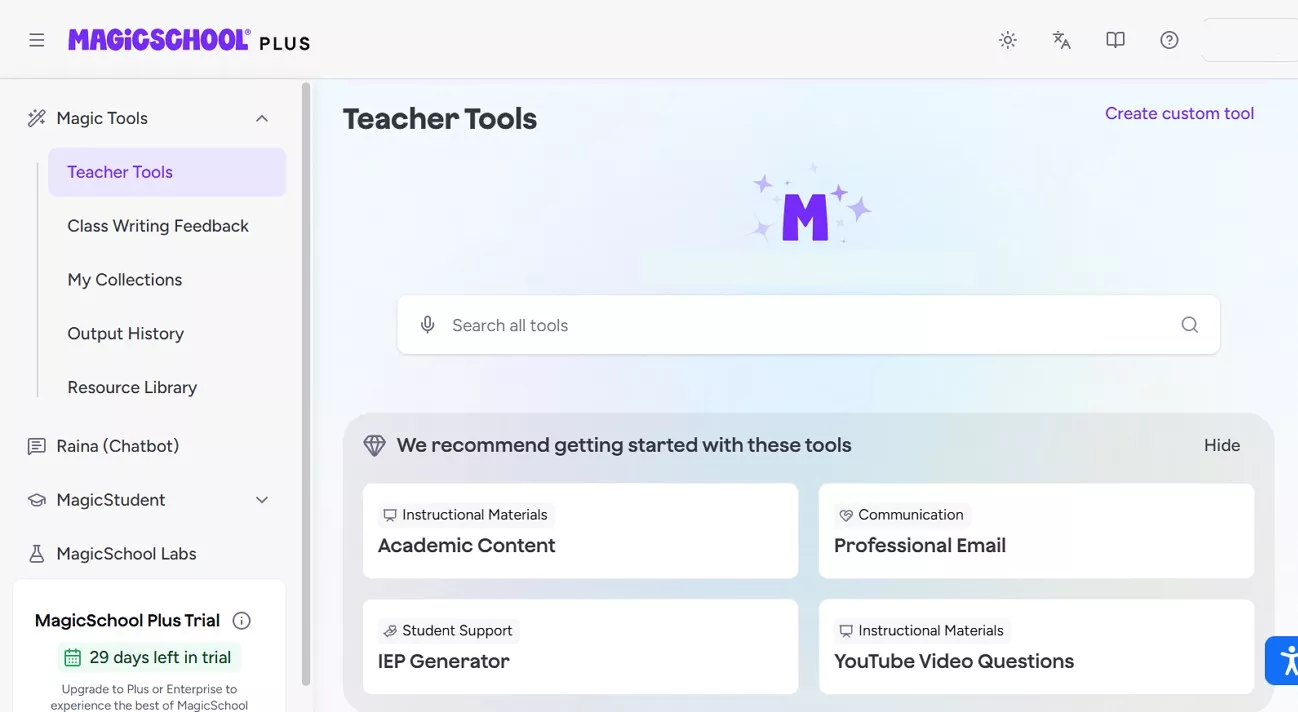
Features And Capabilities
To understand UPDF AI vs MAGiCSCHOOL AI, it helps to see where MagicSchool AI is strongest. MagicSchool offers more than 80 tools for educators and over 50 tools for students. Below are examples from different categories that I used regularly:
- Lesson Plan Generators: These tools create structured lesson plans using grade level, subject, objectives, and standards. I used them to quickly draft daily and weekly lessons without starting from scratch.
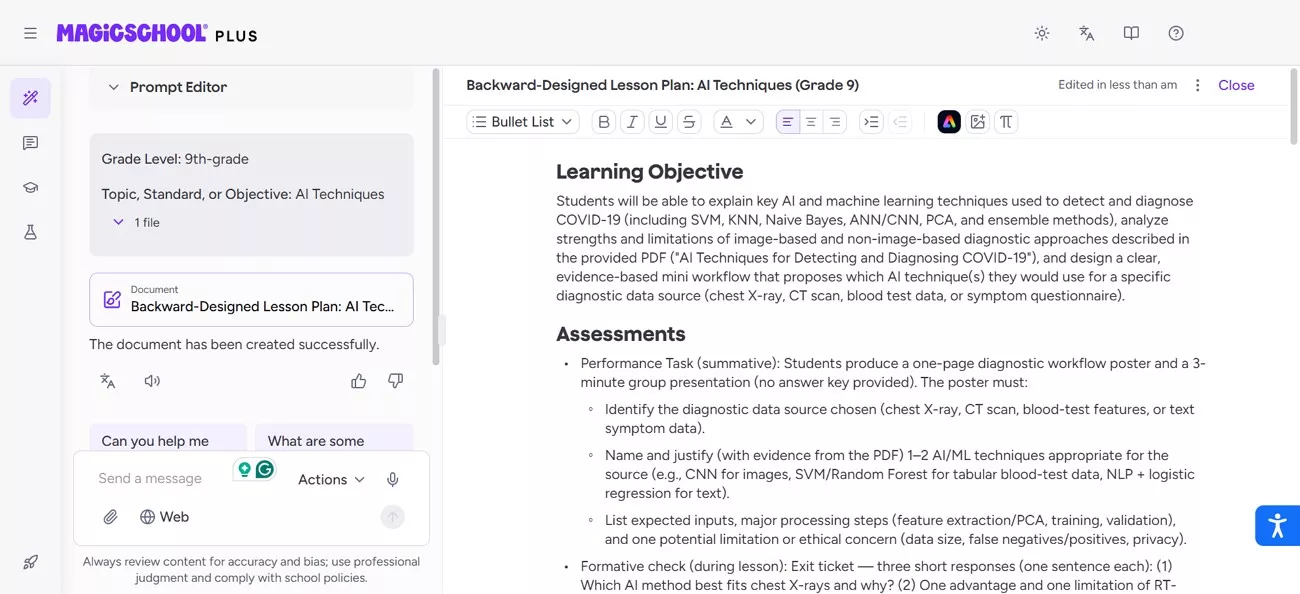
- Assessment and Quiz Builders: MagicSchool AI generates quizzes, exit tickets, and practice questions in multiple formats. This helped me prepare assessments faster while keeping alignment with learning goals.
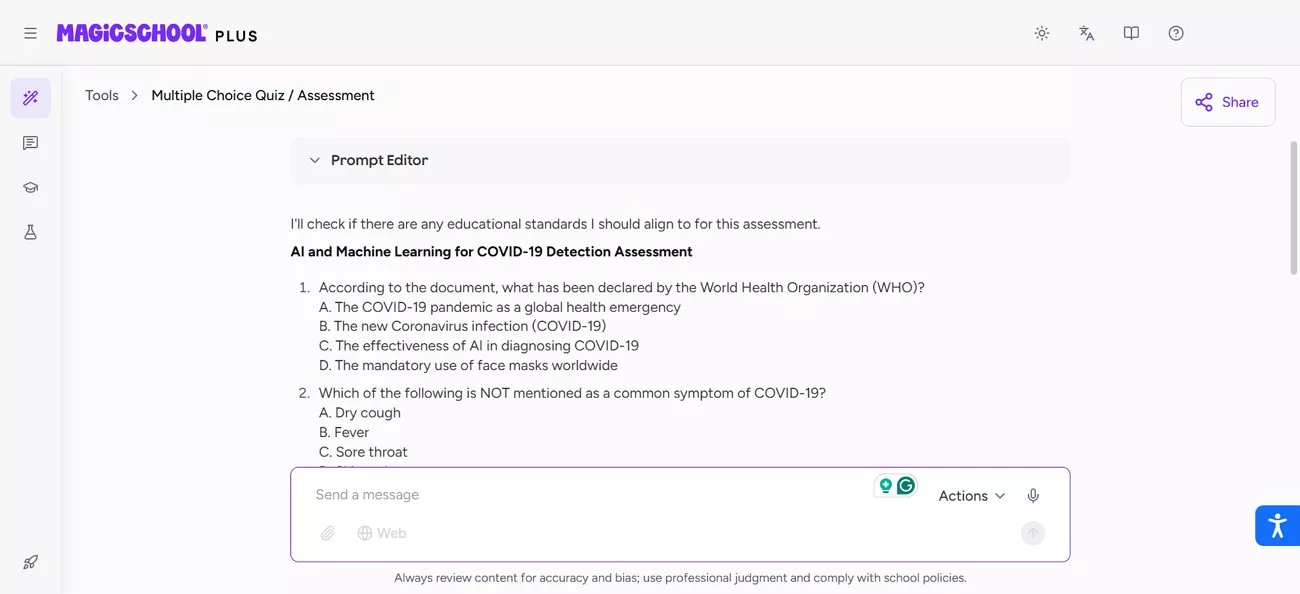
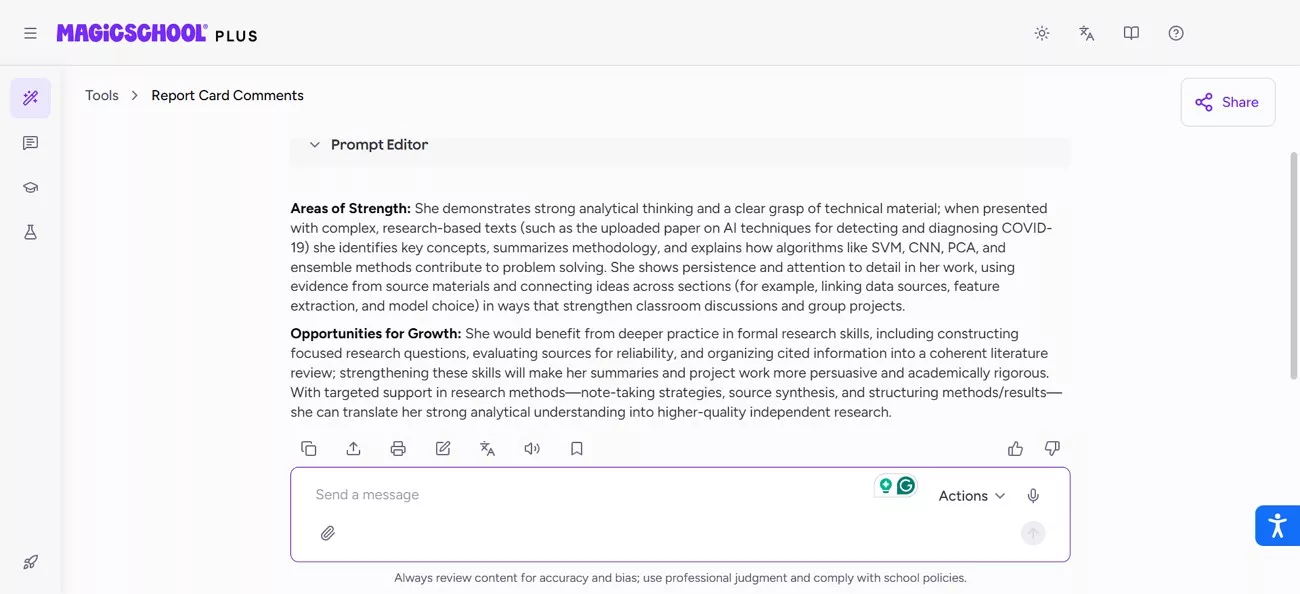
- Report Card Comments: At grading time, this tool drafts personalized report card comments quickly. It reduces repetitive writing while still reflecting each student’s performance.
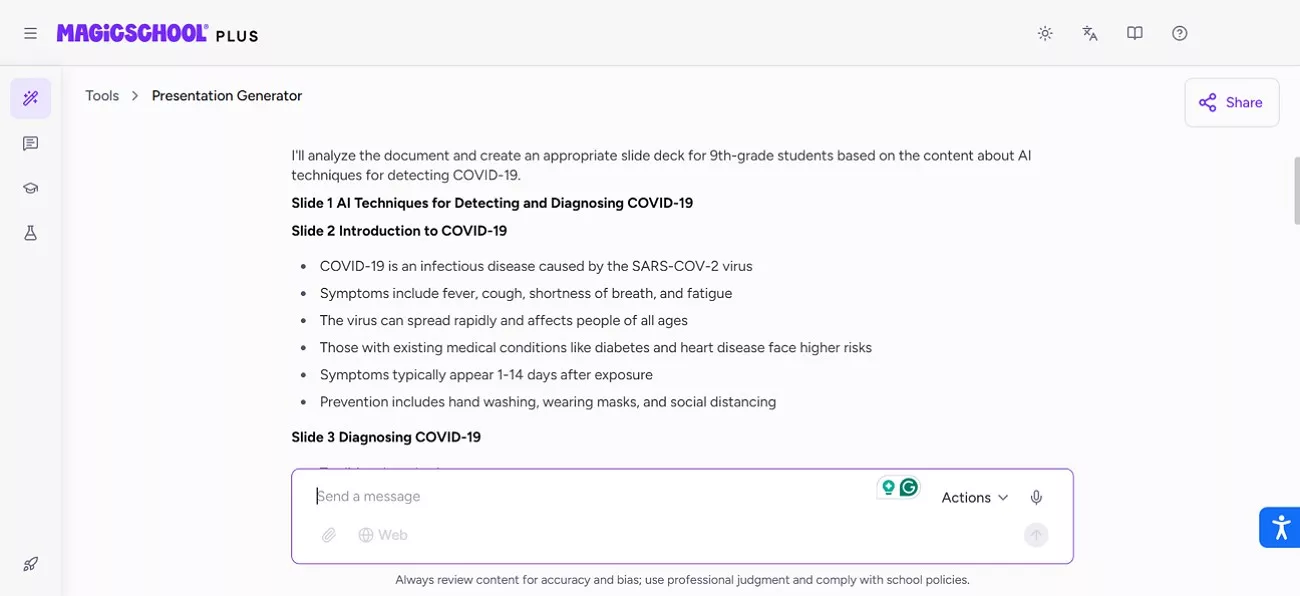
- Presentation Generator: Before teaching, this tool outlines slide content from topics or materials. The tool lets me focus on refining visuals instead of starting presentations empty.
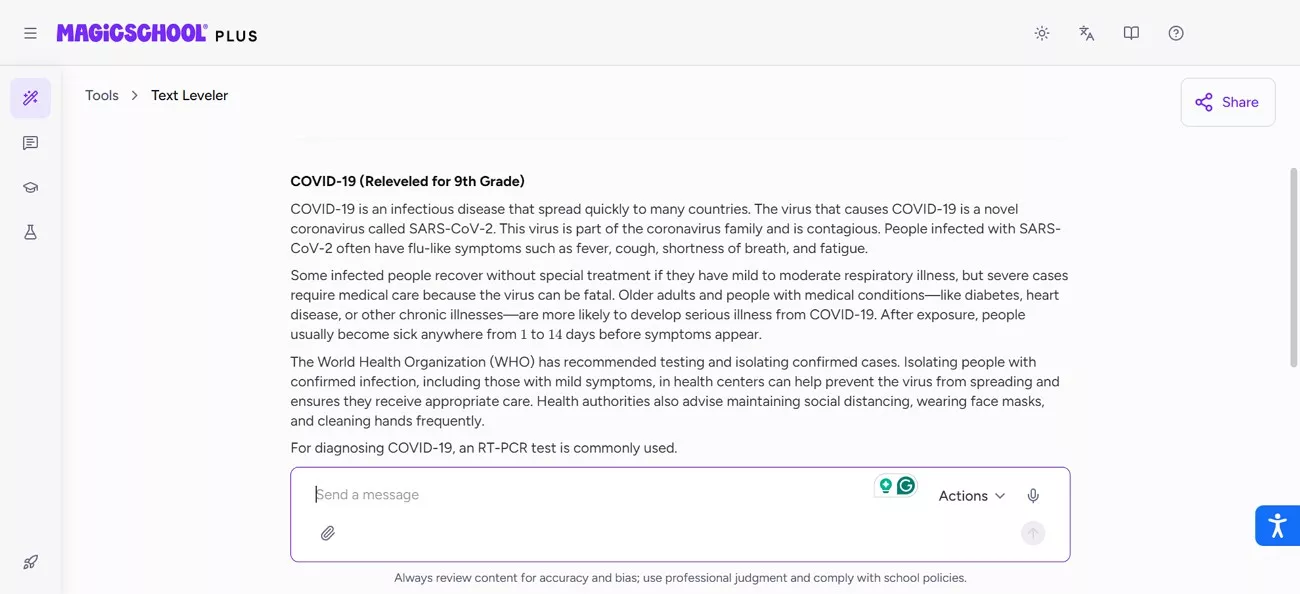
- Text Leveler: For differentiated instruction, this tool adjusts reading levels without changing core meaning. It helps me support struggling readers while keeping lesson content consistent.
How to Use MagicSchool AI
When colleagues ask how to use MagicSchool AI, I usually explain it as a short, repeatable workflow that feels familiar after one session. The platform is designed so I can move from login to usable classroom content without guessing prompts or settings. Below is the exact process I follow, which also matches the official walkthrough materials:
Step 1. First, I sign up using my email through the browser, then I log in directly through the browser or use the Chrome extension for faster access during planning time.

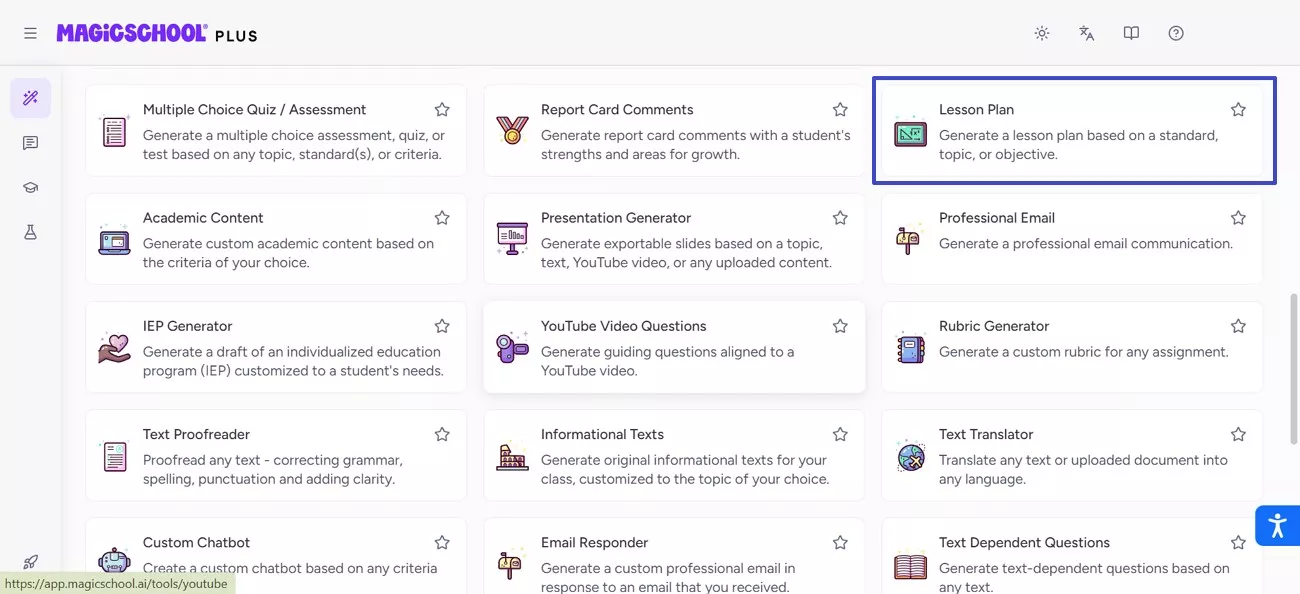
Step 2. Next, I choose a specific tool like “Lesson Plan” from the dashboard to continue.
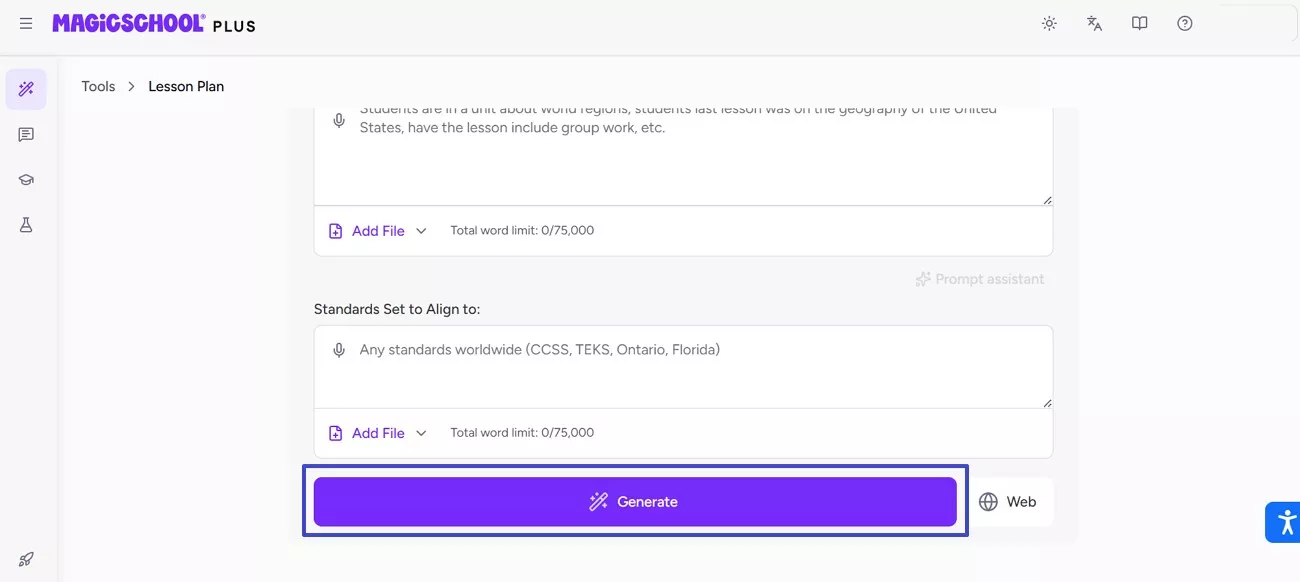
Step 3. Afterwards, I enter guided prompts, including grade level, subject, topic, and standards length, then press “Generate” to proceed.
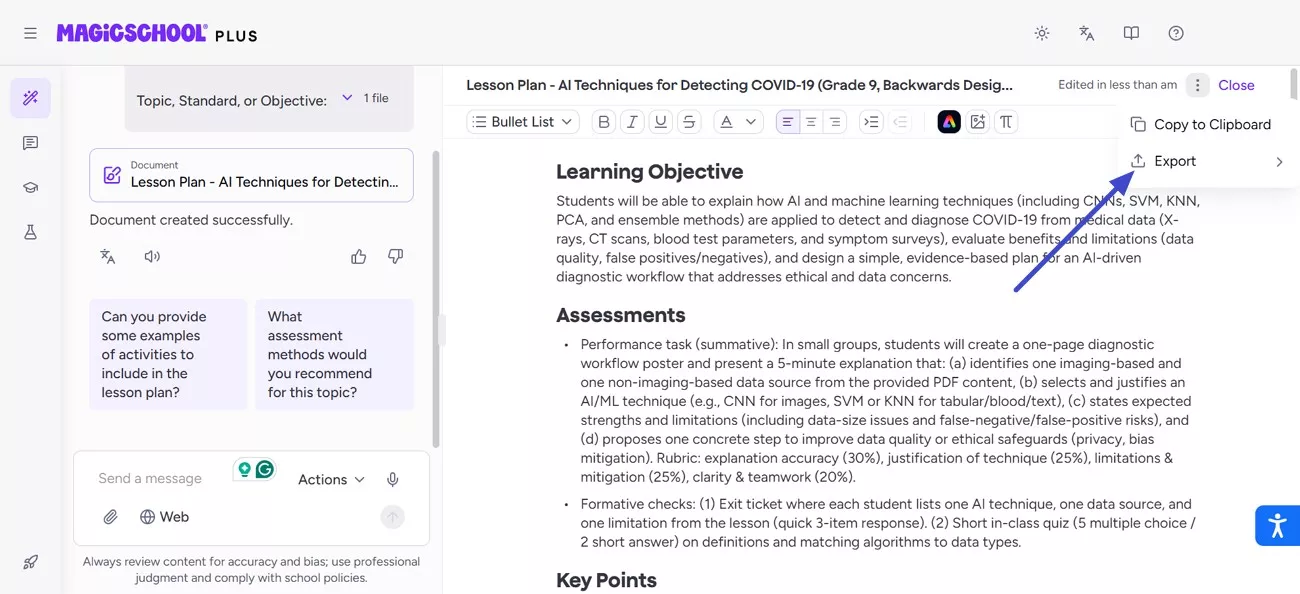
Step 4. Lastly, I review the results, and then I click the “Three Dots” on the top left side to “Copy” or “Export” the content into my lesson plans, documents, or classroom tools.
Pricing and Value Position
- Free Plan ($0/mon): Great for starting and testing core tools, with usage limits.
- Plus Plan ($12.99/mon): Best for regular teacher use with unlimited access.
- Enterprise Plan (Custom): Ideal for schools, districts, and admins with advanced needs.
Ratings
Rating: 4.7/5
Users’ Review
- Gone are the days of spending hours writing out the same types of comments on each student’s paper. Magic School AI offers real-time, personalized feedback that’s specific to each student’s writing... - Marie P.
- I've been using MagicSchool to help me come up with teaching content, but for everything I create, I can't see why I wouldn't just use ChatGPT, which usually gives me better results. I feel like the only advantage MagicSchool has over chatGPT is that you don't have to type out the full message… - donovan0902
User Experience
Using MagicSchool AI feels straightforward because each tool has a clear purpose. I choose a task, fill in prompts, and review the output. It works well for generating new content from prompts. However, it does not focus on deeply reading, summarizing, or editing the PDFs I already work with, which limits its role in document-heavy tasks.
Part 2. What Is UPDF AI and Why I Needed It
After testing lesson-generation tools, I realized my biggest challenge was never planning ideas. Most daily work instead involved long PDFs, including research papers, scanned exams, worksheets, and policy documents. This gap became clear while comparing UPDF AI vs MAGiCSCHOOL AI across real workflows. One tool focuses on templates, while the other works directly with documents I already use.
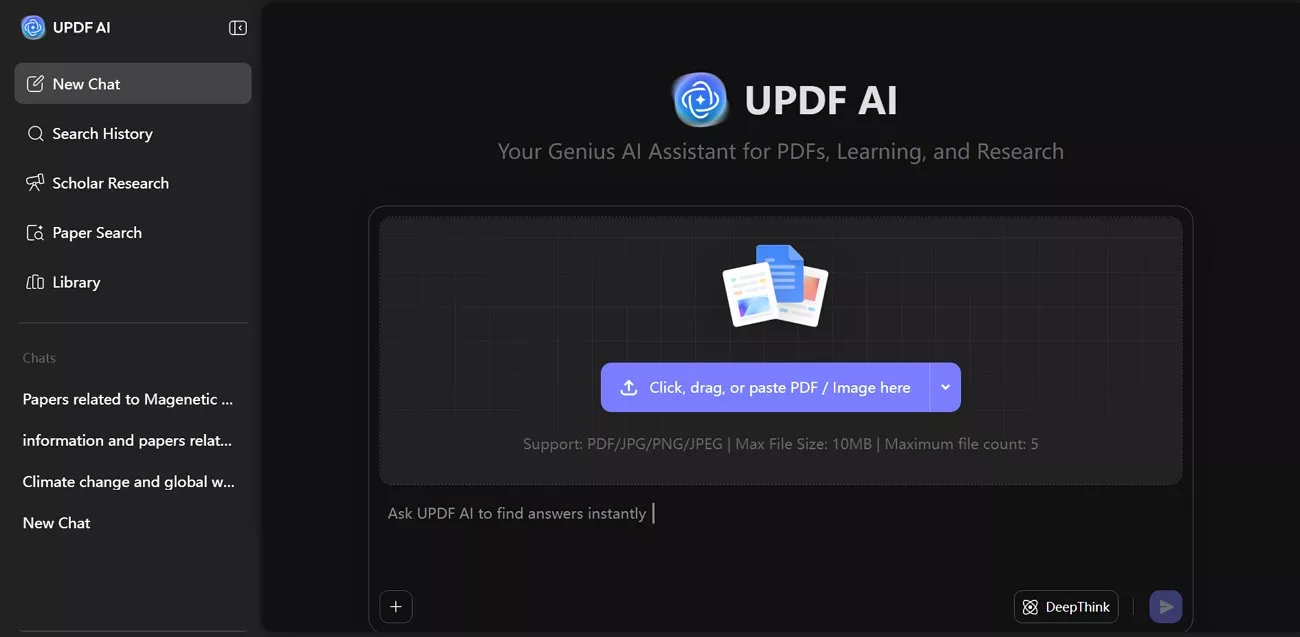
That realization led me to UPDF AI, an AI assistant built directly into a PDF editor - UPDF. UPDF AI reads, summarizes, explains, translates, and chats with the exact documents I upload. Instead of pasting text into chat tools, I interact with files themselves. This design makes UPDF AI practical for document-heavy academic and teaching workflows daily.
About UPDF:
Windows • macOS • iOS • Android 100% secure
Features And Capabilities
What makes UPDF AI different for me is that it works inside a full PDF environment, not beside it. I am not switching between tools or copying text into chat boxes. I work on the document first, then use AI to improve it.
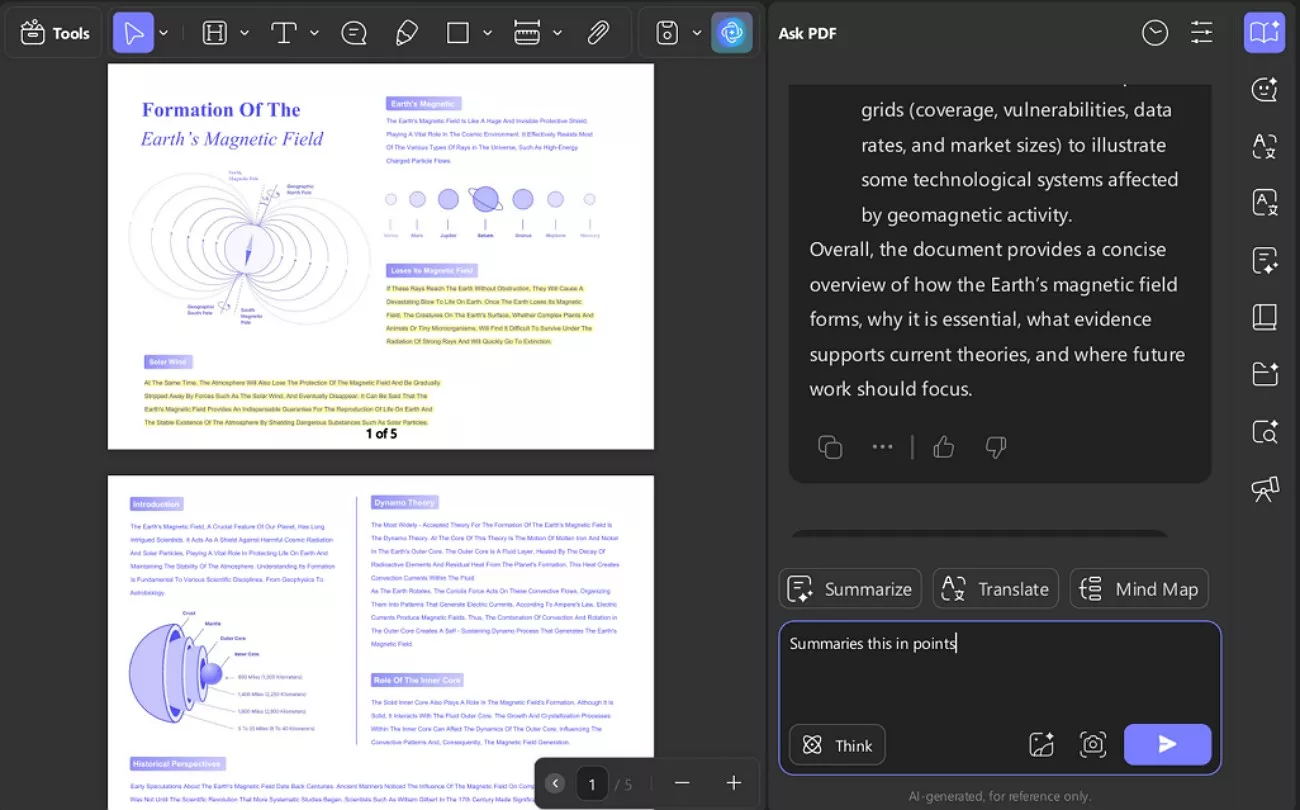
- Document Chat: UPDF AI lets me chat directly with my PDFs to understand content faster. I can ask questions, request explanations, or clarify sections without leaving the file. This feature is built into the core editor described in the UPDF Overview.
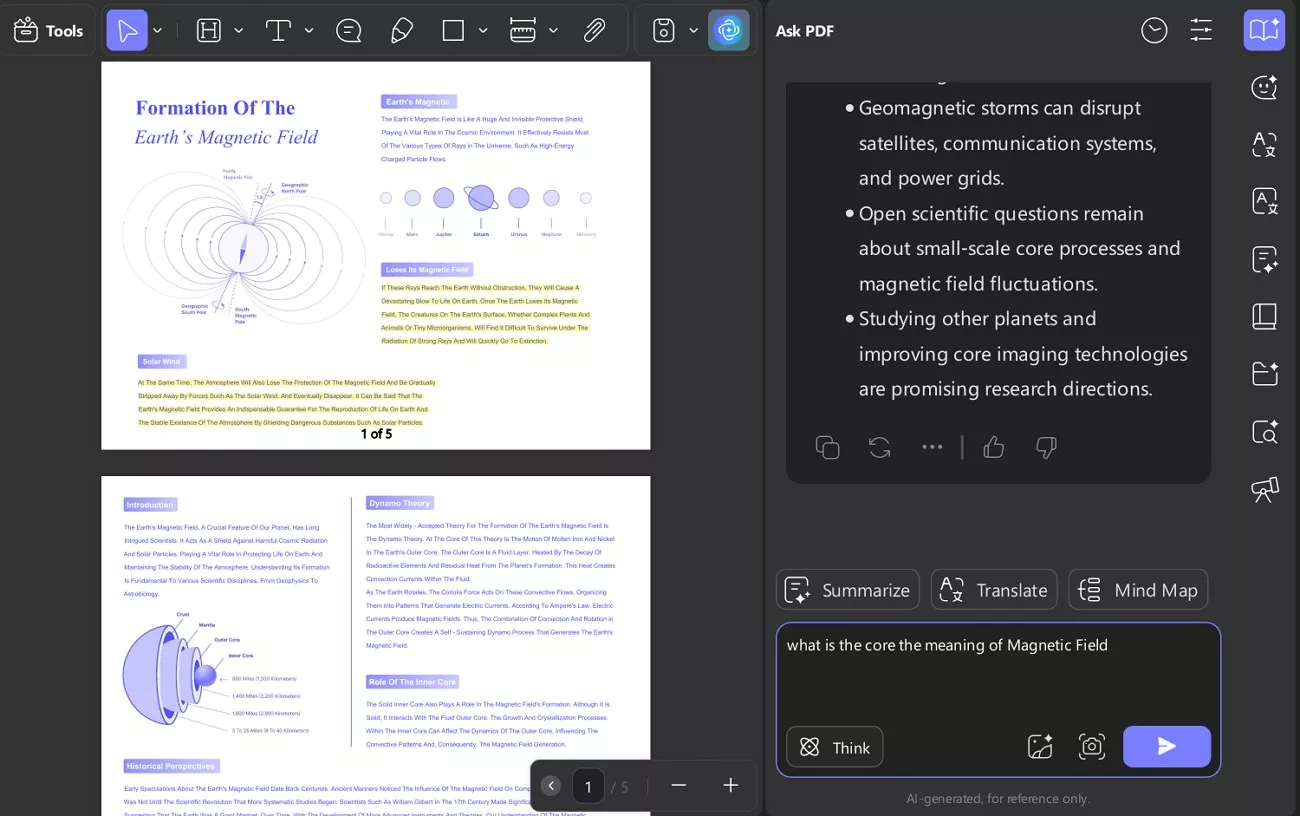
- Smart Summaries: When documents are long, I ask UPDF AI to summarize sections or extract key points. This helps me review research papers, policies, or worksheets quickly while staying accurate to the original text.
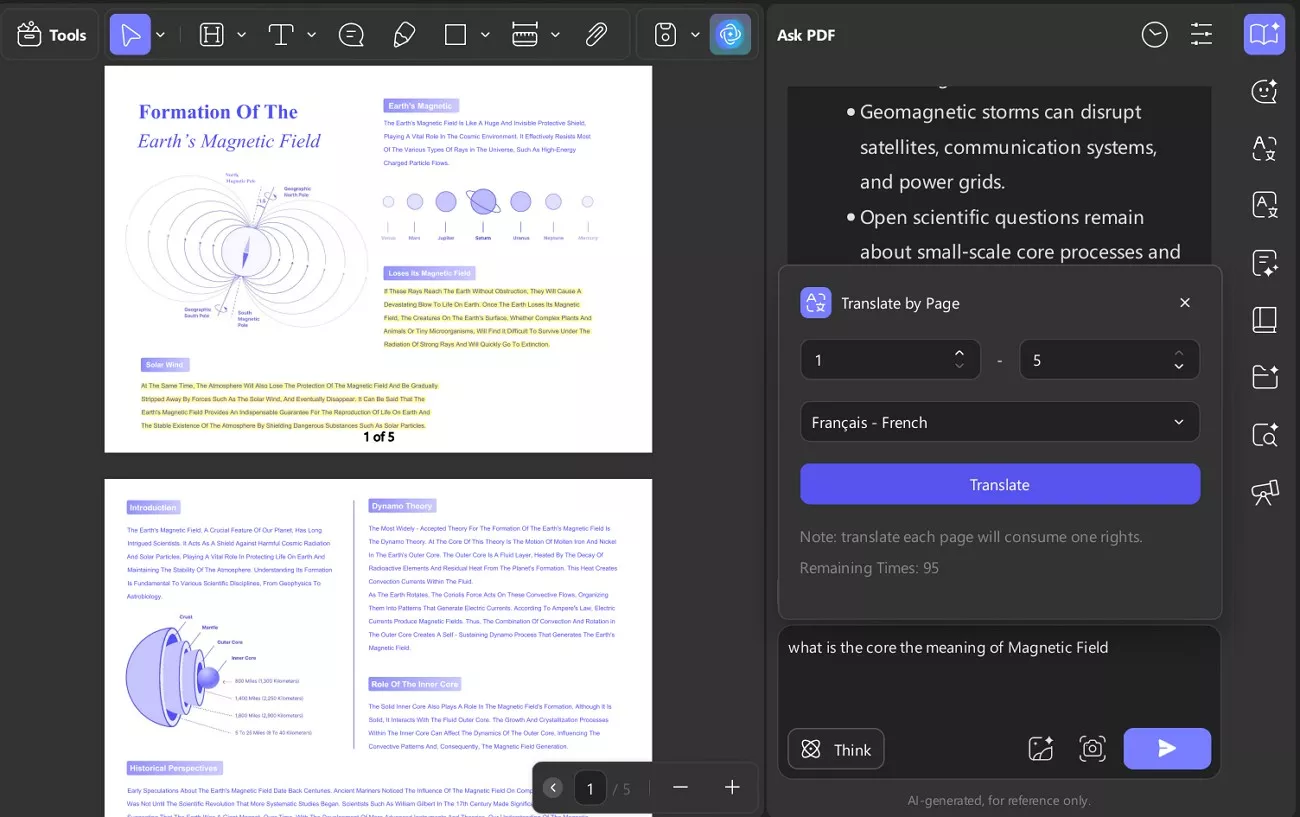
- Content Refinement: UPDF AI explains complex paragraphs, translates content, and rewrites sections more clearly. I apply this after highlighting text so responses stay tied to the selected context.
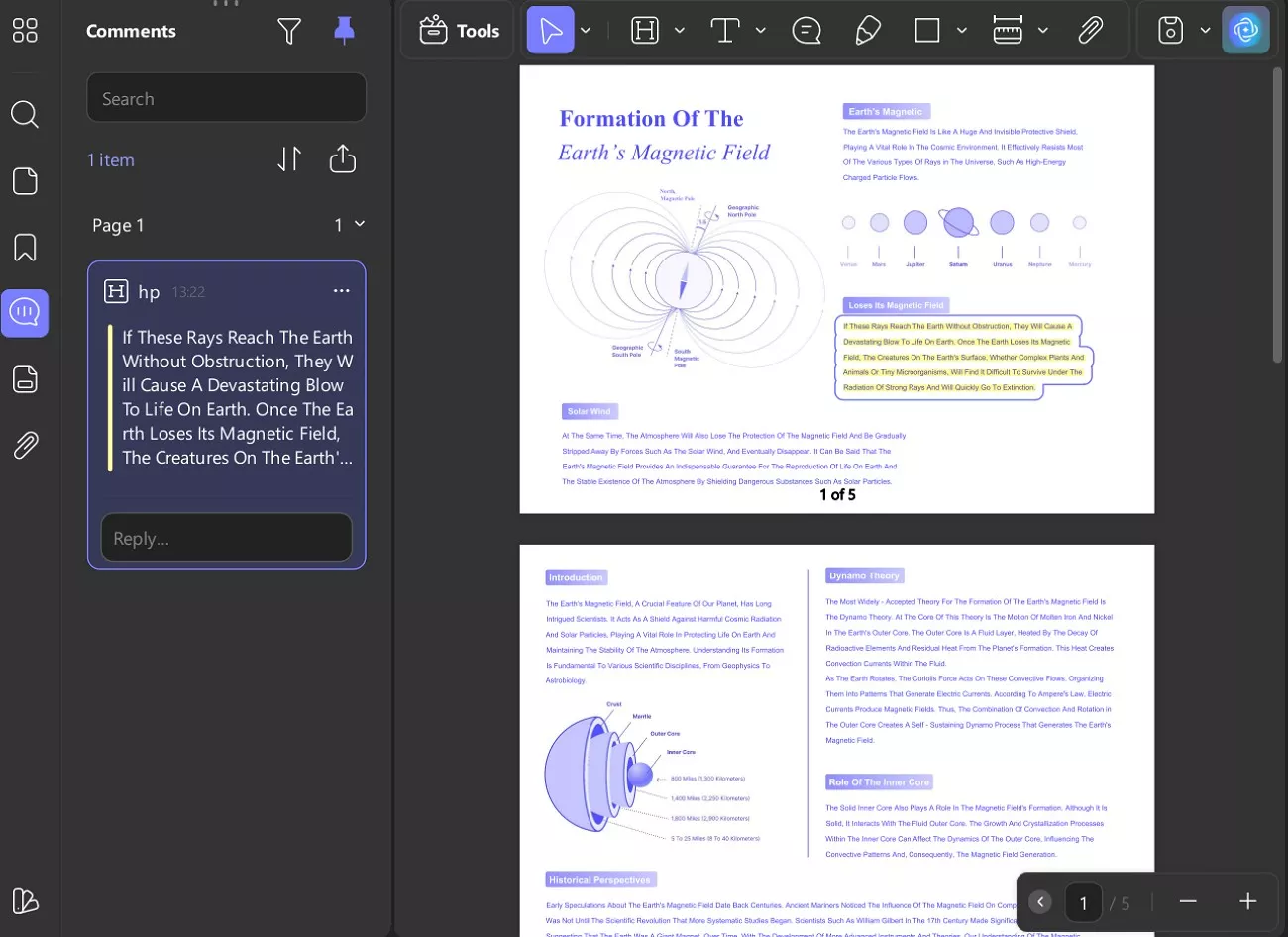
- PDF Annotation: Since UPDF AI lives inside a full editor, I can highlight text, add comments, rearrange pages, and edit text or images. After making changes, I use AI to refine wording or extend existing sections. These workflows are explained clearly in the UPDF Annotate PDF.
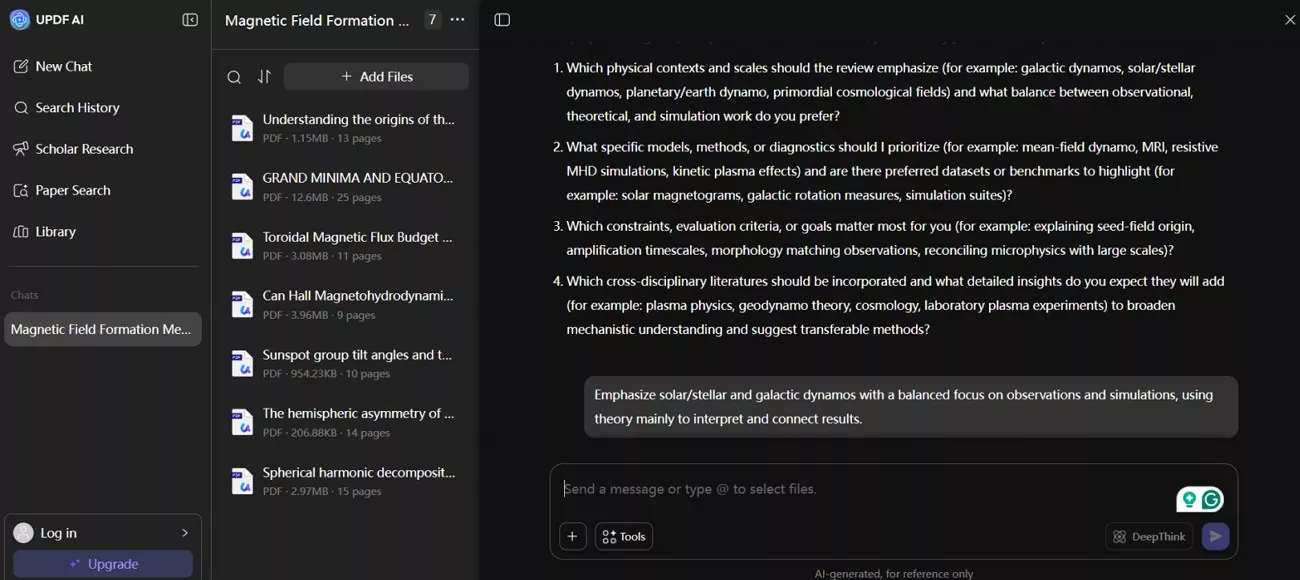
- Research Tools: These features help me find academic materials using Paper Search and Scholar Research. I rely on them when documents require reliable references or structured research insights.
How to Use UPDF AI
Now, review the stepwise guide below to use UPDF AI with ease:
Windows • macOS • iOS • Android 100% secure
Step 1. Access UPDF to Add PDF to Proceed
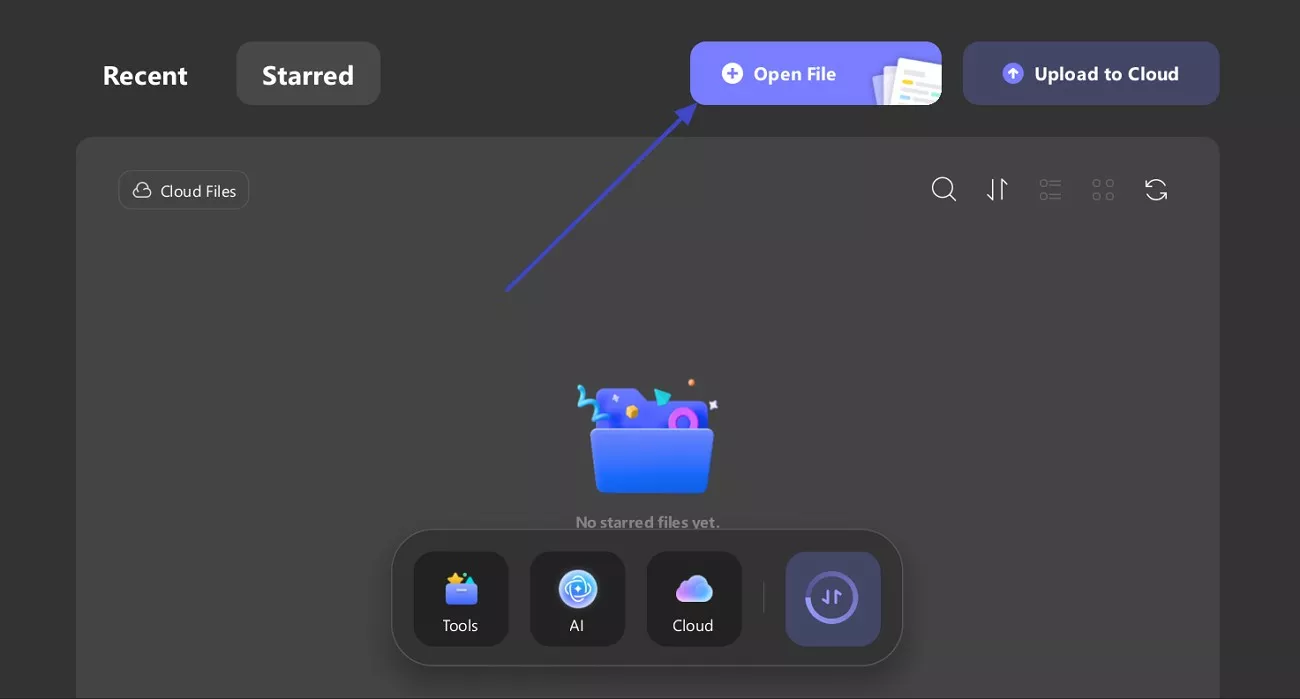
I start by clicking on “Open File” to add a PDF file, such as a research paper, scanned exam, worksheet, or policy document. This step ensures the document is active and ready for editing or AI interaction.
Step 2. Annotate or Edit the Document
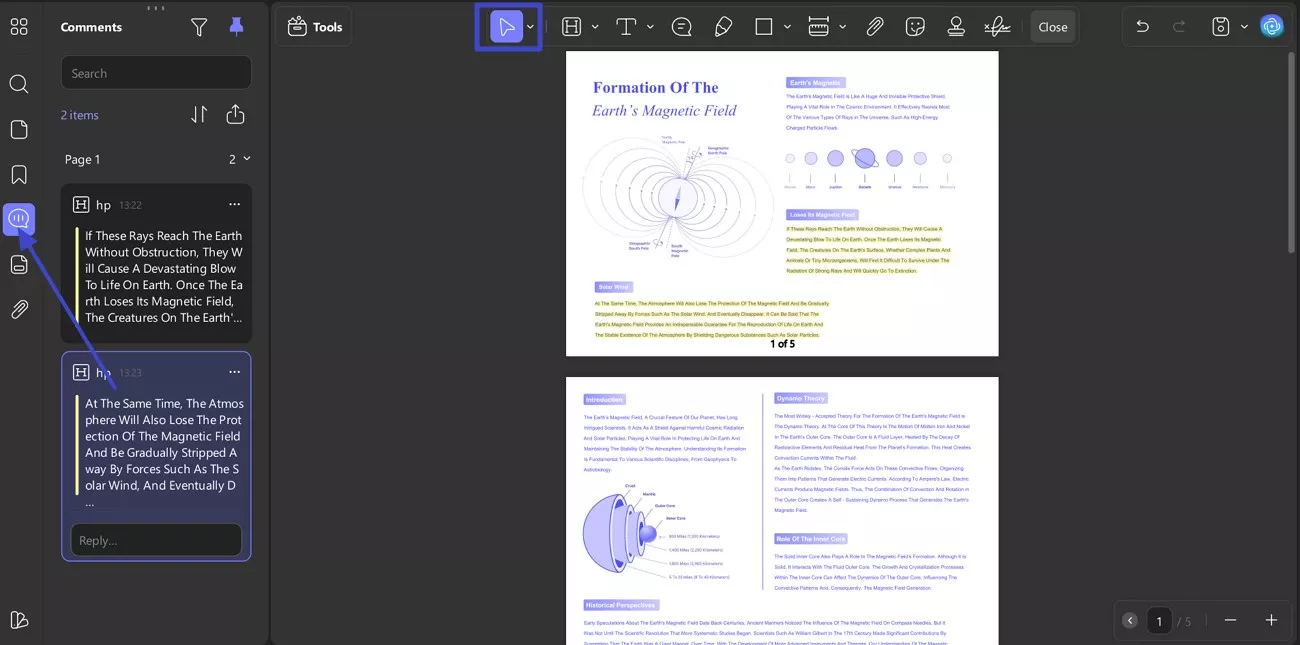
After that, I navigate to “Comment”, choose “Annotate” tool to highlight text, add comments, rearrange pages, or edit text and images.
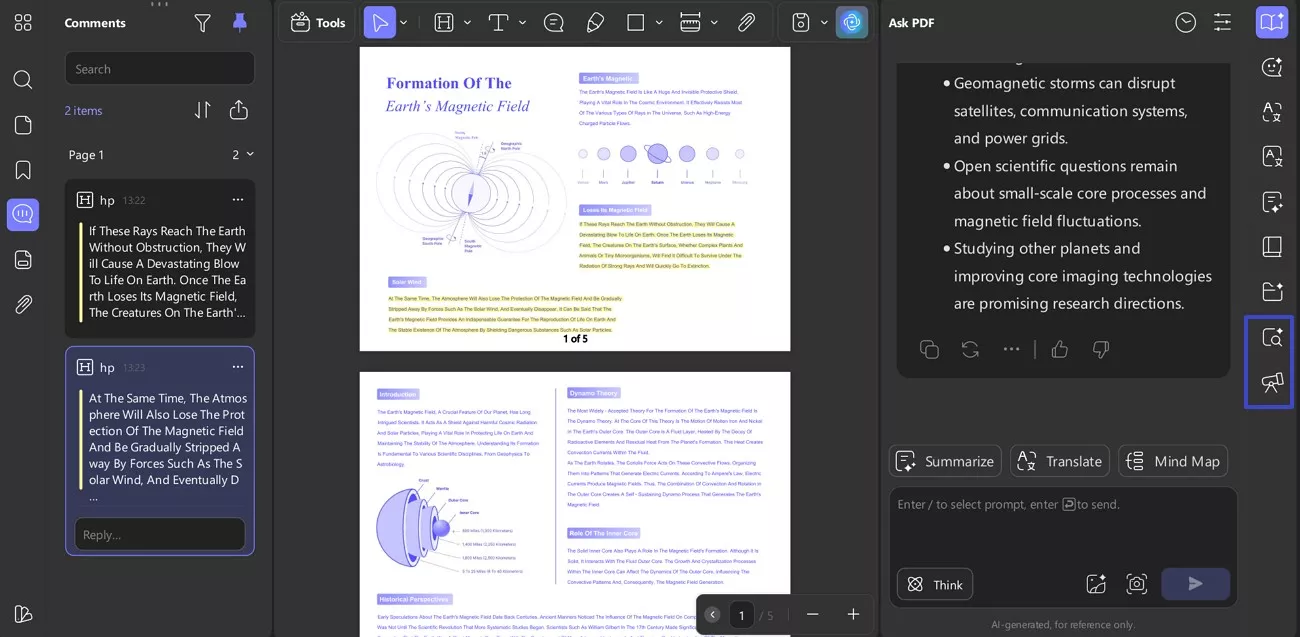
Step 3. Locate the UPDF AI Panel
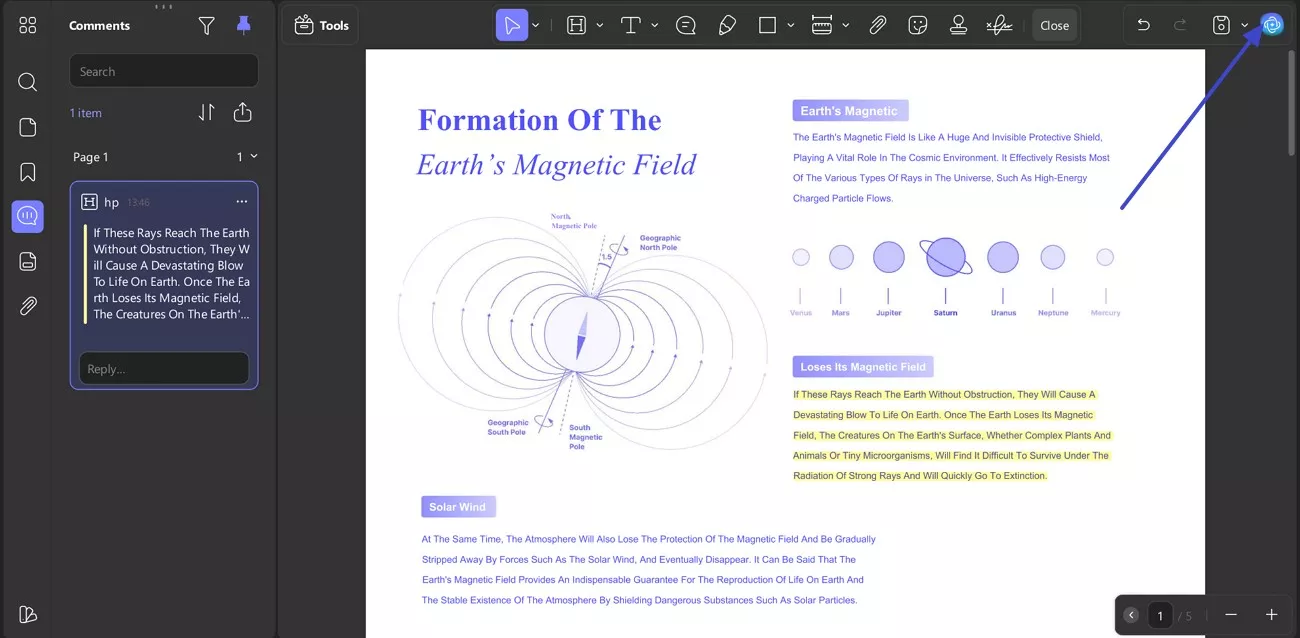
Now, locate and click the “UPDF AI” icon in the interface to open the AI panel. The panel allows me direct interaction with the currently opened document.
Step 4. Ask Document-Based Questions
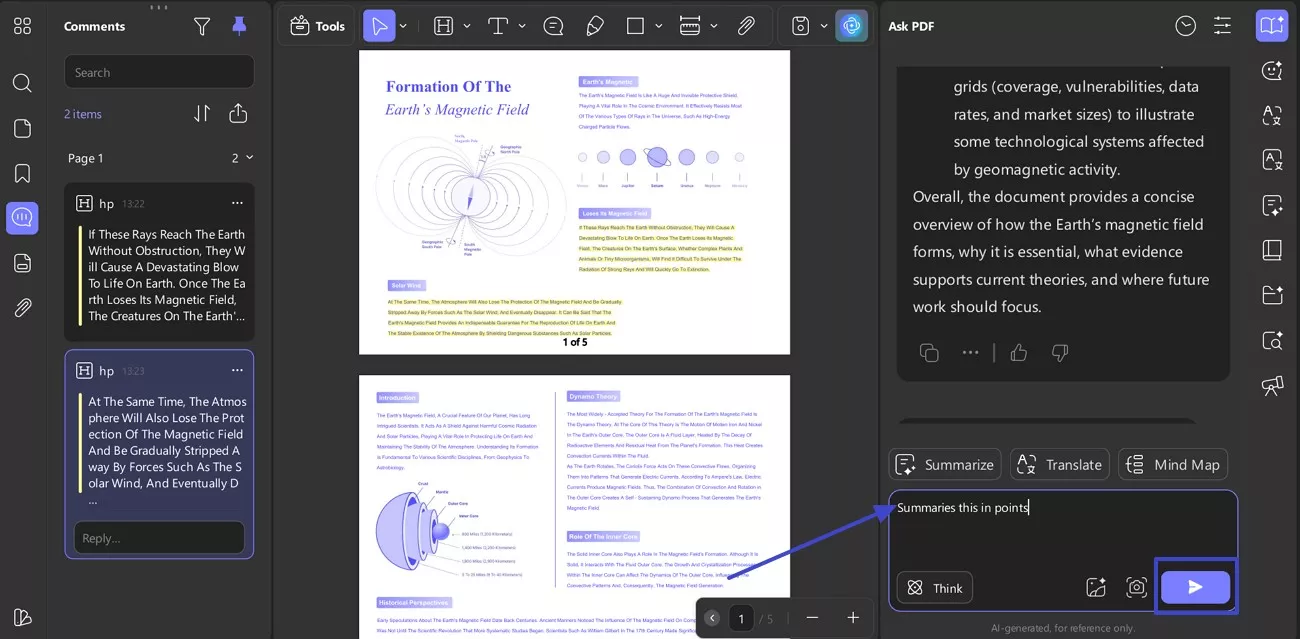
Here, I enter prompts such as summaries, key points, vocabulary lists, quiz questions, or mind map generation, and press the “Generate” icon. All responses are generated strictly from the content of the active document.
Step 5. Use Online Research Features
Later, I select “Paper Search” from the right panel to find supporting materials. This features provide me with external references while remaining connected to the document workflow.
Step 6. Run the Search in UPDF AI Paper Search
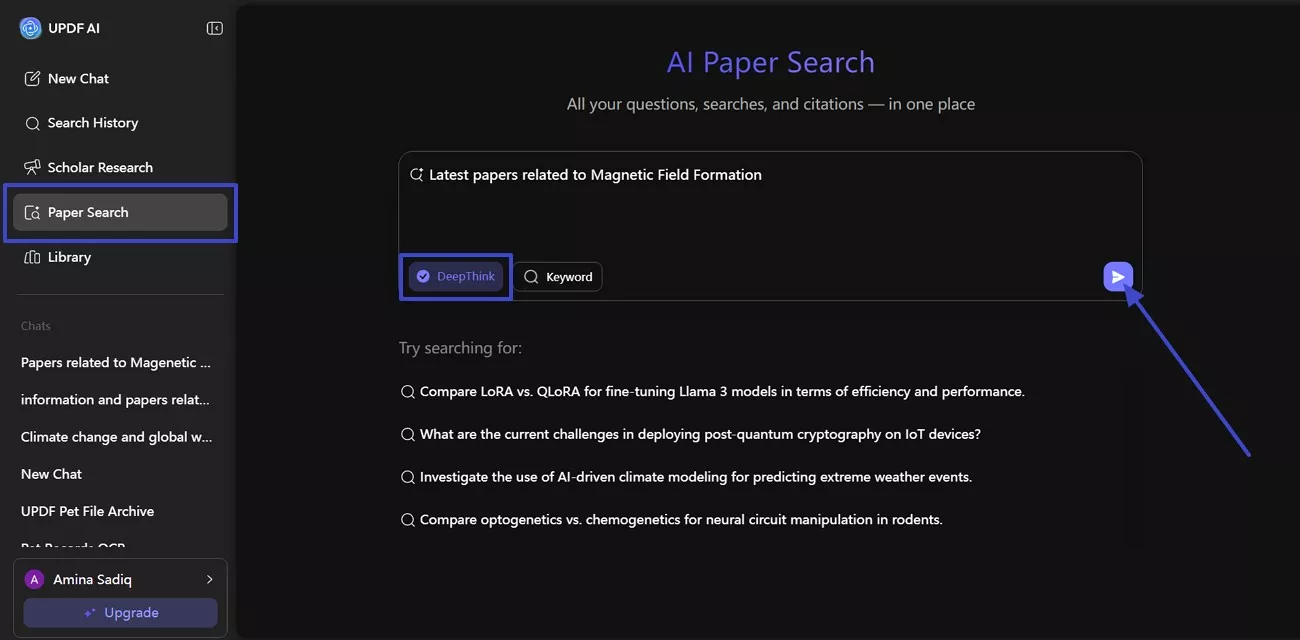
In the “Paper Search” screen, I enter the “Prompt” and choose “DeepThink” to get more detailed and research-focused results. After that, I click the “Arrow” button on the right to proceed. Now, UPDF AI immediately starts searching for the latest academic papers related to my topic and displays relevant results.
Pricing and Value Position
- Free Plan ($0): Good for basic PDF viewing and light testing, with watermarks and feature limits.
- UPDF Pro Yearly (~$49.99/year): Full PDF editing access, including annotation, editing, and file management tools.
- UPDF Pro Lifetime (~$79.99 one-time): One-time purchase for permanent access to all core PDF editing features.
- AI Assistant Add-On Yearly Subscription (~$118.99/year ): Adds unlimited AI features such as document chat, summaries, mind maps, and research tools.
Windows • macOS • iOS • Android 100% secure
Ratings
Rating: 4.5/5
- I like that I can OCR scan any PDF's that doesn't use text, and I like the AI summaries and capabilities built right in to make it easy to get the data I need without having to read the whole document. It saves a lot of time using this tool to review PDFs. I use it every day with all PDFs.-Joseph S. K.
- Considering the price, I appreciate that UPDF allows me to do almost anything I need when editing a document. I find it convenient to edit or delete text to make corrections, and I also value the ability to sign documents whenever necessary…-Oscar M.
User Experience
After learning “what is MagicSchool AI”, I noticed how different UPDF AI feels in daily use. Instead of starting with prompts or templates, I begin with real documents already open on my screen. The AI responds to highlighted text, edits, and annotations inside curriculum PDFs or student work. This document-aware workflow keeps outputs specific and practical, avoiding the generic feel common in template-based tools.
Part 3. UPDF AI vs MagicSchool: How They Fit into My Workflow
After spending time with both tools, the difference between UPDF AI vs MAGiCSCHOOL AI becomes clear when I look at how my daily work actually flows. Each platform solves a different problem, and neither fully replaces the other.
| Aspect | MagicSchool AI | UPDF AI |
| Core purpose | A platform built for schools and districts to generate lesson plans, activities, rubrics, emails, and classroom materials. | AI-powered PDF workspace for reading, summarizing, annotating, editing, and managing documents. |
| Main users | Teachers, students, and administrators work within a school ecosystem. | Teachers, researchers, and professionals who work daily with PDFs. |
| Input style | I start with a topic or standard and fill guided forms to generate content. | I start with an existing PDF and interact directly with its content |
| How to use experience | Pick a tool, follow structured prompts, then refine generated results. | Open a PDF, annotate or edit, then chat with the document using AI. |
| Content source | AI generates new content based on prompts and templates. | AI responds only to the actual text inside uploaded documents. |
| Integration | Connects with Google Docs, Classroom, Canvas, and district dashboards. | Works across desktop, mobile, and web with local and cloud file systems. |
| Strengths I feel | Fast lesson ideation, education-specific templates, and a student-safe environment. | Deep document understanding, research support, and full PDF handling. |
| Main limitation for me | Not designed for deep reading or managing large PDF collections. | Not a learning management system or school-wide administration platform. |
Most days, my work involves reviewing policies, research papers, worksheets, and scanned assessments. These documents already exist, so generating templates alone does not solve my problem. MagicSchool helps before documents exist but struggles once heavy PDF reading begins daily. UPDF AI lets me question, summarize, and refine those files directly inside projects. That document-level focus consistently saves time when deadlines and workloads overlap frequently.
Windows • macOS • iOS • Android 100% secure
Part 4. Frequently Asked Questions
Q1. Is MagicSchool AI legit?
Yes, MagicSchool AI is a legitimate education-focused platform used by teachers worldwide. It is designed specifically for classroom tasks rather than open-ended general chat use. From my experience, it performs reliably for lesson planning, assessments, and classroom feedback generation. Schools often adopt it because workflows emphasize structural safety and alignment with teaching standards.
Q2. Who owns MagicSchool AI?
MagicSchool AI is developed and maintained by an education technology company called MagicSchool. The company works closely with educators to shape tools around real classroom requirements. It operates as a commercial platform rather than an experimental or personal side project.
Q3. What are the limitations of MagicSchool AI?
The main limitation is its focus on generating content instead of managing existing documents. It works best when starting from prompts rather than reading complex PDF files. MagicSchool AI is not designed for deep PDF annotation editing or document organization. The platform does not publicly share a single exact knowledge cutoff date. Its AI is not connected to live internet retrieval, and training ends earlier.
Conclusion
To conclude, after comparing UPDF AI vs MAGiCSCHOOL AI, my personal rule is simple. When I need lesson ideas, activities, or classroom materials starting from a blank page, MagicSchool AI is helpful. However, most of my real work involves reading, reviewing, and understanding long PDFs, policies, worksheets, and research files. In those moments, UPDF AI fits better because it works directly with documents I already use.

 Enya Moore
 Enrica Taylor