UPDF
UPDF
 UPDF for Windows
 UPDF for Mac
 UPDF for iPhone/iPad
 UPDF for Android
 UPDF AI Online
 UPDF Sign
 Edit PDF
 Annotate PDF
 Create PDF
 PDF Form
 Edit links
 Convert PDF
 OCR
OCR PDF to Word
 PDF to Image
 PDF to Excel
 Organize PDF
 Merge PDF
 Split PDF
 Crop PDF
 Rotate PDF
 Protect PDF
 Sign PDF
 Redact PDF
 Sanitize PDF
 Remove Security
 Read PDF
 UPDF Cloud
 Compress PDF
 Print PDF
 Batch Process
 About UPDF AI
 UPDF AI Solutions
 AI User Guide
 FAQ about UPDF AI
 Summarize PDF
 Translate PDF
 Chat with PDF
 Chat with AI
 Chat with image
 PDF to Mind Map
 Explain PDF
 PDF AI Tools
 Image AI Tools
 AI Chat Tools
 AI Writing Tools
 AI Study Tools
 AI Working Tools
 Other AI Tools
 PDF to Word
 PDF to Excel
 PDF to PowerPoint
 Enterprise Solution
 Enterprise Sign
 Enterprise AI
 Enterprise Plan
 Enterprise User Guide
 Enterprise Webinar
 Banking
 Healthcare
 Insurance
 Legal
Legal Manufacturing
 Government
 Education Solution
 Customer Stories
 User Guide
 UPDF Tricks
 FAQs
FAQs UPDF Reviews
 Download Center
 Blog
Blog Newsroom
 Tech Spec
 Updates
 UPDF vs. Adobe Acrobat
 UPDF vs. Foxit
 UPDF vs. PDF Expert

The first time I had a tight deadline, accessing an important academic paper became very difficult. A paywall prevented access to the study, requiring a subscription far beyond my means. That challenge led me to discover two tools that now guide my research workflow. Unpaywall, through its Chrome extension, facilitated the identification of free versions of articles.
For deeper research, I also relied on UPDF AI Online to summarize and organize large amounts of scholarly literature. This guide provides a detailed comparison of Unpaywall vs UPDF AI Paper Search, highlighting strengths, limits, and practical strategies.
Part 1. Exploring Unpaywall: A Simple Way to Access Research Papers
Academic research often has a big paywall problem because most journals require expensive subscriptions to access. These subscriptions are primarily for universities, which makes it difficult for independent researchers to obtain the papers they need. That constant difficulty is exactly why I decided to try Unpaywall as a potential solution for my workflow.
How I Found Unpaywall And What It Is
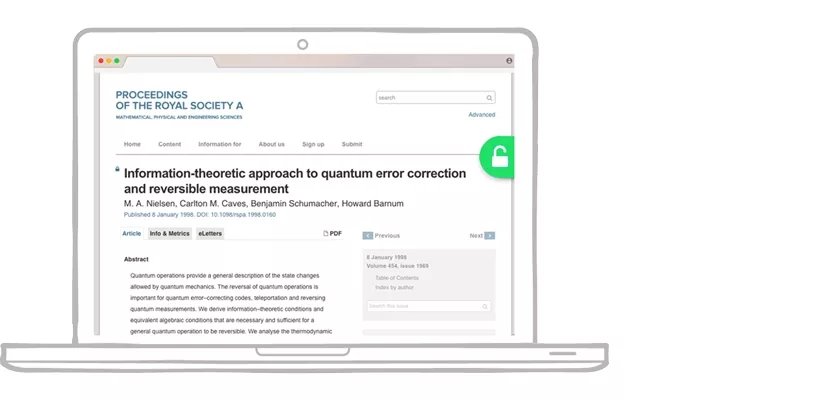
I first heard about the Unpaywall Chrome Extension from another researcher who mentioned, “Just look for the green tab on the right.” Unpaywall is a browser-based tool that views legally available versions of academic papers across trusted repositories. It does not bypass copyrighted content; instead, it checks institutional archives to locate free articles.
My Personal Impression Of Unpaywall
After using Unpaywall for the first time, I quickly noticed how smoothly it fits into my workflow. It does not interrupt browsing or require any changes to how I usually read academic papers. What impressed me immediately was its simplicity, as it needed no account or setup, only installation. Let’s look at the main ways it improved my research experience:
- It quietly notifies me when a free version of a paper is available.
- When no free version exists, it stays completely out of the way.
- The lightweight design allows me to check papers during focused reading sessions quickly.
How to Install and Use The Unpaywall Chrome Extension
Now, let’s move on to how the Unpaywall Chrome tool can be installed and used effectively.
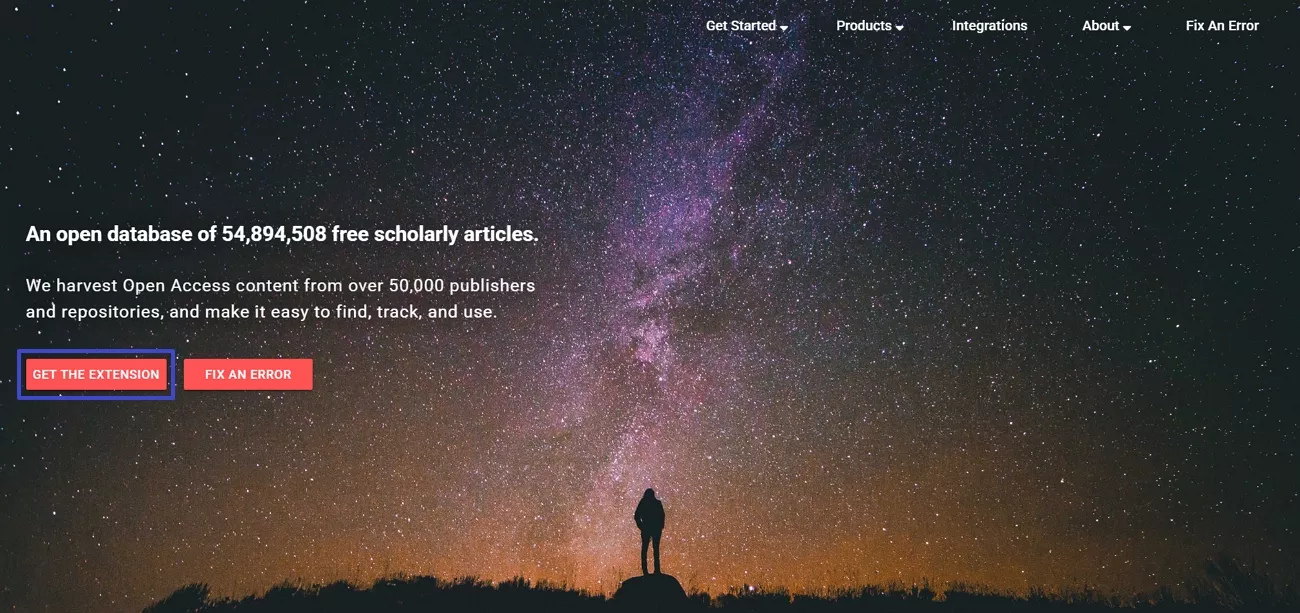
Step 1. Once I reached Unpaywall’s landing page, I clicked the “Get the Extension” button to proceed.
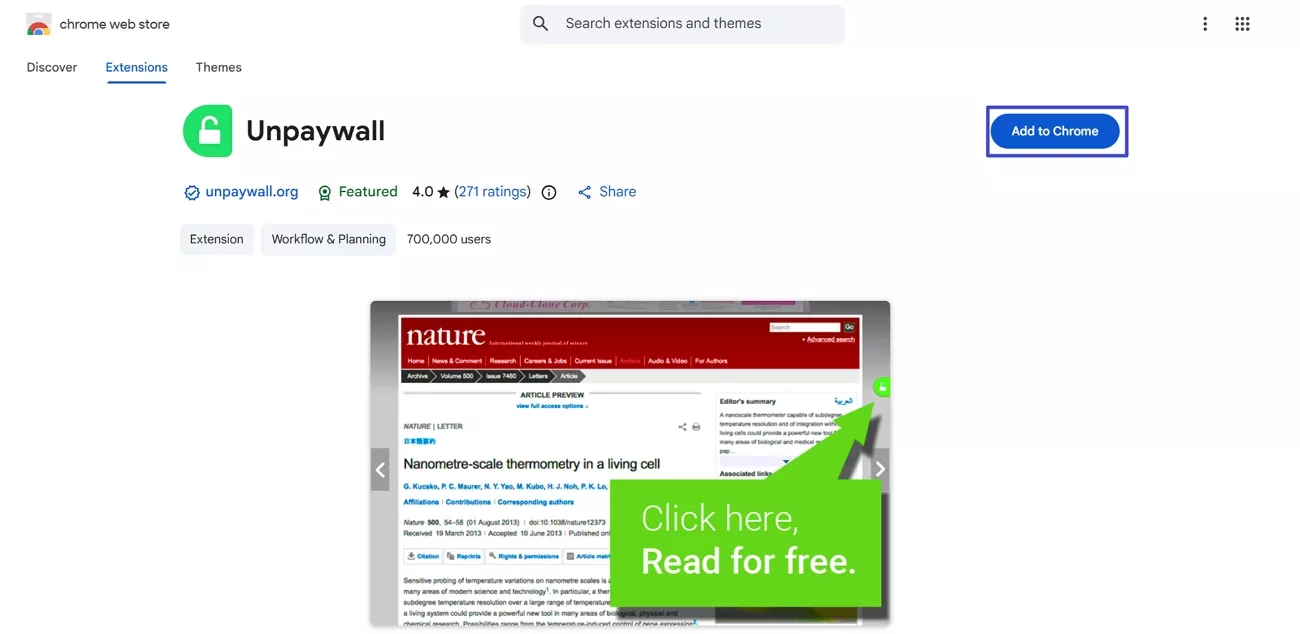
Step 2. Next, I clicked the “Add to Chrome” button to install this extension in Chrome.
Step 3. To use it, I simply accessed a journal article with an open-access version. Afterward, I select the “Green Tab” option on the right to open the PDF version of the article. This allowed me to easily download the full paper.
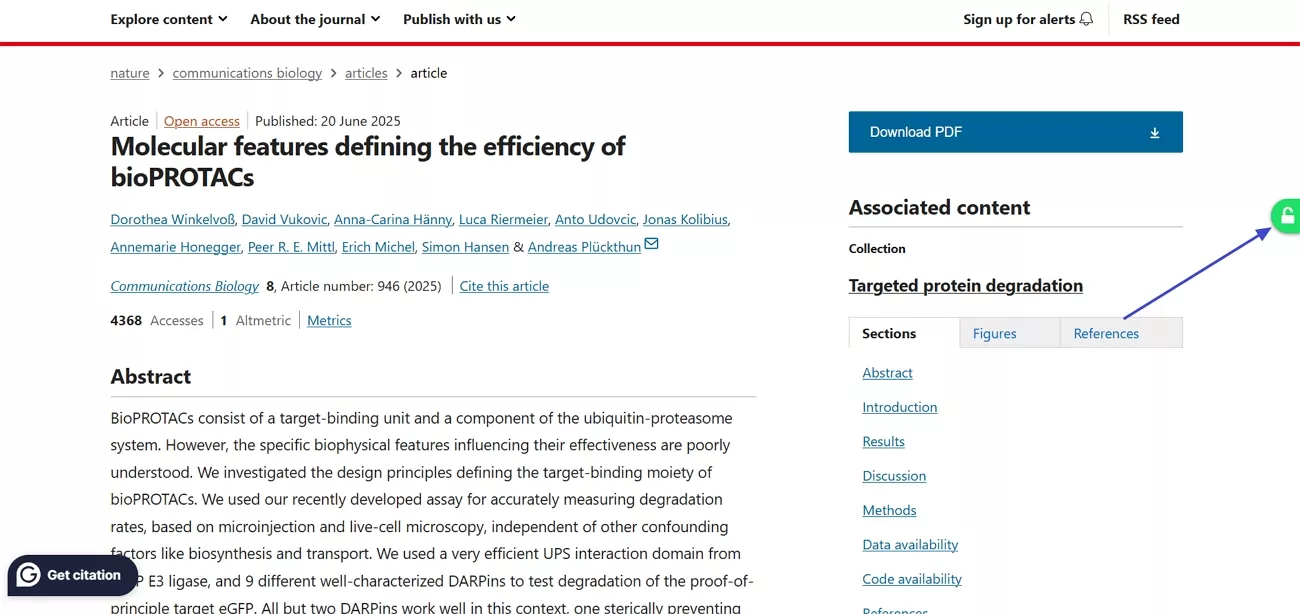
Once I installed and began using the Unpaywall extension, I observed numerous benefits in my research workflow. Let me take a closer look at the benefits I noticed.
- I can access quality, peer-reviewed research without violating copyright laws.
- It saves me significant time during literature searches and academic work.
- I can download open-access PDFs directly from the browser while reading articles.
- Using it helps me stay organized by allowing me to identify which papers are freely available at a glance.
- I avoid unnecessary subscriptions and costs while still accessing critical academic studies.
Where Unpaywall Falls Short
While Unpaywall Extension Chrome is useful, I quickly realized it cannot solve every research problem I face. For deeper exploration or to start a new topic, I often needed more than it provides. Let’s examine the main limitations I experienced while using Unpaywall in my research workflow.
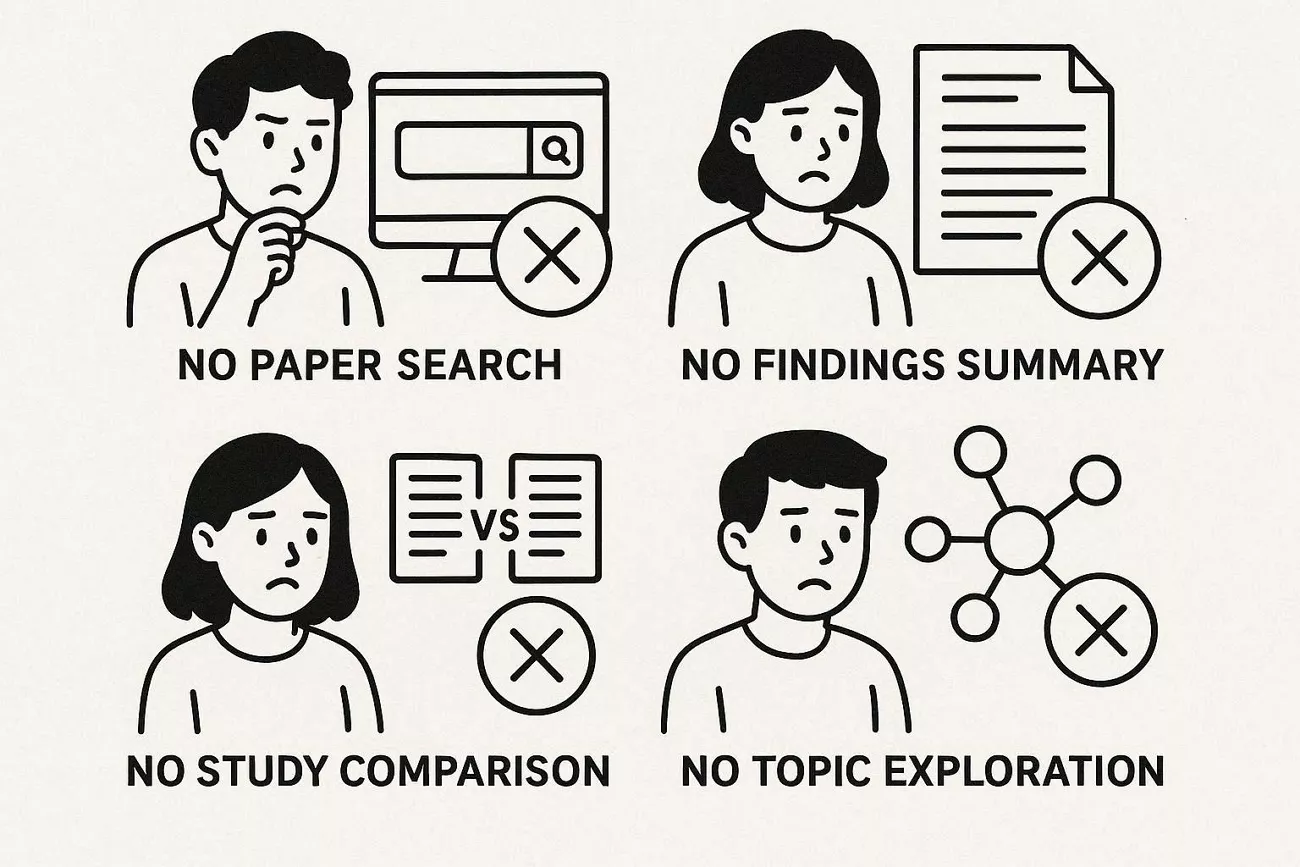
- It cannot search for papers on its own; I must already be on an article page.
- Summarizing findings is not possible, so I still need to read papers thoroughly.
- Comparing multiple studies or understanding broader research trends is not supported.
- If I start from scratch on a topic, Unpaywall Chrome alone is insufficient.
Part 2. What UPDF AI Paper Search Brings To The Table
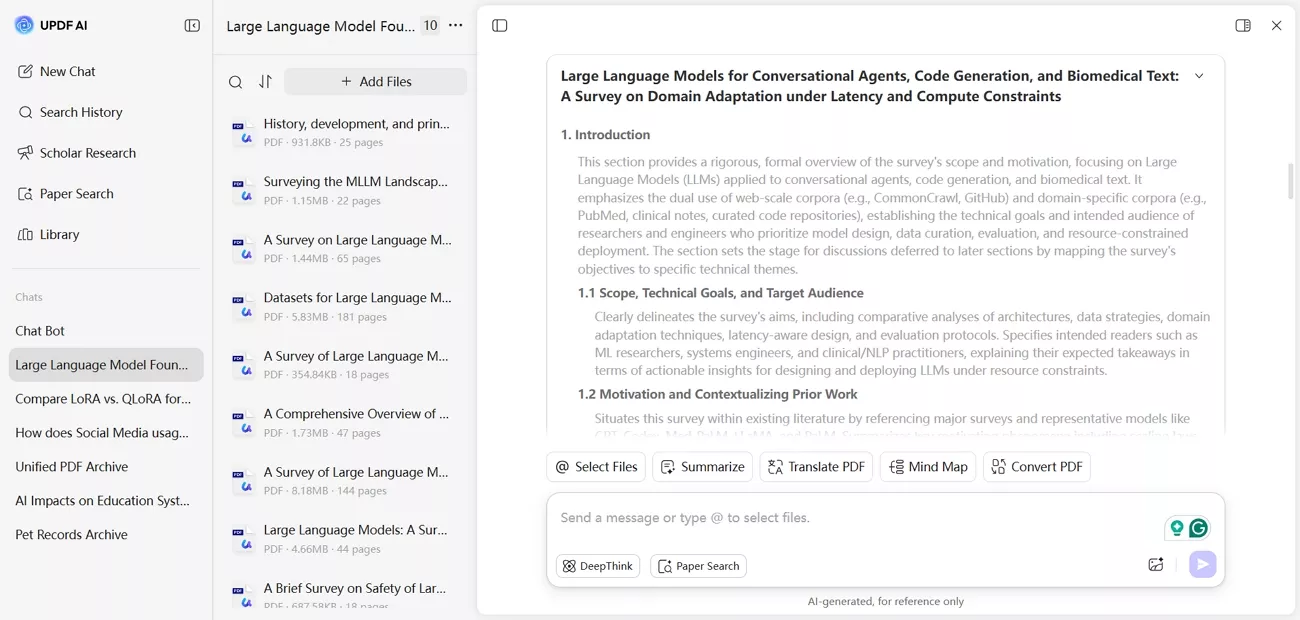
After relying on Unpaywall Chrome Extension for quick access to papers, I realized I needed a more active way to work through large sets of academic research. This is where UPDF AI Online comes in with powerful tools for educational research. It bridges the gap between discovering papers and deeply analyzing them. Its Paper Search feature lets me search millions of scholarly papers using keywords, titles, DOIs, or PMIDs.
Moreover, it provides AI-powered summaries to assess the relevance of each paper. Additionally, the Scholar Research feature helps me synthesize multiple documents on a topic. It can generate literature reviews and uncover connections between studies with AI assistance.
Core Capabilities
Once I began relying on UPDF AI Online, I observed the core capabilities listed below, which extend well beyond those provided by Unpaywall Chrome.
1. Two Paper Search Modes: The traditional keyword search mode allows me to find relevant papers across multiple academic databases.
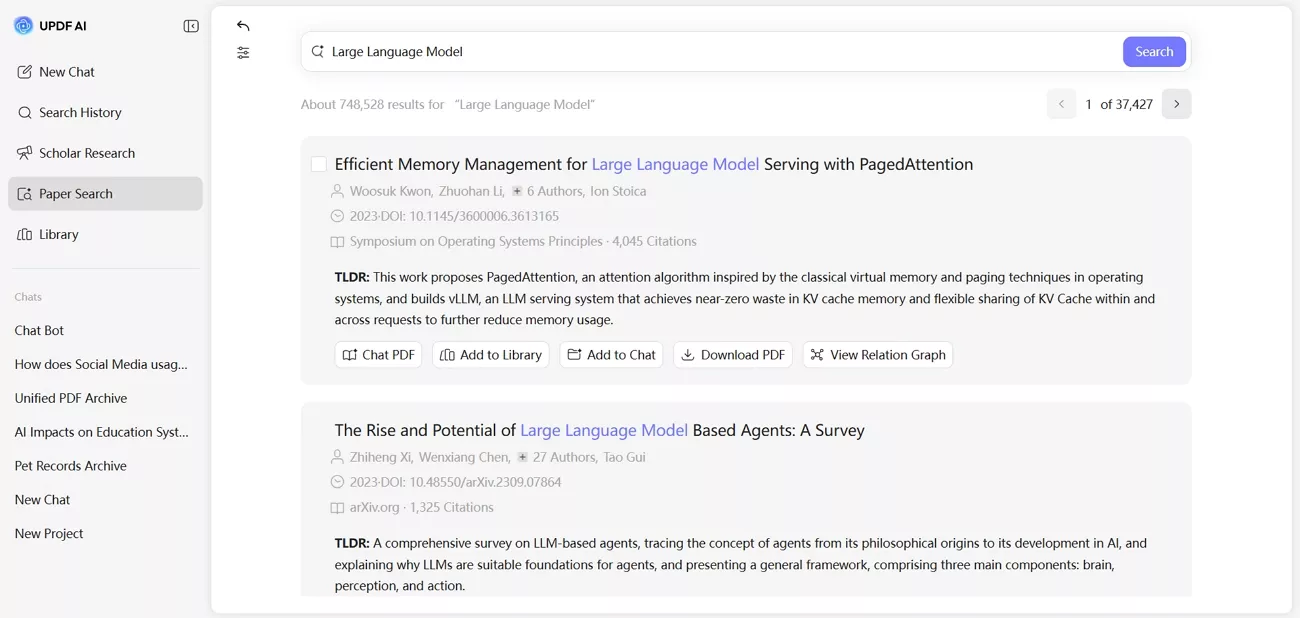
DeepThink mode lets me ask research questions and receive answers backed by citations for faster understanding.
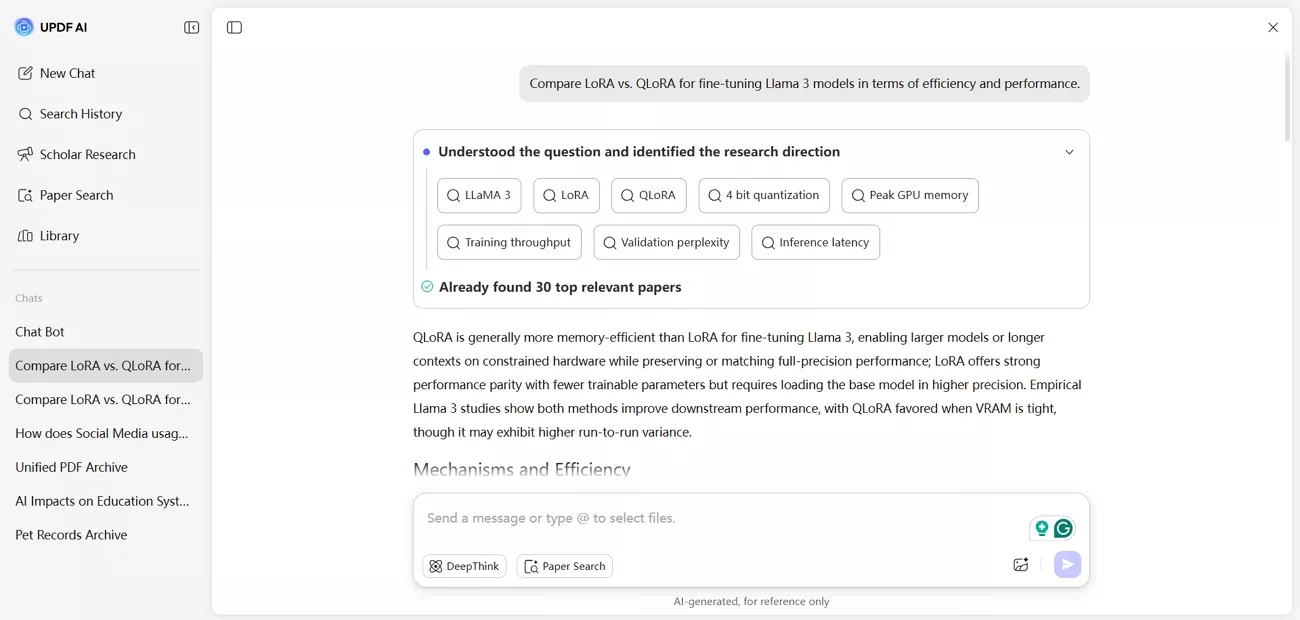
2. Vast Paper Database: I can search across 220+ million academic papers using keywords, titles, DOIs, or PMIDs accurately. This ensures I rarely miss relevant literature on any topic I explore.
3. Paper Metadata & AI Summaries: Detailed metadata are available for each paper, including authors, publication details, and citations to assess reliability.
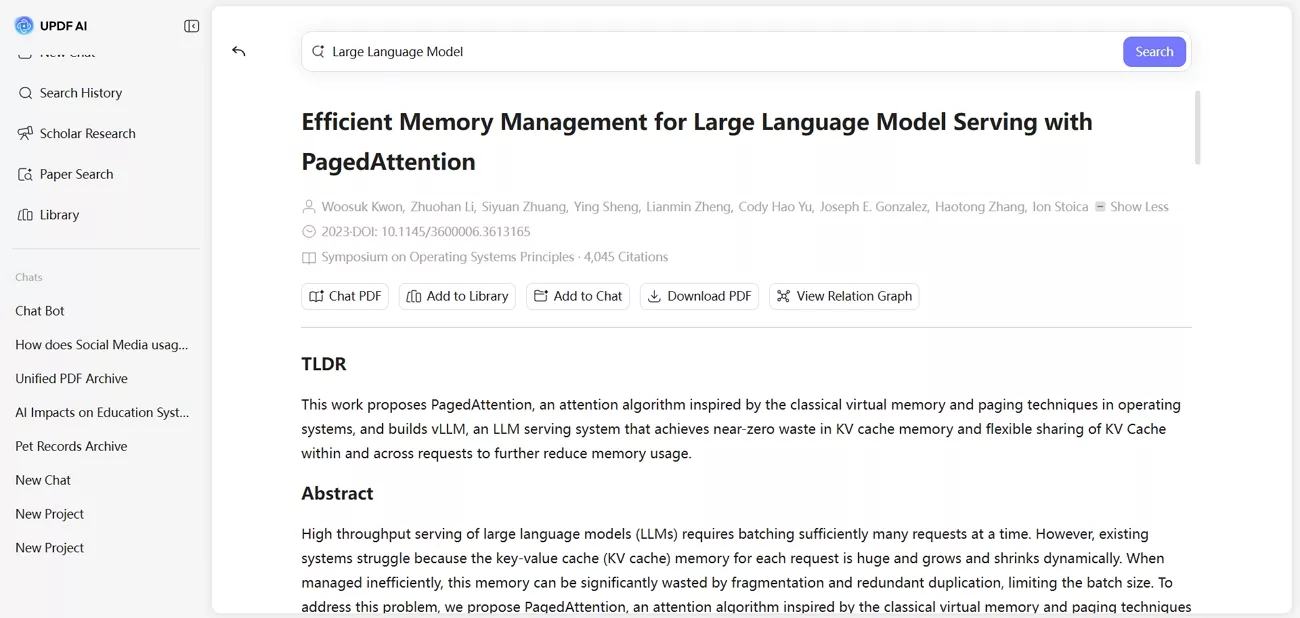
AI-generated summaries provide a fast way to determine relevance before reading the full text.
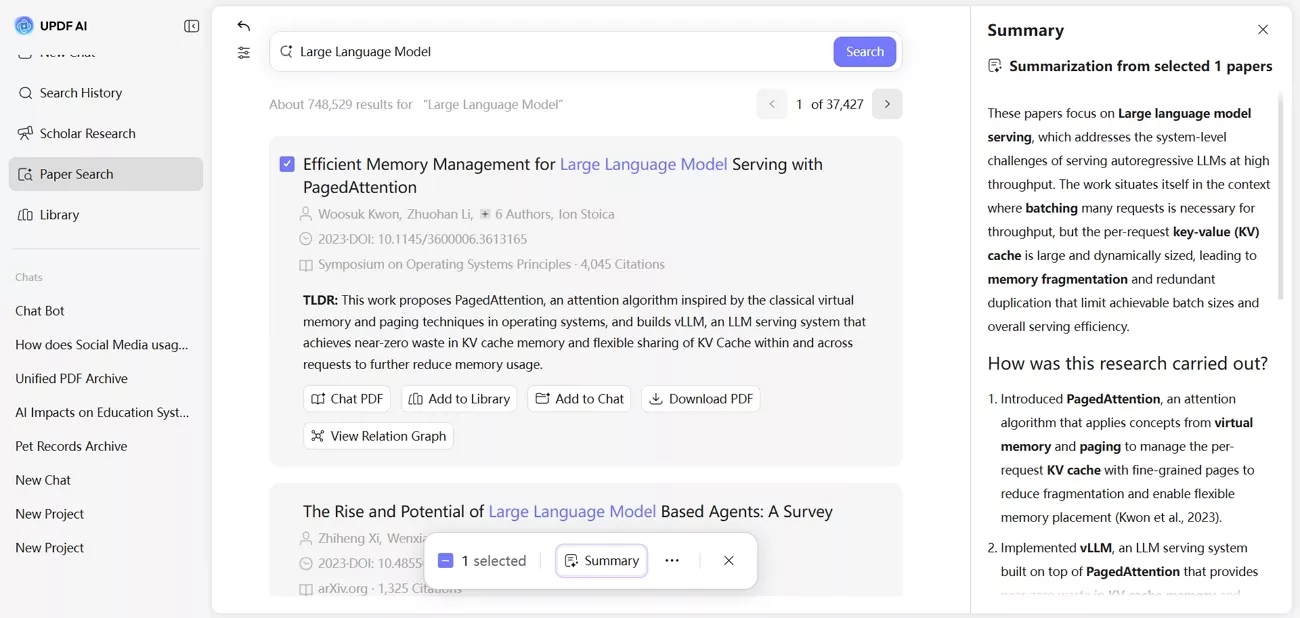
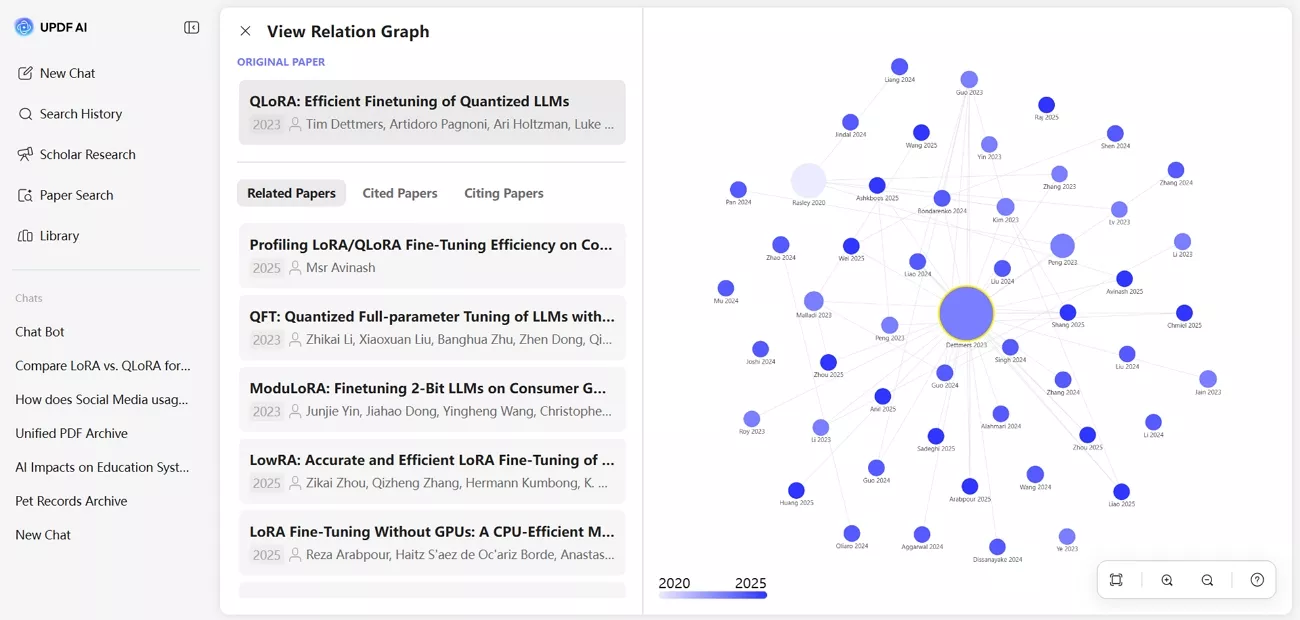
4. Filters & Citation Graphs: I can apply filters by year, field, or open-access status to focus my search. Citation graphs let me explore relationships among papers and their influence.
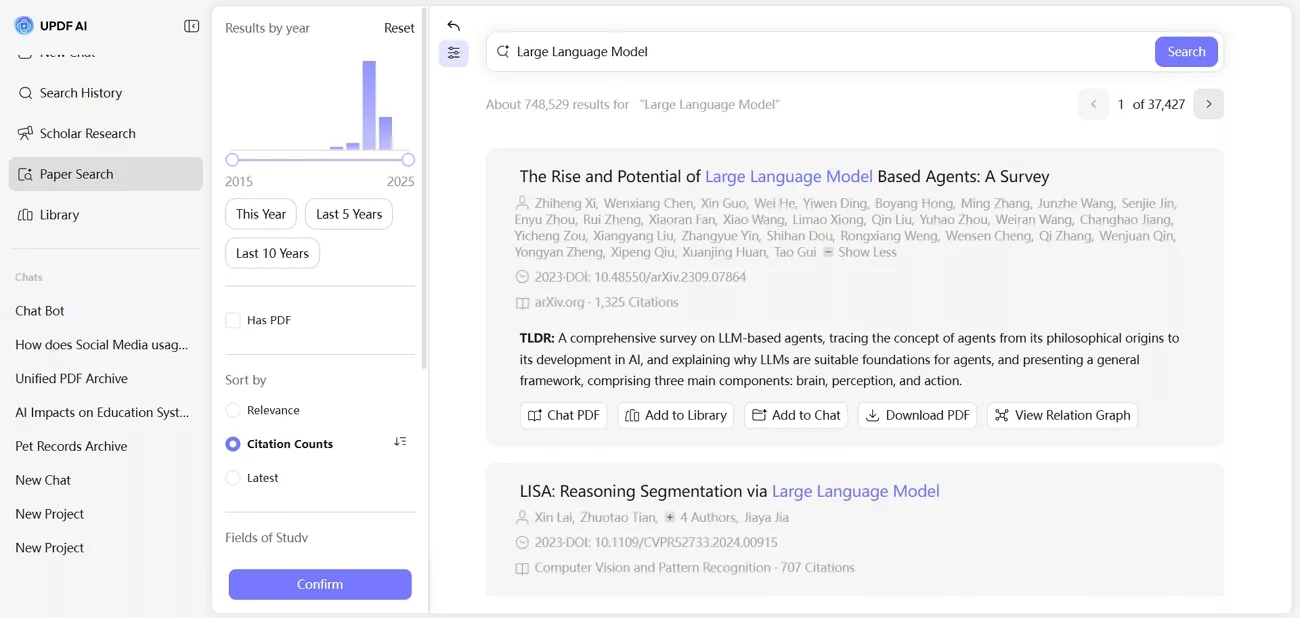
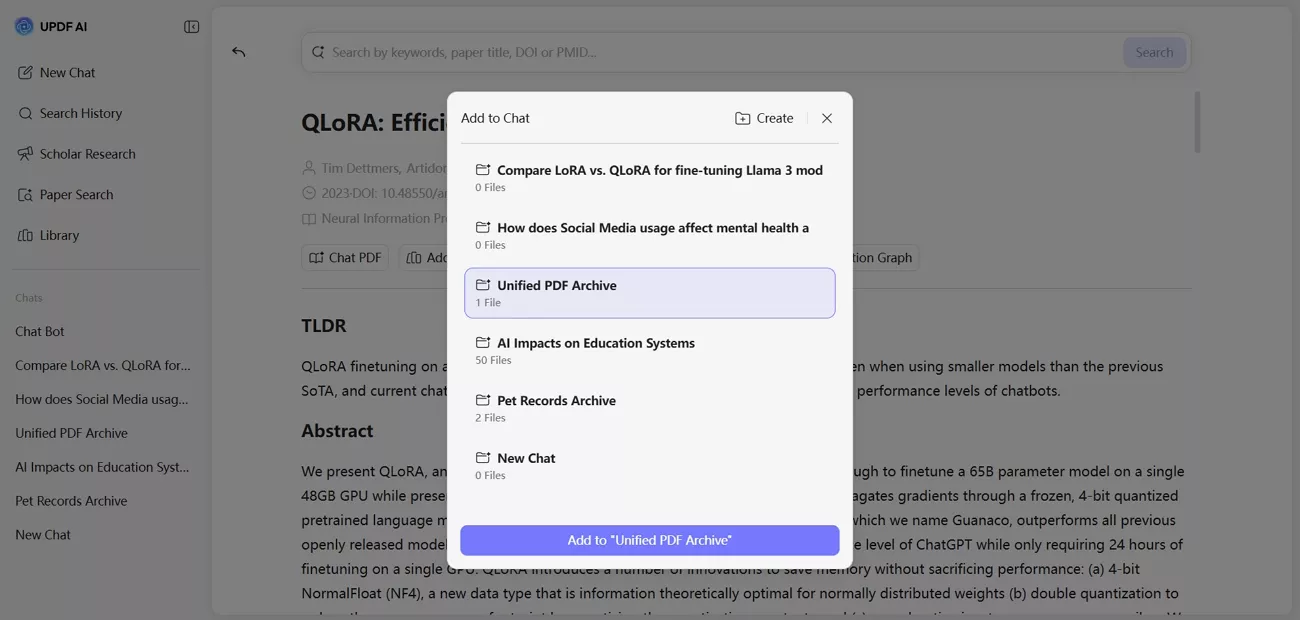
5. Library Management & Add to Chat: My personal library is organized for quick access to all papers.
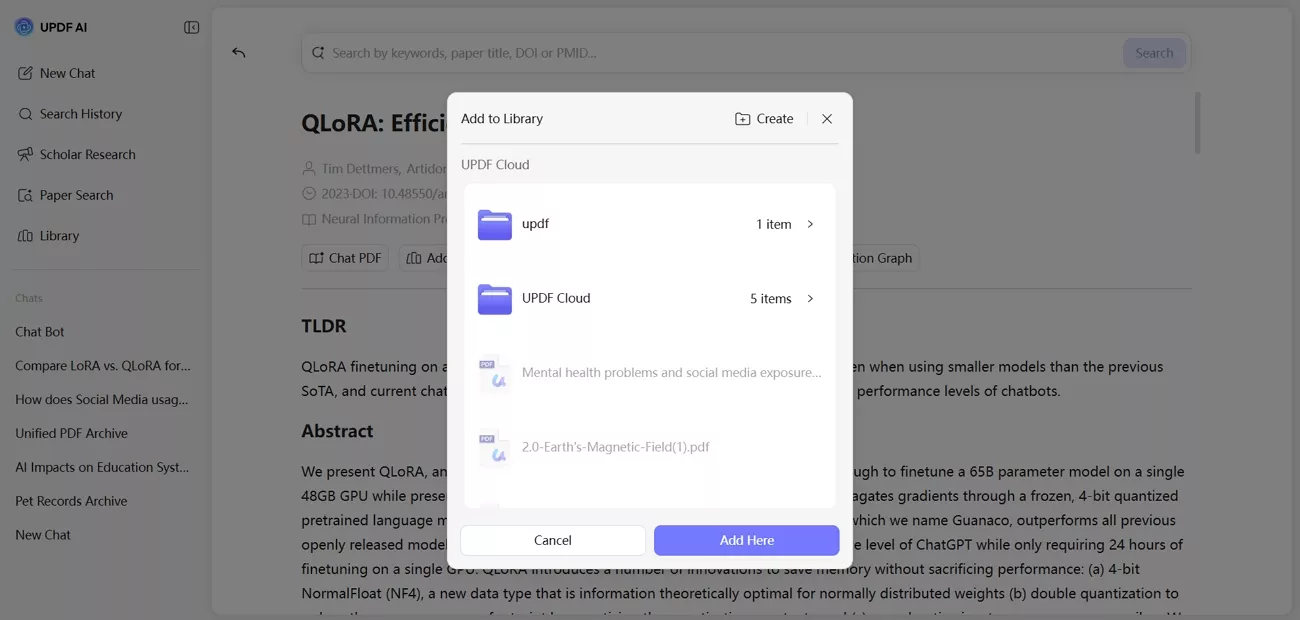
I can add papers to chat to collaborate and get deeper insights.
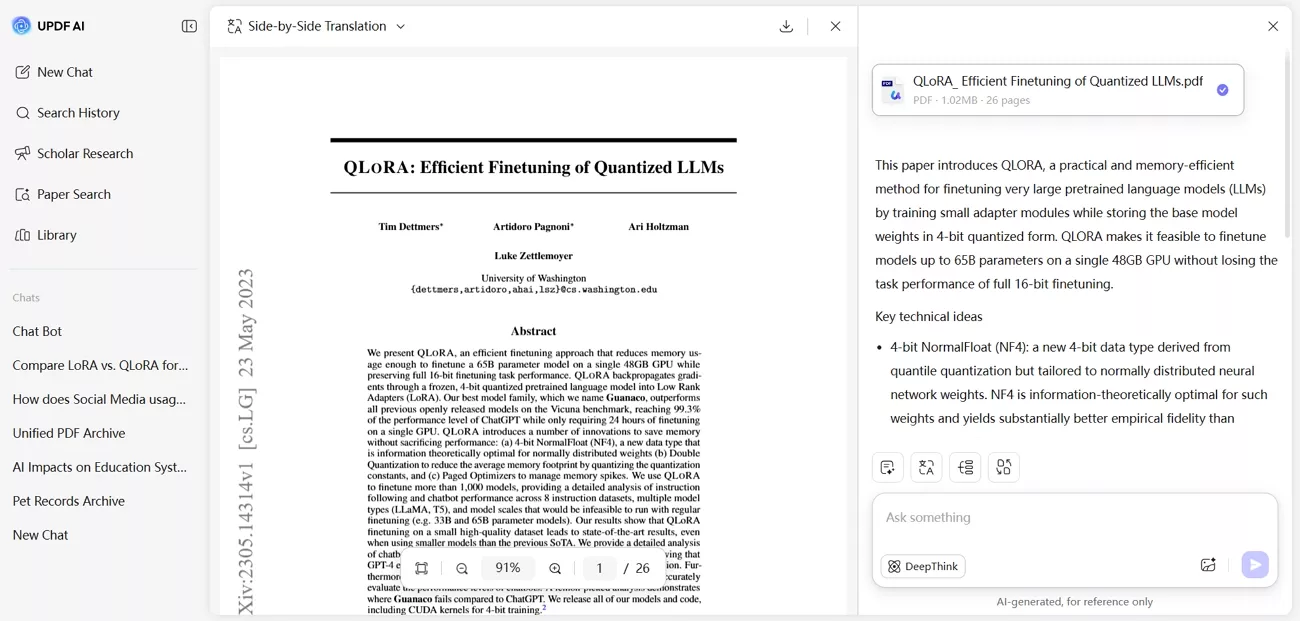
6. Relation Graph & Chat PDF: Relation graphs show how different studies connect and influence each other clearly.
Chat PDF answers my questions directly from the document using AI.
7. Open-Access Downloads: I can directly download open-access versions of papers when available without paying for subscriptions. This saves significant time and reduces cost in my workflow.
8. Scholar Research: I can search a topic and gather multiple papers quickly using the AI platform. Synthesizing them into a structured literature review is fast and highly efficient.
Part 3. Choosing Between Unpaywall and UPDF AI Paper Search
After exploring both tools in detail, I realized each serves a very different purpose in my research workflow. When choosing the right tool, I compared Unpaywall vs UPDF AI Paper Search to decide whether I need quick access to articles or advanced AI-powered analysis.
| Aspect | Unpaywall | UPDF AI (Paper Search) |
| Primary role | Finds legal open‑access versions of paywalled articles opened in browser | Searches, filters, summarizes, downloads papers, and generates literature reviews from a huge academic database |
| Installation/Access | Install free browser add‑on (e.g., Chrome, Firefox) | Access via UPDF app or website with an account |
| Workflow Fit | When you already have an article page open and want an open‑access PDF | When you want to discover many papers, read faster, and build a literature review |
| Best when I am... | Clicking paywalled links and checking for free versions | Exploring a topic, organizing papers, and asking AI questions about them |
| Extra AI Features | None; only finds open‑access copies | AI summaries, citation maps, download open‑access versions, and chat with PDF |
| Cost/Access Model | Free; focused on open‑access discovery | Free tier (about 100 prompts) plus paid options for heavier research use |
| Complexity/Learning | Very simple: click icon to open OA PDF | More to learn: search, filters, summaries, chat, projects |
My Final Verdict
Using both tools in real research situations demonstrated that each serves a distinct role in my workflow. The Unpaywall Chrome Extension serves as a lightweight browser extension and provides rapid, legal access to individual paywalled articles. On the other hand, UPDF AI Paper Search functions as a full research workspace. It lets me explore new topics, compare dozens of papers, and build a structured library for larger projects.Additionally, when I only need quick, legal access to a single paywalled article, I rely on Unpaywall. For larger projects that require exploring multiple papers or building literature reviews, UPDF AI Paper Search becomes essential. There is no single “winner,” as the two tools complement each other depending on the research task.
Conclusion
In conclusion, this guide compared Unpaywall vs UPDF AI Paper Search to show how each tool supports my research workflow. While Unpaywall provides quick, legal access to single paywalled articles, UPDF AI Paper Search allows me to explore topics, analyze multiple papers, and generate structured literature reviews. If you want to conduct deeper research, I recommend using UPDF AI Online to explore, analyze, and organize multiple papers.
Note: The information on this page is based on UPDF writers’ testing and publicly available product details at the time of writing. Features and pricing may change over time. If you notice any inaccuracies, please contact us at [email protected]

 Enola Miller
 Engelbert White