 UPDF
UPDF
 UPDF for Windows
 UPDF for Mac
 UPDF for iPhone/iPad
 UPDF for Android
 UPDF AI Online
 UPDF Sign
 Edit PDF
 Annotate PDF
 Create PDF
 PDF Form
 Edit links
 Convert PDF
 OCR
OCR PDF to Word
 PDF to Image
 PDF to Excel
 Organize PDF
 Merge PDF
 Split PDF
 Crop PDF
 Rotate PDF
 Protect PDF
 Sign PDF
 Redact PDF
 Sanitize PDF
 Remove Security
 Read PDF
 UPDF Cloud
 Compress PDF
 Print PDF
 Batch Process
 About UPDF AI
 UPDF AI Solutions
 AI User Guide
 FAQ about UPDF AI
 Summarize PDF
 Translate PDF
 Chat with PDF
 Chat with AI
 Chat with image
 PDF to Mind Map
 Explain PDF
 PDF AI Tools
 Image AI Tools
 AI Chat Tools
 AI Writing Tools
 AI Study Tools
 AI Working Tools
 Other AI Tools
 PDF to Word
 PDF to Excel
 PDF to PowerPoint
 Enterprise Solution
 Enterprise Sign
 Enterprise AI
 Enterprise Plan
 Enterprise User Guide
 Enterprise Webinar
 Banking
 Healthcare
 Insurance
 Legal
Legal Manufacturing
 Government
 Education Solution
 Customer Stories
 User Guide
 UPDF Tricks
 FAQs
FAQs UPDF Reviews
 Download Center
 Blog
Blog Newsroom
 Tech Spec
 Updates
 UPDF vs. Adobe Acrobat
 UPDF vs. Foxit
 UPDF vs. PDF Expert


The first time I tried to juggle multiple tasks was chaos for me. PDFs and images were scattered across different apps, and it was nearly impossible to keep track. That struggle led me to explore smarter AI tools. This is where I took help from Kuse AI to organize all my ideas, notes, and files in one visual workspace.
Whereas UPDF AI helped me summarize, analyze, and extract insights from large PDFs. In this guide, I’ll break down Kuse AI vs. UPDF AI and share my experience, so you can see which tool works best for your workflow.
Part 1. Kuse AI: The Ultimate Digital Desk for Creativity
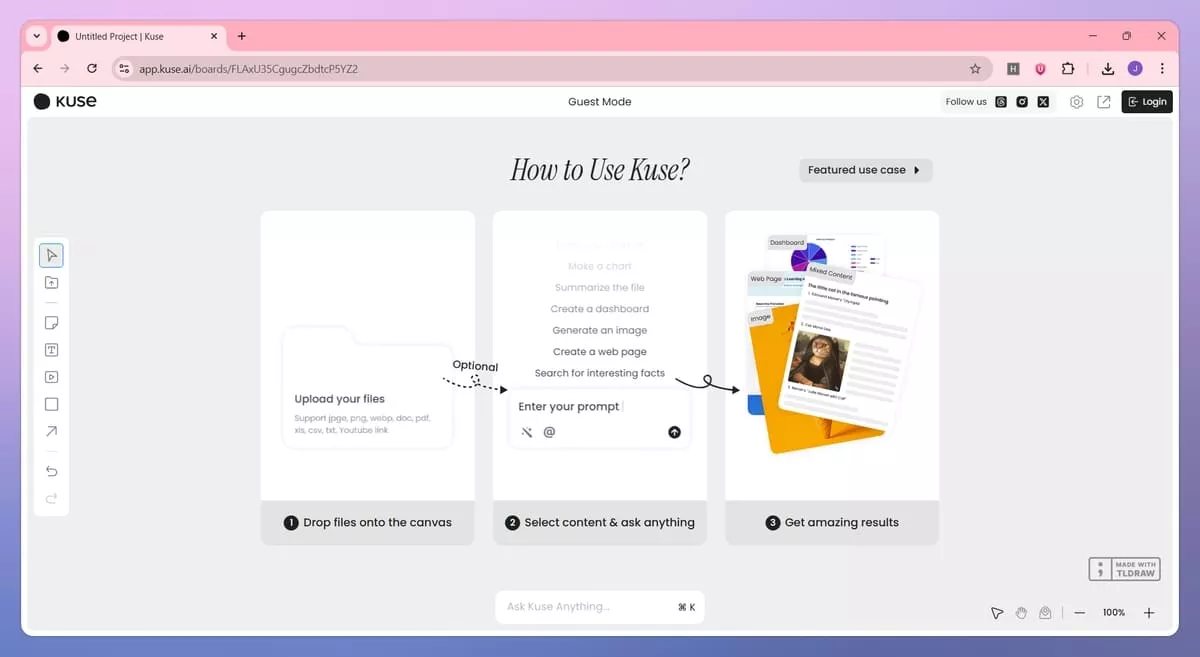
While searching for a better way to manage scattered files and ideas, I discovered Kuse AI. It is a powerful digital workspace that lets users visually organize project materials and web content. With features like Magic Pen, multi-file chat, and persistent context, Kuse AI transforms chaotic project materials into a structured, evolving knowledge hub.
About the Company
Learning more about Kuse led me to the team behind Kuselabs, a company focused on productivity, creativity, and knowledge organization. Reading about them clarified their vision of building context-rich workspaces that adapt to different workflows. Kuse combines note-taking, document handling, and multimedia interaction into one seamless and flexible experience.
Features and Capabilities
Look at the core capabilities below impressed me while using Kuse AI.
- Magic Pen: Select text to instantly generate explanations and practice questions with citations for any content quickly. This feature saves me time and improves accuracy for my research tasks.
- Outline Generation: Turn ideas into clean, structured outlines that organize thoughts and improve project clarity effectively. This feature helped me create a logical structure across complex projects easily.
- Visual Organization: Manage any type of digital material, including PDFs, Word documents, Excel files, images, text files, YouTube videos, and web pages. All materials stay organized inside one workspace for better control.
- Multi-File Chat: Interact with multiple files simultaneously while summarizing content efficiently and maintaining context across materials. I can ask questions across files and receive clear answers without confusion.
- Image Generation: Create visuals directly within your workspace to support presentations, brainstorming sessions, and other project tasks. This feature helped me present ideas visually and communicate concepts clearly.
- Persistent Context: The AI retains and builds on all your project materials over time to create an evolving knowledge base. It helped me reuse earlier work and keep the project context consistent.
How to Use Kuse AI
After exploring the core capabilities, follow the steps below to learn how I use this to improve my content creation workflow:
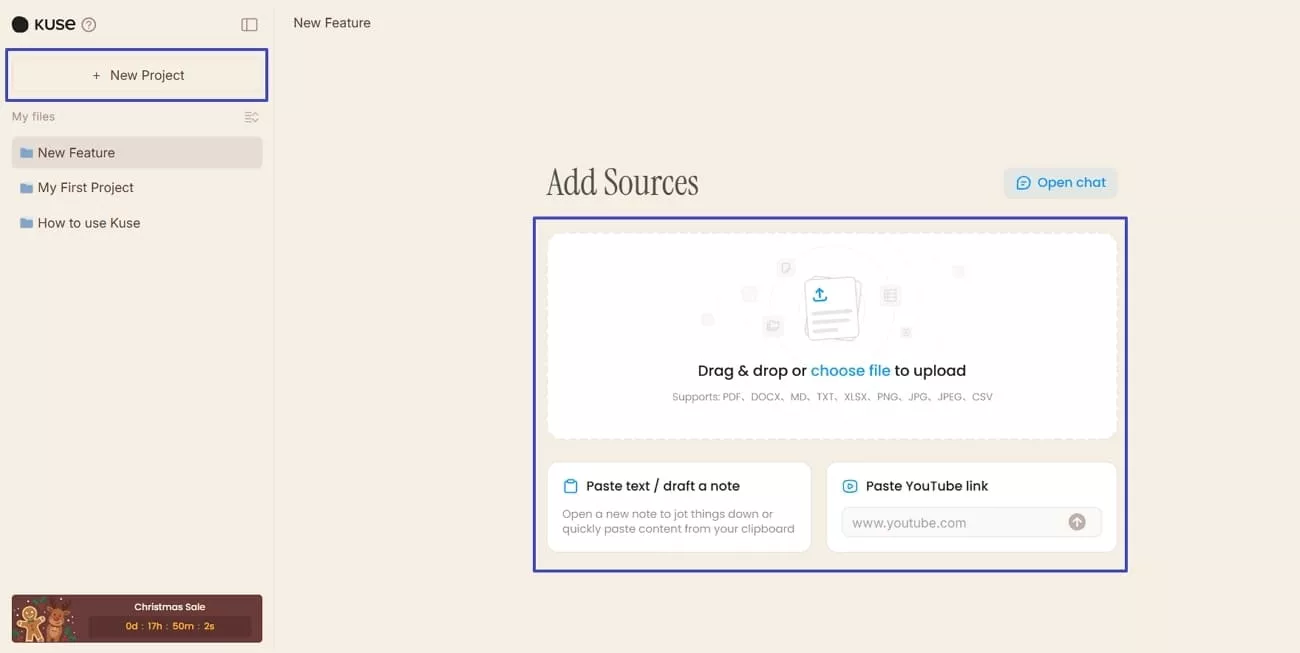
Step 1. Once you enter the main interface, press the “New Project” button and name it. Afterwards, upload your source files and YouTube video link if required.
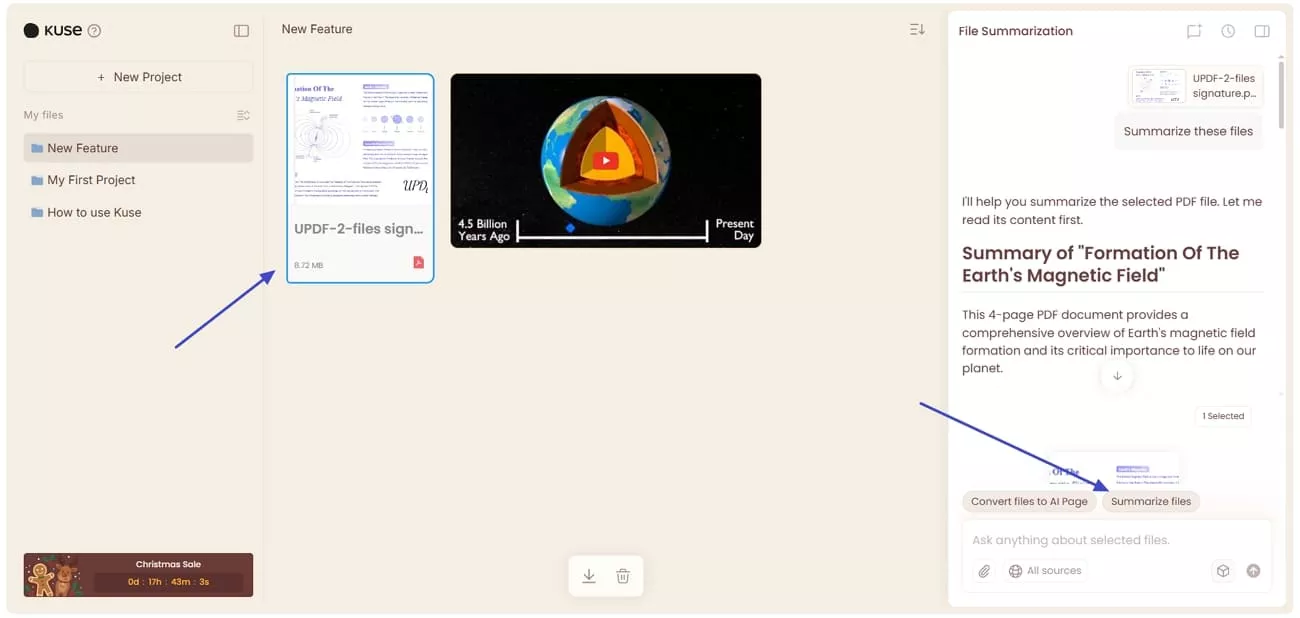
Step 2. Next, choose your file and press the “Summarize Files” option above the chat box to summarize or extract key points from your source files.
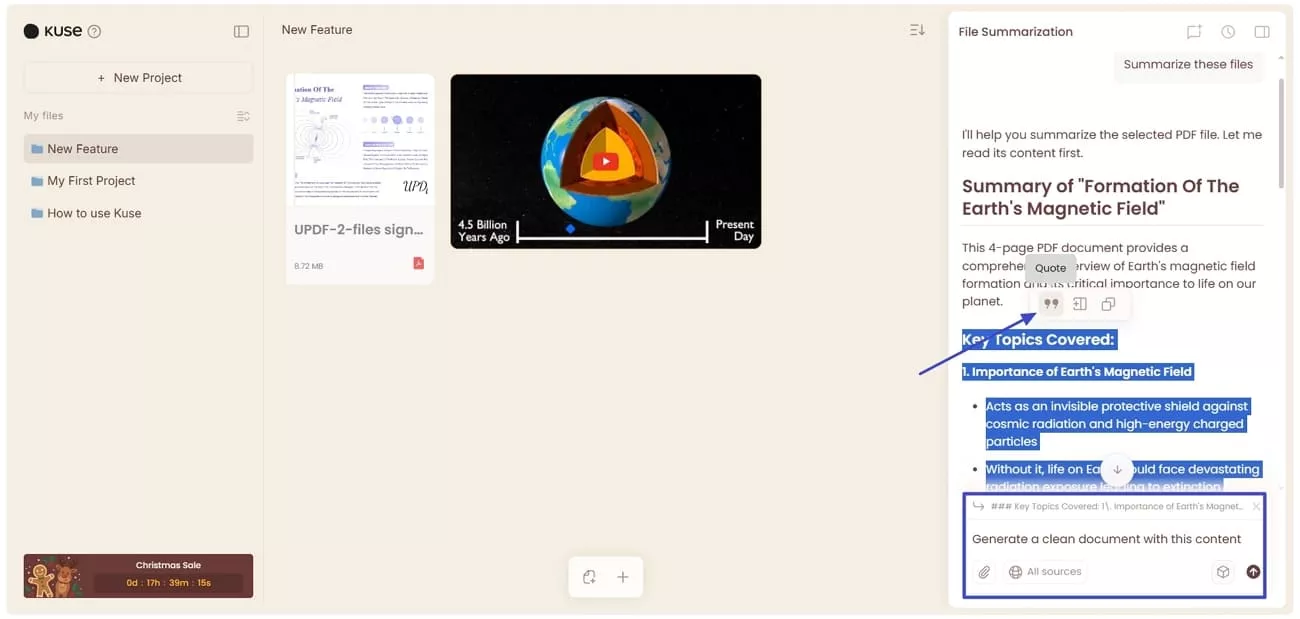
Step 3. To generate an editable document, select the content from the chat, click the “Quote” icon, and ask the chat to create a clean document for you.
Step 4. Once the document is generated, make necessary adjustments to the document and press the “Download” button in the top right corner to download it.
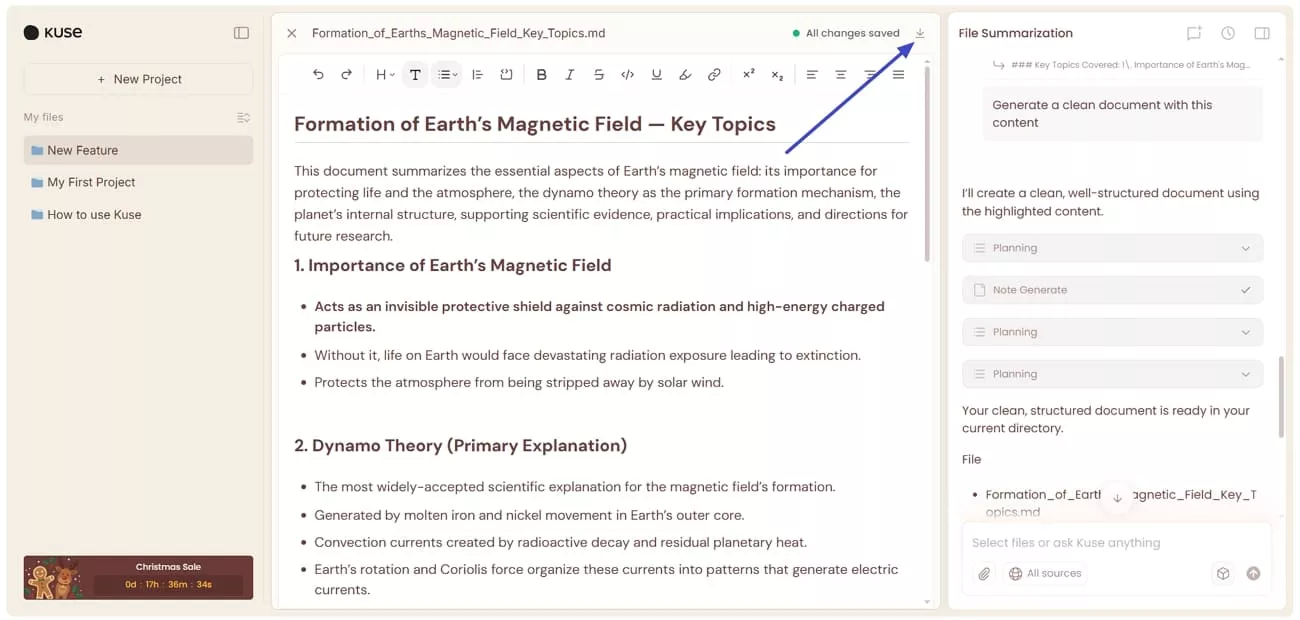
Step 5. For image generation, press the “Shift” key to select all the files and ask the chat to create an image.
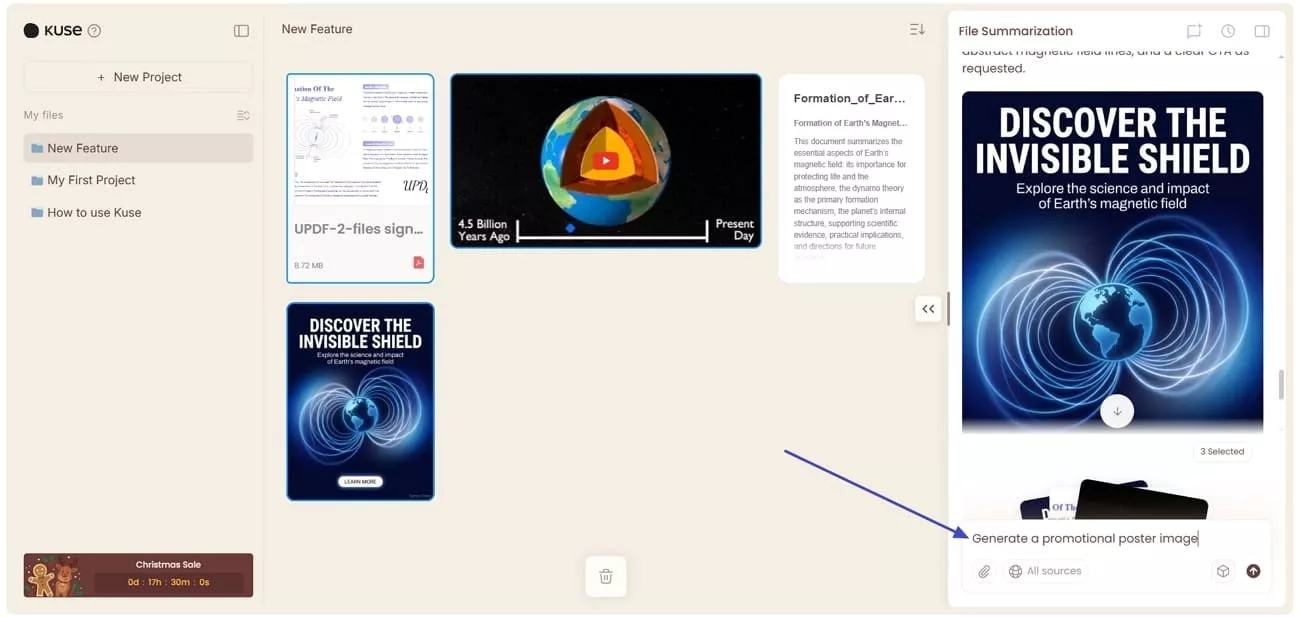
User Experience
During my testing, Kuse AI felt creative first and worked like a visual board with AI help. After adding textbooks, PDFs, and notes, it helped me connect ideas faster than note apps. The visual layout pushed me to view projects as complete systems, not single files from start to finish.
Kuse AI Pricing and Value Position
Kuse AI offers a tiered pricing model, including a free plan and paid versions with more features. Look at the table below to explore Kuse AI pricing plans and offerings.
| Plan | Pricing | File Upload Limit | Extra Credits |
| Free | $0/Month | 32 MB | 0 |
| Plus | $19.99/Month or $190.8/Year | 50 MB | 18000 |
| Pro | $99.99/Month or $958.8/Year | 50 MB | 99000 |
Kuse AI follows a credit-based pricing system instead of unlimited usage plans. New users receive 500 starter credits at signup and can claim 50 free credits daily, refreshed every Monday. Monthly plan credits reset each billing cycle, unused credits expire, and credits are consumed based on the nearest expiration.
- Best suited for users who need visual organization and creative project planning.
- Credit-based model fits focused work sessions rather than continuous heavy usage.
- Strong value for users who manage mixed files and complex ideas in one workspace.
Product Hunt: 3.7/5
Part 2. UPDF AI: PDF Management and AI Tools
After exploring Kuse AI, I realized I needed a tool that could handle large PDF documents. This is where I turned to UPDF AI Online, which focuses on summarizing and analyzing PDFs with AI support. It helped me organize document-heavy projects faster than any traditional PDF software.
Moreover, UPDF AI proved useful for academic research, professional reports, and any PDF-intensive workflow. The AI can summarize pages, convert files to Word or Excel, and search papers quickly. With this tool, I could focus on insights instead of manual work, saving time and making my document management far more efficient.
Features and Capabilities
Once I explored UPDF AI Online, I found that it makes reading and analyzing documents much faster. Look at the core capabilities below that make it stand out.
1. Paper Search: DeepThink mode delivers sourced replies that speed understanding significantly during complex inquiry tasks.
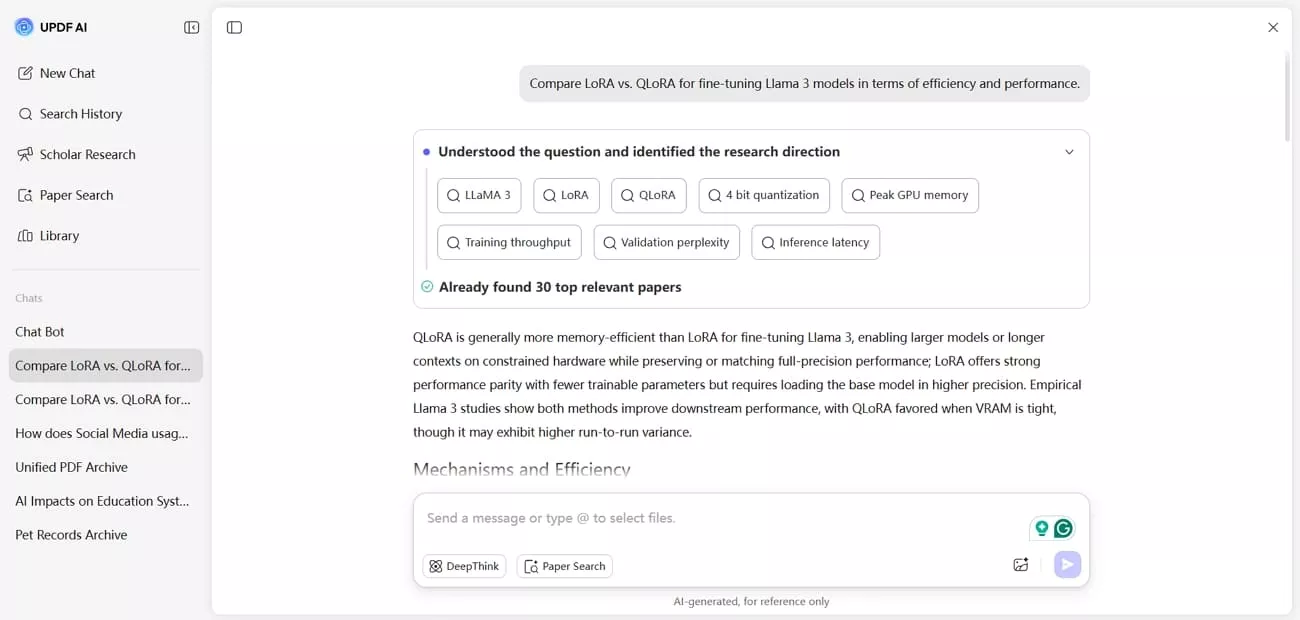
On the other hand, “Keyword” mode finds journal works via many indexes quickly without manual browsing effort.
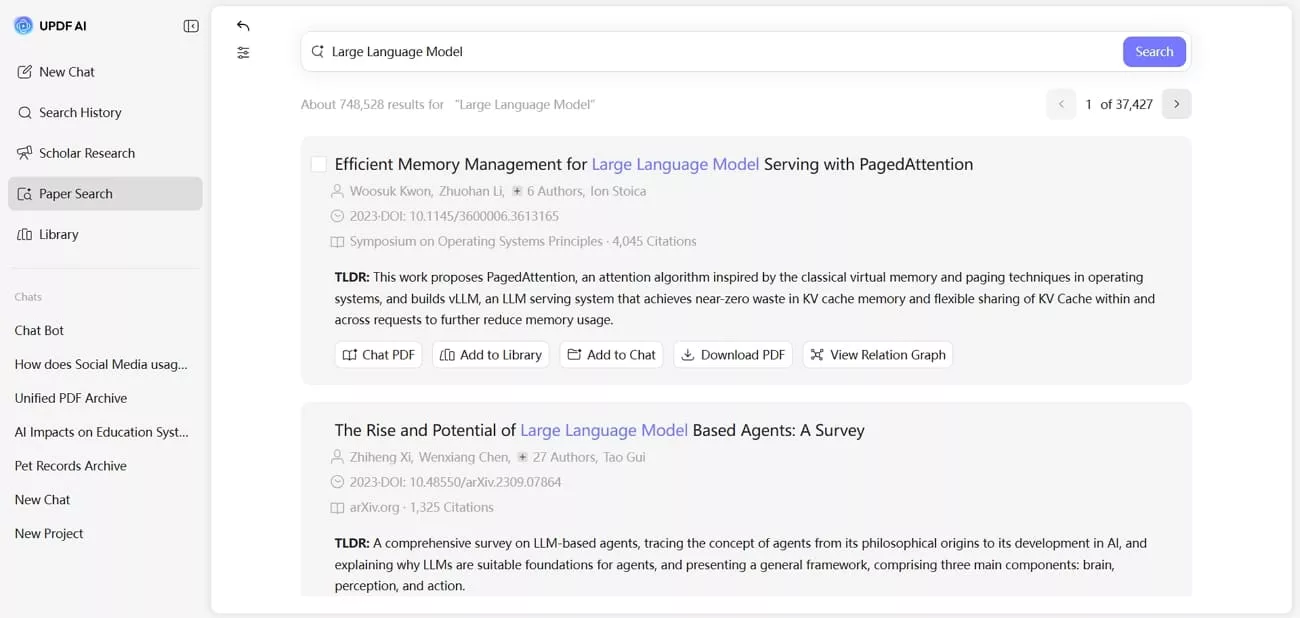
2. Scholar Research: Querying themes gathers diverse studies immediately from trusted scholarly sources worldwide. AI compiles findings as a coherent overview without manual effort or repetitive document reading.
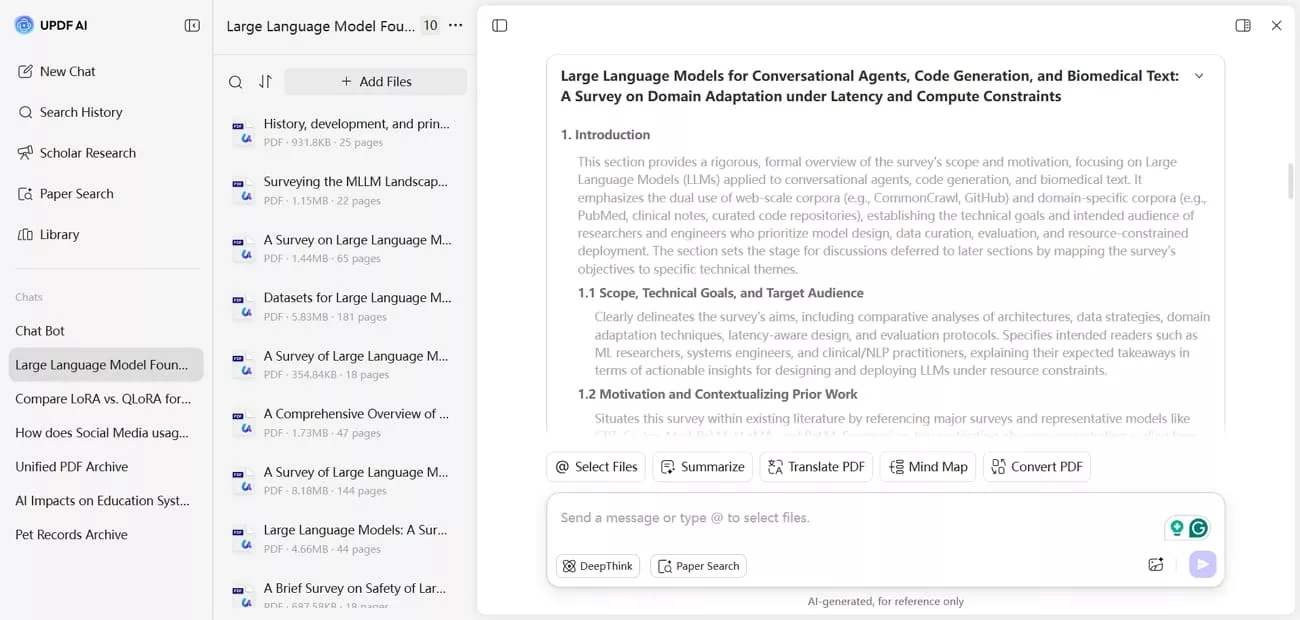
3. Translate PDF: Entire PDFs can be translated into more than 12 languages. This removes language barriers and helps understand research from different regions easily.
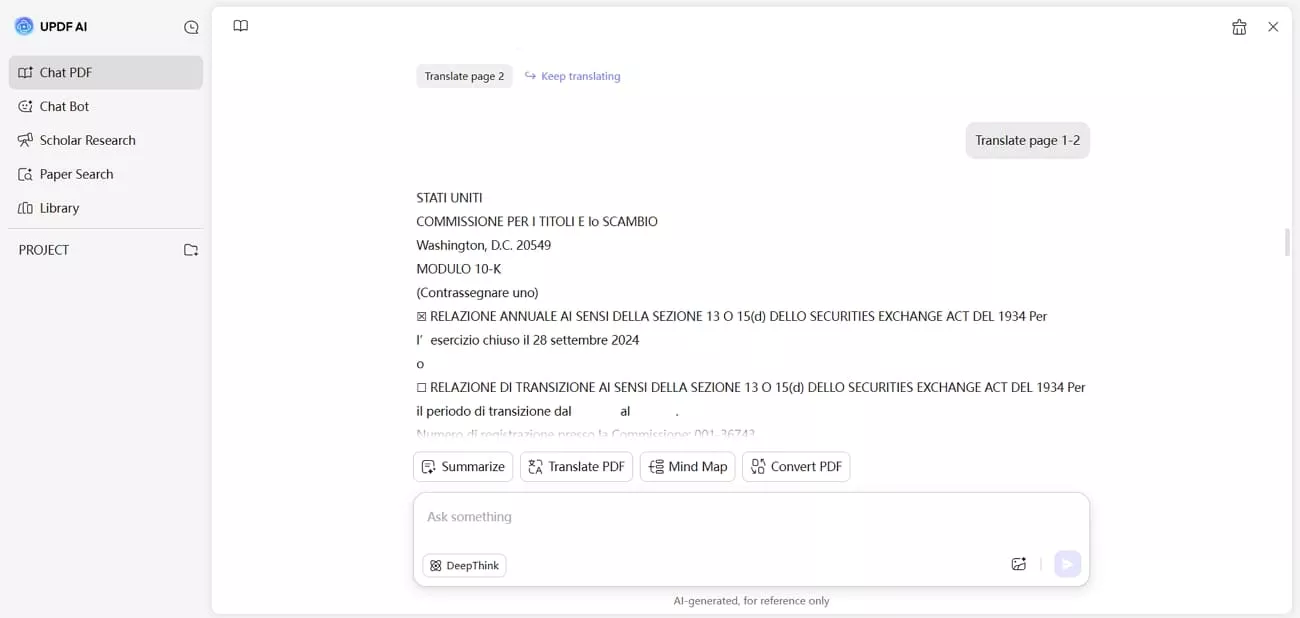
4. Mind Map Generation: PDF content or notes can be transformed into a clear visual mind map. This reveals relationships between ideas and improves project organization.
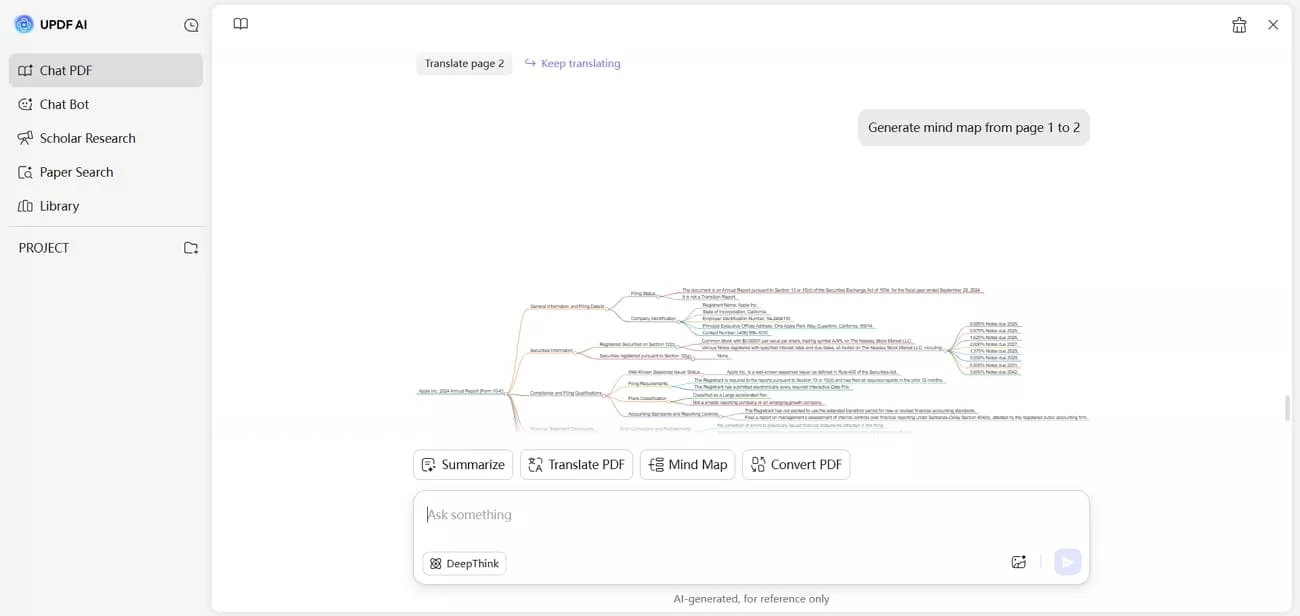
5. Chat PDF: Questions can be asked directly to the PDF, and accurate answers appear quickly. This speeds up document review and makes extracting insights simple.
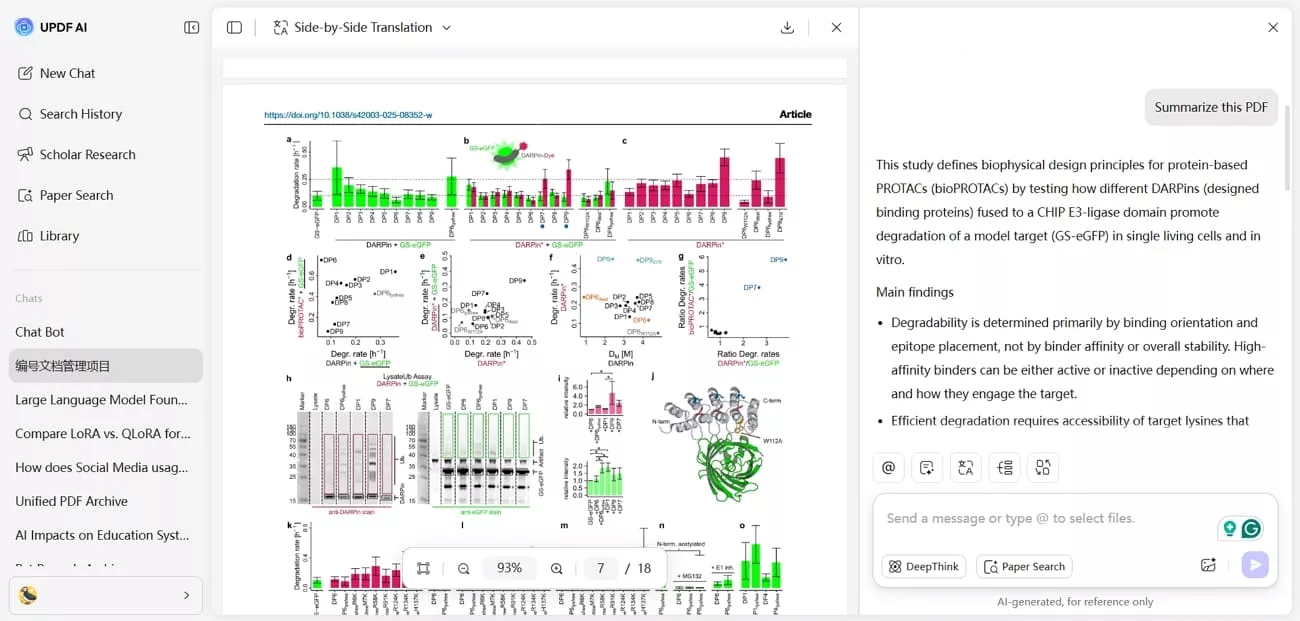
6. Convert PDF: PDFs can be converted into Word, Excel, or PowerPoint while preserving formatting. This allows seamless editing and reuse of content across different workflows.
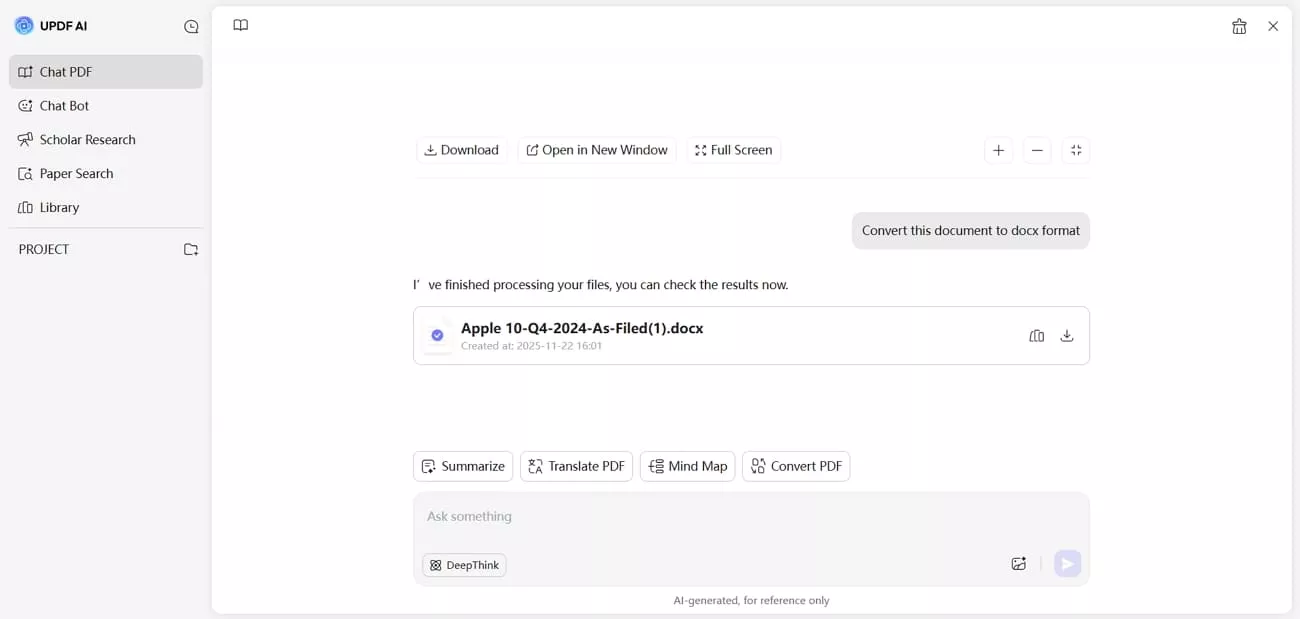
How to Use UPDF AI (Simple Workflow)
Before I break down Kuse AI vs UPDF AI, go through the steps below to see how UPDF AI simplifies document management:
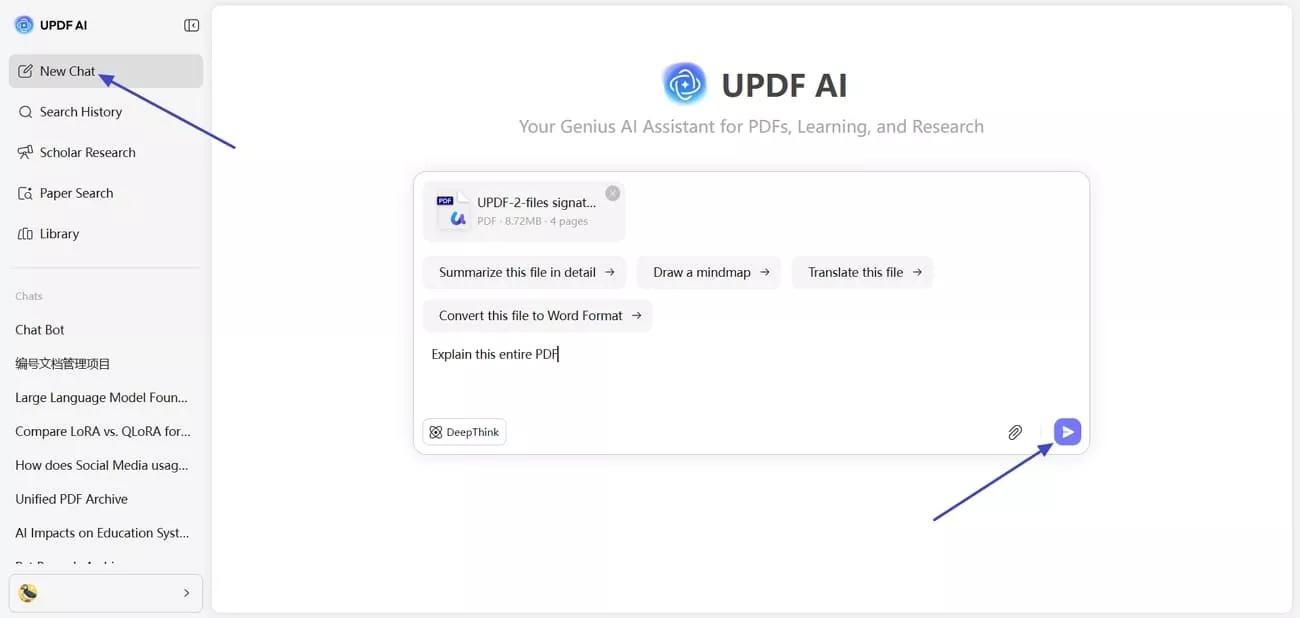
Step 1. Upload Source Files to UPDF AI
Click the button below to access UPDF AI. Once you enter the main interface, press the “New Chat” and drag and drop your source files. Next, enter your prompt in the designated box and click the “Send” button.
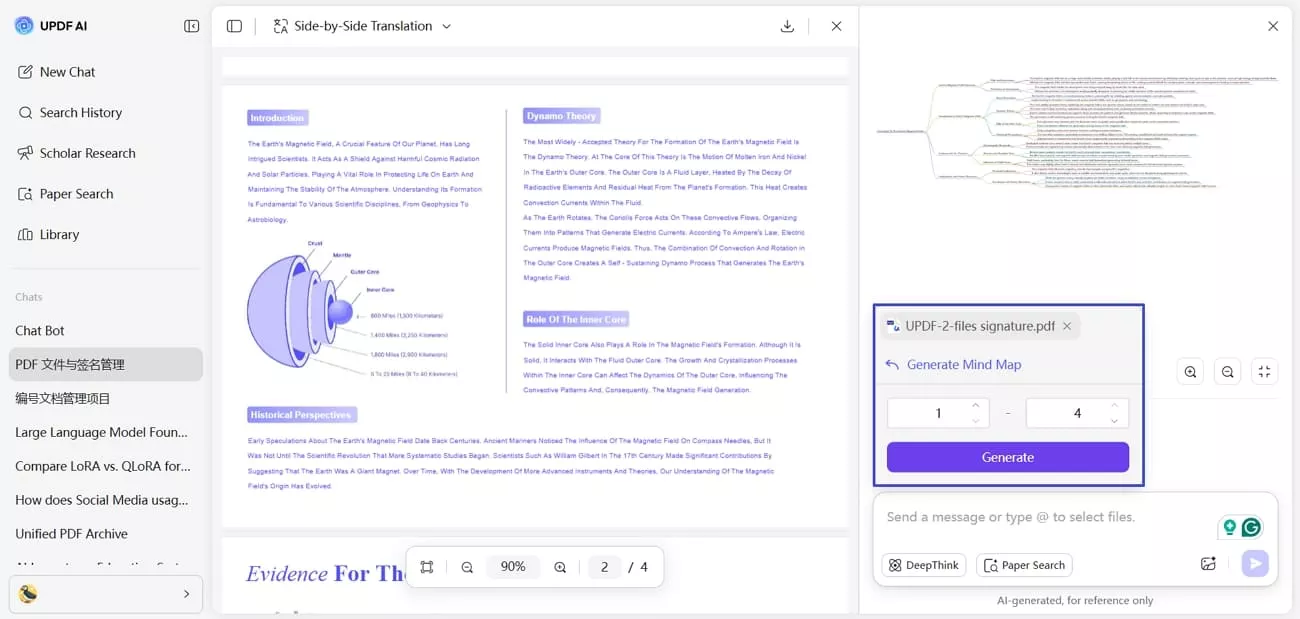
Step 2. Generate Visual Representation of a PDF
Next, press the “Mind Map” icon above the chat box and select the page range of your PDF. Afterwards, press the “Generate” button to create a visual Mind Map of your PDF.
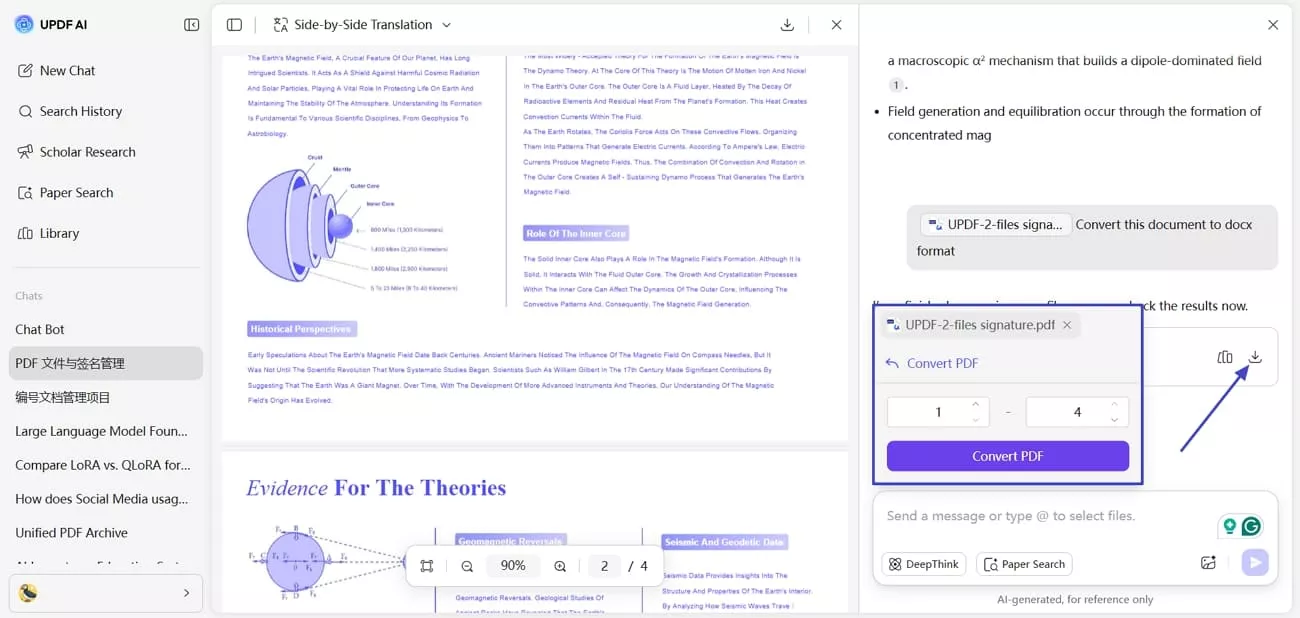
Step 3. Convert PDF into Multiple Formats
Click the “Convert” button and choose the page range of the PDF you want to convert. After that, press the “Convert PDF” button to get the converted file. Press the “Download” icon to download the final file.
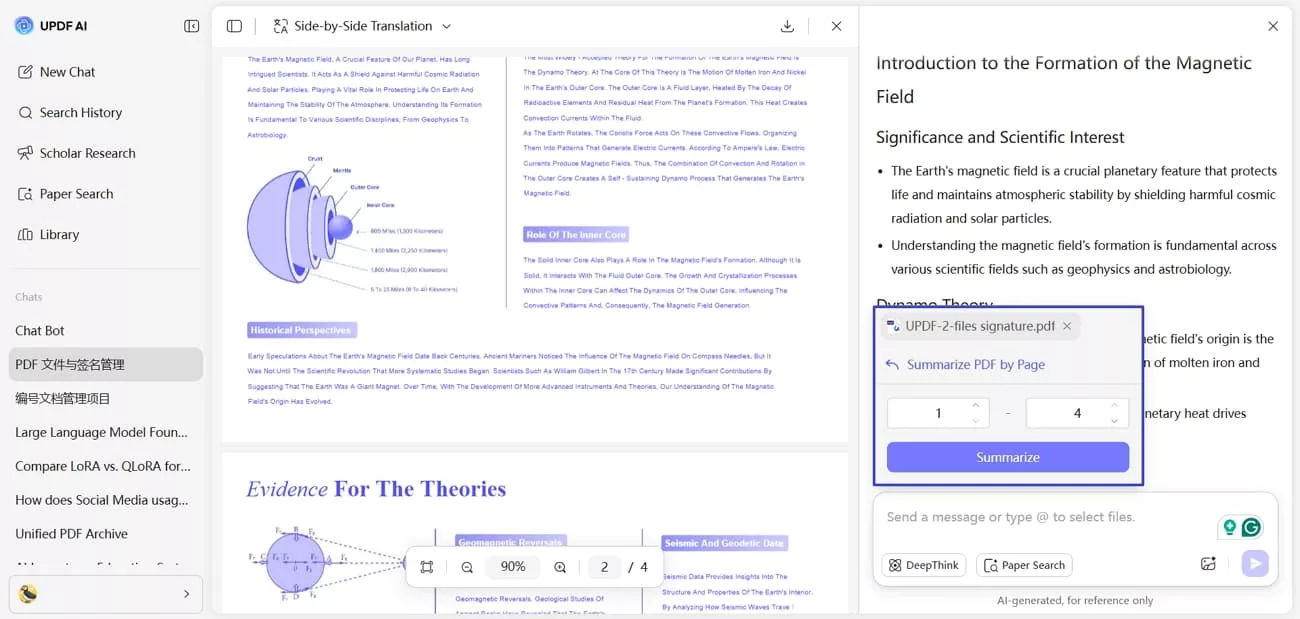
Step 4. Summarize PDF
Next, press the “Summarize” button above the chat box and press the “Summarize” button in the pop-up after choosing the page range to get a concise summary.
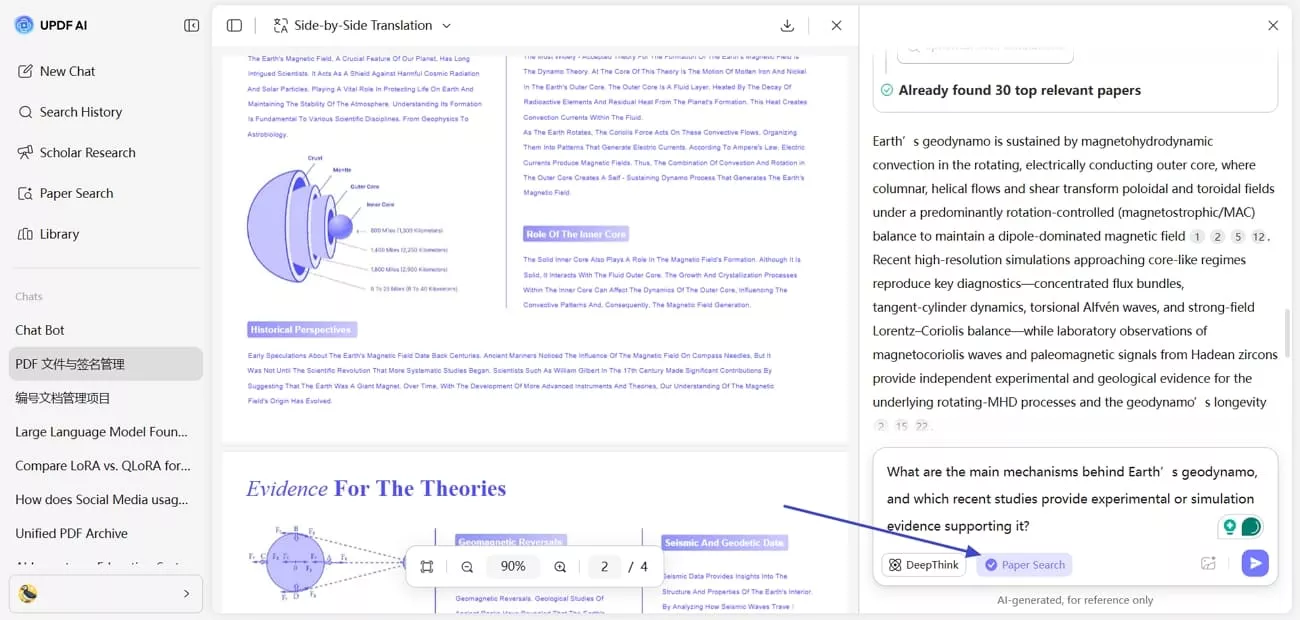
Step 5. Search for Relevant Papers
Lastly, choose the “Paper Search” mode, ask your question in the chat box, and get relevant papers with accurate citations.
User Experience
Using UPDF AI, I felt efficient and research-focused, unlike the creative workspace approach of Kuse AI. I summarized PDFs, converted files, and searched for papers much faster and with greater accuracy. With its AI, I could extract key insights from large documents without spending hours reading manually, which made PDF-heavy workflows smoother and easier to manage.
Pricing and Value Position
After I learned how to use UPDF AI, I explored which pricing models they offer and for whom they are best suited. Look at the pricing plan and offerings in the table below.
| Plan | Pricing | Total Files Limit of AI Assistant | Questions/Month | Best For |
| Free Plan | $0/Month | 5 PDFs | 100 | Light users testing UPDF AI features. |
| UPDF Pro | $69.99/Year, $99.99/Lifetime | - | Unlimited | Students and regular PDF users. |
| UPDF AI | $79.00/Year | Unlimited | Unlimited | Heavy researchers and professionals. |
Rating
G2 Rating: 4.5/5
Part 3. Head-to-Head: Kuse AI vs UPDF AI
After exploring and using both tools in detail, I decided to do a side-by-side comparison of Kuse AI vs UPDF AI to decide which works best for my workflow.
Real-World Test: Comparing Key Functions
To see how each tool performs in practice, I tested all major features one by one. This helped me understand which tool handles research, PDFs, and creative tasks more efficiently.
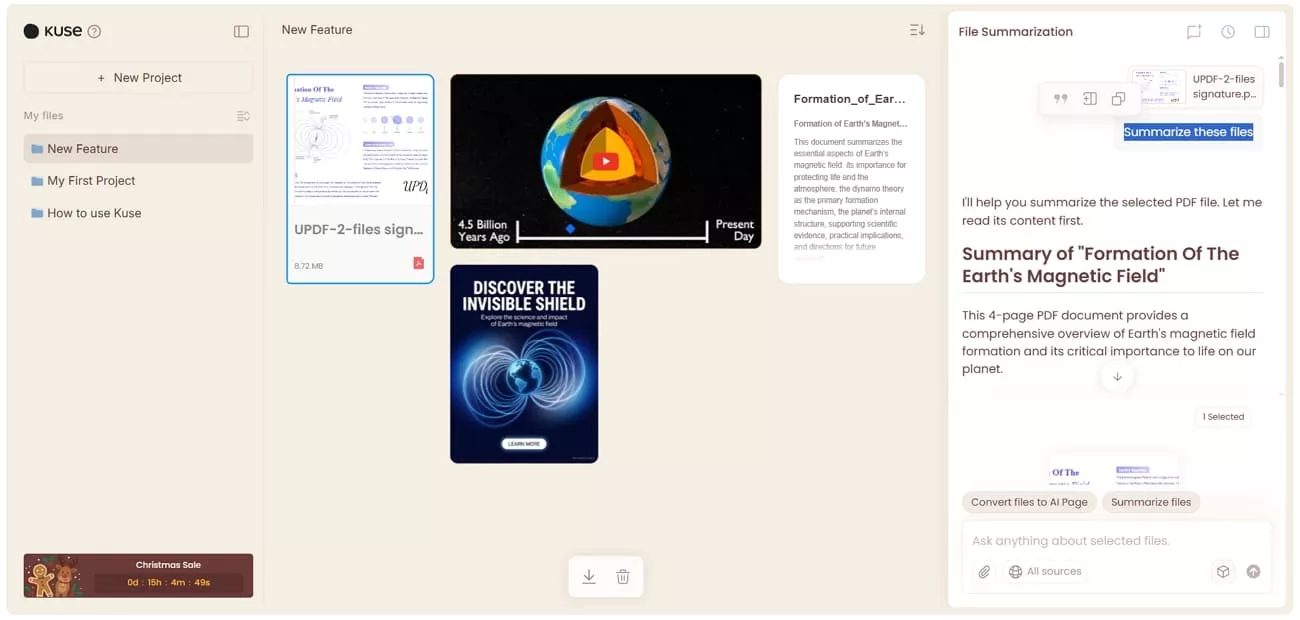
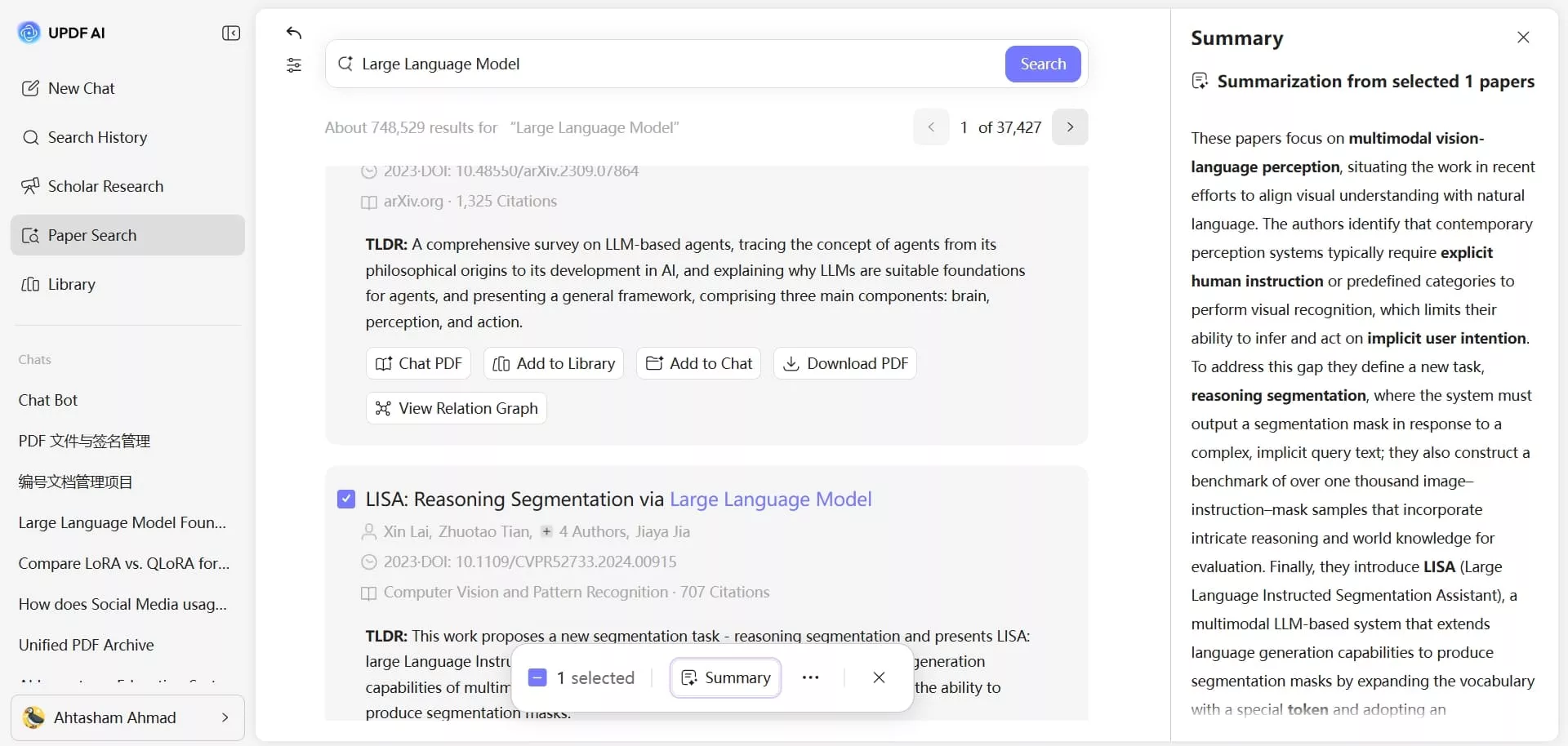
1. Structured Summary for Research Paper
- Kuse AI: Generates summaries from uploaded files quickly, highlighting main ideas and organizing notes.
- UPDF AI: Provides accurate, structured summaries of research papers with clear key points.
2. Text to Image
- Kuse AI: Can generate images from text prompts to visualize concepts creatively.
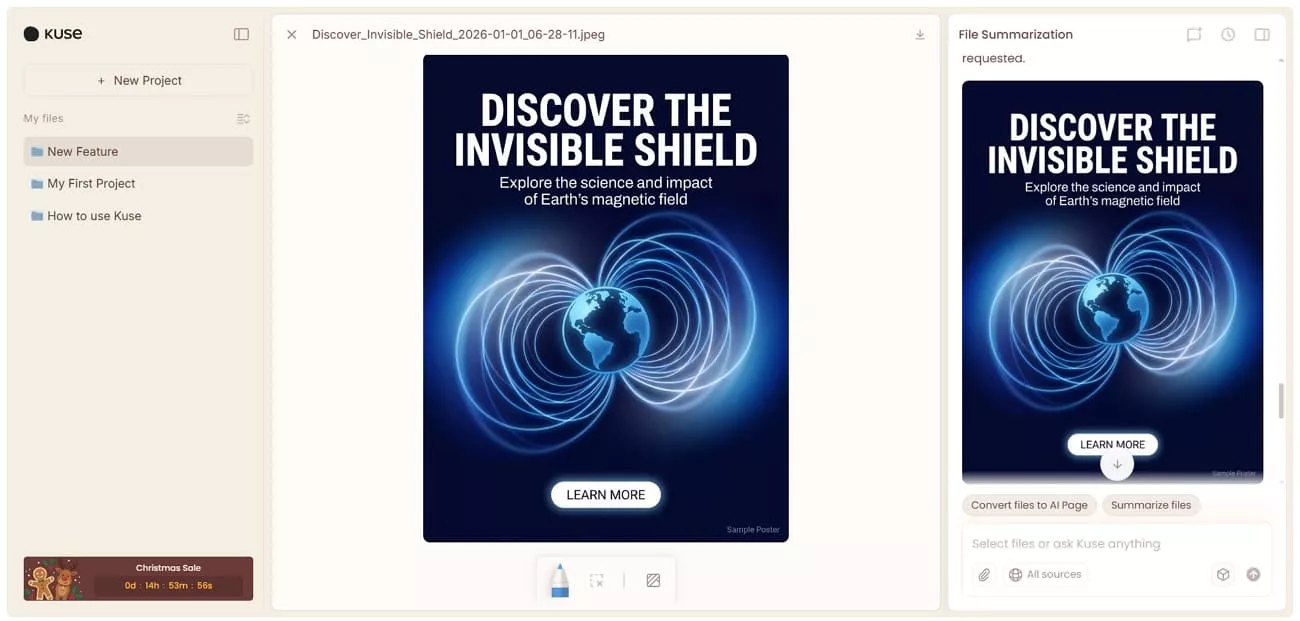
- UPDF AI: This feature is not supported in UPDF AI.
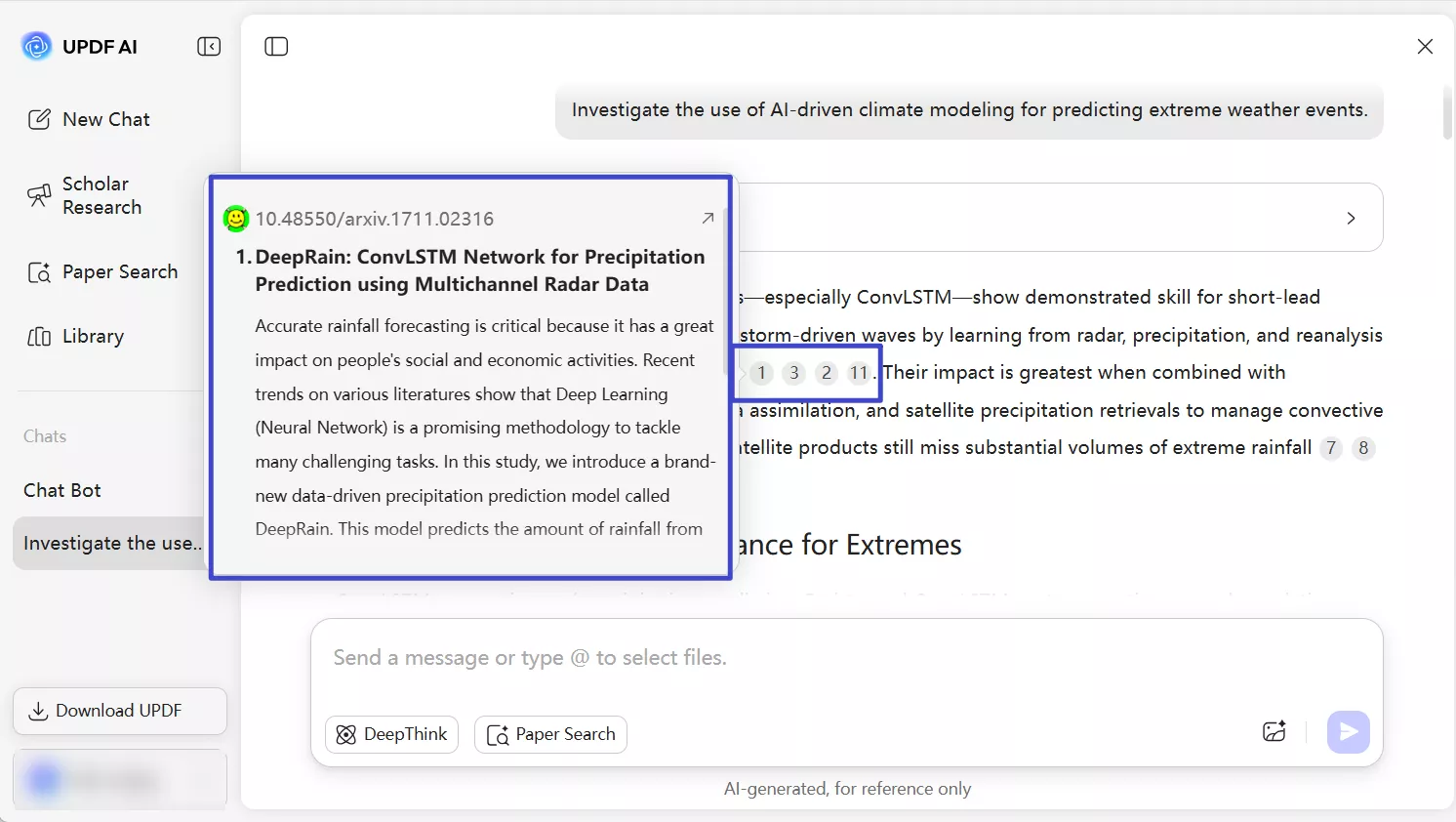
3. Cited-Back Answers for Paper Search
- Kuse AI: Can answer questions based on uploaded materials but may lack direct paper citations.
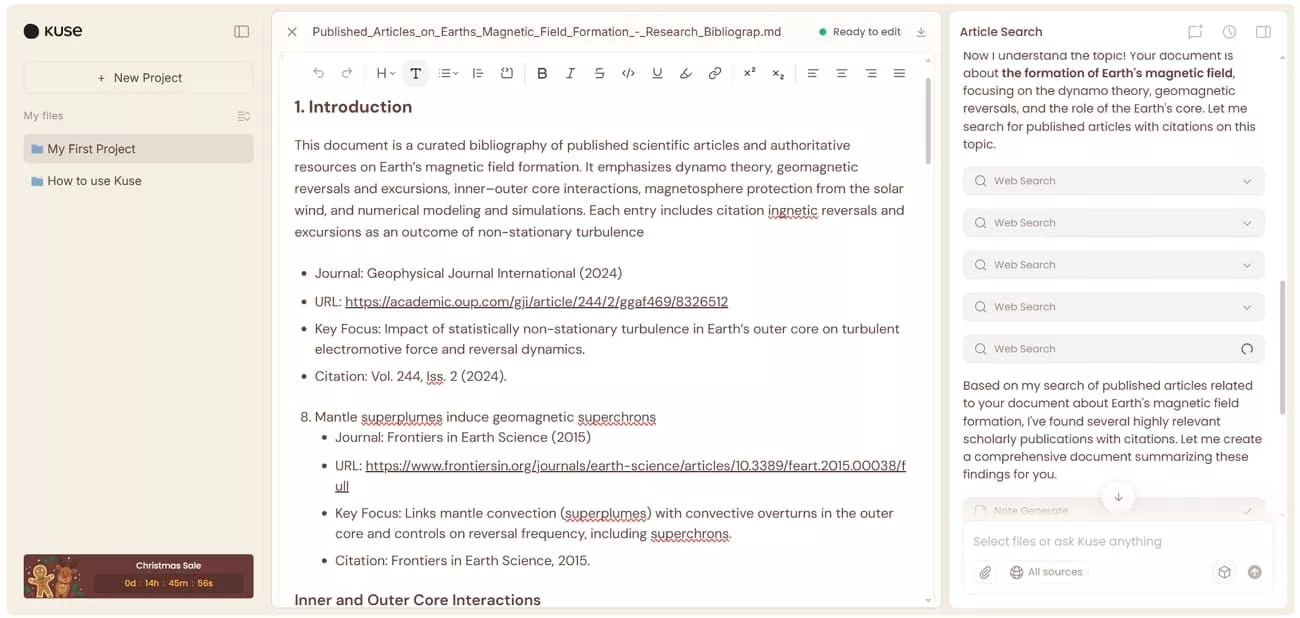
- UPDF AI: Returns answers with proper citations and allows direct download of referenced papers.
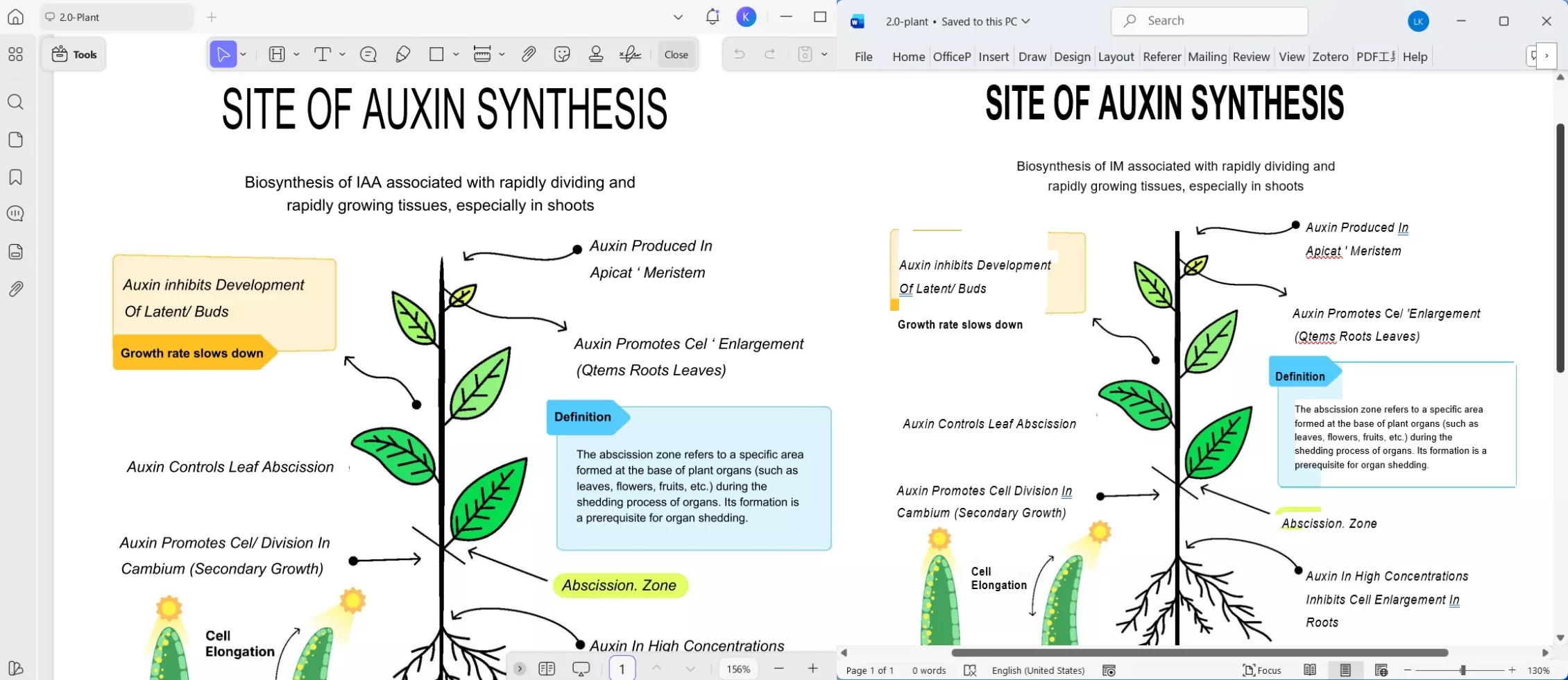
4. Online PDF Conversion
- Kuse AI: Can convert PDFs, but formatting may not always be fully preserved.
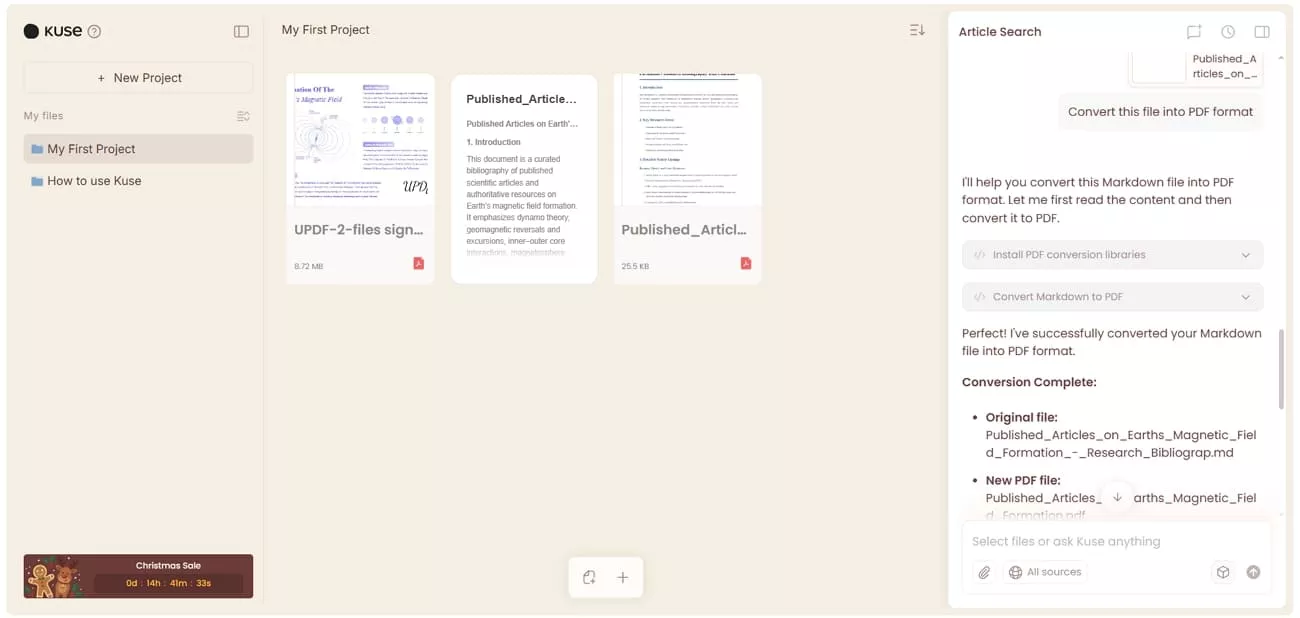
- UPDF AI: Converts PDFs to Word, Excel, or PowerPoint while keeping original formatting intact.
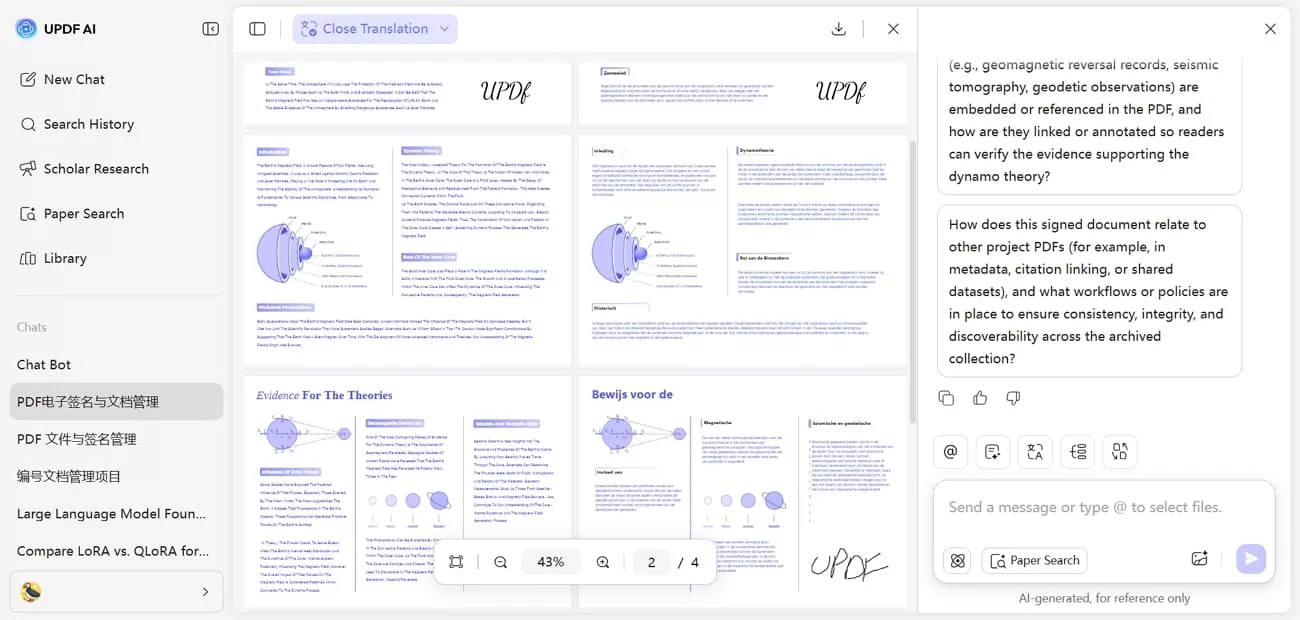
5. Side-by-Side Translation
- Kuse AI: Allows translation but may not support side-by-side comparison in all cases.
- UPDF AI: Provides side-by-side translations for PDFs to make comparisons easy.
Comparing Kuse AI & UPDF AI
Look at the table below to compare Kuse AI with UPDF AI in terms of pricing and compatibility.
| Aspect | Kuse AI | UPDF AI |
| Pricing | Plus: $190.8/Year Pro: $958.8/Year | $79/Year |
| Trial Availability | Free 500 signup credits and 50 daily login bonus | Free plan available with 100 questions/Month and 10 MB upload |
| Platforms Supported | Web-based | Windows, Mac, Web-based, Android, iOS |
| File Handling | Notes, PDFs, Word, Excel, Images, Text files, YouTube links, Web pages | PDFs, Word, Excel, PPT, images (JPG, PNG, JPEG) |
Now, let’s break down Kuse AI vs UPDF AI in terms of AI capabilities and features.
| Aspect | Kuse AI | UPDF AI |
| AI Model | Claude Opus 4.5, Claude Sonnet 4.5, Gemini 3 Pro, Gemini 2.5 Pro, GPT Image 1.5, Flux | ChatGPT 5, DeepSeek R1 |
| Chat with Multiple Files | ||
| Chat with Images | ||
| Text to Image Generation | ||
| Generate Mind Map | ||
| Convert PDF to Word/Excel/PPT | with formatting preserved | |
| Side-by-Side Translation | 12+ languages | |
| Summarize PDF by Page | (Partial) | |
| Paper Search with Citations | Limited | provides cited sources and downloads |
| Scholar Research | Not Available | structured literature research |
| Strengths in My Use | Excels at creative workflows | Excels at document-heavy research |
| Limitations | Credits run out quickly for new users | Focused mainly on PDFs |
Part 4. Who Wins? Choosing the Right Tool for You
After testing both Kuse AI and UPDF AI, let’s explore which tool fits specific workflows and use cases.
Choose Kuse AI
This tool provides a flexible environment that helps me turn scattered ideas into actionable plans. You choose go for Kuse AI if:
- Your work focuses on creative projects, brainstorming, or content generation.
- Managing notes, PDFs, web content, and images in one workspace helps your workflow.
- Generating images, mind maps, and flexible visual organization is important.
Choose UPDF AI
From my experience, UPDF AI is ideal when handling PDFs and research-heavy tasks. You should go for UPDF if:
- Your work revolves around academic research, paper analysis, or PDF-heavy tasks.
- Structured summaries, page-by-page insights, and cited research answers save you time.
- Converting PDFs to Word, Excel, or PowerPoint with formatting preserved is essential.
Translating documents and side-by-side comparisons improve understanding of research materials.
Conclusion
In conclusion, this guide compared Kuse AI vs UPDF AI to show how each tool supports different workflows. Kuse AI helps organize ideas creatively, but UPDF AI stands out for analyzing PDFs, generating structured summaries, and conducting research efficiently. For anyone focused on academic or document-heavy tasks, I highly recommend using UPDF AI Online.
Note: The information on this page is based on UPDF writers’ testing and publicly available product details at the time of writing. Features and pricing may change over time. If you notice any inaccuracies, please contact us at [email protected]


 Enola Davis
 Engelbert White

I tried building a smart knowledge base with Kuse 2.0. There are a few drawbacks: Still early in some spots : generated outputs can be hard to control, real-time team collaboration, mobile native app, offline features still need more work. All told, the concept of an AI OS that merges files + intent + generative ability into one infinite canvas is super interesting. Although it's not perfect yet, I can see it could be very promising! - ReadDesigner8103