 UPDF
UPDF
 UPDF for Windows
 UPDF for Mac
 UPDF for iPhone/iPad
 UPDF for Android
 UPDF AI Online
 UPDF Sign
 Edit PDF
 Annotate PDF
 Create PDF
 PDF Form
 Edit links
 Convert PDF
 OCR
OCR PDF to Word
 PDF to Image
 PDF to Excel
 Organize PDF
 Merge PDF
 Split PDF
 Crop PDF
 Rotate PDF
 Protect PDF
 Sign PDF
 Redact PDF
 Sanitize PDF
 Remove Security
 Read PDF
 UPDF Cloud
 Compress PDF
 Print PDF
 Batch Process
 About UPDF AI
 UPDF AI Solutions
 AI User Guide
 FAQ about UPDF AI
 Summarize PDF
 Translate PDF
 Chat with PDF
 Chat with AI
 Chat with image
 PDF to Mind Map
 Explain PDF
 PDF AI Tools
 Image AI Tools
 AI Chat Tools
 AI Writing Tools
 AI Study Tools
 AI Working Tools
 Other AI Tools
 AI Bookmark Generation
 AI Bookmark Summary
 AI Watermark Generation
 AI Background Generation
 AI Sticker Generation
 AI Stamp Generation
 AI Editing Suite
 UPDF Copilot
 AI Page Management
 AI Semantic Search
 PDF to Word
 PDF to Excel
 PDF to PowerPoint
 Enterprise Solution
 Enterprise Sign
 Enterprise AI
 Enterprise Plan
 Enterprise User Guide
 Enterprise Webinar
 Banking
 Healthcare
 Insurance
 Legal
Legal Manufacturing
 Government
 Education Solution
 Customer Stories
 User Guide
 UPDF Tricks
 FAQs
FAQs UPDF Reviews
 Download Center
 Blog
Blog Newsroom
 Tech Spec
 Updates
 UPDF vs. Adobe Acrobat
 UPDF vs. Foxit
 UPDF vs. PDF Expert

Creating a high-quality PDF starts with choosing the right PDF application. But there’s no one tool that works for everyone. There are several options available, each with its distinct features and benefits.
doPDF and UPDF are two popular options available. While both allow you to create PDFs, they’re not exactly the same. Therefore, in this guide, I will put doPDF vs UPDF in a detailed comparison. So, you can understand their unique capabilities and choose the one that better fits your needs. Before you get started, you can click the button below to download UPDF and try it for yourself.
Windows • macOS • iOS • Android 100% secure
Part 1. What is doPDF?
doPDF is a free virtual PDF printer that allows you to create PDF files from any application that supports printing. Developed by Softland, doPDF installs as a printer driver and appears in the Printers and Faxes list. Instead of printing to paper, you can select doPDF as the printer. The software then generates a PDF file.
Supported Devices
doPDF supports Windows 11 to 7, and Vista. In addition, it works on Windows Server versions 2025, 2022, 2019, 2016, 2012, and 2008 R2.
Core Features of doPDF
Most features of doPDF are available with the premium version. Here’s a list of the key features it offers.
- Supported File Types: Creates PDFs from over 400 formats, including Word, Excel, PowerPoint, TXT, and existing PDFs.
- PDF Creation: Generate PDFs by printing from any Windows app or directly through the doPDF interface.
- Layout Control: Adjust resolution, scaling, orientation, and custom page sizes.
- Security: Protect PDFs with a user password to prevent unauthorized access.
- Metadata: Add title, author, subject, and keywords for better organization and search.
- Embedding: Embed font subsets along with tables, images, and formulas to preserve formatting.
If you want to perform advanced edits such as adding copyright, sharing via email, or restricting PDF editing, you need to upgrade to NovaPDF. This tool is developed by the same company and platform as doPDF. However, it is available as a separate toolkit.
Interface and Learning Curve
The doPDF printer has a straightforward interface similar to the Windows Print dialog. This familiarity makes it easier to operate for new users. Moreover, it includes the Microsoft Office add-ins. Therefore, you can convert MS Office files directly from their native applications. This makes the conversion process much faster and easier.
Pricing Plans
- doPDF Free: Basic PDF creation features.
- doPDF Premium: $14.99/one-time payment. Includes password protection and removes advertisements from the save dialog.
Part 2. doPDF Free Download: Step-by-Step Guide
With the doPDF free download, you can print to PDFs from any Windows application. You can download it from the official website.
Here are the steps.
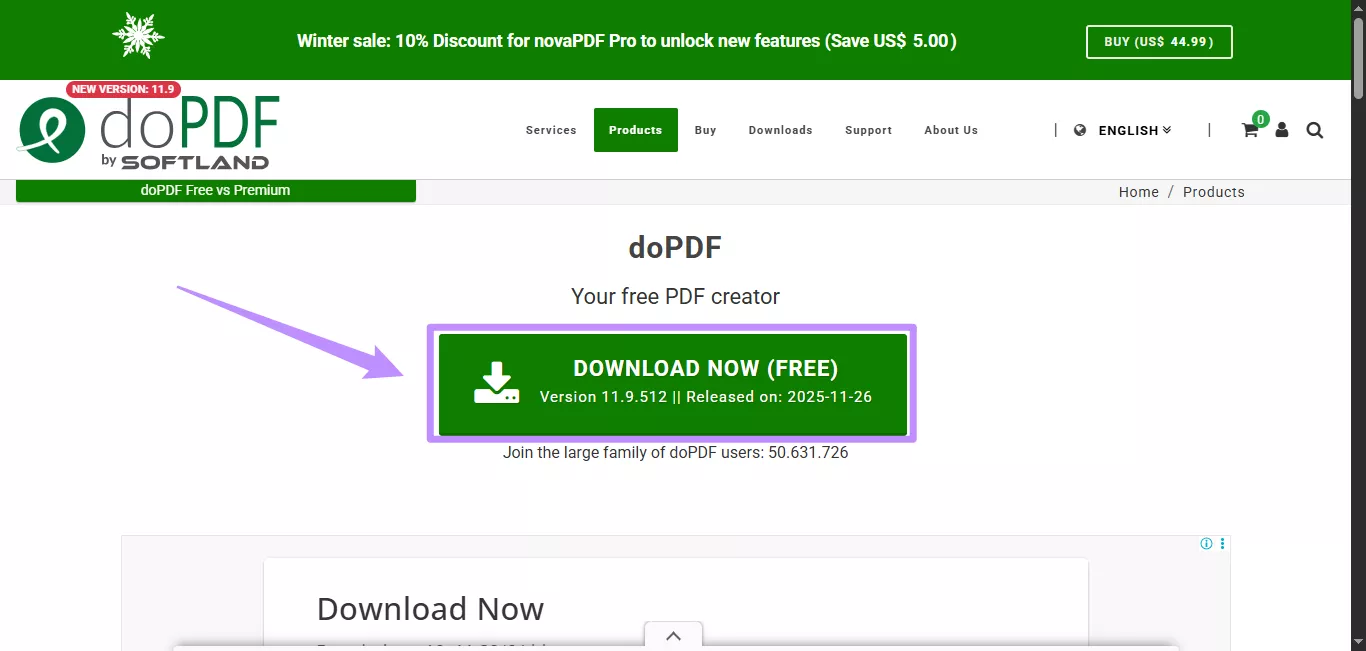
Step 1. Go to the doPDF product page on the doPDF website and click the “Download Now” button.
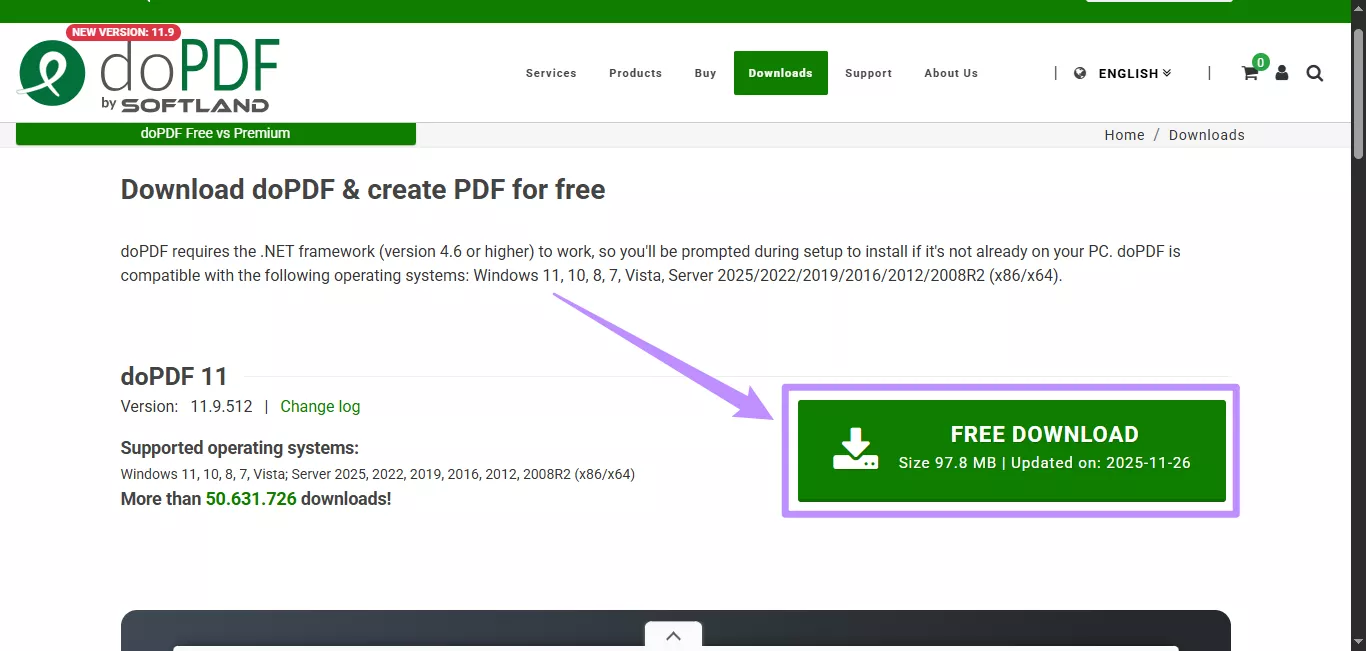
Step 2. You will be directed to the download page. From here, click the “Free Download” button to get the latest version.
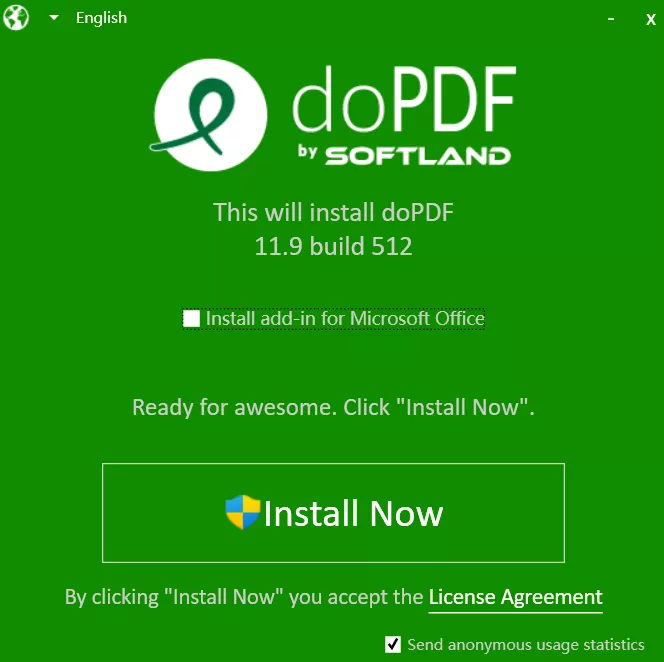
Step 3. Once your file is downloaded, double-click it. Then, click “Install Now” from the dialogue window. Select the option to install the add-in for Microsoft Office if needed.
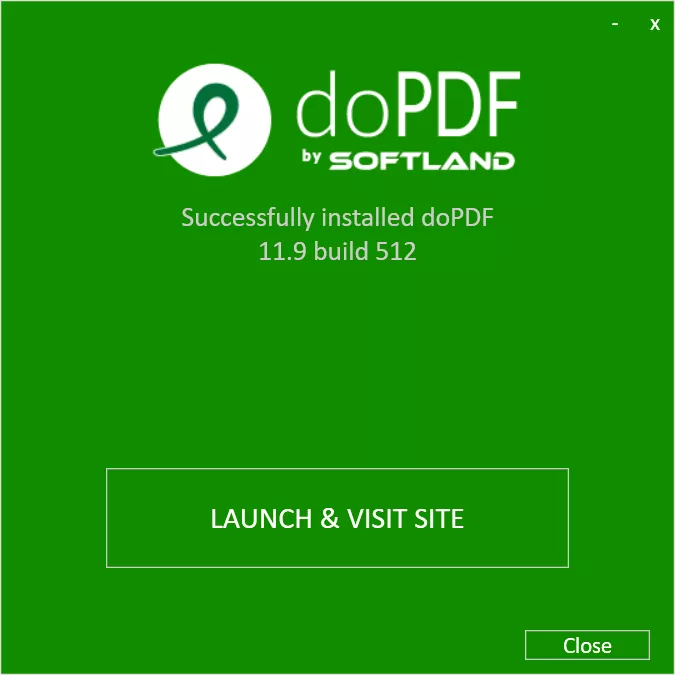
Step 5. Once the installation is complete, click the “Launch & Visit Site” button to open it.
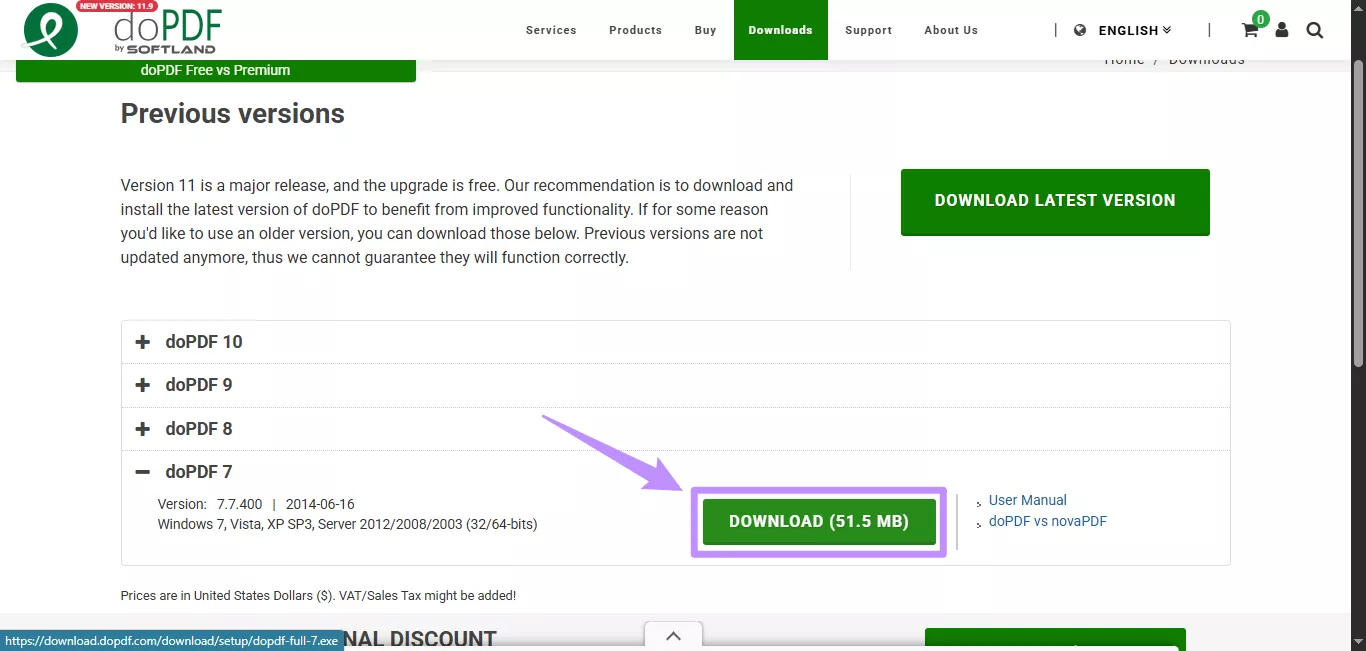
Step 6. If you need an older version, such as for doPDF 7 download, go to the Previous Versions page and select the application you want to download.
Part 3. How Does doPDF Work?
doPDF offers two ways to create PDFs. You can either use the Print to PDF option from any application that supports a native Print option or create a new PDF directly from the doPDF interface. You don’t need any GhostScript or other third-party engines.
Here’s how it works.
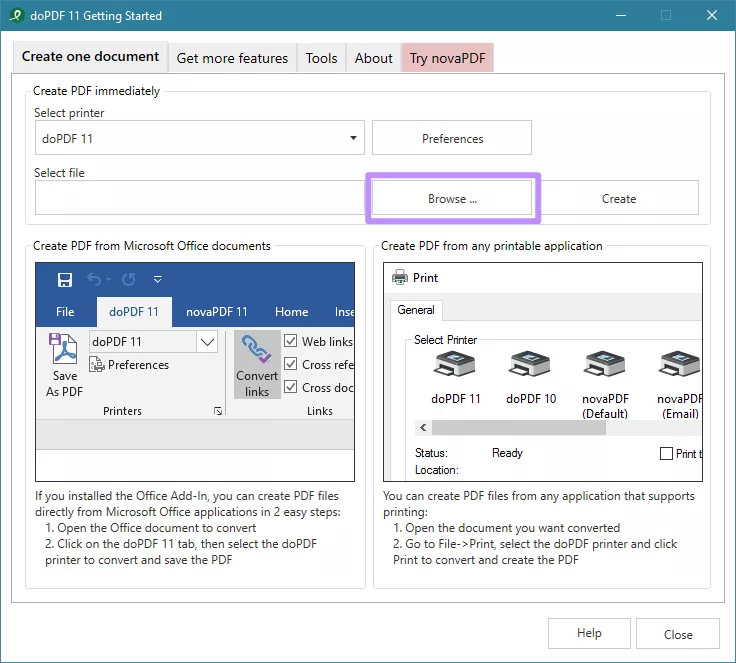
Step 1. Open doPDF on your device and click “Browse” to import the file you want to convert to PDF.
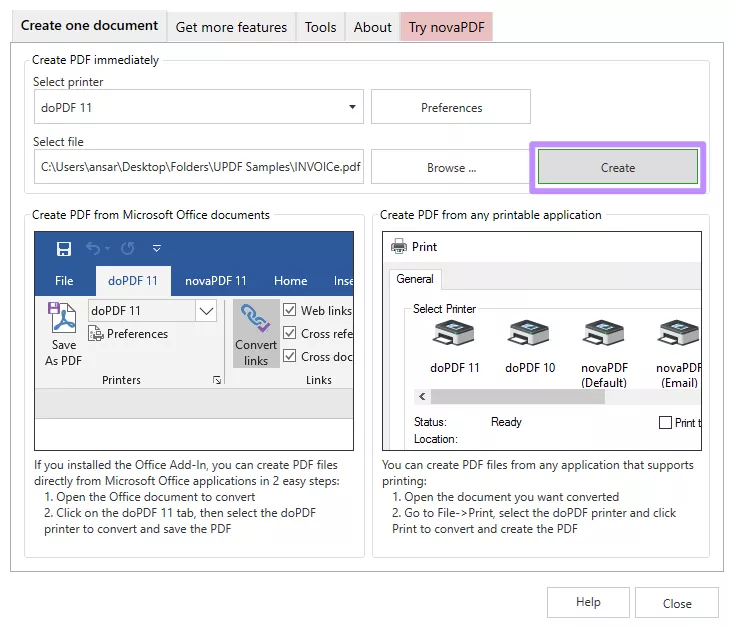
Step 2. Once your file is added, click the “Create” button. Then, give your file a name and select a location to save it in the PDF format.
Step 3. To directly convert documents from Word, click “File” and select “Print” from the menu. Then, select “doPDF” from the Printer dropdown and click “Print.”
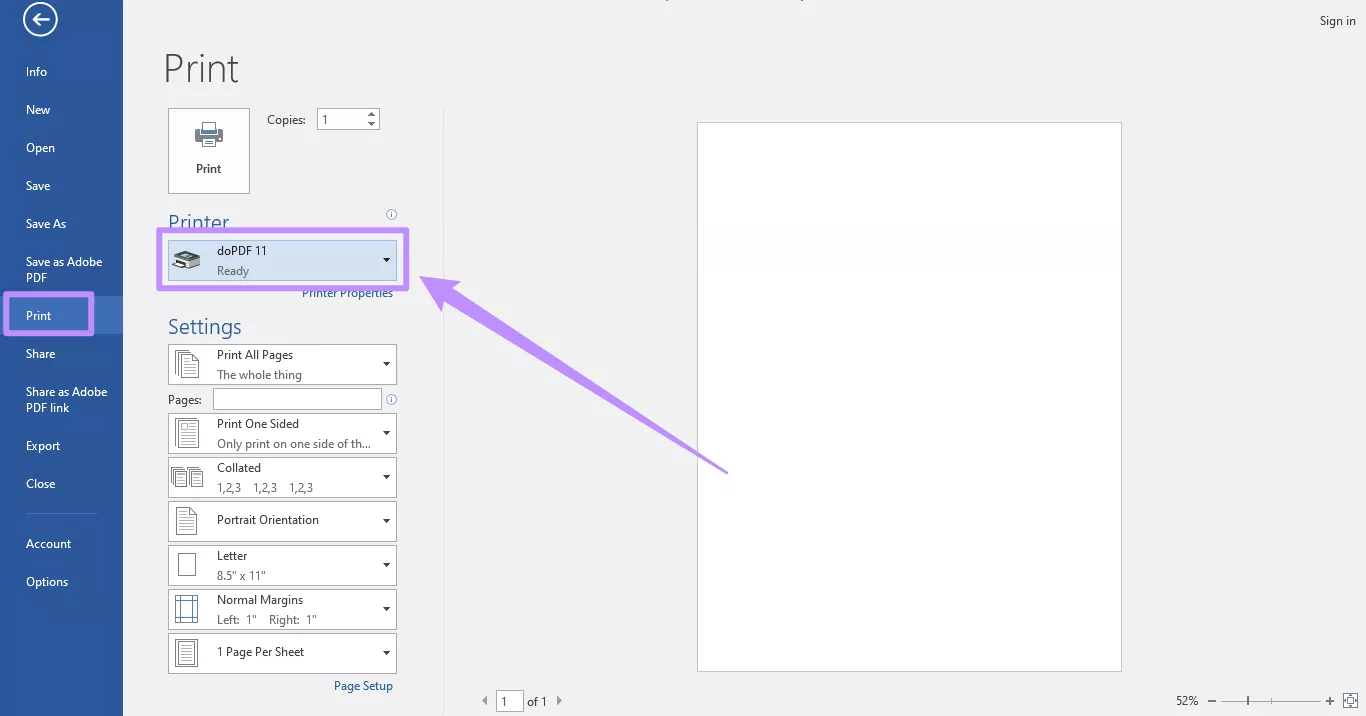
What Makes doPDF Different?
You might be thinking, why even download a virtual printer software when you can easily use the Microsoft Print to PDF option to create a PDF file? That’s because doPDF offers several additional advantages:
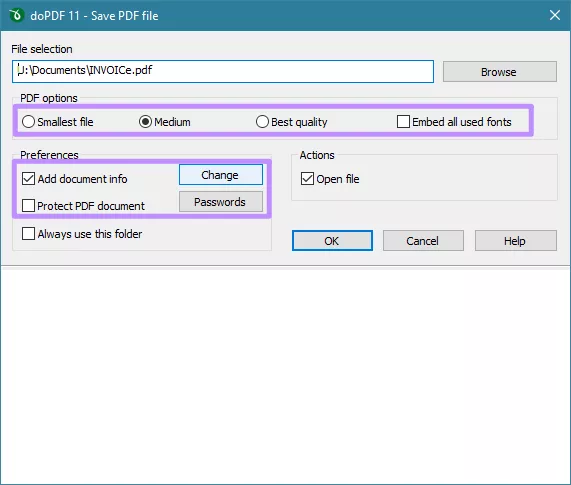
Once you select the “Print” option, doPDF allows you to customize the output file size and preferences. This means I can choose the “Smallest” or “Medium” size to upload the file to the web. Or, I can choose the “Best quality” option for printing the PDF.
In addition, I can select the “Embed all used fonts” to ensure that the original fonts remain intact after conversion. doPDF also allows you to add document info like author name as well as protect the PDF with passwords.
Here’s a quick look at what else I can do with doPDF.
- Its interface is available in 33 different languages.
- You can preset a page size such as Letter, A1, A2, A3, A4, A5, and more.
- It keeps the document’s bookmarks and links after the conversion to PDF.
- It creates a searchable PDF, which you can search or edit with a PDF editor.
Now, let’s move on with our DoPDF vs UPDF rundown.
Part 4. From Virtual Printer to Power Editor: UPDF
While doPDF makes it easy to create printable PDFs, it offers limited features for editing and managing PDFs after conversion. As someone who works with PDFs daily, this has been a significant limitation for me. I needed a tool that provides a comprehensive set of PDF tools within a single application.
UPDF has met my needs perfectly. It offers everything I need, a complete PDF toolkit plus a built-in AI assistant to help me create, edit, and manage files all in one place. I no longer have to switch between multiple tools when working with a PDF. Also, given its powerful feature set and wide platform support, UPDF is also very cost-effective.
Windows • macOS • iOS • Android 100% secure
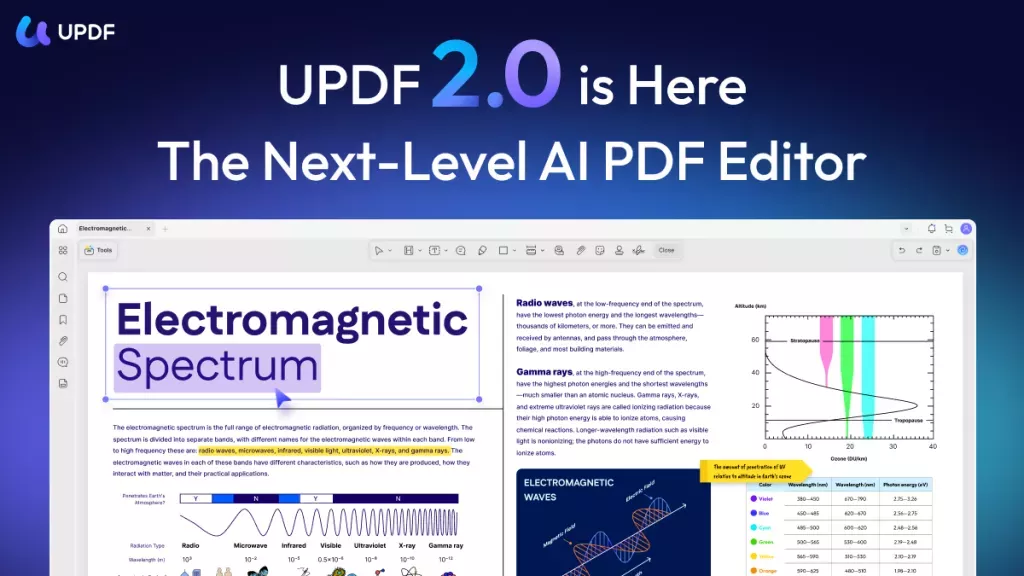
Core Features of UPDF
- Create PDF from blank documents, Word, Excel, PowerPoint, Images, and more.
- Edit PDF text, images, links, watermarks, headers, footers, pages, and background.
- Convert PDF to Word, Excel, PowerPoint, Images, PDF/A, and more.
- Markup PDFs with highlights, underline, squiggly, strikethrough, shapes, and stickers.
- Add comments with sticky notes, text boxes, and text callouts.
- Protect PDF with open and permission passwords, redaction, and sanitize metadata.
- Create and fill both static and interactive PDF forms and add signatures.
- Run OCR to make scanned PDFs or images editable and searchable.
- AI Assistant to summarize, translate, explain PDFs, create mindmaps, analyze images, etc.
Supported Devices
UPDF is available across Windows, Mac, Android, and iOS. You can access it on all devices with just one license and get the same experience no matter where you work.
Windows • macOS • iOS • Android 100% secure
nterface and Learning Curve
UPDF has a modern and clean interface that feels fresh and intuitive. The layout is uncluttered, and the navigation is simple. All tools are easy to locate without searching through complex menus. Despite offering advanced PDF features, each tool is clearly labeled and straightforward to use. Even first-time users can work easily without a learning curve.
Pricing Plans and Limitations for Free Version
UPDF offers a free trial that allows you to test all the features for free. However, trial watermarks are added to edited files. The free version of UPDF AI allows you to ask upto 100 questions.
If you want to enjoy unlimited access to all UPDF features, you can upgrade to the Pro version with the following price plans.
- UPDF Annual Plan: $49.99/Year
- UPDF Lifetime Plan: $79.99/Lifetime
- AI Assistant: $79.00/Year, $29.00/Quarter
Part 5. doPDF vs UPDF: Key Differences
Now that you’ve learned about doPDF and UPDF, you might be wondering which tool would better fit your needs. To make this easier, I’ve created a detailed comparison of their features and usability below.
| Features | UPDF | doPDF | |
| Core Role | Full PDF editor + AI: edit, annotate, convert, organize, AI chat with PDFs, and more. | Virtual PDF printer: convert anything printable to PDF. | |
| Online Tools | Online Convert (UPDF AI Online) | (PDF to Word, PPT, Excel) | |
| AI | (Summarize; translate; explain; chat with PDF, AI, images; PDF to mindmap, conduct scholar research, paper research, etc) | ||
| Sign PDF | (UPDF Sign) | ||
| Create PDF | Scan to PDF | ||
| PDF from Image | |||
| PDF from Word | |||
| Excel | |||
| PPT | |||
| CAJ | |||
| Clipboard | |||
| Read PDF | Single-Page or Two Pages | ||
| Annotate PDF | |||
| Measure PDF | (with Calibrate feature) | ||
| Convert PDF to Other Formats | |||
| Organize PDF | Extract Pages | ||
| OCR | Multiple Languages | (38+ languages) | |
| Edit PDF | |||
| Password Protect PDF | (doPDF Premium) | ||
| AI Integrated | (Summarize, Translate, Chat, Generate Mind Map, etc.) | ||
| Cost | UPDF: $49.99/Year, $79.99/Lifetime AI: $79.00/Year, $29.00/Quarter | $14.99/lifetime(relatively cheap vs major editors, with a one-time option) | |
| Compatible Devices | Windows, Android, Mac, iOS (Single license covers all) | Windows Only | |
Note: The prices listed in the table are based on the promotional offers available at the time the blog was published. However, these prices may change over time. For the most current and accurate pricing information, visit the official doPDF and UPDF websites.
Part 6. Final Verdict: Is doPDF Worth It?
doPDF is great for a straightforward and free solution to convert documents to PDF. I use it when I need a simple and reliable solution to create PDFs directly from native applications such as Word or PowerPoint. The virtual printer functionality makes it incredibly convenient. Plus, it gives me the flexibility to add passwords and reduce file size quickly before saving it.
On the other hand, I prefer using UPDF for tasks that require deeper control over PDF files. It allows me to fine-tune all the PDF elements I need. For example, I can add review comments, redact sensitive information, and share documents instantly via email or link.
The AI assistant is particularly useful when I need to summarize lengthy documents, translate content, or understand complex information. Because UPDF works across platforms, I can seamlessly move between desktop and tablet. Overall, for users who need a full-featured and affordable PDF solution, UPDF is a strong option to try.
Windows • macOS • iOS • Android 100% secure
Conclusion
To sum up this doPDF vs UPDF comparison, both tools have their unique strengths. While doPDF is great for free and quick PDF creation, UPDF offers an all-in-one solution to edit and manage your documents.
With its seamlessly integrated AI assistant, you can directly analyze complex documents, translate content, generate mind maps, and more. You can do all this without having to switch to another platform. This allows you to work without distraction and complete your PDF tasks much faster. Plus, you can get started with a free trial. So, don’t miss out. Download and try UPDF today!
Windows • macOS • iOS • Android 100% secure


 Enya Moore
 Grace Curry
 Enrica Taylor