 UPDF
UPDF
 UPDF para Windows
 UPDF para Mac
 UPDF para iPhone/iPad
 UPDF para Android
 Nomostar
 UPDF AI ONLINE
 UPDF Sign
 IvyCraft
 Editar PDF
 Anotar PDF
 Crear PDF
 Formulario PDF
 Editar enlaces
 Convertir PDF
 OCR
OCR PDF a Word
 PDF a imagen
 PDF a Excel
 Organizar PDF
 Combinar PDF
 Dividir PDF
 Recortar PDF
 Girar PDF
 Proteger PDF
 Firmar PDF
 Redactar PDF
 Desinfectar PDF
 Eliminar seguridad
 Leer PDF
 UPDF Cloud
 Comprimir PDF
 Imprimir PDF
 Proceso por lotes
 Sobre UPDF IA
 Soluciones de UPDF IA
 Guía de Usuario de IA
 Preguntas frecuentes sobre UPDF IA
 Resumir PDF
 Traducir PDF
 Chat con PDF
 Chat con imagen
 PDF a Mapa Mental
 Chat con IA
 Explicar PDF
 Herramientas IA para PDF
 Herramientas IA para Imagen
 Herramientas IA de Chat
 Herramientas IA de Redacción
 Herramientas IA de Estudio
 Herramientas IA de Trabajo
 Otras Herramientas IA
 Generación de Marcadores con IA
 Resumen de Marcadores con IA
 Generación de Marcas de Agua con IA
 Generación de Fondos con IA
 Generación de Pegatinas con IA
 Generación de Sellos con IA
 Suite de Escritura con IA
 UPDF Copilot
 Gestión de Páginas con IA
 Búsqueda Semántica con IA
 PDF a Word
 PDF a Excel
 PDF a PowerPoint
 Solución Empresarial
 Letrero de empresa
 Inteligencia artificial empresarial
 Plan para Empresas
 Guía del Usuario Empresarial
 Webinar Empresarial
 IT
IT Educativos
 Construcción
 Servicios Financieros
 Salud
Salud Seguros
 Legal
Legal Manufactura
 Gobierno
 Investigadores y doctorandos
 Emprendedores individuales
 Abogados y despachos
 Profesionales inmobiliarios
 Solución para Educación
  Historias de Clientes
 Guía del Usuario
 Trucos de UPDF
 Preguntas Frecuentes
 Reseñas de UPDF
 Centro de descargas
 Blog
Blog Sala de prensa
 Especificaciones Técnicas
 Actualizaciones
 UPDF vs. Adobe Acrobat
 UPDF vs. Foxit
 UPDF vs. PDF Expert

Este tipo de desastre, donde convertir un archivo significa arruinarlo, ocurre a diario en los entornos profesionales más exigentes. A nivel técnico, un PDF funciona como un lienzo fijo: es un sistema de presentación rígido basado en coordenadas exactas. Por el contrario, los programas de edición como Microsoft Word o Excel utilizan arquitecturas fluidas y dinámicas. En ellos, el texto y las celdas se reajustan automáticamente ante cualquier cambio.
La mayoría de los convertidores online gratuitos no tienen la capacidad de descifrar la estructura original del documento. Se limitan a extraer el texto en bruto a ciegas, lo que provoca que la alineación de los párrafos, las filas y las columnas colapsen y se mezclen por completo. Una extracción de datos verdaderamente profesional requiere un motor inteligente de reconocimiento de formato que traduzca con precisión esos elementos gráficos fijos en elementos nativos y editables. Al utilizar un procesador avanzado como UPDF, tu equipo podrá convertir documentos entre diferentes formatos sin esfuerzo, garantizando que el texto, las tablas y la tipografía se mantengan exactamente en su lugar.
Windows • macOS • iOS • Android 100% Seguro
1. Tabla de soluciones rápidas para convertir a PDF
Al exportar o convertir tus archivos PDF a otros formatos, es muy común que el diseño original se descuadre, haciéndote perder un tiempo de trabajo valioso. Consulta la siguiente tabla para encontrar de un vistazo la opción ideal según tus necesidades:
| Formato de destino | Ruta recomendada en UPDF | Elementos clave preservados |
| Documento de Word | Exportar PDF → Word | Diseño de párrafos |
| Hoja de Excel | Exportar PDF → Excel | Cuadrícula de tabla |
| Presentación PowerPoint | Exportar PDF → PowerPoint | Estructura de presentación |
| Imágenes PNG/JPEG/TIFF/GIF | Exportar PDF → Image | Calidad visual |
| Página web (HTML) | Exportar PDF → HTML | Estructura de página |
| Estructura XML | Exportar PDF → XML | Jerarquía de etiquetas |
| Archivo RTF | Exportar PDF → RTF | Estilo de texto básico |
| Documentos escaneados | OCR → Export to desired format | Texto editable y buscable |
Si prefieres una demostración visual rápida de estas opciones, mira el video a continuación. En él verás la conversión de documentos reales para que compruebes qué opción conserva mejor el diseño original.
2. Cómo convertir PDF a formatos de Microsoft Office (Word/Excel/PPT)
En el día a día empresarial, es muy común tener que transferir el diseño complejo de un balance general contenido en un archivo como financial_statement.pdf de vuelta a una hoja de Excel para aplicar fórmulas, o recuperar una propuesta comercial y transformarla en una presentación interactiva de PowerPoint para una reunión de equipo. Para evitar bordes descuadrados o que el diseño se desconfigure por completo, es fundamental utilizar un flujo de trabajo de exportación optimizado que conserve intactas las propiedades y la estructura original de los párrafos.
Flujo de trabajo (paso a paso):
- Inicia UPDF y accede a tu espacio de trabajo. Si tienes decenas de contratos corporativos o facturas que procesar al mismo tiempo, simplemente selecciona Herramientas > Convertir dentro de la sección Operación multi-archivo para ejecutar el procesamiento en paralelo (todos los tipos de archivo que veremos a continuación admiten esta función por lotes que te ahorrará mucho tiempo).
Windows • macOS • iOS • Android 100% Seguro
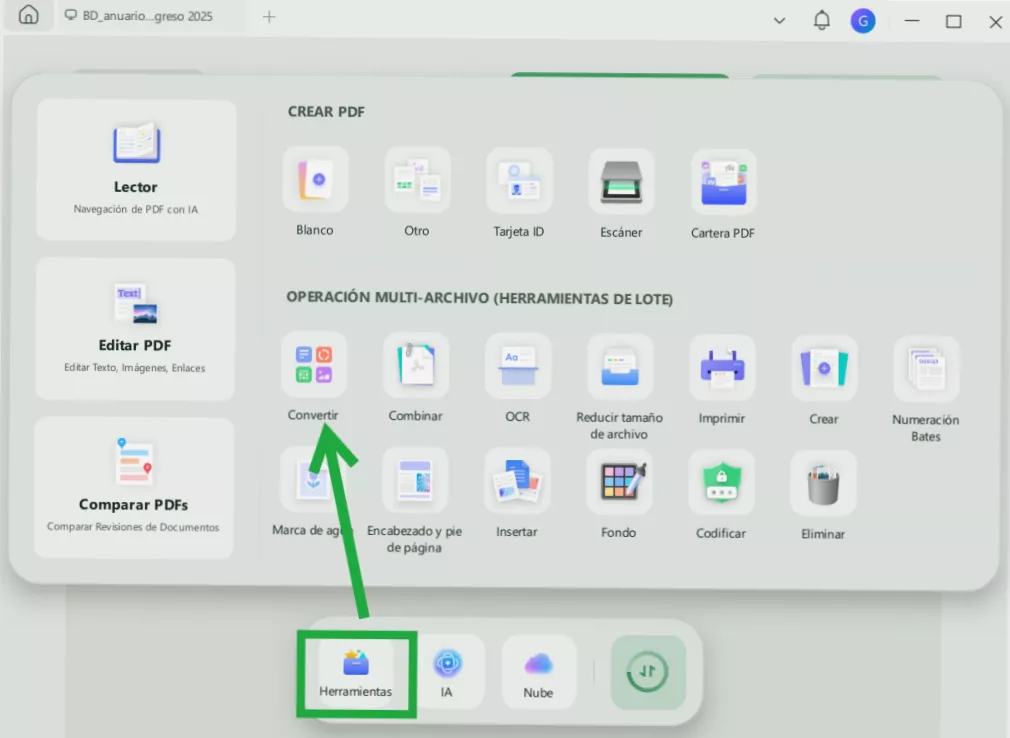
De lo contrario, arrastra y suelta fácilmente el archivo en el visor de edición.
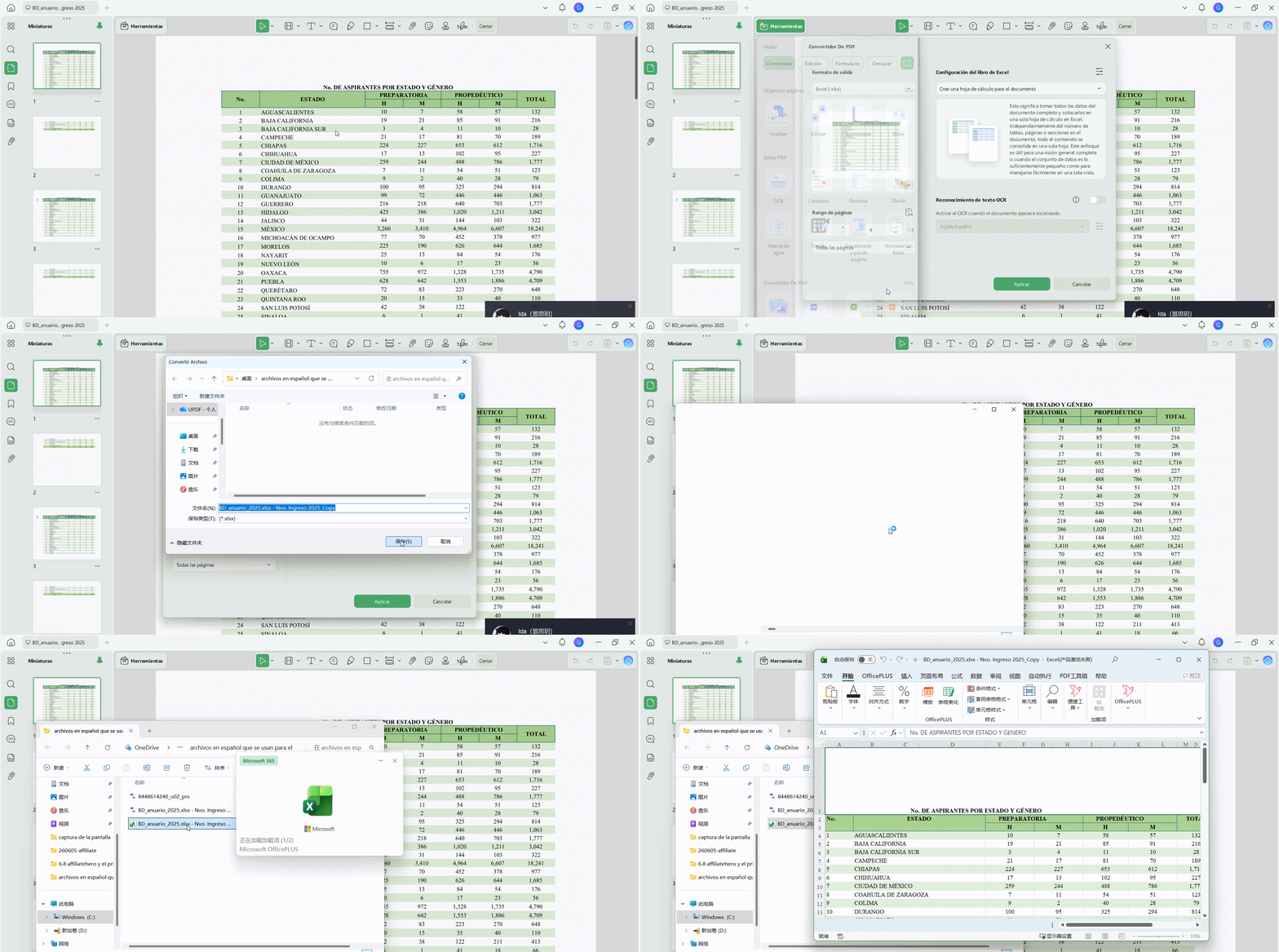
2. Dirígete a la barra de herramientas del panel que está arriba y haz clic en el icono Convertidor De PDF de para desplegar el menú de formatos disponibles.
3. Selecciona el formato de salida específico según las necesidades inmediatas de tu tarea:
- Para modificar términos legales o cláusulas de contratos, haz clic en Convertir PDF en Word para generar un archivo
.docxestándar - Para desglosar matrices de datos estructurados, haz clic en Convertir PDF en Excel para generar una hoja de cálculo
.xlsx. Si estás manejando facturas impresas o estáticas, puedes activar el interruptor de OCR en la ventana emergente de configuración; esto resultará sumamente útil, ya que transforma los píxeles planos del fondo en celdas operativas, lo que lo hace perfecto para migrar un estado de cuenta bancario complejo de PDF a Excel sin descuadrar las columnas del diseño. - Para recuperar la estructura de una presentación, haz clic en Convertir PDF en PowerPoint para generar diapositivas
.pptxinteractivas.
4. Verifica los parámetros de retención de diseño y haz clic en el botón Exportar.
3. Cómo convertir PDF en dispositivos móviles iPhone, iPad o Android
Cuando trabajas a distancia, viajas o asistes a conferencias, es común recibir documentación digital urgente por correo electrónico o aplicaciones de mensajería. No es necesario esperar hasta volver a tu computadora de escritorio; puedes extraer al instante extensiones de datos directamente desde la pantalla de tu teléfono o tableta.
Flujo de trabajo (paso a paso):
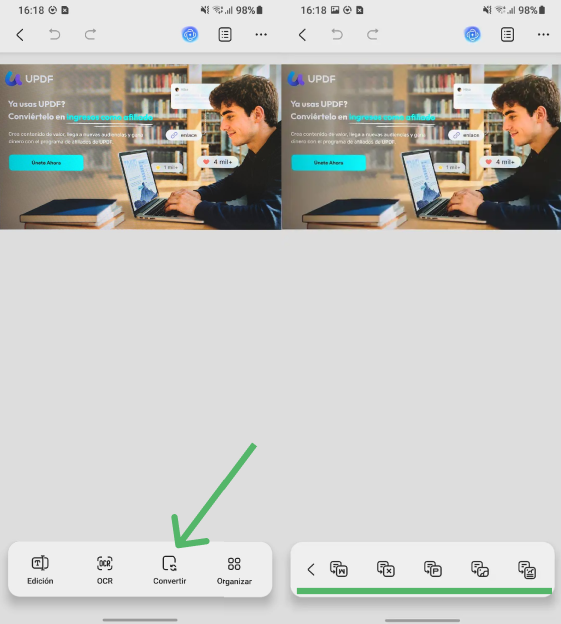
- Para convertir un PDF en Android, abre el archivo en UPDF, presiona la opción Convertir y elige el formato que desees.
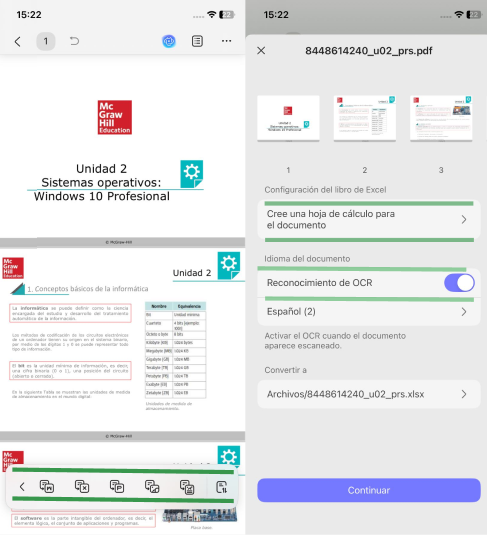
2. En iPhone, UPDF para iOS convierte los archivos PDF de la misma manera. Una vez seleccionado el formato, activa la opción de OCR y elige el Estilo de contenido de Word que prefieras. Al finalizar, presiona Hecho. Además, esta herramienta externa genera imágenes PNG nítidas y las guarda directamente en tu dispositivo o en iCloud.
4. Cómo convertir PDF a imágenes de alta resolución (PNG/JPEG/TIFF/GIF)
Las agencias de diseño y los gestores de marketing necesitan frecuentemente transformar catálogos de varias páginas o folletos publicitarios en formatos de imagen específicos para su publicación inmediata en redes sociales o su integración en entornos web. Debido a que cada canal digital exige perfiles de optimización distintos, el motor de conversión subyacente debe adaptarse dinámicamente a la calidad y resolución que tu proyecto requiera.
Flujo de trabajo (paso a paso):
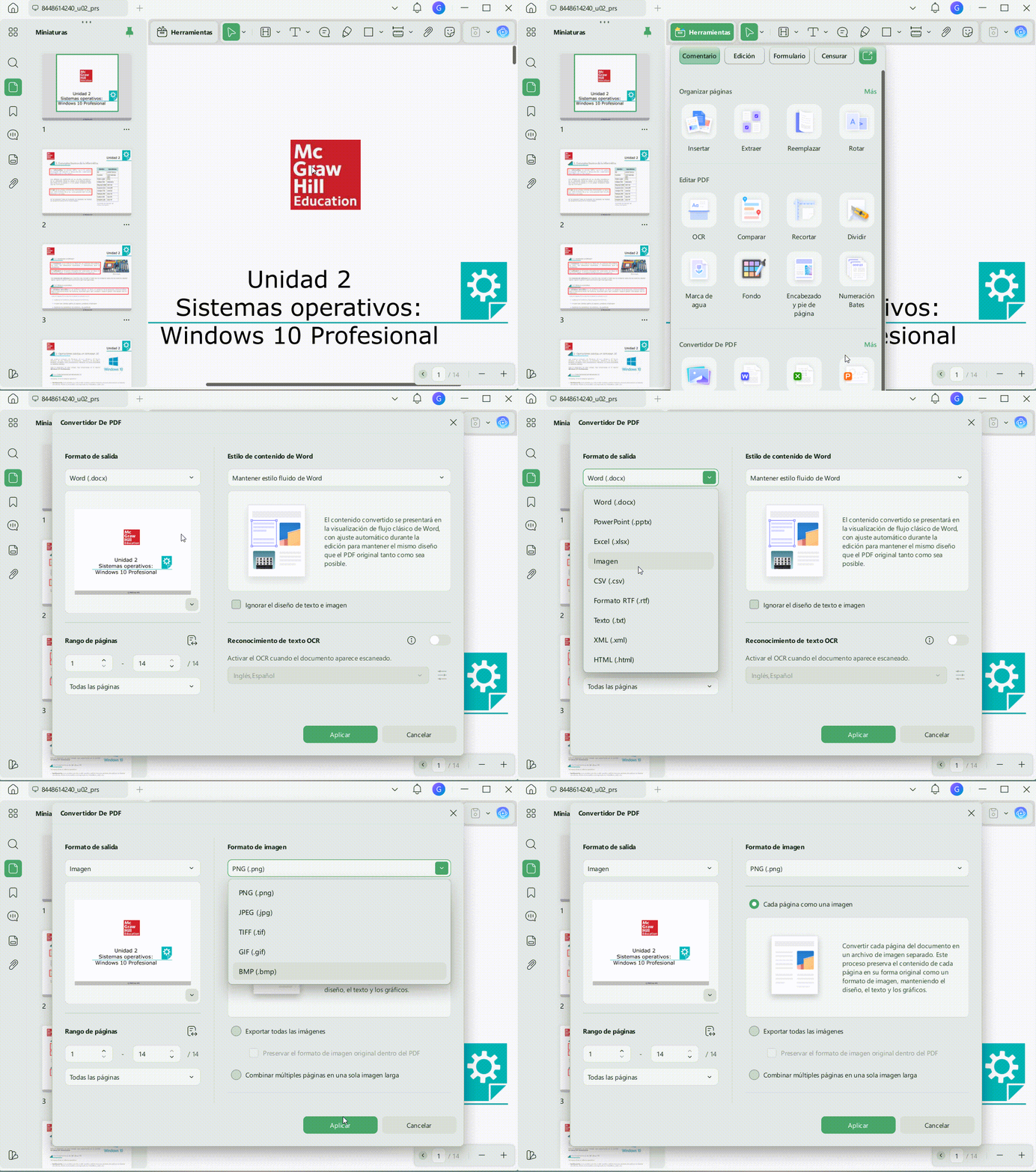
- En el convertidor de PDF de UPDF para escritorio, elige Imagen como formato de salida y selecciona PNG. Luego, presiona Aplicar para convertir tu PDF a PNG.
- Para convertir el PDF a BMP o a cualquier otro formato de imagen, simplemente elige la extensión deseada y la herramienta se encargará del resto. Asegúrate de seleccionar el rango de páginas del PDF que deseas convertir antes de iniciar.
5. Cómo convertir PDF a formatos web y diseños con estructura de código (HTML/XML/RTF)
Para los desarrolladores de software y analistas de bases de datos, la migración directa de elementos de documentos estáticos hacia encabezados estandarizados de sitios web corporativos, así como la extracción limpia de árboles de datos estructurales para alimentar bases de datos del lado del servidor, constituye un requisito de automatización esencial.
Flujo de trabajo (paso a paso):
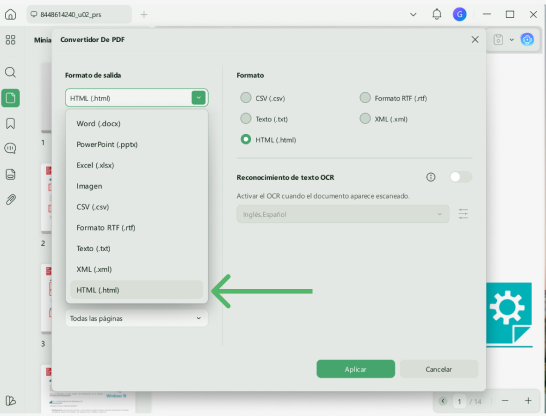
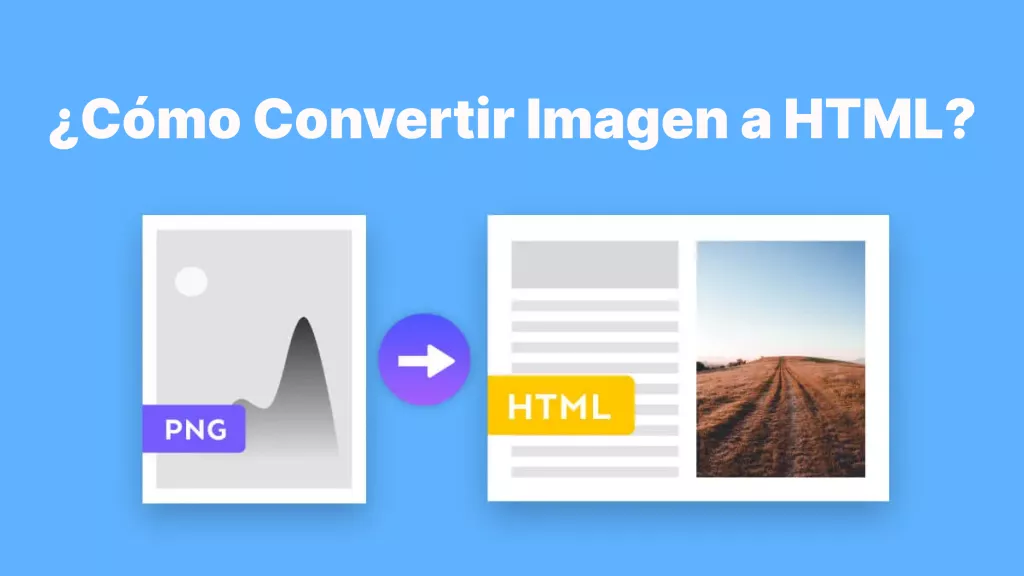
- En la función de Convertir, elige la opción HTML en la sección de formato de salida. Selecciona el rango de páginas y haz clic en el botón Aplicar para iniciar la conversión de PDF a HTML.
- Posteriormente, selecciona la opción XML en la misma interfaz si deseas convertir el PDF a XML. Para transformar un PDF al formato RTF, elige la opción Formato de texto enriquecido (.rtf) dentro del menú de formatos disponibles.
6. Cómo convertir documentos PDF escaneados mediante OCR
Cuando trabajas con documentación física digitalizada a través de escáneres planos o fotografías de teléfonos móviles (invoice_scanned.pdf), notarás que los caracteres individuales se comportan como píxeles de fondo completamente estáticos e inasequibles. Ejecutar una exportación estándar en este tipo de archivos solo generará páginas en blanco o documentos gráficos ilegibles.
Flujo de trabajo (paso a paso):
- En la interfaz principal, haz clic en Herramientas y presiona la opción OCR.
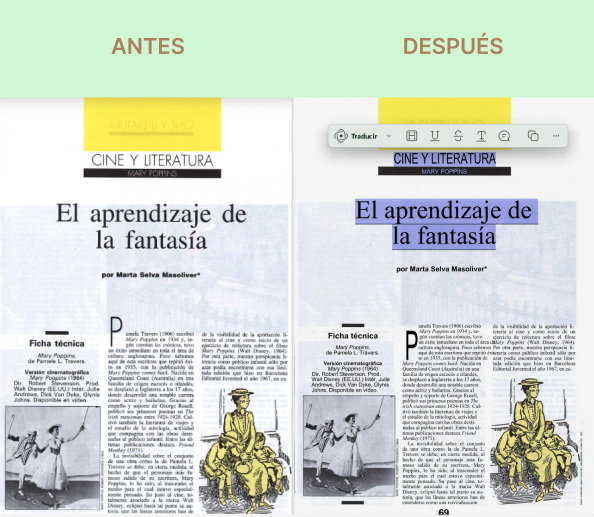
- A continuación, selecciona el tipo OCR editable y elige hasta 38 idiomas presentes en el documento para su reconocimiento. Posteriormente, define el rango de páginas escaneadas y haz clic en el botón Convertir para iniciar el proceso. Una vez finalizada la conversión, UPDF te permitirá editar el PDF escaneado libremente.
[Procesar por lotes y aplicar OCR a archivos PDF de forma nativa]
Windows • macOS • iOS • Android 100% Seguro
7. Flujos de trabajo inversos: Cómo convertir otros formatos a PDF
Gran parte del entorno de trabajo digital que busca "convertir PDF" en realidad intenta ejecutar el proceso inverso: combinar hojas de texto, hojas de cálculo o imágenes individuales en un paquete PDF único y seguro. Por ejemplo, los equipos suelen convertir configuraciones de archivos TXT a PDF para proteger el formato frente a modificaciones, o buscan cómo guardar un Google Doc como PDF para su distribución inmediata a clientes.
Para mantener este recurso técnico enfocado estrictamente en las metodologías de conversión de salida, hemos recopilado estos pasos de creación inversa en nuestra guía de implementación maestra dedicada: Cómo crear un PDF.
8. Integración en la nube y canales de archivado a largo plazo (Google y PDF/A)
Muchos equipos nativos digitales necesitan migrar sus archivos PDF locales a entornos compartidos para facilitar la colaboración en tiempo real. Un flujo de trabajo común consiste en transformar informes de PDF a Google Docs para permitir la edición simultánea entre colaboradores. De igual forma, los departamentos financieros y de operaciones procesan matrices de datos mediante flujos de PDF a Google Sheets para realizar seguimientos métricos en vivo.
Asimismo, es frecuente la conversión de PDF a Word cuando se requiere una edición estructural profunda previa a la distribución en la nube. Por otro lado, los departamentos legales y los gestores de documentación —obligados a garantizar la integridad y legibilidad de sus archivos históricos durante décadas sin alteraciones en la maquetación— emplean la conversión de PDF a PDF/A a través del panel de exportación avanzada de UPDF para asegurar un archivado normativo a largo plazo.
9. Barreras funcionales ocultas de los convertidores web en línea gratuitos
Muchos usuarios recurren a herramientas rápidas de navegador, como iLovePDF, buscando soluciones inmediatas. Aunque estos servicios funcionan para tareas mínimas, los archivos de gran tamaño (superiores a 50 MB) suelen interrumpir la conexión por tiempo de espera (timeout). Además, cada carga envía archivos comerciales confidenciales a servidores desconocidos, lo que genera riesgos severos de filtración de datos.
La mayoría de los convertidores web no pueden procesar formatos especializados, como PDF a DjVu, de manera confiable. Asimismo, los formularios de bases de datos estructuradas, incluidos los flujos de trabajo de FDF a PDF, suelen romperse por completo, provocando una pérdida crítica de información.
10. Matriz de conversión de PDF: Capacidades y límites de privacidad
Los usuarios avanzados suelen comparar las herramientas locales como UPDF con los convertidores web gratuitos y los visores básicos del sistema. El análisis se centra en la precisión de la maquetación, los idiomas de OCR, el procesamiento por lotes, la gestión de archivos pesados y las políticas estrictas de privacidad.
La siguiente tabla detalla cómo responde cada alternativa al convertir hacia PDF u otros formatos:
| Característica | UPDF (Escritorio Local) | Convertidores Web Gratuitos | Visores del Sistema / Navegadores |
| Precisión de Diseño | ✓ Alta | ✗ Inestable | ✗ Exportación básica |
| OCR IA Multilingüe | ✓ 38 idiomas | ✗ Limitado o inexistente | ✗ No disponible |
| Lotes Simultáneos | ✓ Más de 100 archivos | ✗ Un solo archivo | ✗ No soportado |
| Archivos Grandes | ✓ Más de 100 MB (Local) | ✗ Errores de carga > 50 MB | ✗ Problemas de rendimiento |
| Privacidad (RGPD) | ✓ Entorno local seguro | ✗ Almacenamiento en servidores | ✓ Varía según la plataforma |
11. Centro de funciones de documentos conectados
Tras la conversión de archivos, la mayoría de los flujos de trabajo continúan con la edición, la organización de páginas o la comprensión de documentos mediante IA. Utiliza la siguiente tabla para acceder directamente a la función de UPDF que necesites:
| Módulo de función conectada | Caso de uso en producción real | Área de función de destino |
| Ajustar texto directamente en archivos PDF | ¿Detectaste un error de redacción antes de exportar? Edita las cadenas de texto originales directamente dentro de la capa del PDF, sin necesidad de recurrir a una herramienta externa de Word. | Ajuste directo de texto en PDF |
| Reordenación y estructuración de páginas | Corrige problemas de diseño eliminando páginas innecesarias, rotando elementos horizontales o dividiendo capítulos antes de la exportación. | Arquitectura de páginas del documento |
| Lectura de datos PDF con análisis de IA | Analiza, resume o traduce instantáneamente los textos resultantes de la conversión de múltiples páginas de forma inmediata. | Interpretación de datos por IA |
Preguntas frecuentes: Soluciones de formato y seguridad de datos
¿Cuál es el convertidor de PDF gratuito más seguro?
La opción más segura es un convertidor de escritorio confiable que procese todo de forma nativa y sin conexión (offline) en tu propio dispositivo. Al no enviar archivos a servidores externos, los documentos comerciales confidenciales permanecen privados y protegidos contra filtraciones en línea.
¿Puede un archivo PDF contener un virus o malware?
Sí, los atacantes pueden ocultar código malicioso, scripts o enlaces dentro de los archivos PDF y sus elementos interactivos. El uso de software local verificado como UPDF reduce el riesgo de infección por malware.
¿Es posible convertir un PDF gratis sin perder el formato?
Las herramientas gratuitas básicas suelen funcionar con textos simples, pero presentan dificultades ante diseños complejos, fuentes específicas y tablas. Para garantizar una conversión precisa, utilice UPDF y preserve la estructura intacta de la maquetación durante la exportación.
¿Es seguro usar convertidores de PDF en línea gratuitos para documentos de trabajo?
Para archivos laborales confidenciales, los convertidores en línea representan un riesgo crítico, ya que la carga de datos puede exponer información privada a terceros. El procesamiento local en herramientas de escritorio es la alternativa segura para proteger los datos corporativos y garantizar el cumplimiento estricto de las normativas de privacidad como el RGPD.
Conclusión: Optimice la interoperabilidad de sus flujos de trabajo
Para concluir, los equipos modernos no tienen por qué tolerar diseños desconfigurados, tablas desalineadas o largas jornadas corrigiendo documentos dañados. Gracias a un potente motor de correspondencia tipográfica, es posible convertir archivos PDF manteniendo la estabilidad estructural en cualquier formato. El uso de herramientas locales como UPDF garantiza conversiones precisas, máxima seguridad documental y un flujo de trabajo diario mucho más ágil.
Windows • macOS • iOS • Android 100% Seguro





 Thanakorn Srisuwan


Sarah Jenkins, Directora Financiera