 UPDF
UPDF
 UPDF pour Windows
 UPDF pour Mac
 UPDF pour iPhone/iPad
 updf android
 UPDF AI en ligne
 UPDF Sign
 Modifier le PDF
 Annoter le PDF
 Créer un PDF
 Formulaire PDF
 Modifier les liens
 Convertir le PDF
 OCR
OCR PDF en Word
 PDF en Image
 PDF en Excel
 Organiser les pages PDF
 Fusionner les PDF
 Diviser le PDF
 Rogner le PDF
 Pivoter le PDF
 Protéger le PDF
 Signer le PDF
 Rédiger le PDF
 Biffer le PDF
 Supprimer la sécurité
 Lire le PDF
 UPDF Cloud
 Compresser le PDF
 Imprimer le PDF
 Traiter par lots
 À propos de UPDF AI
 Solutions de UPDF AI
 Mode d'emploi d'IA
 FAQ sur UPDF AI
 Résumer le PDF
 Traduire le PDF
 Analyser le PDF
 Discuter avec IA
 Analyser l'image
 PDF vers carte mentale
 Expliquer le PDF
 Outils IA PDF
 Outils IA Image
 Outils de Chat IA
 Outils de Rédaction IA
 Outils d’Étude IA
 Outils Professionnels IA
 Autres Outils IA
 Génération de signets IA
 Résumé de signets IA
 Génération de filigranes IA
 Génération d’arrière-plans IA
 Génération d’autocollants IA
 Génération de tampons IA
 Suite de rédaction IA
 UPDF Copilot
 Gestion des pages IA
 Recherche sémantique IA
 PDF en Word
 PDF en Excel
 PDF en PowerPoint
 UPDF pour les entreprises
 UPDF Sign pour les entreprises
 UPDF AI pour les entreprises
 Plans pour les entreprises
 Mode d'emploi pour les entreprises
 Webinar d'Entreprise
 Banque
 Santé
Santé Assurance
 Juridique
 Fabrication
 Gouvernement
 Solution pour l'éducation
 Témoignages de clients
 Mode d'emploi
 Astuces UPDF
 FAQ
FAQ Avis sur UPDF
 Centre de téléchargement
 Blog
Blog Actualités
 Spécifications techniques
 Mises à jour
 UPDF vs. Adobe Acrobat
 UPDF vs. Foxit
 UPDF vs. PDF Expert

OpenClaw Skills sont comme des applications que vous installez sur une IA pour lui offrir de nouvelles capacités puissantes. Les compétences que vous ajoutez deviennent les fonctionnalités que l’IA peut utiliser pour vous aider dans vos tâches numériques quotidiennes. Lorsque vous travaillez avec des fichiers PDF et des dossiers juridiques, leur gestion et leur organisation manuelles peuvent être lentes. Pour y remédier, vous pouvez installer UPDF, saisir une simple instruction et le laisser traduire, résumer et créer des signets automatiquement en un clic.
Ce guide explique ce que sont OpenClaw Skills, comment les utiliser correctement et comment simplifier le traitement des PDF complexes.
Windows • macOS • iOS • Android 100% sécurisé
Partie 1. Présentation de OpenClaw Skills depuis ClawHub
ClawHub, le hub des OpenClaw Skills, est un espace central où vous pouvez installer et gérer de puissantes OpenClaw Skills. Il organise les compétences en catégories claires afin de vous aider à associer rapidement vos tâches quotidiennes aux bons outils. Les professionnels comme les petites équipes peuvent y trouver des compétences ciblées qui éliminent les tâches répétitives et permettent de gagner un temps réel. Cette vue d’ensemble vous aide à comprendre comment les compétences s’intègrent dans votre flux de travail avant de découvrir les OpenClaw Skills en détail.

Principaux types de OpenClaw Skills
Les différents types de OpenClaw Skills permettent aux utilisateurs de transformer l’IA en un assistant spécialisé pour les tâches quotidiennes. Voici les principales catégories de OpenClaw Skills qui apportent le plus de valeur dans des workflows réels :
- Compétences de productivité : aident à gérer les e-mails et les documents de base afin que les professionnels occupés restent efficaces au quotidien.
- Compétences de recherche : soutiennent les étudiants et les analystes grâce à une lecture rapide et à l’organisation d’articles longs et de sources en ligne.
- Compétences d’automatisation : exécutent automatiquement des workflows répétitifs pour permettre aux petites équipes de gérer les opérations courantes et de se concentrer sur les décisions importantes.
- Compétences de communication : assistent les équipes commerciales et les travailleurs à distance dans la rédaction de réponses, le suivi des conversations et la mise à jour cohérente des informations clients.
- Compétences pour développeurs : fournissent aux utilisateurs techniques des outils pour la revue de code, la documentation et l’intégration avec leurs environnements de développement existants.
Partie 2. Top 10 des OpenClaw Skills les plus populaires en 2026
Les meilleures compétences se connectent à votre boîte de réception pour résumer les fils de discussion, rédiger des réponses et éliminer rapidement le désordre. Elles se synchronisent avec votre calendrier pour proposer des créneaux de réunion, envoyer des invitations et éviter automatiquement les doubles réservations. Certaines des meilleures OpenClaw Skills permettent également de surveiller des sites web spécifiques, de capturer les mises à jour et de les transformer en résumés quotidiens concis.
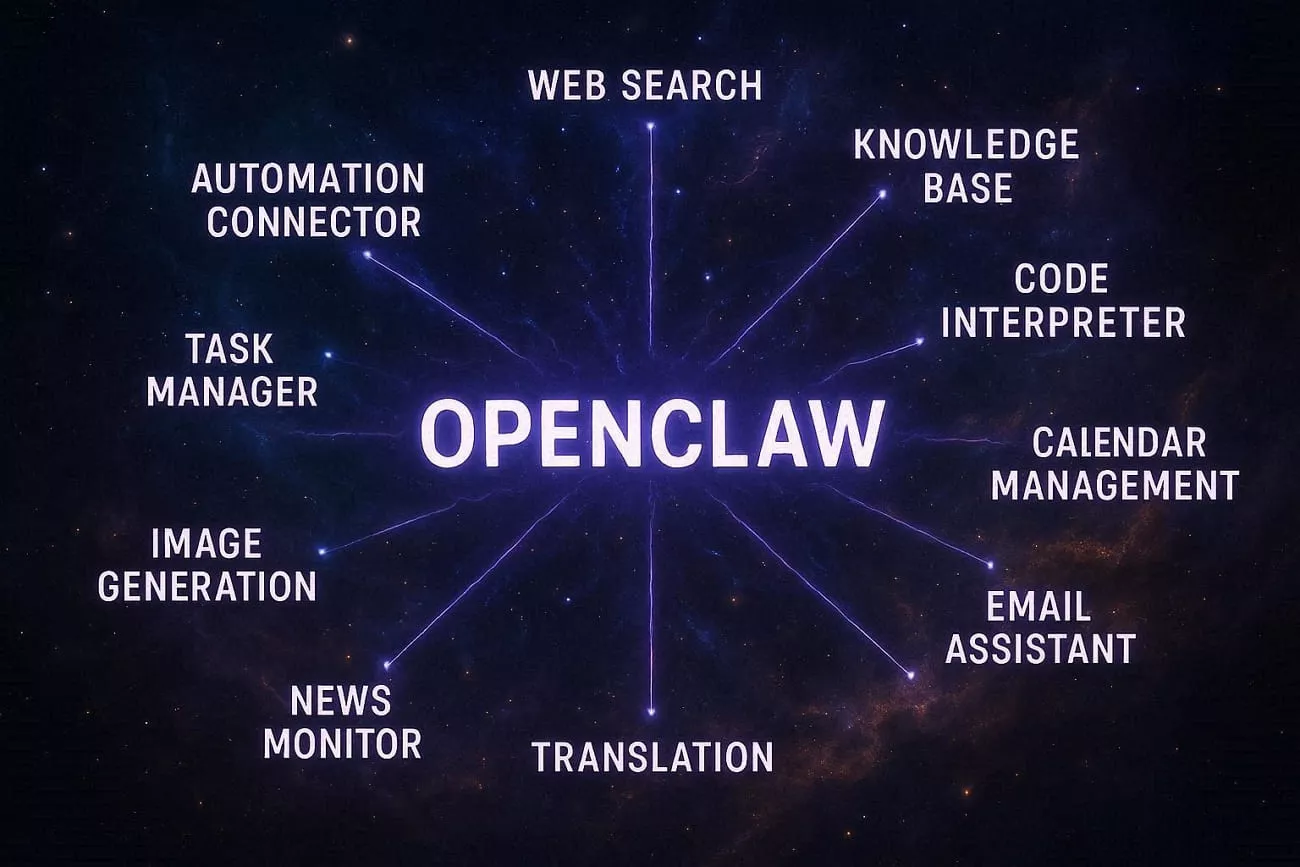
D’autres permettent d’organiser de longs PDF en notes structurées et de préparer des explications simples pour des lecteurs non techniques. Consultez maintenant le tableau ci-dessous pour comprendre rapidement le rôle de chaque compétence :
| Classement | Nom de la compétence | Points clés d’utilisation | Idéal pour |
| 1 | Recherche web | Résultats en temps réel, données à jour, réponses rapides | Recherche, analyse de marché |
| 2 | Base de connaissances | Q&R sur PDF, recherche dans documents internes, consultation intelligente | Équipes avec de nombreux documents |
| 3 | Interpréteur de code | Analyse de données, graphiques, gestion de fichiers | Analystes, développeurs |
| 4 | Gestion du calendrier | Création d’événements, vérification des créneaux, évite les conflits | Professionnels occupés |
| 5 | Assistant e-mail | Résumés, rédaction, nettoyage en masse | Rôles avec forte charge d’e-mails |
| 6 | Génération d’images | Visuels pour réseaux sociaux, présentations, contenus créatifs | Marketeurs, créateurs de contenu |
| 7 | Suivi des actualités | Suivi des sources, résumés quotidiens, alertes | Dirigeants, chercheurs |
| 8 | Traduction | Texte multilingue, ton naturel, résultats rapides | Équipes internationales |
| 9 | Gestion des tâches | To-do lists, priorités, synchronisation d’outils | Projets, petites équipes |
| 10 | Connecteur d’automatisation | Déclencheurs, workflows, intégrations d’applications | Opérations, passionnés d’automatisation |
Après avoir exploré ces compétences, les utilisateurs devraient commencer par installer uniquement celles qui correspondent à leurs besoins quotidiens. Une fois à l’aise, ils peuvent ajouter progressivement des compétences plus spécialisées et ajuster les paramètres afin de garder OpenClaw simple et réactif.
Partie 3. 3 façons simples de configurer les OpenClaw Skills
OpenClaw Skills fonctionnent comme de simples plugins. Vous devez d’abord avoir OpenClaw en cours d’exécution, un accès à Internet et une source fiable de compétences. Voici trois méthodes simples pour installer des OpenClaw Skills et ajouter uniquement les outils dont vous avez réellement besoin.
1. ClawHub CLI
ClawHub CLI est l’outil en ligne de commande pour installer et gérer les OpenClaw Skills. Il fonctionne en exécutant des commandes simples dans votre espace OpenClaw, sans passer par une interface web. Vous devez disposer d’OpenClaw installé, d’un accès au terminal et du nom exact de la compétence à installer.
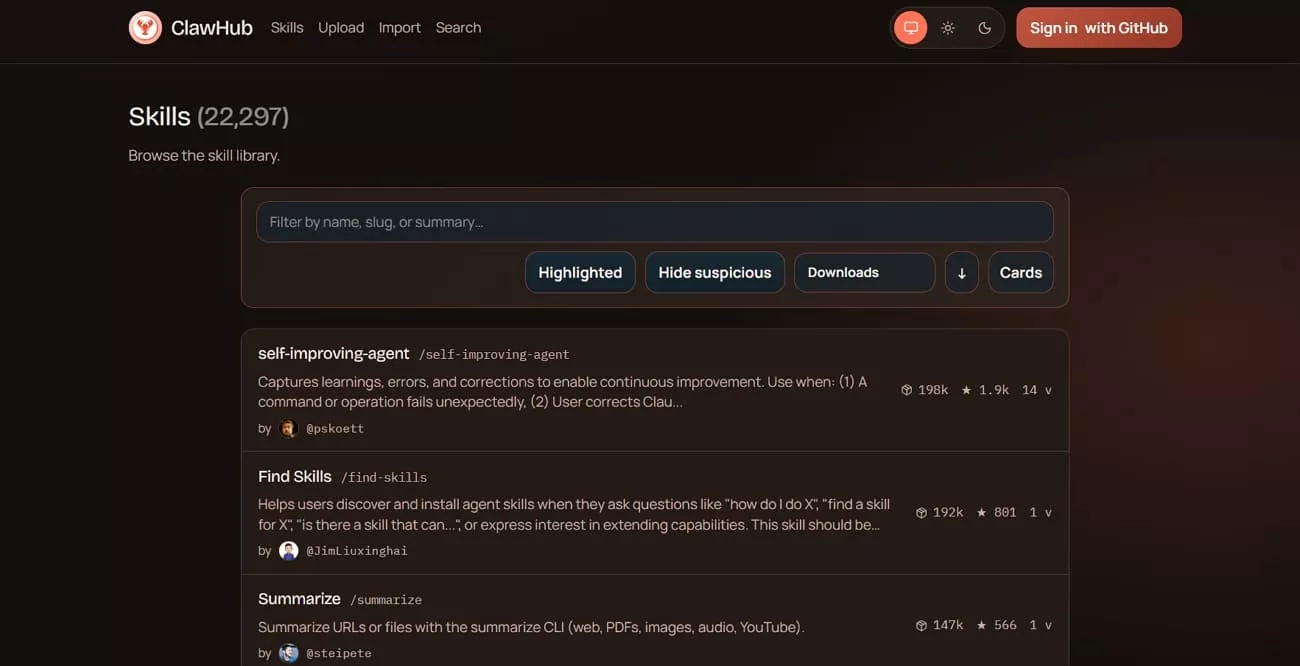
Commandes courantes
- clawhub list – affiche les compétences disponibles à installer
- clawhub install skill-name – installe une compétence spécifique
- clawhub update skill-name – met à jour une compétence installée
- clawhub remove skill-name – désinstalle une compétence
À noter : vérifiez toujours le nom de la compétence et sa source avant d’exécuter une commande, surtout lors d’une première installation.
2. Installation manuelle
L’installation manuelle consiste à ajouter une compétence en copiant son dossier vous-même, sans utiliser d’installateur. Pour cela, téléchargez le dossier de la compétence et placez-le dans le répertoire des OpenClaw Skills. Vous aurez besoin d’un accès aux fichiers, du dossier de la compétence et des instructions contenues dans le fichier SKILL.md.
Redémarrez ensuite OpenClaw et testez avec une instruction simple pour vérifier que la compétence fonctionne correctement.
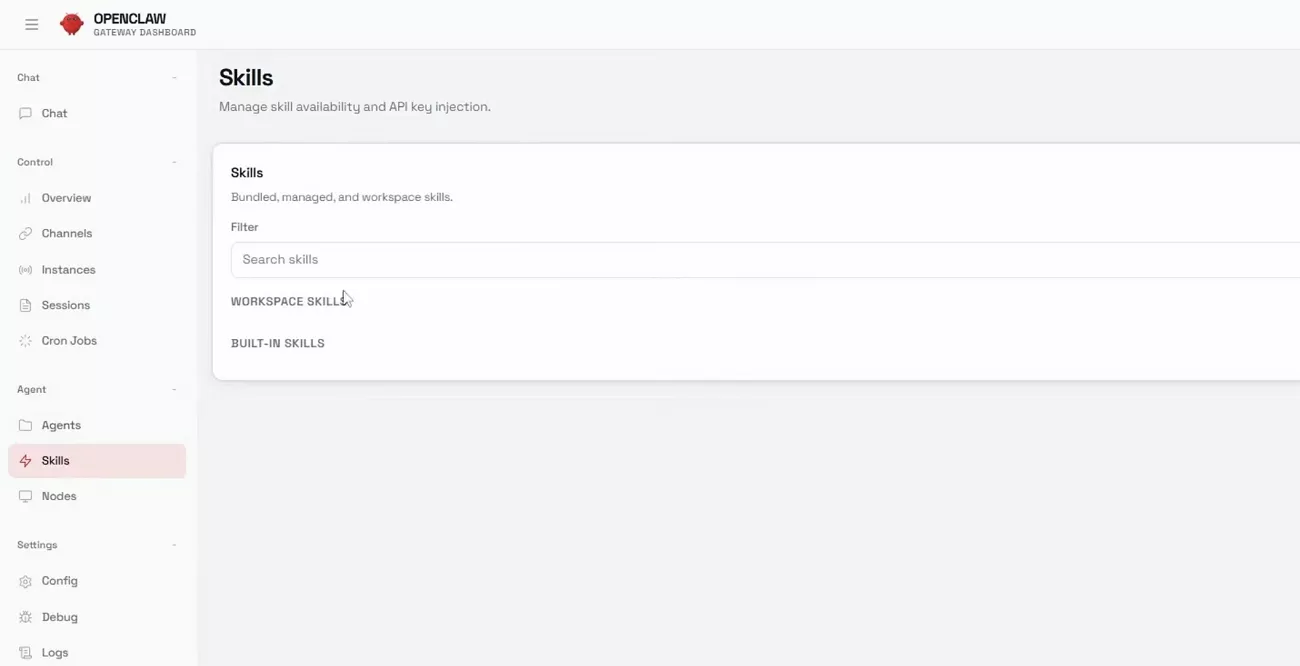
À noter : assurez-vous que la compétence est compatible avec votre version d’OpenClaw, sinon elle pourrait ne pas se charger correctement. Suivez attentivement les instructions du fichier SKILL.md, notamment les variables d’environnement et les clés API, afin d’éviter des erreurs d’exécution.
3. OpenClaw Chat
Cette méthode permet d’installer et de configurer des compétences directement depuis une interface de chat, sans manipulation de fichiers. Après avoir connecté un canal de chat, ouvrez une conversation, décrivez votre besoin et laissez l’agent suggérer les compétences adaptées.
Vous pouvez ensuite approuver les installations, connecter vos comptes et ajuster les paramètres via des instructions guidées. Cette approche est plus simple que la navigation manuelle dans le hub OpenClaw et convient particulièrement aux utilisateurs non techniques.
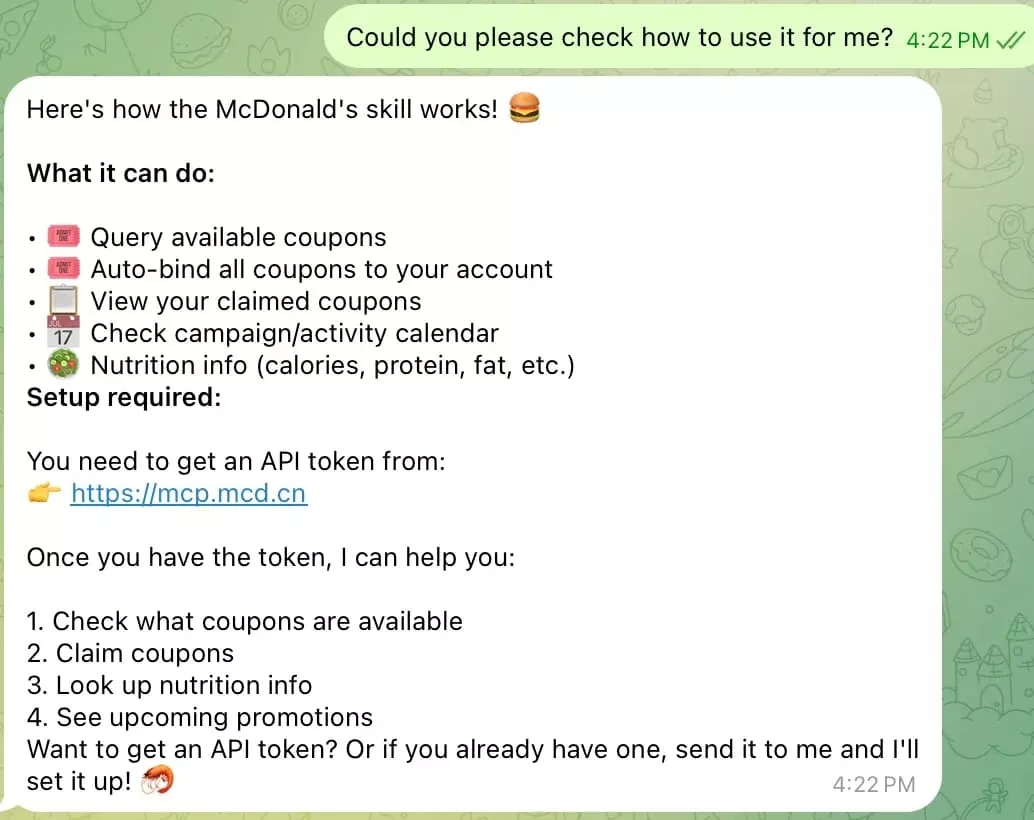
À noter : vérifiez quelles compétences sont activées, quelles données elles peuvent accéder et qui a accès à ce canal de chat.
Partie 4. Bonus : les compétences PDF à connaître
Malgré la multitude de plugins disponibles pour gérer les PDF, certains utilisateurs rencontrent encore des difficultés avec des fonctionnalités dispersées. C’est là que UPDF intervient, en proposant un espace de travail PDF tout-en-un pour tout gérer dans une seule application.
Avec UPDF, vous pouvez générer automatiquement des signets pour de longs PDF, créant instantanément une structure cliquable pour une navigation plus rapide. De plus, vous pouvez utiliser un vérificateur PDF IA pour analyser les pages (annotations, OCR, pages vides, etc.), et même créer des autocollants personnalisés. De nombreuses autres fonctionnalités IA restent à découvrir !
UPDF permet également de traduire les signets PDF en 26 langues sans exporter le texte. Vous pouvez aussi résumer chaque signet en un clic afin de générer des points clés clairs et gagner du temps de lecture. Comparé à l’utilisation de multiples plugins comme les OpenClaw Skills ou les extensions Adobe, UPDF simplifie et centralise la gestion avancée des PDF.
Windows • macOS • iOS • Android 100% sécurisé
Comment utiliser les fonctions Signets automatiques, Résumé et Traduction dans UPDF
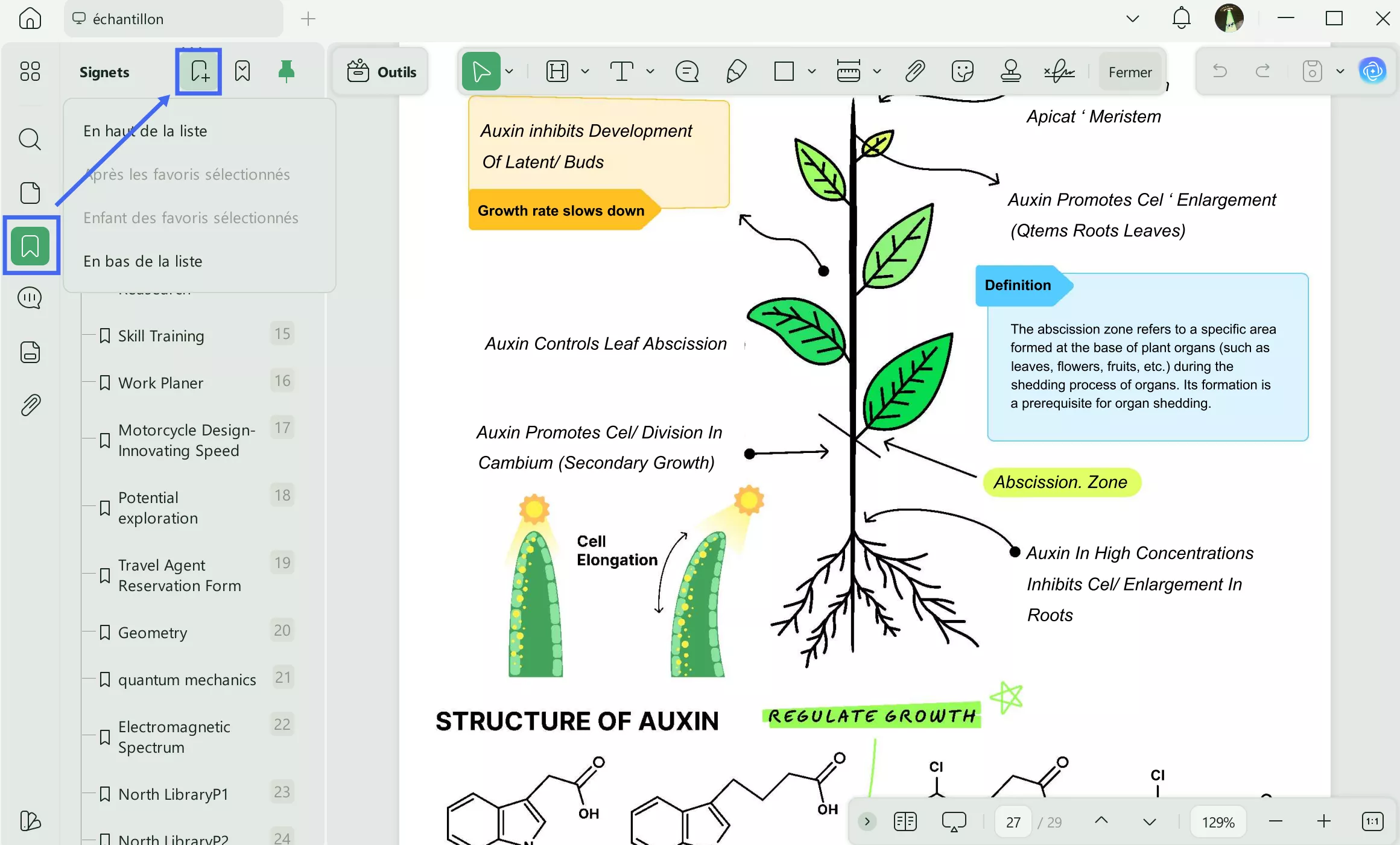
Étape 1. Importer le PDF et accéder au panneau des signets
Après avoir importé un PDF dans UPDF, cliquez sur l’option « Signets » dans le panneau latéral gauche.
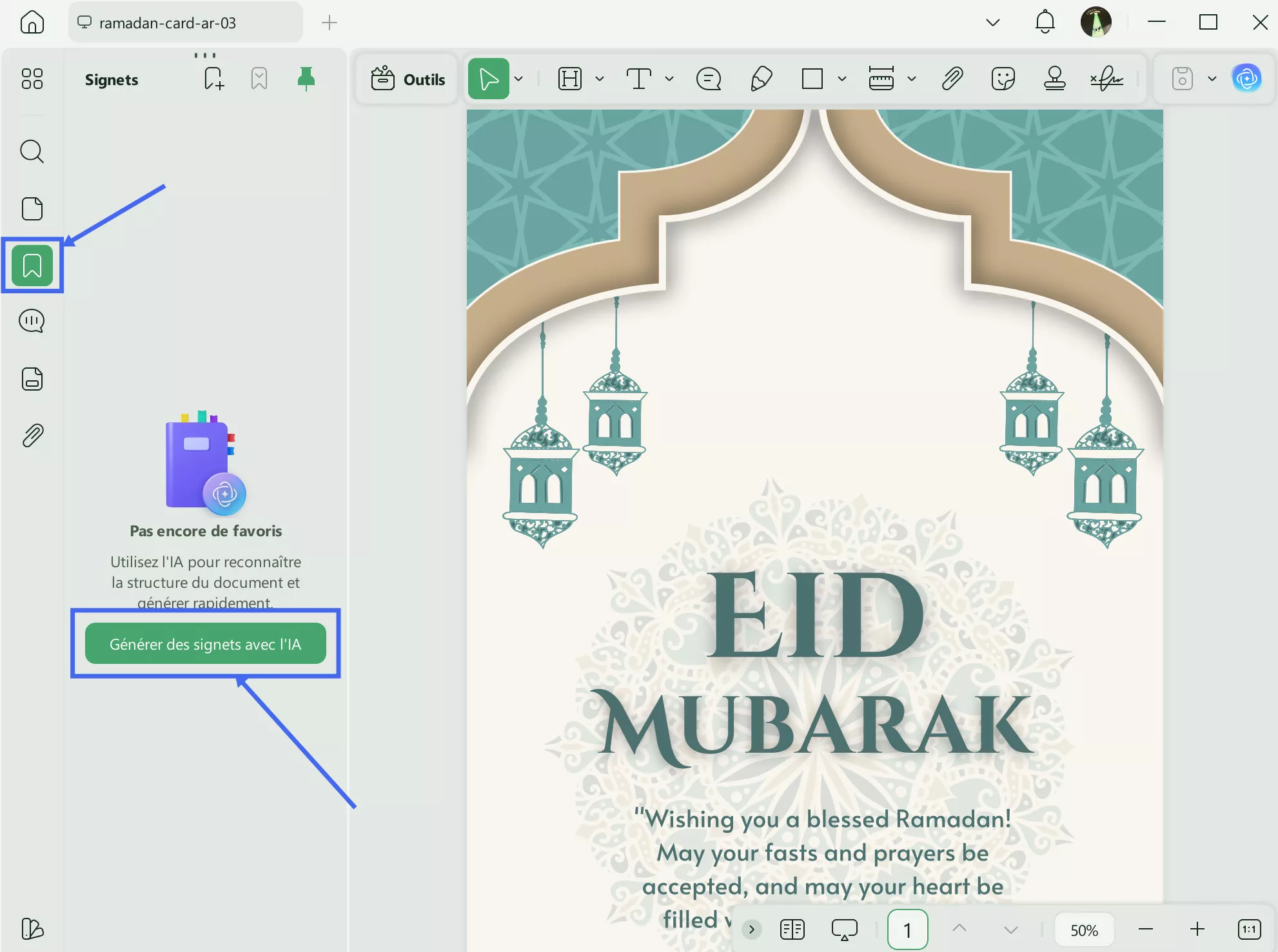
Étape 2. Générer des signets avec l’IA
Dans le panneau latéral, cliquez sur « Générer des signets IA ». Choisissez ensuite la langue et cliquez sur « Générer ». Les signets seront créés automatiquement après analyse du contenu du PDF.
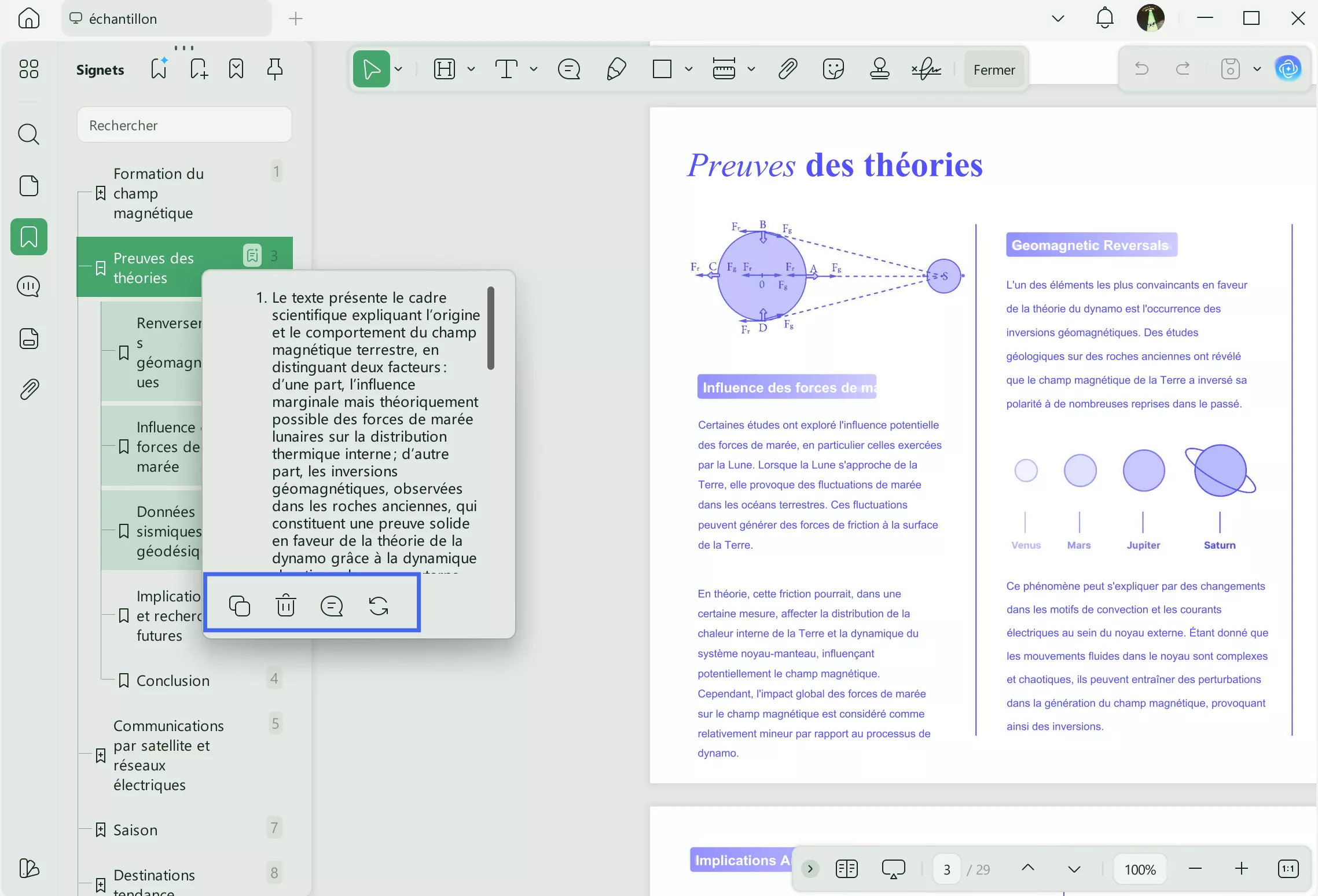
Étape 3. Résumer les signets avec l’IA
Pour résumer chaque signet individuellement, cliquez sur l’option « Résumé IA » du signet. Ensuite, cliquez sur l’icône « Note » pour ajouter une note contenant le résumé sur la page correspondante du PDF.
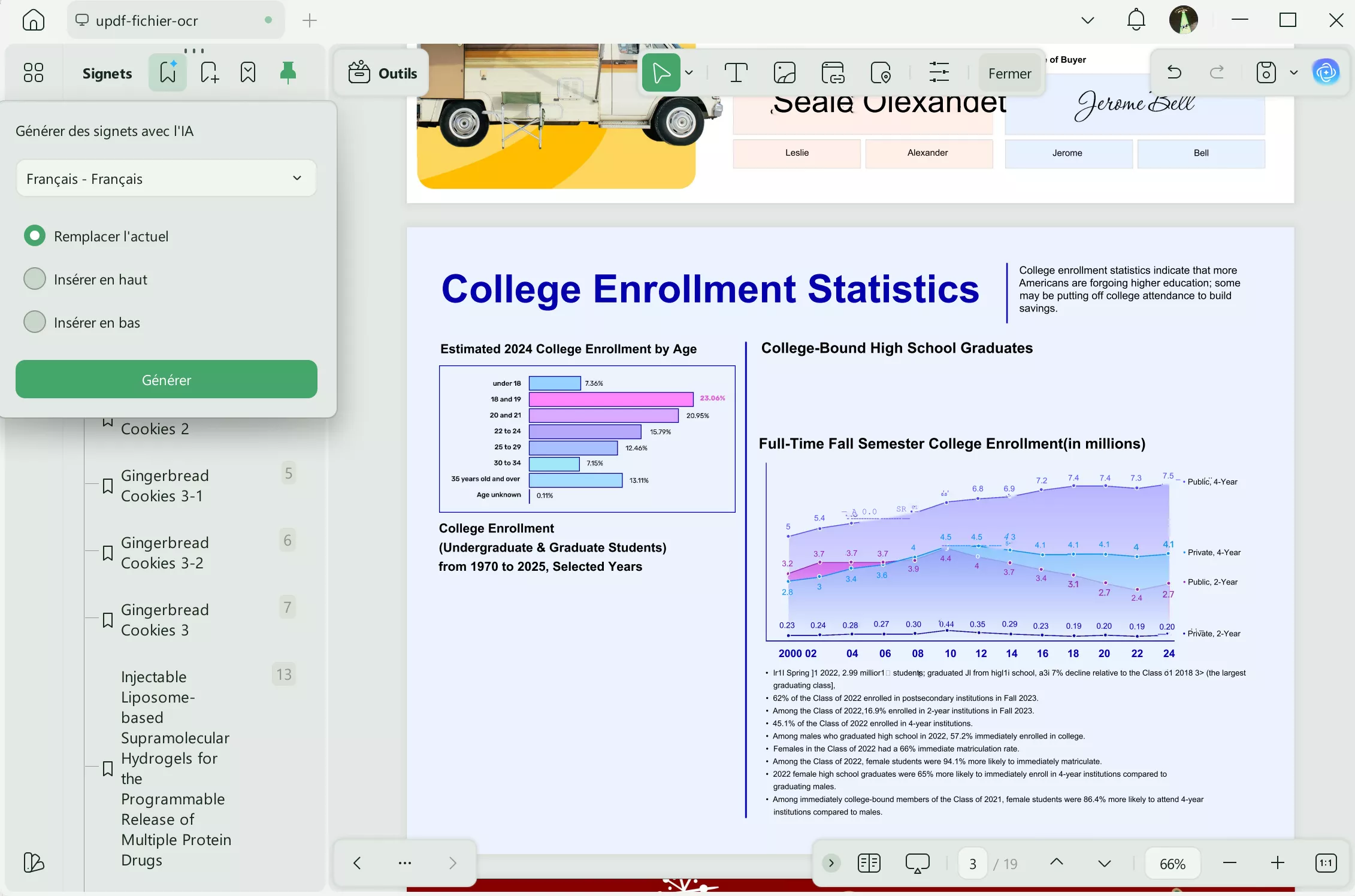
Étape 4. Traduire les signets existants
Cliquez sur l’icône « Générer des signets IA » en haut, puis sélectionnez la langue cible dans le menu déroulant. Choisissez ensuite l’option « Remplacer l’existant » pour remplacer tous les signets actuels. Enfin, cliquez sur « Générer » pour lancer la traduction.
Foire aux questions sur les OpenClaw Skills
Q1. Comment désinstaller des OpenClaw Skills ?
Vous pouvez supprimer une compétence en supprimant son dossier ou en la désactivant dans les paramètres. Étapes :
1. Ouvrez votre espace OpenClaw et accédez à la liste des OpenClaw Skills.
2. Localisez la compétence que vous souhaitez supprimer.
3. Désactivez-la ou supprimez son dossier dans le répertoire des compétences.
4. Redémarrez OpenClaw pour confirmer sa suppression.
Q2. Pourquoi certaines OpenClaw Skills affichent-elles « Blocked » ?
Les compétences affichent généralement « Blocked » lorsque des autorisations, des périmètres ou des règles de sécurité empêchent leur exécution dans le chat. Cela peut également se produire si un administrateur les a désactivées ou retiré leur accès depuis le hub OpenClaw.
Elles peuvent aussi être bloquées si des éléments nécessaires sont manquants ou mal configurés, comme des clés API, des comptes ou des variables d’environnement.
Conclusion
En résumé, les OpenClaw Skills transforment votre IA en un assistant spécialisé capable d’automatiser la recherche, les e-mails, les documents et les workflows. Commencez par quelques compétences à fort impact, puis élargissez progressivement à mesure que vos tâches quotidiennes deviennent plus fluides et automatisées.
Pour les travaux intensifs sur PDF, essayez UPDF afin de créer des signets, résumer et traduire instantanément des documents complexes dans un seul environnement.
Windows • macOS • iOS • Android 100% sécurisé








 Freddy Leroy
 Lizzy Lozano
- Ok-Review-2003