 UPDF
UPDF
 UPDF for Windows
 UPDF for Mac
 UPDF for iPhone/iPad
 UPDF for Android
 Nomostar
 UPDF AI Online
 UPDF Sign
 IvyCraft
 Edit PDF
 Annotate PDF
 Create PDF
 PDF Form
 Edit links
 Convert PDF
 OCR
OCR PDF to Word
 PDF to Image
 PDF to Excel
 Organize PDF
 Merge PDF
 Split PDF
 Crop PDF
 Rotate PDF
 Protect PDF
 Sign PDF
 Redact PDF
 Sanitize PDF
 Remove Security
 Read PDF
 UPDF Cloud
 Compress PDF
 Print PDF
 Batch Process
 About UPDF AI
 UPDF AI Solutions
 AI User Guide
 FAQ about UPDF AI
 Summarize PDF
 Translate PDF
 Chat with PDF
 Chat with AI
 Chat with image
 PDF to Mind Map
 Explain PDF
 PDF AI Tools
 Image AI Tools
 AI Chat Tools
 AI Writing Tools
 AI Study Tools
 AI Working Tools
 Other AI Tools
 AI Bookmark Generation
 AI Bookmark Summary
 AI Watermark Generation
 AI Background Generation
 AI Sticker Generation
 AI Stamp Generation
 AI Editing Suite
 UPDF Copilot
 AI Page Management
 AI Semantic Search
 PDF to Word
 PDF to Excel
 PDF to PowerPoint
 Enterprise Solution
 Enterprise Sign
 Enterprise AI
 Enterprise Plan
 Enterprise User Guide
 Enterprise Webinar
 IT
IT Education
 Construction
 Financial Service
 Healthcare
 Insurance
 Legal
Legal Manufacturing
 Government
 Researchers & PhDs
 Solopreneurs & Freelancers
 Lawyers & Legal Professionals
 Real Estate Agents & Brokers
 Education Solution
 Customer Stories
 User Guide
 UPDF Tricks
 FAQs
FAQs UPDF Reviews
 Download Center
 Blog
Blog Newsroom
 Tech Spec
 Updates
 UPDF vs. Adobe Acrobat
 UPDF vs. Foxit
 UPDF vs. PDF Expert

Acrobat does not usually break PDF text into separate letters without an underlying reason. PDF files store characters, fonts, positions, and instructions instead of normal editable paragraphs directly. Poor exports, missing fonts, outlined text, or OCR errors can fragment PDF content badly.
This can leave Acrobat text separated into individual letters, words, or small boxes onscreen. First, check whether your PDF contains live text, scanned images, or outlined characters carefully. Then choose direct editing, text rebuilding, OCR, or UPDF conversion for safe repair results.
Want to check whether another PDF editor handles the text more cleanly? Download UPDF free and test a copy of the file without changing the original.
Windows • macOS • iOS • Android 100% secure
Part 1. What Does "Text Broken into Individual Letters" Look Like?
PDF text broken into individual letters problem can appear differently across various files. Below are the common signs that can help you quickly recognize this PDF problem:
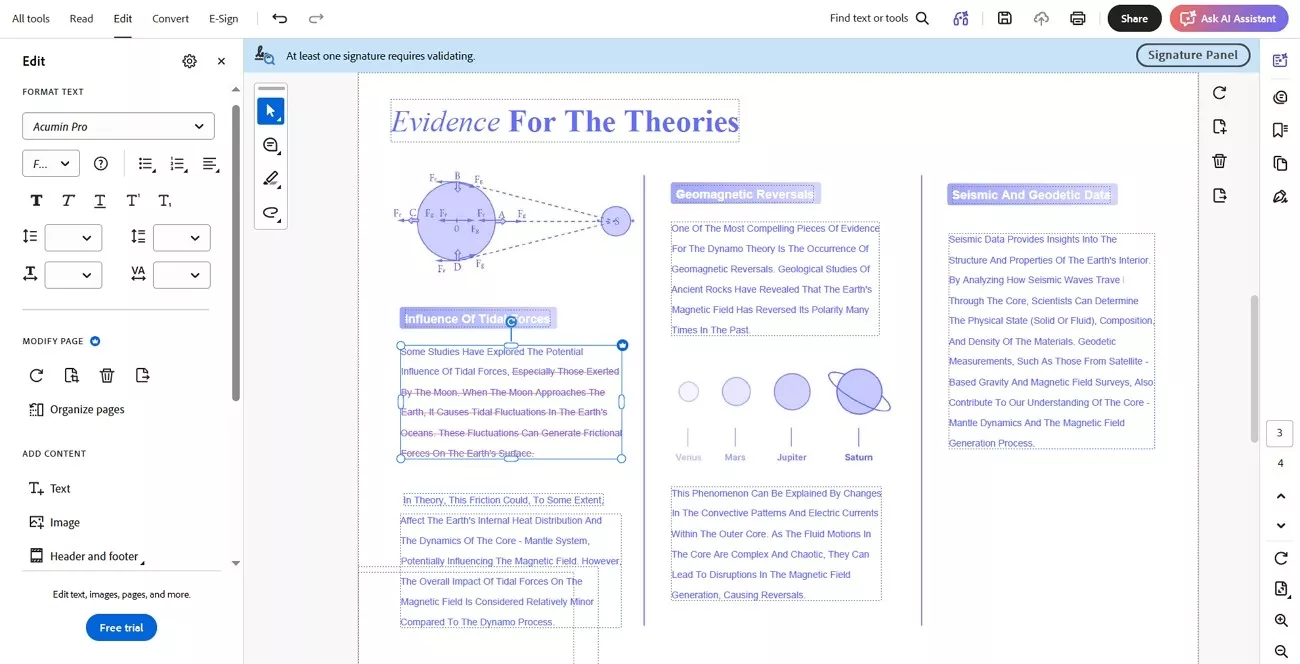
- Clicking a sentence places separate boxes around every letter instead of selecting complete text.
- Paragraphs may split into many small text boxes, making full sentences difficult to edit.
- Individual characters can move separately, while complete sentences cannot be selected or edited together.
- Copied text may paste incorrectly, with words reordered and spaces missing or appearing inconsistent.
- Letters may disappear, overlap, or change fonts when you try editing the PDF content.
- Search may find words, but editing fails, while some pages behave like scanned images.
Part 2. Why Does Acrobat Separate Text into Individual Letters?
Acrobat's Edit tool groups text into boxes based on how it reads content. Adobe community experts describe these boxes as approximations rather than actual stored objects. Let's explore why Acrobat separates text into individual letters and what causes this issue
The PDF Stores Characters as Separately Positioned Objects
PDF uses fixed layouts, and some programs position every character separately instead of continuous lines. CAD tools, design apps, publishing software, and PDF print drivers commonly create this structure. Acrobat groups only existing objects, causing PDF text to split into multiple text boxes during editing.
The Original Text Was Converted to Outlines
Designers sometimes convert text into outlines, turning each individual letter into a vector shape. Adobe's Illustrator documentation explains that outlined text loses text properties and cannot use normal editing controls. Without words, fonts, or paragraphs, Acrobat may treat characters as separate graphics during editing.
Fonts Are Missing, Subsetted, or Improperly Embedded
Adobe states that text editing requires its font installed on your system for proper changes. Embedded fonts may allow limited changes, while subsets contain only characters already used there. New letters may lack matching characters when the required original font remains unavailable for editing.
Acrobat may substitute missing fonts, causing changed spacing, missing characters, or jumbled text during editing. Adobe also notes that font embedding prevents substitution when viewing PDF documents across different systems. Therefore, PDFs may display correctly but become unstable when users begin editing their text content.
OCR Created an Inaccurate or Searchable-Only Text Layer
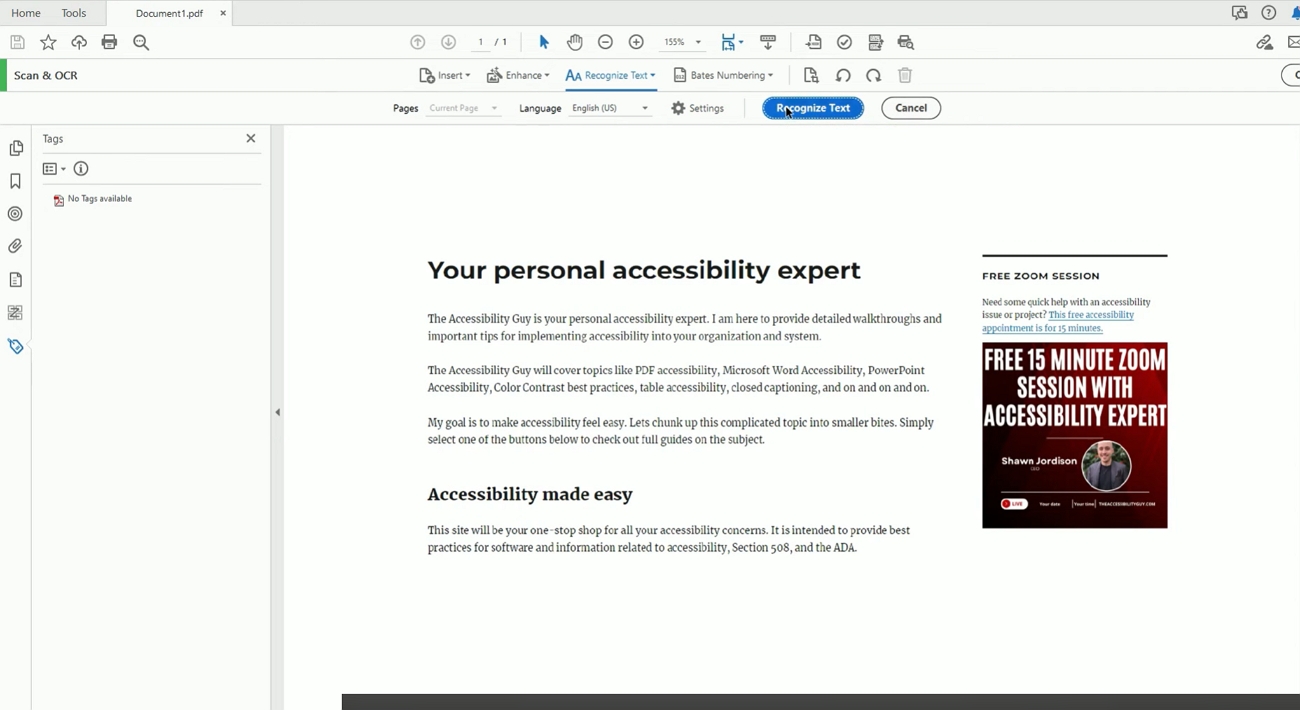
An invisible layer like this can let you search or copy words you still cannot edit directly. Low resolution, skew, shadows, unusual fonts, and complex layouts can also make OCR break words into single characters. Scanned PDFs contain page images, so their visible words remain pictures until OCR recognizes them. Adobe's Searchable Image option keeps scans while adding an invisible searchable text layer behind them.
Editable Text & Images instead creates replacement text that users can directly edit afterward easily. Invisible OCR layers may support searching and copying, while preventing direct editing of recognized words. Low resolution, skew, shadows, unusual fonts, and complex layouts can fragment words during OCR.
The PDF Was Exported, Printed, Combined, or Converted Repeatedly
Repeated exporting, merging, or printing can rewrite internal PDF objects and affect their original structure. Adobe explains that its PDF printer creates untagged PDFs, leaving original paragraph structures without tags. Below are the main structural problems that repeated PDF conversion can create over time:
- Separated Text Objects: Complete text can become regrouped or separated into smaller individual objects.
- Lost Font Information: Conversion may remove important font details required for consistent text editing.
- Changed Character Encoding: Repeated processing can alter encoding and affect how characters are interpreted.
- Damaged Reading Order: Text may appear correctly but copy or process in incorrect order.
- Divided Text Boxes: Complete text boxes may become smaller objects after repeated PDF conversions.
The PDF Is Damaged or Uses an Unusual Internal Structure
Less commonly, damaged files or unusual internal structures can make Acrobat handle text incorrectly. Possible causes include corruption, outdated PDF software, unusual encoding, clipping masks, and vector objects. Syntax and font conflicts can contribute, but corruption should remain a later explanation here. Most fragmented PDFs still open and display normally, suggesting other causes should be checked first.
Part 3. First, Identify What Kind of PDF You Have
First, test the PDF carefully to understand what type of content it actually contains. This helps explain why PDF text is not editable as one block during editing. The table below shows common test results, likely problems, and recommended next steps:
| Test Result | Likely PDF Type or Problem | Recommended Next Step |
|---|---|---|
| Complete Sentences or Paragraphs Can Be Selected | Normal digital PDF | Edit the existing text directly |
| Only Individual Letters or Words Can Be Selected | Fragmented text objects | Try another editor, rebuild the text box, or recreate the PDF |
| No Visible Text Can Be Selected | Image-only scan or outlined text | Use OCR for scans or return to the original source file |
| Search Works, but Direct Editing Fails | Searchable-only or invisible OCR layer | Run editable OCR and review the recognized text |
| Letters Disappear, Shift, or Change After Editing | Font or PDF structure problem | Check embedded fonts and recreate the PDF when necessary |
Open your PDF in UPDF and try selecting, searching, and editing its text directly first. UPDF is free to try, with PDF editing access and no credit card required to start. For image-only scans, OCR can create searchable and editable text layers for easier editing.
Windows • macOS • iOS • Android 100% secure
Part 4. An Easier Alternative: Fix Fragmented PDF Text with UPDF
Before rebuilding the document, test a copy in UPDF to see how it recognizes text. Another editor may group the same content differently and allow larger text blocks for editing. This also helps determine whether Acrobat Edit PDF text broken up into boxes comes from Acrobat or the PDF structure.
UPDF's PDF editor marks recognized lines or paragraphs with purple outlines for easier editing. UPDF is free to try, including access to its PDF editing workflow, without requiring a credit card. Available features and usage limits may vary depending on the platform and plan. Testing the PDF in UPDF can be particularly useful in these situations:
- Fragmented Sentences: Acrobat divides complete sentences into many separate text boxes.
- Minor Text Changes: Only a small amount of PDF text requires editing.
- Formatting Problems: Acrobat editing causes unexpected font, spacing, or layout changes.
- Problem Diagnosis: You need to determine whether Acrobat or PDF structure causes fragmentation.
- Scanned Documents: The PDF contains scanned pages that require OCR before editing.
- Missing Source File: The original Word, PowerPoint, InDesign, or other document is unavailable.
Method 1. Try Editing the Existing Text Directly
Start by seeing how UPDF groups the damaged text, which takes a few minutes and leaves the original untouched.
Step 1. Once you open a copy of the PDF in UPDF, press the "Tools" option, choose "Edit" option and press "Insert & Edit Text."
Step 2. After that, click a text or sentence and check whether the purple outline covers the whole sentence block. Then, edit the PDF text, font, size, or alignment.
Step 3. Then use the "Save As" option rather than "Save" to export a separate edited copy of your PDF. Next, compare the original file with the edited one.
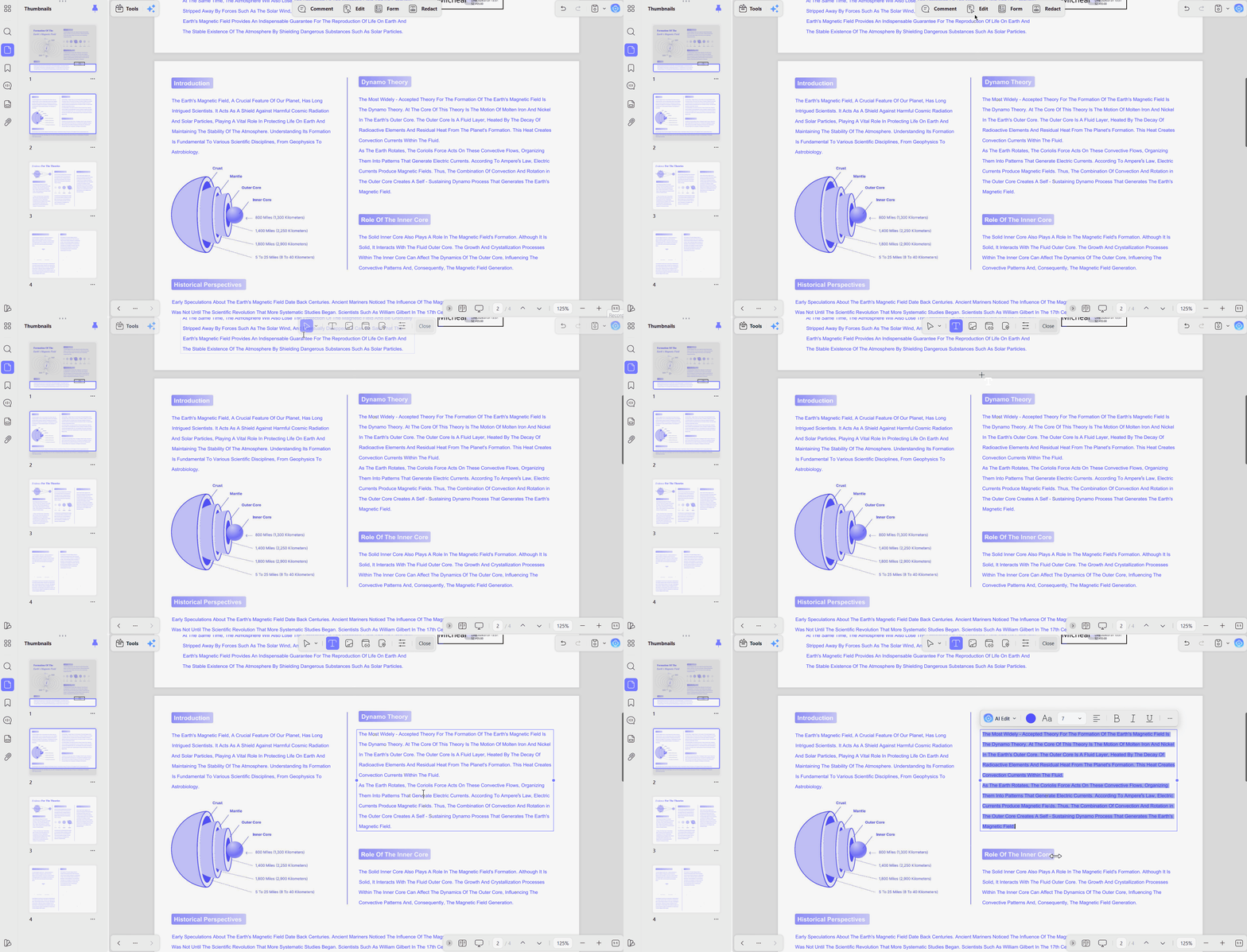
- If UPDF Selects a Full Block: You may be able to edit it directly, since UPDF grouped the text differently.
- If UPDF Also Isolates Letters: The fragmentation probably exists in the PDF's structure rather than only in Acrobat, so move to Method 2.
Method 2. Rebuild a Severely Fragmented Text Block
When UPDF also detects separate letters, rebuilding the affected text block becomes more practical. Use the steps below to rebuild severely fragmented text:
Step 1. First, open an untouched copy of the original PDF, then note the affected text's wording and formatting.
Step 2. Enter "Edit PDF" mode, select the fragmented text objects, and remove or cover the affected area.
Step 3. Select "Insert & Edit Text" on Windows or "Text" on Mac, then recreate the complete text in one box and match its formatting.
Step 4. Check the spacing and line breaks, then click "Save As" to save the rebuilt PDF separately.
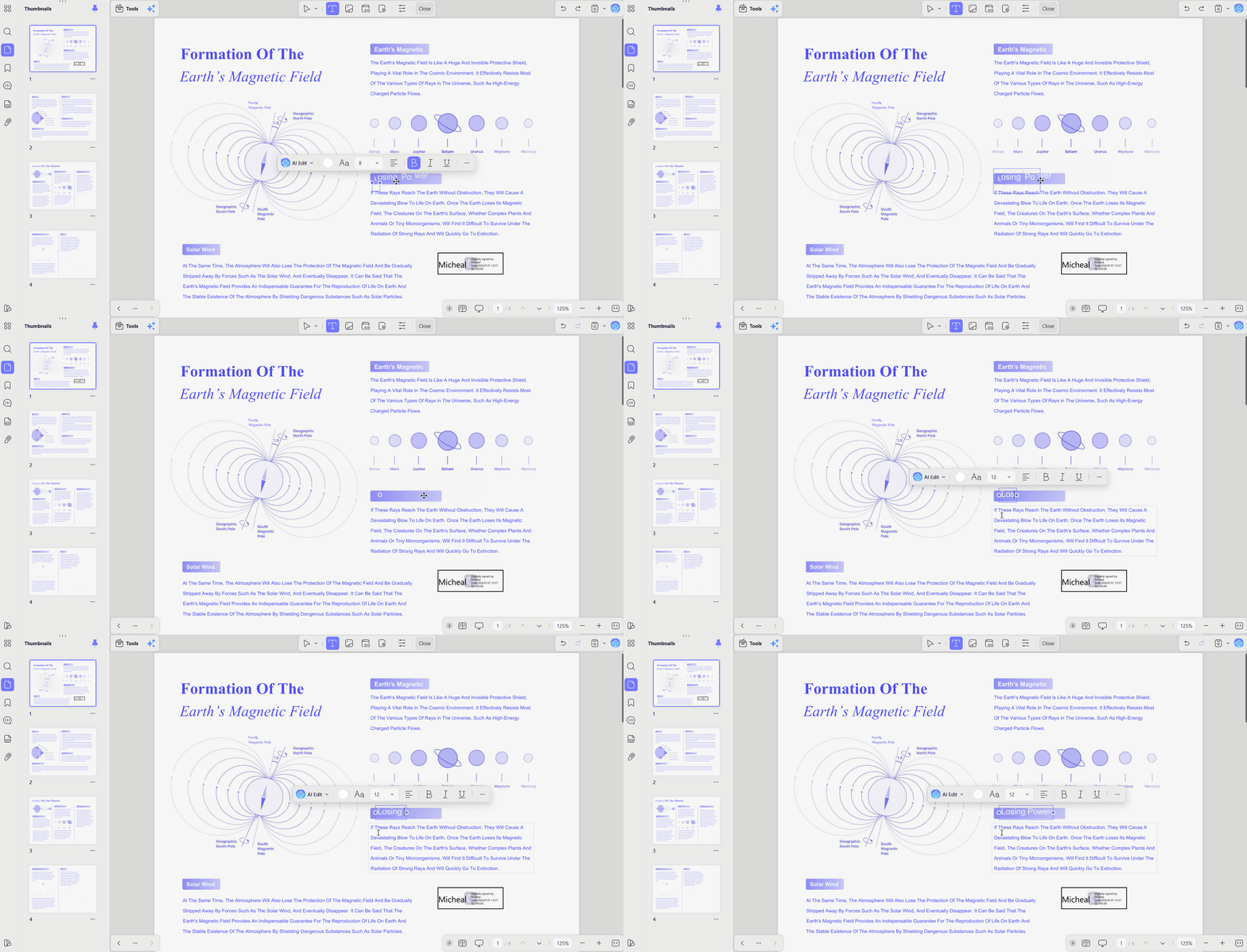
Important Limitation: Rebuilding changes the PDF instead of restoring its original paragraph structure, so always work on a copy. A white rectangle only hides old characters, which stay searchable and copyable.
Method 3. Run OCR When the Page Is a Scan
UPDF's OCR tool supports 38 languages and can create editable text from scanned pages. Use the steps below to recognize the scanned content and make its text editable.
Step 1. Try selecting a visible word to confirm the PDF page contains an image instead of live text.
Step 2. Open the OCR tool in UPDF and select the correct document language and page range.
Step 3. Choose "Editable PDF" as the document type, click "Convert," and review names, dates, numbers, and special characters.
Step 4. Correct recognition errors in Edit mode using these tips for editing a scanned PDF, then save the corrected PDF.
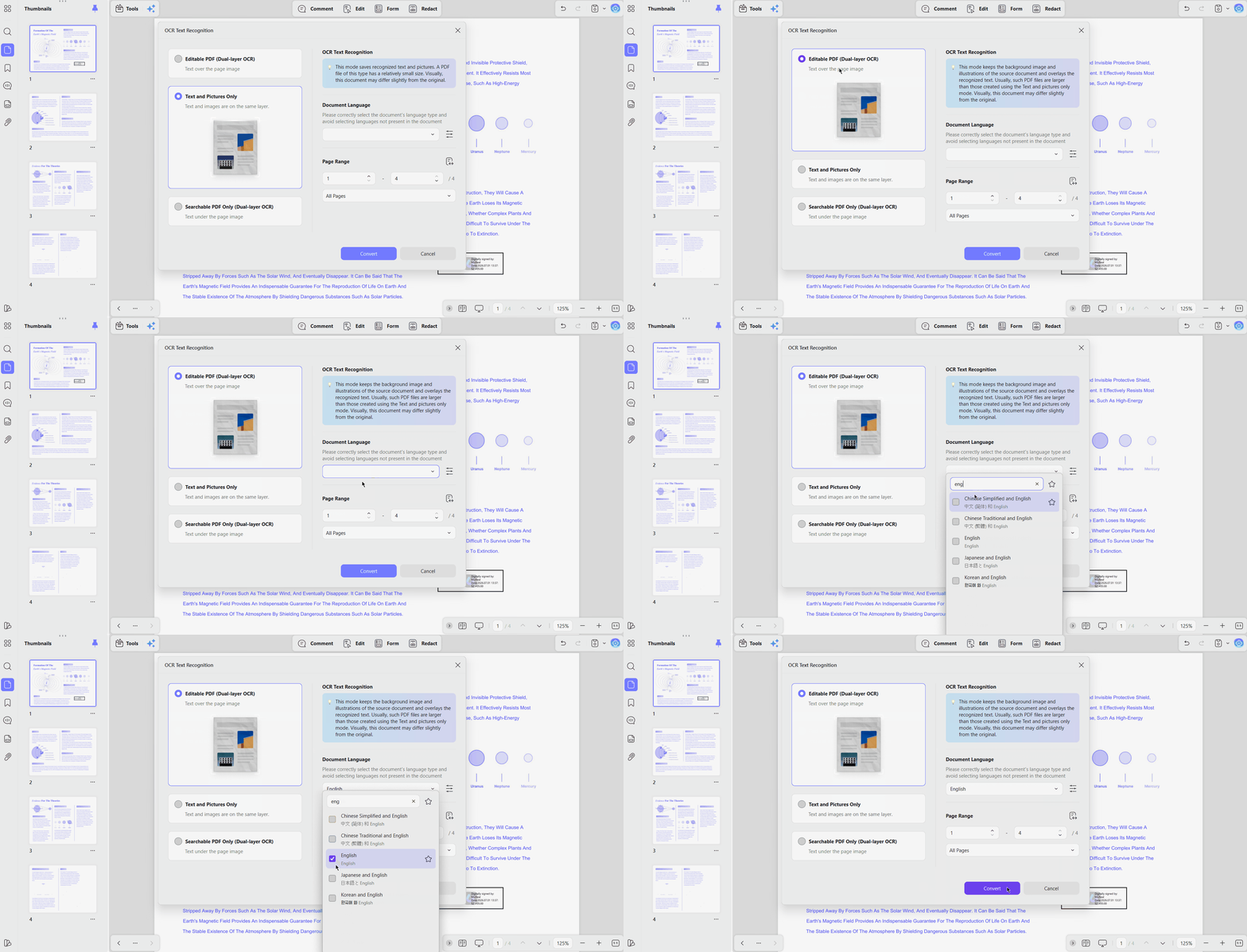
Important Warning: Do not run OCR on a normal digital PDF simply because its text boxes look fragmented. Extra passes can add duplicate text layers, errors, and file size, and tables, handwriting, low-resolution pages, and decorative fonts still need manual review.
Download UPDF and test the PDF editing workflow for free. No credit card is required to get started.
Download UPDF free to test the PDF editing workflow and see whether the affected text can be edited as a complete block. No credit card is required to get started.
Windows • macOS • iOS • Android 100% secure
Part 5. Other Ways to Fix Acrobat Breaking Text into Individual Letters
Several practical methods can repair fragmented PDF text without relying on one editing tool. Some solutions work better from original documents instead of making changes inside PDF editors. Let's see how to fix fragmented text in PDF files using these practical methods.
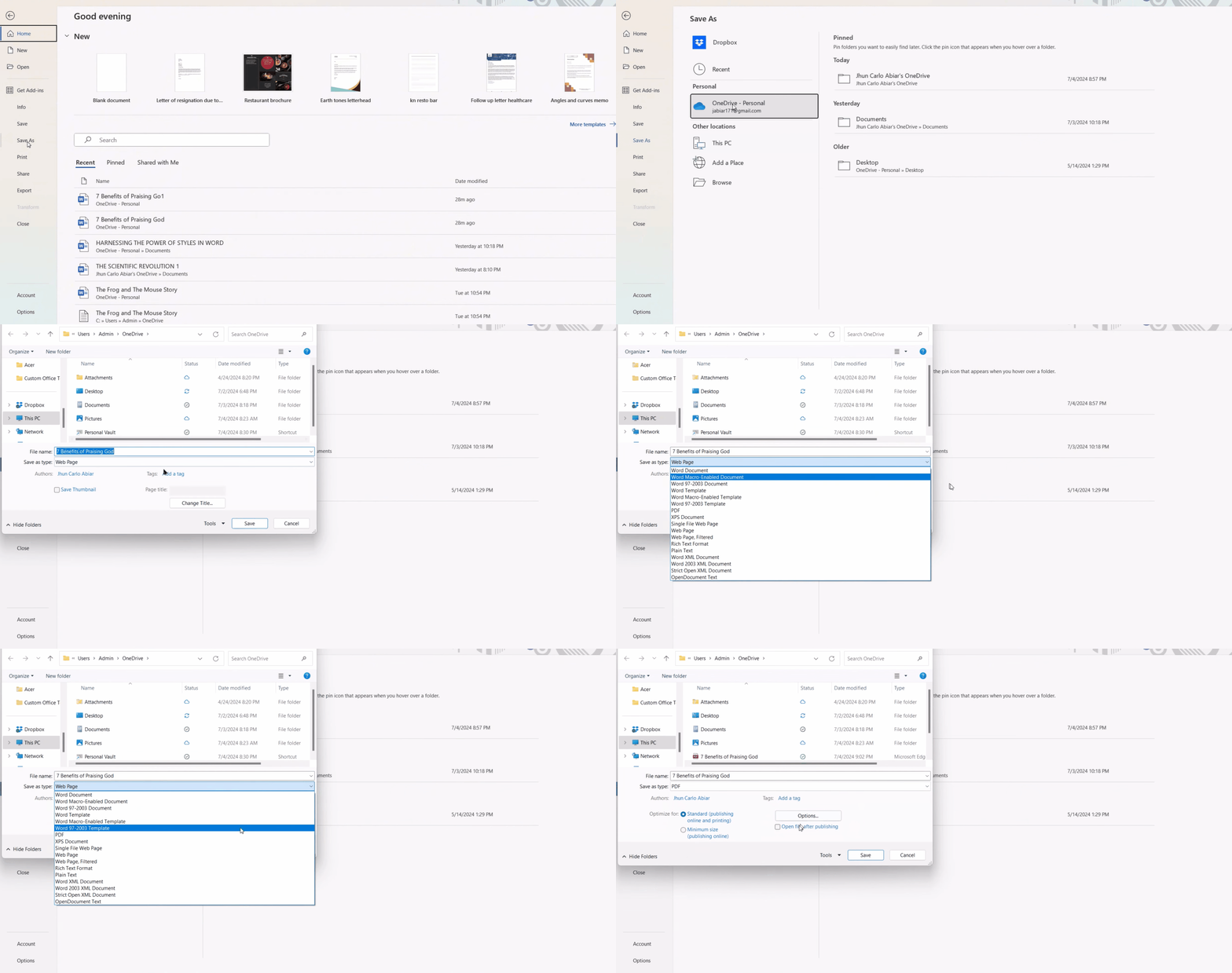
Fix 1. Return to the Original Document and Export the PDF Again
When the source file is available, fresh exporting provides the most reliable repair method. Follow the steps below to rebuild PDF text correctly from your original editable document:
Step 1. Open the original Word document, review its text and formatting, and make necessary changes.
Step 2. Click "File," choose "Save As," select "PDF (.pdf)" and choose "Standard (publishing online and printing)."
Step 3. Press "Save," open the new PDF in Acrobat, and check whether complete text blocks are selectable.
Fix 2. Export the PDF to Word and Recreate It
Converting PDF to Word works best in these situations:
- The original editable source file is no longer available.
- The document needs extensive rewriting across multiple text sections.
- Rebuilding every individual text box would take too long.
Now, go through the steps below to convert, edit, and recreate your PDF:
Step 1. Convert the problematic PDF to "Word (.docx)" using a PDF converter, such as UPDF.
Step 2. Review the converted document in Word and correct its paragraphs, fonts, tables, reading order, and page breaks.
Step 3. Recreate the PDF using the same "Save As" method from the previous fix, then compare it with the original.
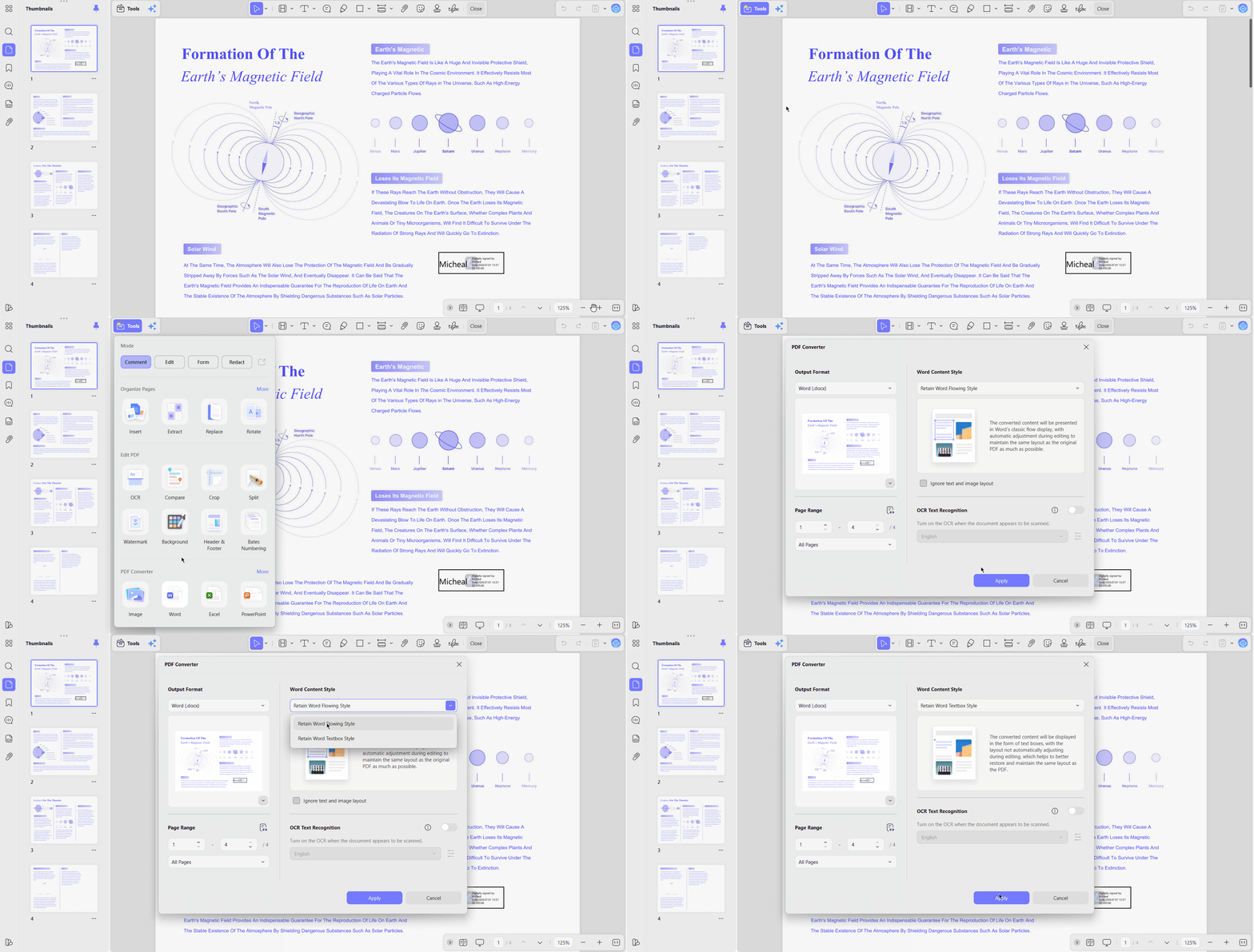
UPDF can also convert PDFs into Word and other formats, with OCR available for scanned documents. Complex layouts, including multi-column pages and dense tables, may still require some manual reformatting.
Fix 3. Replace the Problematic Font
Replacing the problematic font works best in these situations:
- Only one font causes problems throughout the PDF document.
- Some characters disappear whenever you edit the affected text.
- Acrobat reports that the original font is currently unavailable.
- Newly entered characters appear using another font after editing.
Now, follow the steps below to identify and replace the problematic font:
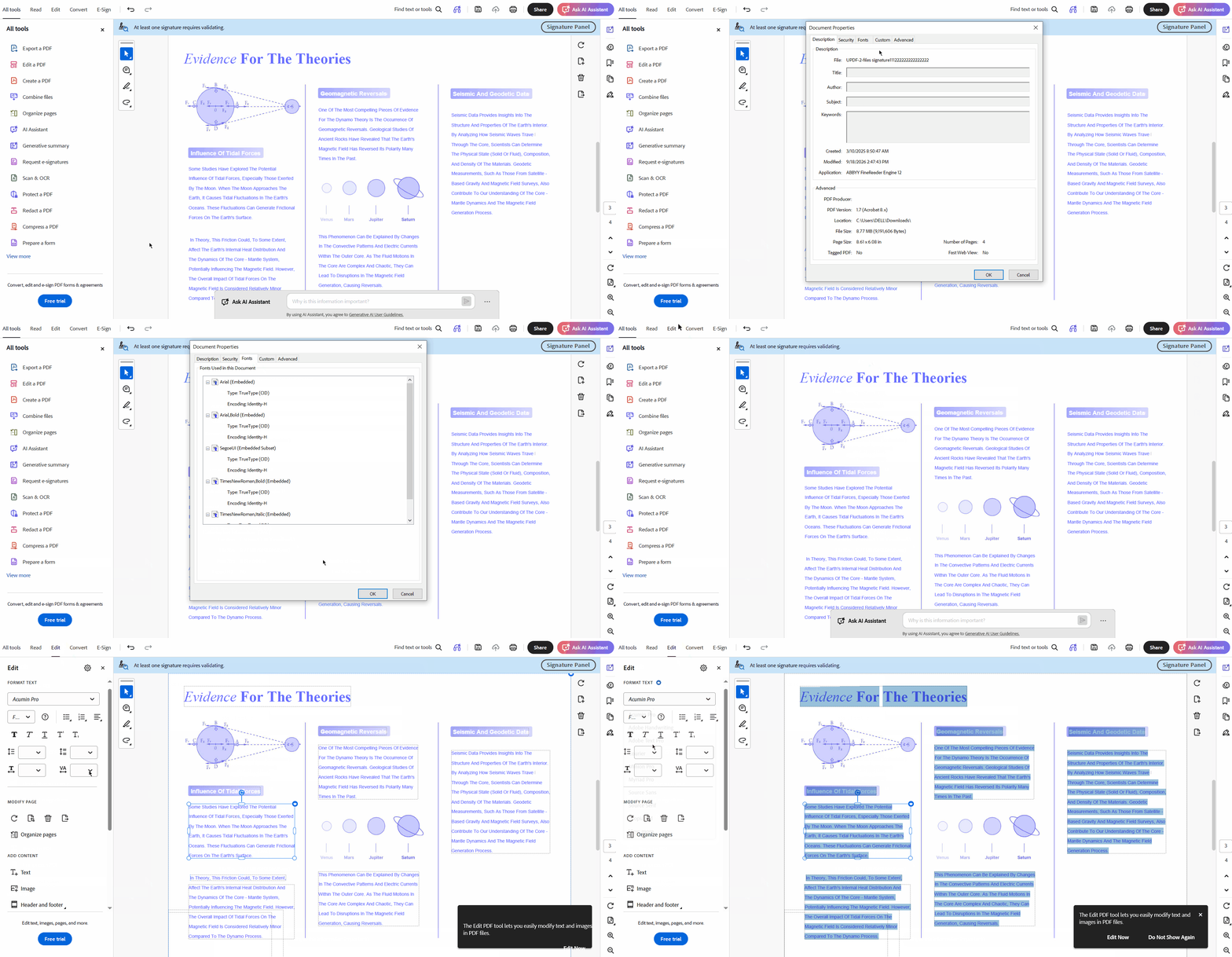
Step 1. In Adobe Acrobat, select "Menu," choose "Document Properties," and open "Fonts" to check the affected font.
Step 2. Select "Edit," click the affected text, and choose an available compatible font from the font menu.
Step 3. Save the document as a new PDF, then check whether edited characters display correctly.
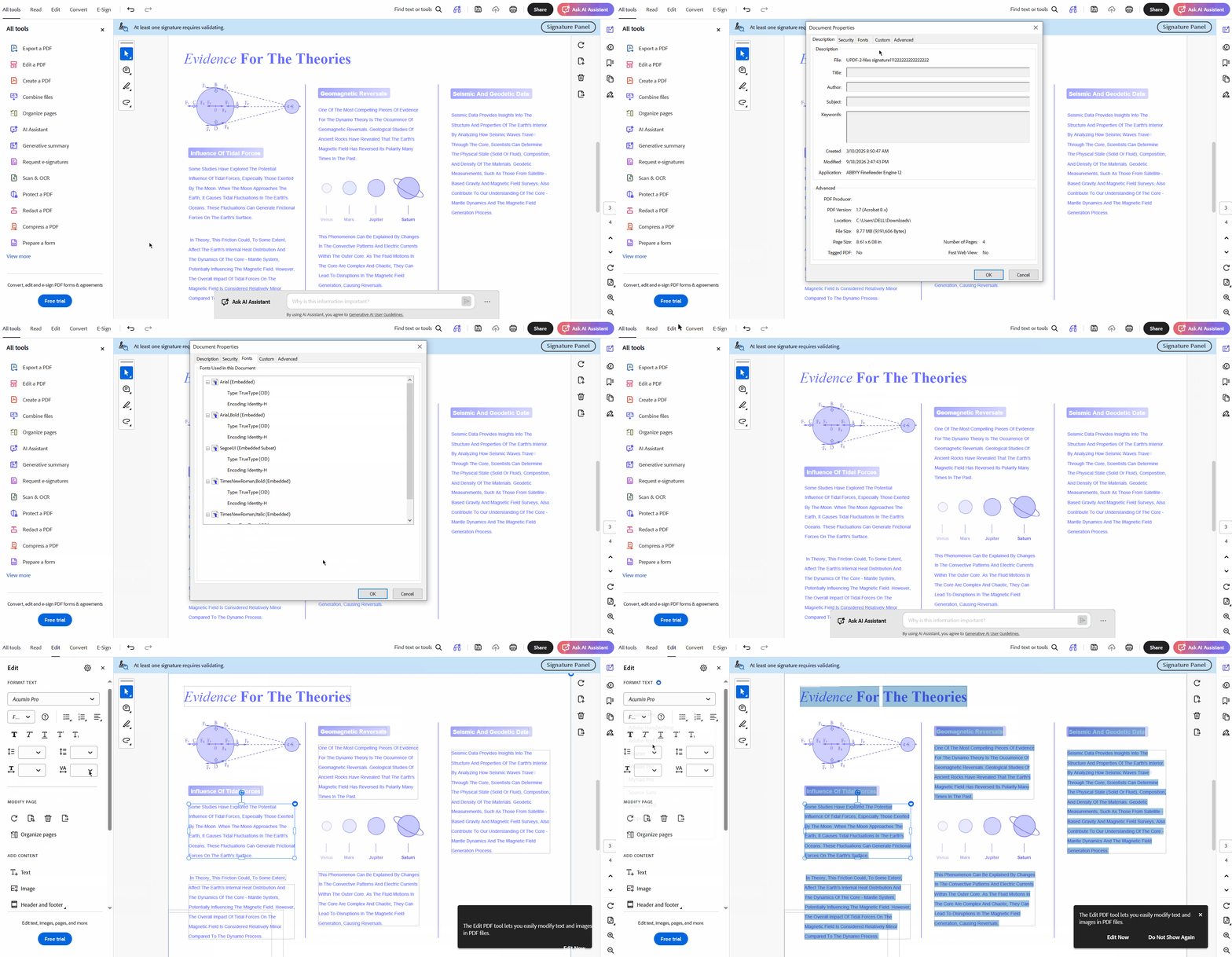
Only download fonts from the publisher or a trusted library, never from untrusted websites.
Fix 4. Use Acrobat Preflight or Recreate the PDF
Acrobat Pro's Preflight tool can identify syntax, font, and structural problems affecting your PDF. Since Adobe explains that Preflight fixups permanently change the document, always work on a separate copy. The steps below help you analyze the PDF safely before applying any changes:
Step 1. Open a PDF copy in Acrobat Pro, select "All tools," "Use print production," then "Preflight."
Step 2. Choose a suitable profile under "PDF Analysis," then click "Analyze" to check for problems.
Step 3. Review the reported issues before applying any fixup or recreate the PDF if necessary.
"Analyze And Fix" may alter fonts, colors, transparency, or other objects without guaranteeing editable text. If new display problems appear, recreate the PDF from the original.
Fix 5. Flatten the PDF Only When You No Longer Need to Edit It
Flattening combines PDF contents into one layer and helps preserve the document's final appearance during sharing or printing. However, Adobe notes that flattened PDFs become un-editable, and flattening cannot restore original words or paragraph structures afterward. Keep an editable version and use the flattened copy only for final sharing, printing, archiving, or distribution purposes.
Part 6. Which Fix Should You Try First?
Choosing the right fix depends on the type and extent of your PDF problem. When PDF text split into multiple text boxes, start with the most suitable solution. Look at the table below to find the best first step for your situation:
| Situation | Best First Step |
|---|---|
| The Source Document Is Available | Edit the source document and export a fresh PDF |
| Acrobat Shows Fragmented Boxes, but Text Remains Selectable | Test whether UPDF recognizes a more complete text block |
| Only a Small Amount of Text Needs Changing | Edit or rebuild the affected text box in UPDF |
| The Page Is an Image-Only Scan | Run OCR before attempting to edit the text |
| Search Works, but Editing Does Not | Run editable OCR to create directly editable text |
| The Entire Document Is Fragmented | Convert the PDF to Word or recreate the document |
| Characters Disappear or Change During Editing | Check font embedding and recreate the PDF when needed |
| The Document Is Ready for Final Distribution | Keep an editable copy before flattening the final PDF |
Part 7. How to Prevent PDF Text from Breaking Apart Again
PDF text fragmentation often begins during file creation, conversion, scanning, or OCR processing. Following the right practices at each stage can prevent the same problem from returning:
- When Creating PDFs: Export directly from the original application, embed the required fonts, keep the editable source file, and avoid repeated conversions or Print to PDF workflows.
- When Scanning: Use adequate resolution, correct page rotation and skew before OCR, select the right OCR language, and manually review the recognized text.
- Before Sharing: Test the PDF in more than one viewer and keep an unmodified backup before making repairs.
UPDF's PDF editing tips and guide to editing a PDF without messing up the formatting provide additional guidance for avoiding related layout problems.
Frequently Asked Questions
Why does Acrobat put a box around every letter?
Acrobat may box letters separately when the PDF stores characters as individually positioned objects. Vector outlines or fragmented OCR results can also cause Acrobat to recognize letters separately.
Why can I select PDF text but not edit it?
Selectable but un-editable text may come from an invisible OCR layer, restrictions, or outlined text. Missing fonts and unusual object structures can also prevent normal PDF text editing.
Why does Acrobat split one paragraph into multiple text boxes?
PDF files do not always preserve the paragraph structure found in the original document. The creating or converting program may store lines, words, or characters as separate objects.
Can Acrobat automatically merge individual letters into one text box?
Acrobat generally has no reliable one-click method, making re-exporting or rebuilding the text box preferable. One accepted workaround suggests copying the text before Edit mode and pasting it into a new box.
Can OCR fix text that was converted to outlines?
OCR can recognize the visible shapes and convert outlined characters into editable text. However, it may not restore the original font, spacing, reading order, or document layout.
Why do letters disappear when I edit a PDF?
Font substitution, subset fonts, ligatures, damaged encoding, or file corruption can make letters disappear. Adobe forum experts also suggest checking ligatures like “fi” and “fl,” which may be stored together.
Can UPDF edit text that Acrobat separates into individual letters?
UPDF may interpret text objects differently, so test a copy when Acrobat text is separated into individual letters. If characters remain separate, rebuild the box, use OCR, convert the PDF, or return to the source.
Is UPDF free to use for this fix?
UPDF is free to try with its PDF editing workflow, without requiring a credit card. Free saves carry a watermark, while OCR and other usage limits vary by platform and plan.
Conclusion
To conclude, Acrobat separates text into individual letters because of underlying PDF structure problems. Fonts, OCR errors, and repeated conversions can also cause text fragmentation during PDF editing. Diagnose the problem first, then re-export the source whenever available for reliable results.
If Acrobat keeps splitting the text, open a copy in UPDF to see whether it edits more normally. You can also rebuild a damaged text block, run OCR on scans, or convert the PDF for larger edits. UPDF is free to try, and no credit card is required to get started.
Download UPDF free to test the file, repair fragmented text, or run OCR when the page is a scan.
Windows • macOS • iOS • Android 100% secure








 Enid Brown
 Enrica Taylor
 Lizzy Lozano
 Delia Meyer