 UPDF
UPDF
 Windows版UPDF
 Mac版UPDF
 iPhone/iPad版UPDF
 Android版UPDF
 UPDF AI オンライン
 UPDF Sign
 PDF編集
PDF編集 PDF注釈付け
 PDF作成
PDF作成 PDFフォーム
 リンクの編集
 PDF変換
PDF変換 OCR機能
OCR機能 PDFからWordへ
 PDFから画像へ
 PDFからExcelへ
 PDFのページ整理
 PDF結合
PDF結合 PDF分割
PDF分割 ページのトリミング
 ページの回転
 PDF保護
PDF保護 PDF署名
PDF署名 PDFの墨消し
 PDFサニタイズ
 セキュリティ解除
 PDF閲覧
PDF閲覧 UPDF クラウド
 PDF圧縮
PDF圧縮 PDF印刷
PDF印刷 PDFのバッチ処理
 UPDF AIについて
 UPDF AIソリューション
 AIユーザーガイド
 UPDF AIによくある質問
 PDF要約
PDF要約 PDF翻訳
PDF翻訳 PDF付きチャット
 AIでチャット
 画像付きチャット
 PDFからマインドマップへの変換
 PDF説明
PDF説明 PDF AIツール
 画像AIツール
 AIチャットツール
 AIライティングツール
 AI学習ツール
 AI業務ツール
 その他のAIツール
 PDFからWordへ
 PDFからExcelへ
 PDFからPowerPointへ
 ソリューション
 電子署名
電子署名 ビジネスAI
 料金プラン
料金プラン 導入・運用ガイド
 ウェビナー
ウェビナー 銀行
銀行 医療
医療 保険
保険 法務
法務 製造業
製造業 官公庁
官公庁 教育機関向けソリューション
 導入事例
導入事例 ユーザーガイド
 公式ブログ
公式ブログ UPDF 活用術
 UPDF vs Adobe Acrobat
 UPDF vs Foxit
 UPDF vs PDF Expert
 よくある質問(FAQ)
 ダウンロードセンター
 動作環境・仕様
 お問い合わせ
 ニュースルーム
 アップデート履歴
 ユーザーレビュー
 会社概要
会社概要

AIでPDFのブックマークを生成・要約
「長いPDFを読んでいると、必要な章をすぐに見つけられず不便…」と感じたことはありませんか?
特にページ数が多いドキュメントでは、章ごとにブックマークを手動で追加する作業はとても時間がかかります。
そんなときは、UPDFのAI機能を活用してみましょう。AIを使えば、PDFの構成を自動で分析し、整理されたブックマークをわずか数秒で生成できます。つまり、手作業で一つずつ追加する必要がなく、効率よくドキュメントを整理できます。
さらに、既にブックマークが付いているPDFでも、構造が乱れていたり項目が不足している場合があります。そのような場合でも、AIがブックマーク構造を整理し、不足している項目を自動で補完することが可能です。また、各ブックマークの章ごとに簡潔な要約を生成することもできます。つまり、ドキュメント全体の内容をより素早く把握できるようになります。
それでは、以下のガイドに沿って、UPDFでAIを使ってブックマークを生成・要約する方法を確認してみましょう。つまり、この手順を参考にすれば、長いPDFでも効率よく整理できるようになります。
パート1:AIでブックマークを生成
UPDFの AIブックマーク生成 機能を使うと、ドキュメントの見出しや階層構造を自動で検出し、親ブックマークと子ブックマークを作成できます。
また、複数の言語でブックマークを生成したり、既存のブックマークを翻訳・編集したりすることも可能です。
それでは、手順を見ていきましょう。
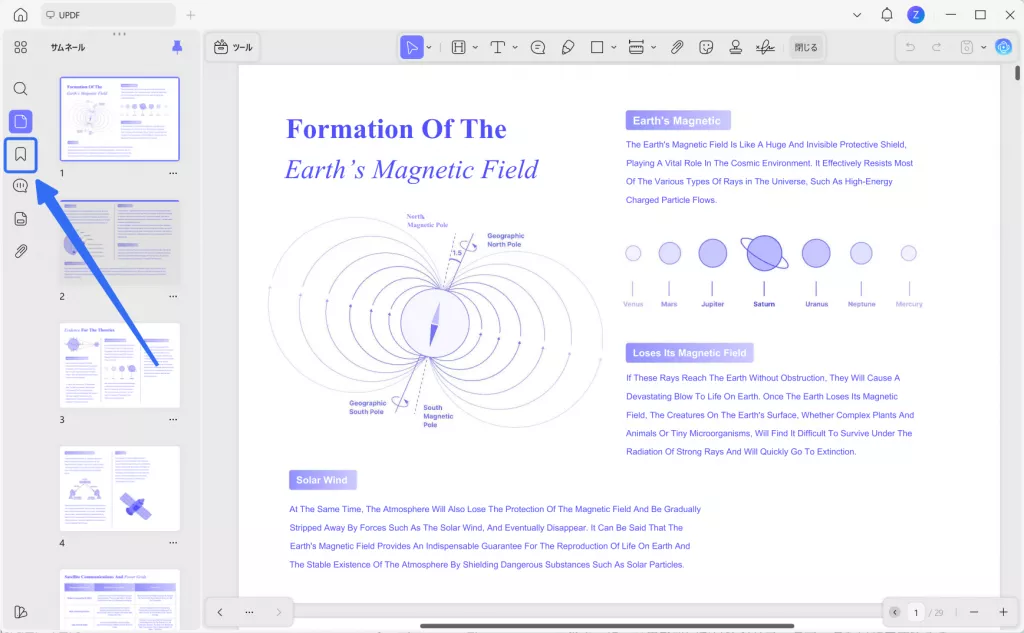
ステップ1:ブックマークパネルを開く
UPDFでPDFを開き、左側のサイドバーにある 「ブックマーク」 アイコンをクリックします。
このように、まずはブックマークパネルを開きます。
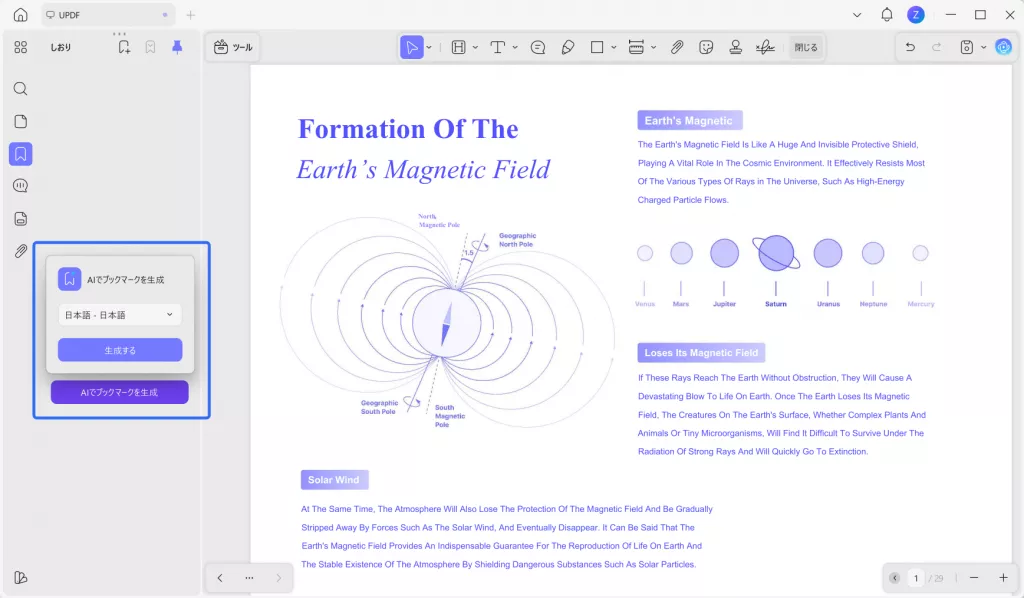
ステップ2:ブックマークを自動生成する
ブックマークパネルで 「AIでブックマークを生成」 をクリックします。次に、ドロップダウンから ブックマークの言語 を選択します。言語は 26種類 から選べます。設定後、「生成」 をクリックしてください。
このように、簡単な設定だけでAIがブックマークを自動生成できます。
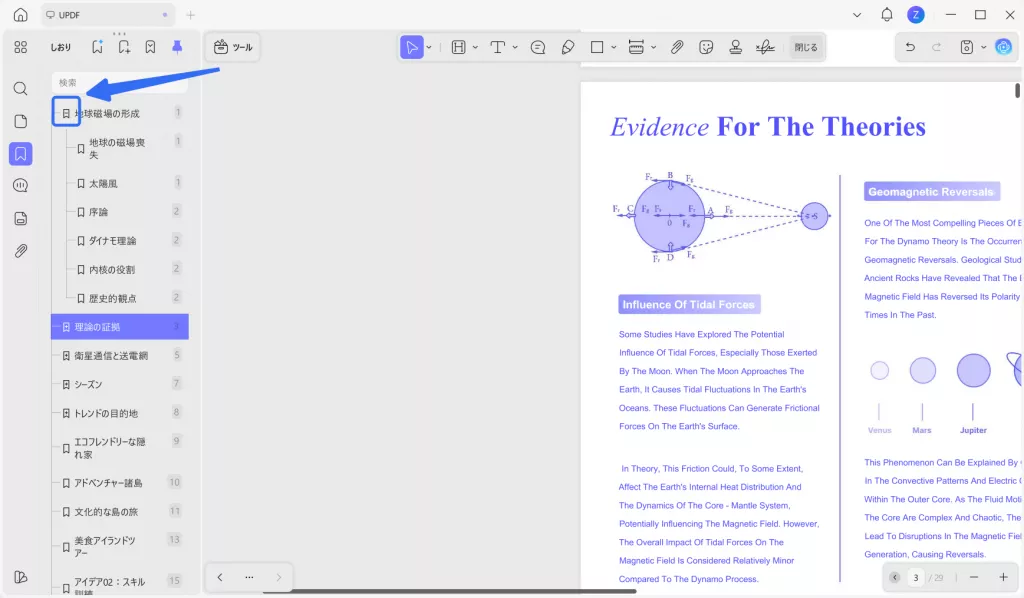
ステップ3:サブブックマークを展開または折りたたむ
UPDFのAIはドキュメント全体を分析し、子ブックマークを含む構造化されたブックマーク一覧を自動で作成します。
子ブックマークを表示するには、「+」 アイコンが付いたブックマークをクリックしてください。
反対に、展開されたブックマークを閉じるには、「-」 アイコンをクリックします。
このように、ブックマークを展開・折りたたみしながら内容を見やすく確認できます。
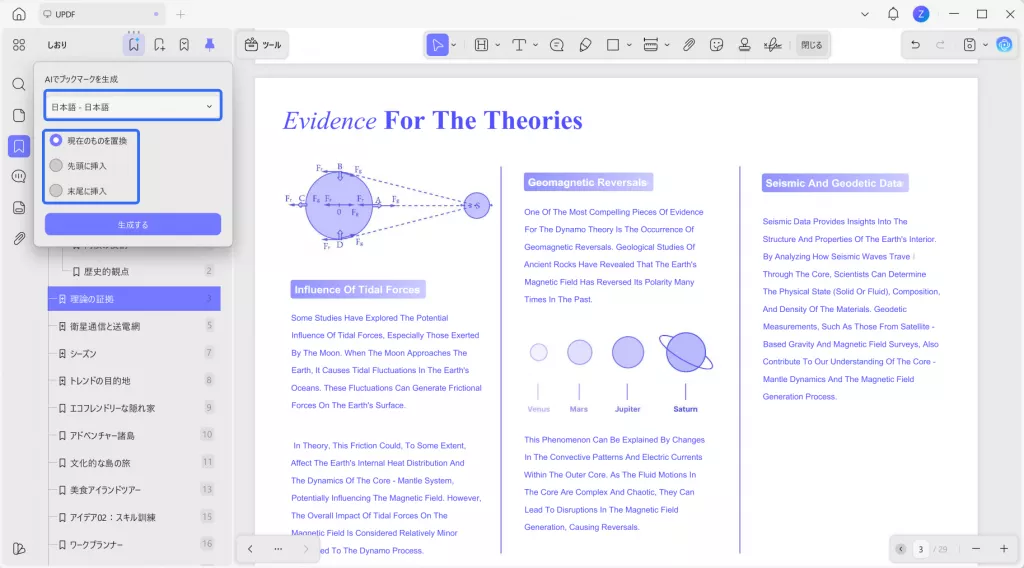
ステップ4:既存のブックマークを翻訳する
既存のブックマークを翻訳するには、上部にある 「AIでブックマークを生成」 アイコンをクリックします。
次に、ドロップダウンメニューから 翻訳先の言語 を選択し、翻訳したブックマークの表示方法を設定しましょう。以下の 3つのオプション から選択できます。
- 現在のブックマークを置き換える:既存のブックマークをすべて翻訳版に置き換えます。
- 上部に挿入:翻訳されたブックマークを現在のブックマークの上に追加します。
- 下部に挿入:翻訳されたブックマークを現在のブックマークの下に追加します。
設定が完了したら、「生成」 をクリックします。
このように、設定を選ぶだけで既存のブックマークを簡単に翻訳できます。
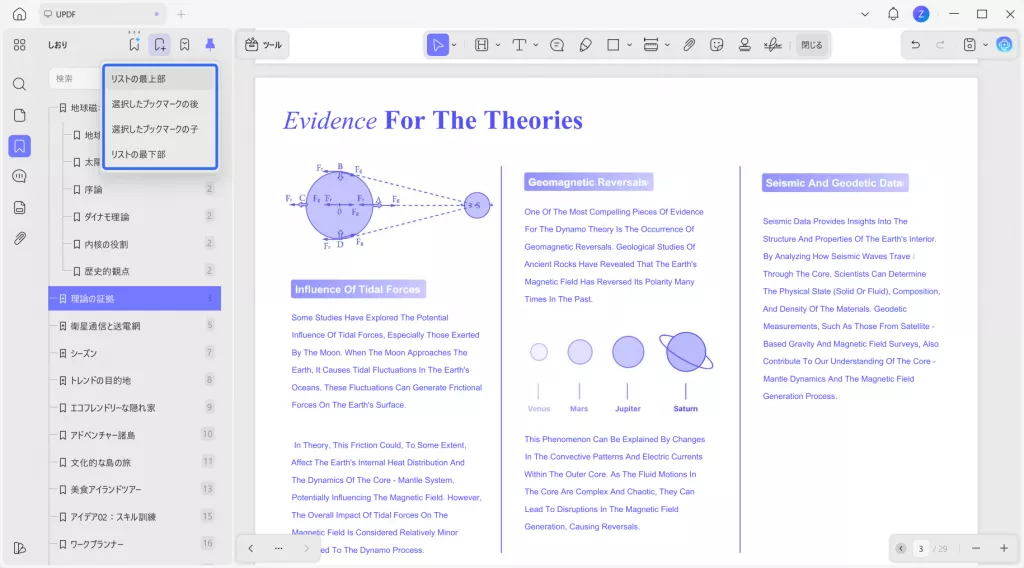
ステップ5:ブックマークを手動で追加する
新しいブックマークを作成する場合は、上部にある 「ブックマークを追加」 アイコンをクリックします。
次に、表示されるメニューから 新しいブックマークを追加する位置 を選択してください。
ステップ6:ブックマークの表示方法を管理する
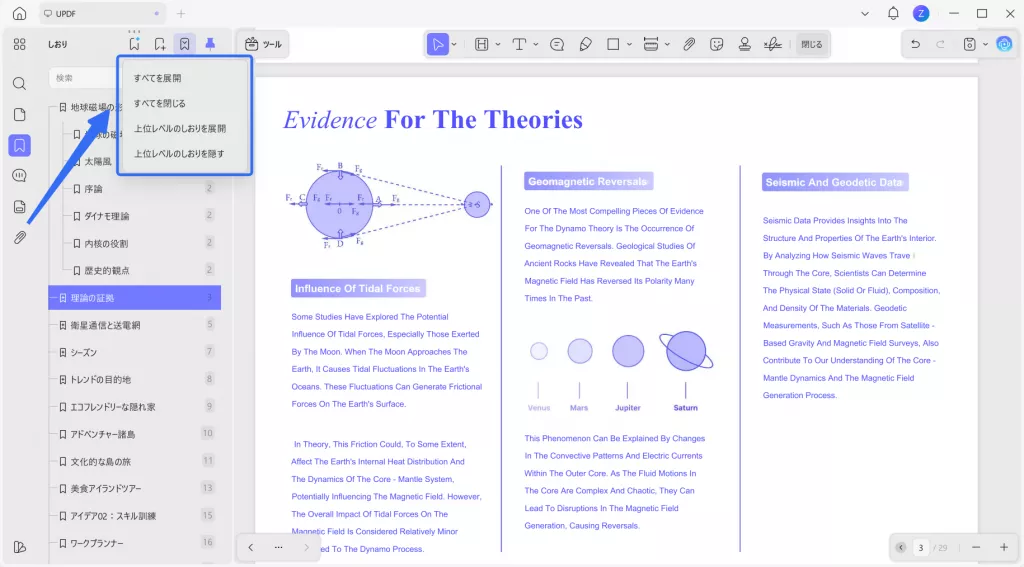
ブックマークの表示方法は、必要に応じて変更できます。
上部の 「ブックマーク」 ドロップダウンをクリックし、メニューから以下のオプションを選択してください。
- すべて展開:すべてのブックマークとサブブックマークを表示します。
- すべて折りたたむ:すべてのブックマークを折りたたみ、シンプルな一覧表示にします。
- 上位レベルのブックマークを展開:親ブックマークのみを展開し、サブブックマークは表示しません。
- 上位レベルのブックマークを折りたたむ:メインのブックマークのみを折りたたみ、すっきり表示します。
このように、表示方法を切り替えることで、ブックマークを見やすく整理できます。
ステップ7:ブックマークパネルを固定する
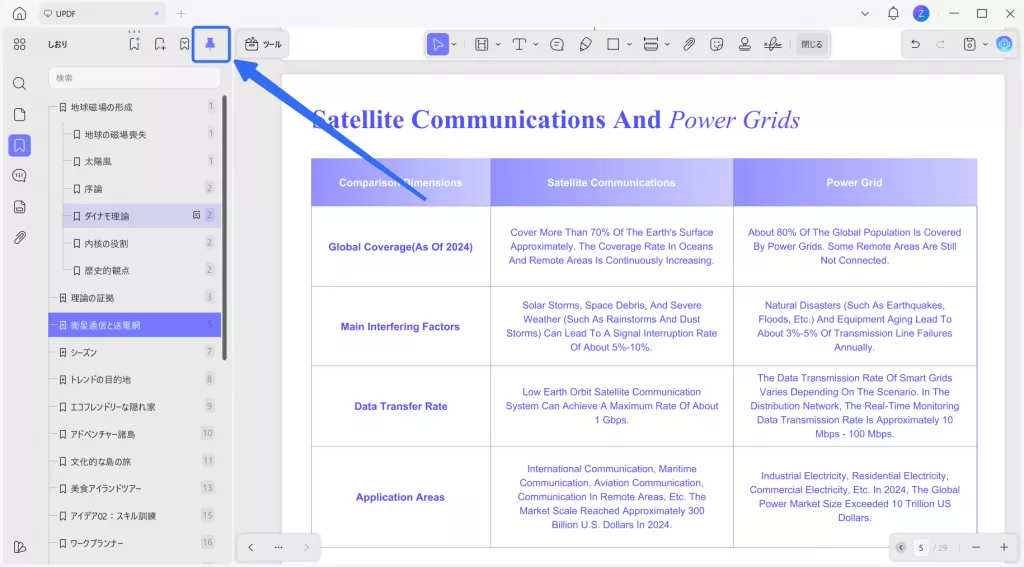
作業中にブックマークパネルを常に表示しておくこともできます。
上部にある 「ピン」 アイコンをクリックすると、ブックマークパネルを固定できます。
このように設定することで、ドキュメントを確認しながらブックマークを管理できます。
ステップ8:ブックマークを検索する
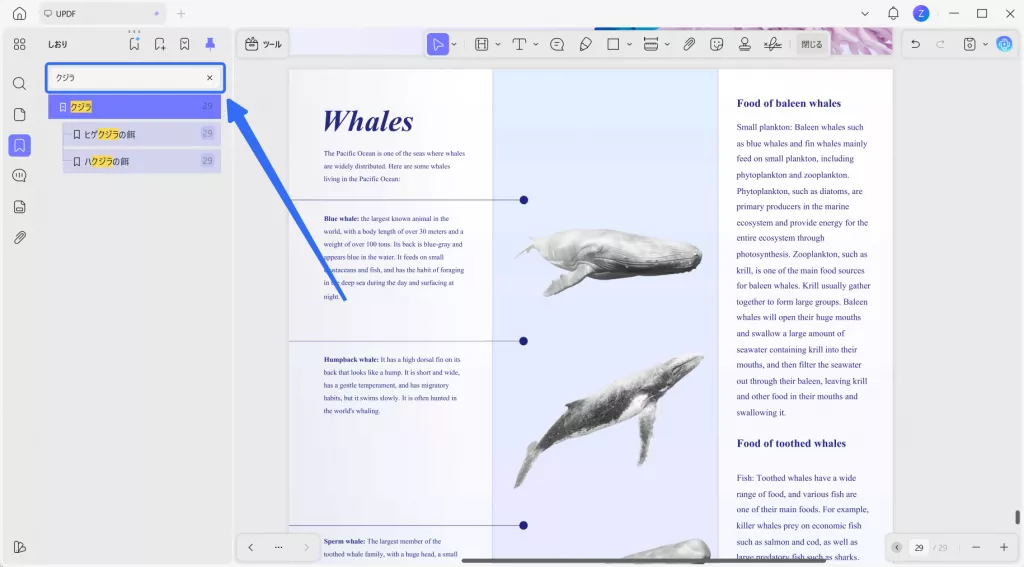
特定のブックマークを探したい場合は、上部にある 検索バー をクリックします。
次に、キーワードを入力すると、一覧から目的のブックマークを見つけることができます。
このように、検索機能を使えばブックマークをすばやく見つけることができます。
パート2:AIでブックマークを要約
ブックマークの生成に加えて、UPDFのAIはブックマークされた章の内容を要約する機能も備えています。
数秒で3つの要点を箇条書きでまとめ、将来の参照に便利なようにPDFのメモとして追加することもできます。つまり、長いドキュメントでも重要なポイントをすばやく把握できます。
それでは、手順を確認してみましょう。
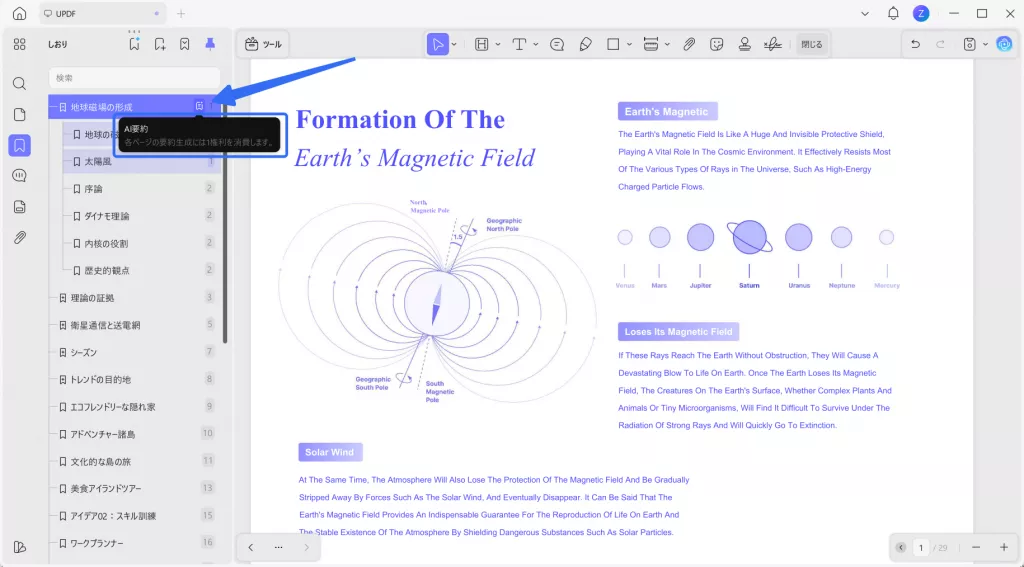
ステップ1:AI要約を選択する
ブックマークパネルを開き、要約したいブックマークをクリックします。
次に、選択したブックマークの右側にある 「AI要約」 をクリックします。
このように、対象のブックマークを選ぶだけでAI要約を開始できます。
ステップ2:AI要約を生成・管理する
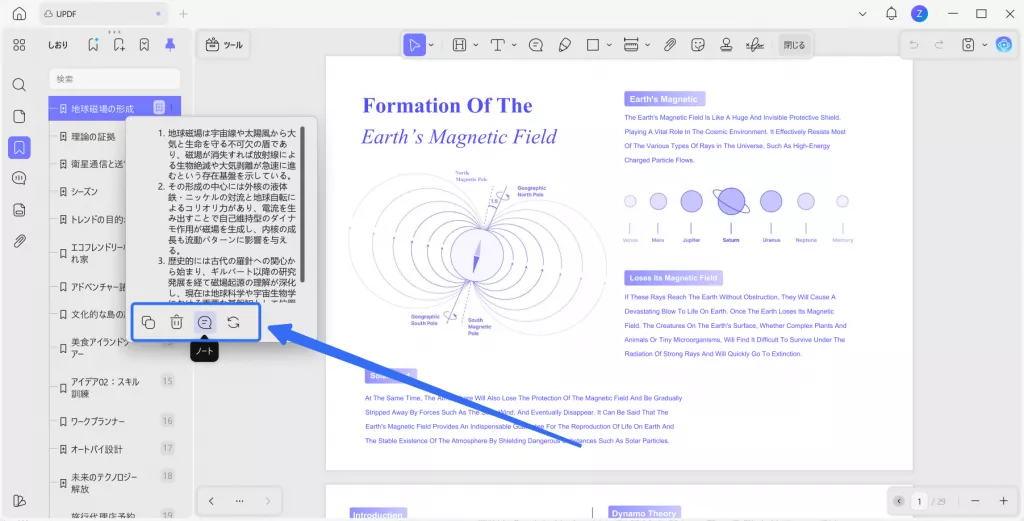
AIは、章の内容を3つの簡潔な箇条書きでまとめて表示します。
AI要約の下には、以下の操作オプションが表示されます。
- 再生成:要約を新しく生成し直します。
- メモ:要約をメモとして追加し、後からすぐ確認できるようにします。
- 削除:AIが生成した要約を削除します。
- コピー:要約をクリップボードにコピーし、他の場所に貼り付けたり共有したりできます。
このように、AI要約を簡単に生成し、必要に応じて管理できます。
ステップ3:別の方法でAI要約にアクセスする
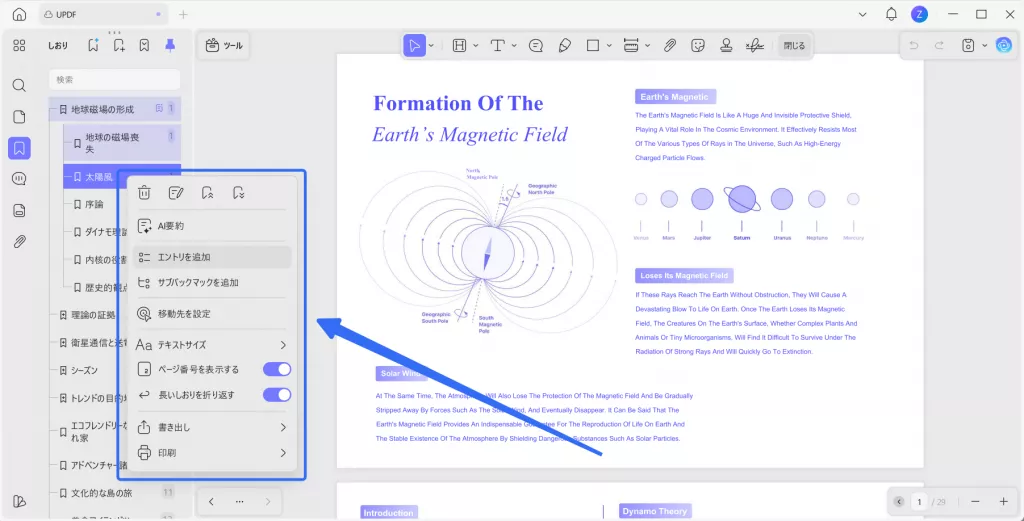
選択したブックマークを右クリックし、表示されるメニューから 「AI要約」 を選択することもできます。
同じメニューから、削除・名前の変更・昇格・降格 などの操作も行えます。
このように、コンテキストメニューからブックマークを簡単に管理することができます。
UPDFでAIを使ってブックマークを生成・要約する方法は以上です。
ぜひこの機能を実際に試してみてください。
UPDFは無料体験版からすぐに利用を開始できます。まずはダウンロードして、AIブックマーク生成や要約機能を体験してみましょう。
また、UPDFのすべての機能を無制限で利用したい場合は、手頃な価格でPro版へアップグレードすることもできます。
Windows • macOS • iOS • Android 100%安全