UPDF
UPDF
 UPDF pour Windows
 UPDF pour Mac
 UPDF pour iPhone/iPad
 updf android
 UPDF AI en ligne
 UPDF Sign
 Modifier le PDF
 Annoter le PDF
 Créer un PDF
 Formulaire PDF
 Modifier les liens
 Convertir le PDF
 OCR
OCR PDF en Word
 PDF en Image
 PDF en Excel
 Organiser les pages PDF
 Fusionner les PDF
 Diviser le PDF
 Rogner le PDF
 Pivoter le PDF
 Protéger le PDF
 Signer le PDF
 Rédiger le PDF
 Biffer le PDF
 Supprimer la sécurité
 Lire le PDF
 UPDF Cloud
 Compresser le PDF
 Imprimer le PDF
 Traiter par lots
 À propos de UPDF AI
 Solutions de UPDF AI
 Mode d'emploi d'IA
 FAQ sur UPDF AI
 Résumer le PDF
 Traduire le PDF
 Analyser le PDF
 Discuter avec IA
 Analyser l'image
 PDF vers carte mentale
 Expliquer le PDF
 Outils IA PDF
 Outils IA Image
 Outils de Chat IA
 Outils de Rédaction IA
 Outils d’Étude IA
 Outils Professionnels IA
 Autres Outils IA
 Génération de signets IA
 Résumé de signets IA
 Génération de filigranes IA
 Génération d’arrière-plans IA
 Génération d’autocollants IA
 Génération de tampons IA
 Suite de rédaction IA
 UPDF Copilot
 Gestion des pages IA
 Recherche sémantique IA
 PDF en Word
 PDF en Excel
 PDF en PowerPoint
 UPDF pour les entreprises
 UPDF Sign pour les entreprises
 UPDF AI pour les entreprises
 Plans pour les entreprises
 Mode d'emploi pour les entreprises
 Webinar d'Entreprise
 Banque
 Santé
Santé Assurance
 Juridique
 Fabrication
 Gouvernement
 Solution pour l'éducation
 Témoignages de clients
 Mode d'emploi
 Astuces UPDF
 FAQ
FAQ Avis sur UPDF
 Centre de téléchargement
 Blog
Blog Actualités
 Spécifications techniques
 Mises à jour
 UPDF vs. Adobe Acrobat
 UPDF vs. Foxit
 UPDF vs. PDF Expert

Rogner des pages PDF avec UPDF sur iOS
La division des pages avec UPDF sur votre iPhone ou iPad vous permet de scinder avec précision une page unique en plusieurs sections. Les pages peuvent être divisées verticalement ou horizontalement, afin de faciliter la recherche et la lecture du contenu. Le processus est simple et s’appuie sur des repères visuels clairs indiquant exactement l’emplacement de la découpe. Essayez cette fonctionnalité en téléchargeant l’application UPDF depuis l’App Store.
Comment rogner une page sur iOS ?
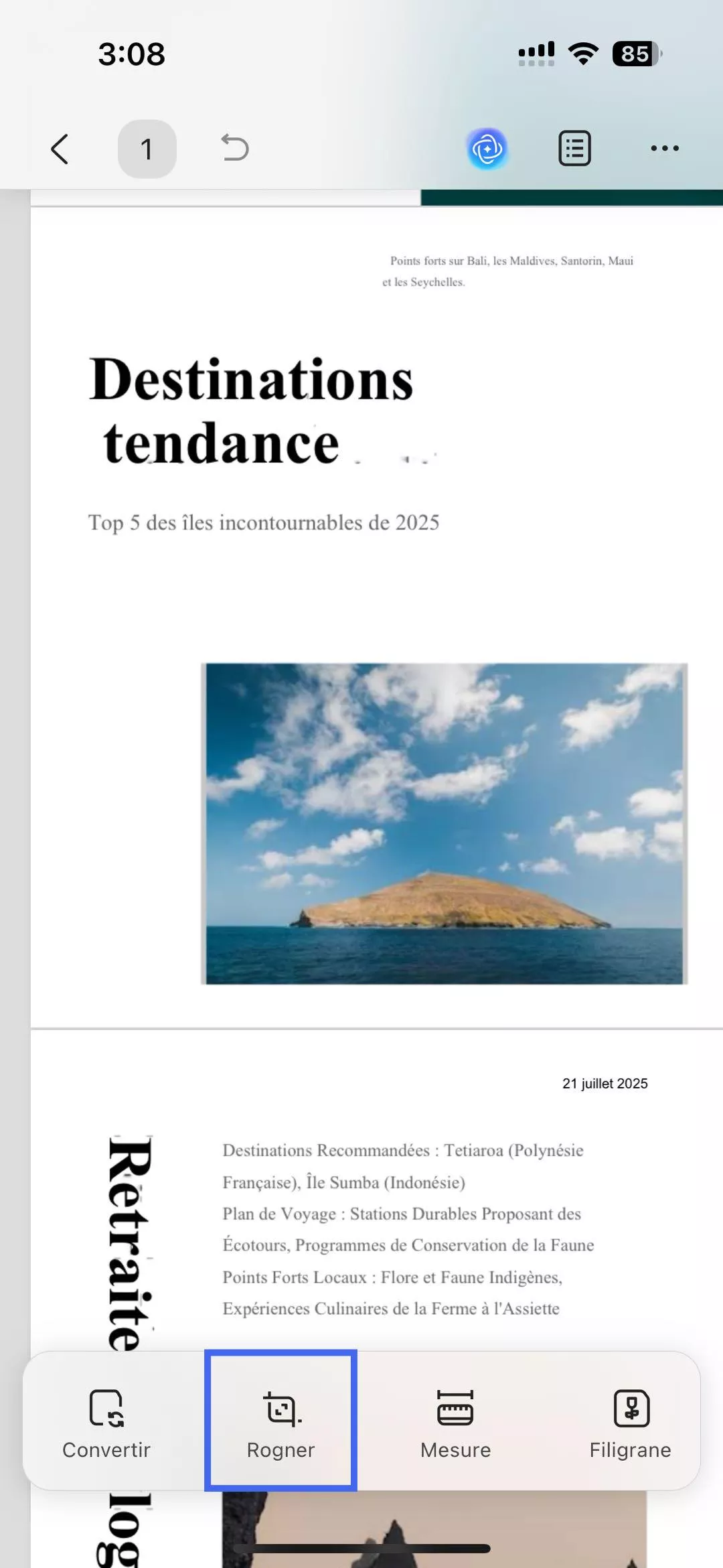
Après avoir ouvert un PDF dans UPDF sur iOS, touchez l’icône « Rogner » dans le menu inférieur. Cette fonction propose trois méthodes différentes pour rogner un fichier PDF.
Méthode 1. Rognage libre
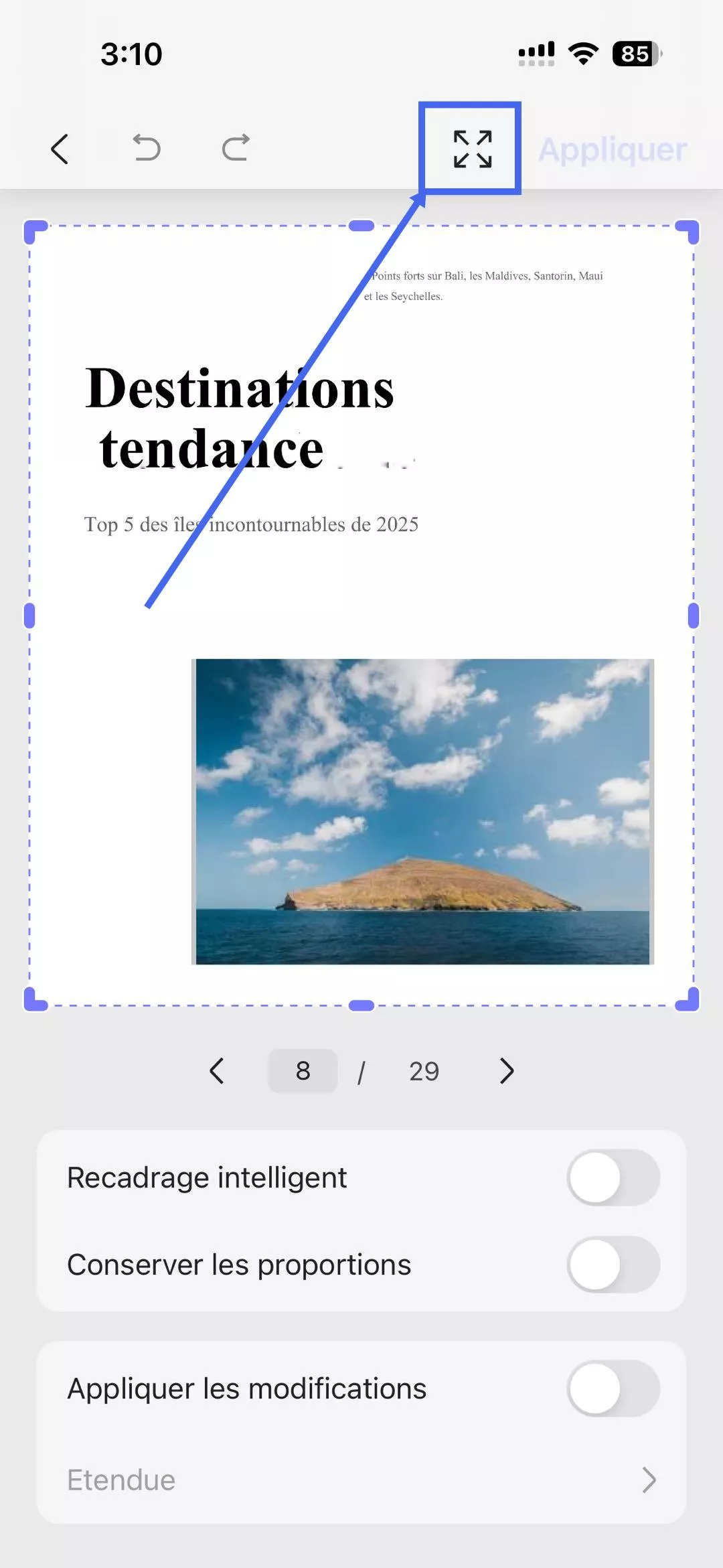
Sur l’écran suivant, faites glisser les poignées autour de la page pour définir la zone de rognage, puis ajustez-la jusqu’à obtenir la mise en page souhaitée.
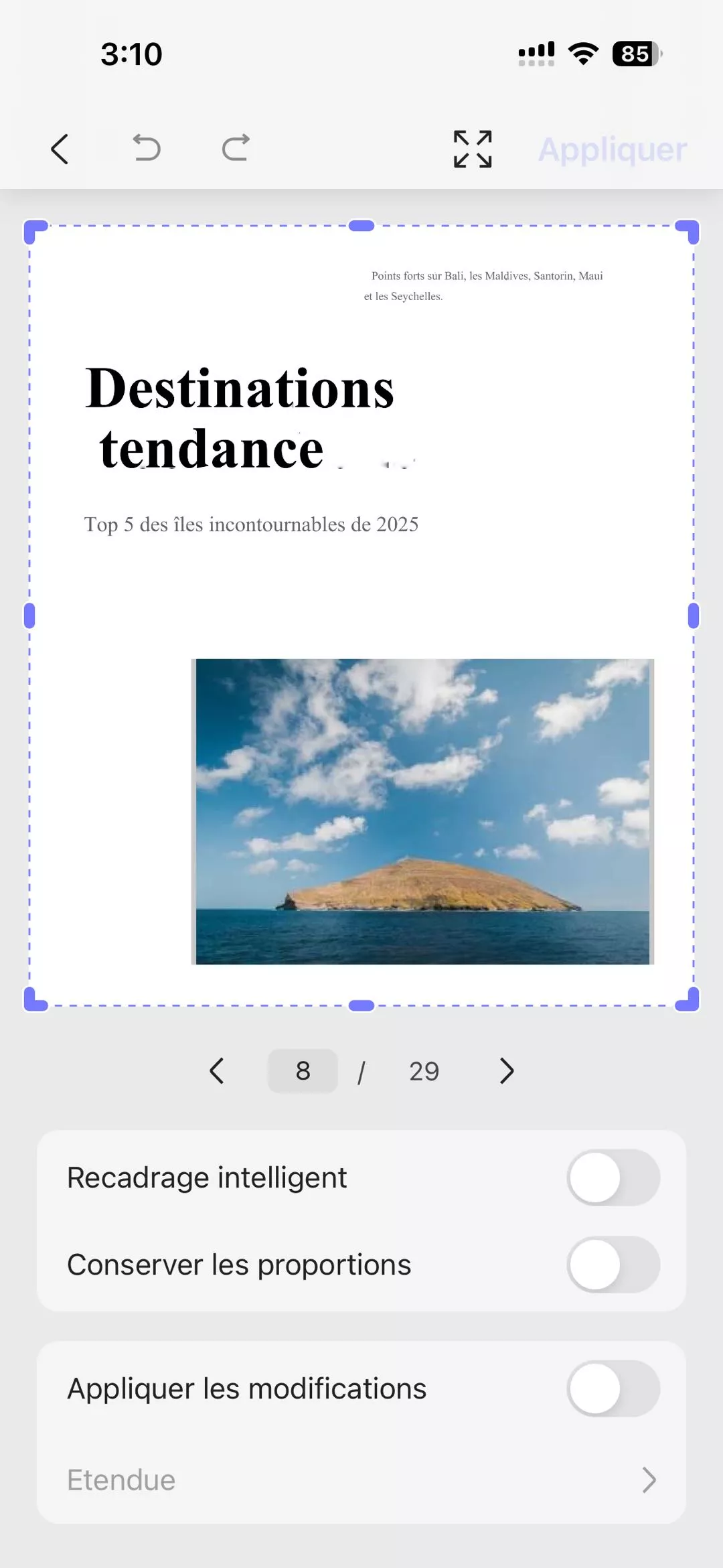
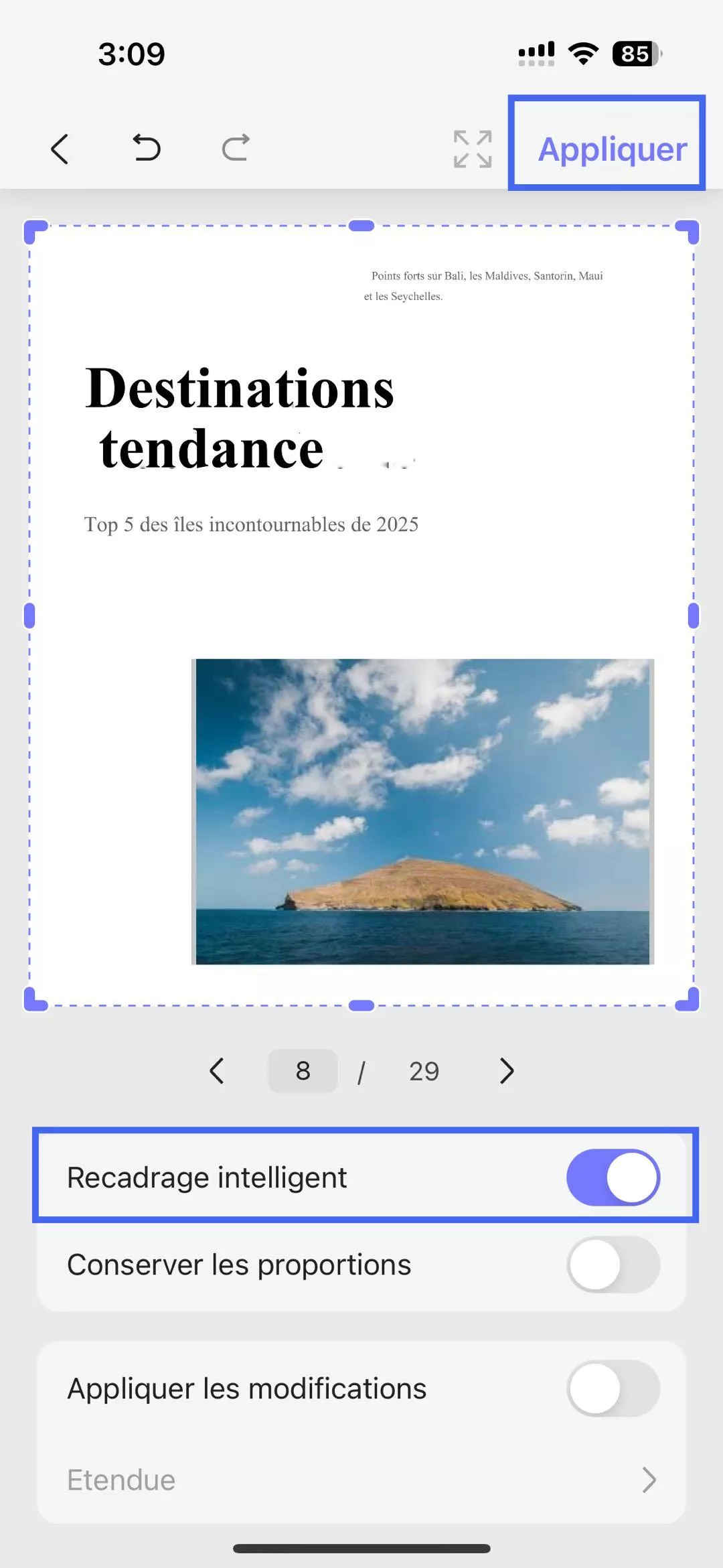
Méthode 2. Rognage intelligent
Activez l’option « Rognage intelligent » et laissez l’application détecter automatiquement les contours du contenu pour un rognage plus net et précis.
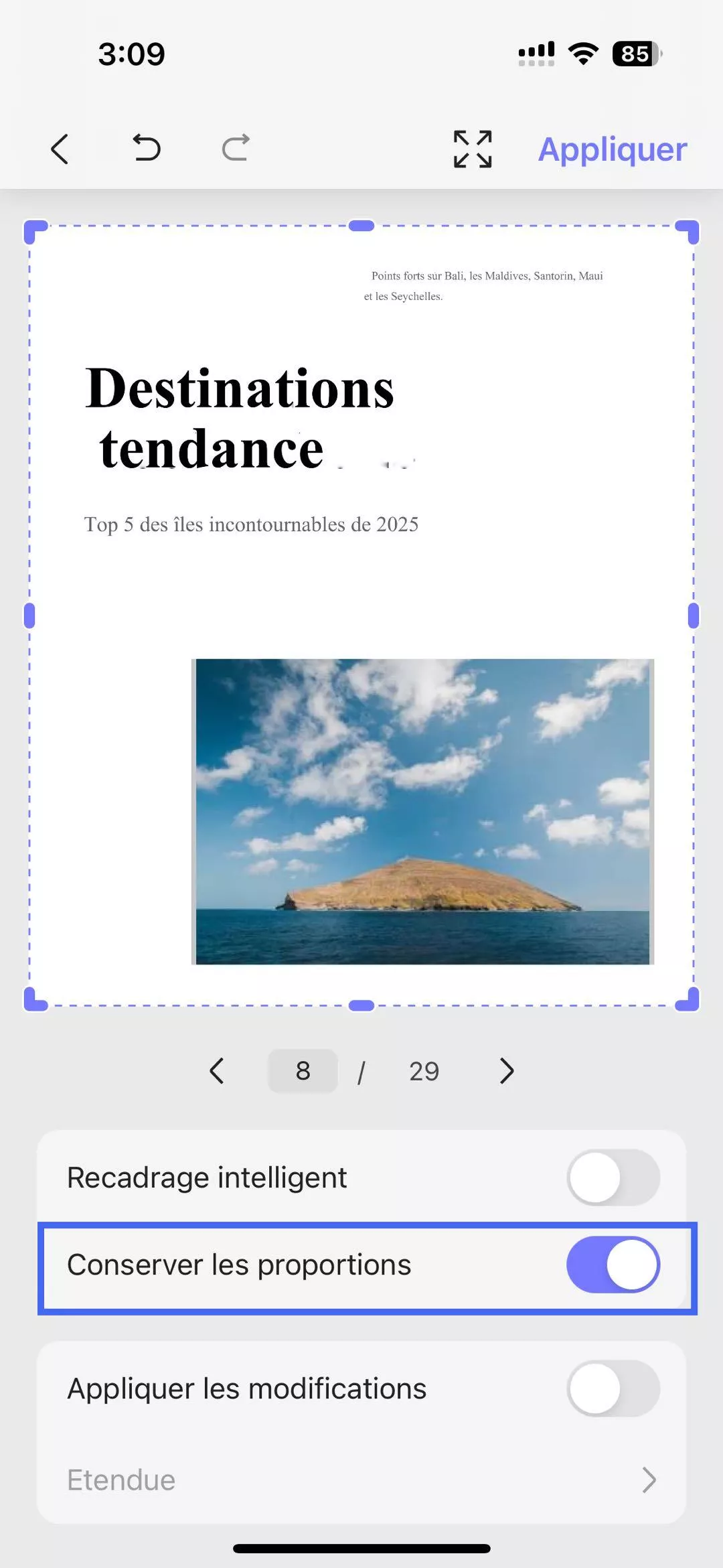
Méthode 3. Rognage proportionnel
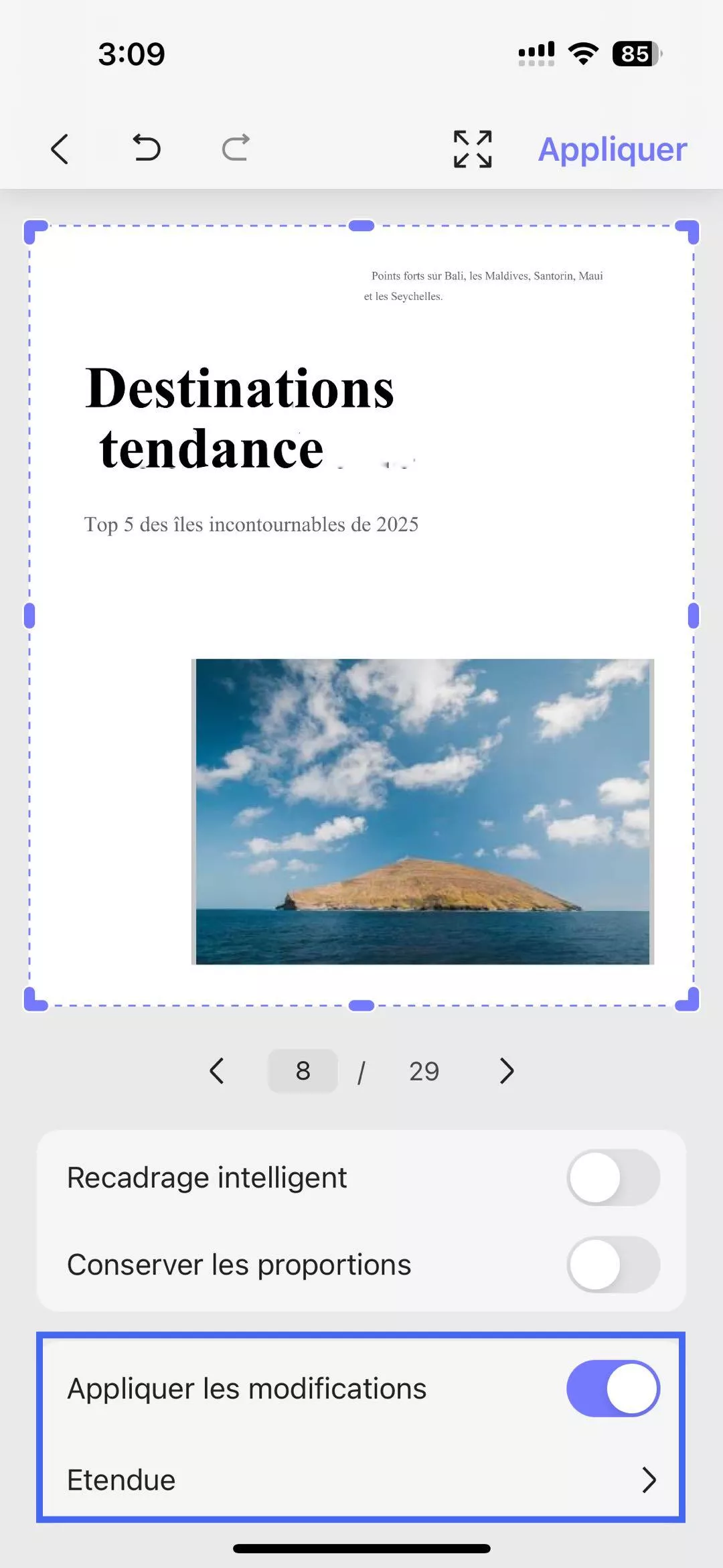
Si vous souhaitez appliquer un format d’image fixe pour rogner la page, activez l’option « Conserver les proportions ». Une fois la zone ciblée rognée, activez l’option « Appliquer les modifications », puis appuyez sur « Appliquer » dans le coin supérieur droit.
Comment rogner plusieurs pages sur iOS ?
Lorsque vous travaillez avec un PDF contenant plusieurs pages, UPDF permet également de rogner plusieurs pages en seulement quelques gestes.
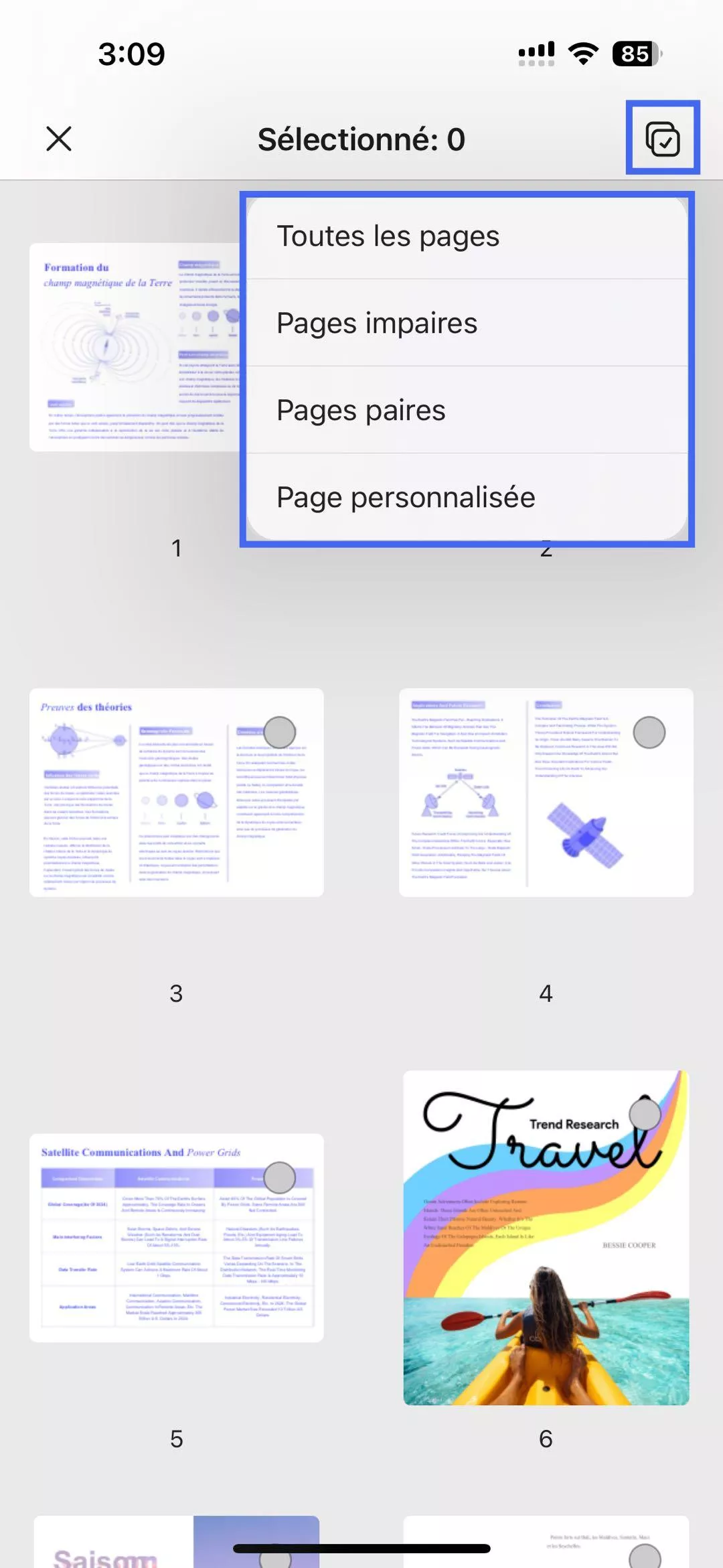
Instructions : Après avoir rogné une page et activé l’option « Appliquer les modifications », appuyez sur « Plage de pages ». Sélectionnez ensuite l’icône « Sélectionner » pour accéder aux options permettant de choisir toutes les pages, les pages paires, impaires ou une plage personnalisée. Il est également possible de sélectionner manuellement les pages à rogner.
Comment restaurer des pages rognées ?
Les pages rognées peuvent être restaurées à leur format d’origine à tout moment lors de l’édition du document.
Instructions : Ouvrez la page rognée et sélectionnez l’option « Rogner » dans le menu inférieur. Appuyez ensuite sur l’icône « Restaurer », puis sur « Appliquer » afin d’annuler les modifications de rognage sur la page PDF.
Comment annuler toutes les modifications ?
Si le résultat des pages PDF restaurées ou rognées ne vous satisfait pas, vous pouvez annuler l’ensemble des ajustements en toute simplicité.
Instructions : Pour revenir en arrière, appuyez sur l’option « Annuler » située en haut de l’écran, puis continuez à appuyer jusqu’à atteindre la version du PDF souhaitée.
Diviser des pages avec UPDF
La fonction de division des pages avec UPDF sur votre iPhone ou iPad vous permet de scinder un document en plusieurs fichiers plus petits. Elle est essentielle pour une organisation efficace des fichiers et facilite considérablement la gestion des PDF volumineux.
Comment diviser un document
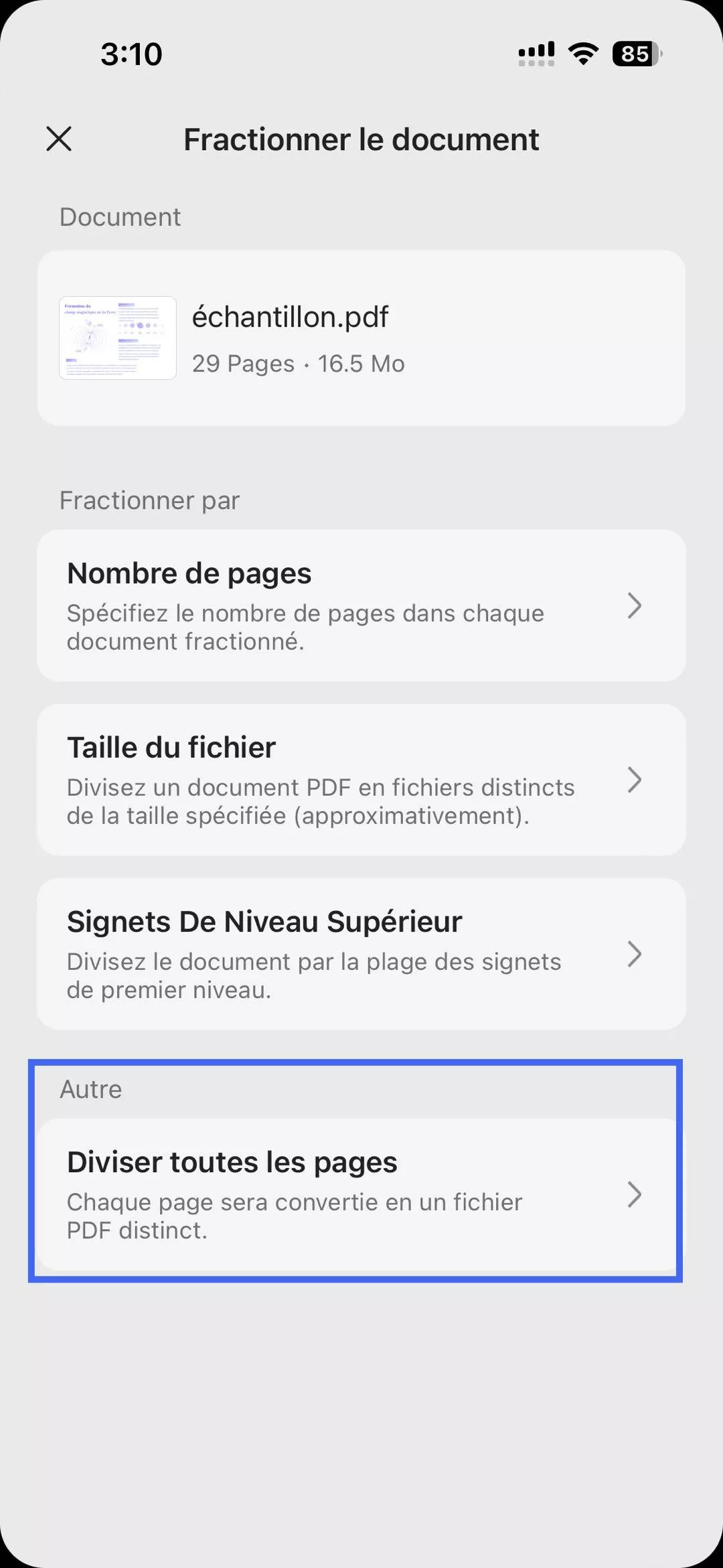
La fonctionnalité « Diviser les pages » permet de scinder un fichier PDF en deux ou plusieurs fichiers, selon le nombre de pages, la taille du fichier ou les signets de niveau supérieur.
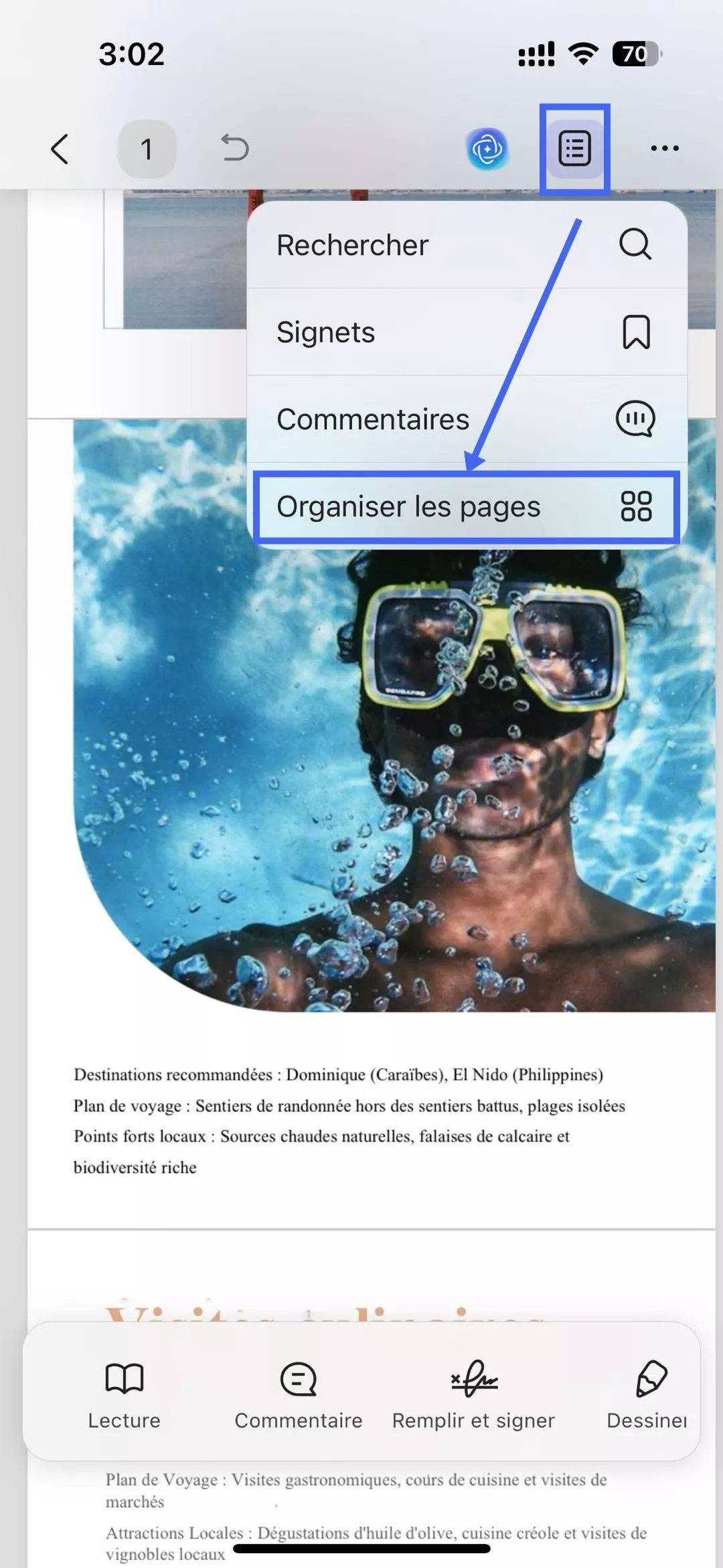
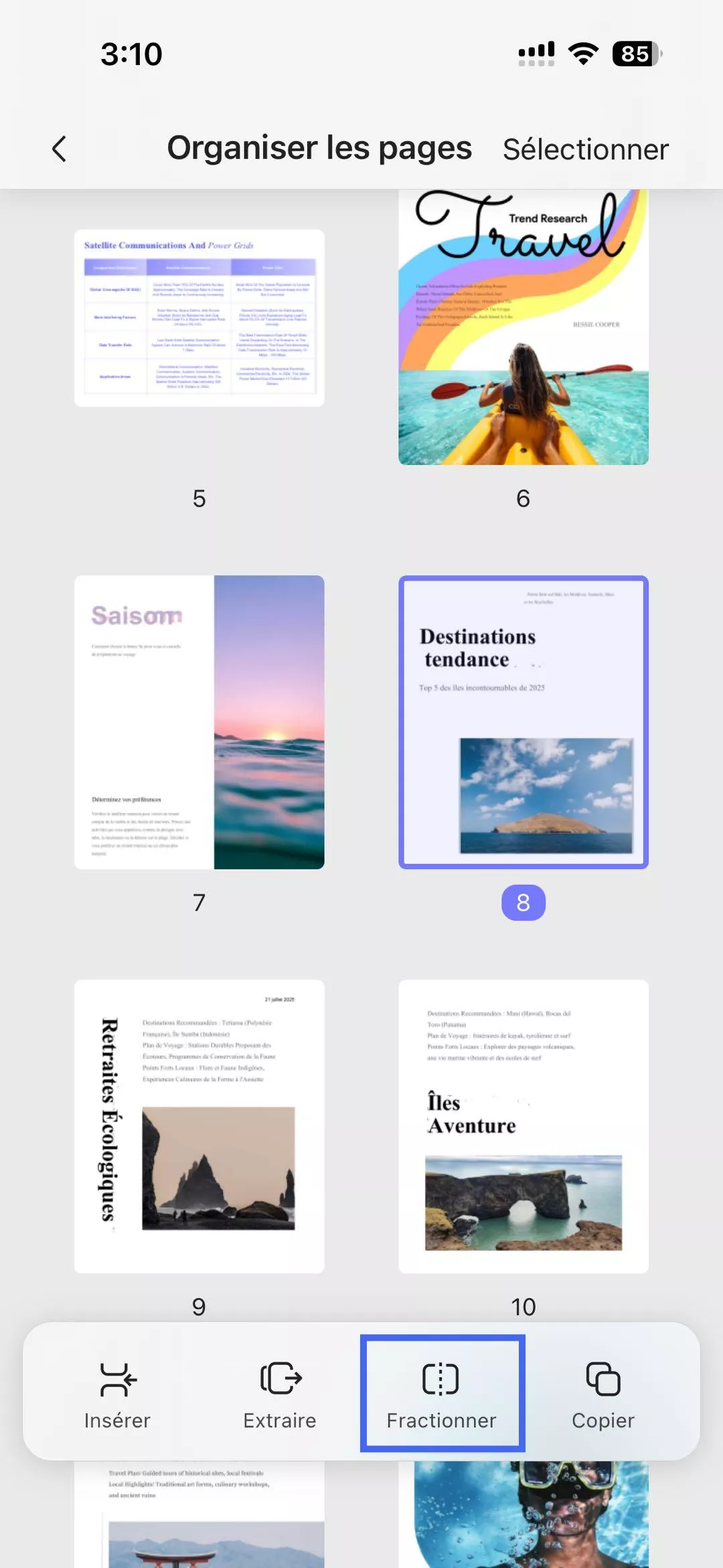
Pour utiliser cette fonction, appuyez sur l’icône « Plus » située dans le coin supérieur droit, puis sélectionnez l’option « Organiser les pages ». Choisissez ensuite « Diviser » afin d’afficher les différents modes de division.
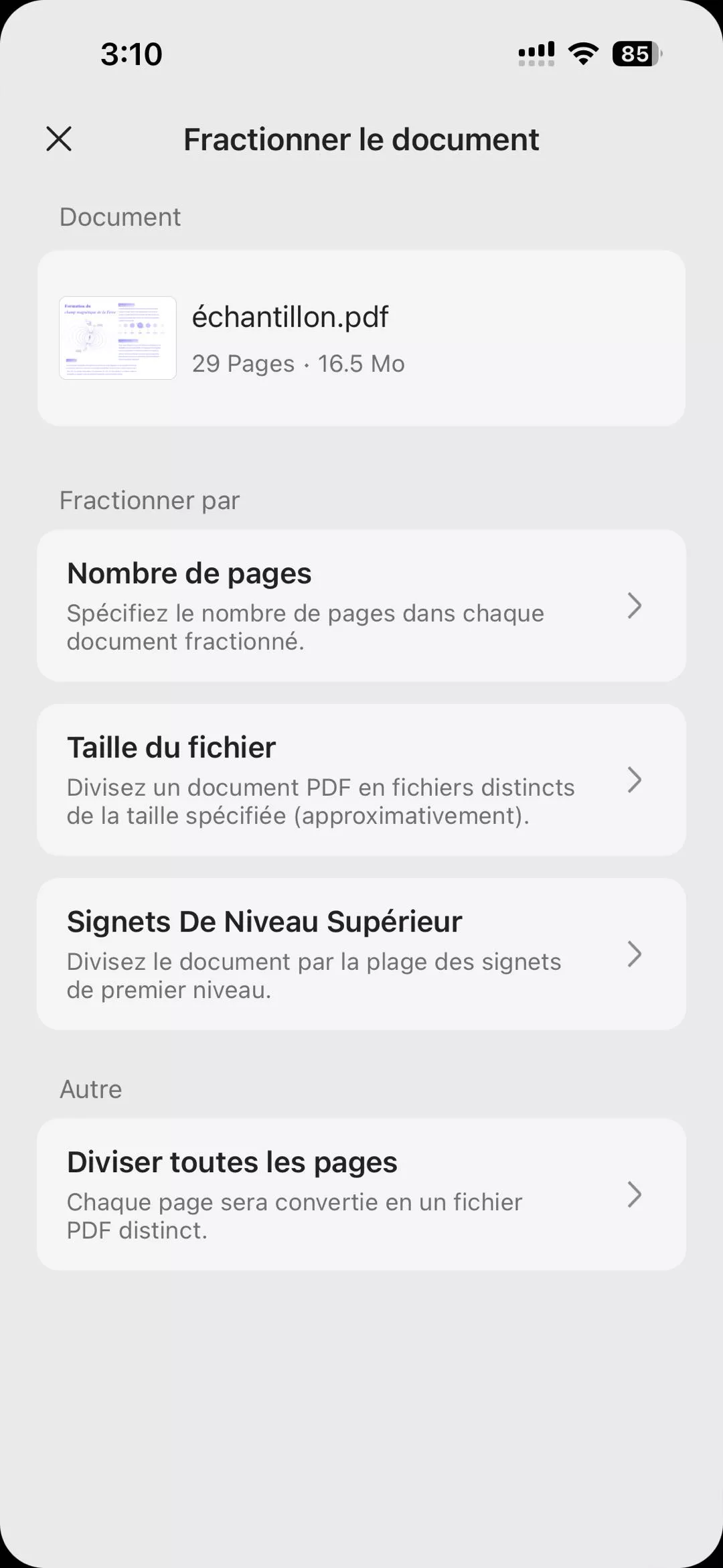
Méthode 1. Division par nombre de pages
Pour diviser un document en fonction du nombre de pages, sélectionnez l’option « Nombre de pages ». Une boîte de dialogue s’affiche alors. Indiquez le nombre de pages souhaité, puis appuyez sur « Diviser » pour lancer le processus.
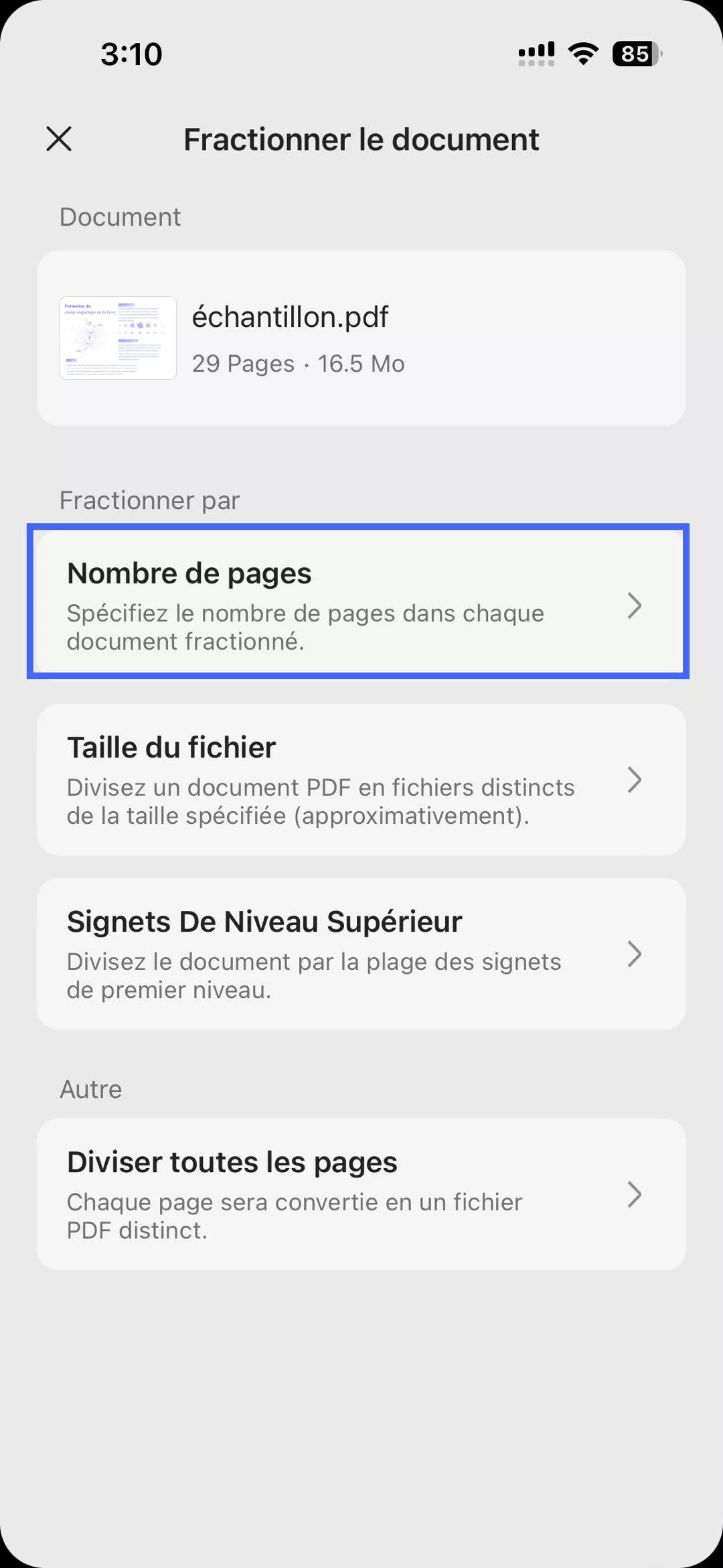
Méthode 2. Division par taille de fichier
Cette option permet de diviser un document selon la taille du fichier. Après avoir sélectionné « Taille du fichier », définissez la taille de PDF souhaitée, puis appuyez sur « Diviser » pour commencer la séparation des pages en fonction de la taille.
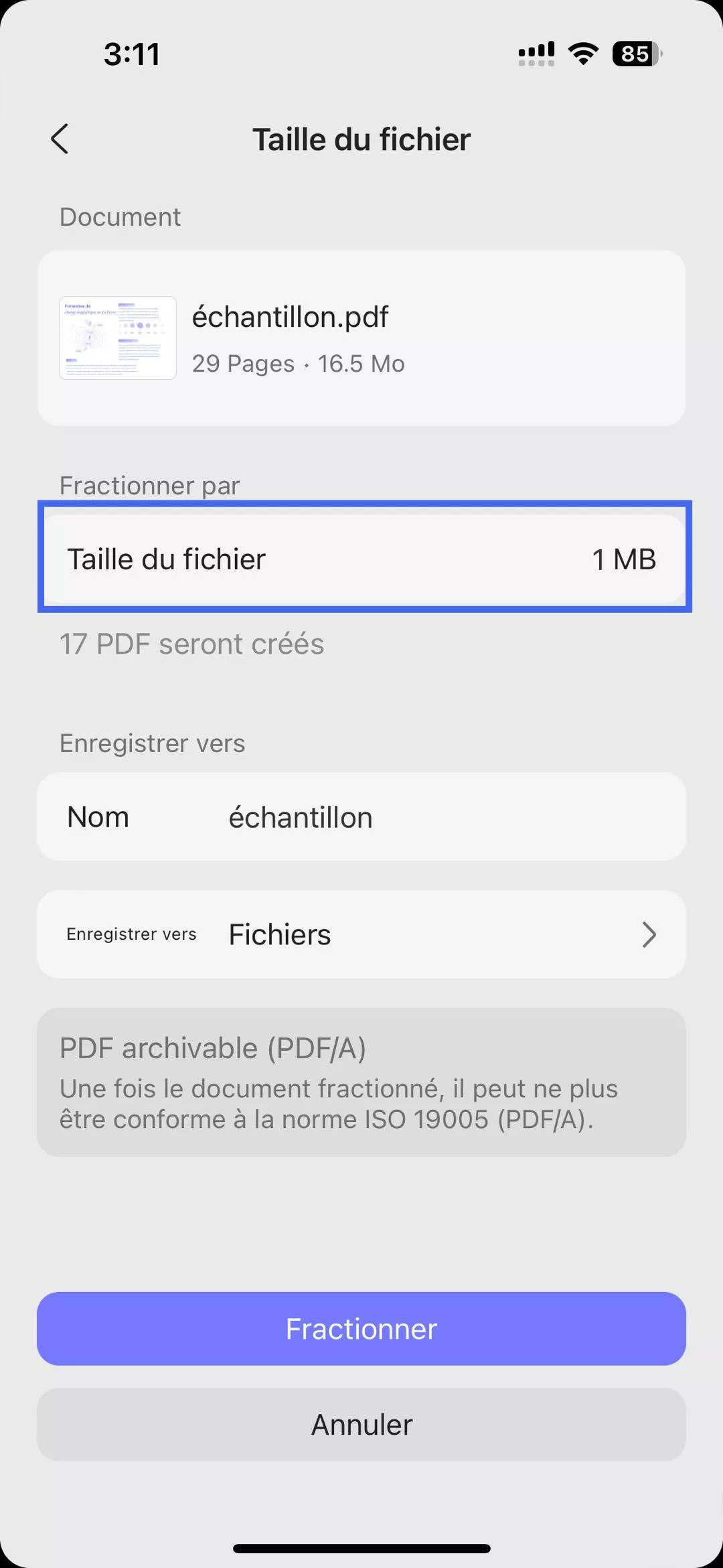
Méthode 3. Division par signets de niveau supérieur
Enfin, choisissez l’option « Signets de niveau supérieur ». Cette méthode convertit l’ensemble du contenu associé à un signet parent unique en un fichier PDF distinct. Appuyez ensuite sur « Diviser » pour démarrer le processus de division.
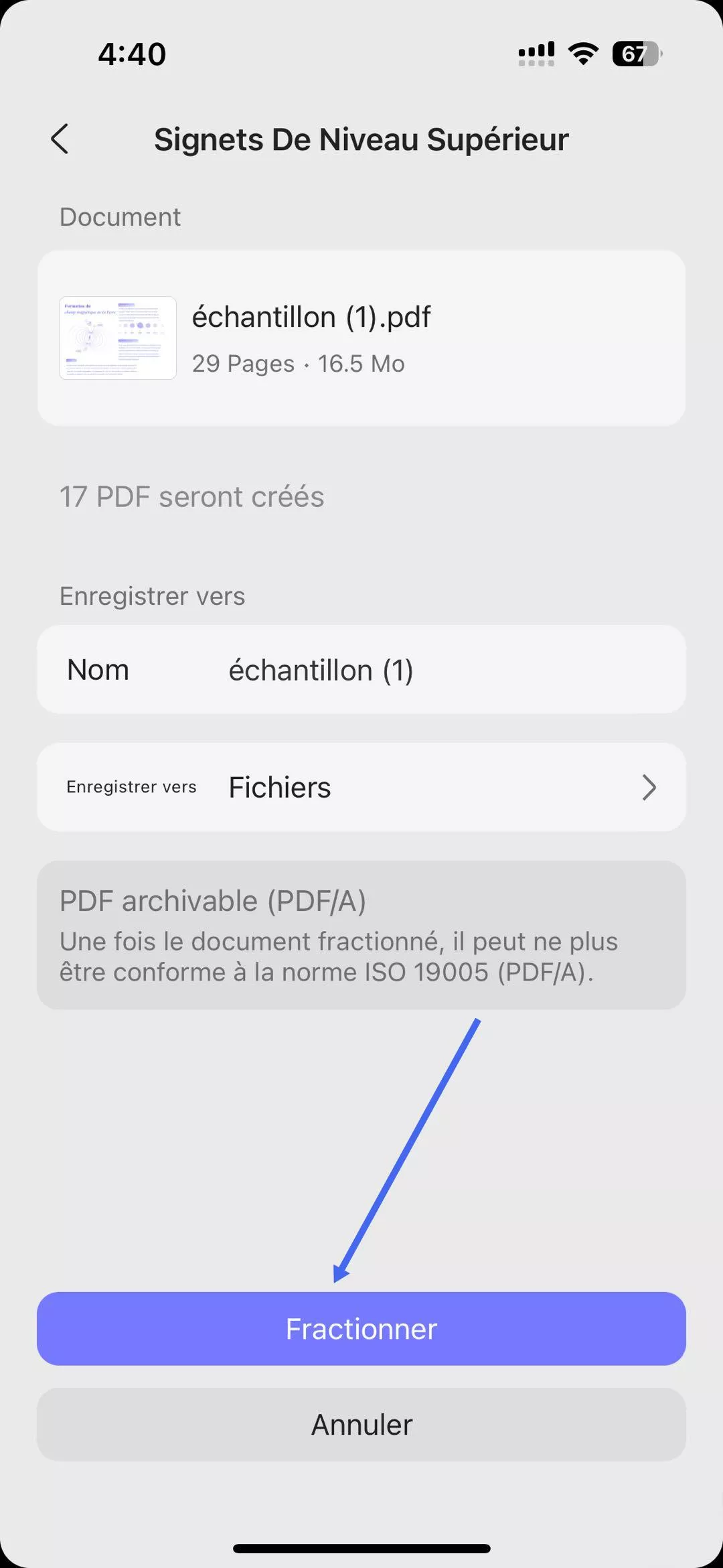
Comment diviser plusieurs pages sur iOS
Vous pouvez scinder plusieurs pages en fichiers PDF individuels, chaque fichier ne contenant qu’une seule page du document d’origine.
Méthode 1. Division via la sélection multiple ou « Tout sélectionner »
Commencez par appuyer sur l’option « Sélectionner » dans le coin supérieur droit, puis choisissez toutes les pages que vous souhaitez diviser. Appuyez ensuite sur « Terminé », puis touchez « Diviser » dans la barre inférieure afin de séparer toutes les pages sélectionnées.
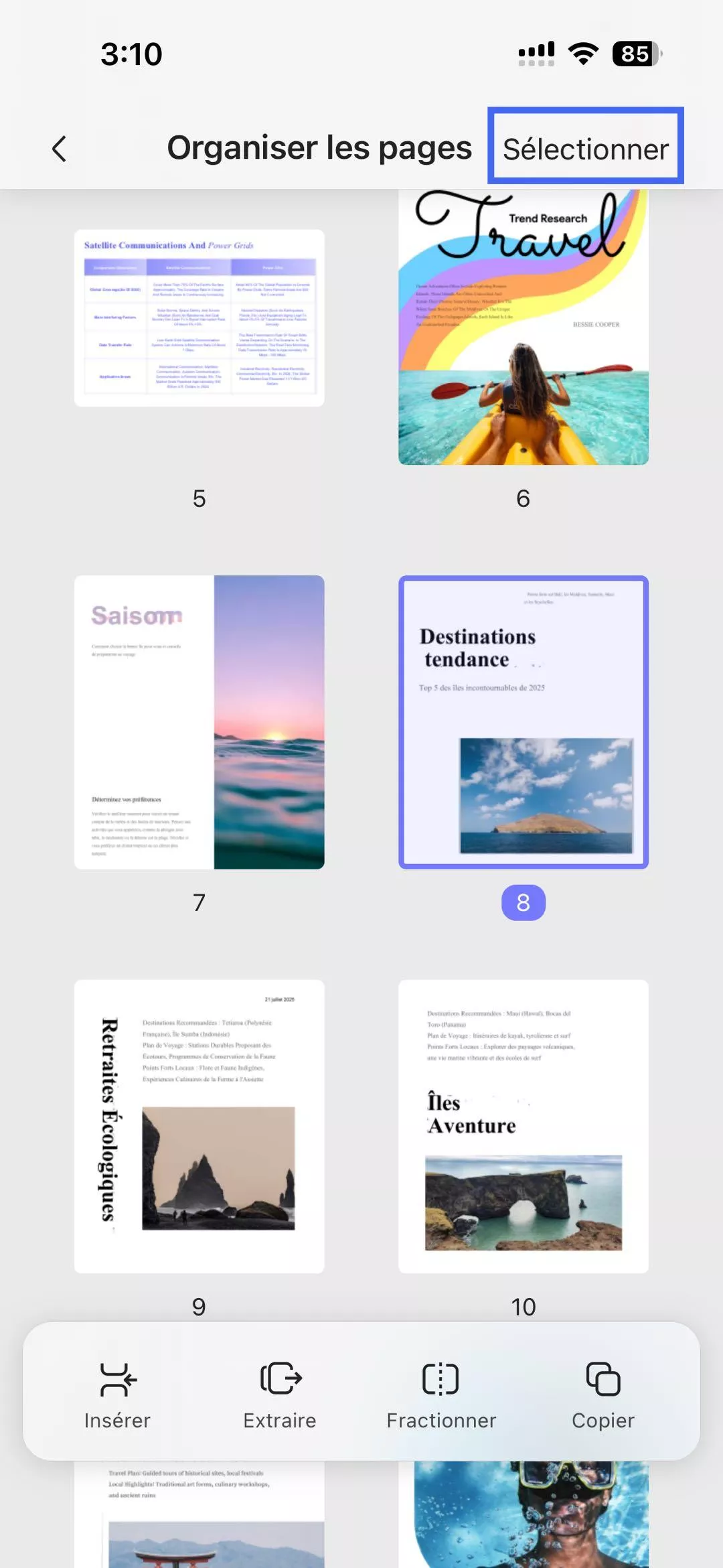
Méthode 2. Division de toutes les pages en un seul geste
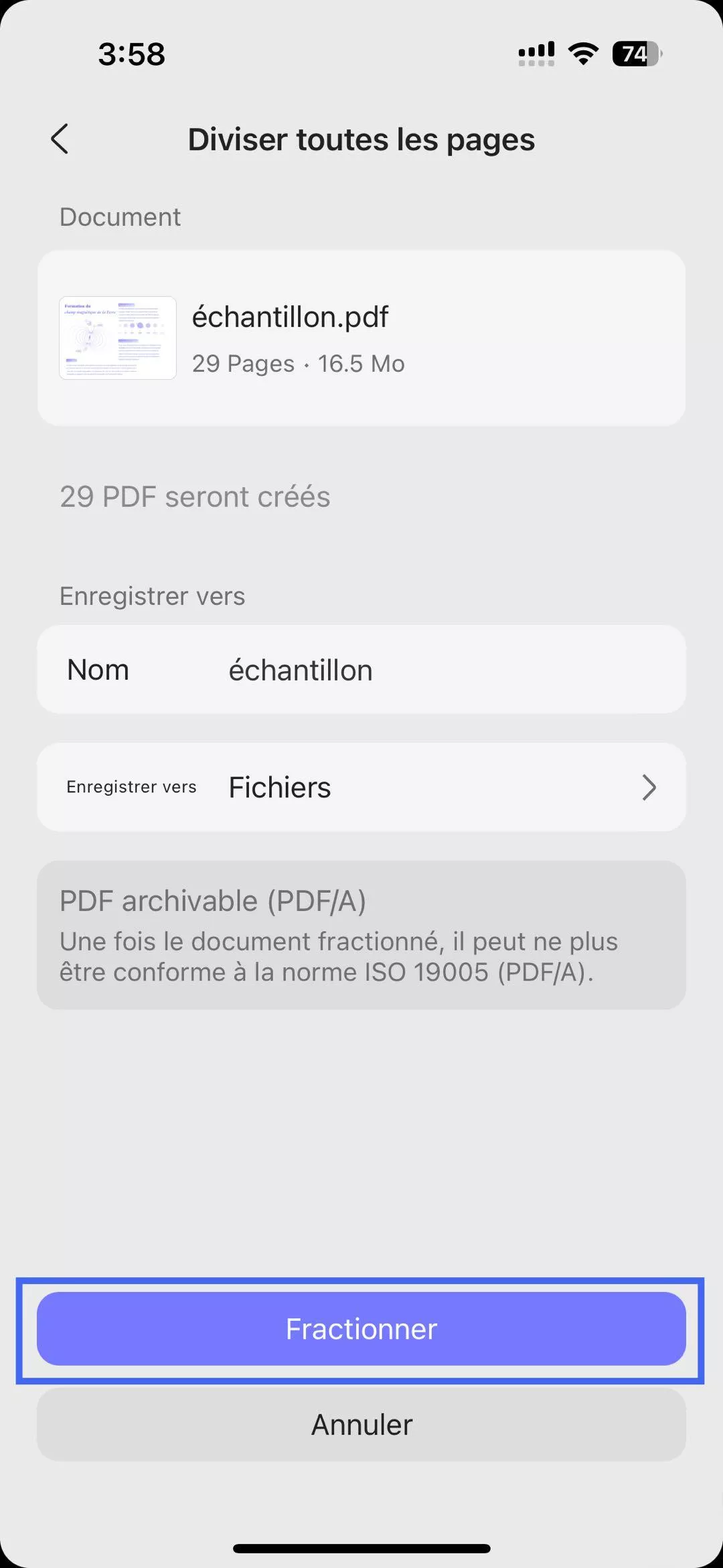
Une autre méthode consiste à utiliser l’option dédiée à cette fonctionnalité. Pour diviser l’ensemble du document, appuyez simplement sur « Diviser toutes les pages », puis sur « Diviser » dans la barre inférieure afin de scinder toutes les pages en une seule fois.