UPDF
UPDF
 Windows版UPDF
 Mac版UPDF
 iPhone/iPad版UPDF
 Android版UPDF
 UPDF AI オンライン
 UPDF Sign
 PDF編集
PDF編集 PDF注釈付け
 PDF作成
PDF作成 PDFフォーム
 リンクの編集
 PDF変換
PDF変換 OCR機能
OCR機能 PDFからWordへ
 PDFから画像へ
 PDFからExcelへ
 PDFのページ整理
 PDF結合
PDF結合 PDF分割
PDF分割 ページのトリミング
 ページの回転
 PDF保護
PDF保護 PDF署名
PDF署名 PDFの墨消し
 PDFサニタイズ
 セキュリティ解除
 PDF閲覧
PDF閲覧 UPDF クラウド
 PDF圧縮
PDF圧縮 PDF印刷
PDF印刷 PDFのバッチ処理
 UPDF AIについて
 UPDF AIソリューション
 AIユーザーガイド
 UPDF AIによくある質問
 PDF要約
PDF要約 PDF翻訳
PDF翻訳 PDF付きチャット
 AIでチャット
 画像付きチャット
 PDFからマインドマップへの変換
 PDF説明
PDF説明 PDF AIツール
 画像AIツール
 AIチャットツール
 AIライティングツール
 AI学習ツール
 AI業務ツール
 その他のAIツール
 PDFからWordへ
 PDFからExcelへ
 PDFからPowerPointへ
 ソリューション
 電子署名
電子署名 ビジネスAI
 料金プラン
料金プラン 導入・運用ガイド
 ウェビナー
ウェビナー 銀行
銀行 医療
医療 保険
保険 法務
法務 製造業
製造業 官公庁
官公庁 教育機関向けソリューション
 導入事例
導入事例 ユーザーガイド
 公式ブログ
公式ブログ UPDF 活用術
 UPDF vs Adobe Acrobat
 UPDF vs Foxit
 UPDF vs PDF Expert
 よくある質問(FAQ)
 ダウンロードセンター
 動作環境・仕様
 お問い合わせ
 ニュースルーム
 アップデート履歴
 ユーザーレビュー
 会社概要
会社概要

AI で PDF 用スタンプを生成する方法
プロフェッショナルな PDF ドキュメントにおいて、スタンプは状態を明示し、レビュープロセスを効率化するのに便利です。しかし、各ドキュメントに最適なスタンプを見つけるのは簡単ではありません。著作権フリーで好みのデザインに合った素材をネットで探すだけで、数時間を費やすこともあります。
さらに、自作する場合には Photoshop などの高度な編集ソフトと技術知識が必要です。そのため、実用的で視覚的に魅力的なスタンプ作成は、多くの人にとってハードルが高い作業となります。UPDF なら、内蔵 AI 機能でスタンプを自動生成し、このプロセスを大幅に簡略化できます。
詳しい使い方は、以下のガイドをご覧ください。
パート 1. UPDF の AI で PDF 用スタンプを生成する方法
UPDF では、簡単なテキストプロンプトから AI スタンプを生成できます。手動で説明文を入力するか、スマートプリセットを利用して作業を短縮することも可能です。
手順は以下の通りです。
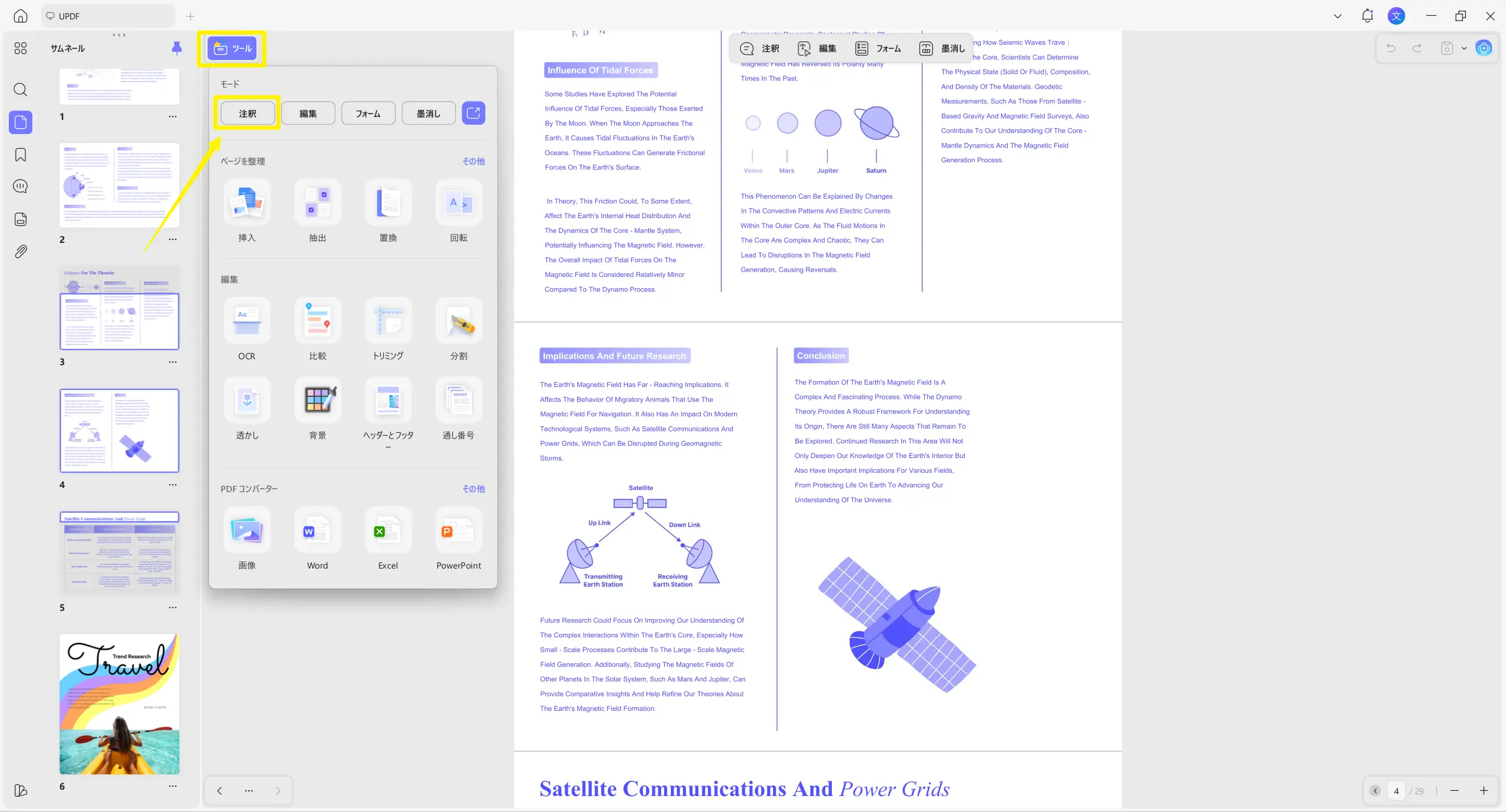
ステップ 1. UPDF にスタンプを押したい PDF を開きます。初期設定では「注釈」モードになっています。異なる場合は、左上の「ツール」をクリックし、「注釈」モードを選択します。
ステップ 2. 上部ツールバーから「スタンプ」を選択し、「カスタム」タブを開いて下部付近の「AI スタンプ」ボタンをクリックします。
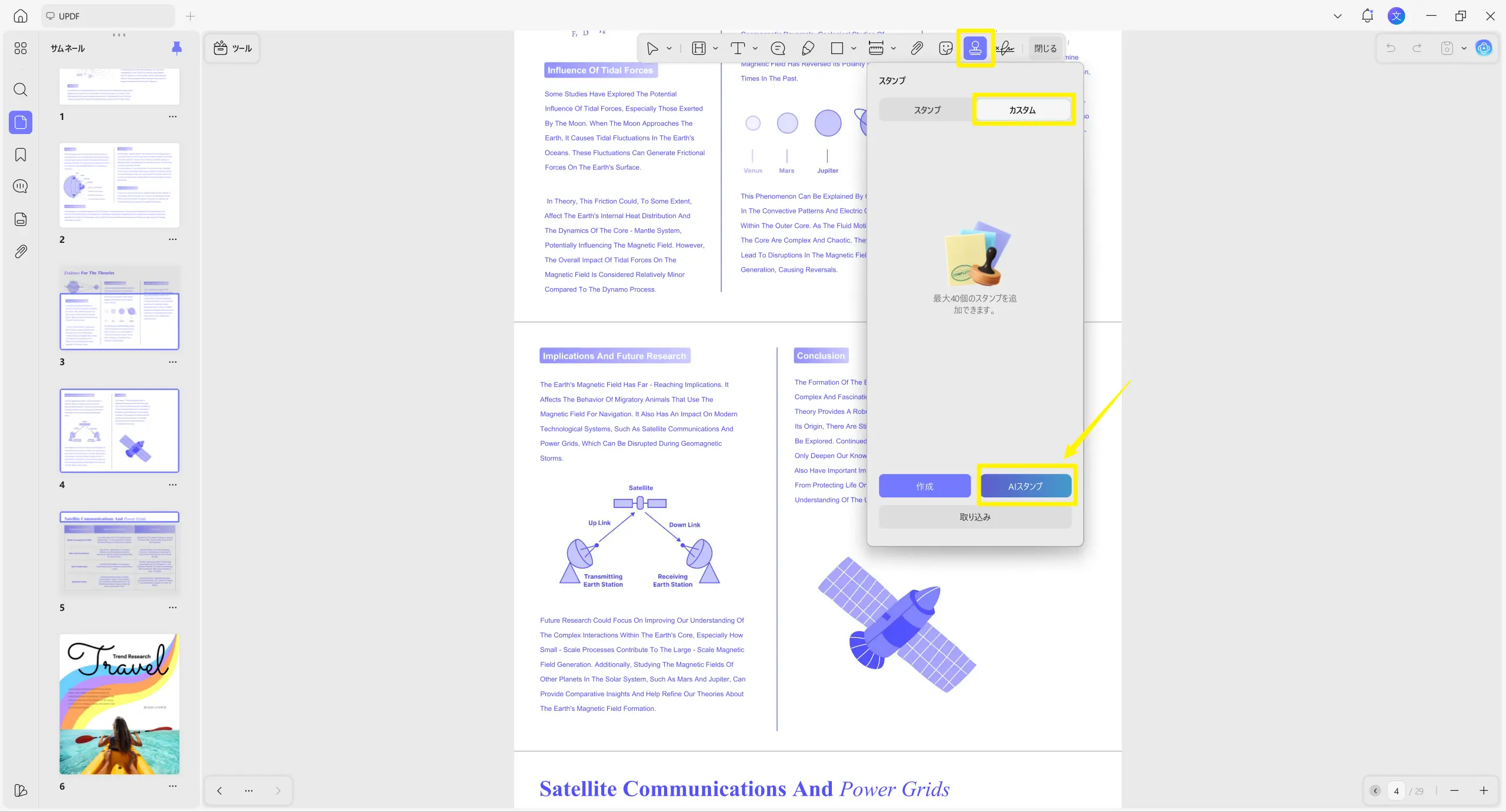
AI スタンプ生成の新規ウィンドウが開き、以下 2 つの方法で AI を使ってスタンプを作成できます。
方法 1. カスタムプロンプトでスタンプを生成
作成したいスタンプのイメージが明確な場合、テキストプロンプトで文字内容・デザイン・色を詳細に指定できます。スタンプに現在の日時や作成者名を追加することも可能です。
手順は以下の通りです。
ステップ 1. 「スタンプの説明」欄のテキストボックスに、文字内容・スタイル・配色の説明文を入力します。
- 例:「濃い紺色の枠付き、ヴィンテージ風の確認済みスタンプを作成」
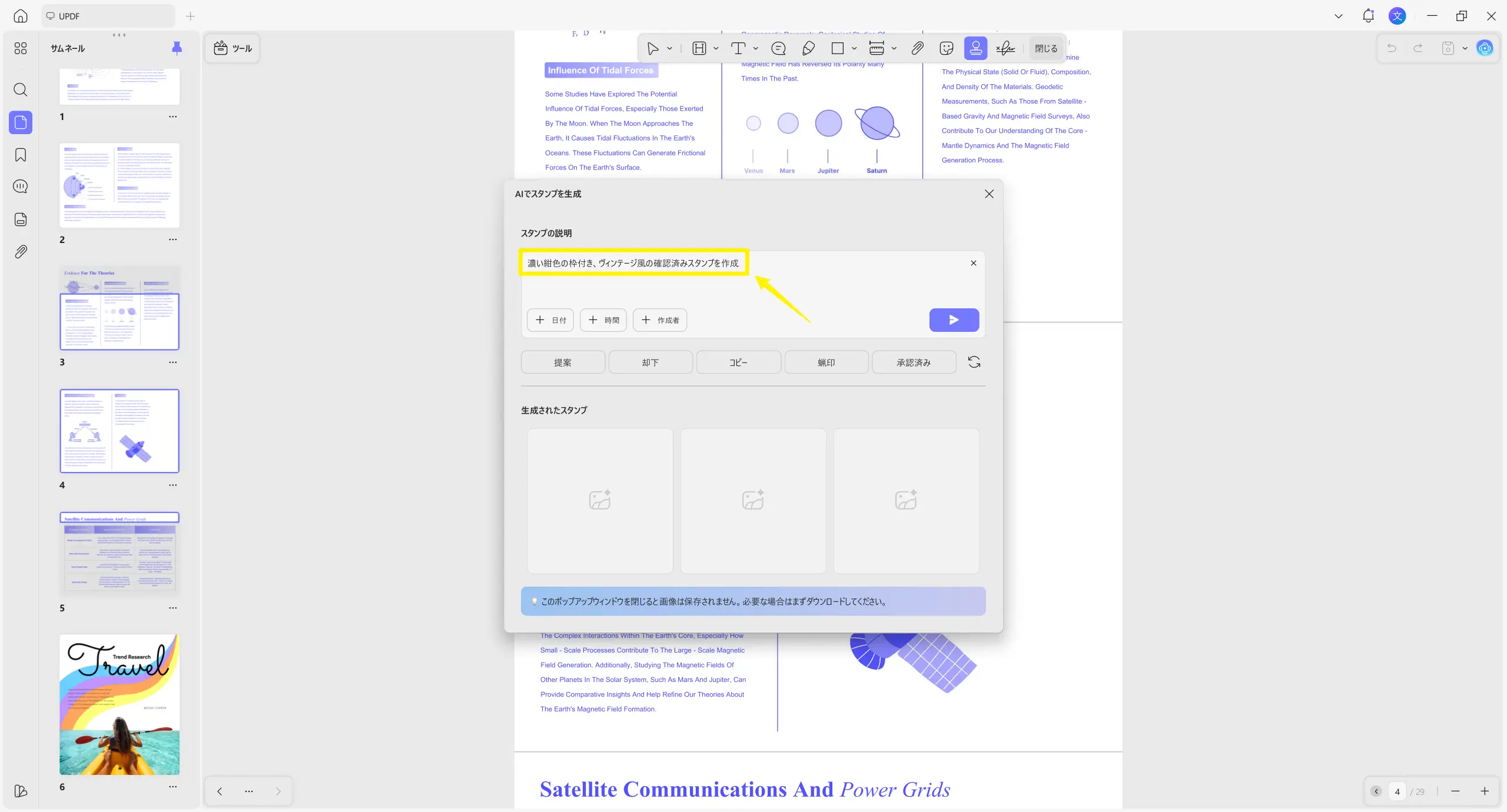
ステップ 2. プロンプトボックス下部のオプションから、スタンプに追加情報を簡単挿入できます。
- 日付:日付の「+」をクリックし、現在の年月日を追加
- 時間:時間の「+」をクリックし、現在のタイムスタンプを追加
- 作成者:作成者の「+」をクリックし、端末の作成者名を追加
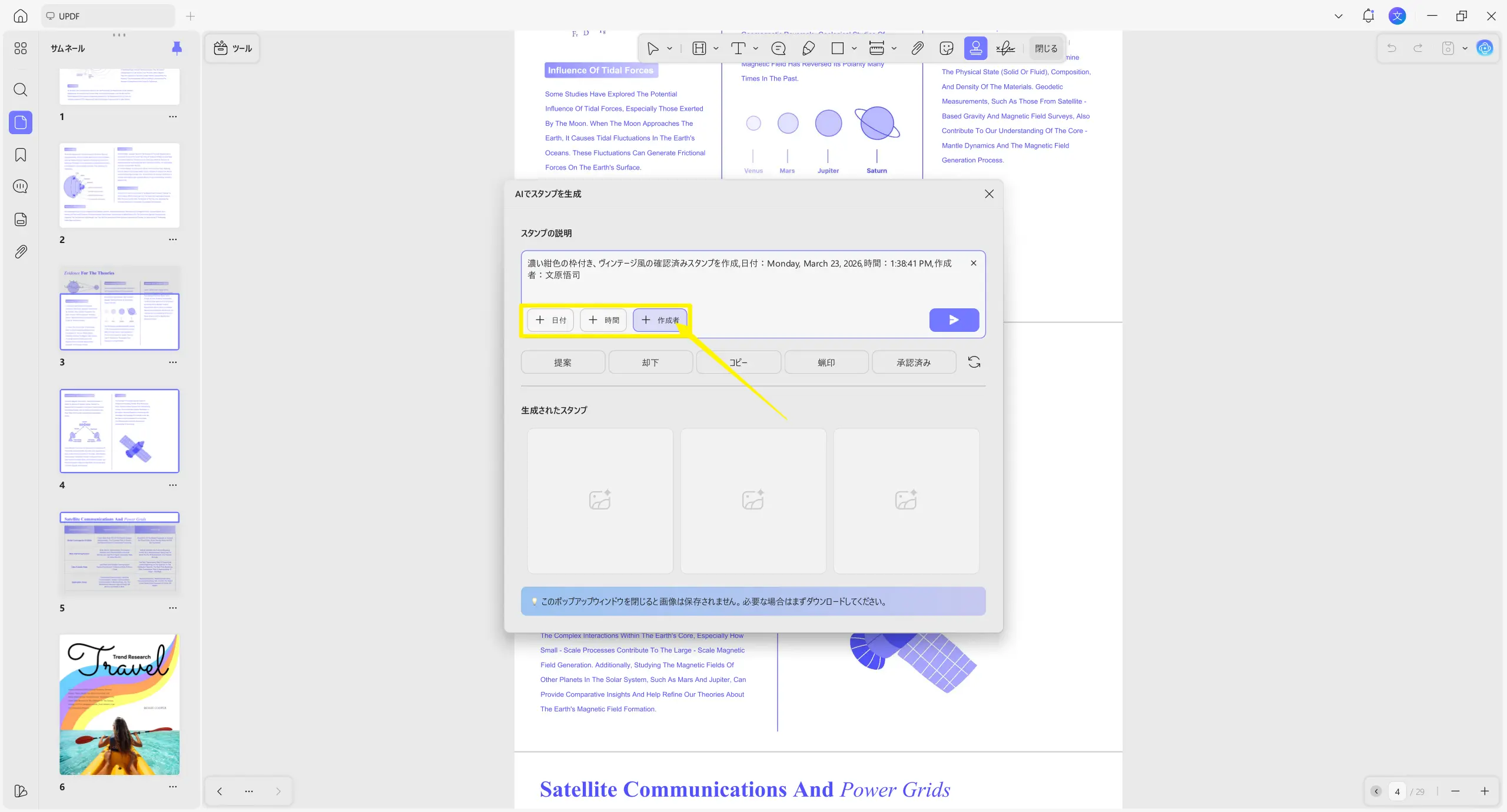
ステップ 3. プロンプトのカスタマイズが完了したら「送信」ボタンをクリックします。
UPDF AI が、透過背景付き 1024×1024 高解像度 PNG スタンプを 3 枚生成し、「生成されたスタンプ」欄で確認できます。
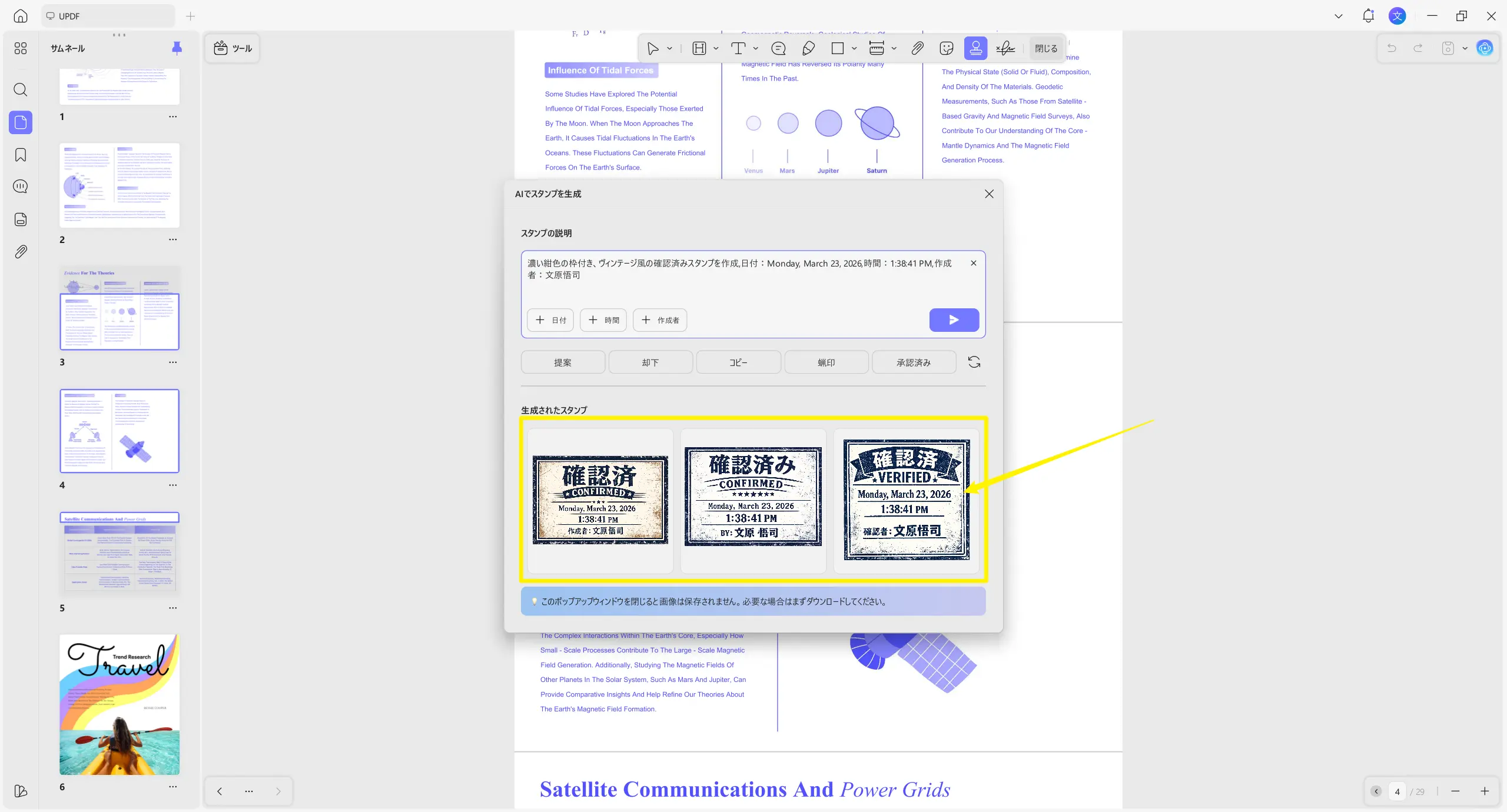
注意:
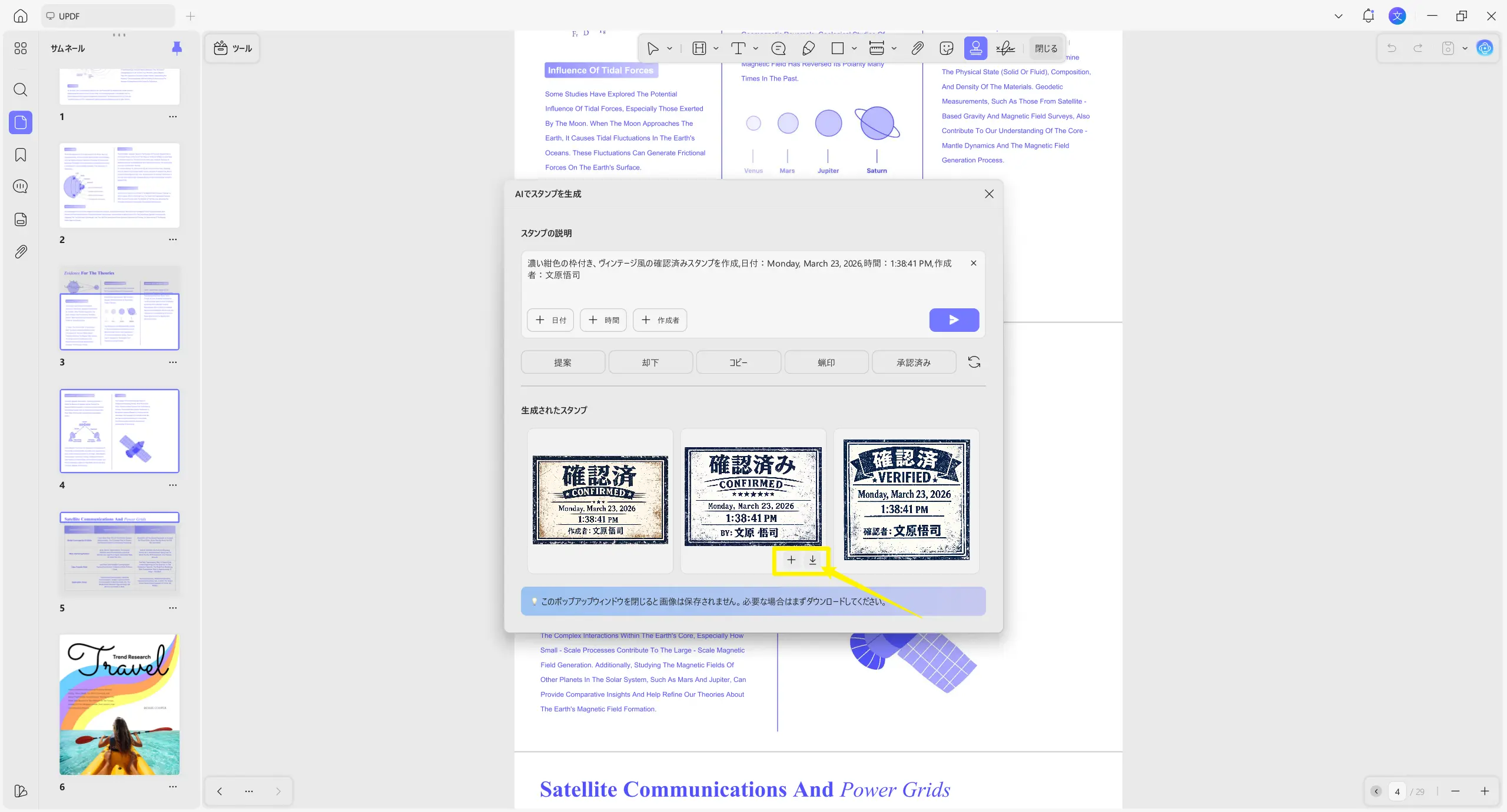
ステップ 4. 気に入ったスタンプにカーソルを合わせ、「ダウンロード」で PNG 保存、または「+」で PDF に直接追加できます。
方法 2. プリセットスマートプロンプトを使用
手動入力のほか、プリセットプロンプトからスタンプを生成することも可能です。選択したプリセットに応じて、AI が自動的に適切な説明文を作成するため、自作の手間が省けます。
手順は以下の通りです。
ステップ 1. プロンプトボックス下部の任意プリセットをクリックすると、対応する説明文が自動入力されます。例:「緊急」を選択すると「緊急処理」スタンプの説明文が追加されます。
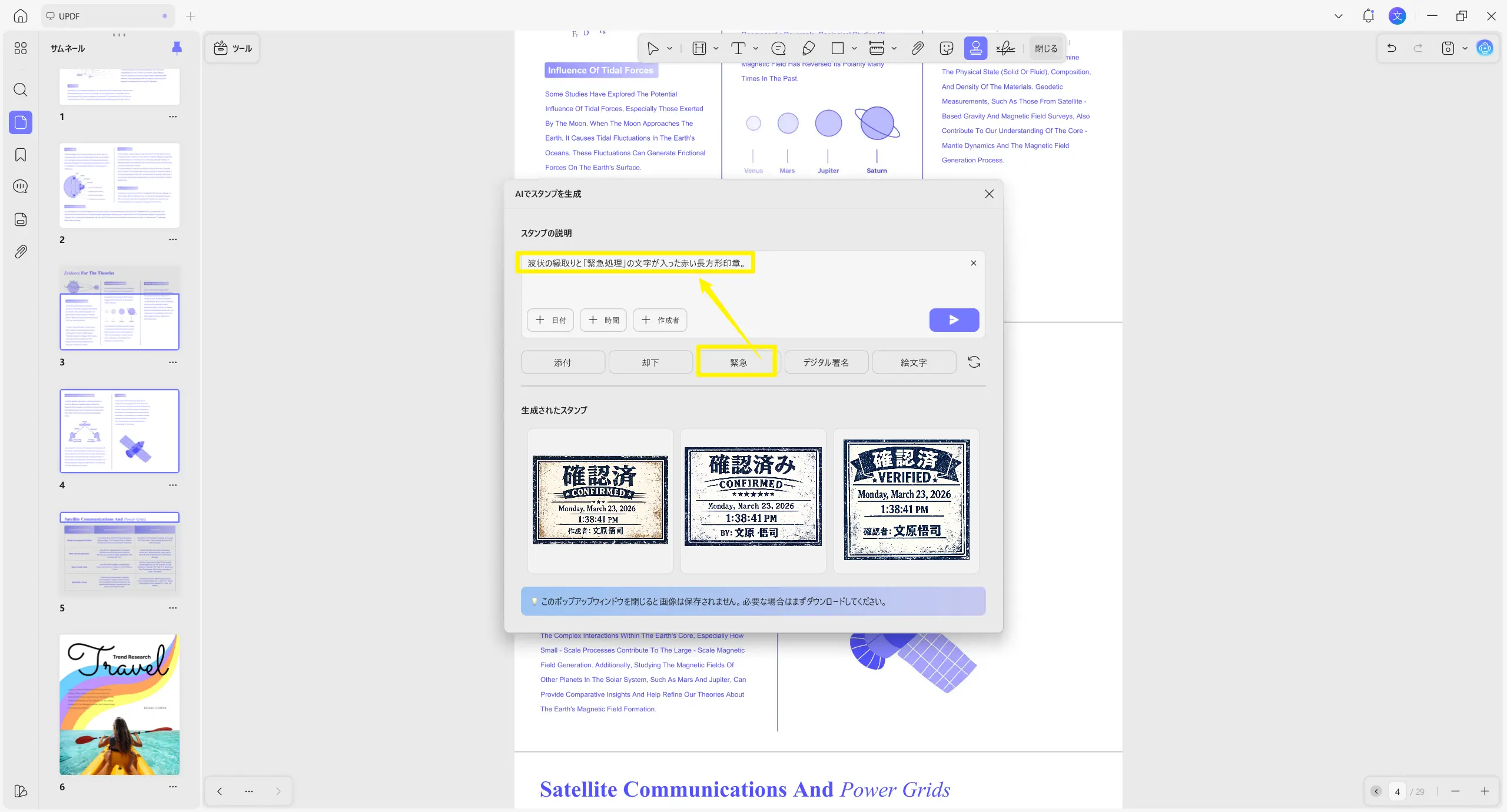
ステップ 2. 希望のプリセットが見つからない場合、「更新」ボタンで新規候補を読み込めます。
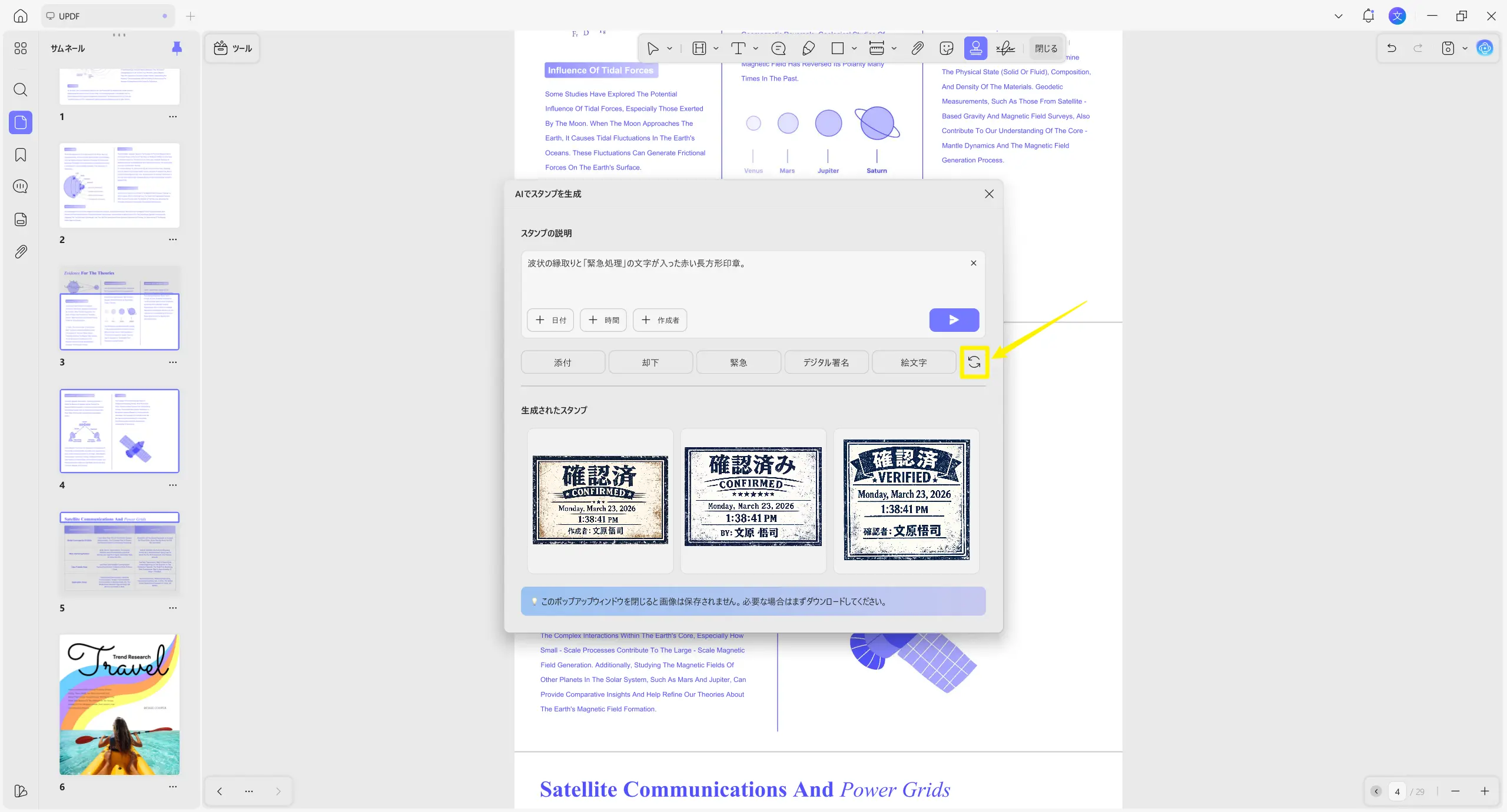
ステップ 3. 最後に「送信」をクリックすると PNG スタンプ 3 枚が生成され、任意のものをダウンロードまたは PDF に追加できます。
パート 2. AI 生成スタンプの管理方法
AI 生成したスタンプは、UPDF でサイズ変更・デザイン調整が可能です。また使用履歴が自動保存され、別ドキュメントで再利用することもできます。
管理手順は以下の通りです。
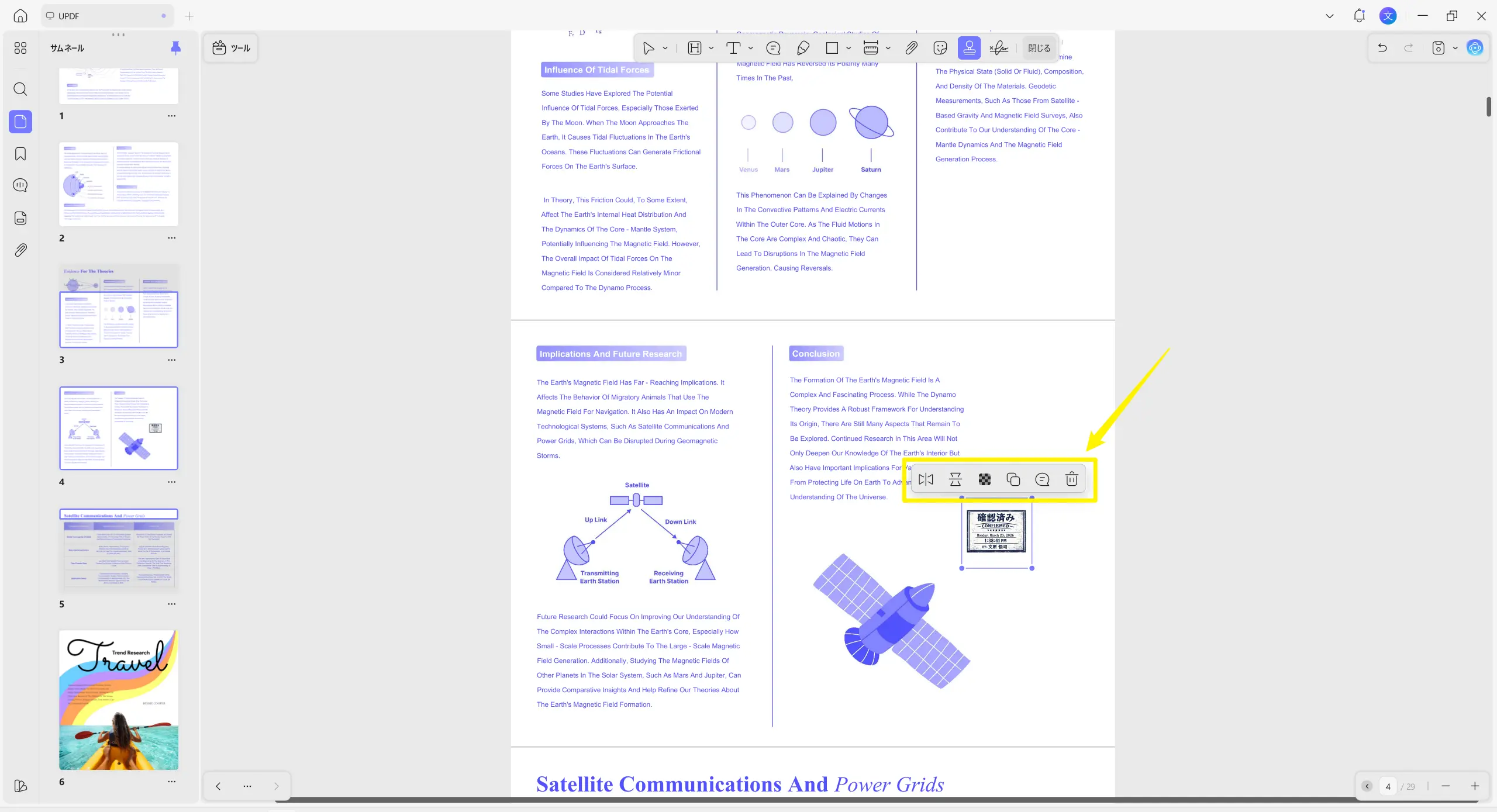
ステップ 1. PDF に追加したスタンプは、枠をドラッグしてサイズ変更できます。フローティングツールバーから以下の調整も可能です。
- 左右 / 上下反転
- 不透明度調整
- コピー
- ノート追加
- スタンプ削除
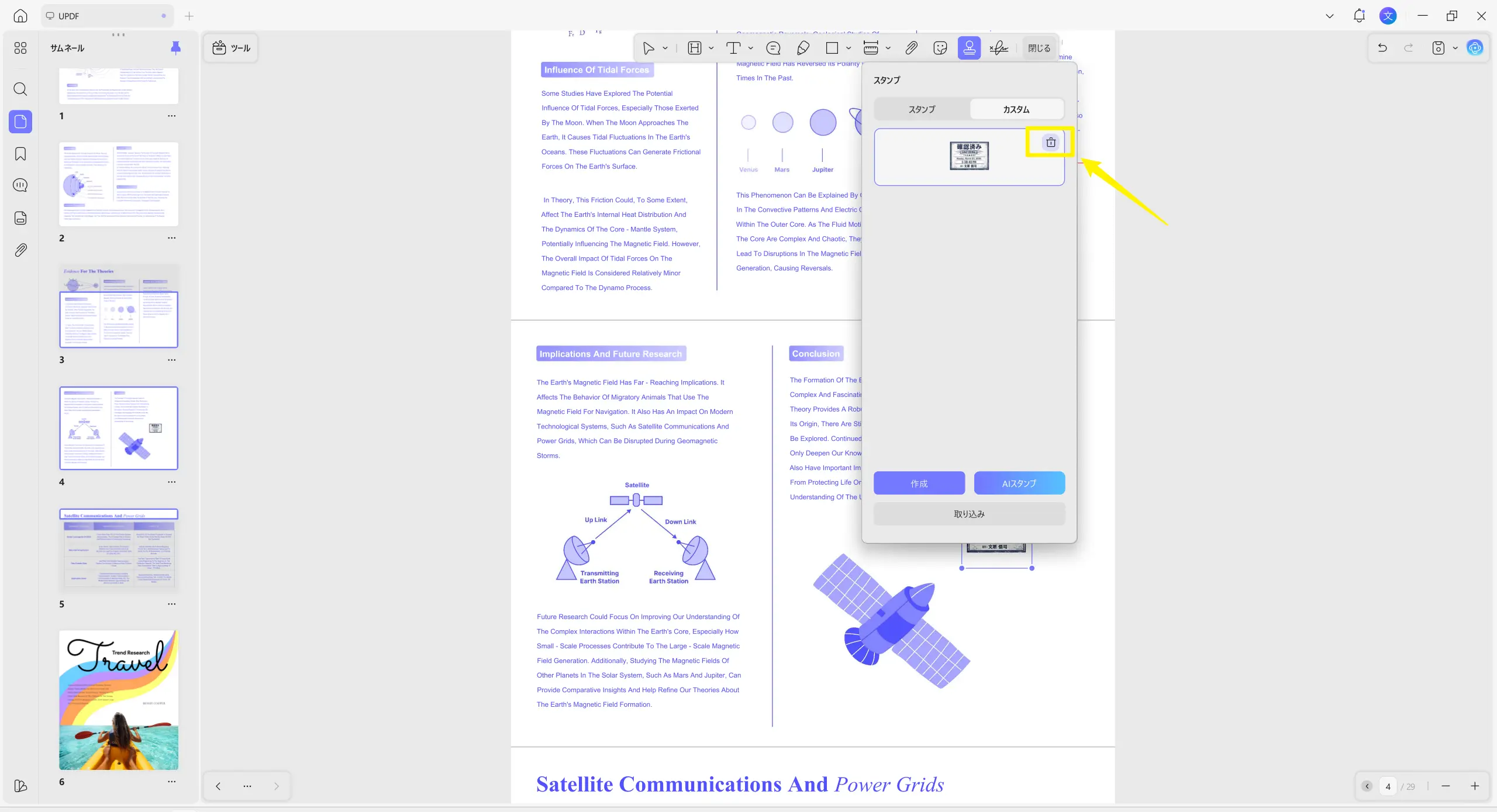
ステップ 2. 別ドキュメントで再利用する場合、上部「スタンプ」→「カスタム」を開くと、過去使用した AI スタンプが一覧表示されます。
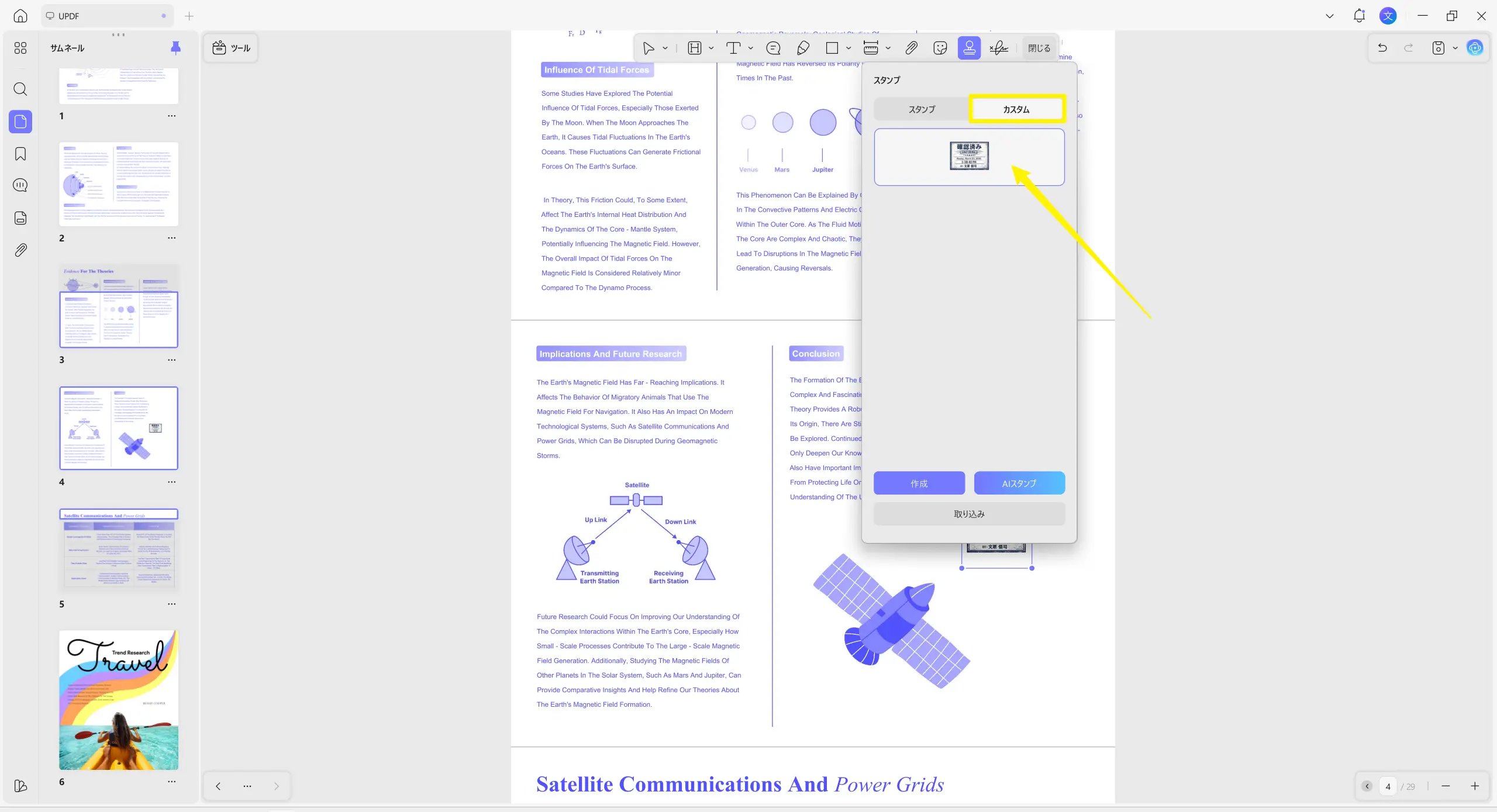
ステップ 3. 再利用時は任意スタンプをクリックして配置し、不要な場合は「削除」ボタンで履歴から消去できます。