UPDF
UPDF
 Windows版UPDF
 Mac版UPDF
 iPhone/iPad版UPDF
 Android版UPDF
 UPDF AI オンライン
 UPDF Sign
 PDF編集
PDF編集 PDF注釈付け
 PDF作成
PDF作成 PDFフォーム
 リンクの編集
 PDF変換
PDF変換 OCR機能
OCR機能 PDFからWordへ
 PDFから画像へ
 PDFからExcelへ
 PDFのページ整理
 PDF結合
PDF結合 PDF分割
PDF分割 ページのトリミング
 ページの回転
 PDF保護
PDF保護 PDF署名
PDF署名 PDFの墨消し
 PDFサニタイズ
 セキュリティ解除
 PDF閲覧
PDF閲覧 UPDF クラウド
 PDF圧縮
PDF圧縮 PDF印刷
PDF印刷 PDFのバッチ処理
 UPDF AIについて
 UPDF AIソリューション
 AIユーザーガイド
 UPDF AIによくある質問
 PDF要約
PDF要約 PDF翻訳
PDF翻訳 PDF付きチャット
 AIでチャット
 画像付きチャット
 PDFからマインドマップへの変換
 PDF説明
PDF説明 PDF AIツール
 画像AIツール
 AIチャットツール
 AIライティングツール
 AI学習ツール
 AI業務ツール
 その他のAIツール
 PDFからWordへ
 PDFからExcelへ
 PDFからPowerPointへ
 ソリューション
 電子署名
電子署名 ビジネスAI
 料金プラン
料金プラン 導入・運用ガイド
 ウェビナー
ウェビナー 銀行
銀行 医療
医療 保険
保険 法務
法務 製造業
製造業 官公庁
官公庁 教育機関向けソリューション
 導入事例
導入事例 ユーザーガイド
 公式ブログ
公式ブログ UPDF 活用術
 UPDF vs Adobe Acrobat
 UPDF vs Foxit
 UPDF vs PDF Expert
 よくある質問(FAQ)
 ダウンロードセンター
 動作環境・仕様
 お問い合わせ
 ニュースルーム
 アップデート履歴
 ユーザーレビュー
 会社概要
会社概要

AI で PDF ページを確認・管理
入札書類や契約書などのプロフェッショナルな PDF では、効率的なページ管理が必須です。複数のファイルを結合した場合には、特に重要となります。
ファイルを共有する前に、PDF の構成が適切か確認する必要があります。しかし、書式の不具合を 1 ページずつ手動で確認するには長時間を要し、重要なエラーを見落とす可能性もあります。
UPDF のAI ページ管理機能を使用すると、文書を自動スキャンし、最適化が必要なページをハイライト表示してくれるため、作業が大幅に効率化されます。
対応するページの種類は以下の通りです。
- 白紙ページ
- スキャンページ
- 影が含まれる不適切なページ
- ページの向きが反転しているもの
- ページ番号の連続性が途切れている箇所
- 注釈が含まれるページ
- ページサイズが統一されていない箇所 など
詳しい使い方は、以下のガイドをご覧ください。
パート 1. AI で PDF ページを確認・管理する方法
UPDF のAI ページチェックツールを使用すると、ページ構成上の重要な問題点を自動的に検出し、整理された一覧で表示されます。提示された操作方法に従って、問題をすばやく確認・修正できます。
手順は以下の通りです。
ステップ 1. ページ整理ツールを開く
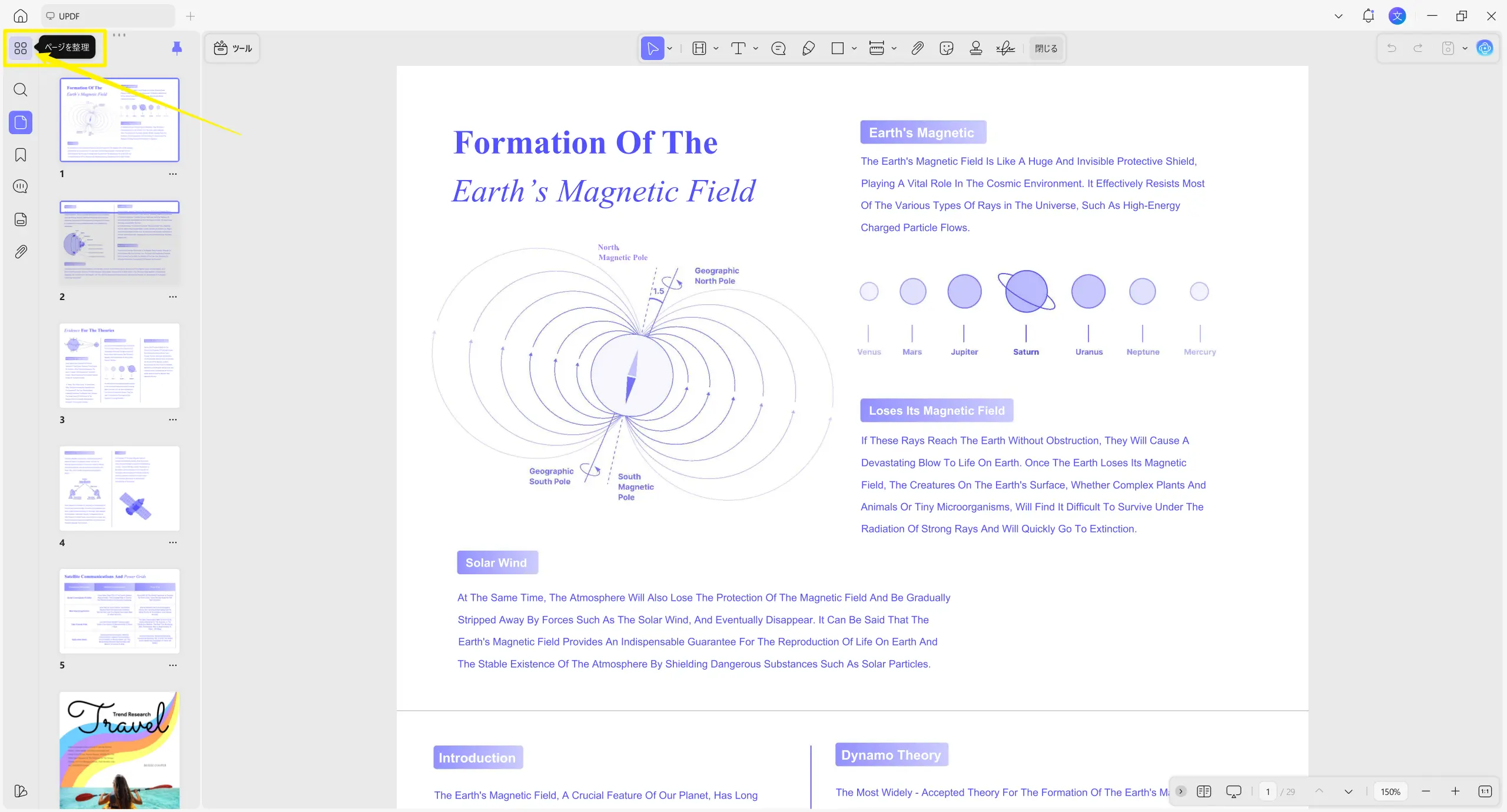
UPDF で対象の PDF を開き、左サイドバー上部付近にある 「ページを整理」 アイコンをクリックします。
ステップ 2. AI によるページチェックを開始
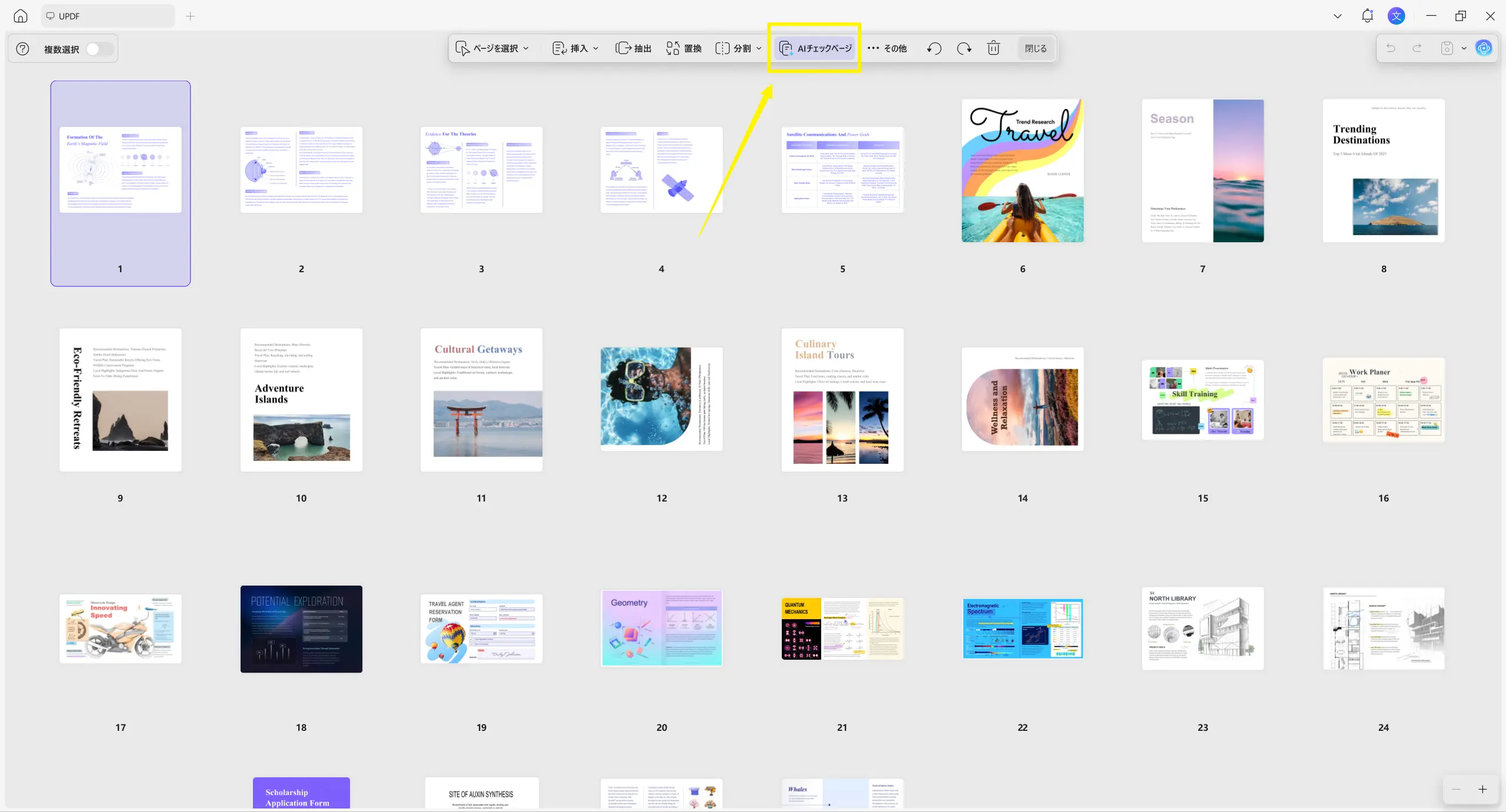
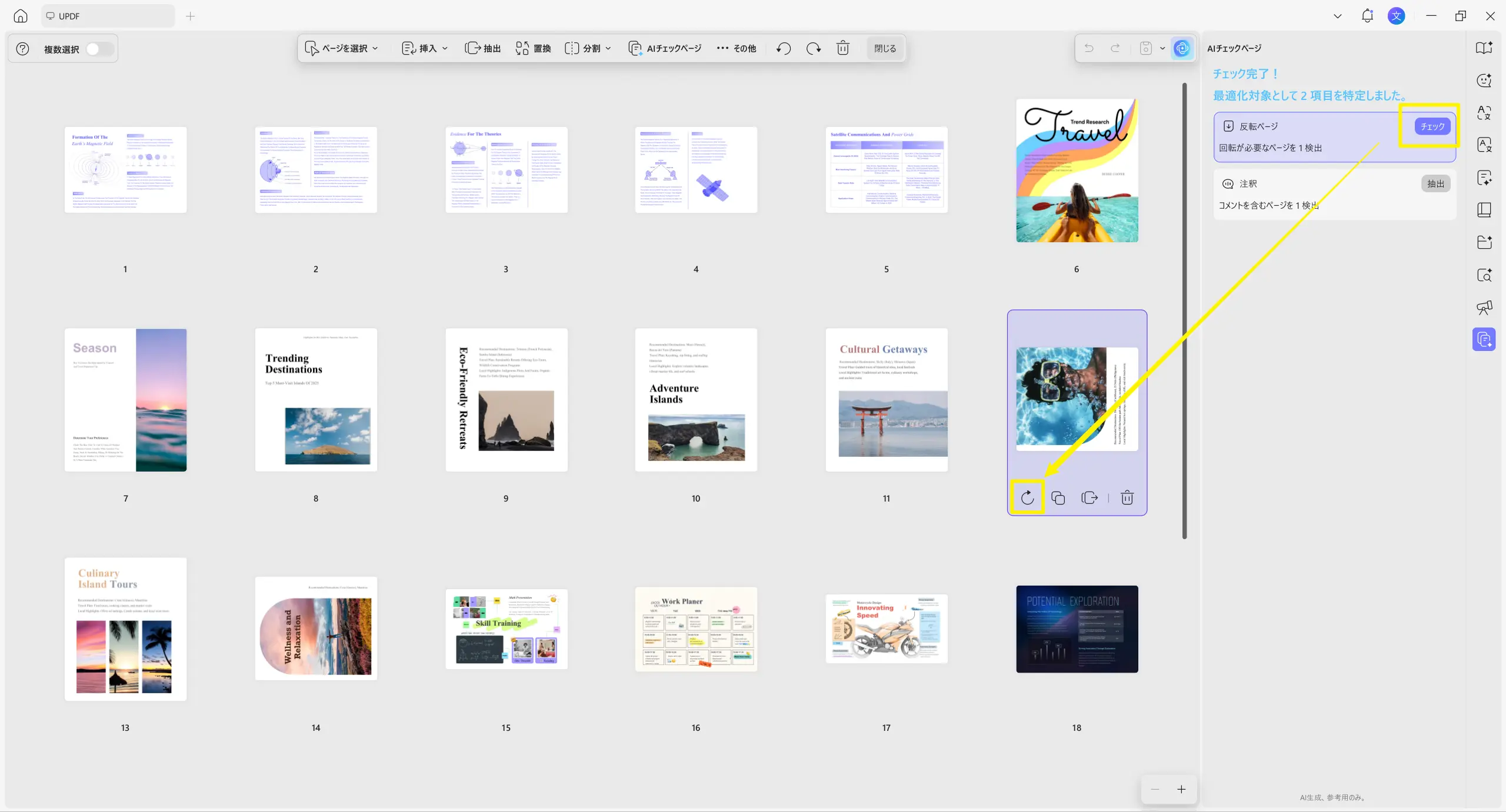
上部のツールバーから「AI チェックページ」をクリックすると、AI が PDF 内の最適化が必要な箇所をすばやくスキャンします。
ステップ 3. 検出された問題点を確認
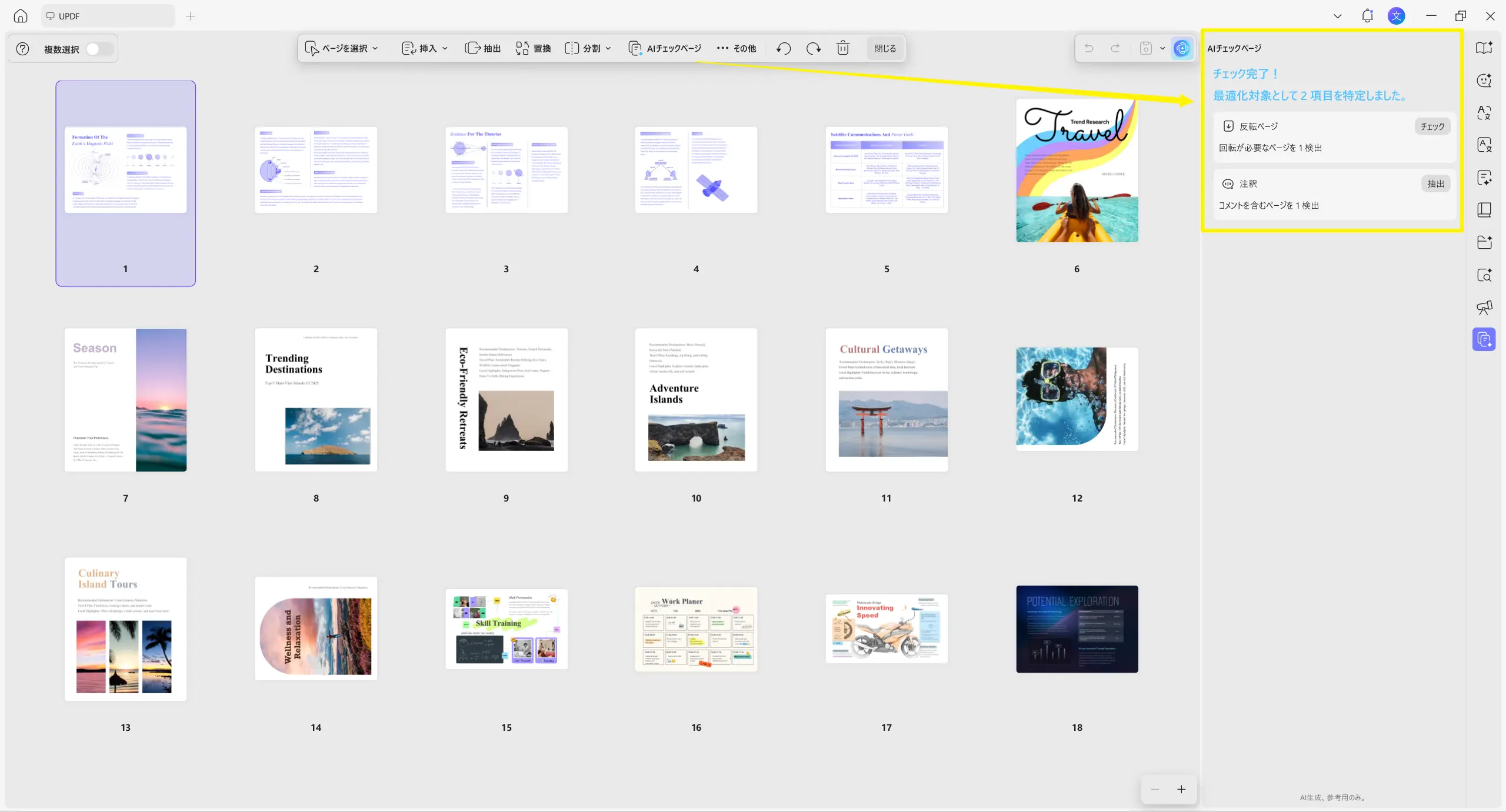
右側に表示される「AI チェックページ」パネルで、スキャン結果を確認できます。
各問題点の簡単な説明と、解決のための操作ボタンが一覧表示されます。
ステップ 4. 対象ページに移動
一覧から任意の項目をクリックすると、文書内の該当ページにすばやくジャンプします。修正作業に進む前に、問題点を手動で確認できます。
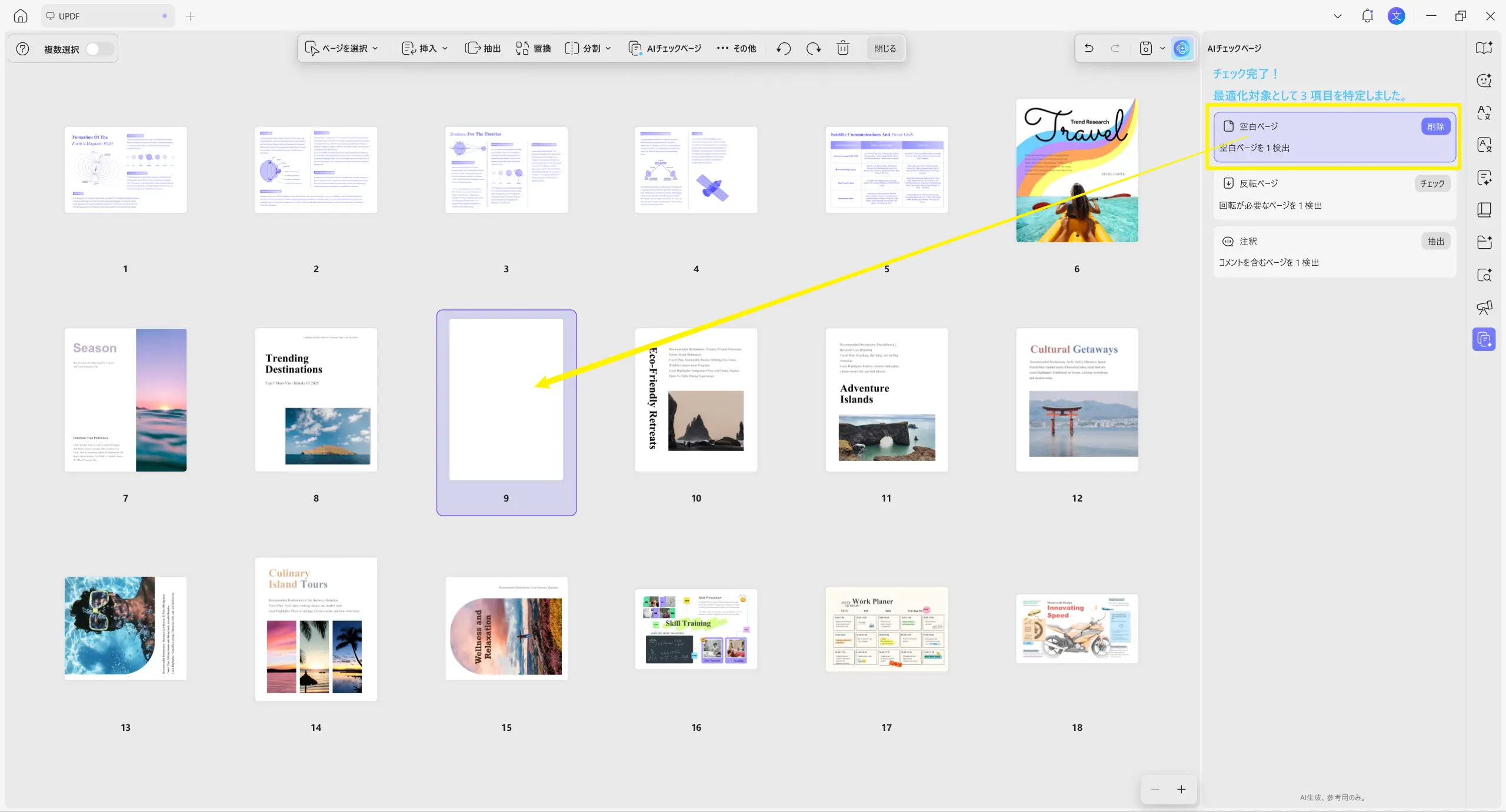
ステップ 5. 推奨操作で問題を修正
各項目の横に表示される操作ボタンをクリックし、画面の指示に従って問題を解決します。
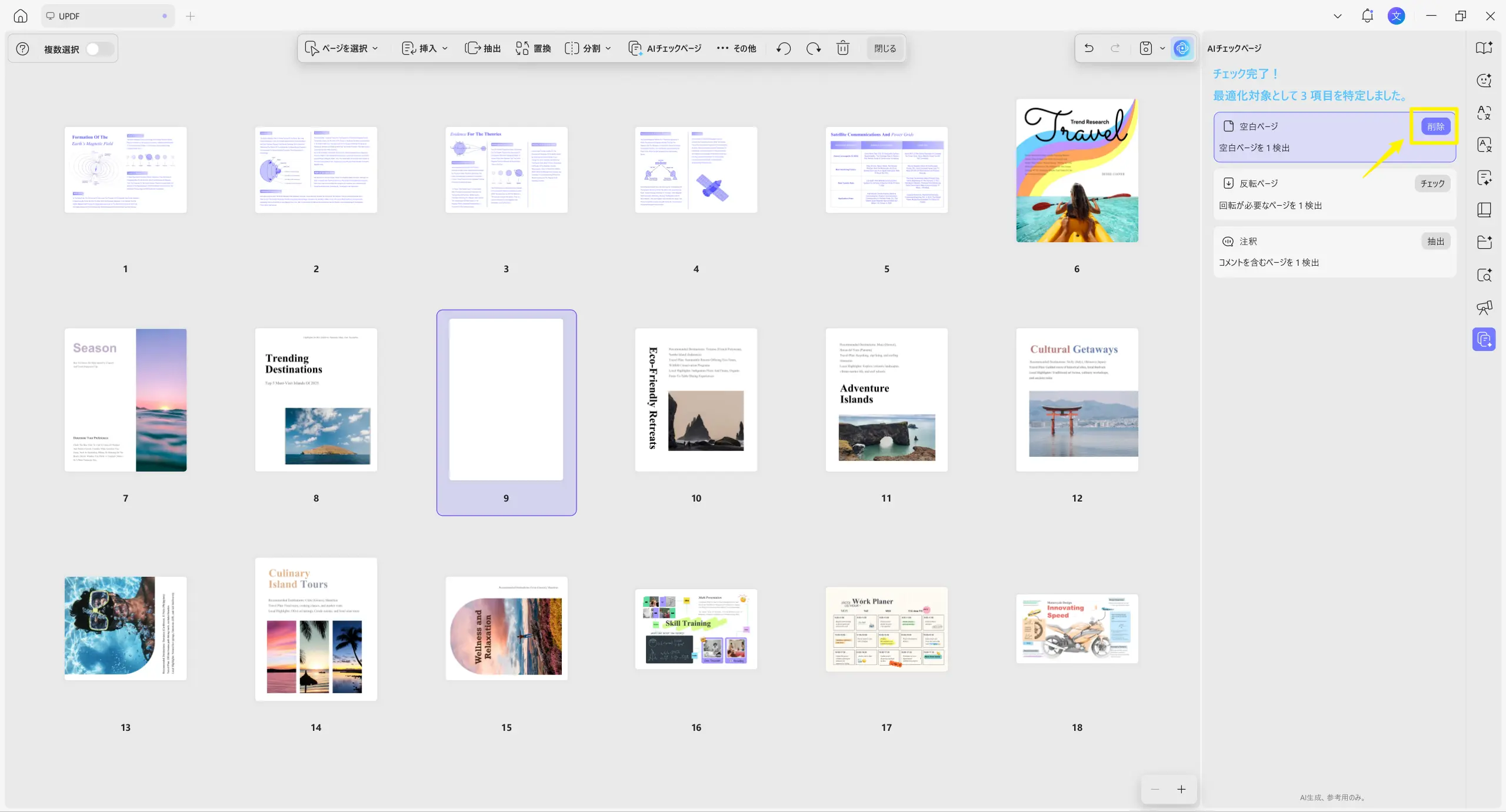
ステップ 6. 再チェックして確定
すべての問題点に対応した後、再度「AI チェックページ」をクリックして確認します。解決済みの項目は一覧から消去され、文書に不備がない旨のダイアログが表示されます。
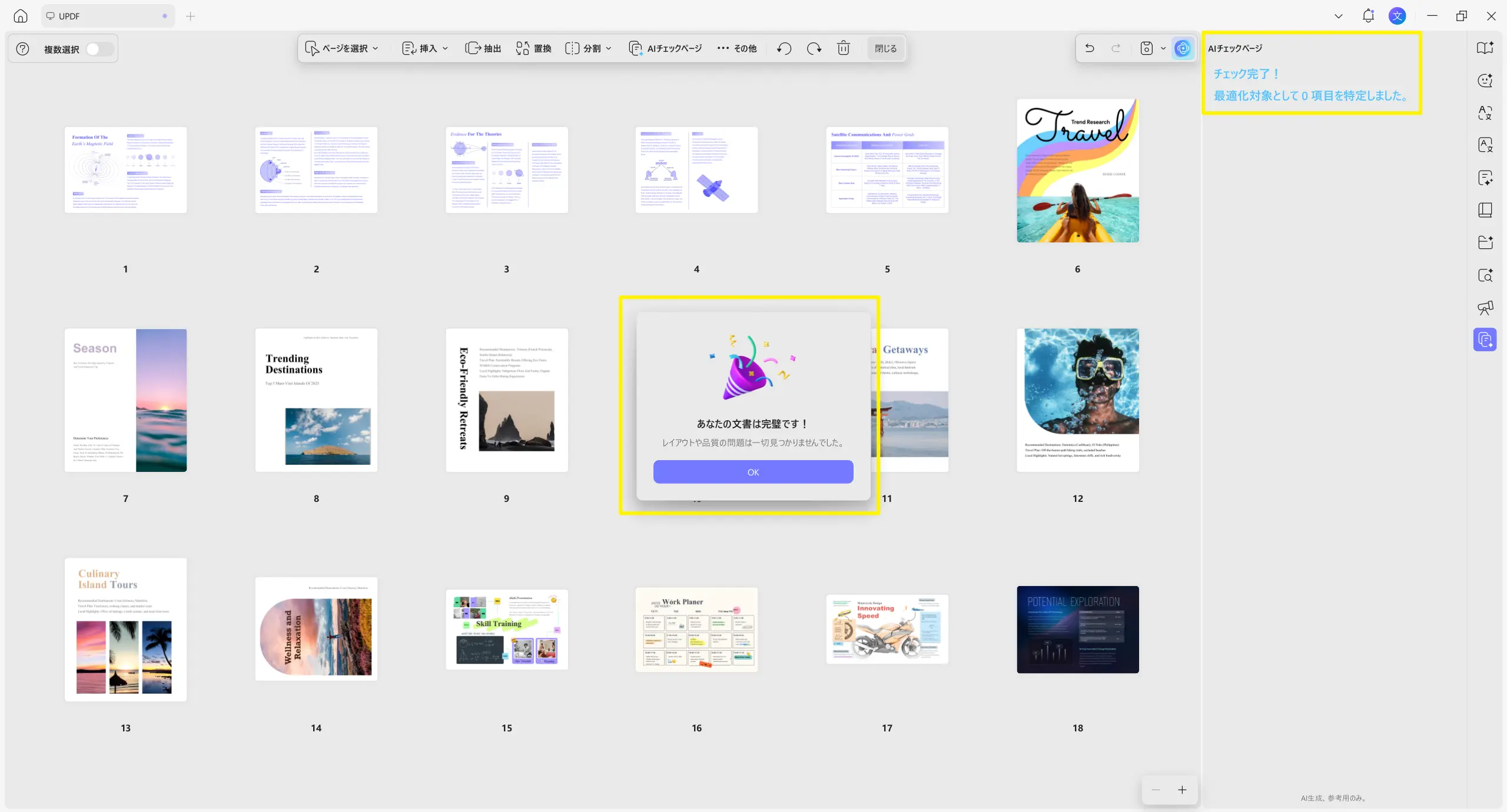
注意
パート 2. ページの問題を解決する操作例
問題の種類に応じて、AI が自動的に処理するものと、手動での操作が必要なものがあります。
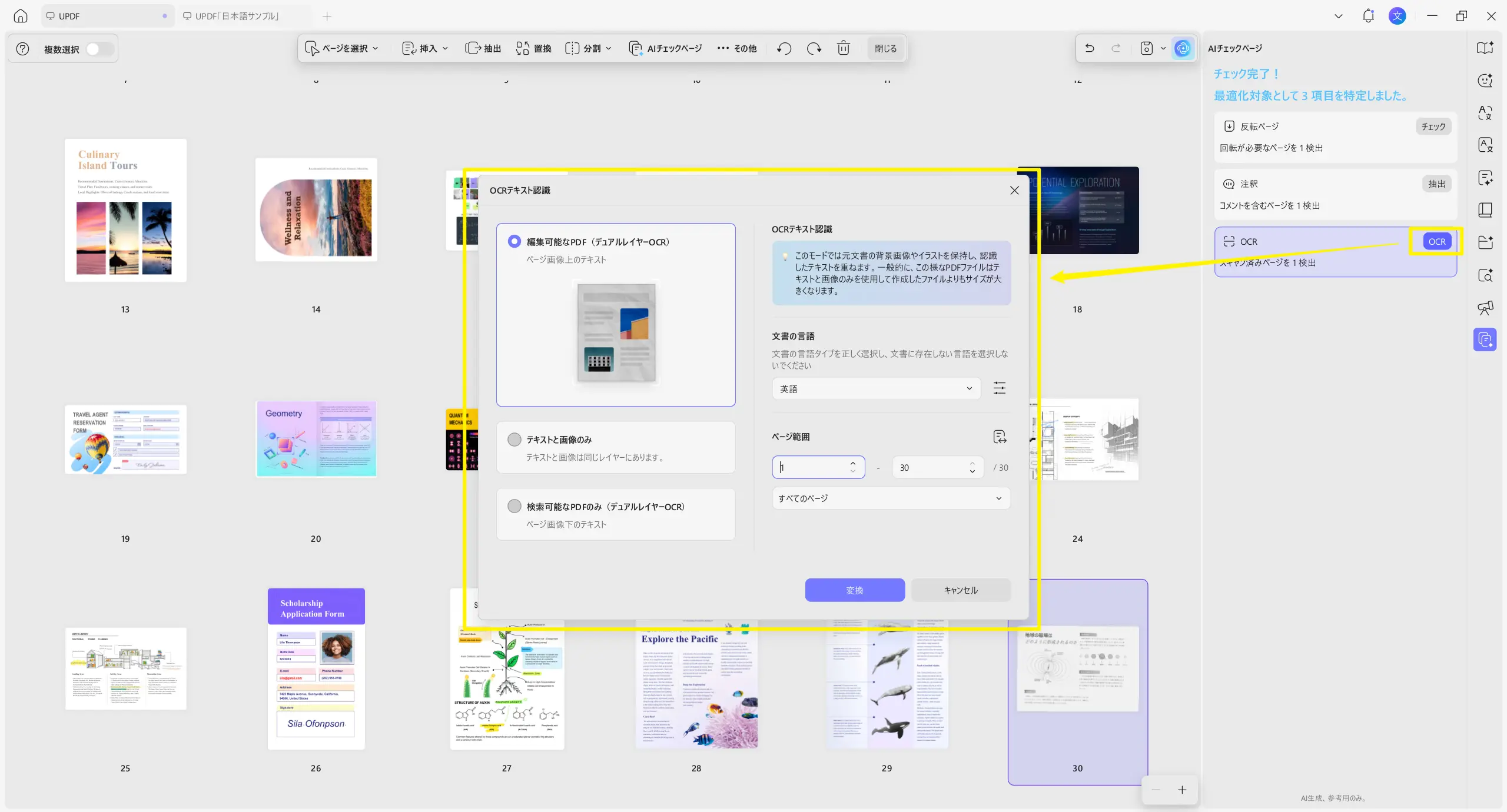
例えば、PDF 内に検出されたコメントに対しては 「抽出」 ボタンをクリックし、画面の指示に従って処理を完了できます。
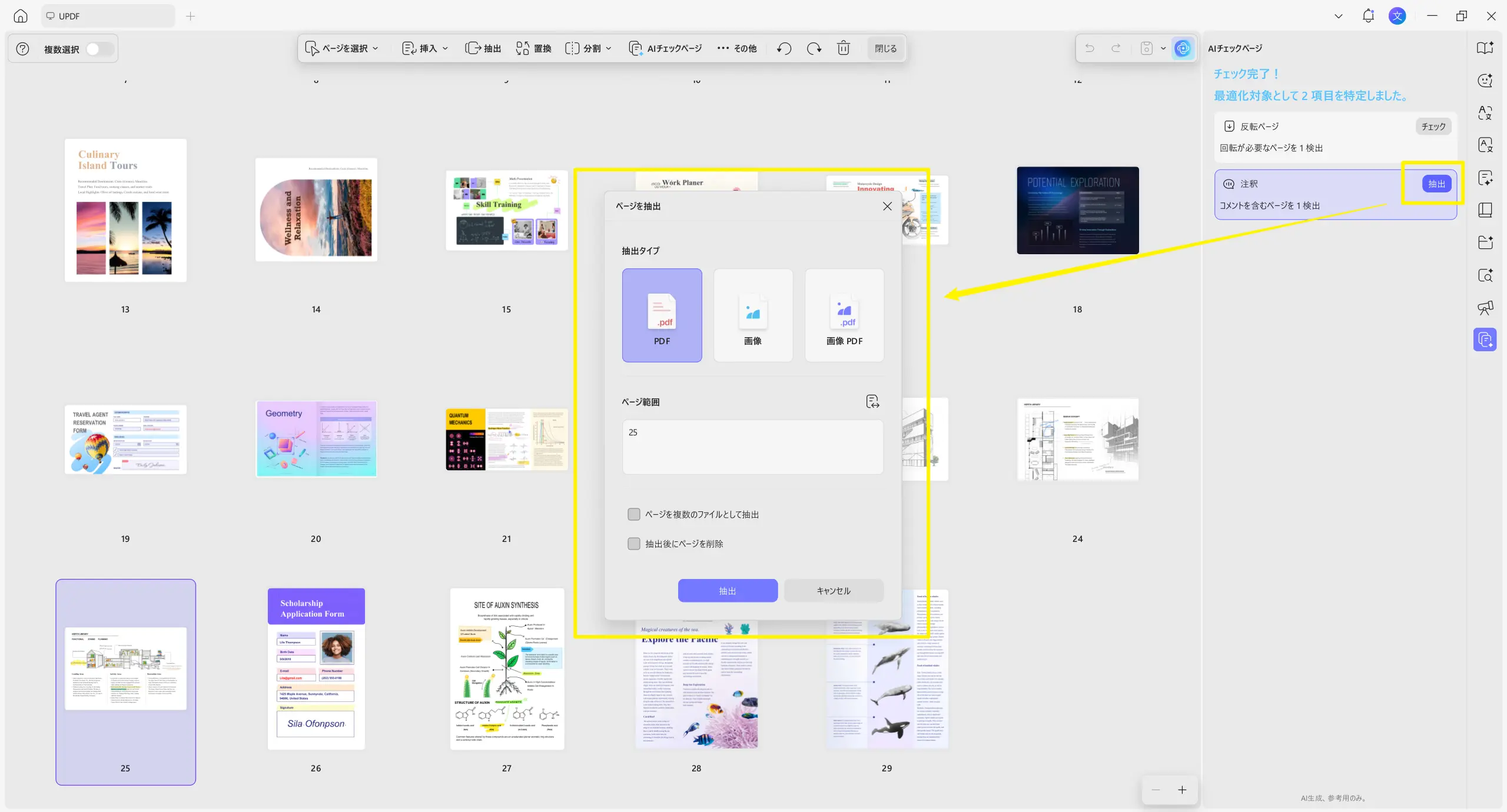
向きが反転しているページには 「チェック」ボタンが表示され、クリックすると該当ページに移動し、手動で回転を調整できます。
スキャンページに対しては「OCR」ボタンをクリックし、OCR ツールを実行することで、ページを編集・検索可能な状態に変換できます。