 UPDF
UPDF
 UPDF voor Windows
 UPDF voor Mac
 UPDF voor iPhone/iPad
 UPDF voor Android
 Nomostar
 UPDF AI Online
 UPDF Sign
 IvyCraft
 PDF bewerken
 PDF annoteren
 PDF maken
 PDF-formulier
 Links bewerken
 PDF converteren
 OCR
OCR PDF naar Word
 PDF naar afbeelding
 PDF naar Excel
 PDF organiseren
 PDF samenvoegen
 PDF splitsen
 PDF bijsnijden
 PDF roteren
 PDF beveiligen
 PDF ondertekenen
 PDF bewerken
 PDF opschonen
 Beveiliging verwijderen
 Lees PDF
 UPDF Cloud
 PDF comprimeren
 PDF afdrukken
 Batch Process
 Over UPDF AI
 UPDF AI-oplossingen
 AI Gebruikersgids
 FAQ over UPDF AI
 PDF samenvatten
 PDF vertalen
 Chatten met PDF
 Chatten met afbeelding
 PDF naar Mindmap
 Chatten met AI
 PDF uitleggen
 PDF AI-tools
 Afbeeldings-AI-tools
 AI-chattools
 AI-schrijftools
 AI-studietools
 AI-werktools
 Overige AI-tools
 AI Bladwijzer Generatie
 AI Bladwijzer Samenvatting
 AI Watermerk Generatie
 AI Achtergrond Generatie
 AI Sticker Generatie
 AI Stempel Generatie
 AI Schrijfsuite
 UPDF Copilot
 AI Paginabeheer
 AI Semantisch Zoeken
 PDF naar Word
 PDF naar Excel
 PDF naar PowerPoint
 Enterprise Oplossing
 Enterprise Plan
 Enterprise Gebruikershandleiding
 Zakelijk Webinar
 IT
IT Onderwijs
 Bouw
Bouw Financiële Diensten
 Gezondheidszorg
 Verzekeringen
 Juridisch
 Productie
 Overheid
 Oplossing voor Onderwijs
 Klantverhalen
 Gebruikershandleiding
 UPDF-trucs
 Veelgestelde Vragen
 UPDF Beoordelingen
 Downloadcentrum
 Blog
Blog Nieuwsruimte
 Technische Specificaties
 Updates
 UPDF versus Adobe Acrobat
 UPDF versus Foxit
 UPDF versus PDF Expert

Werkbalknavigatie voor UPDF op Mac
Voordat u UPDF op Mac gebruikt, moet u de werkbalk goed kennen. We leggen deze hier uitgebreid uit. U kunt de gratis proefversie van UPDF downloaden via onderstaande knop en de werkbalken één voor één bekijken.
Windows • macOS • iOS • Android 100% veilig
Werkbalk van de startpagina
Wanneer u UPDF op een Mac start, ziet u de startpagina zoals in de onderstaande afbeelding.
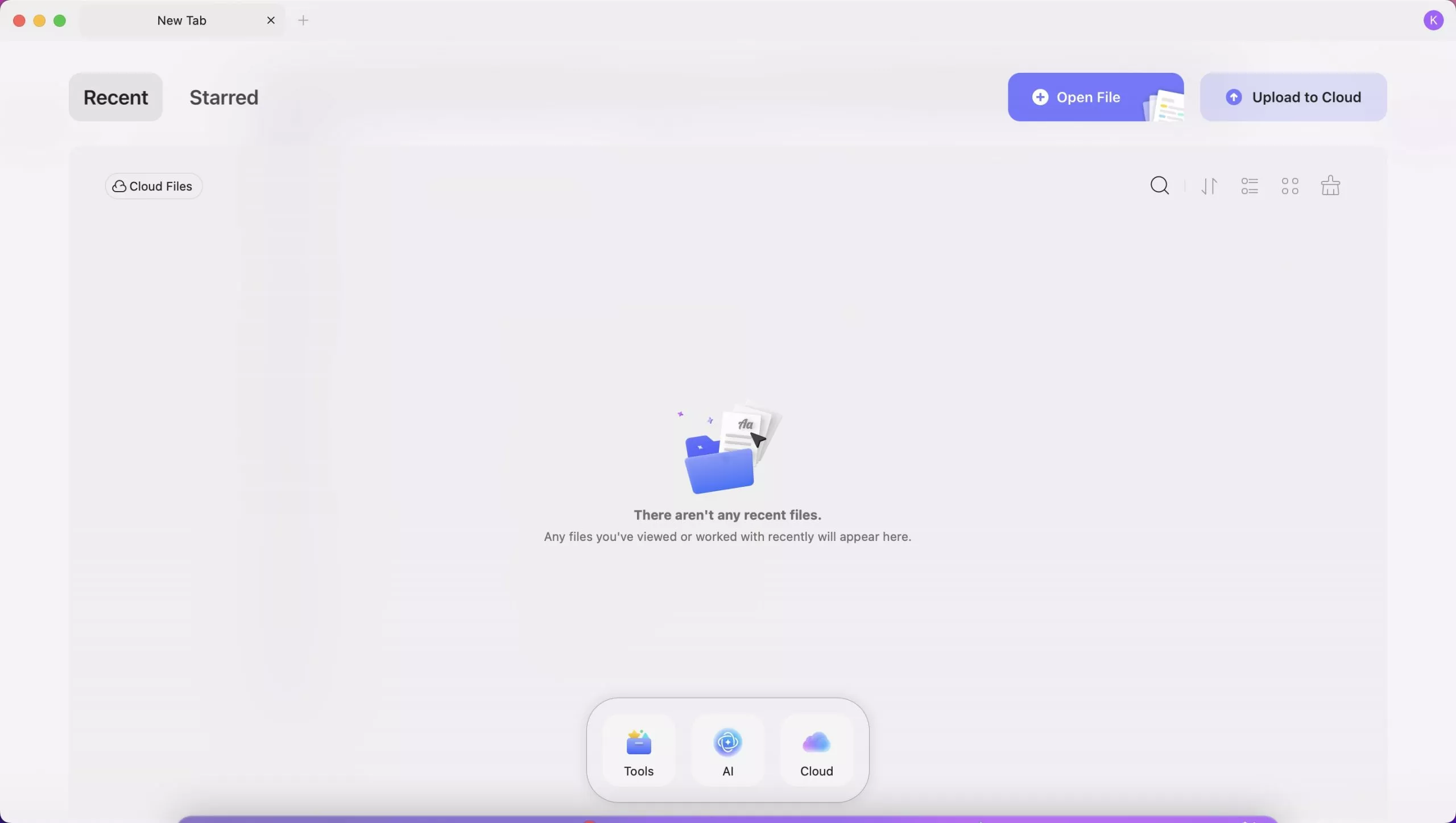
In de bovenste werkbalk vindt u ' Recent ', ' Met ster ', ' Bestand openen ' en ' Uploaden naar cloud '.
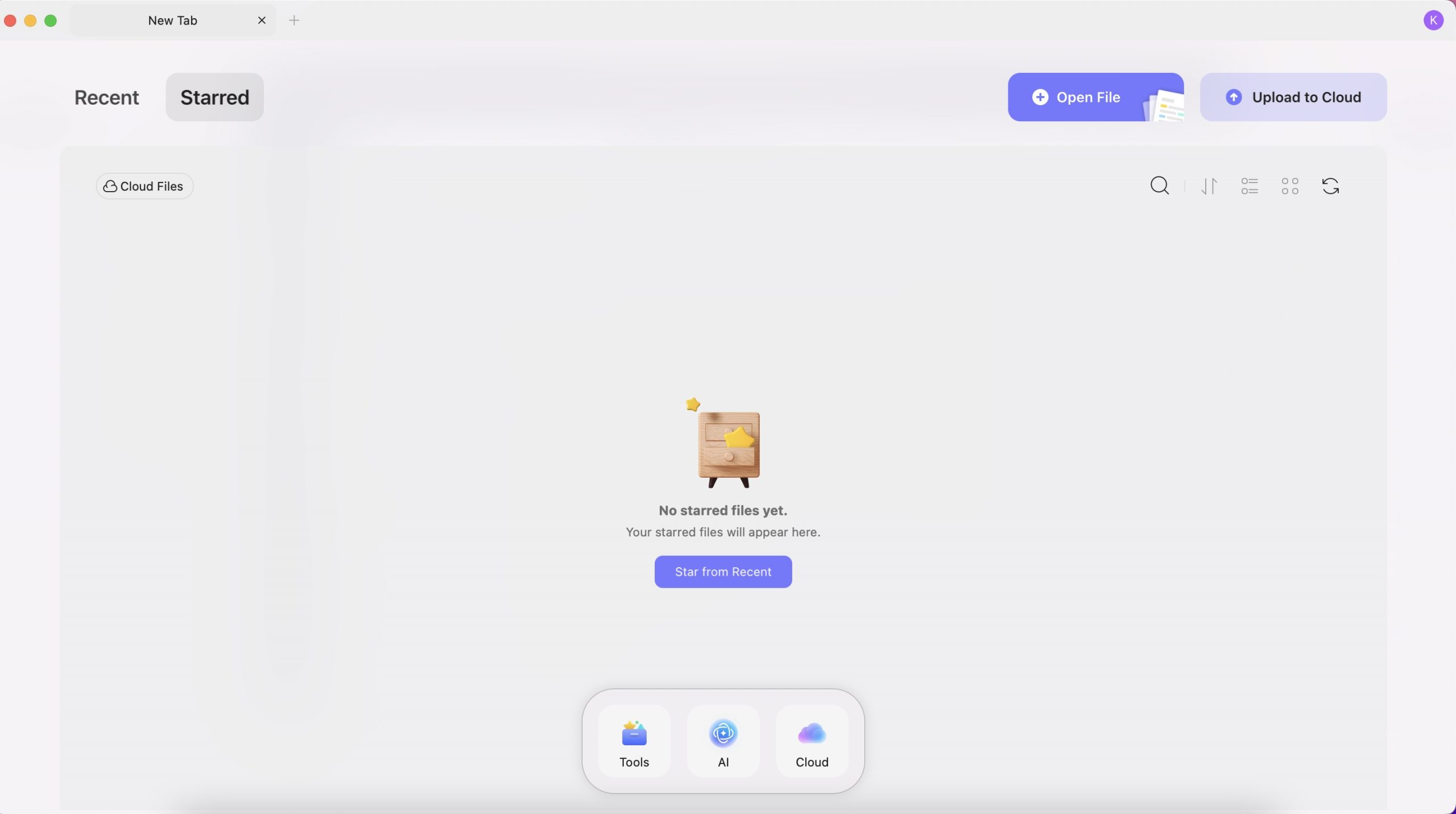
- Met ster gemarkeerd
Wanneer u een bestand markeert in de lijst 'Recent' of 'UPDF Cloud', wordt het in deze lijst weergegeven. Ook in de lijst 'Recent' kunt u de volgorde van de lijst wijzigen op basis van laatste wijziging, bestandsnaam, bestandsgrootte, schakelen tussen lijst- en miniatuurweergave, de lijst vernieuwen, de ster van het bestand verwijderen, het bestand openen, hernoemen, kopiëren naar UPDF Cloud en weergeven in Finder.
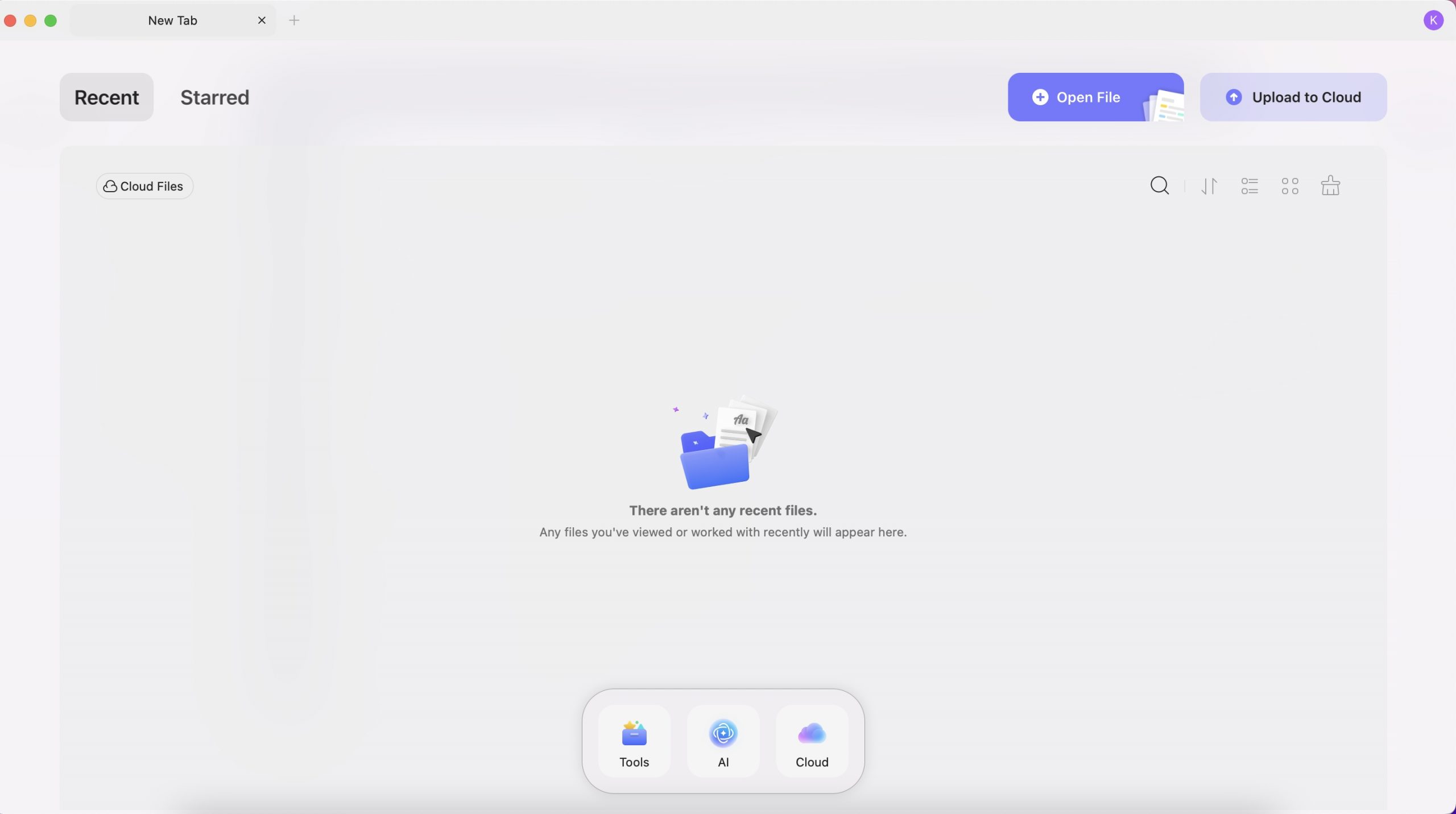
- Recent
Here, you can see all the recent PDF files you opened or edited. You can change its present order by last opened, file name, and file size, switch between list view and thumbnail view, clear list, delete files from recent list, click to open it, rename it, copy to UPDF Cloud, star the file, show in finder and more.
- Open File
There are two ways to open PDFs in UPDF: The first way is to drag any PDF file from your drive and drop it into UPDF. The second way is to import a PDF file by clicking on the Open File button.
- Upload to Cloud
UPDF Cloud allows you to manage your shared files and uploaded files in UPDF Cloud. You can Upload PDF to Cloud, create a folder to organize all the files in the cloud, and open, download, rename, delete, move, copy, and start the PDF files here. You can also create a new folder in the cloud. To learn more about UPDF Cloud, visit the UPDF Cloud page here.
In the middle bottom, you can find "Tools", "AI", and "Cloud".
- AI:Features AI-driven functionalities for enhanced document processing and analysis.
- Cloud:Offers cloud storage options for saving and accessing documents.
If you click the Tools Button below, you will find more integrated PDF Tools:
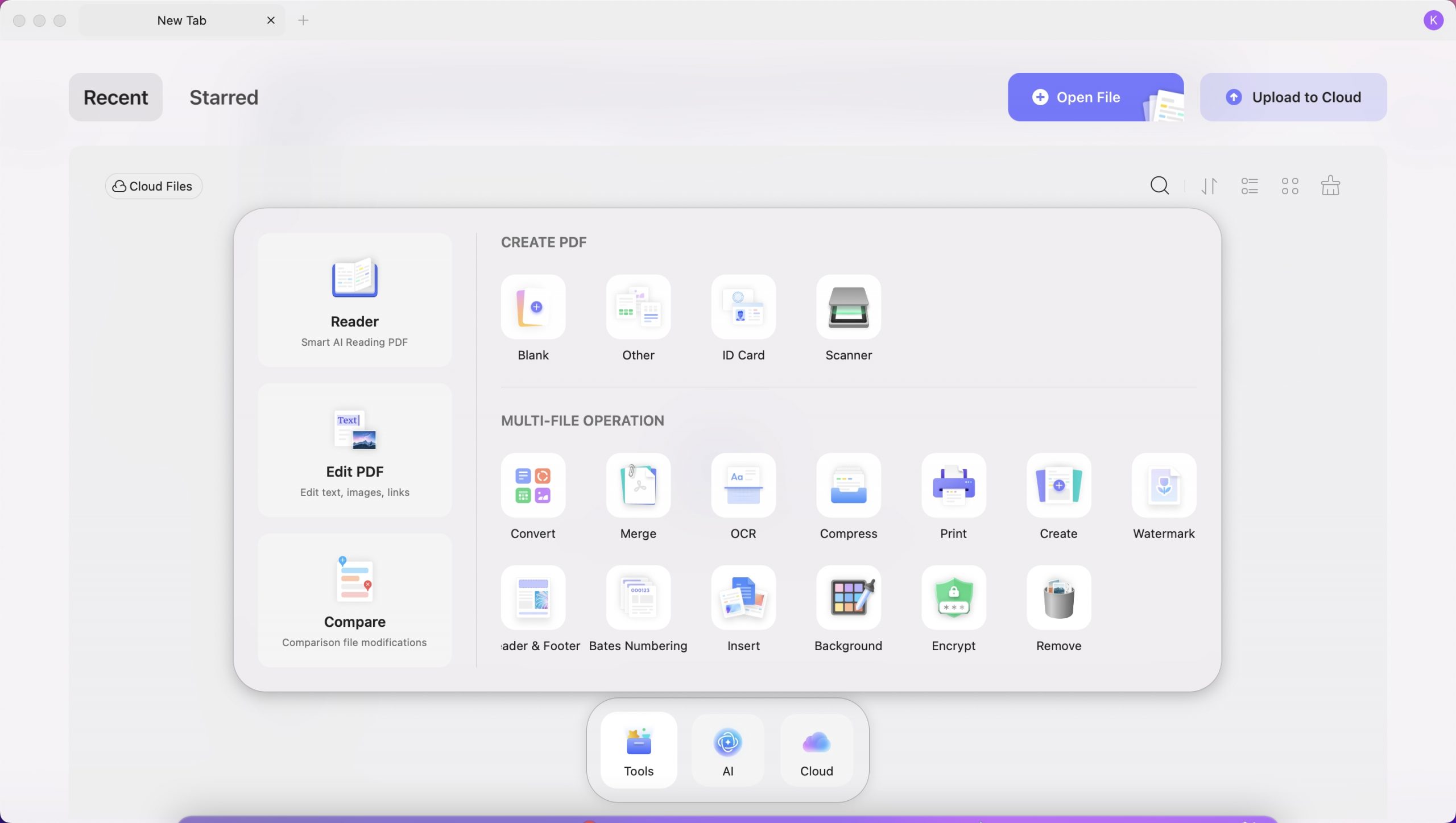
- Reader: Utilizes smart AI for enhanced PDF reading.
- Edit PDF: Features to edit text, images, and links in PDF.
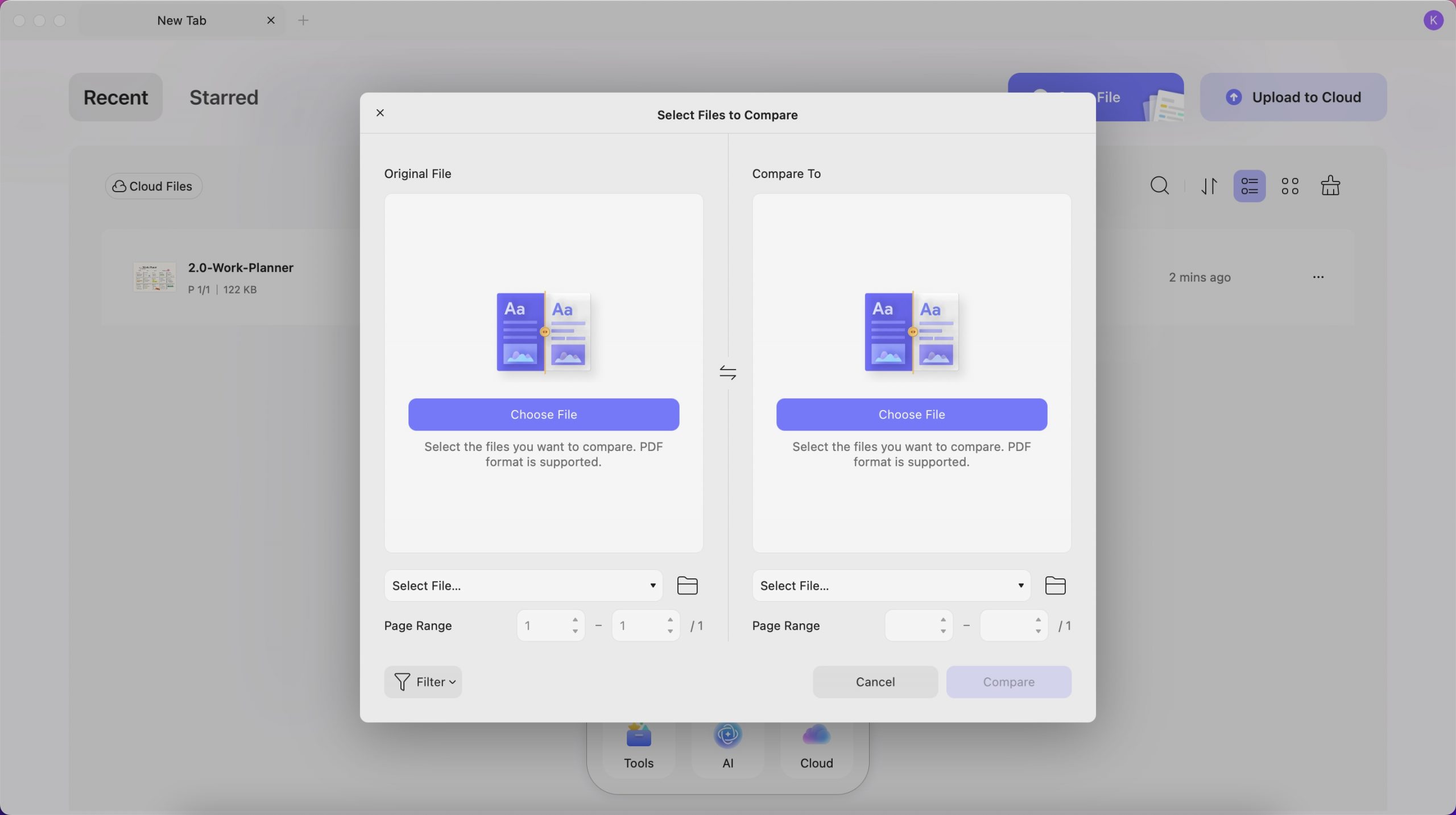
- Compare: This option will help you compare two files to track changes.
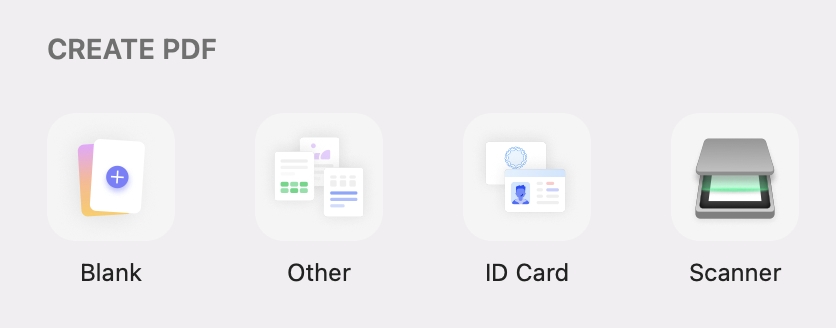
- Create PDF: Options for a blank document, other document types (e.g. Excel, PPT, Word), ID card, and scanner.
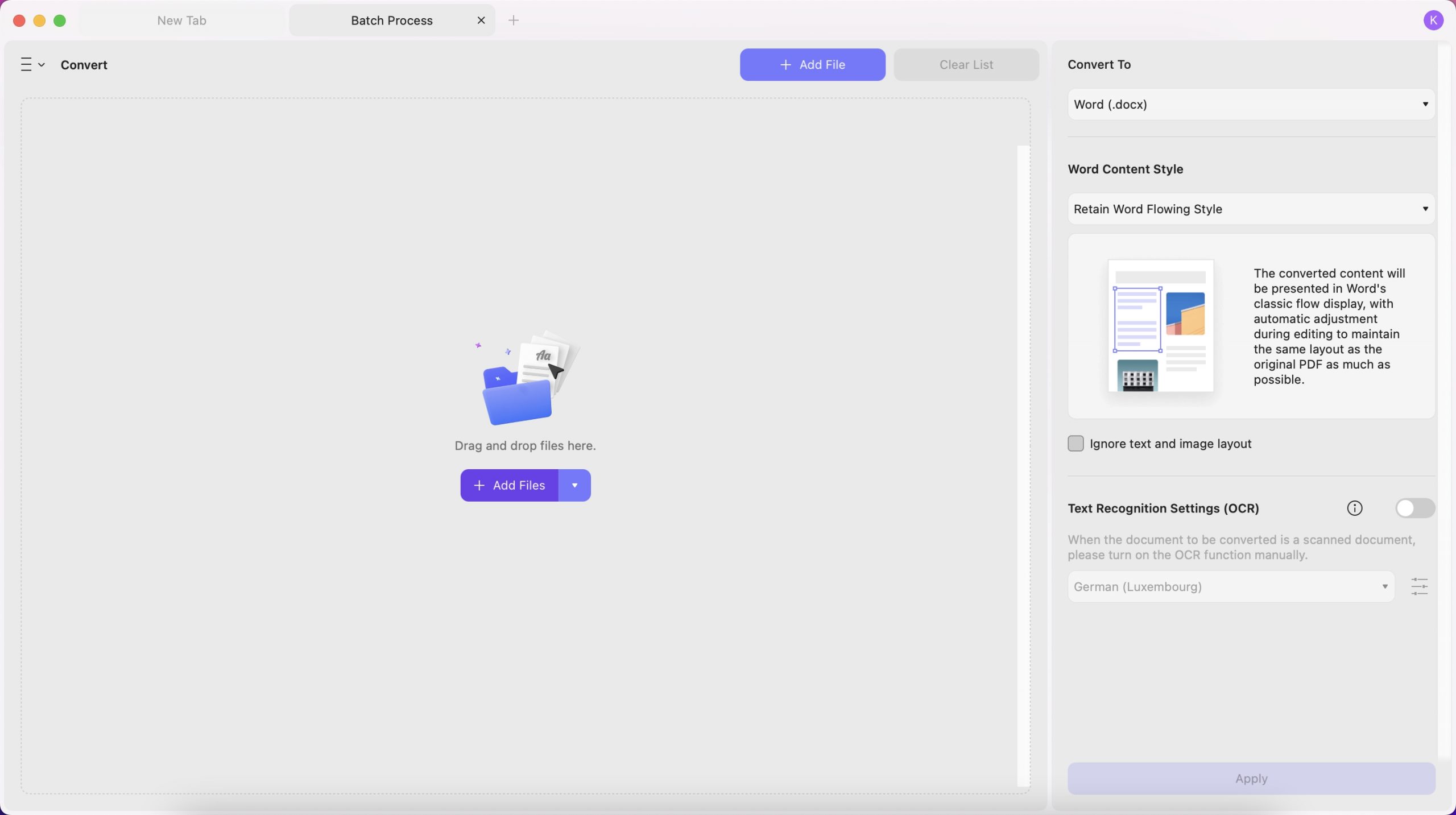
- Convert: Convert PDF to Word, PPT, Excel, PNG, JPEG, HTML, PDF/A, etc. Change Word, Excel, PPT, Images, blank pages, Mac clipboard, etc. to PDF.
- Merge: Merge multiple PDF documents or images into a single file.
- OCR (Optical Character Recognition): OCR recognizes PDFs in 38 languages to easily convert scanned PDFs, paper docs, and images into searchable and editable PDFs.
- Compress and print documents.
- Add watermarks, headers & footers, bates numbering.
- Insert: add a PDF file on multiple PDFs
- Encrypt and remove documents.
Top Menu Toolbars
When you open the PDF, you can find the top menu with "UPDF", "File", "Edit", "View", "Go", "Tab", "Window", and "Help". We will also show you what they have and when to use them.

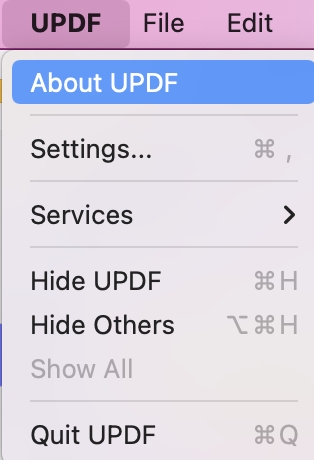
- UPDF button: Here, you can get what version of your UPDF is, whether there is an update, settings, hide UPDF, quit UPDF, and more.
- File button: In the file button, you can create a PDF, create a new tab, create a new window, open a file, open a recent one, close a tab, close a window, save a file if you edit one PDF, save as other, export PDF to other formats, batch process PDF, protect PDF, show the file in Finder, check the file properties, and print PDF.
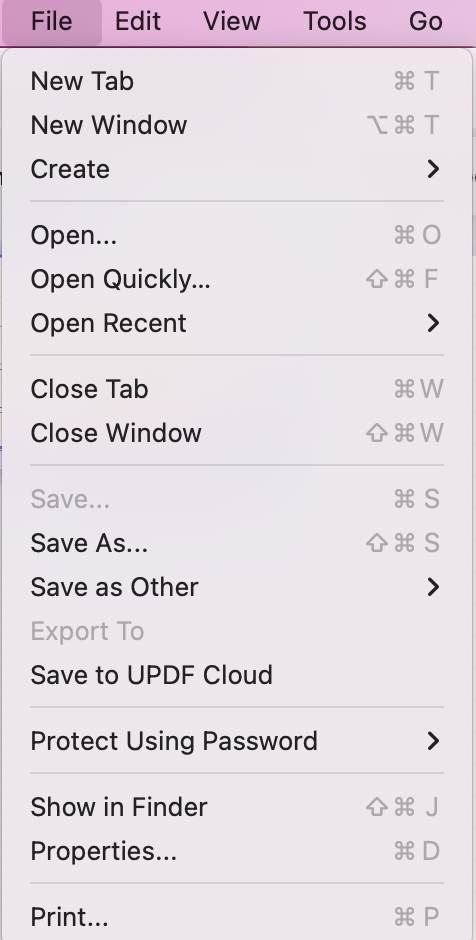
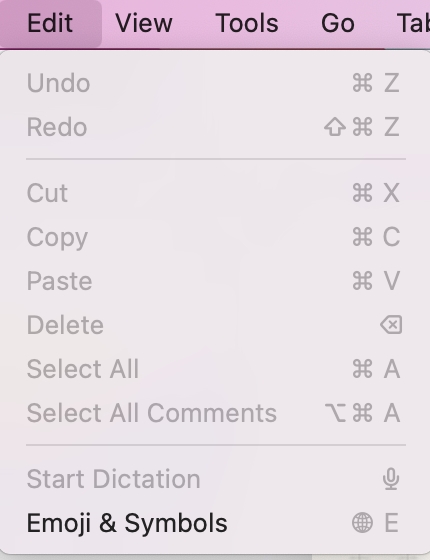
- Edit button: Use this button when you are in the "Edit PDF" mode and making some changes. Here, you can undo and redo changes. You can cut, copy, paste, delete, select all your content.
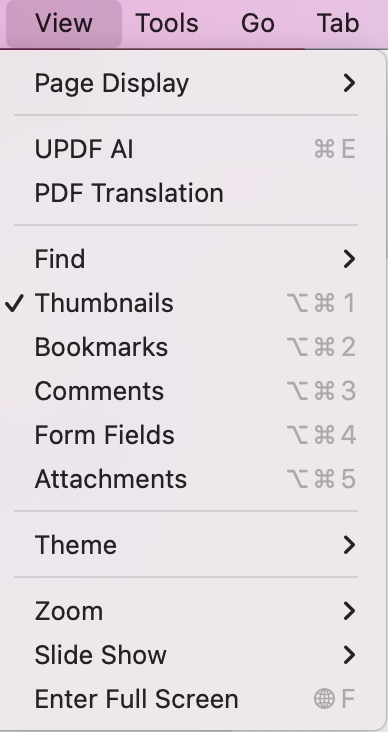
- View button: In the View button, you can change the page display mode, zoom in/out, enter/exit full screen, play PDF as a slideshow, and go to feature sections like UPDF AI, PDF translation, and more.
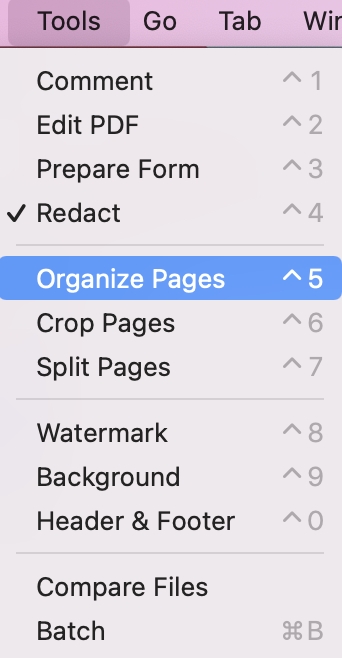
- Tools button: Here, you can rearrange, delete, or insert pages. "Crop Pages" and "Split Pages" enable trimming visible areas or dividing documents into separate files. Additionally, you can add watermarks, set backgrounds, and edit headers and footers. The "Compare Files" feature finds differences between documents, while "Batch" allows actions on multiple files simultaneously.
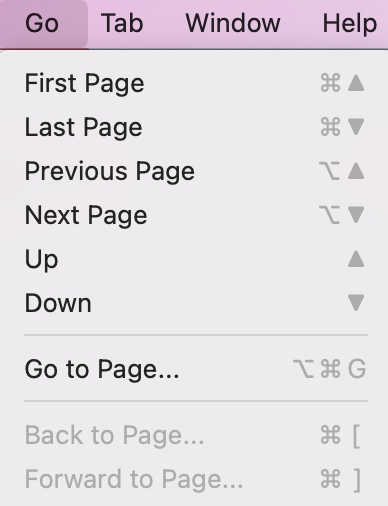
- Go button: Here, you can go to the pages you need.
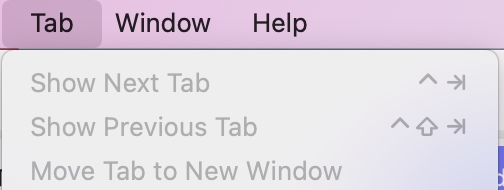
- Tab button: You can show the next tab, and previous tab, and move the tab to a new window.
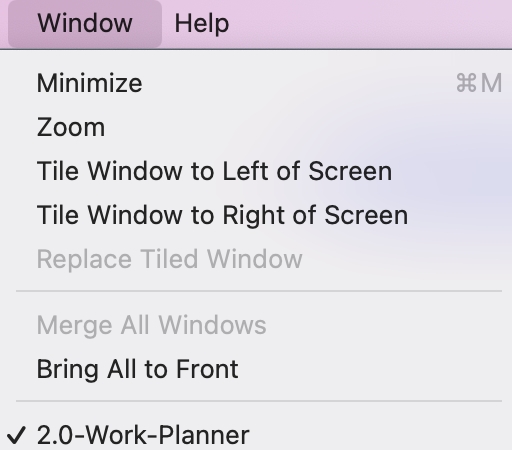
- Window button: In the Window button, you can minimize, zoom, tile window, and more.
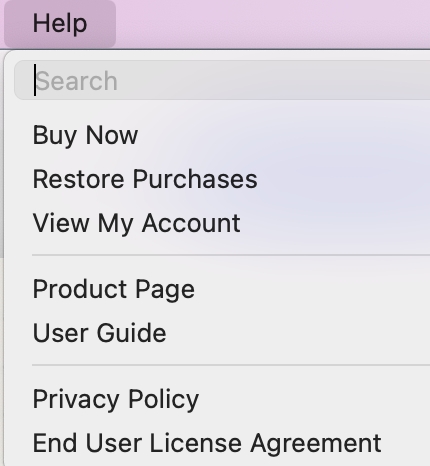
- Help button: You can search for a specific feature of UPDF to find it quickly, buy UPDF pro, view your account, view the product page, read the user guide, overview Privacy Policy, etc.
Document Page Toolbars and Panels
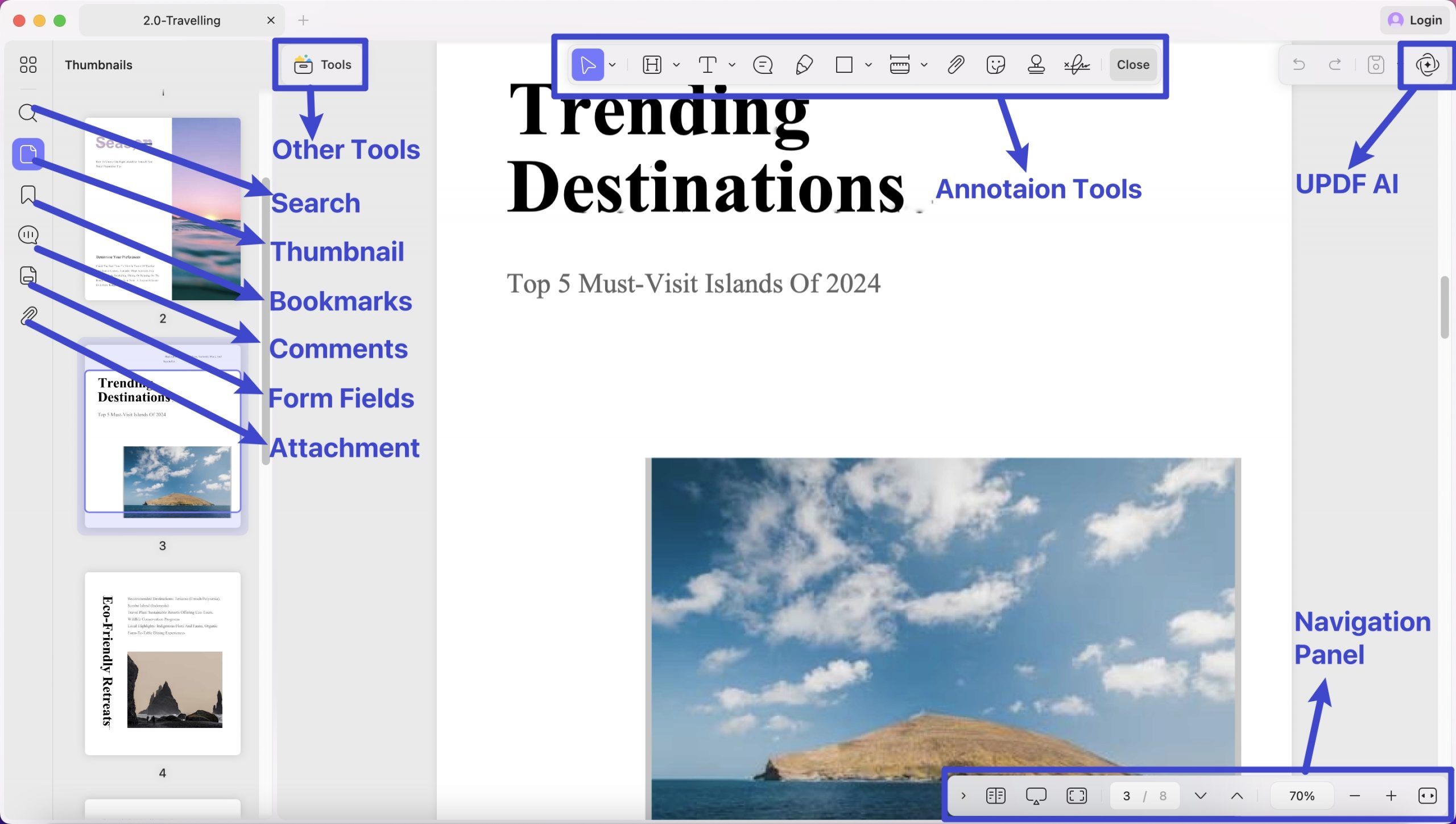
- Left Main Menu: Once a document is open, you'll see a main toolbar at the left with the core features - Organize Pages, Search, Thumbnail, Bookmarks, Attachments, Comments, Form Fields.
- Top Toolbar: It features different options depending on which tool you have accessed. By default, it features selection tool, highlight, text callout, sticky note, highlighter, rectangle, area tool, attach file, stickers, stamps, signature buttons.
- Navigatiepaneel : Onderaan het document ziet u een navigatiepaneel met zoomknoppen, weergave-instellingen, diavoorstelling, volledig scherm en meer.
- Werkbalk Snelle toegang : Klik op het UPDF AI-pictogram om het paneel te openen en met PDF te chatten en AI alles te vragen. En wanneer u op het opslaan-pictogram klikt, verschijnt er een gedetailleerd vervolgkeuzemenu met informatie over het opslaan van bestanden. Knoppen voor opnieuw uitvoeren en ongedaan maken zijn ook te vinden in deze werkbalk.
Waarom niet upgraden naar de pro-versie om van alle functies te genieten? Je kunt de prijs hier bekijken en je zult verrast zijn, want die is erg laag.