UPDF
UPDF
 UPDF para Windows
 UPDF para Mac
 UPDF para iPhone/iPad
 UPDF para Android
 UPDF AI ONLINE
 UPDF Sign
 Editar PDF
 Anotar PDF
 Crear PDF
 Formulario PDF
 Editar enlaces
 Convertir PDF
 OCR
OCR PDF a Word
 PDF a imagen
 PDF a Excel
 Organizar PDF
 Combinar PDF
 Dividir PDF
 Recortar PDF
 Girar PDF
 Proteger PDF
 Firmar PDF
 Redactar PDF
 Desinfectar PDF
 Eliminar seguridad
 Leer PDF
 UPDF Cloud
 Comprimir PDF
 Imprimir PDF
 Proceso por lotes
 Sobre UPDF IA
 Soluciones de UPDF IA
 Guía de Usuario de IA
 Preguntas frecuentes sobre UPDF IA
 Resumir PDF
 Traducir PDF
 Chat con PDF
 Chat con imagen
 PDF a Mapa Mental
 Chat con IA
 Explicar PDF
 Herramientas IA para PDF
 Herramientas IA para Imagen
 Herramientas IA de Chat
 Herramientas IA de Redacción
 Herramientas IA de Estudio
 Herramientas IA de Trabajo
 Otras Herramientas IA
 Generación de Marcadores con IA
 Resumen de Marcadores con IA
 Generación de Marcas de Agua con IA
 Generación de Fondos con IA
 Generación de Pegatinas con IA
 Generación de Sellos con IA
 Suite de Escritura con IA
 UPDF Copilot
 Gestión de Páginas con IA
 Búsqueda Semántica con IA
 PDF a Word
 PDF a Excel
 PDF a PowerPoint
 Solución Empresarial
 Letrero de empresa
 Inteligencia artificial empresarial
 Plan para Empresas
 Guía del Usuario Empresarial
 Webinar Empresarial
 Banca
Banca Salud
Salud Seguros
 Legal
Legal Manufactura
 Gobierno
 Solución para Educación
  Historias de Clientes
 Guía del Usuario
 Trucos de UPDF
 Preguntas Frecuentes
 Reseñas de UPDF
 Centro de descargas
 Blog
Blog Sala de prensa
 Especificaciones Técnicas
 Actualizaciones
 UPDF vs. Adobe Acrobat
 UPDF vs. Foxit
 UPDF vs. PDF Expert

Convertir PDF a Word/Excel/PPT
UPDF AI Online ha revolucionado la forma en que los usuarios gestionan sus documentos al introducir una función inteligente de "PDF a otros formatos". Para las personas que utilizan UPDF AI para revisar sus documentos importantes, este método les permite obtener sus archivos en el formato deseado. Se puede acceder a esta función directamente a través de UPDF AI Online, sin necesidad de instalación, lo que la hace ideal para un uso rápido y cómodo en cualquier lugar. La versión de escritorio de UPDF (Windows/Mac) también incluye las mismas potentes capacidades de conversión, lo que garantiza flexibilidad y rendimiento en todas las plataformas.
Cómo convertir PDF a otros formatos (Word/Excel/PPT) utilizando UPDF AI Online
Antes de comenzar la conversión, UPDF AI Online ofrece un flujo de trabajo fluido y guiado que facilita la transformación de tus archivos PDF a formatos totalmente editables.
Opción 1. Convertir PDF a otros formatos en la sección "Chat"
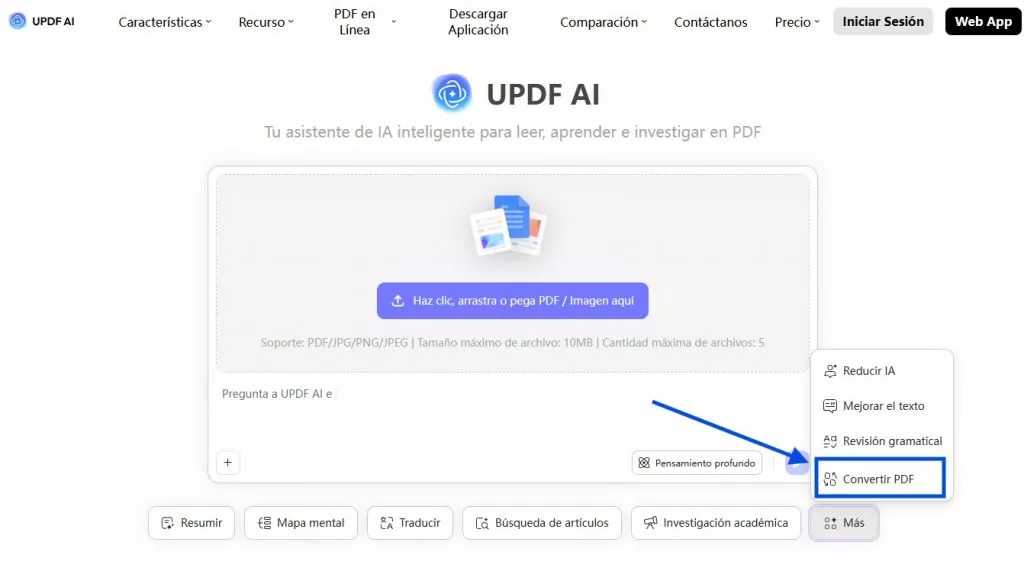
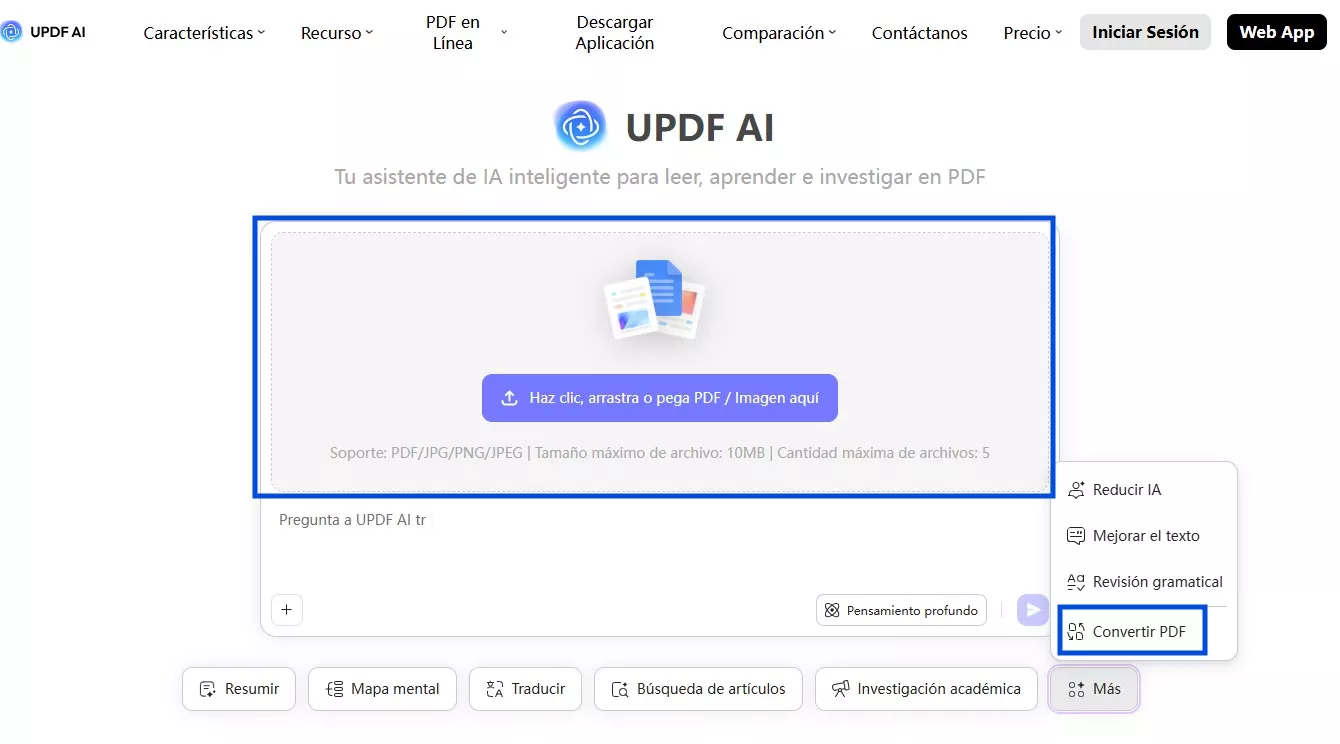
Paso 1. Para empezar, vaya a https://ai.updf.com/es/ o haga clic en el botón de abajo para abrir la interfaz Chat PDF de UPDF AI. Una vez allí, haga clic en "Convertir" PDF y pulse el botón "Haga clic, arrastre o pegue aquí el PDF/imagen" para importar su documento PDF.
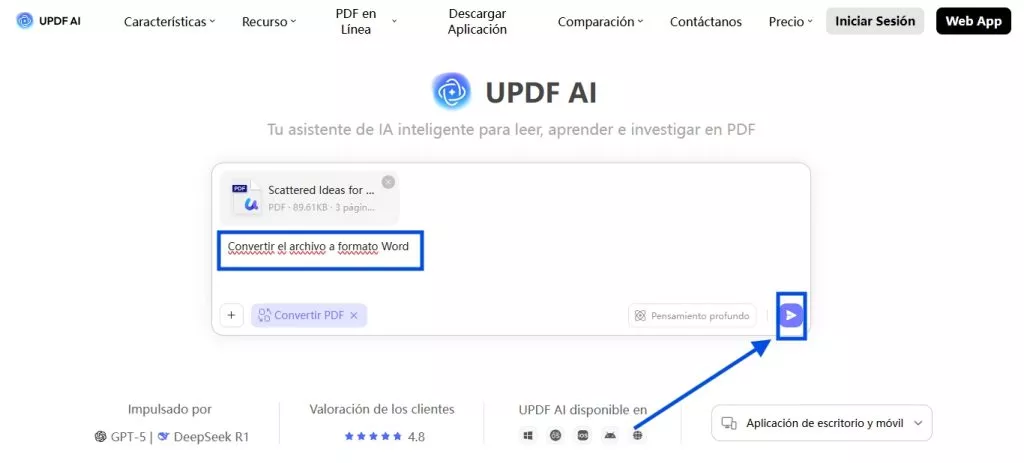
Paso 2. Una vez subido el PDF, solo tienes que escribir "Convertir este archivo a formato Word/PPT/Excel" y pulsar el icono "Enviar".
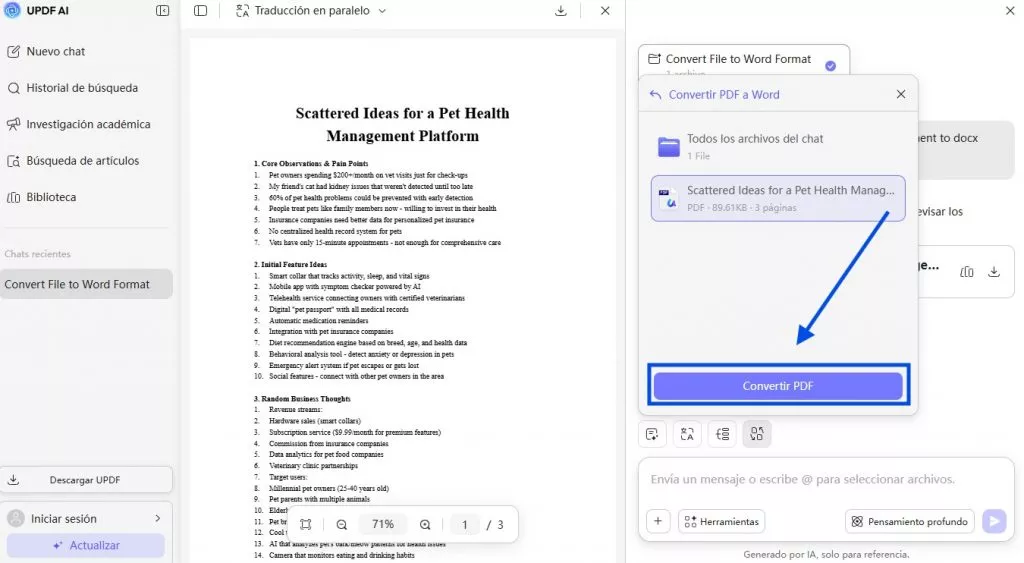
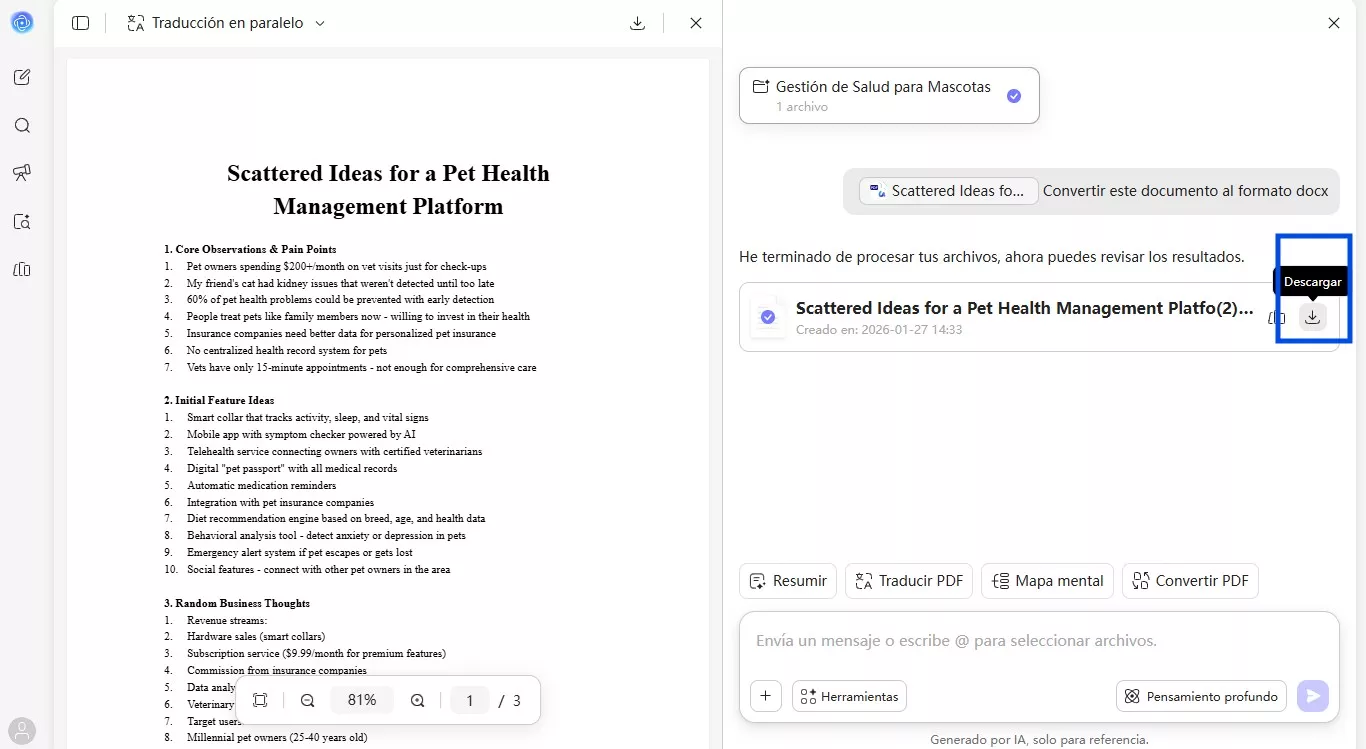
Paso 3. Ahora, UPDF AI te proporcionará el archivo convertido, que podrás guardar pulsando el icono "Descargar". Utilizando el icono "Convertir PDF", convierte también el archivo cargado a otros formatos de archivo deseados. Para ello, selecciona el formato de conversión deseado, como PDF a Excel.
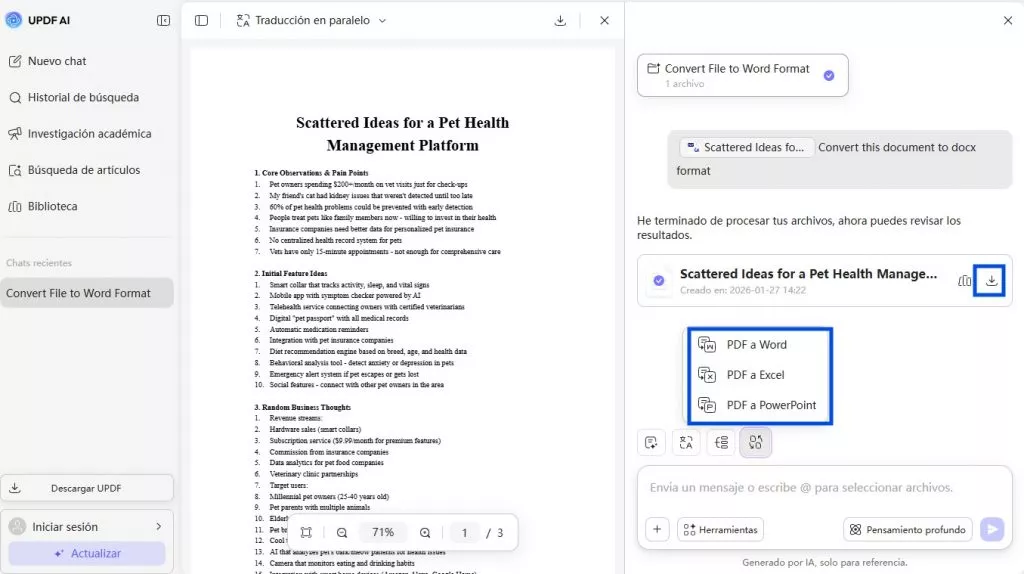
Paso 4. Después, solo tienes que seleccionar el archivo subido y pulsar el botón Convertir PDF para obtener el documento convertido.
Nota
También puede cargar su PDF escaneado para convertirlo a Word, PPT o Excel. Durante este proceso, UPDF AI Online realiza automáticamente un OCR para convertir el texto escaneado en contenido que se puede buscar y seleccionar. Sin embargo, esta función de OCR automático solo está disponible para los usuarios de pago. Si desea habilitarla, visite esta página para actualizar su plan de UPDF AI.
Opción 2. Convertir PDF a otros formatos utilizando una herramienta de conversión de PDF en línea
UPDF AI ahora te ofrece la opción de simplemente cargar los archivos PDF para convertirlos a cualquiera de los formatos que desees. Puedes utilizar su conversor de PDF en línea para transformar tus archivos en documentos de Word, Excel y Powerpoint. Para ello:
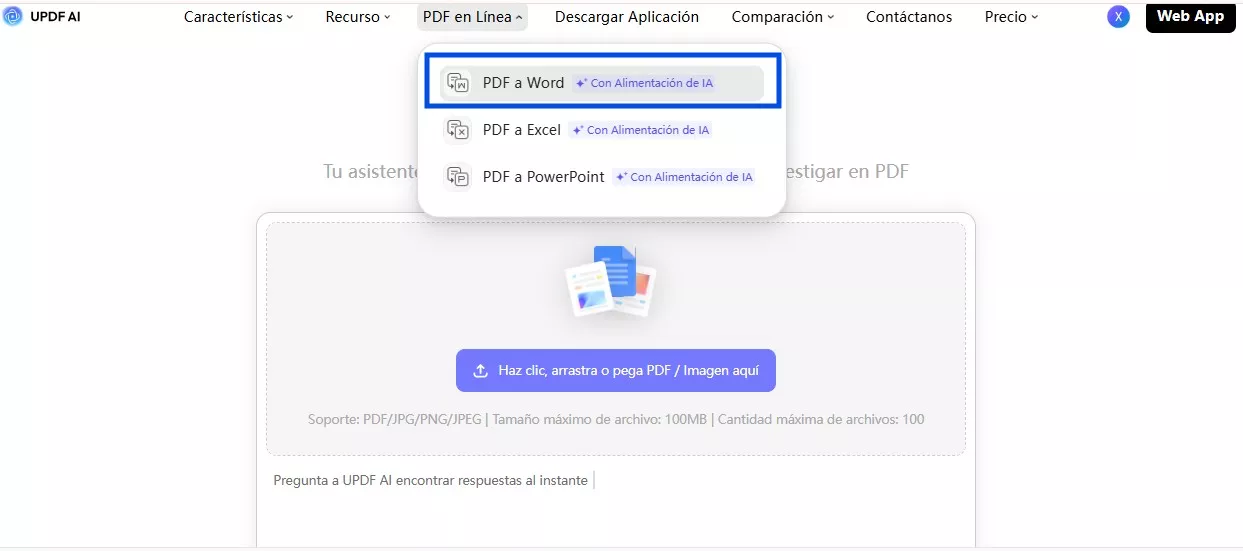
Paso 1. Después de acceder a UPDF AI en línea, pulsa en la pestaña PDF en línea para acceder a un nuevo menú. Desde aquí, accede a "PDF a Word" u otras opciones de conversión para continuar.
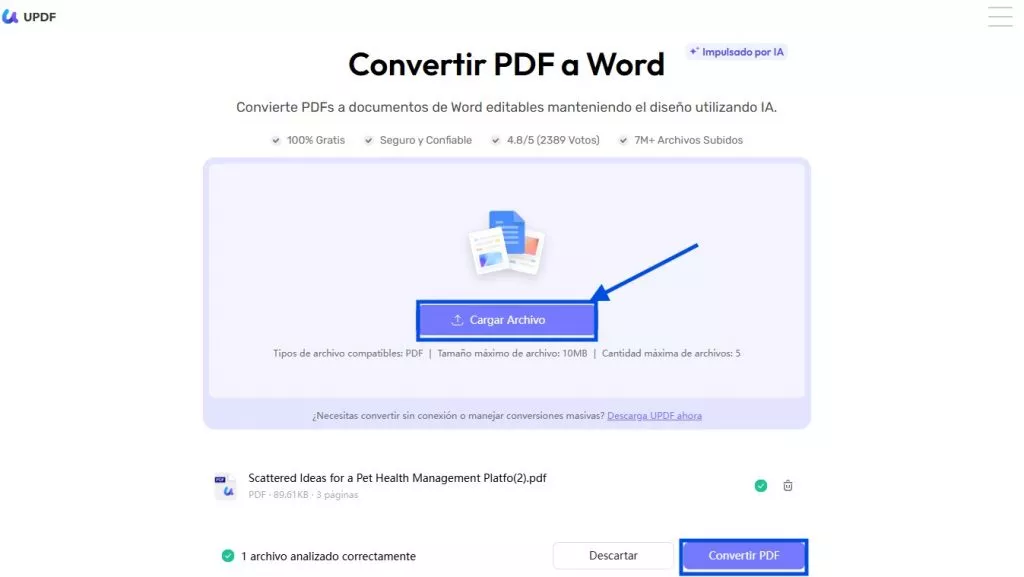
Paso 2. En la siguiente pantalla, pulsa el botón "Subir archivo" para importar tu archivo PDF. Una vez subido el archivo, pulsa el botón "Convertir PDF" para realizar la conversión.
Paso 3. Ahora, UPDF AI online convertirá tu archivo PDF a Word y te proporcionará un archivo descargable. Solo tienes que pulsar el icono "Descargar" para finalizar esta tarea.
Opción 3. Convertir varios archivos PDF a otros formatos utilizando el modo de chat
También puede utilizar esta función para convertir varios archivos PDF a otros formatos en un solo flujo de trabajo. Cargue varios archivos, elija el formato de destino y deje que la IA se encargue de la conversión, conservando la estructura y la legibilidad. Simplifica el procesamiento por lotes y reduce los pasos manuales en el uso en línea.
Paso 1. Comience por iniciar UPDF AI Online en su navegador. Haga clic en el botón "Convertir PDF" y pulse el botón "Haga clic, arrastre o pegue aquí el PDF/imagen" para importar varios archivos a la plataforma.
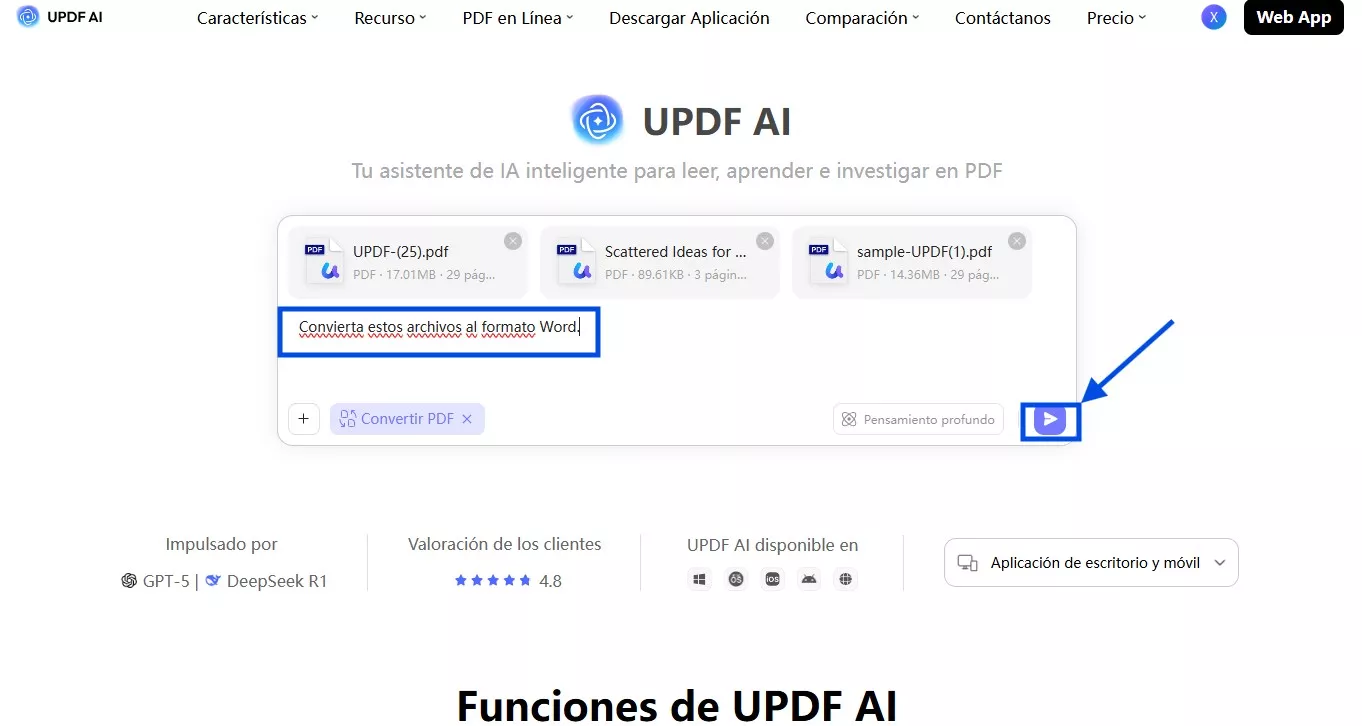
Paso 2. Una vez cargados los archivos PDF, escribe las instrucciones, como "Convertir estos archivos al formato Word". Ahora, pulsa el icono Enviar para obtener los resultados.
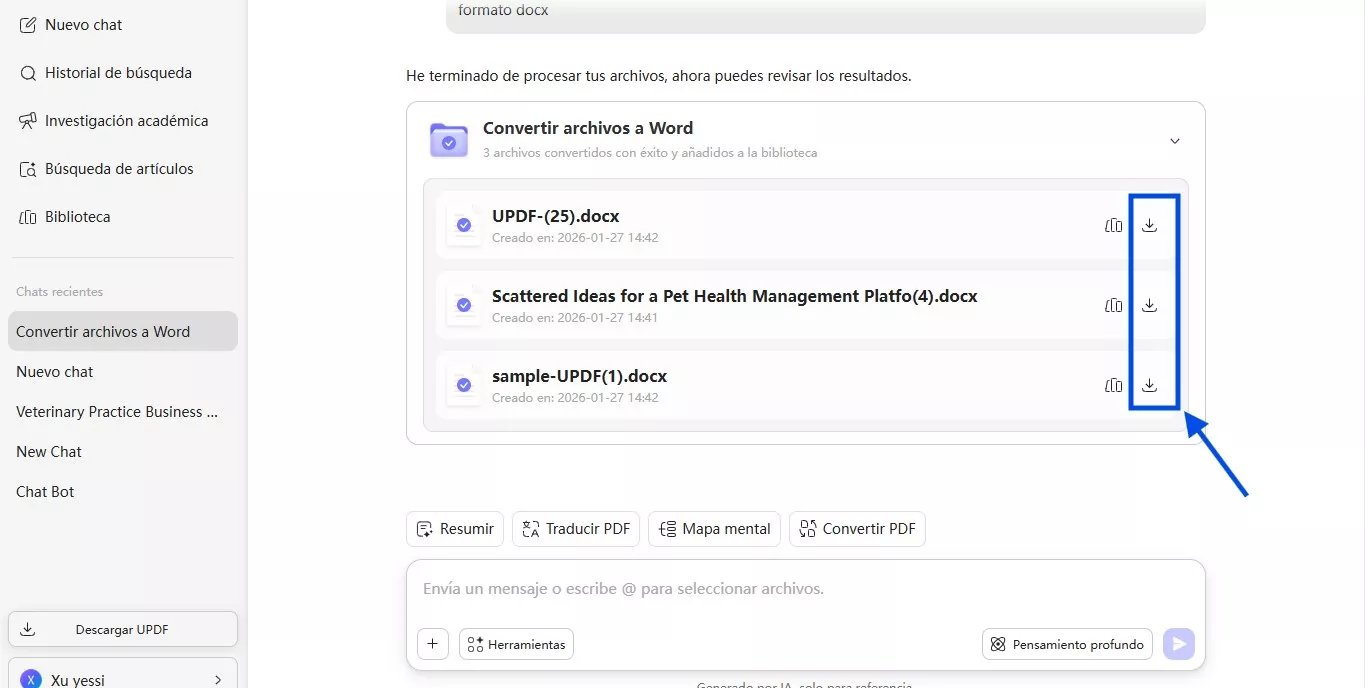
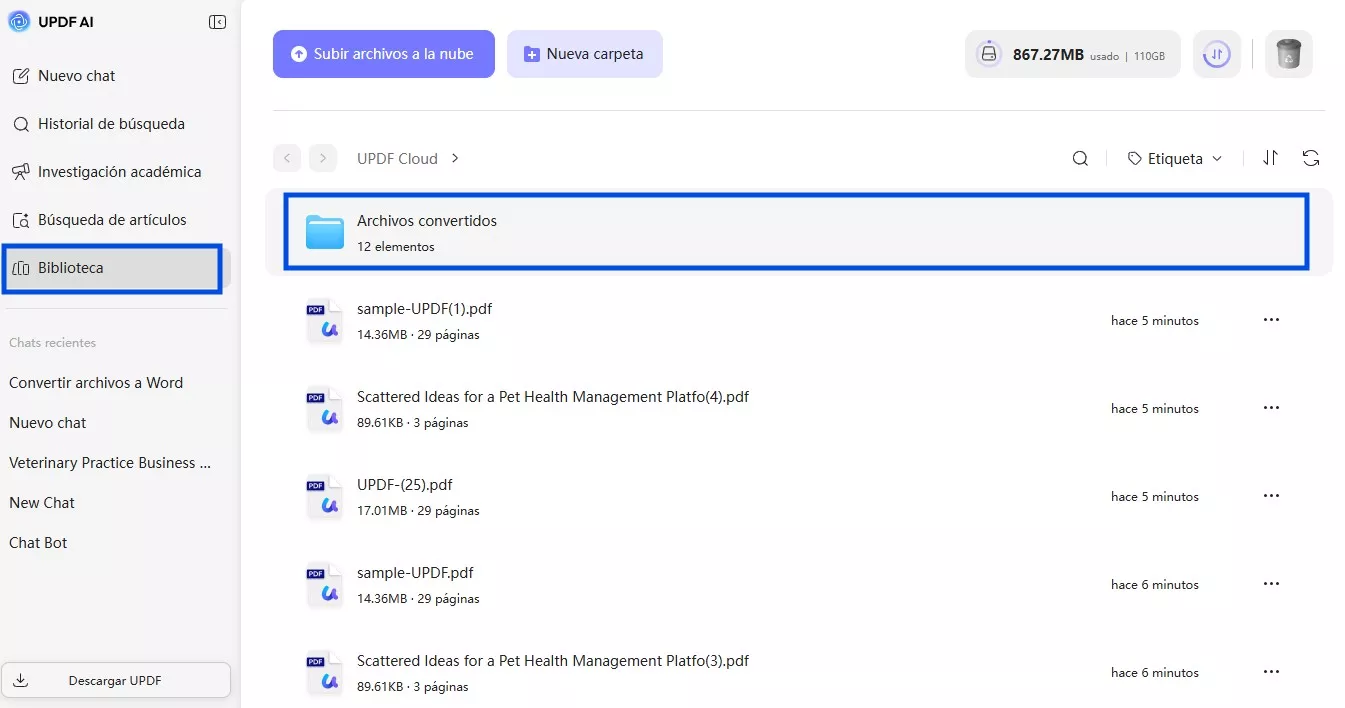
Paso 3. Ahora, UPDF AI te proporcionará el archivo convertido para su descarga. Solo tienes que pulsar el icono Descargar o seleccionar la opción Biblioteca para acceder a todos los documentos PDF convertidos.
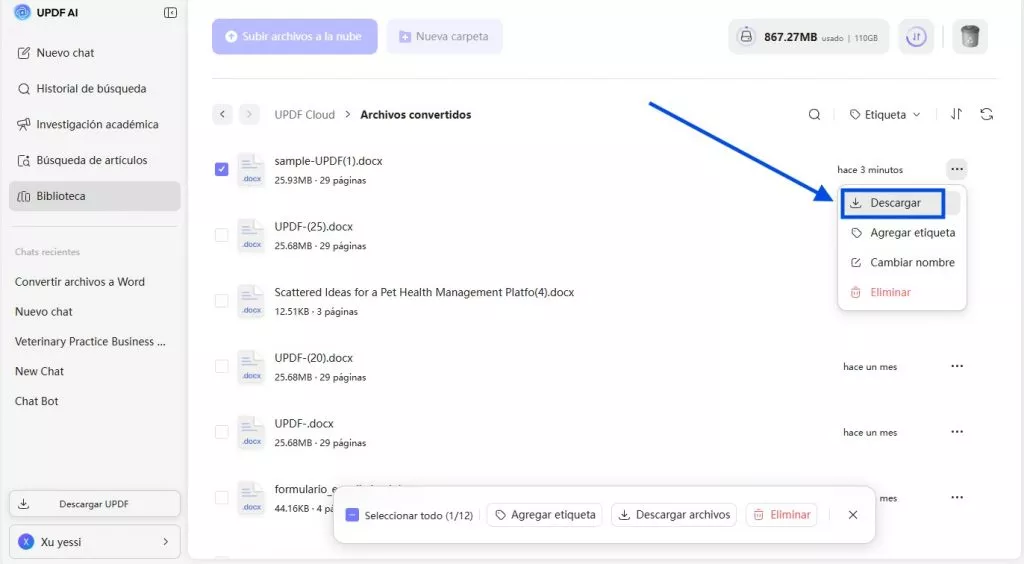
Paso 4. En la biblioteca de archivos convertidos, localice los archivos que desea descargar.
Paso 5. Ahora, pulsa el icono de los tres puntos y selecciona Descargar para guardar este archivo convertido.