UPDF
UPDF
 UPDF para Windows
 UPDF para Mac
 UPDF para iPhone/iPad
 UPDF para Android
 Nomostar
 UPDF AI Online
 UPDF Sign
 IvyCraft
 Editar PDF
 Anotar PDF
 Criar PDF
 Formulário PDF
 Editar links
 Converter PDF
 OCR
OCR PDF para Word
 PDF para Imagem
 PDF para Excel
 Organizar PDF
 Mesclar PDF
 Dividir PDF
 Cortar PDF
 Girar PDF
 Proteger PDF
 Assinar PDF
 Redigir PDF
 Sanitizar PDF
 Remover Segurança
 Ler PDF
 Nuvem UPDF
 Comprimir PDF
 Imprimir PDF
 Processamento em Lote
 Sobre o UPDF AI
 Soluções UPDF AI
 Guia do Usuário de IA
 Perguntas Frequentes
 Resumir PDF
 Traduzir PDF
 Converse com o PDF
 Converse com IA
 Converse com a imagem
 PDF para Mapa Mental
 Explicar PDF
 Ferramentas de IA para PDF
 Ferramentas de IA para Imagem
 Ferramentas de Chat com IA
 Ferramentas de Escrita com IA
 Ferramentas de Estudo com IA
 Ferramentas de Trabalho com IA
 Outras Ferramentas de IA
 Geração de marcadores
 Resumo de marcadores
 Geração de marca d’água
 Geração de fundo
 Geração de adesivos
 Geração de carimbos
 Suite de Redação
 UPDF Copilot
 Gerenciamento de páginas
 Pesquisa Semântica
 PDF para Word
 PDF para Excel
 PDF para PowerPoint
 Solução Empresarial
 Sinal de empresa
 IA empresarial
 Plano Empresarial
 Guia do Usuário Corporativo
 Webinar Empresarial
 TI
TI Educação
 Construção
 Serviços Financeiros
 Saúde
Saúde Seguro
 Jurídico
 Manufatura
 Governo
 Pesquisadores e doutorandos
 Empreendedores individuais
 Advogados e escritórios
 Profissionais do mercado imobiliário
 Solução Educacional
 Histórico de Clientes
 Guia do Usuário
 Truques do UPDF
 Perguntas Frequentes
 Avaliações do UPDF
 Centro de Download
 Blog
Blog Sala de Imprensa
 Especificações Técnicas
 Atualizações
 UPDF vs. Adobe Acrobat
 UPDF vs. Foxit
 UPDF vs. PDF Expert

Ao pesquisar um PDF específico na internet, normalmente é preciso vasculhar páginas, posts de blog e resultados bloqueados por paywall. Encontrar um arquivo PDF disponível publicamente pode significar passar por várias páginas de links irrelevantes.
O DoctypePDF resolve esse problema ao funcionar como um mecanismo de busca dedicado a PDFs, que indexa artigos científicos, ebooks, manuais, modelos e muito mais em um só lugar.
Se você nunca usou o Doctype PDF, neste guia explico como ele funciona, o passo a passo para utilizá-lo e quais são as melhores alternativas. Você também vai aprender a extrair mais valor de cada documento encontrado com o UPDF. Portanto, acompanhe até o final.
Windows • macOS • iOS • Android Seguro 100%
Parte 1. O que é o Doctype PDF?
O Doctype PDF é um mecanismo de busca de PDF dedicado, capaz de rastrear a internet em busca de arquivos PDF disponíveis publicamente. Ele não armazena nem envia esses documentos para seus próprios servidores. Em vez disso, apenas fornece links para os servidores originais em que os arquivos estão hospedados. É como usar o operador filetype:pdf do Google, mas em uma ferramenta criada exclusivamente para PDFs e com filtros inteligentes.
O Doctype pode indexar diversos tipos de PDF, que podem ser agrupados da seguinte forma:
- Conteúdo acadêmico e de pesquisa: artigos científicos, teses, slides de congressos e de aulas, redações e relatórios.
- Documentos empresariais e profissionais: white papers, apresentações corporativas, planilhas financeiras, currículos e manuais do usuário.
- Arquivos de produtividade convertidos em PDF: planilhas, apresentações, documentos do Word, arquivos do Google Docs e modelos.
- Materiais de referência e estudo: ebooks, calculadoras e guias de uso geral.
Como o Doctype PDF funciona?
O Doctype PDF procura entender a intenção por trás da pesquisa, em vez de apenas buscar correspondências exatas de palavras-chave. Por isso, consegue apresentar resultados relevantes mesmo quando os termos pesquisados não coincidem exatamente com o texto do documento.
Para isso, a plataforma lê o texto dos PDFs, extrai metadados, como autor e título, e processa até documentos digitalizados. Assim, oferece uma busca mais contextualizada do que um mecanismo de pesquisa genérico.
Como usar o Doctype PDF
Usar o DoctypePDF é tão simples quanto usar qualquer buscador. Veja o passo a passo:
1. Acesse o site oficial do DoctypePDF.
2. Digite o tema, o título ou a palavra-chave na barra de pesquisa.
3. Pressione “Enter” para pesquisar ou escolha uma das sugestões.
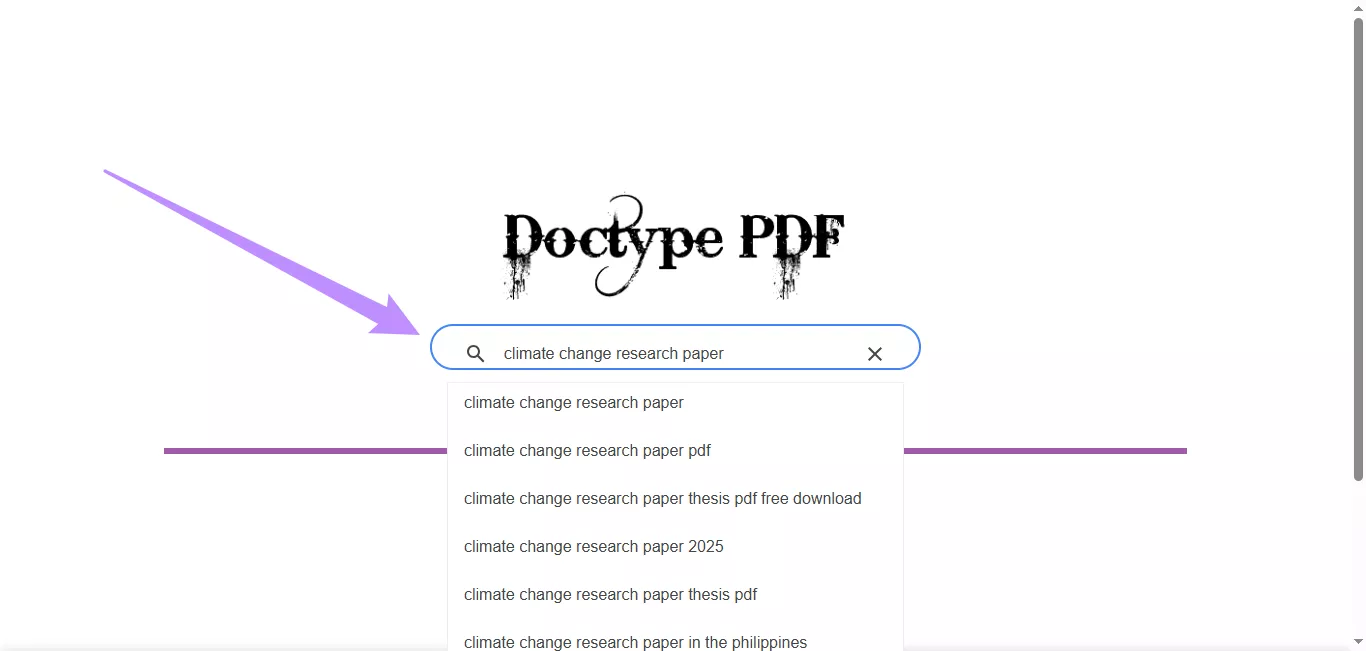
4. Filtre os resultados pelas opções de tipo de documento exibidas na parte superior.
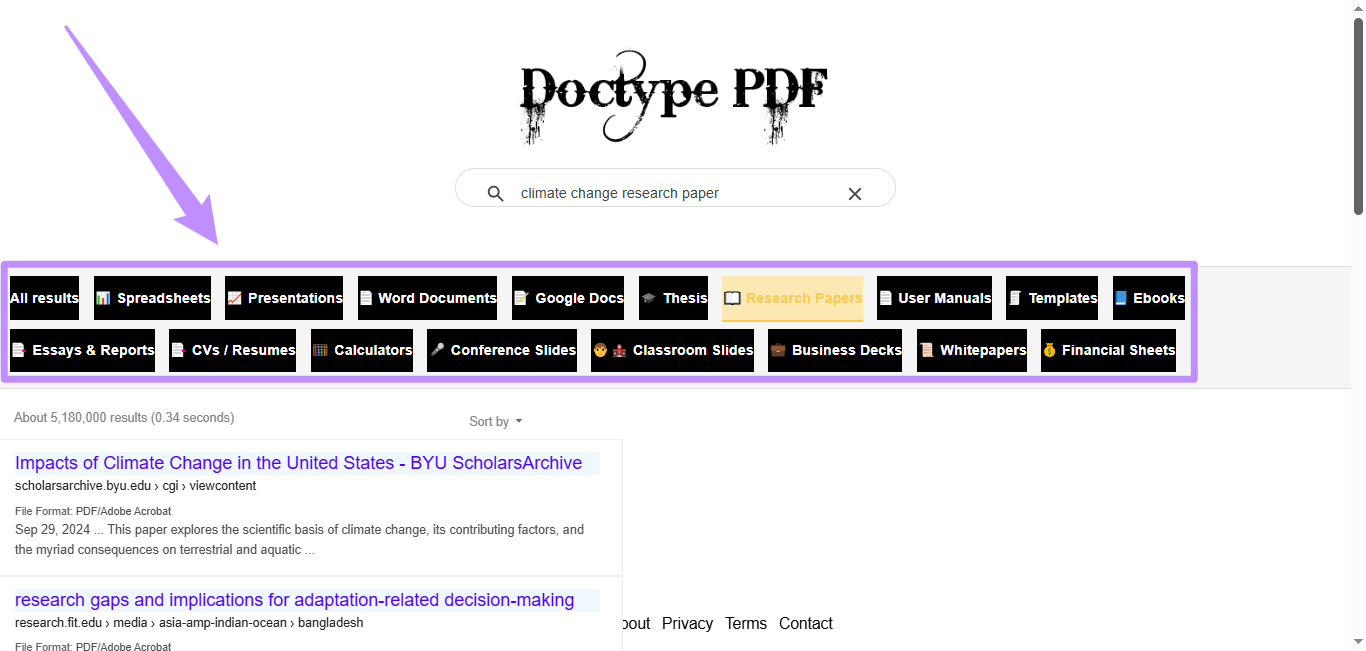
5. Clique em um resultado para abrir e visualizar o PDF no navegador.
Observação: Como o DoctypePDF aponta para arquivos hospedados em servidores de terceiros, nem todos os documentos terão boa qualidade. Antes de baixar qualquer arquivo, confira sempre os metadados, como autor, data e tamanho.
Muitos PDFs baixados pelo Doctype PDF têm centenas de páginas e não contam com uma estrutura de marcadores que facilite a navegação. Nesses casos, um software dedicado como o UPDF ajuda a abrir e ler os arquivos com muito mais praticidade.
Windows • macOS • iOS • Android Seguro 100%
Parte 2. Como leio e estudo arquivos baixados do DoctypePDF com o UPDF
O UPDF é um editor de PDF com IA que oferece desde leitura e anotações básicas até análises avançadas. Com os agentes de IA integrados, consigo abrir, ler e interagir ativamente com qualquer PDF.
Windows • macOS • iOS • Android Seguro 100%
Estes são alguns dos recursos que uso com frequência:
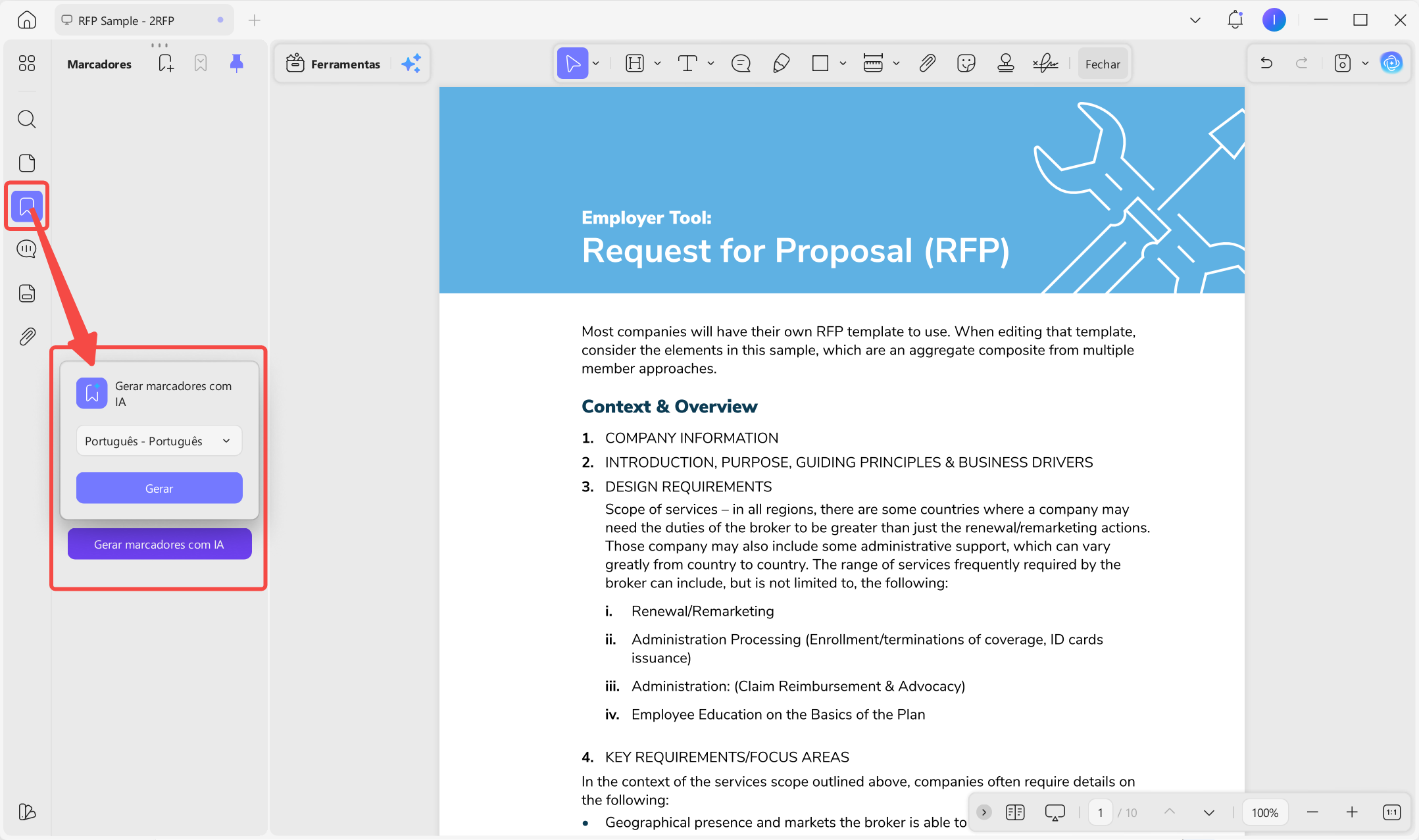
- Gerador de marcadores com IA: depois de baixar um ebook, essa ferramenta cria automaticamente um sumário do zero com inteligência artificial.
Também posso usar esse recurso no aplicativo UPDF para iOS.
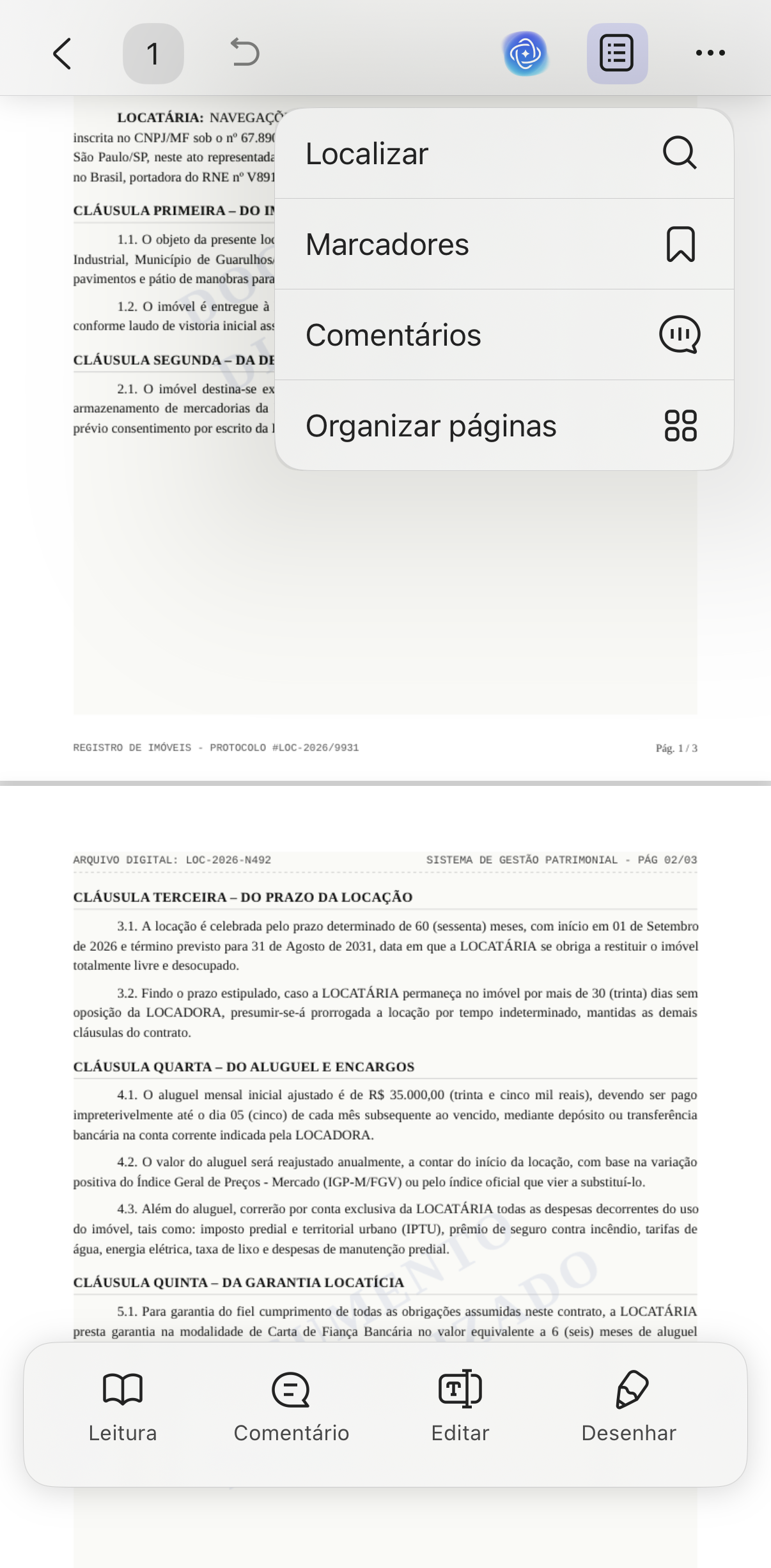
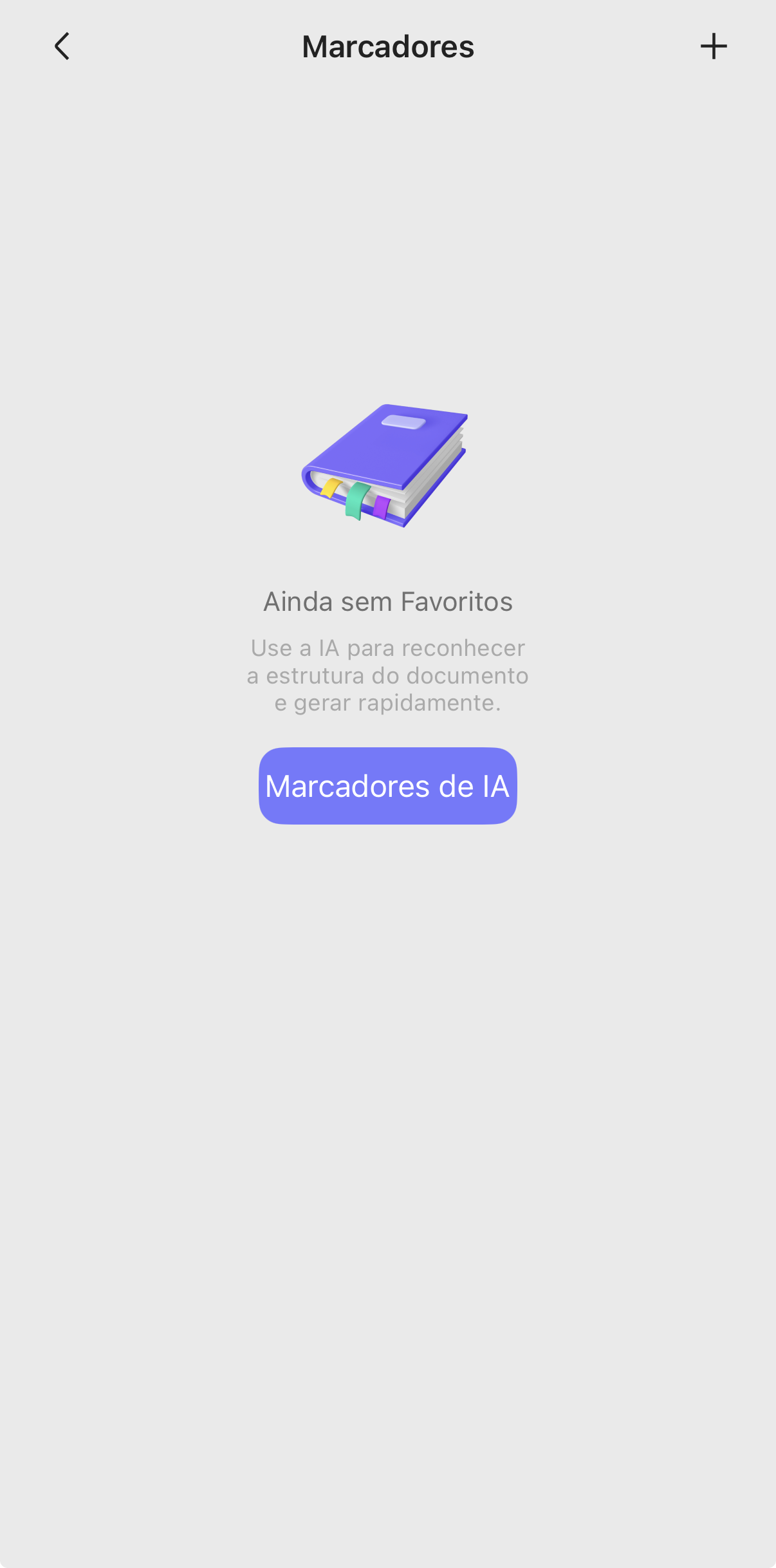
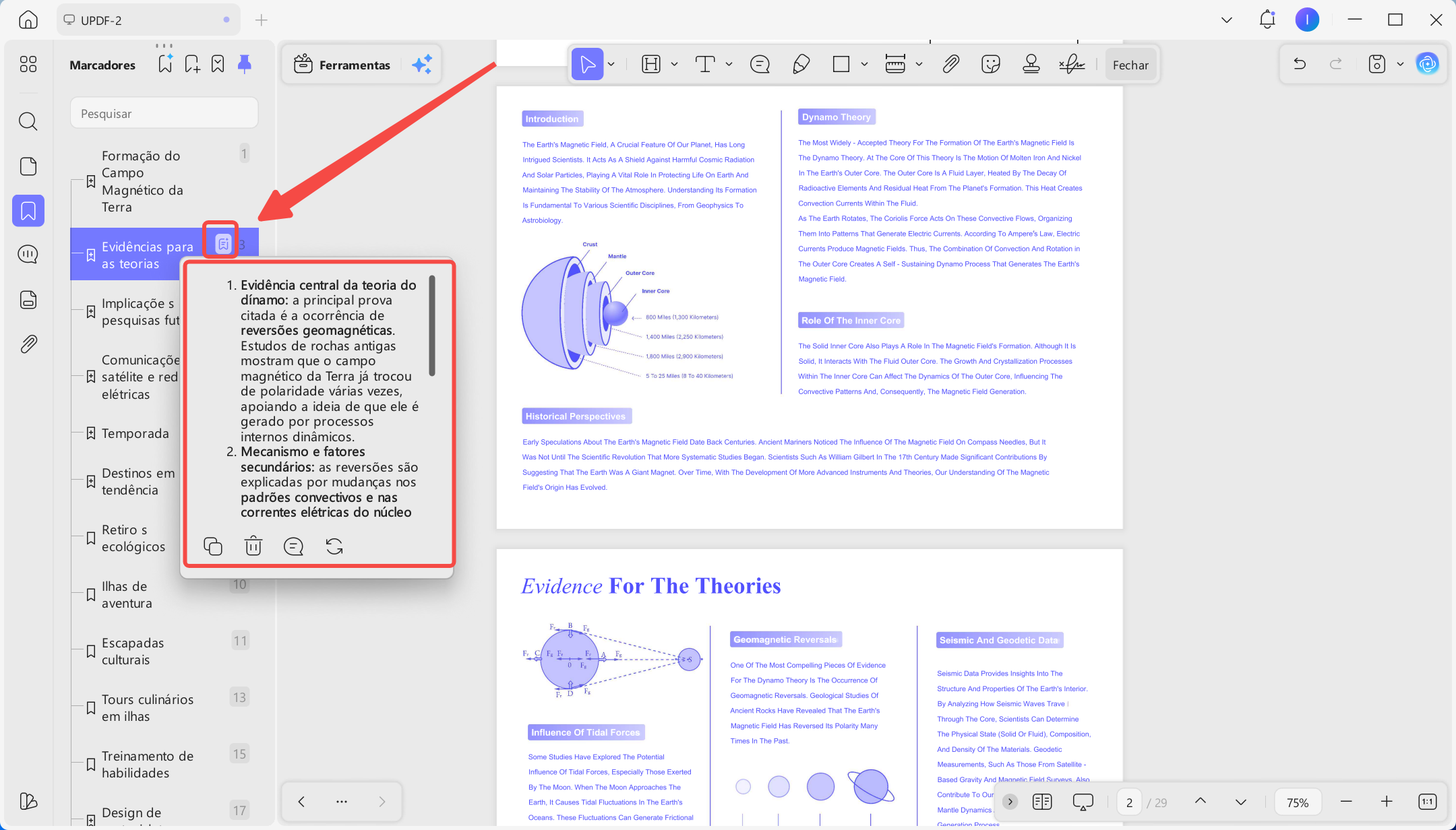
- Resumo de marcadores com IA: depois de criar os marcadores, uso o agente de resumo de marcadores com IA para gerar uma visão geral de três frases para cada capítulo.
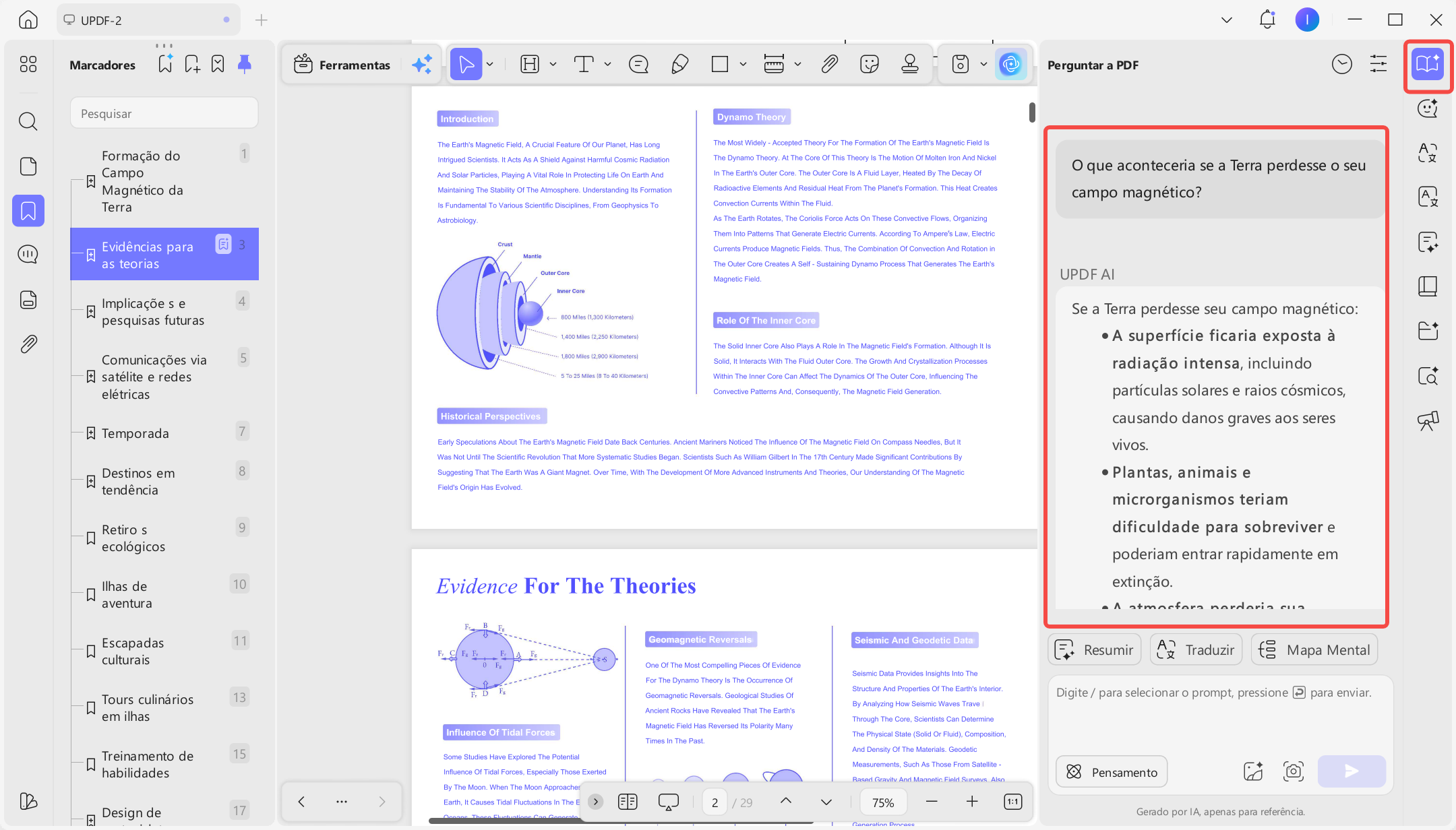
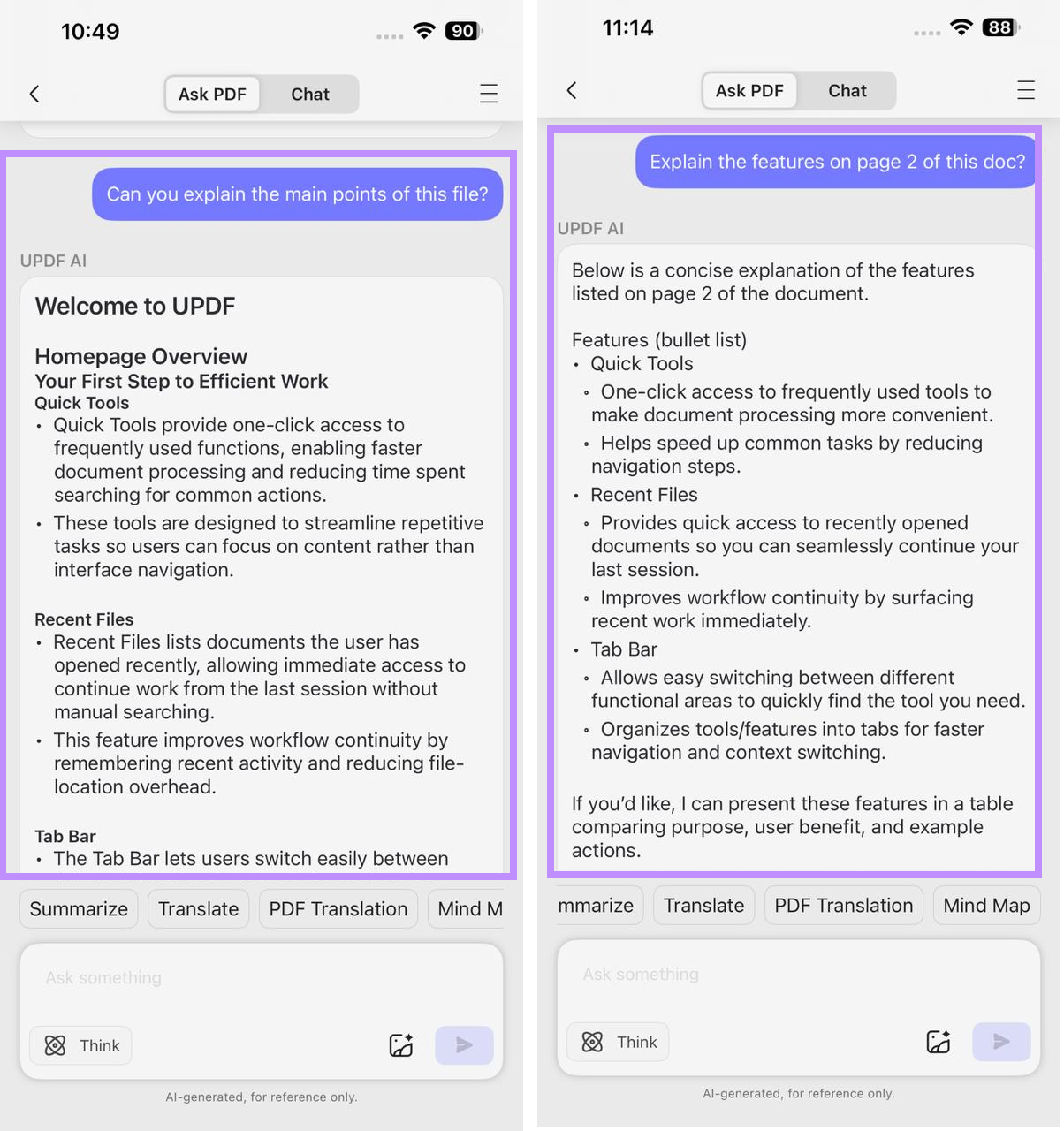
- Conversar com PDF: posso fazer perguntas específicas à IA e receber respostas baseadas diretamente no conteúdo do documento.
O recurso também funciona no aplicativo móvel do UPDF para iOS e Android.
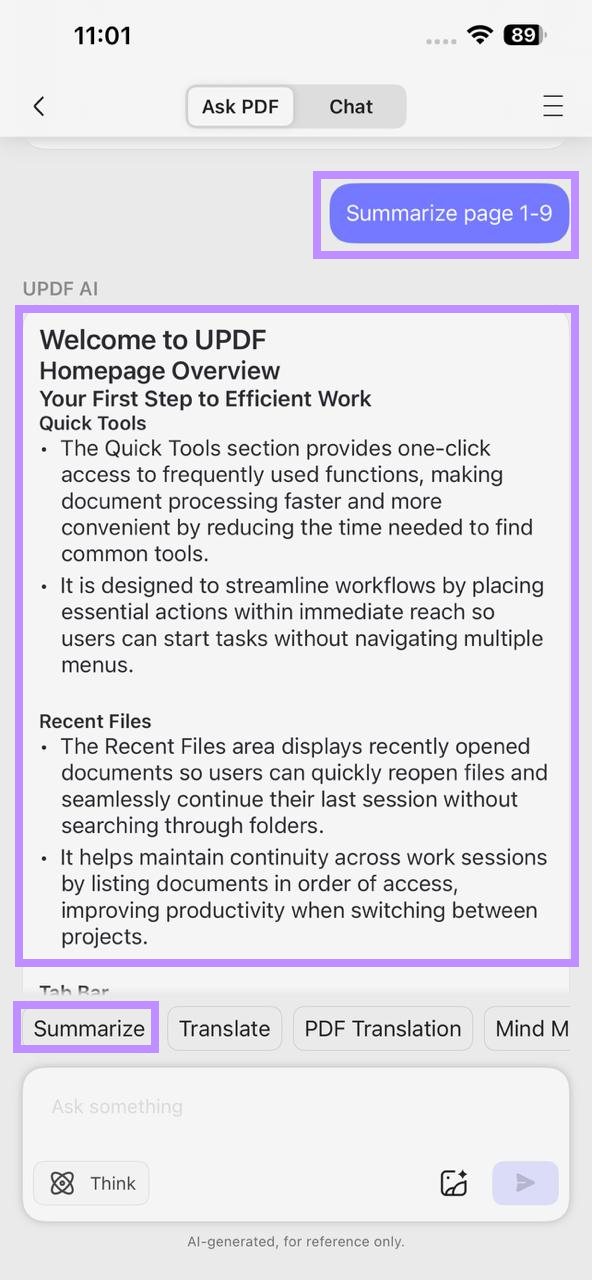
- Resumir PDF: no computador e no celular, uso o UPDF AI para resumir PDFs e extrair os pontos principais sem precisar ler todo o conteúdo.
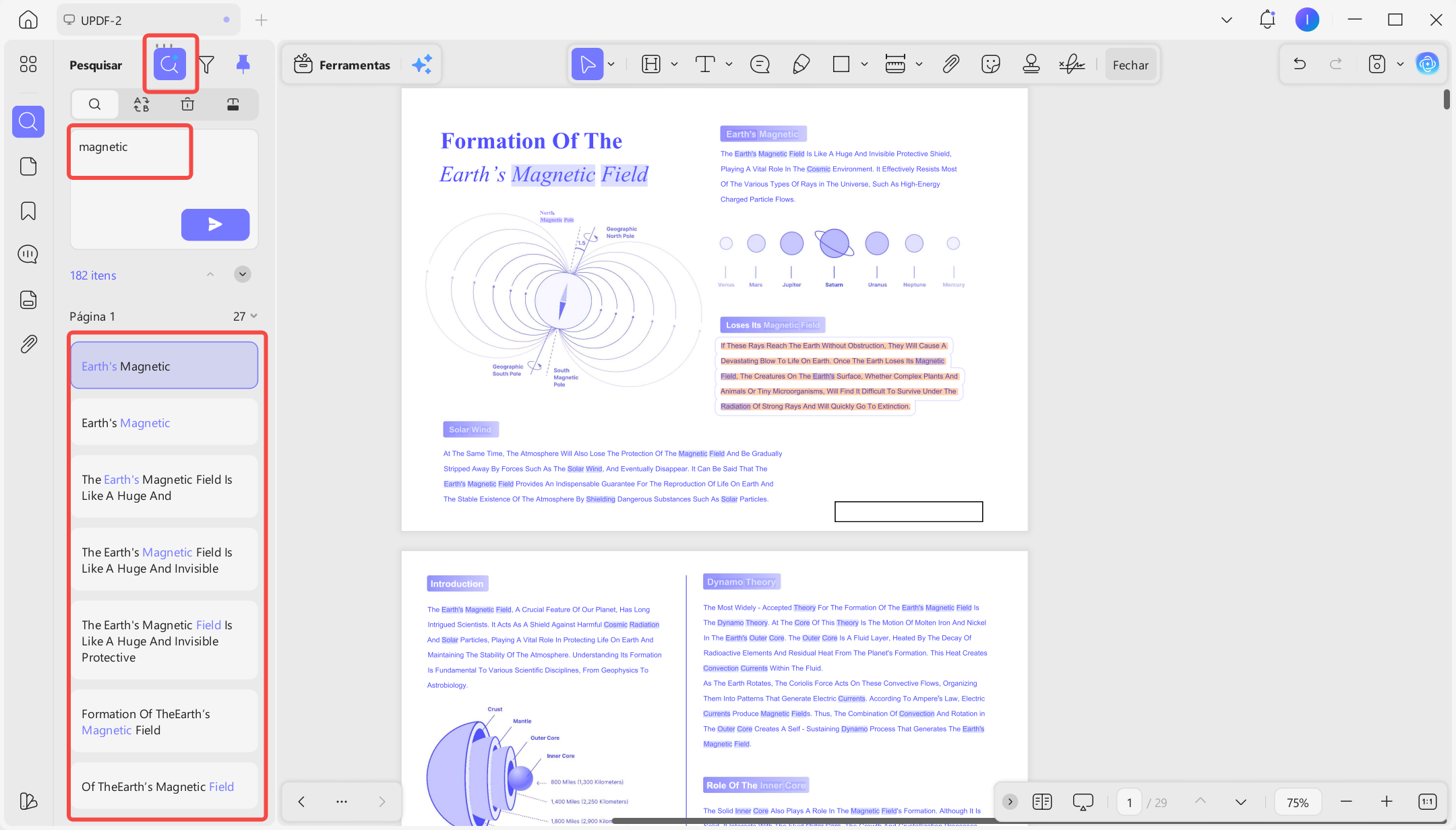
- Pesquisa semântica com IA: ajuda a pesquisar artigos acadêmicos pelo significado, encontrando trechos relevantes mesmo quando o texto usa termos diferentes.
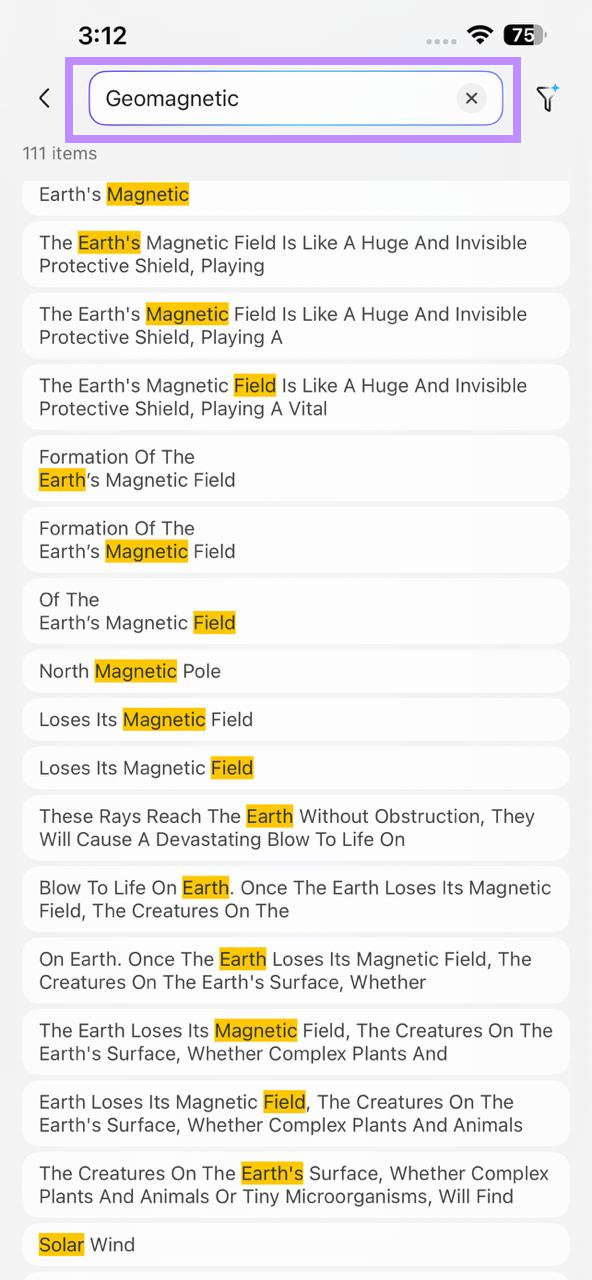
Esse recurso também está disponível no aplicativo para iOS.
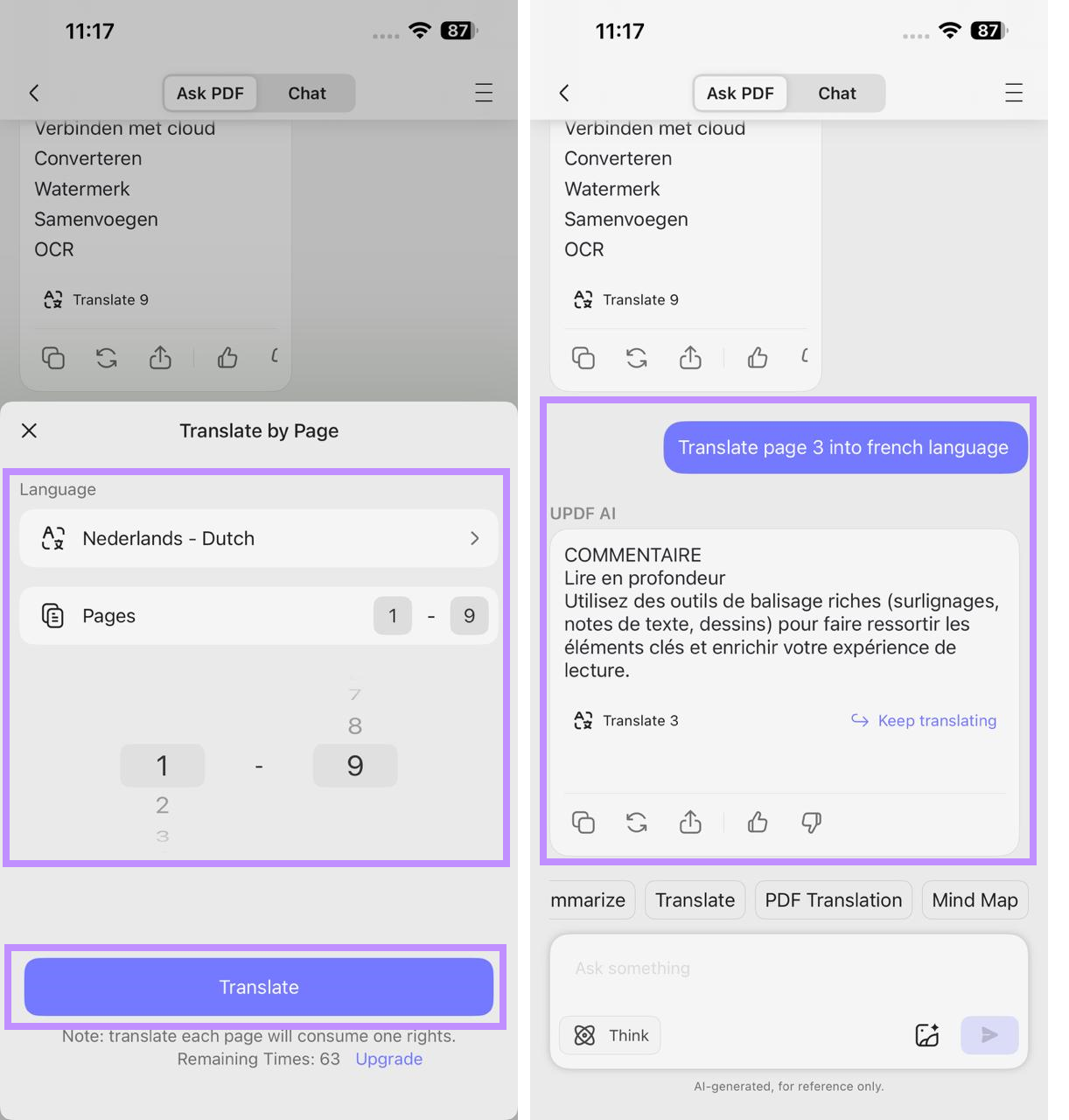
- Tradução de PDF: consigo traduzir rapidamente todas as páginas para o idioma desejado usando a IA integrada, tanto no computador quanto no iPhone.
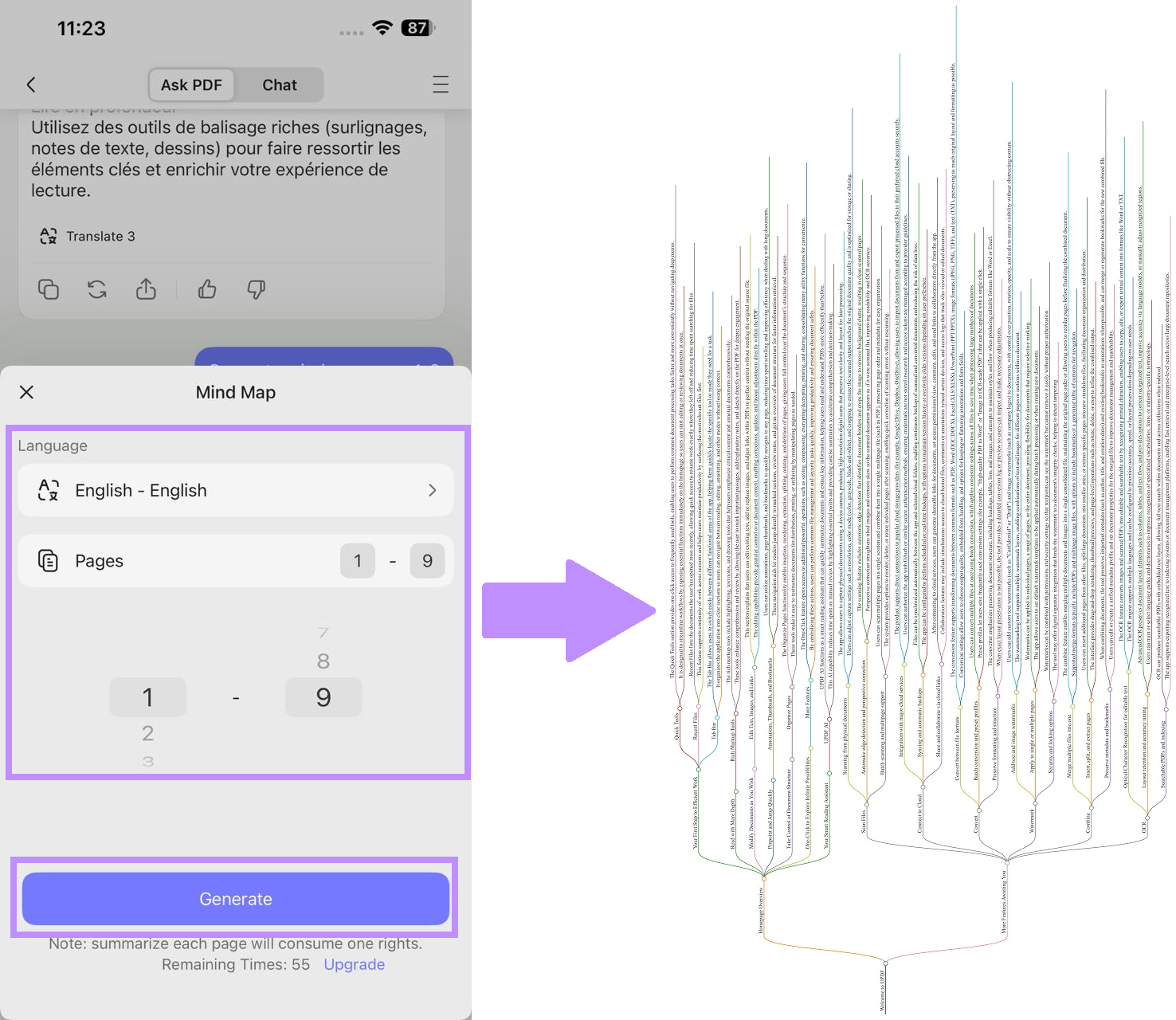
- PDF para mapa mental: transforma artigos complexos ou livros didáticos em mapas mentais, facilitando a compreensão visual das conexões entre as ideias.
- Anotar PDFs: destaque trechos importantes, adicione notas adesivas e desenhe à mão livre para conectar ideias visualmente. Todas as anotações são sincronizadas entre os dispositivos pelo UPDF Cloud, sem perder nada ao alternar entre o computador e o celular.
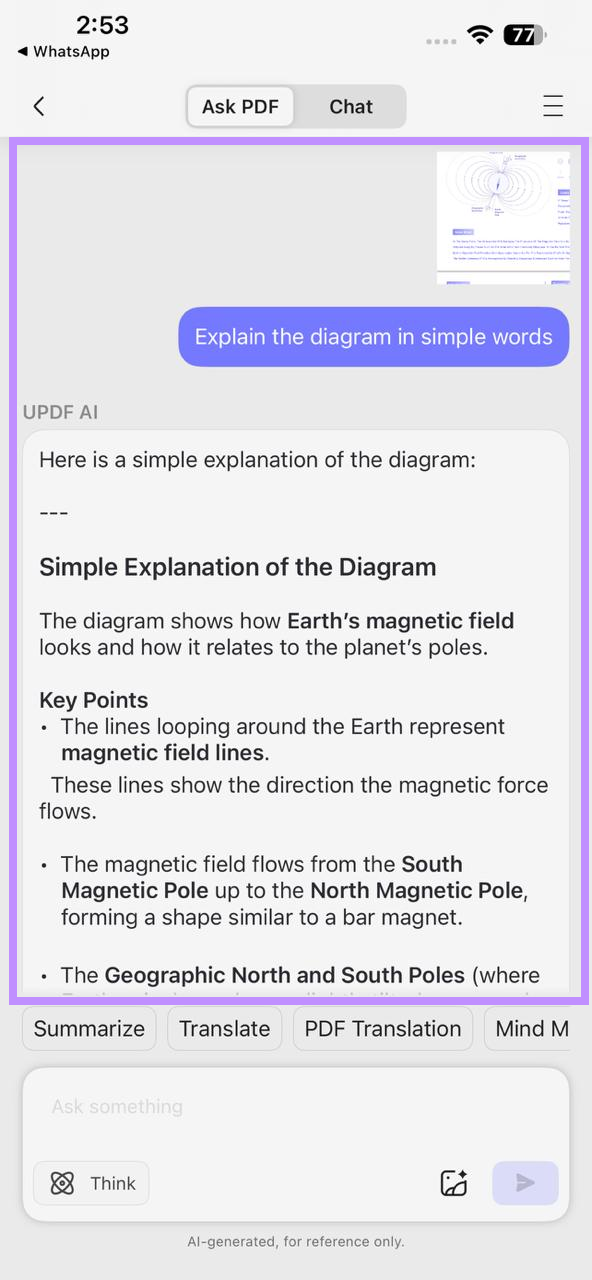
- Captura de tela para IA: capture a imagem de qualquer página e envie diretamente ao UPDF AI para receber explicações.
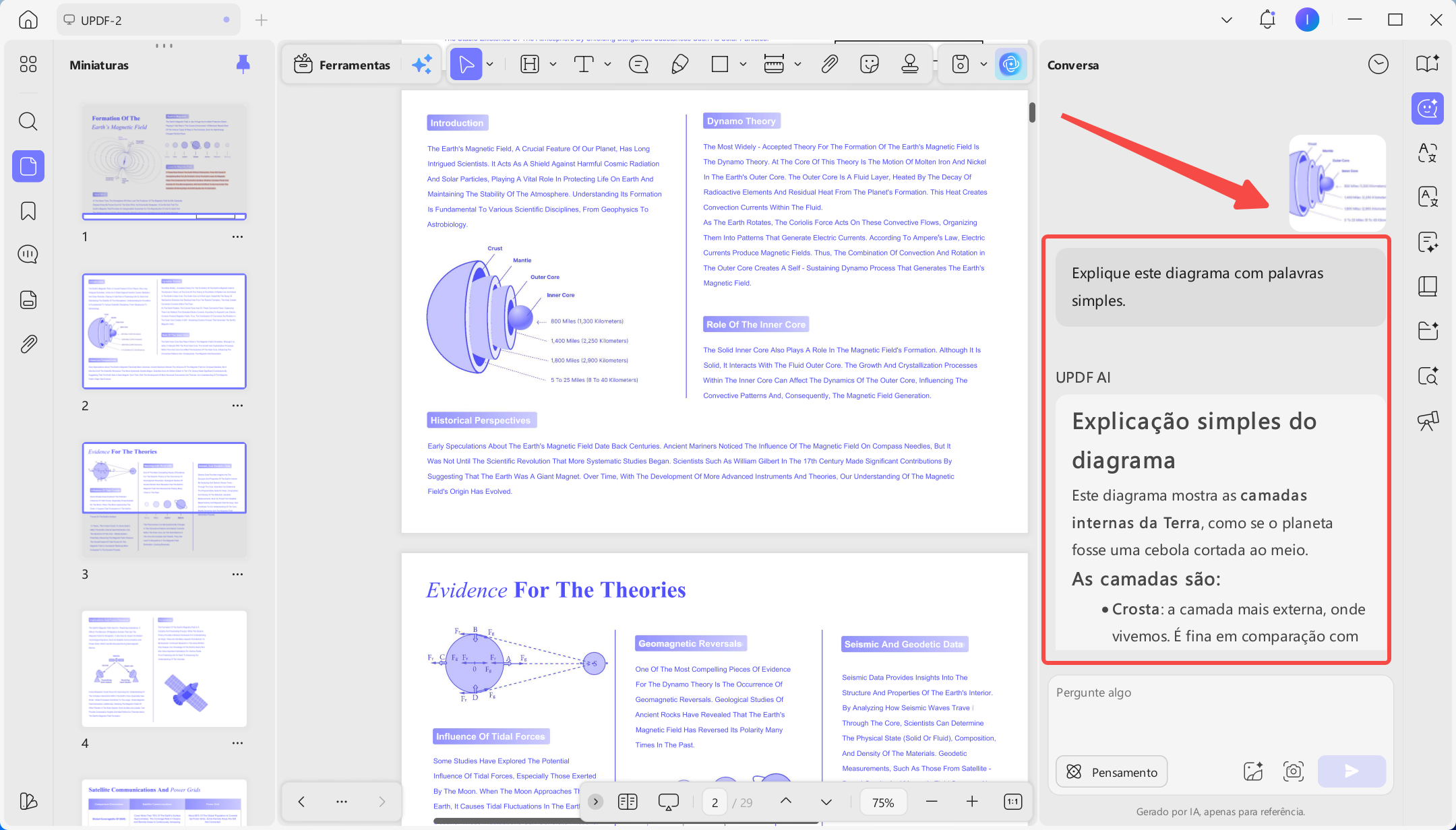
Essa função também está disponível no aplicativo UPDF para iOS.
Windows • macOS • iOS • Android Seguro 100%
Parte 3. Alternativas ao DoctypePDF que vale a pena conhecer
Se o Doctype PDF não tiver os arquivos que você procura, experimente estas opções confiáveis e legais:
- Project Gutenberg: oferece mais de 70 mil livros em domínio público. Não é preciso criar conta nem pagar para baixá-los.
- Open Library: mantida pelo Internet Archive, permite emprestar livros digitalizados com uma conta gratuita, em um modelo legítimo semelhante ao de uma biblioteca pública.
- OpenStax: concentra-se em livros didáticos universitários revisados por especialistas, gratuitos para download e com licença aberta para uso educacional.
- Standard Ebooks: projeto voluntário que produz edições cuidadosamente revisadas e bem formatadas de clássicos em domínio público.
Todas essas plataformas funcionam muito bem com o UPDF para ler, estudar ou analisar PDFs com IA. Se você ainda procura mais opções, consulte nosso guia dos melhores sites para baixar ebooks grátis e encontre fontes confiáveis.
Windows • macOS • iOS • Android Seguro 100%
Parte 4. Perguntas frequentes
P1. O DoctypePDF é gratuito?
Sim. O Doctype PDF é totalmente gratuito. Você não precisa pagar nem criar uma conta para pesquisar ou baixar PDFs.
P2. É seguro usar o DoctypePDF?
O DoctypePDF em si é seguro, mas aponta para arquivos hospedados em servidores de terceiros. Portanto, a segurança depende da fonte. Antes de abrir um arquivo baixado, verifique-o com um antivírus confiável.
Conclusão
Em resumo, o Doctype PDF facilita a busca por diversos tipos de documentos PDF na internet aberta. Depois de baixar um arquivo, você pode usar o UPDF para abrir, ler e navegar com mais rapidez. Com seus agentes de IA, o UPDF organiza, resume, traduz e pesquisa qualquer documento para você. Baixe o UPDF hoje mesmo e transforme cada PDF encontrado em um recurso realmente útil.
Windows • macOS • iOS • Android Seguro 100%