UPDF
UPDF
 UPDF สำหรับ Windows
 UPDF สำหรับ Mac
 UPDF สำหรับ iPhone/iPad
 UPDF สำหรับ Android
 UPDF AI Online
 UPDF Sign
 แก้ไข PDF
 ใส่คำอธิบาย PDF
 สร้าง PDF
 ฟอร์ม PDF
 แก้ไขลิงก์
 แปลง PDF
 OCR
OCR PDF เป็น Word
 PDF เป็นรูปภาพ
 PDF เป็น Excel
 จัดระเบียบ PDF
 รวม PDF
 แยก PDF
 ครอบตัด PDF
 หมุน PDF
 ป้องกัน PDF
 เซ็น PDF
 ลบข้อความ PDF
 ล้าง PDF
 เอาความปลอดภัยออก
 อ่าน PDF
 UPDF Cloud
 บีบอัด PDF
 พิมพ์ PDF
 ประมวลผลเป็นชุด
 เกี่ยวกับ UPDF AI
 โซลูชั่น UPDF AI
 คู่มือผู้ใช้ AI
 คำถามที่พบบ่อยเกี่ยวกับ UPDF AI
 สรุป PDF
 แปล PDF
 แชทกับ PDF
 สนทนากับ AI
 แชทด้วยรูปภาพ
 PDF เป็นแผนที่ความคิด
 อธิบาย PDF
 เครื่องมือ AI สำหรับ PDF
 เครื่องมือ AI สำหรับรูปภาพ
 เครื่องมือแชท AI
 เครื่องมือเขียน AI
 เครื่องมือการเรียนรู้ AI
 เครื่องมือการทำงาน AI
 เครื่องมือ AI อื่น ๆ
 การสร้างบุ๊กมาร์กด้วย AI
 สรุปบุ๊กมาร์กด้วย AI
 สร้างลายน้ำด้วย AI
 สร้างพื้นหลังด้วย AI
 สร้างสติกเกอร์ด้วย AI
 สร้างตราประทับด้วย AI
 ชุดเครื่องมือเขียนด้วย AI
 UPDF Copilot
 จัดการหน้าด้วย AI
 ค้นหาเชิงความหมายด้วย AI
 แปลง PDF เป็น Word
 แปลง PDF เป็น Excel
 แปลง PDF เป็น PowerPoint
 โซลูชั่นสำหรับองค์กร
 Enterprise Plan
 คู่มือผู้ใช้สำหรับองค์กร
 เวบินาร์สำหรับองค์กร
 ธนาคาร
 การดูแลสุขภาพ
 ประกันภัย
 กฎหมาย
 การผลิต
 รัฐบาล
 โซลูชันการศึกษา
 เรื่องราวของลูกค้า
 คู่มือการใช้งาน
 เคล็ดลับ UPDF
 คำถามที่พบบ่อย
 รีวิว UPDF
 ศูนย์ดาวน์โหลด
 บล็อก
บล็อก ห้องข่าว
 ข้อมูลจำเพาะทางเทคนิค
 อัปเดต
 UPDF เทียบกับ Adobe Acrobat
 UPDF เทียบกับ Foxit
 UPDF เทียบกับ PDF Expert

ตรวจสอบและจัดการหน้า PDF ด้วย AI
การจัดการ PDF ที่มีประสิทธิภาพไม่สามารถต่อรองได้สําหรับ PDF ระดับมืออาชีพ เช่น เอกสารการประมูลหรือสัญญา ยิ่งไปกว่านั้นหากคุณรวมเอกสารหลายฉบับเข้าด้วยกัน
ก่อนแชร์ไฟล์ คุณจะต้องตรวจสอบให้แน่ใจว่า PDF ของคุณมีโครงสร้างที่เหมาะสม อย่างไรก็ตาม การตรวจสอบทุกหน้าด้วยตนเองเพื่อหาปัญหาการจัดรูปแบบอาจใช้เวลาหลายชั่วโมง นอกจากนี้ยังสามารถมองข้ามข้อผิดพลาดที่สําคัญบางอย่างได้
คุณลักษณะการจัดการเพจ AI ใน UPDF ทําให้สิ่งต่างๆ ง่ายขึ้นโดยการสแกนเอกสารของคุณโดยอัตโนมัติและไฮไลต์หน้าที่จําเป็นต้องปรับให้เหมาะสม
รองรับเพจประเภทต่อไปนี้:
- หน้าเปล่า
- หน้าที่สแกน
- หน้าเว็บที่ไม่ถูกต้องที่มีเงา
- การวางแนวหน้ากลับด้าน
- ตัวแบ่งความต่อเนื่องของเอกสารในการกําหนดหมายเลขหน้า
- หน้าเว็บที่มีคําอธิบายประกอบ
- ความไม่สอดคล้องกันของขนาดหน้า ฯลฯ
ที่กล่าวว่าทําตามคําแนะนําโดยละเอียดด้านล่างเพื่อเรียนรู้วิธีใช้คุณสมบัตินี้
ส่วนที่ 1. วิธีตรวจสอบและจัดการหน้า PDF ด้วย AI
ด้วยเครื่องมือ AI Check Pages UPDF จะค้นหาปัญหาการจัดระเบียบหน้าที่สําคัญโดยอัตโนมัติและนําเสนอในรายการที่จัดระเบียบ คุณสามารถดูและแก้ไขปัญหาได้อย่างรวดเร็วโดยใช้การดําเนินการที่แนะนํา
นี่คือขั้นตอน
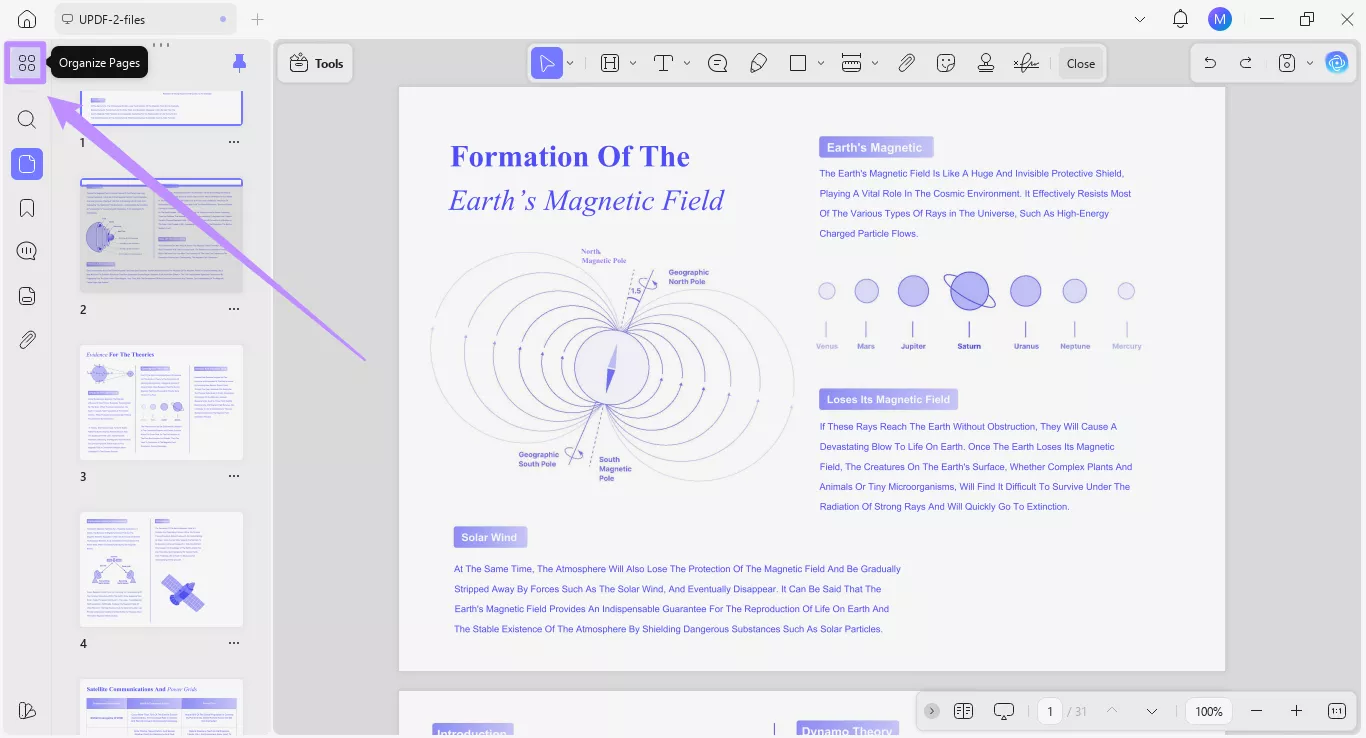
ขั้นตอนที่ 1. หลังจากนั้น เปิดเครื่องมือจัดระเบียบเพจ
เปิด PDF ที่คุณต้องการใน UPDF จากนั้นคลิกไอคอน "จัดระเบียบหน้า" ใกล้กับด้านบนในแถบด้านข้างด้านซ้าย
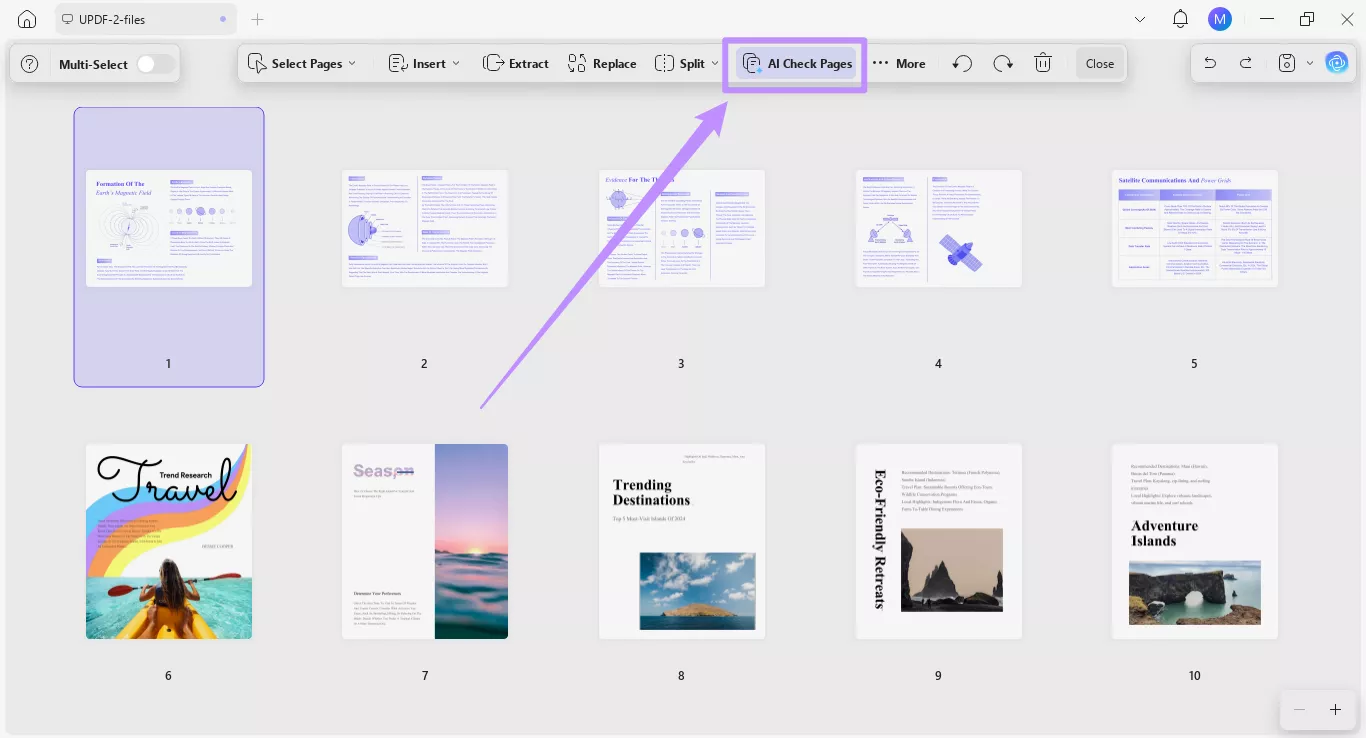
ขั้นตอนที่ 2. หลังจากนั้น เริ่มการตรวจสอบหน้า AI
จากแถบเครื่องมือที่ด้านบน ให้คลิกตัวเลือก "AI Check Pages" AI จะสแกนเอกสาร PDF ของคุณอย่างรวดเร็วเพื่อหารายการที่ต้องการการเพิ่มประสิทธิภาพเพิ่มเติม
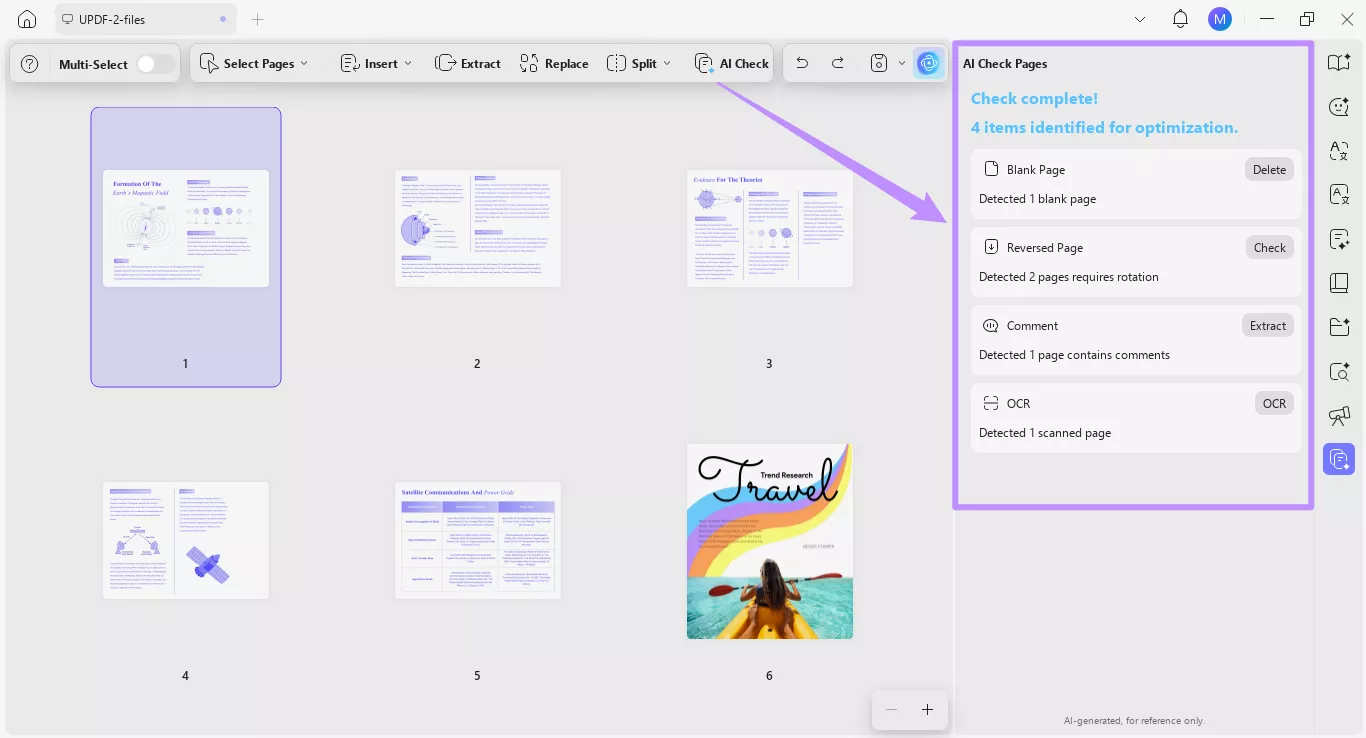
ขั้นตอนที่ 3. หลังจากนั้น ตรวจสอบปัญหาที่ระบุ
ผลการสแกน AI สามารถดูได้ในแผง AI Check Pages ทางด้านขวา จากที่นี่ คุณสามารถดูรายการปัญหาพร้อมคําอธิบายสั้น ๆ และปุ่มการดําเนินการเพื่อแก้ไขได้
ขั้นตอนที่ 4. หลังจากนั้น ไปที่หน้าเว็บที่ได้รับผลกระทบ
คลิกรายการใดก็ได้ในรายการเพื่อข้ามไปยังหน้าที่สอดคล้องกันในเอกสารของคุณอย่างรวดเร็ว ด้วยวิธีนี้ คุณสามารถตรวจสอบปัญหาด้วยตนเองก่อนที่จะดําเนินการแก้ไข
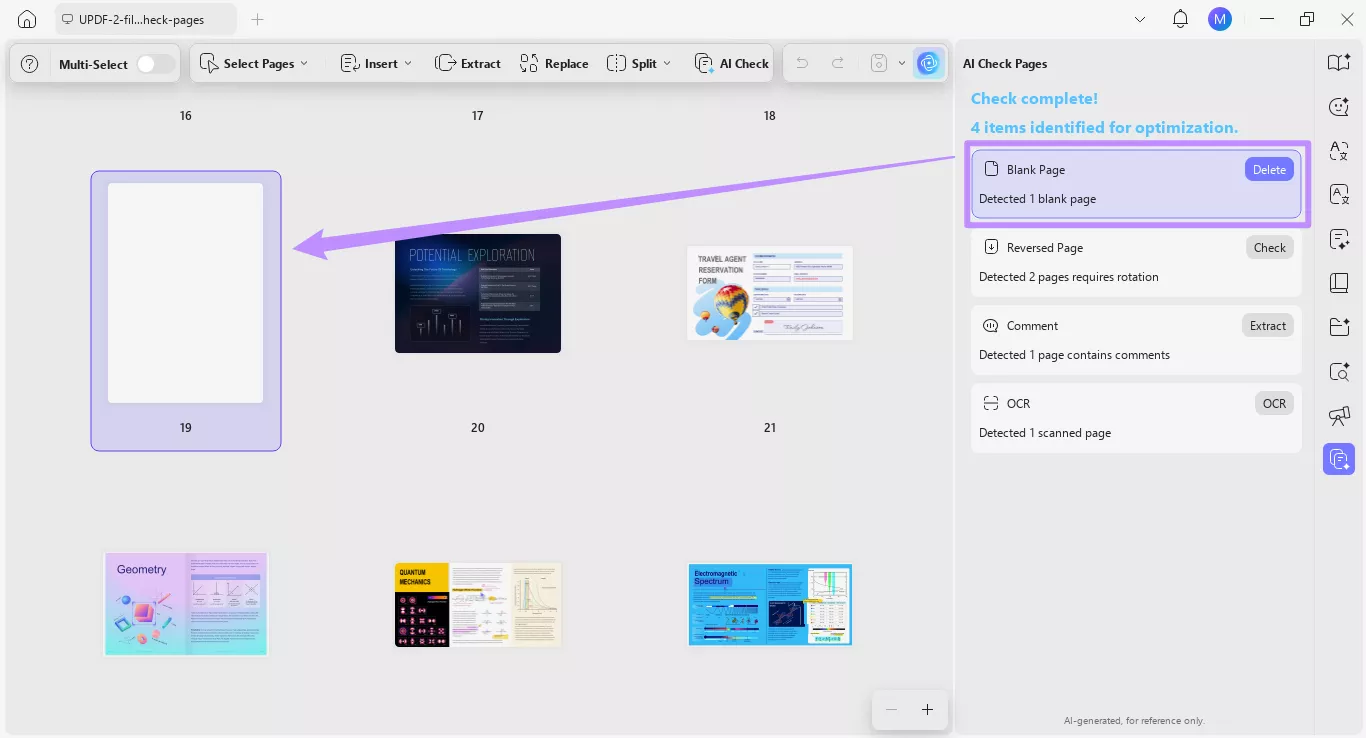
ขั้นตอนที่ 5. หลังจากนั้น แก้ไขปัญหาโดยใช้การดําเนินการที่แนะนํา
ในการแก้ไขปัญหา ให้คลิกปุ่มการทํางานถัดจากแต่ละรายการในรายการ จากนั้นทําตามคําแนะนําบนหน้าจอเพื่อแก้ไขปัญหา
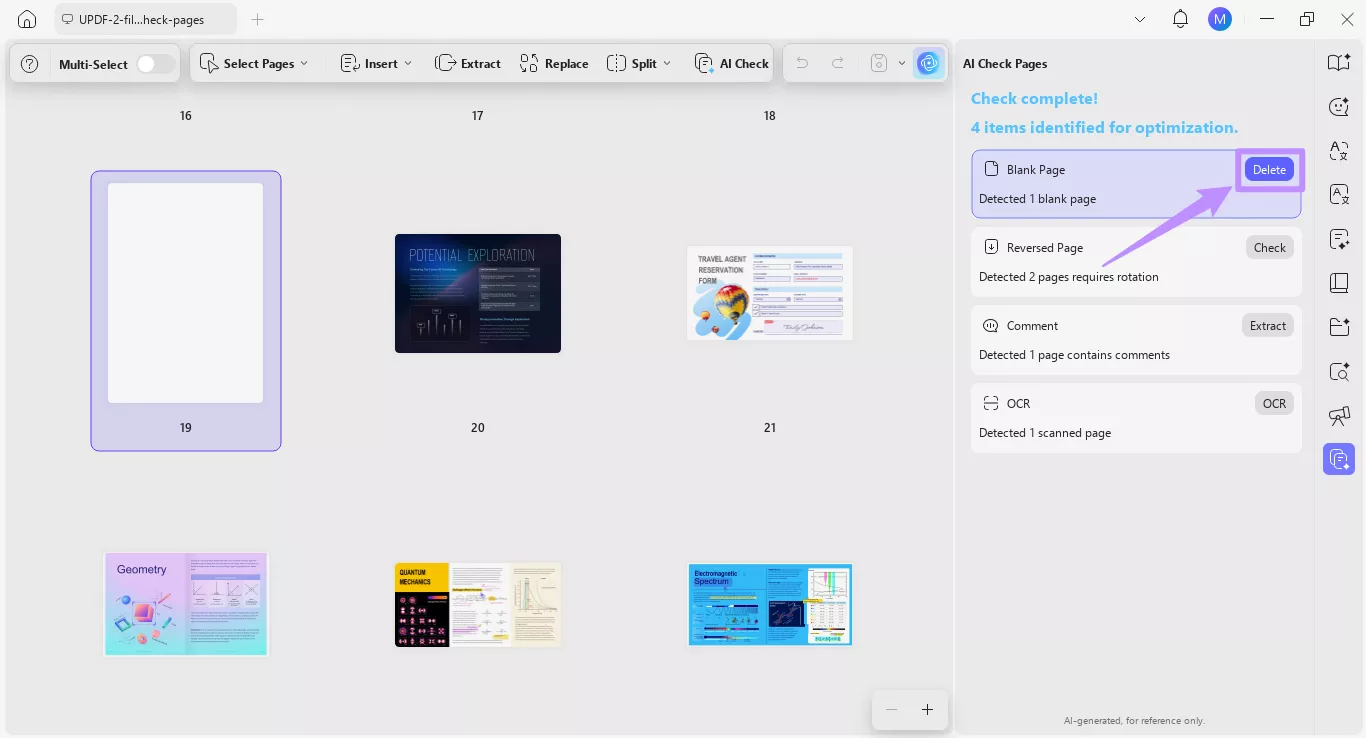
ขั้นตอนที่ 6. หลังจากนั้น ตรวจสอบและยืนยันอีกครั้ง
หลังจากแก้ไขปัญหาทั้งหมดแล้ว คุณสามารถคลิกเครื่องมือ "AI Check Pages" อีกครั้งเพื่อยืนยัน รายการที่แก้ไขแล้วจะหายไปจากรายการ และกล่องโต้ตอบจะแจ้งให้ทราบว่าเอกสารนั้นไม่มีที่ติ
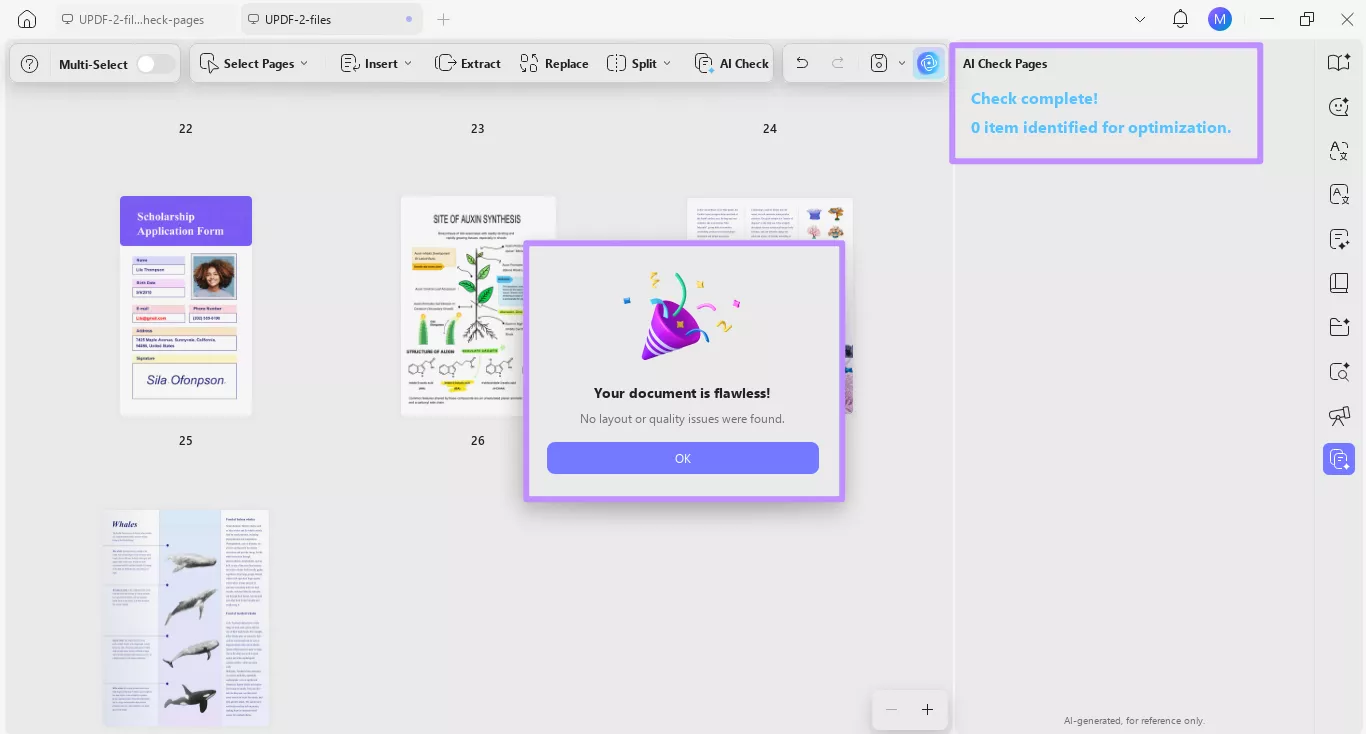
หมายเหตุ
นอกจากการจัดการหน้าด้วย AI แล้ว UPDF ยังช่วยให้คุณตรวจสอบและจัดระเบียบหน้า PDF ของคุณด้วยตนเอง หากต้องการเรียนรู้วิธีการทํางาน โปรดดูคําแนะนําของเราเกี่ยวกับการจัดระเบียบหน้าด้วยตนเอง
ส่วนที่ 2. ตัวอย่างการดําเนินการเพื่อแก้ไขปัญหาของเพจ
การดําเนินการสามารถจัดการได้โดยอัตโนมัติโดย AI หรืออาจต้องมีขั้นตอนด้วยตนเอง
ตัวอย่างเช่น ในกรณีของความคิดเห็นที่ระบุใน PDF คุณสามารถคลิกปุ่ม "แยก" จากนั้นทําตามคําแนะนําบนหน้าจอเพื่อดําเนินการให้เสร็จสิ้น
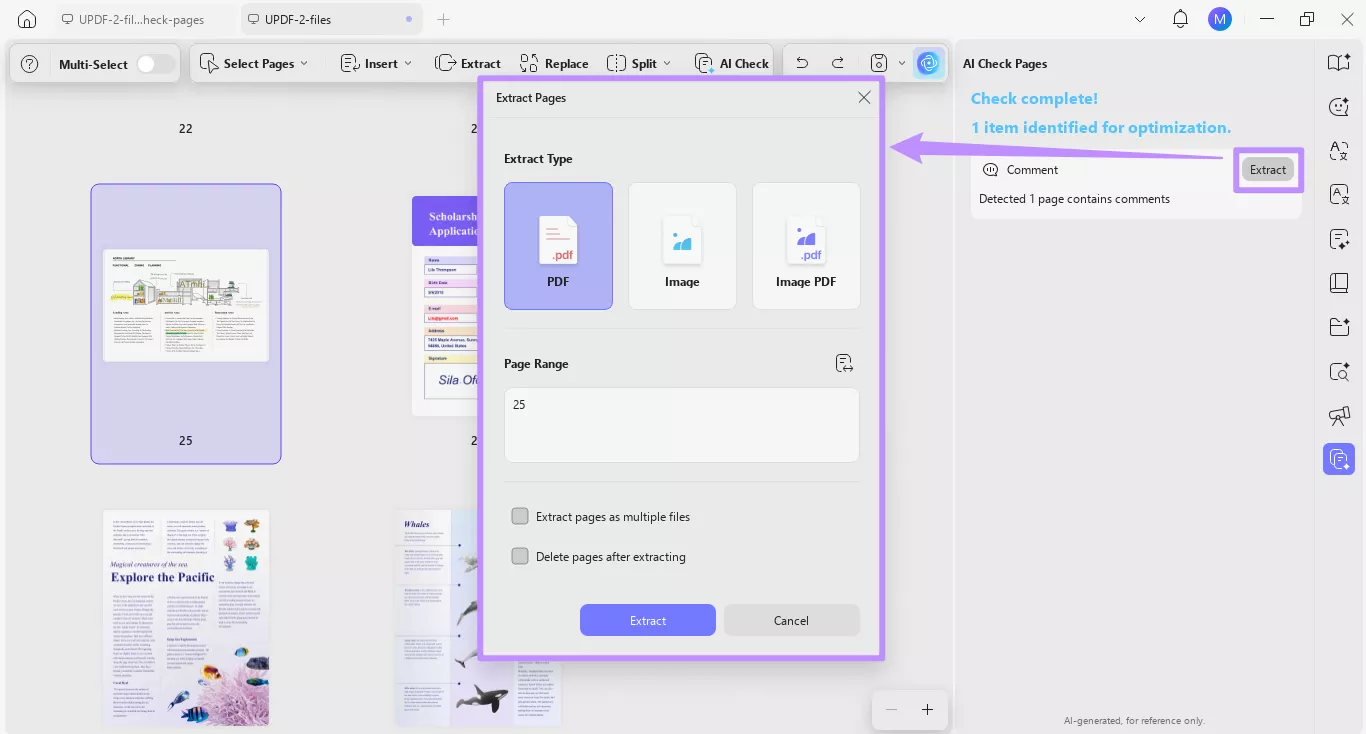
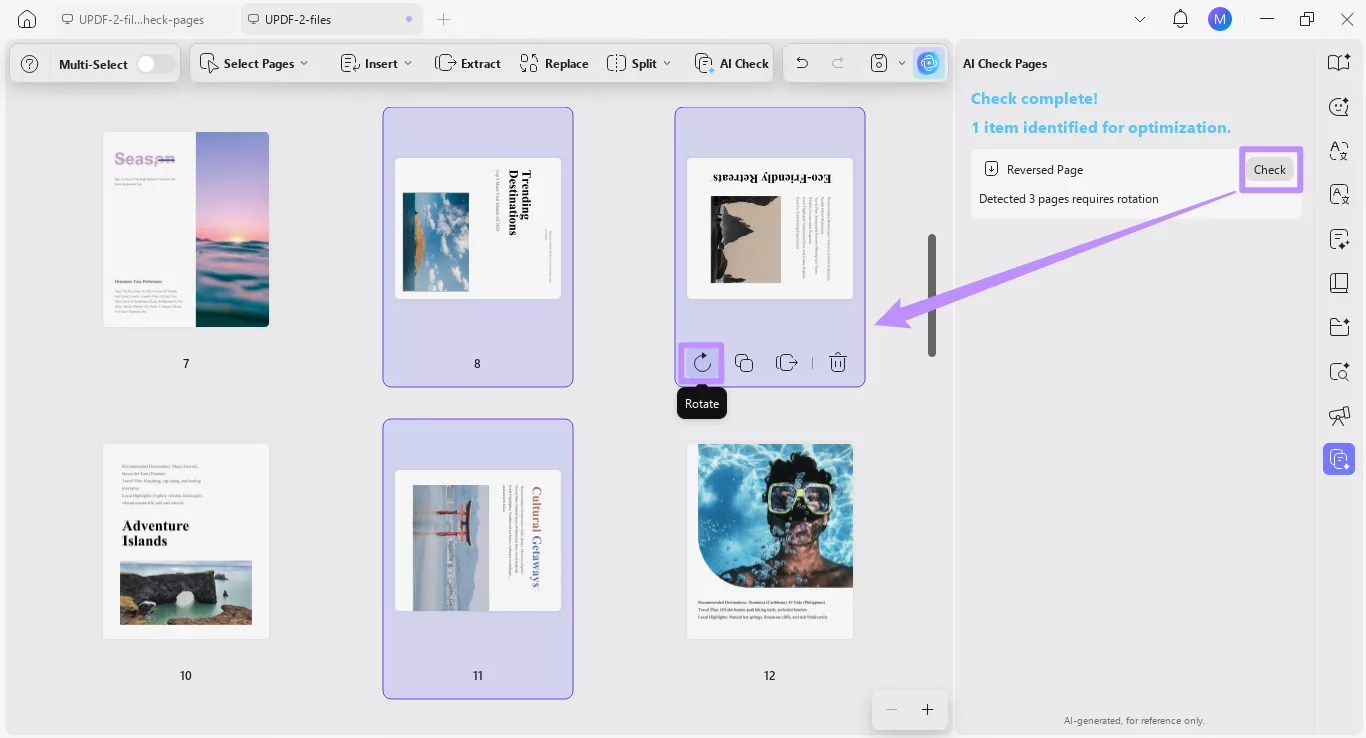
หน้าที่กลับด้านใน PDF จะแสดงด้วยปุ่ม "ตรวจสอบ" การคลิกที่มันจะนําคุณไปยังหน้าดังกล่าว ซึ่งคุณสามารถปรับการหมุนได้ด้วยตนเอง
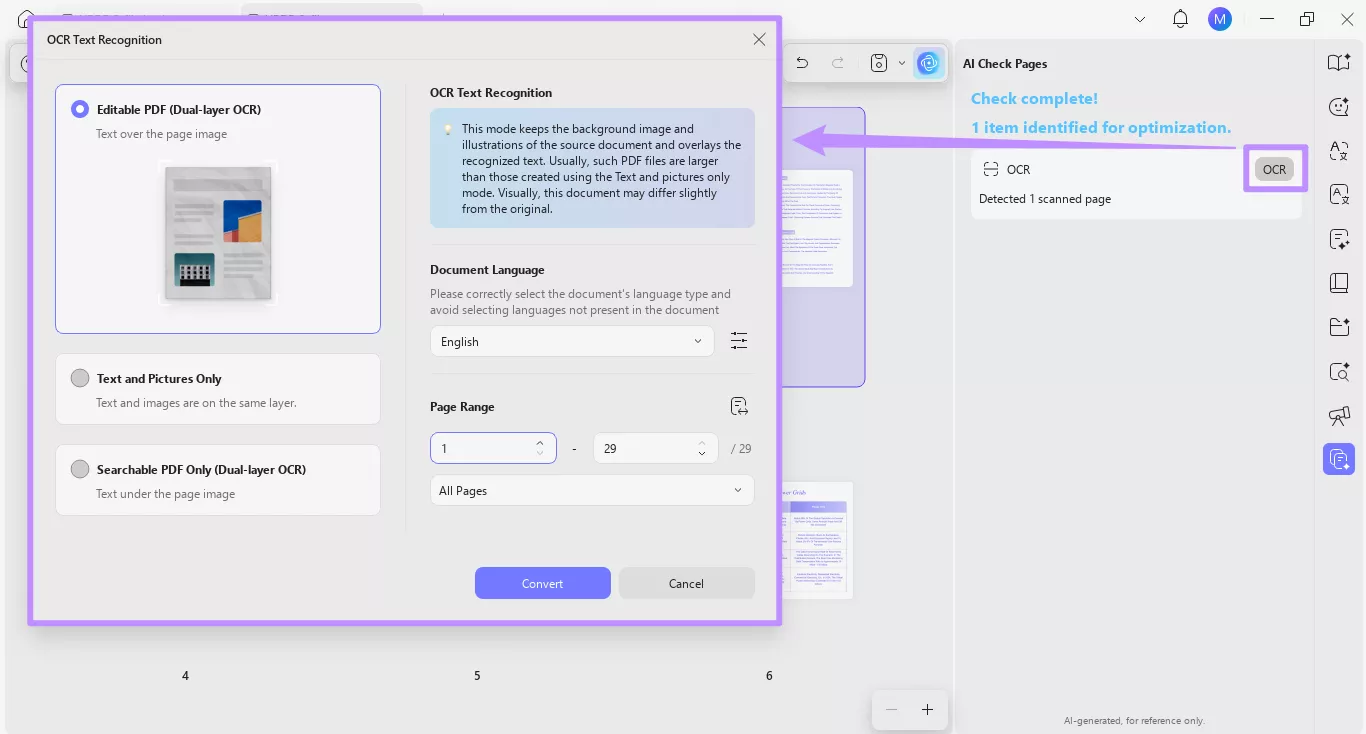
สําหรับหน้าที่สแกนใน PDF คุณจะต้องคลิกปุ่ม "OCR" จากนั้น คุณสามารถดําเนินการเรียกใช้เครื่องมือ OCR เพื่อทําให้หน้าต่างๆ สามารถแก้ไขและค้นหาได้