 UPDF
UPDF
 UPDF لـWindows
 UPDF لـMac
 UPDF لـiPhone/iPad
 UPDF لـAndroid
  Nomostar
 UPDF AI عبر الإنترنت
 UPDF Sign
 IvyCraft
 تحرير PDF
 تعليق على PDF
 إنشاء PDF
 نموذج PDF
 تحرير الروابط
 تحويل PDF
 OCR
OCR PDF إلى Word
 PDF إلى صورة
 PDF إلى Excel
 تنظيم PDF
 دمج PDF
 تقسيم PDF
 قص PDF
 تدوير PDF
 حماية PDF
 توقيع PDF
 تنقيح PDF
 تطهير PDF
 إزالة الأمان
 قراءة PDF
 UPDF Cloud
 ضغط PDF
 طباعة PDF
 معالجة الدُفعات
 حول UPDF AI
 حلول UPDF AI
 دليل مستخدم AI
 الأسئلة الشائعة حول UPDF AI
 تلخيص PDF
 ترجمة PDF
 الدردشة مع PDF
 الدردشة مع الصورة
 تحويل PDF إلى خريطة ذهنية
 الدردشة مع AI
 شرح PDF
 أدوات PDF بالـ AI
 أدوات صور AI
 أدوات دردشة AI
 أدوات كتابة AI
 أدوات دراسة AI
 أدوات عمل AI
 أدوات AI أخرى
 توليد الإشارات المرجعية AI
 تلخيص الإشارات المرجعية AI
 توليد العلامة المائية AI
 توليد الخلفيات AI
 توليد الملصقات AI
 توليد الأختام AI
 مجموعة الكتابة AI
 UPDF Copilot
 إدارة الصفحات AI
 البحث الدلالي AI
 PDF إلى Word
 PDF إلى Excel
 PDF إلى PowerPoint
 الحلول المؤسسية
 علامة المؤسسة
 الذكاء الاصطناعي للمؤسسات
 خطة المؤسسة
 دليل مستخدم المؤسسة
 ويبينار للشركات
 تكنولوجيا المعلومات
 التعليمية
 البناء
 الخدمات المالية
 الرعاية الصحية
 التأمين
 قانوني
 التصنيع
 الحكومة
 الباحثون وطلاب الدكتوراه
 رواد الأعمال المستقلون
 المحامون ومكاتب المحاماة
 العاملون في العقارات
 حلول التعليم
 قصص العملاء
 دليل المستخدم
 حيل UPDF
 الأسئلة الشائعة
 مراجعات UPDF
 مركز التنزيل
 مدونة
مدونة غرفة الأخبار
 المواصفات التقنية
 التحديثات
 UPDF مقابل Adobe Acrobat
 UPDF مقابل Foxit
 UPDF مقابل PDF Expert

الإجابة السريعة:
افتح الملف في UPDF وأضف كلمة مرور فورًا. بعد ذلك، قم بتنقيح أي بيانات حساسة، مثل تفاصيل الحساب البنكي أو التوقيع، قبل مشاركة الملف.
في الشهر الماضي، كنت بحاجة إلى إرسال عقد إيجار موقّع إلى مكتب عقاري. كان الملف لا يزال يحتوي على بياناتي البنكية، توقيعي، ورقم هويتي، وكان من الواضح أن مجرد إضافة كلمة مرور لن يكون كافيًا.
تتجاهل كثير من الأدلة نقطة مهمة: كلمة مرور الفتح تمنع الغرباء فقط، لكنها لا تمنع الشخص الذي يعرف كلمة المرور من النسخ أو الطباعة أو إعادة الإرسال. لذلك، حماية PDF ليست زرًا واحدًا، بل هي ستة أنواع من الحماية، وكل نوع يناسب خطرًا مختلفًا.
في هذا الدليل، سنشرح كيفية حماية ملفات PDF على Windows وMac والهاتف باستخدام UPDF، بحيث لا تحتاج إلى رفع ملفاتك الحساسة إلى خادم غريب.
Windows • macOS • iOS • Android آمن بنسبة 100%
الجزء الأول: ابدأ من هنا — أي قفل يناسب أي خطر؟
عند حماية PDF، اسأل أولًا: ما الخطر الذي أريد منعه؟ بعد ذلك، اختر أداة الحماية المناسبة في UPDF بدل استخدام ميزة لا تناسب المشكلة. يساعدك الجدول التالي على اختيار الطريقة الأقرب لحالتك.
الجزء الثاني: الطريقة الأولى — قفل PDF بكلمة مرور فتح
الأفضل لـ:
- العقود، خطابات الراتب، وعروض الأسعار التي لا تريد أن يفتحها إلا أشخاص محددون.
ليس مناسبًا لـ:
- الأشخاص الذين أعطيتهم كلمة المرور بالفعل وقد يعيدون إرسال الملف؛ فبمجرد معرفتهم كلمة المرور، يمكنهم فتح الملف ومشاركته.
إذا كان ملف مثل خطاب راتب أو عقد يجب أن يفتح فقط من شخص محدد، يمكنك قفل PDF باستخدام تشفير قوي في UPDF. بهذه الطريقة، يرفض الملف الفتح دون كلمة المرور الصحيحة.
الخطوة 1. قم بتنزيل تطبيق UPDF على جهاز الكمبيوتر وافتح ملف PDF.
Windows • macOS • iOS • Android آمن بنسبة 100%
الخطوة 2. افتح ميزة "Protect Using Password" (الحماية باستخدام كلمة مرور).
الخطوة 3. ضمن قسم "Document Open Password" (كلمة مرور فتح المستند)، اضغط على "Add" (إضافة) لإضافة كلمة مرور. اختر مستوى تشفير "256-bit AES" للحصول على حماية أقوى.
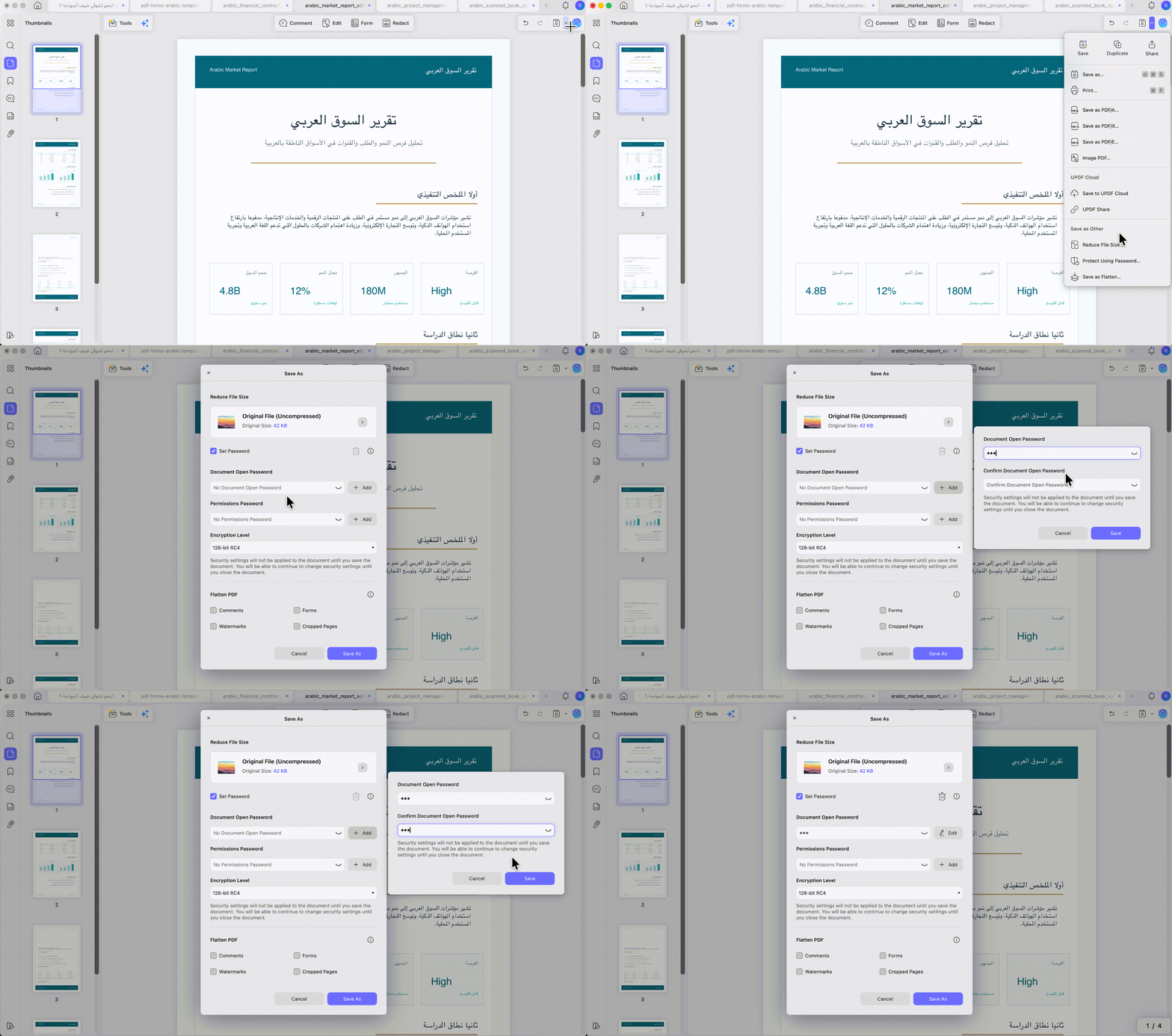
الخطوة 4. اضغط على "Save As" (حفظ باسم) لحفظ ملف PDF محمي وجاهز للمشاركة.
تذكير: لا ترسل ملف PDF وكلمة المرور في نفس البريد أو الرسالة. حتى مع كلمة مرور الفتح، يستطيع أي شخص يعرفها فتح الملف وإعادة مشاركته.
الجزء الثالث: الطريقة الثانية — تقييد النسخ والطباعة والتعديل
الأفضل لـ:
-
العروض، الملفات الداخلية، أو المواد التعليمية التي يجب أن يقرأها الآخرون دون نسخها أو طباعتها أو تعديلها.
ليس مناسبًا لـ:
- المحتوى السري جدًا؛ فقد تستطيع بعض الأدوات إزالة الصلاحيات، كما لا يمكن منع لقطات الشاشة.
أحيانًا تحتاج إلى مشاركة عرض أو ملف داخلي ليقرأه الفريق، لكنك لا تريد نسخ جدول الأسعار أو تعديل المحتوى. كلمة مرور الفتح تتحكم في من يفتح الملف، أما كلمة مرور الصلاحيات فتتحكم في ما يمكن فعله داخل الملف.
الخطوة 1. افتح "Protect Using Password" (الحماية باستخدام كلمة مرور) في UPDF.
الخطوة 2. اضغط على "Add" (إضافة) ضمن قسم "Permissions Password" (كلمة مرور الصلاحيات).
الخطوة 3. أدخل كلمة مرور الصلاحيات، ثم اختر الإعدادات المناسبة في "Printing Allowed" (السماح بالطباعة) و"Changes Allowed" (السماح بالتغييرات).
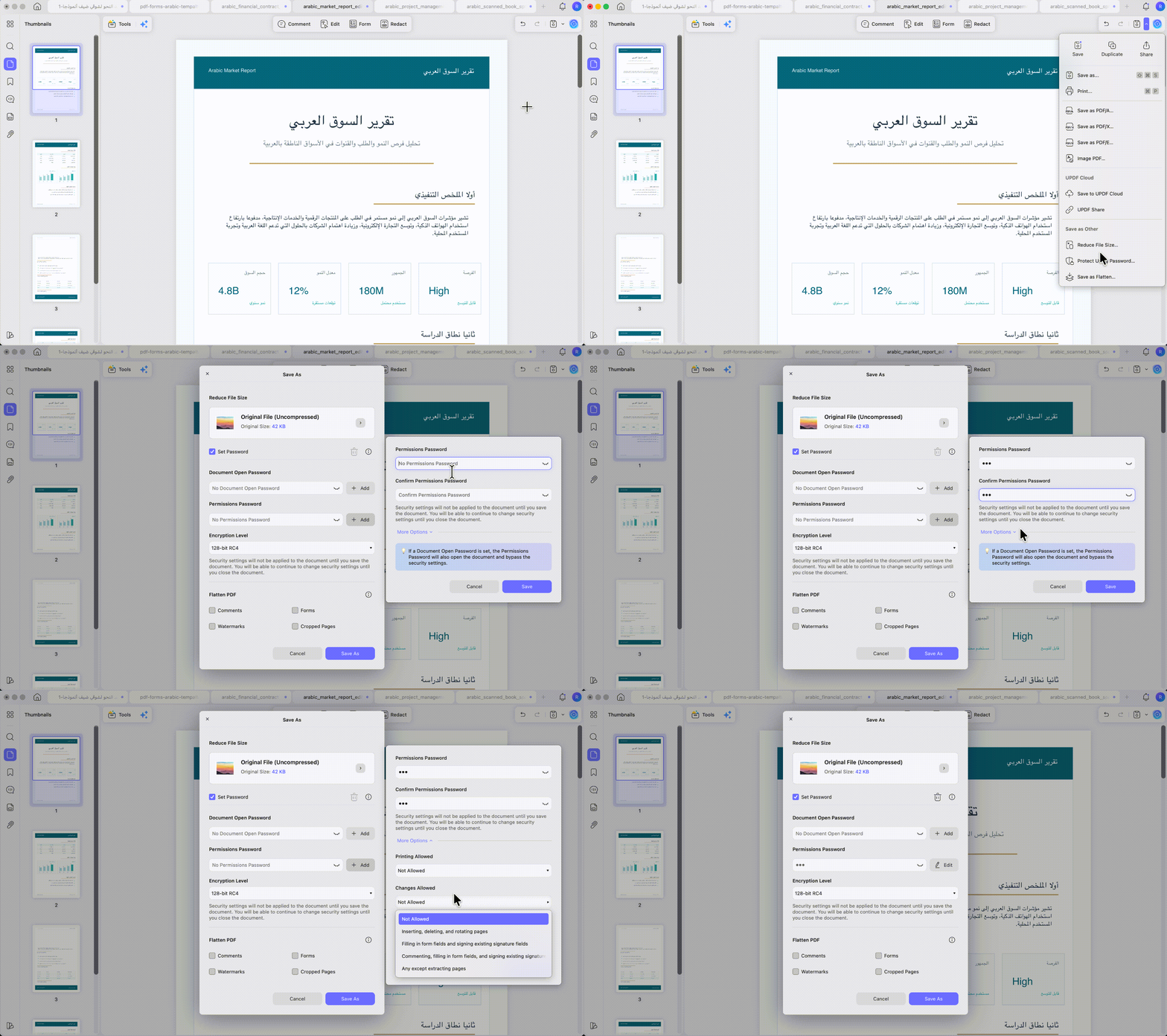
الخطوة 4. اضغط على "Save" (حفظ) لحفظ كلمة المرور، ثم اضغط على "Save As" (حفظ باسم) لحفظ نسخة محمية من PDF.
ملاحظة: هذه الطريقة ليست مناسبة للمحتوى السري جدًا، لأن بعض الأدوات قد تزيل قيود الصلاحيات بسهولة. كما أن لقطات الشاشة لا يمكن منعها بالكامل، لذلك استخدم التنقيح عندما يجب أن تبقى البيانات سرية تمامًا.
الجزء الرابع: الطريقة الثالثة — حذف الأسرار نهائيًا بالتنقيح
الأفضل لـ:
- الملفات التي تحتاج إلى إرسالها بعد إزالة أرقام الهوية، الحسابات البنكية، أو التواقيع نهائيًا.
ليس مناسبًا لـ:
- الملفات التي قد تحتاج إلى استعادة المحتوى المحذوف منها لاحقًا؛ فالتنقيح لا يمكن التراجع عنه بعد تطبيقه، لذلك احتفظ دائمًا بالملف الأصلي.
كثير من المستخدمين يطمسون المحتوى أو يضعون مربعًا أسود فوق النص الخاص ويظنون أن البيانات حُذفت نهائيًا. في التنقيح الوهمي، يكون النص الحساس مغطى فقط، أما التنقيح الحقيقي فيحذف البيانات من الملف نفسه.
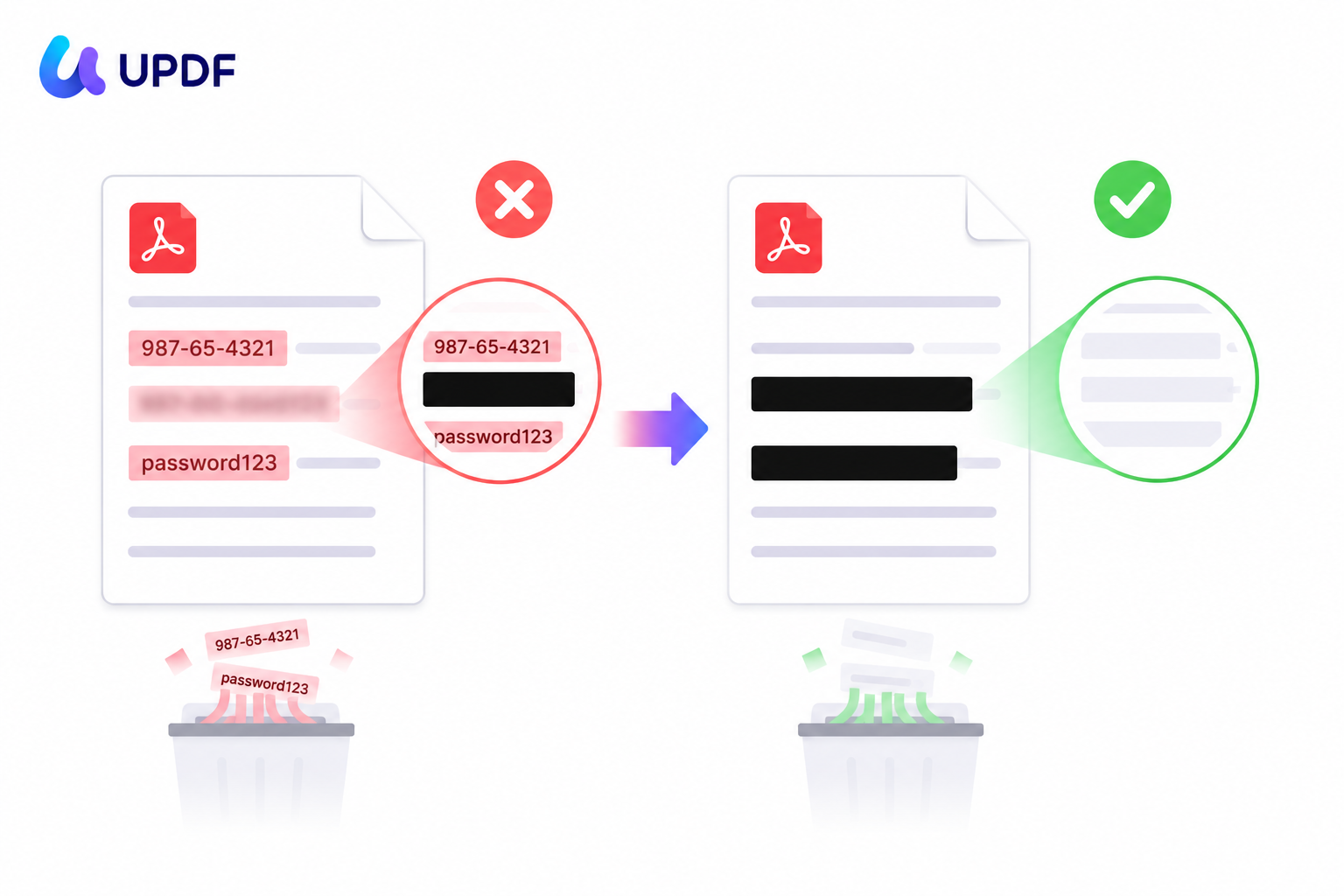
يحذف التنقيح الحقيقي البيانات على مستوى أعمق داخل PDF. وإذا أسيء التعامل مع المعلومات الشخصية، فقد يتحول ذلك إلى مشكلة امتثال ضمن متطلبات مثل GDPR Article 17 أو HIPAA Privacy Rule. لذلك، جرّب التنقيح على نسخة من الملف في UPDF قبل إرسال الملف التالي، بدل الاكتفاء بتغطية البيانات بصريًا.
الخطوة 1. أنشئ نسخة من ملف PDF وافتحها، ثم ادخل إلى أداة "Redact" (تنقيح).
الخطوة 2. اضغط على أيقونة "Search" (بحث)، واختر "AI Search" (البحث بالذكاء الاصطناعي) للعثور على الكلمات ذات الصلة داخل المستندات الطويلة.
الخطوة 3. اضغط على "Redact" (تنقيح)، ثم اسحب فوق المنطقة التي تريد إخفاء التفاصيل الحساسة فيها. بعد الانتهاء، اضغط على "Apply" (تطبيق).
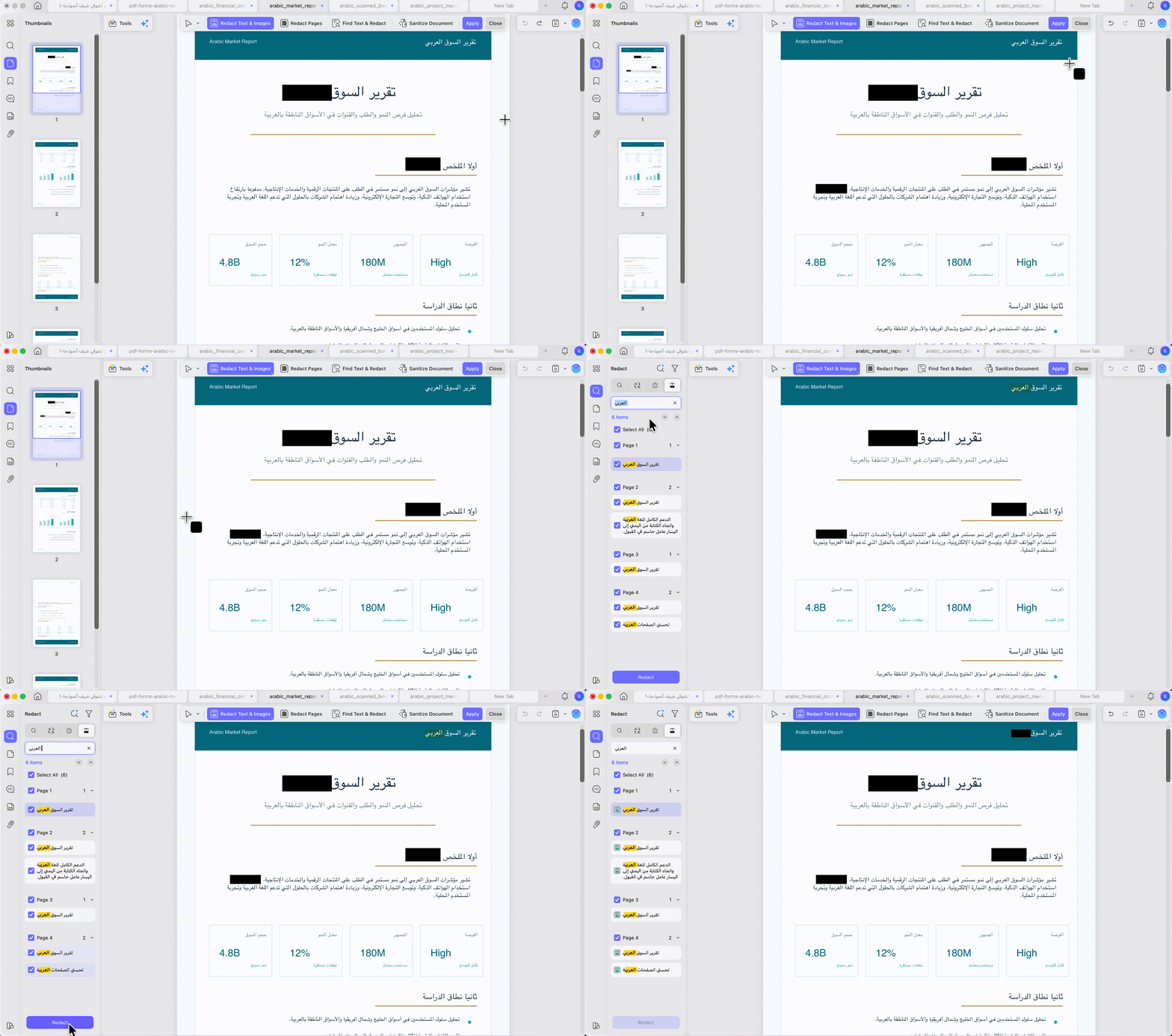
الخطوة 4. احفظ ملف PDF المحمي وشاركه مع الآخرين.
تذكير: لا تستخدم التنقيح في الملفات التي قد تحتاج إلى استعادة المحتوى منها لاحقًا؛ فهو يحذف المعلومات نهائيًا. وعلى عكس كثير من أدوات المتصفح التي ترفع الملفات إلى خوادم خارجية، يعمل تنقيح UPDF محليًا على جهازك.
ما الفرق بين كلمة المرور والصلاحيات والتنقيح؟
عند شرح حماية PDF، من المهم فصل ثلاثة أشياء: الوصول، الأفعال المسموحة، والبيانات المحذوفة. كثير من المستخدمين يخلطون بينها، لذلك إليك الفرق بوضوح.
- كلمة مرور الفتح: تتحكم في من يستطيع فتح الملف من الأساس.
- كلمة مرور الصلاحيات: تسمح بفتح الملف، لكنها تقيّد الطباعة أو التحرير أو النسخ.
- التنقيح: يحذف المحتوى الحساس نهائيًا من PDF.
ببساطة، كلمات المرور تتحكم في الوصول، والصلاحيات تتحكم في الأفعال، والتنقيح يتحكم في المعلومات الحساسة داخل الملف.
الجزء الخامس: الطريقة الرابعة — تقليل التسريب باستخدام علامة مائية
الأفضل لـ:
- المسودات، نسخ المراجعة، أو عروض الأسعار التي تريد وضع علامة ملكية واضحة عليها وتقليل احتمال تسريبها.
ليس مناسبًا لـ:
- منع فتح الملف أو نسخه؛ فالعلامة المائية تضع علامة فقط، لذلك من الأفضل دمجها مع كلمة مرور فتح أو كلمة مرور صلاحيات.
عند إرسال مسودة إلى عدة مراجعين، قد تحتاج إلى أن تظهر كل نسخة بعلامة واضحة مثل "CONFIDENTIAL" أو اسمك أو اسم الشركة. تضيف العلامة المائية في UPDF هذا النص عبر الصفحات، مما يقلل التسريب العشوائي أو إعادة النشر.
الخطوة 1. افتح أداة "Watermark" (العلامة المائية) في UPDF.
الخطوة 2. اضغط على "Add Watermark" (إضافة علامة مائية)، واختر نمط العلامة المائية. بعد ذلك، أدخل نص العلامة، واضبط التخطيط، واختر تطبيقها على كل الصفحات، ثم اضغط على "Done" (تم).
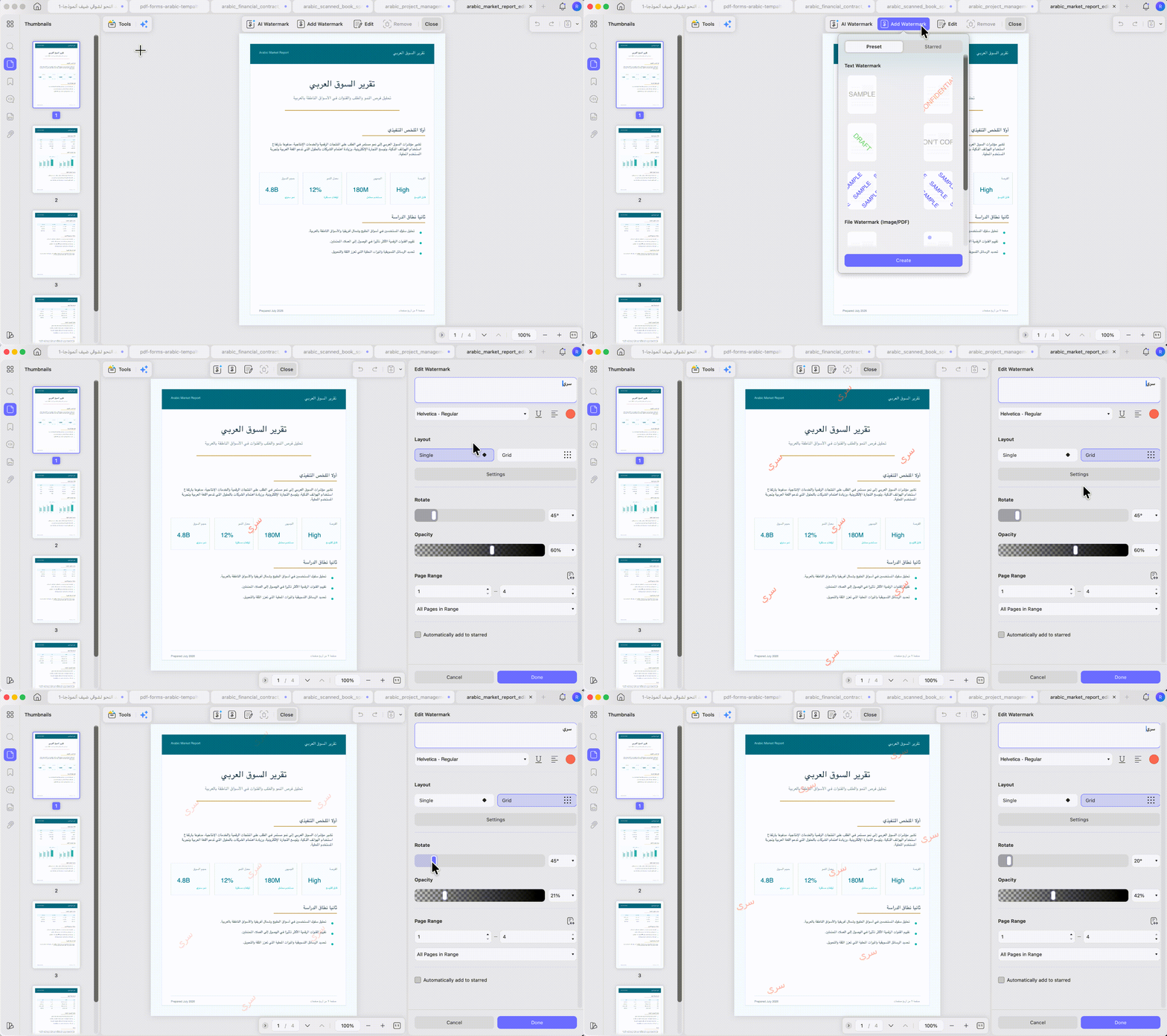
الخطوة 3. احفظ ملف PDF الذي يحتوي على العلامة المائية وشاركه.
تذكير: العلامة المائية لا تمنع فتح الملف أو نسخه، لأنها لا تتحكم في الوصول. اجعلها واضحة لكن خفيفة، حتى تثبت الملكية دون تغطية المحتوى الحقيقي أسفلها.
الجزء السادس: الطريقة الخامسة — تسطيح PDF لقفل الحقول والتعليقات
الأفضل لـ:
- النماذج المعبأة والمستندات الموقعة التي لا تريد أن يغيرها الآخرون.
ليس مناسبًا لـ:
- الملفات التي ما زلت تحتاج إلى تعديل حقولها لاحقًا؛ فالتسطيح يجعل الحقول غير قابلة للتحرير نهائيًا.
أحيانًا تنهي نموذجًا وتوقّعه، ثم تقلق من أن يغير شخص آخر أحد الحقول بهدوء. في UPDF، يدمج التسطيح كل الحقول والتعليقات داخل الصفحة، ويحولها إلى محتوى ثابت. هذه الطريقة مناسبة عندما تكون قد انتهيت تمامًا من التحرير أو التحديث.
الخطوة 1. افتح خيار "Save as Flatten" (حفظ كملف مسطح).
الخطوة 2. اختر العناصر التي تريد تسطيحها داخل PDF.
الخطوة 3. اضغط على "Save As" (حفظ باسم) لحفظ ملف PDF المسطح.
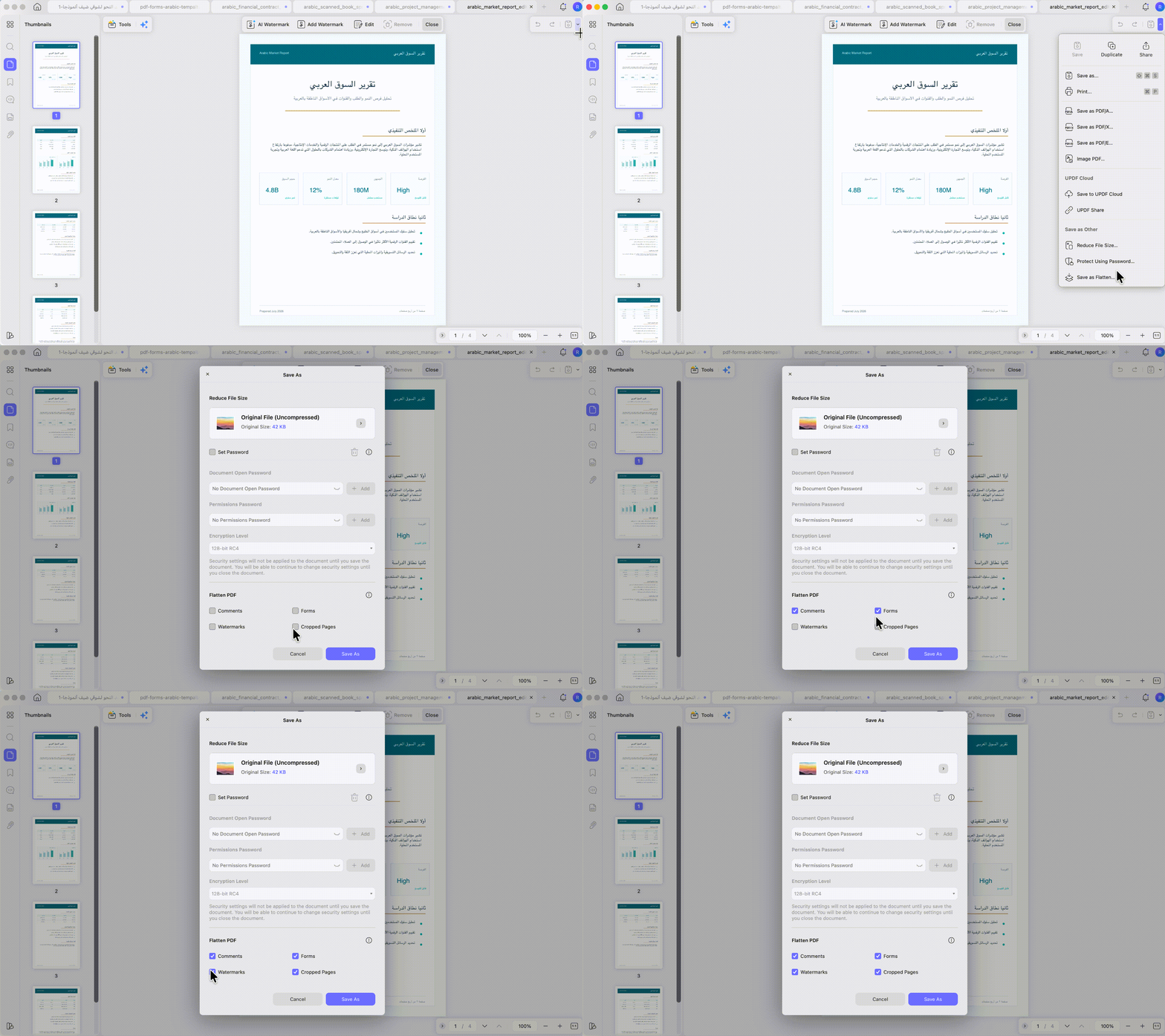
ملاحظة: بعد مشاركة PDF المسطح، سيظل شكله كما هو على الشاشة والطباعة. التغيير الحقيقي هو أن الحقول والتعليقات لن تبقى قابلة للتحرير. وإذا كنت تحتاج أيضًا إلى إثبات أن الملف لم يتغير، فاستخدم توقيع شهادة رقمية إلى جانب التسطيح.
الجزء السابع: الطريقة السادسة — حماية PDF على الهاتف
الأفضل لـ:
- إضافة كلمة مرور أثناء التنقل، أو قفل ملفات خاصة داخل مساحة آمنة على iPhone أو iPad.
مناسبًا لـ:
- حماية الملفات التي ترسلها عبر البريد باستخدام Security Space؛ فهي تقفل النسخ المحلية على الجهاز فقط، وليس النسخة التي ترسلها.
عندما لا يكون الكمبيوتر بجانبك، قد تحتاج إلى قفل PDF حساس من الهاتف. يتيح لك UPDF إضافة كلمة مرور فتح على مستوى الملف مباشرة من الهاتف، وهي طريقة مناسبة عند السفر أو التعامل مع ملفات خاصة بسرعة.
الخطوة 1. افتح ملف PDF في تطبيق UPDF على iOS أو Android.
الخطوة 2. اضغط على أيقونة "Three-Dots" (النقاط الثلاث)، ثم اختر "Password" (كلمة المرور). أدخل كلمة مرور الفتح واضغط على "Confirm" (تأكيد).
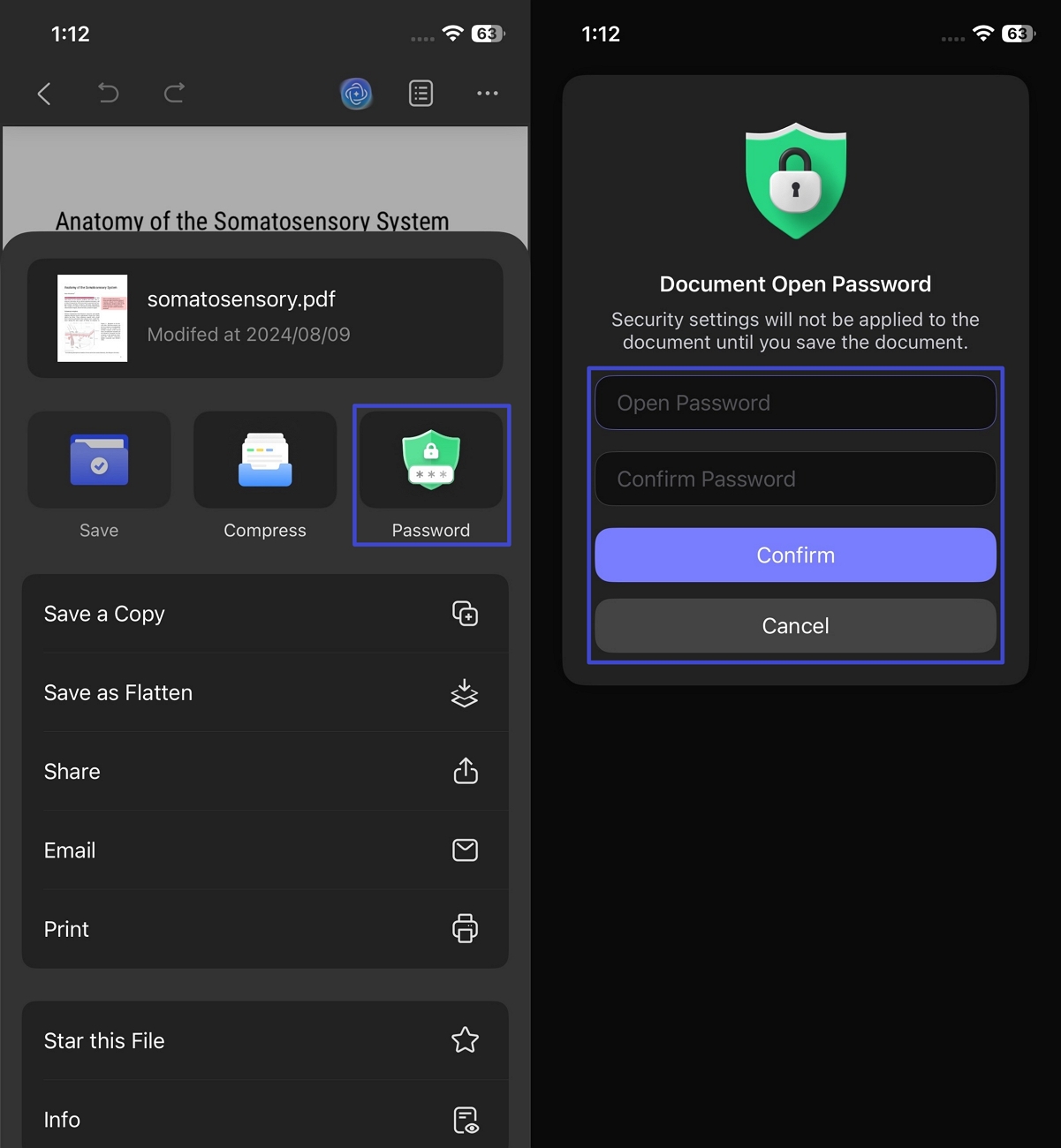
الخطوة 3. احفظ ملف PDF المحمي للمشاركة.
قفل ملفات PDF الخاصة باستخدام Security Space
على iPhone أو iPad، تعمل Security Space داخل UPDF كخزنة خاصة مقفلة بـ Face ID. يمكنك استخدامها لنقل ملفات PDF الخاصة إلى مساحة أكثر أمانًا داخل التطبيق.
الخطوة 1. ادخل إلى Security Space من إعدادات UPDF.
الخطوة 2. اضغط على رمز "+" لاستيراد ملفات PDF التي تريد الاحتفاظ بها بأمان.
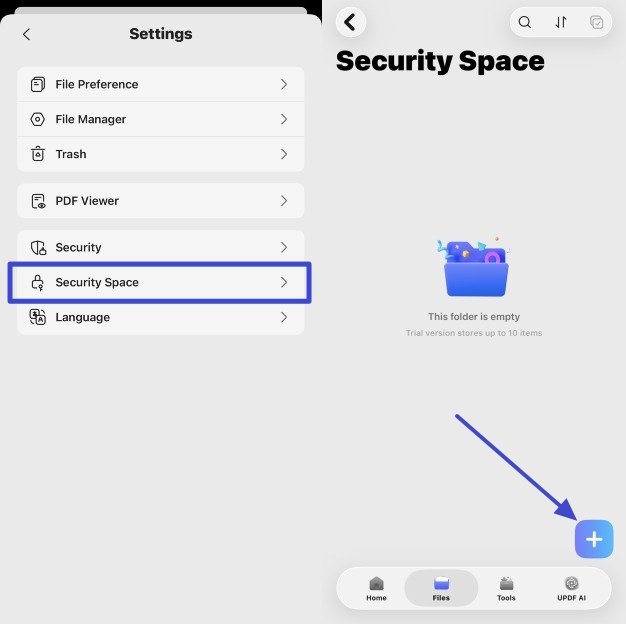
ملاحظة: Security Space ليست مثالية لحماية الملفات التي ترسلها بالبريد، لأنها تقفل النسخ المحلية فقط على جهازك.
قم بتنزيل UPDF مجانًا اليوم وابدأ في قفل ملفات PDF الحساسة خلال ثوانٍ.
Windows • macOS • iOS • Android آمن بنسبة 100%
الجزء الثامن: أي طريقة وأي أداة يجب أن تستخدم؟
تتطلب أدوات تنقيح PDF عبر الإنترنت دائمًا رفع الملفات، وهذا لا يبدو مناسبًا للمستندات الحساسة. على Mac، لا يستطيع Preview وWord تنفيذ تنقيح حقيقي. كما أن البحث عن كيفية التنقيح في Adobe قد يقود إلى خطوات مربكة، مما يثير القلق من إمكانية استعادة البيانات المخفية لاحقًا.
لذلك، عند تعلم كيفية حماية PDF بكلمات مرور قوية، وتنقيح حقيقي، ومعالجة محلية، أفضّل استخدام UPDF. يوضح الجدول التالي ما يمكن لكل خيار فعله بأمان.
| الإمكانية | UPDF على الكمبيوتر/الهاتف | أدوات أونلاين مثل Smallpdf وPDF2Go | Preview/Word |
| كلمة مرور فتح | ✓ | ✓ | ✓ |
| صلاحيات النسخ/الطباعة/التحرير | نعم، بخيارات دقيقة | أساسية | أساسية |
| تنقيح حقيقي يحذف البيانات | نعم | لا | لا |
| معالجة محلية دون رفع الملف | نعم، محلي بالكامل | لا، يغادر الملف جهازك | نعم، لكن بميزات محدودة |
| التكلفة | مدفوع مع نسخة مجانية: Pro: $39.99/yr or $59.99 lifetime | غالبًا مجاني، لكن يتطلب رفع الملف | مدمج، لكنه محدود |
الجزء التاسع: عندما لا تعمل الحماية كما تتوقع
أحيانًا تتصرف حماية PDF بطريقة تبدو مربكة أو مقلقة. في الغالب، لا تكون المشكلة في الأداة بالكامل، بل في إعداد صغير أو اختيار طريقة غير مناسبة. إليك أكثر الحالات شيوعًا.
- "أضفت كلمة مرور، لكنهم ما زالوا ينسخون كل شيء": غالبًا تم استخدام كلمة مرور فتح فقط، وليس كلمة مرور صلاحيات منفصلة. أو أن القارئ يعرف كلمة مرور الفتح بالفعل، وبالتالي يمكنه النسخ.
- "غطيت النص باللون الأبيض، لكنه ما زال موجودًا": في هذه الحالة، تم الرسم فوق النص فقط، وليس تنفيذ تنقيح حقيقي. التنقيح الحقيقي يحذف البيانات من الملف نفسه.
- "نسيت كلمة مرور PDF": كلمة مرور الصلاحيات المفقودة لا يمكن عادةً استعادتها باستخدام أدوات PDF العادية. لذلك، احتفظ دائمًا بنسخة أصلية غير محمية في مكان آمن.
- "ما زال بإمكانهم أخذ لقطة شاشة": صلاحيات PDF لا تستطيع منع لقطات الشاشة بالكامل على مستوى نظام التشغيل. بالنسبة للمحتوى شديد الحساسية، استخدم التنقيح الحقيقي وطرق عرض أكثر صرامة.
- "لا أستطيع طباعة هذا الملف المحمي": قد تكون كلمة مرور الصلاحيات تمنع الطباعة. إذا كنت تملك الملف، افتحه بكلمة مرور الصلاحيات أولًا، ثم عدّل إعدادات الطباعة.
الجزء العاشر: الأسئلة الشائعة
1. ما مدى أمان PDF المحمي بكلمة مرور؟ وهل يمكن كسره؟
كلمة مرور قوية بتشفير 256-bit AES وعبارة طويلة يصعب كسرها. أما كلمات المرور الشائعة أو القصيرة، فقد تكون أسهل في التخمين باستخدام أدوات حديثة. احتفظ بالأسرار الحقيقية داخل التنقيح، وليس خلف كلمة مرور صلاحيات فقط.
2. هل يفتح PDF المحمي بكلمة مرور على أي جهاز أو قارئ؟
نعم، يمكن لأي قارئ PDF قياسي على الكمبيوتر أو الهاتف فتحه باستخدام كلمة المرور الصحيحة. يشمل ذلك Preview وChrome وتطبيقات PDF على الهاتف.
3. هل حماية PDF بكلمة مرور كافية للامتثال لـ GDPR أو HIPAA؟
تساعد كلمة المرور، لكنها ليست كافية وحدها. تتطلب معايير الامتثال عادةً تنقيح البيانات الشخصية والتحكم في الوصول، وليس فقط قفل الملف بكلمة مرور يمكن مشاركتها أو إزالتها.
4. كيف أزيل كلمة مرور من PDF أملكه؟
افتح PDF باستخدام كلمة المرور الحالية، ثم أزل إعدادات الأمان أو امسحها. هذه هي العملية العكسية لهذا الدليل، ويمكنك اتباع دليل UPDF المخصص لإزالة قيود PDF.
5. هل أدوات حماية PDF عبر الإنترنت آمنة؟
يفضل استخدامها فقط مع الملفات غير الحساسة، لأن المستند يتم رفعه إلى خادم تابع لطرف ثالث. غالبًا ما ينتقل الملف وكلمة المرور عبر الاتصال نفسه، لذلك استخدم أدوات محلية للبيانات الخاصة.
الخاتمة
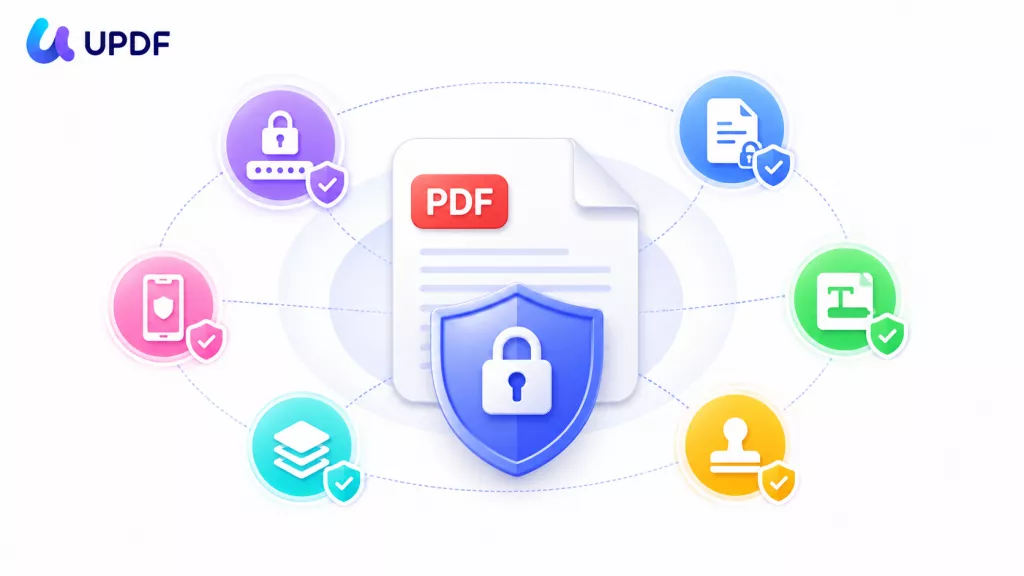
حماية PDF ليست زرًا واحدًا، بل هي اختيار القفل المناسب للخطر المناسب: كلمة مرور فتح لإبعاد الغرباء، كلمة مرور صلاحيات لتقييد النسخ والطباعة، تنقيح لحذف الأسرار نهائيًا، علامة مائية لإثبات الملكية، تسطيح لتثبيت حقول النماذج، وSecurity Space لحماية الملفات على الهاتف.
يجمع UPDF هذه الطرق الست محليًا على Windows وMac وiOS وAndroid، حتى لا تغادر ملفاتك السرية جهازك. قم بتنزيل UPDF مجانًا، وابدأ في حماية ملف PDF الحساس التالي بالطريقة الصحيحة.
Windows • macOS • iOS • Android آمن بنسبة 100%





 صباح رشدي