 UPDF
 UPDF for Windows
 UPDF for Mac
 UPDF for iPhone/iPad
 UPDF for Android
 Nomostar
 UPDF AI Online
 UPDF Sign
 IvyCraft
 Edit PDF
 Annotate PDF
 Create PDF
 PDF Form
 Edit links
 Convert PDF
 OCR
 PDF to Word
 PDF to Image
 PDF to Excel
 Organize PDF
 Merge PDF
 Split PDF
 Crop PDF
 Rotate PDF
 Protect PDF
 Sign PDF
 Redact PDF
 Sanitize PDF
 Remove Security
 Read PDF
 UPDF Cloud
 Compress PDF
 Print PDF
 Batch Process

 About UPDF AI
 UPDF AI Solutions
 AI User Guide
 FAQ about UPDF AI
 Summarize PDF
 Translate PDF
 Chat with PDF
 Chat with AI
 Chat with image
 PDF to Mind Map
 Explain PDF
 PDF AI Tools
 Image AI Tools
 AI Chat Tools
 AI Writing Tools
 AI Study Tools
 AI Working Tools
 Other AI Tools
 AI Bookmark Generation
 AI Bookmark Summary
 AI Watermark Generation
 AI Background Generation
 AI Sticker Generation
 AI Stamp Generation
 AI Editing Suite
 UPDF Copilot
 AI Page Management
 AI Semantic Search
 PDF to Word
 PDF to Excel
 PDF to PowerPoint
 Enterprise Solution
 Enterprise Sign
 Enterprise AI
 Enterprise Plan
 Enterprise User Guide
 Enterprise Webinar
 IT
 Education
 Construction
 Financial Service
 Healthcare
 Insurance
 Legal
 Manufacturing
 Government
 Researchers & PhDs
 Solopreneurs & Freelancers
 Lawyers & Legal Professionals
 Real Estate Agents & Brokers
 Education Solution
 Customer Stories
 User Guide
 UPDF Tricks
 FAQs
 UPDF Reviews
 Download Center
 Blog
 Newsroom
 Tech Spec
 Updates
 UPDF vs. Adobe Acrobat
 UPDF vs. Foxit
 UPDF vs. PDF Expert


Scenario Assistants
UPDF AI offers specialized Scenario Assistants for resumes, contracts, academic papers, financial reports, and more. Each assistant provides task-specific Quick Actions to help you analyze documents efficiently. Follow this guide to learn how to access, use, and customize these AI Assistants.
Table of Contents
Part 1. How to Access Different Types of AI Assistants
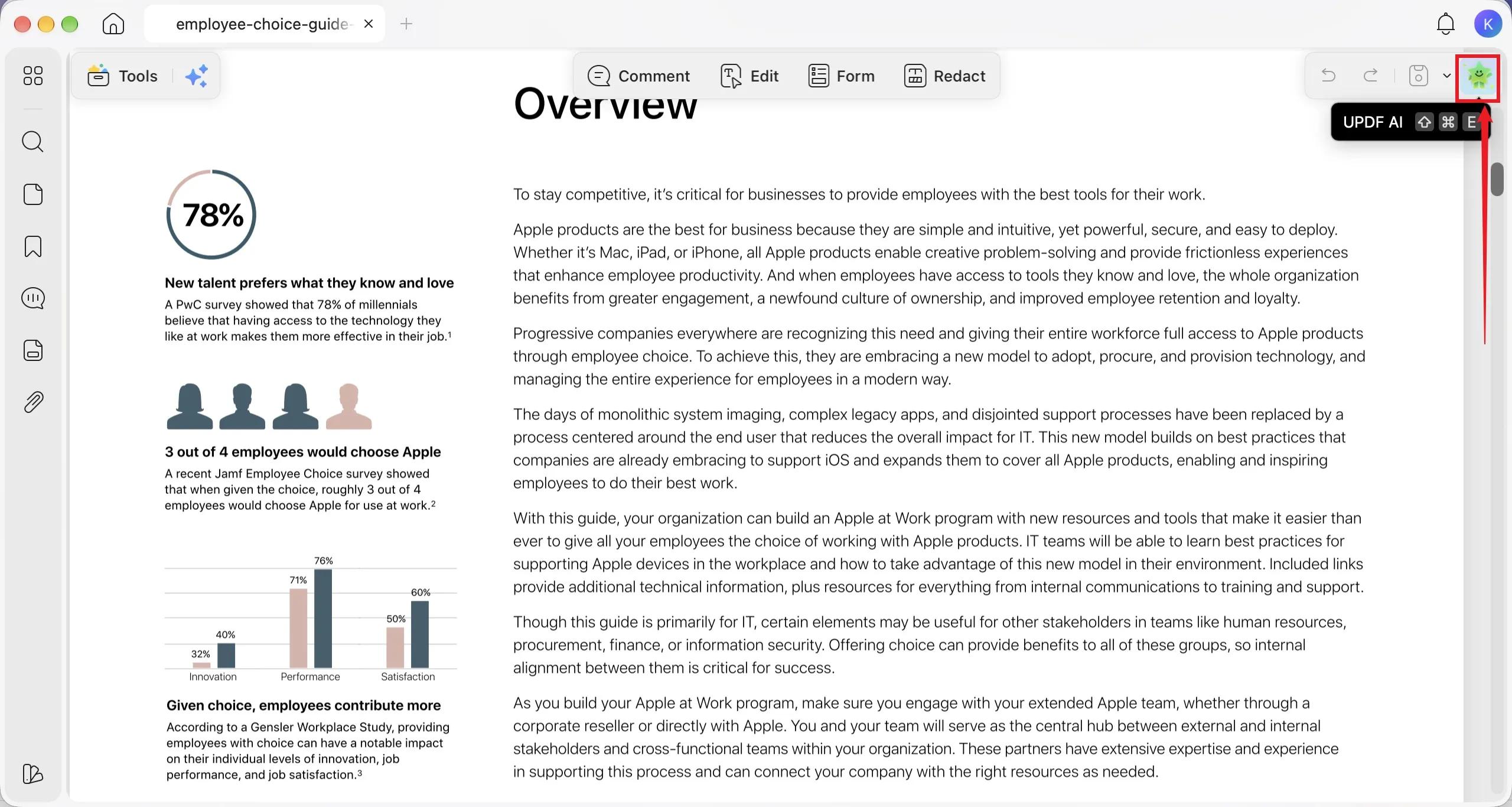
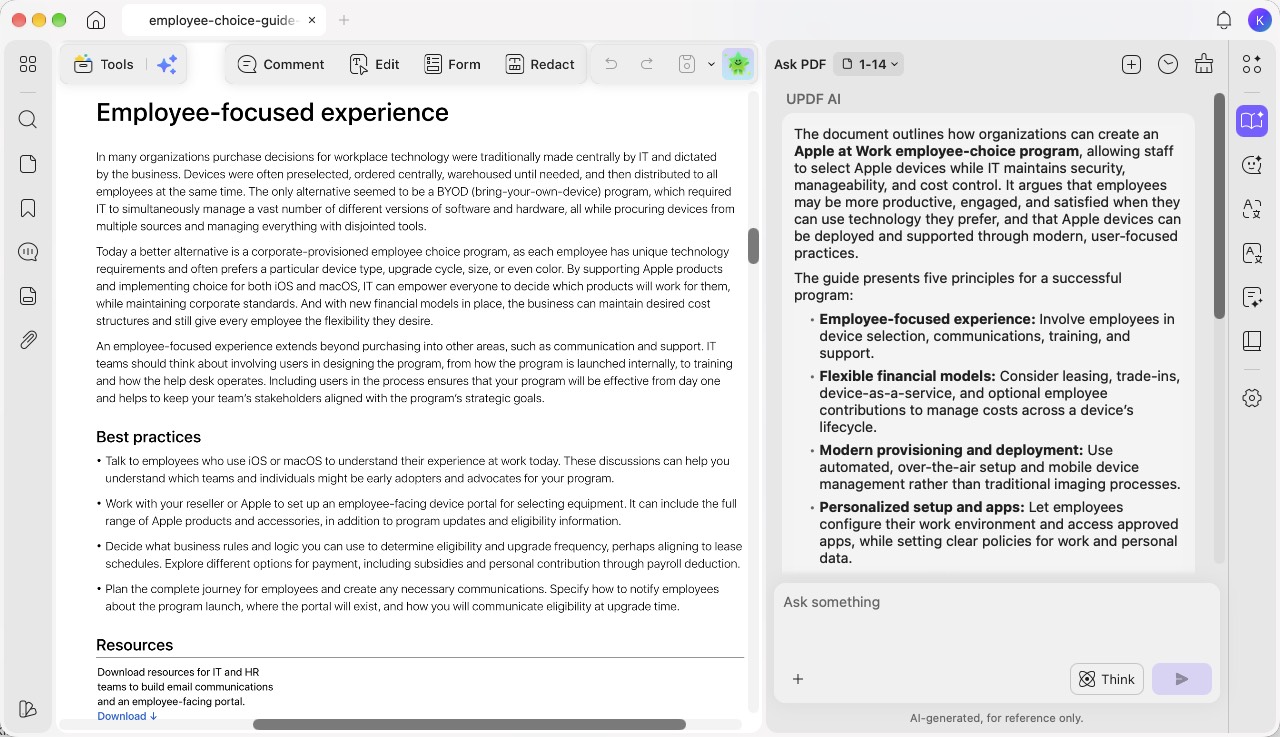
Step 1. Open your PDF in UPDF, then click the “UPDF AI” button in the upper-right corner to open the AI assistant.
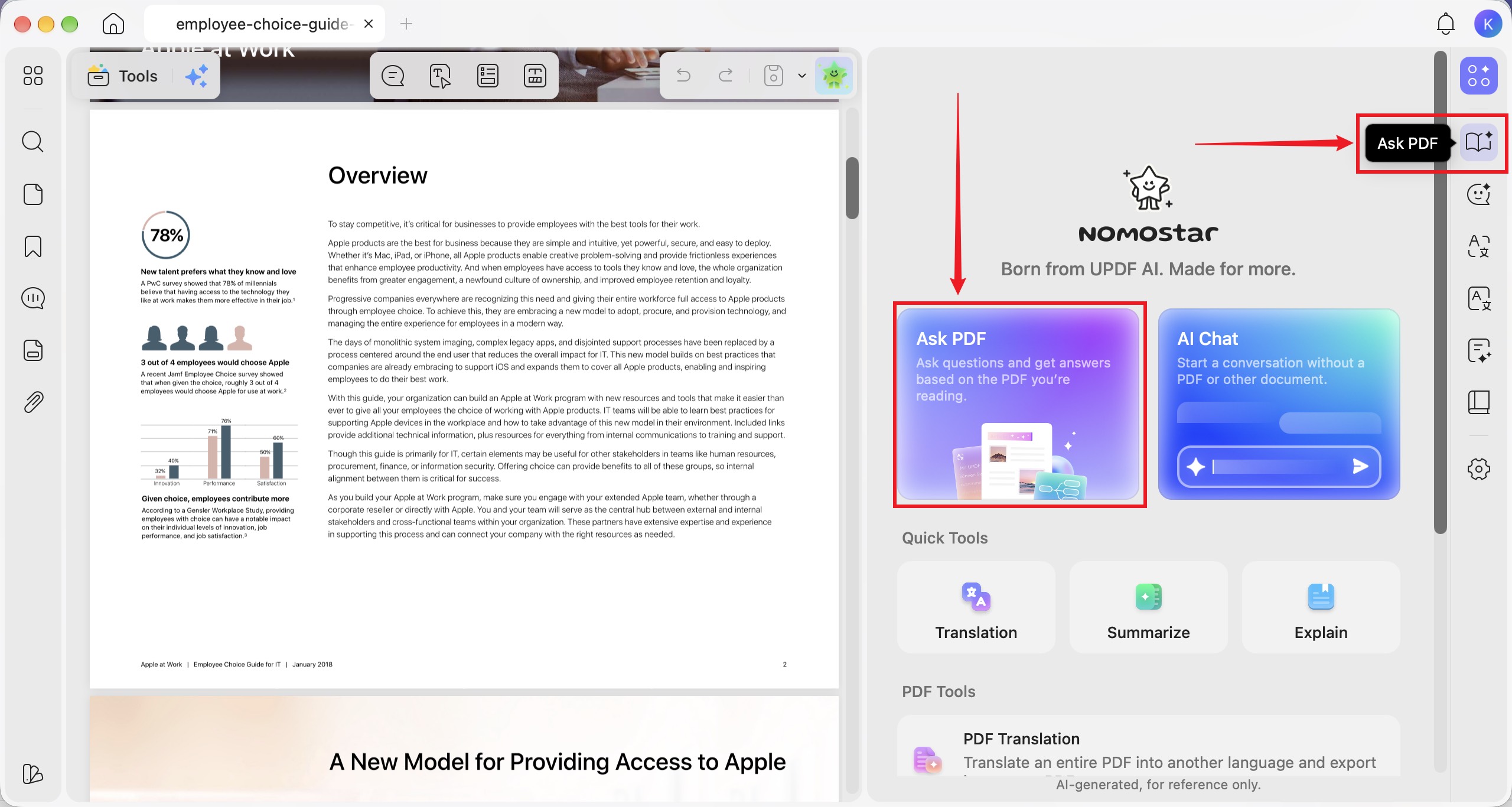
Step 2. Click the “Ask PDF” card or the “Ask PDF” icon on the right sidebar to enter Ask PDF mode.
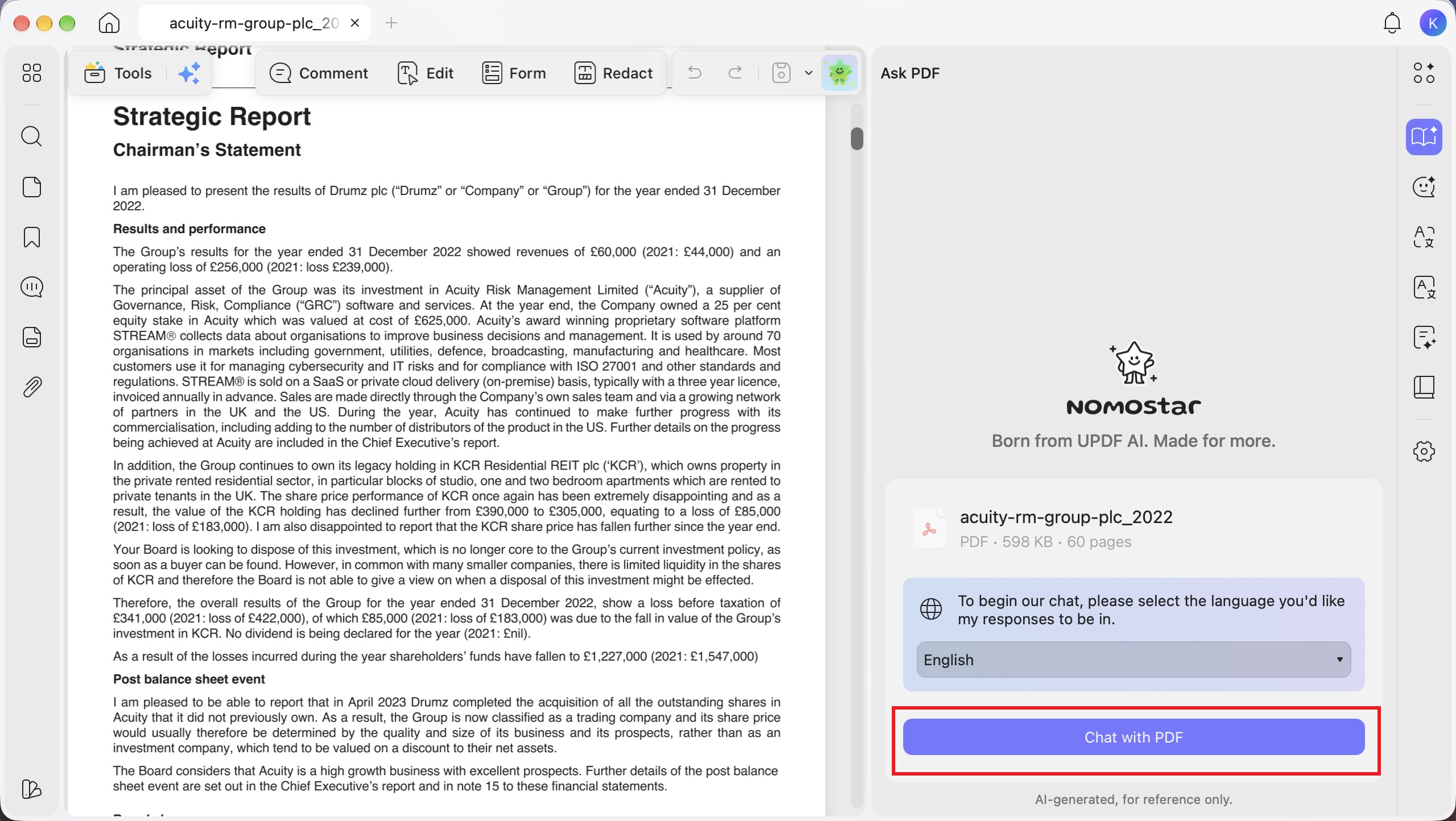
Step 3. Select your preferred response language from the drop-down menu, then click “Chat with PDF” to let AI read and analyze your document.
Step 4. After clicking “Chat with PDF,” UPDF AI automatically generates a summary of the entire PDF in the “Ask PDF” panel.
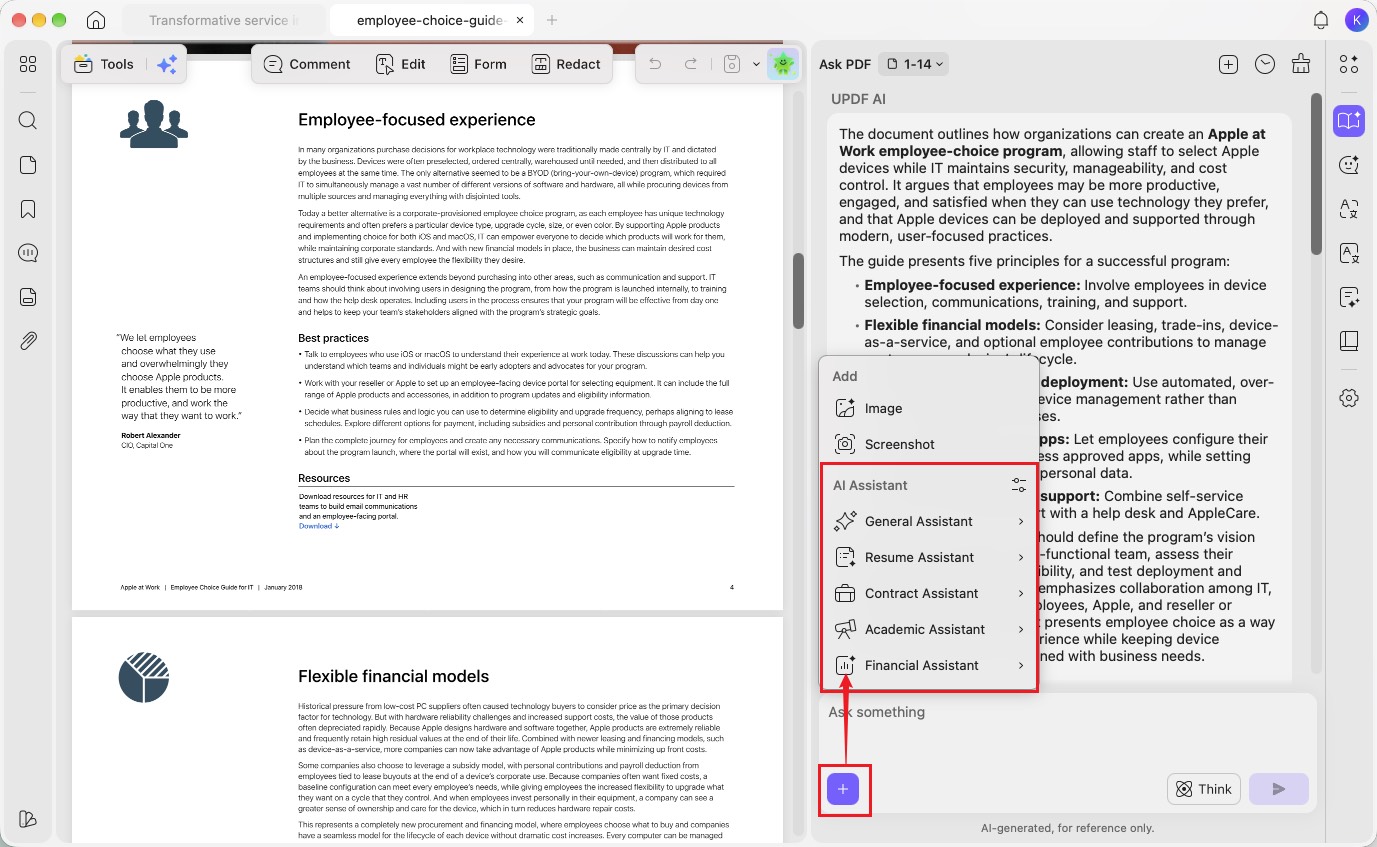
Step 5. Click the “+” button in the chat box to open the “AI Assistant” menu. Choose “General Assistant,” “Resume Assistant,” “Contract Assistant,” “Academic Assistant,” or “Financial Assistant,” then select a task from its submenu.
Part 2. Explore Different AI Assistants
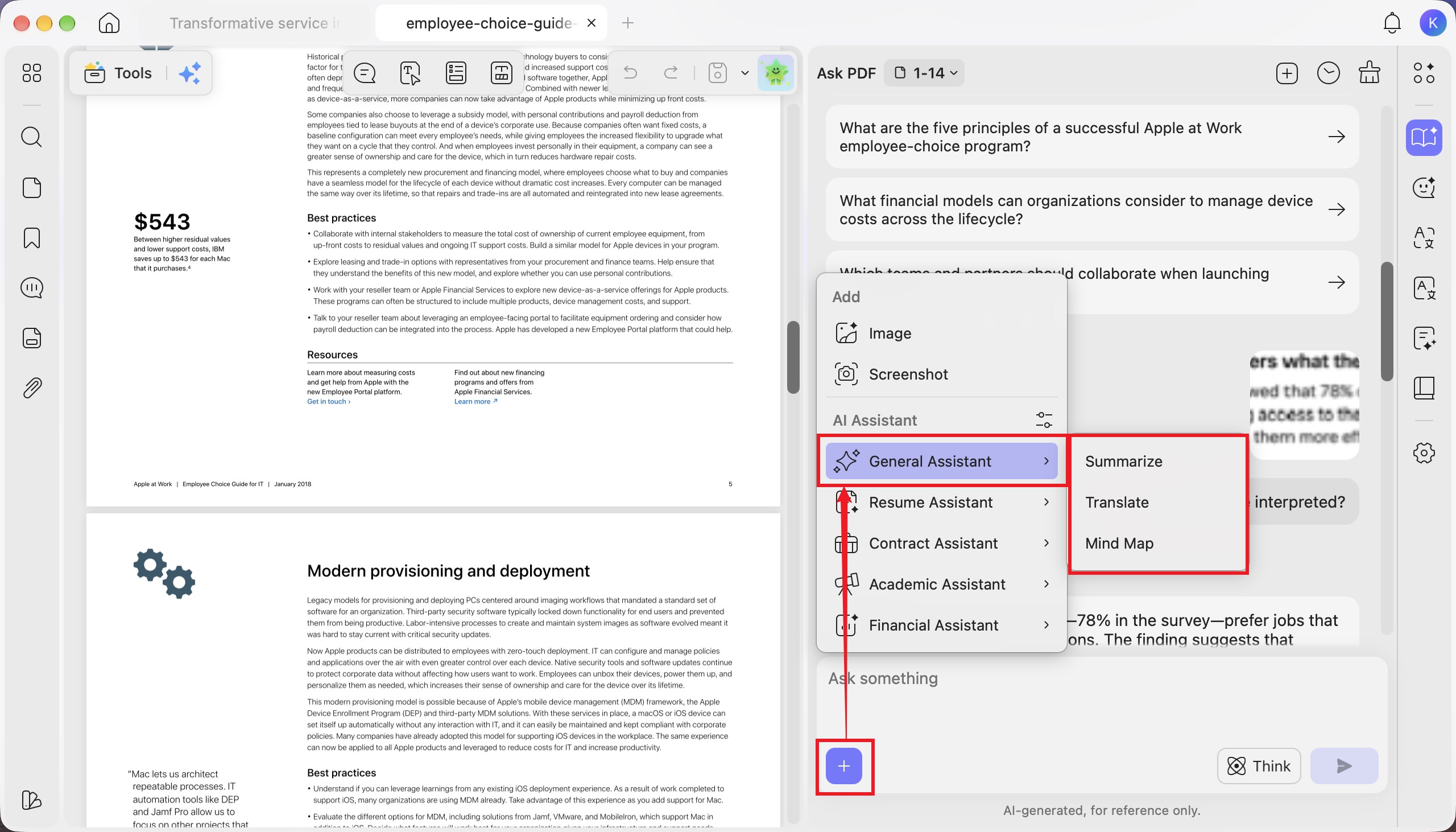
1. General Assistant
The General Assistant offers three features: Summarize, Translate, and Mind Map. For detailed step-by-step instructions on each feature, refer to the respective user guides: Summarize PDFs, Translate PDFs, and Convert PDFs to Mind Maps.
2. Resume Assistant
- Resume Analysis
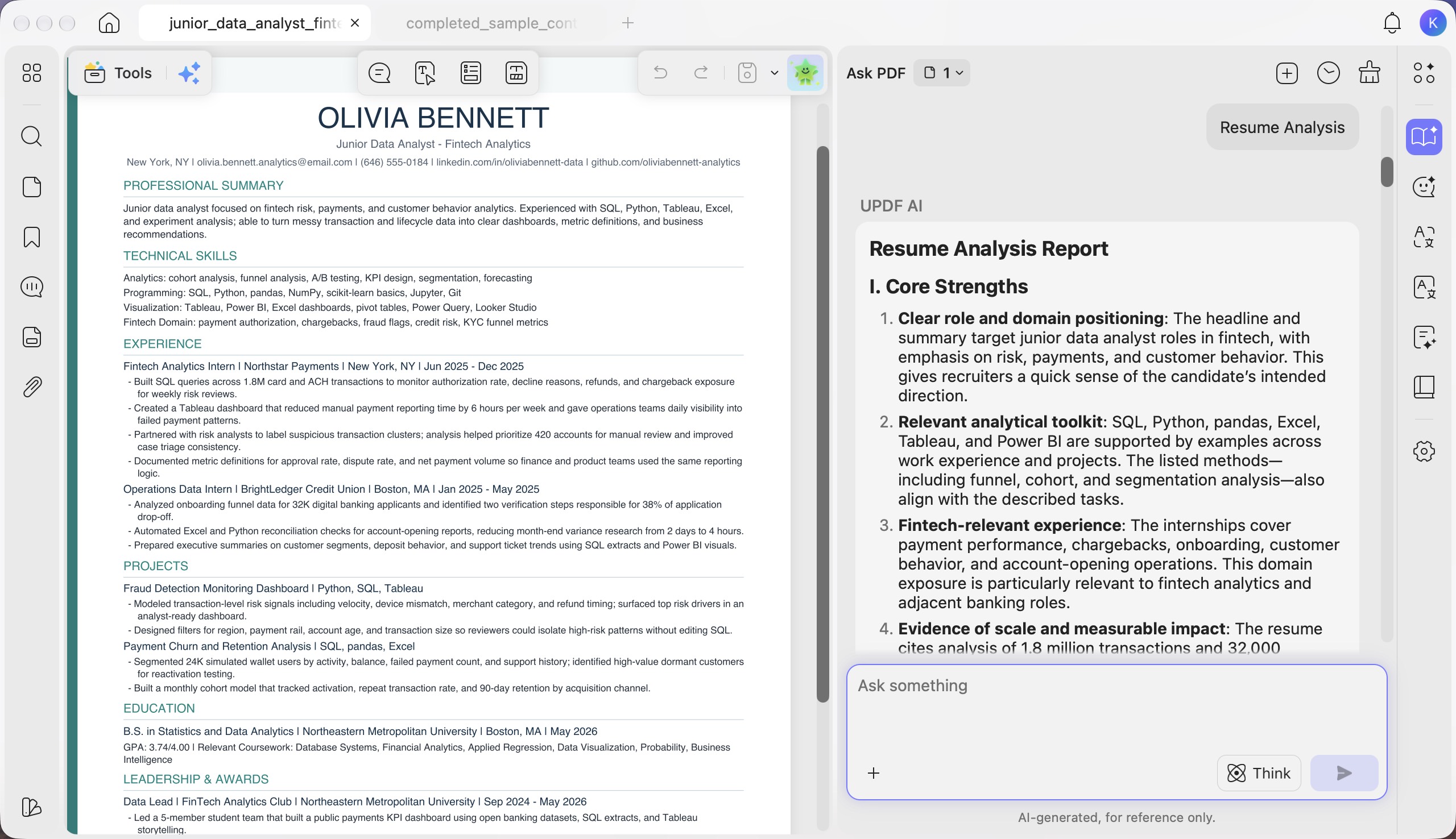
Step 1. Click the “+” button in the chat box, then select “Resume Assistant” > “Resume Analysis.”
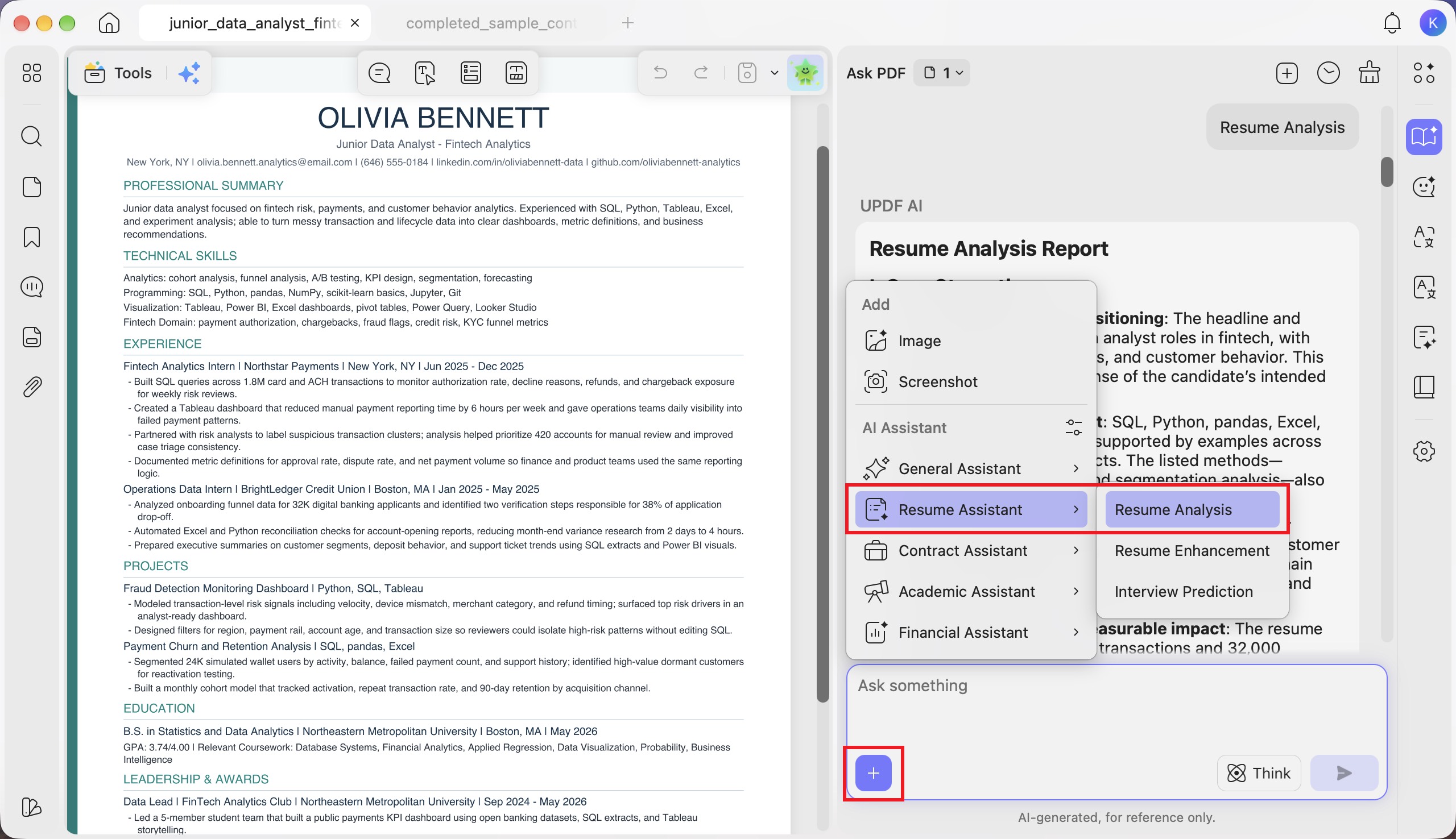
Step 2. Review the “Resume Analysis Report” in the “Ask PDF” panel. It identifies your resume’s core strengths and current weaknesses, including role positioning, skills, experience, measurable achievements, formatting, and areas needing clarification.
- Resume Enhancement
Step 1. Click the “+” button and select “Resume Assistant” > “Resume Enhancement.”
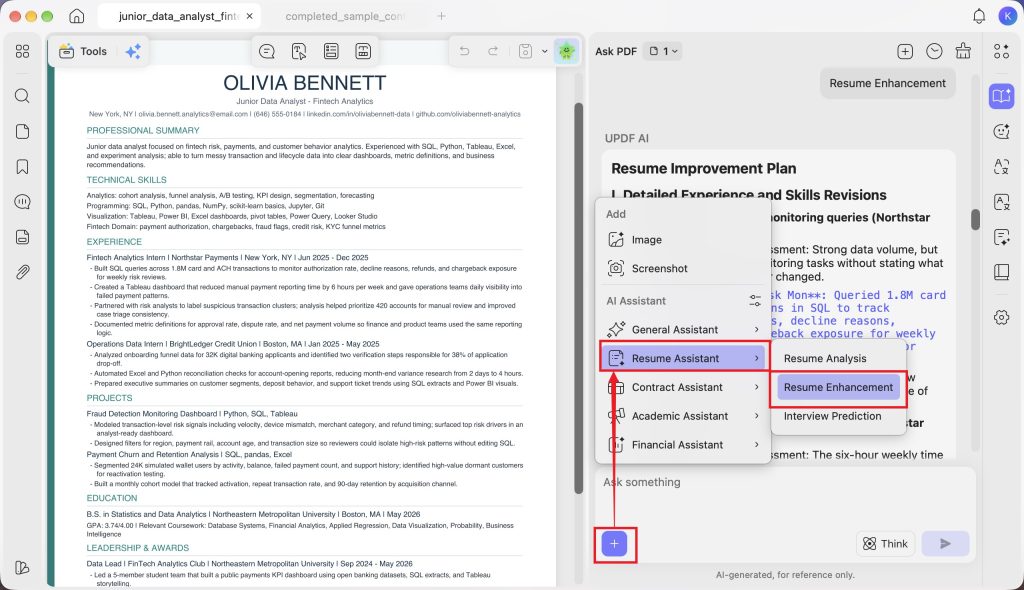
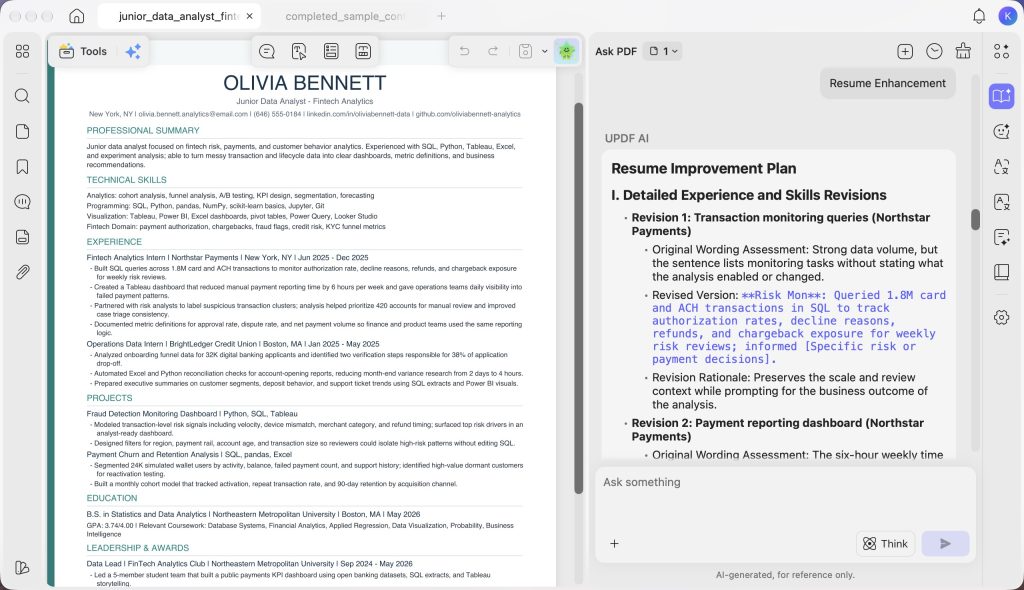
Step 2. Review the “Resume Improvement Plan.” It assesses your original wording, suggests revised descriptions for experience, projects, and skills, and explains each revision. Placeholders indicate where you can add specific outcomes or supporting details.
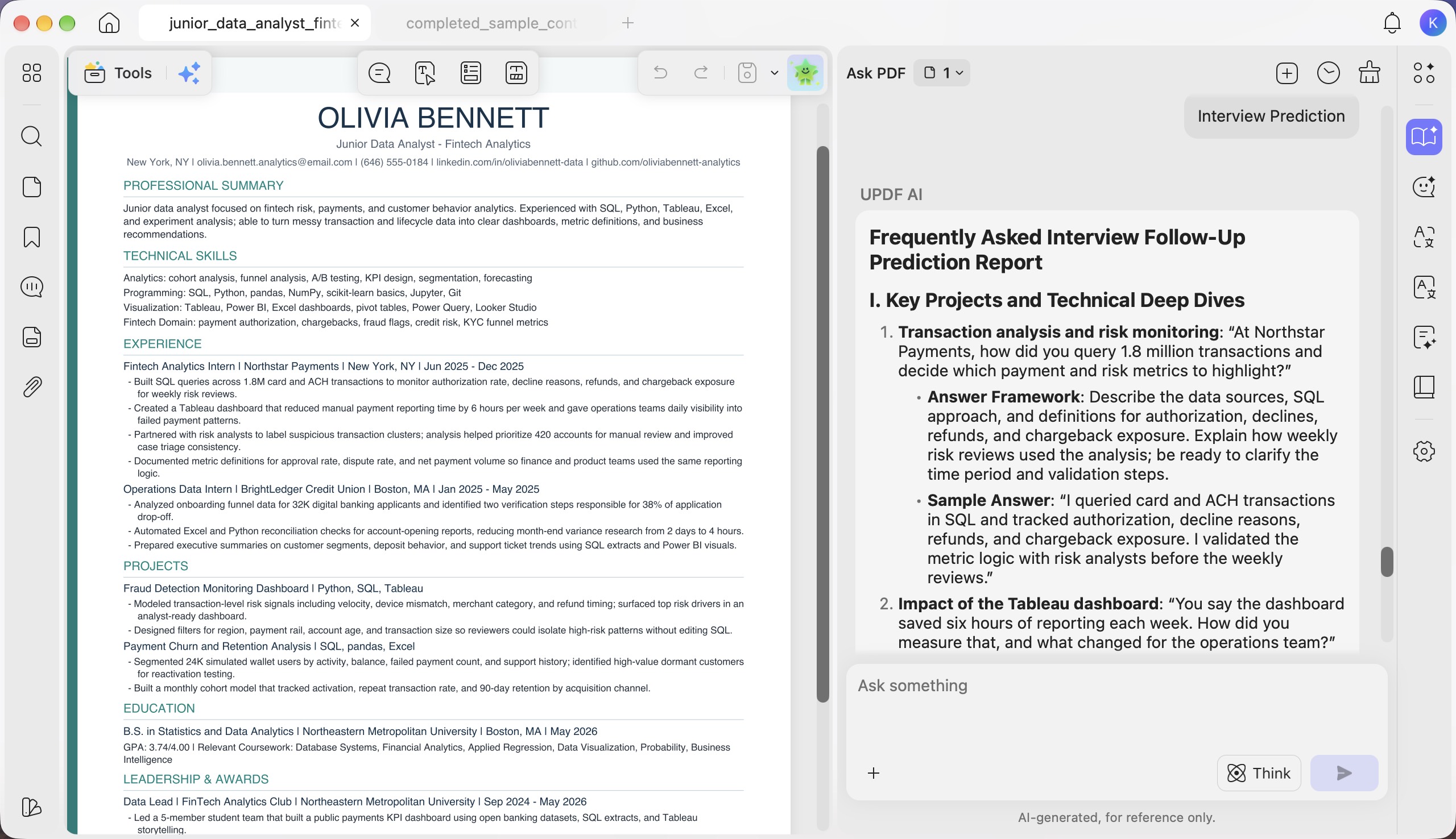
- Interview Prediction
Step 1. Click the “+” button and select “Resume Assistant” > “Interview Prediction.”
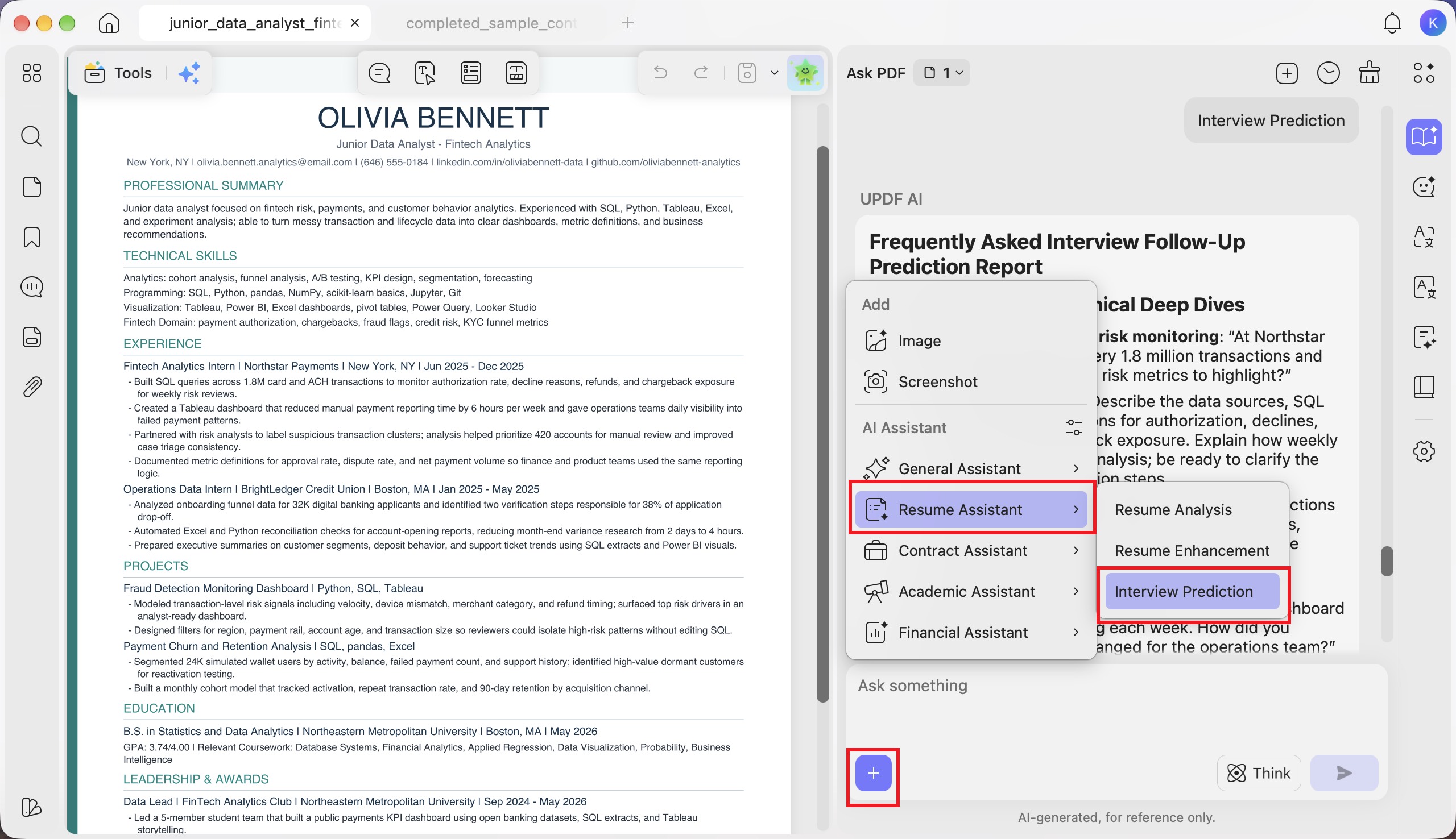
Step 2. Review the “Frequently Asked Interview Follow-Up Prediction Report.” It suggests likely interview questions based on your resume’s projects, technical skills, and experience, with an “Answer Framework” and “Sample Answer” for each question to help you prepare.
3. Contract Assistant
- Contract Interpretation
Step 1. Click the “+” button in the chat box, then select “Contract Assistant” > “Contract Interpretation.”
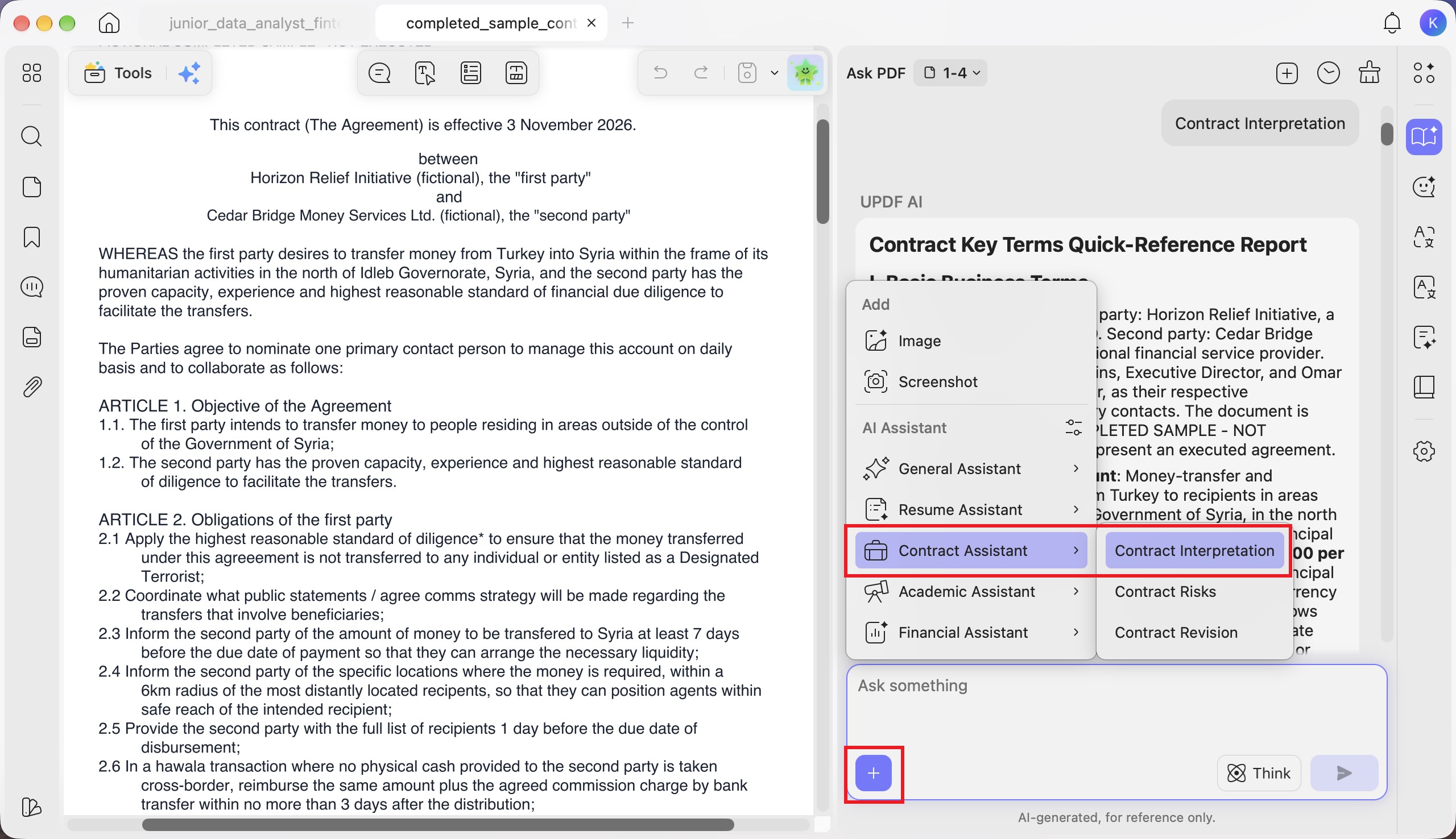
Step 2. Review the “Contract Key Terms Quick-Reference Report” in the “Ask PDF” panel. It summarizes the contracting parties, subject matter, contract term, payment arrangements, and key obligations to help you understand the agreement.
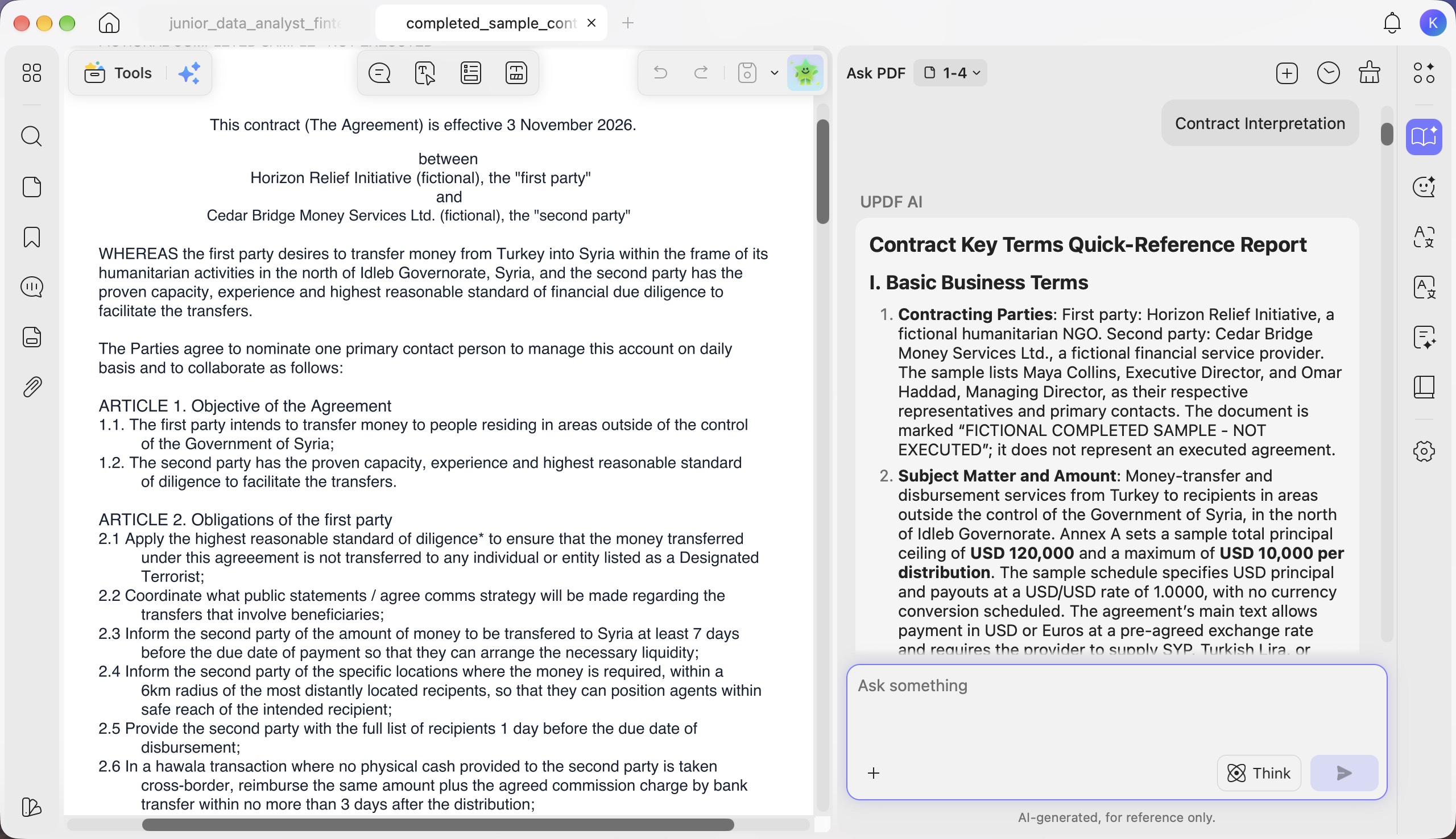
- Contract Risks
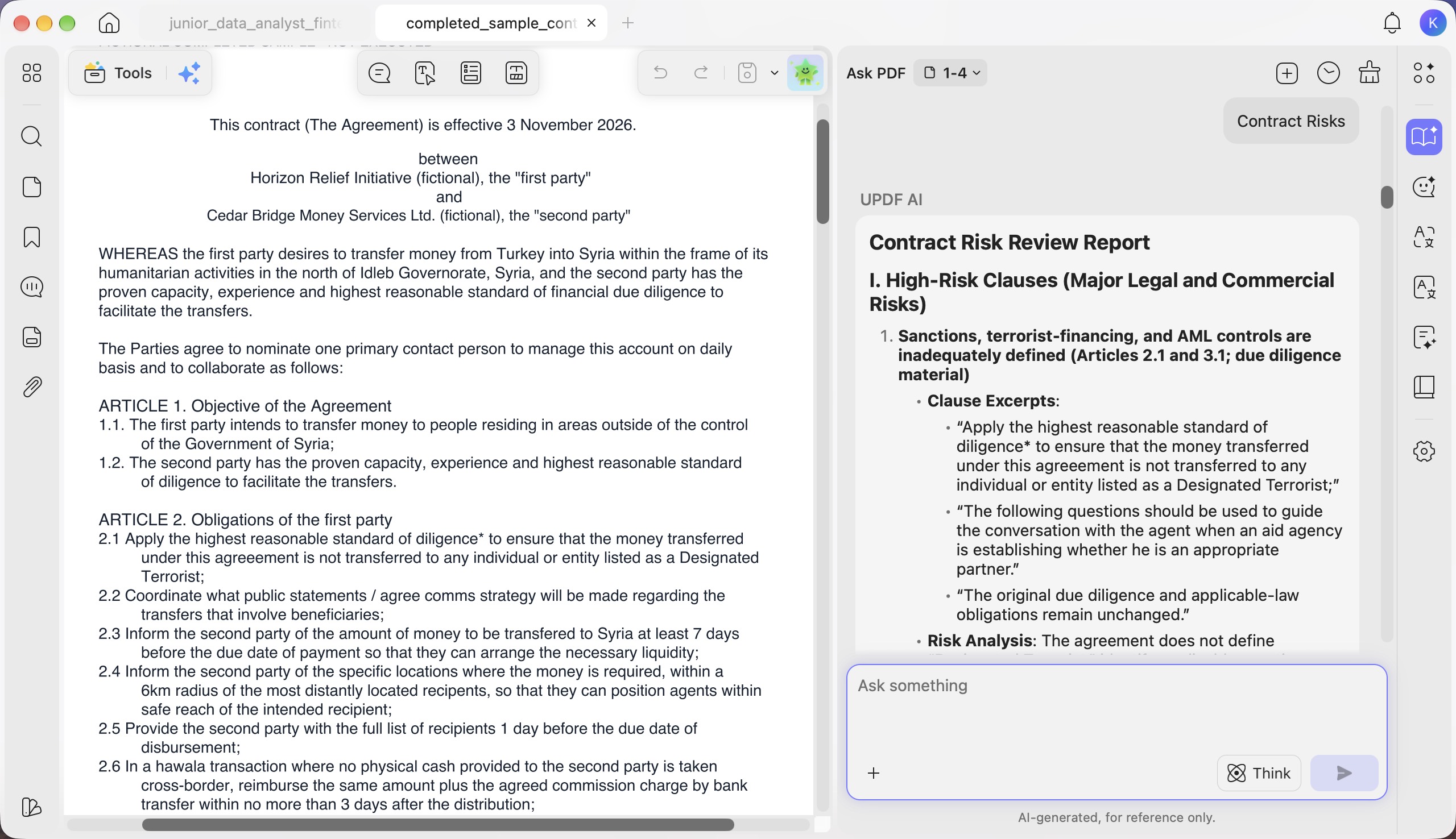
Step 1. Click the “+” button and select “Contract Assistant” > “Contract Risks.”
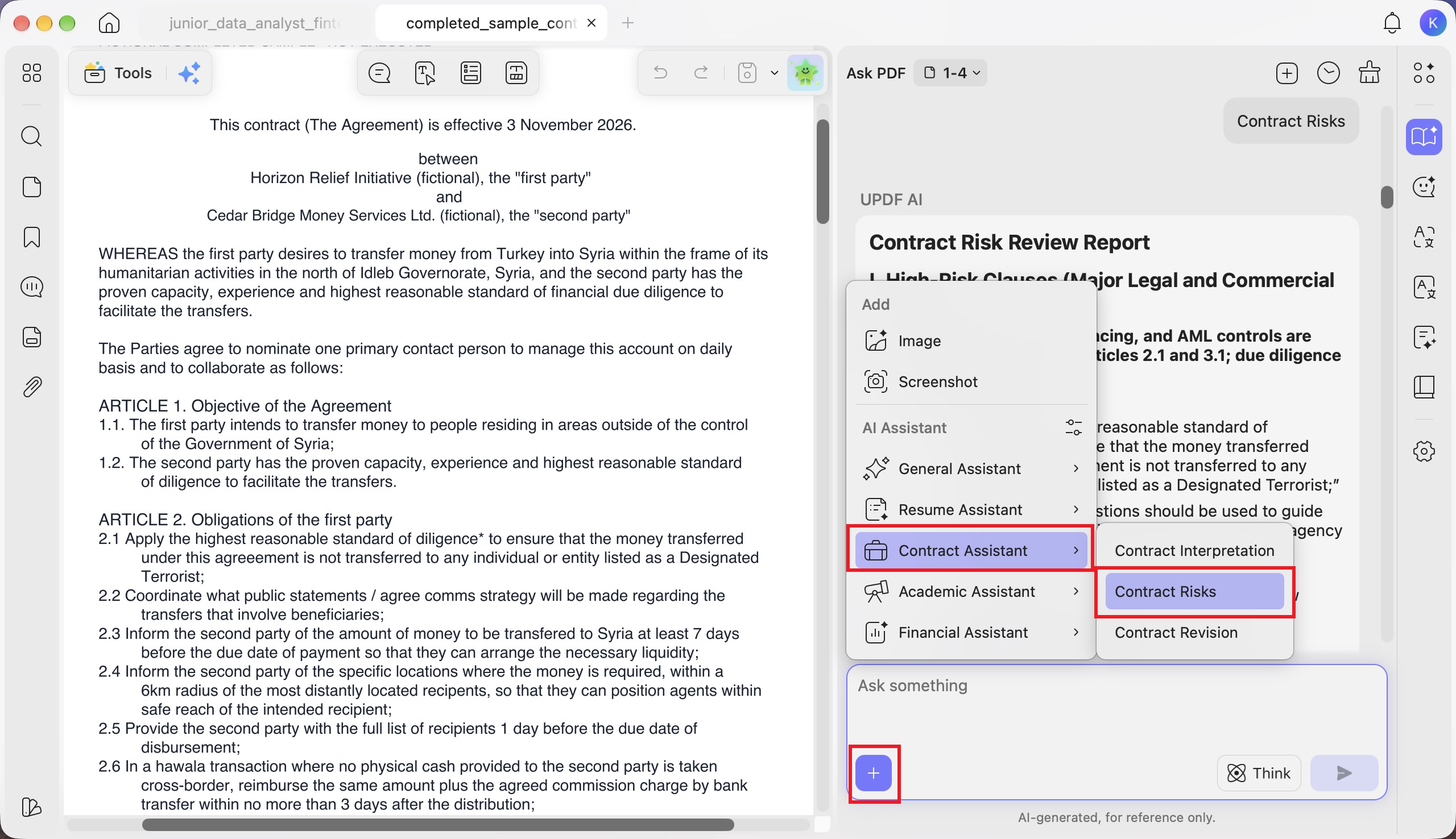
Step 2. Review the “Contract Risk Review Report.” It identifies potentially risky clauses, provides relevant clause excerpts, and explains the associated legal and commercial concerns.
- Contract Revision
Step 1. Click the “+” button and select “Contract Assistant” > “Contract Revision.”
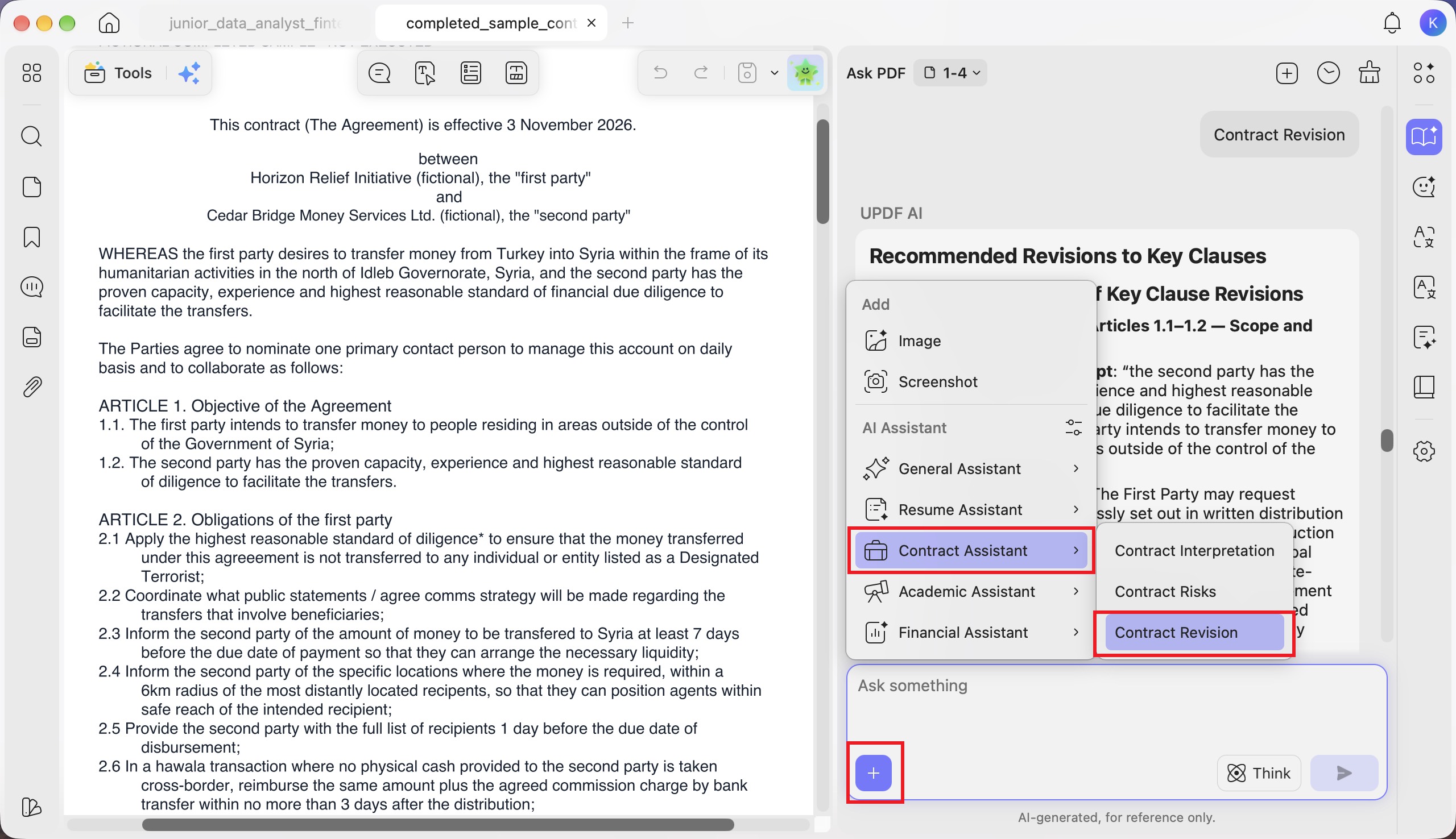
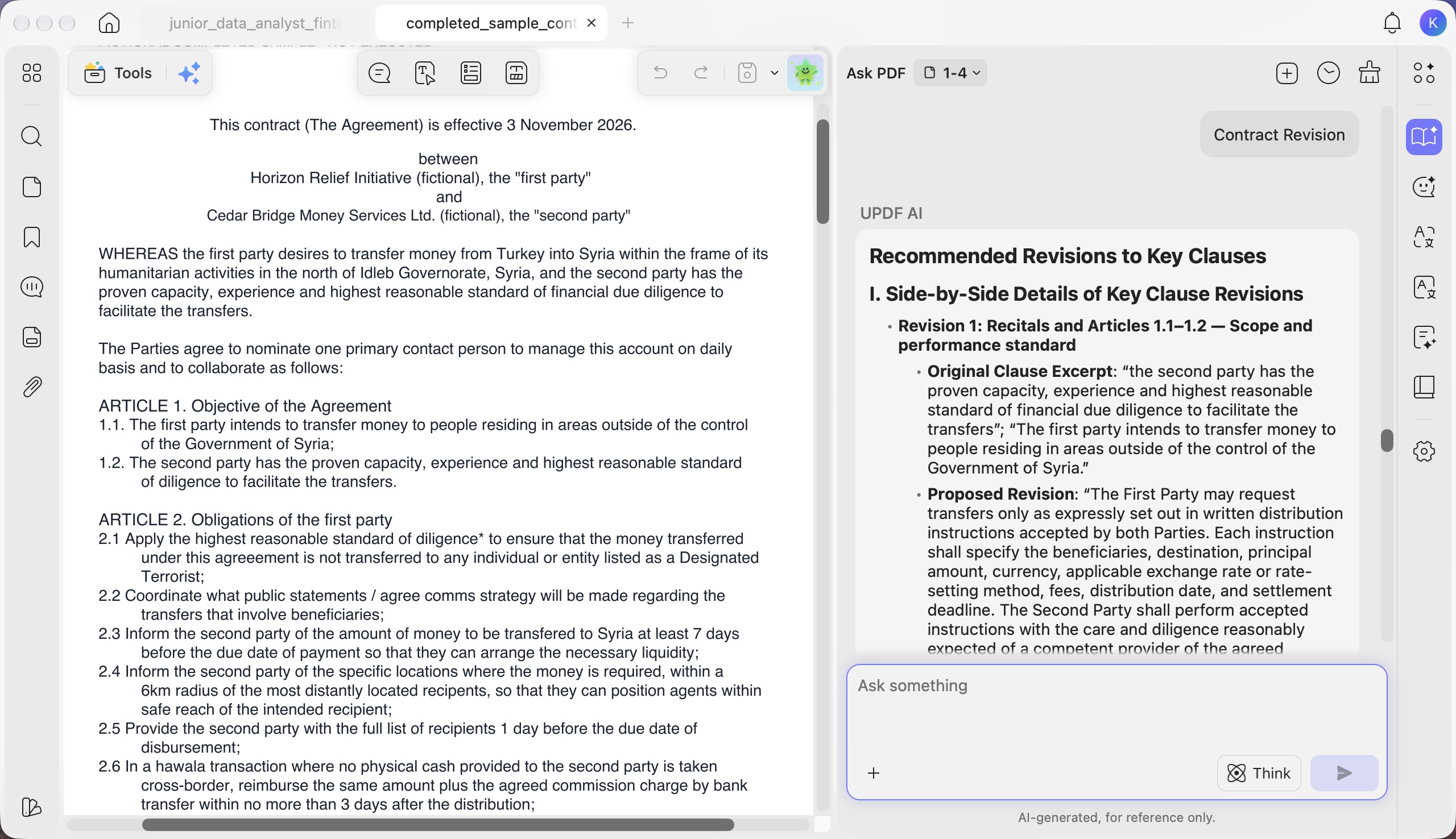
Step 2. Review “Recommended Revisions to Key Clauses.” It presents original clause excerpts alongside proposed revisions, with explanations of the legal basis and negotiation rationale for each suggested change.
4. Academic Assistant
- Paper Analysis
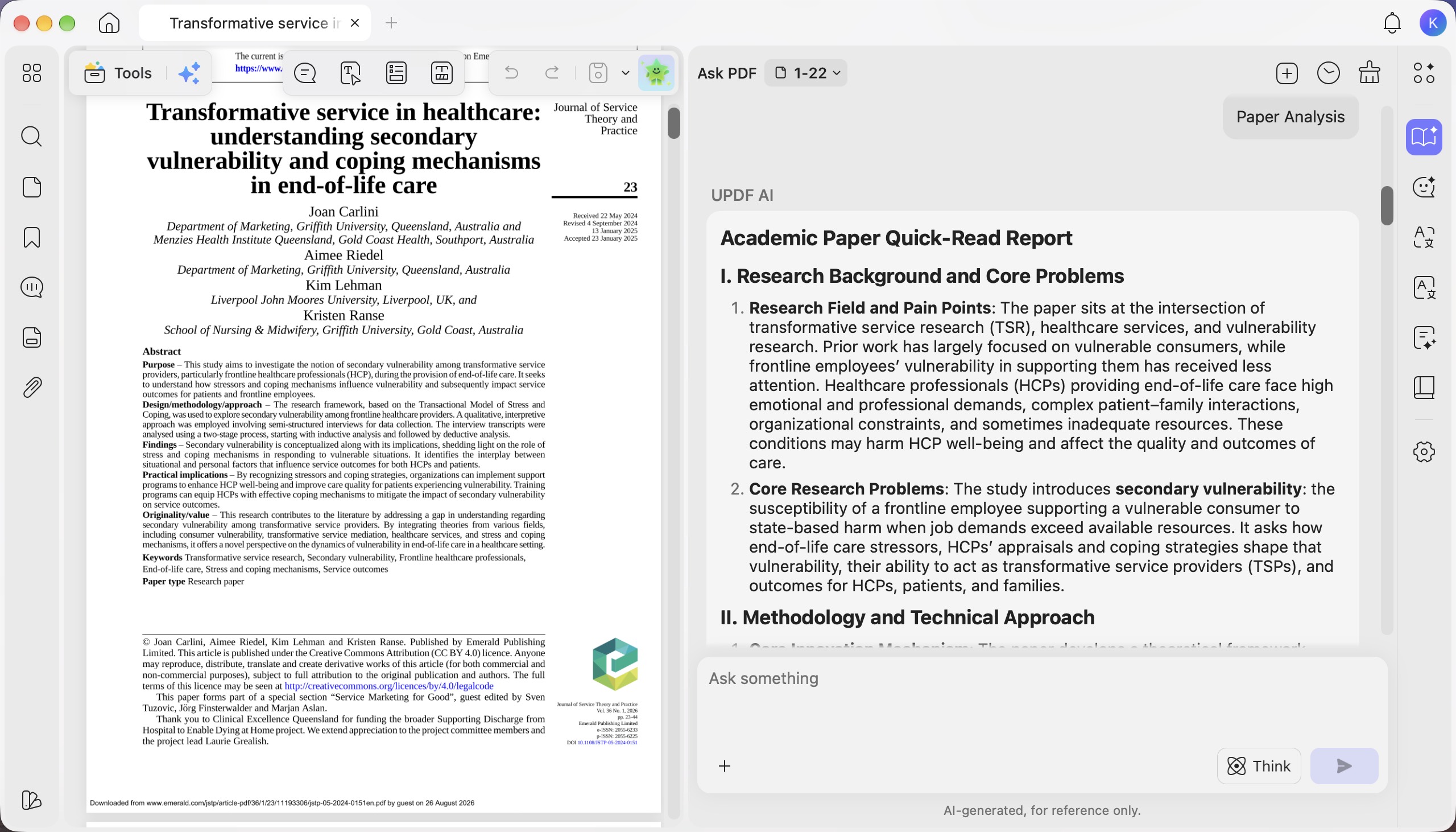
Step 1. Click the “+” button in the chat box, then select “Academic Assistant” > “Paper Analysis.”
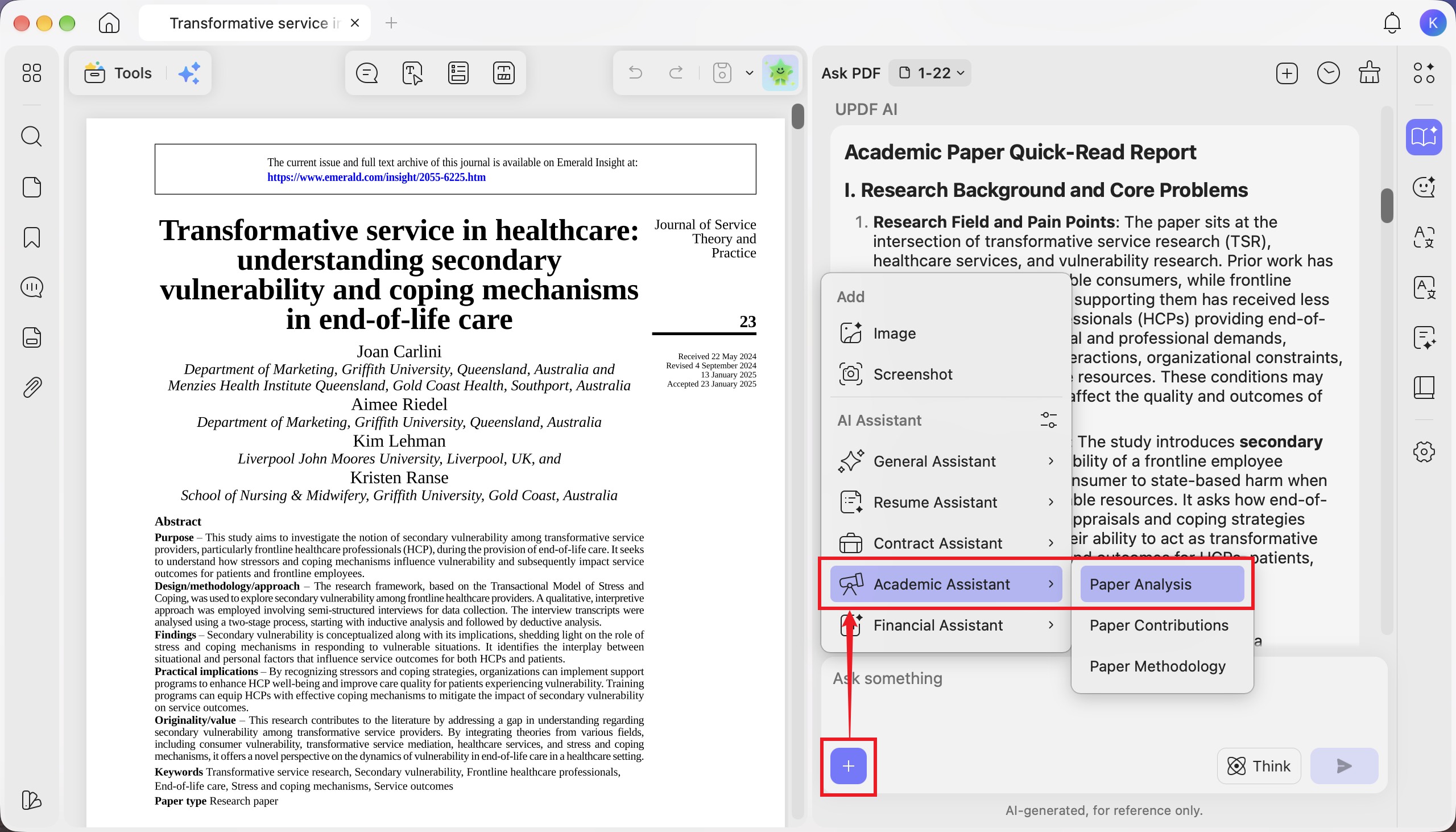
Step 2. Review the structured report generated in the “Ask PDF” panel. It provides an overview of the paper’s research background, core problems, methodology, and findings, along with an assessment of its innovative contributions, academic value, and research limitations.
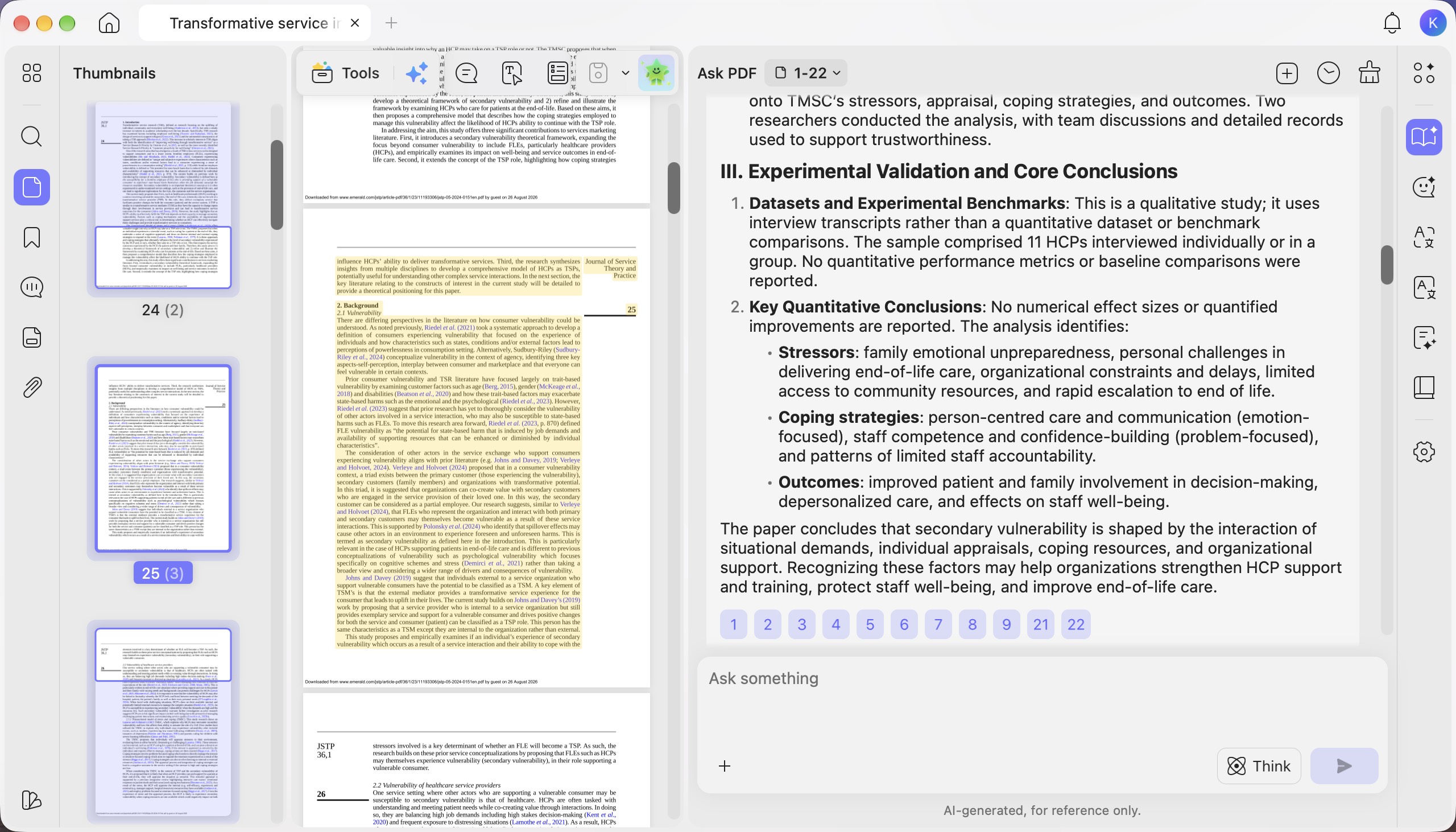
Step 3. Click the numbered source references below the report to jump to the corresponding PDF pages and review the highlighted source content.
- Paper Contributions
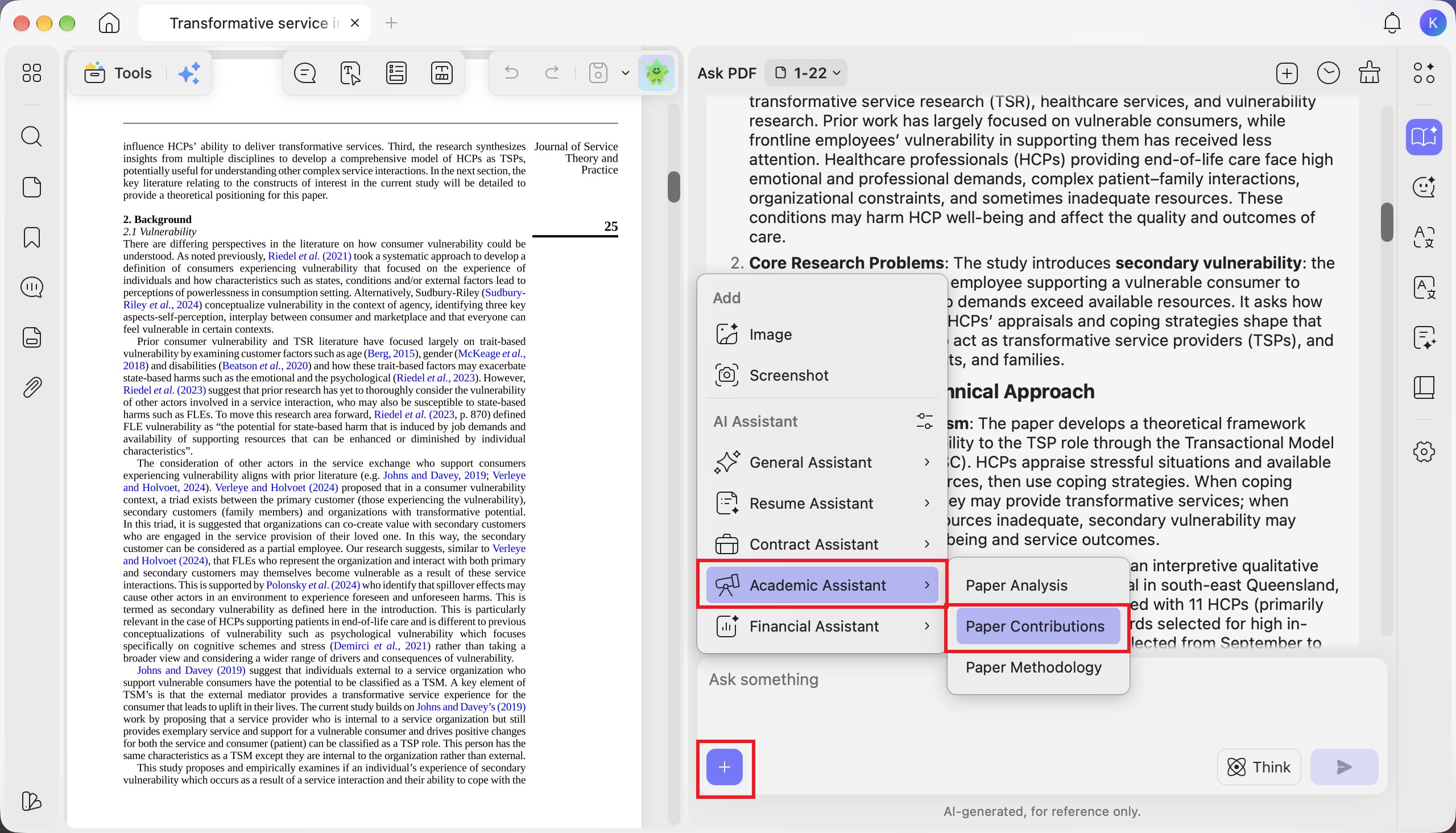
Step 1. Click the “+” button in the chat box, then select “Academic Assistant” > “Paper Contributions.”
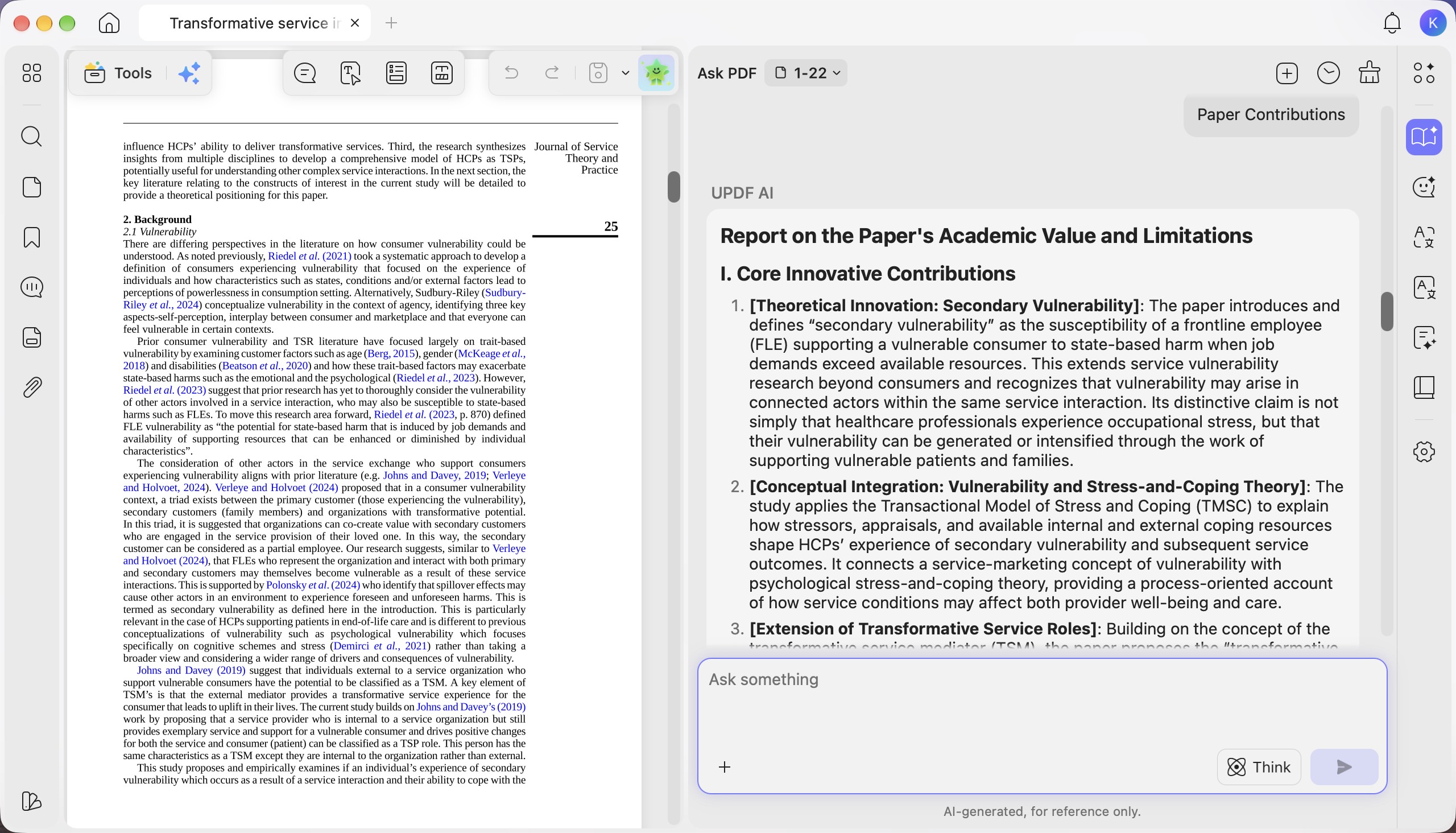
Step 2. Review the generated report in the “Ask PDF” panel. It highlights the paper’s innovative contributions and academic value, including theoretical advances and interdisciplinary insights, and identifies research limitations and shortcomings.
- Paper Methodology
Step 1. To explore how the research was conducted, click the “+” button and select “Academic Assistant” > “Paper Methodology.”
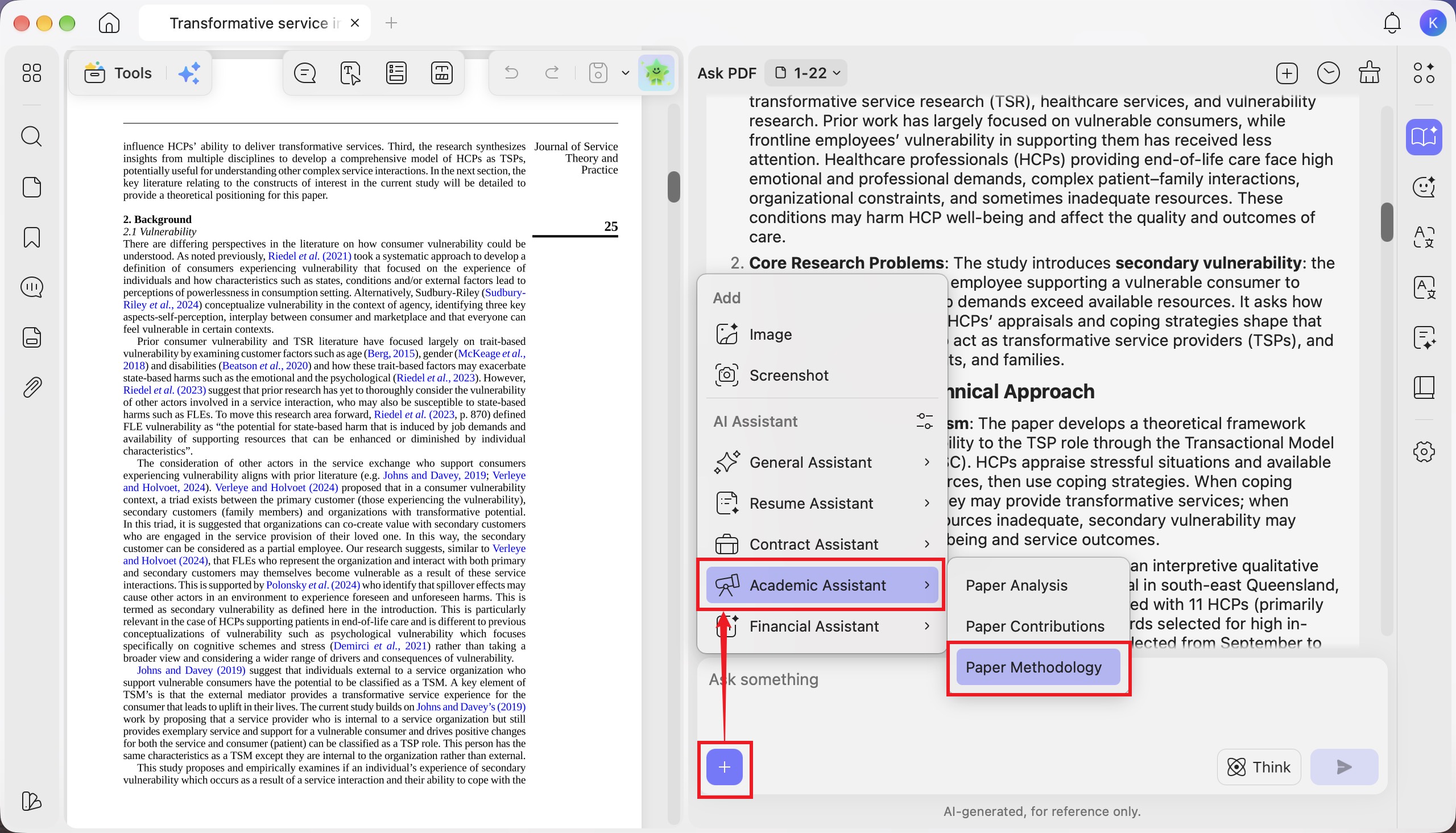
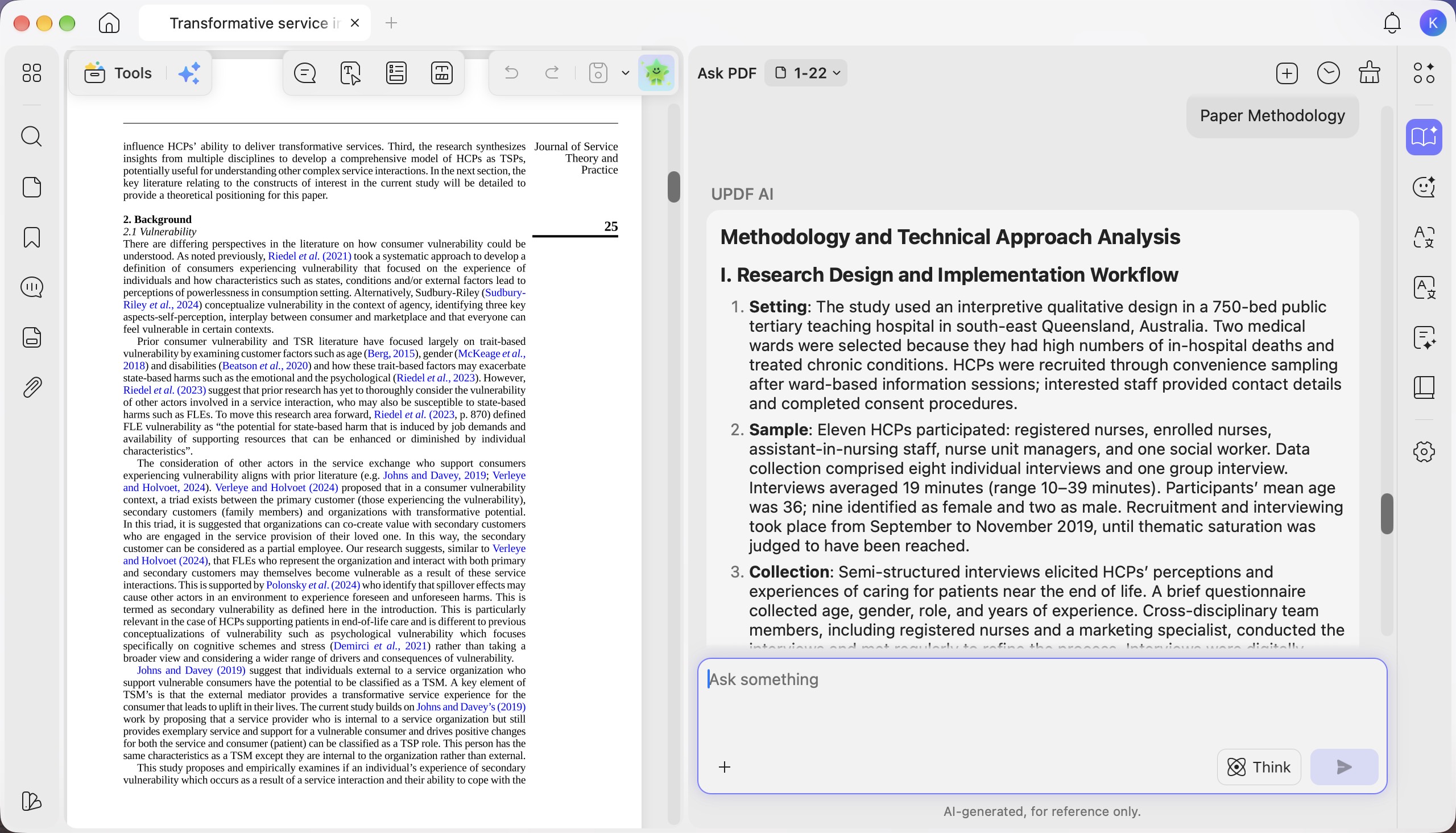
Step 2. Review the methodology report in the “Ask PDF” panel. It explains the research design, sampling, data collection, analysis workflow, core methods, and validation approach, helping you understand how the study supports its findings.
5. Financial Assistant
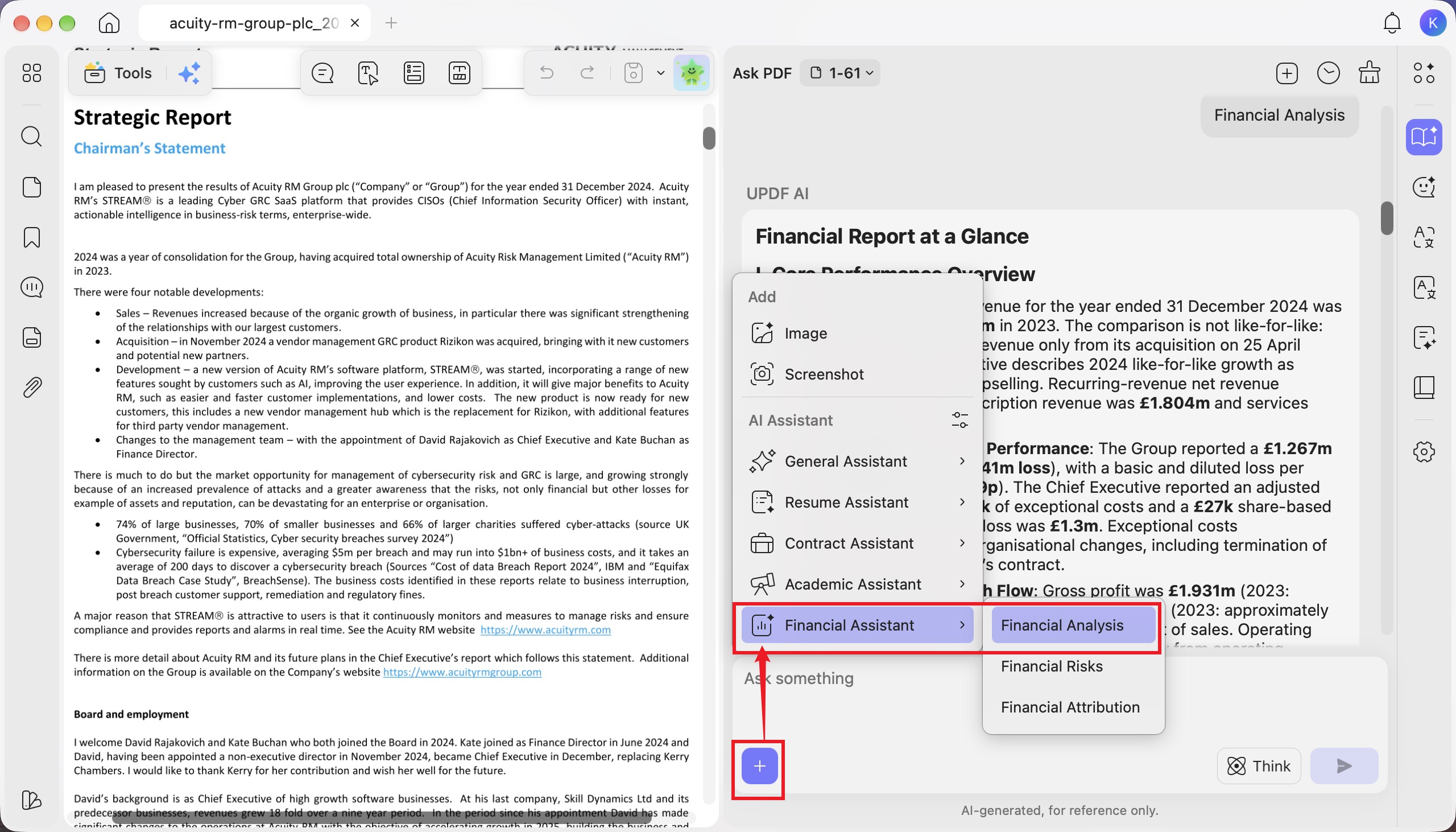
- Financial Analysis
Step 1. Click the “+” button in the chat box, then select “Financial Assistant” > “Financial Analysis.”
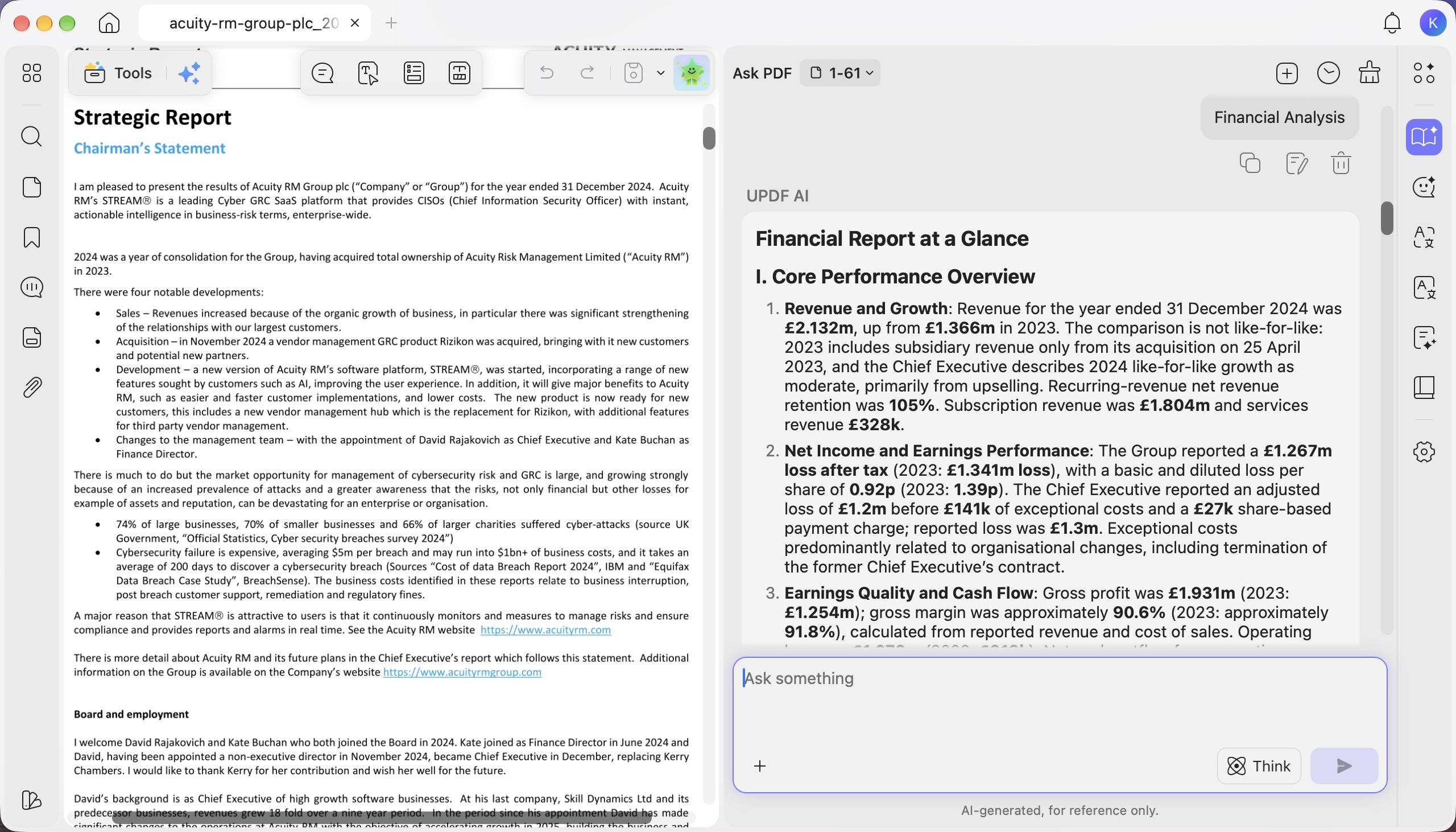
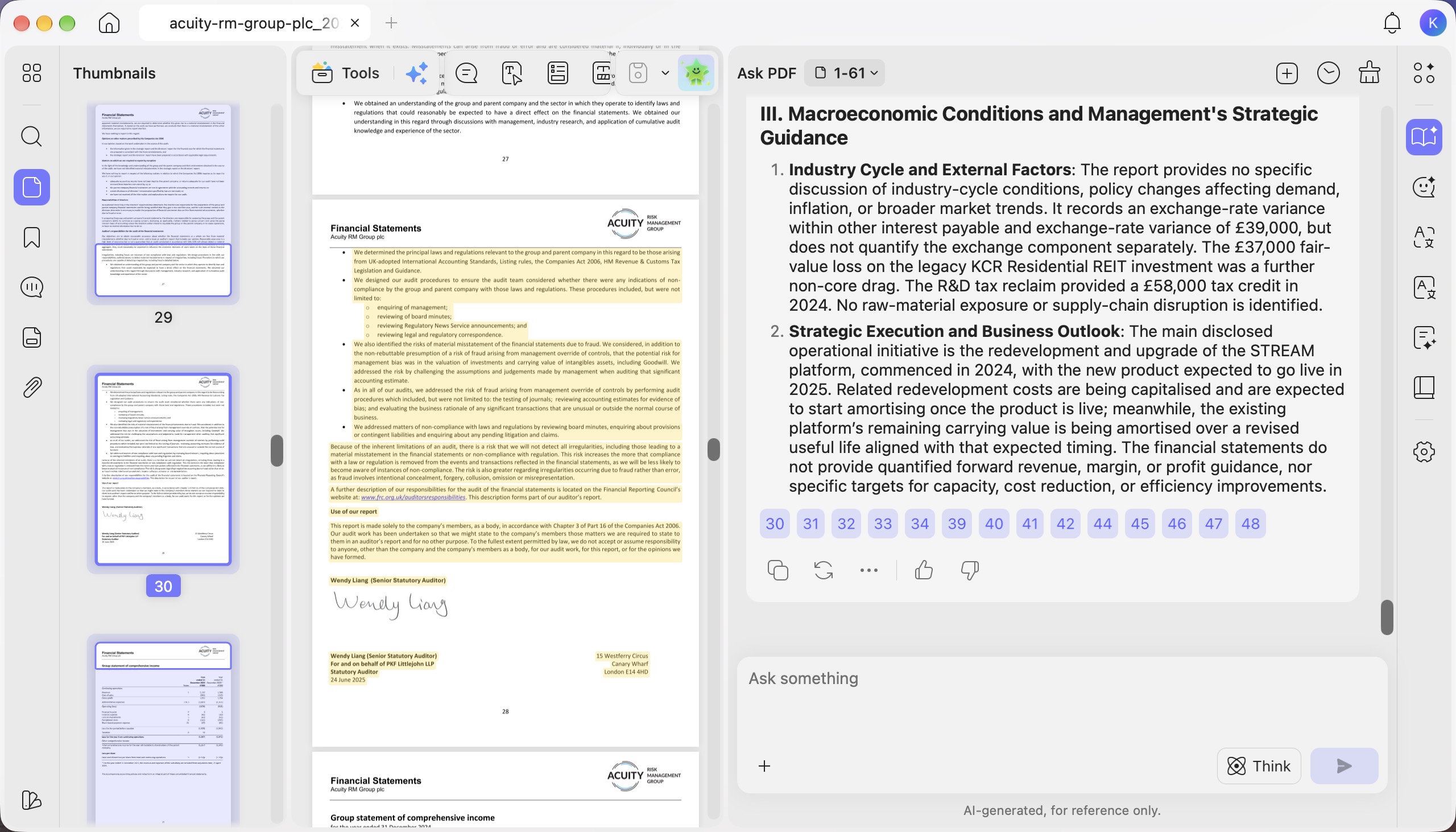
Step 2. Review the “Financial Report at a Glance” in the “Ask PDF” panel. It summarizes revenue and growth, earnings, cash flow, balance sheet and funding, along with key business developments and operating highlights.
Step 3. Click the numbered source references below the report to jump to the corresponding PDF pages and review the highlighted source content.
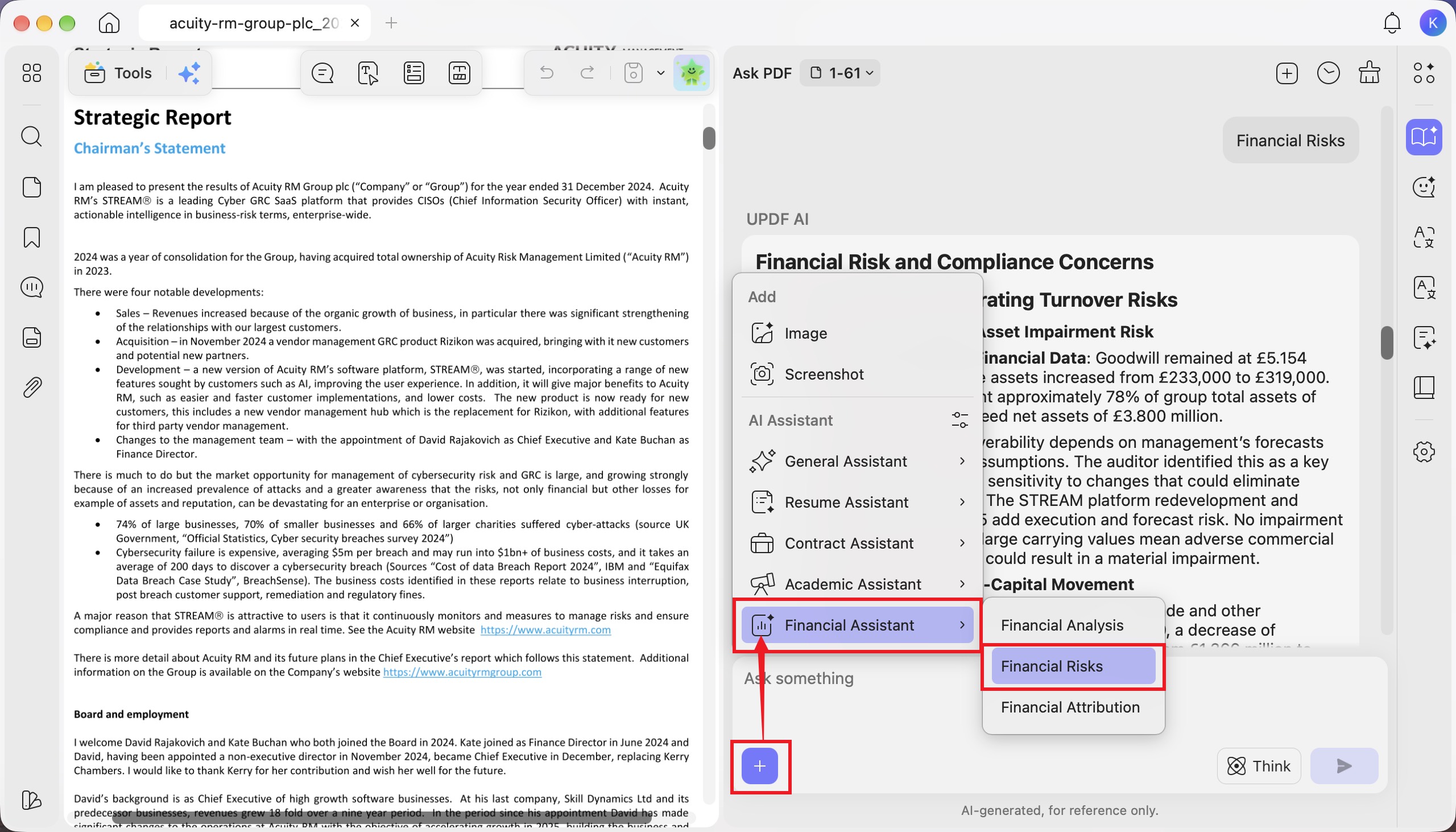
- Financial Risks
Step 1. Click the “+” button and select “Financial Assistant” > “Financial Risks.”
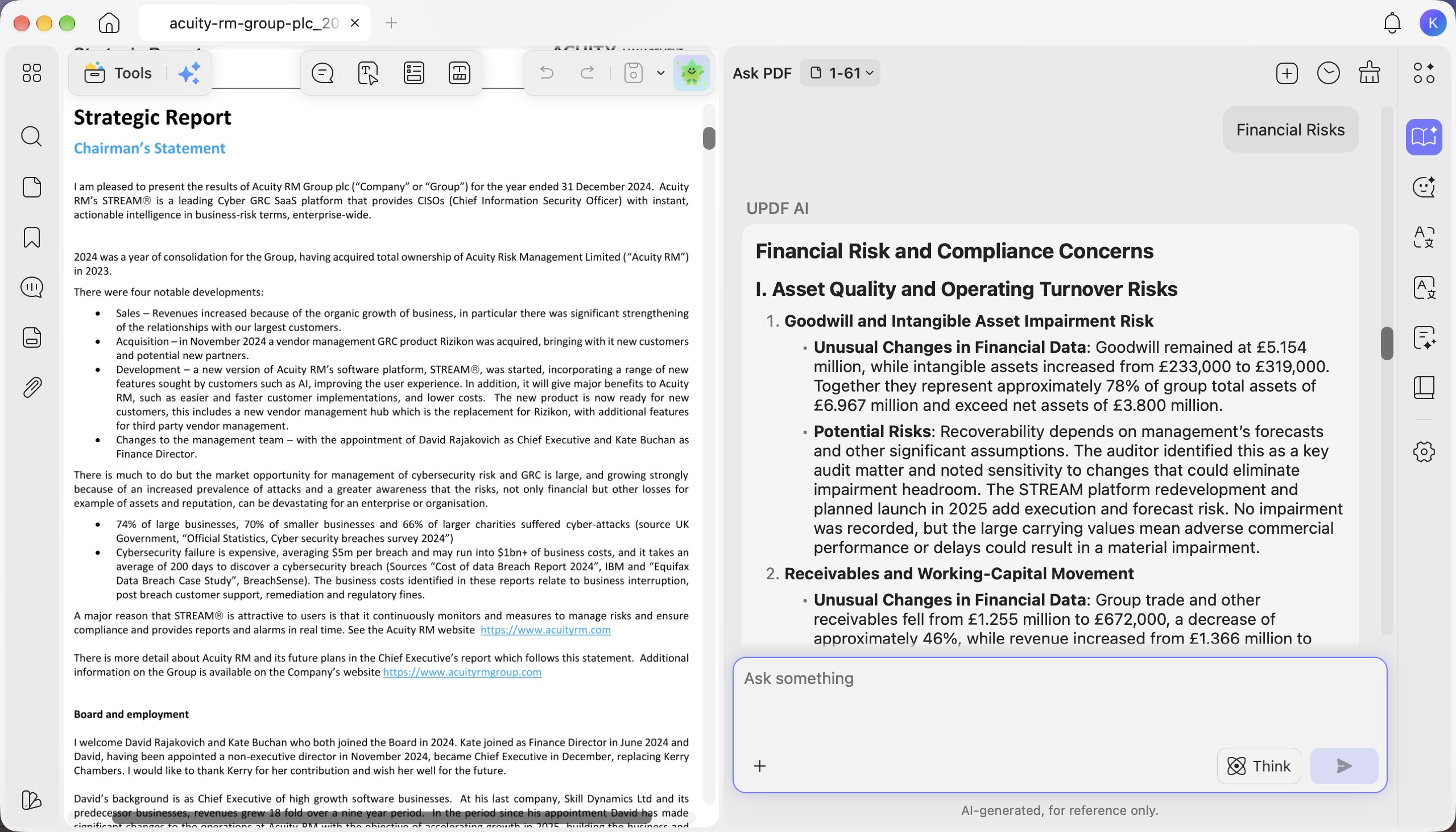
Step 2. Review the “Financial Risk and Compliance Concerns” report. It highlights unusual financial changes and potential risks involving asset quality, working capital, liquidity, debt repayment, and disclosures in the notes, including audit and compliance concerns.
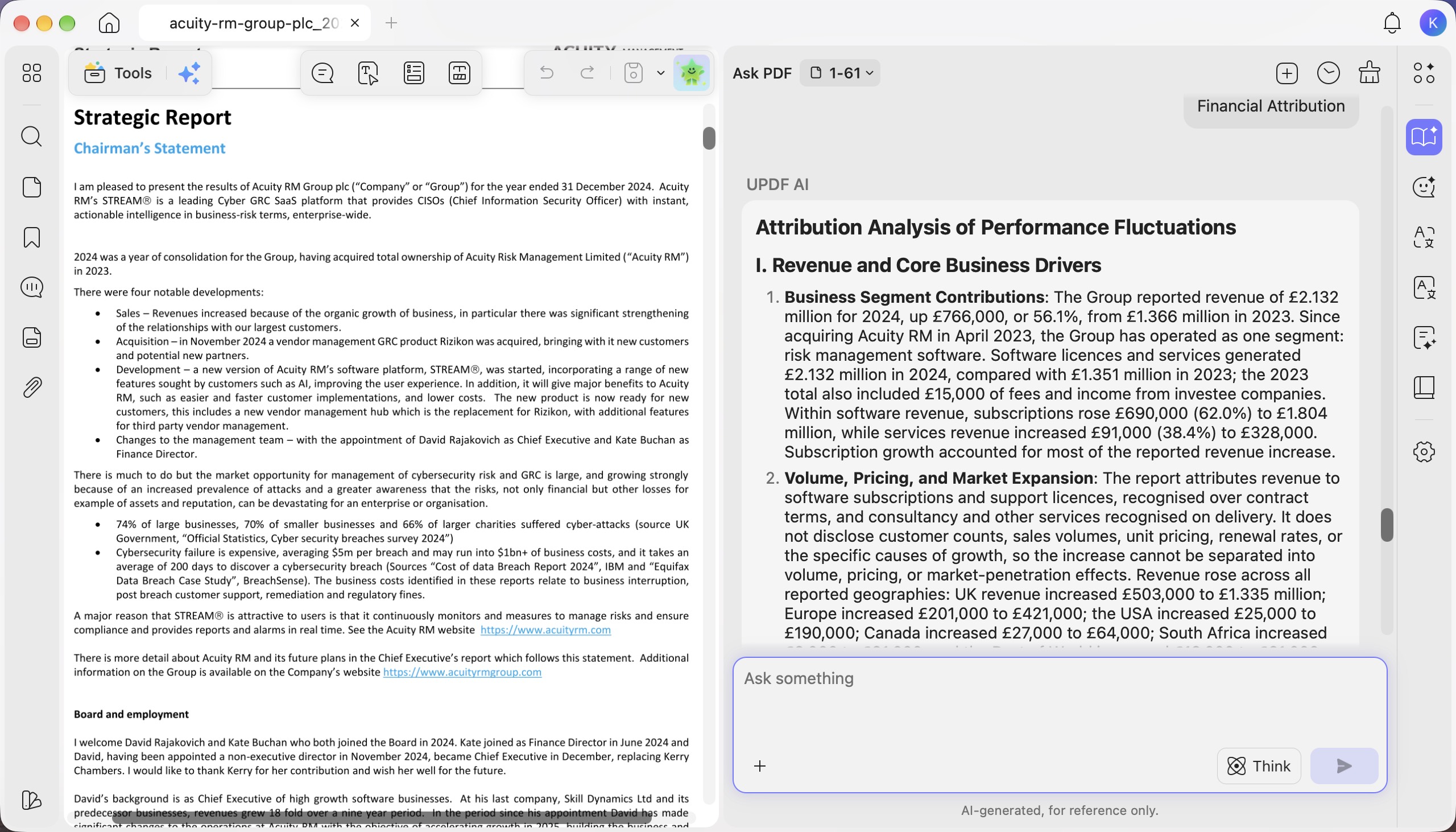
- Financial Attribution
Step 1. Click the “+” button and select “Financial Assistant” > “Financial Attribution.”
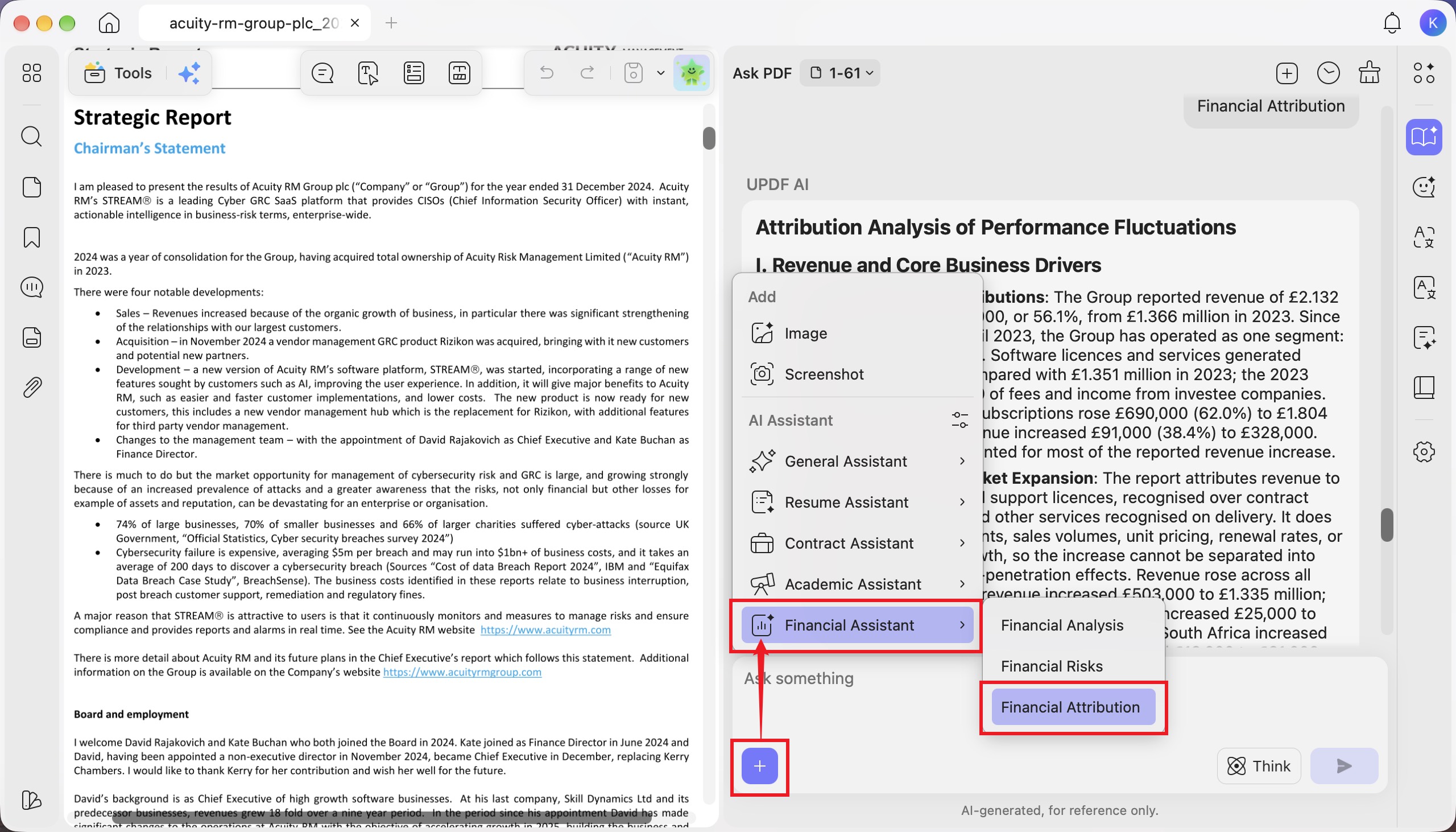
Step 2. Review the “Attribution Analysis of Performance Fluctuations” report. It examines revenue and business drivers, changes in costs and expenses, and disclosed external factors and management strategies to explain changes in financial performance.
Part 3. Manage AI Assistants and Customize Quick Actions
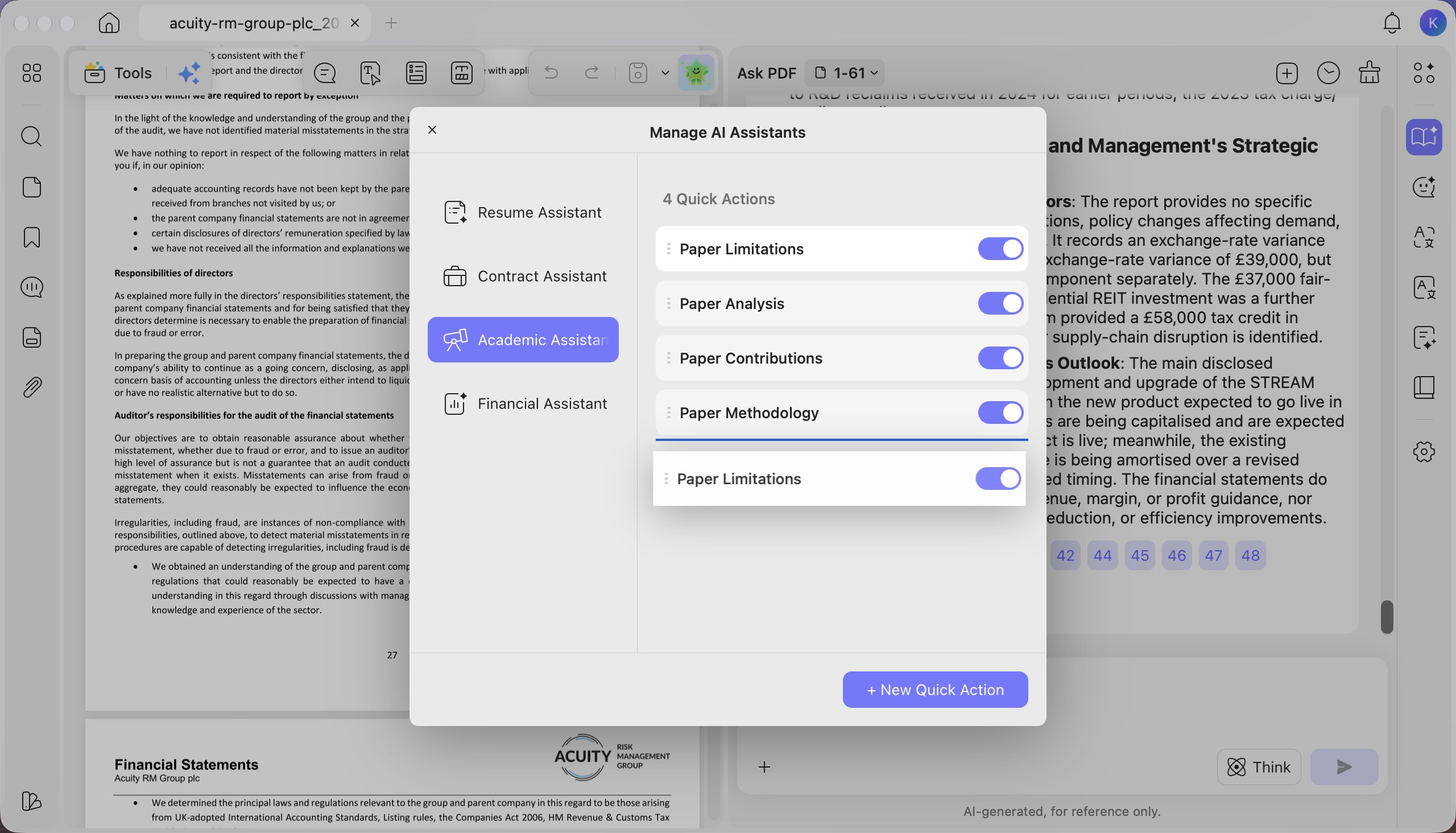
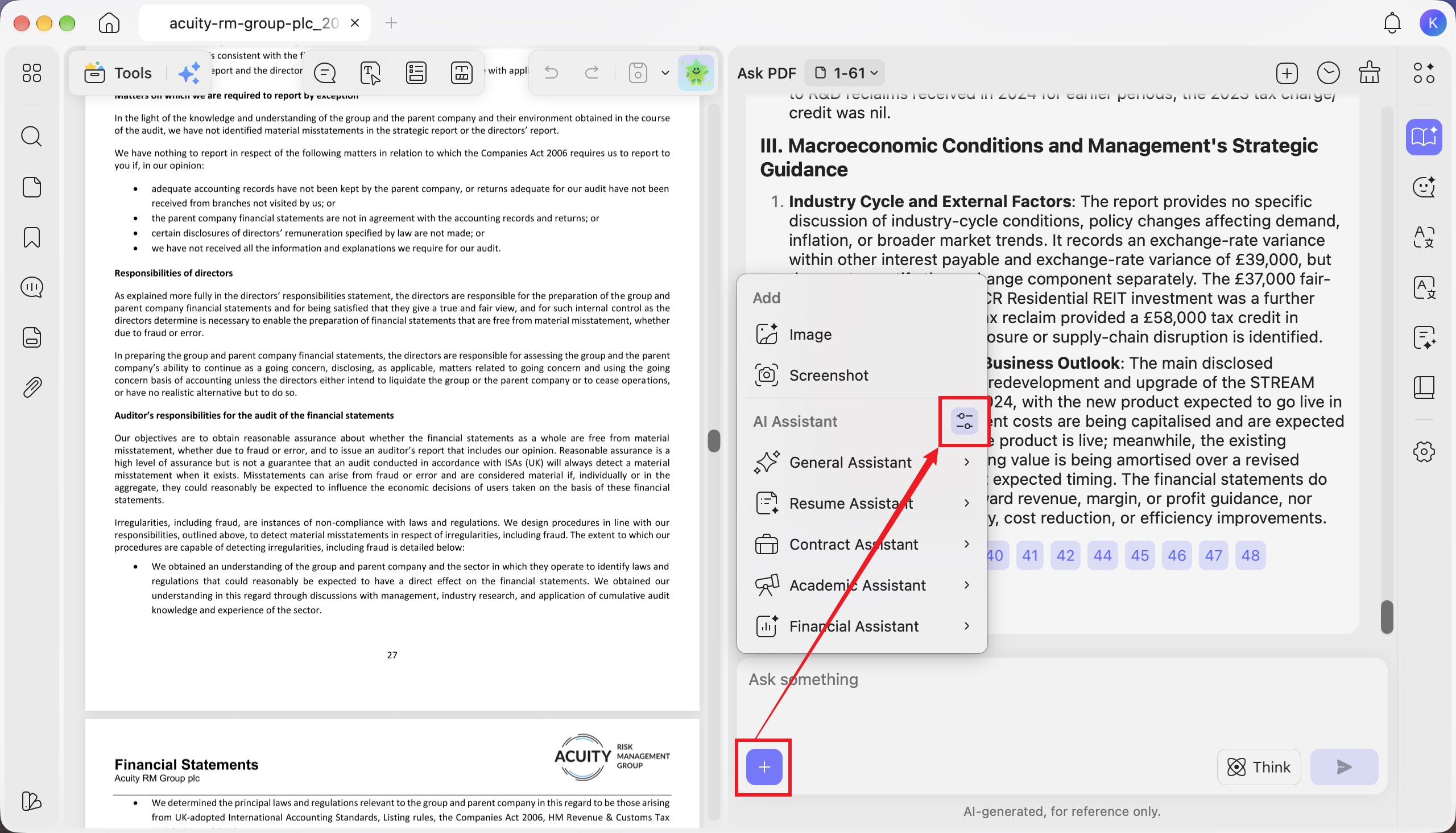
Step 1. Click the “+” button in the chat box, then click the settings icon next to “AI Assistant” to open “Manage AI Assistants.”
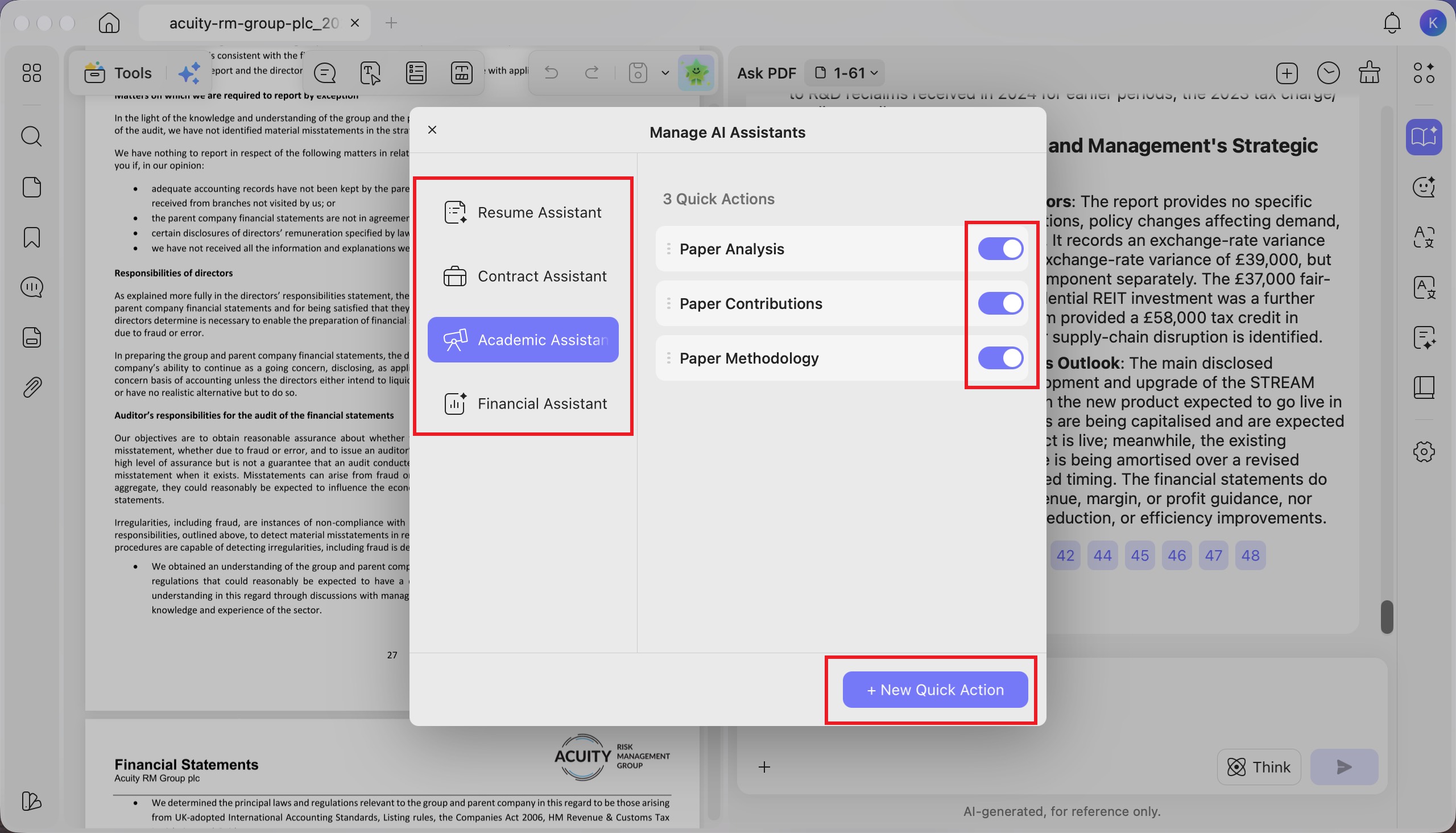
Step 2. Select “Resume Assistant,” “Contract Assistant,” “Academic Assistant,” or “Financial Assistant” from the left panel. Use the toggles to enable or disable individual quick actions, or click “+ New Quick Action” to create your own.
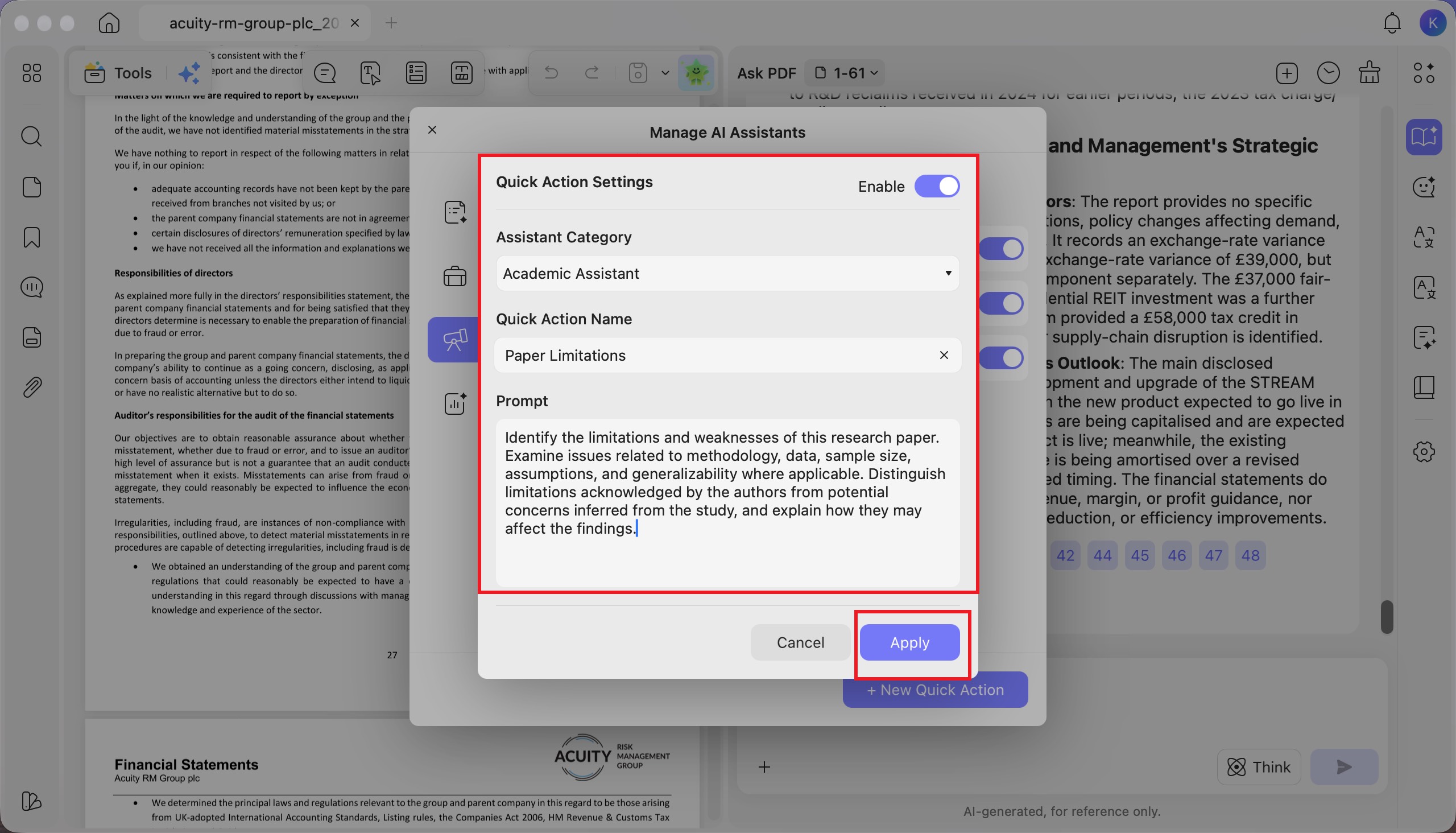
Step 3. In “Quick Action Settings,” choose an “Assistant Category,” enter a “Quick Action Name,” and write your instructions in “Prompt.” For example, create a “Paper Limitations” action under “Academic Assistant” to identify a paper’s weaknesses. Turn on “Enable” to make the action available, then click “Apply.”
Step 4. Right-click a quick action and choose “Edit” to modify it, “Copy” to duplicate it, or “Delete” to remove it.
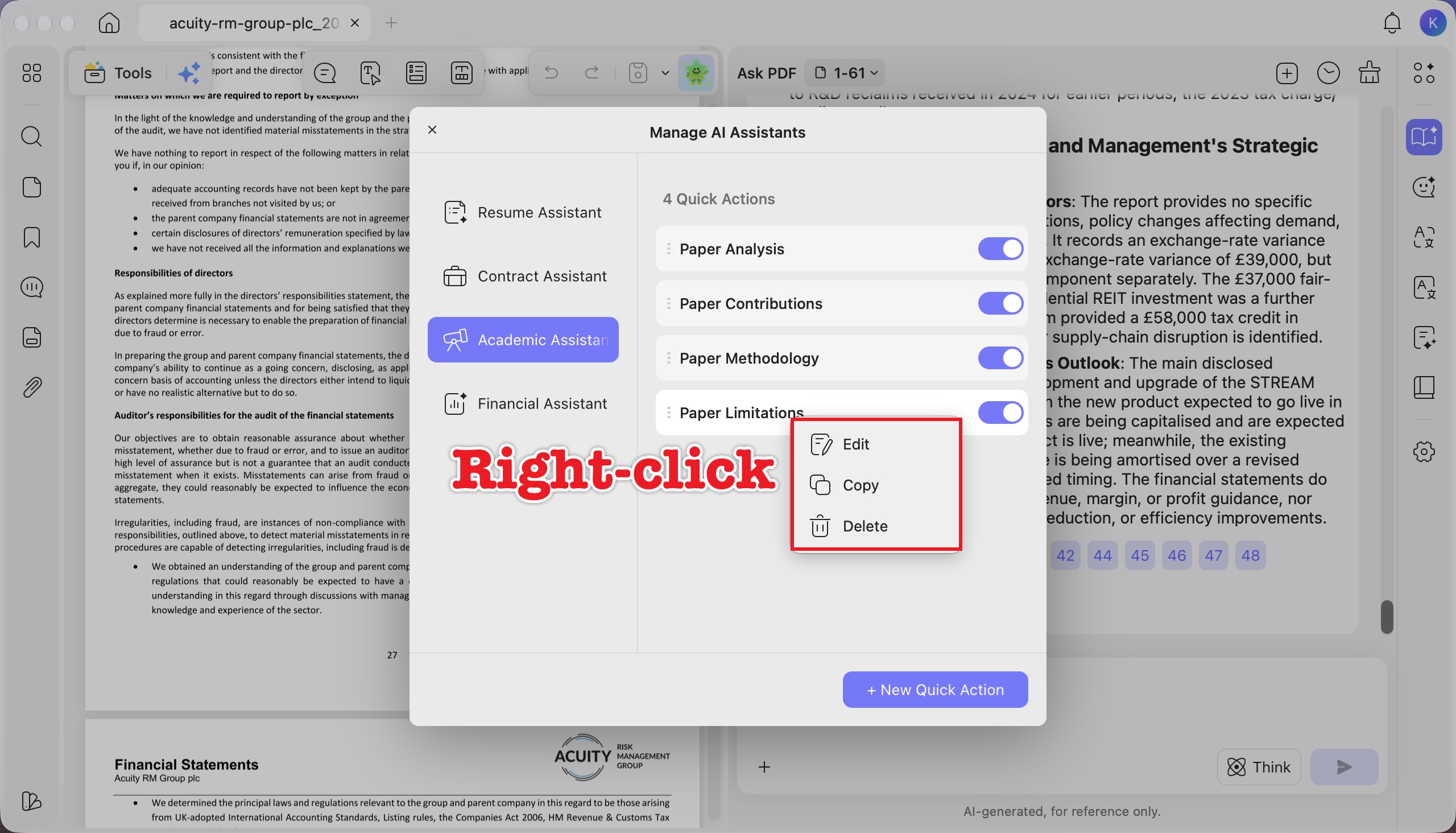
Step 5. To reorder quick actions, drag the handle on the left of an action and drop it in your preferred position.