UPDF
UPDF
 UPDF na Windows
 UPDF na Mac
 UPDF na iPhone/iPad
 UPDF na Android
 Nomostar
 UPDF AI Online
 UPDF Sign
 IvyCraft
 Edytuj PDF
 Zaznacz PDF
 Utwórz PDF
 Formularz PDF
 Edytuj linki
 Przekonwertuj PDF
 OCR
OCR PDF do Word
 PDF do obrazu
 PDF do Excel
 Zarządzaj PDF
 Scalać PDF
 Podziel PDF
 Przytnij PDF
 Obróć PDF
 Zabezpiecz PDF
 Podpisz PDF
 Redaguj PDF
 Oczyść PDF
 Usuń ochronę
 Otwórz PDF
 UPDF Chmura
 Skompresuj PDF
 Drukuj PDF
 Przetwarzanie wsadowe
 O UPDF AI
 Rozwiązania UPDF AI
 Podręcznik użytkownika AI
 FAQ dotyczące UPDF AI
 Podsumuj PDF
 Przetłumacz PDF
 Porozmawiaj z PDF-em
 Porozmawiaj z AI
 Porozmawiaj z obrazem
 PDF do mapy myśli
 Wyjaśnij PDF
 Narzędzia PDF AI
 Narzędzia obrazu AI
 Czat AI
 Pisanie AI
 Nauka z AI
 Praca z AI
 Inne narzędzia AI
 Generowanie Zakładek AI
 Podsumowanie Zakładek AI
 Generowanie Znaku Wodnego AI
 Generowanie Tła AI
 Generowanie Naklejek AI
 Generowanie Pieczęci AI
 Pakiet do Pisania AI
 UPDF Copilot
 Zarządzanie Stronami AI
 Semantyczne Wyszukiwanie AI
 PDF to Word
 PDF to Excel
 PDF do PowerPoint
 Rozwiązania dla przedsiębiorstw
 Plan dla przedsiębiorstw
 Przewodnik użytkownika dla przedsiębiorstw
 Webinar Korporacyjny
 Bankowość
 Opieka zdrowotna
 Ubezpieczenia
 Prawo
Prawo Produkcja
 Rząd
Rząd Rozwiązania dla edukacji
 Historie klientów
 Przewodnik użytkownika
 Sztuczki UPDF
 FAQs
FAQs Recenzje UPDF
 Centrum pobierania
 Blog
Blog Sala prasowa
 Specyfikacja techniczna
 Aktualizacje
 UPDF a Adobe Acrobat
 UPDF a Foxit
 UPDF a PDF Expert

Sprawdzanie i zarządzanie stronami PDF za pomocą AI
Skuteczne zarządzanie PDF jest niepodważalne dla profesjonalnych PDF-ów, takich jak dokument przetargowy czy umowa. Tym bardziej, jeśli połączyłeś kilka dokumentów razem.
Przed udostępnieniem pliku musisz upewnić się, że Twój PDF jest odpowiednio ustrukturyzowany. Jednak ręczne sprawdzanie każdej strony pod kątem problemów z formatowaniem może zająć godziny. Poza tym można przeoczyć niektóre ważne błędy.
Funkcja AI Page Management w UPDF ułatwia sprawę, automatycznie skanując dokument i podświetlając strony, które wymagają optymalizacji.
Obsługuje następujące typy stron:
- Puste strony
- Zeskanowane strony
- Nieprawidłowe strony z cieniami
- Odwrócona orientacja strony
- Przerwy w ciągłości dokumentu w numeracji stron
- Strony zawierające adnotacje
- Niespójności rozmiarów stron itd.
Mimo to skorzystaj z poniższego szczegółowego przewodnika, aby dowiedzieć się, jak korzystać z tej funkcji.
Część 1. Jak sprawdzać i zarządzać stronami PDF za pomocą AI
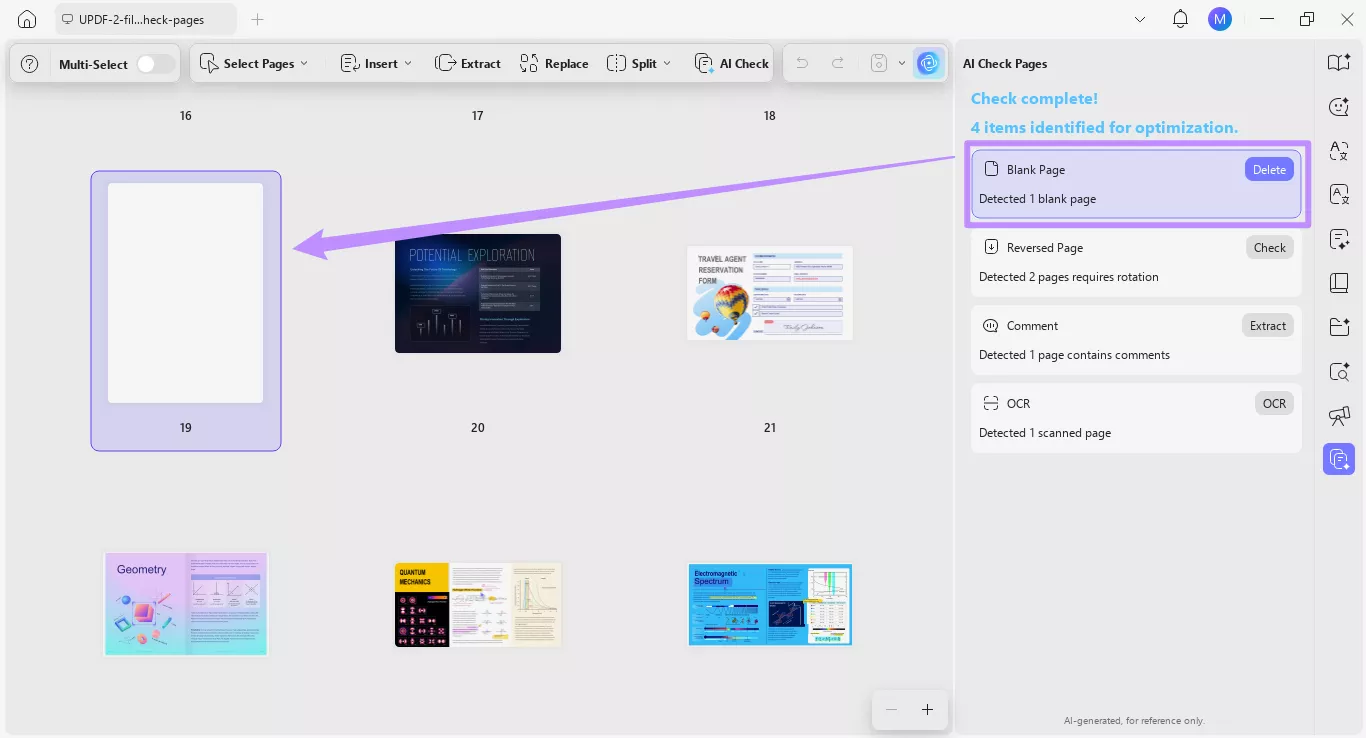
Dzięki narzędziu AI Check Pages UPDF automatycznie wykrywa ważne problemy z organizacją stron i prezentuje je w uporządkowanej liście. Możesz szybko zobaczyć i naprawić problemy, korzystając z sugerowanych działań.
Oto kroki.
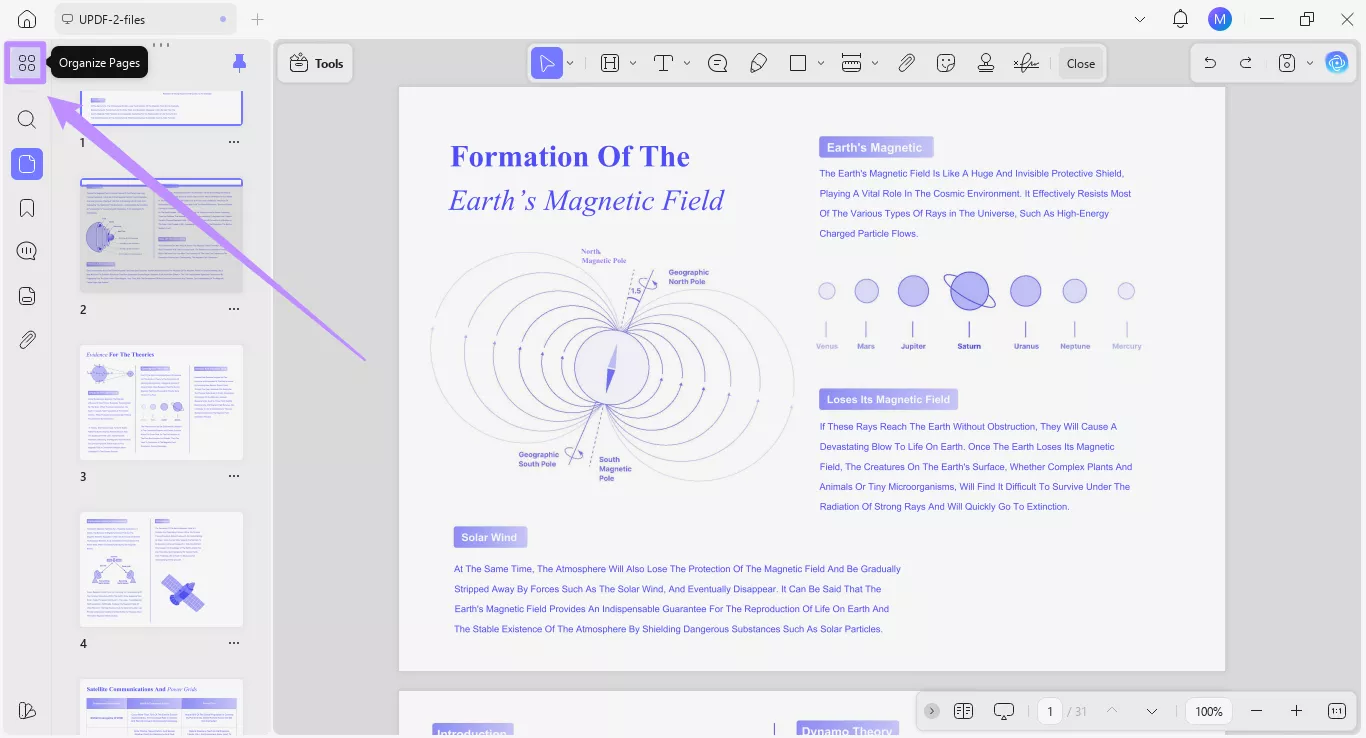
Krok 1. Otwórz narzędzie Organizuj Strony
Otwórz wybrany plik PDF w UPDF. Następnie kliknij ikonę "Organizuj strony" u góry w lewym pasku bocznym.
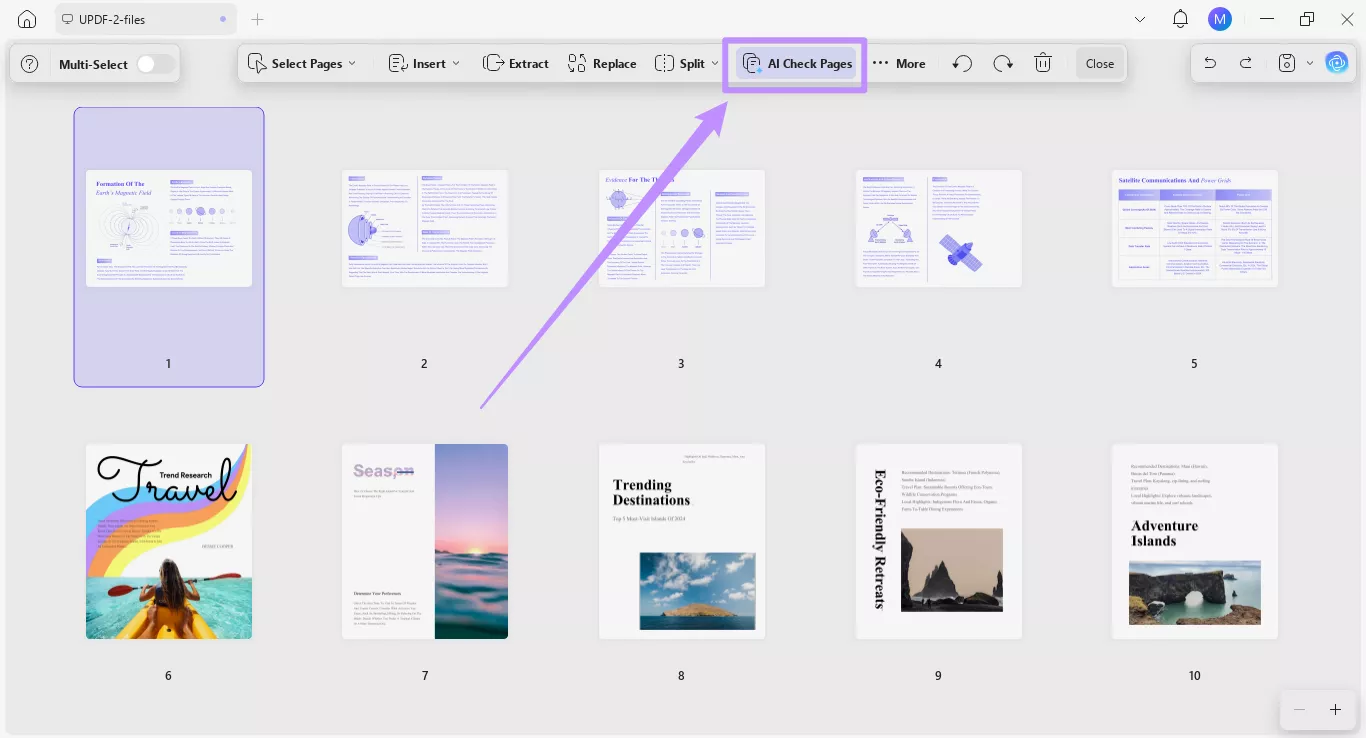
Step 2. Start the AI Page Check
From the toolbar at the top, click the “AI Check Pages” option. The AI will quickly scan your PDF document for any items that need further optimization.
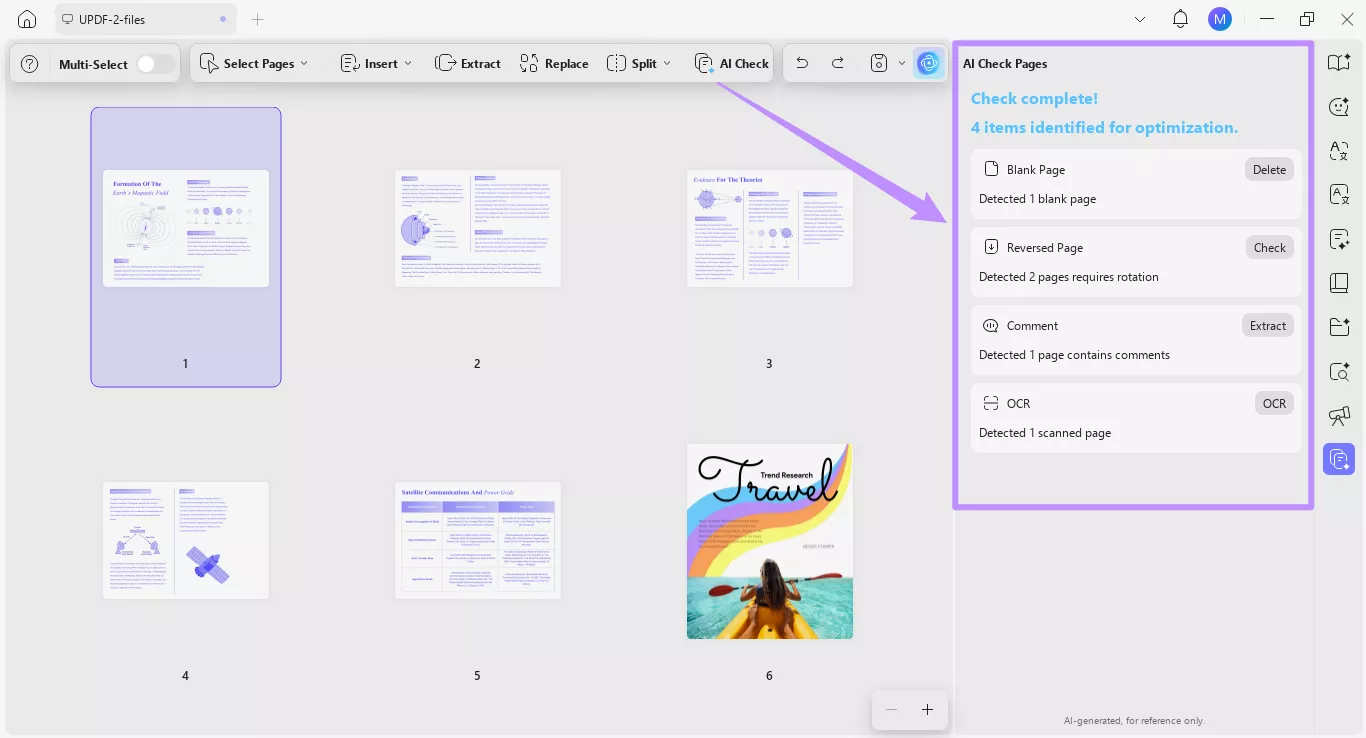
Step 3. Review the Identified Issues
The results of the AI scan can be viewed in the AI Check Pages panel on the right. From here, you can view the list of issues with a short description and an Action button for resolving them.
Step 4. Go to the Affected Pages
Click any item in the list to quickly jump to the corresponding page in your document. This way, you can manually review the issue before proceeding to fix it.
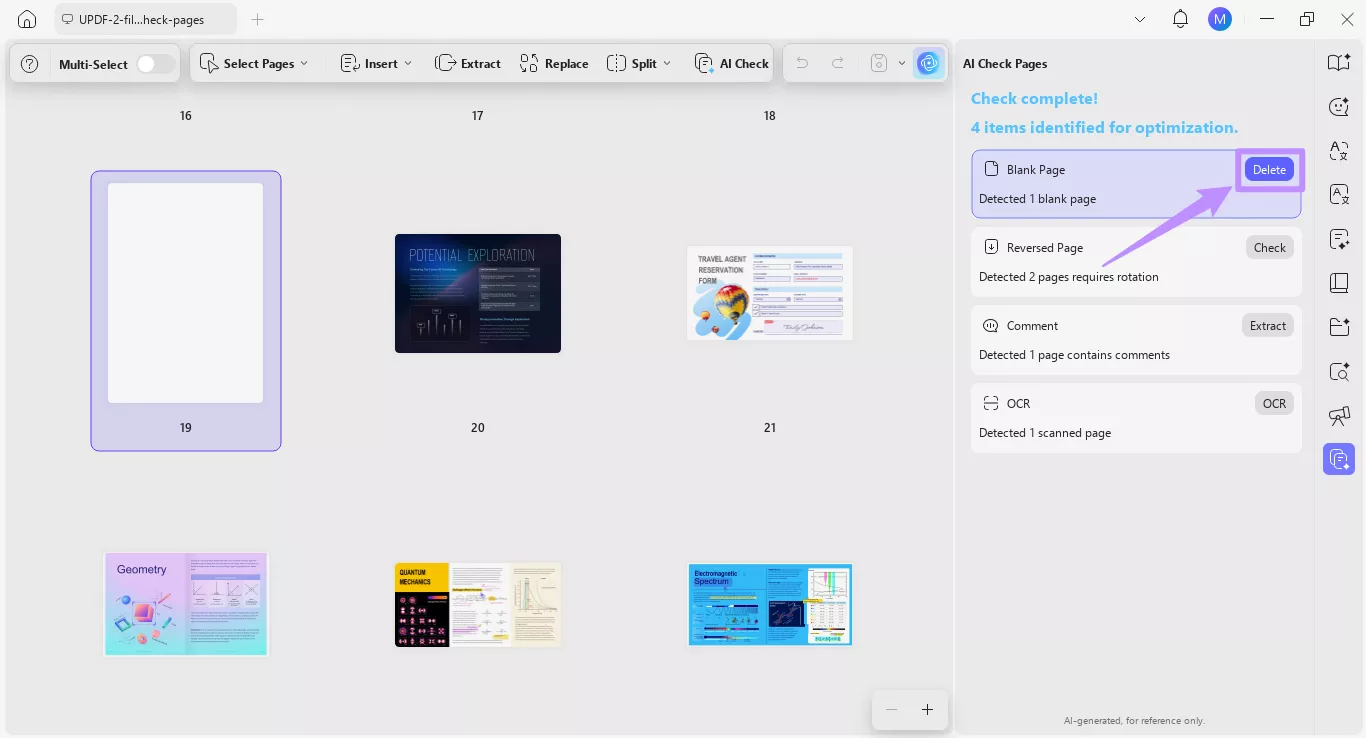
Step 5. Fix Issues Using Suggested Actions
To resolve the issue, click the Action button next to each item in the list. Then, follow the on-screen instructions to resolve the issue.
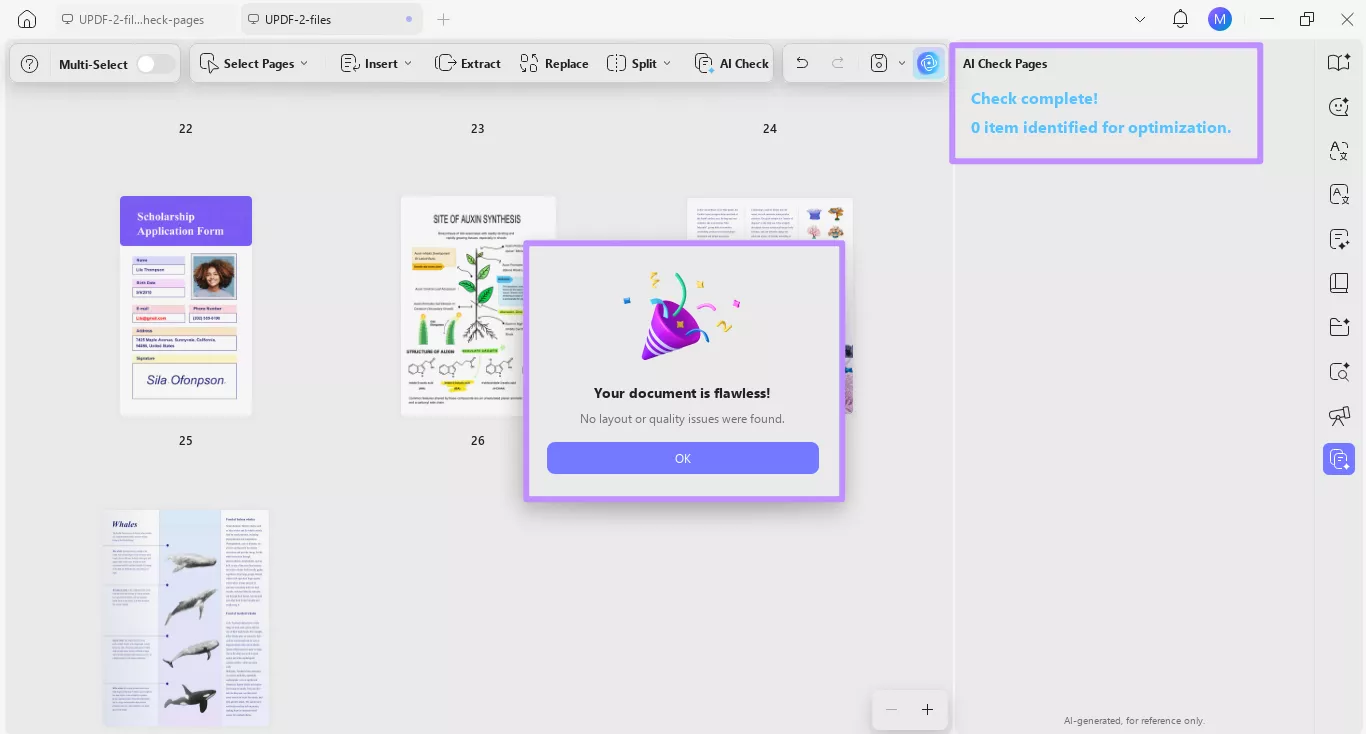
Step 6. Recheck and Confirm
After addressing all issues, you can click the “AI Check Pages” tool again to confirm it. The resolved items will disappear from the list, and a dialogue box will notify that the document is flawless.
Note:
Besides managing pages with AI, UPDF also helps you manually review and organize your PDF pages. To learn how it works, check out our guide on organizing pages manually.
Part 2. Examples of Actions for Resolving Page Issues
Based on the type of issue, the actions can be automatically handled by AI or may require manual steps.
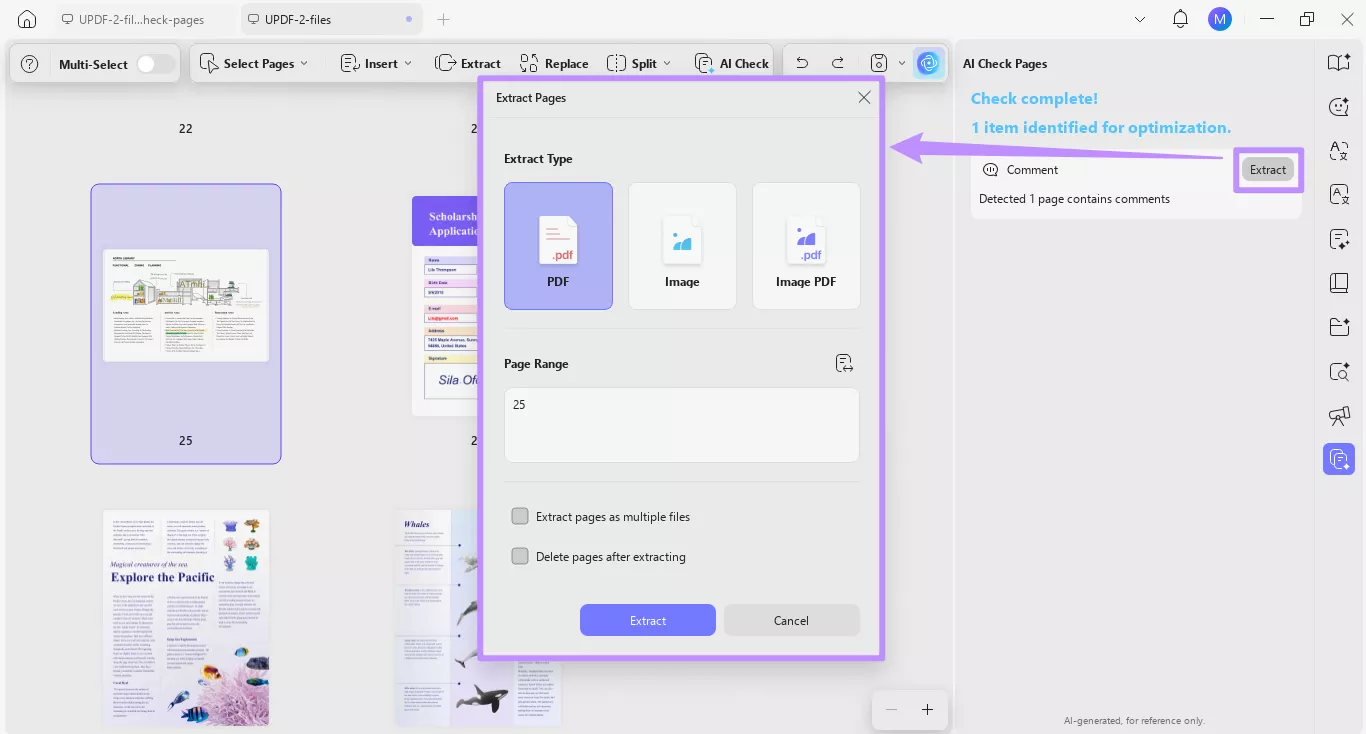
For example, in the case of comments identified in the PDF, you can click the “Extract” button. Then, follow the on-screen prompts to complete the action.
Każda odwrócona strona w PDF zostanie wyświetlona przyciskiem "Sprawdź". Kliknięcie na niego przekierowuje cię do tych stron, gdzie możesz ręcznie dostosować ich rotację.
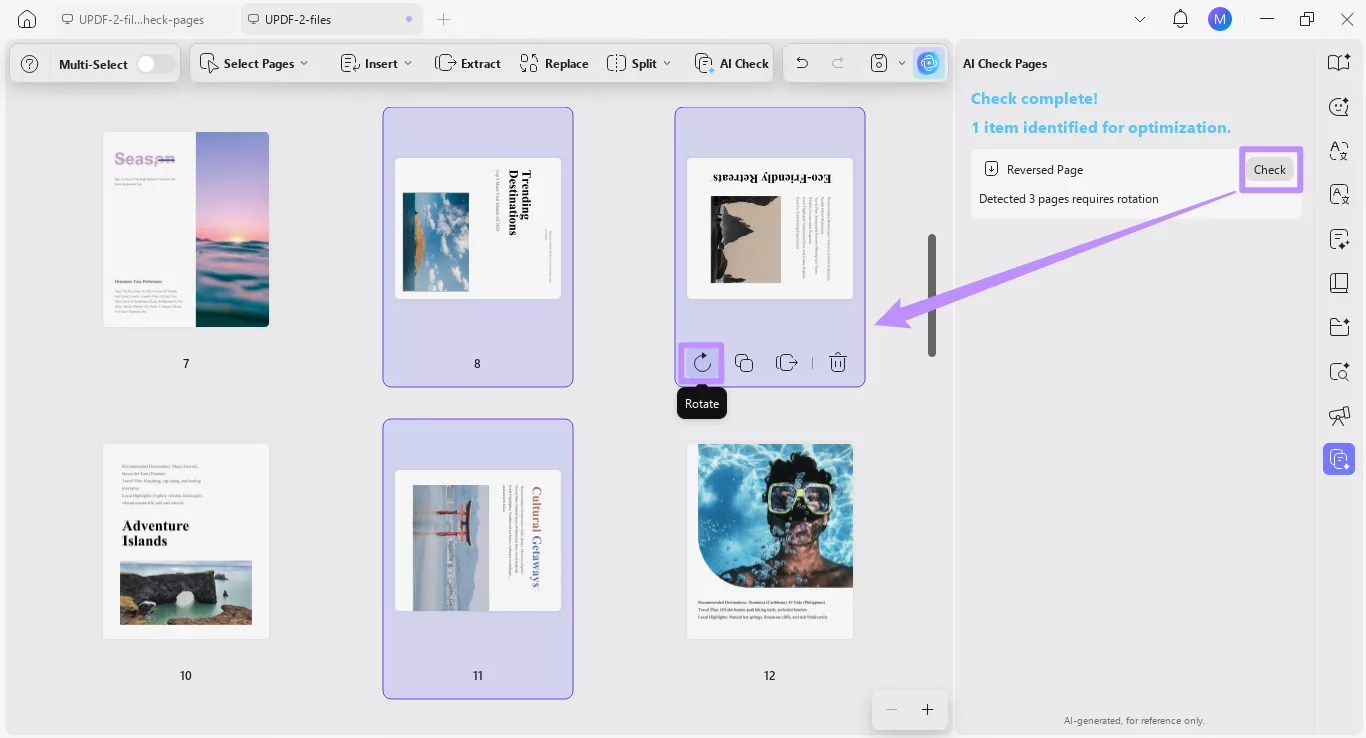
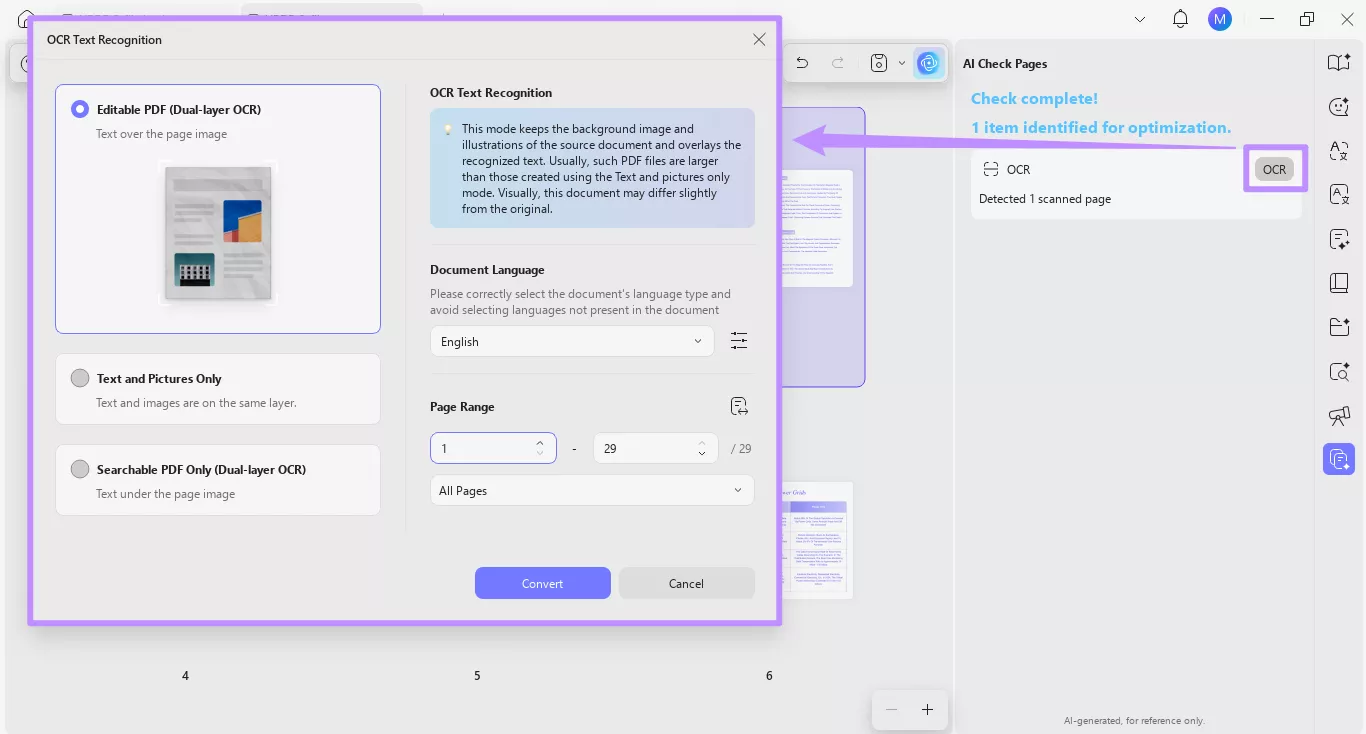
Dla zeskanowanych stron w PDF-ie musisz kliknąć przycisk "OCR". Następnie możesz uruchomić narzędzie OCR, aby strony były edytowalne i przeszukiwalne.