UPDF
UPDF
 Windows के लिए UPDF
 Mac के लिए UPDF
 iPhone/iPad के लिए UPDF
 Android के लिए UPDF
 UPDF AI Online
 UPDF साइन
 PDF संपादित करें
 PDF पर टिप्पणी करें
 PDF बनाएं
 PDF फ़ॉर्म
 लिंक संपादित करें
 PDF रूपांतरित करें
 OCR
OCR PDF से Word
 PDF से छवि
 PDF से Excel
 PDF व्यवस्थित करें
 PDF मर्ज करें
 PDF विभाजित करें
 PDF क्रॉप करें
 PDF घुमाएँ
 PDF सुरक्षित करें
 PDF पर हस्ताक्षर करें
 PDF संशोधित करें
 PDF स्वच्छ करें
 सुरक्षा हटाएँ
 PDF पढ़ें
 UPDF क्लाउड
 PDF संपीड़ित करें
 PDF प्रिंट करें
 बैच प्रोसेस
 UPDF AI के बारे में
 UPDF AI समाधान
 एआई उपयोगकर्ता मार्गदर्शिका
 UPDF से जुड़े प्रश्न
 PDF का संक्षेपण करें
 PDF का अनुवाद करें
 PDF के साथ चैट करें
 AI के साथ चैट करें
 छवि के साथ चैट करें
 PDF को माइंड मैप में बदलें
 PDF की व्याख्या करें
 PDF AI Tools
 Image AI Tools
 AI Chat Tools
 AI Writing Tools
 AI Study Tools
 AI Working Tools
 Other AI Tools
 AI बुकमार्क जनरेशन
 AI बुकमार्क सारांश
 AI वॉटरमार्क जनरेशन
 AI बैकग्राउंड जनरेशन
 AI स्टिकर जनरेशन
 AI स्टैम्प जनरेशन
 AI राइटिंग सूट
 UPDF Copilot
 AI पेज प्रबंधन
 AI सिमेंटिक खोज
 PDF से Word
 PDF से Excel
 PDF से PowerPoint
 एंटरप्राइज समाधान
 एंटरप्राइज योजना
 एंटरप्राइज उपयोगकर्ता गाइड
 कंपनी वेबिनार
 बैंकिंग
 स्वास्थ्य सेवा
 बीमा
बीमा क़ानूनी
 विनिर्माण
 सरकार
सरकार शिक्षा समाधान
 ग्राहक कहानियां
 उपयोगकर्ता गाइड
 UPDF ट्रिक्स
 अक्सर पूछे जाने वाले प्रश्न
 UPDF समीक्षाएं
 डाउनलोड केंद्र
 ब्लॉग
ब्लॉग न्यूजरूम
 तकनीकी विनिर्देश
 अपडेट्स
 UPDF बनाम Adobe Acrobat
 UPDF बनाम Foxit
 UPDF बनाम PDF Expert

अपने पीडीएफ की सुरक्षा के लिए एआई-वाटरमार्क उत्पन्न करें
पीडीएफ में वॉटरमार्क जोड़ने से आपको स्वामित्व की रक्षा करने और अवांछित संपादन को रोकने में मदद मिलती है। हालाँकि, उपयुक्त वॉटरमार्क बनाना आसान नहीं है। तैयार डिज़ाइन खोजने में घंटों शोध लग सकता है। फिर भी, अधिकांश वॉटरमार्क डिज़ाइन कॉपीराइट हैं और उपयोग के लिए सीमित हैं।
इसके अलावा, अपने स्वयं के वॉटरमार्क डिज़ाइन करने के लिए, आपको फ़ोटोशॉप जैसे उन्नत टूल के साथ काम करना होगा। यदि आप एक ग्राफिक डिजाइनर नहीं हैं, तो एक वॉटरमार्क बनाना जो पेशेवर और नेत्रहीन दोनों तरह से संतुलित हो, काफी मांग वाला हो सकता है।
चीजों को आसान बनाने के लिए, UPDF की AI-जेनरेट वॉटरमार्क सुविधा आपको टेक्स्ट प्रॉम्प्ट का उपयोग करके तुरंत वॉटरमार्क डिज़ाइन बनाने देती है। यह कैसे काम करता है, यह जानने के लिए नीचे दिए गए गाइड का पालन करें।
भाग 1. पीडीएफ के लिए वॉटरमार्क कैसे बनाएं
UPDF AI के साथ वॉटरमार्क छवियां उत्पन्न करने के दो तरीके प्रदान करता है। आप एक वैयक्तिकृत प्रॉम्प्ट लिख सकते हैं या स्मार्ट प्रीसेट प्रॉम्प्ट का उपयोग कर सकते हैं। दोनों विधियां तीन उच्च-रिज़ॉल्यूशन पीएनजी वॉटरमार्क उत्पन्न करती हैं जिन्हें सीधे आपके पीडीएफ पर लागू किया जा सकता है।
आइए चरणों के बारे में विस्तार से जानें।
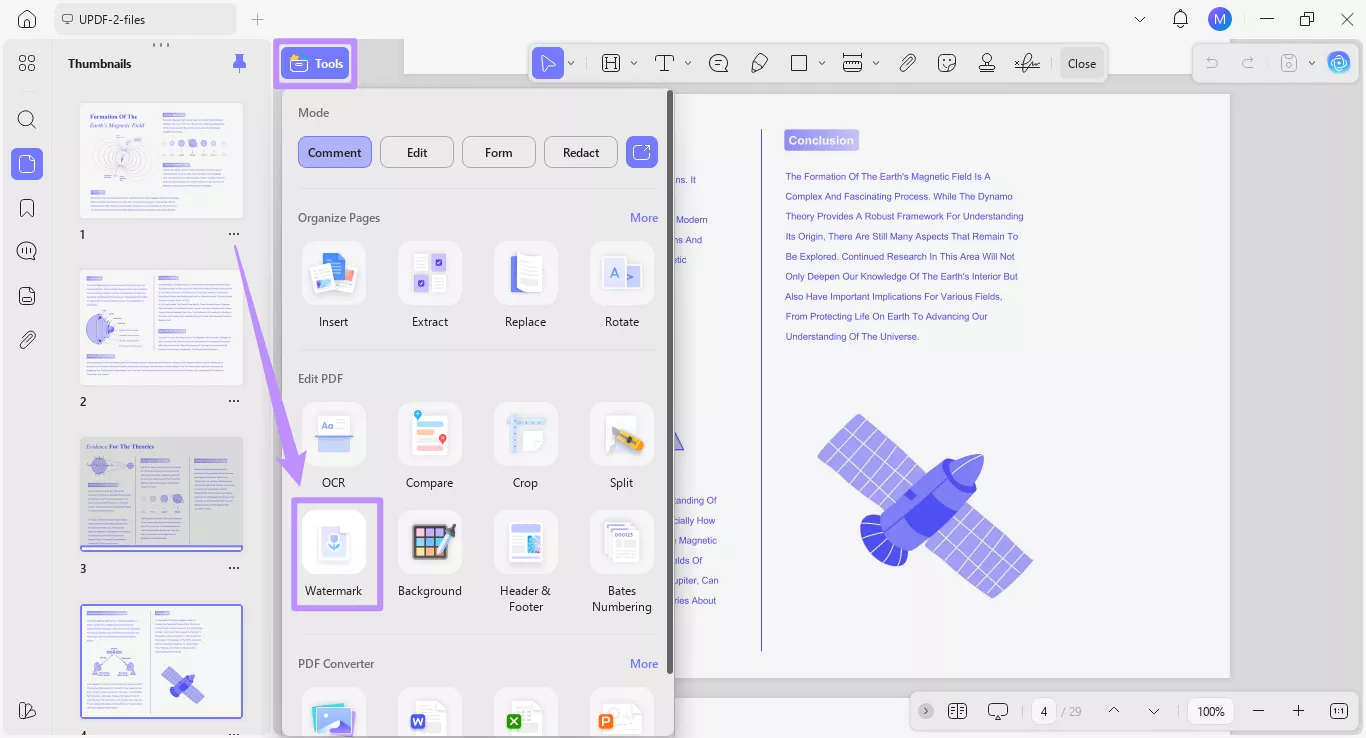
चरण 1. वह पीडीएफ खोलें जिसे आप यूपीडीएफ में वॉटरमार्क करना चाहते हैं। फिर, ऊपर बाईं ओर से "टूल्स" पर क्लिक करें और पीडीएफ संपादित करें अनुभाग के तहत "वॉटरमार्क" चुनें।
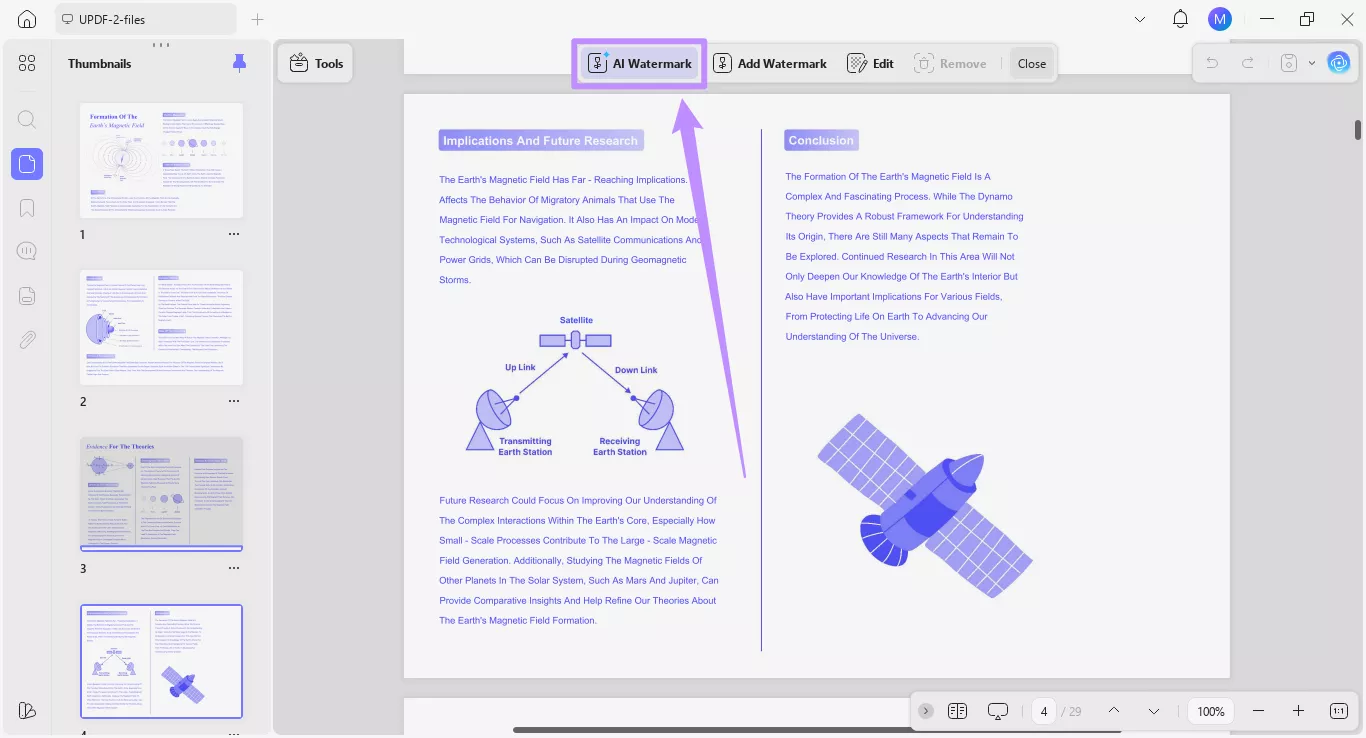
चरण 2. शीर्ष पर मेनू से, "एआई वॉटरमार्क" विकल्प चुनें।
एआई जेनरेट वॉटरमार्क टूल के लिए एक नई विंडो खुलेगी, जहां आप दो तरीकों से वॉटरमार्क जेनरेट कर सकते हैं।
विधि 1. वैयक्तिकृत प्रॉम्प्ट के साथ वॉटरमार्क उत्पन्न करें
वैयक्तिकृत प्रॉम्प्ट विकल्प आपको वॉटरमार्क डिज़ाइन का विस्तृत विवरण जोड़ने की अनुमति देता है। आप आवश्यकतानुसार वॉटरमार्क टेक्स्ट, शैली या रंग के बारे में स्वतंत्र रूप से विवरण जोड़ सकते हैं।
यहाँ क्या करना है।
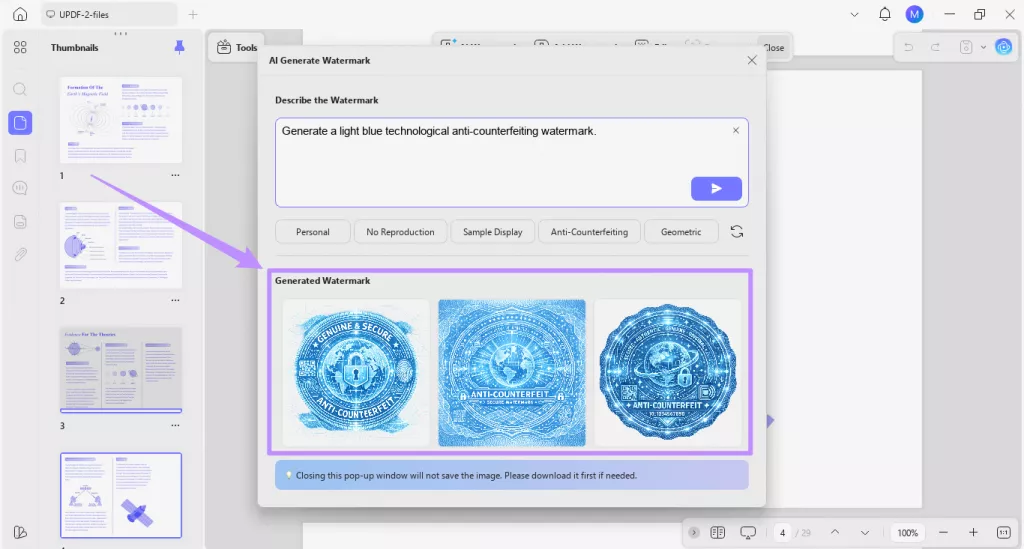
चरण 1. वॉटरमार्क का वर्णन करें के लिए टेक्स्ट बॉक्स पर क्लिक करें और उस वॉटरमार्क के बारे में विवरण टाइप करें जिसे आप बनाना चाहते हैं।
उदाहरण के लिए, आप एआई से "हल्के नीले रंग का तकनीकी जालसाजी विरोधी वॉटरमार्क उत्पन्न करने" के लिए कह सकते हैं। एक बार जब आप कर लें, तो "भेजें" बटन पर क्लिक करें।
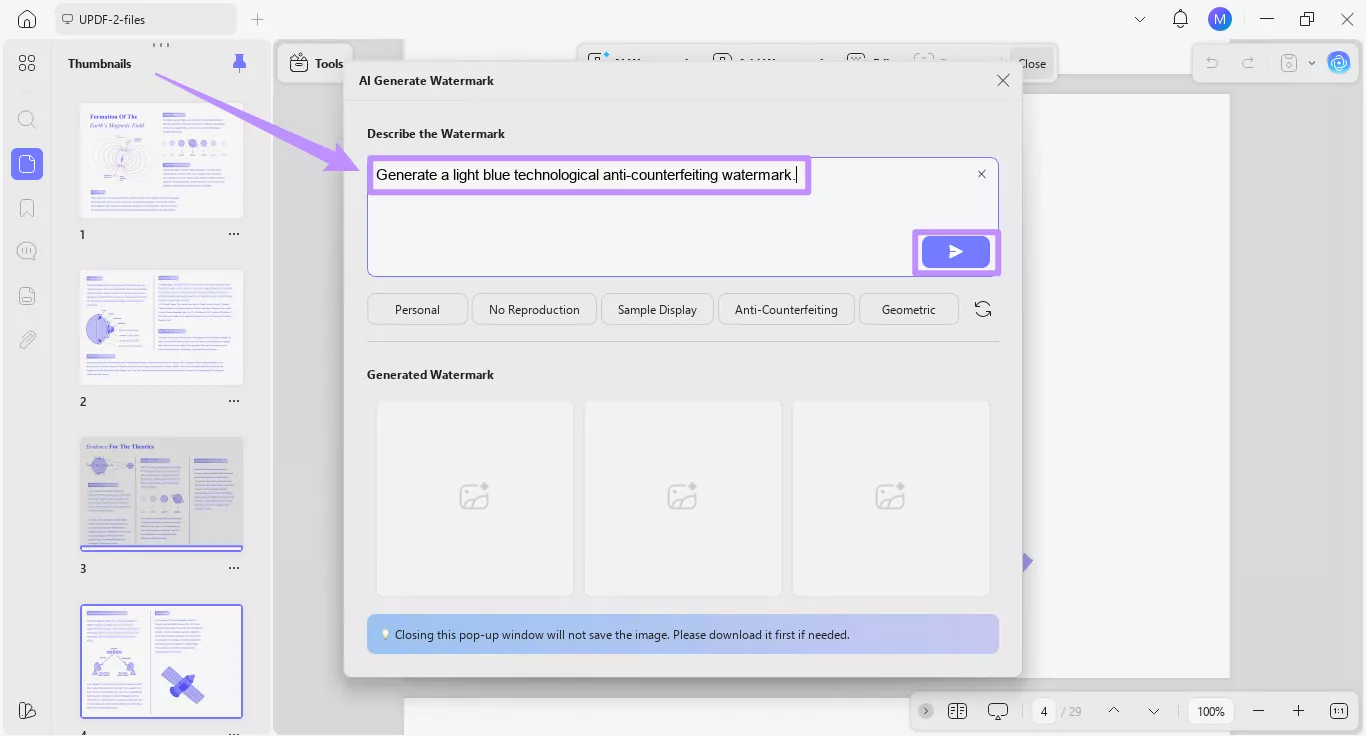
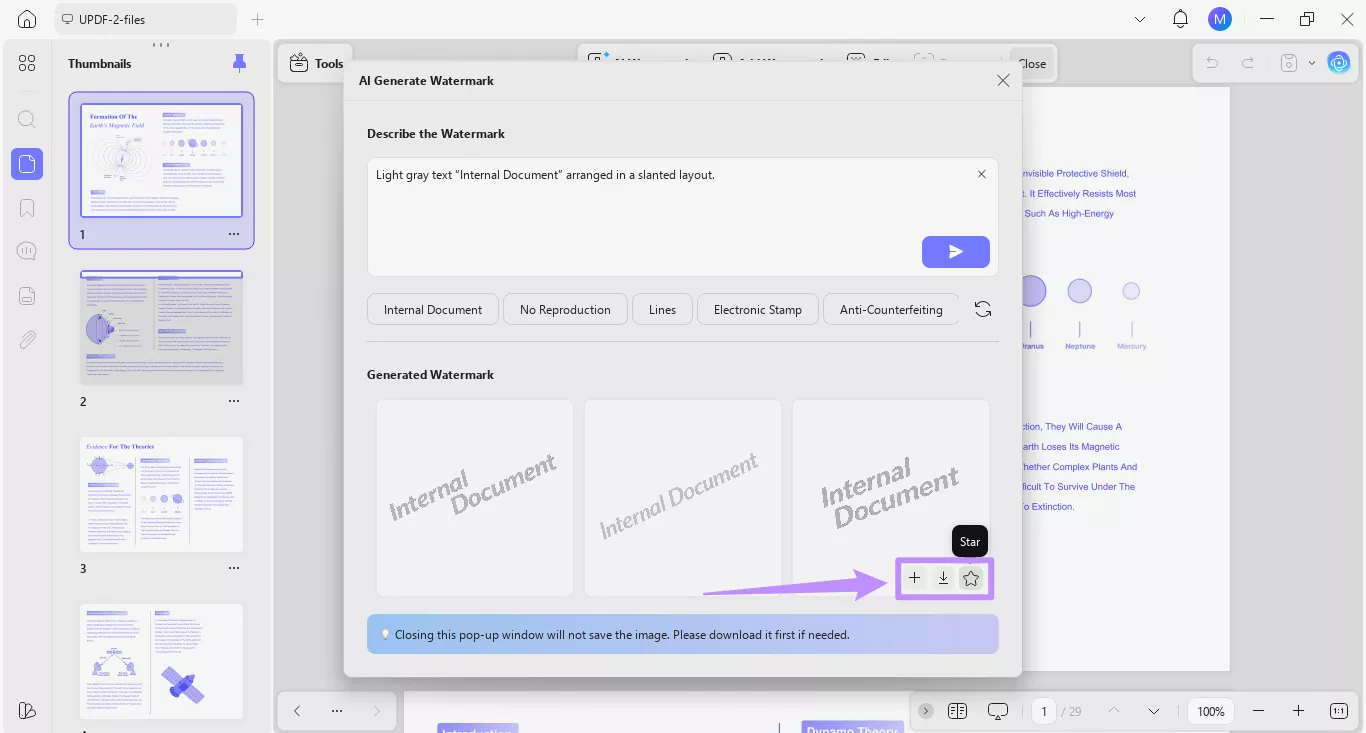
चरण 2. आपके विवरण के आधार पर, UPDF AI पारदर्शी पृष्ठभूमि के साथ तीन उच्च-रिज़ॉल्यूशन PNG वॉटरमार्क छवियां तैयार करेगा। आप उन्हें "जेनरेट किया गया वॉटरमार्क" अनुभाग के अंतर्गत देख सकते हैं।
नोट:
विधि 2. स्मार्ट प्रीसेट के साथ जल्दी से वॉटरमार्क बनाएं
यदि आप अपने संकेतों को मैन्युअल रूप से अनुकूलित नहीं करना चाहते हैं, तो आप स्मार्ट प्रीसेट के साथ तेजी से वॉटरमार्क विवरण उत्पन्न कर सकते हैं। प्रीसेट का नाम सामान्य वॉटरमार्क प्रकारों के नाम पर रखा गया है। और प्रत्येक पर क्लिक करने से प्रॉम्प्ट बॉक्स में प्रासंगिक विवरण स्वचालित रूप से जुड़ जाता है।
यहां देखिए यह कैसे काम करता है।
चरण 1. प्रॉम्प्ट बॉक्स के नीचे वॉटरमार्क प्रीसेट ढूंढें और जिसे आप जनरेट करना चाहते हैं उस पर क्लिक करें। संबंधित वॉटरमार्क विवरण प्रॉम्प्ट बॉक्स में दिखाई देगा।
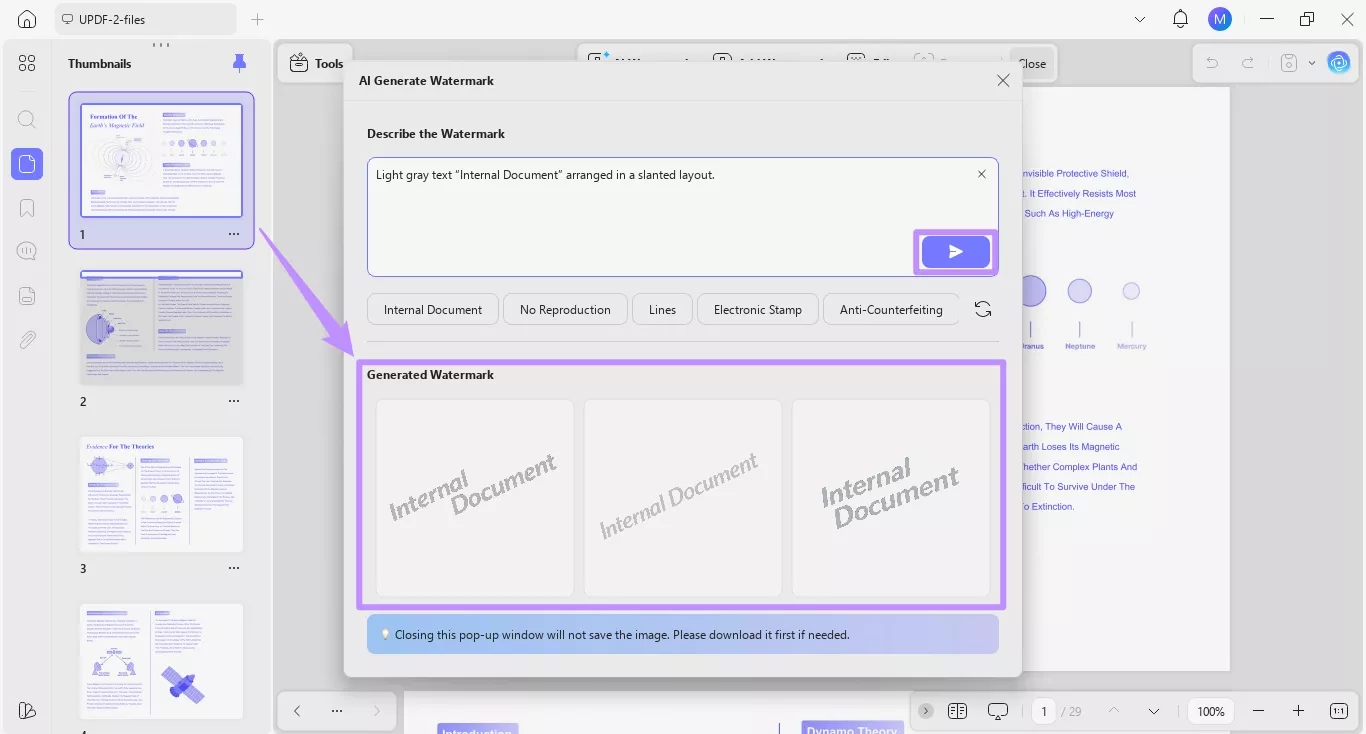
- उदाहरण के लिए, यदि आप "आंतरिक दस्तावेज़" प्रीसेट पर क्लिक करते हैं, तो यह एक विशिष्ट लेआउट में आंतरिक दस्तावेज़ टेक्स्ट वॉटरमार्क उत्पन्न करने के लिए संकेत जोड़ देगा।
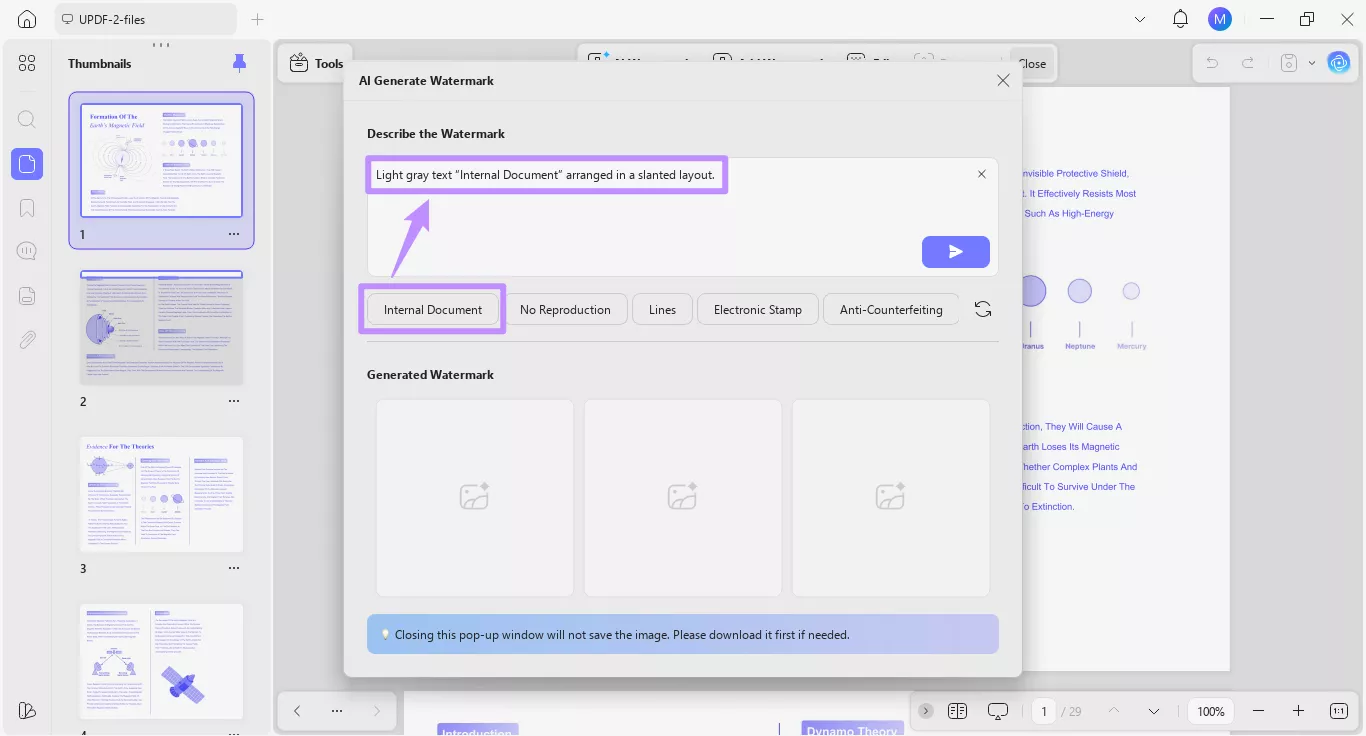
चरण 2. यदि आवश्यक हो तो आप प्रॉम्प्ट को मैन्युअल रूप से संपादित कर सकते हैं। एक बार हो जाने के बाद, "भेजें" बटन पर क्लिक करें। एआई वॉटरमार्क "जेनरेट किए गए वॉटरमार्क" अनुभाग के अंतर्गत दिखाई देंगे।
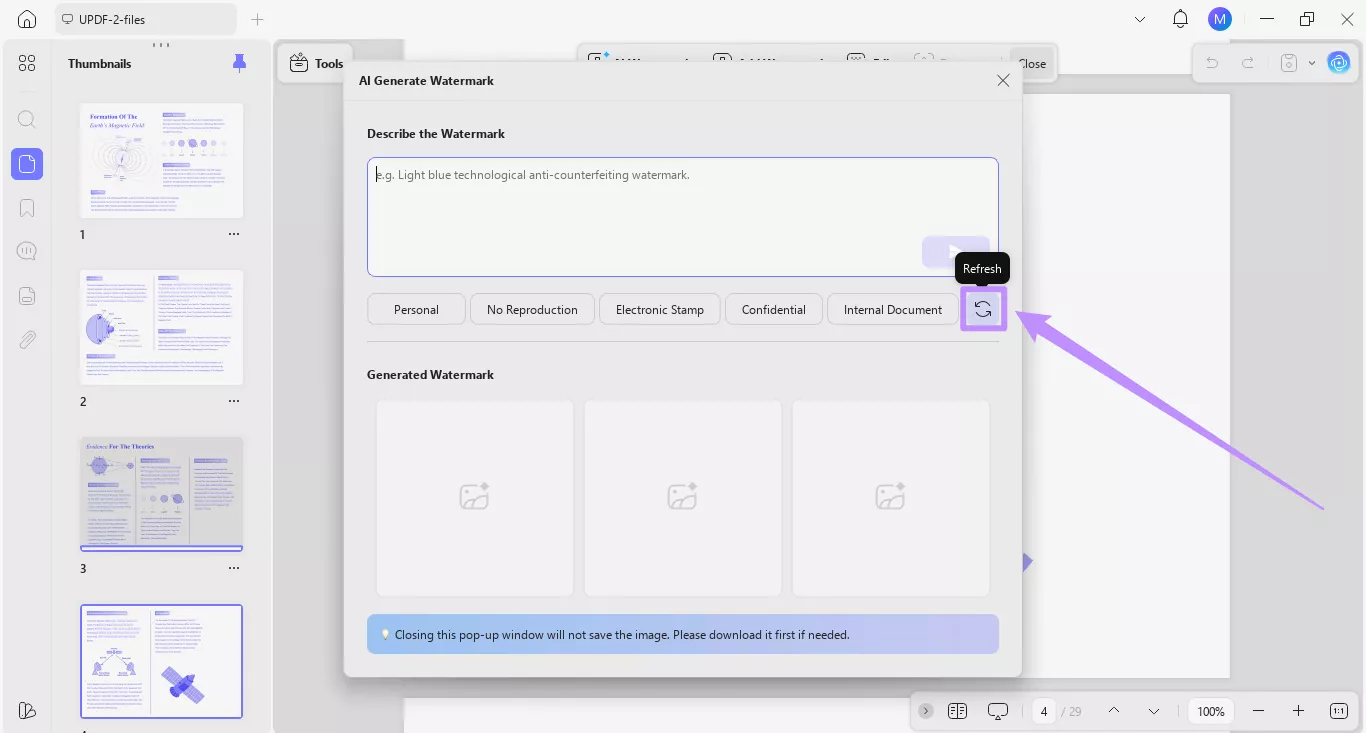
यदि आप अधिक प्रीसेट का पता लगाना चाहते हैं, तो उपलब्ध विकल्पों को अपडेट करने के लिए "ताज़ा करें" बटन पर क्लिक करें।
UPDF आपको AI के बिना मैन्युअल रूप से वॉटरमार्क बनाने में भी मदद करता है। अधिक जानने के लिए, पीडीएफ में वॉटरमार्क जोड़ने के बारे में पूरी गाइड देखें।
भाग 2. एआई-जनरेटेड वॉटरमार्क का प्रबंधन
वॉटरमार्क जनरेट करने के बाद, UPDF उन्हें प्रबंधित करने और पुन: उपयोग करने के लिए कई विकल्प प्रदान करता है। आप तुरंत वर्तमान पीडीएफ पर वॉटरमार्क लागू कर सकते हैं, इसे एक छवि फ़ाइल के रूप में डाउनलोड कर सकते हैं, या भविष्य के दस्तावेजों के लिए इसे यूपीडीएफ के अंदर सहेज सकते हैं। इसके अलावा, आप वॉटरमार्क को अपनी आवश्यकताओं के अनुसार समायोजित करने के लिए अंतर्निहित संपादन विकल्पों का उपयोग कर सकते हैं।
यहाँ चरण हैं।
चरण 1. अपने कर्सर को उस वॉटरमार्क पर घुमाएं जिसका आप उपयोग करना चाहते हैं, और आपको वॉटरमार्क के नीचे तीन विकल्प दिखाई देंगे। यहाँ से:
- वॉटरमार्क को अपने डिवाइस पर PNG फ़ाइल के रूप में सहेजने के लिए "डाउनलोड" आइकन पर क्लिक करें।
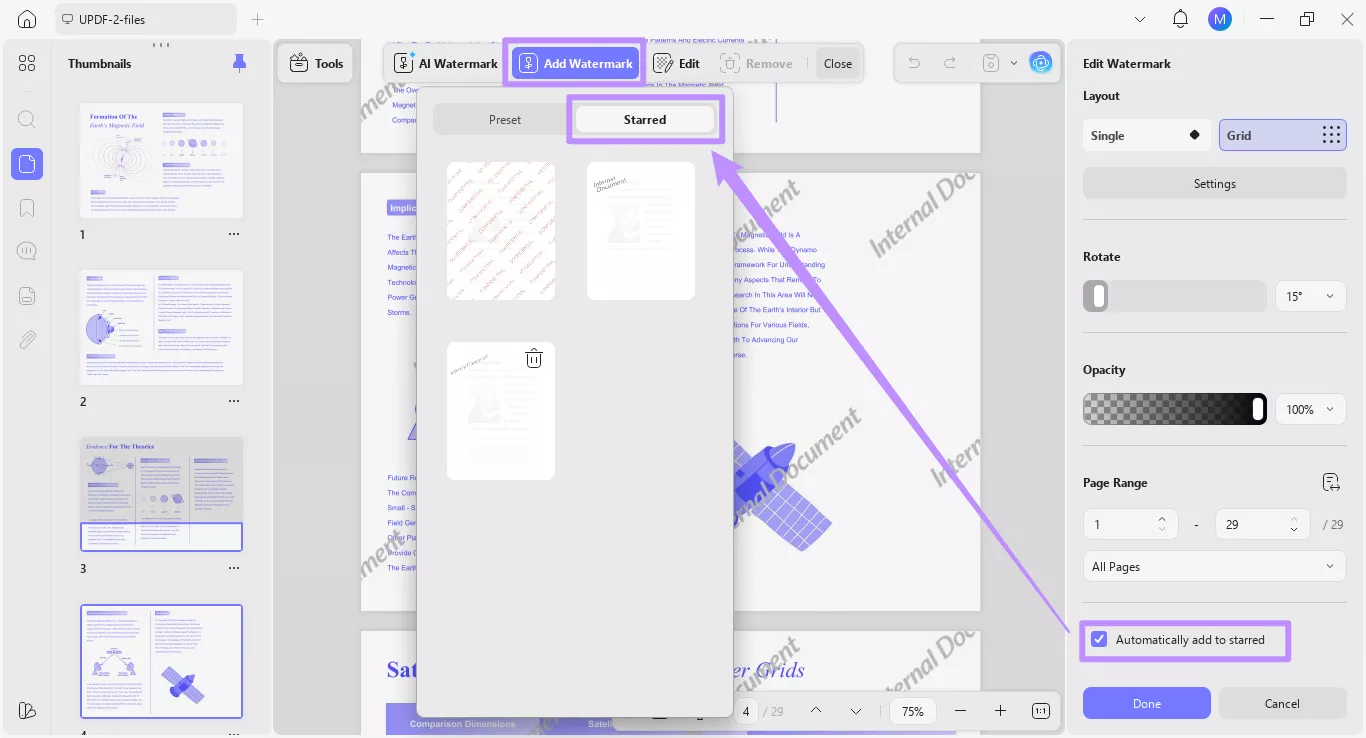
- यूपीडीएफ में भविष्य में उपयोग के लिए वॉटरमार्क को "स्टार" अनुभाग में जोड़ने के लिए "स्टार" आइकन पर क्लिक करें। उपयोग।
- वॉटरमार्क को सीधे अपने पीडीएफ पर रखने के लिए "+" बटन पर क्लिक करें।
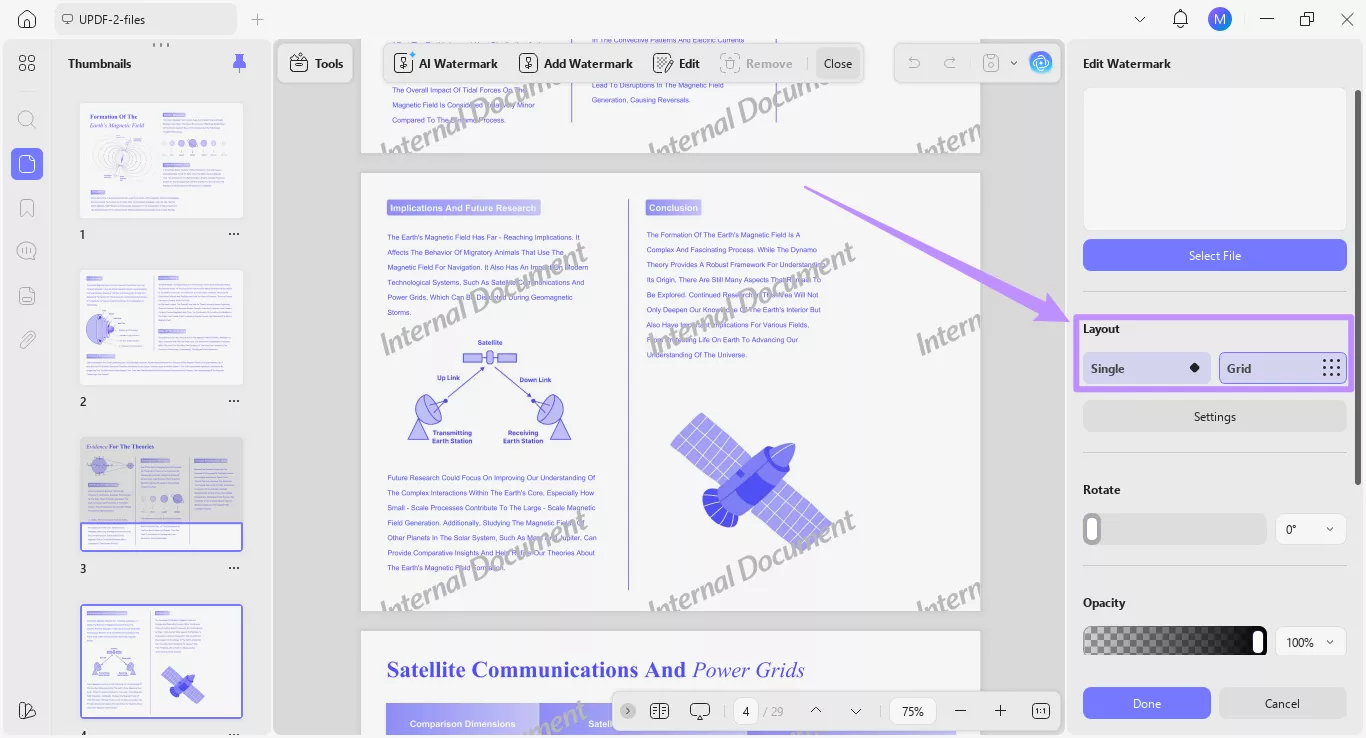
चरण 2. एक बार जब आप वॉटरमार्क जोड़ना चुनते हैं, तो यह आपके दस्तावेज़ पर दाईं ओर एक एडिट वॉटरमार्क पैनल के साथ दिखाई देगा। यहां से, आप कई विकल्पों के साथ अपने वॉटरमार्क को अनुकूलित कर सकते हैं:
- लेआउट अनुभाग के अंतर्गत, आप वॉटरमार्क को "सिंगल" से "ग्रिड" लेआउट में बदल सकते हैं।
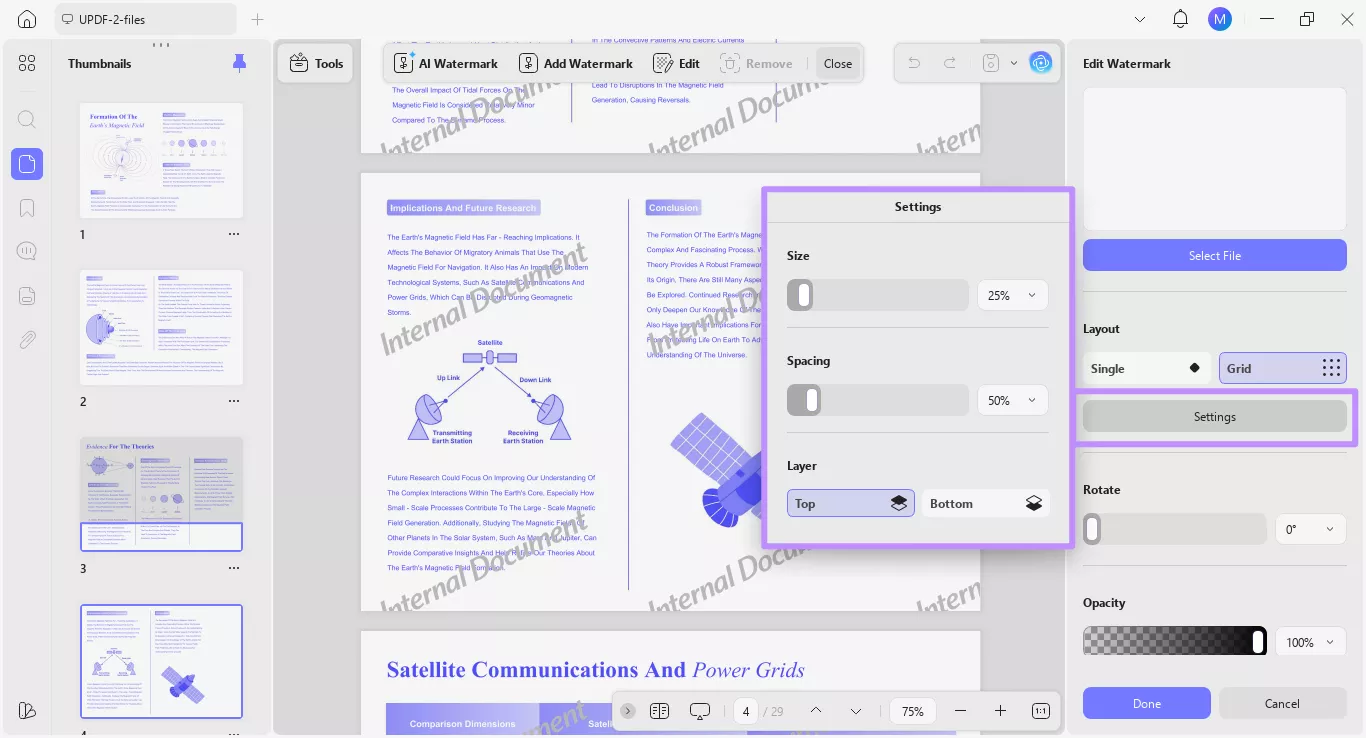
- विस्तारित मेनू खोलने के लिए "सेटिंग्स" पर क्लिक करें। यहां से, आप वॉटरमार्क आकार और रिक्ति को समायोजित कर सकते हैं, और इसे ऊपर या निचली परत में जोड़ना चुन सकते हैं।
- वॉटरमार्क रोटेशन और अस्पष्टता को समायोजित करने के लिए आप स्लाइडर्स या ड्रॉप-डाउन मेनू का उपयोग कर सकते हैं।
- आगे नीचे जाने पर, आप वॉटरमार्क लगाने के लिए पेज रेंज परिभाषित कर सकते हैं।
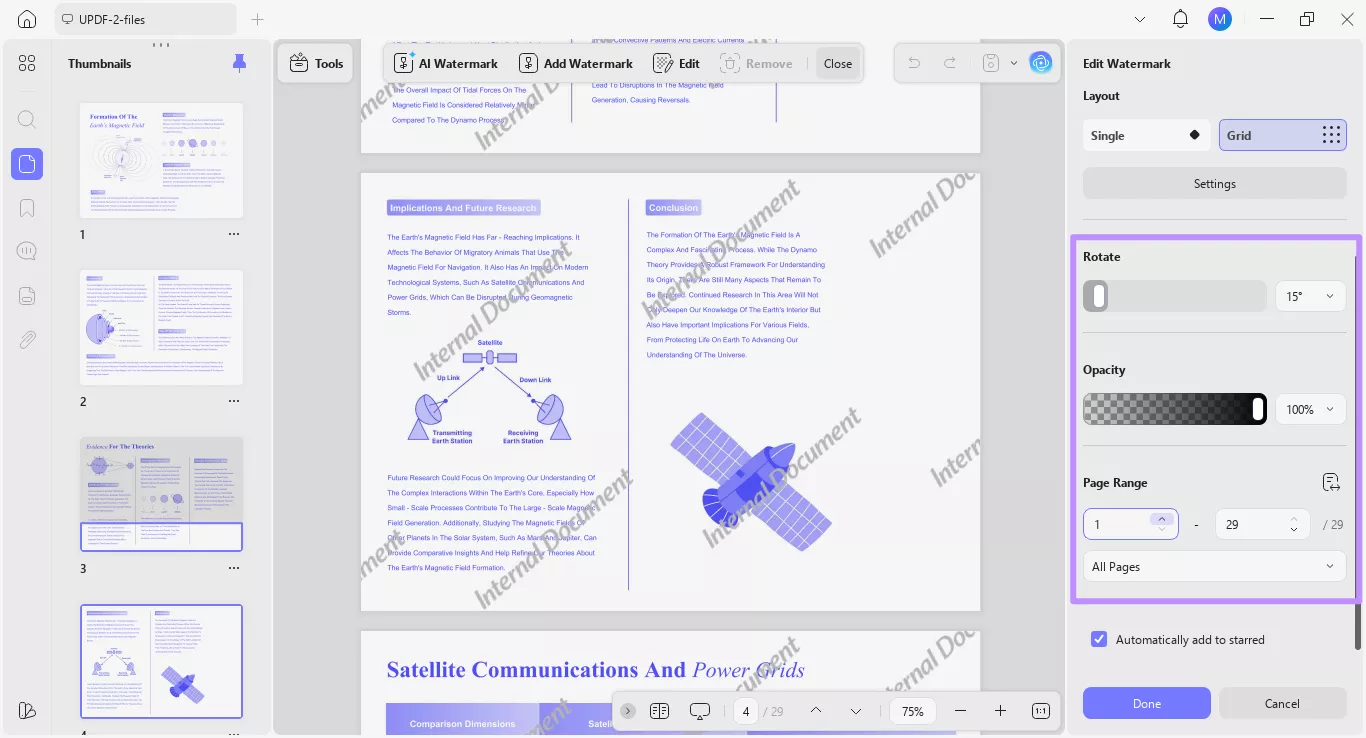
- अंत में, आप UPDF में "स्टारर्ड" अनुभाग में वॉटरमार्क जोड़ने के लिए "स्वचालित रूप से तारांकित में जोड़ें" विकल्प की जांच कर सकते हैं। आप इस मेनू को ऊपर से "वॉटरमार्क जोड़ें" विकल्प के तहत एक्सेस कर सकते हैं।