UPDF
UPDF
 Windows के लिए UPDF
 Mac के लिए UPDF
 iPhone/iPad के लिए UPDF
 Android के लिए UPDF
 UPDF AI Online
 UPDF साइन
 PDF संपादित करें
 PDF पर टिप्पणी करें
 PDF बनाएं
 PDF फ़ॉर्म
 लिंक संपादित करें
 PDF रूपांतरित करें
 OCR
OCR PDF से Word
 PDF से छवि
 PDF से Excel
 PDF व्यवस्थित करें
 PDF मर्ज करें
 PDF विभाजित करें
 PDF क्रॉप करें
 PDF घुमाएँ
 PDF सुरक्षित करें
 PDF पर हस्ताक्षर करें
 PDF संशोधित करें
 PDF स्वच्छ करें
 सुरक्षा हटाएँ
 PDF पढ़ें
 UPDF क्लाउड
 PDF संपीड़ित करें
 PDF प्रिंट करें
 बैच प्रोसेस
 UPDF AI के बारे में
 UPDF AI समाधान
 एआई उपयोगकर्ता मार्गदर्शिका
 UPDF से जुड़े प्रश्न
 PDF का संक्षेपण करें
 PDF का अनुवाद करें
 PDF के साथ चैट करें
 AI के साथ चैट करें
 छवि के साथ चैट करें
 PDF को माइंड मैप में बदलें
 PDF की व्याख्या करें
 PDF AI Tools
 Image AI Tools
 AI Chat Tools
 AI Writing Tools
 AI Study Tools
 AI Working Tools
 Other AI Tools
 AI बुकमार्क जनरेशन
 AI बुकमार्क सारांश
 AI वॉटरमार्क जनरेशन
 AI बैकग्राउंड जनरेशन
 AI स्टिकर जनरेशन
 AI स्टैम्प जनरेशन
 AI राइटिंग सूट
 UPDF Copilot
 AI पेज प्रबंधन
 AI सिमेंटिक खोज
 PDF से Word
 PDF से Excel
 PDF से PowerPoint
 एंटरप्राइज समाधान
 एंटरप्राइज योजना
 एंटरप्राइज उपयोगकर्ता गाइड
 कंपनी वेबिनार
 बैंकिंग
 स्वास्थ्य सेवा
 बीमा
बीमा क़ानूनी
 विनिर्माण
 सरकार
सरकार शिक्षा समाधान
 ग्राहक कहानियां
 उपयोगकर्ता गाइड
 UPDF ट्रिक्स
 अक्सर पूछे जाने वाले प्रश्न
 UPDF समीक्षाएं
 डाउनलोड केंद्र
 ब्लॉग
ब्लॉग न्यूजरूम
 तकनीकी विनिर्देश
 अपडेट्स
 UPDF बनाम Adobe Acrobat
 UPDF बनाम Foxit
 UPDF बनाम PDF Expert

पीडीएफ के लिए एआई-जनरेट स्टिकर
सजावटी स्टिकर पीडीएफ को एनोटेट करने और उन्हें अधिक आकर्षक बनाने का एक शानदार तरीका है। लेकिन सही डिज़ाइन ढूंढना हमेशा आसान नहीं होता है।
स्थानीय डिज़ाइन संसाधन अक्सर सीमित होते हैं। और उच्च-रिज़ॉल्यूशन ग्राफ़िक्स के लिए ऑनलाइन खोज करने में घंटों लग सकते हैं। कई वेबसाइटें स्टिकर डाउनलोड करने के लिए शुल्क भी लेती हैं, जो आपके वर्कफ़्लो को और भी धीमा कर सकती हैं।
सही स्टिकर ढूंढने में घंटों खर्च करने के बजाय, आप UPDF के AI-जनरेट स्टिकर टूल से तुरंत एक स्टिकर बना सकते हैं। यह आपको टेक्स्ट प्रॉम्प्ट से उच्च-रिज़ॉल्यूशन स्टिकर बनाने में मदद करता है।
यह कैसे काम करता है, यह जानने के लिए नीचे दी गई विस्तृत मार्गदर्शिका का पालन करें।
भाग 1. यूपीडीएफ के साथ स्टिकर कैसे बनाएं
UPDF में AI-जनरेट स्टिकर टूल आपको स्क्रैच से बिल्कुल नए स्टिकर डिज़ाइन बनाने देता है। आपको बस एक साधारण टेक्स्ट विवरण की आवश्यकता है, जिसे आप मैन्युअल रूप से टाइप कर सकते हैं या समय बचाने के लिए प्रीसेट प्रॉम्प्ट विकल्पों का उपयोग कर सकते हैं। किसी भी तरह से, आप एक ही प्रॉम्प्ट से तीन उच्च-गुणवत्ता वाली स्टिकर छवियां उत्पन्न कर सकते हैं।
यहाँ चरण हैं।
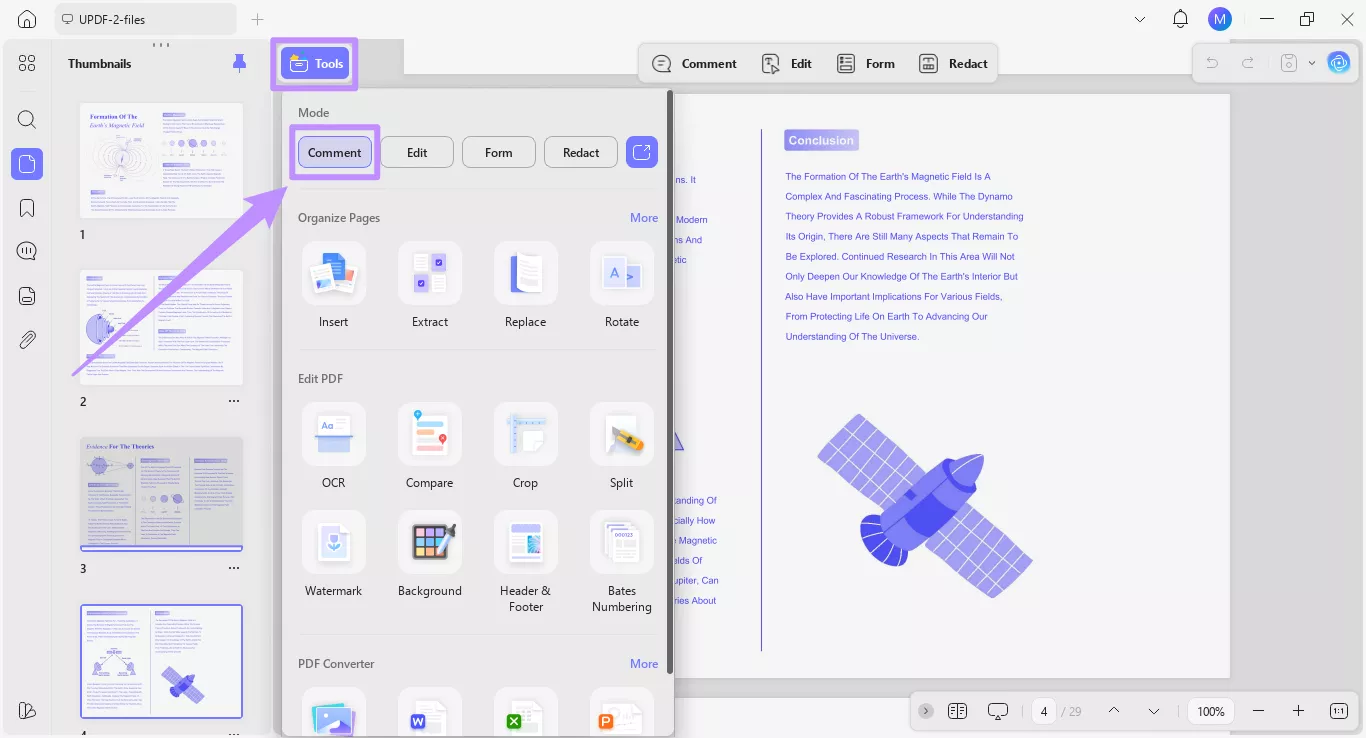
चरण 1. अपनी इच्छित पीडीएफ को यूपीडीएफ में खोलें। फिर, ऊपर से "टूल्स" पर क्लिक करें और "टिप्पणी" मोड चुनें।
चरण 2. शीर्ष टूलबार से "स्टिकर" विकल्प चुनें। इससे स्टिकर मेनू खुल जाएगा। यहां से, एआई जनरेट स्टिकर अनुभाग के अंतर्गत "जनरेट" बटन पर क्लिक करें।
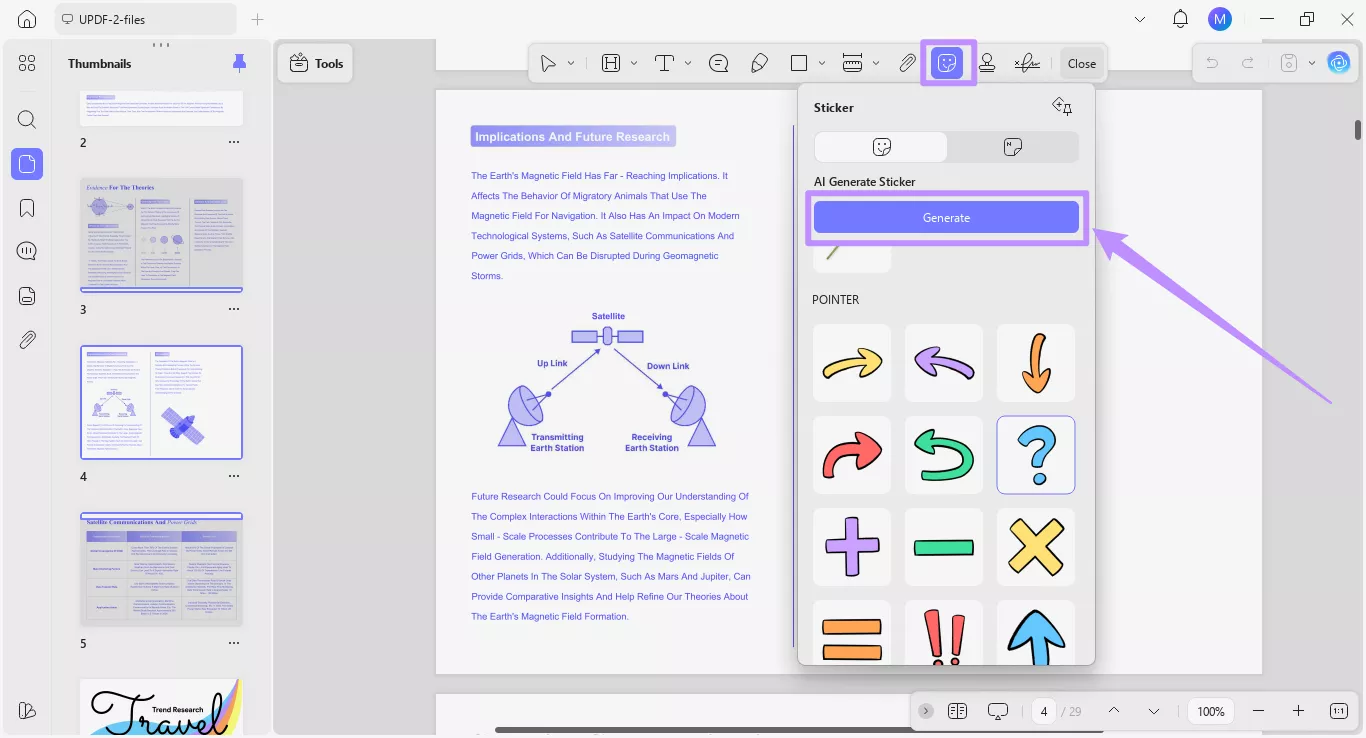
"एआई जनरेट स्टिकर" टूल के लिए विंडो खुल जाएगी। यहां से, आप एआई के साथ नए स्टिकर डिजाइन करने के लिए दो तरीकों का उपयोग कर सकते हैं।
विधि 1. वैयक्तिकृत प्रॉम्प्ट के साथ स्टिकर बनाएं
पहला विकल्प उस स्टिकर का मैन्युअल रूप से वर्णन करना है जिसे आप उत्पन्न करना चाहते हैं। यह विकल्प आपको स्टिकर डिज़ाइन को अनुकूलित करने की पूर्ण स्वतंत्रता देता है। आप स्टिकर प्रकार, सौंदर्य, रंग और बहुत कुछ के बारे में कई विवरण जोड़ सकते हैं।
यहां बताया गया है कि आपको क्या करना होगा।
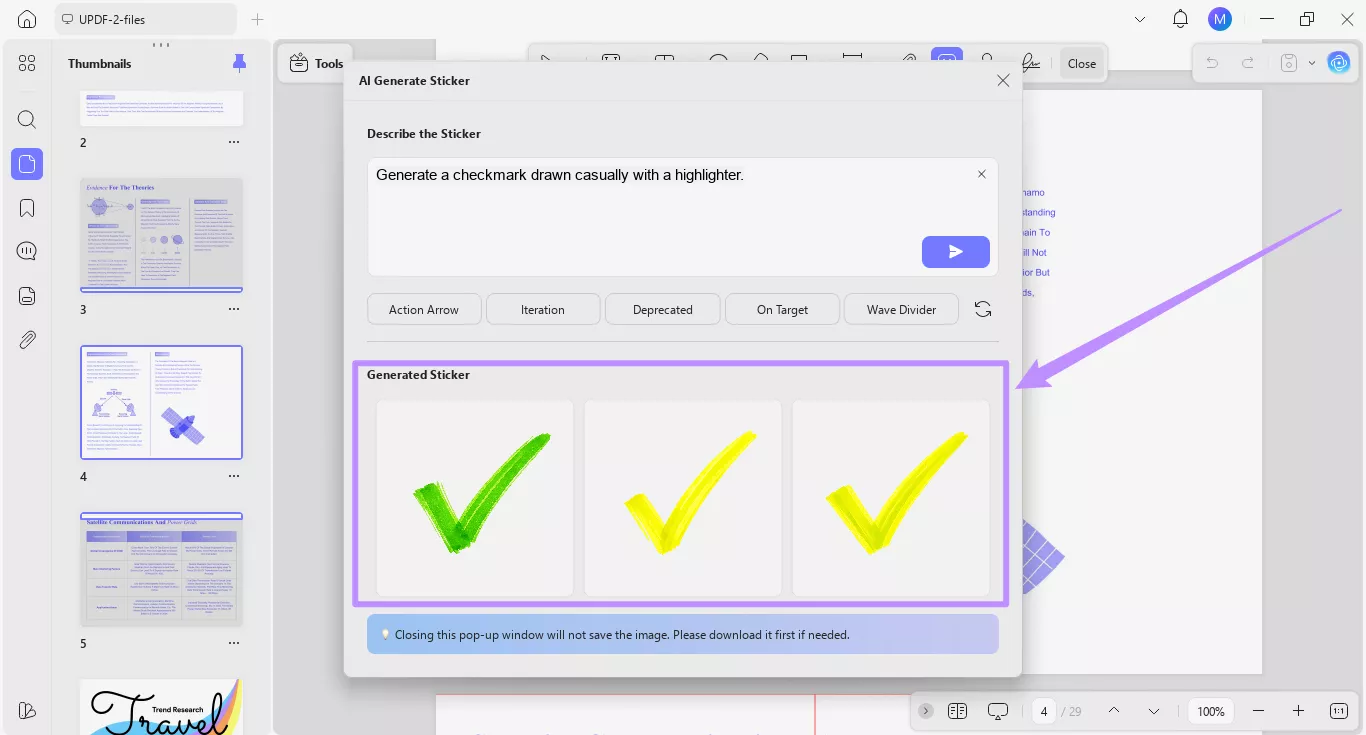
चरण 1. उस स्टिकर का विवरण लिखें जिसे आप "स्टिकर का वर्णन करें" अनुभाग के अंतर्गत टेक्स्ट बॉक्स में जनरेट करना चाहते हैं। स्टिकर के प्रकार और उपस्थिति के बारे में विशिष्ट विवरण शामिल करें।
- उदाहरण के लिए, आप एआई से "हाइलाइटर के साथ लापरवाही से खींचा गया चेकमार्क जेनरेट करने" के लिए कह सकते हैं।
एक बार जब आप अपना प्रॉम्प्ट लिखना समाप्त कर लें, तो "भेजें" बटन पर क्लिक करें।
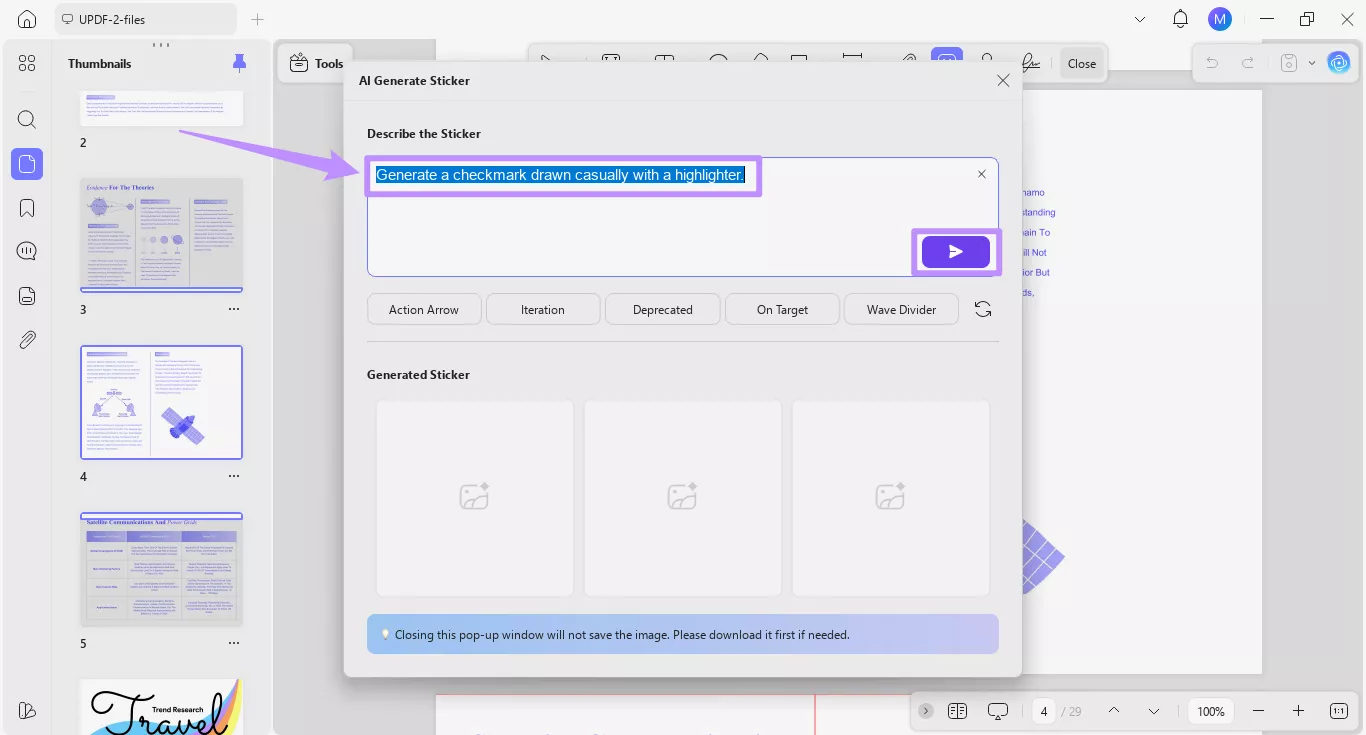
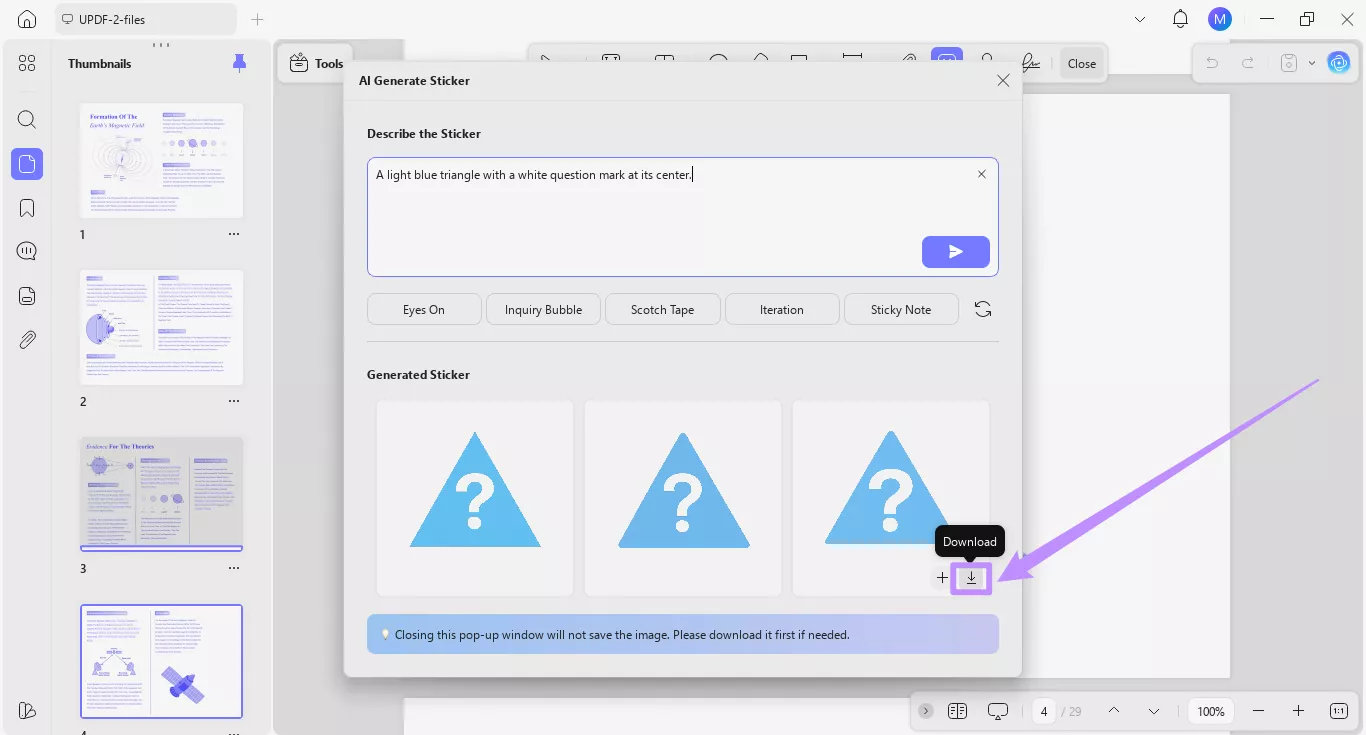
चरण 2. UPDF AI 1024 × 1024 आयामों के साथ तीन उच्च गुणवत्ता वाली PNG स्टिकर छवियां तैयार करेगा। इन्हें "जेनरेट किया गया स्टिकर" अनुभाग के अंतर्गत देखा जा सकता है।
विधि 2. प्रीसेट विकल्पों के साथ तेजी से स्टिकर बनाएं
वैयक्तिकृत प्रॉम्प्ट बनाने के अलावा, आप चीजों को गति देने के लिए प्रीसेट प्रॉम्प्ट का उपयोग कर सकते हैं। इन प्रीसेट का चयन स्वचालित रूप से प्रॉम्प्ट बॉक्स में एक स्मार्ट पाठ विवरण जोड़ता है। यदि आवश्यक हो तो आप अभी भी संपादित कर सकते हैं और इसमें अधिक विवरण जोड़ सकते हैं।
यहां देखिए यह कैसे काम करता है।
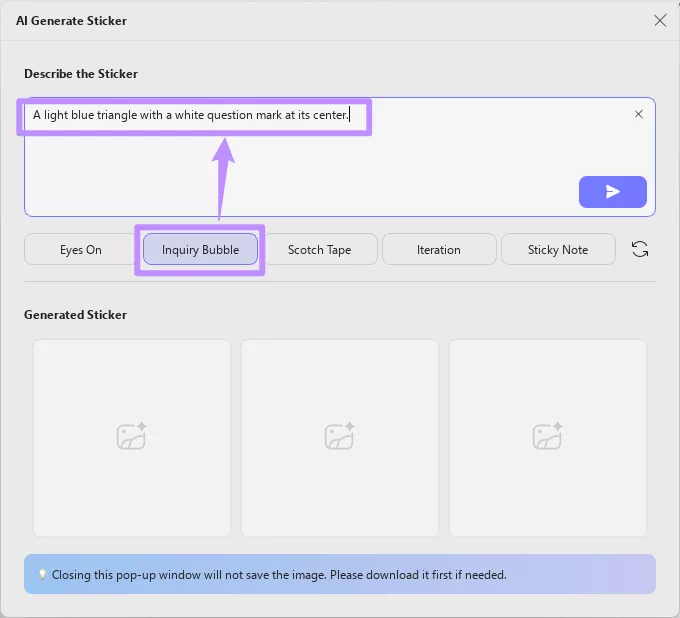
चरण 1. प्रॉम्प्ट बॉक्स के नीचे स्टिकर प्रीसेट ढूंढें और जिसे आप जनरेट करना चाहते हैं उस पर क्लिक करें। संबंधित स्टिकर का विवरण टेक्स्ट फ़ील्ड में जोड़ा जाएगा।
- उदाहरण के लिए, यदि आप "पूछताछ बुलबुला" पर क्लिक करते हैं, तो यह अपने केंद्र में एक सफेद प्रश्न चिह्न के साथ एक हल्के नीले रंग का त्रिकोण उत्पन्न करने के लिए एक विवरण जोड़ देगा।
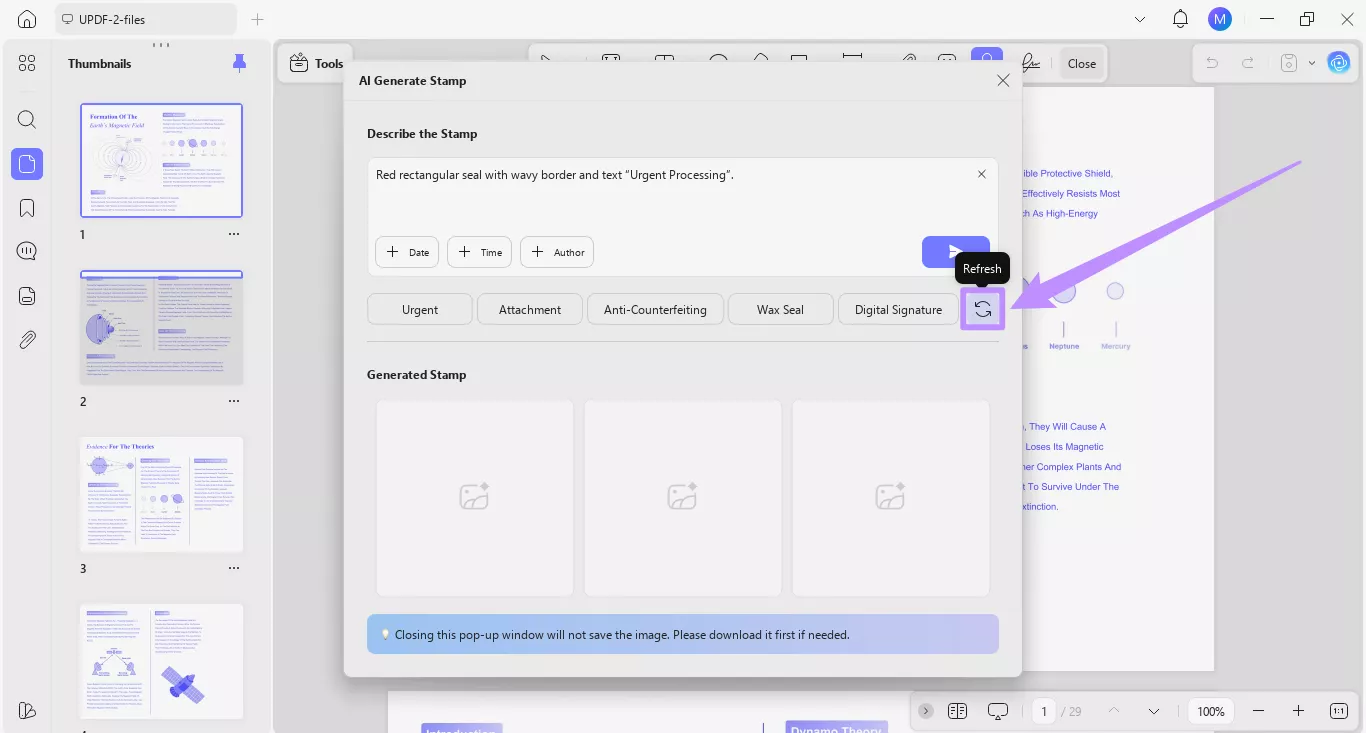
चरण 2. यदि आप अधिक प्रीसेट एक्सप्लोर करना चाहते हैं, तो दाईं ओर "रिफ्रेश करें" बटन पर क्लिक करें। यह उपलब्ध प्रीसेट को नए विकल्पों से बदल देगा।
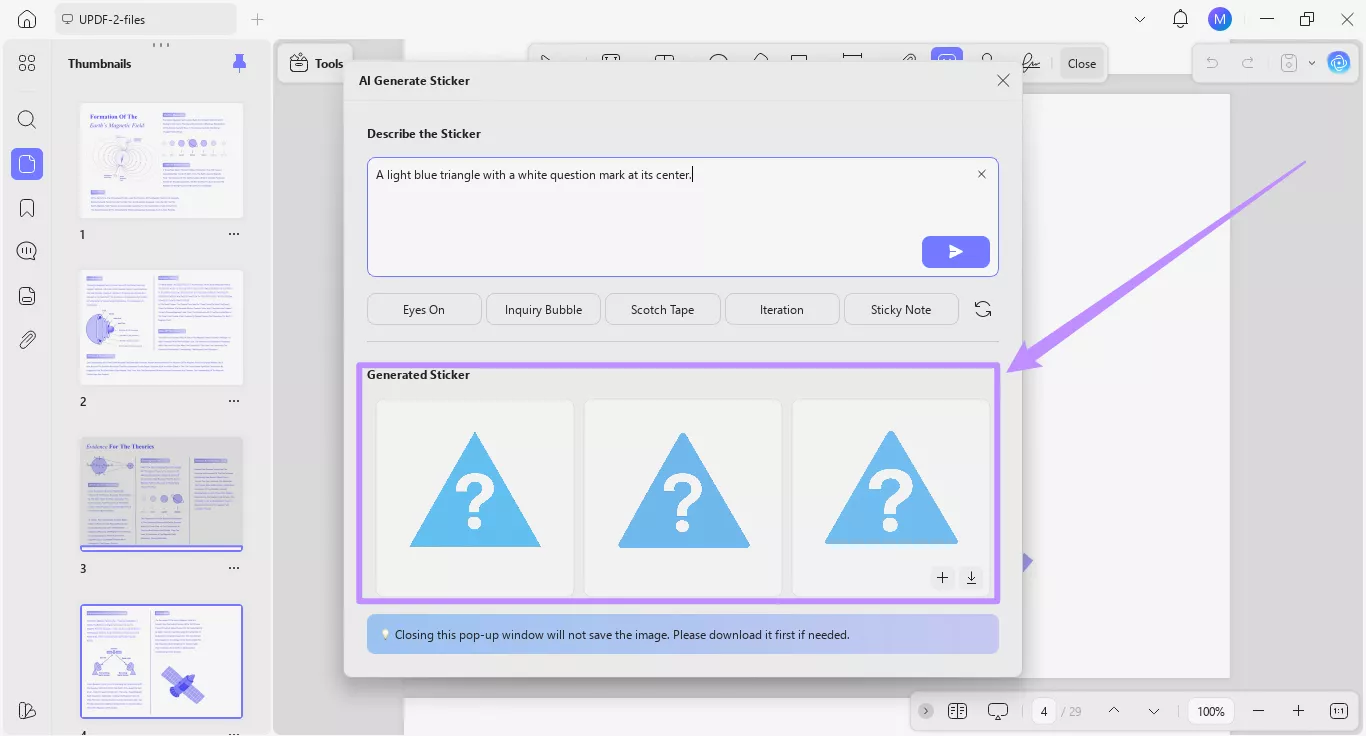
चरण 3. आप संपादित कर सकते हैं और विवरण में अधिक विवरण जोड़ सकते हैं। एक बार हो जाने के बाद, "भेजें" बटन पर क्लिक करें, और एआई आपके विवरण के आधार पर तीन स्टिकर छवियां उत्पन्न करेगा।
नोट:
भाग 2. पीडीएफ पर एआई-जनरेटेड स्टिकर का उपयोग कैसे करें
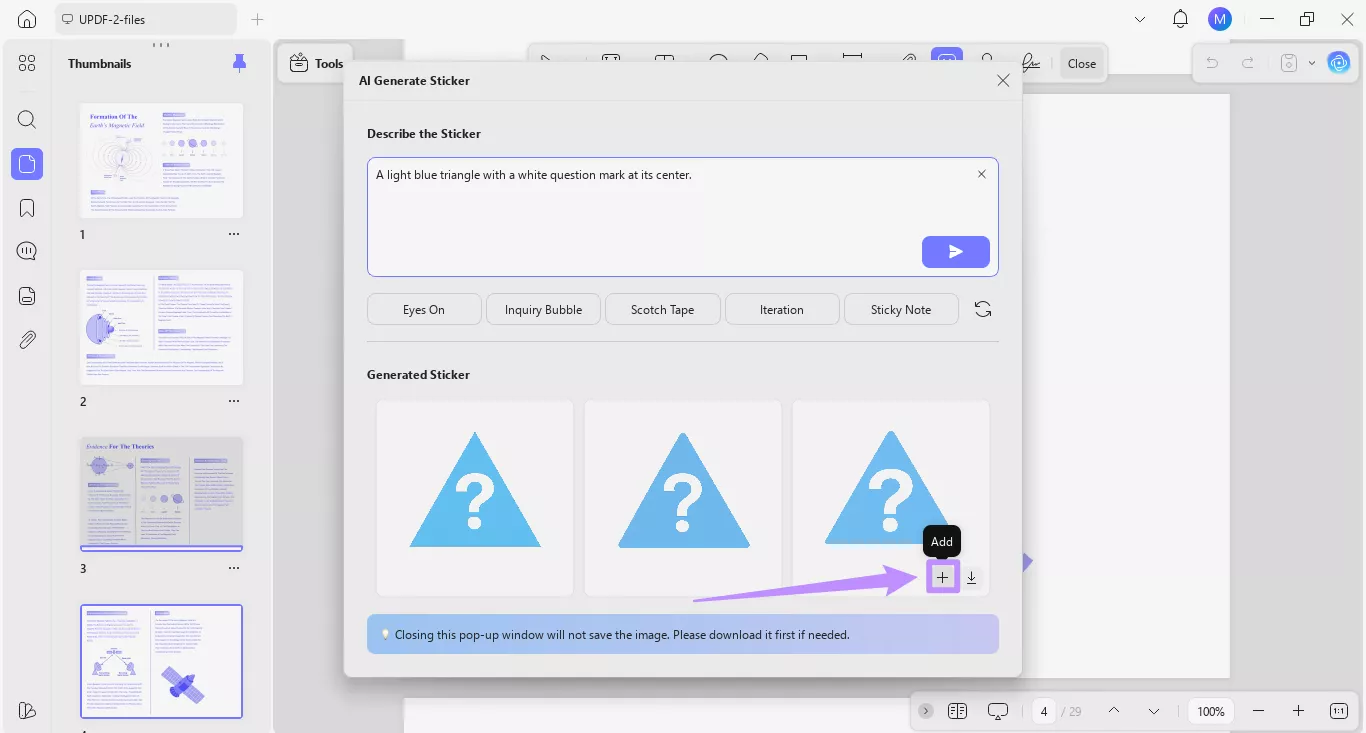
चाहे आप अपने प्रॉम्प्ट को वैयक्तिकृत करें या प्रीसेट विकल्पों का उपयोग करें, UPDF आपको स्टिकर को सीधे अपने PDF पर रखने की सुविधा देता है। आप उन्हें बाद में उपयोग के लिए स्टोर करने के लिए डाउनलोड भी कर सकते हैं।
यहाँ आप क्या कर सकते हैं।
चरण 1. एक बार जब आपके स्टिकर जनरेट हो जाएं, तो अपने कर्सर को अपनी पसंद की छवि पर घुमाएं। छवि के नीचे दो विकल्प दिखाई देंगे। यहां से, स्टिकर को अपने डिवाइस पर PNG फ़ाइल के रूप में सहेजने के लिए "डाउनलोड" आइकन पर क्लिक करें।
चरण 2. वैकल्पिक रूप से, स्टिकर को सीधे अपने पीडीएफ में एक पृष्ठ पर जोड़ने के लिए "+" बटन पर क्लिक करें।
नोट
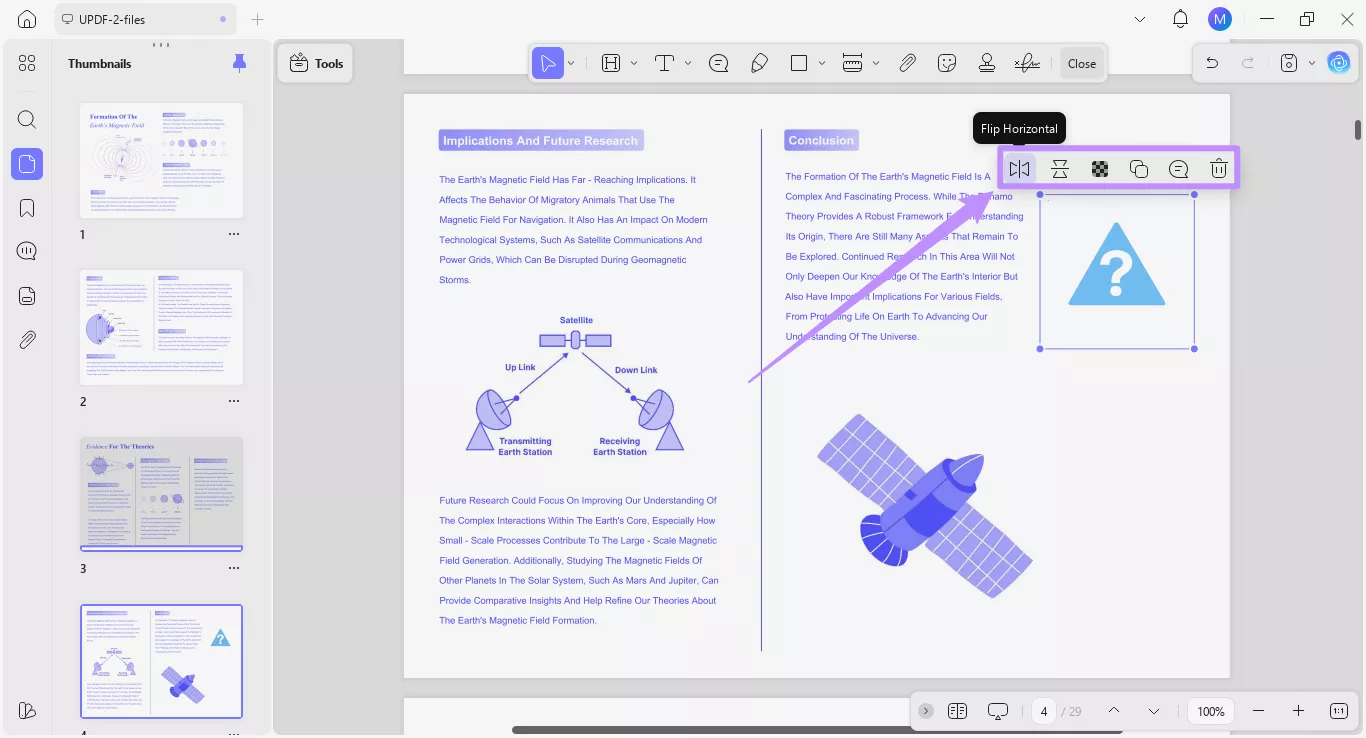
चरण 3. स्टिकर को किसी पेज पर रखने के बाद, आप इसकी बॉर्डर खींचकर उसका आकार बदल सकते हैं। आप इसे कस्टमाइज़ करने के लिए फ़्लोटिंग टूलबार में विकल्पों का भी उपयोग कर सकते हैं। ये विकल्प आपको देते हैं:
- स्टिकर को क्षैतिज रूप से पलटें
- लंबवत पलटें
- अस्पष्टता समायोजित करें
- प्रतिलिपि
- कोई नोट जोड़ें
- स्टिकर हटाएं