UPDF
UPDF
 UPDF for Windows
 UPDF for Mac
 UPDF for iPhone/iPad
 UPDF for Android
 Nomostar
 UPDF AI Online
 UPDF Sign
 IvyCraft
 Edit PDF
 Annotate PDF
 Create PDF
 PDF Form
 Edit links
 Convert PDF
 OCR
OCR PDF to Word
 PDF to Image
 PDF to Excel
 Organize PDF
 Merge PDF
 Split PDF
 Crop PDF
 Rotate PDF
 Protect PDF
 Sign PDF
 Redact PDF
 Sanitize PDF
 Remove Security
 Read PDF
 UPDF Cloud
 Compress PDF
 Print PDF
 Batch Process
 About UPDF AI
 UPDF AI Solutions
 AI User Guide
 FAQ about UPDF AI
 Summarize PDF
 Translate PDF
 Chat with PDF
 Chat with AI
 Chat with image
 PDF to Mind Map
 Explain PDF
 PDF AI Tools
 Image AI Tools
 AI Chat Tools
 AI Writing Tools
 AI Study Tools
 AI Working Tools
 Other AI Tools
 AI Bookmark Generation
 AI Bookmark Summary
 AI Watermark Generation
 AI Background Generation
 AI Sticker Generation
 AI Stamp Generation
 AI Editing Suite
 UPDF Copilot
 AI Page Management
 AI Semantic Search
 PDF to Word
 PDF to Excel
 PDF to PowerPoint
 Enterprise Solution
 Enterprise Sign
 Enterprise AI
 Enterprise Plan
 Enterprise User Guide
 Enterprise Webinar
 Banking
 Healthcare
 Insurance
 Legal
Legal Manufacturing
 Government
 Education Solution
 Customer Stories
 User Guide
 UPDF Tricks
 FAQs
FAQs UPDF Reviews
 Download Center
 Blog
Blog Newsroom
 Tech Spec
 Updates
 UPDF vs. Adobe Acrobat
 UPDF vs. Foxit
 UPDF vs. PDF Expert

Pasting links from a research paper, a job posting, or a meeting recap into Word on Mac is fast — but the moment you go to print or share that document, every blue underlined URL looks unprofessional. Removing hyperlinks in Word on Mac is straightforward once you know the right shortcut for one link, for an entire document, or to stop Word from auto-converting URLs in the first place.
This guide covers 3 methods that work on macOS Tahoe and earlier versions — single-link removal, the keyboard shortcut to strip every link at once, and how to turn off automatic hyperlinking permanently. At the end, there's also a faster route I use when I need to export the Word file to PDF: drag the Word file straight into UPDF, let it auto-convert to PDF, and delete the links from there.
Windows • macOS • iOS • Android 100% secure
Method 1. Remove a Single Hyperlink in Word on Mac
If you only need to clean up one or two links — for example, an email signature or a single quoted URL — the fastest way is the right-click menu. This keeps the visible text intact and only strips the underlying link.
Step 1. Open the Word document on your Mac and locate the text or image carrying the hyperlink.
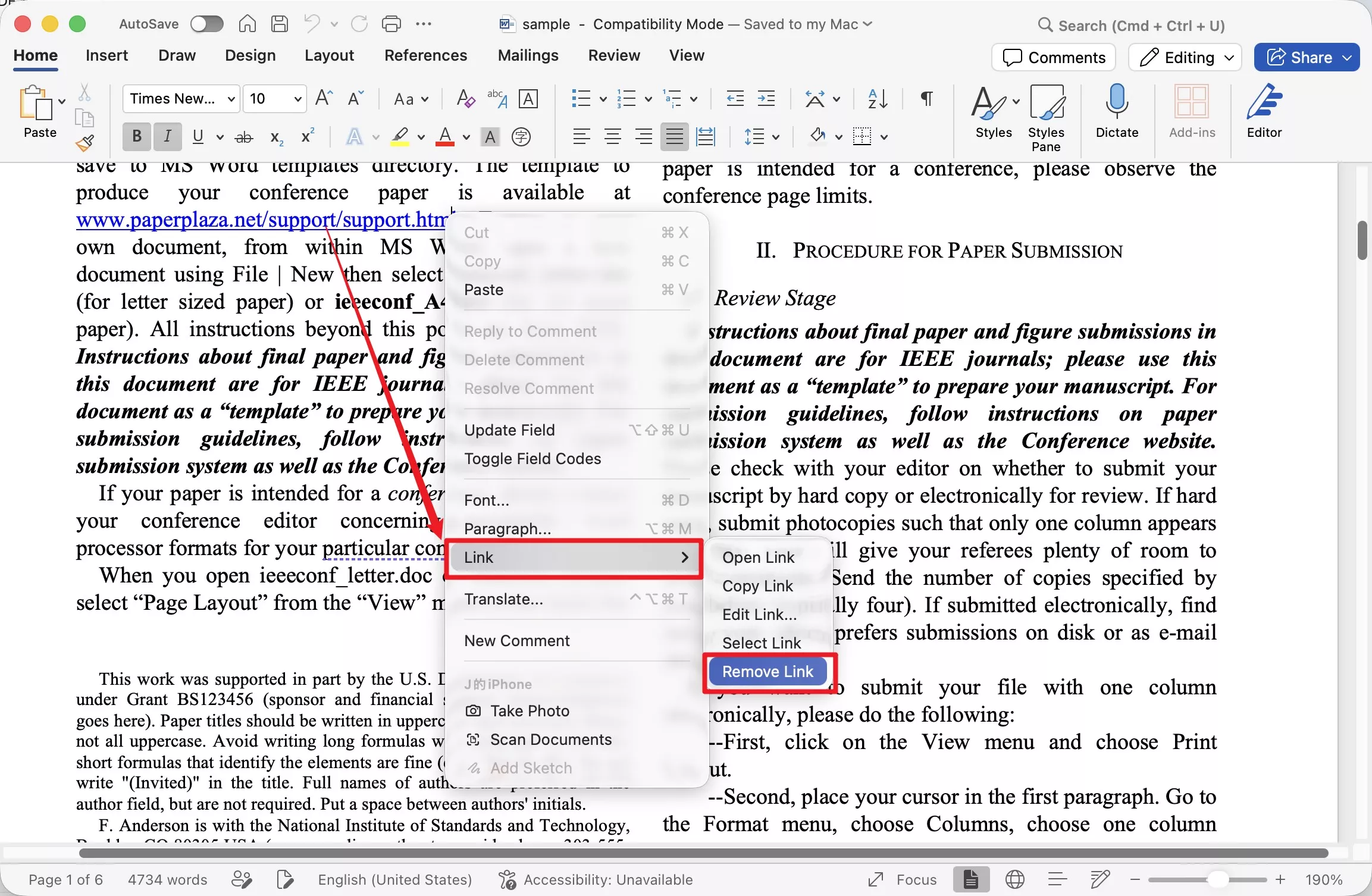
Step 2. Right-click the hyperlinked text or image, hover over Link, then choose Remove Link. The text or image stays in place; only the clickable link is removed.
Method 2. Remove All Hyperlinks in Word on Mac at Once (Keyboard Shortcut)
For a document with dozens of links — a research draft, a long brief, a copy-pasted article — right-clicking each one wastes time. Word for Mac has a built-in shortcut that strips every hyperlink in the document while keeping all text, headings, and formatting intact.
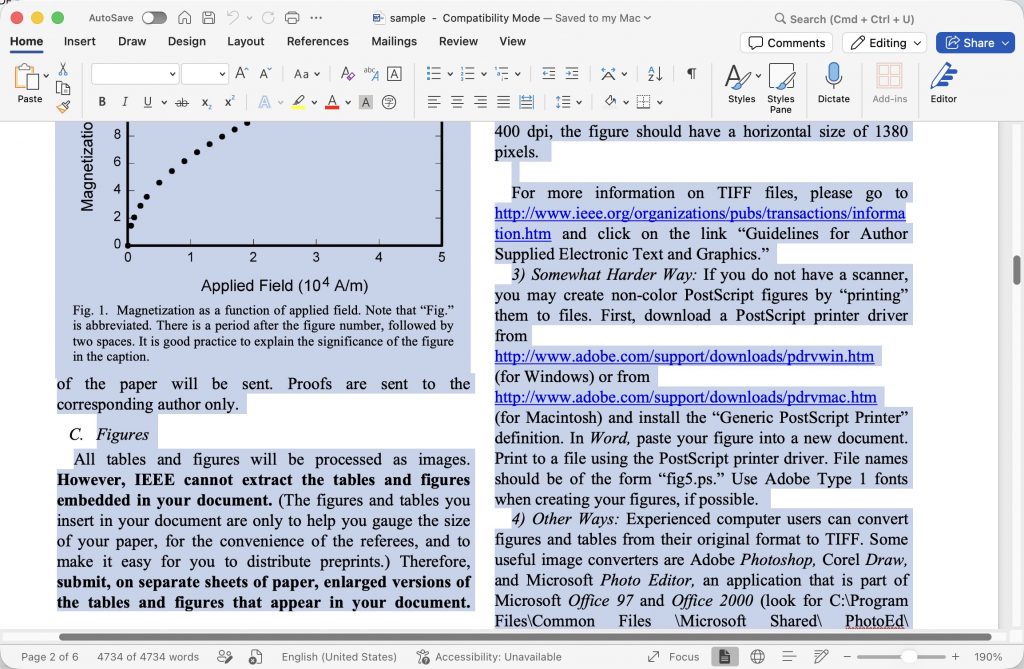
Step 1. Open the Word document on your Mac and press Command + A to select everything in the document.
Step 2. Press Fn + Command + Shift + F9. Every hyperlink is removed instantly; the visible text stays exactly where it was.
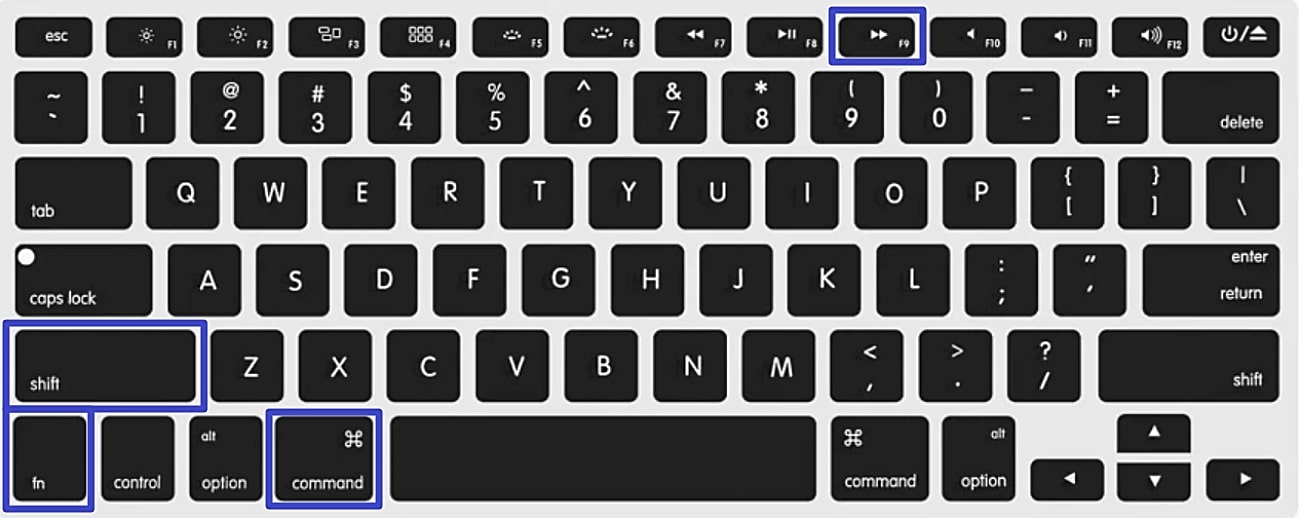
Note: If the F-row on your MacBook is set to media keys, the Fn part of the shortcut is required. If the shortcut doesn't trigger, try Command + 6 instead — it runs the same Unlink Fields command without needing an F-key.
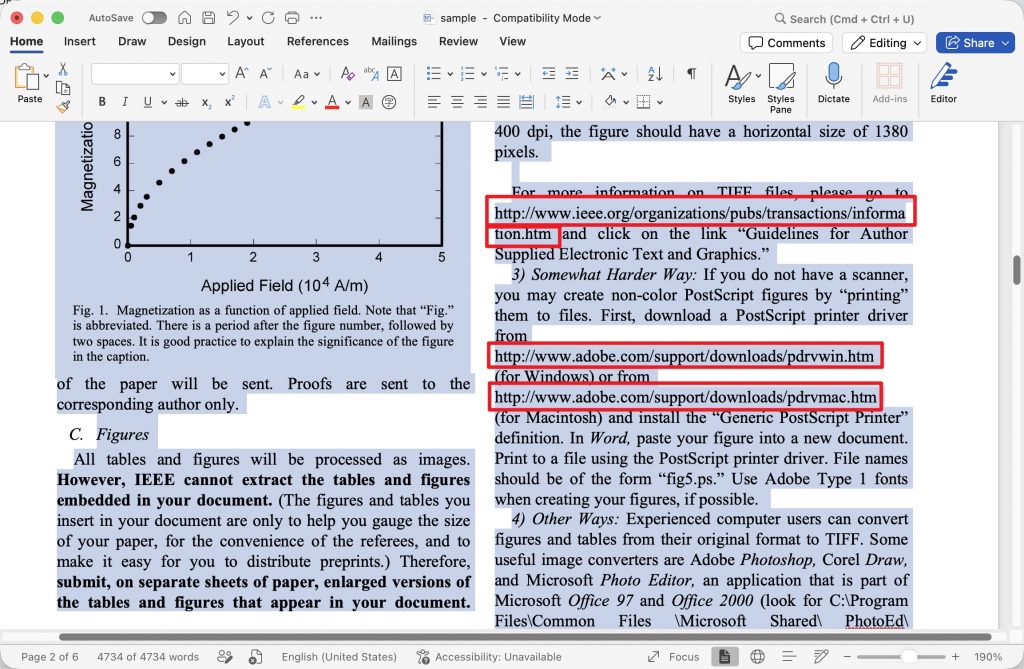
Method 3. Turn Off Automatic Hyperlinks in Word on Mac (Permanent Fix)
Methods 1 and 2 clean up links that already exist. If you'd rather Word stop auto-converting URLs and email addresses into clickable links in the first place — useful when you're writing technical documentation, citations, or anything where raw URLs are intentional — turn the setting off once and it applies to every future document.
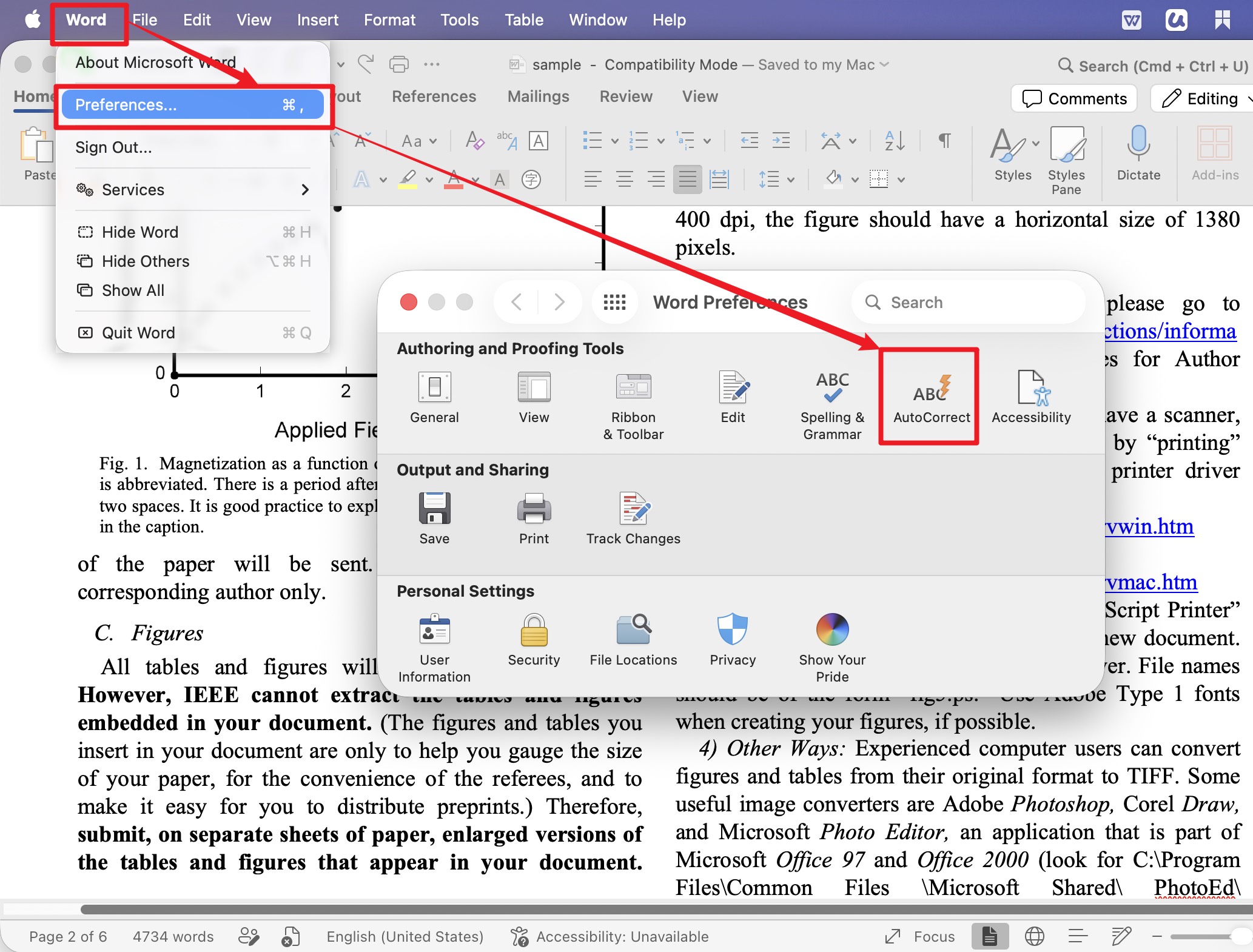
Step 1. Open Word on your Mac. From the menu bar, click Word → Preferences, then choose AutoCorrect under the Authoring and Proofing Tools section.
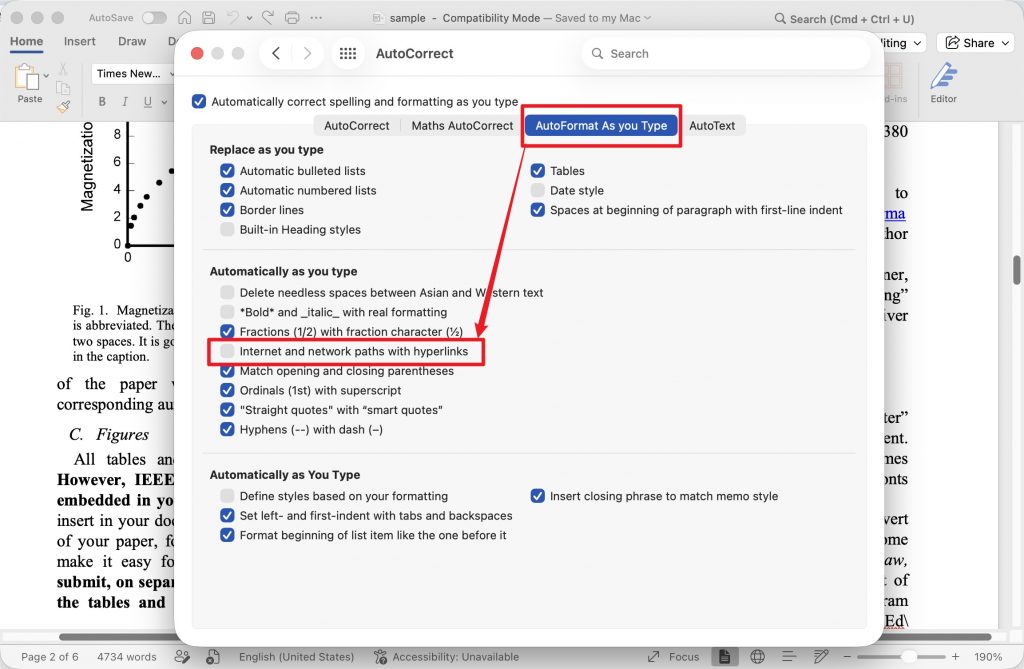
Step 2. In the AutoCorrect window, switch to the AutoFormat As You Type tab. Uncheck Internet and network paths with hyperlinks, then close the window.
Word will no longer auto-link URLs and emails as you type, in both this document and any new ones.
Method 4. Drag Your Word File into UPDF and Delete Links Directly (No Export Needed)
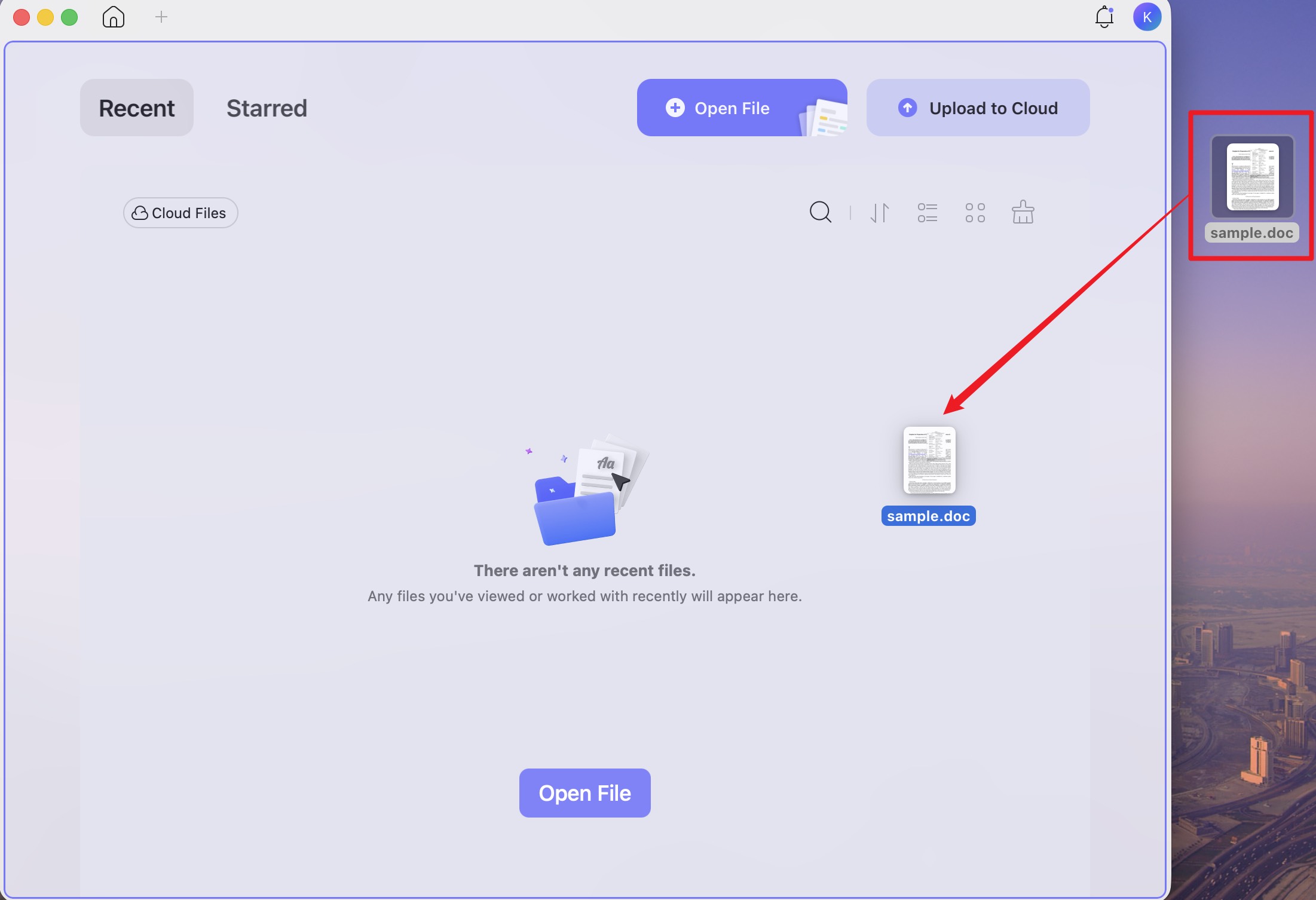
Most documents I clean up in Word end up being shared as a PDF anyway — a report sent to a client, a resume uploaded to a job portal, a contract attached to an email. If a PDF is the destination, there's no need to do hyperlink cleanup in Word and then run a separate "Save As PDF" step. Just drag the Word file onto UPDF for Mac — UPDF auto-converts the Word file into a PDF on import, and every hyperlink becomes individually clickable and deletable in the editor.
The same workflow works if the file you're handed is already a PDF (a contract, a brochure, a slide handout) — drop it into UPDF and edit links directly, no round-trip through Word required. UPDF runs natively on Apple Silicon and supports macOS Tahoe down through macOS 11.
Windows • macOS • iOS • Android 100% secure
Step-by-Step: Remove Hyperlinks in UPDF
Step 1. Open UPDF and load your file — drag a Word file straight into the UPDF window to auto-convert it to PDF, or drag/open an existing PDF directly.
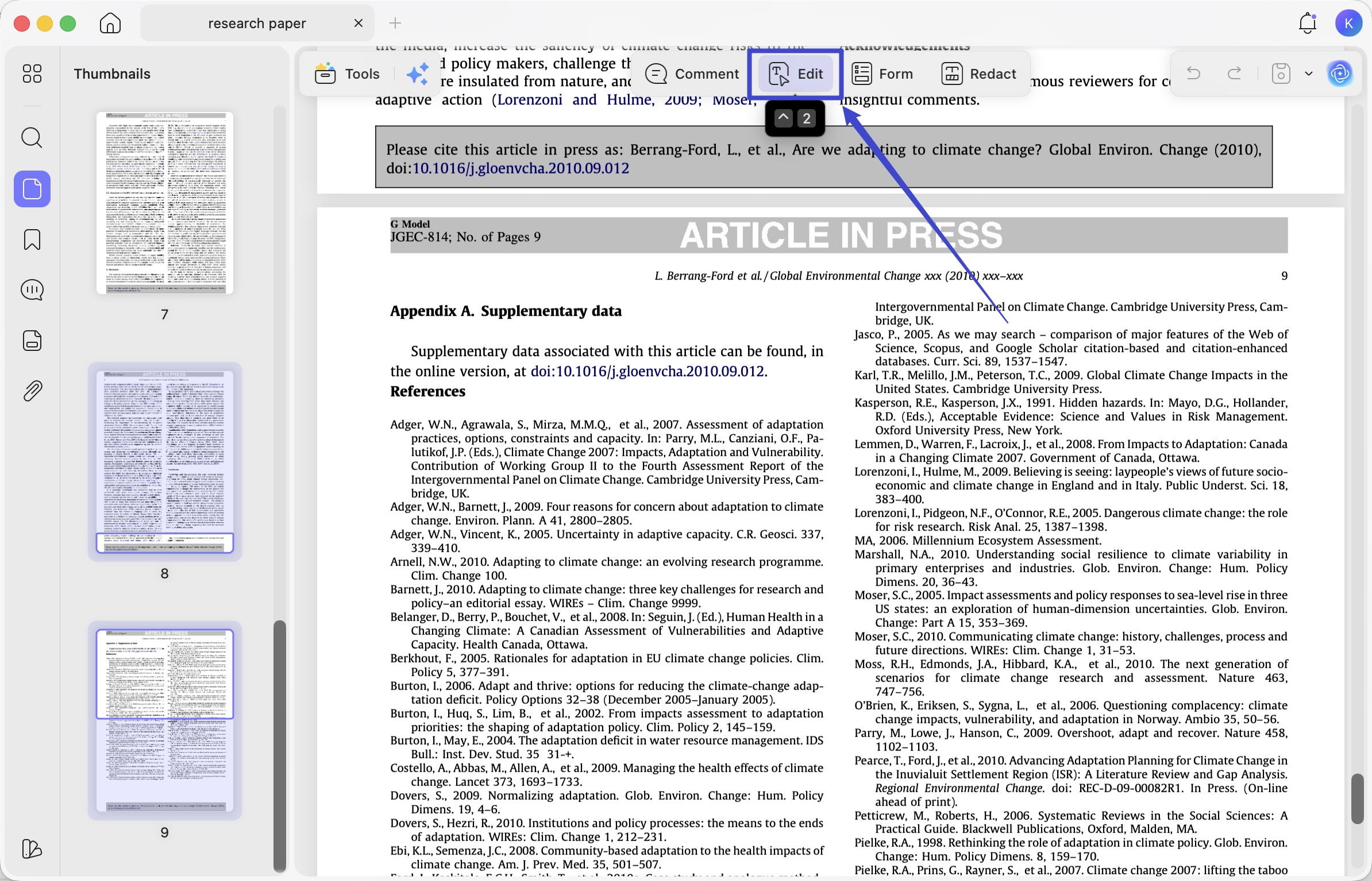
Step 2. Click Edit on the top to enter edit mode. All existing hyperlinks in the document will become highlighted and individually selectable.
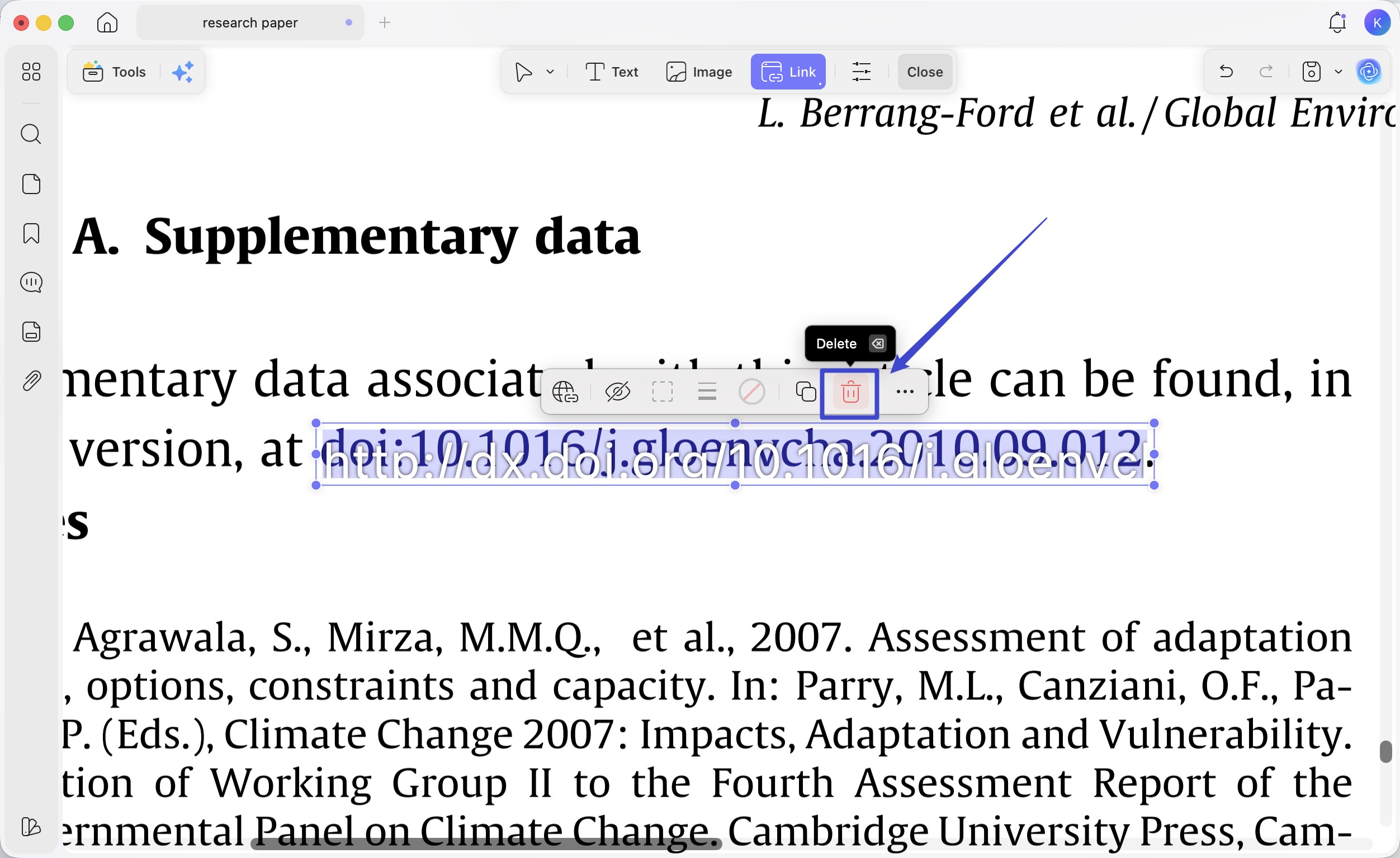
Step 3. Afterward, click the link you want to remove and then Delete the link in the floating toolbar.
Beyond Hyperlink Removal: UPDF's AI Agents That Help With PDF Cleanup
Once you've removed the hyperlinks, you'll often want to do more cleanup on the same PDF — rewriting awkward sentences left over from the original Word doc, or finding every mention of a specific term across a long document. UPDF's AI Agents are built directly into the PDF editor for exactly these tasks.
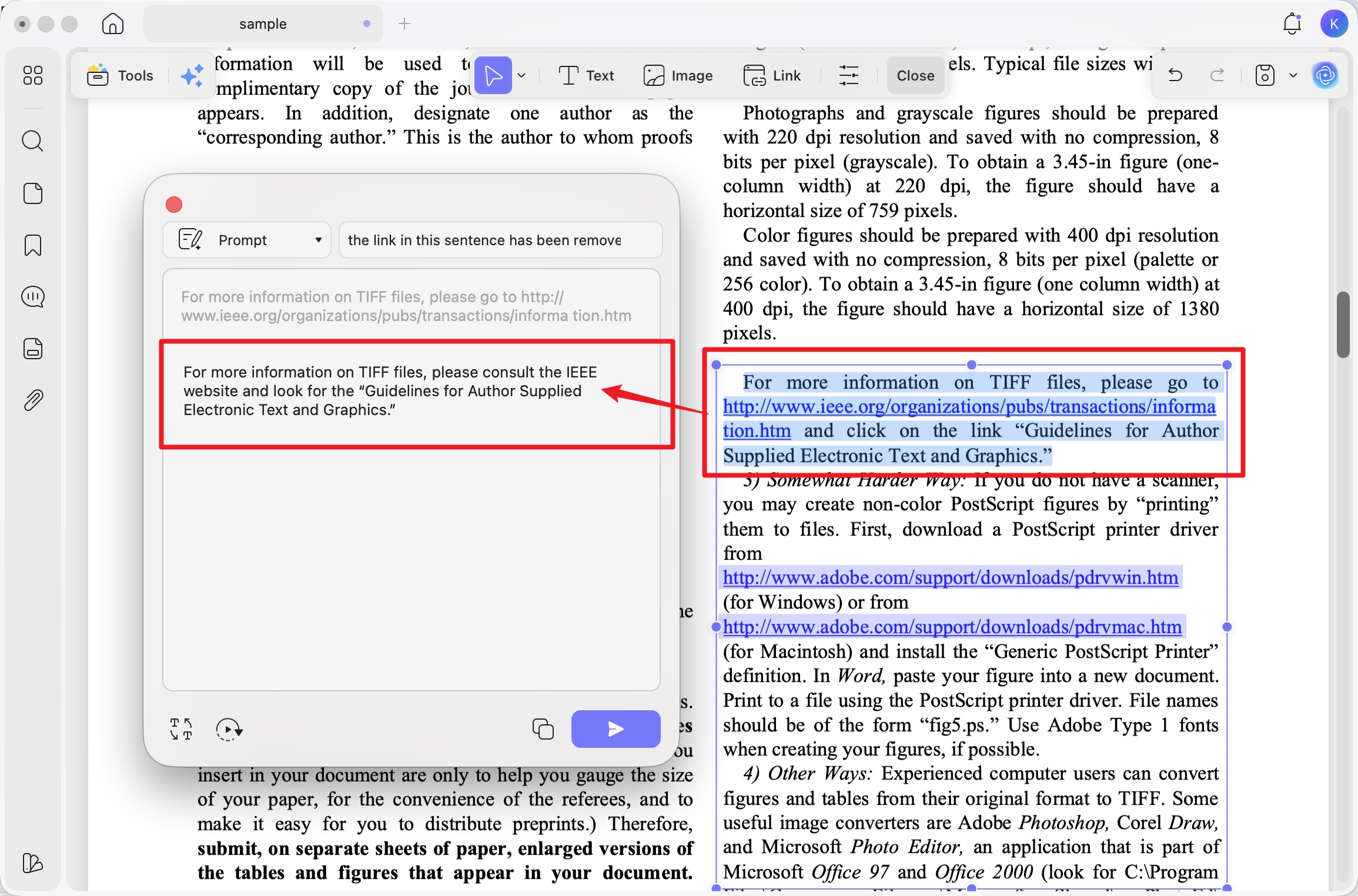
- AI Editing Suite: After stripping hyperlinks, the surrounding text often reads awkwardly (e.g., "click [link]" without the link). AI Editing Suite lets you rewrite, refine tone, or fix grammar directly inside the PDF text box — no need to export to Word, edit, and re-import.
- AI Semantic Search: AI Semantic Search surfaces synonyms when you search — results include not just exact matches but also related terms — so you can find every reference to "company website," "official site," or "site" in one pass.
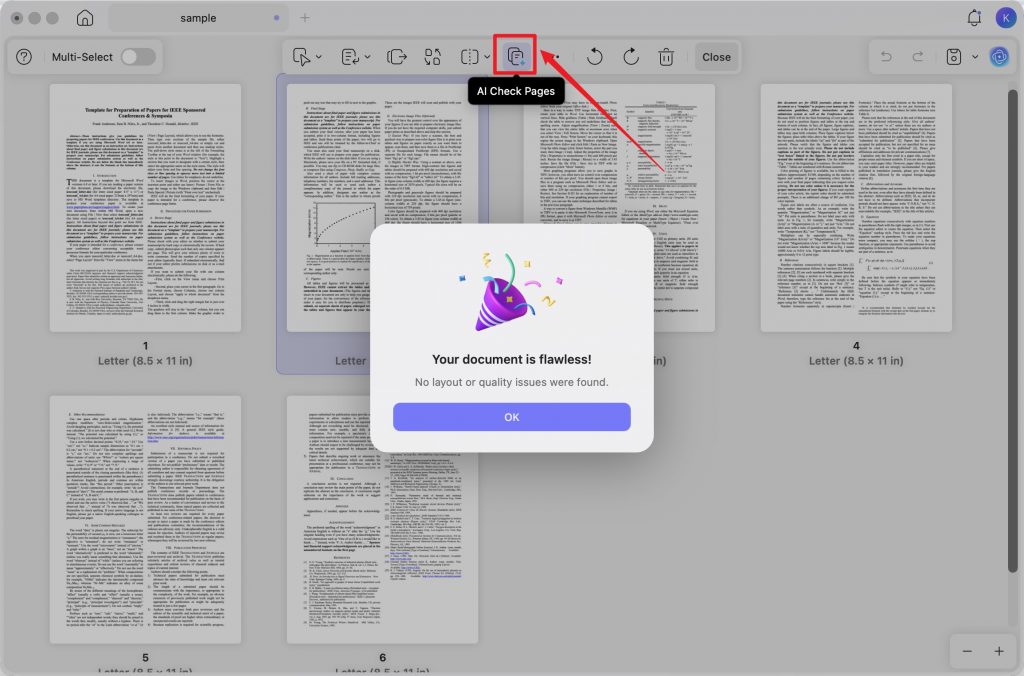
- AI Page Organizer: Detects and removes blank pages, reversed pages, or duplicate pages left behind after a Word-to-PDF export, in one click.
Other Key Features of UPDF
- UPDF AI: This feature of UPDF AI can take your task optimization to the next level with the Chat and Ask PDF mode. You can summarize, translate, explain, and ask anything from your PDF or outside the document.
- Convert Documents: You can convert PDFs into other formats while retaining formatting with UPDF. You can transform PDFs to popular formats like Word, Excel, XML, Rich Text, and PowerPoint. This tool supports various file conversions, including image files and scanned PDFs, with OCR capabilities for accuracy.
- Annotate File: You can highlight, strikethrough, and underline text with the comprehensive set of annotation tools of UPDF. Additionally, over 100 stickers and 6 shapes can help you enhance the document outlook.
- Protect PDF: UPDF also allows you to protect your documents in two ways. One is with the Open Password, which can restrict hackers from opening your critical documents. The second is Permission Passwords, which can restrict others from editing, printing, or copying content for your PDF.
- Fill and Sign: You can design personalized and interactive forms for data collection. It allows you to fill both fillable and non-fillable PDF forms on any Windows or Mac device and empowers you to sign with digital or electronic signatures.
- Other Tools: The functionality of UPDF doesn't end here because, with this powerful tool, you can compress, flatten, and watermark your important documents. Moreover, you can share your PDF with your colleagues directly through it using a link or email.
UPDF provides a comprehensive set of tools and serves as an all-in-one PDF editor. Therefore, we recommend users download UPDF and upgrade to the UPDF Pro to seize control over the document management process.
Conclusion
Removing hyperlinks in Word on Mac comes down to picking the right method for the scale of the job — right-click for a single link, Fn + Command + Shift + F9 for an entire document, and the AutoCorrect setting to stop new links from appearing. For the PDF version of that same document, UPDF removes hyperlinks in three clicks and pairs with AI Editing Suite and AI Semantic Search so you can rewrite leftover text and locate specific terms across long files in one place.
Download UPDF for free and remove hyperlinks from your PDFs on Mac today — no subscription required to get started.
Windows • macOS • iOS • Android 100% secure




 Enrica Taylor
 Enola Davis
 Enola Miller