UPDF
UPDF
 UPDF for Windows
 UPDF for Mac
 UPDF for iPhone/iPad
 UPDF for Android
 Nomostar
 UPDF AI Online
 UPDF Sign
 IvyCraft
 Edit PDF
 Annotate PDF
 Create PDF
 PDF Form
 Edit links
 Convert PDF
 OCR
OCR PDF to Word
 PDF to Image
 PDF to Excel
 Organize PDF
 Merge PDF
 Split PDF
 Crop PDF
 Rotate PDF
 Protect PDF
 Sign PDF
 Redact PDF
 Sanitize PDF
 Remove Security
 Read PDF
 UPDF Cloud
 Compress PDF
 Print PDF
 Batch Process
 About UPDF AI
 UPDF AI Solutions
 AI User Guide
 FAQ about UPDF AI
 Summarize PDF
 Translate PDF
 Chat with PDF
 Chat with AI
 Chat with image
 PDF to Mind Map
 Explain PDF
 PDF AI Tools
 Image AI Tools
 AI Chat Tools
 AI Writing Tools
 AI Study Tools
 AI Working Tools
 Other AI Tools
 AI Bookmark Generation
 AI Bookmark Summary
 AI Watermark Generation
 AI Background Generation
 AI Sticker Generation
 AI Stamp Generation
 AI Editing Suite
 UPDF Copilot
 AI Page Management
 AI Semantic Search
 PDF to Word
 PDF to Excel
 PDF to PowerPoint
 Enterprise Solution
 Enterprise Sign
 Enterprise AI
 Enterprise Plan
 Enterprise User Guide
 Enterprise Webinar
 Banking
 Healthcare
 Insurance
 Legal
Legal Manufacturing
 Government
 Education Solution
 Customer Stories
 User Guide
 UPDF Tricks
 FAQs
FAQs UPDF Reviews
 Download Center
 Blog
Blog Newsroom
 Tech Spec
 Updates
 UPDF vs. Adobe Acrobat
 UPDF vs. Foxit
 UPDF vs. PDF Expert

Issuu is a popular platform for you to publish your files in Flipbooks. It supports uploading PDFs and other file types. However, there is one common struggle with Issuu: how to download Issuu to PDF if you get an Issuu link with the content you need?
Often, the default download option is unavailable in Issuu. So, if you are also struggling with how to download Issuu to PDF, this guide covers 3 practical methods to unlock and extract the content you need.
⚠️ The "Post-Download" Reality Check
Windows • macOS • iOS • Android 100% secure
Part 1. Can You Save/Download Issuu as a PDF?
Yes, you can save/download Issuu as a PDF if the publisher has enabled the download option. Issuu gives the option to download the file as PDF directly.
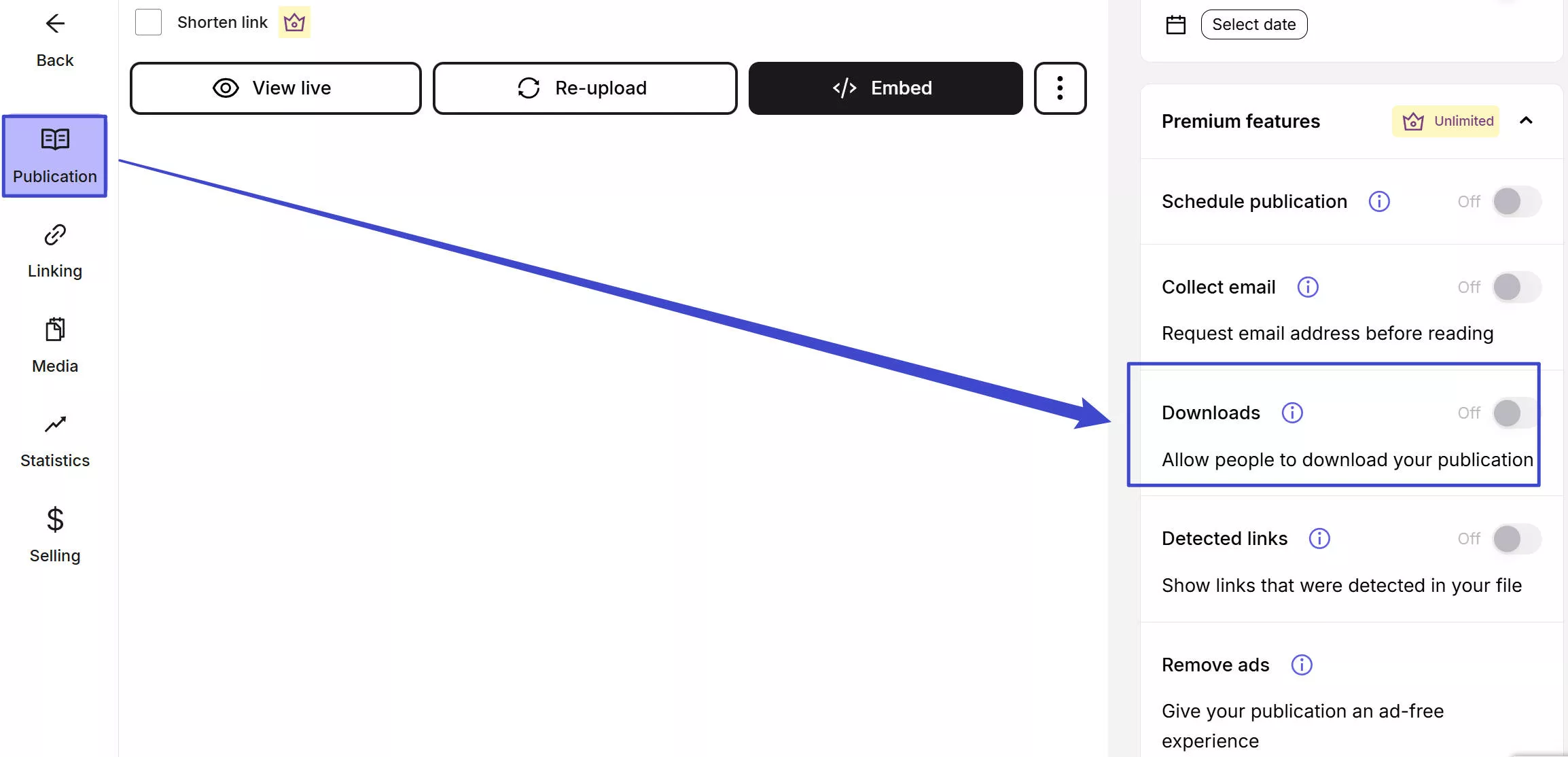
However, if the download option is unavailable, many online Issuu to PDF converter tools can help effortlessly convert Issuu to PDF.
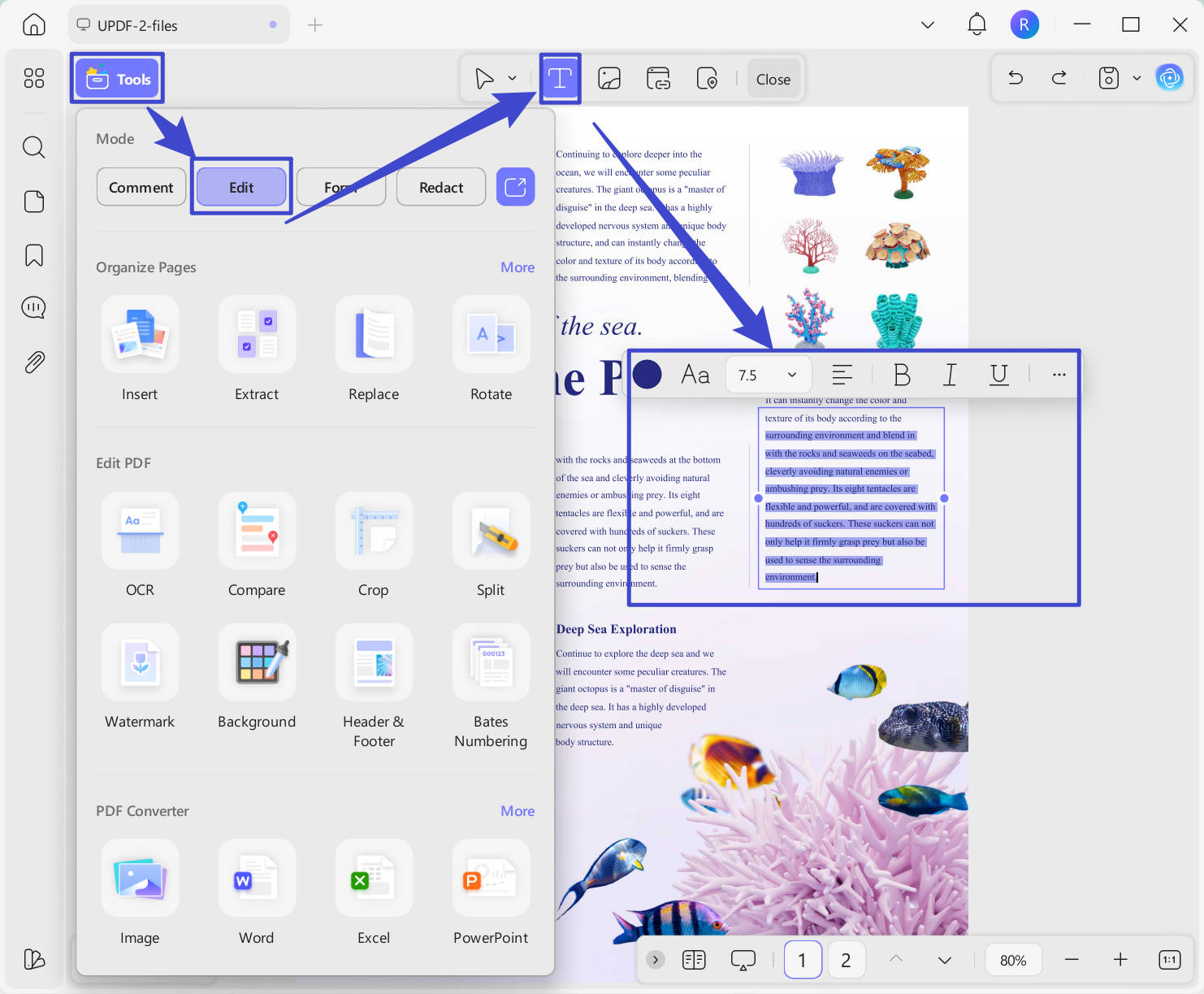
Once you have downloaded the Issuu document as a PDF, you can use UPDF as your PDF editor or PDF link generator tool. UPDF lets you edit the PDF and then share it as a shareable link. So, download UPDF to handle Issuu-converted PDFs seamlessly.
Windows • macOS • iOS • Android 100% secure
Part 2. 3 Ways to Download Issuu to PDF
Now that we know it is possible to download Issuu to PDF, let's shift our focus on the best ways to download Issuu to PDF.
1. Direct Download
As mentioned above, you can directly download Issuu to PDF if the publisher has enabled the download option.
Here's how to directly download Issuu as a PDF:
Step 1. Go to the Issuu document link you want to download.
Step 2. Click the "Download" button beneath the document to download it as PDF.
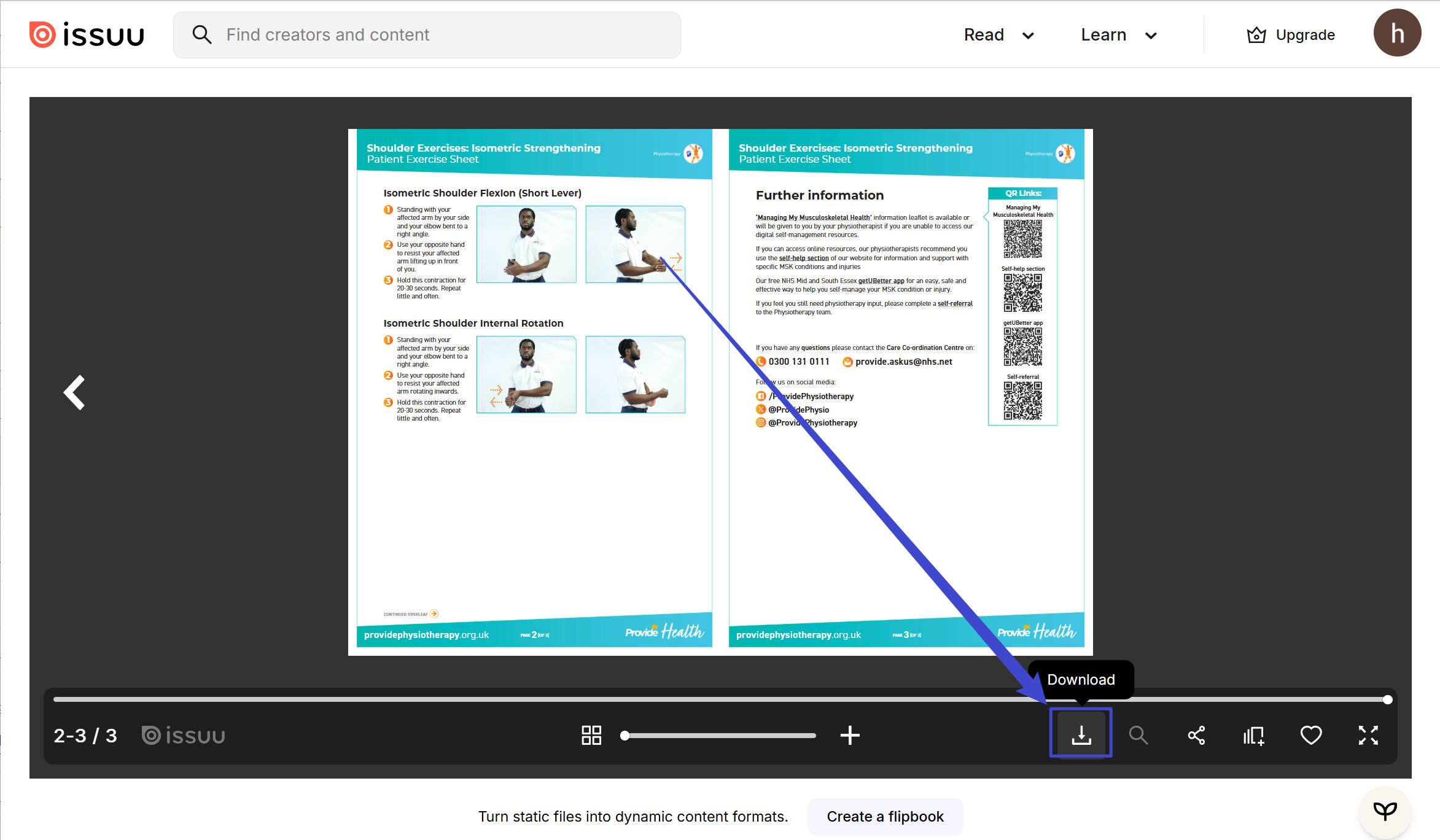
If the download icon is grayed out ir unavailable, head to the next two methods to learn alternative ways to get PDFs.
Cons/Limits:
- The Download option is accessible only if the publisher has enabled it.
2. Via IssuuDownload.com
IssuuDownload.com is an online Issuu downloader that allows you to download public Issuu documents as images or image-based PDFs.
Follow the below steps to use IssuuDownload.com to download Issuu to PDF:
Step 1. Go to the IssuuDownload.com website and paste the Issuu document URL. Once done, click "View pages and download PDF".
Step 2. In the new window, IssuuDownload.com will let you preview the document. To save the document as PDF, click "Save all pages to PDF".
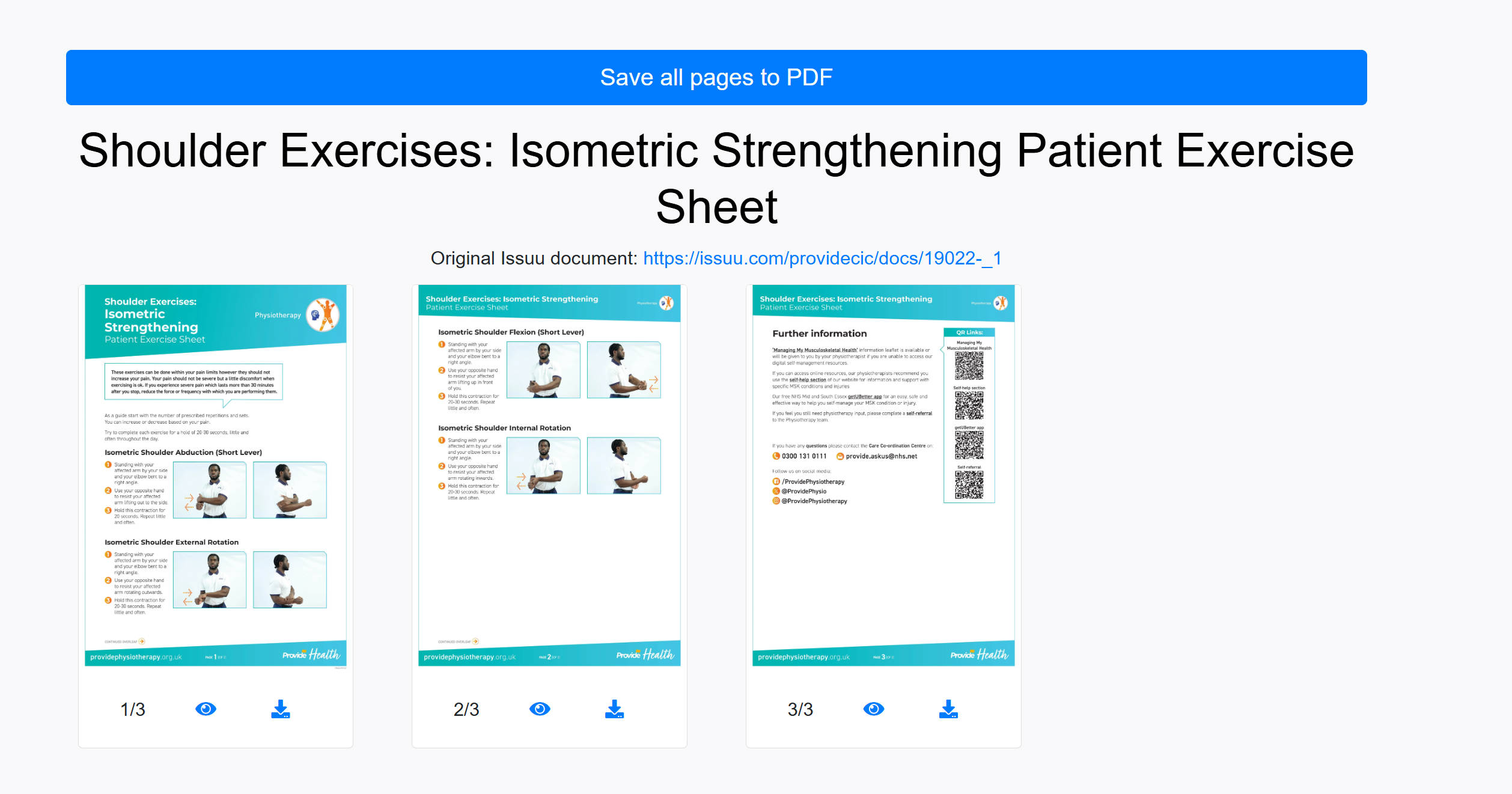
Step 3. Once the tool has converted the pages to PDF, click the "Download" option to preview and download the document as PDF.
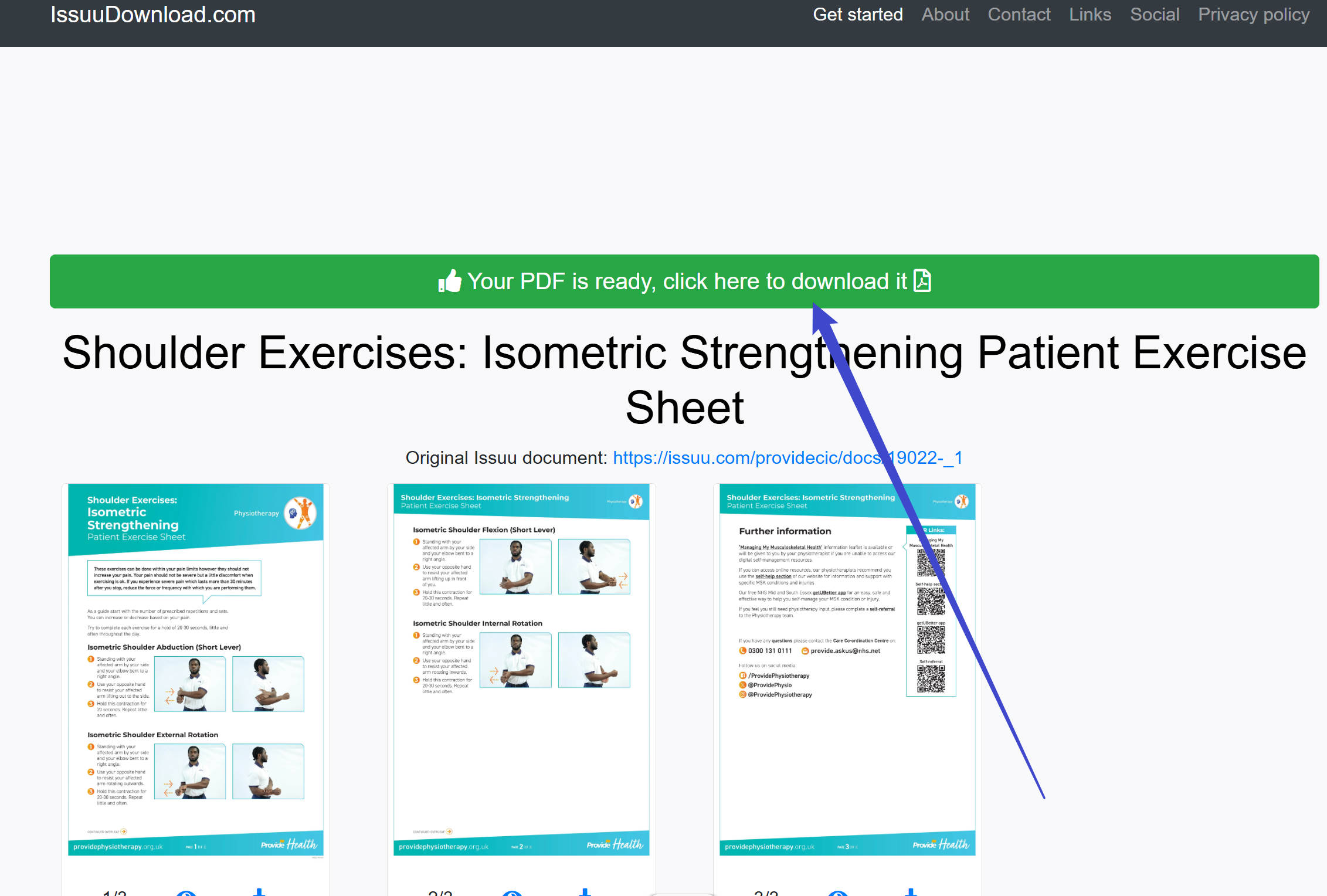
This way, you can easily preview and download the Issuu document as a PDF.
Cons/Limits:
- Lower the PDF quality.
- Download image-based PDF (non-editable).
- Need a reliable internet connection.
3. Via ISSUU PDF Downloader
As the name implies, ISSUU PDF Downloader is another online ISSUU to PDF converter tool. It just requires entering the Issuu document URL and downloading the file as a PDF.
Here's how to use ISSUU PDF Downloader to download Issuu to PDF:
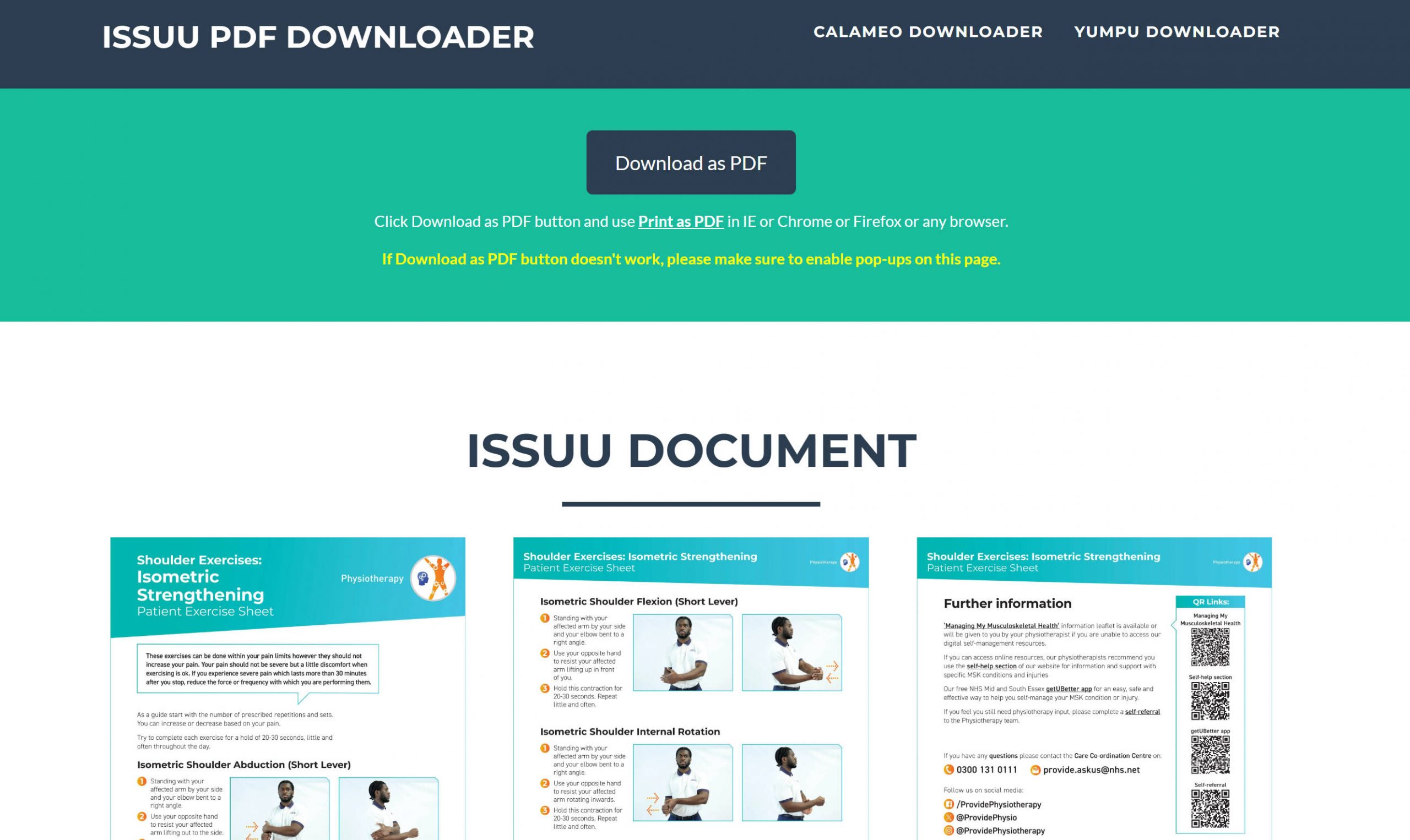
Step 1. Go to the ISSUU PDF Downloader website. Paste the Issuu document URL and click the "Download" button.
Step 2. Next, you can preview the document. Afterward, click the "Download as PDF" button. You will get pop up ads or warning for about three times. Close and re click on the "Download as PDF".
Step 3. You will see the print pop-up window when you successfully get the PDF to download. From there, select "Print" and save the file.
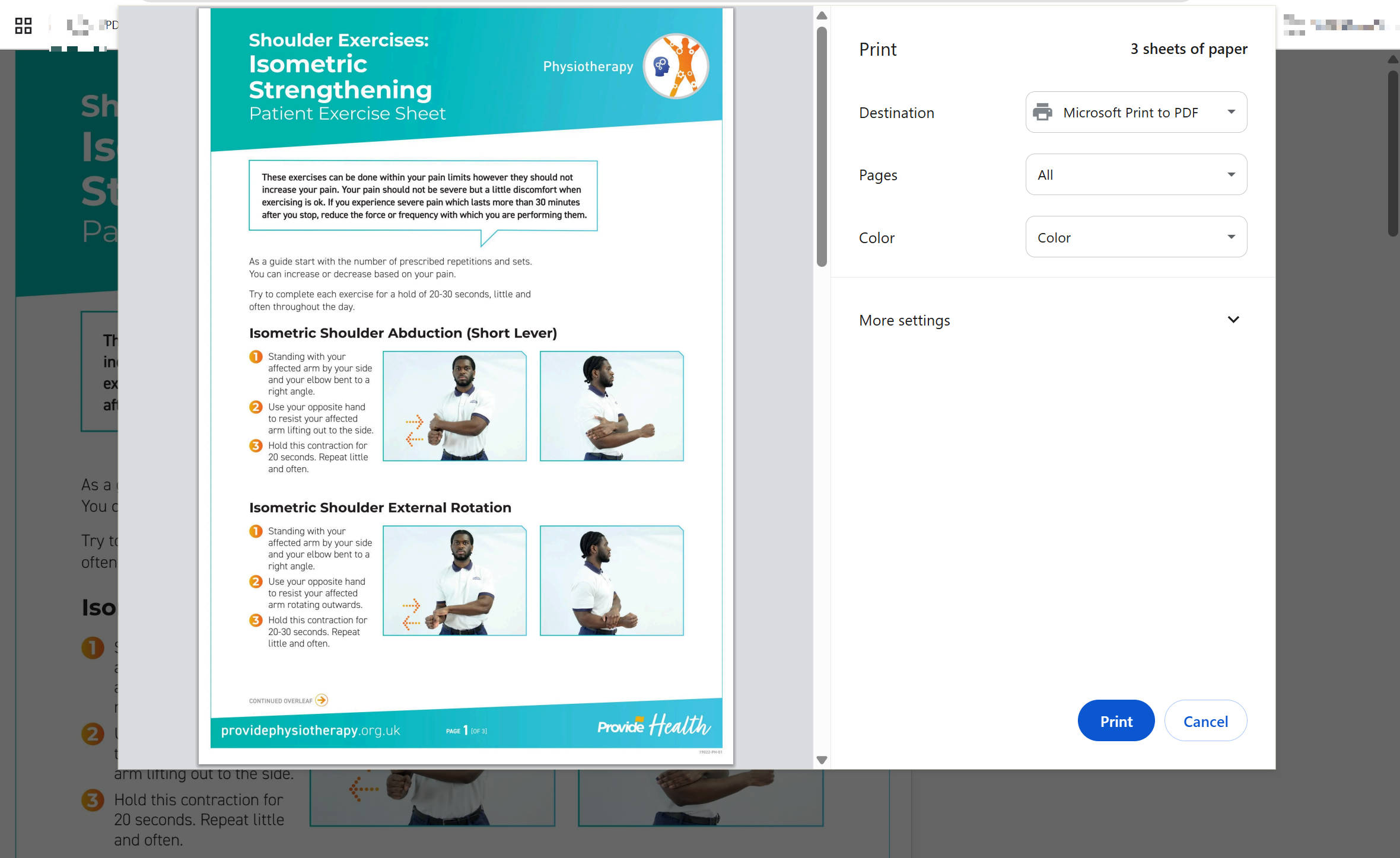
This way, you can quickly download Issuu to PDF with the ISSUU PDF Downloader.
Cons/Limits:
- Download low-quality PDF.
- Convert Issuu to an image-based (non-editable) PDF file.
- Require a stable internet connection.
Tip: Optimize PDF Quality After Downloading from Issuu
The above web-based Issuu downloader tool does help download Issuu to PDF, but both lower the quality of the PDF. Secondly, they generate an image-based or scanned PDF. To enhance PDF quality and make it editable, UPDF comes into action.
UPDF is a powerful PDF tool that offers AI-powered OCR technology. This technology can enhance the quality of PDFs by turning the downloaded file into an editable PDF. Its AI technology scans and converts image-based PDFs into editable/searchable PDFs and enhances their output quality.
Therefore, download UPDF and use its OCR feature to get high-quality PDFs after downloading from Issuu.
Windows • macOS • iOS • Android 100% secure
Part 3. Why UPDF is the Ultimate Reader for Your Issuu PDF Downloads
Utilizing online converters to bypass Issuu’s restriction blocks is only step one. Free download mirror sites inevitably deliver unoptimized, flattened image files that lack structure and crisp alignment.
UPDF functions as a high-octane desktop and mobile processing station across Windows, Mac, iOS, and Android to completely re-engineer and elevate your extracted magazine layouts:
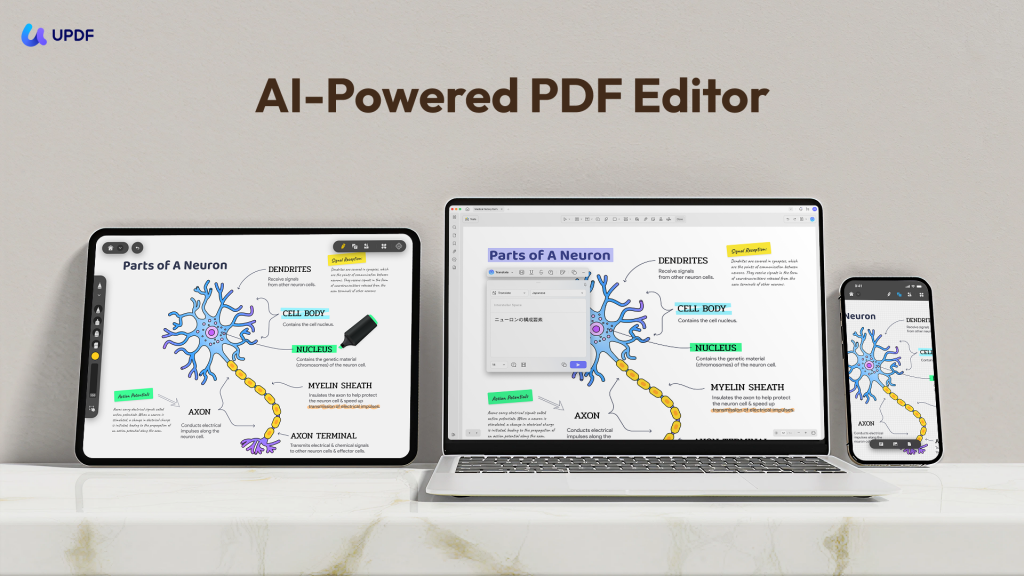
- Reconstruct Blurry Scans with 99% Accurate AI OCR: Free download scripts turn high-quality layouts into flat, blurry pictures. UPDF’s built-in AI OCR Engine parses the image file layer with pixel-perfect accuracy, automatically sharpening out-of-focus characters and re-injecting live text metadata so you can copy, highlight, or Ctrl+F to find data points instantly.
- True Magazine Spread Layouts (Two-Page Continuous): Issuu is famous for its gorgeous, sweeping two-page flipbook visual spreads. Standard PDF viewers ruin this by displaying pages in a clunky, vertical single-file line. UPDF features a dedicated Two-Page Continuous View with independent cover-page rules, allowing downloaded catalogs to perfectly mimic an open physical magazine on your wide monitor or tablet screen.
- Instant Multi-Language AI Translation (Powered by DeepSeek R1): Downloaded an international design lookbook, foreign architecture portfolio, or fashion magazine that lacks an English translation? Simply ask the integrated UPDF AI Assistant to read the image layout, translate dense foreign texts in real-time, or explain specific industrial industry acronyms right in your sidebar.
- Automatic Smart Table of Contents Creation: Extracted PDFs lose all structural chapter data. UPDF’s AI Bookmark Generator semantically evaluates the headings of your 200-page catalog download, automatically building a clean, interactive hierarchical navigation menu in seconds so you can jump between editorial sections instantly.
- Eye-Safe Canvas Gradients for Binge Reading: Don't let harsh blue light backgrounds ruin your reading flow. UPDF provides multiple eye-protection filters, allowing you to instantly swap the default white canvas layer for warm parchment, muted sepia, or deep dark modes for comfortable late-night viewing.
[Click the button below to Download UPDF for Free] and experience your digital lookbooks in stunning, lag-free clarity!
Windows • macOS • iOS • Android 100% secure
Overall, UPDF is a modernized and feature-rich PDF editor tool that elevates the way you can handle PDFs after downloading from Issuu. So, head straight to UPDF's pricing page, choose the right plan, and install this powerful tool into your computer.
To know more about UPDF 2.5, you can watch the video below.
Part 4. FAQs About ISSUU to PDF
Q1. Can I print from Issuu?
If you want to print the Issuu document as a PDF, it is not possible. The "Ctrl + P" option will print the entire webpage of the Issuu document, not just the document itself.
Q2. What format does Issuu upload to?
The highly recommended file format by Issuu is PDF. However, you can also upload files in Word, PowerPoint, Google Docs, StarOffice, ePUB, and other formats.
If your sole purpose is to use Issuu to upload files and share them with others, you can do that even better via UPDF. UPDF can help you create PDFs on Windows or Mac from different file formats and then generate a shareable PDF link to share PDFs with others.
Q3. Can you see who viewed your Issuu?
No, you can only get the count of the number of people who viewed your publication. Issuu "Statistics" can tell about impressions, number of reads, clicks, downloads, average read time, and other insights. From the main Issuu dashboard, click "Statistics" from the left sidebar to view all the statistics for your publications.
Conclusion
Issuu is a useful platform for creating flipbooks and getting shareable links. However, it does not allow you to download Issuu to PDF. The option is only visible if the publisher allows it. Alternatively, this guide has presented IssuuDownload.com and ISSUU PDF Downloader as two online Issuu to PDF converter tools to use. So, follow the above steps and get a PDF from Issuu right away. Afterward, we recommend downloading UPDF, as it offers an all-in-one platform to enhance PDF quality with OCR, make edits with its editor, and generate shareable PDF links.
Windows • macOS • iOS • Android 100% secure




 Enya Moore
 Delia Meyer
 Enid Brown